reset VOLVO XC90 TWIN ENGINE 2019 User Guide
[x] Cancel search | Manufacturer: VOLVO, Model Year: 2019, Model line: XC90 TWIN ENGINE, Model: VOLVO XC90 TWIN ENGINE 2019Pages: 697, PDF Size: 10.33 MB
Page 93 of 697
DISPLAYS AND VOICE CONTROL
91
Displaying trip data in the
instrument panel
Data recorded and calculated by the trip com-
puter can be displayed on the instrument panel.
This data is stored in a trip computer app. You
can choose which information the instrument
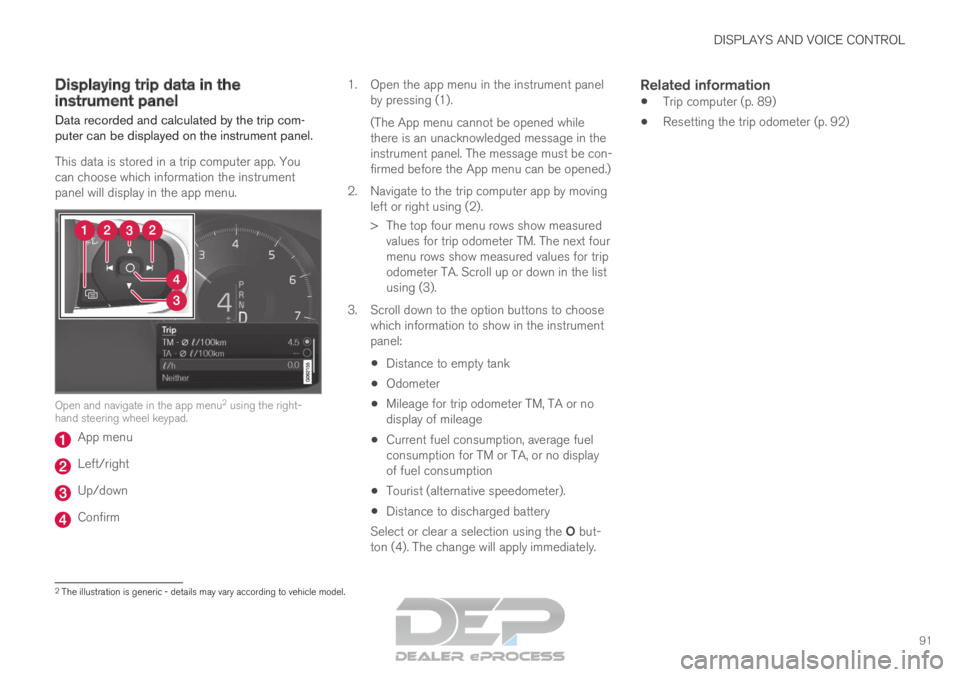
panel will display in the app menu. Open and navigate in the app menu
2
using the right-
hand steering wheel keypad. App menu
Left/right
Up/down
Confirm 1.
Open the app menu in the instrument panel
by pressing (1).
(The App menu cannot be opened while
there is an unacknowledged message in the
instrument panel. The message must be con-
firmed before the App menu can be opened.)
2. Navigate to the trip computer app by moving left or right using (2).
> The top four menu rows show measuredvalues for trip odometer TM. The next four
menu rows show measured values for trip
odometer TA. Scroll up or down in the list
using (3).
3. Scroll down to the option buttons to choose which information to show in the instrument
panel:
Distance to empty tank
Odometer
Mileage for trip odometer TM, TA or no
display of mileage
Current fuel consumption, average fuel
consumption for TM or TA, or no display
of fuel consumption
Tourist (alternative speedometer).
Distance to discharged battery
Select or clear a selection using the O but-
ton (4). The change will apply immediately.
Related information
Trip computer (p. 89)
Resetting the trip odometer (p. 92) 2
The illustration is generic - details may vary according to vehicle mode\
l.
Page 94 of 697
DISPLAYS AND VOICE CONTROL
92Resetting the trip odometer
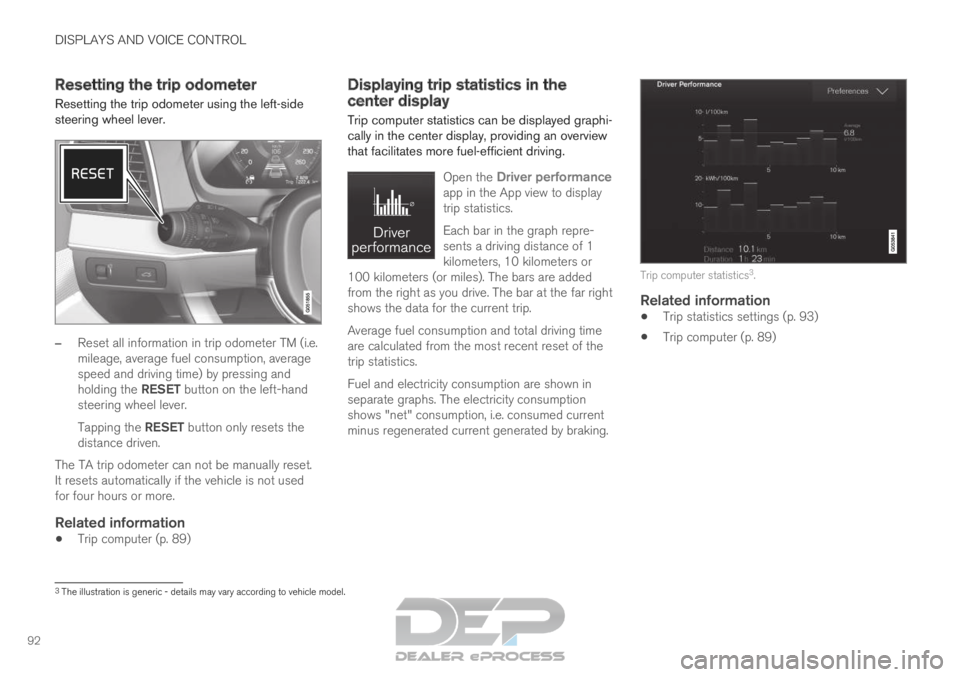
Resetting the trip odometer using the left-side
steering wheel lever. –
Reset all information in trip odometer TM (i.e.
mileage, average fuel consumption, average
speed and driving time) by pressing and
holding the RESET button on the left-hand
steering wheel lever.
Tapping the RESET button only resets the
distance driven.
The TA trip odometer can not be manually reset.
It resets automatically if the vehicle is not used
for four hours or more.
Related information
Trip computer (p. 89) Displaying trip statistics in the
center display
Trip computer statistics can be displayed graphi-
cally in the center display, providing an overview
that facilitates more fuel-efficient driving.
Open the
Driver performance
app in the App view to display
trip statistics.
Each bar in the graph repre-
sents a driving distance of 1
kilometers, 10 kilometers or
100 kilometers (or miles). The bars are added
from the right as you drive. The bar at the far right
shows the data for the current trip.
Average fuel consumption and total driving time
are calculated from the most recent reset of the
trip statistics.
Fuel and electricity consumption are shown in
separate graphs. The electricity consumption
shows "net" consumption, i.e. consumed current
minus regenerated current generated by braking. Trip computer statistics
3
.
Related information
Trip statistics settings (p. 93)
Trip computer (p. 89) 3
The illustration is generic - details may vary according to vehicle mode\
l.
Page 95 of 697
DISPLAYS AND VOICE CONTROL
93
Trip statistics settings
Trip statistics settings can be reset or adjusted.
1. Open the Driver performance app in the
App view to display trip statistics. 2.
Tap Preferences to
change the graph scale. Select 1, 10 or
100 km/miles for the bar.
reset data after each trip. Performed when
the vehicle remains stationary for more
than 4 hours.
reset data for current trip.
Trip statistics, calculated average consump-
tion, and total driving time are always reset
simultaneously.
Unit standards for distance, speed, etc. can be
changed via system settings in the center display.
Related information
Displaying trip statistics in the center display
(p. 92)
Trip computer (p. 89)
Resetting the trip odometer (p. 92) Date and time
The clock is displayed in both the instrument
panel and the center display.
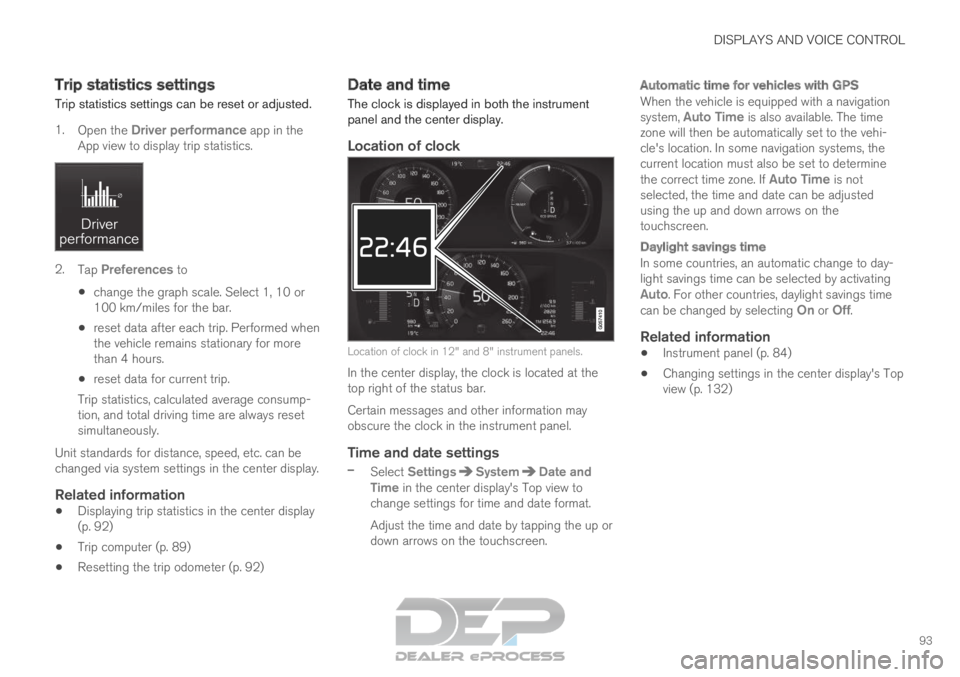
Location of clock Location of clock in 12" and 8" instrument panels.
In the center display, the clock is located at the
top right of the status bar.
Certain messages and other information may
obscure the clock in the instrument panel.
Time and date settings
– Select Settings System Date and
Time in the center display's Top view to
change settings for time and date format.
Adjust the time and date by tapping the up or
down arrows on the touchscreen.
Automatic time for vehicles with GPS
When the vehicle is equipped with a navigation
system, Auto Time is also available. The time
zone will then be automatically set to the vehi-
cle's location. In some navigation systems, the
current location must also be set to determine
the correct time zone. If Auto Time is not selected, the time and date can be adjusted
using the up and down arrows on the
touchscreen.
Daylight savings time
In some countries, an automatic change to day-
light savings time can be selected by activating
Auto. For other countries, daylight savings time
can be changed by selecting On or
Off.
Related information
Instrument panel (p. 84)
Changing settings in the center display's Top
view (p. 132)
Page 135 of 697
DISPLAYS AND VOICE CONTROL
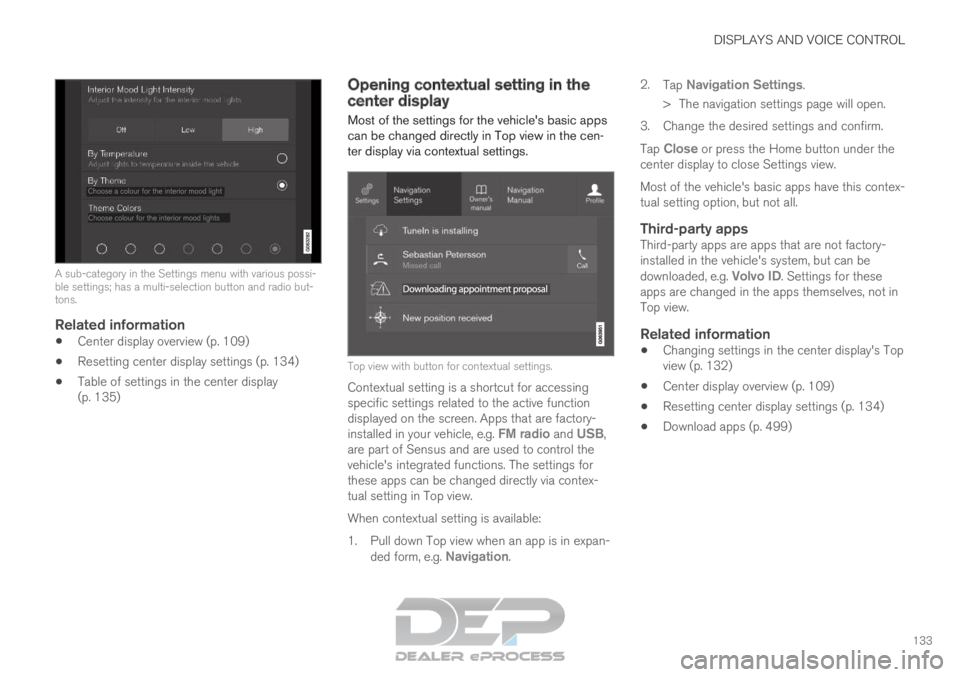
133A sub-category in the Settings menu with various possi-
ble settings; has a multi-selection button and radio but-
tons.
Related information
Center display overview (p. 109)
Resetting center display settings (p. 134)
Table of settings in the center display
(p. 135) Opening contextual setting in the
center display
Most of the settings for the vehicle's basic apps
can be changed directly in Top view in the cen-
ter display via contextual settings. Top view with button for contextual settings.
Contextual setting is a shortcut for accessing
specific settings related to the active function
displayed on the screen. Apps that are factory-
installed in your vehicle, e.g. FM radio and USB,
are part of Sensus and are used to control the
vehicle's integrated functions. The settings for
these apps can be changed directly via contex-
tual setting in Top view.
When contextual setting is available:
1.
Pull down Top view when an app is in expan-
ded form, e.g. Navigation. 2.
Tap Navigation Settings.
>
The navigation settings page will open.
3. Change the desired settings and confirm.
Tap Close or press the Home button under the
center display to close Settings view.
Most of the vehicle's basic apps have this contex-
tual setting option, but not all.
Third-party appsThird-party apps are apps that are not factory-
installed in the vehicle's system, but can be
downloaded, e.g. Volvo ID. Settings for these
apps are changed in the apps themselves, not in
Top view.
Related information
Changing settings in the center display's Top
view (p. 132)
Center display overview (p. 109)
Resetting center display settings (p. 134)
Download apps (p. 499)
Page 136 of 697
DISPLAYS AND VOICE CONTROL
134Resetting user data when the
vehicle changes owners
If the vehicle changes owners, all user data and
system settings should be reset to factory
defaults.
Vehicle settings can be reset at different levels.
Reset all user data and system settings to their
original factory defaults when the vehicle
changes owner. It is also important to change the
owner of the Volvo On Call service.
Related information
Resetting center display settings (p. 134)
Resetting driver profile settings (p. 139) Resetting center display settings
All settings made in the center display's Settings
menu can be reset to default values.
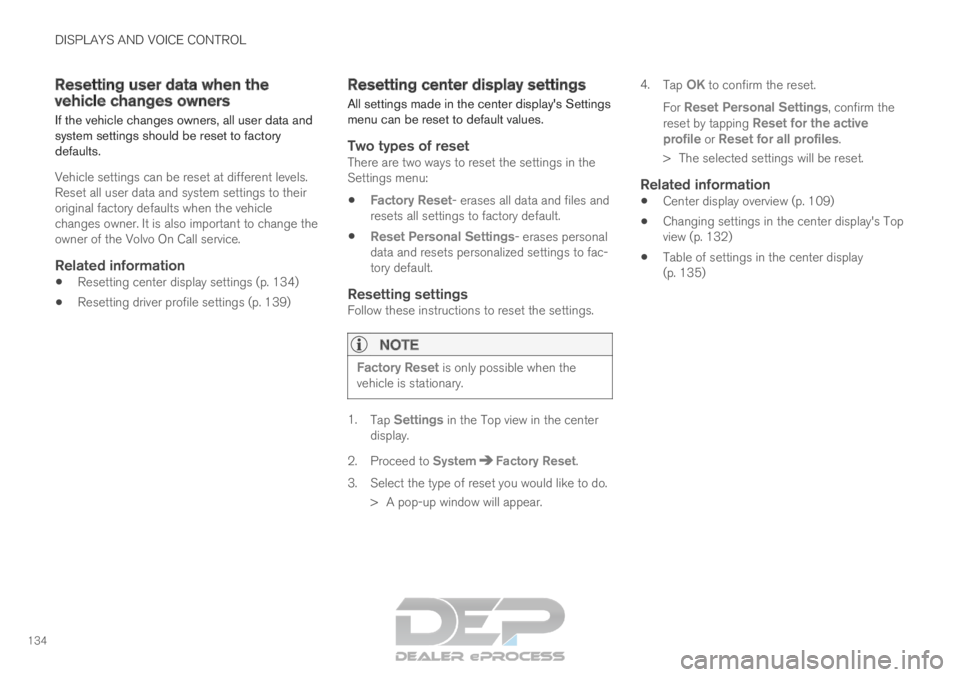
Two types of resetThere are two ways to reset the settings in the
Settings menu:
Factory Reset- erases all data and files and
resets all settings to factory default.
Reset Personal Settings- erases personal
data and resets personalized settings to fac-
tory default.
Resetting settingsFollow these instructions to reset the settings.
NOTE Factory Reset is only possible when the
vehicle is stationary. 1.
Tap Settings in the Top view in the center
display.
2.
Proceed to System Factory Reset
.
3. Select the type of reset you would like to do. > A pop-up window will appear. 4.
Tap OK to confirm the reset.
For Reset Personal Settings, confirm the reset by tapping
Reset for the active
profile or Reset for all profiles.
>
The selected settings will be reset.
Related information
Center display overview (p. 109)
Changing settings in the center display's Top
view (p. 132)
Table of settings in the center display
(p. 135)
Page 138 of 697
||DISPLAYS AND VOICE CONTROL
* Option/accessory.
136
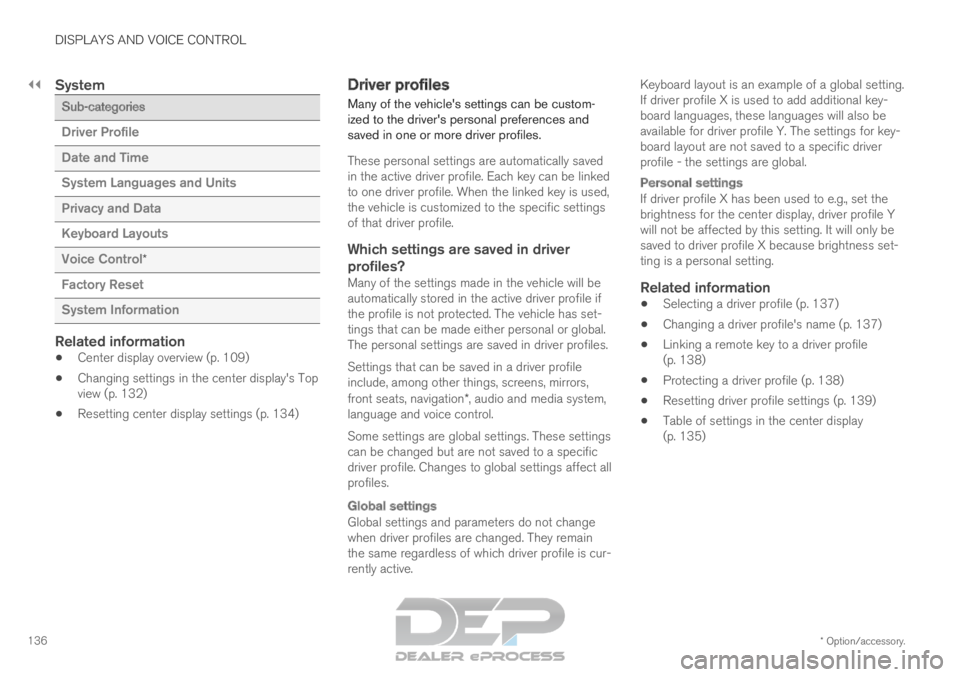
System Sub-categories
Driver Profile
Date and Time
System Languages and Units
Privacy and Data
Keyboard Layouts
Voice Control
*
Factory Reset
System Information
Related information
Center display overview (p. 109)
Changing settings in the center display's Top
view (p. 132)
Resetting center display settings (p. 134) Driver profiles
Many of the vehicle's settings can be custom-
ized to the driver's personal preferences and
saved in one or more driver profiles.
These personal settings are automatically saved
in the active driver profile. Each key can be linked
to one driver profile. When the linked key is used,
the vehicle is customized to the specific settings
of that driver profile.
Which settings are saved in driverprofiles?
Many of the settings made in the vehicle will be
automatically stored in the active driver profile if
the profile is not protected. The vehicle has set-
tings that can be made either personal or global.
The personal settings are saved in driver profiles.
Settings that can be saved in a driver profile
include, among other things, screens, mirrors,
front seats, navigation*, audio and media system,
language and voice control.
Some settings are global settings. These settings
can be changed but are not saved to a specific
driver profile. Changes to global settings affect all
profiles.
Global settings
Global settings and parameters do not change
when driver profiles are changed. They remain
the same regardless of which driver profile is cur-
rently active. Keyboard layout is an example of a global setting.
If driver profile X is used to add additional key-
board languages, these languages will also be
available for driver profile Y. The settings for key-
board layout are not saved to a specific driver
profile - the settings are global.
Personal settings
If driver profile X has been used to e.g., set the
brightness for the center display, driver profile Y
will not be affected by this setting. It will only be
saved to driver profile X because brightness set-
ting is a personal setting.
Related information
Selecting a driver profile (p. 137)
Changing a driver profile's name (p. 137)
Linking a remote key to a driver profile
(p. 138)
Protecting a driver profile (p. 138)
Resetting driver profile settings (p. 139)
Table of settings in the center display
(p. 135)
Page 141 of 697
DISPLAYS AND VOICE CONTROL
139
2. Tap
System Driver Profiles
.
3. Mark the desired profile. The display will return to Home view. The Guest profile can-
not be linked to a remote key.
4. Pull down Top view again and tap Settings System Driver Profiles Edit
Profile .
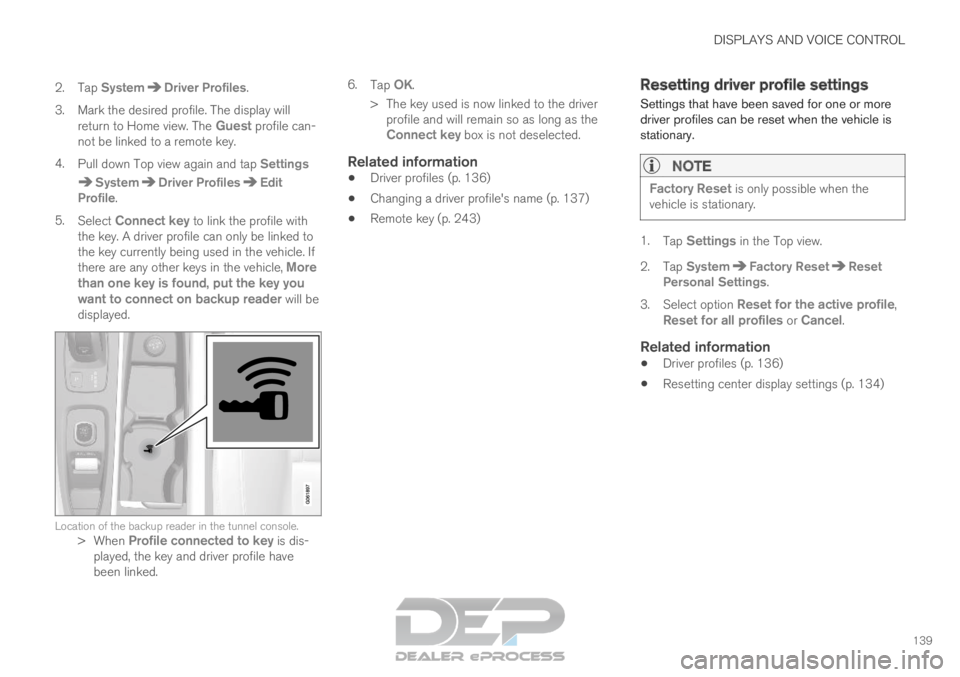
5. Select Connect key to link the profile with
the key. A driver profile can only be linked to
the key currently being used in the vehicle. If
there are any other keys in the vehicle, More
than one key is found, put the key you
want to connect on backup reader will be
displayed. Location of the backup reader in the tunnel console.
>When Profile connected to key is dis-
played, the key and driver profile have
been linked. 6.
Tap OK.
>
The key used is now linked to the driver
profile and will remain so as long as the
Connect key box is not deselected.
Related information
Driver profiles (p. 136)
Changing a driver profile's name (p. 137)
Remote key (p. 243) Resetting driver profile settings
Settings that have been saved for one or more
driver profiles can be reset when the vehicle is
stationary.NOTE Factory Reset is only possible when the
vehicle is stationary. 1.
Tap Settings in the Top view.
2.
Tap System Factory Reset Reset
Personal Settings .
3. Select option Reset for the active profile,
Reset for all profiles or Cancel.
Related information
Driver profiles (p. 136)
Resetting center display settings (p. 134)
Page 168 of 697
WINDOWS, GLASS AND MIRRORS
* Option/accessory.
166 Windows, glass and mirrors
The vehicle is equipped with controls for win-
dows, glass and mirrors. Some of the windows
in the car are laminated.
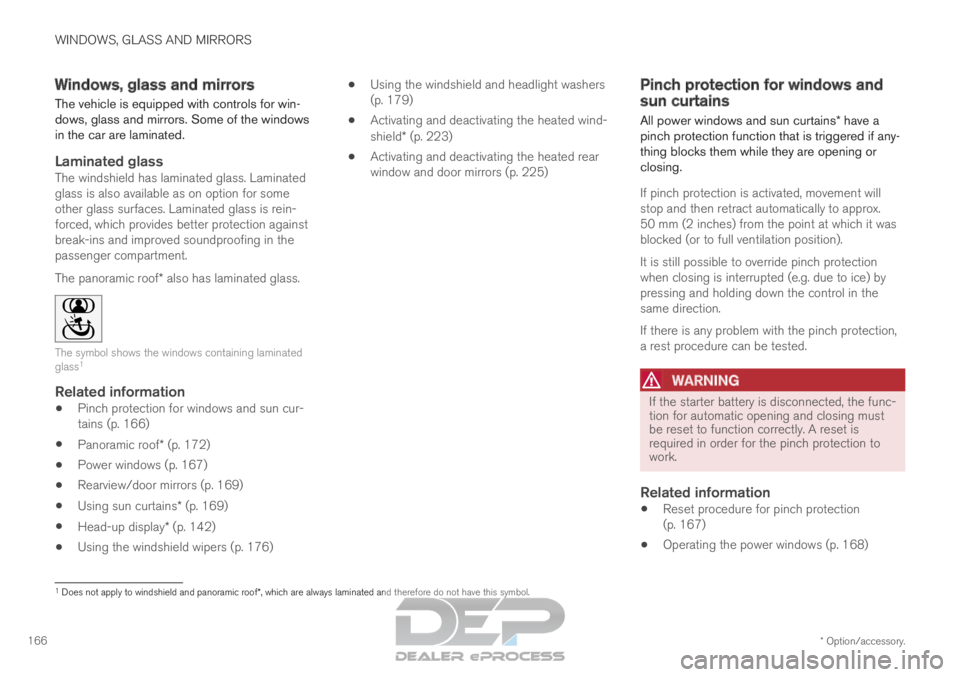
Laminated glassThe windshield has laminated glass. Laminated
glass is also available as on option for some
other glass surfaces. Laminated glass is rein-
forced, which provides better protection against
break-ins and improved soundproofing in the
passenger compartment.
The panoramic roof* also has laminated glass. The symbol shows the windows containing laminated
glass
1
Related information
Pinch protection for windows and sun cur-
tains (p. 166)
Panoramic roof* (p. 172)
Power windows (p. 167)
Rearview/door mirrors (p. 169)
Using sun curtains* (p. 169)
Head-up display* (p. 142)
Using the windshield wipers (p. 176)
Using the windshield and headlight washers
(p. 179)
Activating and deactivating the heated wind-
shield* (p. 223)
Activating and deactivating the heated rear
window and door mirrors (p. 225) Pinch protection for windows and
sun curtains
All power windows and sun curtains* have a
pinch protection function that is triggered if any-
thing blocks them while they are opening or
closing.
If pinch protection is activated, movement will
stop and then retract automatically to approx.
50 mm (2 inches) from the point at which it was
blocked (or to full ventilation position).
It is still possible to override pinch protection
when closing is interrupted (e.g. due to ice) by
pressing and holding down the control in the
same direction.
If there is any problem with the pinch protection,
a rest procedure can be tested.
WARNING If the starter battery is disconnected, the func-
tion for automatic opening and closing must
be reset to function correctly. A reset is
required in order for the pinch protection to
work.
Related information
Reset procedure for pinch protection
(p. 167)
Operating the power windows (p. 168) 1
Does not apply to windshield and panoramic roof*, which are always laminated and therefore do not have this symbol.
Page 169 of 697

WINDOWS, GLASS AND MIRRORS
}}
* Option/accessory. 167
Using sun curtains* (p. 169)
Panoramic roof* (p. 172) Reset procedure for pinch
protection
If you experience any problems with the electri-
cal functions for the power windows, you can try
to perform a reset.
WARNING If the starter battery is disconnected, the func-
tion for automatic opening and closing must
be reset to function correctly. A reset is
required in order for the pinch protection to
work.
If the problem persists or if it affects the panor-
amic roof or sunroof, contact a workshop 2
.
Resetting a power window
1. Start with the window in the closed position.
2. Then operate the window in manual mode
three times upward toward the closed posi-
tion.
> The system will be automatically initiated.
Related information
Pinch protection for windows and sun cur-
tains (p. 166)
Operating the power windows (p. 168)
Using sun curtains* (p. 169) Power windows
The power windows are operated using the con-
trol panels found in the doors. The driver's door
has controls for operating all windows and for
activating the child safety locks. Driver's door control panel.
Electric child safety locks* that deactivate the
controls in the rear doors to prevent the
doors or windows from being opened from
the inside. Rear window controls.
Front window controls.
The power windows have pinch protection. If
there is any problem with the pinch protection, a
rest procedure can be tested. 2
An authorized Volvo workshop is recommended.
Page 170 of 697
||WINDOWS, GLASS AND MIRRORS
* Option/accessory.
168
WARNING Children, other passengers or objects can be
trapped by the moving parts.
Always operate the windows with caution.
Do not allow children to play with the
operating controls.
Never leave a child alone in the vehicle.
Remember to always cut the current to
the power windows by setting the vehi-
cle's electrical system to ignition mode 0
and then taking the remote key with you
when leaving the vehicle.
Never stick objects or body parts out
through the windows, even if the vehicle
electrical system is completely turned off.
Related information
Operating the power windows (p. 168)
Pinch protection for windows and sun cur-
tains (p. 166)
Reset procedure for pinch protection
(p. 167) Operating the power windows
All power windows can be operated using the
control panel in the driver's door. The control
panels in the other doors can be used to oper-
ate that particular door.
The power windows have pinch protection. If
there is any problem with the pinch protection, a
rest procedure can be tested.
WARNING Children, other passengers or objects can be
trapped by the moving parts.
Always operate the windows with caution.
Do not allow children to play with the
operating controls.
Never leave a child alone in the vehicle.
Remember to always cut the current to
the power windows by setting the vehi-
cle's electrical system to ignition mode 0
and then taking the remote key with you
when leaving the vehicle.
Never stick objects or body parts out
through the windows, even if the vehicle
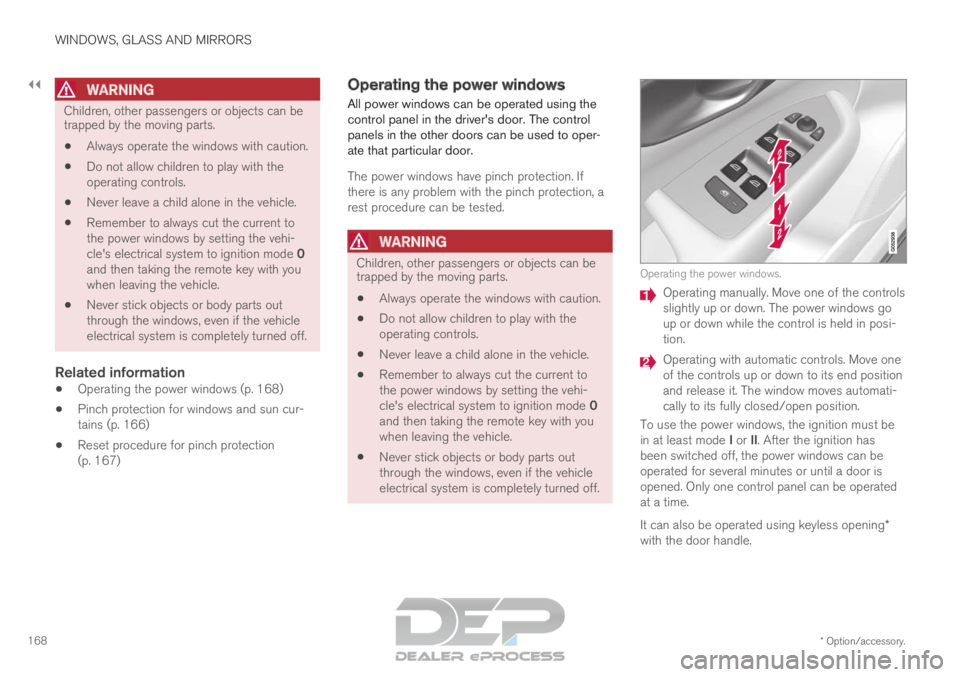
electrical system is completely turned off. Operating the power windows.
Operating manually. Move one of the controls
slightly up or down. The power windows go
up or down while the control is held in posi-
tion.
Operating with automatic controls. Move one
of the controls up or down to its end position
and release it. The window moves automati-
cally to its fully closed/open position.
To use the power windows, the ignition must be
in at least mode I or II. After the ignition has
been switched off, the power windows can be
operated for several minutes or until a door is
opened. Only one control panel can be operated
at a time.
It can also be operated using keyless opening*
with the door handle.