buttons VOLVO XC90 TWIN ENGINE HYBRID 2017 User Guide
[x] Cancel search | Manufacturer: VOLVO, Model Year: 2017, Model line: XC90 TWIN ENGINE HYBRID, Model: VOLVO XC90 TWIN ENGINE HYBRID 2017Pages: 584, PDF Size: 14.2 MB
Page 107 of 584
INSTRUMENTS AND CONTROLS
}}
* Option/accessory, for more information, see Introduction.105
systems, even home lighting. Additional informa-tion can be found on the Internet at,www.homelink.com/www.youtube.com/HomeLinkGentex or by phoning the hotline at 1–800–355–3515.
WARNING
•If you use HomeLink® to open a garagedoor or gate, be sure no one is near thegate or door while it is in motion.
•When programming a garage dooropener, it is advised to park outside of thegarage.
•Do not use HomeLink® with any garagedoor opener that lacks safety stop andreverse features as required by U.S. fed-eral safety standards (this includes anygarage door opener model manufacturedbefore April 1, 1982). A garage door thatcannot detect an object - signaling thedoor to stop and reverse - does not meetcurrent U.S. federal safety standards. Formore information, contact HomeLink at:www.homelink.com.
Retain the original transmitter of the RF deviceyou are programming for use in other vehicles aswell as for future HomeLink programming. It isalso suggested that upon the sale of the vehicle,the programmed HomeLink buttons be erasedfor security purposes. See the article "Program-ming HomeLink."
Related information
•Programming the HomeLink® Wireless Con-trol System* (p. 105)
Programming the HomeLink®
Wireless Control System*
NOTE
Some vehicles may require the ignition to beswitched on or be in the “accessories” posi-tion for programming and/or operation ofHomeLink. It is also recommended that a newbattery be placed in the hand-held transmitterof the device being programmed to Home-Link for quicker training and accurate trans-mission of the radio-frequency signal. TheHomeLink buttons must be reset first. Whenthis has been completed, Homelink is inlearning mode so that you can perform pro-gramming.
To program HomeLink®
1.Press the HomeLink® button to be pro-
grammed. The HomeLink® indicator willbegin flashing yellow once a second. You donot need to continue holding the button.
2.Point the hand-held transmitter toward the
HomeLink® button to be programmed andhold it approx. 6–12 inches (15–30 cm)
away from the HomeLink® button. Do not
obstruct the HomeLink® indicator light.
Page 109 of 584
INSTRUMENTS AND CONTROLS
}}
107
Gate Operator/Canadian Programming
Canadian radio-frequency laws require transmit-ter signals to “time-out” (or quit) after severalseconds of transmission – which may not be longenough for HomeLink to pick up the signal dur-ing programming. Similar to this Canadian law,some U.S. gate operators are designed to “time-out” in the same manner.
If you live in Canada or you are having difficultiesprogramming a gate operator or garage dooropener by using the “Programming” procedures,replace “Programming HomeLink” step 3with the following:
•Continue to press and hold the HomeLinkbutton while you press and release - everytwo seconds (“cycle”) your hand-held trans-mitter until the HomeLink indicator lightchanges from a slow to a rapidly blinkinglight. Now you may release both the Home-Link and hand-held transmitter buttons.
Proceed with “Programming” step 4 to complete.
Using HomeLink ®
When programming has been completed,
HomeLink® can be used instead of the originalremote controls.
To operate, press and hold the programmed
HomeLink® button until the trained device begins
to operate3 (this may take several seconds). The
indicator light will glow steadily or flash when thebutton has been pressed. Activation will nowoccur for the trained device (i.e., garage dooropener, gate operator, security system, entry doorlock, home/office lighting, etc.).
NOTE
If the ignition is switched off, HomeLink willfunction for 30 minutes after the driver's doorhas been opened.
For convenience, the hand-held transmitter of thedevice may also be used at any time.
In the event that there are still programming diffi-culties or questions, contact HomeLink at:www.HomeLink.com, www.youtube.com/HomeLinkGentex or by phoning the hotline at 1–800–355–3515.
Resetting HomeLink ®
buttons
Use the following procedure to reset (erase pro-
gramming) from the three HomeLink® buttons(individual buttons cannot be reset but can be“reprogrammed” as outlined in the following sec-tion):
1.Press and hold HomeLink® buttons 1 and 3for approx. 10 seconds until the indicatorlight begins to flash green.
2. Release both buttons.
>HomeLink® is now in the training (orlearning) mode and can be programmedat any time beginning with “To program
HomeLink®" above.
Reprogramming a single HomeLink ®
button
To reprogram an individual HomeLink® button:
1.Press and hold the desired HomeLink® but-ton. DO NOT release the button.
2. The yellow indicator light will begin to flashafter 20 seconds. Without releasing theHomeLink button, proceed with “To program
HomeLink®" step 1 above.
For questions or comments, contact HomeLinkat: www.HomeLink.com, www.youtube.com/HomeLinkGentex or by phoning the hotline at 1–800–355–3515.
FCC (USA) and IC (Canada)
This device complies with FCC rules part 15 andIndustry Canada RSS-210. Operation is subjectto the following two conditions: (1) This devicemay not cause harmful interference, and (2) Thisdevice must accept any interference that may bereceived including interference that may causeundesired operation. WARNING: The transmitterhas been tested and complies with FCC and IC
3Do not hold the button for more than 20 seconds as this will clear the programming of the button.
Page 111 of 584
INSTRUMENTS AND CONTROLS
* Option/accessory, for more information, see Introduction.109
NOTE
Only one mirror can be tilted down at a time.
Automatically tilting the door mirrors
when parking 5
This function can be activated/deactivated in thecenter display.
1.Tap Settings in Top view.
2.Tap My CarMirrors.
3.Under Tilt Mirror In Reverse, select Off,Driver, Passenger or Both to activate/deactivate and select which mirror to tilt.
Folding mirrors *
When parking in a limited space, the mirrors canbe folded in:
1.Press the L and R buttons at the same time(the ignition must be in at least mode I).
2. Release the buttons after approx. 1 second.The mirrors will stop automatically when theyare completely folded in.
Fold out the mirrors by pressing the L and R atthe same time. The mirrors will stop automaticallywhen they return to their original positions.
Automatic folding when the vehicle is
locked 5
The mirrors can be folded in/out automaticallywhen the vehicle is locked/unlocked.
This function can be activated/deactivated in thecenter display.
1.Tap Settings in Top view.
2.Tap My CarMirrors.
3.Select Fold Mirrors When Locking to acti-vate/deactivate.
Resetting the mirrors' position
A mirror that has been moved manually (e.g.,bumped into in a parking lot, etc.) has to bereturned to its normal position electrically beforeautomatic folding will function correctly.
1.Fold in the mirrors with the L and R buttons.
2.Fold out the mirrors with the L and R buttons.
The mirrors have now been reset to their originalpositions.
Auto-dim *
Settings can be made for the auto-dim functionin the rearview and door mirrors.
The auto-dim function is always active while thevehicle is being driven except when the reversegear has been selected. The level of sensitivity
for this function can be set to three levels, whichaffect the rearview mirror and door mirrors.
NOTE
When the level of sensitivity is changed, thischange will not be noticeable immediately butwill take effect after a short period of time.
The level of sensitivity is set from the center dis-play:
1.Tap Settings in Top view.
2.Tap My CarMirrors.
3.Under Auto Dim Mirrors, select Normal,Dark or Light.
Related information
•Using the power seat memory function*(p. 169)
•Rearview mirror (p. 114)
5
Only on models equipped with a power driver's seat.
Page 115 of 584
INSTRUMENTS AND CONTROLS
}}
* Option/accessory, for more information, see Introduction.113
Auto-stop
The laminated panoramic roof has an auto-stopfeature that is triggered if the glass section of theroof or the sun shade is blocked in any way whenbeing closed. In this case, the laminated panor-amic roof or sun shade will stop and reverseautomatically approximately 2 in. (5 cm) from thepoint at which it was blocked (or will open fully tothe tilt position).
The auto-stop feature also functions when thelaminated panoramic roof or sun shade is beingopened.
WARNING
For 10 minutes after the auto-stop functionhas been triggered, it will not function againthe first time the control is moved in the samedirection as when the auto-stop function wastriggered.
The auto-stop feature can be overridden if theclosing procedure has been interrupted (e.g., dueto ice around the moonroof) by pressing andholding the control forward/down until the moon-roof is closed.
Power windows
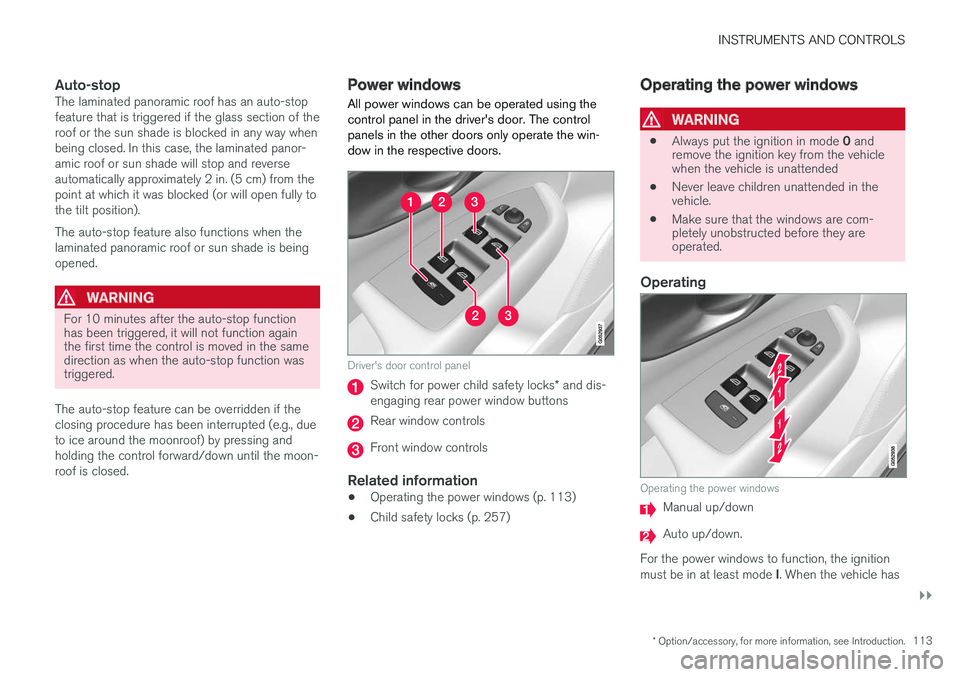
All power windows can be operated using thecontrol panel in the driver's door. The controlpanels in the other doors only operate the win-dow in the respective doors.
Driver's door control panel
Switch for power child safety locks* and dis-engaging rear power window buttons
Rear window controls
Front window controls
Related information
•Operating the power windows (p. 113)
•Child safety locks (p. 257)
Operating the power windows
WARNING
•Always put the ignition in mode 0 andremove the ignition key from the vehiclewhen the vehicle is unattended
•Never leave children unattended in thevehicle.
•Make sure that the windows are com-pletely unobstructed before they areoperated.
Operating
Operating the power windows
Manual up/down
Auto up/down.
For the power windows to function, the ignitionmust be in at least mode I. When the vehicle has
Page 118 of 584
||
INSTRUMENTS AND CONTROLS
* Option/accessory, for more information, see Introduction.116
Changing a setting
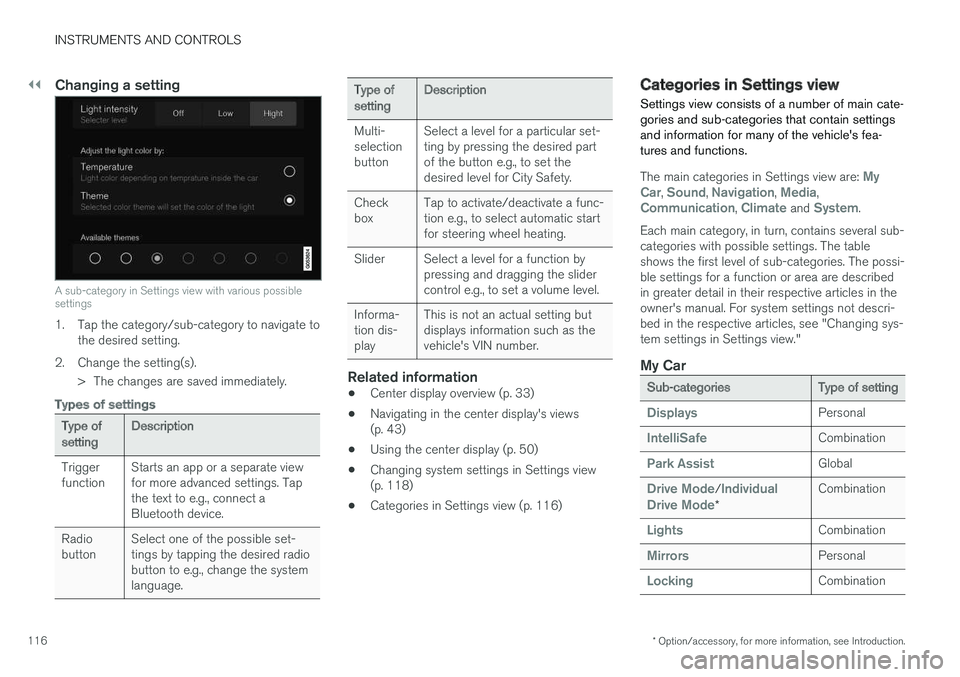
A sub-category in Settings view with various possiblesettings
1. Tap the category/sub-category to navigate tothe desired setting.
2.Change the setting(s).
> The changes are saved immediately.
Types of settings
Type ofsettingDescription
TriggerfunctionStarts an app or a separate viewfor more advanced settings. Tapthe text to e.g., connect aBluetooth device.
RadiobuttonSelect one of the possible set-tings by tapping the desired radiobutton to e.g., change the systemlanguage.
Type ofsettingDescription
Multi-selectionbutton
Select a level for a particular set-ting by pressing the desired partof the button e.g., to set thedesired level for City Safety.
CheckboxTap to activate/deactivate a func-tion e.g., to select automatic startfor steering wheel heating.
SliderSelect a level for a function bypressing and dragging the slidercontrol e.g., to set a volume level.
Informa-tion dis-play
This is not an actual setting butdisplays information such as thevehicle's VIN number.
Related information
•Center display overview (p. 33)
•Navigating in the center display's views(p. 43)
•Using the center display (p. 50)
•Changing system settings in Settings view(p. 118)
•Categories in Settings view (p. 116)
Categories in Settings view
Settings view consists of a number of main cate-gories and sub-categories that contain settingsand information for many of the vehicle's fea-tures and functions.
The main categories in Settings view are: MyCar, Sound, Navigation, Media,Communication, Climate and System.
Each main category, in turn, contains several sub-categories with possible settings. The tableshows the first level of sub-categories. The possi-ble settings for a function or area are describedin greater detail in their respective articles in theowner's manual. For system settings not descri-bed in the respective articles, see "Changing sys-tem settings in Settings view."
My Car
Sub-categoriesType of setting
DisplaysPersonal
IntelliSafeCombination
Park AssistGlobal
Drive Mode/IndividualDrive Mode*
Combination
LightsCombination
MirrorsPersonal
LockingCombination
Page 126 of 584
||
INSTRUMENTS AND CONTROLS
* Option/accessory, for more information, see Introduction.124
Lower position
Confirm
Adapting brightness
The brightness of the graphics displayed in theHUD are also automatically adjusted according toambient lighting conditions. HUD brightness isalso affected by adjustments to the brightness ofthe other displays in the vehicle.
Power front seat * memory function
The position of the HUD can be stored in thepower seat's memory function.
Replacing the windshield
Vehicles with a head-up display have a specialtype of windshield meeting the requirements fordisplaying projected information.
If the windshield has to be replaced, contact atrained and qualified Volvo service technician orauthorized workshop. The correct type of replace-ment windshield must be used for a head-up dis-play.
Calibrating the horizontal position
If the windshield has been replaced, it may benecessary to calibrate the HUD's horizontal posi-tion. This means that the projected image willhave to be rotated clockwise or counterclockwise.To do so:
1. Pull down the center display's Top view andtap Settings.
2.Select My CarDisplaysHead-UpDisplay Calibration.
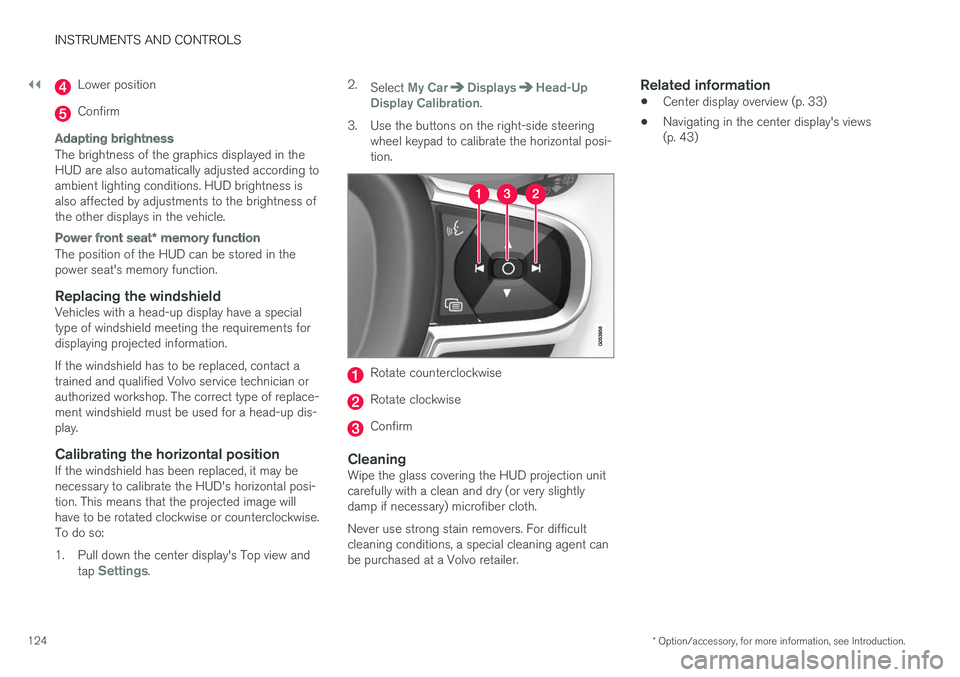
3.Use the buttons on the right-side steeringwheel keypad to calibrate the horizontal posi-tion.
Rotate counterclockwise
Rotate clockwise
Confirm
Cleaning
Wipe the glass covering the HUD projection unitcarefully with a clean and dry (or very slightlydamp if necessary) microfiber cloth.
Never use strong stain removers. For difficultcleaning conditions, a special cleaning agent canbe purchased at a Volvo retailer.
Related information
•Center display overview (p. 33)
•Navigating in the center display's views(p. 43)
Page 154 of 584
||
INSTRUMENTS AND CONTROLS
152
NOTE
•This automatic flashing sequence can beinterrupted by immediately moving thelever in the opposite direction.
•If the turn signal indicator flashes fasterthan normal, see the message in theinstrument panel.
Continuous flashing sequence
Move the lever as far up or down as possibleto start the turn signals.
The turn signals will be cancelled automaticallyby the movement of the steering wheel, or thelever can be returned to its initial position byhand.
Related information
•Lighting panel and controls (p. 144)
•Hazard warning flashers (p. 151)
•Settings view (p. 115)
Passenger compartment lighting
The passenger compartment lighting is con-trolled using the buttons in the ceiling above thefront and rear seats.
All passenger compartment lighting can beturned on and off manually within 30 minutesafter:
•the vehicle is unlocked but the engine hasnot been started
•the engine is switched off and the ignition isin mode 0.
Front interior lighting
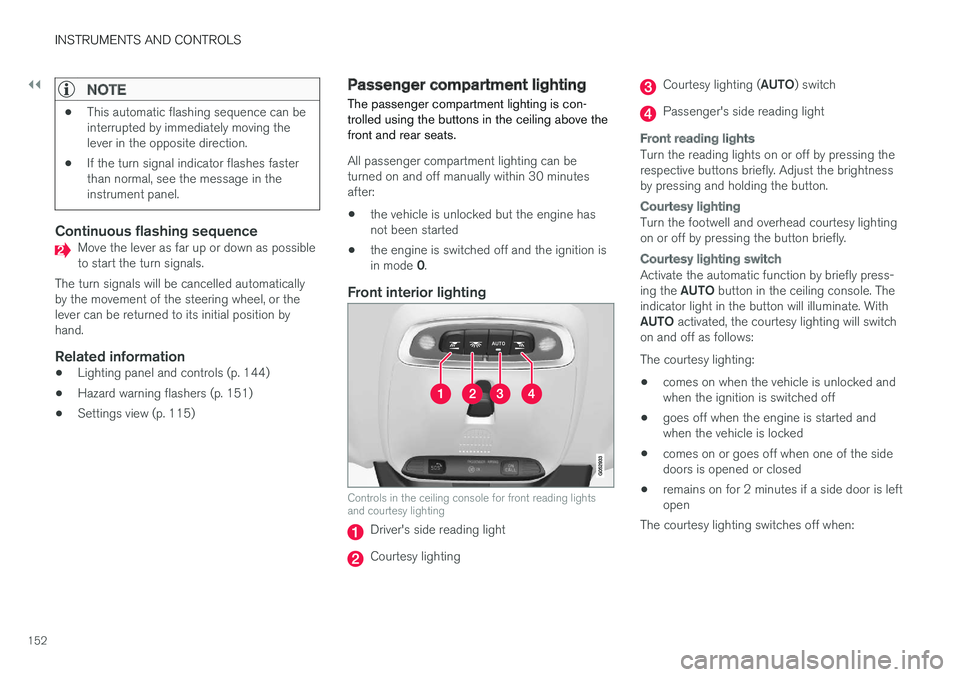
Controls in the ceiling console for front reading lightsand courtesy lighting
Driver's side reading light
Courtesy lighting
Courtesy lighting (AUTO) switch
Passenger's side reading light
Front reading lights
Turn the reading lights on or off by pressing therespective buttons briefly. Adjust the brightnessby pressing and holding the button.
Courtesy lighting
Turn the footwell and overhead courtesy lightingon or off by pressing the button briefly.
Courtesy lighting switch
Activate the automatic function by briefly press-ing the AUTO button in the ceiling console. Theindicator light in the button will illuminate. WithAUTO activated, the courtesy lighting will switchon and off as follows:
The courtesy lighting:
•comes on when the vehicle is unlocked andwhen the ignition is switched off
•goes off when the engine is started andwhen the vehicle is locked
•comes on or goes off when one of the sidedoors is opened or closed
•remains on for 2 minutes if a side door is leftopen
The courtesy lighting switches off when:
Page 158 of 584
||
INSTRUMENTS AND CONTROLS
156
The message may be displayed along with graph-ics, symbols or buttons for e.g., confirming themessage or accepting a request.
Service messages
The following table lists a selection of importantservice messages and the action that should betaken.
MessageAction
Stop safelyAStop and switch off theengine. There is a risk ofserious damage to the vehi-
cleB.
Turn off
engineAStop and switch off theengine. There is a risk ofserious damage to the vehi-
cleB.
Serviceurgent Drive
to workshopA
Contact a workshopB to havethe vehicle inspected imme-diately.
Service
requiredAContact a workshopB to havethe vehicle inspected assoon as possible.
Book time formaintenance
Time formaintenance
Time for the next scheduledservice. Contact a work-
shopB.
MessageAction
MaintenanceoverdueTime for the next scheduledservice. Contact a work-
shopB. If the service sched-ule is not followed, this mayvoid all or part of the vehi-cle's warranty and result indamage to vehicle compo-nents.
Temporarily
offAA function has been tempo-rarily deactivated and will bereactivated automaticallywhile driving or after theengine is restarted.
APart of the message is context-dependent.BContact a Volvo retailer or a trained and qualified Volvo servicetechnician.
Center display
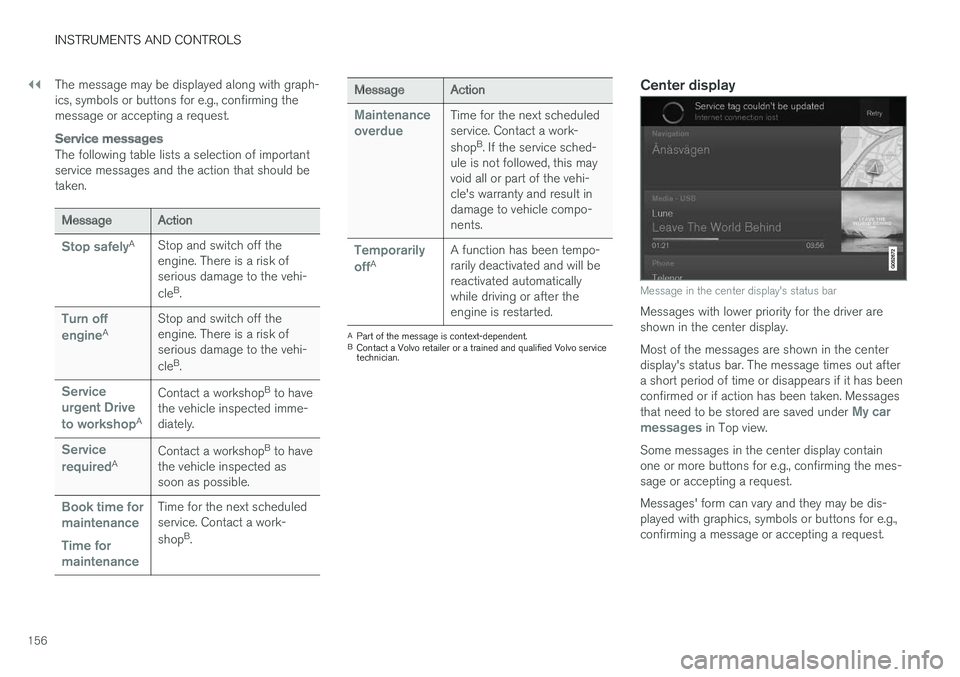
Message in the center display's status bar
Messages with lower priority for the driver areshown in the center display.
Most of the messages are shown in the centerdisplay's status bar. The message times out aftera short period of time or disappears if it has beenconfirmed or if action has been taken. Messagesthat need to be stored are saved under My carmessages in Top view.
Some messages in the center display containone or more buttons for e.g., confirming the mes-sage or accepting a request.
Messages' form can vary and they may be dis-played with graphics, symbols or buttons for e.g.,confirming a message or accepting a request.
Page 159 of 584

INSTRUMENTS AND CONTROLS
}}
157
Pop-up messages
Messages are sometimes displayed in pop-upwindows. Messages of this type have higher pri-ority than ones in the status bar and must beconfirmed or action must be taken before theydisappear. Messages that need to be stored aresaved under My car messages in Top view.
Related information
•Instrument panel (p. 132)
•Center display overview (p. 33)
Handling messages in theinstrument panel and center display
Instrument panel
Message in the instrument panel (12" version) and theright-side steering wheel keypad
Left/right arrow keys
Confirm
Some messages in the instrument panel containone or more buttons for e.g., confirming a mes-sage or accepting a proposal.
Handling new messages
For messages with buttons:
1. Navigate among the buttons available bypressing the left/right arrow keys (1).
2. Confirm a choice by pressing (2).
> The message will disappear from theinstrument panel.
For messages without buttons:
–Close the message by pressing (2) or let themessage time-out after a short period.
>The message will disappear from theinstrument panel.
If a message needs to be saved, it will be storedin the Car status app, which can be opened inthe center display's App view. Car messagestored in Car status application will be dis-played at this time in the center display.
Center display
Message in the center display
Some buttons in the center display have a button(or several buttons in a pop-up) to make it possi-
Page 160 of 584

||
INSTRUMENTS AND CONTROLS
158
ble to e.g., activate/deactivate a function relatedto the message.
Handling new messages
For messages with buttons:
–Tap the button to carry out the action or letthe message time-out after a short period.
>The message will disappear from the cen-ter display's status bar.
For messages without buttons:
–Close the message by tapping it or let themessage time-out after a short period.
>The message will disappear from the cen-ter display's status bar.
If a message needs to be saved, it will be storedin the center display's Top view.
Related information
•Messages in the instrument panel and centerdisplay (p. 155)
•Using the instrument panel App menu(p. 160)
Handling messages stored from theinstrument panel and center display
Messages saved from the instrument
panel
Saved messages and possible selections in the Carstatus app
Messages that have been dis-played in the instrument paneland need to be saved arestored in the Car status app,which can be opened in thecenter display's App view. Carmessage stored in Carstatus application will be displayed at this timein the center display.
Reading saved messages
Reading a saved message immediately:
–Tap the button to the right of the messageCar message stored in Car statusapplication in the center display.
>The saved message will be displayed inthe Car status app.
Reading a saved message at a later time:
1.Open the Car status app in the center dis-play's App view.
>The app will open in Home view's lowestsub-view.
2.Select the Messages tab in the app.
>A list of saved messages will be displayed.
3. Tap the arrow to the right to expand/mini-mize the message.
> More information about the message willappear in the list and the image to the leftin the app will show information about themessage in graphic form.