key VOLVO XC90 TWIN ENGINE HYBRID 2017 Owner's Manual
[x] Cancel search | Manufacturer: VOLVO, Model Year: 2017, Model line: XC90 TWIN ENGINE HYBRID, Model: VOLVO XC90 TWIN ENGINE HYBRID 2017Pages: 584, PDF Size: 14.2 MB
Page 120 of 584
INSTRUMENTS AND CONTROLS
* Option/accessory, for more information, see Introduction.118
Changing system settings inSettings view
Settings view's main category System containsgeneral settings and information, such as lan-guage, units of measure, etc.
The system settings under Driver Profile, Date& Time, Keyboard Layouts, Voice Control,Software Updates, Factory reset andServices are described in their respective arti-cles in the owner's manual.
Changing system languages
1. Pull down the center display's Top view andtap Settings.
2.Tap SystemLanguage.
3. Select a new system language. Languagesthat can be used for voice commands areindicated by a voice control symbol.
> This change affects the language used inthe instrument panel, center display andthe head-up display*.
Changing units of measure
Changing length and volume units
1. Pull down the center display's Top view andtap Settings.
2.Tap SystemUnitsUnits.
3. Select one of the following measurementstandards:
•Metric: kilometers, liters and degrees Cel-sius.
•Imperial: miles, gallons and degrees Cel-sius.
•US: miles, gallons and degrees Fahren-heit.
>This change affects the units of measureused in the instrument panel, center dis-play and the head-up display*
Changing tire inflation pressure units
1. Pull down the center display's Top view andtap Settings.
2.Tap SystemUnitsTire Pressure.
3.Select a unit of measure for tire pressure.
> This changes the tire inflation pressureunits used in the Car status app in thecenter display.
Viewing storage information
1. Pull down the center display's Top view andtap Settings.
2.Tap SystemStorage.
>Storage information for the vehicle's harddrive will be displayed, including totalcapacity, available capacity and theamount of storage space used by theapps that have been installed.
Viewing the VIN (Vehicle Identification
Number)
1. Pull down the center display's Top view andtap Settings.
2.Tap SystemVehicle IdentificationNumber.
>The vehicle's VIN will be displayed.
Page 125 of 584
INSTRUMENTS AND CONTROLS
}}
123
NOTE
The driver's ability to see information in theHUD may be impeded by:
•the use of polarizing sunglasses
•the use of an aftermarket or non-Volvoreplacement windshield
•not sitting in the center of the driver'sseat
•objects on the HUD projector glass onthe dashboard
•certain ambient lighting conditions
•certain types of vision problems, whichmay also result in headaches or eyestrain.
•Activating/deactivating and settings forHUD are only possible when an image isprojected on the windshield. The enginemust be running.
Activating/deactivating HUD
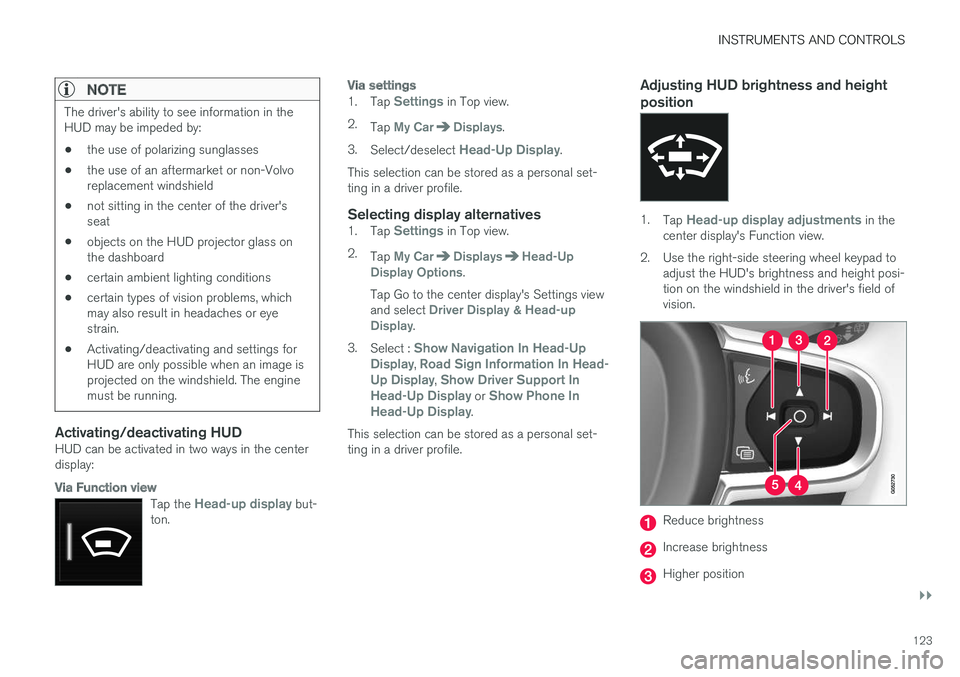
HUD can be activated in two ways in the centerdisplay:
Via Function view
Tap the Head-up display but-ton.
Via settings
1.Tap Settings in Top view.
2.Tap My CarDisplays.
3.Select/deselect Head-Up Display.
This selection can be stored as a personal set-ting in a driver profile.
Selecting display alternatives
1.Tap Settings in Top view.
2.Tap My CarDisplaysHead-UpDisplay Options.
Tap Go to the center display's Settings viewand select Driver Display & Head-upDisplay.
3.Select : Show Navigation In Head-UpDisplay, Road Sign Information In Head-Up Display, Show Driver Support InHead-Up Display or Show Phone InHead-Up Display.
This selection can be stored as a personal set-ting in a driver profile.
Adjusting HUD brightness and height
position
1.Tap Head-up display adjustments in thecenter display's Function view.
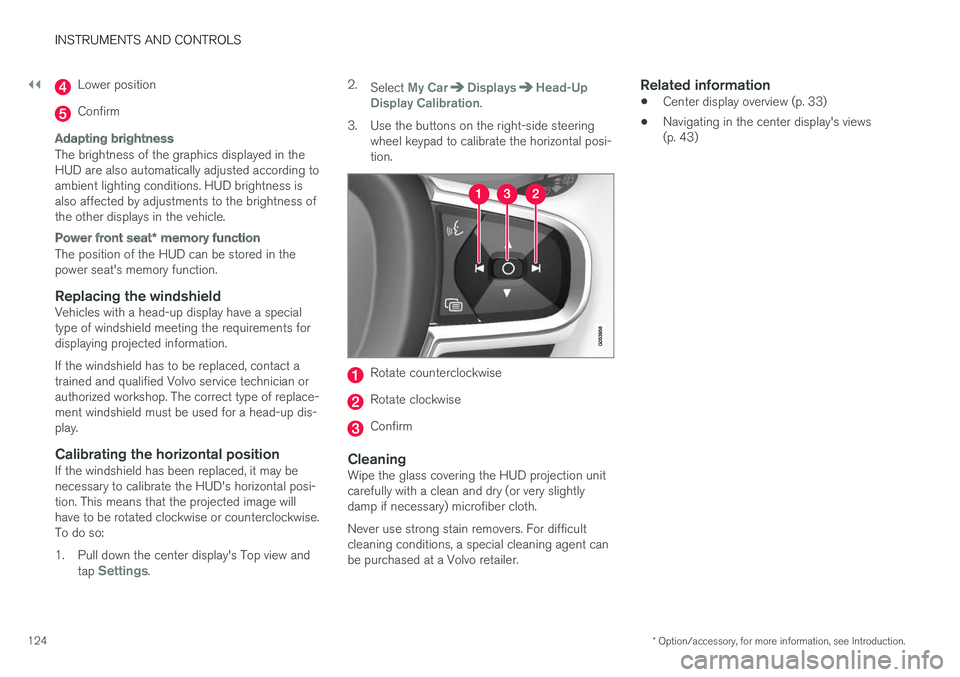
2.Use the right-side steering wheel keypad toadjust the HUD's brightness and height posi-tion on the windshield in the driver's field ofvision.
Reduce brightness
Increase brightness
Higher position
Page 126 of 584
||
INSTRUMENTS AND CONTROLS
* Option/accessory, for more information, see Introduction.124
Lower position
Confirm
Adapting brightness
The brightness of the graphics displayed in theHUD are also automatically adjusted according toambient lighting conditions. HUD brightness isalso affected by adjustments to the brightness ofthe other displays in the vehicle.
Power front seat * memory function
The position of the HUD can be stored in thepower seat's memory function.
Replacing the windshield
Vehicles with a head-up display have a specialtype of windshield meeting the requirements fordisplaying projected information.
If the windshield has to be replaced, contact atrained and qualified Volvo service technician orauthorized workshop. The correct type of replace-ment windshield must be used for a head-up dis-play.
Calibrating the horizontal position
If the windshield has been replaced, it may benecessary to calibrate the HUD's horizontal posi-tion. This means that the projected image willhave to be rotated clockwise or counterclockwise.To do so:
1. Pull down the center display's Top view andtap Settings.
2.Select My CarDisplaysHead-UpDisplay Calibration.
3.Use the buttons on the right-side steeringwheel keypad to calibrate the horizontal posi-tion.
Rotate counterclockwise
Rotate clockwise
Confirm
Cleaning
Wipe the glass covering the HUD projection unitcarefully with a clean and dry (or very slightlydamp if necessary) microfiber cloth.
Never use strong stain removers. For difficultcleaning conditions, a special cleaning agent canbe purchased at a Volvo retailer.
Related information
•Center display overview (p. 33)
•Navigating in the center display's views(p. 43)
Page 127 of 584
INSTRUMENTS AND CONTROLS
}}
* Option/accessory, for more information, see Introduction.125
Voice control
Voice commands make it possible for the driverto voice-control certain functions in the mediaplayer, a Bluetooth-connected cell phone, cli-mate system and the Volvo navigation system*.
Voice control offers convenience and enables thedriver to keep his/her hands on the steeringwheel and concentrate on driving and the trafficsituation around the vehicle.
WARNING
As the driver, you have full responsibility foroperating the vehicle safely and adhering toall applicable traffic regulations.
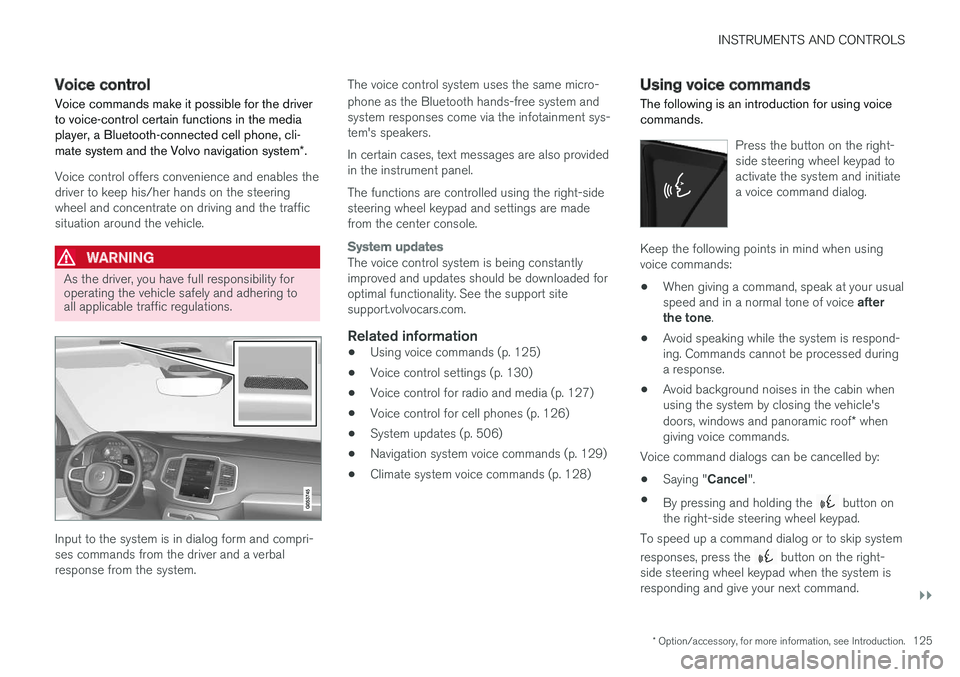
Input to the system is in dialog form and compri-ses commands from the driver and a verbalresponse from the system.
The voice control system uses the same micro-
phone as the Bluetooth hands-free system andsystem responses come via the infotainment sys-tem's speakers.
In certain cases, text messages are also providedin the instrument panel.
The functions are controlled using the right-sidesteering wheel keypad and settings are madefrom the center console.
System updates
The voice control system is being constantlyimproved and updates should be downloaded foroptimal functionality. See the support sitesupport.volvocars.com.
Related information
•Using voice commands (p. 125)
•Voice control settings (p. 130)
•Voice control for radio and media (p. 127)
•Voice control for cell phones (p. 126)
•System updates (p. 506)
•Navigation system voice commands (p. 129)
•Climate system voice commands (p. 128)
Using voice commands
The following is an introduction for using voicecommands.
Press the button on the right-side steering wheel keypad toactivate the system and initiatea voice command dialog.
Keep the following points in mind when usingvoice commands:
•When giving a command, speak at your usualspeed and in a normal tone of voice afterthe tone.
•Avoid speaking while the system is respond-ing. Commands cannot be processed duringa response.
•Avoid background noises in the cabin whenusing the system by closing the vehicle'sdoors, windows and panoramic roof* whengiving voice commands.
Voice command dialogs can be cancelled by:
•Saying "Cancel".
•By pressing and holding the button onthe right-side steering wheel keypad.
To speed up a command dialog or to skip system
responses, press the button on the right-side steering wheel keypad when the system isresponding and give your next command.
Page 128 of 584
![VOLVO XC90 TWIN ENGINE HYBRID 2017 Owners Manual ||
INSTRUMENTS AND CONTROLS
126
Voice command examples
Press , say "Call"-"[First-name]"-"[Last-name]"-"[number category]" to call a contactin your phonebook if the pe](/img/45/59300/w960_59300-127.png "VOLVO XC90 TWIN ENGINE HYBRID 2017 Owners Manual ||
INSTRUMENTS AND CONTROLS
126
Voice command examples
Press , say \"Call\"-\"[First-name]\"-\"[Last-name]\"-\"[number category]\" to call a contactin your phonebook if the pe")
||
INSTRUMENTS AND CONTROLS
126
Voice command examples
Press , say "Call"-"[First-name]"-"[Last-name]"-"[number category]" to call a contactin your phonebook if the person has more thanone phone number listed (i.e., home, mobile, work,etc.).
For example, press and say"Call"-"Robin"-"Smith"-"mobile".
Commands/phrases
The following commands can always be used:
•Repeat: the system will repeat the mostrecent voice instruction.
•Cancel: cancel the dialog.
•Help: Initiates a help dialog. The system willprovide several alternative commands thatcan be used in a given situation.
The commands for specific situations are descri-bed in the respective articles such as "Cell phonecommands", etc.
Numbers
Numbers can be spoken in different waysdepending on the context and function beingused:
•Phone numbers and zip codes should bespoken individually, number by number, e.g.,five five five one two three four (5551234).
•Addresses (house numbers) can be spo-ken individually or as a group, e.g., two two ortwenty-two (22). It is also possible to say a
sequence of numbers, e.g., twenty-twotwenty-two (22 22) and "double" or "triple"can also be used, e.g., double zero (00) or tri-ple zero (000). Numbers in the range0-2300 can be used.
•Frequencies can be spoken ninety-eightpoint eight (98.8), one hundred four pointtwo (104.2) or hundred four point two(104.2).
Related information
•Voice control (p. 125)
Voice control for cell phones
Voice commands can be used to control many
of the most common functions in a Bluetooth®-connected cell phone.
To specify a phone book contact, the voice com-mand has to include the contact's informationthat is in the phone book. For example, if a con-tact such as John Smith has several phonenumbers, a number category such as home ormobile can be specified. To call, say: "Call JohnSmith mobile".
To use the voice control system, press the on the right-side steering wheel keypad and sayone of the following commands after the tone:
•"Call [contact]": call a contact from yourphone book.
•"Call [phone number]": call a phone num-ber.
•"Recent calls": displays the list of recentcalls.
•"Read message": reads a message aloud.If there are several messages, select the oneto be read.
•"Message to [contact]": an empty mes-sage to the selected contact will open and isready for dictation to begin.
Page 129 of 584
INSTRUMENTS AND CONTROLS
* Option/accessory, for more information, see Introduction.127
Related information
•Voice control (p. 125)
•Using voice commands (p. 125)
•Voice control settings (p. 130)
Voice control for radio and media
The following voice commands can be used forthe radio or an external media player.
To use the voice control system, press the on the right-side steering wheel keypad and sayone of the following commands after the tone:
•"Media": initiates a dialog and displays pos-sible commands.
•"Play [artist]": plays music by the selectedartist.
•"Play [song title]": plays the selected song.
•"Play [song title] from [album]": plays theselected song from the selected album.
•"Play [radio station]": starts the selectedradio station.
•"Tune to [frequency]": tunes to theselected frequency on the current waveband.If no waveband has been selected, FM is thedefault.
•"Tune to [frequency] [waveband]": tunesto the selected station on the selected wave-band.
•"Radio": starts FM radio.
•"Radio FM": starts FM radio.
•"SiriusXM": starts SiriusXM radio*
•"CD": starts playback from a CD.
•"USB": starts playback from a USB flashdrive.
•"iPod": starts playback from an iPod.
•"Bluetooth": starts playback from a Blue-tooth-connected device.
•"Similar music": starts playback from aUSB flash drive with music similar to the typecurrently playing.
Related information
•Voice control (p. 125)
•Using voice commands (p. 125)
•Voice control settings (p. 130)
Page 130 of 584
INSTRUMENTS AND CONTROLS
* Option/accessory, for more information, see Introduction.128
Climate system voice commands
Voice commands can be used to control the cli-mate system to e.g., change the temperature,activate seat heating* or change blower (fan)speed.
To use the voice control system, press the on the right-side steering wheel keypad and sayone of the following commands after the tone:
•"Climate": starts a command dialog andprovides examples of commands that can beused.
•"Set temperature to X degrees": sets thedesired temperature.
•"Raise temperature"/"Lowertemperature": raises/lowers the tempera-ture.
•"Sync temperature": synchronizes the tem-perature in all of the vehicle's climate zoneswith the one set for the driver's side.
•"Air on feet"/"Air on body": opens thedesired air vent.
•"Air on feet off"/"Air on body off": closesthe desired air vent.
•"Set fan to max"/"Turn off fan": changesthe blower speed to Max/Off.
•"Raise fan speed"/"Lower fan speed":raises/lowers the blower speed.
•"Turn on auto": activates automatic climatecontrol.
•"Air condition on"/"Air condition off":activates/deactivates the air conditioning.
•"Recirculation on"/"Recirculation off":activates/deactivates recirculation.
•"Turn on defroster "/"Turn off defroster":activates/deactivates window and door mirrordefrosting.
•"Turn on max defroster"/"Turn off maxdefroster": activates/deactivates maxdefroster.
•"Turn on electric defroster"/"Turn offelectric defroster": activates/deactivatesthe electrically heated windshield*.
•"Turn on rear defroster"/"Turn off reardefroster": activates/deactivates the electri-cally heated rear window and door mirrors.
•"Turn steering wheel heat on"/"Turnsteering wheel heat off": activates/deacti-vates the electrically heated steering wheel*.
•"Raise steering wheel heat"/"Lowersteering wheel heat": raises/lowers theheating level for the electrically heated steer-ing wheel*.
•"Turn on seat heat"/"Turn off seat heat":activates/deactivates the electrically heatedseats*.
•"Raise seat heat"/"Lower seat heat": rai-ses/lowers the heating level for the electri-cally heated seats*.
•"Turn on seat ventilation"/"Turn off seatventilation": activates/deactivates seat ven-tilation*.
•"Raise seat ventilation"/"Lower seatventilation": raises/lowers the level for seatventilation*.
Related information
•Climate system controls (p. 199)
•Voice control (p. 125)
•Using voice commands (p. 125)
Page 131 of 584

INSTRUMENTS AND CONTROLS
129
Navigation system voice commands
Many of the navigation system's functions canbe activated using voice commands.
The procedure for using voice control is descri-bed in greater detail in the articles "Voice con-trol," "Using voice control" and "Voice controlsettings."
Voice commands
The following list contains examples of com-mands that are unique to navigation system.
To use the voice control system, press the on the right-side steering wheel keypad and sayone of the following commands after the tone:
•"Navigation": Starts a navigation voice com-mand dialog and displays available com-mands.
•"Take me home": Guidance will be given tothe location set as Home.
•"Go to [City]": Enter a city as a destination,e.g., "Go to New York."
•"Go to [Address]": Enter an address as adestination, e.g., Go to 125 43 St., NewYork."
•"Go to Intersection": Starts a dialog wheretwo street names are entered. The destina-tion will then be the intersection of the twostreets.
•"Go to [Zip code]": Enter a zip code as adestination, e.g., "Go to 07405."
•"Go to [Name]": Enter a name from a list ofcontacts e.g., "Go to John Smith."
•"Search [POI category] in [City]": The listof results will be sorted around the center ofthe selected city/town, e.g., Search restau-rants in Butler.
•Search [POI category]": For example,Search Yankee Stadium.
•"Change country/Change state":Changes the country/state in which a searchis conducted.
•"Show favorites": Shows a list of Favoritesin the center display's Top view.
•"Clear itinerary": Deletes all intermediatedestinations in an itinerary.
•"Repeat voice guidance": Repeats themost recent guidance instruction.
•"Pause guidance": Pauses guidance onthe map.
•"Resume guidance": Resumes guidanceon the map.
•"Turn off voice guidance": Turns voicenavigation guidance off.
•"Turn on voice guidance": Turns voicenavigation guidance on.
Related information
•Voice control (p. 125)
•Using voice commands (p. 125)
•Voice control settings (p. 130)
Page 135 of 584
INSTRUMENTS AND CONTROLS
}}
133
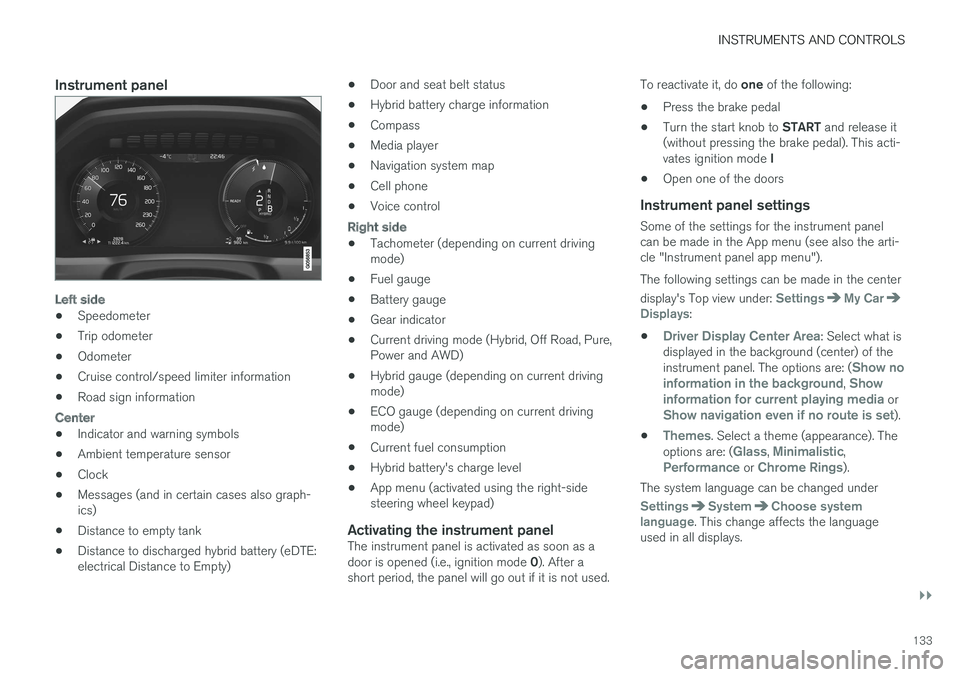
Instrument panel
Left side
•Speedometer
•Trip odometer
•Odometer
•Cruise control/speed limiter information
•Road sign information
Center
•Indicator and warning symbols
•Ambient temperature sensor
•Clock
•Messages (and in certain cases also graph-ics)
•Distance to empty tank
•Distance to discharged hybrid battery (eDTE:electrical Distance to Empty)
•Door and seat belt status
•Hybrid battery charge information
•Compass
•Media player
•Navigation system map
•Cell phone
•Voice control
Right side
•Tachometer (depending on current drivingmode)
•Fuel gauge
•Battery gauge
•Gear indicator
•Current driving mode (Hybrid, Off Road, Pure,Power and AWD)
•Hybrid gauge (depending on current drivingmode)
•ECO gauge (depending on current drivingmode)
•Current fuel consumption
•Hybrid battery's charge level
•App menu (activated using the right-sidesteering wheel keypad)
Activating the instrument panel
The instrument panel is activated as soon as adoor is opened (i.e., ignition mode 0). After ashort period, the panel will go out if it is not used.
To reactivate it, do one of the following:
•Press the brake pedal
•Turn the start knob to START and release it(without pressing the brake pedal). This acti-vates ignition mode I
•Open one of the doors
Instrument panel settings
Some of the settings for the instrument panelcan be made in the App menu (see also the arti-cle "Instrument panel app menu").
The following settings can be made in the center
display's Top view under: SettingsMy CarDisplays:
•Driver Display Center Area: Select what isdisplayed in the background (center) of theinstrument panel. The options are: (Show noinformation in the background, Showinformation for current playing media orShow navigation even if no route is set).
•Themes. Select a theme (appearance). Theoptions are: (Glass, Minimalistic,Performance or Chrome Rings).
The system language can be changed under
SettingsSystemChoose systemlanguage. This change affects the languageused in all displays.
Page 157 of 584
INSTRUMENTS AND CONTROLS
}}
* Option/accessory, for more information, see Introduction.155
Home safe lighting
The home safe lighting function illuminates thearea in front of the vehicle in dark conditions.
This function turns on the headlights, parkinglights, outer door handle lights* and license platelights for a set amount of time.
The length of time that these lights remain illumi-nated can be set in the center display. Thedefault setting is 30 seconds.
To activate home safe lighting:
1.Switch off the ignition (mode 0).
2.Push the turn signal lever as far as possibletowards the dashboard and release it.
3. Exit the vehicle and lock the doors.
Related information
•Using the center display (p. 50)
•Settings view (p. 115)
•Ignition modes (p. 400)
Approach lighting
Approach lighting (the parking lights, outer doorhandle lights*, license plate lighting, courtesylighting and footwell lighting) can be activated toprovide light as you walk toward the vehicle.
To use this feature, deselect/select WelcomeLight in the center display's menu system.
If this function has been selected in the menu, itis activated by pressing the unlock button onthe remote key as you approach the vehicle.
If a door is opened while the function is activated,the lighting in the outer door handle* and cour-tesy lighting will remain illuminated for a some-what longer period of time.
Related information
•Settings view (p. 115)
•Home safe lighting (p. 155)
•Remote key (p. 238)
Messages in the instrument paneland center display
Information and warning messages are dis-played in the instrument panel and center dis-play.
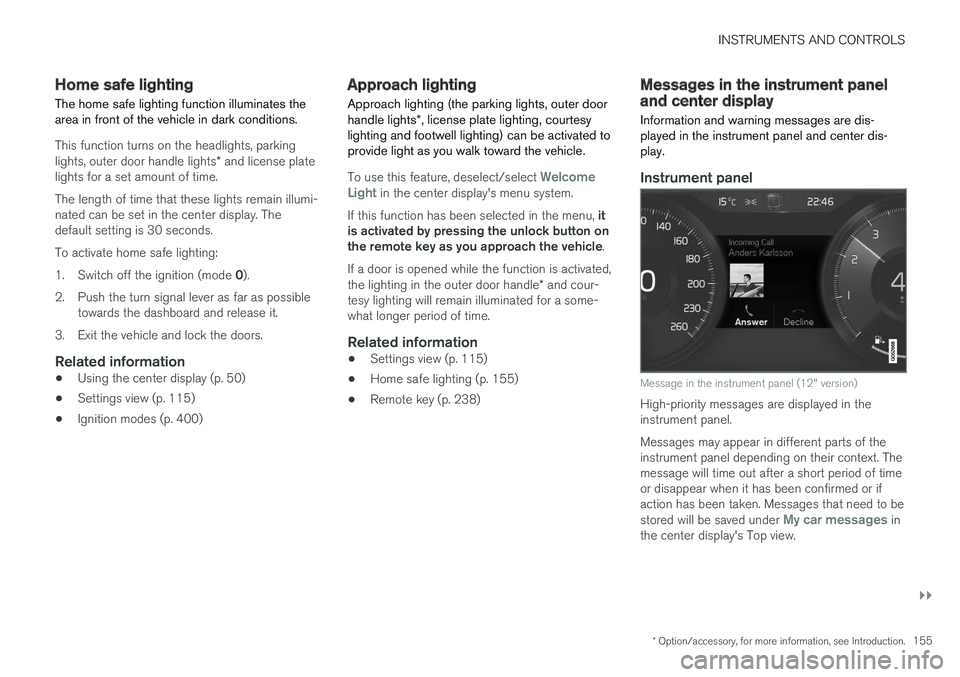
Instrument panel
Message in the instrument panel (12" version)
High-priority messages are displayed in theinstrument panel.
Messages may appear in different parts of theinstrument panel depending on their context. Themessage will time out after a short period of timeor disappear when it has been confirmed or ifaction has been taken. Messages that need to bestored will be saved under My car messages inthe center display's Top view.