ad blue VOLVO XC90 TWIN ENGINE HYBRID 2017 Owners Manual
[x] Cancel search | Manufacturer: VOLVO, Model Year: 2017, Model line: XC90 TWIN ENGINE HYBRID, Model: VOLVO XC90 TWIN ENGINE HYBRID 2017Pages: 584, PDF Size: 14.2 MB
Page 11 of 584
9
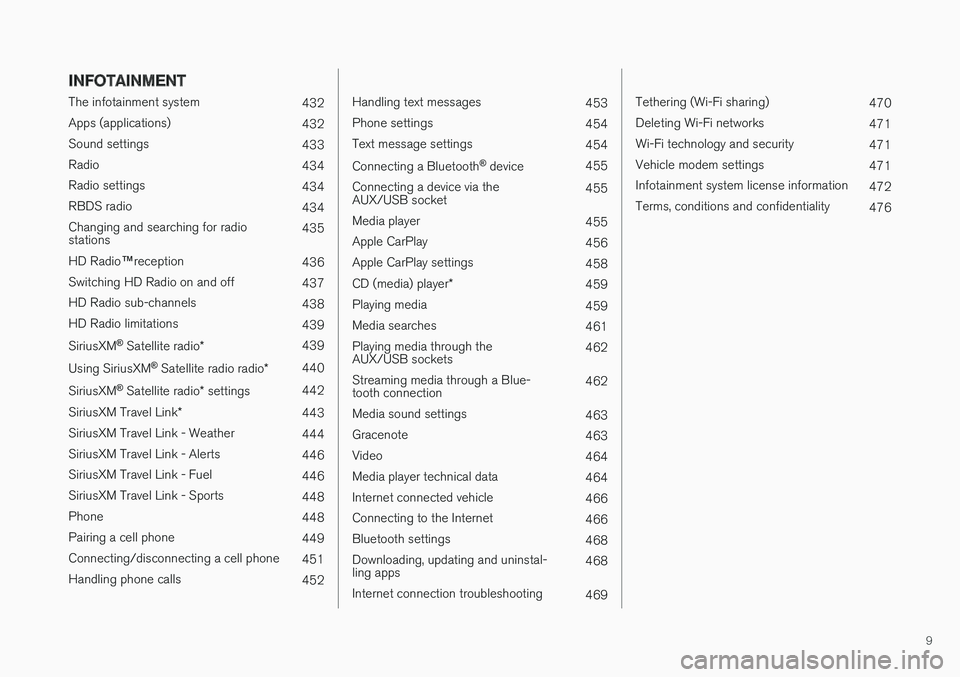
INFOTAINMENT
The infotainment system432
Apps (applications)432
Sound settings433
Radio434
Radio settings434
RBDS radio434
Changing and searching for radiostations435
HD Radio™reception436
Switching HD Radio on and off437
HD Radio sub-channels438
HD Radio limitations439
SiriusXM® Satellite radio*439
Using SiriusXM® Satellite radio radio*440
SiriusXM® Satellite radio* settings442
SiriusXM Travel Link*443
SiriusXM Travel Link - Weather444
SiriusXM Travel Link - Alerts446
SiriusXM Travel Link - Fuel446
SiriusXM Travel Link - Sports448
Phone448
Pairing a cell phone449
Connecting/disconnecting a cell phone451
Handling phone calls452
Handling text messages453
Phone settings454
Text message settings454
Connecting a Bluetooth® device455
Connecting a device via theAUX/USB socket455
Media player455
Apple CarPlay456
Apple CarPlay settings458
CD (media) player*459
Playing media459
Media searches461
Playing media through theAUX/USB sockets462
Streaming media through a Blue-tooth connection462
Media sound settings463
Gracenote463
Video464
Media player technical data464
Internet connected vehicle466
Connecting to the Internet466
Bluetooth settings468
Downloading, updating and uninstal-ling apps468
Internet connection troubleshooting469
Tethering (Wi-Fi sharing)470
Deleting Wi-Fi networks471
Wi-Fi technology and security471
Vehicle modem settings471
Infotainment system license information472
Terms, conditions and confidentiality476
Page 50 of 584
INTRODUCTION
48
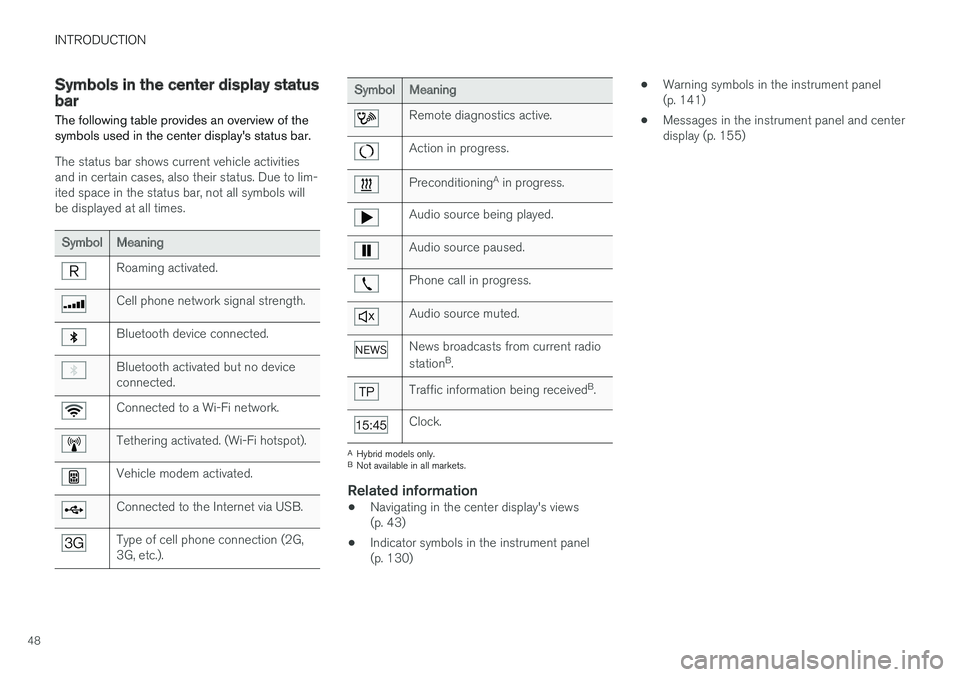
Symbols in the center display statusbar
The following table provides an overview of thesymbols used in the center display's status bar.
The status bar shows current vehicle activitiesand in certain cases, also their status. Due to lim-ited space in the status bar, not all symbols willbe displayed at all times.
SymbolMeaning
Roaming activated.
Cell phone network signal strength.
Bluetooth device connected.
Bluetooth activated but no deviceconnected.
Connected to a Wi-Fi network.
Tethering activated. (Wi-Fi hotspot).
Vehicle modem activated.
Connected to the Internet via USB.
Type of cell phone connection (2G,3G, etc.).
SymbolMeaning
Remote diagnostics active.
Action in progress.
PreconditioningA in progress.
Audio source being played.
Audio source paused.
Phone call in progress.
Audio source muted.
News broadcasts from current radio
stationB.
Traffic information being receivedB.
Clock.
AHybrid models only.BNot available in all markets.
Related information
•Navigating in the center display's views(p. 43)
•Indicator symbols in the instrument panel(p. 130)
•Warning symbols in the instrument panel(p. 141)
•Messages in the instrument panel and centerdisplay (p. 155)
Page 57 of 584
INTRODUCTION
}}
55
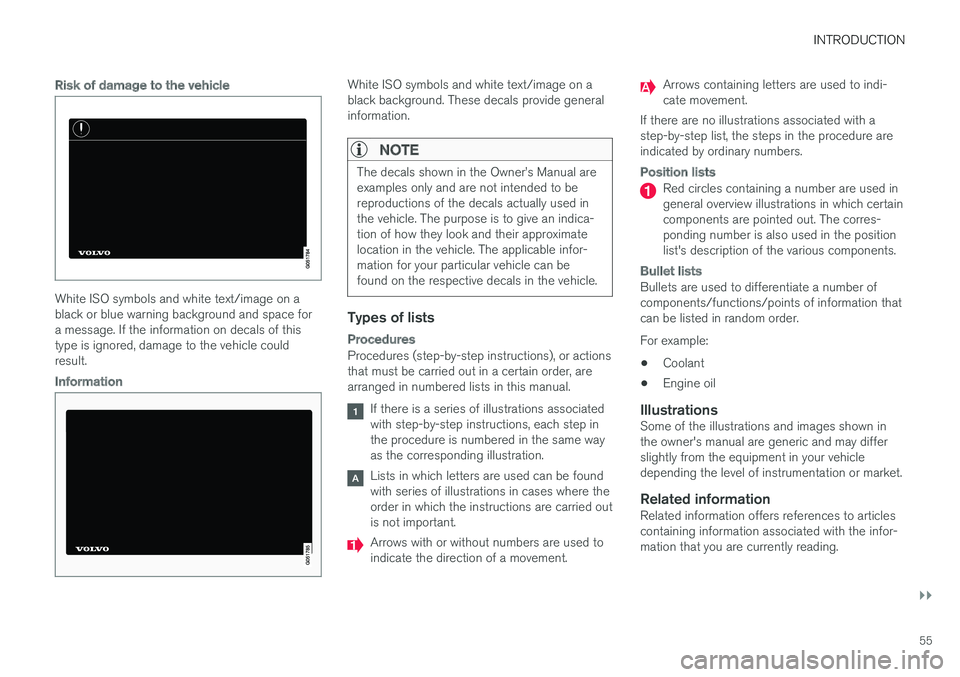
Risk of damage to the vehicle
White ISO symbols and white text/image on ablack or blue warning background and space fora message. If the information on decals of thistype is ignored, damage to the vehicle couldresult.
Information
White ISO symbols and white text/image on ablack background. These decals provide generalinformation.
NOTE
The decals shown in the Owner
Page 118 of 584
||
INSTRUMENTS AND CONTROLS
* Option/accessory, for more information, see Introduction.116
Changing a setting
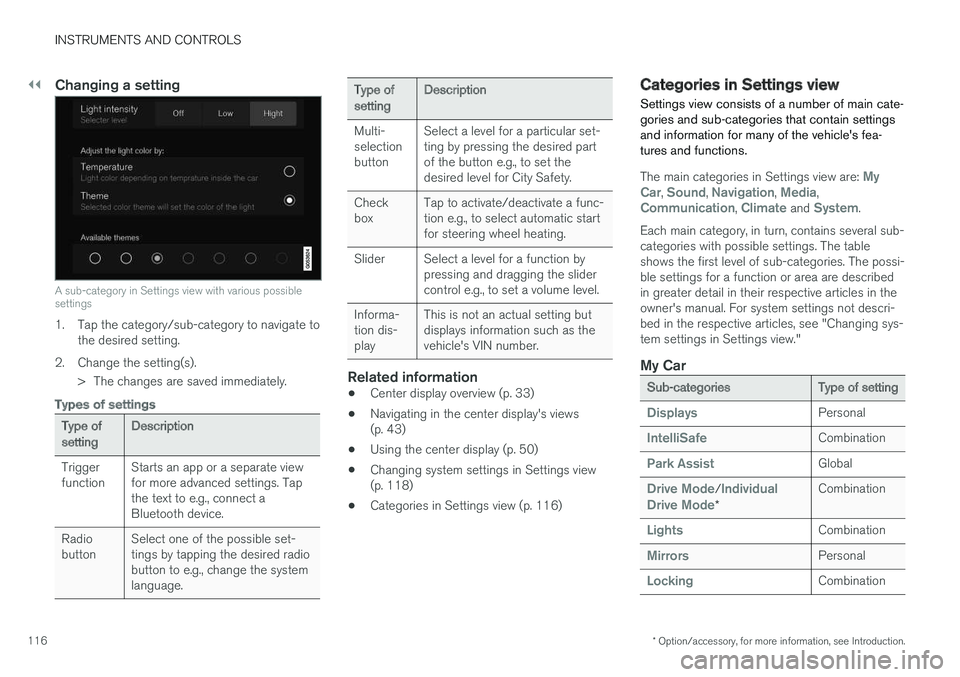
A sub-category in Settings view with various possiblesettings
1. Tap the category/sub-category to navigate tothe desired setting.
2.Change the setting(s).
> The changes are saved immediately.
Types of settings
Type ofsettingDescription
TriggerfunctionStarts an app or a separate viewfor more advanced settings. Tapthe text to e.g., connect aBluetooth device.
RadiobuttonSelect one of the possible set-tings by tapping the desired radiobutton to e.g., change the systemlanguage.
Type ofsettingDescription
Multi-selectionbutton
Select a level for a particular set-ting by pressing the desired partof the button e.g., to set thedesired level for City Safety.
CheckboxTap to activate/deactivate a func-tion e.g., to select automatic startfor steering wheel heating.
SliderSelect a level for a function bypressing and dragging the slidercontrol e.g., to set a volume level.
Informa-tion dis-play
This is not an actual setting butdisplays information such as thevehicle's VIN number.
Related information
•Center display overview (p. 33)
•Navigating in the center display's views(p. 43)
•Using the center display (p. 50)
•Changing system settings in Settings view(p. 118)
•Categories in Settings view (p. 116)
Categories in Settings view
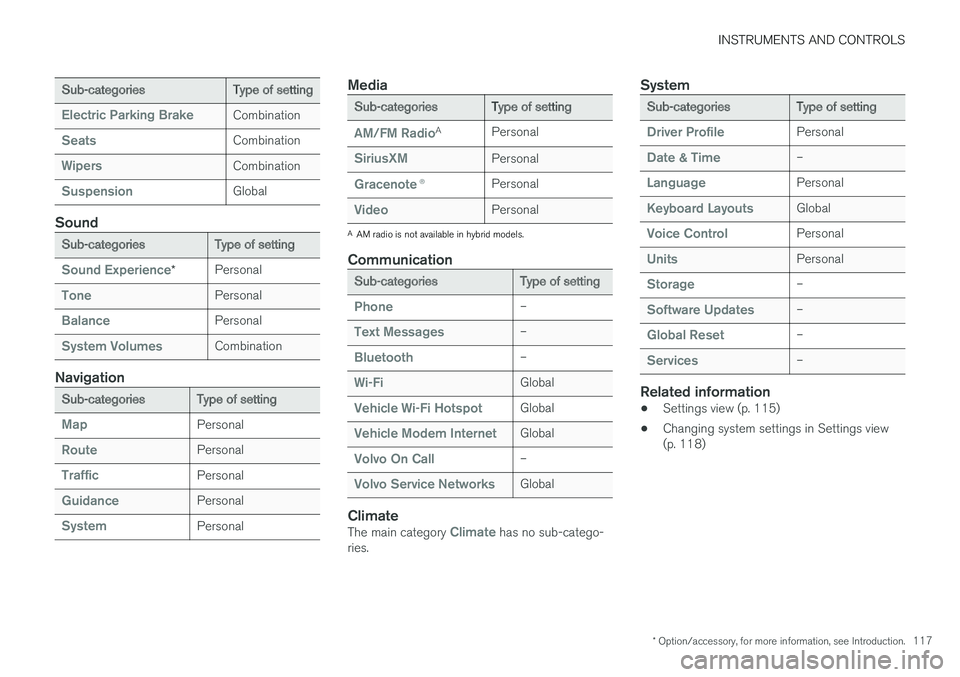
Settings view consists of a number of main cate-gories and sub-categories that contain settingsand information for many of the vehicle's fea-tures and functions.
The main categories in Settings view are: MyCar, Sound, Navigation, Media,Communication, Climate and System.
Each main category, in turn, contains several sub-categories with possible settings. The tableshows the first level of sub-categories. The possi-ble settings for a function or area are describedin greater detail in their respective articles in theowner's manual. For system settings not descri-bed in the respective articles, see "Changing sys-tem settings in Settings view."
My Car
Sub-categoriesType of setting
DisplaysPersonal
IntelliSafeCombination
Park AssistGlobal
Drive Mode/IndividualDrive Mode*
Combination
LightsCombination
MirrorsPersonal
LockingCombination
Page 119 of 584
INSTRUMENTS AND CONTROLS
* Option/accessory, for more information, see Introduction.117
Sub-categoriesType of setting
Electric Parking BrakeCombination
SeatsCombination
WipersCombination
SuspensionGlobal
Sound
Sub-categoriesType of setting
Sound Experience*Personal
TonePersonal
BalancePersonal
System VolumesCombination
Navigation
Sub-categoriesType of setting
MapPersonal
RoutePersonal
TrafficPersonal
GuidancePersonal
SystemPersonal
Media
Sub-categoriesType of setting
AM/FM RadioAPersonal
SiriusXMPersonal
Gracenote®Personal
VideoPersonal
AAM radio is not available in hybrid models.
Communication
Sub-categoriesType of setting
Phone–
Text Messages–
Bluetooth–
Wi-FiGlobal
Vehicle Wi-Fi HotspotGlobal
Vehicle Modem InternetGlobal
Volvo On Call–
Volvo Service NetworksGlobal
Climate
The main category Climate has no sub-catego-ries.
System
Sub-categoriesType of setting
Driver ProfilePersonal
Date & Time–
LanguagePersonal
Keyboard LayoutsGlobal
Voice ControlPersonal
UnitsPersonal
Storage–
Software Updates–
Global Reset–
Services–
Related information
•Settings view (p. 115)
•Changing system settings in Settings view(p. 118)
Page 127 of 584
INSTRUMENTS AND CONTROLS
}}
* Option/accessory, for more information, see Introduction.125
Voice control
Voice commands make it possible for the driverto voice-control certain functions in the mediaplayer, a Bluetooth-connected cell phone, cli-mate system and the Volvo navigation system*.
Voice control offers convenience and enables thedriver to keep his/her hands on the steeringwheel and concentrate on driving and the trafficsituation around the vehicle.
WARNING
As the driver, you have full responsibility foroperating the vehicle safely and adhering toall applicable traffic regulations.
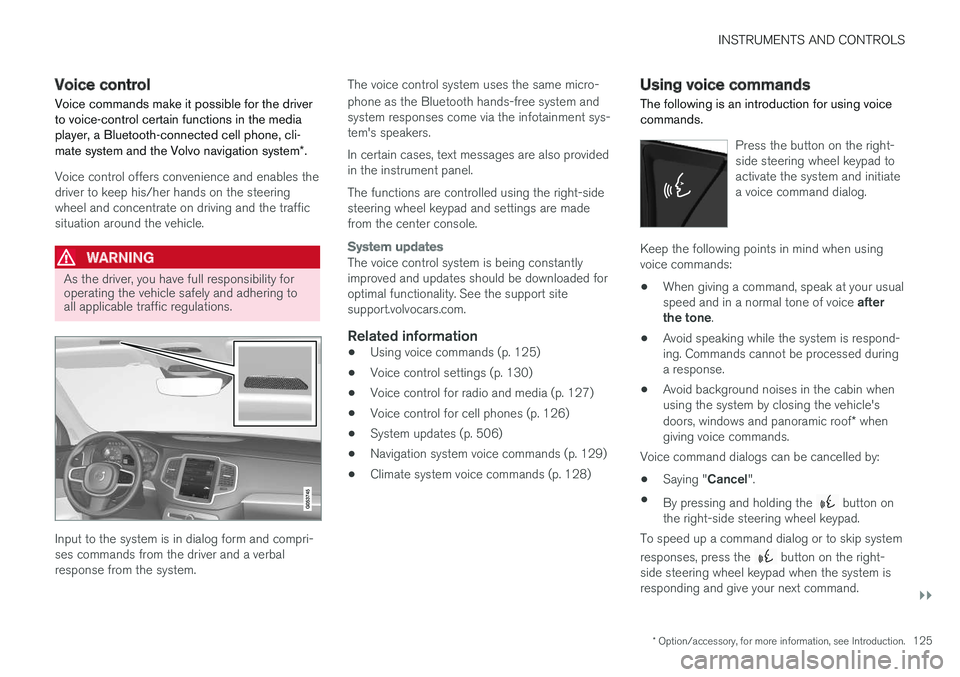
Input to the system is in dialog form and compri-ses commands from the driver and a verbalresponse from the system.
The voice control system uses the same micro-
phone as the Bluetooth hands-free system andsystem responses come via the infotainment sys-tem's speakers.
In certain cases, text messages are also providedin the instrument panel.
The functions are controlled using the right-sidesteering wheel keypad and settings are madefrom the center console.
System updates
The voice control system is being constantlyimproved and updates should be downloaded foroptimal functionality. See the support sitesupport.volvocars.com.
Related information
•Using voice commands (p. 125)
•Voice control settings (p. 130)
•Voice control for radio and media (p. 127)
•Voice control for cell phones (p. 126)
•System updates (p. 506)
•Navigation system voice commands (p. 129)
•Climate system voice commands (p. 128)
Using voice commands
The following is an introduction for using voicecommands.
Press the button on the right-side steering wheel keypad toactivate the system and initiatea voice command dialog.
Keep the following points in mind when usingvoice commands:
•When giving a command, speak at your usualspeed and in a normal tone of voice afterthe tone.
•Avoid speaking while the system is respond-ing. Commands cannot be processed duringa response.
•Avoid background noises in the cabin whenusing the system by closing the vehicle'sdoors, windows and panoramic roof* whengiving voice commands.
Voice command dialogs can be cancelled by:
•Saying "Cancel".
•By pressing and holding the button onthe right-side steering wheel keypad.
To speed up a command dialog or to skip system
responses, press the button on the right-side steering wheel keypad when the system isresponding and give your next command.
Page 128 of 584
![VOLVO XC90 TWIN ENGINE HYBRID 2017 Owners Manual ||
INSTRUMENTS AND CONTROLS
126
Voice command examples
Press , say "Call"-"[First-name]"-"[Last-name]"-"[number category]" to call a contactin your phonebook if the pe](/img/45/59300/w960_59300-127.png "VOLVO XC90 TWIN ENGINE HYBRID 2017 Owners Manual ||
INSTRUMENTS AND CONTROLS
126
Voice command examples
Press , say \"Call\"-\"[First-name]\"-\"[Last-name]\"-\"[number category]\" to call a contactin your phonebook if the pe")
||
INSTRUMENTS AND CONTROLS
126
Voice command examples
Press , say "Call"-"[First-name]"-"[Last-name]"-"[number category]" to call a contactin your phonebook if the person has more thanone phone number listed (i.e., home, mobile, work,etc.).
For example, press and say"Call"-"Robin"-"Smith"-"mobile".
Commands/phrases
The following commands can always be used:
•Repeat: the system will repeat the mostrecent voice instruction.
•Cancel: cancel the dialog.
•Help: Initiates a help dialog. The system willprovide several alternative commands thatcan be used in a given situation.
The commands for specific situations are descri-bed in the respective articles such as "Cell phonecommands", etc.
Numbers
Numbers can be spoken in different waysdepending on the context and function beingused:
•Phone numbers and zip codes should bespoken individually, number by number, e.g.,five five five one two three four (5551234).
•Addresses (house numbers) can be spo-ken individually or as a group, e.g., two two ortwenty-two (22). It is also possible to say a
sequence of numbers, e.g., twenty-twotwenty-two (22 22) and "double" or "triple"can also be used, e.g., double zero (00) or tri-ple zero (000). Numbers in the range0-2300 can be used.
•Frequencies can be spoken ninety-eightpoint eight (98.8), one hundred four pointtwo (104.2) or hundred four point two(104.2).
Related information
•Voice control (p. 125)
Voice control for cell phones
Voice commands can be used to control many
of the most common functions in a Bluetooth®-connected cell phone.
To specify a phone book contact, the voice com-mand has to include the contact's informationthat is in the phone book. For example, if a con-tact such as John Smith has several phonenumbers, a number category such as home ormobile can be specified. To call, say: "Call JohnSmith mobile".
To use the voice control system, press the on the right-side steering wheel keypad and sayone of the following commands after the tone:
•"Call [contact]": call a contact from yourphone book.
•"Call [phone number]": call a phone num-ber.
•"Recent calls": displays the list of recentcalls.
•"Read message": reads a message aloud.If there are several messages, select the oneto be read.
•"Message to [contact]": an empty mes-sage to the selected contact will open and isready for dictation to begin.
Page 129 of 584
INSTRUMENTS AND CONTROLS
* Option/accessory, for more information, see Introduction.127
Related information
•Voice control (p. 125)
•Using voice commands (p. 125)
•Voice control settings (p. 130)
Voice control for radio and media
The following voice commands can be used forthe radio or an external media player.
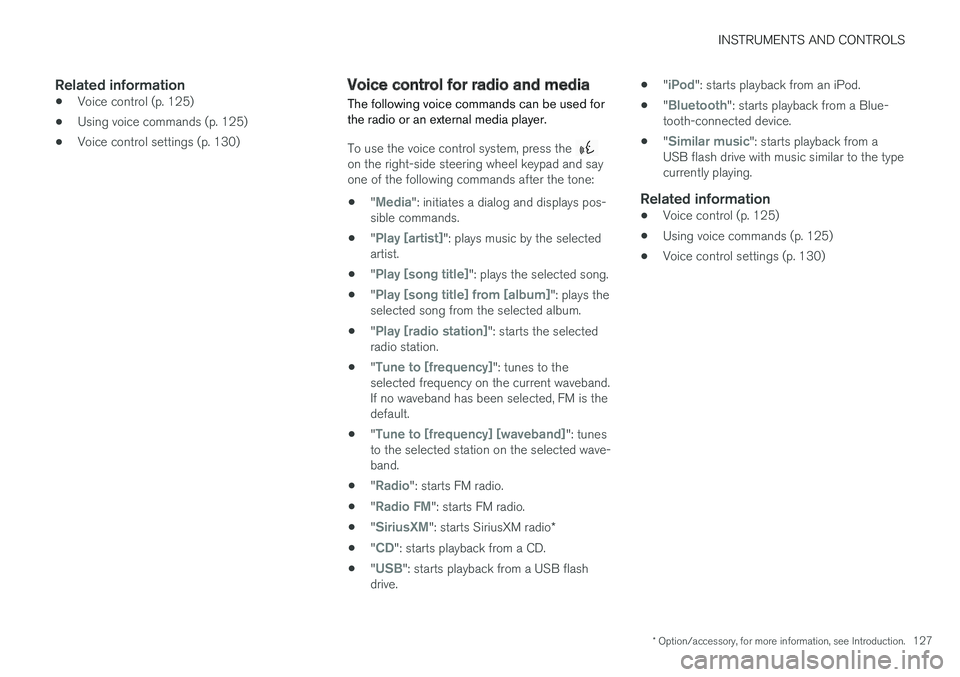
To use the voice control system, press the on the right-side steering wheel keypad and sayone of the following commands after the tone:
•"Media": initiates a dialog and displays pos-sible commands.
•"Play [artist]": plays music by the selectedartist.
•"Play [song title]": plays the selected song.
•"Play [song title] from [album]": plays theselected song from the selected album.
•"Play [radio station]": starts the selectedradio station.
•"Tune to [frequency]": tunes to theselected frequency on the current waveband.If no waveband has been selected, FM is thedefault.
•"Tune to [frequency] [waveband]": tunesto the selected station on the selected wave-band.
•"Radio": starts FM radio.
•"Radio FM": starts FM radio.
•"SiriusXM": starts SiriusXM radio*
•"CD": starts playback from a CD.
•"USB": starts playback from a USB flashdrive.
•"iPod": starts playback from an iPod.
•"Bluetooth": starts playback from a Blue-tooth-connected device.
•"Similar music": starts playback from aUSB flash drive with music similar to the typecurrently playing.
Related information
•Voice control (p. 125)
•Using voice commands (p. 125)
•Voice control settings (p. 130)
Page 133 of 584
INSTRUMENTS AND CONTROLS
}}
131
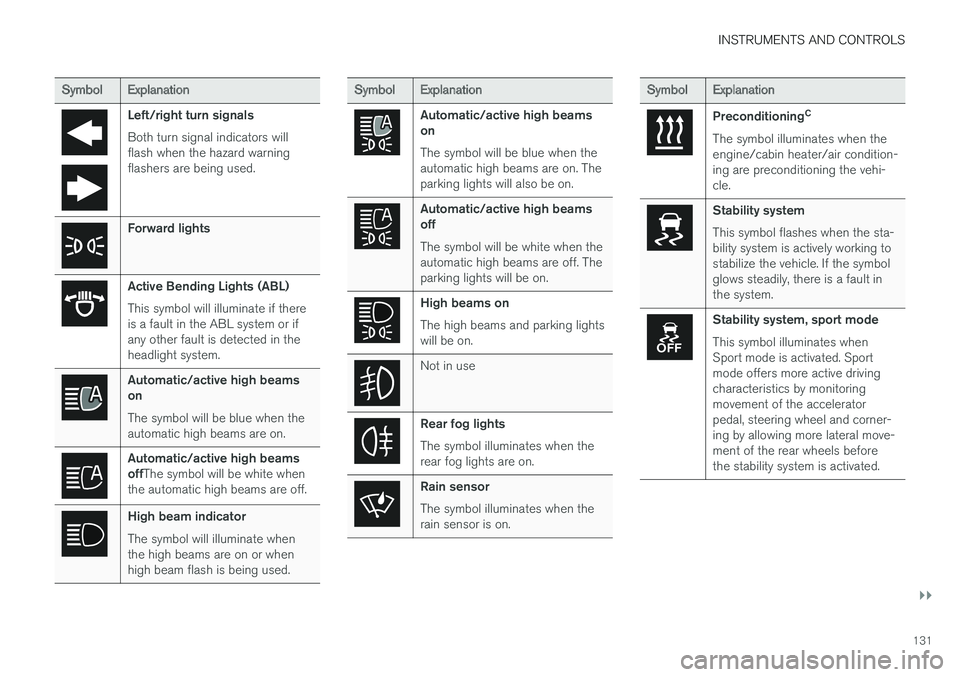
SymbolExplanation
Left/right turn signals
Both turn signal indicators willflash when the hazard warningflashers are being used.
Forward lights
Active Bending Lights (ABL)
This symbol will illuminate if thereis a fault in the ABL system or ifany other fault is detected in theheadlight system.
Automatic/active high beamson
The symbol will be blue when theautomatic high beams are on.
Automatic/active high beamsoffThe symbol will be white whenthe automatic high beams are off.
High beam indicator
The symbol will illuminate whenthe high beams are on or whenhigh beam flash is being used.
SymbolExplanation
Automatic/active high beamson
The symbol will be blue when theautomatic high beams are on. Theparking lights will also be on.
Automatic/active high beamsoff
The symbol will be white when theautomatic high beams are off. Theparking lights will be on.
High beams on
The high beams and parking lightswill be on.
Not in use
Rear fog lights
The symbol illuminates when therear fog lights are on.
Rain sensor
The symbol illuminates when therain sensor is on.
SymbolExplanation
PreconditioningC
The symbol illuminates when theengine/cabin heater/air condition-ing are preconditioning the vehi-cle.
Stability system
This symbol flashes when the sta-bility system is actively working tostabilize the vehicle. If the symbolglows steadily, there is a fault inthe system.
Stability system, sport mode
This symbol illuminates whenSport mode is activated. Sportmode offers more active drivingcharacteristics by monitoringmovement of the acceleratorpedal, steering wheel and corner-ing by allowing more lateral move-ment of the rear wheels beforethe stability system is activated.
Page 150 of 584

INSTRUMENTS AND CONTROLS
148
High and low beam headlights
If the ignition is in mode II or when the engine isstarted, the low beams are activated automati-
cally if the lighting ring is in position . Indark conditions, the low beams will also be on if
the lighting ring is in the position.
Lighting ring
High beam flash
Continuous high beams
High beam flash
Pull the lever slightly toward the steering wheel.The high beams illuminate until the lever isreleased.
Continuous high beams
Continuous high beams are available if the light-
ing ring is turned to 9 or . Toggle tohigh beams by moving the lever forward. Returnto low beams by moving the lever toward thesteering wheel.
The symbol will illuminate in the instrumentpanel when the high beams are on.
Active high beams
The active high beam system uses a camera atthe upper edge of the windshield to detect theheadlights of oncoming vehicles or the taillightsof a vehicle directly ahead. When this happens,the headlights will automatically switch from highbeams to low beams.
When the camera no longer detects anapproaching vehicle or one that is ahead, yourheadlights will switch back to high beams.
Vehicles with halogen headlights 10
When the camera no longer detects the head-lights of an approaching vehicle or the taillightsof a vehicle ahead, your headlights will switchback to high beams after several seconds.
Operation
Activate/deactivate this function by turning the
lighting ring past the position to .
When released, the ring will automatically return
to the position.
If the active high beam function has not beenactivated, switching between high and low beamsmust be done manually.
A white symbol () in the instrument panelindicates that the function has been activated.
When the high beams are on, the symbol willchange to blue.
NOTE
•Keep the windshield in front of the cam-era free of ice, snow, dirt, etc.
•Do not mount or in any way attach any-thing on the windshield that couldobstruct the camera.
If a message is displayed in the instru-ment panel saying that active highbeams are temporarily unavailable,switching between high and low beamswill have to be done manually. However, the light
switch can remain in the position. Thesame applies if a message saying that the wind-shield sensors are blocked and the symbol above
are displayed. The symbol will go out if thishappens.
9When the low beams are on.
10
Halogen headlights are not available on all models.