light YAMAHA TRACER 900 2018 User Guide
[x] Cancel search | Manufacturer: YAMAHA, Model Year: 2018, Model line: TRACER 900, Model: YAMAHA TRACER 900 2018Pages: 114, PDF Size: 7.51 MB
Page 21 of 114
Instrument and control functions
3-6
3
If the indicator light does not come on
initially when the key is turned to “ON”,
if the indicator light remains on, or if the
indicator light flashes in a pattern (if a
problem is detected in the immobilizer
system, the immobilizer system indica-
tor light will flash in a pattern), have a
Yamaha dealer check the vehicle.
TIPIf the immobilizer system indicator light
flashes in the pattern, slowly 5 times
then quickly 2 times, this could be
caused by transponder interference. If
this occurs, try the following. 1. Make sure there are no other im- mobilizer keys close to the main
switch. Other immobilizer system
keys may cause signal interfer-
ence and prevent the engine from
starting.
2. Use the code re-registering key to start the engine.
3. If the engine starts, turn it off, and try starting the engine with the
standard keys. 4. If one or both of the standard keys
do not start the engine, take the
vehicle and all 3 keys to a Yamaha
dealer to have the standard keys
re-registered.
EAU76324
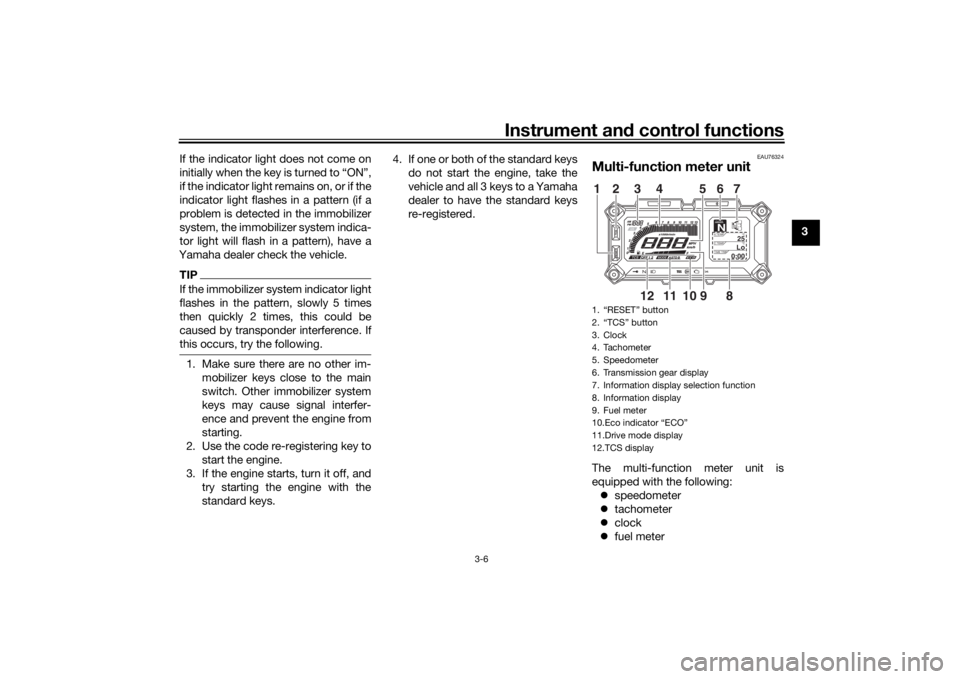
Multi-function meter unitThe multi-function meter unit is
equipped with the following: speedometer
tachometer
clock
fuel meter1. “RESET” button
2. “TCS” button
3. Clock
4. Tachometer
5. Speedometer
6. Transmission gear display
7. Information display selection function
8. Information display
9. Fuel meter
10.Eco indicator “ECO”
11.Drive mode display
12.TCS display
GEARN
25
A.TEMP °C
Lo
C.TEMP°C
0:00
TIME TRIP
891011
12
12 3 4 56
7
UB5CE0E0.book Page 6 Wednesday, December 20, 2017 11:08 AM
Page 24 of 114
Instrument and control functions
3-9
3
Travel at a constant speed.
Select the transmission gear that
is appropriate for the vehicle
speed.
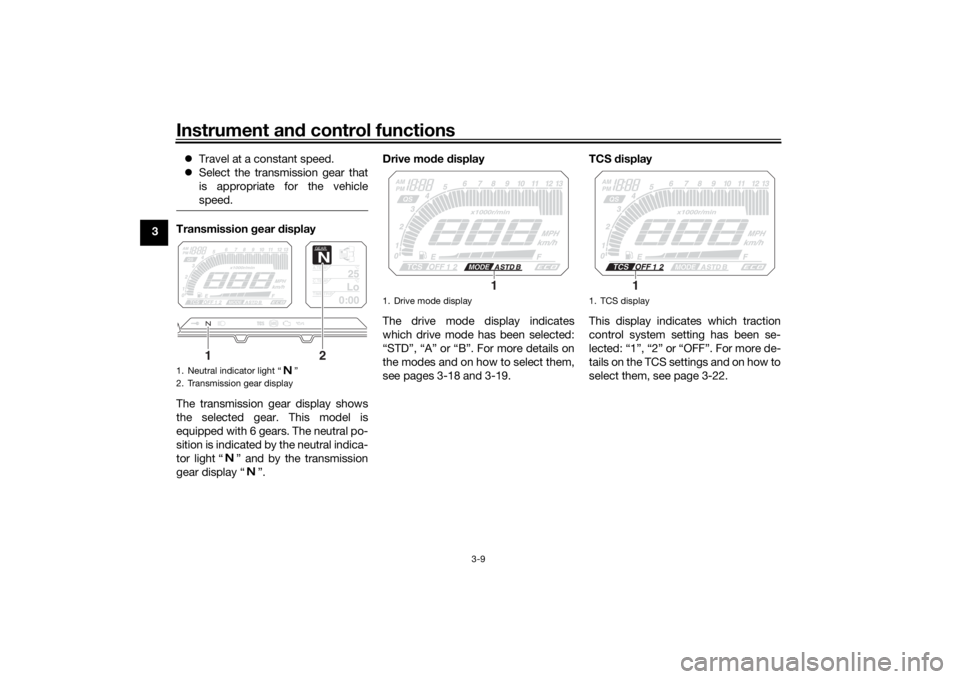
Transmission gear display
The transmission gear display shows
the selected gear. This model is
equipped with 6 gears. The neutral po-
sition is indicated by the neutral indica-
tor light “ ” and by the transmission
gear display “ ”. Drive mo
de display
The drive mode display indicates
which drive mode has been selected:
“STD”, “A” or “B”. For more details on
the modes and on how to select them,
see pages 3-18 and 3-19. TCS
display
This display indicates which traction
control system setting has been se-
lected: “1”, “2” or “OFF”. For more de-
tails on the TCS settings and on how to
select them, see page 3-22.1. Neutral indicator light “ ”
2. Transmission gear display
GEARN
25
A.TEMP °C
Lo
C.TEMP°C
0:00
TIME TRIP
1
2
1. Drive mode display
1
1. TCS display
1
UB5CE0E0.book Page 9 Wednesday, December 20, 2017 11:08 AM
Page 28 of 114
Instrument and control functions
3-13
3 Setting
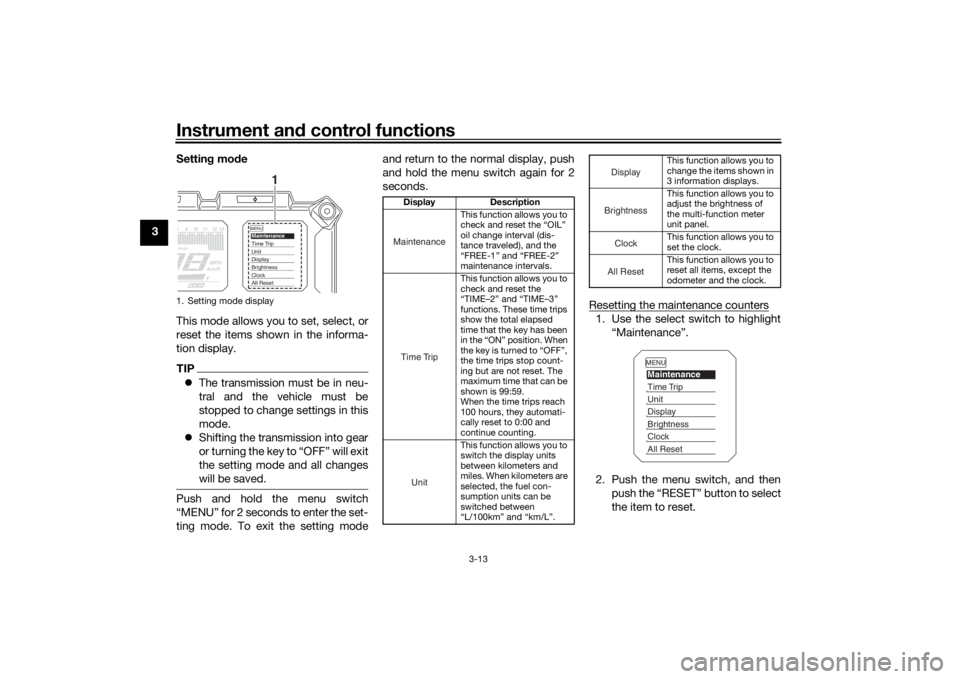
mode
This mode allows you to set, select, or
reset the items shown in the informa-
tion display.
TIP The transmission must be in neu-
tral and the vehicle must be
stopped to change settings in this
mode.
Shifting the transmission into gear
or turning the key to “OFF” will exit
the setting mode and all changes
will be saved.Push and hold the menu switch
“MENU” for 2 seconds to enter the set-
ting mode. To exit the setting mode and return to the normal display, push
and hold the menu switch again for 2
seconds.
Resetting the maintenance counters
1. Use the select switch to highlight“Maintenance”.
2. Push the menu switch, and then push the “RESET” button to select
the item to reset.
1. Setting mode display
MENUMaintenanceTime TripUnitDisplayBrightnessClockAll Reset
1
Display Description
This function allows you to
check and reset the “OIL”
oil change interval (dis-
tance traveled), and the
“FREE-1” and “FREE-2”
maintenance intervals.
This function allows you to
check and reset the
“TIME–2” and “TIME–3”
functions. These time trips
show the total elapsed
time that the key has been
in the “ON” position. When
the key is turned to “OFF”,
the time trips stop count-
ing but are not reset. The
maximum time that can be
shown is 99:59.
When the time trips reach
100 hours, they automati-
cally reset to 0:00 and
continue counting.
This function allows you to
switch the display units
between kilometers and
miles. When kilometers are
selected, the fuel con-
sumption units can be
switched between
“L/100km” and “km/L”.MaintenanceTime TripUnit
This function allows you to
change the items shown in
3 information displays.
This function allows you to
adjust the brightness of
the multi-function meter
unit panel.
This function allows you to
set the clock.
This function allows you to
reset all items, except the
odometer and the clock.
DisplayBrightnessClockAll Reset
MENUMaintenanceTime TripUnitDisplayBrightnessClockAll Reset
UB5CE0E0.book Page 13 Wednesday, December 20, 2017 11:08 AM
Page 29 of 114
Instrument and control functions
3-14
3
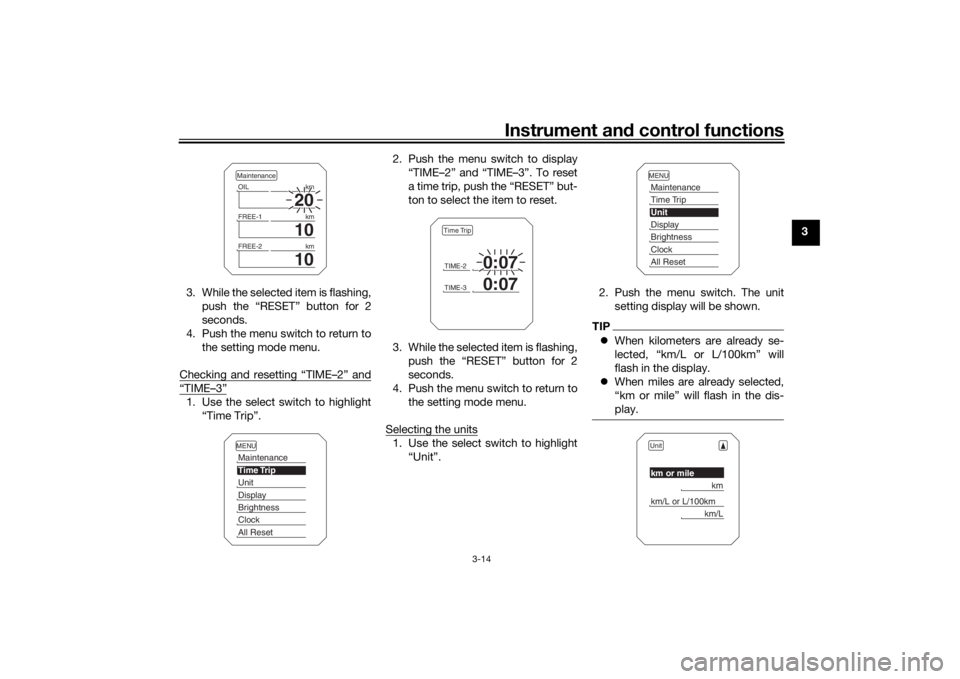
3. While the selected item is flashing, push the “RESET” button for 2
seconds.
4. Push the menu switch to return to the setting mode menu.
Checking and resetting “TIME–2” and
“TIME–3”1. Use the select switch to highlight “Time Trip”. 2. Push the menu switch to display
“TIME–2” and “TIME–3”. To reset
a time trip, push the “RESET” but-
ton to select the item to reset.
3. While the selected item is flashing, push the “RESET” button for 2
seconds.
4. Push the menu switch to return to the setting mode menu.
Selecting the units
1. Use the select switch to highlight “Unit”. 2. Push the menu switch. The unit
setting display will be shown.
TIPWhen kilometers are already se-
lected, “km/L or L/100km” will
flash in the display.
When miles are already selected,
“km or mile” will flash in the dis-
play.
20
OIL km
10
FREE-1km
10
FREE-2kmMaintenanceMENUMaintenanceTime TripUnitDisplayBrightnessClockAll Reset
TIME-2
0:07
TIME-3
0:07
Time Trip
MENUMaintenanceTime TripUnitDisplayBrightnessClockAll ResetUnitkm or mile
km
km/L or L/100km
km/L
UB5CE0E0.book Page 14 Wednesday, December 20, 2017 11:08 AM
Page 30 of 114
Instrument and control functions
3-15
3
TIP Keep kilometers selected: Skip to
step 5.
Select miles or kilometers: Contin-
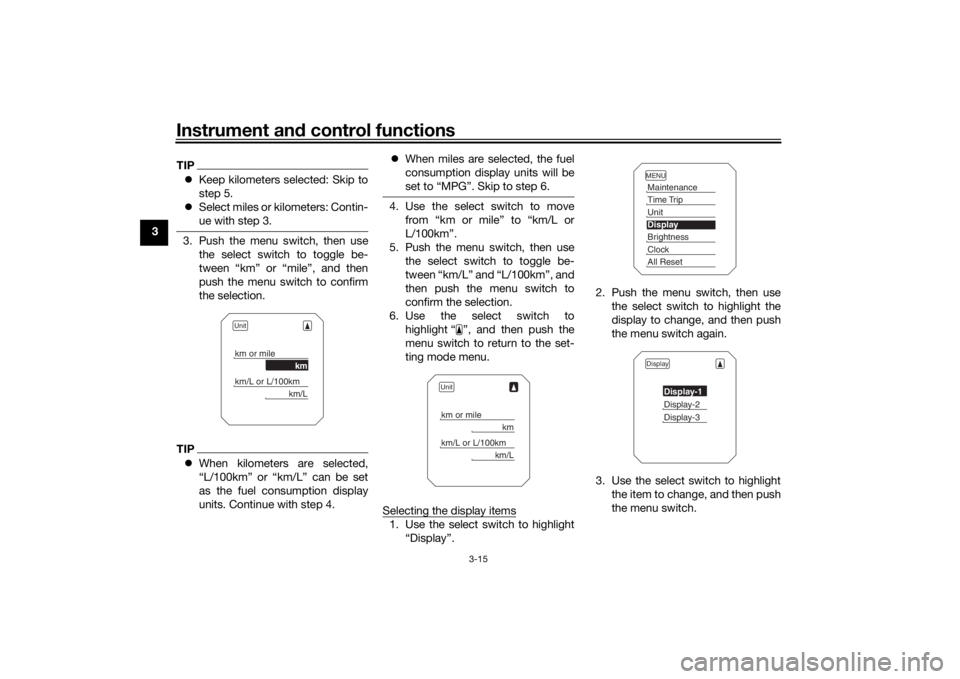
ue with step 3.3. Push the menu switch, then use
the select switch to toggle be-
tween “km” or “mile”, and then
push the menu switch to confirm
the selection.TIPWhen kilometers are selected,
“L/100km” or “km/L” can be set
as the fuel consumption display
units. Continue with step 4.
When miles are selected, the fuel
consumption display units will be
set to “MPG”. Skip to step 6.
4. Use the select switch to move
from “km or mile” to “km/L or
L/100km”.
5. Push the menu switch, then use the select switch to toggle be-
tween “km/L” and “L/100km”, and
then push the menu switch to
confirm the selection.
6. Use the select switch to highlight “ ”, and then push the
menu switch to return to the set-
ting mode menu.
Selecting the display items1. Use the select switch to highlight “Display”. 2. Push the menu switch, then use
the select switch to highlight the
display to change, and then push
the menu switch again.
3. Use the select switch to highlight the item to change, and then push
the menu switch.
Unitkm or mile
km
km/L or L/100km
km/L
Unitkm or mile
km
km/L or L/100km
km/L
MENUMaintenanceTime TripUnitDisplayBrightnessClockAll ResetDisplay
Display-1Display-2Display-3
UB5CE0E0.book Page 15 Wednesday, December 20, 2017 11:08 AM
Page 31 of 114
Instrument and control functions
3-16
3
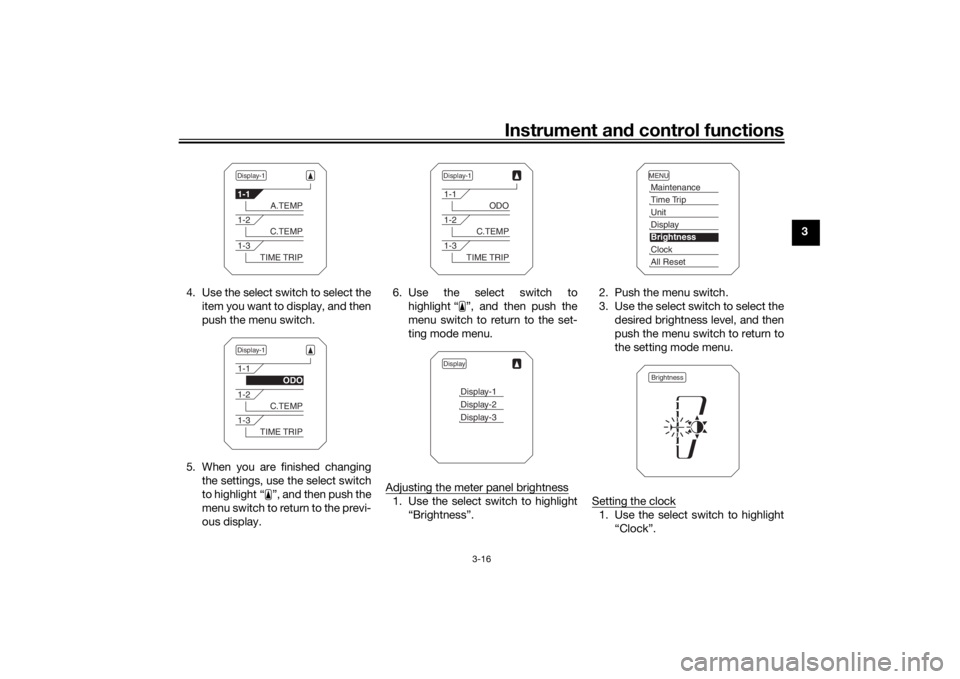
4. Use the select switch to select the item you want to display, and then
push the menu switch.
5. When you are finished changing the settings, use the select switch
to highlight “ ”, and then push the
menu switch to return to the previ-
ous display. 6. Use the select switch to
highlight “ ”, and then push the
menu switch to return to the set-
ting mode menu.
Adjusting the meter panel brightness
1. Use the select switch to highlight “Brightness”. 2. Push the menu switch.
3. Use the select switch to select the
desired brightness level, and then
push the menu switch to return to
the setting mode menu.
Setting the clock
1. Use the select switch to highlight “Clock”.
Display-11-1
A.TEMP
1-2
C.TEMP
1-3
TIME TRIP
Display-11-1
ODO
1-2
C.TEMP
1-3
TIME TRIP
Display-11-1
ODO
1-2
C.TEMP
1-3
TIME TRIP
Display
Display-1Display-2Display-3
MENUMaintenanceTime TripUnitDisplayBrightnessClockAll ResetBrightness
UB5CE0E0.book Page 16 Wednesday, December 20, 2017 11:08 AM
Page 32 of 114
Instrument and control functions
3-17
3
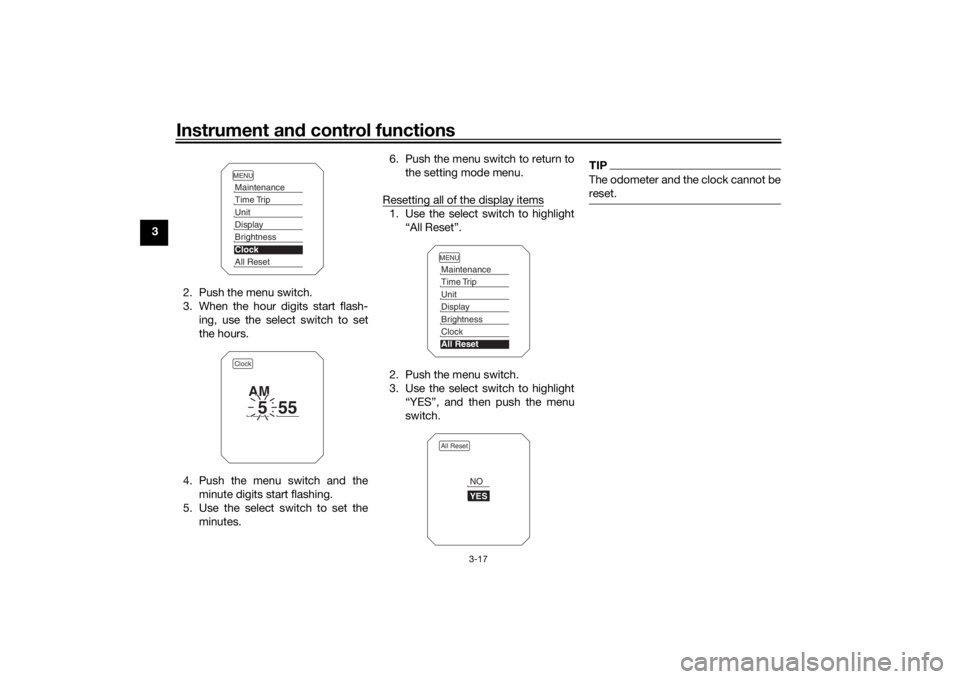
2. Push the menu switch.
3. When the hour digits start flash-ing, use the select switch to set
the hours.
4. Push the menu switch and the minute digits start flashing.
5. Use the select switch to set the minutes. 6. Push the menu switch to return to
the setting mode menu.
Resetting all of the display items
1. Use the select switch to highlight “All Reset”.
2. Push the menu switch.
3. Use the select switch to highlight “YES”, and then push the menu
switch.
TIPThe odometer and the clock cannot be
reset.
MENUMaintenanceTime TripUnitDisplayBrightnessClockAll ResetClock
5
55
AM
MENUMaintenanceTime TripUnitDisplayBrightnessClockAll ResetAll Reset
YESNO
UB5CE0E0.book Page 17 Wednesday, December 20, 2017 11:08 AM
Page 34 of 114
Instrument and control functions
3-19
3 Ri
ght
EAU54201
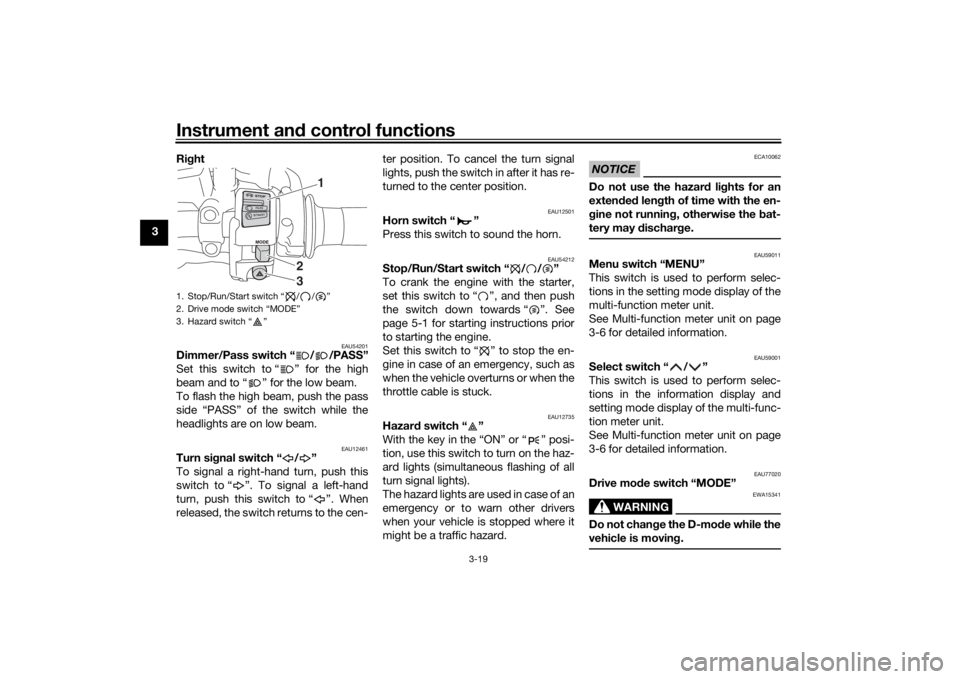
Dimmer/Pass switch “ / /PASS”
Set this switch to “ ” for the high
beam and to “ ” for the low beam.
To flash the high beam, push the pass
side “PASS” of the switch while the
headlights are on low beam.
EAU12461
Turn si gnal switch “ / ”
To signal a right-hand turn, push this
switch to “ ”. To signal a left-hand
turn, push this switch to “ ”. When
released, the switch returns to the cen- ter position. To cancel the turn signal
lights, push the switch in after it has re-
turned to the center position.
EAU12501
Horn switch “ ”
Press this switch to sound the horn.
EAU54212
Stop/Run/Start switch “ / / ”
To crank the engine with the starter,
set this switch to “ ”, and then push
the switch down towards “ ”. See
page 5-1 for starting instructions prior
to starting the engine.
Set this switch to “ ” to stop the en-
gine in case of an emergency, such as
when the vehicle overturns or when the
throttle cable is stuck.
EAU12735
Hazar
d switch “ ”
With the key in the “ON” or “ ” posi-
tion, use this switch to turn on the haz-
ard lights (simultaneous flashing of all
turn signal lights).
The hazard lights are used in case of an
emergency or to warn other drivers
when your vehicle is stopped where it
might be a traffic hazard.
NOTICE
ECA10062
Do not use the hazard lights for an
exten ded len gth of time with the en-
g ine not runnin g, otherwise the bat-
tery may dischar ge.
EAU59011
Menu switch “MENU”
This switch is used to perform selec-
tions in the setting mode display of the
multi-function meter unit.
See Multi-function meter unit on page
3-6 for detailed information.
EAU59001
Select switch “ / ”
This switch is used to perform selec-
tions in the information display and
setting mode display of the multi-func-
tion meter unit.
See Multi-function meter unit on page
3-6 for detailed information.
EAU77020
Drive mo de switch “MODE”
WARNING
EWA15341
Do not chan ge the D-mo de while the
vehicle is movin g.
1. Stop/Run/Start switch “ / / ”
2. Drive mode switch “MODE”
3. Hazard switch “ ”
1
23
UB5CE0E0.book Page 19 Wednesday, December 20, 2017 11:08 AM
Page 36 of 114
Instrument and control functions
3-21
3
EAU26826
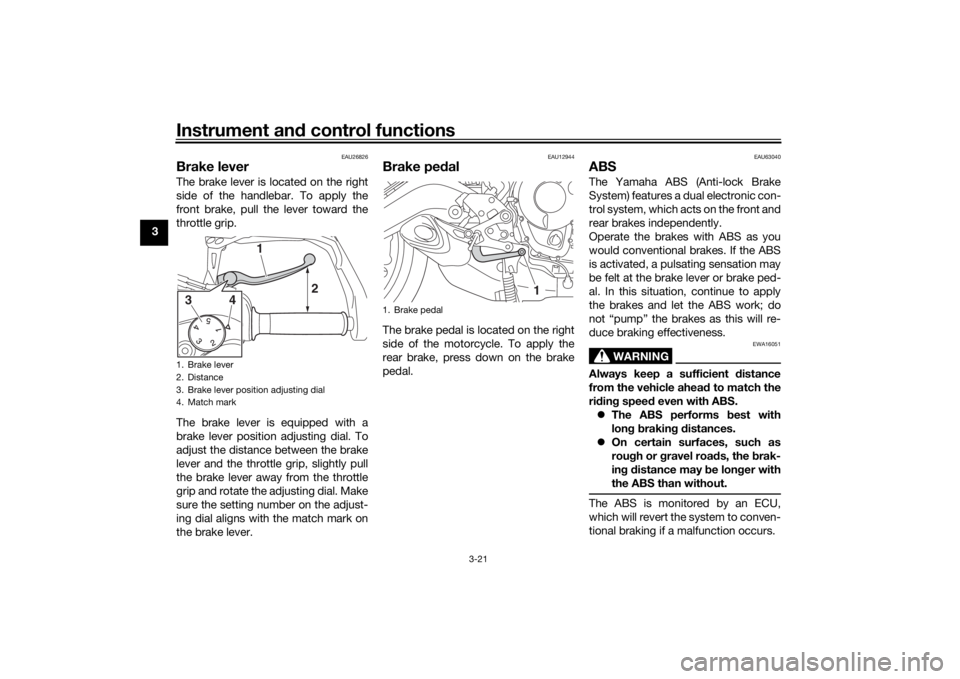
Brake leverThe brake lever is located on the right
side of the handlebar. To apply the
front brake, pull the lever toward the
throttle grip.
The brake lever is equipped with a
brake lever position adjusting dial. To
adjust the distance between the brake
lever and the throttle grip, slightly pull
the brake lever away from the throttle
grip and rotate the adjusting dial. Make
sure the setting number on the adjust-
ing dial aligns with the match mark on
the brake lever.
EAU12944
Brake ped alThe brake pedal is located on the right
side of the motorcycle. To apply the
rear brake, press down on the brake
pedal.
EAU63040
ABSThe Yamaha ABS (Anti-lock Brake
System) features a dual electronic con-
trol system, which acts on the front and
rear brakes independently.
Operate the brakes with ABS as you
would conventional brakes. If the ABS
is activated, a pulsating sensation may
be felt at the brake lever or brake ped-
al. In this situation, continue to apply
the brakes and let the ABS work; do
not “pump” the brakes as this will re-
duce braking effectiveness.
WARNING
EWA16051
Always keep a sufficient d istance
from the vehicle ahea d to match the
ri din g spee d even with ABS.
The ABS performs best with
lon g b rakin g d istances.
On certain surfaces, such as
rou gh or g ravel roa ds, the b rak-
in g d istance may be lon ger with
the ABS than without.The ABS is monitored by an ECU,
which will revert the system to conven-
tional braking if a malfunction occurs.
1. Brake lever
2. Distance
3. Brake lever position adjusting dial
4. Match mark
2
3
4
1
1. Brake pedal
1
UB5CE0E0.book Page 21 Wednesday, December 20, 2017 11:08 AM
Page 37 of 114
Instrument and control functions
3-22
3
TIP The ABS performs a self-diagno-
sis test each time the vehicle first
starts off after the key is turned to
“ON” and the vehicle has traveled
at a speed of 10 km/h (6 mi/h) or
higher. During this test, a “click-
ing” noise can be heard from the
hydraulic control unit, and if the
brake lever or brake pedal is even
slightly applied, a vibration can be
felt at the lever and pedal, but
these do not indicate a malfunc-
tion.
This ABS has a test mode which
allows the owner to experience
the pulsation at the brake lever or
brake pedal when the ABS is op-
erating. However, special tools are
required, so please consult your
Yamaha dealer.NOTICE
ECA20100
Be careful not to d amage the wheel
sensor or wheel sensor rotor; other-
wise, improper performance of the
ABS will result.
EAU76314
Traction control systemThe traction control system (TCS)
helps maintain traction when acceler-
ating on slippery surfaces, such as un-
paved or wet roads. If sensors detect
that the rear wheel is starting to slip
(uncontrolled spinning), the traction
control system assists by regulating
engine power as needed until traction
is restored.
WARNING
EWA15433
The traction control system is not a
su bstitute for ri din g appropriately
for the con ditions. Traction control
cannot prevent loss of traction d ue
to excessive spee d when enterin g
turns, when acceleratin g har d at a
sharp lean an gle, or while brakin g,
an d cannot prevent front wheel slip-
pin g. As with any vehicle, approach
surfaces that may be slippery with
caution an d avoi d especially slip-
pery surfaces.
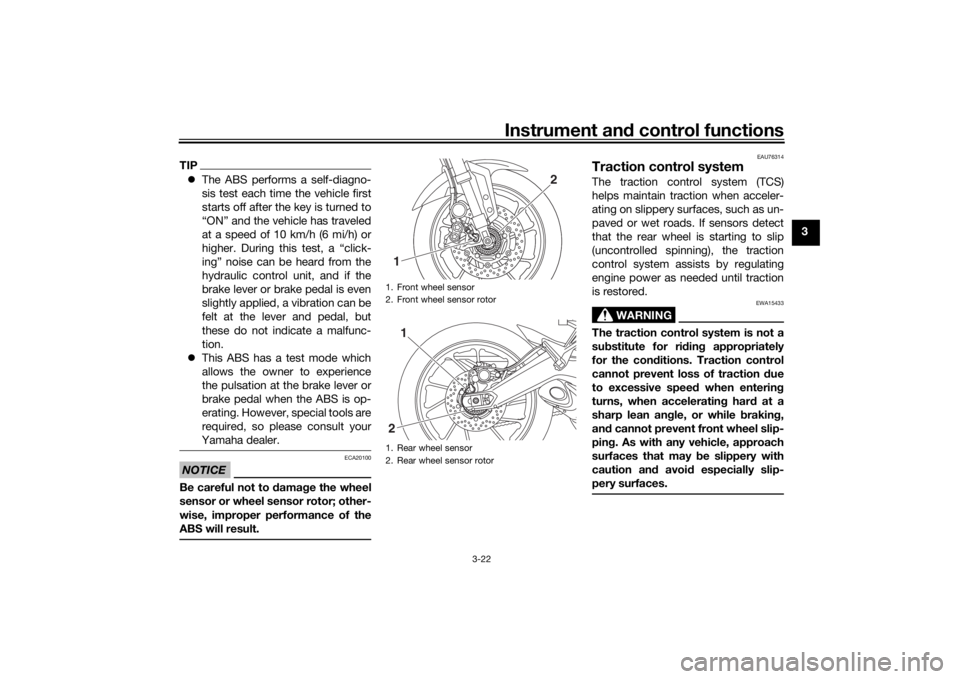
1. Front wheel sensor
2. Front wheel sensor rotor
1. Rear wheel sensor
2. Rear wheel sensor rotor1
2
1
2
UB5CE0E0.book Page 22 Wednesday, December 20, 2017 11:08 AM