Dvd Acura MDX 2011 User Guide
[x] Cancel search | Manufacturer: ACURA, Model Year: 2011, Model line: MDX, Model: Acura MDX 2011Pages: 609, PDF Size: 12.7 MB
Page 315 of 609
To Select Rear Entertainment
from the Front Control Panel
To operate the rear entertainment
system from the front panel, press
the REAR SOURCE button. You will
hear two beeps and the indicator in
the button comes on to show that the
control panel is enabled.
If you do not operate the rear
entertainment system from the front
panel within 10 seconds, the
indicator goes off and the FRONT
SOURCE indicator comes on
automatically.
Radio controls for the front
entertainment system can also be
used to operate the rear
entertainment system.Operating the DVD Player from
the Front Control Panel
The DVD player in your rear
entertainment system can play DVD
video discs, audio CDs, MP3/WMA
discs, and DTS CDs.
Press the REAR PWR button in the
front panel or press the
button in
the rear control panel when REAR
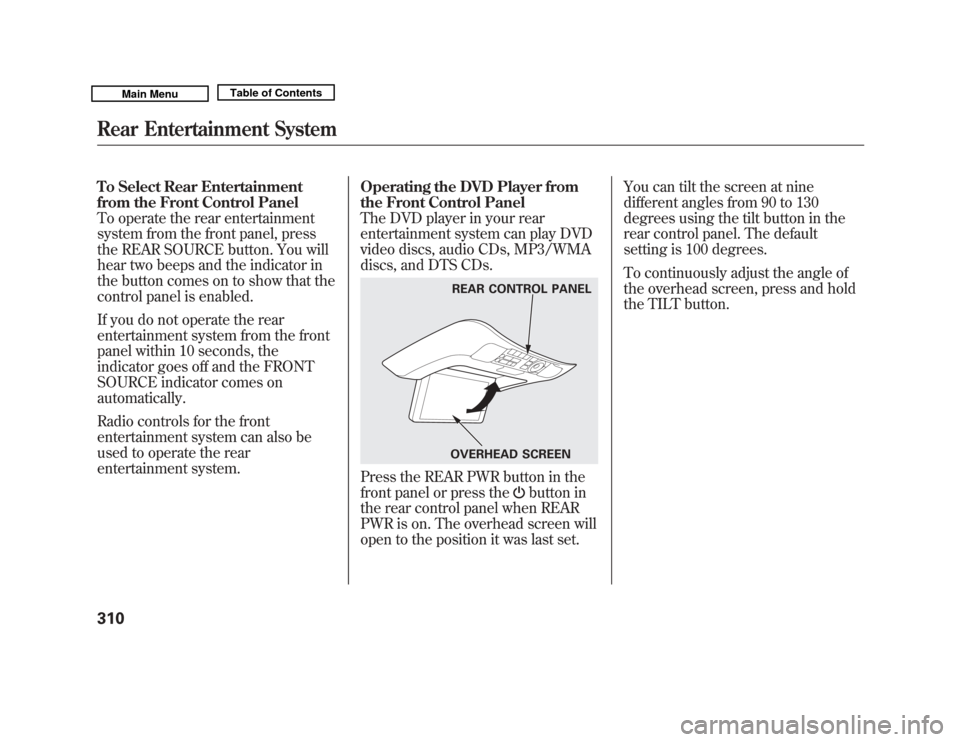
PWR is on. The overhead screen will
open to the position it was last set. You can tilt the screen at nine
different angles from 90 to 130
degrees using the tilt button in the
rear control panel. The default
setting is 100 degrees.
To continuously adjust the angle of
the overhead screen, press and hold
the TILT button.
REAR CONTROL PANEL
OVERHEAD SCREEN
Rear Entertainment System31010/06/29 11:59:04 11 ACURA MDX MMC North America Owner's M 50 31STX640 enu
Page 316 of 609
Insert a DVD into the lower DVD/
CD slot in the audio unit.
Push the DVD in halfway, the drive
will pull it in the rest of the way.
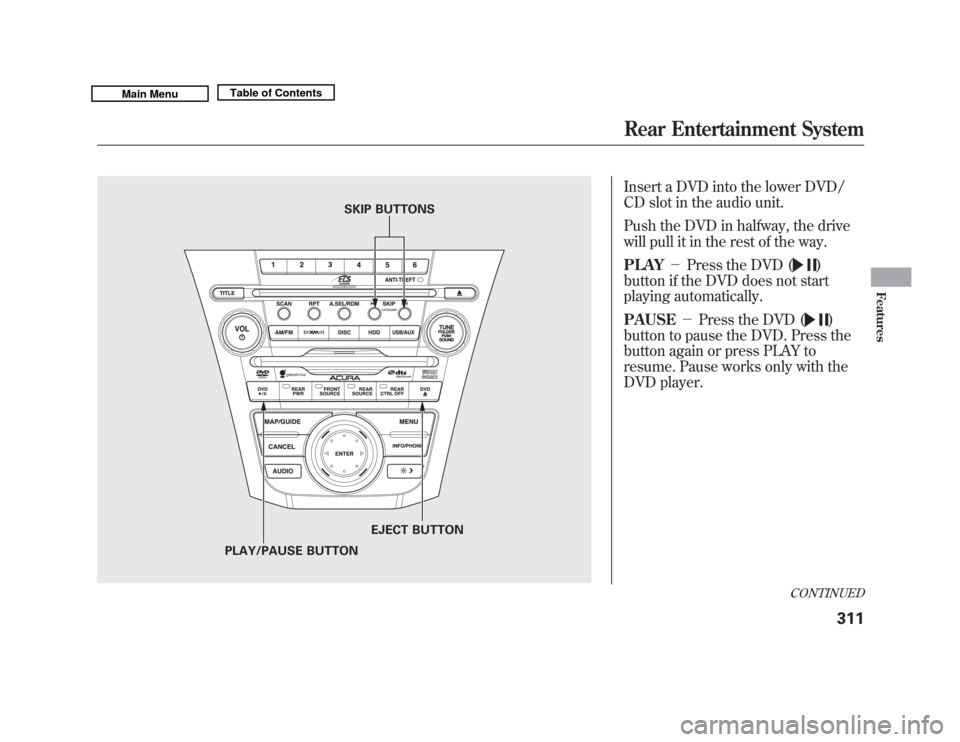
PLAY-Press the DVD (
)
button if the DVD does not start
playing automatically.
PAUSE -Press the DVD ()
button to pause the DVD. Press the
button again or press PLAY to
resume. Pause works only with the
DVD player.
SKIP BUTTONS
PLAY/PAUSE BUTTON EJECT BUTTON
CONTINUED
Rear Entertainment System
311
Features
10/06/29 11:59:04 11 ACURA MDX MMC North America Owner's M 50 31STX640 enu
Page 317 of 609
SKIP-Press and hold thebutton to move forward; you will see
the time elapsed shown in the
overhead screen advancing rapidly.
Press and hold the
button to
move backward; you will see the time
elapsed shown in the overhead
screen decreasing. Release the
button when the system reaches the
point you want.
Each time you press the
button
and release it, the system skips
forward to the beginning of the next
track or chapter. Press and release
the
button to skip backward to
the beginning of the current track.
Press and release it again to skip to
the beginning of the previous track
or chapter. EJECT
-Press the eject button to
remove the DVD from the drive.
To Return to Front Audio Controls
To return front panel control to the
front audio system, press the FRONT
SOURCE button. You will hear a
beep and the indicator in the button
comes on. The indicator also comes
on automatically, when you do not
operate the rear entertainment
system within 10 seconds. Using the Rear Control Panel
To turn on the rear entertainment
system from the rear control panel,
press the PWR button. Use the
DVD/AUX button, DISC/HDD
button, XM RADIO button, or FM/
AM button to select the
entertainment source. The selected
source will be shown in the display.
Make sure the rear control operation
has not been disabled with the REAR
CTRL button on the front panel.
When the audio system is off or the
front side rear power is off, the rear
control panel cannot be turned on.
Rear Entertainment System31210/06/29 11:59:04 11 ACURA MDX MMC North America Owner's M 50 31STX640 enu
Page 319 of 609
To Play a Disc, HDD, USB, or
iPod
®from the Rear Control Panel
Press the MENU button to display
the Audio Menu on the overhead
screen. Use the interface dial to
highlight REPEAT, RANDOM, or
SCAN on the screen. You can enter
the highlighted function by pressing
the ENTER button. These functions
have the same features as those of
the front audio system.
When TITLE/SCROLL button is
pressed, the title scrolls. When it's
pushed again, scrolling stops. To Play a DVD from the Rear
Control Panel
The video screen is for use by rear
seat passengers only. The driver and
front seat passenger should not try to
view the screen while driving.
Press the REAR PWR button in the
front panel or press the
button in
the rear control panel when REAR
PWR is on. The overhead screen will
open to the position it was last set.
You can tilt the screen at nine
different angles from 90 to 130
degrees using the tilt button in the
rear control panel. The default
setting is 100 degrees.
Press the
button when you want
to pause the DVD. Press this button
again to go back to PLAY.
Press thebutton to skip to the
beginning of the next chapter. Press
the
button to return to the
beginning of the current chapter. Press the
button again quickly to
go to the previous chapter.
To move rapidly within a chapter,
press and hold the
or
button.
The system will continue to move
through the chapter. Press the
button to move forward, or thebutton to move backward. Release
the button when the system reaches
the point you want.
To select the menu on the DVD,
press the MENU button. Use the
interface dial to turn to the desired
menu selection, then press the
ENTER button to enter your
selection.
Rear Entertainment System31410/06/29 11:59:04 11 ACURA MDX MMC North America Owner's M 50 31STX640 enu
Page 320 of 609
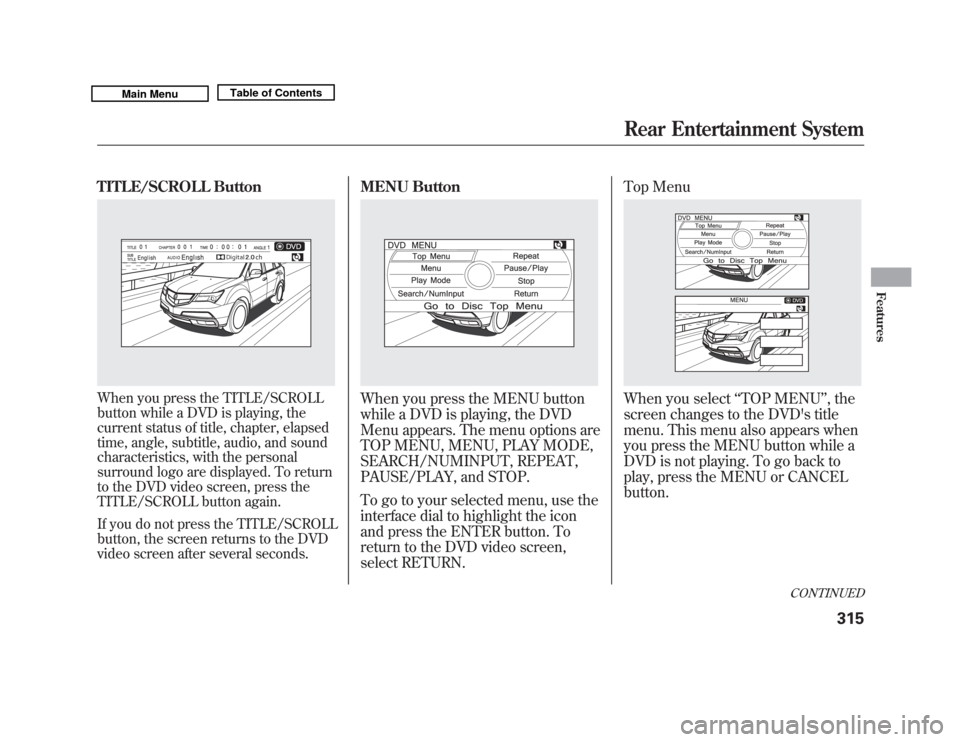
TITLE/SCROLL ButtonWhen you press the TITLE/SCROLL
button while a DVD is playing, the
current status of title, chapter, elapsed
time, angle, subtitle, audio, and sound
characteristics, with the personal
surround logo are displayed. To return
to the DVD video screen, press the
TITLE/SCROLL button again.
If you do not press the TITLE/SCROLL
button, the screen returns to the DVD
video screen after several seconds.
MENU ButtonWhen you press the MENU button
while a DVD is playing, the DVD
Menu appears. The menu options are
TOP MENU, MENU, PLAY MODE,
SEARCH/NUMINPUT, REPEAT,
PAUSE/PLAY, and STOP.
To go to your selected menu, use the
interface dial to highlight the icon
and press the ENTER button. To
return to the DVD video screen,
select RETURN.Top Menu
When you select
‘‘TOP MENU ’’, the
screen changes to the DVD's title
menu. This menu also appears when
you press the MENU button while a
DVD is not playing. To go back to
play, press the MENU or CANCEL
button.
CONTINUED
Rear Entertainment System
315
Features
10/06/29 11:59:04 11 ACURA MDX MMC North America Owner's M 50 31STX640 enu
Page 321 of 609
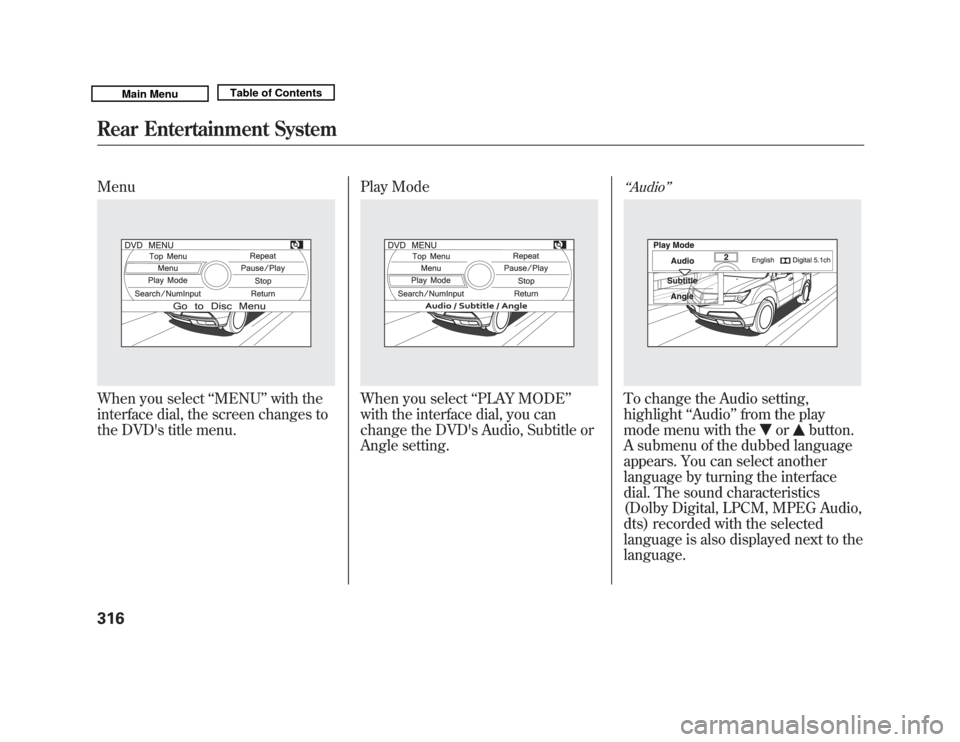
MenuWhen you select‘‘MENU ’’with the
interface dial, the screen changes to
the DVD's title menu. Play Mode
When you select
‘‘PLAY MODE ’’
with the interface dial, you can
change the DVD's Audio, Subtitle or
Angle setting.
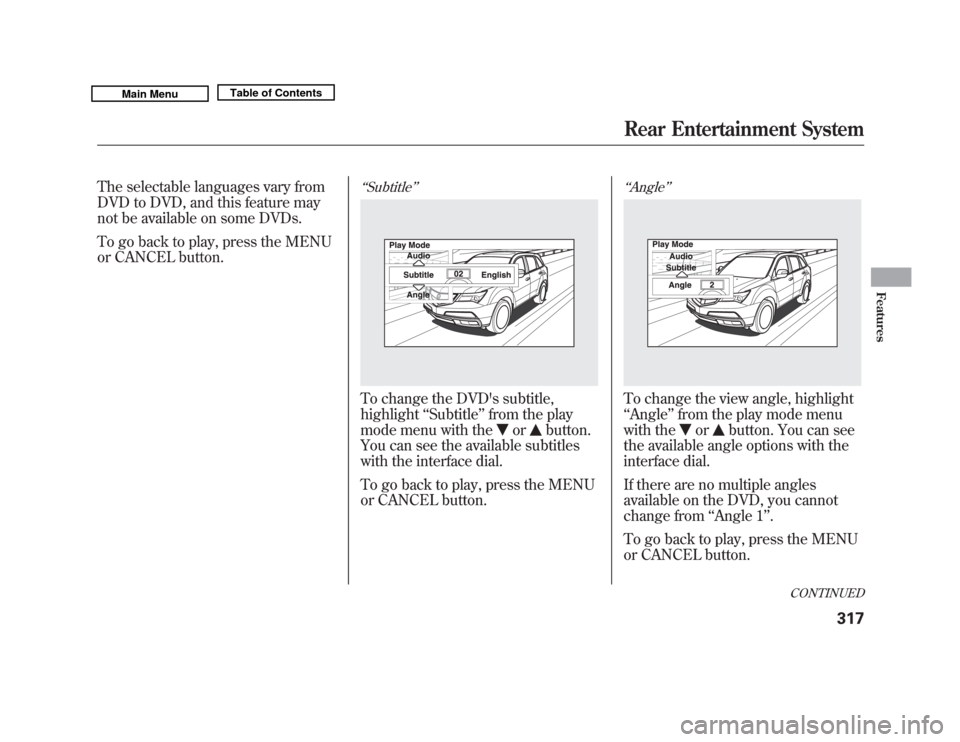
‘‘ Audio ’’To change the Audio setting,
highlight ‘‘Audio ’’from the play
mode menu with the
or
button.
A submenu of the dubbed language
appears. You can select another
language by turning the interface
dial. The sound characteristics
(Dolby Digital, LPCM, MPEG Audio,
dts) recorded with the selected
language is also displayed next to the
language.
Rear Entertainment System31610/06/29 11:59:04 11 ACURA MDX MMC North America Owner's M 50 31STX640 enu
Page 322 of 609
The selectable languages vary from
DVD to DVD, and this feature may
not be available on some DVDs.
To go back to play, press the MENU
or CANCEL button.
‘‘Subtitle ’’To change the DVD's subtitle,
highlight ‘‘Subtitle ’’from the play
mode menu with the
or
button.
You can see the available subtitles
with the interface dial.
To go back to play, press the MENU
or CANCEL button.
‘‘ Angle ’’To change the view angle, highlight
‘‘Angle ’’from the play mode menu
with the
or
button. You can see
the available angle options with the
interface dial.
If there are no multiple angles
available on the DVD, you cannot
change from ‘‘Angle 1’’ .
To go back to play, press the MENU
or CANCEL button.
CONTINUED
Rear Entertainment System
317
Features
10/06/29 11:59:04 11 ACURA MDX MMC North America Owner's M 50 31STX640 enu
Page 323 of 609
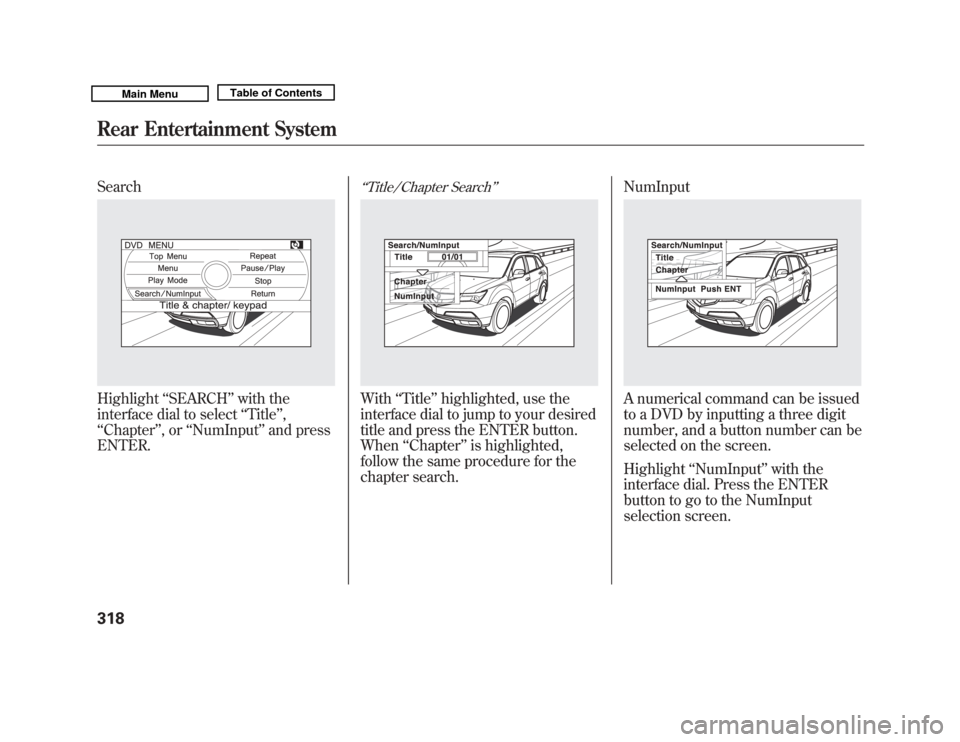
SearchHighlight‘‘SEARCH ’’with the
interface dial to select ‘‘Title’’ ,
‘‘ Chapter ’’,or ‘‘NumInput ’’and press
ENTER.
‘‘ Title/Chapter Search ’’With‘‘Title’’ highlighted, use the
interface dial to jump to your desired
title and press the ENTER button.
When ‘‘Chapter ’’is highlighted,
follow the same procedure for the
chapter search. NumInput
A numerical command can be issued
to a DVD by inputting a three digit
number, and a button number can be
selected on the screen.
Highlight
‘‘NumInput ’’with the
interface dial. Press the ENTER
button to go to the NumInput
selection screen.
Rear Entertainment System31810/06/29 11:59:04 11 ACURA MDX MMC North America Owner's M 50 31STX640 enu
Page 324 of 609
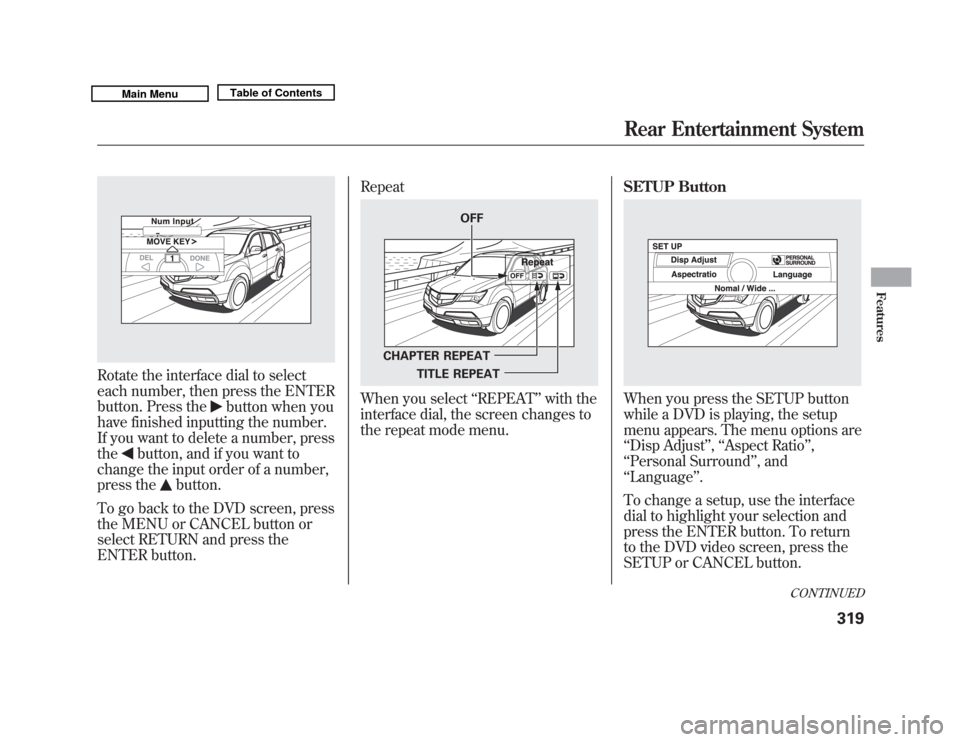
Rotate the interface dial to select
each number, then press the ENTER
button. Press the
button when you
have finished inputting the number.
If you want to delete a number, press
the
button, and if you want to
change the input order of a number,
press the
button.
To go back to the DVD screen, press
the MENU or CANCEL button or
select RETURN and press the
ENTER button. Repeat
When you select
‘‘REPEAT ’’with the
interface dial, the screen changes to
the repeat mode menu. SETUP Button
When you press the SETUP button
while a DVD is playing, the setup
menu appears. The menu options are
‘‘
Disp Adjust ’’, ‘‘Aspect Ratio ’’,
‘‘ Personal Surround ’’, and
‘‘ Language ’’.
To change a setup, use the interface
dial to highlight your selection and
press the ENTER button. To return
to the DVD video screen, press the
SETUP or CANCEL button.
OFF
CHAPTER REPEAT TITLE REPEAT
CONTINUED
Rear Entertainment System
319
Features
10/06/29 11:59:04 11 ACURA MDX MMC North America Owner's M 50 31STX640 enu
Page 328 of 609
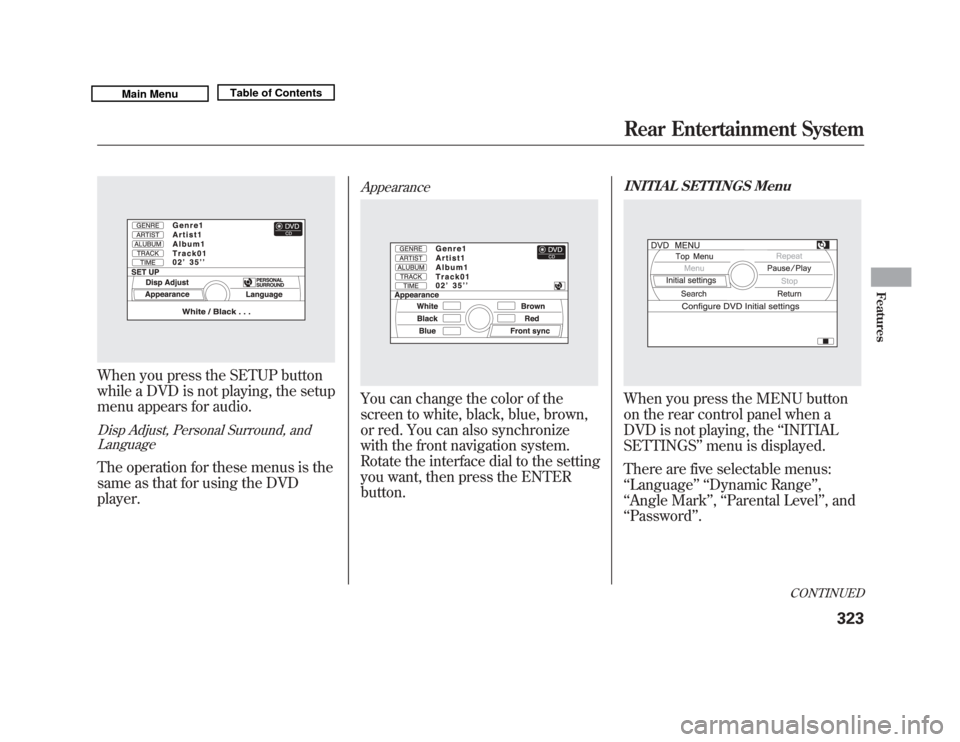
When you press the SETUP button
while a DVD is not playing, the setup
menu appears for audio.Disp Adjust, Personal Surround, andLanguageThe operation for these menus is the
same as that for using the DVD
player.
AppearanceYou can change the color of the
screen to white, black, blue, brown,
or red. You can also synchronize
with the front navigation system.
Rotate the interface dial to the setting
you want, then press the ENTER
button.
INITIAL SETTINGS MenuWhen you press the MENU button
on the rear control panel when a
DVD is not playing, the ‘‘INITIAL
SETTINGS ’’menu is displayed.
There are five selectable menus:
‘‘ Language ’’ ‘‘Dynamic Range ’’,
‘‘ Angle Mark ’’, ‘‘Parental Level ’’, and
‘‘ Password ’’.
CONTINUED
Rear Entertainment System
323
Features
10/06/29 11:59:04 11 ACURA MDX MMC North America Owner's M 50 31STX640 enu