Dvd Acura MDX 2011 Owner's Manual
[x] Cancel search | Manufacturer: ACURA, Model Year: 2011, Model line: MDX, Model: Acura MDX 2011Pages: 609, PDF Size: 12.7 MB
Page 206 of 609
To Play a Disc
To load or play discs, the ignition
switch must be in the ACCESSORY
(I) or ON (II) position.
You operate the disc changer with
the same controls used for the radio.
To select the disc changer, press the
DISC button. You will see‘‘DISC ’’in
the display. The disc and track
numbers, and the elapsed time are
shown in the display. You can also
select the displayed information with
the TITLE button (see page 202).
The system will continuously play a
disc until you change modes.Do not use discs with adhesive labels.
The label can curl up and cause the
disc to jam in the unit. This audio system can also play
CD-Rs and CD-RWs compressed in
MP3 or WMA formats. When playing
a disc in MP3, you will see
‘‘MP3 ’’in
the display. In WMA format, ‘‘WMA ’’
will appear in the display. The disc,
folder and track numbers are
displayed. You can select up to 255
folders or tracks.
Video CDs and DVD discs do not
work in this unit. NOTE:
If a file on an MP3 or WMA disc is
protected by digital rights
management (DRM), the audio unit
displays FORMAT, and then skips to
the next file.
Depending on the software the files
were made with, it may not be
possible to play some files, or display
some text data.
CONTINUED
Playing Discs (Models without navigation system)
201
Features
10/06/29 11:59:04 11 ACURA MDX MMC North America Owner's M 50 31STX640 enu
Page 238 of 609
Your vehicle's audio system has an
internal disc player. To operate the
disc player, the ignition switch must
be in the ACCESSORY (I) or the ON
(II) position.
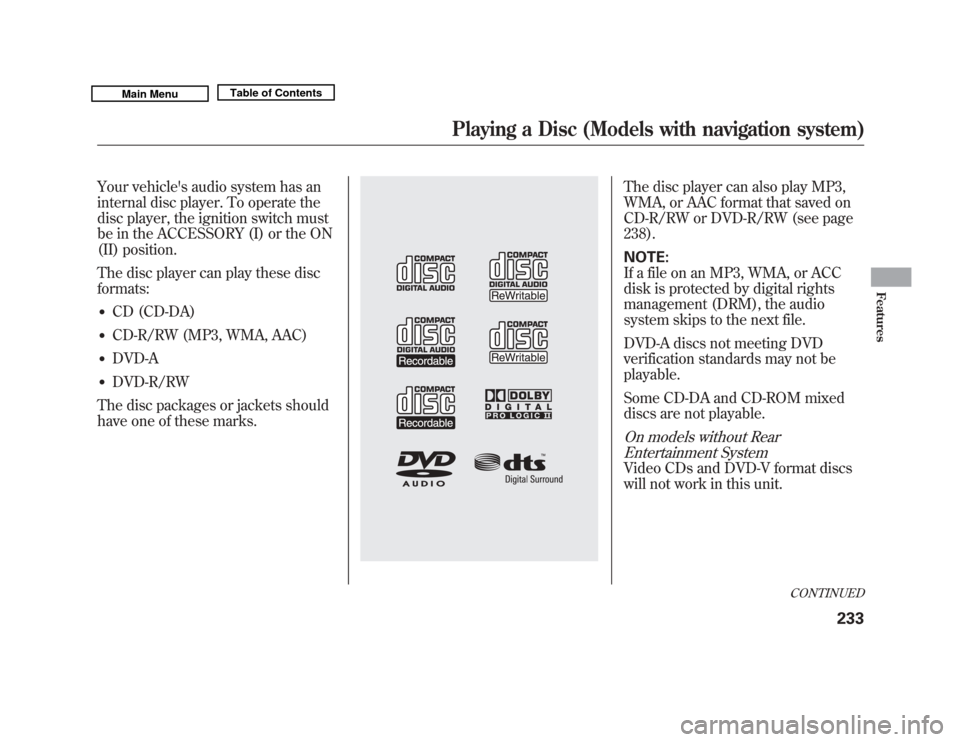
The disc player can play these disc
formats:●
CD (CD-DA)
●
CD-R/RW (MP3, WMA, AAC)
●
DVD-A
●
DVD-R/RW
The disc packages or jackets should
have one of these marks.
The disc player can also play MP3,
WMA, or AAC format that saved on
CD-R/RW or DVD-R/RW (see page
238).
NOTE:
If a file on an MP3, WMA, or ACC
disk is protected by digital rights
management (DRM), the audio
system skips to the next file.
DVD-A discs not meeting DVD
verification standards may not be
playable.
Some CD-DA and CD-ROM mixed
discs are not playable.On models without Rear Entertainment SystemVideo CDs and DVD-V format discs
will not work in this unit.
CONTINUED
Playing a Disc (Models with navigation system)
233
Features
10/06/29 11:59:04 11 ACURA MDX MMC North America Owner's M 50 31STX640 enu
Page 239 of 609
It is possible to select up to 999 files
for inclusion in CD-Rs and CD-RWs,
and up to 3,500 files for inclusion in
DVD-Rs and DVD-RWs.Do not use discs with adhesive labels.The label can curl up and cause the disc
to jam in the unit.Manufactured under license under
U.S. Patent #'s: 5,451,942; 5,956,674;
5,974,380; 5,978,762; 6,487,535 &
other U.S. and worldwide patents
issued & pending. DTS and DTS
Digital Surround are registered
trademarks and the DTS logos and
Symbol are trademarks of DTS, Inc.
© 1996 -2008 DTS, Inc. All Rights
Reserved. To Load a Disc
Insert a disc about halfway into the
disc slot. The drive will pull the disc
in the rest of the way to play it. You
operate the disc player with the same
controls used for the radio. The
number of the current track is shown
in the display. When playing a disc in
MP3, WMA or AAC, the numbers of
the current folder and file are shown.
The system will continuously play a
disc until you change modes.
For information on how to handle
and protect compact discs, see page
244.
To Play a Disc
Select the disc player by pressing the
DISC button. The system will begin
playing the last selected track in the
disc. You will see the current track
position highlighted.
Title information will be displayed by
a list when the information is found
in the Gracenote
ꭂ
Album Info
(Gracenote
ꭂ
Media Database) on the
built-in hard disk drive. When you
play a CD recorded with text data,
you will see the genre, artist name,
album and track name on the screen.
When you play MP3/WMA/AAC
discs, you will see the genre, artist
name, album name and track name
on the screen. If the disc was not
recorded with this information, it will
not be displayed.
Playing a Disc (Models with navigation system)23410/06/29 11:59:04 11 ACURA MDX MMC North America Owner's M 50 31STX640 enu
Page 243 of 609
To Stop Playing a Disc
To take the system out of disc mode,
press the AM/FM button, thebutton, or the HDD button. To return
to disc mode, press the DISC button.
If you turn the system off while a disc
is playing, either with the VOL/knob or the ignition switch, the disc
will stay in the drive. When you turn
the system back on, the disc will
begin playing where it left off.Playing an MP3/WMA/AAC Disc
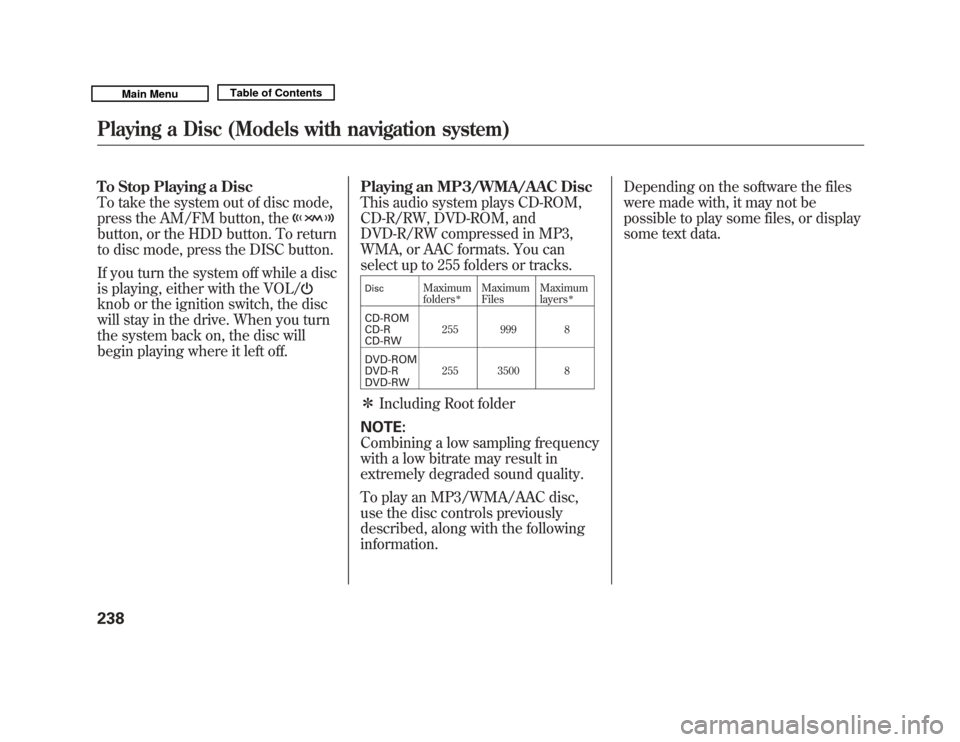
This audio system plays CD-ROM,
CD-R/RW, DVD-ROM, and
DVD-R/RW compressed in MP3,
WMA, or AAC formats. You can
select up to 255 folders or tracks.
Disc
Maximum
folders
ꭧ
Maximum
Files
Maximum
layers
ꭧ
CD-ROM
CD-R
CD-RW 255 999 8
DVD-ROM
DVD-R
DVD-RW 255 3500 8ꭧ
Including Root folder
NOTE:
Combining a low sampling frequency
with a low bitrate may result in
extremely degraded sound quality.
To play an MP3/WMA/AAC disc,
use the disc controls previously
described, along with the following
information. Depending on the software the files
were made with, it may not be
possible to play some files, or display
some text data.
Playing a Disc (Models with navigation system)23810/06/29 11:59:04 11 ACURA MDX MMC North America Owner's M 50 31STX640 enu
Page 247 of 609
Folder Scan
This feature, when activated, samples
the first file of each folder for 10
seconds. To scan a folder, press the
SCAN button. Or, push the interface
selector down while playing a disc.
Turn the interface dial to select Scan
on the AUDIO MENU, and press
ENTER on the interface selector.
Turn the interface dial to select the
folder scan icon, and press ENTER
on the interface selector.
The system plays the first file in the
first folder for about 10 seconds. If
you do nothing, the system will then
play the first files in the next folders
for 10 seconds. After playing the first
file of the last folder, the system
plays normally.To turn this feature off, turn the
interface dial to select the OFF icon,
and press ENTER on the interface
selector. The last track sampled
begins to play.
NOTE:
When playing MP3, WMA or AAC
format disc, each time you press the
SCAN button, the system changes in
the following sequence: Scan
ꭟScan
first track in folder ꭟOFF ꭟScan.
Removing Discs from the Disc
Player
To remove the disc, press the eject
(
) button.
If you do not remove the disc from
the slot, the system will reload the
disc after 10 seconds. The disc starts
playing automatically.
Playing a DVD-A Disc
Use the disc controls previously
described.
Playing a Disc (Models with navigation system)24210/06/29 11:59:04 11 ACURA MDX MMC North America Owner's M 50 31STX640 enu
Page 249 of 609
General Information●
When using CD-R, CD-RW, DVD-R
or DVD-RW discs, use only high
quality discs labeled for audio use.
●
When recording a CD-R, CD-RW,
DVD-R or DVD-RW the recording
must be closed for it to be used by
the disc player.
●
When using DVD-R/RW discs,
they should meet DVD verification
standards.
●
Play only standard, round, 5-inch
(12 cm) discs. Smaller or odd-
shaped discs may jam in the drive
or cause other problems.
●
Handle your discs properly to
prevent damage and skipping.
Do not use discs with adhesive labels.The label can curl up and cause the discto jam in the unit.Protecting Discs
When a disc is not being played,
store it in its case to protect it from
dust and other contamination. To
prevent warpage, keep discs out of
direct sunlight and extreme heat.
To clean a disc, use a clean soft cloth.
Wipe across the disc from the center
to the outside edge.
A new disc may be rough on the
inner and outer edges. The small
plastic pieces causing this roughness
can flake off and fall on the recording
surface of the disc, causing skipping
or other problems. Remove these
pieces by rubbing the inner and
outer edges with the side of a pencil
or pen. Never try to insert foreign objects in
the disc player.
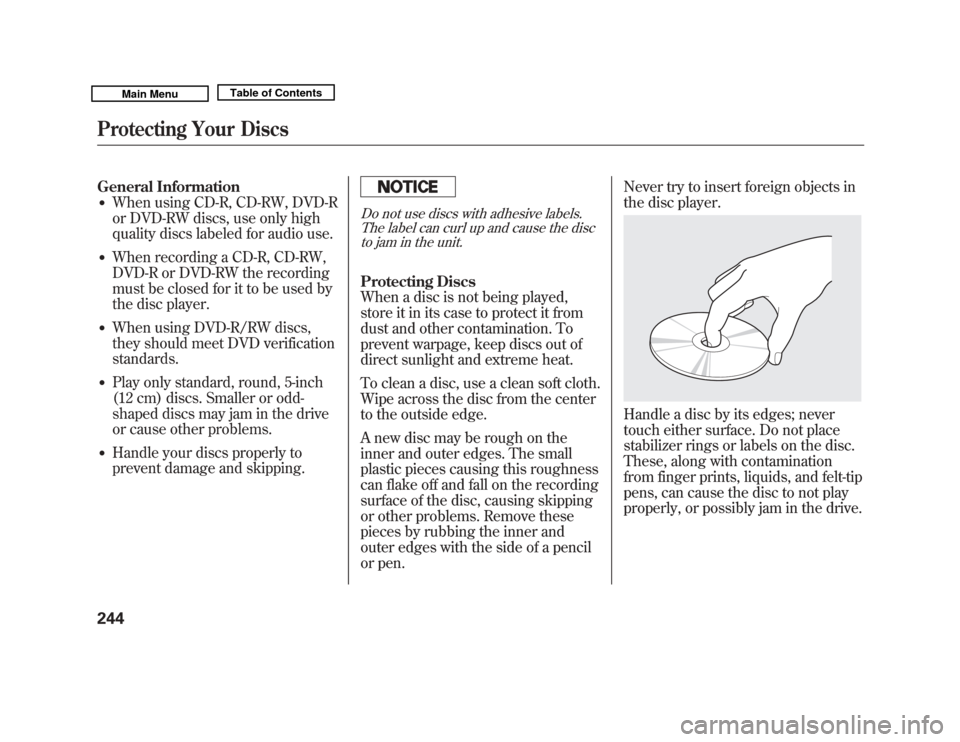
Handle a disc by its edges; never
touch either surface. Do not place
stabilizer rings or labels on the disc.
These, along with contamination
from finger prints, liquids, and felt-tip
pens, can cause the disc to not play
properly, or possibly jam in the drive.
Protecting Your Discs24410/06/29 11:59:04 11 ACURA MDX MMC North America Owner's M 50 31STX640 enu
Page 251 of 609
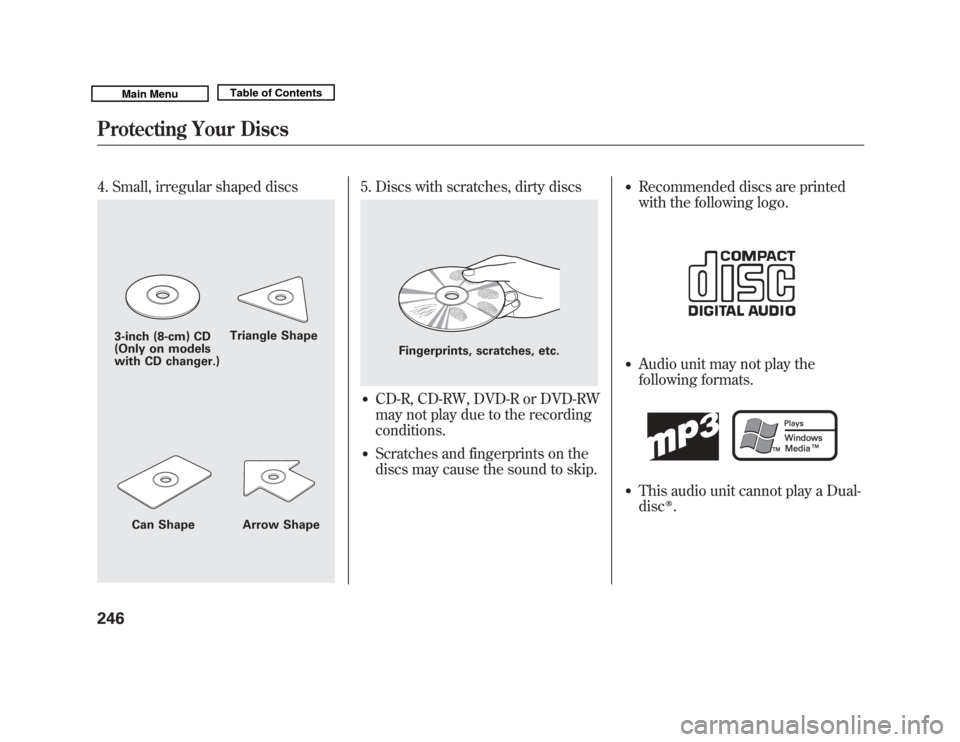
4. Small, irregular shaped discs
5. Discs with scratches, dirty discs●
CD-R, CD-RW, DVD-R or DVD-RW
may not play due to the recording
conditions.
●
Scratches and fingerprints on the
discs may cause the sound to skip.
●
Recommended discs are printed
with the following logo.
●
Audio unit may not play the
following formats.
●
This audio unit cannot play a Dual-
disc
ꭂ.
3-inch (8-cm) CD
(Only on models
with CD changer.)Triangle Shape
Can Shape Arrow Shape
Fingerprints, scratches, etc.
Protecting Your Discs24610/06/29 11:59:04 11 ACURA MDX MMC North America Owner's M 50 31STX640 enu
Page 253 of 609
The Hard Disc Drive (HDD) Audio
function can record tracks from
music CDs to the navigation system's
hard disc. This function also allows
for various playing methods, such as
playing recorded tracks on an artist-
by-artist or genre-by-genre basis. For
example, you can play the tracks that
you want to listen to in any order that
you like for each playlist.
NOTE:●
Only recordings from a standard
CD-DA (44.1 kHz, 16 bit stereo
PCM digital sound data) to HDD
are supported.
●
Digital music files, such as MP3,
WMA, AAC etc., in CD-R, DVD-R
and USB flash memory devices
cannot be copied to HDD.
Likewise, digital music files
recorded to HDD cannot be copied
to CD-R, DVD-R and USB devices.
●
Music data recorded on HDD can
only be used for personal
enjoyment.
●
Data is recorded using ultra-
efficient compression technology,
therefore, sound quality may vary
slightly from the original.
●
Title information will be displayed
when the information is found in
the Gracenote
®Album Info
(Gracenote
®Media Database) on
the built-in hard disk drive. See
page 272.
●
Recording function from following
media is not supported.
– CD-DA which prohibits the copy
by SCMS
– CD-DA with copy control
– SACD (Super Audio CD)
– DTS-CD
– DVD-A
– CD-R/RW
– DVD-R/RW
– Copy controlled CDs (Playback
cannot be guaranteed)
– DTS-CDs (Only enabled for
playback)
If the HDD is ever replaced, all data
will be lost and stored music will not
be recovered.
Playing Hard Disc Drive (HDD) Audio (Models with navigation system)24810/06/29 11:59:04 11 ACURA MDX MMC North America Owner's M 50 31STX640 enu
Page 312 of 609
U.S. Technology Package withEntertainment, Advance Package withEntertainment, Canadian Technology,
and Elite PackagesYour vehicle is equipped with a rear
entertainment system that includes a
DVD player for the enjoyment of the
rear passengers.
With this system, the rear
passengers can enjoy a different
entertainment source (radio, disc,
HDD, USB, iPod
®, DVD player, or
XM Radio) than the front seat
occupants. The audio is broadcast
through the supplied wireless
headphones.
The ignition switch must be in the
ACCESSORY (I) or the ON (II)
position to operate the rear
entertainment system.
This vehicle's overhead mounted video
display, if so equipped, includes
mercury-containing components. Upon
removal, please reuse, recycle, or
dispose of as hazardous waste. To Turn On the System
Press the REAR PWR button. The
overhead screen will open to the
position it was last set. The indicator
on the REAR PWR button will come
on, as well as the indicator on the
FRONT SOURCE button. The rear
seat passengers can then operate the
rear system from the control panel in
the ceiling. The rear control panel
can also be detached and used as a
remote control, by pushing the
RELEASE button, and pulling the
remote toward you.
CONTINUED
Rear Entertainment System
307
Features
10/06/29 11:59:04 11 ACURA MDX MMC North America Owner's M 50 31STX640 enu
Page 313 of 609
Pressing the REAR CTRL OFF
button disables rear control. The
indicator in the button comes on and
your passengers can no longer
operate the system with the rear
control panel. When the button is
pressed, the‘‘CTRL OFF ’’message
appears in the overhead screen to let
your passengers know that the
control panel is disabled.
The rear system selects the source it
was last set to. If that source has
been removed (the DVD has been
ejected from the player, for example),
you will see ‘‘No Disc’’ in the display.
You should select another source or
insert a DVD. Rear Speakers
When you turn on the system, the
rear speakers are automatically
turned off if the rear system selects a
different entertainment source than
the front system. You will see the
Rear Speakers Off icon both in the
audio display and the overhead
screen. The sound for the rear
system is sent to the wireless
headphones.
If you want to turn the rear speakers
on again, press and hold the REAR
PWR button until the Rear Speakers
Off icon goes off.
NOTE:
The rear speakers are
connected to the front system, so
they will always play the source that
the front system is set to.Rear Entertainment System30810/06/29 11:59:04 11 ACURA MDX MMC North America Owner's M 50 31STX640 enu