ECO mode Acura MDX 2011 Workshop Manual
[x] Cancel search | Manufacturer: ACURA, Model Year: 2011, Model line: MDX, Model: Acura MDX 2011Pages: 609, PDF Size: 12.7 MB
Page 261 of 609
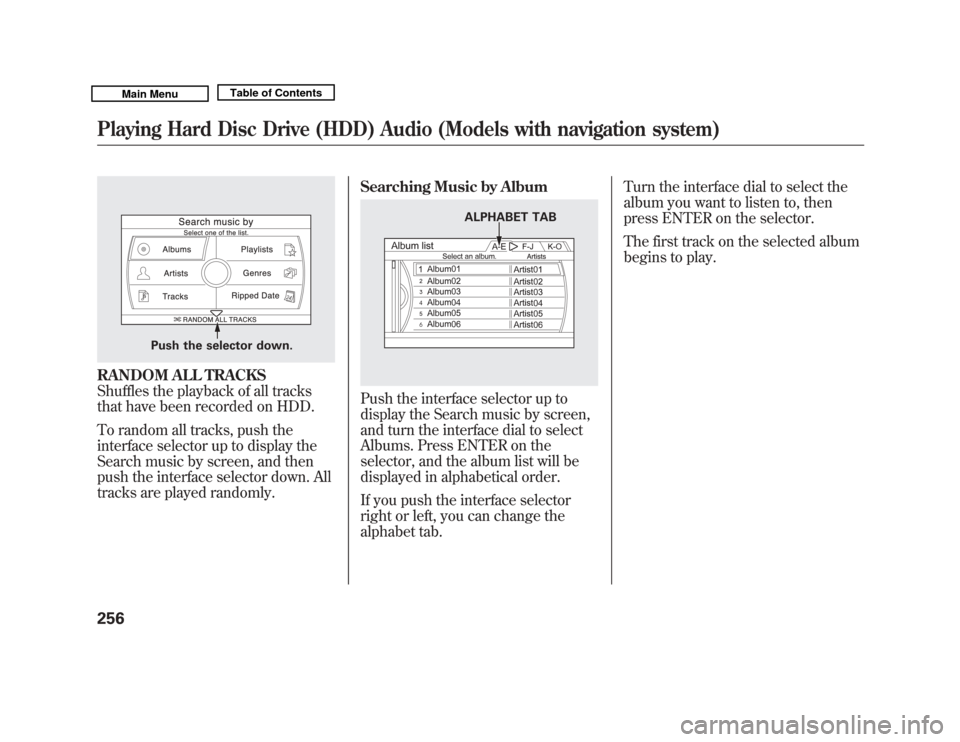
RANDOM ALL TRACKS
Shuffles the playback of all tracks
that have been recorded on HDD.
To random all tracks, push the
interface selector up to display the
Search music by screen, and then
push the interface selector down. All
tracks are played randomly.Searching Music by Album
Push the interface selector up to
display the Search music by screen,
and turn the interface dial to select
Albums. Press ENTER on the
selector, and the album list will be
displayed in alphabetical order.
If you push the interface selector
right or left, you can change the
alphabet tab.Turn the interface dial to select the
album you want to listen to, then
press ENTER on the selector.
The first track on the selected album
begins to play.
Push the selector down.
ALPHABET TAB
Playing Hard Disc Drive (HDD) Audio (Models with navigation system)25610/06/29 11:59:04 11 ACURA MDX MMC North America Owner's M 50 31STX640 enu
Page 264 of 609
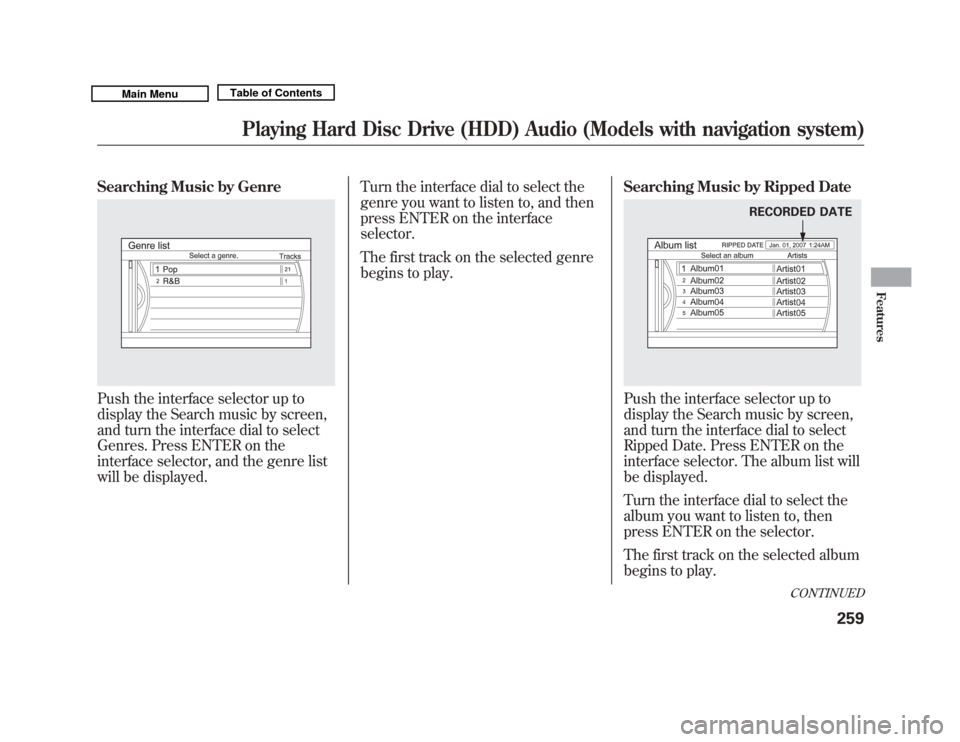
Searching Music by GenrePush the interface selector up to
display the Search music by screen,
and turn the interface dial to select
Genres. Press ENTER on the
interface selector, and the genre list
will be displayed.Turn the interface dial to select the
genre you want to listen to, and then
press ENTER on the interface
selector.
The first track on the selected genre
begins to play.
Searching Music by Ripped Date
Push the interface selector up to
display the Search music by screen,
and turn the interface dial to select
Ripped Date. Press ENTER on the
interface selector. The album list will
be displayed.
Turn the interface dial to select the
album you want to listen to, then
press ENTER on the selector.
The first track on the selected album
begins to play.
RECORDED DATE
CONTINUED
Playing Hard Disc Drive (HDD) Audio (Models with navigation system)
259
Features
10/06/29 11:59:04 11 ACURA MDX MMC North America Owner's M 50 31STX640 enu
Page 265 of 609
Customizing Original/User
Playlist
The HDD has two types of the
playlists: original playlist and user
playlist. On the original playlist, the
music CD is recorded automatically
when it is played. In addition, you
can create up to six user playlists on
the HDD. In each playlist, you can
store a desired music data from the
original playlists or music CDs.
After storing the data, you can
change some items: order of tracks
on the user playlist, name of the
playlist, track title, artist name, and
music genre. You can also add a
track to the playlist, and delete the
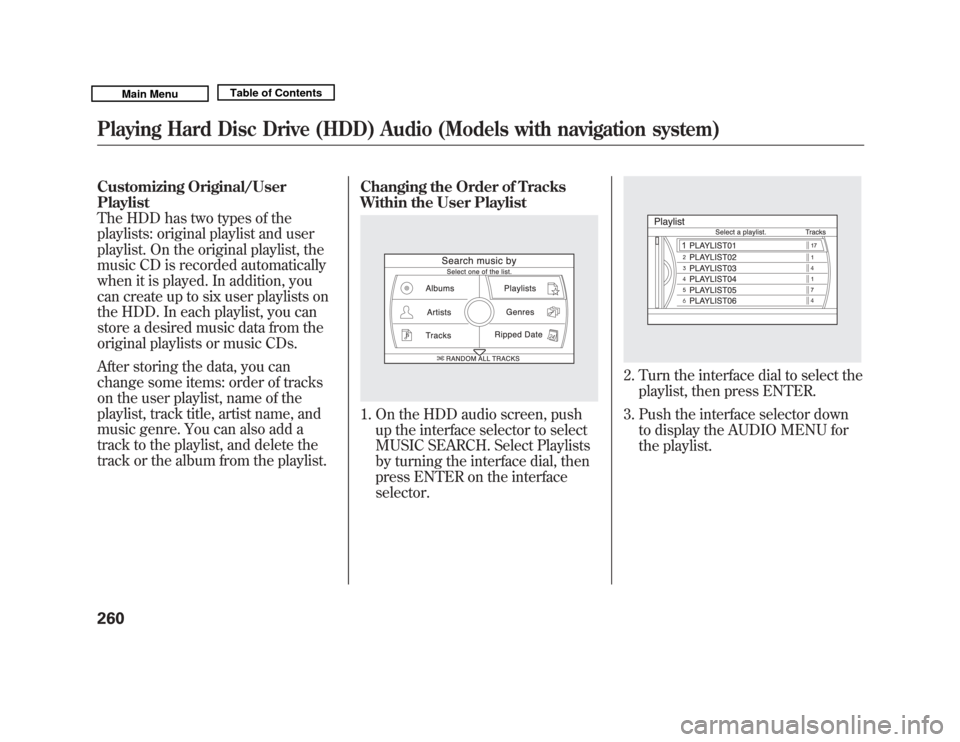
track or the album from the playlist.Changing the Order of Tracks
Within the User Playlist
1. On the HDD audio screen, push
up the interface selector to select
MUSIC SEARCH. Select Playlists
by turning the interface dial, then
press ENTER on the interface
selector.
2. Turn the interface dial to select theplaylist, then press ENTER.
3. Push the interface selector down to display the AUDIO MENU for
the playlist.
Playing Hard Disc Drive (HDD) Audio (Models with navigation system)26010/06/29 11:59:04 11 ACURA MDX MMC North America Owner's M 50 31STX640 enu
Page 275 of 609
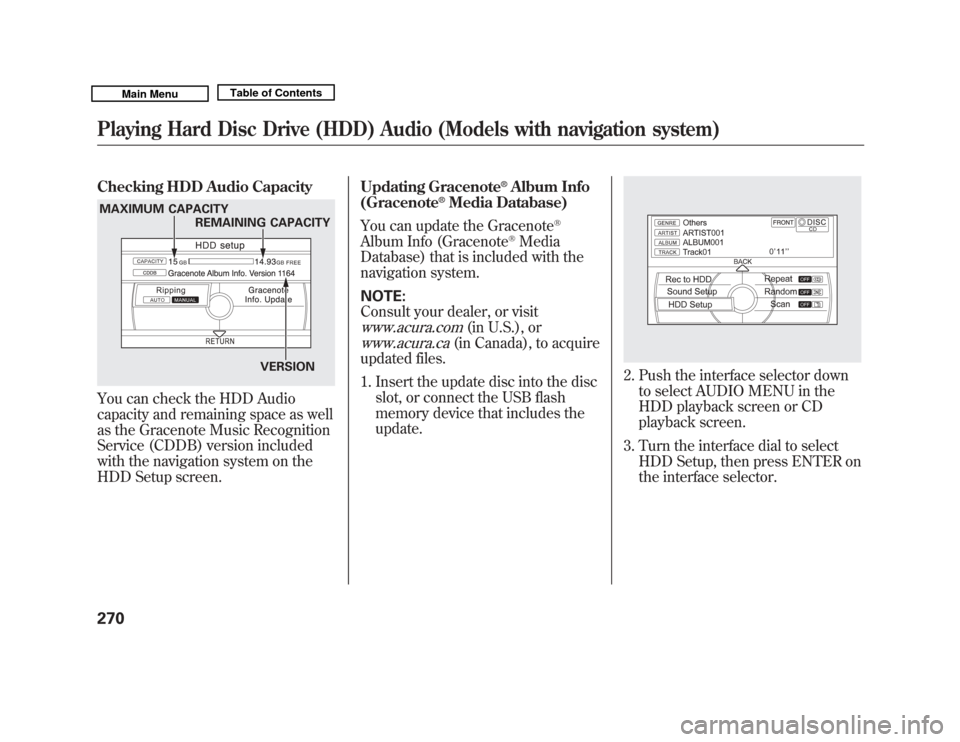
Checking HDD Audio CapacityYou can check the HDD Audio
capacity and remaining space as well
as the Gracenote Music Recognition
Service (CDDB) version included
with the navigation system on the
HDD Setup screen.Updating Gracenote
®Album Info
(Gracenote
®Media Database)
You can update the Gracenote
®
Album Info (Gracenote
®Media
Database) that is included with the
navigation system.
NOTE:
Consult your dealer, or visit
www.acura.com
(in U.S.), or
www.acura.ca
(in Canada), to acquire
updated files.
1. Insert the update disc into the disc slot, or connect the USB flash
memory device that includes the
update.
2. Push the interface selector downto select AUDIO MENU in the
HDD playback screen or CD
playback screen.
3. Turn the interface dial to select HDD Setup, then press ENTER on
the interface selector.
MAXIMUM CAPACITY
REMAINING CAPACITY
VERSIONPlaying Hard Disc Drive (HDD) Audio (Models with navigation system)27010/06/29 11:59:04 11 ACURA MDX MMC North America Owner's M 50 31STX640 enu
Page 276 of 609
4. Turn the interface dial and selectGracenote Info. Update, then press
ENTER on the interface selector.
5. Turn the interface dial to select USB or DISC on the Update
Gracenote Album info screen, then
press ENTER on the interface
selector.
6. Turn the dial to select Yes on the confirmation screen, and the
update will start.
7. Turn the interface dial to select OK on the confirmation screen.
8. After updating is complete, press ENTER on the confirmation
screen.
NOTE:
Once you perform an update any
information you edited before will be
overwritten.
Clearing the HDDAny music, data, calendar entries,
etc. that have been stored on the
HDD can be deleted.
1. Press the INFO button, rotate the interface dial to select Set up, and
press ENTER on the interface
selector.
2. Move the interface selector to the right to navigate to the Set up
(Other) tab.
3. On the Set up (Other) search,
rotate the interface dial to select
Clear Personal Data , and press
ENTER on the interface selector.
4. Select the item you wish to delete. 5. A second confirmation will appear.
Select Yes to delete, or No to
cancel.
NOTE: If you select Music on HDD ,
the system will automatically restart
after deletion.
CONTINUED
Playing Hard Disc Drive (HDD) Audio (Models with navigation system)
271
Features
10/06/29 11:59:04 11 ACURA MDX MMC North America Owner's M 50 31STX640 enu
Page 277 of 609
Gracenote Music Recognition
Service (CDDB)
Music recognition technology and
related data are provided by
Gracenote
®. Gracenote is the
industry standard in music
recognition technology and related
content delivery. For more
information, please visit http://www.
gracenote.com/.
When music is recorded to the HDD
from a CD, information such as the
recording artist and track name are
retrieved from the Gracenote
Database and displayed (when
available). Gracenote may not
contain information for all albums. Gracenote is an internet-based music
recognition service that allows artist,
album, and track information from
CDs to display on the HDD.
Gracenote users are allowed 4 free
updates a year. More information
about Gracenote, its features, and
downloads are available at
www.acura.com
(in U.S.) or
www.acura.ca
(in Canada).
CD and music-related data from
Gracenote, Inc., copyright
©2000 -
2010 Gracenote. Gracenote Software, copyright
©2000
- 2010 Gracenote. This product and
service may practice one or more of
the following U.S. Patents: #
5,987,525; #6,061,680; #6,154,773,
# 6,161,132, #6,230,192, #
6,230,207, #6,240,459, #6,330,593,
and other patents issued or pending.
Some services supplied under
license from Open Globe, Inc. for U.
S. Patent: #6,304,523.
Gracenote and CDDB are registered
trademarks of Gracenote. The
Gracenote logo and logotype, and the
‘‘ Powered by Gracenote ’’logo are
trademarks of Gracenote.
Playing Hard Disc Drive (HDD) Audio (Models with navigation system)27210/06/29 11:59:04 11 ACURA MDX MMC North America Owner's M 50 31STX640 enu
Page 278 of 609
Gracenote
®End User License
Agreement Version 20061005
This application or device contains
software from Gracenote, Inc. of
Emeryville, California (‘‘ Gracenote’’).
The software from Gracenote (the
‘‘ Gracenote Software ’’) enables this
application to perform disc and/or
file identification and obtain music-
related information, including name,
artist, track, and title information
(‘‘ Gracenote Data’’ ) from online
servers or embedded databases
(collectively, ‘‘Gracenote Servers ’’)
and to perform other functions. You
may use Gracenote Data only by
means of the intended End-User
functions or this application or
device.
You agree that you will use
Gracenote Data, the Gracenote
Software, and Gracenote Servers for
your own personal non-commercial
use only. You agree not to assign, copy,
transfer or transmit the Gracenote
Software or any Gracenote Data to
any third party.
YOU AGREE NOT TO USE OR
EXPLOIT GRACENOTE DATA,
THE GRACENOTE SOFTWARE, OR
GRACENOTE SERVERS, EXCEPT
AS EXPRESSLY PERMITTED
HEREIN.
You agree that your non-exclusive
license to use the Gracenote Data,
the Gracenote Software, and
Gracenote Servers will terminate if
you violate these restrictions. If your
license terminates, you agree to
cease any and all use of the
Gracenote Data, the Gracenote
Software, and Gracenote Servers.
Gracenote reserves all rights in
Gracenote Data, the Gracenote
Software, and the Gracenote Servers,
including all ownership rights. Under
no circumstances will Gracenote
become liable for any payment to you
for any information that you provide.
You agree that Gracenote, Inc. may
enforce its rights under this
Agreement against you directly in its
own name.
The Gracenote service uses a unique
identifier to track queries for
statistical purposes. The purpose of a
randomly assigned numeric identifier
is to allow the Gracenote service to
count queries without knowing
anything about who you are. For
more information, see the web page
for the Gracenote Privacy Policy for
the Gracenote service.
The Gracenote Software and each
item of Gracenote Data are licensed
to you
‘‘AS IS. ’’
CONTINUED
Playing Hard Disc Drive (HDD) Audio (Models with navigation system)
273
Features
10/06/29 11:59:04 11 ACURA MDX MMC North America Owner's M 50 31STX640 enu
Page 282 of 609
Use only compatible iPods with the
latest software. iPods that are not
compatible will not work in this audio
unit.
NOTE:●
Do not connect your iPod using a
hub.
●
Do not keep the iPod and dock
connector cable in the vehicle.
Direct sunlight and high heat will
damage it.
●
Do not use an extension cable
between the USB adapter cable
equipped with your vehicle and
your dock connector.
●
We recommend backing up your
data before playing it.
●
Some devices cannot be powered
or charged via the USB adapter, if
this is the case use the accessory
adapter to supply power to your
device.
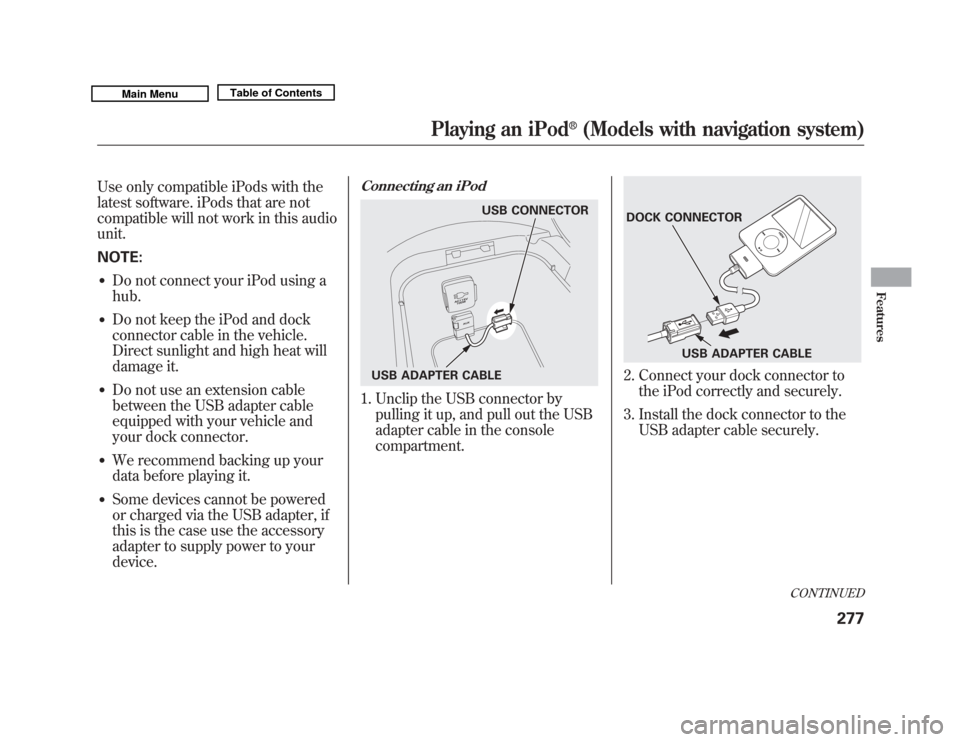
Connecting an iPod1. Unclip the USB connector bypulling it up, and pull out the USB
adapter cable in the console
compartment.
2. Connect your dock connector tothe iPod correctly and securely.
3. Install the dock connector to the USB adapter cable securely.
USB CONNECTOR
USB ADAPTER CABLE
DOCK CONNECTOR USB ADAPTER CABLE
CONTINUED
Playing an iPod
®
(Models with navigation system)
277
Features
10/06/29 11:59:04 11 ACURA MDX MMC North America Owner's M 50 31STX640 enu
Page 283 of 609
If the iPod indicator does not appear
in the audio display, check the
connections, and try to reconnect the
iPod a few times.
If the audio system still does not
recognize the iPod, the iPod may
need to be reset. Follow the
instructions that came with your
iPod, or you can find reset
instructions online at
www.apple.com/
ipod
.
The current file number and total of
the selected playable files are
displayed in the center display.
Pressing the AUDIO button displays
the artist, album and track (file)
names on the navigation screen.
To Change or Select FilesUse the SKIP button an iPod is
playing to select passages and
change files.
SKIP -Each time you press and
release the
side of the SKIP
button, the system skips forward to
the beginning of the next track.
Press and release the
side of the
button to skip backward to the
beginning of the current track. Press
it again to skip to the beginning of
the previous track.
To move rapidly within playing track,
press and hold either side (
or
) of the SKIP button.
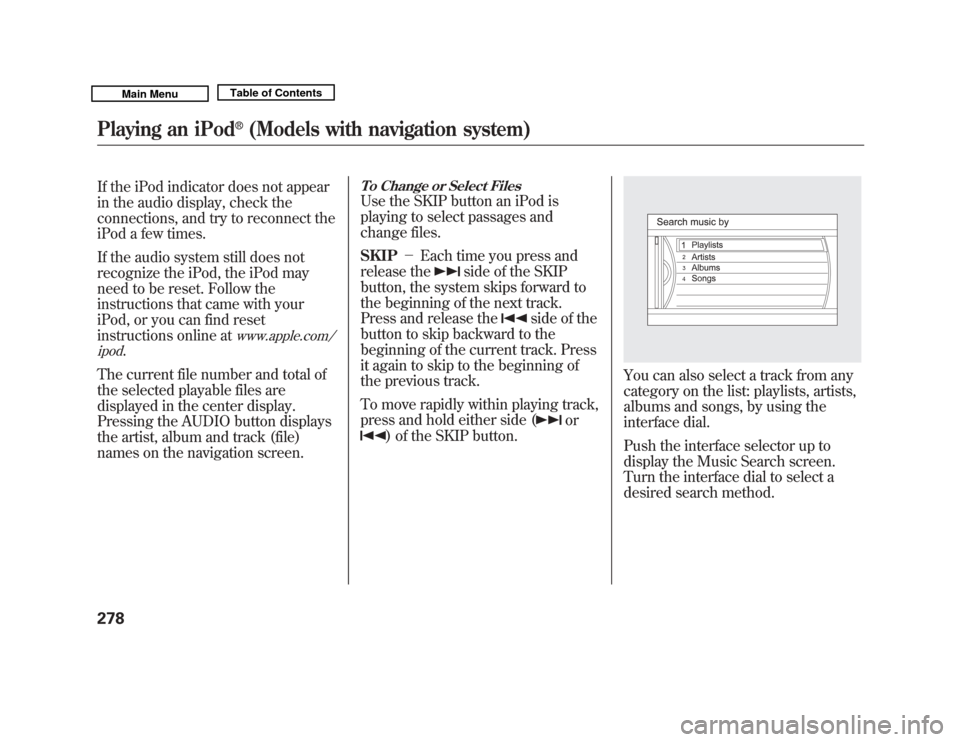
You can also select a track from any
category on the list: playlists, artists,
albums and songs, by using the
interface dial.
Push the interface selector up to
display the Music Search screen.
Turn the interface dial to select a
desired search method.
Playing an iPod
®
(Models with navigation system)
27810/06/29 11:59:04 11 ACURA MDX MMC North America Owner's M 50 31STX640 enu
Page 284 of 609
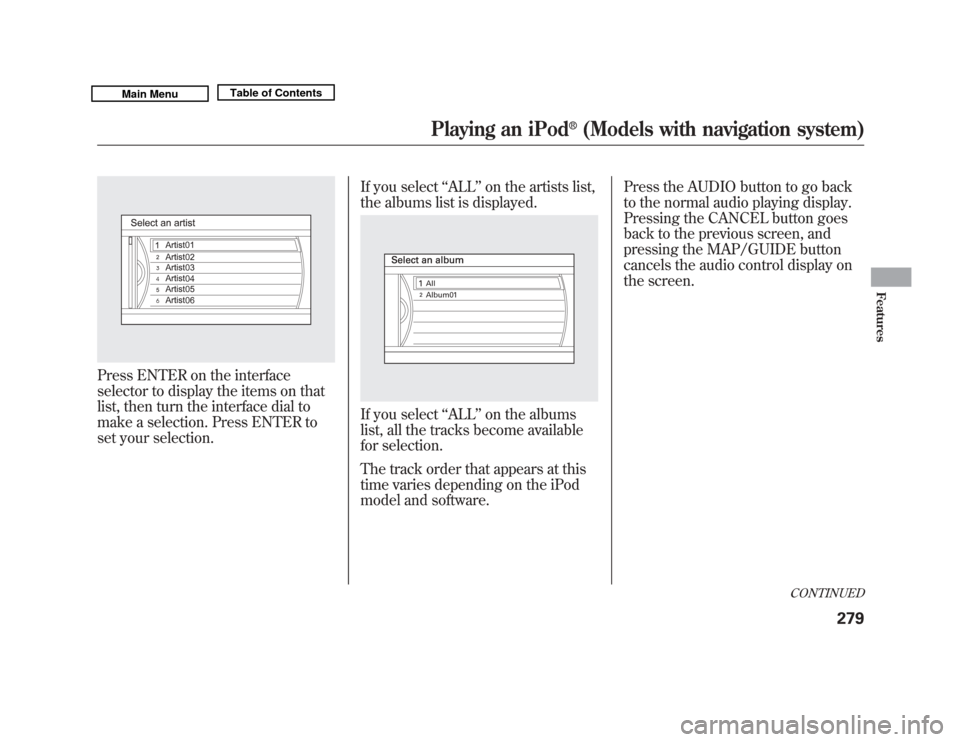
Press ENTER on the interface
selector to display the items on that
list, then turn the interface dial to
make a selection. Press ENTER to
set your selection.If you select
‘‘ALL ’’on the artists list,
the albums list is displayed.
If you select ‘‘ALL ’’on the albums
list, all the tracks become available
for selection.
The track order that appears at this
time varies depending on the iPod
model and software. Press the AUDIO button to go back
to the normal audio playing display.
Pressing the CANCEL button goes
back to the previous screen, and
pressing the MAP/GUIDE button
cancels the audio control display on
the screen.
CONTINUED
Playing an iPod
®
(Models with navigation system)
279
Features
10/06/29 11:59:04 11 ACURA MDX MMC North America Owner's M 50 31STX640 enu