audio ACURA RDX 2010 Owners Manual
[x] Cancel search | Manufacturer: ACURA, Model Year: 2010, Model line: RDX, Model: ACURA RDX 2010Pages: 514, PDF Size: 30.21 MB
Page 287 of 514

Once a device is linked, the name of
the device will appear on the screen.
Pressing the DISP/MODE button
switches the audio control display
between the
Bluetooth
®Audio and
the device name.
If more than one phone is paired to
the HFL system, there will be a delay
before the system begins to play.
To play the audio files, you may need
to operate your phone. If so, follow
the phone maker's operating
instructions.
ꭧ : If an iPod, USB flash memory
device or audio unit connected
to the auxiliary input jack was
selected at the last mode, you
will see iPod, USB or AUX in
the upper display and the audio
control display (if selected).
Push the DISC/AUX button
again to play audio files from
your
Bluetooth
®Audio phone. In the following conditions, the
display shows
‘‘NO CONNECT ’’
message.
●The phone is not linked to HFL.●The phone is not turned on.●The phone is not in the vehicle.●Another HFL compatible phone,
which is not compatible forBluetooth
®Audio, is already
connected. If your
Bluetooth
®Audio compatible
phone does not operate as described,
make sure it is an Acura approved
phone. To find out if your phone is
approved, go to
www.acura.com/
handsfreelink
(in Canada,
www.acura.
ca
), or call the HandsFreeLink
®
consumer support at (888) 528-7876.Voice Control SystemYou can select the AUX mode by
using the navigation system voice
control buttons, but cannot operate
the play mode functions.
CONTINUED
Bluetooth
®Audio System (Models with navigation system)
283
Features
09/07/07 15:02:04 10 ACURA RDX MMC North America Owner's M 50 31STK630 enu
ProCarManuals.com
2010 RDX
Page 288 of 514

To skip a filePress the
side of the SKIP bar to
skip forward to the next file, and
press theside to skip backward
to the beginning of the current file.
Push theside again to skip to the
previous file.
You can also operate the skip
function with the interface dial on the
audio control display of the
navigation screen. Push the AUDIO
button. Each time you push the
selector on the interface dial to the
right, the system skips forward to the
beginning of the next file. Push it to
the left to skip backward to the
beginning of the current file. Push
the selector to the left again to skip
to the previous file.
To pause or resume a fileThe resume/pause mode can stop
playing a file temporarily. Push down
the selector on the interface dial to
display the audio menu. Turn the knob on the interface dial to
switch the setting between the
resume/pause mode and the sound
mode. Select RESUME/PAUSE,
then press ENTER to set your
selection. Each time you press
ENTER, the system switches
between the resume mode and pause
mode.
NOTE:
The pause function may not
be available on some phone devices.
Bluetooth
®Audio System (Models with navigation system)
28409/07/07 15:02:04 10 ACURA RDX MMC North America Owner's M 50 31STK630 enu
ProCarManuals.com
2010 RDX
Page 289 of 514

To change sound settingsPress the AUDIO button, then push
down the selector to display the
audio menu. Turn the knob to switch
the setting between the resume/
pause mode and the sound mode.
Select SOUND, then press ENTER
to set your selection.
Turn the knob to select a sound
mode, then press ENTER to set your
selection. Turn the knob to your
liking (see page224for more sound
setting information).
To switch to HFL modeIf you receive a call when theBluetooth
®Audio is playing, press
the HFL Talk button on the steering
wheel. The audio control display and
the upper display switch to the HFL
mode (see page 309).
After ending the call, press the HFL
Back button to go back to the
Bluetooth
®Audio mode.
If you receive a call while the system
is in the pause mode, the mode will
be canceled and
Bluetooth
®Audio
will continue to play.
To turn off the Bluetooth
®Audio
mode
Select any other audio mode by
pressing a button; AM/FM, XM or
DISC/AUX (if a disc is loaded), on
the audio control panel or press the
mode button on the steering wheel
repeatedly to select another audio
mode. If an iPod or USB flash
memory device is connected to the
USB adapter cable or audio unit is
connected to AUX jack, pressing the
DISC/AUX button also changes a
mode.
Switching to another mode pauses
the music playing from your phone.
CONTINUED
Bluetooth
®Audio System (Models with navigation system)
285
Features
09/07/07 15:02:04 10 ACURA RDX MMC North America Owner's M 50 31STK630 enu
ProCarManuals.com
2010 RDX
Page 290 of 514

As required by the FCC:This device complies with Part 15 of theFCC rules. Operation is subject to the
following two conditions: (1) This devicemay not cause harmful interference, and(2) this device must accept any
interference received, includinginterference that may cause undesiredoperation.
Changes or modifications not expresslyapproved by the party responsible for
compliance could void the user'sauthority to operate the equipment.
This device complies with IndustryCanada Standard RSS-210.
Operation is subject to the following twoconditions: (1) this device may not causeinterference, and (2) this device must
accept any interference that may causeundesired operation of the device.Bluetooth
®Audio System (Models with navigation system)
28609/07/07 15:02:04 10 ACURA RDX MMC North America Owner's M 50 31STK630 enu
ProCarManuals.com
2010 RDX
Page 293 of 514

Three controls for the audio system
are mounted in the steering wheel
hub. They let you control basic
functions without removing your
hand from the steering wheel.
The VOL button adjusts the volume
up (
) or down (
). Press the top or
bottom of the button, hold it until the
desired volume is reached, then
release it.
The MODE button changes the mode.On vehicles without navigation systemPressing the MODE button
repeatedly cycles through all
possible media sources whether they
are present or not.On vehicles with navigation systemPressing the MODE button
repeatedly cycles through all
present, connected media sources.
Media sources that are not present
or connected will not appear when
cycling with the MODE button. If you are listening to the radio, use
the CH button to change stations.
Each time you press and release the
top (+
) of the button, the system
goes to the next preset station on the
band you are listening to. Press and
release the bottom (- ) to go back to
the previous station.
To activate the seek function, press
and hold the top (+) or bottom (- )
of the CH button until you hear a
beep. The system searches up or
down from the current frequency to
find a station with a strong signal.
MODE BUTTON
VOL BUTTON CH BUTTON
CONTINUED
Remote Audio Controls
289
Features
09/07/07 15:02:04 10 ACURA RDX MMC North America Owner's M 50 31STK630 enu
ProCarManuals.com
2010 RDX
Page 294 of 514

If you are playing a disc, the system
skips to the beginning of the next
track (file in MP3 or WMA format)
each time you press the top (+)of
the CH button. Press the bottom (-)
to return to the beginning of the
current track/file. Press it twice to
return to the previous track/file.
To select a different disc (folder in
MP3/WMA mode), press and hold
the top (+ ) or bottom (- ) of the CH
button until you hear a beep. If you are listening to XM Radio, use
the CH button to change channels.
Each time you press the top (+
)of
the button, the system goes to the
next preset channel. Press the
bottom (- ) to go back to the
previous preset channel.
To go to the next channel of the
category you are listening to, press
and hold the top (+ ) or bottom (-)
of the CH button until you hear a
beep. If you are playing a USB flash
memory device or iPod with the USB
adapter cable, press and release the
top (+
) of the CH button to skip
forward to the beginning of the next
file. Press the bottom (- ) to skip
backward to the beginning of the
current file. Press it twice to return to
the previous file.
When playing a USB flash memory
device, you can also use the seek
function to skip the folder. To
activate this, press and hold either
side of the CH button until you hear
a beep.Remote Audio Controls29009/07/07 15:02:04 10 ACURA RDX MMC North America Owner's M 50 31STK630 enu
ProCarManuals.com
2010 RDX
Page 295 of 514
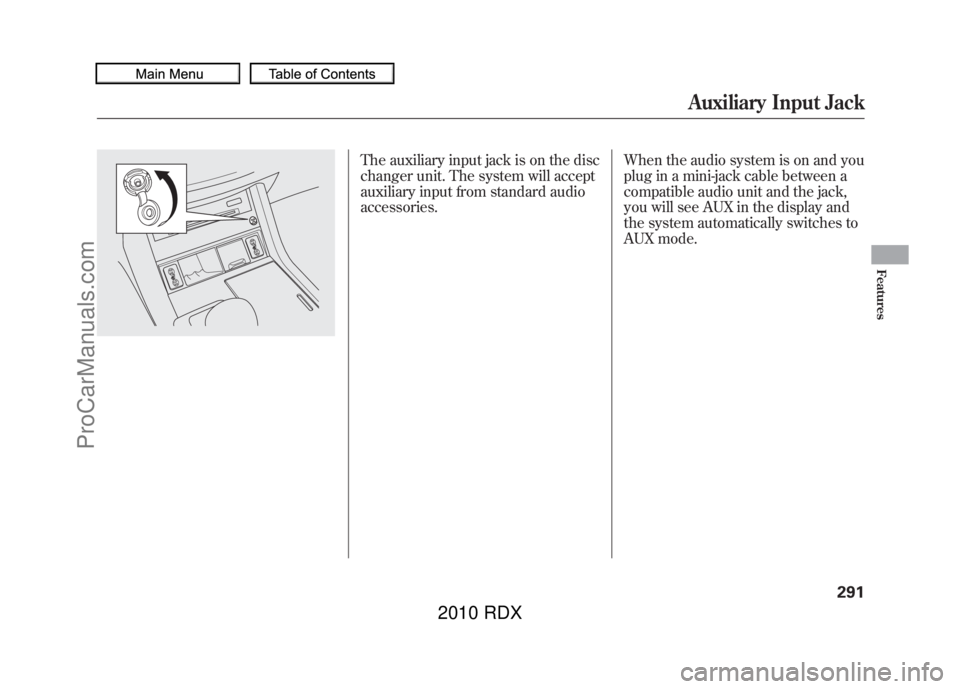
The auxiliary input jack is on the disc
changer unit. The system will accept
auxiliary input from standard audio
accessories.When the audio system is on and you
plug in a mini-jack cable between a
compatible audio unit and the jack,
you will see AUX in the display and
the system automatically switches to
AUX mode.
Auxiliary Input Jack
291
Features
09/07/07 15:02:04 10 ACURA RDX MMC North America Owner's M 50 31STK630 enu
ProCarManuals.com
2010 RDX
Page 296 of 514
Your vehicle's audio system will
disable itself if it is disconnected
from electrical power for any reason.
To make it work again, you must
enter a specific five-digit code with
the preset bars or buttons
(depending on models). Because
there are hundreds of number
combinations possible from the five
digits, making the system work
without knowing the exact code is
nearly impossible.
You should have received a card that
lists your audio system code number
and serial number. It is best to store
this card in a safe place at home. In
addition, you should write the audio
system's serial number in this
owner's manual.
If you lose the card, you must obtain
the code number from your dealer.
To do this, you will need the audio
system's serial number.NOTE:
If you have a My Acura account, you
can retrieve the anti-theft code
online.
If your vehicle's battery is
disconnected or goes dead, the audio
system will disable itself. If this
happens, you will see
‘‘
’’on
the center or upper display
(depending on models) the next time
you turn on the system. Use the
preset bars or buttons (depending on
models) to enter the five-digit code.
The code is located on the radio code
card included in your owner's
manual kit. When it is entered
correctly, the radio will start playing. If you make a mistake entering the
code, do not start over; complete the
five-digit sequence, then enter the
correct code. You have ten tries to
enter the correct code. If you are
unsuccessful in ten attempts, you
must then leave the system on for 1
hour before trying again.
The system will retain your AM and
FM presets even if power is
disconnected.
Radio Theft Protection29209/07/07 15:02:04 10 ACURA RDX MMC North America Owner's M 50 31STK630 enu
ProCarManuals.com
2010 RDX
Page 298 of 514

The security system helps to protect
your vehicle and valuables from
theft. The horn sounds and a
combination of headlights, parking
lights, side marker lights, and
taillights flashes if someone attempts
to break into your vehicle or remove
the radio. This alarm continues for 2
minutes, then the system resets. To
reset an alarming system before the
2 minutes have elapsed, unlock the
driver's door with the key or the
remote transmitter.
The security system automatically
sets 15 seconds after you lock the
doors, hood, and the tailgate. For the
system to activate, you must lock the
doors and the tailgate from the
outside with the key, driver's lock
tab, door lock master switch, or
remote transmitter. The security
system indicator on the instrument
panel starts blinking immediately to
show you the system is setting itself.
Once the security system is set,
opening any door, the tailgate, or the
hood without using the key or the
remote transmitter, will cause the
alarm to activate. It will also activate
if the audio unit is removed from the
dashboard or the wiring is cut.The alarm will also be activated if a
passenger inside the locked vehicle
turns the ignition switch on.
The security system will not set if the
hood, tailgate, or any door is not fully
closed. Before you leave the vehicle,
make sure the doors, tailgate, and
hood are securely closed.
NOTE:
To see if the system is set
after you exit the vehicle, press the
LOCK button on the remote
transmitter within 5 seconds. If the
system is set, a beep will sound.
Do not attempt to alter this system or
add other devices to it.
SECURITY SYSTEM INDICATOR
Security System29409/07/07 15:02:04 10 ACURA RDX MMC North America Owner's M 50 31STK630 enu
ProCarManuals.com
2010 RDX
Page 310 of 514

Bluetooth
®HandsFreeLink
®(HFL)
allows you to place and receive
phone calls using voice commands,
without handling your cell phone.
To use HFL, you need a Bluetooth-
compatible cell phone. For a list of
compatible phones, pairing
procedures, and special feature
capabilities:
In the U.S., visit
www.acura.com/
handsfreelink,or call (888) 528-7876.
In Canada, visitwww.acura.ca,
or call
(888) 9-ACURA-9. Using HFL
HFL buttonsHFL Talk button
ꭚPress and
release to give a command or answer
a call.
HFL Back button ꭚPress and
release to end a call, go back to the
previous command, or cancel the
command.
Below the HFL buttons is another set
of voice control buttons for the
navigation, climate control, and audio
systems. To use the voice control
system, refer to the navigation
system manual.
On models without navigation system HFL TALK
BUTTON
HFL BACK
BUTTON
On models with navigation system HFL BACK
BUTTON
HFL TALK
BUTTON
VOICE CONTROL
BUTTONS
Bluetooth
®HandsFreeLink
®
30609/07/07 15:02:04 10 ACURA RDX MMC North America Owner's M 50 31STK630 enu
ProCarManuals.com
2010 RDX