ECO mode Acura RDX 2012 Workshop Manual
[x] Cancel search | Manufacturer: ACURA, Model Year: 2012, Model line: RDX, Model: Acura RDX 2012Pages: 518, PDF Size: 26.43 MB
Page 257 of 518

DISC SCAN-The disc scan
function samples the first track/file
(in MP3/WMA mode) on each disc
within the changer in numerical
order. To activate this feature, press
the SCAN button twice. In the MP3/
WMA mode, press the SCAN button
three times. The first track/file on
each disc plays for about 10 seconds.
You will see ‘‘SCAN ’’next to the
DISC icon on the audio control
display. You will also see ‘‘SCAN ’’
and the disc number blinking on the
upper display. To hear the rest of the
track/file on the disc currently
scanning, press and hold the SCAN
button for more than 2 seconds.
If you don't, the system advances to
the next disc, plays about 10 seconds
of it, and continues through the rest
of the discs the same way.
Each time you press and release the
SCAN button, the mode changes
from scan, to folder scan, to disc
scan, then to normal play. RANDOM (Random within a
disc)
-This feature plays the tracks
(all files in each folder in MP3/WMA
mode) within a disc in random order.
To activate random play, press the
AUDIO button to view the audio
control display, then push down the
selector on the interface dial. Rotate
the interface dial to select TRACK
RANDOM. Press ENTER on the
selector to enter your selection.SCAN INDICATOR
DISC SCAN ICON
CONTINUED
Playing Discs (Models with navigation system)
251
Features
11/06/16 17:42:51 12 ACURA RDX MMC North America Owner's M 50 31STK650 enu
Page 259 of 518

Playing a DVD-A Disc
You can play a DVD-A disc in the CD
changer. The disc controls are same
as previously described.
To Pause a Disc
To pause a disc, press the preset
button which corresponds to the
current disc. To play the disc again,
press the preset button again.To Stop Playing a Disc
If you turn the system off while a disc
is playing, either with the PWR/VOL
knob or by turning off the ignition
switch, the disc will stay in the drive.
When you turn the system back on,
the disc will begin playing where it
left off.
To take the system out of disc mode,
press the AM/FM, or DISC/AUX, or
button to switch to the radio,
or satellite radio, or auxiliary input
while a disc is playing. When you
return to disc mode by pressing the
DISC/AUX button, play will continue
at the same point that it left off. Removing Discs from the Changer
To remove the disc that is currently
playing, press and release the eject
(
) button. You will see
‘‘EJECT ’’
on the upper display. When you
remove the disc from the slot, the
system begins the load sequence so
you can load another disc in that
position. If you do not load another
disc within 10 seconds, the system
selects the previous mode (AM,
FM1, FM2, or XM Radio).
If you do not remove the disc from
the slot, the system will reload the
disc after 10 seconds and put the CD
changer in pause mode. To begin
playing the disc, press the DISC/
AUX button.
CONTINUED
Playing Discs (Models with navigation system)
253
Features
11/06/16 17:42:51 12 ACURA RDX MMC North America Owner's M 50 31STK650 enu
Page 268 of 518

To Play an iPod
®
This audio system can operate the
audio files on the iPod
®with the
same controls used for the in-dash
disc changer. To play an iPod,
connect it to the USB adapter cable
in the console compartment by using
your dock connector, then press the
DISC/AUX button. The ignition
switch must be in the ACCESSORY
(I) or ON (II) position. The iPod will
also be recharged with the ignition
switch in these positions.
The system will only play songs
stored on the iPod with iTunes.
iPod and iTunes are registered
trademarks owned by Apple Inc.
Voice Control SystemYou can select the AUX mode by
using the navigation system voice
control buttons, but cannot operate
the play mode functions. iPod models confirmed to be
compatible with your audio system
using the USB adapter cable are:
Model
iPod classic 80/160 G
iPod classic 120 G
iPod classic 160 G (launch in 2009)
iPod (5th generation)
iPod nano
iPod touch
This system may not work with all
software versions of these devices. NOTE:
●Do not connect your iPod using a
hub.●Do not keep the iPod in the
vehicle. Direct sunlight and high
heat will damage it.●Do not use an extension cable
between the USB adapter cable
equipped with your vehicle and
your dock connector.●We recommend backing up your
data before playing it.●Some devices cannot be powered
or charged via the USB adapter, if
this is the case use the accessory
adapter to supply power to your
device.
Playing an iPod
®(Models with navigation system)
26211/06/16 17:42:51 12 ACURA RDX MMC North America Owner's M 50 31STK650 enu
Page 269 of 518
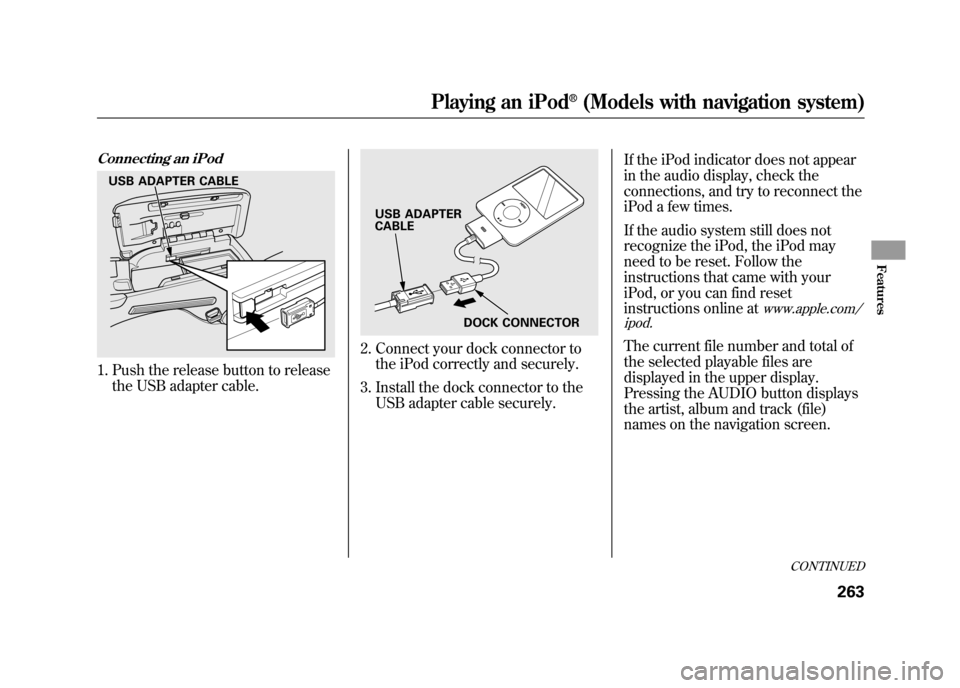
Connecting an iPod1. Push the release button to releasethe USB adapter cable.
2. Connect your dock connector tothe iPod correctly and securely.
3. Install the dock connector to the USB adapter cable securely. If the iPod indicator does not appear
in the audio display, check the
connections, and try to reconnect the
iPod a few times.
If the audio system still does not
recognize the iPod, the iPod may
need to be reset. Follow the
instructions that came with your
iPod, or you can find reset
instructions online at
www.apple.com/
ipod.
The current file number and total of
the selected playable files are
displayed in the upper display.
Pressing the AUDIO button displays
the artist, album and track (file)
names on the navigation screen.
USB ADAPTER CABLE
USB ADAPTER
CABLE
DOCK CONNECTOR
CONTINUED
Playing an iPod
®(Models with navigation system)
263
Features
11/06/16 17:42:51 12 ACURA RDX MMC North America Owner's M 50 31STK650 enu
Page 273 of 518
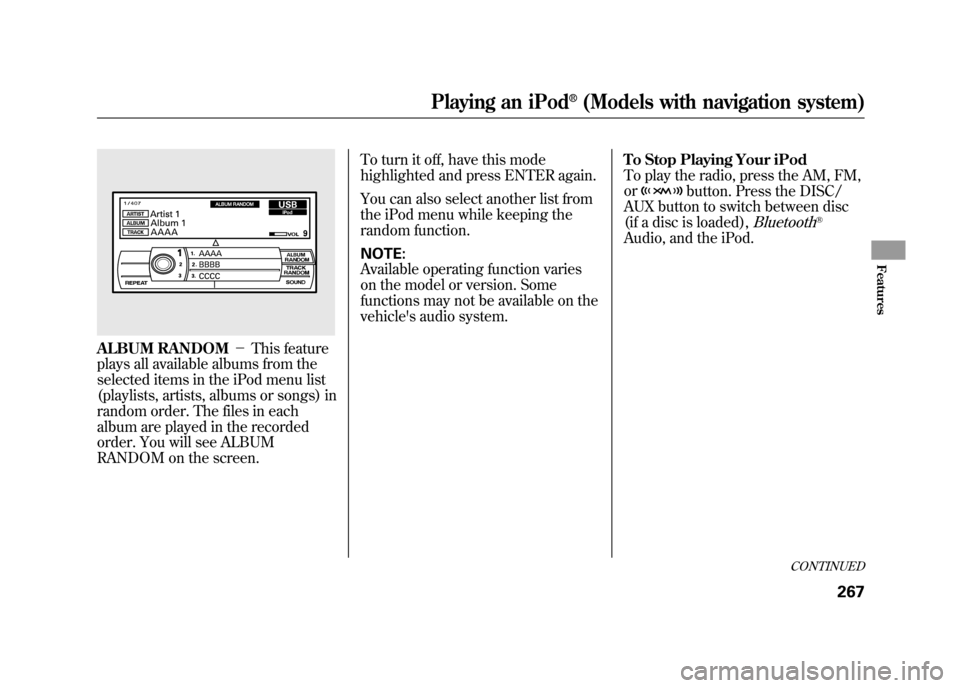
ALBUM RANDOM-This feature
plays all available albums from the
selected items in the iPod menu list
(playlists, artists, albums or songs) in
random order. The files in each
album are played in the recorded
order. You will see ALBUM
RANDOM on the screen. To turn it off, have this mode
highlighted and press ENTER again.
You can also select another list from
the iPod menu while keeping the
random function.
NOTE:
Available operating function varies
on the model or version. Some
functions may not be available on the
vehicle's audio system.
To Stop Playing Your iPod
To play the radio, press the AM, FM,
or
button. Press the DISC/
AUX button to switch between disc
(if a disc is loaded),
Bluetooth
®
Audio, and the iPod.
CONTINUED
Playing an iPod
®(Models with navigation system)
267
Features
11/06/16 17:42:51 12 ACURA RDX MMC North America Owner's M 50 31STK650 enu
Page 274 of 518

Disconnecting an iPodYou can disconnect the iPod at any
time when you see the‘‘OK to
disconnect ’’message
ᤳin the iPod
display. Always make sure you see
the ‘‘OK to disconnect ’’message in
the iPod display before you
disconnect it. Make sure to follow
the iPod's instructions on how to
disconnect the dock connector from
the USB adapter cable.
ᤳ : The displayed message may
vary on the model or version.
On some models, there is no
message to disconnect.
When you disconnect the iPod while
it is playing, the upper display and
the audio control display (if selected)
show NO DATA. If you reconnect the same iPod, the
system may begin playing where it
left off, depending on what mode the
iPod is in when it is reconnected.
iPod Error Messages
For information, see page 269.
Playing an iPod
®(Models with navigation system)
26811/06/16 17:42:51 12 ACURA RDX MMC North America Owner's M 50 31STK650 enu
Page 275 of 518

If you see an error message on the
upper display while playing an iPod,
find the solution in the chart to the
right. If you cannot clear the error
message, take your vehicle to your
dealer.Error Message
Cause Solution
USB ERRORUSB ROM error There is a problem with the USB adapter
unit.
BAD USB DEVICE PLEASE CHECK OWNERSMANUAL Abnormal power
source Appears when the overcurrent protection
feature of the system stops supplying
power to USB because an incompatible
device is connected. Disconnect the
device. Then, turn the audio system off,
and turn it on again. Do not reconnect the
device that caused the error.
iPod NO SONG No files in iPod Appears when the iPod is empty. Store
some files in the iPod.
UNSUPPORTED VER. Use of unsupported
iPod Appears when an unsupported iPod is
connected. See page 262 for specification
information on iPods. If it appears when a
supported iPod is connected, update the
iPod software to the newer version.
CONNECT RETRY Recognition failure of
iPod Appears when the system does not
acknowledge the iPod. Reconnect the
iPod.iPod
®Error Messages (Models with navigation system)
269
Features
11/06/16 17:42:51 12 ACURA RDX MMC North America Owner's M 50 31STK650 enu
Page 278 of 518

To Play a USB Flash Memory
Device
This audio system can operate the
audio files on a USB flash memory
device with the same controls used
for the in-dash disc changer. To play
a USB flash memory device, connect
it to the USB adapter cable in the
console compartment, then press the
DISC/AUX button. The ignition
switch must be in the ACCESSORY
(I) or ON (II) position.The audio system reads and plays
the audio files on the USB flash
memory device in MP3, WMA or
AAC
ᤳformats. Depending on the
format, the audio control display
shows MP3, WMA or AAC when a
USB flash memory device is playing.
ᤳ : Only AAC format files recorded
with iTunes are playable on this
audio unit. The recommended USB flash
memory devices are 256 MB or
higher, and formatted with the FAT
file system. Some digital audio
players may be compatible as well.
Some USB flash memory devices
(such as devices with security lock-
out features, etc.) will not work in
this audio unit.
Even if recorded in MP3, WMA or
AAC format, unsupported files
cannot be played. If the system finds
it, the audio unit displays
UNPLAYABLE, and then skips to the
next file.
Playing a USB Flash Memory Device (Models with navigation system)27211/06/16 17:42:51 12 ACURA RDX MMC North America Owner's M 50 31STK650 enu
Page 279 of 518

NOTE:●Do not use a device such as a card
reader or hard drive as the device
or your files may be damaged.●Do not connect your USB flash
memory device using a hub.●Do not use an extension cable to
the USB adapter cable equipped
with your vehicle.●Do not keep a USB flash memory
device in the vehicle. Direct
sunlight and high heat will damage
it.●We recommend backing up your
data before playing a USB flash
memory device.
●Depending on the type and
number of files, it may take some
time before they begin to play.●Depending on the software the
files were made with, it may not be
possible to play some files, or
display some text data.●Some devices cannot be powered
or charged via the USB adapter, if
this is the case use the accessory
adapter to supply power to your
device.●Depending on the type of
encoding and writing software
used, there may be cases where
character information does not
display properly.
Voice Control SystemYou can select the AUX mode by
using the navigation system voice
control buttons, but cannot operate
the play mode functions.
CONTINUED
Playing a USB Flash Memory Device (Models with navigation system)
273
Features
11/06/16 17:42:51 12 ACURA RDX MMC North America Owner's M 50 31STK650 enu
Page 283 of 518
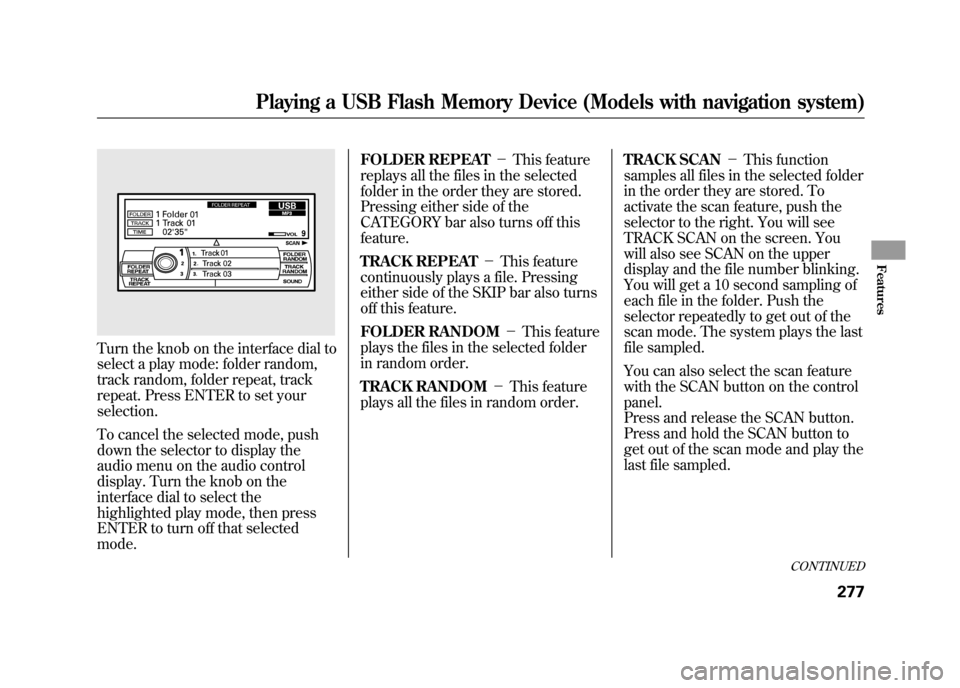
Turn the knob on the interface dial to
select a play mode: folder random,
track random, folder repeat, track
repeat. Press ENTER to set your
selection.
To cancel the selected mode, push
down the selector to display the
audio menu on the audio control
display. Turn the knob on the
interface dial to select the
highlighted play mode, then press
ENTER to turn off that selected
mode.FOLDER REPEAT
-This feature
replays all the files in the selected
folder in the order they are stored.
Pressing either side of the
CATEGORY bar also turns off this
feature.
TRACK REPEAT -This feature
continuously plays a file. Pressing
either side of the SKIP bar also turns
off this feature.
FOLDER RANDOM -This feature
plays the files in the selected folder
in random order.
TRACK RANDOM -This feature
plays all the files in random order. TRACK SCAN
-This function
samples all files in the selected folder
in the order they are stored. To
activate the scan feature, push the
selector to the right. You will see
TRACK SCAN on the screen. You
will also see SCAN on the upper
display and the file number blinking.
You will get a 10 second sampling of
each file in the folder. Push the
selector repeatedly to get out of the
scan mode. The system plays the last
file sampled.
You can also select the scan feature
with the SCAN button on the control
panel.
Press and release the SCAN button.
Press and hold the SCAN button to
get out of the scan mode and play the
last file sampled.
CONTINUED
Playing a USB Flash Memory Device (Models with navigation system)
277
Features
11/06/16 17:42:51 12 ACURA RDX MMC North America Owner's M 50 31STK650 enu