audio Acura RDX 2019 Owner's Manual
[x] Cancel search | Manufacturer: ACURA, Model Year: 2019, Model line: RDX, Model: Acura RDX 2019Pages: 649, PDF Size: 33 MB
Page 354 of 649
353
uuCustomized Features u
Features
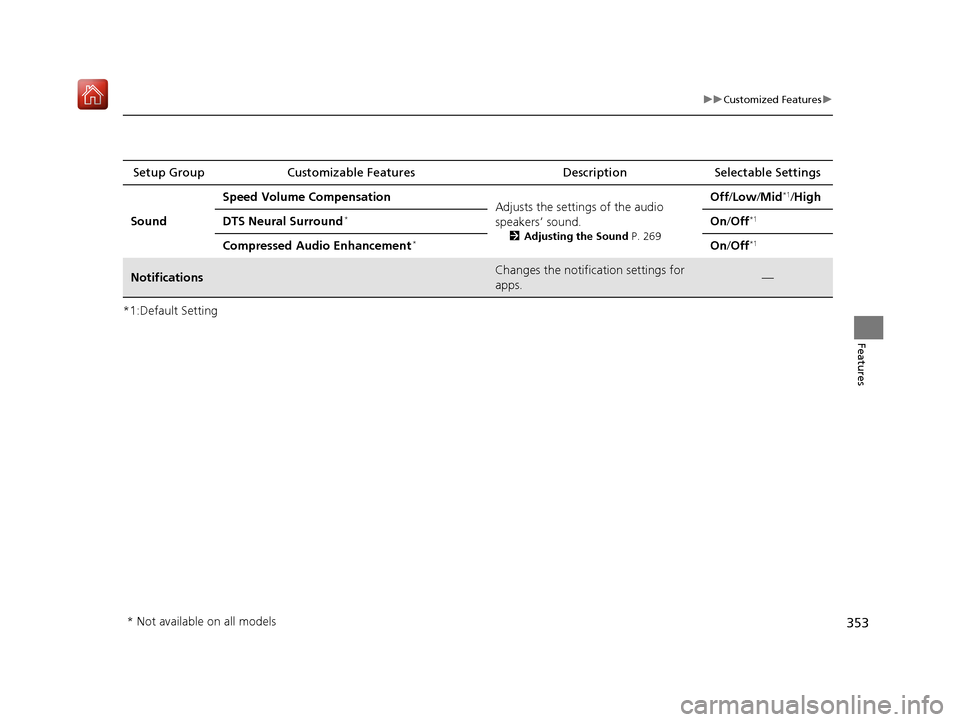
*1:Default SettingSetup Group Customizable Features
Description Selectable Settings
Sound Speed Volume Compensation
Adjusts the settings of the audio
speakers’ sound.
2Adjusting the Sound P. 269
Off /Low /Mid*1/High
DTS Neural Surround
*On /Off*1
Compressed Audio Enhancement*On /Off*1
NotificationsChanges the notification settings for
apps.—
* Not available on all models
19 ACURA RDX-31TJB6000.book 353 ページ 2018年4月26日 木曜日 午後4時51分
Page 359 of 649
358
Features
Bluetooth® HandsFreeLink ®
Bluetooth® HandsFreeLink ® (HFL) allows you to place and receive phone calls using
your vehicle’s audio system, without handling your cell phone.
Using HFL
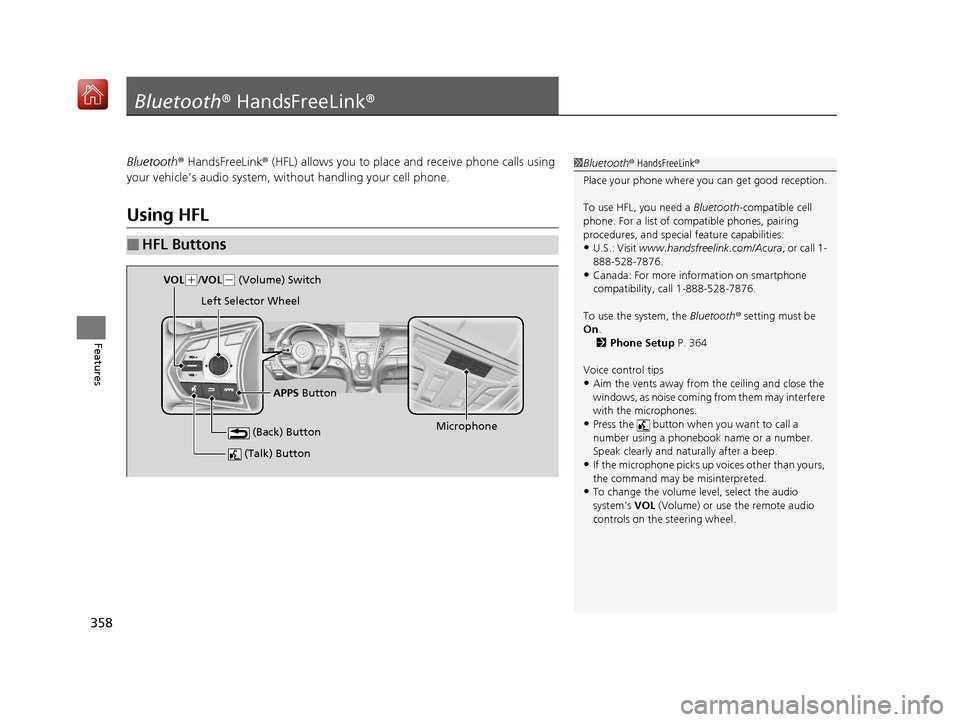
■HFL Buttons
1 Bluetooth ® HandsFreeLink ®
Place your phone where y ou can get good reception.
To use HFL, you need a Bluetooth-compatible cell
phone. For a list of compatible phones, pairing
procedures, and special feature capabilities:
•U.S.: Visit www.handsfreelink.com/Acura, or call 1-
888-528-7876.
•Canada: For more info rmation on smartphone
compatibility, call 1-888-528-7876.
To use the system, the Bluetooth® setting must be
On .
2 Phone Setup P. 364
Voice control tips
•Aim the vents away from the ceiling and close the
windows, as noise coming fr om them may interfere
with the microphones.
•Press the button when you want to call a
number using a phonebook name or a number.
Speak clearly and naturally after a beep.
•If the microphone picks up vo ices other than yours,
the command may be misinterpreted.
•To change the volume level, select the audio
system’s VOL (Volume) or use the remote audio
controls on the steering wheel.
(Talk) Button
Microphone
(Back) Button
VOL( +/VOL(- (Volume) Switch
Left Selector Wheel
APPS Button
19 ACURA RDX-31TJB6000.book 358 ページ 2018年4月26日 木曜日 午後4時51分
Page 360 of 649
Continued359
uuBluetooth ® HandsFreeLink ®u Using HFL
Features
Left Selector Wheel:
• Incomming call: Move the selector wheel to the ri ght to answer the call. Move it
to the left to decline the call.
• During a call: Move the selector wheel to the ri ght to display the call options
menu. Move it to the left to end the call.
• (back) button: Press the button to go back to the previous screen or to
cancel a command.
• (talk) button: Press the button to start voice recognition.
To go to the phone screen of the multi-information display or the head-up display
*:
1. Press the APPS button on the steering wheel.
2. Using the selector wheel, scroll to Phone on the multi-information display or the
head-up display
*, and then press the left selector wheel.
u You can select Favorites or Recents by moving the selector wheel to the left
or the right.
1 Bluetooth ® HandsFreeLink ®
Bluetooth ® Wireless Technology
The Bluetooth ® word mark and logos are registered
trademarks owned by Bluetooth SIG, Inc., and any
use of such marks by Honda Motor Co., Ltd., is under
license. Other trademarks and trade names are those
of their respective owners.
HFL Limitations
An incoming call on HFL will interrupt the audio
system when it is playing. It will resume when the call
is ended.
* Not available on all models
19 ACURA RDX-31TJB6000.book 359 ページ 2018年4月26日 木曜日 午後4時51分
Page 361 of 649
uuBluetooth ® HandsFreeLink ®u Using HFL
360
Features
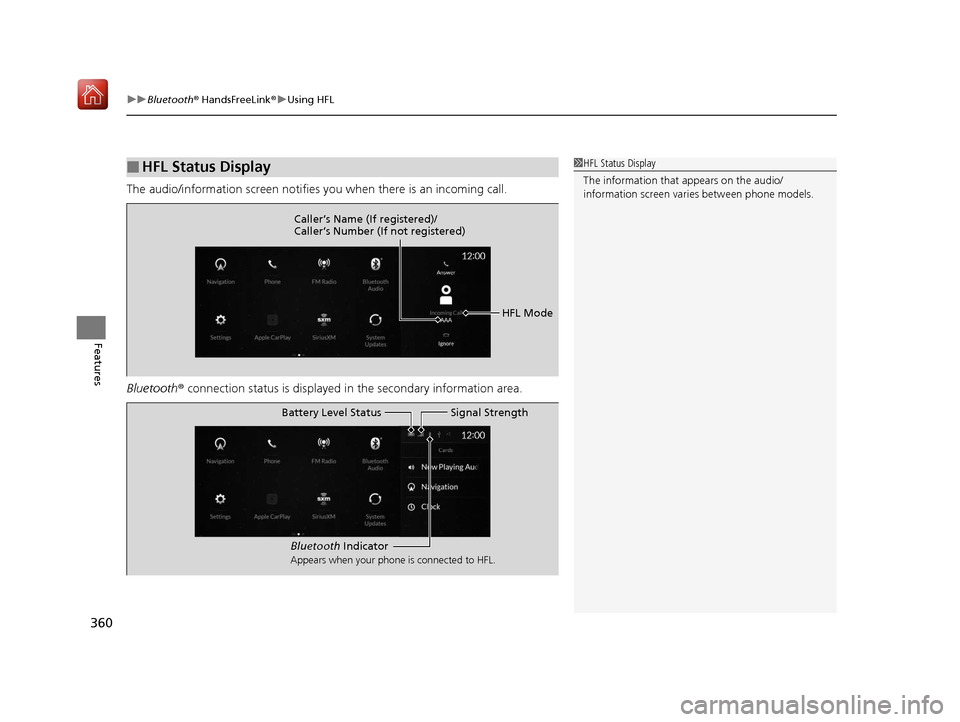
The audio/information screen notifies you when there is an incoming call.
Bluetooth ® connection status is displayed in the secondary information area.
■HFL Status Display1HFL Status Display
The information that appears on the audio/
information screen vari es between phone models.
HFL Mode
Caller’s Name (If registered)/
Caller’s Number (If not registered)
Bluetooth
Indicator
Appears when your phone is connected to HFL.
Signal Strength
Battery Level Status
19 ACURA RDX-31TJB6000.book 360 ページ 2018年4月26日 木曜日 午後4時51分
Page 366 of 649
Continued365
uuBluetooth ® HandsFreeLink ®u HFL Menus
Features
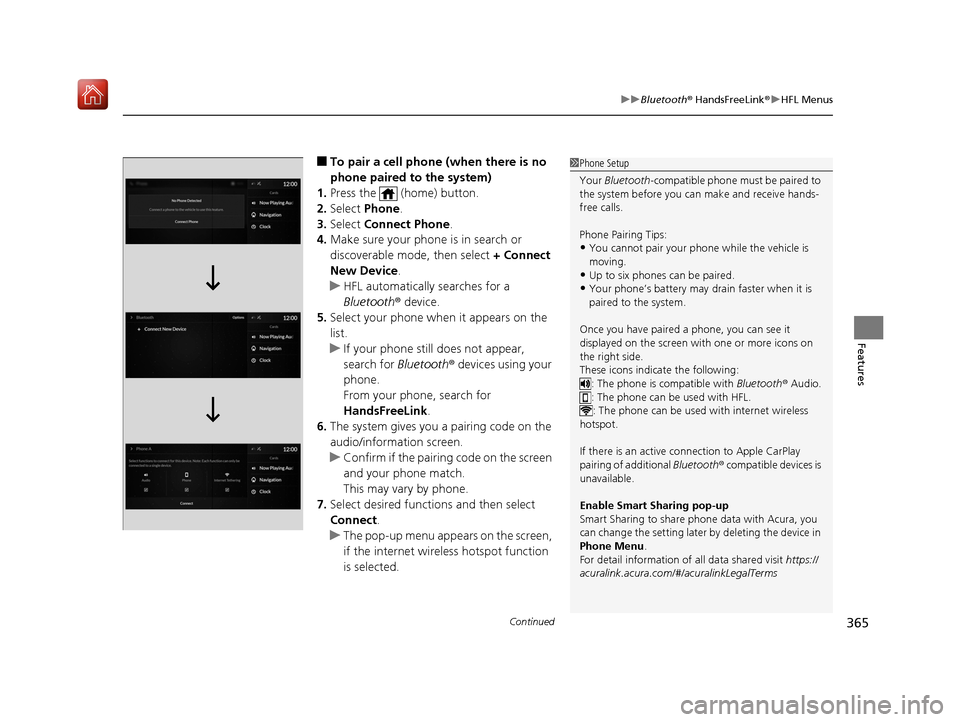
■To pair a cell phone (when there is no
phone paired to the system)
1. Press the (home) button.
2. Select Phone.
3. Select Connect Phone .
4. Make sure your phone is in search or
discoverable mode, then select + Connect
New Device .
u HFL automatically searches for a
Bluetooth ® device.
5. Select your phone when it appears on the
list.
u If your phone still does not appear,
search for Bluetooth® devices using your
phone.
From your phone, search for
HandsFreeLink .
6. The system gives you a pairing code on the
audio/information screen.
u Confirm if the pairing code on the screen
and your phone match.
This may vary by phone.
7. Select desired functions and then select
Connect .
u The pop-up menu appears on the screen,
if the internet wireless hotspot function
is selected.1Phone Setup
Your Bluetooth -compatible phone must be paired to
the system before you ca n make and receive hands-
free calls.
Phone Pairing Tips:
•You cannot pair your phone while the vehicle is
moving.
•Up to six phones can be paired.
•Your phone’s battery may dr ain faster when it is
paired to the system.
Once you have paired a phone, you can see it
displayed on the screen with one or more icons on
the right side.
These icons indicate the following: : The phone is compatible with Bluetooth ® Audio.
: The phone can be used with HFL.
: The phone can be used with internet wireless
hotspot.
If there is an active c onnection to Apple CarPlay
pairing of additional Bluetooth® compatible devices is
unavailable.
Enable Smart Sharing pop-up
Smart Sharing to share phone data with Acura, you
can change the setting later by deleting the device in
Phone Menu .
For detail information of all data shared visit https://
acuralink.acura.com/#/acuralinkLegalTerms
19 ACURA RDX-31TJB6000.book 365 ページ 2018年4月26日 木曜日 午後4時51分
Page 372 of 649
Continued371
uuBluetooth ® HandsFreeLink ®u HFL Menus
Features
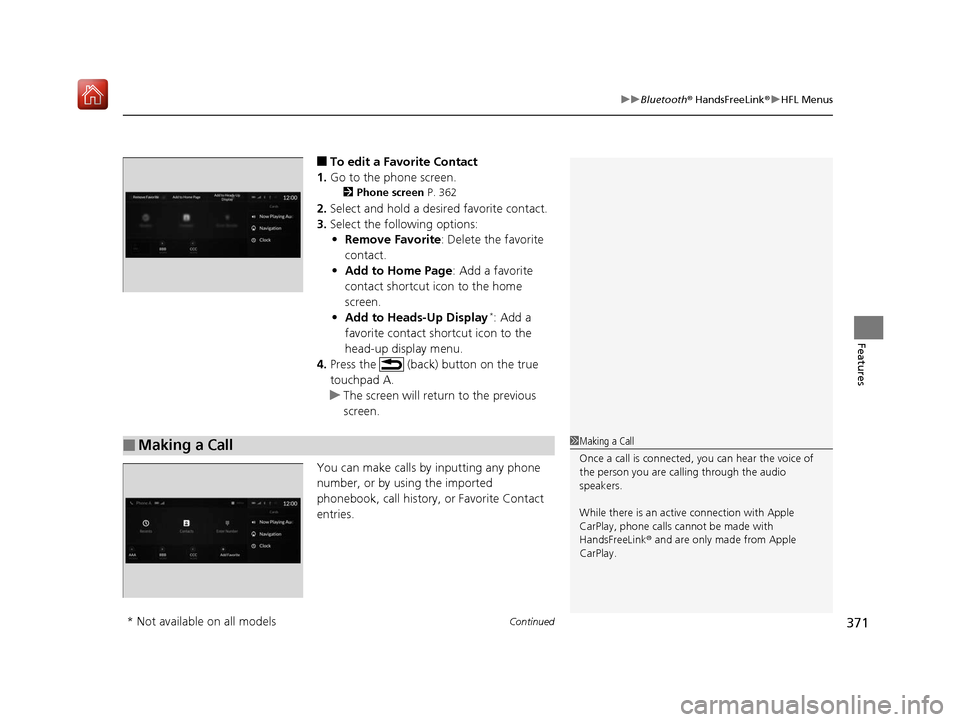
■To edit a Favorite Contact
1. Go to the phone screen.
2 Phone screen P. 362
2.Select and hold a desired favorite contact.
3. Select the following options:
• Remove Favorite : Delete the favorite
contact.
• Add to Home Page : Add a favorite
contact shortcut icon to the home
screen.
• Add to Heads-Up Display
*: Add a
favorite contact shortcut icon to the
head-up display menu.
4. Press the (back) button on the true
touchpad A.
u The screen will return to the previous
screen.
You can make calls by inputting any phone
number, or by using the imported
phonebook, call history, or Favorite Contact
entries.
■Making a Call1 Making a Call
Once a call is connected, you can hear the voice of
the person you are call ing through the audio
speakers.
While there is an active connection with Apple
CarPlay, phone calls ca nnot be made with
HandsFreeLink ® and are only made from Apple
CarPlay.
* Not available on all models
19 ACURA RDX-31TJB6000.book 371 ページ 2018年4月26日 木曜日 午後4時51分
Page 375 of 649

uuBluetooth ® HandsFreeLink ®u HFL Menus
374
Features
When there is an incoming call, an audible
notification sounds (i f activated) and the
Incoming Call... screen appears.
Move the left selector wheel to the right to
answer the call. Move it to the left to decline
or end the call. u You can also select Answer or Ignore
on the audio/information screen to use
hands-free calling.
■Receiving a Call1 Receiving a Call
Call Waiting
To put a call on hold so that you can answer an
incoming call, move the left selector wheel to the
right.
Move the left selector wheel to the right to resume
the call.
Select Ignore to ignore the incoming call if you do
not want to answer it.
Move the left selector wheel to the left to end a call.
Instead of using the selector wheel, you can use the
icons on the audio/information screen to perform the
above mentione d functions.
When a screen other than the phone screen is
displayed in the primar y information area, the
incoming call screen is displayed in the secondary
information area.
19 ACURA RDX-31TJB6000.book 374 ページ 2018年4月26日 木曜日 午後4時51分
Page 376 of 649

375
uuBluetooth ® HandsFreeLink ®u HFL Menus
Features
The following options are available during a call.
MUTE: Mute your voice.
TRANSFER TO MOBILE : Transfer a call from the system to your phone.
ENTER NUMBER : Send numbers during a call. This is useful when you call a menu-
driven phone system.
The available options are shown on the lower
half of the screen.
Select the option. u UNMUTE is displayed when the mute
function is on. Select UNMUTE to turn it
off.
u TRANSFER TO VEHICLE is displayed
when the hands-free mode is off. Select
TRANSFER TO VEHICLE to turn the
hands-free mode is on.
■Options During a Call1 Options During a Call
You can select the icons on the audio/information
screen.
19 ACURA RDX-31TJB6000.book 375 ページ 2018年4月26日 木曜日 午後4時51分
Page 389 of 649
uuAcuraLink ®u
388
Features
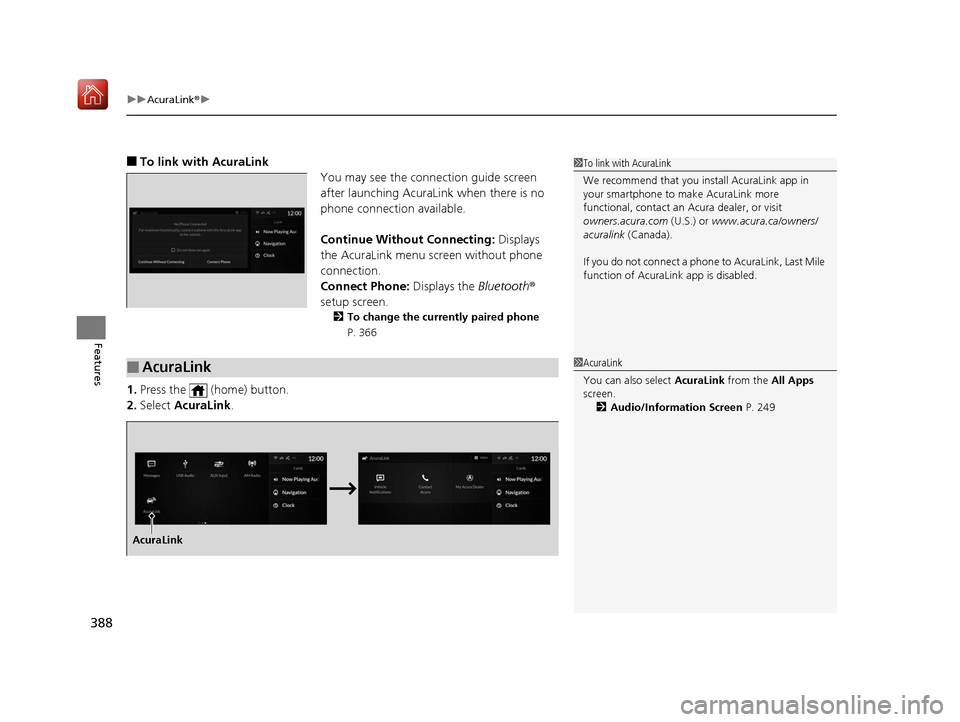
■To link with AcuraLink
You may see the connection guide screen
after launching AcuraLink when there is no
phone connecti on available.
Continue Without Connecting: Displays
the AcuraLink menu screen without phone
connection.
Connect Phone: Displays the Bluetooth®
setup screen.
2 To change the currently paired phone
P. 366
1.Press the (home) button.
2. Select AcuraLink .
1To link with AcuraLink
We recommend that you install AcuraLink app in
your smartphone to make AcuraLink more
functional, contact an Acura dealer, or visit
owners.acura.com (U.S.) or www.acura.ca/owners/
acuralink (Canada).
If you do not connect a phone to AcuraLink, Last Mile
function of AcuraLink app is disabled.
■AcuraLink1 AcuraLink
You can also select AcuraLink from the All Apps
screen.
2 Audio/Information Screen P. 249
AcuraLink
19 ACURA RDX-31TJB6000.book 388 ページ 2018年4月26日 木曜日 午後4時51分
Page 394 of 649
Continued393
uuAcuraLink ®u
Features
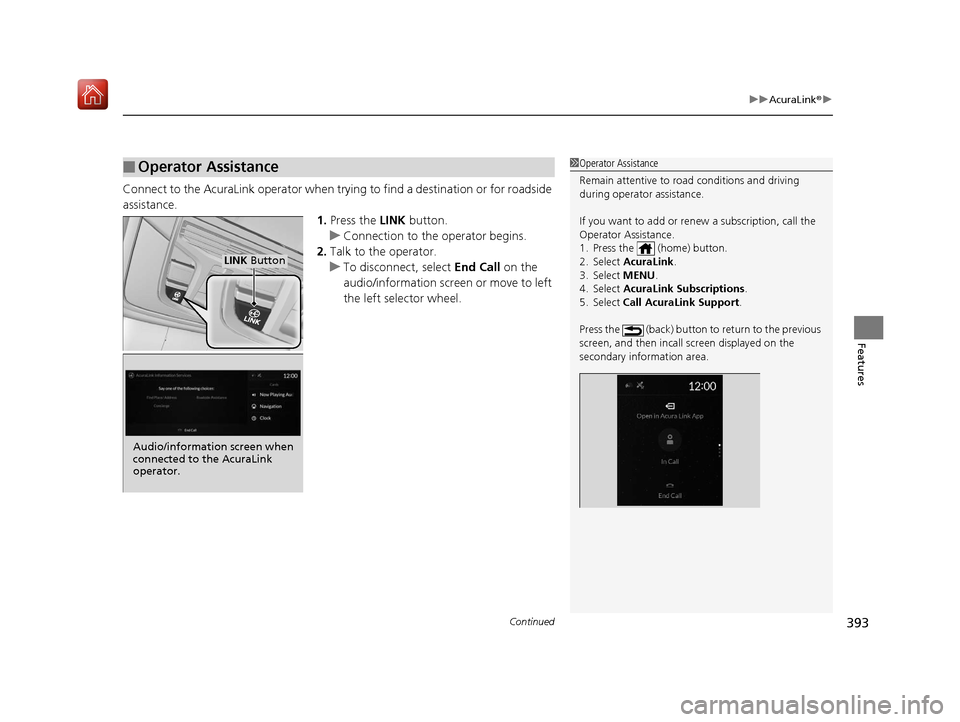
Connect to the AcuraLink operator when trying to find a destination or for roadside
assistance.
1.Press the LINK button.
u Connection to the operator begins.
2. Talk to the operator.
u To disconnect, select End Call on the
audio/information screen or move to left
the left selector wheel.
■Operator Assistance1 Operator Assistance
Remain attentive to road conditions and driving
during operator assistance.
If you want to add or re new a subscription, call the
Operator Assistance.
1. Press the (home) button.
2. Select AcuraLink .
3. Select MENU .
4. Select AcuraLink Subscriptions.
5. Select Call AcuraLink Support .
Press the (back) button to return to the previous
screen, and then incall screen displayed on the
secondary information area.
LINK Button
Audio/information screen when
connected to the AcuraLink
operator.
19 ACURA RDX-31TJB6000.book 393 ページ 2018年4月26日 木曜日 午後4時51分