ON mode Acura RDX 2020 Repair Manual
[x] Cancel search | Manufacturer: ACURA, Model Year: 2020, Model line: RDX, Model: Acura RDX 2020Pages: 657, PDF Size: 33.2 MB
Page 129 of 657
uuGauges and Displays uMulti-Information Display
128
Instrument Panel
Shows the current traveling direction of the vehicle.
Shows the current dynamic mode.
2 Integrated Dynamics System P. 428
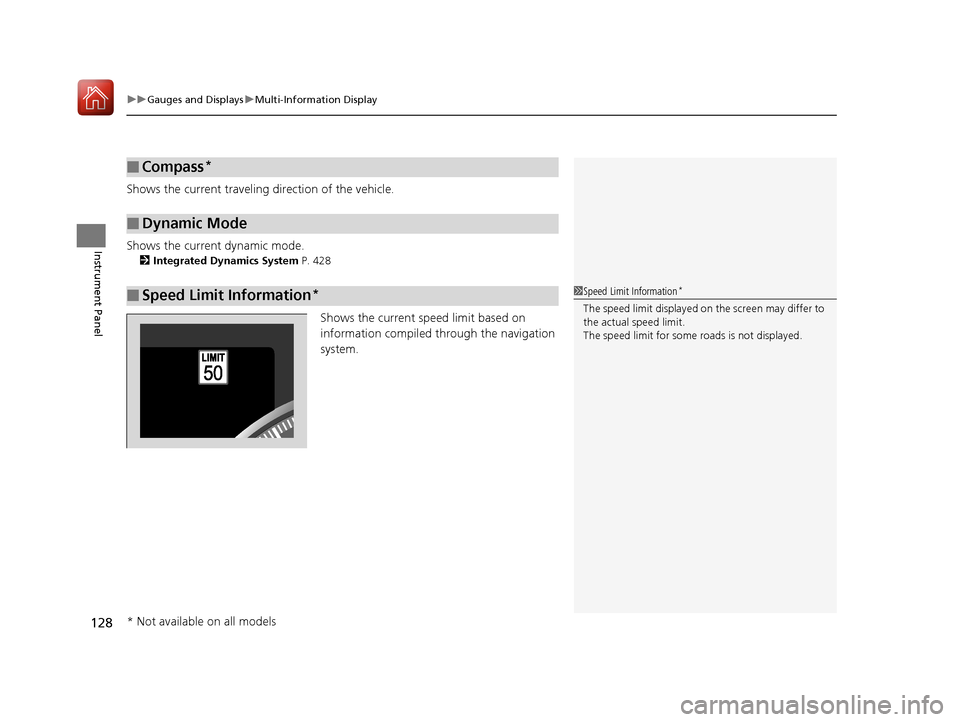
Shows the current speed limit based on
information compiled through the navigation
system.
■Compass*
■Dynamic Mode
■Speed Limit Information*1Speed Limit Information*
The speed limit disp layed on the screen may differ to
the actual speed limit.
The speed limit for some roads is not displayed.
* Not available on all models
20 ACURA RDX-31TJB6111.book 128 ページ 2020年2月11日 火曜日 午後2時6分
Page 130 of 657
129
uuGauges and Displays uMulti-Information Display
Continued
Instrument Panel
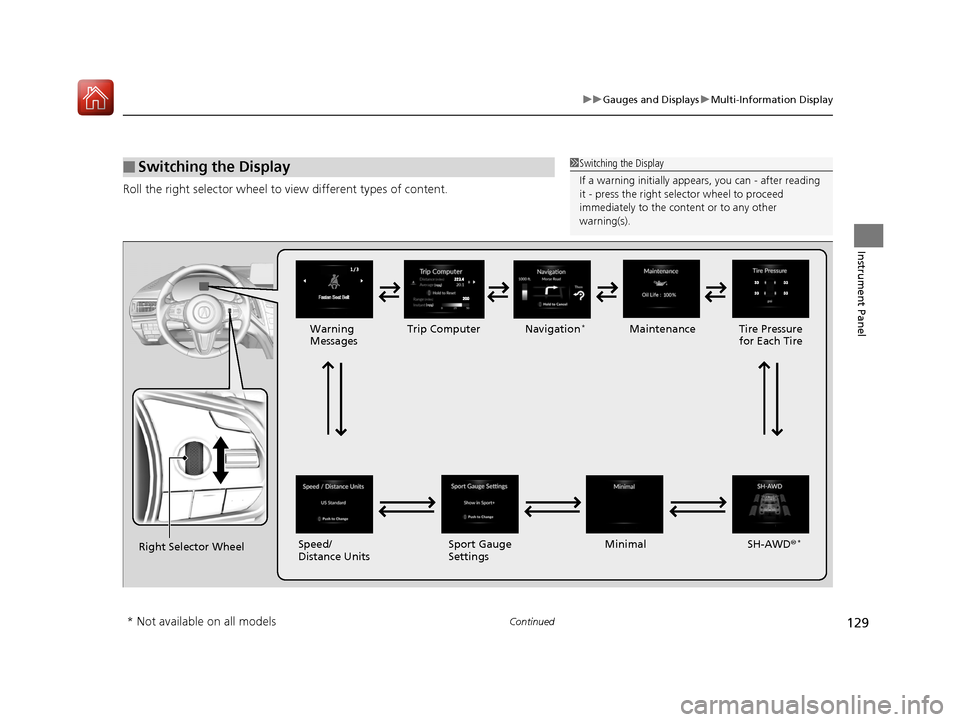
Roll the right selector wheel to view different types of content.
■Switching the Display1Switching the Display
If a warning initially appear s, you can - after reading
it - press the right sele ctor wheel to proceed
immediately to the cont ent or to any other
warning(s).
Right Selector Wheel Warning
Messages
Trip Computer
Speed/
Distance Units Tire Pressure
for Each Tire
Maintenance
Navigation
*
Sport Gauge
Settings SH-AWD®*Minimal
* Not available on all models
20 ACURA RDX-31TJB6111.book 129 ページ 2020年2月11日 火曜日 午後2時6分
Page 133 of 657
uuGauges and Displays uMulti-Information Display
132
Instrument Panel
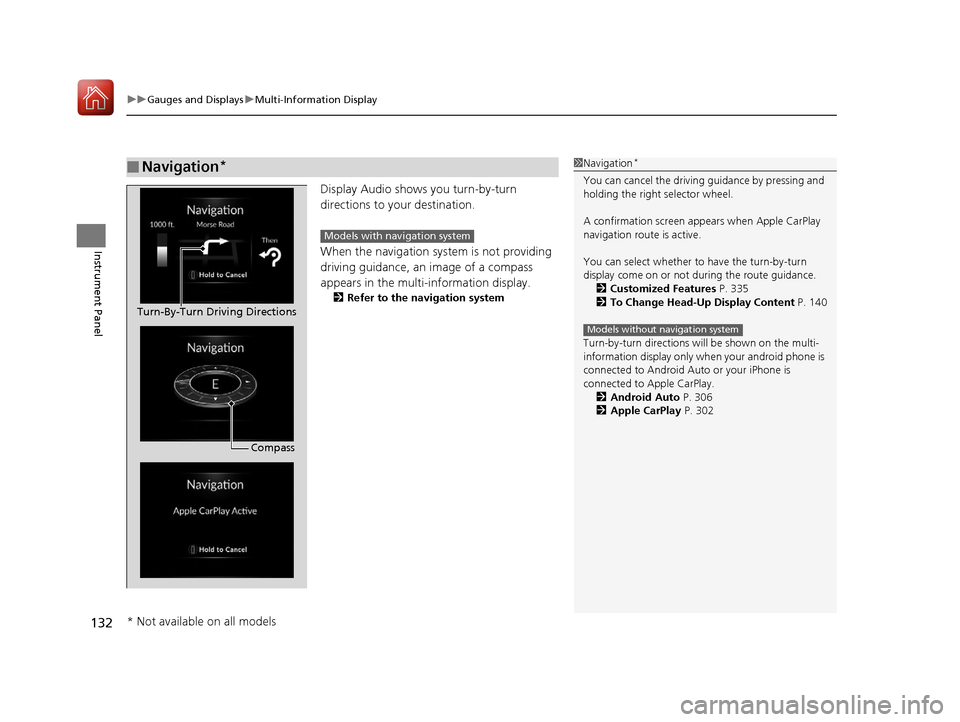
Display Audio shows you turn-by-turn
directions to your destination.
When the navigation system is not providing
driving guidance, an image of a compass
appears in the multi-information display.
2 Refer to the navigation system
■Navigation*1Navigation*
You can cancel the drivin g guidance by pressing and
holding the right selector wheel.
A confirmation screen appe ars when Apple CarPlay
navigation route is active.
You can select whether to have the turn-by-turn
display come on or not dur ing the route guidance.
2 Customized Features P. 335
2 To Change Head-Up Display Content P. 140
Turn-by-turn directions wi ll be shown on the multi-
information display only when your android phone is
connected to Android Au to or your iPhone is
connected to Apple CarPlay. 2 Android Auto P. 306
2 Apple CarPlay P. 302
Models without navigation system
Compass
Turn-By-Turn Driving Directions
Models with navigation system
* Not available on all models
20 ACURA RDX-31TJB6111.book 132 ページ 2020年2月11日 火曜日 午後2時6分
Page 135 of 657
uuGauges and Displays uMulti-Information Display
134
Instrument Panel
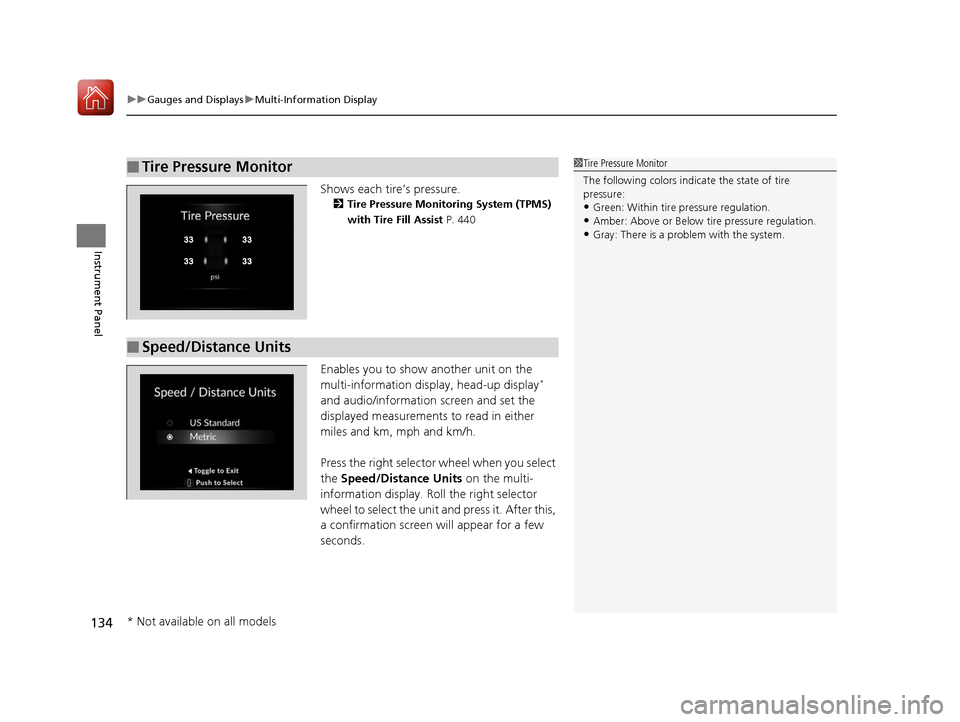
Shows each tire’s pressure.
2 Tire Pressure Monitoring System (TPMS)
with Tire Fill Assist P. 440
Enables you to show another unit on the
multi-information displa y, head-up display*
and audio/information screen and set the
displayed measurements to read in either
miles and km, mph and km/h.
Press the right selector wheel when you select
the Speed/Distance Units on the multi-
information display. Roll the right selector
wheel to select the unit and press it. After this,
a confirmation screen will appear for a few
seconds.
■Tire Pressure Monitor1 Tire Pressure Monitor
The following colors indicate the state of tire
pressure:
•Green: Within tire pressure regulation.
•Amber: Above or Below tire pressure regulation.•Gray: There is a problem with the system.
■Speed/Distance Units
* Not available on all models
20 ACURA RDX-31TJB6111.book 134 ページ 2020年2月11日 火曜日 午後2時6分
Page 138 of 657
137
uuGauges and Displays uMulti-Information Display
Instrument Panel
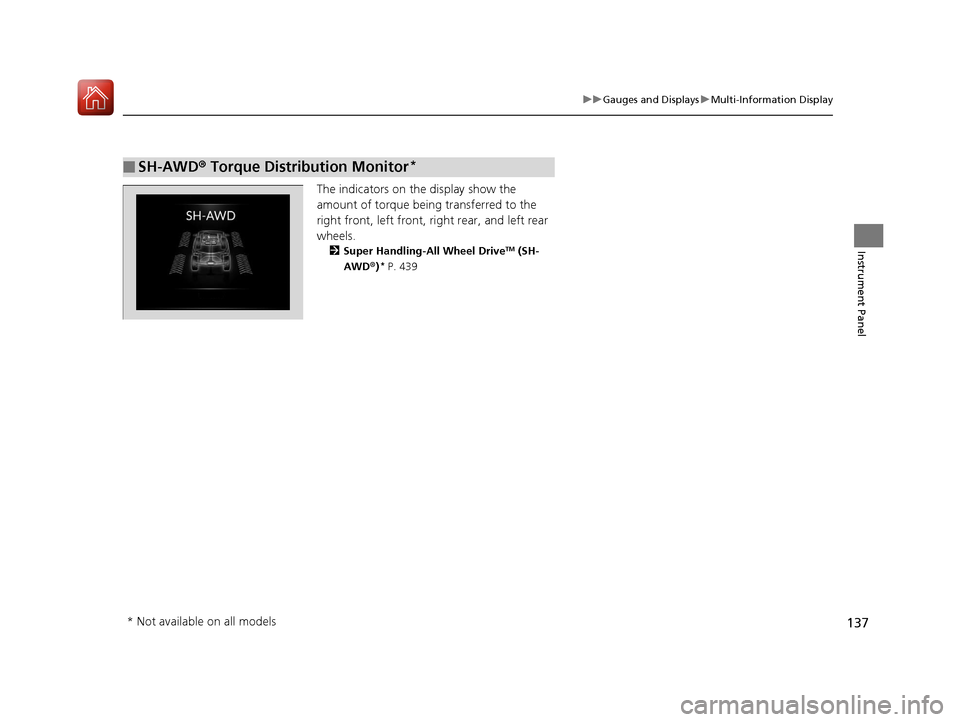
The indicators on the display show the
amount of torque being transferred to the
right front, left front, right rear, and left rear
wheels.
2 Super Handling-All Wheel DriveTM (SH-
AWD ®)* P. 439
■SH-AWD ® Torque Distribution Monitor*
* Not available on all models
20 ACURA RDX-31TJB6111.book 137 ページ 2020年2月11日 火曜日 午後2時6分
Page 139 of 657
138
uuGauges and Displays uHead-Up Display*
Instrument Panel
Head-Up Display*
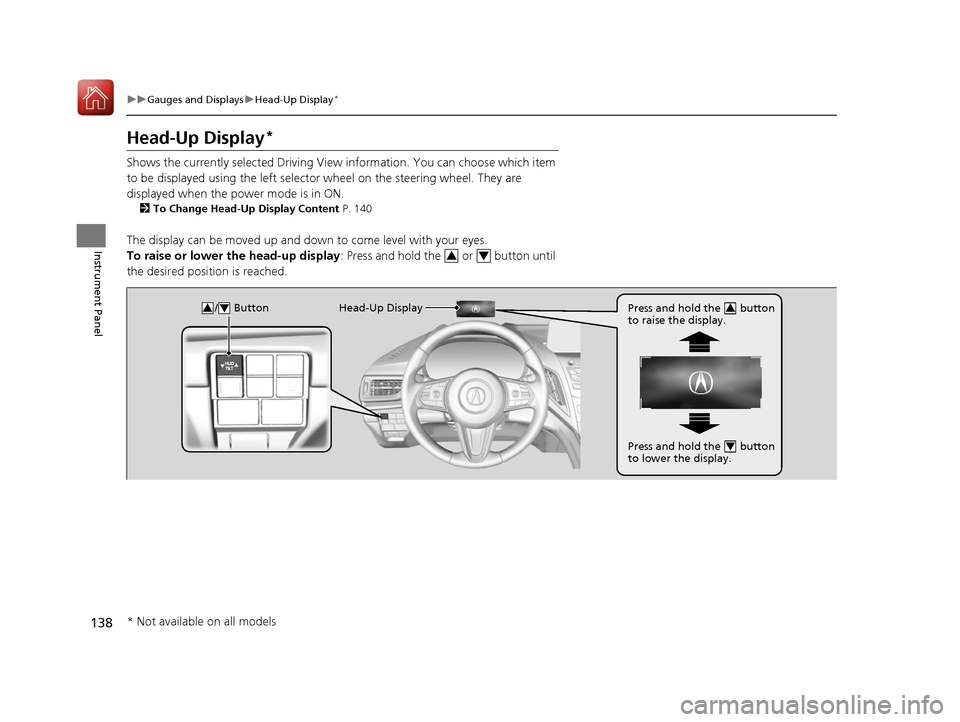
Shows the currently selected Driving View information. You can choose which item
to be displayed using the left selector wheel on the steering wheel. They are
displayed when the power mode is in ON.
2 To Change Head-Up Display Content P. 140
The display can be moved up and down to come level with your eyes.
To raise or lower the head-up display : Press and hold the or button until
the desired position is reached.
34
/ Button34Head-Up Display Press and hold the button
to raise the display.3
Press and hold the button
to lower the display.4
* Not available on all models
20 ACURA RDX-31TJB6111.book 138 ページ 2020年2月11日 火曜日 午後2時6分
Page 141 of 657
140
uuGauges and Displays uHead-Up Display*
Instrument Panel
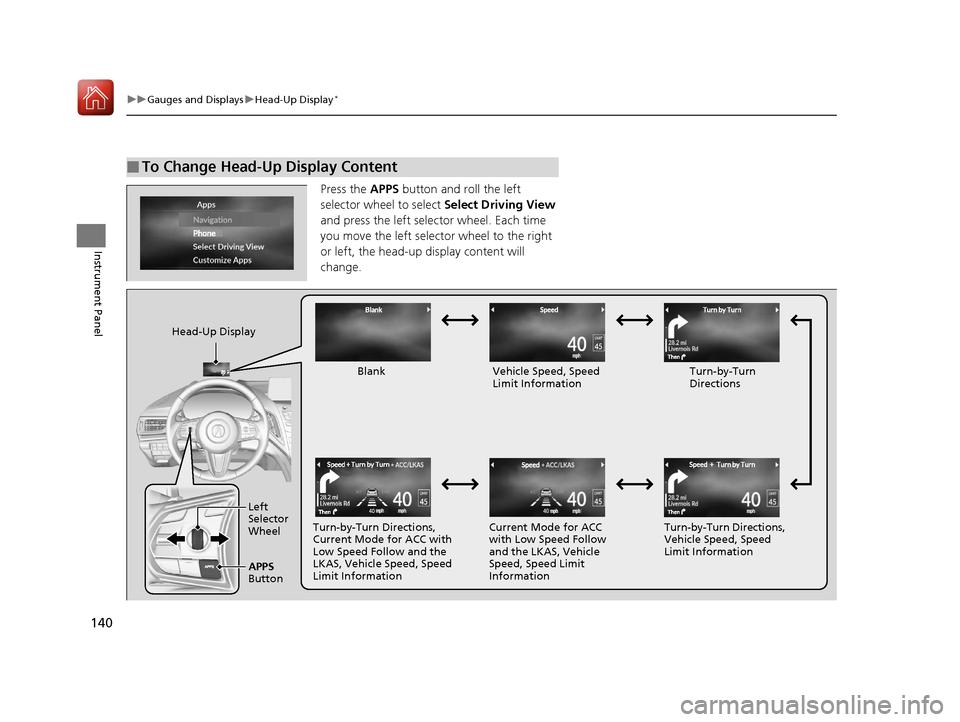
Press the APPS button and roll the left
selector wheel to select Select Driving View
and press the left selector wheel. Each time
you move the left selector wheel to the right
or left, the head-up display content will
change.
■To Change Head-Up Display Content
Head-Up Display
Blank Vehicle Speed, Speed Limit Information Turn-by-Turn
Directions
Turn-by-Turn Directions,
Current Mode for ACC with
Low Speed Follow and the
LKAS, Vehicle Speed, Speed
Limit Information Current Mode for ACC
with Low Speed Follow
and the LKAS, Vehicle
Speed, Speed Limit
InformationTurn-by-Turn Directions,
Vehicle Speed, Speed
Limit Information
Left
Selector
Wheel
APPS
Button
20 ACURA RDX-31TJB6111.book 140 ページ 2020年2月11日 火曜日 午後2時6分
Page 142 of 657
141
uuGauges and Displays uHead-Up Display*
Instrument Panel
Shows your driving speed in mph or km/h.
Shows the current mode for ACC with Low Speed Follow and the LKAS.
2 Adaptive Cruise Control (ACC) with Low Speed Follow P. 460
2 Lane Keeping Assist System (LKAS) P. 477
Shows you turn-by-turn driv ing directions to your destination linked with the
navigation system.
2 Refer to the Navigation System Manual
Shows the current speed limit based on information compiled through the
navigation system.
■Vehicle Speed
■Current Mode for ACC with Low Speed Follow and the LKAS
■Turn-by-Turn Directions
■Speed Limit Information
1Vehicle Speed
Switch between mph and km/h by using the multi-
information display or customized features on the
audio/information screen.
2 Speed/Distance Units P. 134
2 Customized Features P. 335
1Speed Limit Information
The speed limit disp layed on the screen may differ to
the actual speed limit.
The speed limit for some roads is not displayed.
20 ACURA RDX-31TJB6111.book 141 ページ 2020年2月11日 火曜日 午後2時6分
Page 144 of 657
143
Controls
This chapter explains how to operate the various controls necessary for driving.
Clock.................................................. 144
Locking and Unlocking the Doors
Key Types and Functions .................. 146
Low Keyless Access Remote Signal Strength ......................................... 149
Locking/Unlocking the Doors from the Outside .......................................... 150
Locking/Unlocking the Doors from the
Inside ............................................. 159
Childproof Door Locks ..................... 161
Auto Door Locking/Unlocking .......... 162
Opening and Closing the Tailgate ... 163
Security System Immobilizer System .......................... 173 Security System Alarm...................... 173
Opening and Closing the Windows ... 176
Panoramic Roof ................................. 179
Operating the Switches Around the Steering Wheel
ENGINE START/STOP Button............. 182
Turn Signals ..................................... 185
Light Switches.................................. 186
Adaptive Front Lighting System (AFS)*.. 189Fog Lights*...................................... 190
Daytime Running Lights ................... 190
Auto High-Beam .............................. 191
Wipers and Washers ........................ 194
Brightness Control ........................... 198
Rear Defogger/Heated Door Mirror Button ........................................ 200
Heated Windshield Button ............... 200
Driving Position Memory System ...... 201
Adjusting the Steering Wheel .......... 203
Adjusting the Mirrors Interior Rearview Mirror ................... 204
Power Door Mirrors ......................... 205
Adjusting the Seats .......................... 207
Interior Lights/Interior Convenience Items ................................................ 219
Climate Control System Using Automatic Climate Control .... 230
Automatic Climate Control Sensors ... 235
* Not available on all models
20 ACURA RDX-31TJB6111.book 143 ページ 2020年2月11日 火曜日 午後2時6分
Page 145 of 657
144
Controls
Clock
Adjusting the Clock
You can adjust the time manually in the audio/information screen, with the power
mode in ON.
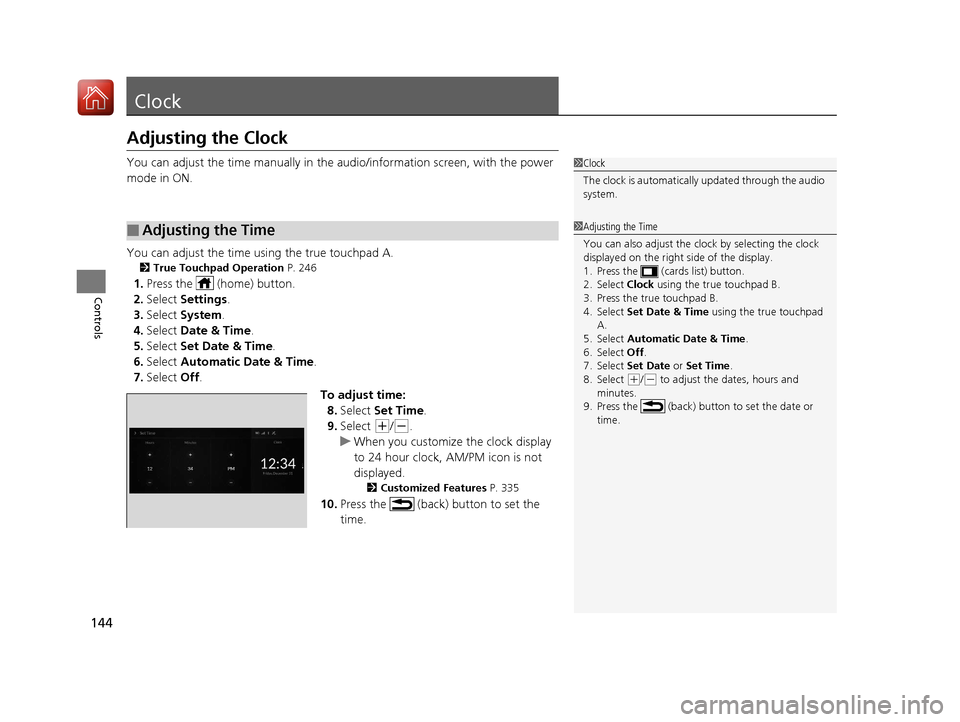
You can adjust the time using the true touchpad A.
2 True Touchpad Operation P. 246
1.Press the (home) button.
2. Select Settings .
3. Select System.
4. Select Date & Time .
5. Select Set Date & Time .
6. Select Automatic Date & Time .
7. Select Off.
To adjust time:8. Select Set Time .
9. Select
(+/(-.
u When you customize the clock display
to 24 hour clock, AM/PM icon is not
displayed.
2 Customized Features P. 335
10.Press the (back) button to set the
time.
■Adjusting the Time
1Clock
The clock is automatically updated through the audio
system.
1Adjusting the Time
You can also adjust the clock by selecting the clock
displayed on the right side of the display.
1. Press the (cards list) button.
2. Select Clock using the true touchpad B.
3. Press the true touchpad B.
4. Select Set Date & Time using the true touchpad
A.
5. Select Automatic Date & Time .
6. Select Off .
7. Select Set Date or Set Time.
8. Select
( +/(- to adjust the dates, hours and
minutes.
9. Press the (back) button to set the date or
time.
20 ACURA RDX-31TJB6111.book 144 ページ 2020年2月11日 火曜日 午後2時6分