phone ACURA RDX 2022 Owners Manual
[x] Cancel search | Manufacturer: ACURA, Model Year: 2022, Model line: RDX, Model: ACURA RDX 2022Pages: 709, PDF Size: 25.22 MB
Page 21 of 709
19
Quick Reference Guide
Features (P 253)
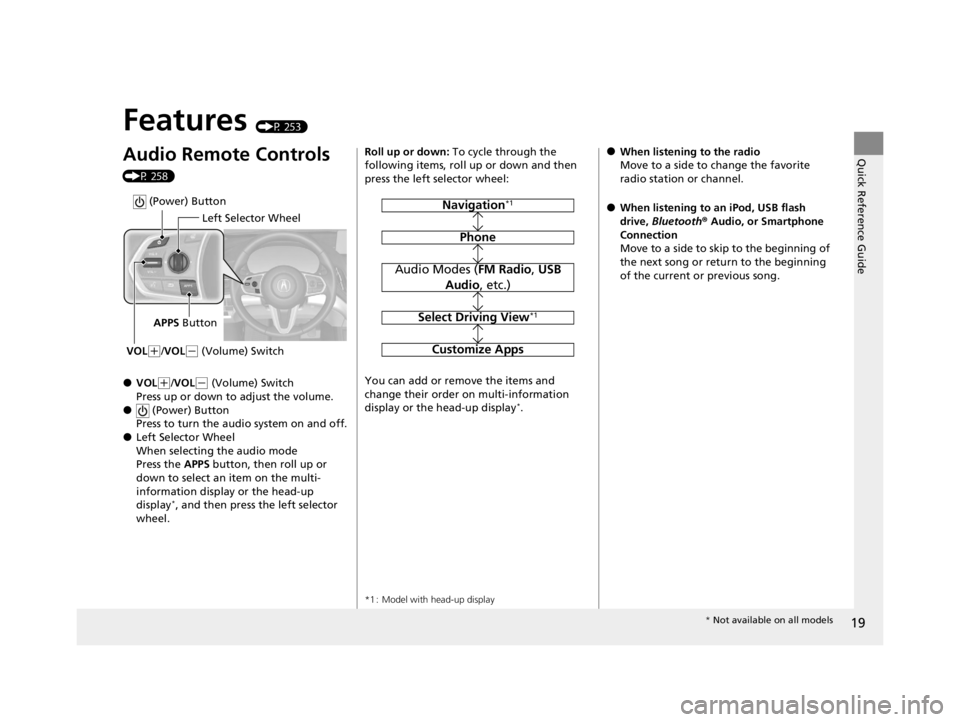
Audio Remote Controls
(P 258)
●VOL(+/VOL( - (Volume) Switch
Press up or down to adjust the volume.
● (Power) Button
Press to turn the audio system on and off.
●Left Selector Wheel
When selecting the audio mode
Press the APPS button, then roll up or
down to select an item on the multi-
information display or the head-up
display
*, and then press the left selector
wheel.
Left Selector Wheel
APPS Button
VOL
( +/VOL(- (Volume) Switch
(Power) Button
Roll up or down: To cycle through the
following items, roll up or down and then
press the left selector wheel:
You can add or remove the items and
change their order on multi-information
display or the head-up display
*.
*1 : Model with head-up display
Navigation*1
Phone
Audio Modes ( FM Radio, USB
Audio , etc.)
Select Driving View*1
Customize Apps
●When listening to the radio
Move to a side to change the favorite
radio station or channel.
●When listening to an iPod, USB flash
drive, Bluetooth ® Audio, or Smartphone
Connection
Move to a side to skip to the beginning of
the next song or return to the beginning
of the current or previous song.
* Not available on all models
22 ACURA RDX-31TJB6300.book 19 ページ 2021年8月2日 月曜日 午前11時0分
Page 34 of 709

32
Safe Driving
For Safe Driving
The following pages explain your vehicle’s safety features and how to use them
properly. The safety precautions below are ones that we consider to be among the
most important.
Important Safety Precautions
■Always wear your seat belt
A seat belt is your best protection in all types of collisions. Airbags are designed to
supplement seat belts, not replace them. So even though your vehicle is equipped
with airbags, make sure you and your passengers always wear your seat belts, and
wear them properly.
■Restrain all children
Children ages 12 and under should ride prop erly restrained in a back seat, not the
front seat. Infants and small children should be restrained in a child seat. Larger
children should use a booster seat and a lap/shoulder seat belt until they can use the
belt properly without a booster seat.
■Be aware of airbag hazards
While airbags can save lives, they can cause serious or fatal injuries to occupants
who sit too close to them, or are not prop erly restrained. Infants, young children,
and short adults are at the greatest risk. Be sure to follow all instructions and
warnings in this manual.
■Don’t drink and drive
Alcohol and driving don’t mix. Even one dr ink can reduce your ability to respond to
changing conditions, and your reaction time gets worse with every additional drink.
So don’t drink and drive, and don’t let your friends drink and drive, either.
1Important Safety Precautions
Some states, provinces and te rritories prohibit the use
of cell phones other than hands-free devices by the
driver while driving.
22 ACURA RDX-31TJB6300.book 32 ページ 2021年8月2日 月曜日 午前11時0分
Page 35 of 709

33
uuFor Safe Driving uImportant Safety Precautions
Safe Driving
■Pay appropriate attention to the task of driving safely
Engaging in cell phone conversation or other activities that keep you from paying
close attention to the road, other vehicles , and pedestrians could lead to a crash.
Remember, situations can change quickly, and only you can decide when it is safe to
divert some attention away from driving.
■Control your speed
Excessive speed is a major factor in crash injuries and deaths. Generally, the higher
the speed, the greater the risk, but serious injuries can also occur at lower speeds.
Never drive faster than is safe for current conditions, regardless of the maximum
speed posted.
■Keep your vehicle in safe condition
Having a tire blowout or a mechanical failure can be extremely hazardous.
To reduce the possibility of such problems, check your tire pressures and condition
frequently, and perform all re gularly scheduled maintenance.
■Do not leave children unattended in the vehicle
Children, pets, and people needing assistance left unattended in the vehicle may be
injured if they activate one or more of the vehicle controls. They may also cause the
vehicle to move, resulting in a crash in wh ich they and/or another person(s) can be
injured or killed. Also, depending on the am bient temperature, the temperature of
the interior may reach extreme levels, which ca n result in harm or death. Even if the
climate control system is on, never leave them in the vehicle unattended as the
climate control system can shut off at any time.
22 ACURA RDX-31TJB6300.book 33 ページ 2021年8月2日 月曜日 午前11時0分
Page 161 of 709

159
uuLocking and Unlocking the Doors uLow Keyless Remote Signal Strength
Controls
Low Keyless Remote Signal Strength
The vehicle transmits radio waves to lo cate the keyless remote when locking/
unlocking the doors and tailgate, fuel fill door or to start the engine.
In the following cases, locking/unlocking the doors and tailgate, or starting the
engine may be inhibited or operation may be unstable:
• Strong radio waves are being transmitted by nearby equipment.
• You are carrying the keyless remote together with telecommunications
equipment, laptop computers, ce ll phones, or wireless devices.
• A metallic object is touching or covering the keyless remote.1Low Keyless Remote Signal Strength
Communication between the keyless remote and the
vehicle consumes the ke yless remote’s battery.
Battery life is about two years, but this varies
depending on regularity of use.
The battery is consumed whenever the keyless
remote is receivi ng strong radio wave s. Avoid placing
it near electrical appliances such as televisions and
personal computers.
22 ACURA RDX-31TJB6300.book 159 ページ 2021年8月2日 月曜日 午前11時0分
Page 212 of 709
210
uuOperating the Switches Around the Steering Wheel uDriving Position Memory System
Controls
Driving Position Memory System
You can store two driver’s seat and door mirror positions with the driving position
memory system.
When you unlock and open the driver’s door with a keyless remote or keyless access
system, door mirrors adjust to one of the two preset positions and the seat adjusts
to retracted positions of one of the two preset positions automatically.
The seat will move to th e stored position when you set the power mode to
ACCESSORY.
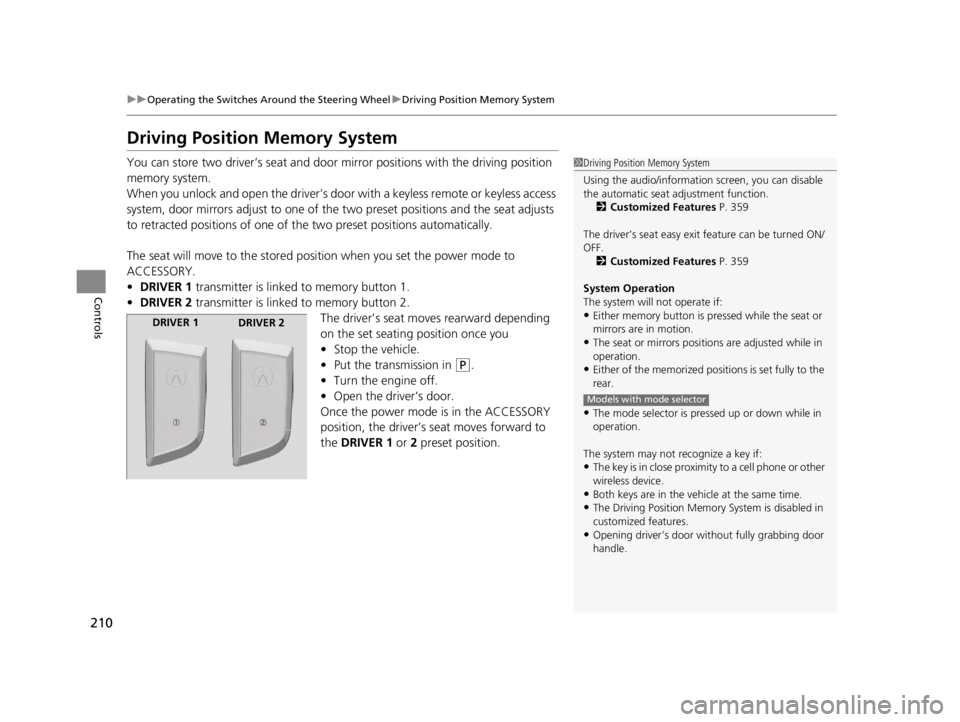
• DRIVER 1 transmitter is linked to memory button 1.
• DRIVER 2 transmitter is linked to memory button 2.
The driver’s seat moves rearward depending
on the set seating position once you
•Stop the vehicle.
• Put the transmission in
(P.
• Turn the engine off.
• Open the driver’s door.
Once the power mode is in the ACCESSORY
position, the driver’s seat moves forward to
the DRIVER 1 or 2 preset position.
1 Driving Position Memory System
Using the audio/informati on screen, you can disable
the automatic seat adjustment function. 2 Customized Features P. 359
The driver’s seat easy exit feature can be turned ON/
OFF. 2 Customized Features P. 359
System Operation
The system will not operate if:
•Either memory button is pr essed while the seat or
mirrors are in motion.
•The seat or mirrors positions are adjusted while in
operation.
•Either of the memorized positions is set fully to the
rear.
•The mode selector is pressed up or down while in
operation.
The system may not recognize a key if:
•The key is in close proximity to a cell phone or other
wireless device.
•Both keys are in the vehicle at the same time.
•The Driving Position Memory System is disabled in
customized features.
•Opening driver’s door wi thout fully grabbing door
handle.
Models with mode selector
DRIVER 1 DRIVER 2
22 ACURA RDX-31TJB6300.book 210 ページ 2021年8月2日 月曜日 午前11時0分
Page 256 of 709
254
Features
Audio System
About Your Audio System
The audio system features AM/FM radio and SiriusXM® Radio service. It can also play
USB flash drives, and iPod, iPhone, iPad and Bluetooth® devices.
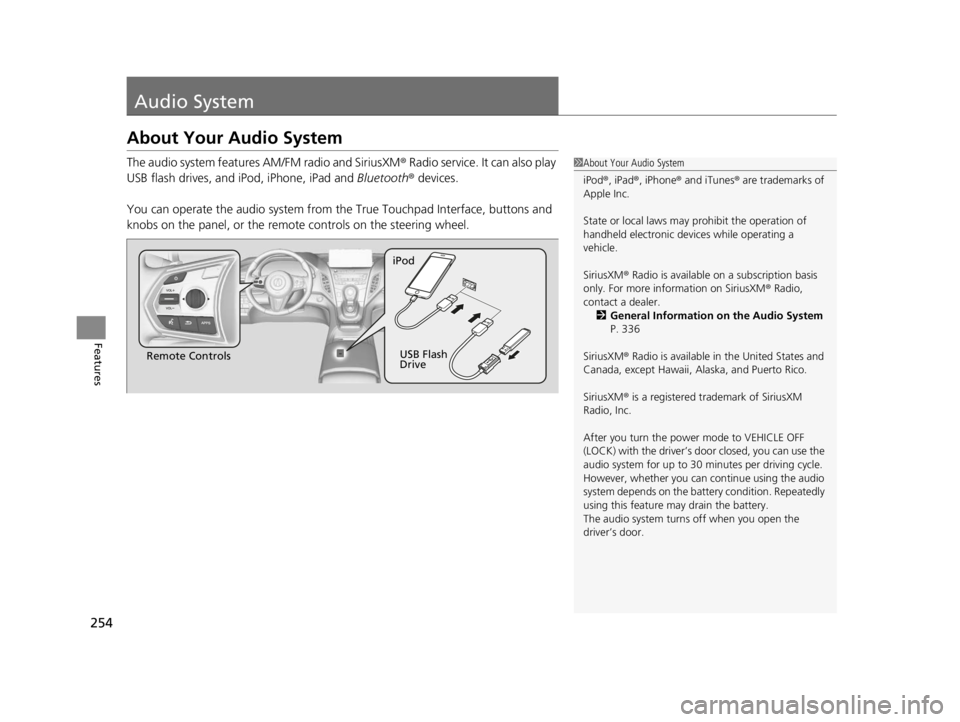
You can operate the audio sy stem from the True Touchpad Interface, buttons and
knobs on the panel, or the remote controls on the steering wheel.1About Your Audio System
iPod ®, iPad ®, iPhone ® and iTunes ® are trademarks of
Apple Inc.
State or local laws may prohibit the operation of
handheld electronic devi ces while operating a
vehicle.
SiriusXM ® Radio is available on a subscription basis
only. For more information on SiriusXM ® Radio,
contact a dealer. 2 General Information on the Audio System
P. 336
SiriusXM ® Radio is available in the United States and
Canada, except Ha waii, Alaska, and Puerto Rico.
SiriusXM ® is a registered trademark of SiriusXM
Radio, Inc.
After you turn the power mode to VEHICLE OFF
(LOCK) with the driver’s door closed, you can use the
audio system for up to 30 minutes per driving cycle.
However, whether you can continue using the audio
system depends on the batter y condition. Repeatedly
using this feature ma y drain the battery.
The audio system turns off when you open the
driver’s door.
Remote Controls iPod
USB Flash
Drive
22 ACURA RDX-31TJB6300.book 254 ページ 2021年8月2日 月曜日 午前11時0分
Page 257 of 709
255
uuAudio System uUSB Ports
Continued
Features
USB Ports
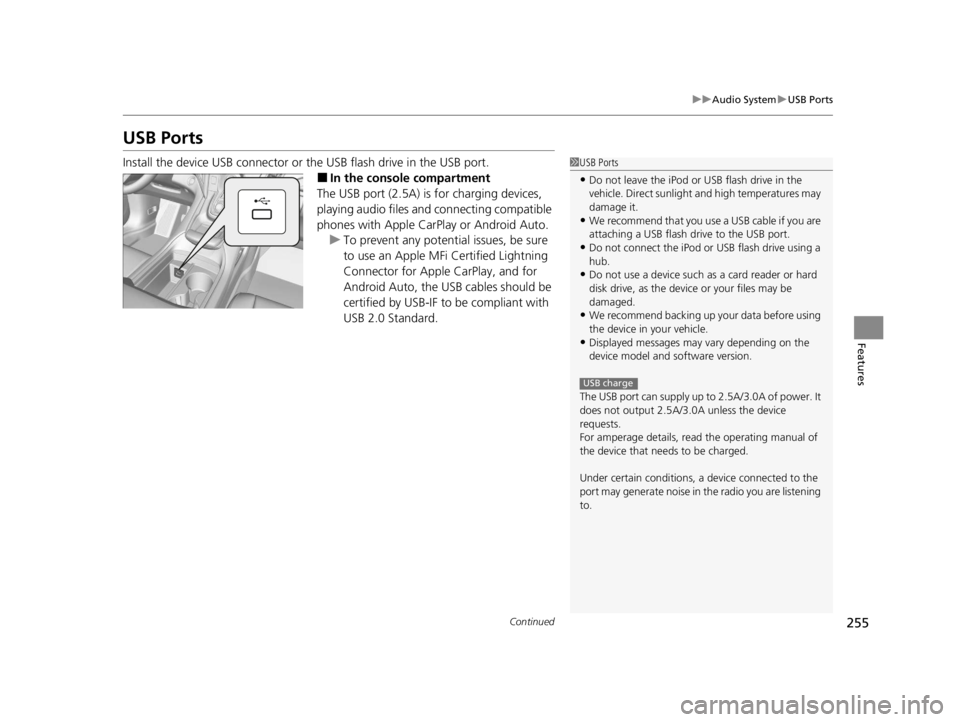
Install the device USB connector or the USB flash drive in the USB port.
■In the consol e compartment
The USB port (2.5A) is for charging devices,
playing audio files and connecting compatible
phones with Apple CarPlay or Android Auto. u To prevent any potenti al issues, be sure
to use an Apple MFi Certified Lightning
Connector for Apple CarPlay, and for
Android Auto, the USB cables should be
certified by USB-IF to be compliant with
USB 2.0 Standard.
1 USB Ports
•Do not leave the iPod or USB flash drive in the
vehicle. Direct sunlight and high temperatures may
damage it.
•We recommend that you us e a USB cable if you are
attaching a USB flash drive to the USB port.
•Do not connect the iPod or USB flash drive using a
hub.
•Do not use a device such as a card reader or hard
disk drive, as the device or your files may be
damaged.
•We recommend backing up yo ur data before using
the device in your vehicle.
•Displayed messages may vary depending on the
device model and software version.
The USB port can supply up to 2.5A/3.0A of power. It
does not output 2.5A/3.0A unless the device
requests.
For amperage details, read the operating manual of
the device that ne eds to be charged.
Under certain condi tions, a device connected to the
port may generate noise in the radio you are listening
to.
USB charge
22 ACURA RDX-31TJB6300.book 255 ページ 2021年8月2日 月曜日 午前11時0分
Page 261 of 709
259
uuAudio System uAudio Remote Controls
Features
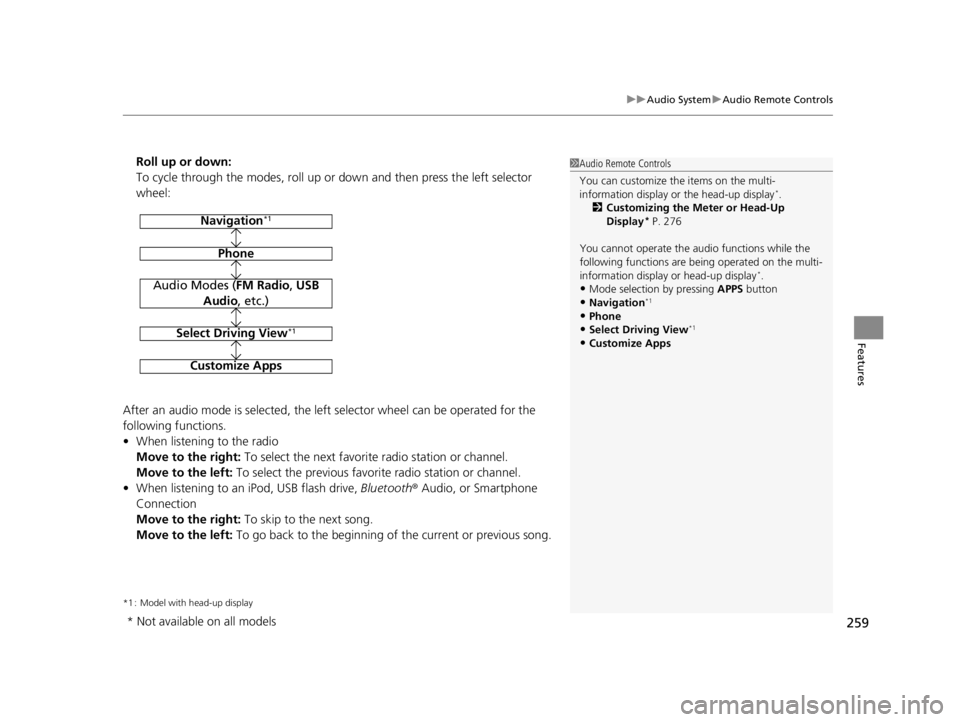
Roll up or down:
To cycle through the modes, roll up or down and then press the left selector
wheel:
After an audio mode is selected, the left selector wheel can be operated for the
following functions.
• When listening to the radio
Move to the right: To select the next favorite radio station or channel.
Move to the left: To select the previous favori te radio station or channel.
• When listening to an iPod, USB flash drive, Bluetooth® Audio, or Smartphone
Connection
Move to the right: To skip to the next song.
Move to the left: To go back to the beginning of the current or previous song.
*1 : Model with head-up display
1Audio Remote Controls
You can customize the items on the multi-
information display or the head-up display
*.
2 Customizing the Meter or Head-Up
Display
* P. 276
You cannot operate the a udio functions while the
following functions are be ing operated on the multi-
information display or head-up display
*.•Mode selection by pressing APPS button
•Navigation*1
•Phone
•Select Driving View*1
•Customize Apps
Navigation*1
Phone
Audio Modes (FM Radio, USB
Audio , etc.)
Select Driving View*1
Customize Apps
* Not available on all models
22 ACURA RDX-31TJB6300.book 259 ページ 2021年8月2日 月曜日 午前11時0分
Page 266 of 709
264
uuAudio System Basic Operation uAudio/Information Screen
Features
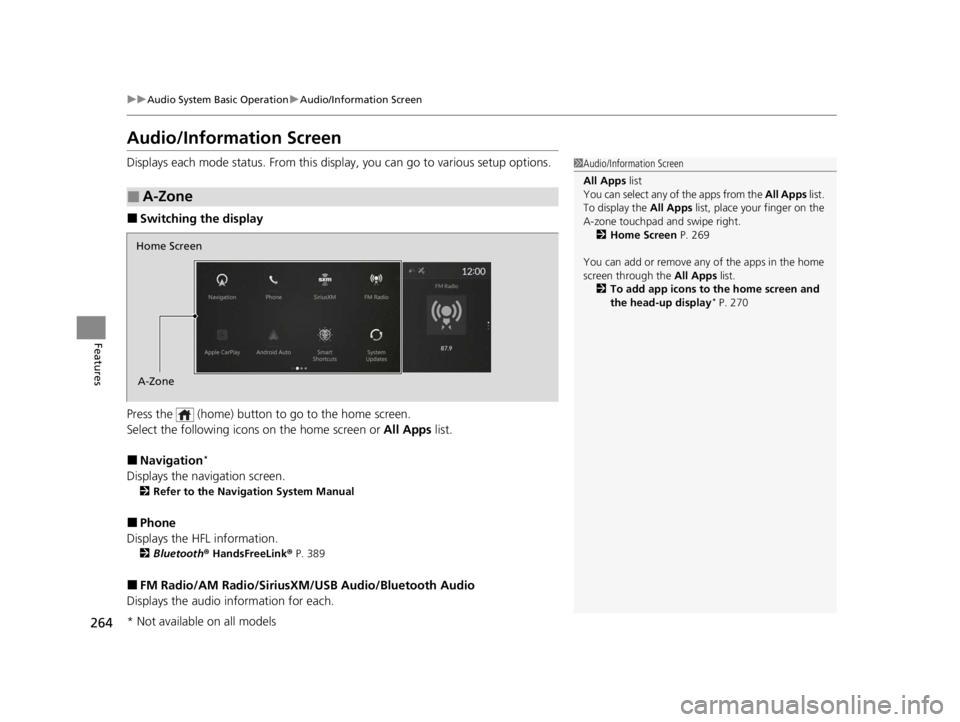
Audio/Information Screen
Displays each mode status. From this display, you can go to various setup options.
■Switching the display
Press the (home) button to go to the home screen.
Select the following icon s on the home screen or All Apps list.
■Navigation*
Displays the navigation screen.
2Refer to the Navigation System Manual
■Phone
Displays the HFL information.
2 Bluetooth ® HandsFreeLink ® P. 389
■FM Radio/AM Radio/SiriusXM /USB Audio/Bluetooth Audio
Displays the audio information for each.
■A-Zone
1 Audio/Information Screen
All Apps list
You can select any of the apps from the All Apps list.
To display the All Apps list, place your finger on the
A-zone touchpad and swipe right. 2 Home Screen P. 269
You can add or remove any of the apps in the home
screen through the All Apps list.
2 To add app icons to the home screen and
the head-up display
* P. 270
Home Screen
A-Zone
* Not available on all models
22 ACURA RDX-31TJB6300.book 264 ページ 2021年8月2日 月曜日 午前11時0分
Page 277 of 709
Continued275
uuAudio System Basic Operation uAudio/Information Screen
Features
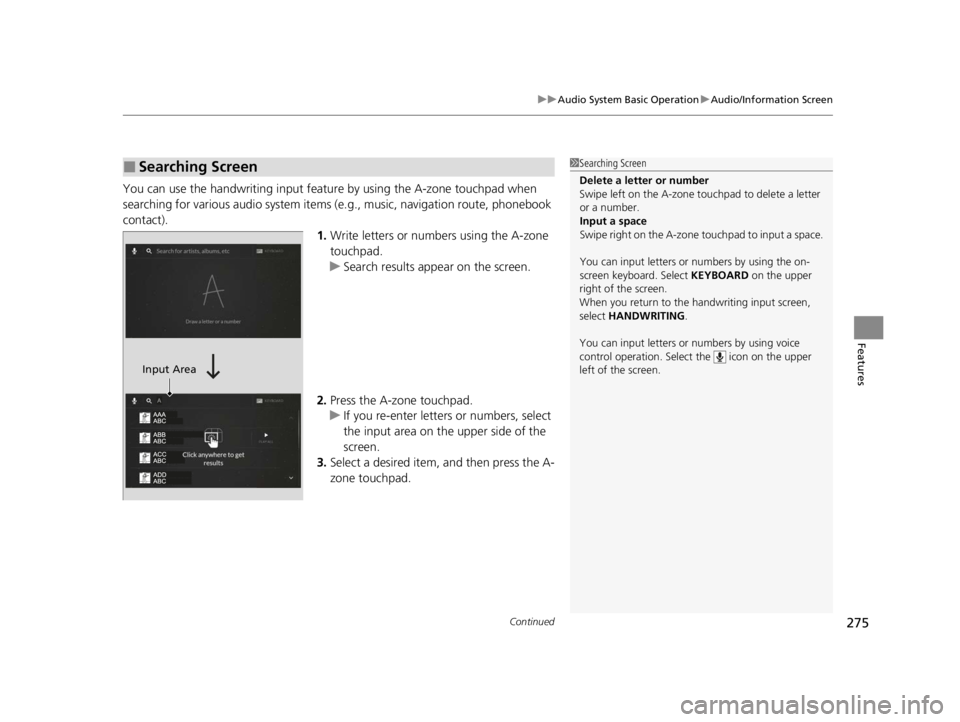
You can use the handwriting input feature by using the A-zone touchpad when
searching for various audio system items (e .g., music, navigation route, phonebook
contact). 1.Write letters or numbers using the A-zone
touchpad.
u Search results appear on the screen.
2. Press the A-zone touchpad.
u If you re-enter letters or numbers, select
the input area on the upper side of the
screen.
3. Select a desired item, and then press the A-
zone touchpad.
■Searching Screen1Searching Screen
Delete a letter or number
Swipe left on the A-zone t ouchpad to delete a letter
or a number.
Input a space
Swipe right on the A-zone touchpad to input a space.
You can input lett ers or numbers by using the on-
screen keyboard. Select KEYBOARD on the upper
right of the screen.
When you return to the handwriting input screen,
select HANDWRITING .
You can input lett ers or numbers by using voice
control operation. Select the icon on the upper
left of the screen.
Input Area
22 ACURA RDX-31TJB6300.book 275 ページ 2021年8月2日 月曜日 午前11時0分