jack Acura TLX 2019 Owner's Manual
[x] Cancel search | Manufacturer: ACURA, Model Year: 2019, Model line: TLX, Model: Acura TLX 2019Pages: 591, PDF Size: 34.5 MB
Page 8 of 591
Visual Index
6
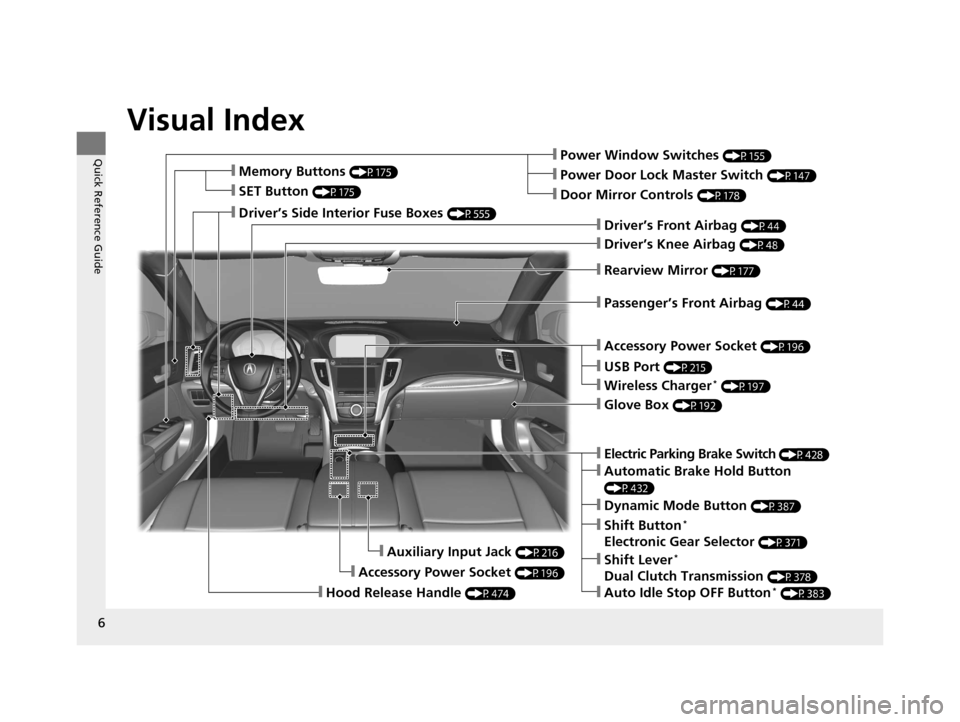
Quick Reference Guide❙Power Window Switches (P155)
❙Driver’s Front Airbag (P44)
❙Driver’s Knee Airbag (P48)
❙Door Mirror Controls (P178)
❙Power Door Lock Master Switch (P147)
❙Accessory Power Socket (P196)
❙Auxiliary Input Jack (P216)
❙Accessory Power Socket (P196)
❙Rearview Mirror (P177)
❙Hood Release Handle (P474)
❙Memory Buttons (P175)
❙SET Button (P175)
❙Glove Box (P192)
❙Passenger’s Front Airbag (P44)
❙Driver’s Side Interior Fuse Boxes (P555)
❙Electric Parking Brake Switch (P428)
❙Dynamic Mode Button (P387)
❙Shift Button*
Electronic Gear Selector (P371)
❙Automatic Brake Hold Button
(P432)
❙Shift Lever*
Dual Clutch Transmission (P378)
❙Auto Idle Stop OFF Button* (P383)
❙Wireless Charger* (P197)
❙USB Port (P215)
19 ACURA TLX-31TZ36400.book 6 ページ 2018年2月16日 金曜日 午後12時22分
Page 215 of 591
213
Features
This chapter describes how to operate technology features.
Audio SystemAbout Your Audio System ................ 214
USB Port .......................................... 215
Auxiliary Input Jack .......................... 216
Audio System Theft Protection ......... 216
Audio Remote Controls .................... 217
Audio System Basic Operation ........ 219
On Demand Multi-Use Display
TM....... 220
Information Screen .......................... 223
Adjusting the Sound ........................ 228
Display Setup ................................... 229
Playing AM/FM Radio ....................... 230 Playing SiriusXM
® Radio ................... 233
Playing a CD .................................... 244
Playing an iPod ................................ 247
Playing Pandora ®............................. 250
Playing a USB Flash Drive ................. 252
Playing Bluetooth ® Audio................. 255
Siri Eyes Free .................................... 257
Apple CarPlay .................................. 258
Android Auto................................... 262
Audio Error Messages ...................... 267 General Information on the Audio
System ............................................. 274
Customized Features ........................ 292
HomeLink ® Universal Transceiver ... 314
Bluetooth® HandsFreeLink® ............. 317
Compass
*.......................................... 352
* Not available on all models
19 ACURA TLX-31TZ36400.book 213 ページ 2018年2月16日 金曜日 午後12時22分
Page 218 of 591
216
uuAudio System uAuxiliary Input Jack
Features
Auxiliary Input Jack
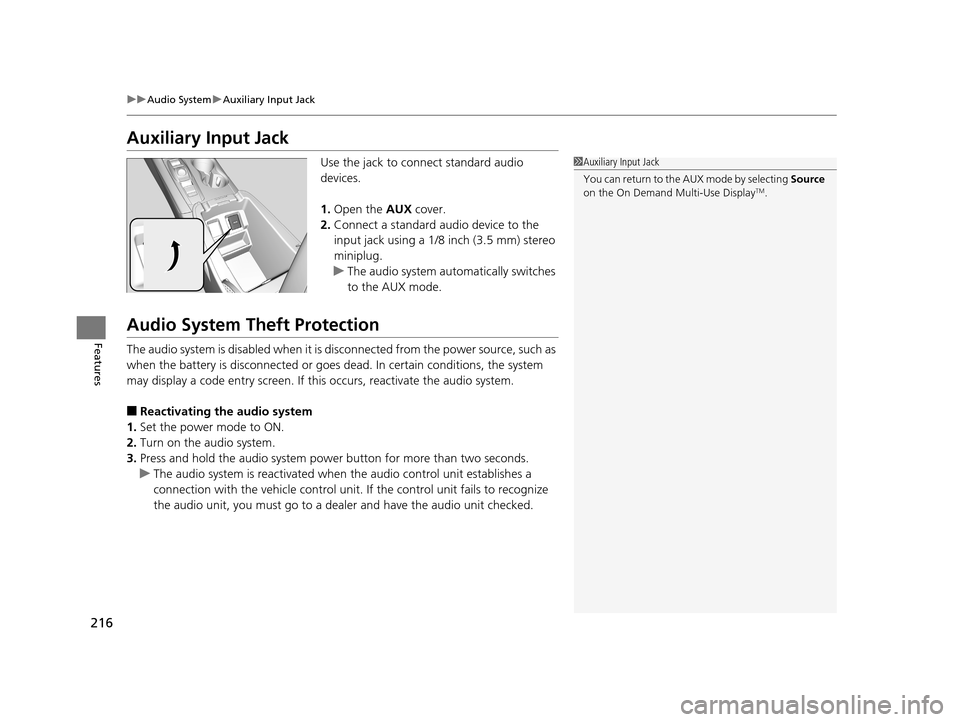
Use the jack to connect standard audio
devices.
1. Open the AUX cover.
2. Connect a standard audio device to the
input jack using a 1/8 inch (3.5 mm) stereo
miniplug.
u The audio system automatically switches
to the AUX mode.
Audio System Theft Protection
The audio system is disabled when it is di sconnected from the power source, such as
when the battery is disconnected or goes dead. In certain conditions, the system
may display a code entry screen. If this occurs, reactivate the audio system.
■Reactivating th e audio system
1. Set the power mode to ON.
2. Turn on the audio system.
3. Press and hold the audio system power button for more than two seconds.
u The audio system is reac tivated when the audio co ntrol unit establishes a
connection with the vehicle control unit. If the control unit fails to recognize
the audio unit, you must go to a dealer and have the audio unit checked.
1 Auxiliary Input Jack
You can return to the AUX mode by selecting Source
on the On Demand Multi-Use Display
TM.
19 ACURA TLX-31TZ36400.book 216 ページ 2018年2月16日 金曜日 午後12時22分
Page 277 of 591
275
uuGeneral Information on the Audio System uRecommended CDs
Features
Recommended CDs
• Use only high-quality CD-R or CD-RW discs labeled for audio use.
• Use only CD-R or CD-RW discs on wh ich the recordings are closed.
• Play only standard round-shaped CDs.
• Some software files may not allow for audio play or text data display.
• Some versions of MP3, WMA or AAC formats may be unsupported.
■Protecting CDs
Follow these precautions when handling or storing CDs:
• Store a CD in its case when it is not being played.
• When wiping a CD, use a soft clean cloth from the center to the outside edge.
• Handle a CD by its edge. Never touch either surface.
• Never insert foreign obje cts into the CD player.
• Keep CDs out of direct sunlight and extreme heat.
• Do not place stabilizer rings or labels on the CD.
• Avoid fingerprints, liquids, and felt-tip pens on the CD.
1Recommended CDs
A Dual-disc cannot play on th is audio unit. If recorded
under certain conditions, a CD-R or CD-RW may not
play either.
■CDs with MP3, WMA or AAC files
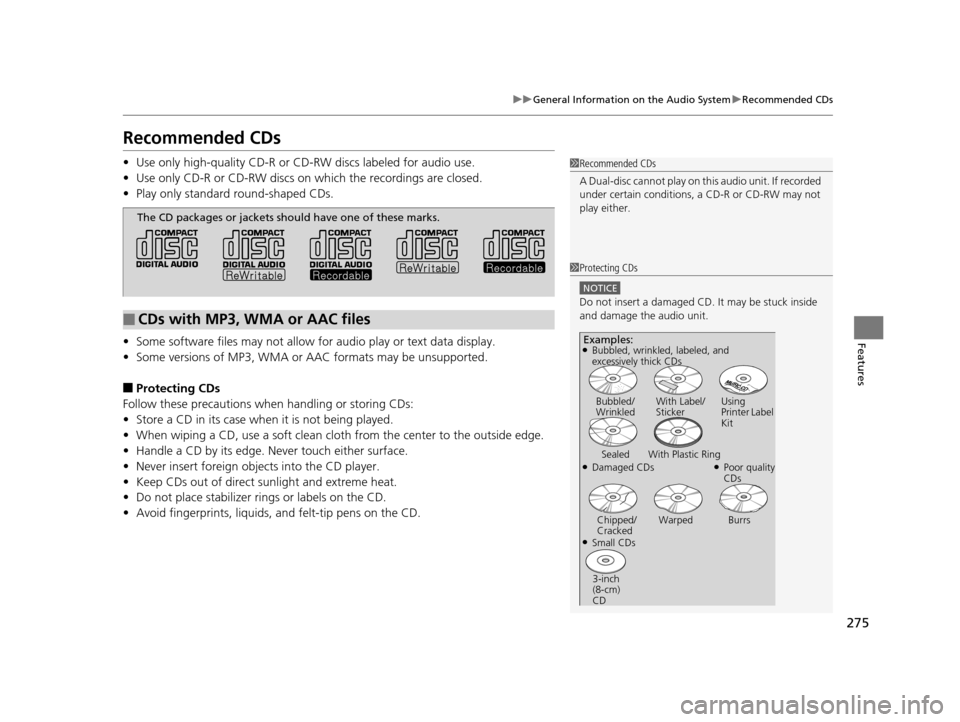
The CD packages or jackets should have one of these marks.
1 Protecting CDs
NOTICE
Do not insert a damaged CD. It may be stuck inside
and damage the audio unit.
Examples:
●Damaged CDs Bubbled/
Wrinkled
With Label/
Sticker Using
Printer Label
Kit
Sealed With Plastic Ring●Poor quality
CDs
Chipped/
Cracked Warped Burrs
●Small CDs
3-inch
(8-cm)
CD
●Bubbled, wrinkled, labeled, and
excessively thick CDs
19 ACURA TLX-31TZ36400.book 275 ページ 2018年2月16日 金曜日 午後12時22分
Page 518 of 591
516
Handling the Unexpected
Tools
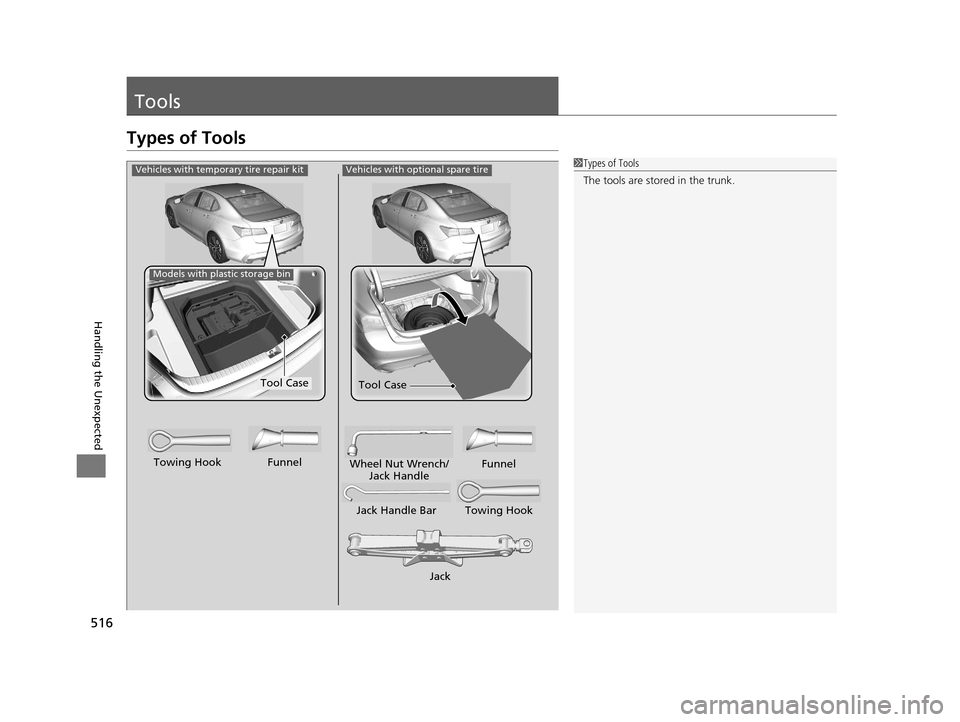
Types of Tools
1Types of Tools
The tools are stored in the trunk.Vehicles with optional spare tire
Jack
Jack Handle Bar Towing Hook
Wheel Nut Wrench/
Jack Handle Funnel
Towing Hook Funnel
Vehicles with temporary tire repair kit
Tool Case
Models with plastic storage bin
Tool Case
19 ACURA TLX-31TZ36400.book 516 ページ 2018年2月16日 金曜日 午後12時22分
Page 533 of 591
Continued531
uuIf a Tire Goes Flat uChanging a Flat Tire
Handling the Unexpected
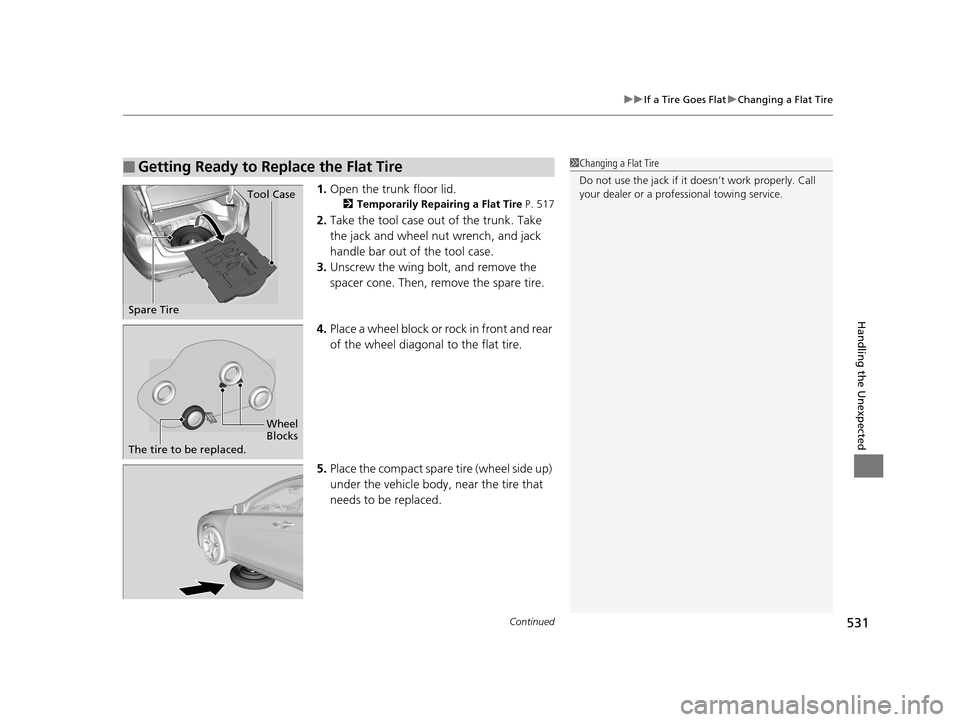
1. Open the trunk floor lid.
2 Temporarily Repairing a Flat Tire P. 517
2.Take the tool case out of the trunk. Take
the jack and wheel nut wrench, and jack
handle bar out of the tool case.
3. Unscrew the wing bolt, and remove the
spacer cone. Then, remove the spare tire.
4. Place a wheel block or rock in front and rear
of the wheel diagonal to the flat tire.
5. Place the compact spare tire (wheel side up)
under the vehicle body, near the tire that
needs to be replaced.
■Getting Ready to Replace the Flat Tire1 Changing a Flat Tire
Do not use the jack if it doesn’t work properly. Call
your dealer or a prof essional towing service.
Spare Tire
Tool Case
Wheel
Blocks
The tire to be replaced.
19 ACURA TLX-31TZ36400.book 531 ページ 2018年2月16日 金曜日 午後12時22分
Page 535 of 591
Continued533
uuIf a Tire Goes Flat uChanging a Flat Tire
Handling the Unexpected
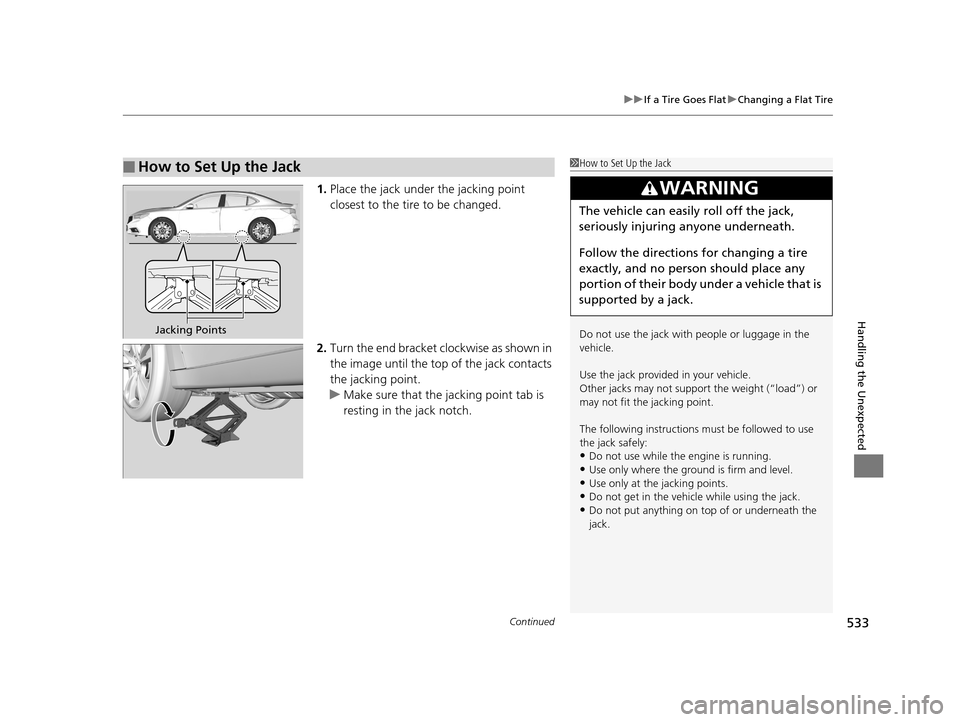
1. Place the jack under the jacking point
closest to the tire to be changed.
2. Turn the end bracket cl ockwise as shown in
the image until the top of the jack contacts
the jacking point.
u Make sure that the jacking point tab is
resting in the jack notch.
■How to Set Up the Jack1How to Set Up the Jack
Do not use the jack with people or luggage in the
vehicle.
Use the jack provided in your vehicle.
Other jacks may not support the weight (“load”) or
may not fit the jacking point.
The following instructions must be followed to use
the jack safely:
•Do not use while the engine is running.
•Use only where the ground is firm and level.•Use only at the jacking points.
•Do not get in the vehicl e while using the jack.
•Do not put anything on top of or underneath the
jack.
3WARNING
The vehicle can easily roll off the jack,
seriously injuring anyone underneath.
Follow the directions for changing a tire
exactly, and no person should place any
portion of their body under a vehicle that is
supported by a jack.
Jacking Points
19 ACURA TLX-31TZ36400.book 533 ページ 2018年2月16日 金曜日 午後12時22分
Page 536 of 591
uuIf a Tire Goes Flat uChanging a Flat Tire
534
Handling the Unexpected
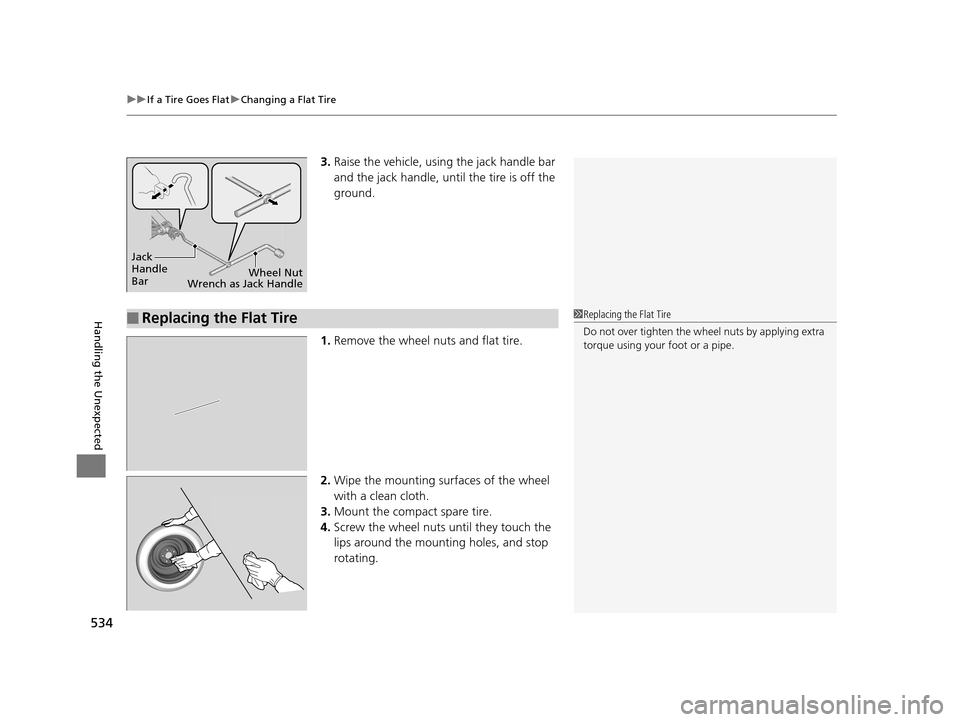
3. Raise the vehicle, using the jack handle bar
and the jack handle, until the tire is off the
ground.
1. Remove the wheel nuts and flat tire.
2. Wipe the mounting surfaces of the wheel
with a clean cloth.
3. Mount the compact spare tire.
4. Screw the wheel nuts until they touch the
lips around the mounting holes, and stop
rotating.
Jack
Handle
Bar Wheel Nut
Wrench as Jack Handle
■Replacing the Flat Tire1 Replacing the Flat Tire
Do not over tighten the wheel nuts by applying extra
torque using your foot or a pipe.
19 ACURA TLX-31TZ36400.book 534 ページ 2018年2月16日 金曜日 午後12時22分
Page 537 of 591
Continued535
uuIf a Tire Goes Flat uChanging a Flat Tire
Handling the Unexpected
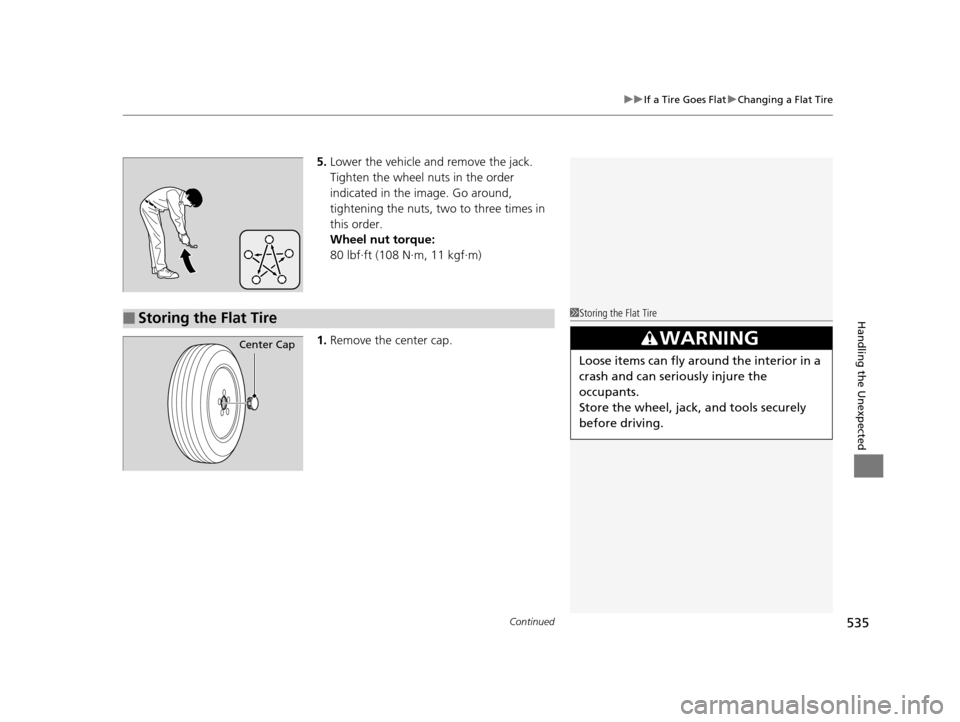
5. Lower the vehicle and remove the jack.
Tighten the wheel nuts in the order
indicated in the image. Go around,
tightening the nuts, two to three times in
this order.
Wheel nut torque:
80 lbf∙ft (108 N∙m, 11 kgf∙m)
1. Remove the center cap.
■Storing the Flat Tire1Storing the Flat Tire
3WARNING
Loose items can fly around the interior in a
crash and can seriously injure the
occupants.
Store the wheel, jack, and tools securely
before driving.
Center Cap
19 ACURA TLX-31TZ36400.book 535 ページ 2018年2月16日 金曜日 午後12時22分
Page 538 of 591
uuIf a Tire Goes Flat uChanging a Flat Tire
536
Handling the Unexpected
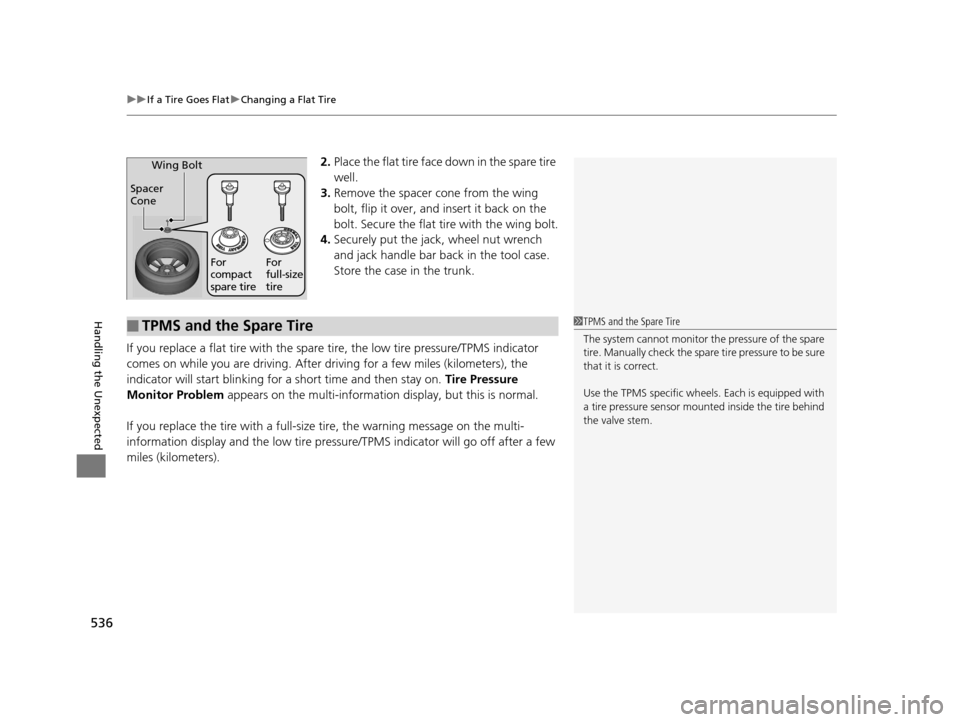
2. Place the flat tire face down in the spare tire
well.
3. Remove the spacer cone from the wing
bolt, flip it over, and insert it back on the
bolt. Secure the flat tire with the wing bolt.
4. Securely put the jack , wheel nut wrench
and jack handle bar back in the tool case.
Store the case in the trunk.
If you replace a flat tire with the spare tire, the low tire pressure/TPMS indicator
comes on while you are driving. After driving for a few miles (kilometers), the
indicator will start blinking for a short time and then stay on. Tire Pressure
Monitor Problem appears on the multi-informati on display, but this is normal.
If you replace the tire with a full-siz e tire, the warning message on the multi-
information display and the low tire pressu re/TPMS indicator will go off after a few
miles (kilometers).
Spacer
Cone Wing Bolt
For
compact
spare tire
For
full-size
tire
■TPMS and the Spare Tire1
TPMS and the Spare Tire
The system cannot monitor th e pressure of the spare
tire. Manually check the spare tire pressure to be sure
that it is correct.
Use the TPMS specific wheels. Each is equipped with
a tire pressure sensor mount ed inside the tire behind
the valve stem.
19 ACURA TLX-31TZ36400.book 536 ページ 2018年2月16日 金曜日 午後12時22分