lock ACURA TLX 2022 Manual PDF
[x] Cancel search | Manufacturer: ACURA, Model Year: 2022, Model line: TLX, Model: ACURA TLX 2022Pages: 656, PDF Size: 26.43 MB
Page 231 of 656
Continued229
uuAudio System Basic Operation uSystem Updates
Features
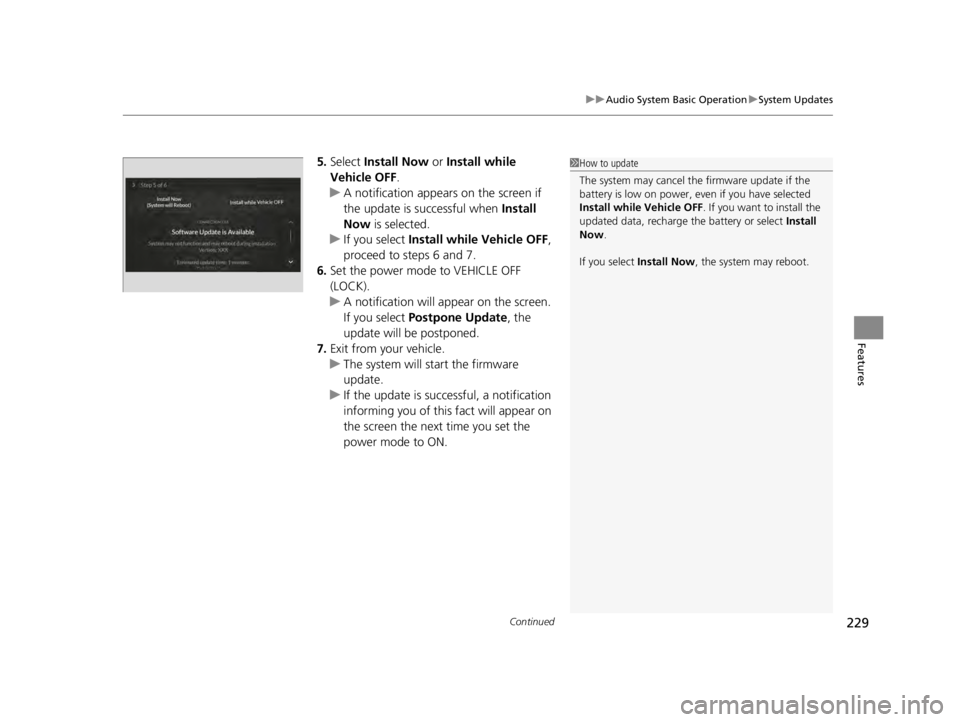
5. Select Install Now or Install while
Vehicle OFF .
u A notification appears on the screen if
the update is successful when Install
Now is selected.
u If you select Install while Vehicle OFF ,
proceed to steps 6 and 7.
6. Set the power mode to VEHICLE OFF
(LOCK).
u A notification will appear on the screen.
If you select Postpone Update , the
update will be postponed.
7. Exit from your vehicle.
u The system will start the firmware
update.
u If the update is succ essful, a notification
informing you of this fact will appear on
the screen the next time you set the
power mode to ON.1 How to update
The system may cancel the firmware update if the
battery is low on power, even if you have selected
Install while Vehicle OFF . If you want to install the
updated data, recharge th e battery or select Install
Now .
If you select Install Now, the system may reboot.
22 ACURA TLX-31TGV6100.book 229 \b
Page 234 of 656
uuAudio System Basic Operation uSystem Updates
232
Features
■Update the audio system
1.Press the (home) button.
2. Select System Updates .
3. Select via USB .
u A notification appears on the screen.
4. Connect the USB device with the update
files into the USB port.
u A notification appears on the screen.
2 USB Ports P. 205
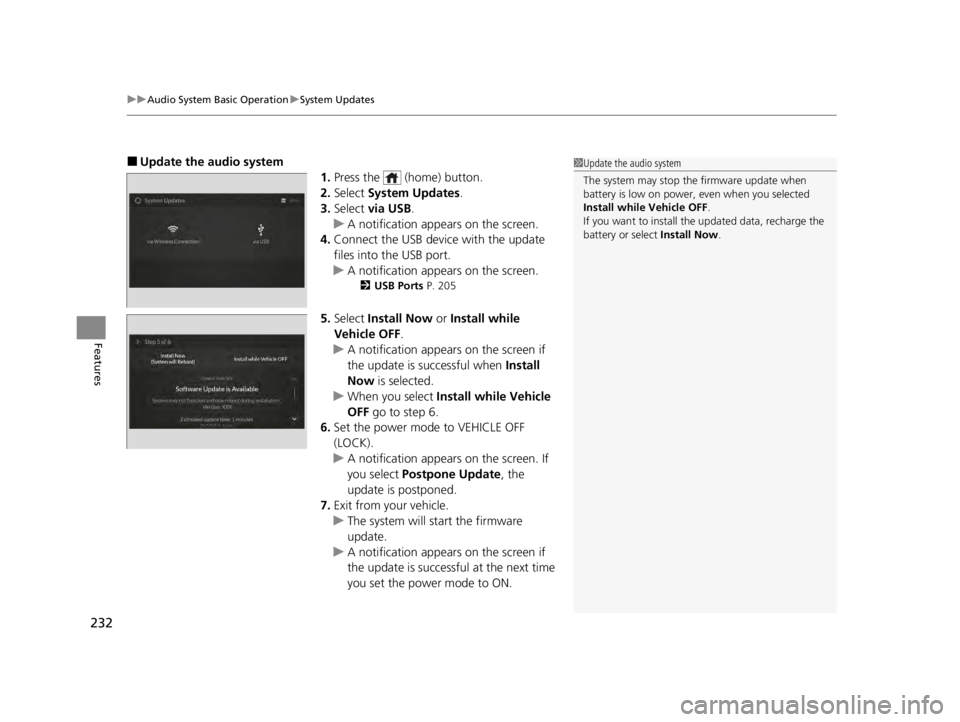
5.Select Install Now or Install while
Vehicle OFF .
u A notification appears on the screen if
the update is successful when Install
Now is selected.
u When you select Install while Vehicle
OFF go to step 6.
6. Set the power mode to VEHICLE OFF
(LOCK).
u A notification appears on the screen. If
you select Postpone Update , the
update is postponed.
7. Exit from your vehicle.
u The system will start the firmware
update.
u A notification appears on the screen if
the update is successful at the next time
you set the power mode to ON.
1Update the audio system
The system may stop the firmware update when
battery is low on power, even when you selected
Install while Vehicle OFF .
If you want to install the updated data, recharge the
battery or select Install Now.
22 ACURA TLX-31TGV6100.book 232 \b
Page 281 of 656

279
Features
General Information on the Audio System
SiriusXM® Radio Service
1.You need your radio ID ready before regist ering for subscription. To see the ID in
the screen, select channel up/down icons to Ch.0.
2. Have your radio ID ready, and either call or visit the SiriusXM® website to
subscribe.
Switch to the SiriusXM ® mode by using the audio remote controls on the steering
wheel, or through the audio/information screen, and stay in this mode for about 30
minutes until the service is activated. Make sure your vehicle is in an open area with
good reception.
Channel **** not subscribed. Call SiriusXM to subscribe.
*1
You are not subscribed to the channel selected.
Subscription updated:
SiriusXM ® radio is receiving informati on update from the network.
Channel Not Available:
No such channel exits, or the artist or title information is unavailable.
No Signal:
The signal is too weak in the current location.
Check Tuner:
There is a problem with the SiriusXM ® tuner. Contact a dealer.
Check Antenna:
There is a problem with the SiriusXM ® antenna. Contact a dealer.
*1 : ****part is variable characters, and w ill change depending upon where an subscribe.
■Subscribing to SiriusXM® Radio
■Receiving SiriusXM ® Radio
■SiriusXM ® Radio Display Messages
1 Subscribing to SiriusXM ® Radio
Contact Information for SiriusXM ® Radio:
•US: SiriusXM ® Radio at
www.siriusxm.com/subscribenow , or 1-866-635-
2349
•Canada: SiriusXM ® Canada at
www.siriusxm.ca/subscribe-now , or 1-877-209-
0079
1 Receiving SiriusXM ® Radio
The SiriusXM ® satellites are in orbit over the equator;
therefore, objects south of the vehicle may cause
satellite reception interruptions. Sa tellite signals are
more likely to be blocked by tall buildings and
mountains the farther north you travel from the
equator.
You may experience rece ption problems under the
following circumstances:
•In a location with an obstruction to the south of
your vehicle.
•In tunnels•On the lower level of a multi-tiered road
•Large items carried on the roof rack
22 ACURA TLX-31TGV6100.book 279 \b
Page 283 of 656

281
uuGeneral Information on the Audio System uCompatible iPod, iPad, iPhone, and USB Flash Drives
Features
• A USB flash drive of 256 MB or higher is recommended.
• Some digital audio players may not be compatible.
• Some USB flash drives (e.g., a device with security lockout) may not work.
• Some software files may not allow for audio play or text data display.
• Some versions of playable file formats may be unsupported.
■Playable audio file
■USB Flash Drives
Format/CodecFile Type(s)
AAC LC3GPP (.3gp), MPEG-4 (.mp4, .m4a),
ADTS raw AAC (.aac, decode in Android
3.1+, encode in Android 4.0+, ADIF not
supported), MPEG-TS (.ts, not seekable,
Android 3.0+)
HE-AACv1 (AAC+)
HE-AACv2 (enhanced AAC+)
AAC ELD (enhanced low delay AAC)
AMR-NB
3GPP (.3gp)
AMR-WB
FLACFLAC (.flac) only
MIDI
Type 0 and 1 (.mid, .xmf, .mxmf), RTTTL/
RTX (.rtttl, .rtx), OTA (.ota), iMelody
(.imy)
MP3MP3 (.mp3)
OpusMatroska (.mkv)
PCM/WAVEWAVE (.wav)
VorbisOgg (.ogg), Matroska (.mkv, Android
4.0+)
1 USB Flash Drives
Files on the USB flash drive are played in their stored
order. This order may be different from the order
displayed on your PC or device.
22 ACURA TLX-31TGV6100.book 281 \b
Page 308 of 656

306
uuCustomized Features u
Features
Key and Remote Unlock Mode
Auto Door Lock
Auto Door Unlock
Door Setup
Keyless Lock Answer Back
Security Relock Timer
Accent Light Brightness*
Accent Light Theme*
Interior Light Dimming Time
Headlight Auto Off Timer
Auto Interior Illu mination Sensitivity
Lighting Setup
Auto Folding Door Mirror*
Door Unlock Mode
Keyless Access Light Flash
Keyless Access Beep
Remote Start System On/Off*
Walk Away Auto Lock
Keyless Access Setup
Auto Headlight On with Wiper On
Auto Light Sensitivity*
* Not available on all models
22 ACURA TLX-31TGV6100.book 306 \b
Page 311 of 656

309
uuCustomized Features u
Continued
Features
■List of customizable options
*1:Default Setting Setup Group
Customizable Features DescriptionSelectable Settings
System
System
Volumes
System SoundsChanges the system sounds volume.—
Phone CallsChanges the phone call volume.—
Voice RecognitionChanges the voice recognition volume.—
Navigation GuidanceChanges the navigation guidance
volume.—
Touchpad SensitivitySets the sensitivity of the True
Touchpad Interface.High/Low*1
Date & Time
Time FormatSelects the digital clock display from
12H to 24H.12 Hour*1/24 Hour
Set Date &
Time
Automatic
Date & TimeSelects On to have the GPS
automatically adjust the clock. Select
Off to cancel this function.
On*1/Off
Set DateAdjusts date.
2 Adjusting the Clock P. 118—
Set TimeAdjusts clock.
2Adjusting the Clock P. 118—
22 ACURA TLX-31TGV6100.book 309 \b
Page 312 of 656

310
uuCustomized Features u
Features
*1:Default SettingSetup Group
Customizable Features DescriptionSelectable Settings
System
Date & TimeSet Time
Zone
Automatic
Time ZoneSets the audio system to automatically
adjust the clock when driving through
different time zones.
On*1/Off
(Select time
zone)Changes the time zone manually.—
System Units
Changes the speed/distance unit on
the multi-information display, head-up
display
* and audio/information screen.
Miles*1/ KM (U.S.)
Miles /KM*1 (Canada)
LanguageChanges the display language.English*1/Français /
Español
Factory Data Reset
Resets all the settings to their factory
default.
2 Defaulting All the Settings P. 325
Continue/Cancel
AboutDisplays the Android setting items.—
Advanced
OptionsLocation Access
Selects Off not to allow apps including
the navigation system* to access the
vehicle’s location.On*1/ Off
* Not available on all models
22 ACURA TLX-31TGV6100.book 310 \b
Page 320 of 656

318
uuCustomized Features u
Features
*1:Default SettingSetup Group Customizable Features Description Selectable Settings
Vehicle Driving
Position
Setup
Memory Position Link
Turns the driving position memory
system on and off. On
*1/
Off
Seat Position Movement at
Entry/Exit Causes the driver’s seat to move back
to make it easier to enter or exit the
vehicle.
On
*1/
Off
Keyless
Access Setup Door Unlock Mode
Changes which doors unlock when
you grab the driver’s door handle. Driver Door
*1/
All
Doors
Keyless Access Light Flash Causes some exterior lights to flash
when you unlock/lock the doors. On
*1/
Off
Keyless Access Beep Causes the beeper to sound when you
unlock/lock the doors.
On
*1/
Off
Remote Start System On/
Off
*Turns the remote engine start feature
on and off. On*1/
Off
Walk Away Auto Lock Changes the settings for the auto lock
function when you walk away from
the vehicle. Enable
/Disable
*1
* Not available on all models
22 ACURA TLX-31TGV6100.book 318 \b
Page 322 of 656

320
uuCustomized Features u
Features
*1:Default SettingSetup Group Customizable Features Description Selectable Settings
Vehicle Door Setup Auto Door Lock
Changes the setting for the automatic
locking feature. Off
/With Vehicle
Speed
*1/ Shift from P
Auto Door Unlock Changes the setting for when the
doors unlock automatically. All Doors with
Driver’s Door
Opens
*1/
All Doors
with Shift to P /All
Doors with IGN Off /
Off
Key and Remote Unlock
Mode Sets up either the driver’s door or all
doors to unlock on the first push of the
remote or built-in key. Driver Door
*1/
All
Doors
Keyless Lock Answer Back LOCK/UNLOCK- The exterior lights
flash.
LOCK (2nd push)- The beeper sounds. On
*1/
Off
Security Relock Timer Changes the time it
takes for the doors
to relock and the security system to set
after you unlock the vehicle without
opening any door. 30 sec
*1/
60 sec /90
sec
Auto Folding Door Mirror
*
Changes the setting so that the mirrors
fold at the time the doors are locked
with the remote transmitter or keyless
access system. Auto Fold with
Keyless
*1/
Manual
Only
* Not available on all models
22 ACURA TLX-31TGV6100.book 320 \b
Page 360 of 656
358
Features
AcuraLink®
Is a subscription-based service that provid es convenient features such as voice
communication in case of emergency, online security, one-on-one operator
assistance, and the transmission of important messages regarding your vehicle’s
status.
Use the following procedure to connect to AcuraLink.
■To enable the AcuraLink
You need to allow the consent of the lo cation service to enable the AcuraLink.
1. Press the (home) button.
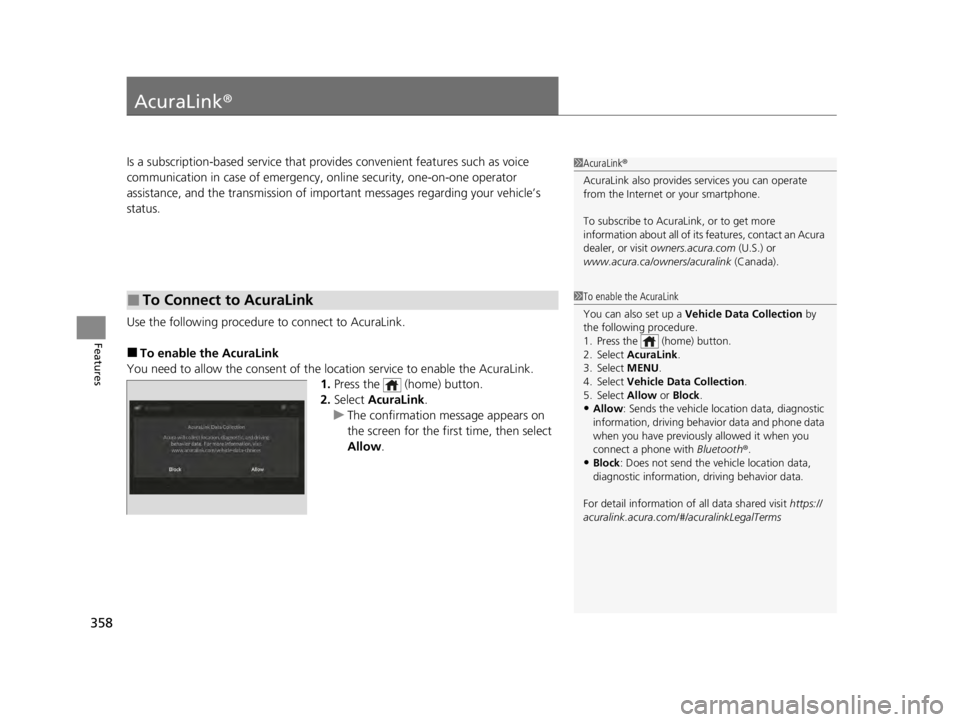
2. Select AcuraLink .
u The confirmation message appears on
the screen for the first time, then select
Allow .
■To Connect to AcuraLink
1AcuraLink ®
AcuraLink also provides services you can operate
from the Internet or your smartphone.
To subscribe to AcuraLink, or to get more
information about all of its features, contact an Acura
dealer, or visit owners.acura.com (U.S.) or
www.acura.ca/owners/acuralink (Canada).
1To enable the AcuraLink
You can also set up a Vehicle Data Collection by
the following procedure.
1. Press the (home) button.
2. Select AcuraLink .
3. Select MENU.
4. Select Vehicle Data Collection .
5. Select Allow or Block.
•Allow: Sends the vehicle location data, diagnostic
information, driving behavior data and phone data
when you have previously allowed it when you
connect a phone with Bluetooth®.
•Block : Does not send the ve hicle location data,
diagnostic information, driving behavior data.
For detail information of all data shared visit https://
acuralink.acura.com/#/acuralinkLegalTerms
22 ACURA TLX-31TGV6100.book 358 \b