audio Acura ZDX 2012 Owner's Guide
[x] Cancel search | Manufacturer: ACURA, Model Year: 2012, Model line: ZDX, Model: Acura ZDX 2012Pages: 370, PDF Size: 10.06 MB
Page 191 of 370
189
uuAudio Error Messages uiPod ®/USB Flash Drive
Features
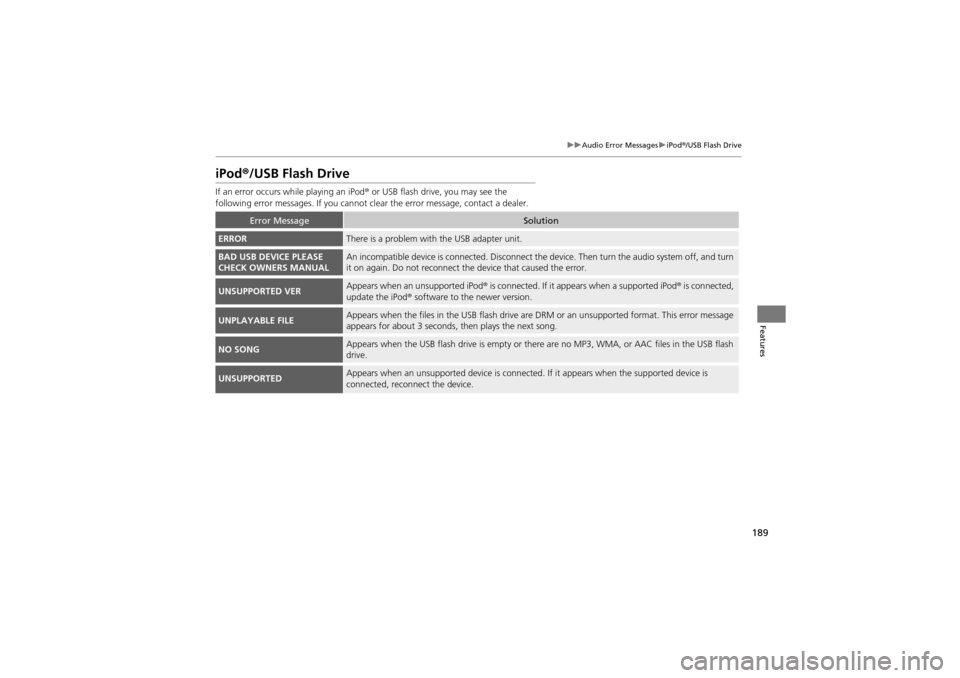
iPod ®/USB Flash Drive
If an error occurs while playing an iPod ® or USB flash drive, you may see the
following error messages. If you cannot cl ear the error message, contact a dealer.
Error MessageSolution
ERRORThere is a problem with the USB adapter unit.
BAD USB DEVICE PLEASE
CHECK OWNERS MANUALAn incompatible device is connected. Disconnect the device. Then turn the audio system off, and turn
it on again. Do not reconnect the device th at caused the error.
UNSUPPORTED VERAppears when an unsupported iPod ® is connected. If it appe ars when a supported iPod ® is connected,
update the iPod ® software to the newer version.
UNPLAYABLE FILEAppears when the files in the USB flash drive are DRM or an unsuppo rted format. This error message
appears for about 3 seconds, then plays the next song.
NO SONGAppears when the USB flash drive is empty or there are no MP3, WMA, or AAC files in the USB flash
drive.
UNSUPPORTEDAppears when an unsupported device is connected. If it appears when the supported device is
connected, reconnect the device.
Page 192 of 370
190
Features
Audio Remote Controls
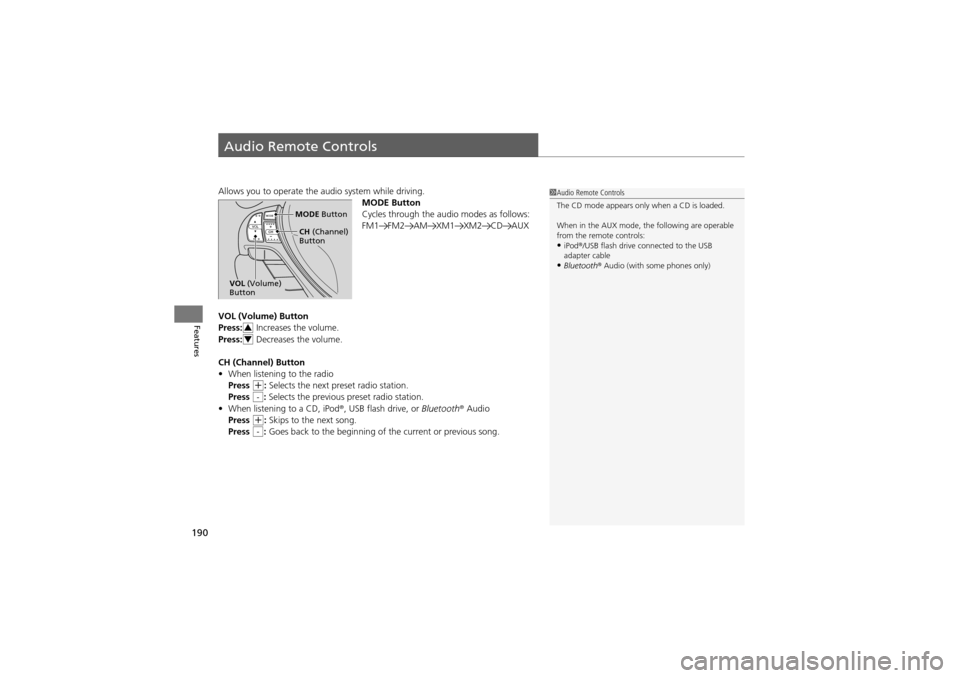
Allows you to operate the audio system while driving.
MODE Button
Cycles through the audio modes as follows:
FM1 FM2 AM XM1 XM2 CD AUX
VOL (Volume) Button
Press: Increases the volume.
Press: Decreases the volume.
CH (Channel) Button
• When listening to the radio
Press
+: Selects the next preset radio station.
Press : Selects the previous preset radio station.
• When listening to a CD, iPod ®, USB flash drive, or Bluetooth® Audio
Press
+: Skips to the next song.
Press : Goes back to the beginning of the current or previous song.
1Audio Remote Controls
The CD mode appears only when a CD is loaded.
When in the AUX mode, th e following are operable
from the remote controls:
•iPod ®/USB flash drive connected to the USB
adapter cable
•Bluetooth ® Audio (with some phones only)
MODE Button
CH (Channel)
Button
VOL (Volume)
Button
3
4
-
-
Page 193 of 370
191
Features
General Information on the Audio System
XM® Radio Service
1.You need your radio ID ready before registering for subscription.
To see the ID in the display: Turn the selector knob until 0 appears.
2. Have your radio ID and credit card number ready, and either call or visit the XM®
website to subscribe.
Press the (XM ®) button and stay in this mode for about 30 minutes until the
service is activated. Make sure your vehicl e is in an open area with good reception.
LOADING: XM® is loading the audio or program information.
OFF AIR: The channel is not currently broadcasting.
UPDATING: The encryption code is being updated. Channels 0 and 1 still work
normally.
NO SIGNAL: The signal is too weak in the current location.
--------: No such channel exists, the channel is not part of your subscription, or the
artist or title info rmation is unavailable.
ANTENNA: There is a problem with the XM ® antenna. Contact a dealer.
■Subscribing to XM ® Radio
■Receiving XM ® Radio
■XM ® Radio Display Messages
1 Subscribing to XM ® Radio
Contact Information for XM ® Radio:
US: XM ® Radio at www.siriusxm.com , or (800) 852-
9696
Canada: XM ® Canada at www.xmradio.ca , or (877)
209-0079
1 Receiving XM ® Radio
The XM ® satellites are in orbit over the equator;
therefore, objects south of the vehicle may cause
satellite reception interrupt ions. Satellite signals are
more likely to be blocked by tall buildings and
mountains the farther north you travel from the
equator.
You may experience reception problems under the
following circumstances:
•In a location with an obstruction to the south of
your vehicle.
•In tunnels•On the lower level of a multi-tiered road•Large items carried on the roof rack
Page 194 of 370
192
uuGeneral Information on the Audio System uRecommended CDs
Features
Recommended CDs
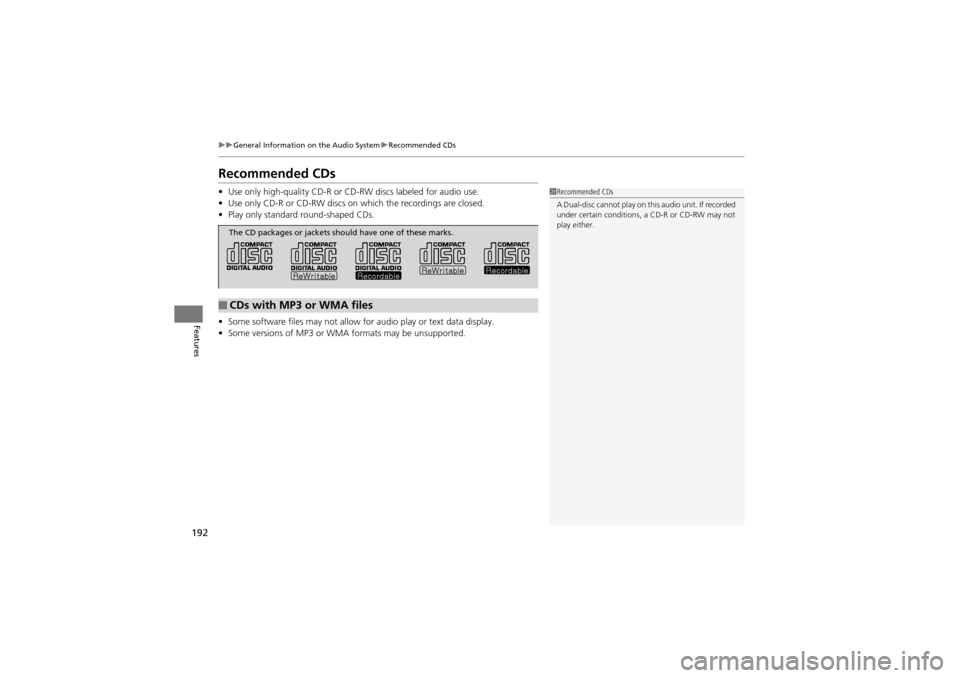
• Use only high-quality CD-R or CD-RW discs labeled for audio use.
• Use only CD-R or CD-RW discs on which the recordings are closed.
• Play only standard round-shaped CDs.
• Some software files may not allow for audio play or text data display.
• Some versions of MP3 or WMA formats may be unsupported.1Recommended CDs
A Dual-disc cannot play on this audio unit. If recorded
under certain conditions, a CD-R or CD-RW may not
play either.
■CDs with MP3 or WMA files
The CD packages or jackets sh ould have one of these marks.
Page 195 of 370
193
uuGeneral Information on the Audio System uRecommended CDs
Features
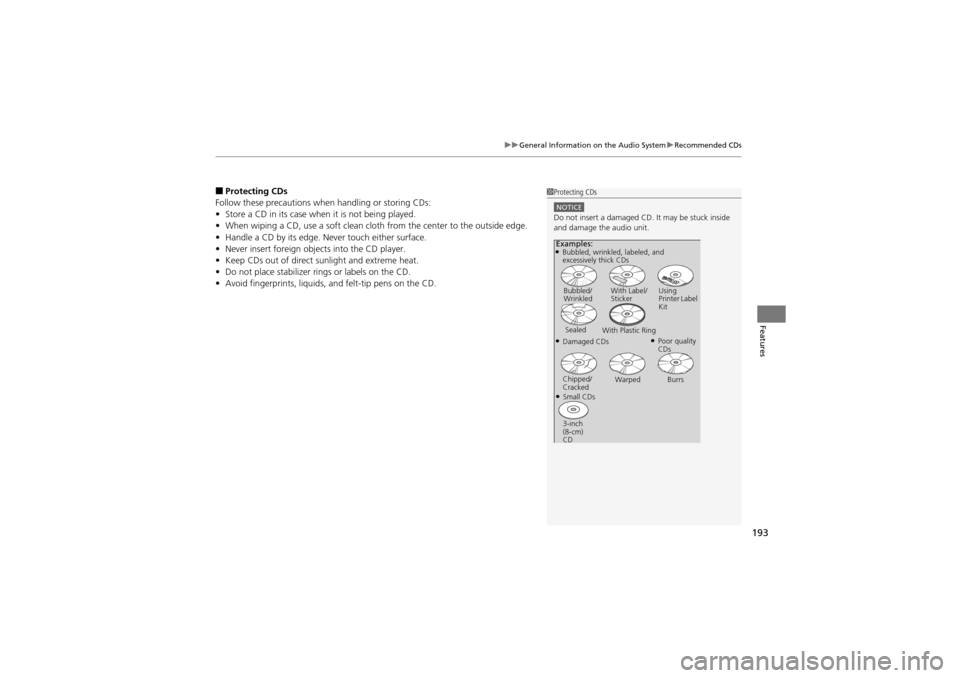
■Protecting CDs
Follow these precautions when handling or storing CDs:
• Store a CD in its case when it is not being played.
• When wiping a CD, use a soft clean clot h from the center to the outside edge.
• Handle a CD by its edge. Never touch either surface.
• Never insert foreign objec ts into the CD player.
• Keep CDs out of direct sunlight and extreme heat.
• Do not place stabilizer rings or labels on the CD.
• Avoid fingerprints, liquids, and felt-tip pens on the CD.1Protecting CDs
NOTICEDo not insert a damaged CD. It may be stuck inside
and damage the audio unit.
Examples:●Bubbled, wrinkled, labeled, and
excessively thick CDs
Bubbled/
Wrinkled With Label/
Sticker
Using
Printer Label
Kit
Sealed With Plastic Ring
●Poor quality
CDs●Damaged CDs
Chipped/
Cracked Warped Burrs
●Small CDs
3-inch
(8-cm)
CD
Page 196 of 370
194
uuGeneral Information on the Audio System uCompatible iPod ® and USB Flash Drives
Features
Compatible iPod® and USB Flash Drives
• Use a recommended USB flash drive of 256 MB or higher.
• Some digital audio players may not be compatible.
• Some USB flash drives (e.g., a device with security lockout) may not work.
• Some software files may not allow for audio play or text data display.
• Some versions of MP3, WMA, or AAC formats may be unsupported.
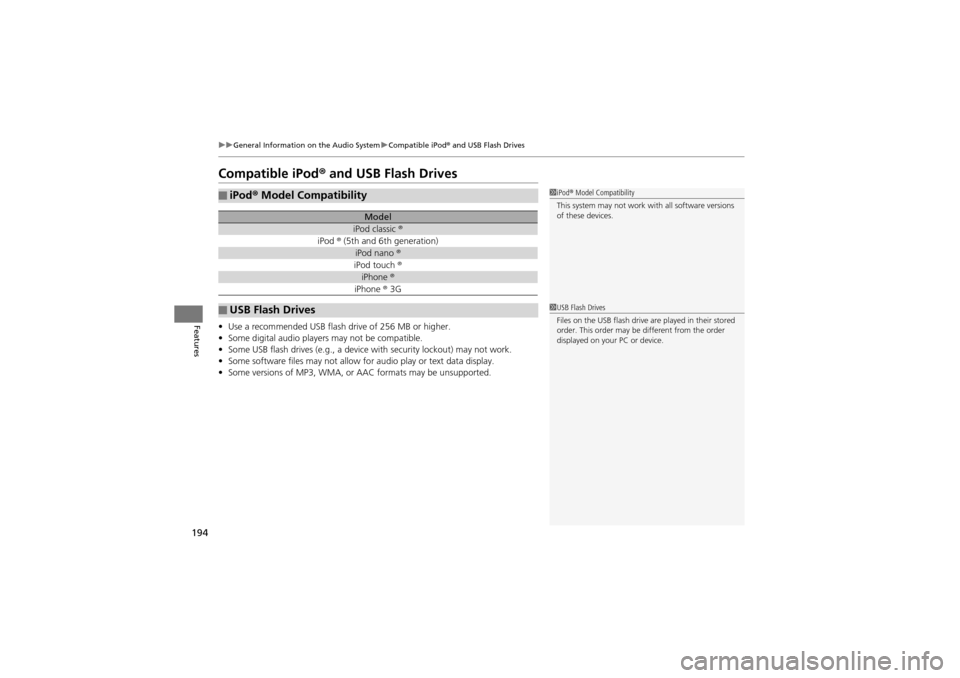
■iPod® Model Compatibility
Model
iPod classic ®
iPod ® (5th and 6th generation)
iPod nano ®
iPod touch ®
iPhone ®
iPhone ® 3G
■USB Flash Drives
1 iPod ® Model Compatibility
This system may not work with all software versions
of these devices.
1 USB Flash Drives
Files on the USB flash drive are played in their stored
order. This order may be different from the order
displayed on your PC or device.
Page 199 of 370
197Continued
Features
Bluetooth® HandsFreeLink®
For models with the navigation system, see the Navigation System Manual for how
to operate Bluetooth® HandsFreeLink ®.
Bluetooth ® HandsFreeLink ® (HFL) allows you to place and receive phone calls using
your vehicle’s audio system, without handling your cell phone.
Using HFL
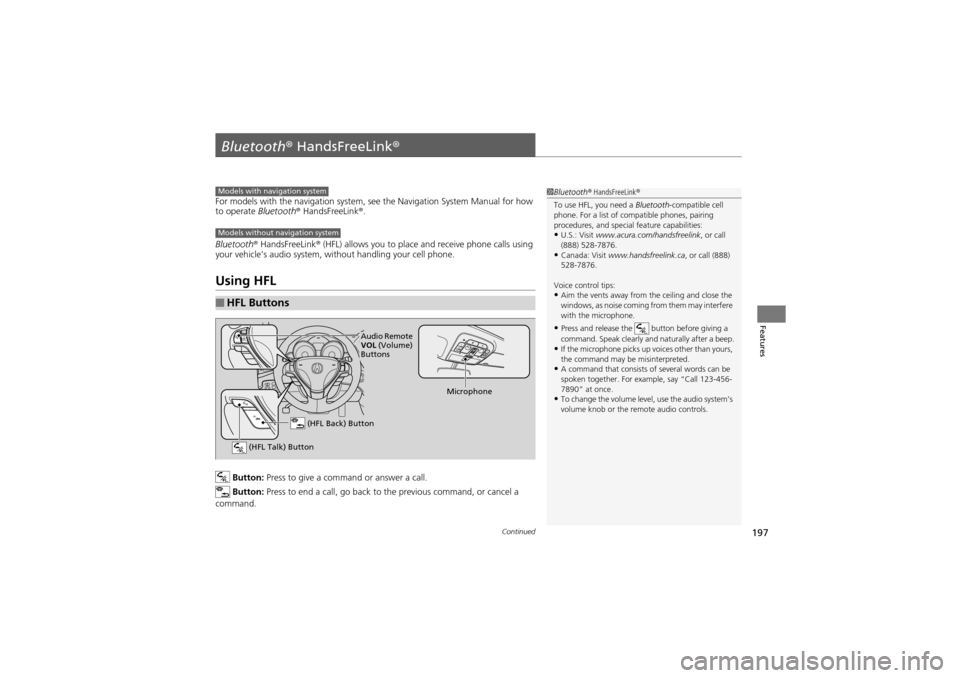
Button: Press to give a command or answer a call.
Button: Press to end a call, go back to the previous command, or cancel a
command.
■HFL Buttons
1 Bluetooth ® HandsFreeLink ®
To use HFL, you need a Bluetooth-compatible cell
phone. For a list of compatible phones, pairing
procedures, and special feature capabilities:
•U.S.: Visit www.acura.com/h andsfreelink, or call
(888) 528-7876.
•Canada: Visit www.handsfreelink.ca , or call (888)
528-7876.
Voice control tips:
•Aim the vents away from the ceiling and close the
windows, as noise coming from them may interfere
with the microphone.
•Press and release the button before giving a
command. Speak clearly and naturally after a beep.
•If the microphone picks up voices other than yours,
the command may be misinterpreted.
•A command that consists of several words can be
spoken together. For example, say “Call 123-456-
7890” at once.
•To change the volume level, use the audio system’s
volume knob or the re mote audio controls.
Models with navigation system
Models without navigation system
(HFL Talk) Button
Microphone
(HFL Back) Button
Audio Remote
VOL (Volume)
Buttons
Page 200 of 370
uuBluetooth® HandsFreeLink ®u Using HFL
198
Features
• To hear general HFL information and help, say “Tutorial.”
• Say “Hands free help” any time to get help or hear a list of commands.
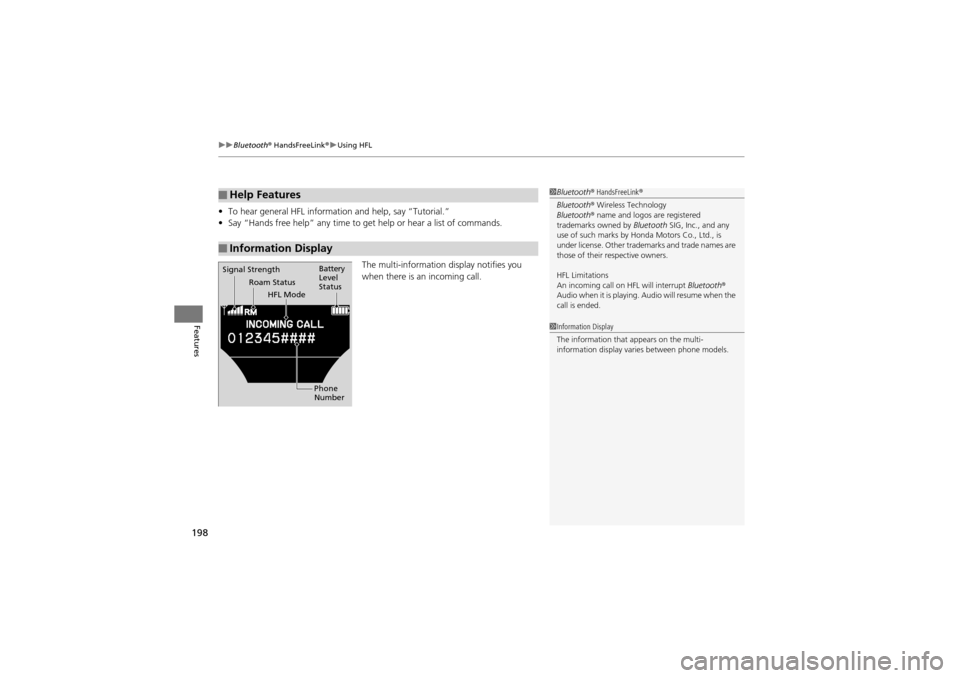
The multi-information display notifies you
when there is an incoming call.
■Help Features
■Information Display
1 Bluetooth ® HandsFreeLink ®
Bluetooth ® Wireless Technology
Bluetooth ® name and logos are registered
trademarks owned by Bluetooth SIG, Inc., and any
use of such marks by Honda Motors Co., Ltd., is
under license. Other trade marks and trade names are
those of their respective owners.
HFL Limitations
An incoming call on HFL will interrupt Bluetooth®
Audio when it is playing. Audio will resume when the
call is ended.
Signal Strength
HFL Mode Battery
Level
Status
Roam Status
Phone
Number
1Information Display
The information that appears on the multi-
information display varies between phone models.
Page 260 of 370
258
uuBraking uCMBSTM (Collision Mitigation Braking SystemTM)*
Driving
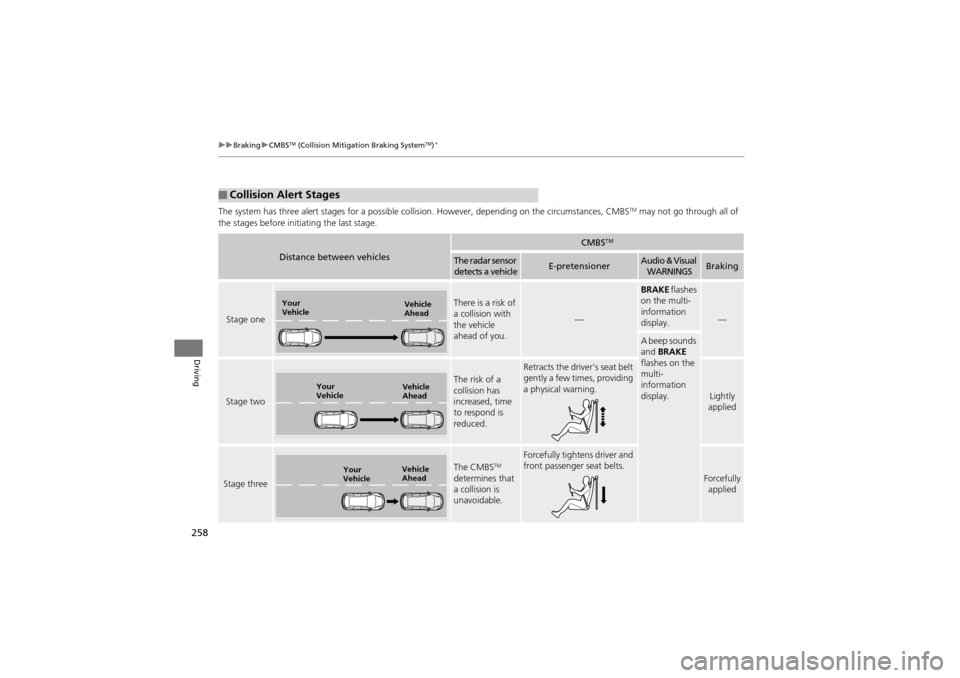
The system has three alert stages for a possible collis ion. However, depending on the circumstances, CMBSTM may not go through all of
the stages before init iating the last stage.
■Collision Alert Stages
Distance between vehicles
CMBSTM
The radar sensor
detects a vehicleE-pretensionerAudio & Visual WARNINGSBraking
Stage one
There is a risk of
a collision with
the vehicle
ahead of you.
—
BRAKE flashes
on the multi-
information
display.
—
A beep sounds
and BRAKE
flashes on the
multi-
information
display.
Stage two
The risk of a
collision has
increased, time
to respond is
reduced.
Retracts the driver’s seat belt
gently a few times, providing
a physical warning.
Lightly
applied
Stage three
The CMBSTM
determines that
a collision is
unavoidable.
Forcefully tightens driver and
front passenger seat belts.
Forcefully applied
Your
Vehicle Vehicle
Ahead
Your
VehicleVehicle
Ahead
Your
VehicleVehicle
Ahead
Page 311 of 370
309
Maintenance
Battery
Checking the Battery
Check the battery condition monthly. Look at the test indicator window and check
the terminals for corrosion.
If your vehicle’s battery is disconnected or goes dead:
•The audio system is disabled.
2 Entering the audio security code P. 170
•The clock resets.2 Setting the Clock P. 102
•The navigation system* is disabled. A PIN code will be required.2 Refer to the navigation system manual
Charging the Battery
Disconnect both battery cables to prevent damaging your vehicle’s electrical system.
Always disconnect the negative (–) cable first, and reconnect it last.
1Battery
WARNING: Battery post, terminals,
and related accessories contain lead
and lead compounds.
Wash your hands after handling.
When you find corrosion, cl ean the battery terminals
by applying a baking powder and water solution.
Rinse the terminals with wa ter. Cloth/towel dry the
battery. Coat the terminals with grease to help
prevent future corrosion.
3WARNING
The battery gives off explosive hydrogen
gas during normal operation.
A spark or flame can cause the battery to
explode with enough force to kill or
seriously hurt you.
When conductin g any battery
maintenance, wear protective clothing and
a face shield, or have a skilled technician do
it.
* Not available on all models