steering Acura ZDX 2012 Owner's Guide
[x] Cancel search | Manufacturer: ACURA, Model Year: 2012, Model line: ZDX, Model: Acura ZDX 2012Pages: 370, PDF Size: 10.06 MB
Page 146 of 370
uuAdjusting the Seats uAdjusting the Seat Positions
144
Controls
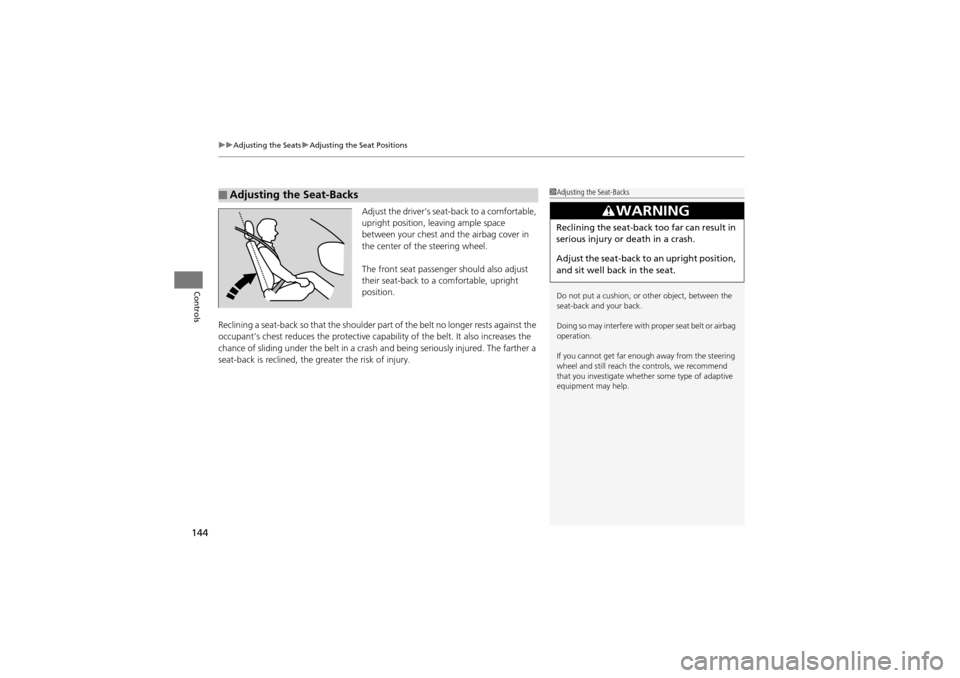
Adjust the driver’s seat -back to a comfortable,
upright position, leaving ample space
between your chest and the airbag cover in
the center of the steering wheel.
The front seat passenger should also adjust
their seat-back to a comfortable, upright
position.
Reclining a seat-back so that the shoulder part of the belt no longer rests against the
occupant’s chest reduces the protective capability of the belt. It also increases the
chance of sliding under the belt in a cras h and being seriously injured. The farther a
seat-back is reclined, the gr eater the risk of injury.
■Adjusting the Seat-Backs1Adjusting the Seat-Backs
Do not put a cushion, or other object, between the
seat-back and your back.
Doing so may interfere with proper seat belt or airbag
operation.
If you cannot get far enough away from the steering
wheel and still reach the controls, we recommend
that you investigate whethe r some type of adaptive
equipment may help.
3WARNING
Reclining the seat-back too far can result in
serious injury or death in a crash.
Adjust the seat-back to an upright position,
and sit well back in the seat.
Page 170 of 370
168
Features
Audio System
About Your Audio System
On models with the navigation system, see the Navigation System Manual for
operation of the audio system, AcuraLink*, Bluetooth ® HandsFreeLink ®, and voice
commands for these features.
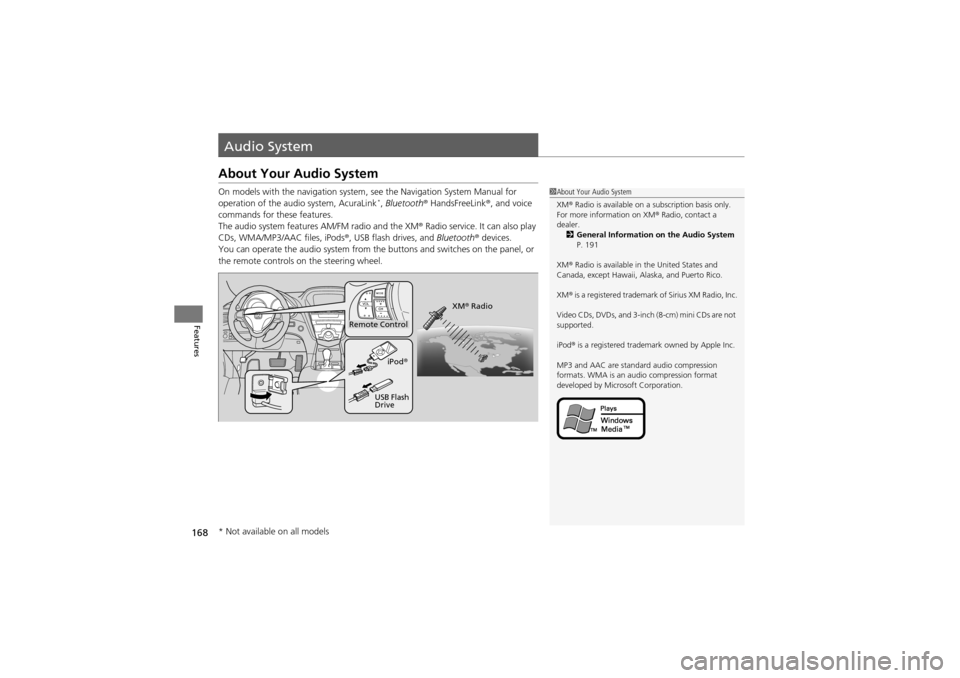
The audio system features AM/FM radio and the XM ® Radio service. It can also play
CDs, WMA/MP3/AAC files, iPods ®, USB flash drives, and Bluetooth® devices.
You can operate the audio system from the buttons and switches on the panel, or
the remote controls on the steering wheel.
1About Your Audio System
XM ® Radio is available on a subscription basis only.
For more information on XM ® Radio, contact a
dealer. 2 General Information on the Audio System
P. 191
XM ® Radio is available in the United States and
Canada, except Hawaii, Alaska, and Puerto Rico.
XM ® is a registered trademark of Sirius XM Radio, Inc.
Video CDs, DVDs, and 3-inch (8-cm) mini CDs are not
supported.
iPod ® is a registered trademark owned by Apple Inc.
MP3 and AAC are standard audio compression
formats. WMA is an au dio compression format
developed by Microsoft Corporation.
Remote Control
iPod®
USB Flash
Drive XM
® Radio
* Not available on all models
Page 176 of 370
uuAudio System Basic Operation uPlaying the AM/FM Radio
174
Features
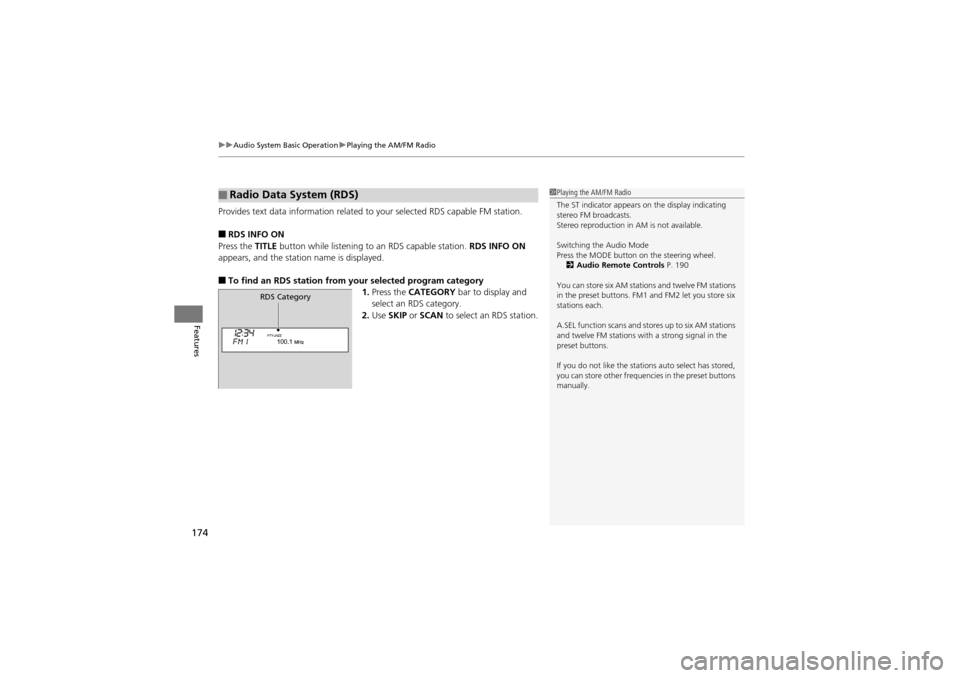
Provides text data information related to your selected RDS capable FM station.
■RDS INFO ON
Press the TITLE button while listening to an RDS capable station. RDS INFO ON
appears, and the station name is displayed.
■To find an RDS station from your selected program category 1.Press the CATEGORY bar to display and
select an RDS category.
2. Use SKIP or SCAN to select an RDS station.
■Radio Data System (RDS)1Playing the AM/FM Radio
The ST indicator appears on the display indicating
stereo FM broadcasts.
Stereo reproduction in AM is not available.
Switching the Audio Mode
Press the MODE button on the steering wheel.
2 Audio Remote Controls P. 190
You can store six AM stations and twelve FM stations
in the preset buttons. FM1 and FM2 let you store six
stations each.
A.SEL function scans and stores up to six AM stations
and twelve FM stations with a strong signal in the
preset buttons.
If you do not like the stations auto select has stored,
you can store other frequencies in the preset buttons
manually.
RDS Category
Page 189 of 370
187
uuAudio System Basic Operation uPlaying Bluetooth® Audio
Features
1.Make sure that your phone is paired and
linked to HFL.
2. Press the USB/AUX button.
If the phone is not recognized, another HFL-
compatible phone, which is not compatible
for Bluetooth ® Audio, may be already linked.
■To pause or resume a file
1. Press the SETUP button.
2. Rotate to select RESUME/PAUSE, then press .
Each time you press , the setting switches between PAUSE and RESUME .
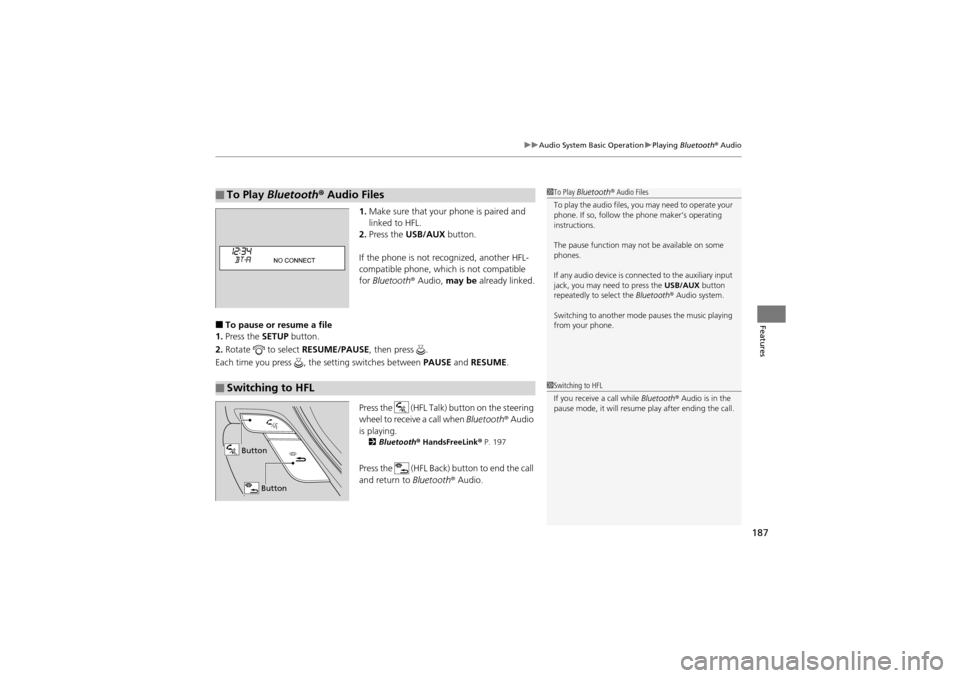
Press the (HFL Talk) button on the steering
wheel to receive a call when Bluetooth® Audio
is playing.
2 Bluetooth® HandsFreeLink ® P. 197
Press the (HFL Back) button to end the call
and return to Bluetooth® Audio.
■To Play Bluetooth ® Audio Files1 To Play Bluetooth ® Audio Files
To play the audio files, you may need to operate your
phone. If so, follow the phone maker’s operating
instructions.
The pause function may not be available on some
phones.
If any audio device is connected to the auxiliary input
jack, you may need to press the USB/AUX button
repeatedly to select the Bluetooth® Audio system.
Switching to another mode pauses the music playing
from your phone.
■Switching to HFL1 Switching to HFL
If you receive a call while Bluetooth® Audio is in the
pause mode, it will resume play after ending the call.
Button
Button
Page 213 of 370
Continued211
uuBefore Driving uDriving Preparation
Driving
• Store or secure all items on board properly.
u Carrying too much cargo, or improperly storing it, can affect your vehicle’s
handling, stability, stopping distan ce, and tires, and make it unsafe.
2Maximum Load Limit P. 213
•Do not pile items higher than the seat height.
u They can block your view and may be thrown forward in the event of sudden
braking.
• Do not place anything in th e front seat footwells. Make sure to secure the floor
mat.
u An object or unsecured floor mat can inte rfere with your brake and accelerator
pedal operation while driving.
• If you have any animals on board, do not let them move around in the vehicle.
u They may interfere with driv ing and a crash could occur.
• Securely close and lock a ll doors and the tailgate.
2Locking/Unlocking the Doors from the Inside P. 111
•Adjust your seating position properly.
u Adjust the head restraint, too.
2 Adjusting the Seats P. 143
2 Adjusting the Head Restraints P. 145
•Adjust the mirrors and steering wheel properly for your driving.
u Adjust them while sitting in the proper driving position.
2 Adjusting the Mirrors P. 141
2 Adjusting the Steering Wheel P. 140
■Interior Checks1Interior Checks
The headlight aim is set by the factory, and does not
need to be adjusted. However, if you regularly carry
heavy items in the cargo ar ea or tow a trailer, have
the aiming readjusted at a dealer or by a qualified
technician.
Page 217 of 370
215Continued
Driving
Towing a Trailer
Towing Preparation
Your vehicle can tow a trailer if you carefully observe the load limits, use the proper
equipment, and follow the towing guidelin es. Check the load limits before driving.
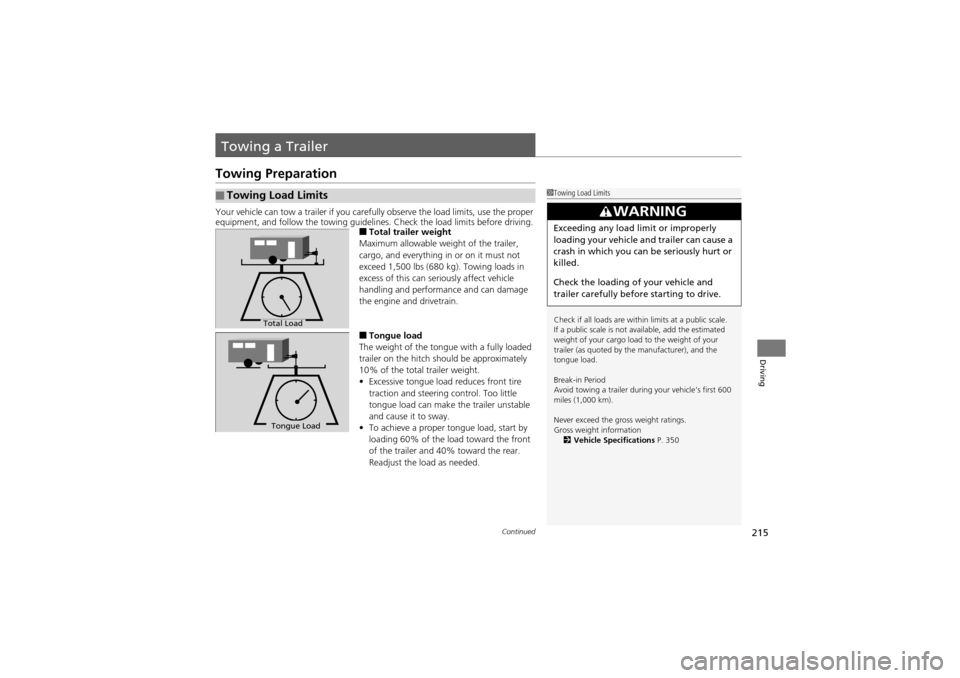
■Total trailer weight
Maximum allowable weight of the trailer,
cargo, and everything in or on it must not
exceed 1,500 lbs (680 kg). Towing loads in
excess of this can seriously affect vehicle
handling and performance and can damage
the engine and drivetrain.
■Tongue load
The weight of the tongue with a fully loaded
trailer on the hitch should be approximately
10% of the total trailer weight.
• Excessive tongue load reduces front tire
traction and steering control. Too little
tongue load can make the trailer unstable
and cause it to sway.
• To achieve a proper tongue load, start by
loading 60% of the lo ad toward the front
of the trailer and 40 % toward the rear.
Readjust the load as needed.
■Towing Load Limits1 Towing Load Limits
Check if all loads are within limits at a public scale.
If a public scale is not available, add the estimated
weight of your cargo load to the weight of your
trailer (as quoted by the manufacturer), and the
tongue load.
Break-in Period
Avoid towing a trailer during your vehicle’s first 600
miles (1,000 km).
Never exceed the gr oss weight ratings.
Gross weight information 2 Vehicle Specifications P. 350
3WARNING
Exceeding any load limit or improperly
loading your vehicle and trailer can cause a
crash in which you can be seriously hurt or
killed.
Check the loading of your vehicle and
trailer carefully before starting to drive.
Total Load
Tongue Load
Page 228 of 370
226
uuWhen Driving uPrecautions While Driving
Driving
Precautions While Driving
Utility vehicles have a significantly higher rollover rate than other types of vehicles.
To prevent rollovers or loss of control:
• Take corners at slower speeds than you would with a passenger vehicle.
• Avoid sharp turns and abrupt maneuvers whenever possible.
• Do not modify your vehicle in any way th at you would raise the center of gravity.
• Do not carry heavy cargo on the roof.
Avoid driving in deep water and on flooded roads. This can damage the engine or
cause electrical component failure.
If there is a strong impact with something under the vehicl e, stop in a safe location.
Check the underside of the vehicl e for damage or any fluid leaks.
■Driving Guidelines for Your Utility Vehicle
■In Rain
■Other Precautions
1Precautions While Driving
NOTICEDo not operate the shift lever while pressing the
accelerator pedal. You could damage the
transmission.
If the ignition switch is turned to ACCESSORY
(q or
LOCK (0*1 while driving, the engine will shut down
and all steering and brake power assist functions will
stop, making it difficult to control the vehicle.
Do not put the shift lever in
( N, as you will lose
engine braking (and acce leration) performance.
During the first 600 mile s (1,000 km) of operation,
avoid sudden acceleration or full throttle operation so
as not to damage the engine or powertrain.
Avoid hard braking for the first 200 miles (300 km).
You should also follow this when the brake pads are
replaced.
1 Driving Guidelines for Your Utility Vehicle
Failure to operate your vehi cle correctly might result
in a crash or a roll over.
2 Important Handling Information P. 24
2 Off-Highway Driving Guidelines P. 220
*1: Models with the keyles s access system have an
ENGINE START/STOP button instead of an ignition
switch.
Page 232 of 370
230
uuWhen Driving uShifting
Driving
Use the paddle shifters to change between 1st and 6th gears without removing your
hands from the steering wheel. The transmissi on will switch to the sequential shift
mode.
■When the shift lever is in D:
The vehicle will go into th e sequential shift mode mome ntarily, and the gear position
indicator will come on.
Once you start traveling at a constant speed, the sequential shift mode will
automatically switch off, and the gear position indicator will go off.
Hold the
+ paddle shifter for two second s to return to normal drive.
■When the shift lever is in S:
The vehicle will go into the sequential shift mode, and the M (sequential shift mode)
indicator and gear position indicator will come on. At speeds of 6 mph (10 km/h) or
less, the vehicle automatically shifts down into 1st gear. When you accelerate from
a stop, the transmission starts in first gear, and shifts from first to second
automatically.
You can only pull away in 1st or 2nd gear.
When switching out of the sequential shift mode, move the shift lever from
S to
D. When the sequential shift mode is canceled, the M indicator and gear position
indicator go off.
■Sequential Shift Mode
Page 234 of 370
232
uuWhen Driving uCruise Control*
Driving
Cruise Control*
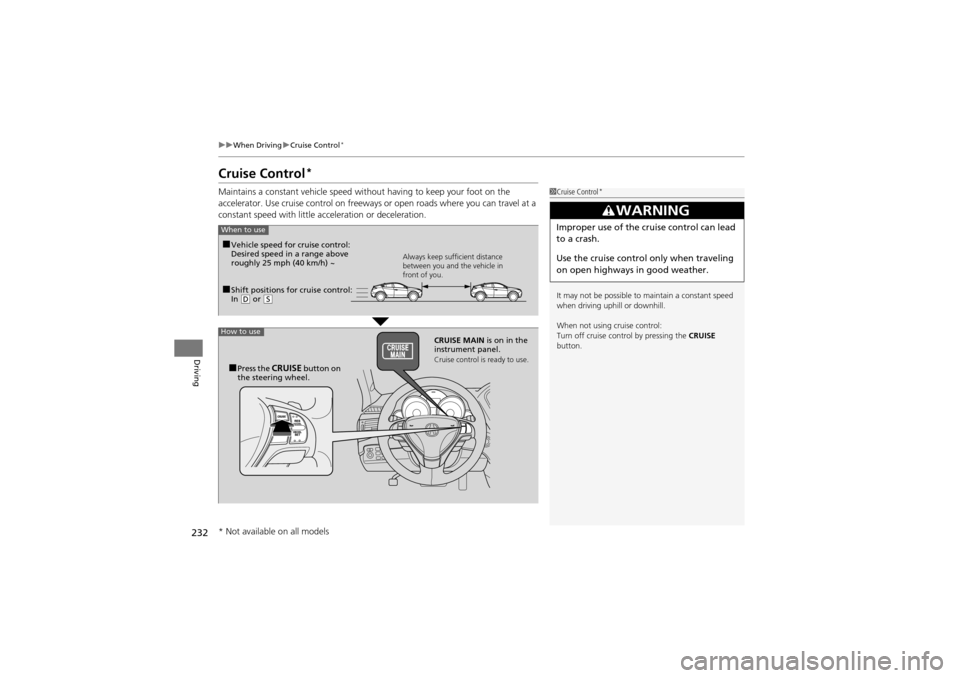
Maintains a constant vehicle speed with out having to keep your foot on the
accelerator. Use cruise control on freeways or open roads where you can travel at a
constant speed with little ac celeration or deceleration.1Cruise Control*
It may not be possible to maintain a constant speed
when driving uphill or downhill.
When not using cruise control:
Turn off cruise control by pressing the CRUISE
button.
3WARNING
Improper use of the cruise control can lead
to a crash.
Use the cruise control only when traveling
on open highways in good weather.
■Shift positions for cruise control:
In ( D or (S Always keep sufficient distance
between you and the vehicle in
front of you.
■Vehicle speed for cruise control:
Desired speed in a range above
roughly 25 mph (40 km/h) ~
CRUISE MAIN is on in the
instrument panel.
Cruise control is ready to use.■Press the CRUISE button on
the steering wheel.
How to use
When to use
* Not available on all models
Page 236 of 370
uuWhen Driving uCruise Control*
234
Driving
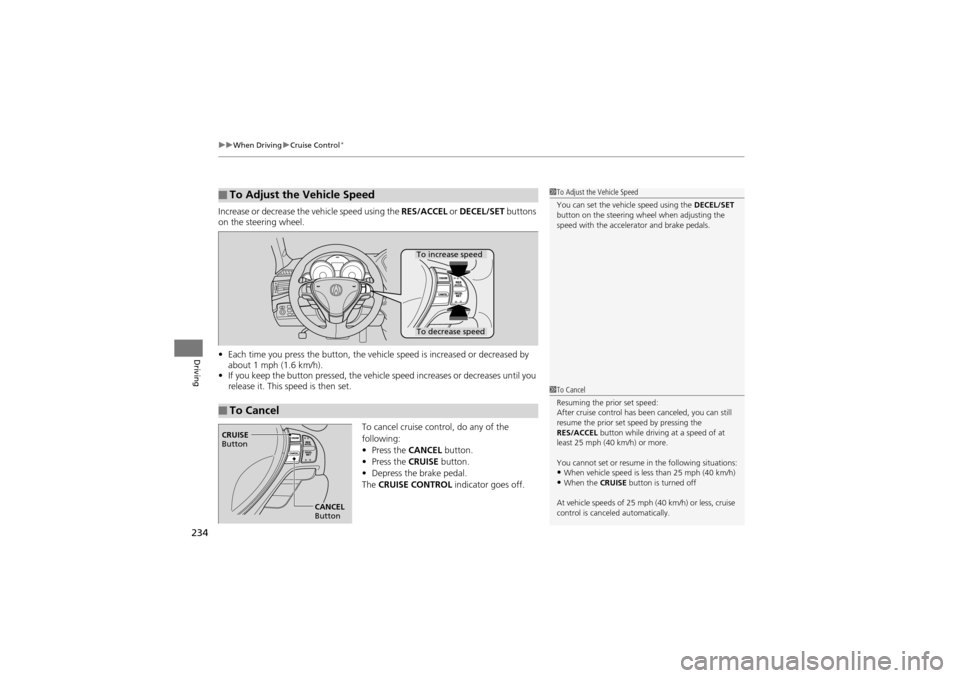
Increase or decrease the vehicle speed using the RES/ACCEL or DECEL/SET buttons
on the steering wheel.
• Each time you press the button, the vehicl e speed is increased or decreased by
about 1 mph (1.6 km/h).
• If you keep the button pressed, the vehicl e speed increases or decreases until you
release it. This speed is then set.
To cancel cruise control, do any of the
following:
•Press the CANCEL button.
• Press the CRUISE button.
• Depress the brake pedal.
The CRUISE CONTROL indicator goes off.
■To Adjust the Vehicle Speed1To Adjust the Vehicle Speed
You can set the vehicle speed using the DECEL/SET
button on the steering wh eel when adjusting the
speed with the accelera tor and brake pedals.
■To Cancel
To decrease speed
To increase speed
1To Cancel
Resuming the prior set speed:
After cruise control has b een canceled, you can still
resume the prior set speed by pressing the
RES/ACCEL button while driving at a speed of at
least 25 mph (40 km/h) or more.
You cannot set or resume in the following situations:
•When vehicle speed is less than 25 mph (40 km/h)•When the CRUISE button is turned off
At vehicle speeds of 25 mph (40 km/h) or less, cruise
control is canceled automatically.
CRUISE
Button
CANCEL
Button