ignition AUDI A3 2020 Owner´s Manual
[x] Cancel search | Manufacturer: AUDI, Model Year: 2020, Model line: A3, Model: AUDI A3 2020Pages: 400, PDF Size: 107.47 MB
Page 132 of 400

Assist systems
Analog instru- | Audi virtual
ment cluster | cockpit*
Meaning on
the corre-
sponding side
Green lines Green line(s) | Active lane as-
7% (left/right) sist is activat-
1% ed and ready
to provide
warnings.
- Red line Active lane as-
(left/right) sist will warn
4X you before the
vehicle leaves
a lane. The
steering wheel
will also vi-
brate lightly.
Yellow lines Gray line(s) Active lane as-
7% (left/right) sist is activat-
1\ ed, but is not
ready to pro-
vide warnings.
Display in the instrument cluster
Applies to: vehicles with Audi active lane assist
Fig. 123 Instrument cluster: active lane assist is switched
on and ready to provide warnings
You can open the active lane assist display using
the buttons in the multifunction steering wheel
=> page 17 or > page 20.
If the system is switched on but is not ready to
provide warnings, one of the following could be
the cause:
— There is no lane marker line
— The relevant lane marker lines are not detected
(for example, markings in a construction zone
or because they are obstructed by snow, dirt,
water or lighting)
— The vehicle speed is below the activation speed
of approximately 40 mph (65 km/h)
— The lane is too narrow or too wide
— The curve is too narrow
— The driver's hands are not on the steering
wheel
@) Tips
— Make sure the camera's field of view
=> fig. 122 is not obstructed by stickers or
anything else. For information on cleaning,
see > page 342.
—In certain markets: if the system is switched
on, it will switch on automatically each time
the ignition is switched on.
130
Display in the in-
strument cluster
Meaning on the corre-
sponding side
Green line(s)
(left or right)
Active lane assist is acti-
vated and ready to pro-
vide warnings.
Red line
(left or right)
Active lane assist will
warn you before the vehi-
cle leaves a lane. The
steering wheel will also
vibrate lightly.
Active lane assist is acti-
vated, but is not ready to
provide warnings.
Gray line(s)
(left or right)
Messages in the instrument cluster display
If the active lane assist switches off automatical-
ly, the indicator light in the display turns off and
one of the following messages appears:
B Audi active lane assist: malfunction! See
owner's manual
Drive immediately to an authorized Audi dealer
or authorized Audi Service Facility to have the
malfunction repaired.
Audi active lane assist: currently unavaila-
ble. No camera view
This message appears if the camera is unable to
detect the lines. This could happen if:
Page 139 of 400

8V2012721BK
Parking aid
Parking system plus
Description
Applies to: vehicles with parking system plus/park assist
B8V-0686
RAH-8914
Fig. 131 Infotainment system: visual distance display
The parking system plus uses audio and visual
warnings to help you avoid obstacles when park-
ing.
Sensors are located in the front and rear bump-
ers. If these detect an obstacle, audible and visu-
al signals warn you.
Make sure the sensors are not covered by stick-
ers, deposits or any other obstructions as it may
impair the function of the system. For informa-
tion on cleaning, see > page 342.
The display field begins approximately at:
@ 4 ft (1.20 m)
@ 3 ft (0.90 m)
® 5.2 ft (1.60 m)
@ 3 ft (0.90 m)
©* 3 ft (0.90 m)®
@) Applies to: vehicles with park assist
Audio signals
The closer your vehicle gets to a detected obsta-
cle, the shorter the time between the audible sig-
nals. A continuous tone sounds when an obstacle
is less than approximately 1 foot (0.30 m) away
from the front or rear of the vehicle. A continu-
ous tone sounds when an obstacle is less than
approximately 0.7 feet (0.20 m) away from the
sides* of the vehicle. Do not continue driving for-
ward or in reverse >@ in General information on
page 136.
Visual warnings
The visual warnings in the Infotainment system
display help you to detect the critical vehicle area
and to estimate the distance to an obstacle
> fig. 131.
Red segments show identified obstacles that are
in your vehicle's path. The red lines mark the ex-
pected direction of travel according to the steer-
ing angle. A white segment indicates an identi-
fied obstacle that is outside of the vehicle's path.
As your vehicle comes closer to the obstacle, the
segments move closer to the vehicle. The colli-
sion area has been reached when the next to last
segment is displayed. Obstacles in the collision
area, including those outside of the vehicle's
path, are shown in red. Do not continue driving
forward or in reverse > A\ in General information
on page 136, >@ in General information on
page 136!
G) Tips
— The segments in the side area* are detected
and analyzed when passing. If you switch
the ignition off and on again or open the
door, or if the vehicle is stationary for a peri-
od of time, the surrounding area may have
changed in the meantime. Therefore, the
side area* will be displayed in black.
— If the distance to an obstacle remains con-
stant, the volume of the distance warning
gradually lowers after a few seconds until it
is muted (this does not apply to the continu-
ous tone). If the obstacle comes closer than
it was before the sound was muted, the
tone will sound again. If the obstacle be-
comes farther away than it was before the
sound was muted, no tone will sound. Pay
attention to the vehicle's surroundings
when you start to drive.
137
Page 140 of 400

Parking aid
Switching on and off
Applies to: vehicles with parking system plus/park assist
2 + 3
S| 2 ©
a.
Fig. 132 Center console: parking aid button
Switching on and off
Requirement: the vehicle speed must be under
approximately 6 mph (10 km/h).
> Press the Pvt button in the center console. A
short confirmation tone sounds and the LED in
the button turns on.
Switching on automatically
The system switches on automatically when re-
verse gear is engaged while the engine is run-
ning. A brief tone will sound.
If Activate automatically is switched on in the
Infotainment system and if the vehicle ap-
proaches an obstacle at speeds under approxi-
mately 6 mph (10 km/h), the parking aid will
switch on automatically. Audible signals will
sound once the obstacle is within the sensor de-
tection area.
Switching off automatically
The system switches off automatically when driv-
ing forward faster than 6 mph (10 km/h).
@ Tips
If you press the Ps button to switch the park-
ing aid off, it can only be reactivated automat-
ically when one of the following conditions is
met:
— The vehicle speed exceeds 6 mph (10 km/h)
— The ignition is switched off and back on
again
— The parking brake is set and then released
138
—The "P" selector lever position is engaged
and released again
Rearview camera
Introduction
Applies to: vehicles with rearview camera
B8V-0629
Fig. 133 Illustration: cross parking
The rearview camera helps you to park or maneu-
ver using the orientation lines.
Cee Mc Lo)
Applies to: vehicles with rearview camera
B8V-0522
Fig. 134 Area covered @ and area not covered (2) by the
rearview camera (example)
'8V-0099 Bi
Fig. 135 Luggage compartment lid: location of the rear-
view camera (example)
Page 146 of 400
Parking aid
The ESC took action to stabilize the vehicle. Take
over steering. Complete parking without using
park assist or drive out of the parking space.
Park assist: currently unavailable. Stabiliza-
tion control (ESC) off
The ESC was switched off. The ESC must be
switched on to use park assist.
Park assist: malfunction! Please contact
Service.
Park assist: malfunction! Take over steering!
Please contact Service.
Contact an authorized Audi dealer or authorized
Audi Service Facility. You cannot park with park
assist if there is a system malfunction.
Park assist: currently unavailable.
Park assist: currently unavailable. Please
take over steering!
Parking with park assist is not possible. Try park-
ing again or switch the ignition off and back on
again if necessary.
Park assist: ended. Please take over steering
and continue driving.
The process of exiting the parking space with
park assist has ended. Please take over steering.
Park assist: canceled. Parking space too
small. Please take over steering!
Parking in this space with park assist is not possi-
ble. Park without using park assist or find a larger
parking space.
Park assist: canceled. Obstacle detected.
Please take over steering!
Parking with park assist was stopped because the
vehicle could collide with an obstacle.
Park assist: ended
Park assist: ended. Please take over steer-
ing!
Parking with park assist has ended.
Park assist: unavailable in current Audi drive
select mode
144
roo" Park assist: canceled. Unavailable in current
Audi drive select mode. Please take over steer-
ing!
Park assist is not available in certain Audi drive
select modes. Select a different mode in drive se-
lect > page 91.
Park assist: stabilization control (ESC) input
The displayed parking space was rejected because
the ESC took action to stabilize the vehicle.
a=] Park assist: not stopped long enough
After engaging the reverse gear, park assist must
stop briefly in order to activate the steering. Fol-
low the instructions in the display.
ro="| Park assist: canceled. Unable to leave park-
ing space automatically. Parking space too
small.
The parking space is too small for the vehicle to
automatically leave the space. Leave the parking
space without using park assist.
roo} Park assist: canceled. Please take over steer-
ing!
Parking with park assist was stopped.
Adjusting the parking aid
Applies to: vehicles with parking system plus/rearview cam-
era/park assist
The functions are adjusted in the Infotainment
system.
> Select in the Infotainment system: [MENU] but-
ton > Vehicle > left control button > Driver as-
sistance > Parking aid. Or
> When the parking aid is active, select in the In-
fotainment system: right control button*.
End system* - Stop the parking aid
Activate automatically - Switch automatic activa-
tion on/off
Front volume* - Volume for the front and side*
area
Rear volume - Volume for the rear area
Page 148 of 400
Multi Media Interface
Multi Media Interface
Traffic safety
information
Audi recommends performing certain Infotain-
ment system functions, such as entering a desti-
nation, only when the vehicle is stationary. Al-
ways be prepared to stop operating the Infotain-
ment system in the interest of your safety and
the safety of other road users.
Z\ WARNING
Only use the Infotainment system when road,
traffic, weather, and visibility conditions per-
mit and always in a way that allows you to
maintain complete control over your vehicle.
@ Tips
Certain functions are not available while driv-
ing.
Introduction
[RAH-8837
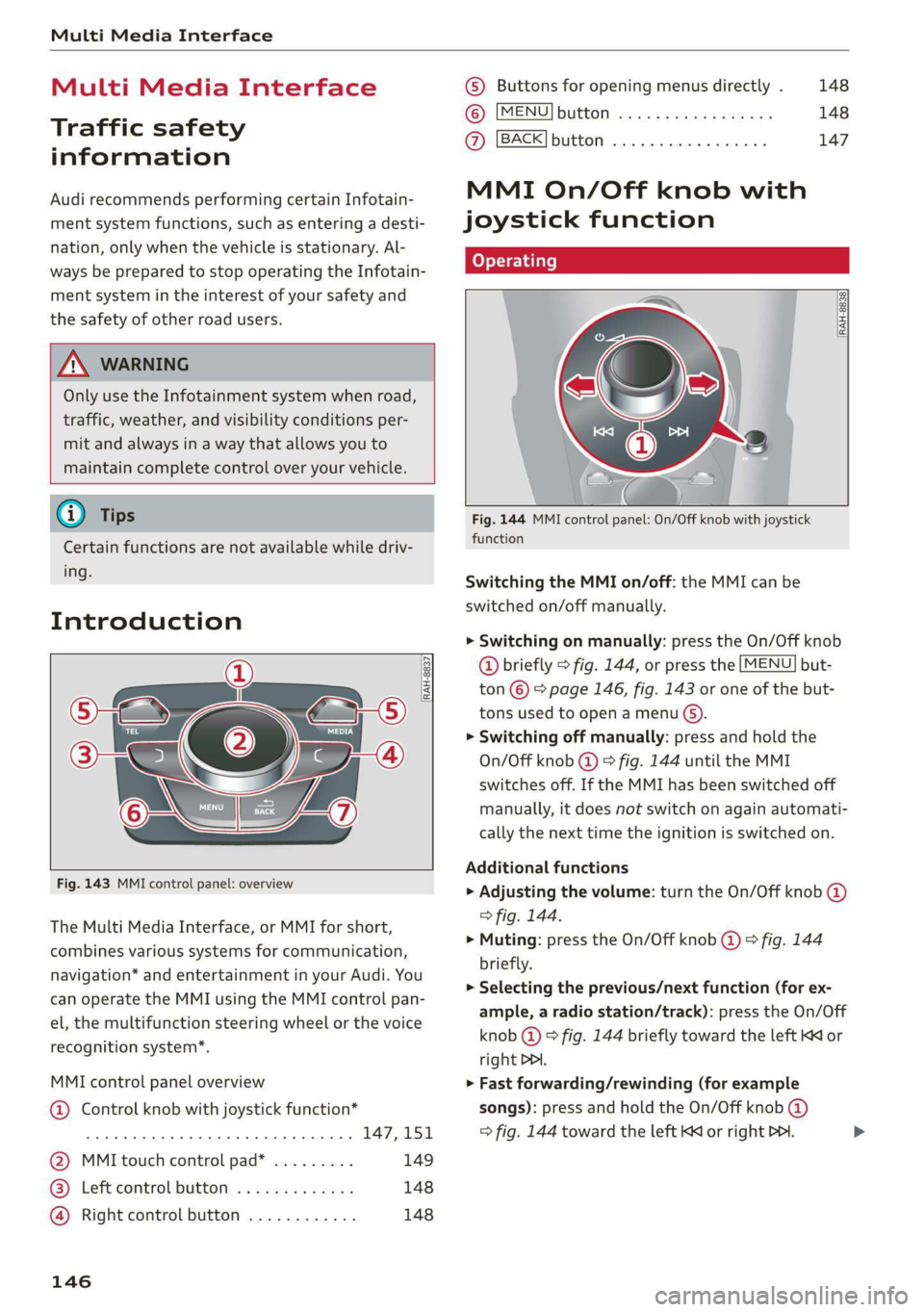
Fig. 143 MMI control panel: overview
The Multi Media Interface, or MMI for short,
combines various systems for communication,
navigation* and entertainment in your Audi. You
can operate the MMI using the MMI control pan-
el, the multifunction steering wheel or the voice
recognition system”.
MMI control panel overview
@ Control knob with joystick function*
eee teen eee 147,151
@ MMI touch control pad* ......... 149
® Left control button ............. 148
@ Right control button ............ 148
146
© Buttons for opening menus directly . 148
(6): [MENU] button suis se cas as sees 148
@ [BACK] button .... 2. 147
MMI On/Off knob with
joystick function
(ey YTelatare)
[RAH-8838,
Fig. 144 MMI control panel: On/Off knob with joystick
function
Switching the MMI on/off: the MMI can be
switched on/off manually.
> Switching on manually: press the On/Off knob
@ briefly > fig. 144, or press the [MENU] but-
ton © © page 146, fig. 143 or one of the but-
tons used to open a menu G).
> Switching off manually: press and hold the
On/Off knob @) > fig. 144 until the MMI
switches off. If the MMI has been switched off
manually, it does not switch on again automati-
cally the next time the ignition is switched on.
Additional functions
> Adjusting the volume: turn the On/Off knob @)
> fig. 144.
> Muting: press the On/Off knob @) ° fig. 144
briefly.
> Selecting the previous/next function (for ex-
ample, a radio station/track): press the On/Off
knob @ ® fig. 144 briefly toward the left KK or
right DDI.
> Fast forwarding/rewinding (for example
songs): press and hold the On/Off knob @)
=> fig. 144 toward the left Kd or right Po. >
Page 164 of 400
Voice recognition system
Voice recognition system
General information
Applies to: vehicles with voice recognition system
You can operate many functions in the vehicle
easily using voice commands.
Using the voice recognition system optimally
> Speak clearly and distinctly at a normal volume.
Speak louder when driving faster.
> Emphasize the words in the commands evenly
and do not leave long pauses.
> Close the doors, the windows, and the sunroof*
to reduce background noise. Make sure that
passengers are not speaking when you are giv-
ing a voice command.
> Do not direct the vents toward the hands-free
microphone, which is in the roof headliner near
the front interior lights.
> Only the driver should speak to the system, be-
cause the handsfree microphone is aimed to-
ward this seating position.
ZA\ WARNING
— Direct your full attention to driving. As the
driver, you have complete responsibility for
safety in traffic. Only use the functions in
such a way that you always maintain com-
plete control over your vehicle in all traffic
situations.
— Do not use the voice recognition system in
emergencies because your voice may change
in stressful situations. The system may take
longer to dial the number or may not be
able to dial it at all. Dial the emergency
number manually.
G) Tips
There are no voice guidance* prompts when a
dialog is active.
Operating
Applies to: vehicles with voice recognition system
Requirement: the ignition and the MMI must be
switched on. A system language supported by
the voice recognition system must be set. There
162
must be no phone calls in progress and the park-
ing aid must not be active.
> Switching on: press the [2] button (2)
> page 19, fig. 13 or @) > page 20, fig. 15
briefly on the multifunction steering wheel and
say the desired command after the Beep.
> Switching off: press and hold the |] button,
‘OF:
> Press the |] button.
> Pausing: say the command Pause. To resume,
press the |%] button.
> Correcting: say the command Correction.
Input assistance
The system guides you through the input with
visual and audio feedback.
— Visual input assistance: after switching on
voice recognition, a display with a selection of
possible commands appears. This command
display can be switched on or off. Select:
MENU] button > Settings > left control button
> MMI settings > Speech dialog system.
— Audio input assistance: to have the possible
commands read, turn the voice recognition sys-
tem on and say Help.
Additional settings
See > page 235.
@) Tips
— The dialog pauses when there is an incom-
ing phone call and will continue if you ig-
nore the call. The dialog ends if you answer
the call.
— You can select an item in the list using ei-
ther the voice recognition system or the
control knob.
Command overview
information
Applies to: vehicles with voice recognition system
The following overviews describe the commands
that can be used to operate the MMI using the
voice recognition system.
Page 170 of 400
Voice recognition system
@) Note
Read the information about Audi connect, and
be sure to note the connectivity costs section
=@ in General information on page 182.
External voice operation
Applies to: vehicles with voice recognition system and exter-
nal voice operation
Requirement: the ignition and the MMI must be
switched on. A mobile device must be connected
to the MMI with the Handsfree profile
=> page 170. The mobile device being connected
must have voice control that can be controlled
externally. There must be no phone calls in prog-
ress and the parking aid must not be active.
> Switching on: press and hold the || button on
the multifunction steering wheel* and say the
desired command after the external speech dia-
log begins.
> Continuing/resuming the dialog: the system
remains ready to use for a short time after end-
ing the dialog. You can start a new external dia-
log during this time.
> Press the [2] button if needed, and say a new
command, or:
> Select and confirm Resume on the MMI control
panel.
> Switching off: press and hold the |™] button,
or:
> Select and confirm Cancel on the MMI control
panel.
G) Tips
— There are no voice guidance* prompts when
a dialog is active.
—AUDIAG simply provides access to control
your mobile device with voice operation and
does not assume any responsibility for the
content and commands within the external
voice control.
168
Page 171 of 400
8V2012721BK
Telephone
Telephone
Introduction
Applies to: vehicles with telephone
You can operate various telephone functions easi-
ly through the MMI in your vehicle.
Depending on the country and the vehicle equip-
ment, the following options may be available:
— Connecting a cell phone with Bluetooth
— Using two telephones
— Using the Audi phone box
ZA WARNING
— Medical experts warn that mobile devices
can interfere with the function of pacemak-
ers. Always maintain a minimum distance of
about 7.9 inches (20 cm) between the mo-
bile device antennas and the pacemaker.
— Do not carry the mobile device in a pocket
directly over the pacemaker when the
phone is switched on.
— Switch the mobile device off immediately
if you suspect it may be interfering with
the pacemaker.
— Do not use the voice recognition system*
= page 162 in emergencies because your
voice may change in stressful situations. The
system may take longer to dial the number
or may not be able to dial it at all. Dial the
emergency number manually.
— Switch your mobile device off in areas where
there is a risk of an explosion. These loca-
tions are not always clearly marked. This
may include gas stations, fuel and chemical
storage facilities or transport vehicles, or lo-
cations where fuel vapors (such as propane
or gasoline vapor in vehicles or buildings),
chemicals or large quantities of dust parti-
cles (such as flour, sawdust or metal) may
be present in the air. This also applies to all
other locations where you would normally
turn your vehicle engine off.
— The demands of traffic require your full at-
tention. Always read the chapter
=> page 146, Traffic safety information.
CG) Note
Read the information about Audi connect, and
be sure to note the connectivity costs section
=> page 182.
G@) Tips
— The Bluetooth connection range is limited
to inside the vehicle.
—Aselection of supported Bluetooth devices
can be found in the database for tested mo-
bile devices at www.audi.com/bluetooth.
Setup
Connecting a cell phone via Bluetooth
Applies to: vehicles with telephone
Requirement: the vehicle must be stationary and
the ignition must be switched on. The Bluetooth
settings must be open on your mobile device dur-
ing the connection setup. The mobile device to be
connected must not be actively connected to any
other Bluetooth device. The MMI must not be
connected to a mobile device.
> Enable the Bluetooth function and visibility on
the MMI => page 233 and the cell phone.
> Select: [MENU] button > Telephone > Connect
mobile device > Find new devices > Next. The
available
Bluetooth devices are shown in the In-
fotainment system display, or
> Select: [MENU] button > Settings > left control
button > MMI settings > Connection manager
> page 231.
> Select and confirm the desired cell phone from
the list of displayed Bluetooth devices.
A PIN for a secure Bluetooth connection will be
generated.
> Confirm the PIN on your cell phone and on the
MMI, or:
> Enter the PIN for establishing a connection on
your cell phone. The time allowed for entering
the PIN is limited to approximately 30 seconds.
> Follow the system instructions.
> Pay attention to any other system prompts on
the MMI and on your cell phone.
169
Page 172 of 400
Telephone
After connecting successfully
Information about the connected profiles will ap-
pear. You can also change the profiles later
=> page 233.
The cell phone contacts are automatically loaded
in the MMI. This process can take several mi-
nutes, depending on the number of contacts.
Depending on your cell phone and the connection
type, you can use the following functions:
Handsfree
Requirement: your cell phone must be connected
to the MMI via a Bluetooth Hands Free Profile
(Bluetooth HFP).
You can use the hands-free system. You can make
calls using the antenna on your mobile device.
Sending and receiving messages
See > page 175.
@) Note
Read the information about Audi connect, and
be sure to note the connectivity costs section
=> page 182.
@) Tips
— You can apply additional settings to con-
nected mobile devices using the Connection
manager > page 231.
— You can also search for the MMI on your mo-
bile device using the Bluetooth device
search.
— You only have to pair your device one time.
Bluetooth devices that are already paired
automatically connect to the MMI when the
Bluetooth function is switched on, when
they are within range, and when the ignition
is switched on. The last connected mobile
device is given first priority.
— Pay attention to any system prompts dis-
played on your cell phone, for example if
the system should connect automatically in
the future. Depending on the cell phone,
you may also need to download the directo-
ry and confirm access to your text messages
separately.
170
— When leaving the vehicle, the Bluetooth
connection to the mobile device will auto-
matically disconnect. Depending on your
mobile device, phone calls in progress may
be automatically redirected from the MMI
to your mobile device so that you can con-
tinue the call on your phone.
Using two telephones
Applies to: vehicles with telephone, and Audi phone box
You can connect two cell phones to the MMI, for
example your business cell phone as the primary
phone and your private cell phone as the secon-
dary phone. You can be reached in your vehicle
through both cell phones.
The first connected cell phone is displayed as the
primary phone in the MMI. The second cell phone
is connected as the secondary phone.
The directory from the connected primary phone
will always be displayed. If you would like to use
the directory from the secondary phone, you
must switch the primary and secondary phone
=>page 171.
Connecting a cell phone as the primary
phone
> Connect your cell phone to the MMI via Blue-
tooth. The first connected cell phone is dis-
played as the Primary phone in the MMI.
See > page 169, Connecting a cell phone via
Bluetooth.
Connecting a cell phone as the secondary
phone
Requirement: a cell phone must be connected to
the MMI as the primary phone.
> Select: [MENU] button > Telephone > right con-
trol button > Connect secondary telephone.
See > page 169, Connecting a cell phone via
Bluetooth.
Example: you have connected your business cell
phone to the MMI as the primary phone and your
private cell phone as the secondary phone. To be
able to call contacts from your private cell phone
directory, you must switch the primary and
Page 173 of 400
8V2012721BK
Telephone
secondary phone, since the directory from the
primary phone is always displayed.
Switching the primary and secondary phone
Requirement: a primary phone and a secondary
phone must be connected.
> Select: [MENU] button > Telephone > right con-
trol button > Switch primary and second.
phone.
@) Tips
— You can see if a cell phone is connected as
the primary phone or secondary phone in
the Connection manager > page 231.
— You can also make your connected cell
phone the default phone by selecting Set as
default telephone in the Connection man-
ager > page 233.
— The device name of the connected primary
phone is shown in the Telephone menu
(such as myPhone).
— If the primary phone does not connect auto-
matically to the MMI when the ignition is
switched on, for example because it is out
of the vehicle range or the Bluetooth func-
tion is switched off, then a previously paired
secondary phone is automatically connected
as the primary phone.
— You can send and receive messages on your
primary phone as well as on your secondary
phone > page 173, fig. 163. You do not
need to switch your primary phone and sec-
ondary phone for this.
Using the Audi phone
box
Applies to: vehicles with Audi phone box
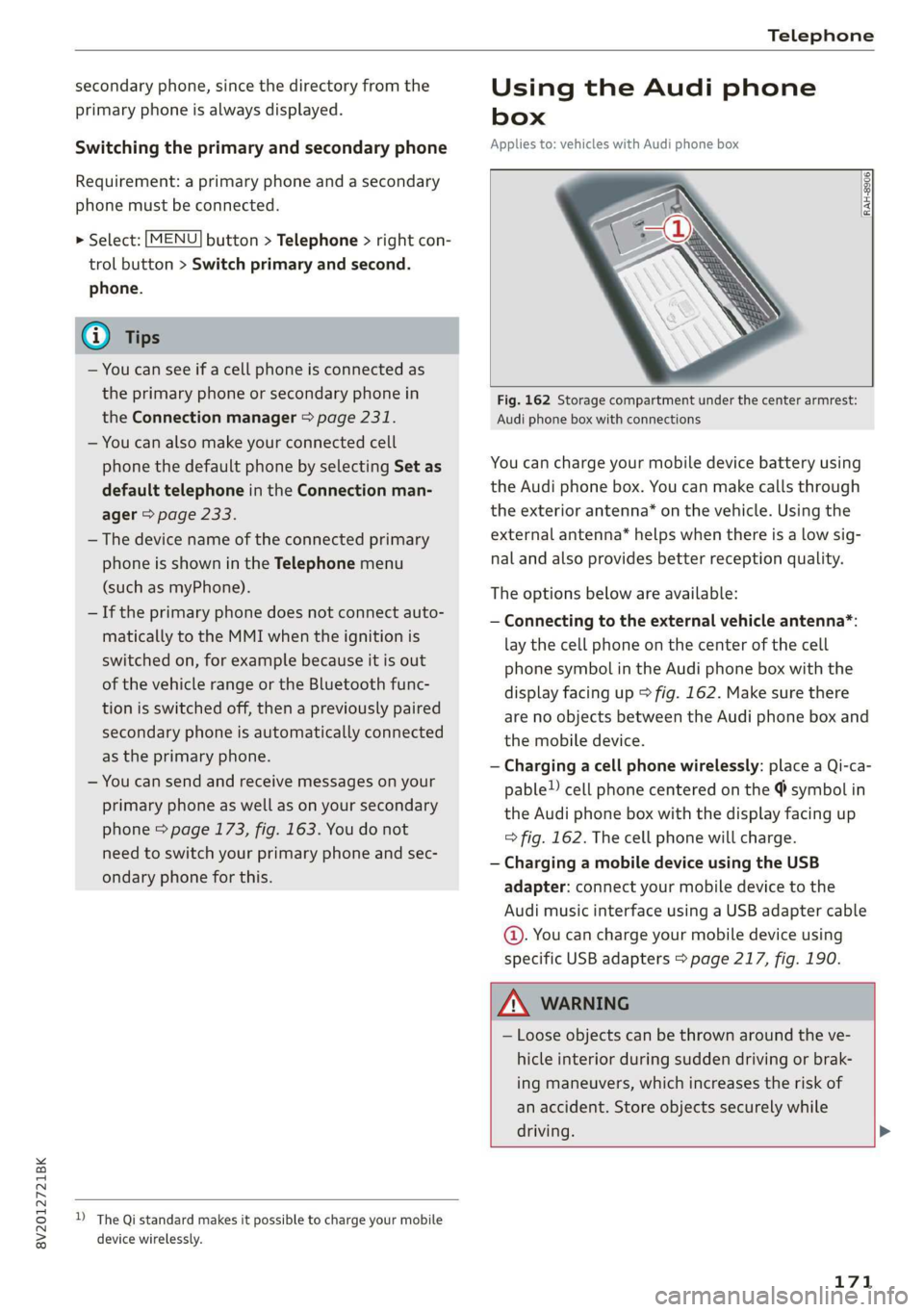
RAH-8906|
Fig. 162 Storage compartment under the center armrest:
Audi phone box with connections
You can charge your mobile device battery using
the Audi phone box. You can make calls through
the exterior antenna* on the vehicle. Using the
external antenna* helps when there is a low sig-
nal and also provides better reception quality.
The options below are available:
— Connecting to the external vehicle antenna*:
lay the cell phone on the center of the cell
phone symbol in the Audi phone box with the
display facing up > fig. 162. Make sure there
are no objects between the Audi phone box and
the mobile device.
— Charging a cell phone wirelessly: place a Qi-ca-
pable!) cell phone centered on the @ symbol in
the Audi phone box with the display facing up
=> fig. 162. The cell phone will charge.
— Charging a mobile device using the USB
adapter: connect your mobile device to the
Audi music interface using a USB adapter cable
©. You can charge your mobile device using
specific USB adapters > page 217, fig. 190.
Z\ WARNING
— Loose objects can be thrown around the ve-
hicle interior during sudden driving or brak-
ing maneuvers, which increases the risk of
an accident. Store objects securely while
driving. >
D_ The Qi standard makes it possible to charge your mobile
device wirelessly.
171