infotainment AUDI A3 SEDAN 2017 Workshop Manual
[x] Cancel search | Manufacturer: AUDI, Model Year: 2017, Model line: A3 SEDAN, Model: AUDI A3 SEDAN 2017Pages: 400, PDF Size: 67.32 MB
Page 202 of 400
Navigation
Navigation
Opening navigation
Applies to: veh icles w ith navigation system
The navigation system directs you to your desti
nation , around traffic incidents and on alterna
tive routes, if desired .
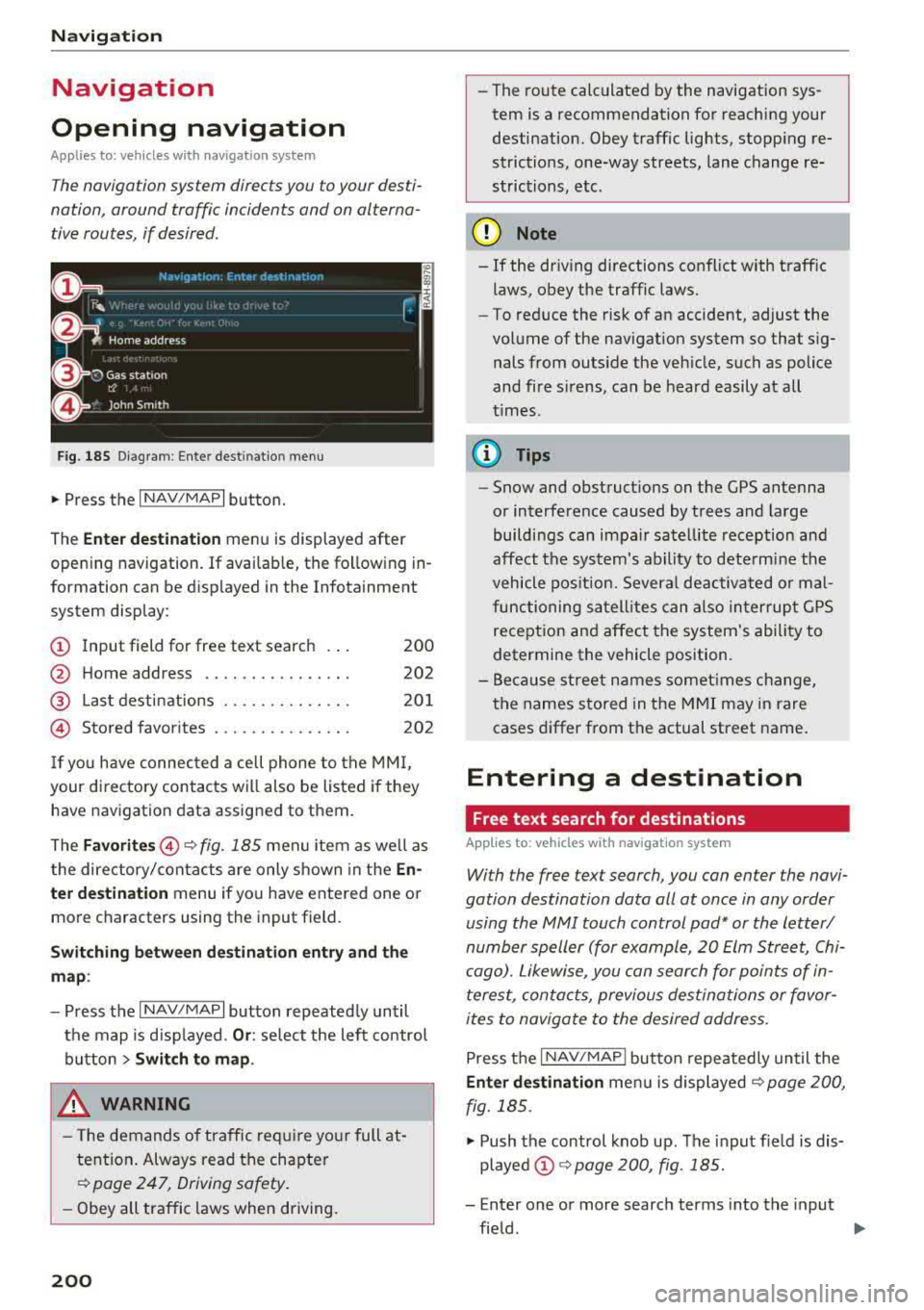
Fig. 185 Diagram : Ente r dest inatio n menu
"'Press the I NAV/MAPI button.
The
Enter destination menu is displayed after
opening navigation. If availab le, the following in
formation can be d isplayed in the Infotainment
system display:
@ Input field for free text search 200
@ Home address . . . . . . . . . . . . . . . . 202
@ Last destinations . . . . . . . . . . . . . . 201
© Stored favorites . . . . . . . . . . . . . . . 202
If you have connected a cell phone to the MMI,
your directory contacts will also be listed if they
have navigation data assigned to them.
The
Favorites @¢ fig. 185 men u item as well as
the directory/contacts are only shown in the
En·
ter destination
menu if you have entered one o r
more characters using the input field.
Switching between destination entry and the
map :
-Press the I NAV/MAPI button repeated ly until
the map is d isp layed.
Or : select the left contro l
button
> Switch to map.
_& WARNING
- The demands of traffic require yo ur full at
tention . Always read the chapter
~ page 247, Driving safety.
-Obey all traffic laws when driving.
200
.
- The route calculated by the navigation sys
tem is a recommendation for reaching your
destination. Obey traffic lights, stopping re
strictions, one-way streets, lane change re
strictions, etc .
(D Note
- If
the dr iv ing directions conflict with traffic
laws, obey the traffic laws.
- To reduce the risk of an accident, adjust the
volume of the navigat ion system so that s ig
nals from outs ide the veh icle, such as police
and fire s irens, can be heard easily at all
t imes.
(D Tips
- Snow and obstruct ions on the GPS antenna
or interference caused by trees and large
buildings can impair satellite reception and
affect the system's ability to determine the
vehicle position. Several deactivated or mal
functioning satellites can also interrupt GPS
reception and affect the system's ability to
determine the vehicle position.
-Because street names somet imes change,
the names stored in the MMI may in rare
cases differ from the actual street name.
Entering a destination
Free text search for destinations
Applies to: vehicles with navigation system
With the free text search, you con enter the navi
gation destination data all at once in any order using the MMI touch control
pad* or the letter/
number speller (for example, 20 Elm Street, Chi
cago). Likewise, you can search for points of in
terest, contacts, previous destinations or favor
ites to navigate to the desired address.
Press the I NAV/MAPI button repeatedly until the
Enter destination menu is displayed~ page 200,
fig. 185 .
"' Push the control knob up. The input fie ld is dis
played @¢ page 200, fig. 185.
- Enter one or more search terms into the input
field .
""
Page 205 of 400
CXl CXl .... N ,.__
N .... 0 N > 00
-If a contact is grayed out in the d irectory,
this contact has neither a destination no r an
address assigned to them.
Point of interest search
App lies to: ve hicles with navigation system
N.-w1gat1on . Po1nb of interest i
__ S_ e_ a_r_c _
h _a_ r_e _
a ______________ L _o _s _ A_ n_ g_ e_l_ e_s __ (_. ~
J
Find entry
Select category
0 Restaurant
ii) Diesel fueling station
fJ Coffee shop
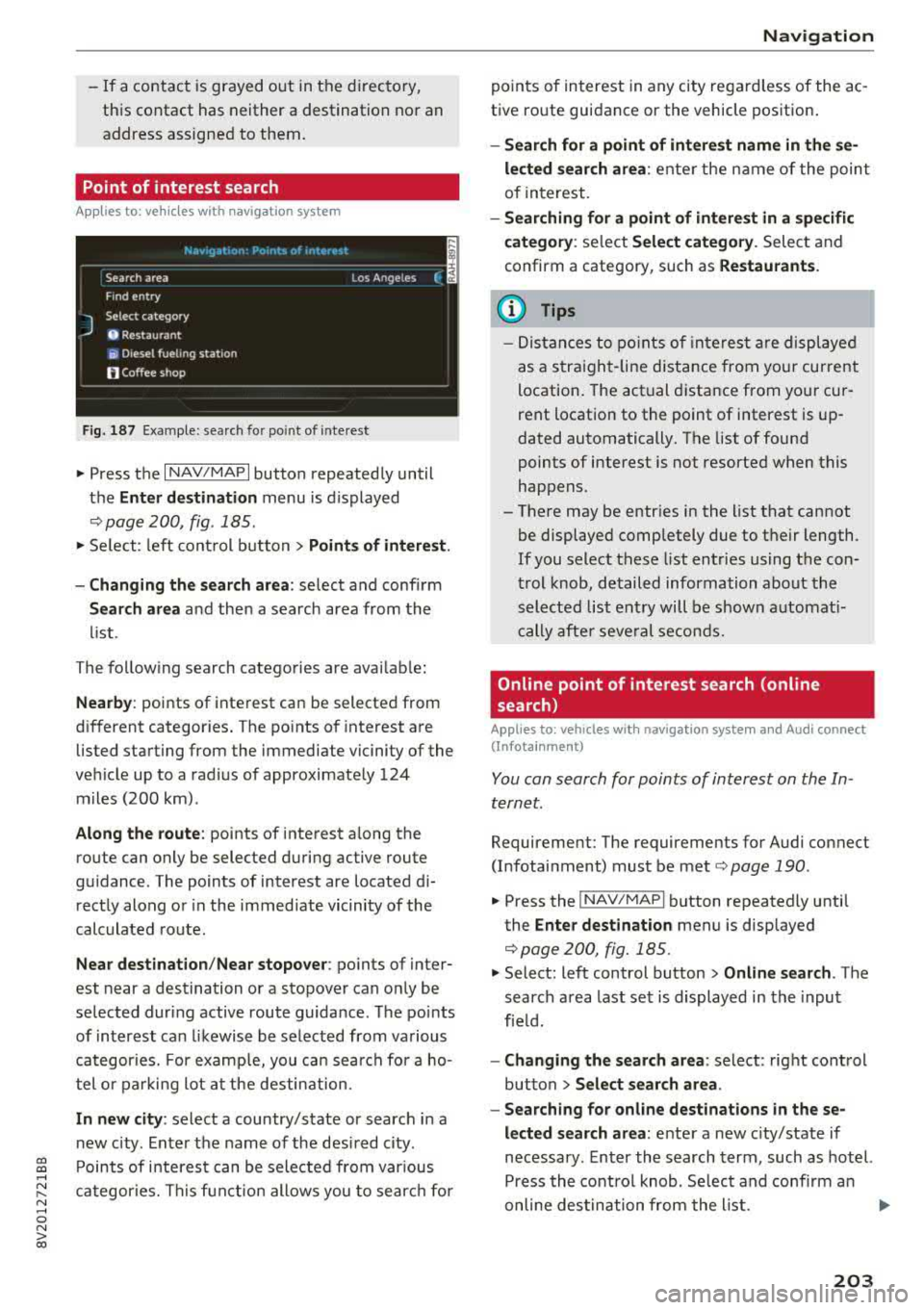
Fig . 187 Exa mple: se arch fo r po int of inte rest
"' Press the I NAV/MAPI button repeated ly until
t h e
Enter de stination menu is displayed
,:::;, page 200, fig . 185.
"' Se lect : left con trol but ton > Points of interest .
-Changing the search area : select and confirm
Search area and then a search area from the
li st.
The follow ing search catego ries are avai lab le :
Nearby : points of inte rest ca n be selected from
d ifferent categor ies. The po ints of interest a re
listed starting from the immediate vicinity of the
ve hicle up to a rad ius of approximate ly 124
m iles (200 km) .
Along the route : points of interest a long the
ro ute can only be selected d uring active route
gu idance . The points of interest are located d i
rect ly along or in the immed iate vicinity of the
calculated route .
Near destination /Near stopover : points of inter
est near a destination or a stopover can on ly be
se lected during active route guida nce. The po ints
of interest can likewise be se lected from various
categor ies. For examp le, you ca n sea rch for a ho
tel or parking lot at the destin ation.
In new city : select a country/state or search in a
n ew c ity . E nte r th e name of the desi red c ity .
P oints of i nte res t can be sele cted from var ious
ca tegor ies. Th is f unct ion allows you to sear ch for
Navigation
po ints of interest in any city re gard less of the ac
t ive ro ute guidance or the vehicle pos ition .
-Search for a point of int ere st name in these
lected search area :
enter the n ame of the poin t
of interest.
- Searching for a point of interest in a specific
category :
select Select category . Select and
confirm a category, such as
Restaurants .
(D Tips
-Distances to poin ts of i nte res t are displ aye d
as a s tra ight-line d ist ance from your current
location . The actual d istance from you r cur
rent locat ion to the point of interest is up
dated automatically . The list of found
points of interest is not resorted when this
happens.
-There may be entr ies in the list that cannot
be displayed completely due to t he ir length .
If you select these list entries using the con
tr ol knob , detailed information about the
sel ected list e ntry will be shown a utomat i
c ally af te r seve ral second s.
Online point of interest search (on line
search)
Appl ies to: vehicles with navigat ion system and Aud i connect
(Infotainment)
You can search for points of interest on the In
ternet.
Requirement: The requirements for Audi co nnect
(Infotainment) mus t be met
,:::;, page 190 .
"'Press the !NAV/MAPI button repeatedly until
the
Enter destination menu is displayed
,:::;,page 200, fig.185.
"' Select: left control button > Online search . The
search a rea last se t is displayed in the inpu t
fie ld.
-Changing the search area : select: right cont rol
button
> Select search area .
-Searching for online destinations in these
lected search area :
ente r a new c ity/state if
necessary . E nter the search term , such as hotel.
Press the contro l knob . Se lect and confi rm an
online des tination fro m the list.
..,.
203
Page 206 of 400
Navig ation
-Se arching for onl ine d estination s in a specific
categor y:
select and confirm Se lect catego ry.
Se lect and confirm a category, such as Rest au
r a nts .
Find which search areas are available under
¢ page 203, Point of interest search.
You can sea rch fo r on line dest ina tions using the
voice recognition system
¢ table on page 173.
{I) Tips
Always read t he chapte r¢ page 196, Audi
c onnect (Infotainment) general informa tion.
Accessing destinations from myAudi
account
A pp lies to: ve hicles w ith naviga tion sys tem and Audi co nn ect
(I nfota inmen t)
Import individual destinations from your myAudi
account into the
MMI.
Requirement:
The requirements for Audi connect (Infotain ment) must be met
¢ page 190.
You must have a registered myAudi account at
my.aud iusa.com . You must have a vehicle as
signed to your myAudi acco unt and you must
have stored one or more destinations .
~ Press the I NAV/MAPI button repeatedly until
the
Enter de stin ation menu is displayed
¢ page 200, fig. 185.
~ Se lect: left control button > m yAudi cont act s.
~ If necessary, enter your myAudi user data or
your myAud i PIN¢
page 190 . The contacts
stored in myAudi are d isp layed .
-Select and confirm a contact .
-Select and confirm a private or business desti -
nation.
- Se lect and confirm
Start route guidance .
(D Tips
-You only need to enter the myAud i user data
one time .
-You can receive your myA udi PIN if you have
set up a myAudi account.
204
- Additiona l information can be found under
www.audiu sa .com /audiconnect .
Entering a destination using geo
coordinates
App lies to : vehicles wit h navigat ion syste m
~ Press the I NAV/MAPI button repeatedly until
the
Enter dest inat ion me nu is displayed
¢ page 200, fig . 185 .
~ Sele ct: left control button > Geographi cal coor ·
dinate s.
-Select latitud e/longitude .
-Press the contro l knob to set the individual val -
ues .
- Turn the control knob to the left/right to
change the selected va lue.
- Select and confirm
Start route guidance .
Adding a stopover
App lies to : vehicles wit h naviga tion syste m
You con enter an additional destination when
route guidance is active.
Nac,,gat1on Er.tcr de'iot1r.ar.1on ~-
---------== = ==----,:.-jl: Bear Valley Rd 79 9 mi
'-,. Hesperia. CA, 9234S 7:22 AM
Cancel route gu idance ______ _
::, Elias Thomas Snack Bar
-..;: 111 N Hill St. Los Angeles. CA
De lete stopovc-r ====~ If}
J 250yd
6:05 AM
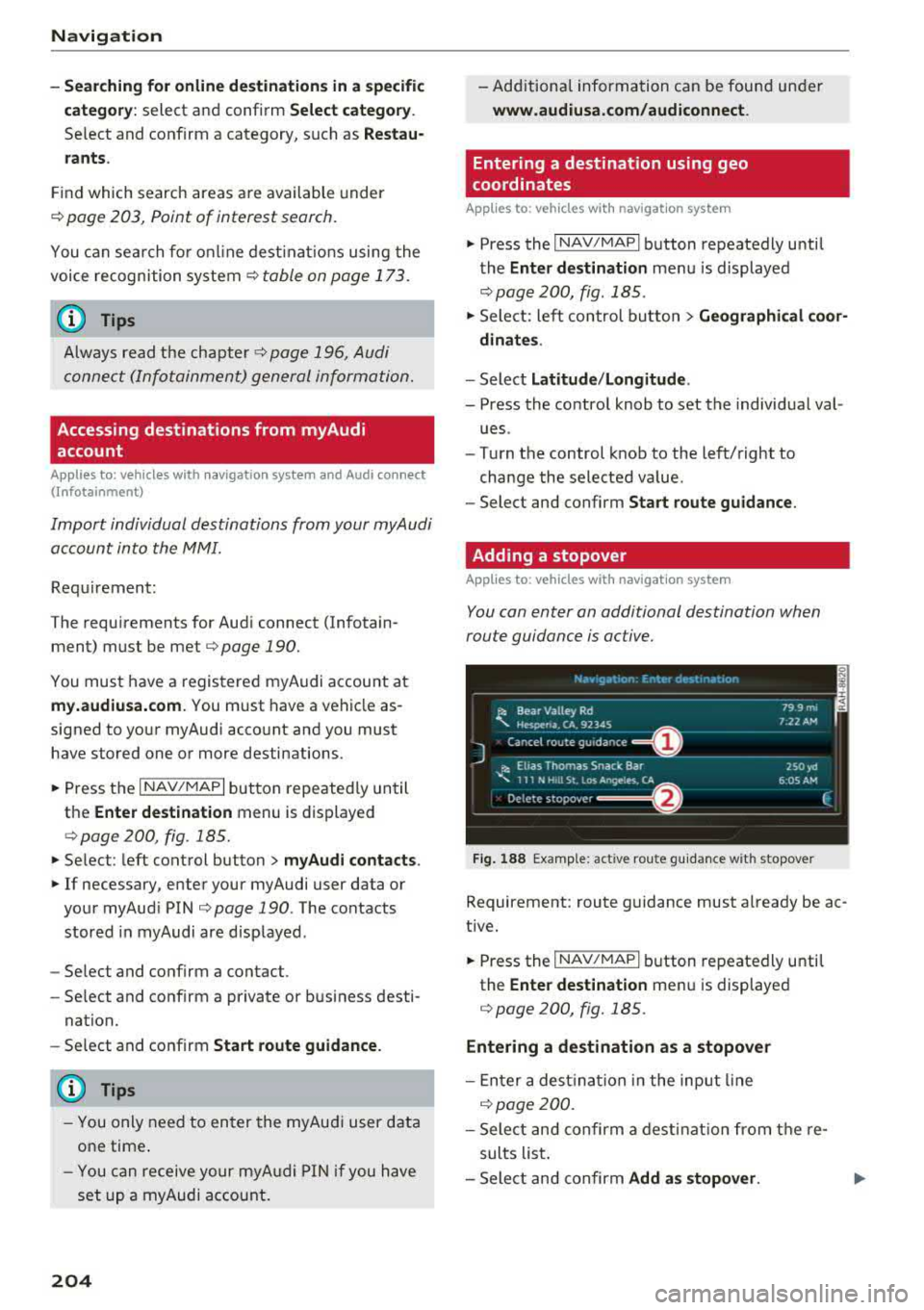
Fig. 188 Examp le: act ive route g uidance w it h stopover
Requirement: route guidance must already be ac
tive.
~ Press the I NAV/MAPI b utton repeatedly unti l
the
Ente r dest ination me nu is displayed
¢ page 200, fig. 185.
Entering a destination as a stopover
-En ter a des tina tion in the input line
q poge 200 .
-Select and confirm a desti nat ion from the re
sults list .
-Select and confirm Add as stopo ver . jll,,
Page 214 of 400
Navigation
Route information
The display of route information, such as t he cur
ren t street be ing drive n on or po ints o f in terest
a long the c urrent route, can be switched on/off
or can be min imized on the display of upcomi ng
maneuvers.
Automatic zoom
On : the map scale is adap ted automatica lly de
pending on the type o f road being trave led (e x
p ressway, highway, other roads) so that you al
ways have an optimal overv iew o f the road a head .
The sca le is a lso automatica lly adapted when
there a re upcoming maneuvers to p rovide a bet
ter deta iled view.
Intersection : when route gu idance is active , the
map tempora rily zooms in to a detailed scale
when there are upcom ing mane uvers so that you
can see t he street or t urn better.
Off : the map scale yo u have chosen is main
tained .
Map content
Map content s uch as weather, tra ffic infor mation
or favorites can be displayed or hidden.
T he weather fo recas t* is d isp layed o n a 3 m i (5
k m ) s cale on the m ap
¢ page 208, f ig. 191 .
Online map display
Applies to: vehicles with navigation system and Audi connect
(Infotainment)
With the onlin e map view, you can display the
map with satellite images.
F ig . 19 5 Online map v iew
212
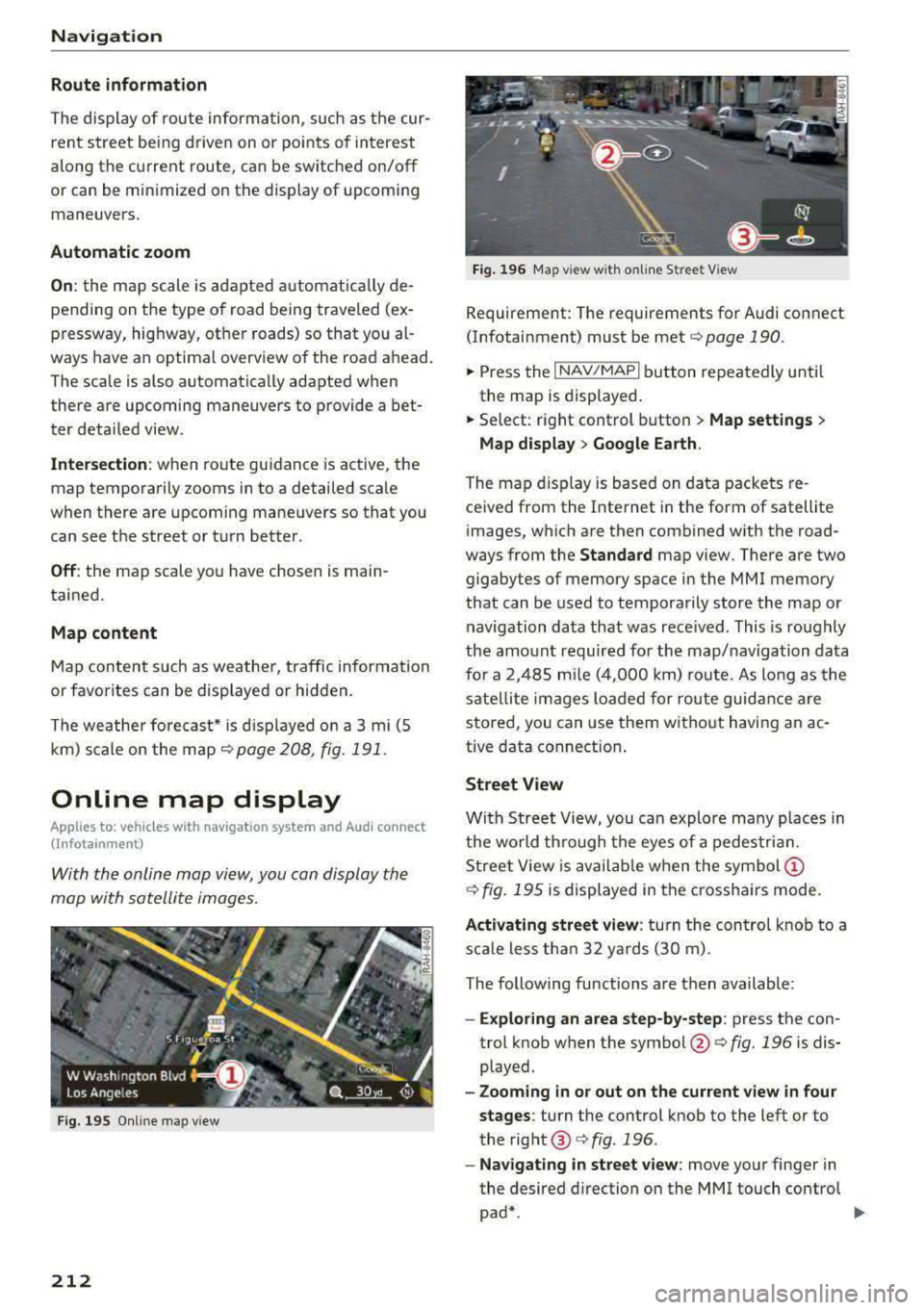
Fig. 196 M ap view w ith o nline St reet View
Requireme nt: The requirements for Audi co nnect
(Infotainment) must be met
¢ page 190.
.,.. Press the I NAV/MAP I button repeatedly u nti l
the map is displayed.
.,.. Select: right control b utton> Map settings >
Map display > Google Earth .
The map dis pl ay is based on da ta packets re
ce ived from the Inte rnet in the form of satellite
images, w hich are then combined with the road
ways from the
Standard map v iew. There a re two
gigabytes of memory space in the MMI memory
that can be used to tempora rily store the map or
navigation da ta that was rece ived . This is roughly
the amo unt requir ed fo r th e map/naviga tion data
fo r a 2, 485 mile (4,0 0 0 k m) ro ute. As lo ng as the
s ate llite ima ges l oaded for route guid ance are
stored, you can use them wi thout h avi ng an ac
tive data connect ion .
Street View
With Stree t View, you can explo re ma ny p lac es in
th e wo rld thr ough t he eyes of a pedes tria n.
S tree t View is availa ble w hen the
sy mb ol(!)
¢ fig. 195 is displayed in t he cross ha irs mode.
Activating street view : turn t he con trol knob to a
s c a le le ss th an 32 yar ds (3 0 m) .
The following functions a re then available :
-Exploring an area step-by-step : press the con
trol knob when t he
symbol @¢ fig. 196 is dis
played.
- Zooming in or out on the current view in four
stages :
turn the control knob to the left or to
the rig ht ®
c:> fig . 196 .
-Navigating in street view : move your finger in
the desired direction on the MMI touch contro l
pad*.
Page 215 of 400
a, a, ..... N
" N ..... 0 N > 00
Additional information
Showing additional informat ion in the Infotain
ment system disp lay can be switched on in the
Map content menu ¢page 212. To display any
applicable additional information, move the
crosshairs onto an item on the map and press the
control knob.
(D Tips
- The stored online map view data can be de
leted in
Factory sett ings > Navigation and
on line memory
¢ page 242.
- The online map view is an Audi connect In
fotainment service and is regu larly updated
when the function is opened. The process
may take several seconds.
- When the on line map view is switched on
using the 30 position map, the MMI display
a utomat ically switches to the 20 map orien
tation when driving through tunnels.
- For safety reasons, the Street View func
tions can o nly be used when the vehicle is
stationary .
- Always read the chapter
¢ page 196, Audi
connect (Infotainment) general informa tion.
- Additional informat ion can be found under
www.audiusa.com /audiconnect .
Map update
Introduction
Applies to: vehicles with navigation system
There are multiple options available for updating
your map mater ial:
- Map updates through the
on line map update*
¢page 213.
-Import map updates from the SD card to you r
MMI. You can find add itional information on
line at
my.audiusa.com.
-Map update at an authorized Audi dealer or au
thorized Audi Service Facility. This can result in
additional costs.
Navigation
Online map update
Applies to: vehicles with navigation system and Audi connect
(Infota inmen t)
Using the online map update, you con update
the map material in your navigation system di
rectly from your vehicle.
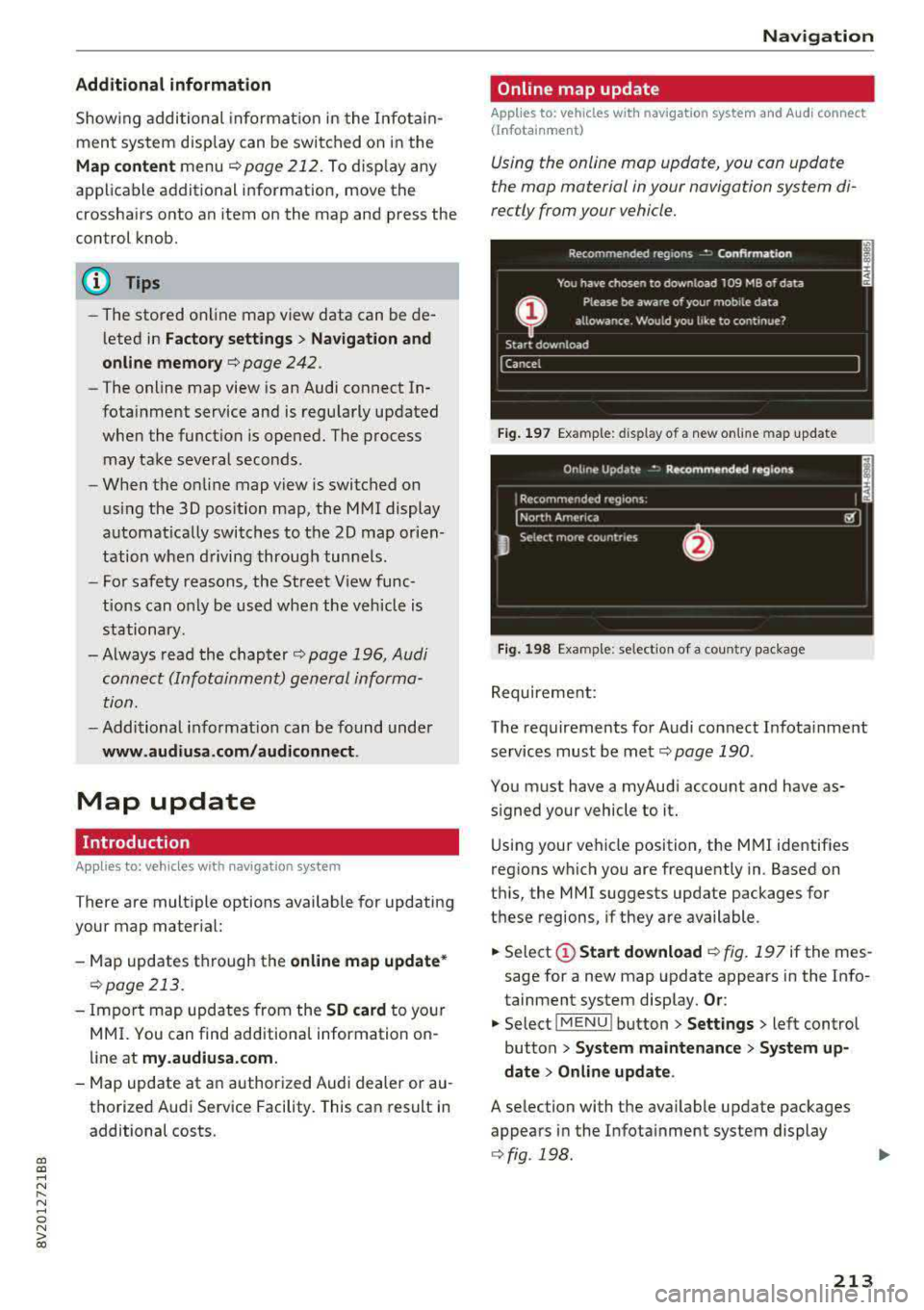
Fig. 197 Example: display of a new on lin e m ap update
Fig. 198 Example: selection of a country package
Requirement:
The requirements for Audi connect Infota inment
services must be
met¢ page 190.
You must have a myAudi account and have as
signed your vehicle to it.
Using your vehicle position, the MMI identif ies
regions which you are frequently in. Based on
this, the MMI suggests update packages for
these regions, if they are available .
.. Select(!) Start download ¢ fig. 197 if the mes
sage for a new map update appears in the Info
tainment system display.
Or :
.. Select iMENU ! button> Settings> left control
button >
System maintenance > System up
date
> Online update.
A selection with the available update packages
appears in the Infota inment system display
¢ fig . 198 .
213
Page 216 of 400
Navigation
Selecting the online map update
- Se lect an update package from the list(~) @
<=>fig. 198 .
-Confirm you r se lection with the I BACK I button
and go back to the selection.
- T he number and amount of data for the select
ed updat e package are now displayed in the In
fotainment system.
Starting the download
- Select and confirm Start download .
-Confirm the secur ity prompt by selecting Start
download
again.
The update packages begin to down load and the
status of the download progress is shown in the
Infotainment system display .
Installation of online map updates
The downloaded map materia l installs after you
stop your vehicle. The new update packages in
stall only after you switch off the ignition. After
restarting the MMI, the Infota inment system dis
play ind icates if the updates installed successful
ly .
- Confirm the successful update with
OK .
The new map materia l can now be used for navi
gation.
(D Tips
- The amount of available on line map up
dates in the vehicle is lim ited . To update
more regions, use the map update via SD
card at
my.audiusa.com .
-Always read the chapter I:!) page 196, Audi
connect (Infotainment) general informa tion.
Accessing traffic information
Traffic information (TMC)
Ap plies to: ve hicles w ith navigation system
.. Press the I NAV/MAPI button repeated ly until
the map is d isp layed .
.. Se lect : left control button > Traffic messages .
214 An ove
rview of all the traffic messages is dis
played in the Infotainment system. Traffic inci
dents on your route are shown in the upper sec
tion of the list, sorted according to distance.
- Displaying all traffic messages for a street/
highway :
select and confirm the [ill symbol. A
list of all the traff ic messages for the selected
street/highway is displayed.
- Opening a detailed view of traffic information:
select and confirm the traffic information from
the list.
-Displaying the selected traffic information on
the map :
select and confirm the right control
button
> Show on map . The shaded line shows
the street and the length of the traffic jam.
-Displaying the next traffic message on the
map :
press the control knob.
Traffic information display
Colored warning symbols:
traffic incidents on
your route are shown in the upper section of the
list and are sorted according to distance.
Warning symbols with~: avoided traffic inci
dents .
Grayed out warning symbols: traffic incidents
that are not on your route. They are sorted ac
cording to road type (expressway, highway, other
road), country and name.
(D Tips
-Critical traffic information, such as warn
ings about wrong -way drivers, is automati
cally displayed. To hide the traffic informa
t ion, press the
I BACK ! button or the control
knob.
- TMC traffic reports are not available in Can
ada. For more information, please contact
Sirius Canada.
Page 217 of 400
CXl CXl .... N ,.__
N .... 0 N > 00
Better route
Applies to: vehicles with navigation system
By receiving traffic information through TMC,
your
M MI calculates a better route -if available -
and the possible time saved for the current route
guidance. You can decide yourself which route
you w ould like to use.
.. Press t he I NAV/MAPI button repeated ly un til
the map is d isp layed .
Requ irement: route gu idance must be active .
I f yo ur MMI has calc ulate d a better route than
the c urrent ro ute guidance, the message
A better
route is available.
appears on the map along
w ith the t ime that may be saved . A better route
i s indicated in the map view wit h the symbol
rS
¢ pag e 209, fig . 194 .
Accept better route
-Press t he right contro l button.
- Se lect and co nfirm the better route.
- The better route is used for the remaining
route g uidance and the route is reca lculated.
Online traffic information
Applies to: vehicles with navigation system and Audi con nect
(Infota inment)
The MMI can receive real-tim e onlin e traffic in
formation about congestion, accidents, road
c onstruc tio n and other incidents.
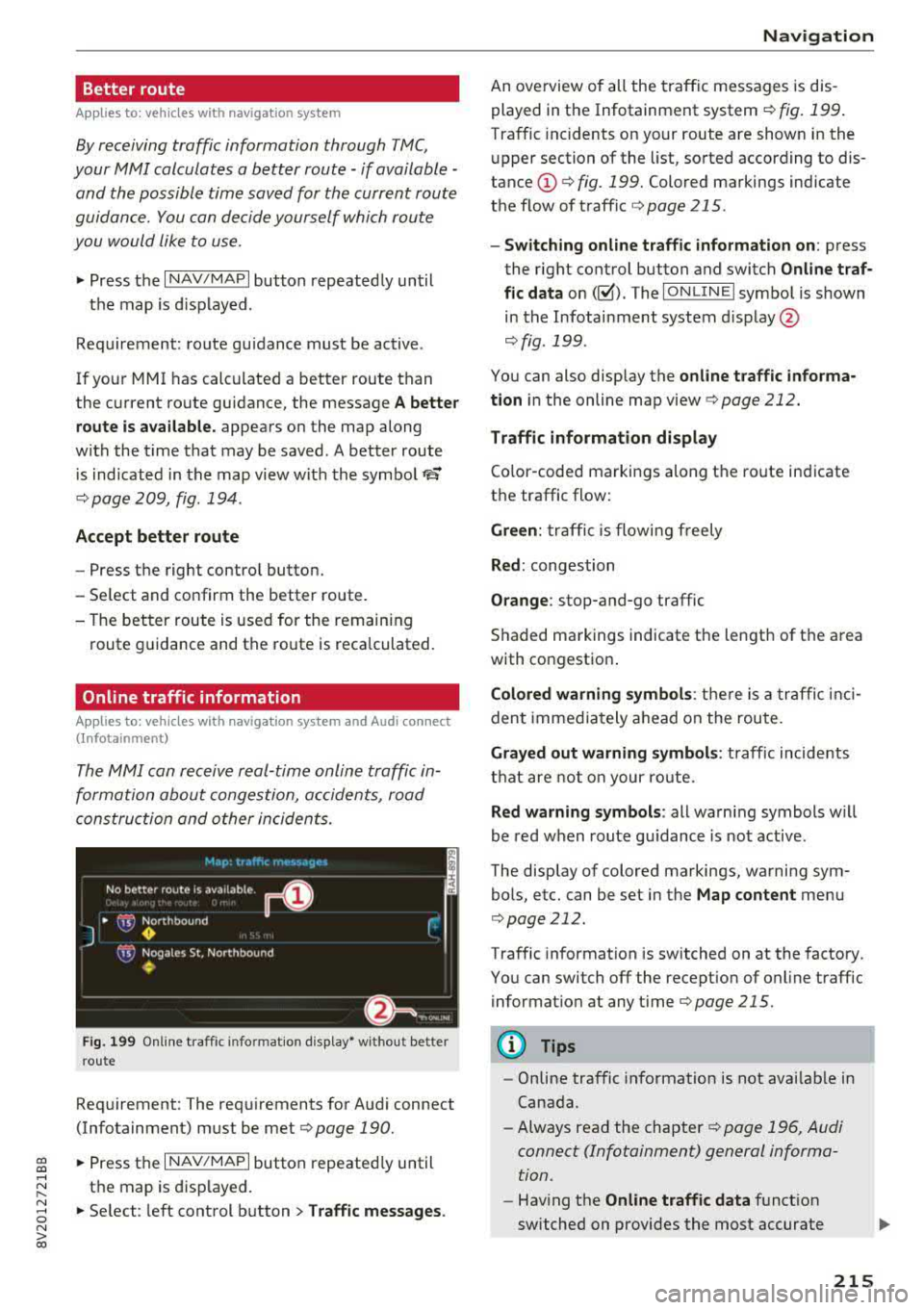
Fig. 199 O nlin e traff ic info rmation display• w it h ou t better
r o ute
Req uirement: The req uirements for A udi connect
(Infotainment) m ust be met
r=> page 190.
.. Press the I NAV/MAPI button repeated ly until
t h e map is d isp layed.
.. Se lect : left cont rol b utton > Traffic messages . Na
vigation
An ove rview of all the traffic messages is dis
played in the Infotainment system
r=> fig. 199.
Tra ffic incidents on your route are show n in the
u pper section of the list, so rted according to dis
tance @ r=> fig. 199. Colored markings ind icate
the flow of t raff ic
r=> page 215 .
-Switching online traffic information on : press
the right control button and switch
Online t raf
fic data
on(~). The I O N LINE I symbo l is s hown
in the Infotai nment system d isp lay @
¢fig . 199 .
You can also disp lay the on line traffic informa
tion
i n the online map view ¢ page 212.
Traffic information display
Co lor-coded ma rkings along t he ro ute in dicate
t h e traffic flow:
Green : tra ffi c is flowing freely
Red : congestion
Orange : stop-and-go traffic
S haded markings indicate t he length of t he a rea
with congestio n.
Colored warning symbols : there is a tra ffi c in ci
den t immedia te ly ahead on the route .
Grayed out warning symbols : traff ic incide nts
t h at are not o n your ro ute.
Red warning symbols : all warning symbols w ill
be red w hen route g uidance is not active .
The disp lay of colored markings, wa rning sym
bols , etc. can be set in the
Map content me nu
r=> page 212.
Tra ffic information is switched on at the factory.
You can switch off the recept ion of on line traffic
i nformation at any
t ime r=> page 215.
0) Tips
-Online traffic in format ion is not avai lab le in
Canada.
- Always read the chapter
r=> page 196, Audi
connect (Infotainment) general informa
tion .
- Hav ing t he Online traffic data fu nct ion
switched on provides the m ost accurate
215
Page 223 of 400
CXl CXl .... N ,.__
N .... 0 N > 00
Additional settings
Radio settings
"'Select: I RADIO! button> right control button>
Radio settings.
The following settings can be selected, depend
ing on the band that is selected :
Station names (FM)
Variable:
scrolling text transmitted by the FM
stations is shown in the Infotainment system dis play.
Fixed : scrolling text transmitted by the FM sta
tions is not shown in the Infotainment system
display. Only the current section of the scrolling
text displayed.
FM/ AM HD Radio*
You can switch HD Radio reception on or off.
Channel sorting (SiriusXM*)
You can set the station sort ing for SiriusXM sta
tion lists* by:
-Channel number: the stat ions are sorted in as
cending order according to their channel num
ber.
- Channel name: the stations are listed in alpha
betical order.
-First category, then channel number: the sta
t ions are sorted by their category and then by
their channe l numbers.
- First category, then channel name : the sta
t ions are sorted by their category and then by
their channe l names.
Category filter (SiriusXM*)
The stations shown in the station list can be fil
tered by your personal preferences and by pro
gram type. The program categor ies that you can
Troubleshooting
Problem
Solution
Radio
select depend on what is offered by your provid
er. Select the
All categories option to deactivate
all filter options and display all available stations
in the satellite station list.
Additional station information
When the function is switched on~ and the sta
tions or presets list is open, the disp lay will
switch to the
Show "Now Playing" screen view
after approximately five seconds
c> page 219. De
pending on availabi lity, information about the
set station (such as station name, artist and sta
tion logo) is displayed in this view .
Preferred picture view*
You can set your preferred screen view for the
Show "Now Playing" screen r=> page 219.
-Station logo: the station logo is displayed, de
pending on availability .
-Cover art: the album cover is displayed if availa-
ble.
Gracenote online database*
Requirement: the MMI must be connected to the
Internet. The
Cover art optio n must be selected
c> page 221, Preferred picture view*.
When the funct ion is switched on~, the album
cover or genre cover for the song that is p lay ing
is loaded from the Gracenote online database,
depending on availability.
Subscription status (SiriusXM)*
This opt ion is available when your subscription is
about to expire or has already expired . The expi
ration date for your license is displayed.
Call to SiriusXM*: the contact information for
your satellite radio provider is displayed . To call
your satellite radio provider using the MMI, press
Call to SiriusXM *.
A station with poo r reception is no longer Store the station as a preset in advance. Access the pre-
displayed in the station list once you sets usi ng the presets list
c> page 220 .
switch to a different station .
221
Page 228 of 400
Media
(D Tips
-Check for any connection requests on your
Bluetooth dev ice .
- Mult iple Bluetooth audio players can be
connected to the MMI, but only one mobile
device can be active.
- Bluetooth protocols AVRCP ( 1.0/1.3/1.4)
and A2DP are suppo rted.
- Note the volume setting on your Bluetooth device. A ud i recommends setting your mo
bile device to the maxim um vo lume when
us ing it as a Bluetooth audio player.
- The supported media functions (such as
sh uffle) depend on the Bluetooth device be
i ng used.
- For more information on the supported de
v ices, visit
www.aud iusa.com /bluetooth or
contact an author ized Audi dealer or author
i zed Audi Service Facility.
Wi-Fi audio player
A ppl ies to: ve hicles w ith Wi-F i
Using the Wi-Fi audio player media source on the
MMI, you can connect and operate your Wi-Fi-ca
pable media player (such as a smartphone) to wirelessly play music from your media player
li
brary. The media player is connected through the
vehicle's Wi -Fi hotspot. A UPnP Server opp or an
integrated UPnPIDLNA server on your media
player is required to access your media player
li
brary.
Requirement: the Wi-Fi function on your media
p layer must be sw itched on. The
Aud i MMI con
n ect
app or a UPnP server app must be installed
on your med ia p layer .
Or: you must be us ing a
media player with an integrated UPnP/DLNA
server.
- Connecting a medi a playe r: press the I MEDIA !
button. Press the left control button unti l the
sources
overview ¢ page 230 is displayed . Se
lect and co nfirm
W i-Fi audio play er 0
¢ page 230, fig . 214 .
- If necessary, select and confirm Wi-F i turn ed
off > Turn on Wi-Fi
to activate Wi-Fi in the
MMI. Select
Wi-Fi s etti ng s, if necessa ry . Se lect
226
the same settings on the wireless media player
that are used for the Wi- Fi hotspot .
-Starting the Wi-Fi audio pla yer : start the Audi
MMI connect
app or a UPnP server app, or set
media permissions on your media player.
Operating the medi a pl ayer : the med ia p layer is
operated through the MM I.
- Press the left control button repeatedly until
the
Folders menu item appears. Select and con
firm
Folder s.
- Playing music from the medi a pla yer:
select
and confirm
M edia cent er.
Web r adio :
see ¢ page 22 7.
A WARNING
-As the d river, do not allow usage of the Wi
Fi hotspot to distract you from driving, as
this could increase the r isk of an accident.
- It is on ly safe to use tablets, laptops, mo
bi le devices and other similar dev ices when
the vehicle is stat ionary because, like all
loose objects, they co uld be thrown around
the inside of the ve hicle in a c rash and ca use
serio us inju ries . Store these types of devices
secure ly while driving.
- Do not use any wire less devices on the front
seats wi thin range of the airbags while dr iv
ing . Also read and follow the warn ings in
¢ page 271, Front airbags.
(D Note
A lways fo llow the information fo und in ¢ (!) in
Wi -Fi hotspo t on page 195.
(D Tips
- Always read the chapter¢ page 196, Audi
connect (Infotainment) general informa
tion.
- Please note that a Wi-F i connection does
not automatically make it possible to use
the Interne t. For addit io nal info rm ation,
see
¢ page 190 .
- To avoid interr upt ions du ring playback, de
act ivate the powe r saving function on the
media player or connect it to a charger.
Page 229 of 400
a, a, ..... N
" N ..... 0 N > 00
-The loading times for the audio data depend
on the media player used and the number of
files that it contains.
- A maximum of 2,000 entries per directory
are displayed in the MMI.
-Songs downloaded for offline use using mu
sic streaming services are stored on your mobile device (such as a smartphone) and
may be ORM protected. The Wi-Fi audio
player will not play ORM protected files.
-Contact an authorized Audi dealer or au
thorized Audi Service Facility for additional information on the Wi-Fi audio player .
Online media and
Internet radio
Applies to: vehicles with Audi connect (Infotainment)
You can playback and operate various online me
dia services and Internet radio using the MMI .
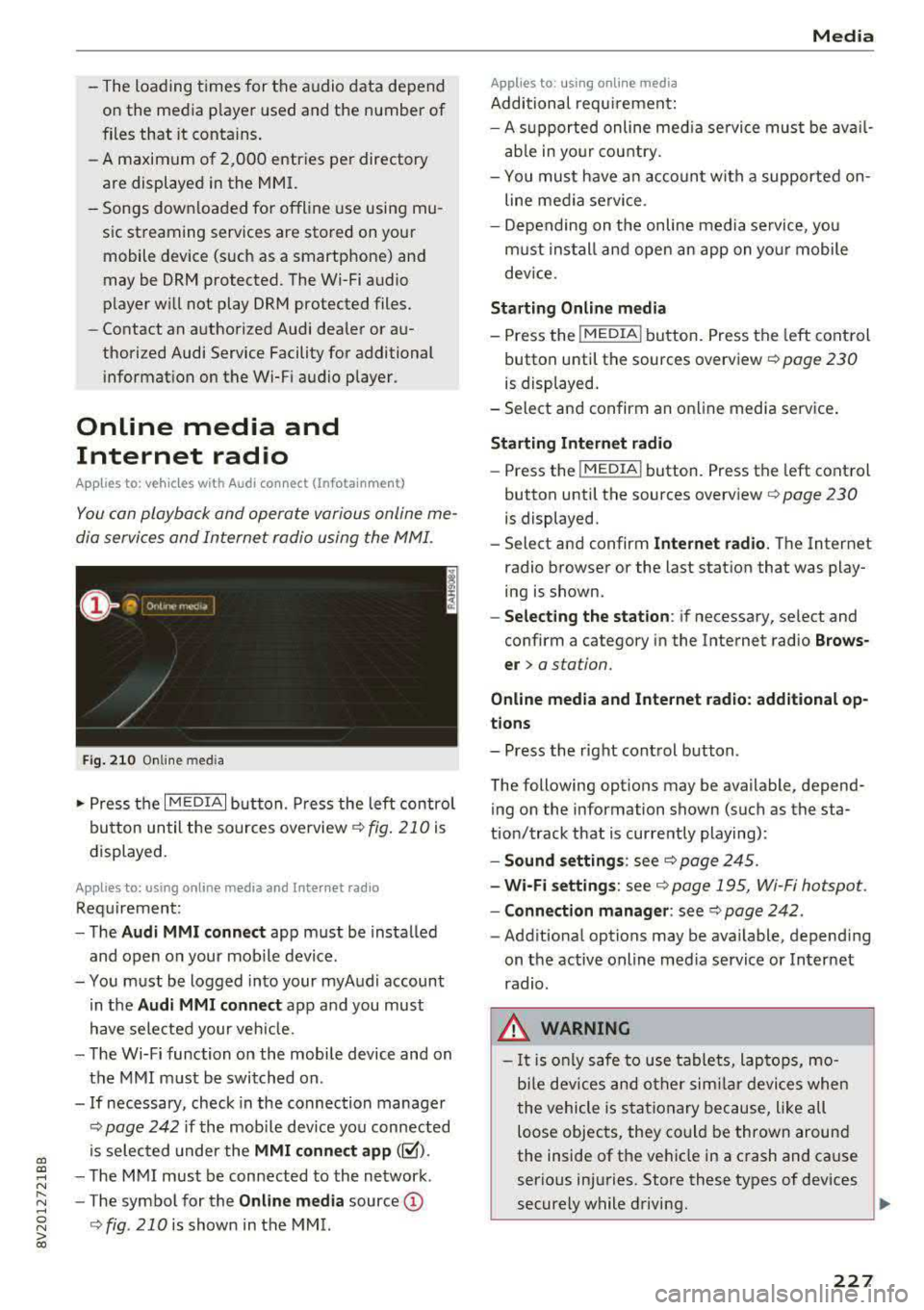
Fig. 210 Online med ia
... Press the I MEDIAi button. Press the left contro l
button until the sources overview
c:> fig. 210 is
displayed.
Applies to: using online media and Internet radio
Requirement:
-The Audi MMI connect app must be installed
and open on your mobile device.
-You must be logged into your myAudi account in the
Audi MMI connect app and you must
have selected your veh icle.
-The Wi-Fi function on the mobile device and on
the MMI must be switched on .
-If necessary, check in the connection manager
c:> page 242 if the mobile dev ice you connected
is selected under the
MMI connect app (~).
-The MMI must be connected to the network .
-The symbol for the Online media source@
<::>fig . 210 is shown in the MMI.
Applies to: using online media
Additional requirement:
Media
-A supported online med ia service must be avail
able in your country.
-You mus t have an account with a supported on
line media service .
-Depending on the on line media service, you
must install and open an app on your mobile
dev ice.
Starting Online media
-Press the I MEDIA i button. Press the left control
button until the sources overview
c:> page 230
is displayed.
-Select and confirm an online media service .
Starting Internet radio
-Press the I MEDIAi button. Press the left control
button until the sources overview
c:> page 230
is displayed.
-Select and confirm Internet radio. The Internet
radio browser or the last station that was play
ing is shown.
-Selecting the station: if necessary, select and
confirm a category in the Internet radio
Brows
er>
a station.
Online media and Internet radio: additional op
tions
-Press the right control button.
The following options may be available, depend ing on the information shown (such as the sta
tion/track that is currently playing):
-Sound settings: see c:> page 245.
-Wi-Fi settings: see c:> page 195, Wi-Fi hotspot.
-Connection manager: see c:> page 242.
-Additional options may be available, depending
on the active online media service or Internet
radio.
_& WARNING
-It is only safe to use tablets, laptops, mo
b ile devices and other similar devices when
the vehicle is stationary because, like all
loose objects, they could be thrown around
the inside of the vehicle in a crash and cause
serious injuries. Store these types of devices
securely while driving.
~
227