MMI AUDI A3 SEDAN 2017 Repair Manual
[x] Cancel search | Manufacturer: AUDI, Model Year: 2017, Model line: A3 SEDAN, Model: AUDI A3 SEDAN 2017Pages: 400, PDF Size: 67.32 MB
Page 219 of 400
Radio
Opening the radio
The radio supports the F M , AM and SiriusXM *
(satellite radio) bands. Using the HO Radio re
ceiver also allows you to receive radio stations
on the FM and AM bands in digital format.
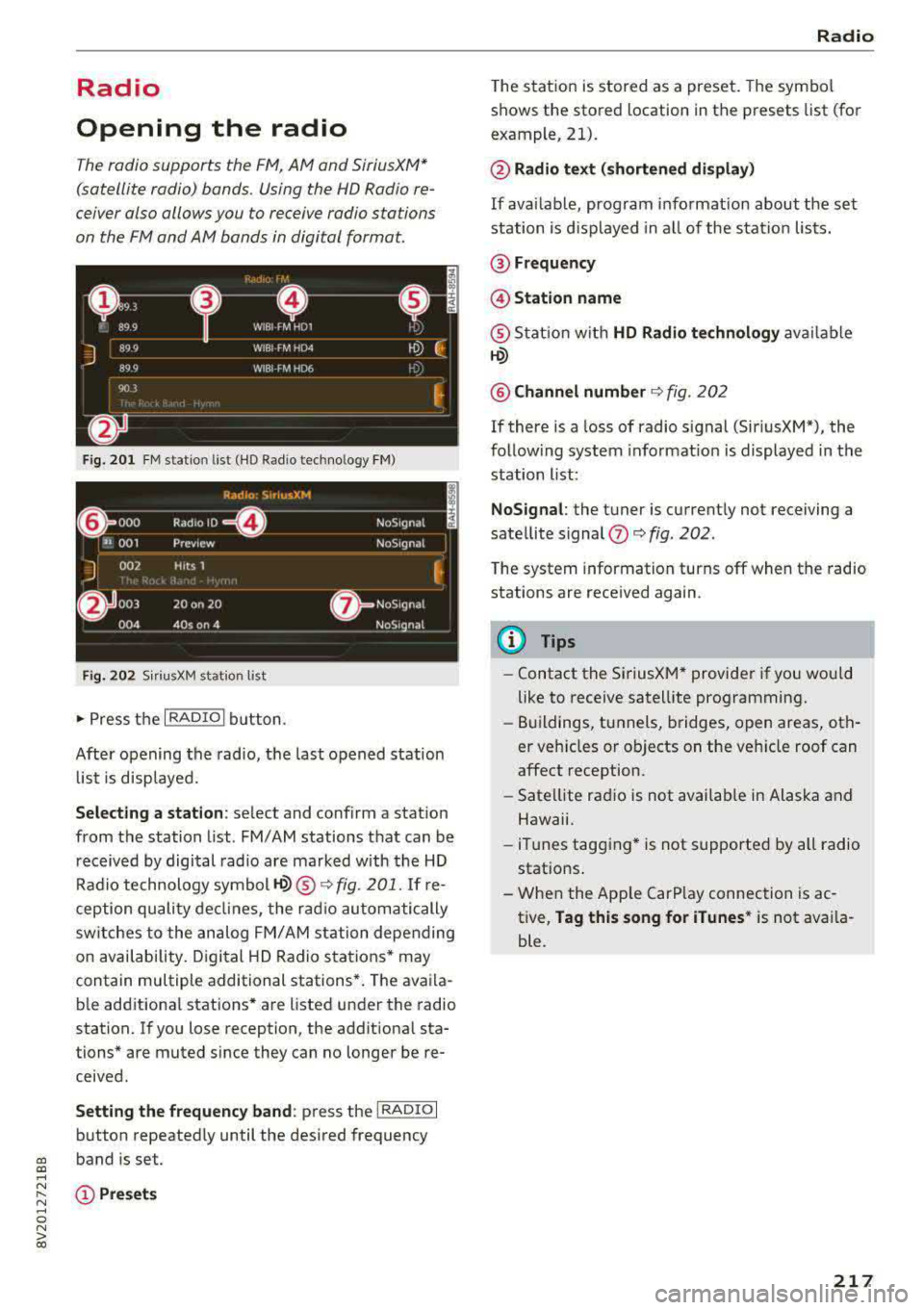
Fig . 201 FM stat ion list ( HO Ra dio tec hn ology FM)
Radio: SiriusXM
~ 000 Rad,olD e· N oS,gnal
'JI 001 Prev iew N oS,gnal
J 002 H tts 1
~
f) 003 20 on 20
NoStgna l
004 40s on 4 NoS,gnal
F ig. 202 Siri usXM station list
.. P ress the I RAD IO I bu tton.
Afte r opening the rad io, t he last opened station
lis t is disp laye d.
.
I
Selecting a station : select and confirm a stat io n
from the station list . FM/ AM stations t hat can be
received by digital rad io are ma rked w ith the HD
R adio technology symbol
tQ) ® ¢fig. 201. If re
ception quality decl ines, the r adio automatically
switches to the analog FM/AM station depe nding
on availability , D igi tal HD Radio s ta tions * may
contain multiple additional stations* . The ava ila
b le add itiona l stations* are listed under the radio
station. I f you lose reception, the add it iona l sta
tions* are muted since they can no longer be re
ceived.
Setting the frequency band : press the I RADIO I
button repeated ly until the desired frequency
a, band is set. a, ....
~ (D Pre sets
.... 0 N > 00
Radio
T he s tation is stored as a preset . The symbol
shows the stored location in the presets list (for
example, 21).
@ Radio text (shortened display )
If availab le, program i nfo rmat ion about the set
station is d isplayed in a ll of the station lists.
@ Frequency
@ Station name
® Stat ion w it h HD Radio te chnology av aila ble
tQ)
@ Channel number ¢ fig. 202
If there is a loss of radio s ignal (Sir iusXM*), the
follow ing system informat io n is displayed in the
station list:
NoSignal : the tu ner is current ly not receiving a
sate llite signal
(fJ ¢ fig. 202 .
The system information turns off when the radio
stations are received again.
(D Tips
-Contact the Si riusXM* provider if you wou ld
like to receive satell ite programming .
- Buildings, tu nnels, b ridges, open areas, oth
er veh icles or objects on the veh icle roof can
affect reception.
- Sate llite rad io is not availab le in Alaska and
Hawaii.
- iTun es tagging * is not supported by all radio
statio ns.
- When the App le CarPlay connection is ac
tive,
Tag this song for iTunes * is not ava ila
ble.
217
Page 220 of 400
Radio
Radio functions
Free text search
App lies to: ve hicles w ith free text search
Using the free text search, you can select the or
der that the search terms are entered in the in
put field. Search in all frequency bands for a sta tion name or program type such as
News ).
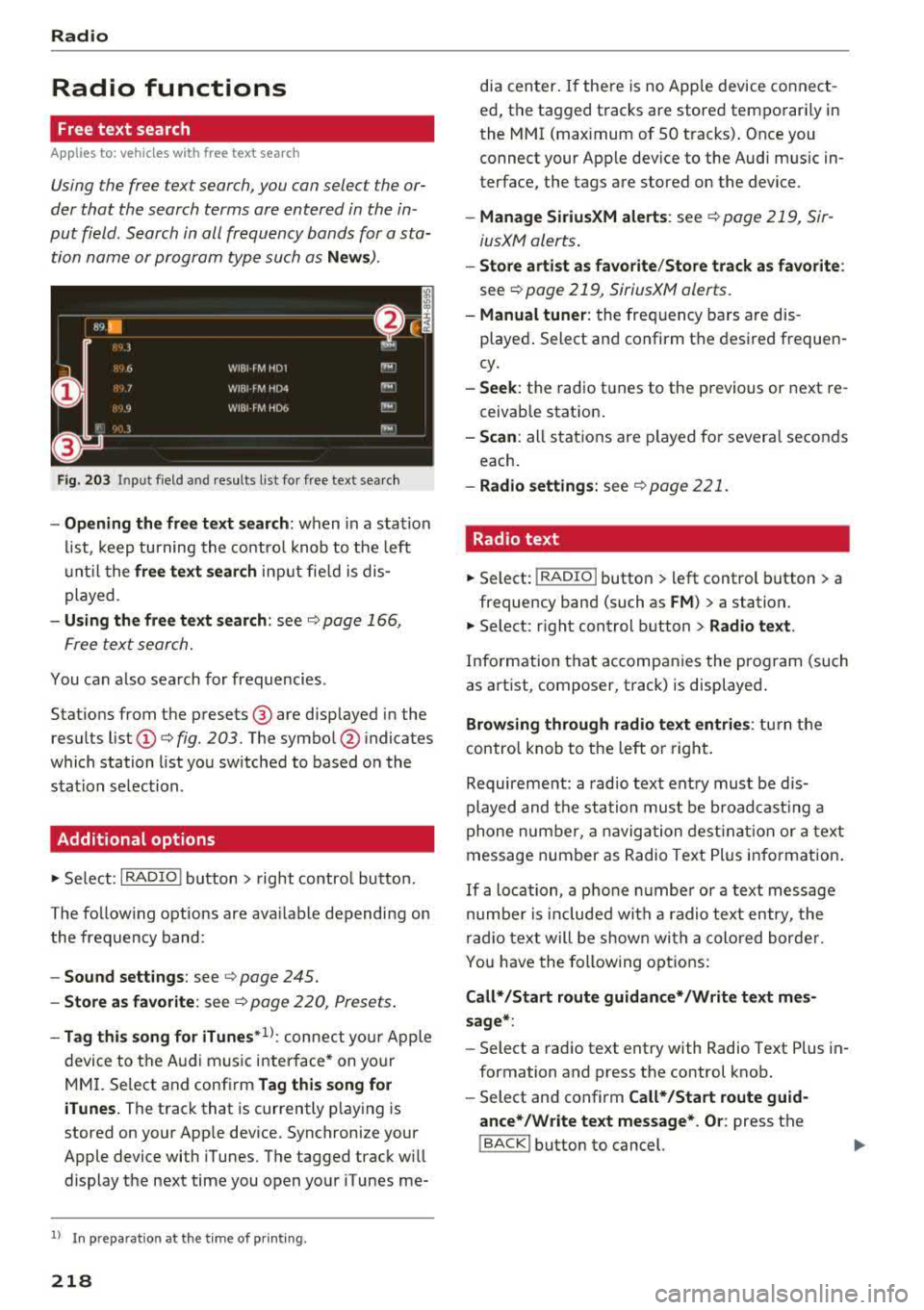
Fig. 203 Input field and results list fo r free text sea rch
- Opening the free text search : when in a s ta tion
list, keep turning the control knob to the left
u nt il the
free text search input fie ld is dis
played .
-Using the free text search: see c::> page 166,
Free text search.
You can a lso search for frequencies.
Stat ions from the presets @ are disp layed in the
results list
(D c::> fig. 203. The symbo l@ indicates
which station list you sw itched to based on the
station selection.
Additional options
.,. Se lect: I RADIO I button > r ight contro l button.
The follow ing options are ava ilable depending on
the frequency band:
- Sound settings : see c::> page 245.
-Store as favorite : see c::> page 220, Presets.
-Tag this song for iTunes*1>: connect your Apple
device to the Audi music interface* on yo ur
MM I. Select and confi rm
Tag this song for
iTunes.
The track that is currently p laying is
stored on your App le device. Synchronize your
Apple device with iTunes. The tagged track w ill
display the next time you open your iTunes me-
1> I n preparation at the t ime of pr inting.
218
dia center . If the re is no Apple device connect
ed, the tagged tracks are stored temporarily in
the MMI (max imum of 50 tracks) . Once you
connect your Apple dev ice to the Audi music in
terface, the tags are stored on the device.
- Manage SiriusXM alerts : see c::> page 219, Sir
iusXM alerts .
-Store artist as favorite /Store track as favorite :
see c::> page 219, SiriusXM alerts.
-Manual tuner : the freq uency bars are dis
played . Select and confirm the desired frequen
cy.
- Seek: the radio tunes to the previous or next re
ceivab le station .
-Scan : all stations are played for severa l seconds
each.
- Radio settings: see c::> page 221.
Radio text
.,. Select: I RADIO I button > left control button > a
frequency band (such as
FM ) > a station.
.,. Select: r ight control button> Radio text .
Information that accompanies the program (such
as artist, composer, t rack) is displayed.
Browsing through radio text entries: turn the
contro l knob to the left o r right.
Requirement: a radio text entry must be d is
played and the station must be broadcast ing a
phone number, a navigation destination or a text
message number as Radio Text Plus information .
If a location, a phone number or a text message
number is included with a radio text entry, the
radio text will be shown with a colored borde r.
You have the following options:
Call* /Start route guidance* /Write text mes
sage* :
-Select a radio text entry with Radio Text Plus in
formation and press the control knob.
- Select and confirm
Call* /Start route guid
ance* /Write text message* . Or :
press the
I BACK I button to cancel.
Page 223 of 400
CXl CXl .... N ,.__
N .... 0 N > 00
Additional settings
Radio settings
"'Select: I RADIO! button> right control button>
Radio settings.
The following settings can be selected, depend
ing on the band that is selected :
Station names (FM)
Variable:
scrolling text transmitted by the FM
stations is shown in the Infotainment system dis play.
Fixed : scrolling text transmitted by the FM sta
tions is not shown in the Infotainment system
display. Only the current section of the scrolling
text displayed.
FM/ AM HD Radio*
You can switch HD Radio reception on or off.
Channel sorting (SiriusXM*)
You can set the station sort ing for SiriusXM sta
tion lists* by:
-Channel number: the stat ions are sorted in as
cending order according to their channel num
ber.
- Channel name: the stations are listed in alpha
betical order.
-First category, then channel number: the sta
t ions are sorted by their category and then by
their channe l numbers.
- First category, then channel name : the sta
t ions are sorted by their category and then by
their channe l names.
Category filter (SiriusXM*)
The stations shown in the station list can be fil
tered by your personal preferences and by pro
gram type. The program categor ies that you can
Troubleshooting
Problem
Solution
Radio
select depend on what is offered by your provid
er. Select the
All categories option to deactivate
all filter options and display all available stations
in the satellite station list.
Additional station information
When the function is switched on~ and the sta
tions or presets list is open, the disp lay will
switch to the
Show "Now Playing" screen view
after approximately five seconds
c> page 219. De
pending on availabi lity, information about the
set station (such as station name, artist and sta
tion logo) is displayed in this view .
Preferred picture view*
You can set your preferred screen view for the
Show "Now Playing" screen r=> page 219.
-Station logo: the station logo is displayed, de
pending on availability .
-Cover art: the album cover is displayed if availa-
ble.
Gracenote online database*
Requirement: the MMI must be connected to the
Internet. The
Cover art optio n must be selected
c> page 221, Preferred picture view*.
When the funct ion is switched on~, the album
cover or genre cover for the song that is p lay ing
is loaded from the Gracenote online database,
depending on availability.
Subscription status (SiriusXM)*
This opt ion is available when your subscription is
about to expire or has already expired . The expi
ration date for your license is displayed.
Call to SiriusXM*: the contact information for
your satellite radio provider is displayed . To call
your satellite radio provider using the MMI, press
Call to SiriusXM *.
A station with poo r reception is no longer Store the station as a preset in advance. Access the pre-
displayed in the station list once you sets usi ng the presets list
c> page 220 .
switch to a different station .
221
Page 224 of 400
Media
Media
Introduction
There are various media drives and connections
avai lab le in the MMI. For example, you can p lay
aud io/video* fi les from the Jukebox* or connect
your mob ile dev ice to the Aud i m usic interface *
and operate it through the MMI.
Notes
General information
Media and format restrictions :
the MMI (includ
in g the SD card reade r and the USB storage de
vice co nnect ion *) was tested w ith a var iety of
products and media on the market. However,
there may be cases where ind iv idual devices or
media and audio/video files" may not be recog
n ized, may play o nly w ith restr ictions or may not
p lay a t all.
Dig ital Rights Management : please note that
t he audio/v ideo" files are subject to copyright
protection .
The media drives do not p lay f iles that a re pro
tected by OR M and that are ident ified with the
symbo l
!'.TI.
Data secu rity : never store im portant data on SD
cards, the Ju kebox *, CDs/DVDs o r mobile devices.
Aud i AG is not responsib le for damaged or lost
fi les and media .
Loading times : th e mo re files/fo lde rs/ play lists
that are on a sto rage medium, the longer it will
take to load the audio/video* files . Audi recom
mends us ing storage media tha t on ly conta in au
d io/video files* . T o decrease the t ime it takes to
load audio/v ideo f iles*, crea te subfo lders ( fo r ex
a m ple , fo r th e a rt ist o r album). The loading time
will also increa se whe n importing fi les.
Additional information : when playing, audio
fil es are automatically displayed with any add i
tional informa tion that is s to red (such as the ar
tis t, track and al bum cover).
If this in forma tio n is
no t a vai lable o n the storage mediu m, t he MMI
wi ll check the Gr ace no te met adata database .
222
However, in some cases, the additional in forma
tion may not be dis played.
Restri cted functionality : reset the Media set
tings
t o the facto ry de fault se ttings i f func tional
i ty is res tric ted
¢ page 2 42.
If functionality is restr icte d, reset the Jukebox*
to t he fa ctory defa ult se tt in gs ¢ page 242.
For informa tion abo ut the propert ies of s upport
ed med ia and fi le formats, see
¢ page 235 .
W Note
Always fo llow the information fo und in c::> (D in
W i- Fi hotspot on page 195 .
CD/DVD operation
CD /DVD and format restrictions :
th e f unct iona li
ty o f indivi dual sto rage media m ay be limi ted due
to t he v ariety of b lank C Ds/DV Ds av a ila b le and
t h e v arious cap acities. Audio CDs or video DV Ds
with copy protection, CDs/D VDs that do not con
form to the standard and mult isess ion CDs may
hav e limit ed playback or may not play at all. Audi
r ecommends finali zing the recording process
whe n creat ing mult isess ion CDs . Mult isess ion is
not supported for DVDs .
Using CDs/DVDs, the CD dr ive or the DVD drive :
to ensure correct, hig h-q uality playback and to
prevent damage to the dr ive or disc read ing er
r ors, always store CDs/DVDs in a protec tive
s leeve and do no t expose them to direct s unlight .
Do
not u se:
- Damaged, dirty or sc ratched CDs/DVDs
- Single CDs/DVDs (3 in diameter)
- CD/DVDs that a re not roun d
- CDs/DV Ds w ith labe ls
- Protec tive rings
- Clean ing CDs
Thermal protection switch : CD/DVD playback
may be temporarily unavailable if o utside tem
p eratures a re extremely hot or co ld. A t hermal
pro tect io n sw itch is insta lled t o protect the C D/
DVD and t he laser.
Laser devices : las er devices a re divide d into safe -
ty classes 1 to 4 in accordance with DI N IE C 76
.,..
Page 225 of 400
(CO) 6/VDE 0837. The optical readers that are in
stalled conform to safety class
1. Lasers in this
class are very weak and well shielded, so there is no danger if used correctly.
Media drives
SD card reader
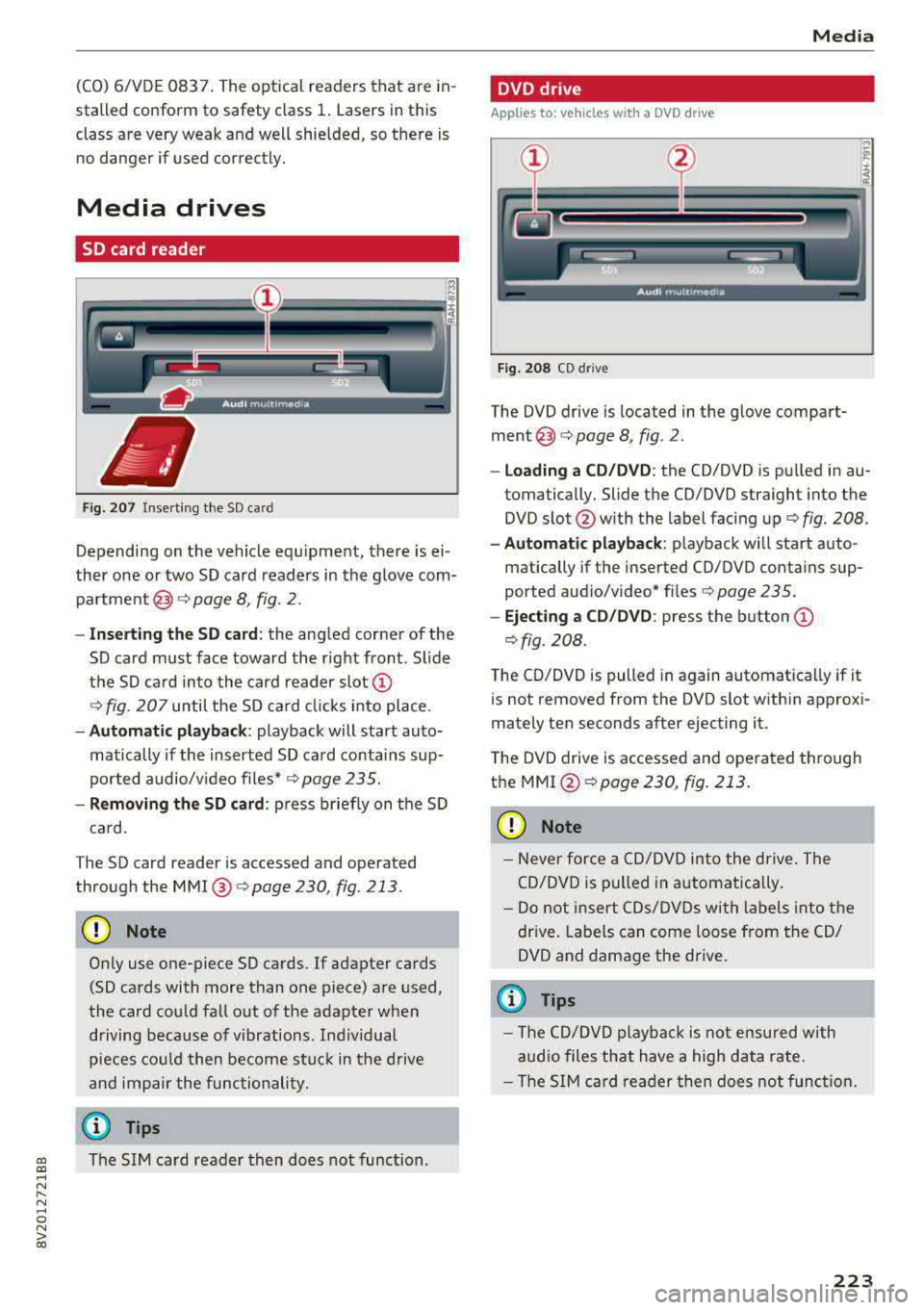
Fig. 207 Inse rting the SD card
Depending on the vehicle equipment, there is ei
ther one or two SD card readers in the glove com
partment @) ¢page 8, fig. 2.
-Inserting the SD card: the angled corner of the
SD card must face toward the right front. Sl ide
the SD card into the card reader
slot @
<=:>fig . 207 until the SD card clicks into place .
-Automatic playback: playback will start auto
matically if the inserted SO card contains sup
ported audio/video
files* ¢ page 235.
-Removing the SD card: press briefly on the SD
card.
The SO card reader is accessed and operated
through the MMI @
¢page 230, fig . 213 .
(D Note
Only use one-piece SO cards. If adapter cards
(SO cards with more than one piece) are used,
the card could fall out of the adapter when
driving because of vibrations . Individual
pieces could then become stuck in the drive
and impair the functionality.
(r} Tips
gi The SIM card reader then does not function .
..... N
" N ..... 0 N > 00
Media
DVD drive
Applies to: vehicles with a DVD drive
Fig. 208 CD drive
The DVD drive is located in the glove compart
ment@) c::> page 8, fig. 2.
-Loading a CD/DVD: the CO/DVD is pulled in au
tomatically. Slide the CO/DVD straight into the
DVD slot @with the label facing up
c::> fig. 208.
-Automatic playback: playback wi ll start auto-
matically if the inserted CO/DVD contains sup
ported aud io/video* files
c::> page 235 .
-Ejecting a CD/DVD : press the button (D
<=:>fig. 208.
The CD/DVD is pulled in again automatically if it
is not removed from the DVD slot within approxi
mately ten seconds after ejecting it.
The DVD drive is accessed and operated through
the
MMI @c::>page230, fig. 213 .
(D Note
-Never force a CD/DVD into the drive. The
CO/DVD is pulled in automatically.
- Do not insert CDs/DVDs with labels into the
dr ive. Labe ls can come loose from the CO/
DVD and damage the drive.
(D Tips
- The CO/DVD playback is not ensured with
audio files that have a high data rate .
- Th e SIM card reader then does not function.
223
Page 226 of 400
Media
CD drive
Applies to: vehicles w ith a CD drive
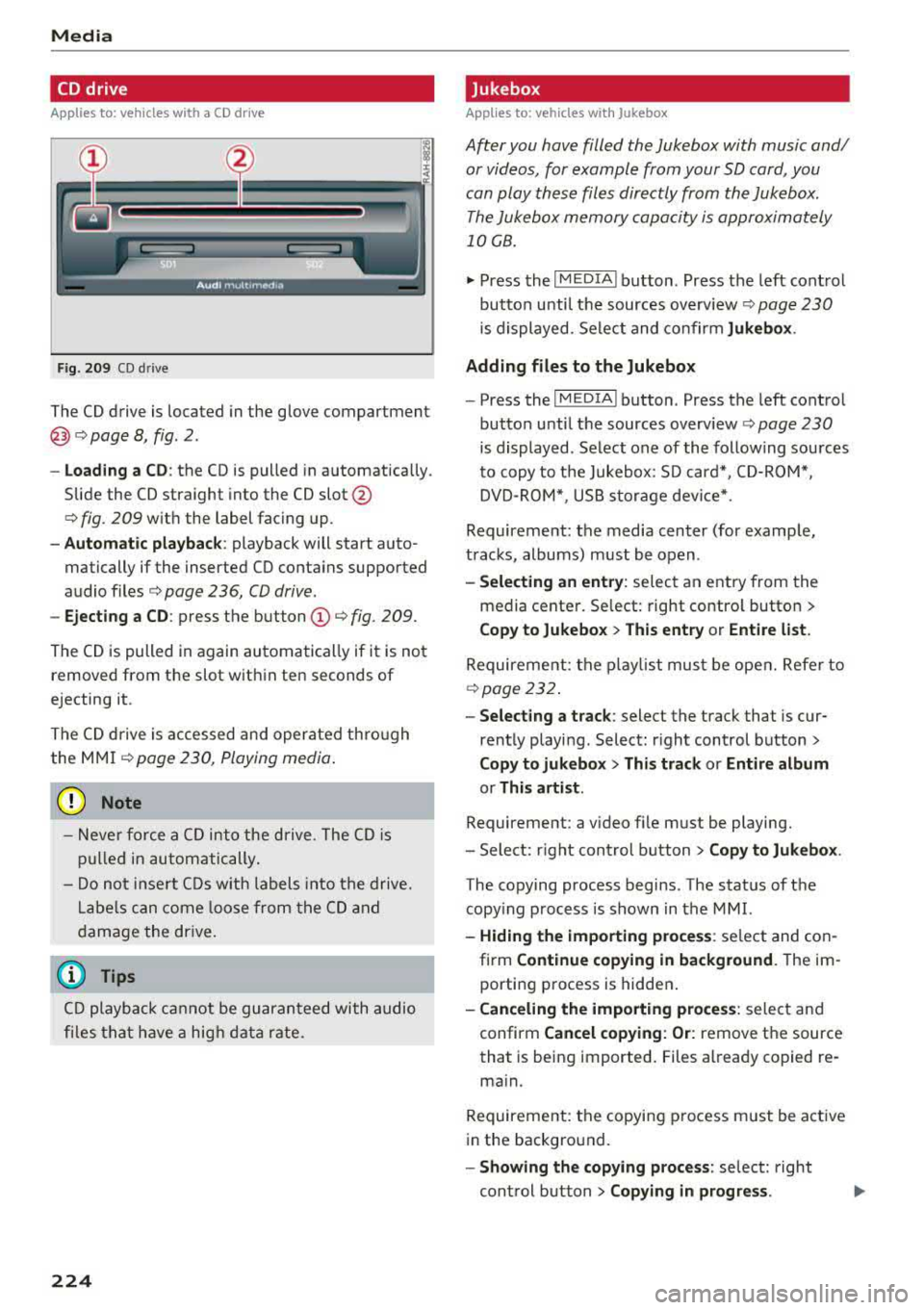
Fig. 209 CO drive
The CD drive is located in the glove compartment
@r=>page 8, fig. 2.
- Loading a CD : the CD is pulled in automatically.
Slide the CD straight into the CD
slot@
r=> fig. 209 with the label facing up.
-Automatic playback: playback will start auto
matically if the inserted CD contains supported
audio files
r=> page 236, CD drive.
- Ejecting a CD : press the button (Dr=> fig. 209.
The CD is pulled in again automatically if it is not
removed from the slot within ten seconds of
ejecting it.
The CD drive is accessed and operated through
the MMI
r=> page 230, Playing media.
(D Note
- Never force a CD into the drive. The CD is
pulled in automatically.
- Do not insert CDs with labels into the drive.
Labels can come loose from the CD and
damage the drive.
@ Tips
CD playback cannot be guaranteed with audio
files that have a high data rate.
224
· Jukebox
Applies to: vehicles wit h Jukebox
After you have filled the Jukebox with music and/
or videos, for example from your SD card, you
can play these files directly from the Jukebox. The Jukebox memory capacity is approximately
10 GB .
.,. Press the I MEDIA ! button. Press the left control
button until the sources overview
r=> page 230
is displayed. Select and confirm Jukebox.
Adding files to the Jukebox
- Press the IM EDIA ! button. Press the left control
button until the sources overview
r=> page 230
is displayed. Select one of the following sources
to copy to the Jukebox: SD card*, CD-ROM*,
DVD-ROM*, USB storage device*.
Requirement: the media center (for example,
tracks, albums) must be open .
-Selecting an entry: select an entry from the
media center. Select: right control button >
Copy to Jukebox> This entry or Entire list.
Requirement: the playlist must be open. Refer to
r=>page 232.
- Selecting a track: select the track that is cur
rently playing. Select: right control button>
Copy to jukebox> This track or Entire album
or This artist.
Requirement: a video file must be playing.
- Select: right control button>
Copy to Jukebox.
The copying process begins. The status of the
copying process is shown in the MMI.
-Hiding the importing process : select and con
firm
Continue copying in background. The im
porting process is hidden.
- Canceling the importing process: select and
confirm
Cancel copying: Or: remove the source
that is being imported. Files already copied re
main.
Requirement: the copying process must be active
in the background.
-Showing the copying process: select: right
control button >
Copying in progress.
Page 227 of 400
CXl CXl .... N r---N .... 0
When importing, the audio files a re automatical
l y sorted into the media center categor ies based
on the stored addit ional info rmation
c:> page 231. The copied video files are stored in
the media ce nter under the
Videos category.
Playing the Ju kebo x
Req uirement: the J ukebox must contain audio/
vi deo fi les
c:> page 224, Adding files to the Juke
box.
The Jukebox is a ccesse d and ope rated thr ou gh
the
M MI(D c:>page230, fig. 213.
Displaying Jukebox memory capacity
Select: r igh t control button > Jukebox memory
c apacity .
Inform ation abou t the J ukebox memory
c a pacity and the numbe r of store d tra cks is dis
p layed .
Deleting tracks from the Jukebox1
)
Req uirement: the Ju kebox must contain audio/
video fi les.
- Deleting an entry : select an entry from the
Jukebox media center. Select: rig ht cont ro l but
ton
> Delete from jukebox > This entry or En
tire list .
- The s tatus of the de leti ng p rocess is shown in
the MMI. Jukebox playback stops d uring the de
l eting process a nd starts again au tomatically
on ce the dele tio n i s comp lete.
(D Note
D o not import au dio/video files when the en
g in e is t urned off because this will d rain the
ve hicl e battery.
(D Tips
-Tracks fro m aud io C Ds cannot be impo rted
t o the Jukebox for leg al re as ons .
- Files that have al rea dy been import ed are
a utomat ica lly recogn ized and ca nnot be
cop ied to the Juk ebox again.
-It is no t possib le to play audio/v ideo* files
i n the C D/D VD* drive while import ing the m.
N iii l) Not in th e Playba ck view .
Media
-The Jukebox does not provi de a n export
function d ue to legal reasons .
- F iles o r trac ks w ithout addi tion al store d in
formatio n are listed as
Unknown . Audi rec
ommends adding a dditio nal info rmation
(such as 103 tags) to a udio f iles.
- Reset the
Jukebox to the factory defa ult
sett ings when selling you r vehicle
<=:> page 242.
Bluetooth audio player
Appl ies to: vehicles with Bluetooth
With the Bluetooth audio player , you con ploy
music wirelessly from your Bluetooth-capoble
device (such as a cell phone) through the MMI.
Requirement: the vehicle must be stationary and
t h e Bluetooth function on your Bl uetooth device
and the
Bluetooth audio player c:> page 244 in
the MMI m ust both be switched on .
- Connecting a
Bluetooth dev ice : press the
!MEDI Ai butto n. Press the left control button
until the sources overview is disp layed. Selec t
and confirm Bluetooth audio player ®
<=:>page 230, fig. 214 .
-If necessa ry, select and co nfirm, Not connected
> Connect Bluetooth audio player . The Blue
t oot h dev ice searc h starts. Follow the inst ru c
tion s in the M MI.
- Select and confirm the des ired Bluetooth d e
vice from the list. The M MI generates a PIN fo r
t he conne ction.
- Select an d confirm
Yes .
-En ter the PIN for connect ing o n your Bl uetoo th
dev ice .
Or : if the PIN is already displayed on
your Bl uetoo th device, co nfi rm i t in the Bl ue
t ooth dev ice and in the MMI. The t ime a llowed
for ente ring the P IN is lim ite d t o approx ima tely
30 seconds.
T he media is s tarted and operated thro ugh the
mobile device o r th e
M MI, depending on t he de-
vi ce being used.
..,.
225
Page 228 of 400
Media
(D Tips
-Check for any connection requests on your
Bluetooth dev ice .
- Mult iple Bluetooth audio players can be
connected to the MMI, but only one mobile
device can be active.
- Bluetooth protocols AVRCP ( 1.0/1.3/1.4)
and A2DP are suppo rted.
- Note the volume setting on your Bluetooth device. A ud i recommends setting your mo
bile device to the maxim um vo lume when
us ing it as a Bluetooth audio player.
- The supported media functions (such as
sh uffle) depend on the Bluetooth device be
i ng used.
- For more information on the supported de
v ices, visit
www.aud iusa.com /bluetooth or
contact an author ized Audi dealer or author
i zed Audi Service Facility.
Wi-Fi audio player
A ppl ies to: ve hicles w ith Wi-F i
Using the Wi-Fi audio player media source on the
MMI, you can connect and operate your Wi-Fi-ca
pable media player (such as a smartphone) to wirelessly play music from your media player
li
brary. The media player is connected through the
vehicle's Wi -Fi hotspot. A UPnP Server opp or an
integrated UPnPIDLNA server on your media
player is required to access your media player
li
brary.
Requirement: the Wi-Fi function on your media
p layer must be sw itched on. The
Aud i MMI con
n ect
app or a UPnP server app must be installed
on your med ia p layer .
Or: you must be us ing a
media player with an integrated UPnP/DLNA
server.
- Connecting a medi a playe r: press the I MEDIA !
button. Press the left control button unti l the
sources
overview ¢ page 230 is displayed . Se
lect and co nfirm
W i-Fi audio play er 0
¢ page 230, fig . 214 .
- If necessary, select and confirm Wi-F i turn ed
off > Turn on Wi-Fi
to activate Wi-Fi in the
MMI. Select
Wi-Fi s etti ng s, if necessa ry . Se lect
226
the same settings on the wireless media player
that are used for the Wi- Fi hotspot .
-Starting the Wi-Fi audio pla yer : start the Audi
MMI connect
app or a UPnP server app, or set
media permissions on your media player.
Operating the medi a pl ayer : the med ia p layer is
operated through the MM I.
- Press the left control button repeatedly until
the
Folders menu item appears. Select and con
firm
Folder s.
- Playing music from the medi a pla yer:
select
and confirm
M edia cent er.
Web r adio :
see ¢ page 22 7.
A WARNING
-As the d river, do not allow usage of the Wi
Fi hotspot to distract you from driving, as
this could increase the r isk of an accident.
- It is on ly safe to use tablets, laptops, mo
bi le devices and other similar dev ices when
the vehicle is stat ionary because, like all
loose objects, they co uld be thrown around
the inside of the ve hicle in a c rash and ca use
serio us inju ries . Store these types of devices
secure ly while driving.
- Do not use any wire less devices on the front
seats wi thin range of the airbags while dr iv
ing . Also read and follow the warn ings in
¢ page 271, Front airbags.
(D Note
A lways fo llow the information fo und in ¢ (!) in
Wi -Fi hotspo t on page 195.
(D Tips
- Always read the chapter¢ page 196, Audi
connect (Infotainment) general informa
tion.
- Please note that a Wi-F i connection does
not automatically make it possible to use
the Interne t. For addit io nal info rm ation,
see
¢ page 190 .
- To avoid interr upt ions du ring playback, de
act ivate the powe r saving function on the
media player or connect it to a charger.
Page 229 of 400
a, a, ..... N
" N ..... 0 N > 00
-The loading times for the audio data depend
on the media player used and the number of
files that it contains.
- A maximum of 2,000 entries per directory
are displayed in the MMI.
-Songs downloaded for offline use using mu
sic streaming services are stored on your mobile device (such as a smartphone) and
may be ORM protected. The Wi-Fi audio
player will not play ORM protected files.
-Contact an authorized Audi dealer or au
thorized Audi Service Facility for additional information on the Wi-Fi audio player .
Online media and
Internet radio
Applies to: vehicles with Audi connect (Infotainment)
You can playback and operate various online me
dia services and Internet radio using the MMI .
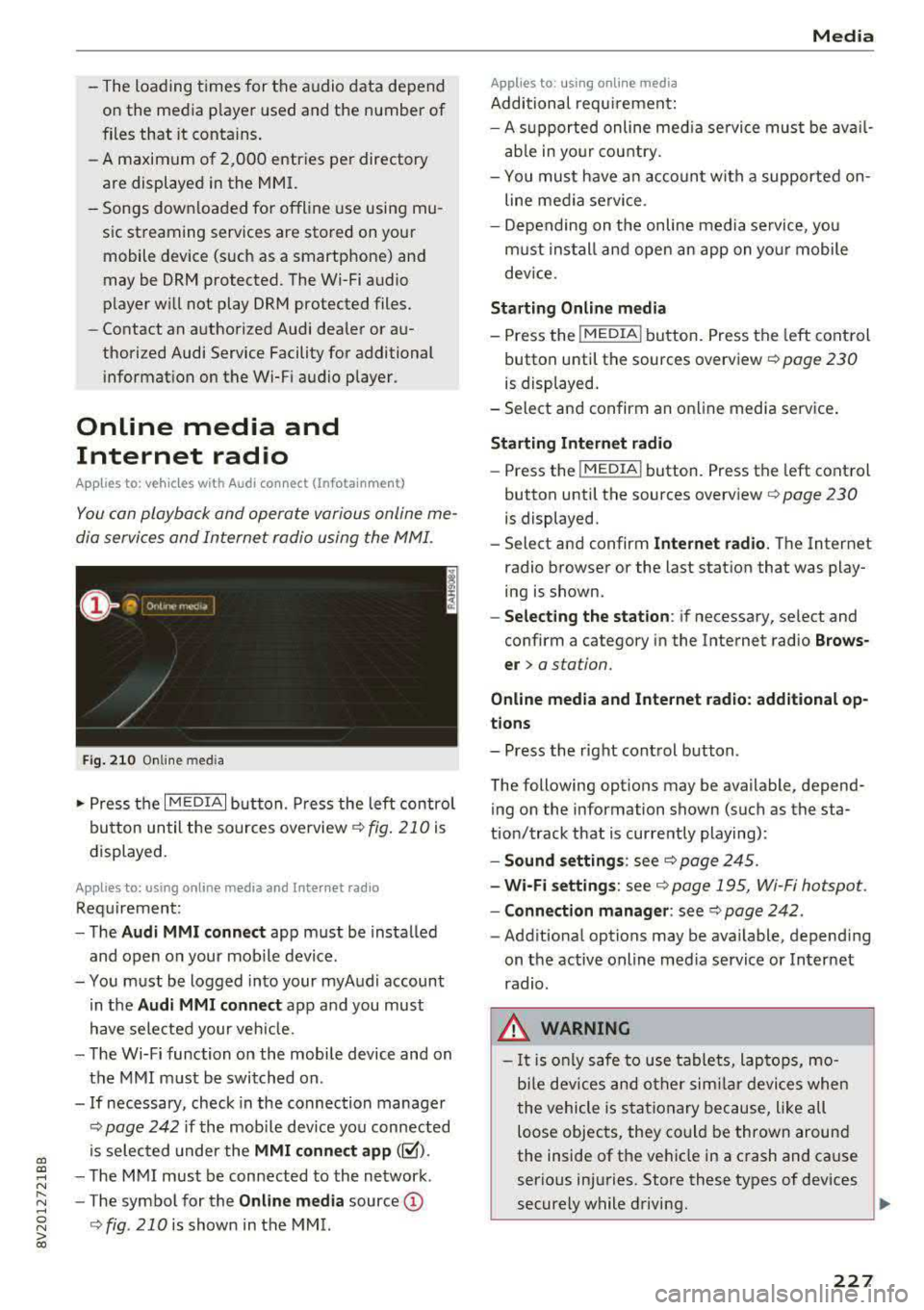
Fig. 210 Online med ia
... Press the I MEDIAi button. Press the left contro l
button until the sources overview
c:> fig. 210 is
displayed.
Applies to: using online media and Internet radio
Requirement:
-The Audi MMI connect app must be installed
and open on your mobile device.
-You must be logged into your myAudi account in the
Audi MMI connect app and you must
have selected your veh icle.
-The Wi-Fi function on the mobile device and on
the MMI must be switched on .
-If necessary, check in the connection manager
c:> page 242 if the mobile dev ice you connected
is selected under the
MMI connect app (~).
-The MMI must be connected to the network .
-The symbol for the Online media source@
<::>fig . 210 is shown in the MMI.
Applies to: using online media
Additional requirement:
Media
-A supported online med ia service must be avail
able in your country.
-You mus t have an account with a supported on
line media service .
-Depending on the on line media service, you
must install and open an app on your mobile
dev ice.
Starting Online media
-Press the I MEDIA i button. Press the left control
button until the sources overview
c:> page 230
is displayed.
-Select and confirm an online media service .
Starting Internet radio
-Press the I MEDIAi button. Press the left control
button until the sources overview
c:> page 230
is displayed.
-Select and confirm Internet radio. The Internet
radio browser or the last station that was play
ing is shown.
-Selecting the station: if necessary, select and
confirm a category in the Internet radio
Brows
er>
a station.
Online media and Internet radio: additional op
tions
-Press the right control button.
The following options may be available, depend ing on the information shown (such as the sta
tion/track that is currently playing):
-Sound settings: see c:> page 245.
-Wi-Fi settings: see c:> page 195, Wi-Fi hotspot.
-Connection manager: see c:> page 242.
-Additional options may be available, depending
on the active online media service or Internet
radio.
_& WARNING
-It is only safe to use tablets, laptops, mo
b ile devices and other similar devices when
the vehicle is stationary because, like all
loose objects, they could be thrown around
the inside of the vehicle in a crash and cause
serious injuries. Store these types of devices
securely while driving.
~
227
Page 230 of 400
Media
-Do not u se any wireless devices on the fro nt
seats within range of the airba gs w hile driv
ing. Also read and follow the warnings in
r=> page 271, Fro nt airbags.
CD Note
- Always follow the information found in ¢ 0
in Wi-Fi hotspot on page 195 .
-Please note that there generally are add i
tiona l costs when using an online media
service account, especially when it is used i nternationally.
{!) Tips
-Depending on the Internet connection and
network traff ic, a connection loss can occur
during p layback of on line media serv ices.
-Online media and Internet radio usage de
pends on the serv ice avai lability of the third
party provider.
- Audi AG simply makes the access to on line
media serv ices possible t hrough the MMI
and does not take any respons ibility for the
contents of the onli ne med ia serv ices .
-Always read the chapter r:> page 196, Audi
connect (Infotainment) general informa tion.
-Depending on the mobile device used, the re
may be interr uptions du ring media playback
and when using the
Audi MMI connect app.
T o avoi d inter ruption s when usi ng a mob ile
device, do no t loc k t he s creen on you r mo
bi le dev ice a nd keep the
Audi MMI connect
app in the foreground .
- Co ntact an a utho rized Audi dea le r or a u
thorized Audi Service Facili ty for additional
informat ion about on line media .
228
Multimedia connections
USB adapter for Audi music interface
You can connect your mobile devices (such as a
smartphone or
MP3 player) to the Audi music in
terface and charge them using a special USB
adapter .
®-
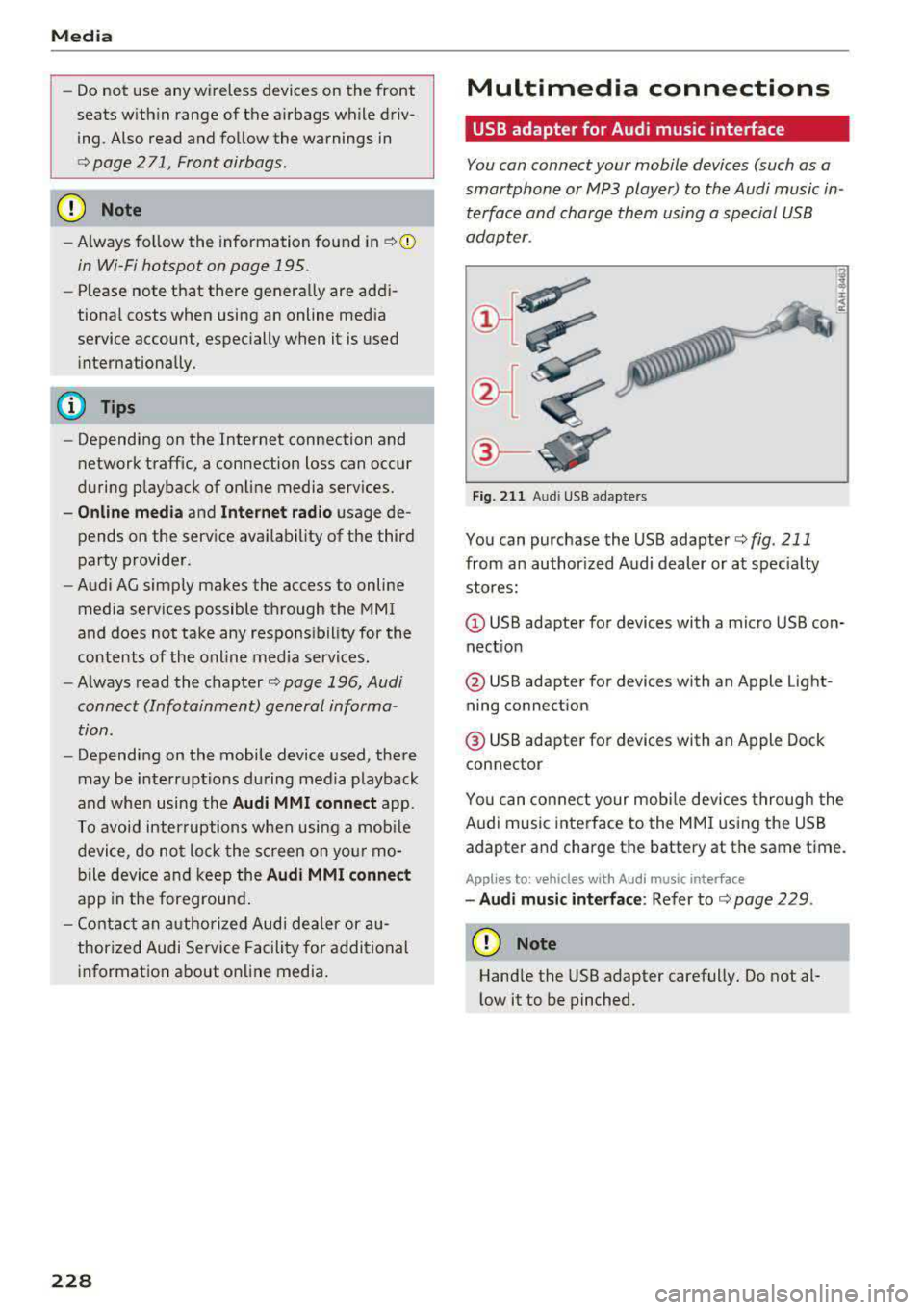
Fig. 2 11 Audi USB adapters
You can purchase the USB adapter ¢ fig . 211
from an author ized Audi dealer or at spec ia lty
stores:
Q) USB adapter for devices with a micro USB con
nect ion
@ USB adapter for devices with an Apple Light
ning connect ion
@ USB adapte r for devices with an Apple Dock
connector
You can conne ct your mob ile dev ices throug h the
Audi music interface to the MM I using the USB
adapter and charge the battery at the same time.
Applies to: vehicles wit h Aud i music interface
-Audi musi c interface : Refer to¢ page 229.
CD Note
Handle the USB adapter carefully. Do not al
l ow it to be pinched .