service AUDI A3 SEDAN 2017 Manual PDF
[x] Cancel search | Manufacturer: AUDI, Model Year: 2017, Model line: A3 SEDAN, Model: AUDI A3 SEDAN 2017Pages: 400, PDF Size: 67.32 MB
Page 215 of 400
a, a, ..... N
" N ..... 0 N > 00
Additional information
Showing additional informat ion in the Infotain
ment system disp lay can be switched on in the
Map content menu ¢page 212. To display any
applicable additional information, move the
crosshairs onto an item on the map and press the
control knob.
(D Tips
- The stored online map view data can be de
leted in
Factory sett ings > Navigation and
on line memory
¢ page 242.
- The online map view is an Audi connect In
fotainment service and is regu larly updated
when the function is opened. The process
may take several seconds.
- When the on line map view is switched on
using the 30 position map, the MMI display
a utomat ically switches to the 20 map orien
tation when driving through tunnels.
- For safety reasons, the Street View func
tions can o nly be used when the vehicle is
stationary .
- Always read the chapter
¢ page 196, Audi
connect (Infotainment) general informa tion.
- Additional informat ion can be found under
www.audiusa.com /audiconnect .
Map update
Introduction
Applies to: vehicles with navigation system
There are multiple options available for updating
your map mater ial:
- Map updates through the
on line map update*
¢page 213.
-Import map updates from the SD card to you r
MMI. You can find add itional information on
line at
my.audiusa.com.
-Map update at an authorized Audi dealer or au
thorized Audi Service Facility. This can result in
additional costs.
Navigation
Online map update
Applies to: vehicles with navigation system and Audi connect
(Infota inmen t)
Using the online map update, you con update
the map material in your navigation system di
rectly from your vehicle.
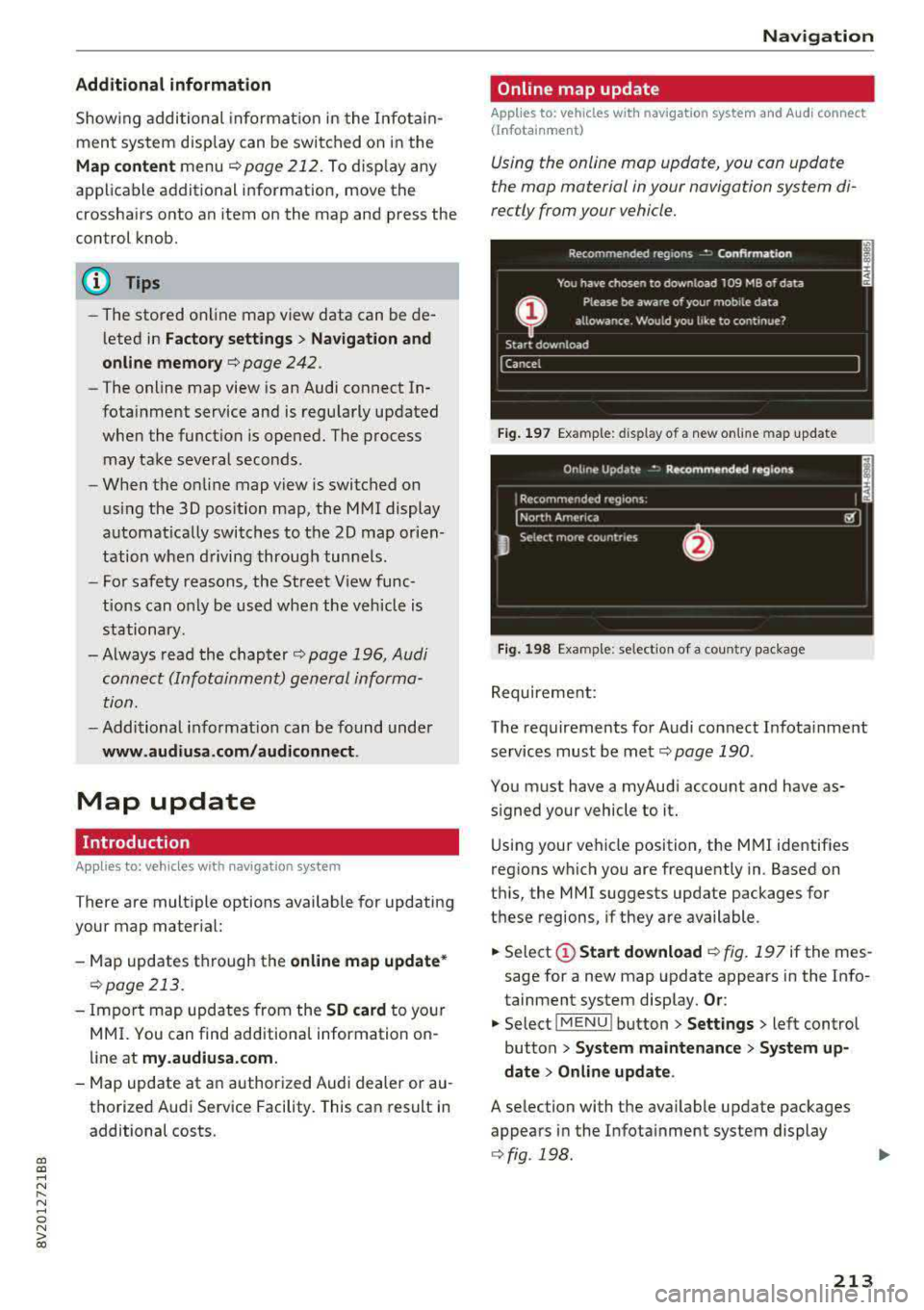
Fig. 197 Example: display of a new on lin e m ap update
Fig. 198 Example: selection of a country package
Requirement:
The requirements for Audi connect Infota inment
services must be
met¢ page 190.
You must have a myAudi account and have as
signed your vehicle to it.
Using your vehicle position, the MMI identif ies
regions which you are frequently in. Based on
this, the MMI suggests update packages for
these regions, if they are available .
.. Select(!) Start download ¢ fig. 197 if the mes
sage for a new map update appears in the Info
tainment system display.
Or :
.. Select iMENU ! button> Settings> left control
button >
System maintenance > System up
date
> Online update.
A selection with the available update packages
appears in the Infota inment system display
¢ fig . 198 .
213
Page 228 of 400
Media
(D Tips
-Check for any connection requests on your
Bluetooth dev ice .
- Mult iple Bluetooth audio players can be
connected to the MMI, but only one mobile
device can be active.
- Bluetooth protocols AVRCP ( 1.0/1.3/1.4)
and A2DP are suppo rted.
- Note the volume setting on your Bluetooth device. A ud i recommends setting your mo
bile device to the maxim um vo lume when
us ing it as a Bluetooth audio player.
- The supported media functions (such as
sh uffle) depend on the Bluetooth device be
i ng used.
- For more information on the supported de
v ices, visit
www.aud iusa.com /bluetooth or
contact an author ized Audi dealer or author
i zed Audi Service Facility.
Wi-Fi audio player
A ppl ies to: ve hicles w ith Wi-F i
Using the Wi-Fi audio player media source on the
MMI, you can connect and operate your Wi-Fi-ca
pable media player (such as a smartphone) to wirelessly play music from your media player
li
brary. The media player is connected through the
vehicle's Wi -Fi hotspot. A UPnP Server opp or an
integrated UPnPIDLNA server on your media
player is required to access your media player
li
brary.
Requirement: the Wi-Fi function on your media
p layer must be sw itched on. The
Aud i MMI con
n ect
app or a UPnP server app must be installed
on your med ia p layer .
Or: you must be us ing a
media player with an integrated UPnP/DLNA
server.
- Connecting a medi a playe r: press the I MEDIA !
button. Press the left control button unti l the
sources
overview ¢ page 230 is displayed . Se
lect and co nfirm
W i-Fi audio play er 0
¢ page 230, fig . 214 .
- If necessary, select and confirm Wi-F i turn ed
off > Turn on Wi-Fi
to activate Wi-Fi in the
MMI. Select
Wi-Fi s etti ng s, if necessa ry . Se lect
226
the same settings on the wireless media player
that are used for the Wi- Fi hotspot .
-Starting the Wi-Fi audio pla yer : start the Audi
MMI connect
app or a UPnP server app, or set
media permissions on your media player.
Operating the medi a pl ayer : the med ia p layer is
operated through the MM I.
- Press the left control button repeatedly until
the
Folders menu item appears. Select and con
firm
Folder s.
- Playing music from the medi a pla yer:
select
and confirm
M edia cent er.
Web r adio :
see ¢ page 22 7.
A WARNING
-As the d river, do not allow usage of the Wi
Fi hotspot to distract you from driving, as
this could increase the r isk of an accident.
- It is on ly safe to use tablets, laptops, mo
bi le devices and other similar dev ices when
the vehicle is stat ionary because, like all
loose objects, they co uld be thrown around
the inside of the ve hicle in a c rash and ca use
serio us inju ries . Store these types of devices
secure ly while driving.
- Do not use any wire less devices on the front
seats wi thin range of the airbags while dr iv
ing . Also read and follow the warn ings in
¢ page 271, Front airbags.
(D Note
A lways fo llow the information fo und in ¢ (!) in
Wi -Fi hotspo t on page 195.
(D Tips
- Always read the chapter¢ page 196, Audi
connect (Infotainment) general informa
tion.
- Please note that a Wi-F i connection does
not automatically make it possible to use
the Interne t. For addit io nal info rm ation,
see
¢ page 190 .
- To avoid interr upt ions du ring playback, de
act ivate the powe r saving function on the
media player or connect it to a charger.
Page 229 of 400
a, a, ..... N
" N ..... 0 N > 00
-The loading times for the audio data depend
on the media player used and the number of
files that it contains.
- A maximum of 2,000 entries per directory
are displayed in the MMI.
-Songs downloaded for offline use using mu
sic streaming services are stored on your mobile device (such as a smartphone) and
may be ORM protected. The Wi-Fi audio
player will not play ORM protected files.
-Contact an authorized Audi dealer or au
thorized Audi Service Facility for additional information on the Wi-Fi audio player .
Online media and
Internet radio
Applies to: vehicles with Audi connect (Infotainment)
You can playback and operate various online me
dia services and Internet radio using the MMI .
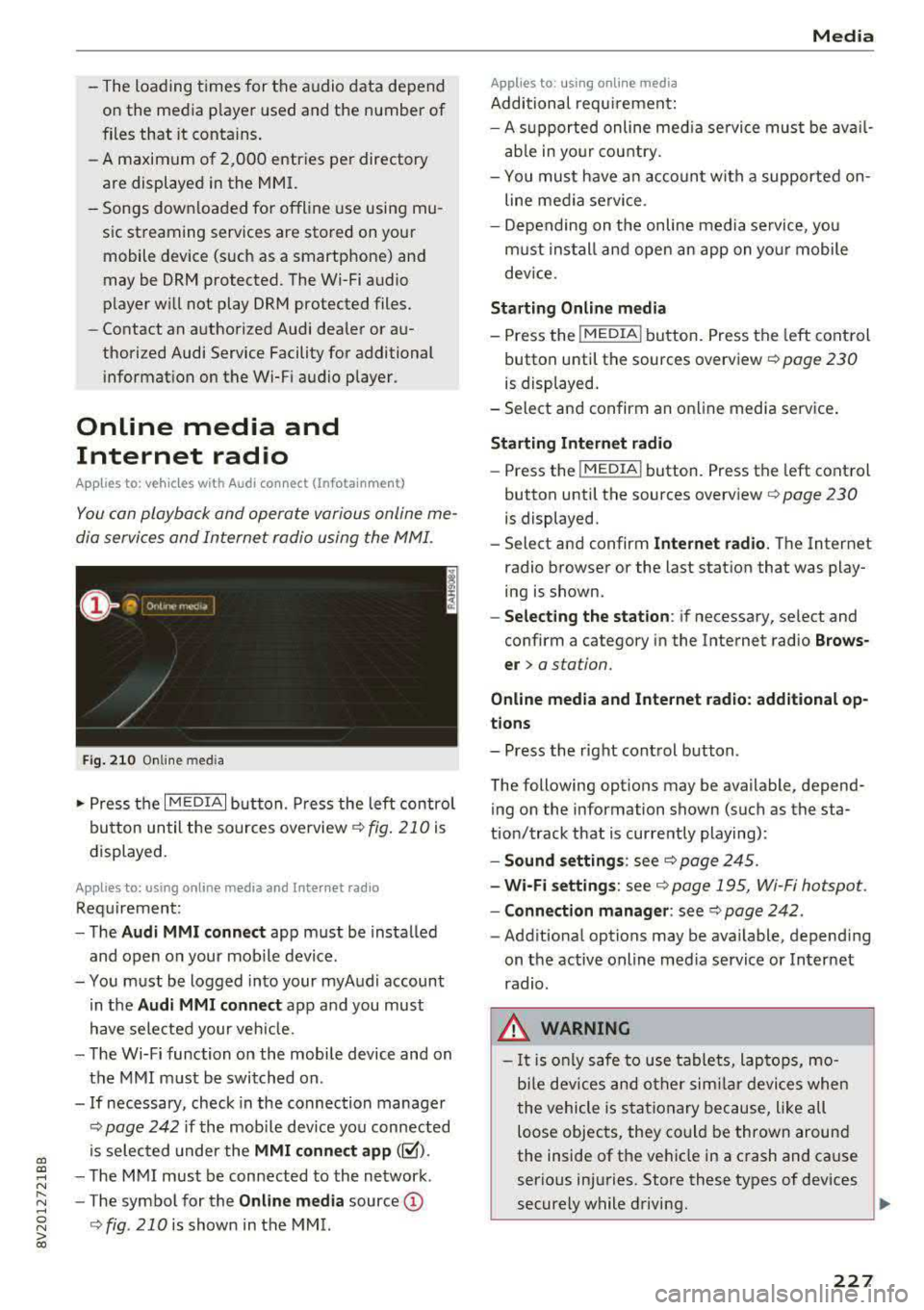
Fig. 210 Online med ia
... Press the I MEDIAi button. Press the left contro l
button until the sources overview
c:> fig. 210 is
displayed.
Applies to: using online media and Internet radio
Requirement:
-The Audi MMI connect app must be installed
and open on your mobile device.
-You must be logged into your myAudi account in the
Audi MMI connect app and you must
have selected your veh icle.
-The Wi-Fi function on the mobile device and on
the MMI must be switched on .
-If necessary, check in the connection manager
c:> page 242 if the mobile dev ice you connected
is selected under the
MMI connect app (~).
-The MMI must be connected to the network .
-The symbol for the Online media source@
<::>fig . 210 is shown in the MMI.
Applies to: using online media
Additional requirement:
Media
-A supported online med ia service must be avail
able in your country.
-You mus t have an account with a supported on
line media service .
-Depending on the on line media service, you
must install and open an app on your mobile
dev ice.
Starting Online media
-Press the I MEDIA i button. Press the left control
button until the sources overview
c:> page 230
is displayed.
-Select and confirm an online media service .
Starting Internet radio
-Press the I MEDIAi button. Press the left control
button until the sources overview
c:> page 230
is displayed.
-Select and confirm Internet radio. The Internet
radio browser or the last station that was play
ing is shown.
-Selecting the station: if necessary, select and
confirm a category in the Internet radio
Brows
er>
a station.
Online media and Internet radio: additional op
tions
-Press the right control button.
The following options may be available, depend ing on the information shown (such as the sta
tion/track that is currently playing):
-Sound settings: see c:> page 245.
-Wi-Fi settings: see c:> page 195, Wi-Fi hotspot.
-Connection manager: see c:> page 242.
-Additional options may be available, depending
on the active online media service or Internet
radio.
_& WARNING
-It is only safe to use tablets, laptops, mo
b ile devices and other similar devices when
the vehicle is stationary because, like all
loose objects, they could be thrown around
the inside of the vehicle in a crash and cause
serious injuries. Store these types of devices
securely while driving.
~
227
Page 230 of 400
Media
-Do not u se any wireless devices on the fro nt
seats within range of the airba gs w hile driv
ing. Also read and follow the warnings in
r=> page 271, Fro nt airbags.
CD Note
- Always follow the information found in ¢ 0
in Wi-Fi hotspot on page 195 .
-Please note that there generally are add i
tiona l costs when using an online media
service account, especially when it is used i nternationally.
{!) Tips
-Depending on the Internet connection and
network traff ic, a connection loss can occur
during p layback of on line media serv ices.
-Online media and Internet radio usage de
pends on the serv ice avai lability of the third
party provider.
- Audi AG simply makes the access to on line
media serv ices possible t hrough the MMI
and does not take any respons ibility for the
contents of the onli ne med ia serv ices .
-Always read the chapter r:> page 196, Audi
connect (Infotainment) general informa tion.
-Depending on the mobile device used, the re
may be interr uptions du ring media playback
and when using the
Audi MMI connect app.
T o avoi d inter ruption s when usi ng a mob ile
device, do no t loc k t he s creen on you r mo
bi le dev ice a nd keep the
Audi MMI connect
app in the foreground .
- Co ntact an a utho rized Audi dea le r or a u
thorized Audi Service Facili ty for additional
informat ion about on line media .
228
Multimedia connections
USB adapter for Audi music interface
You can connect your mobile devices (such as a
smartphone or
MP3 player) to the Audi music in
terface and charge them using a special USB
adapter .
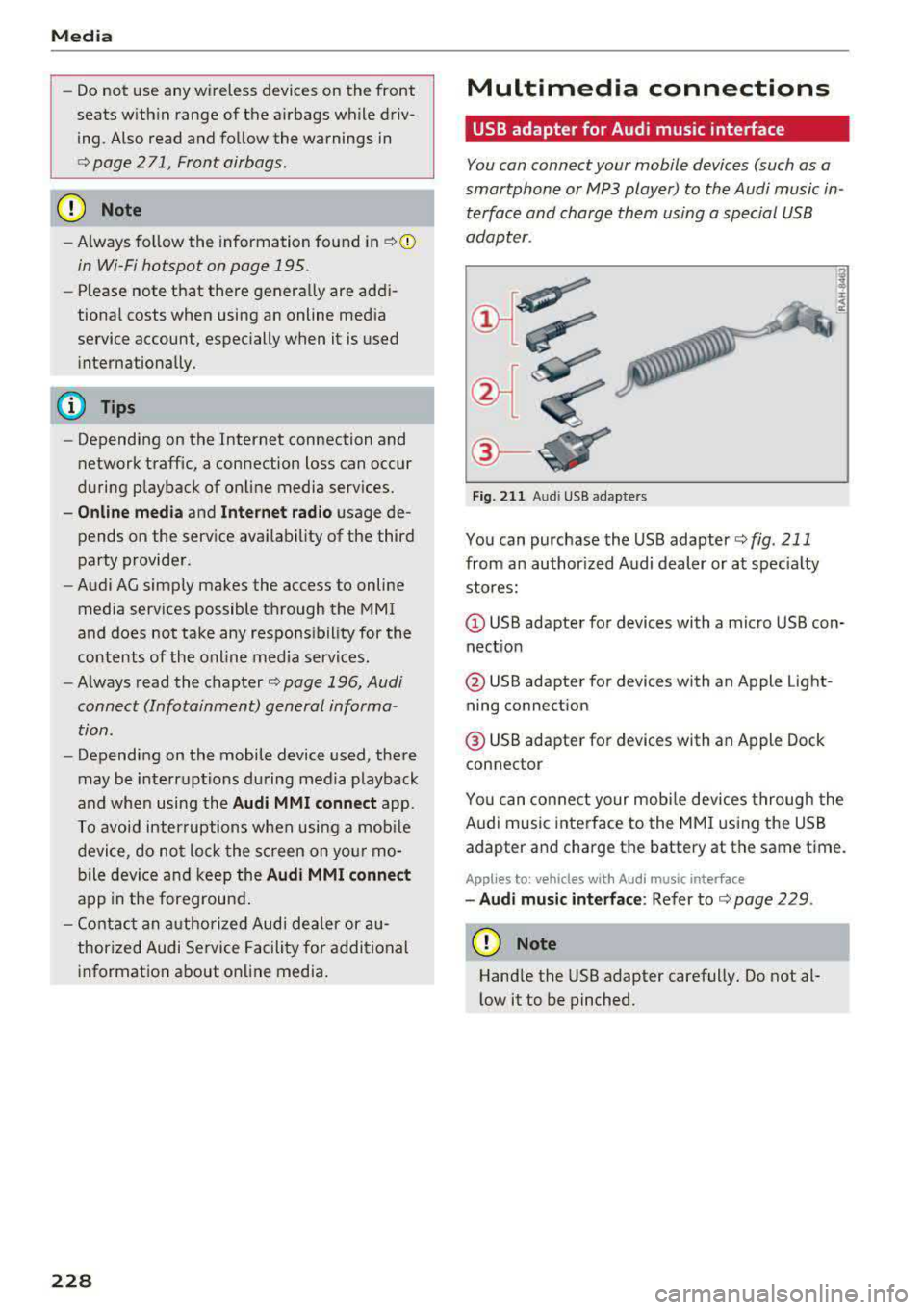
®-
Fig. 2 11 Audi USB adapters
You can purchase the USB adapter ¢ fig . 211
from an author ized Audi dealer or at spec ia lty
stores:
Q) USB adapter for devices with a micro USB con
nect ion
@ USB adapter for devices with an Apple Light
ning connect ion
@ USB adapte r for devices with an Apple Dock
connector
You can conne ct your mob ile dev ices throug h the
Audi music interface to the MM I using the USB
adapter and charge the battery at the same time.
Applies to: vehicles wit h Aud i music interface
-Audi musi c interface : Refer to¢ page 229.
CD Note
Handle the USB adapter carefully. Do not al
l ow it to be pinched .
Page 232 of 400
Media
-Changed content on a mobile device l) that
is connect ed to the Audi music interface
may not be disp layed in the med ia center .
In this case, reset t he
Med ia settings back
to
Factory settings ¢ page 242.
- Video p layback through the Audi music in
terface is only supported if the connected
device is recog nized as a USB storage device
(fo r example a USB s tic k). Apple devices and
M TP devices (s uch as smartphones) a re not
r e cogni ze d as US B storage devices .
- i Pod/iPhone malfunct io ns also affect the
ope ration of the MMI. Reset your iPod/
iPhone if th is happens.
- For importa nt information on operating
your iPod/iPhone, ref er to th e user guide for
the dev ice. Audi re comme nds up dat ing the
i Po d/i Pho ne so ftwa re to t he lates t ve rsion .
- Fo r more information about the Audi music
i nte rfa ce and supporte d device s, check the
A ud i d ata base fo r mobile devices at
www.audiusa.com/bluetooth or contact an
authorized Audi dea le r or a uthorized Audi
Service Fac ility.
Playing media
Accessing media
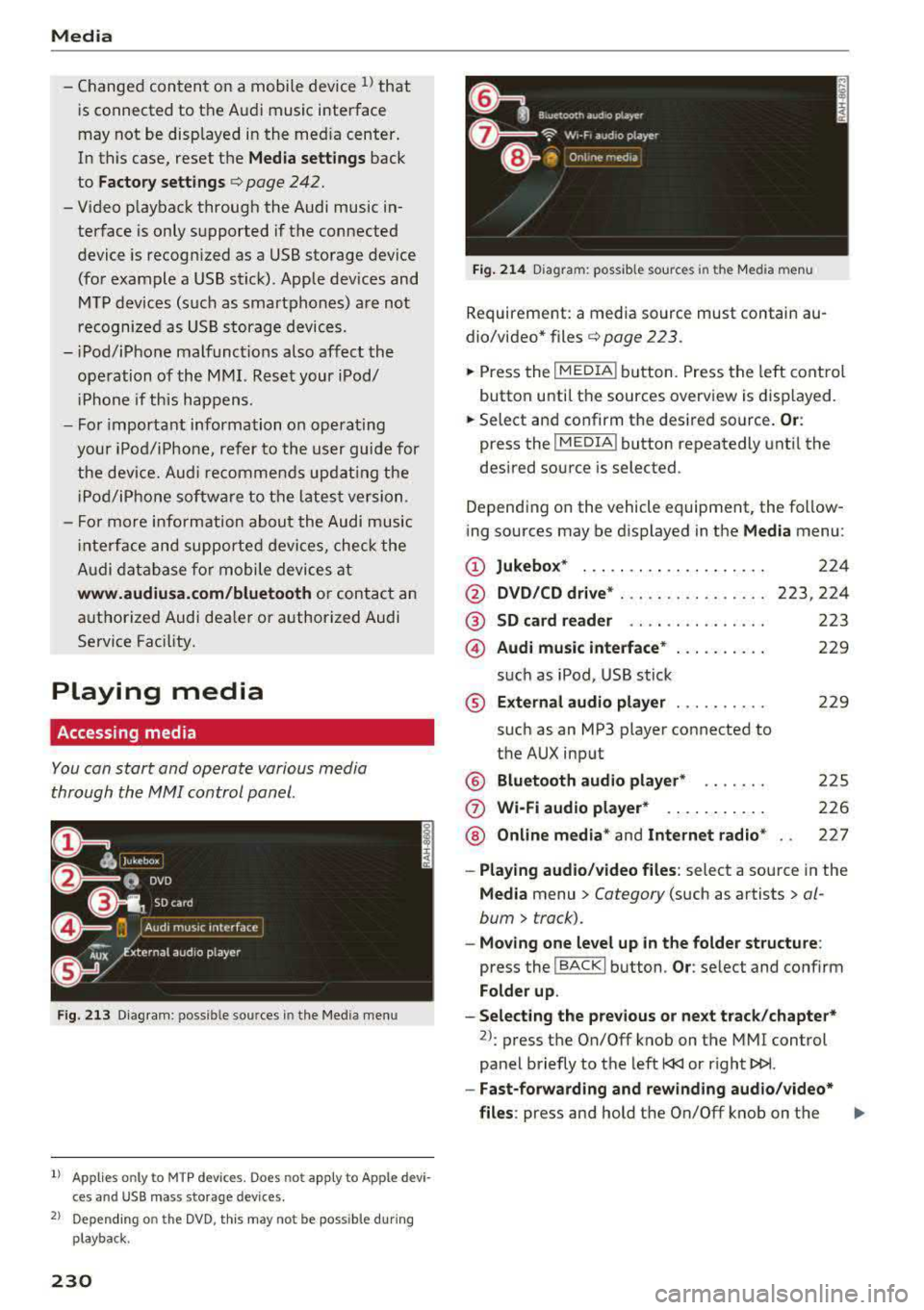
You can start and operate various media
through th e
MMI control panel.
Fig . 2 13 Diag ra m : p ossibl e sources i n the Med ia m enu
1> A pplies only t o MTP dev ices . Do es not app ly to Ap ple d evi
c e s a nd U SB ma ss sto ra ge de vice s.
2> Depe ndin g o n the DVD , thi s m ay not be pos sib le d urin g
p la y ba ck.
230
Fi g. 214 D ia gram: possible sour ces i n the Media m en u
Requir ement : a media source must contain au
dio/video*
files ¢ page 2 23 .
.,.. Press the IM EDIA ! button. Press the left cont rol
button unti l t h e sources overview is displayed.
.,.. Select and confirm th e desired source. Or:
press the I MEDIA ! button repeatedly unt il the
desired source is selected .
Depend ing o n the vehicle equipment , the follow
ing sources may be d isplayed in the
Media menu :
(D Jukebo x* ... .. .. .. .. .. .. .... .
@ DVD/CD drive * ... .. .. .. .. .... .
@ SD card re ader ....... ....... .
@ Audi music interface * .. .. . .... .
su ch as iPod , USB st ick
® Extern al audio player ... .. .... .
su ch as an MP3 player connected to
the AUX inp ut
@ Bluetooth audio player* ...... .
(J) Wi-Fi audio player* .... .. .... .
@ Online media * and Internet radio *
224
223,224
223
229
22 9
2 25
226
227
-Playing audio/ video files : select a sourc e in the
Media menu > Category (such as artists > al
bum
> t rack).
-Moving one level up in the folder structu re :
press the I BACK ! button . Or: select and confirm
Fo lder up .
-Selecting the pre vious or ne xt track /chapter*
2>: press t he On/Off knob on the MMI cont rol
panel briefly to the left
l
- Fast-forwarding and rew inding audio /video *
files :
press and hold the On/Off knob on the ..,.
Page 233 of 400
a, a, ..... N
" N ..... 0 N > 00
MMI control panel to the left l
a longer time.
-Pausing or resuming playback: press the On/
Off knob on the MMI control panel briefly.
@ Tips
- You can scroll through long lists quickly by
turning the control knob quickly. The
scroll
ing speed depends on the number of list en
tries.
- For safety reasons, the video image is only
displayed when the vehicle is stationary.
On·
Ly the sound from the video plays while driv
ing.
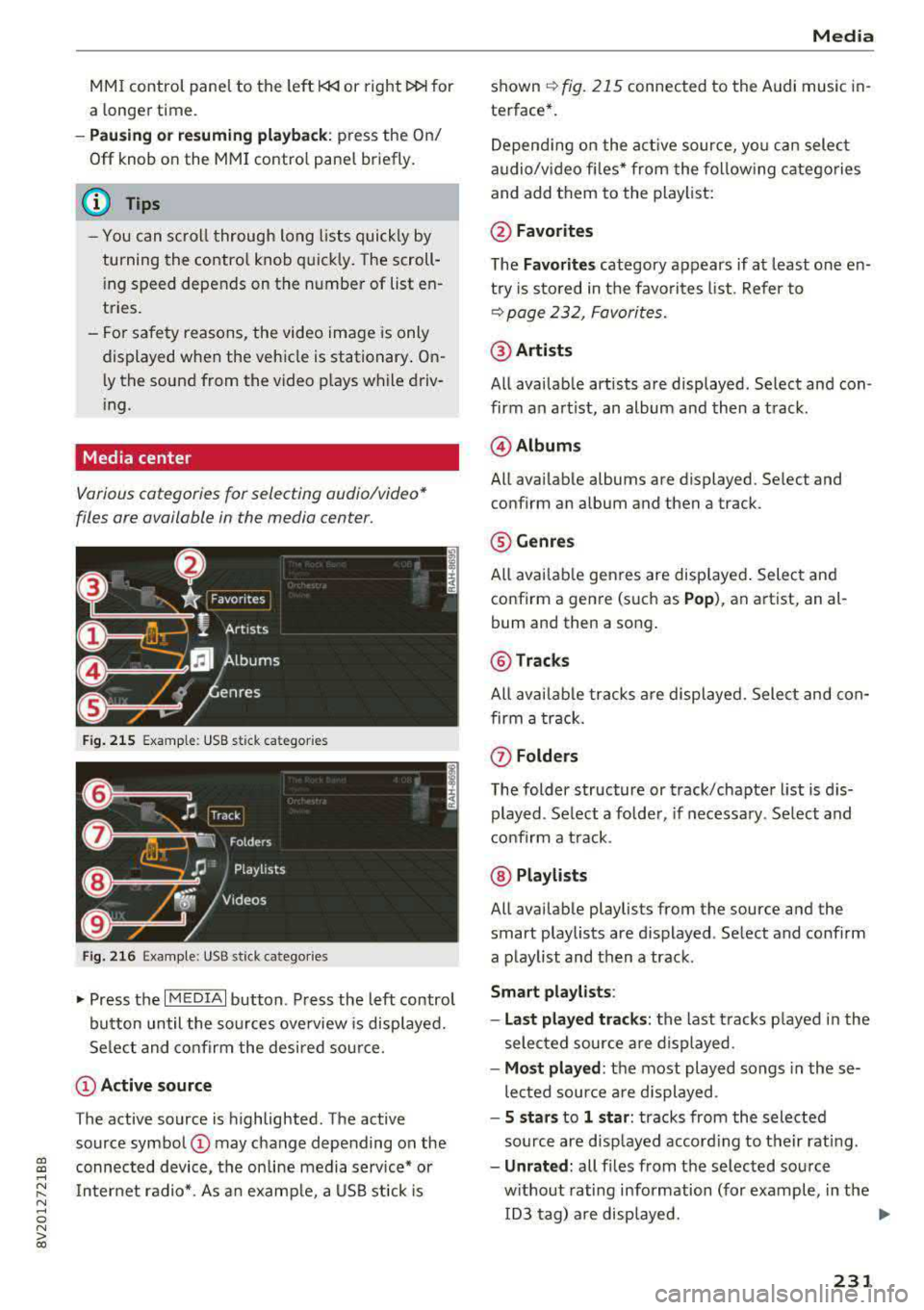
Media center
Various cat egori es for s electing audio/vid eo*
files ore available in the media center .
Fig. 215 Example: USB stick ca te gori es
Fig. 216 Example: USB stick ca tegorie s
"'Press the I MEDIAi button . Press the left control
button until the sources overview is displayed.
Select and confirm the desired source.
(D Active source
The active source is highlighted. The active
source symbol
(D may change depending on the
connected device, the on line media service* or
Internet radio*. As an example, a USB stick is
Media
shown ~ fig. 215 connected to th e Audi music in·
terfac e*.
Depending on the active source , you can select
audio/video files* from the following categories
and add them to the playlist:
@Favorites
The Favorites category appears if at least one en·
try is stored in the favorites list. Refer to
~ page 232, Favorites.
@Artists
All available artists are displayed . Select and con ·
firm an artist, an album and then a track.
@ Albums
All available albums are displ ayed . Select and
c onfirm an album and then a tra ck .
® Genres
All available genres are displayed. Select and
confirm a genre (such as
Pop), an artist, an al·
bum and th en a song.
@ Tracks
All available tracks are displayed. Select and con
firm a track.
(f) Folders
The folder structure or track/chapter list is dis
played . Select a folder, if necessary. Select and
confirm a track .
@ Playlists
All available playlists from the source and the
smart playlists are di splayed . Select and confirm
a playlist and then a track .
Smart playlists :
- Last played tracks:
the last tracks played in the
selected source are displayed .
-Most played : the most played songs in these
lected source are displayed .
-5 stars to 1 star: tracks from the selected
source are displayed according to their rating.
- Unrated: all files from the selected source
without rating information (for example, in the ID3 tag) are displayed.
.,.
231
Page 234 of 400
Media
@Vid eos*
All available video files are displayed . Select and
confirm a video file .
(D Tips
-Only the categories supported by the med i
um are available. For example, CD/DVD
ROM tracks cannot be selected with catego
ries such as
A rtists , Album s or Genre s.
With an iPod (source: Audi music interface
c:;, page 228), the Podcast s, Audio book s
and Composers categories are also availa
ble.
- For safety reasons, the video image is only
displayed when the vehicle is stationary. On
ly the sound from the v ideo plays while driv
i ng.
- When synchronizing a portable device with
"Cloud" services, playlists may display incor
rect ly in the MMI. Use the media center in
the dev ice.
Free text search
Applies to : vehicles wi th free text sea rc h
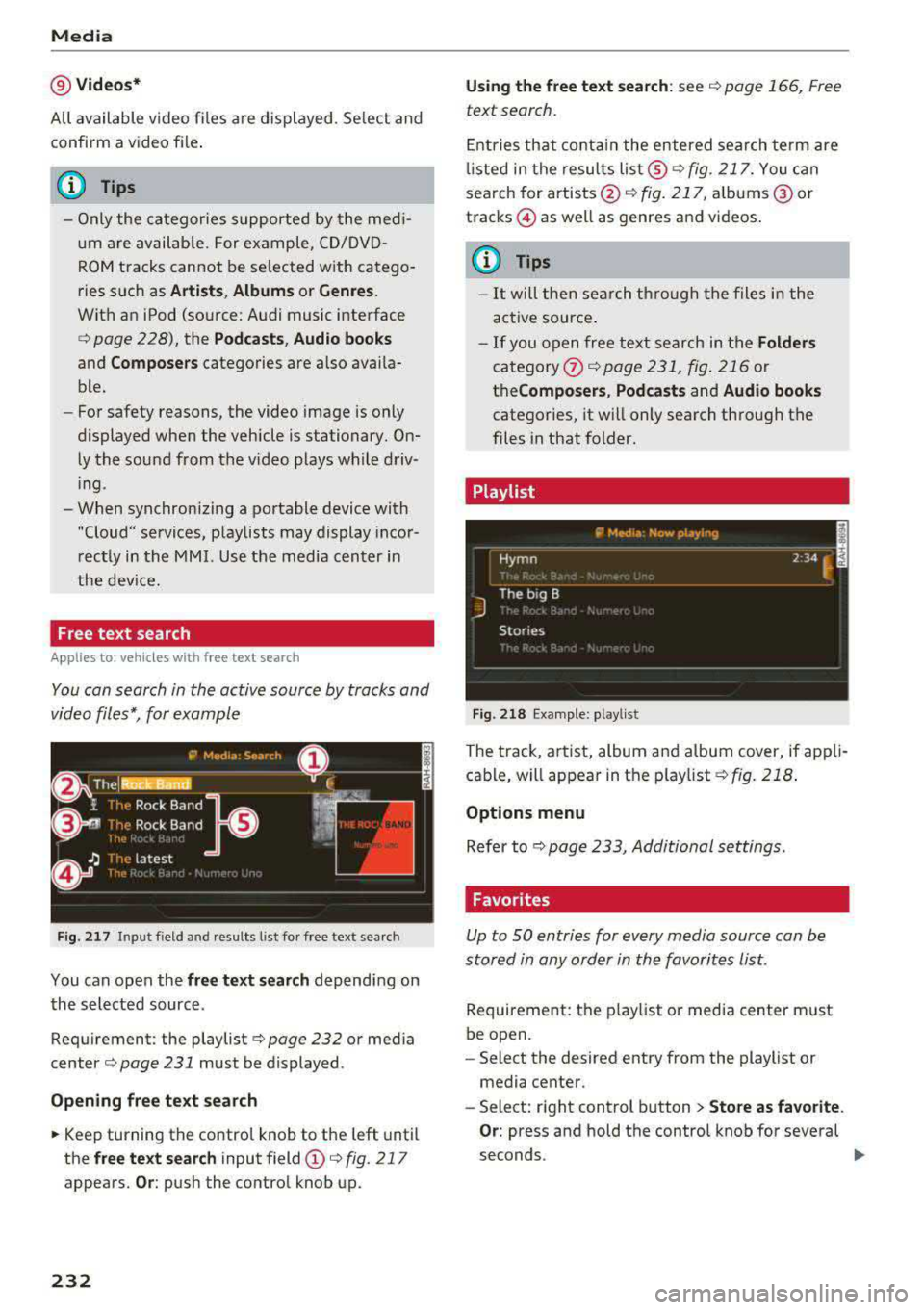
You con search in the active source by tracks and
video files*, for example
Fig. 2 17 Input field and r esults list for free text search
You can open the free te xt search depending on
the selected source.
Requirement: the playlist
c::;, page 232 or media
center
c:;, page 231 must be displayed.
Open ing free te xt search
~ Keep turning the contro l knob to the left until
the
free t ext sea rch input field (D c::;, fig. 217
appears. Or : push the control knob up.
232
Us ing th e free text sea rch: see c::;, page 166, Free
text search .
Entries that conta in the entered search te rm are
li sted in the results
lis t@ c:;,fig. 217. You can
search for artists @
c:;, fig. 217, alb ums @ or
tracks © as well as genres and videos.
{!) Tips
-It will then search th rough the files in the
active source .
-If you open free text search in the Folders
category (i) c:;,poge 231, fig. 216 or
the Compo ser s, Po dca sts and Audio books
categories, it will only search through the
files in that folder.
Playlist
-------------- ~ -~•d•a -~ow _playi~ ------------E
~yrnn . _. . 2 34 ~ ~
J
The big B
Stories
Fig. 218 Example: playlist
The track, artist, album and album cover, if appli
cable, will appear in the playlist
¢fig. 218 .
Options m enu
Refer to c:;, page 233, Additional settings.
Favorites
Up to SO entries for every media source can be
stored in any order in the favorites List.
Requirement: the p lay list or media center must
be open.
- Select the desired entry from the playlist or
media center.
- Select: right control b utton
> Store as f avorite .
Or:
press and hold the control knob for several
seconds.
..,_
Page 241 of 400
CXl CXl .... N ,.__
Audi smartphone interface
Setup
App lies to: ve hicles with Audi smartpho ne interface
You can connect your smartphone to the MMI us
ing the Audi smartphone interface . Certain con
tent on your smartphone is adapted to the Info
tainment system display while driving and can
be operated through the
MMI control panel.
R equirement:
The vehicle must be stationary and the ignition
must be switched on.
iPhone generation 5 or higher with Lightning
connector and iOS 7.1.2 operating system or
h igher.
O r:
Smartphone with Android Auto app and Android
5 .0 Loll ipop operating system or higher.
.,. Connect your smar tphone to the Audi music in
te rface
c:> page 229 using a USB adapter
c:> page 228, fig. 211 .
.. Select and confirm A cti va te Apple CarPl ay or
Acti vate And roid Auto no w.
.. Follow the system instruct ions.
.,. Pay attention to any add itional system prompts
on your smartphone if applicable.
If you chose not to use Apple CarPlay or Android
Auto when connecting your smartphone for the
first time, you can start the Audi smartphone in
terface later on using the
Connection m an ager .
.. Select: I MENU I button > Audi smartphone in ·
terfa ce
> Change to connecti on manager .
.. Connect your smar tphone to the Audi music in
terface using a USB adapter
c:> page 228,
fig .211.
.. Se lect and confirm Audi smartphone : in the
Connection manager c:> page 242. You can se
lect your smartphone in the list of devices that
are already paired
c:> page 243.
.,. Follow the system instruct ions.
N .... 0 N iii l) In preparat io n at t he t ime of pr inting.
Aud i smartphon e int erfac e
(D Note
Always fo llow the information found in c:> @ in
Wi-Fi hotspot on page 195.
(D Tips
-The functions that can be used depen d on
the fo llowing factors, among others:
- the brand of your smartphone
- the vers ion of the operating system in
your smartphone
- the software version of the app used
- the USB adapter cab le and correct connec-
tion
- your cell phone service provider
- the customized se ttings on your sma rt-
phone
- O ne of the factors
above or a comb ina tion
o f any of them could cause your sma rtphone
to be incompatib le with the Audi smart
phone interface. Compatibility cannot be
guaranteed for all types of smartphones.
For more informat ion and assistance, refe r
to the user guide and the ma nufacturer of
your smartphone.
- If the connected smartphone has voice con
trol, you can operate you r smartpho ne usi ng
t he exter nal voice recognition system
c:> page 175.
- The menu language shown in the MMI is
based on the sett ings in you r smartphone.
- The time d isplayed in the MMI is based o n
the settings in yo ur smartphone .
- Severa l MMI functions are not avai lab le
when Apple CarPlay or Andro id Auto is ac
t ive.
- You cannot co nnect any mob ile dev ices
via
Bluetooth when an App le CarPlay connec
tion is act ive.
- Whe n the Apple CarPlay connection is ac
t ive,
Tag this song for iTunes*1> is not ava il
able
c:>page 218 .
239
Page 246 of 400
System settings
Show Bluetooth profiles*
You can Connect or Disconnect the Handsfree ,
Messages *, Directory/contacts
and Bluetooth
audio player
profiles separately.
Bluetooth settings*
- Bluetooth :
select and confirm a setting for the
Bluetooth connection v is ibility. Select
Visible
for the MMI to be v isib le to other dev ices. Se
lect
Inv isible for the MMI to not be visible to
other devices. However, it is still possib le to es
tablis h a Bl uetooth connection with paired de
vices when the v is ibility is switched off. Select
Off to turn visibility off. Then a B luetooth con
nect ion is not possible .
-Bluetooth audio player : when this function is
switched
on~, the Bluetooth audio player is
available as a source in the
Media menu .
-Bluetooth name : the MMI Bluetooth name (for
example ,,AUDI MMI 2017") is displayed and
can be changed .
Online settings*
- Data usage counter :
the amount of data pack
ets that are sent and received through the MMI
is d isplayed. You can reset the data usage infor
mation to zero using the
Reset data counter
option.
-Network status : the mobile network provider
for data service as well as the network status
are displayed .
Wi-Fi settings*
Refer to<=> page 195, Wi-Fi hotspot.
Storing as a default telephone
Applies to: vehicles with telephone
Req uiremen t: a cell phone must be connected to
the MMI
¢page 177 .
As soon as th e cell phone is i n range and the
Bluetooth function on the cell phone and in the
MMI is swi tched on, this cell phone is given prior
ity over the other Bluetooth devices and is con
nected direct ly to the MMI. The connected cell
phone is displayed first in the device list.
244
Network settings*
- Login :
you can chose an automatic log in to
your cell phone service provider's network, or
you can choose a
manual l ogin from the list of
avai lab le networks .
-Network selection: available networks in the
present location can be selected under network
selection. This function is on ly availab le for the
Manual l ogin setting .
Apple CarPlay sound settings/ Android Auto
sound settings
Applies to: vehicles with Audi smartphone interface
Refer to ¢ page 245.
About Apple CarPlay/ About Android Auto
Applies to: vehicles with Audi smartphone interface
Here you w ill find legal information regarding
the use of Apple CarPlay or Andro id Aut o and in
formation about device -specific data exchange.
Delete CarPlay device/Delete Android Auto
device
Applies to: vehicles with Audi smartphone interface
Requirement: your cell phone must not be cona
nected to the Audi m usic interface with a USB
adapter .
To remove your cell phon e from the list of all cell
phones that are already paired, select and con
firm
Delete CarPlay device or Delete Android Au
to device .
(D Tips
Some SIM cards do not allow the SIM PIN
queries to be switched off.
System update
.,. Select: !MENUI button> Settings> left control
button >
System maintenance.
- System update :
slide the storage device with
t he update data into the appropriate drive
¢page 223. Select and confirm the drive>
Start update. The length of the process de
pends on the size of the update.
-Reset driver installation: the selected media
driver package is reset to the settings at the
time of delivery .
Page 259 of 400
Retracting rollover protection
Applies to: vehicles with power top
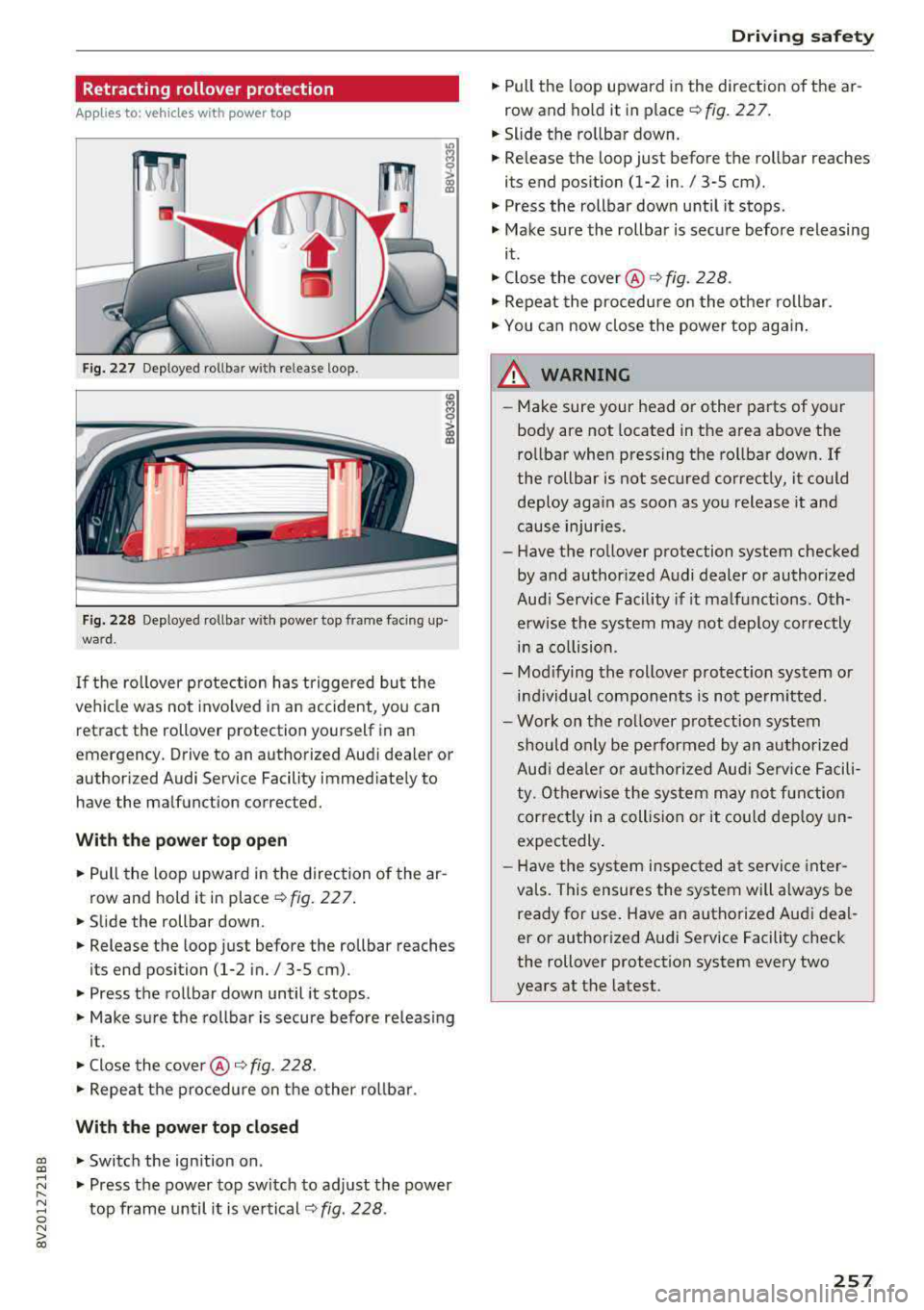
Fig. 227 Deploye d rollb ar w ith re le ase loop .
Fig. 228 Deploye d rollb ar w it h powe r top fram e faci ng up
wa rd.
If the ro llover protection has triggered bu t the
vehicle was not invo lved in a n accident, you can
retract the rollover protection yourself in an
em ergency. Drive to an authorized Audi dea ler or
author ized Audi Service Facility immed iate ly to
have the malfunction corrected.
Wi th th e po we r top op en
• Pull the loop upward in the direction of the ar
row and hold it in place r:!> fig. 22 7.
• Slide the rollbar down.
• Release the loop just before the rollbar reaches
its end position
(1-2 in./ 3-5 cm) .
• Press the rollbar down until it stops .
• Make sure the rollbar is secure before re leas ing
i t .
• Close the cove r@ ¢ fig. 228 .
• Repeat the p rocedure on the other rol lbar .
With the power top closed
gi • Switch the ignition on .
..... ~ • Press the power top switch to adj ust the power
8 top frame until it is vertical r::!> fig. 228 .
N > 00
Driving safety
• Pull the loop upward in the direction of the ar
row and ho ld it in place r::!> fig. 22 7.
• Slide the ro llbar down.
• Release the loop just before the rollbar reaches
its end position
(1-2 in ./ 3-5 cm).
• Press the rollbar down until it stops .
• Make sure the rollbar is secure before releasing
it.
• Close the cover @¢ fig. 228.
• Repeat the procedure on the othe r rollbar.
• You can now close the power top again .
_&. WARNING
--Make sure your head or other parts of your
body are not located in the area above the
rollbar when pressing the rollbar down. If
the rollbar is not secured correctly, it could deploy aga in as soon as you release it and
cause injur ies .
- Have the rollover protection system checked
by and authorized Audi dealer or authorized
Aud i Serv ice Facility if it ma lfunctions. Oth
erwise the system may not dep loy correctly
in a co llision .
- Mod ifying the rollover protect ion system or
i n dividual components is not pe rm itted.
- Work on the rollover p rotection system
should only be performed by an authorized
Aud i deale r o r autho rized Audi Serv ice Facili
t y. Otherwise the system may no t function
correct ly in a collision or it could dep loy un
expectedly .
- H ave the sys tem inspec ted a t service inte r
va ls. This ensures the system will a lways be
ready for use. Have an authorized Aud i deal
er or author ized Audi Service Facility check
the rollover protection system every two
years at the latest.
257