service AUDI A3 SEDAN 2017 Workshop Manual
[x] Cancel search | Manufacturer: AUDI, Model Year: 2017, Model line: A3 SEDAN, Model: AUDI A3 SEDAN 2017Pages: 400, PDF Size: 67.32 MB
Page 175 of 400
CXl CXl .... N r--N .... 0 N > 00
Voice recognition system
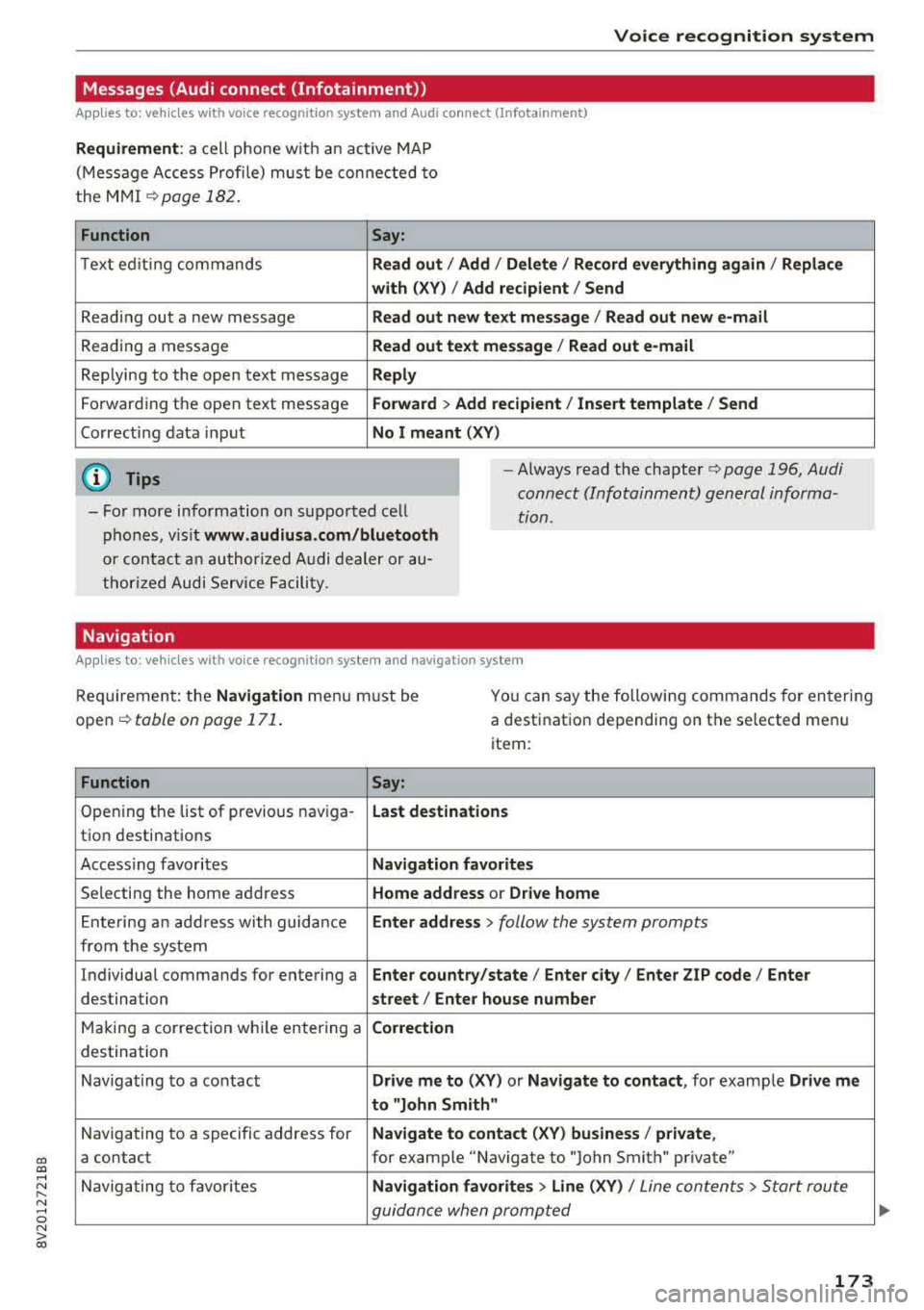
Messages (Audi connect (Infotainment))
Applies to: vehicles with voice recognition system and Audi connect (Infotainment)
Requirement: a cell phone with an active MAP
(Message Access Profile) must be connected to
the MMI
¢page 182.
Function Say:
Text ed iting commands Read out / Add / Delete / Record everything again / Replace
with (XV) / Add recipient / Send
Reading out a new message Read out new text message / Read out new e-mail
Reading a message Read out text message / Read out e-mail
Replying to the open text message Reply
Forwarding the open text message Forward > Add recipient/ Insert template/ Send
Correcting data input No I meant (XV)
(D Tips
-For more information on supported cell
phones, visit
www.audiusa.com/bluetooth
or contact an authorized Audi dealer or au
thorized Audi Service Facility.
-Always read the chapter¢ page 196, Audi
connect (Infotainment) general informa
tion .
Navigation
Applies to: vehicles with voice recognitio n system and navigation system
Requirement: the Navigation menu must be
open
¢ table on page 171.
You can say the following commands for entering
a destination depending on the selected menu
item :
Function
Say:
Opening the list of previous naviga-Last destinations
tion destinations
Accessing favorites
Navigation favorites
Selecting the home address Home address or Drive home
Ent ering an address with guidance Enter address > follow the system prompts
from the system
Individual commands for entering a
Enter country/state / Enter city/ Enter ZIP code / Enter
destination street/ Enter house number
Making a correction while entering a Correction
destination
Navigating to a contact
Drive me to (XV) or Navigate to contact , for example Drive me
to "John Smith"
Navigating to a specific address for Navigate to contact (XV) business/ private,
a contact for example "Navigate to "John Smith" private"
Navigating to favorites
Navigation favorites > Line (XV) / Line contents> Start route
guidance when prompted
173
Page 176 of 400
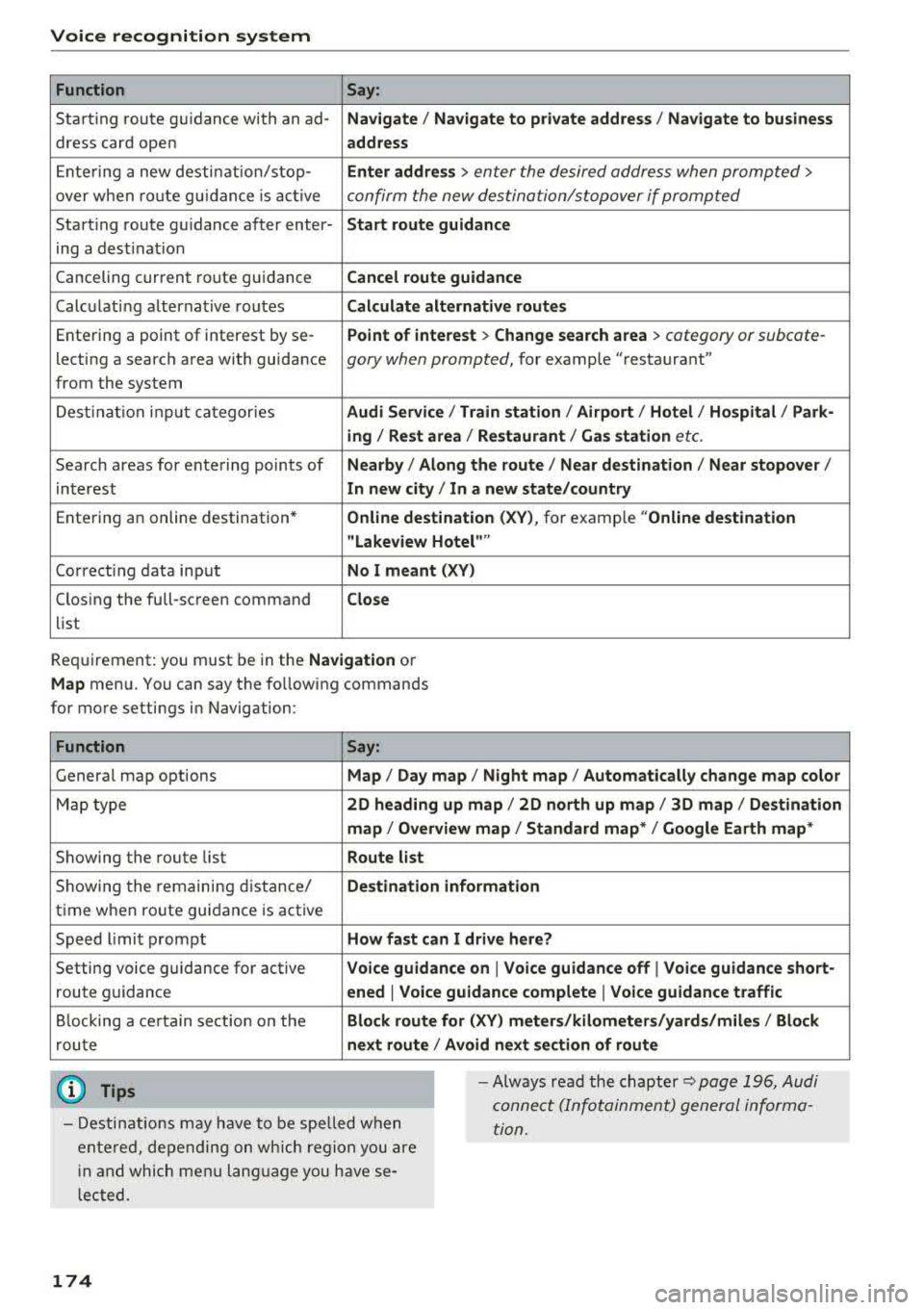
Voice recognition system Function Say:
Start ing route g uidance with an
ad-Na vigate / Navigate to p riv ate addre ss / Na vig ate to bu sin ess
dress card open address
E nte ring a new desti nation/stop- Enter address >
enter the desired address when prompted>
over when ro ute gu idance is ac tive confirm the new destination/stopover if prompted
Start ing route gu idance after enter- Start route guidance
ing a dest inat ion
Canceling current route gu idance Cancel route guidance
Calc ulating alternative routes Calculate alternati ve route s
Entering a point of interest by
se-Point of interest > Change search area > category or subcate-
lecting a searc h area with guidance gory when prompted, for example "restaurant"
from the system
Dest ina tion input categor ies Audi Service / Train station
I Airport / Hot el / Ho spital / Park -
ing / Re st area /Restaurant / G as sta tion
etc.
Search areas for entering points of Nearb y/ Along the route I Near destination / Near stopove r/
interest In new city/ In a new state /country
Ente ring an online destination * Online destina
tion ( XV), for example "Online de stin ation
" Lake view Hotel ""
Co rrect ing data input No I meant (XV)
Clos ing the full-screen command
Clo se
list
Requirement: you must be in the Navigation or
M ap menu. You can say the following commands
for more settings in Navigation:
Function Say:
General map options Map/ Da y map / N ight map / Automa tically change map colo r
Map type 2D heading up map
I 2D north up map/ 3D map / Destination
map
I Ov erview ma p/ Standard map */ Googl e Earth map *
Showing the route list Route list
Showing the remaining d istance/ Destin ation information
time when route guidance is active
Speed l imit prompt How fast can I dri ve here ?
Setting voice g uidance for active Voice guidance on
I Vo ice guidan ce off I Vo ice guidance short-
route guidance ened
I Voice guidance complete I V oi ce guidance traffic
B locking a ce rtain sect ion on the Block route for (XV ) m eter s/kilometers /yard s/miles / Block
rou te next route
I A void n ext se ction of r oute
(D Tips
- Destinations may have to be spe lled when
entered, depending on which region you are
i n and which men u language you have se
l ected. -
Always read the
chapter~ pag e 196, Audi
connect (Infotainment) general informa
tion.
174
Page 178 of 400
Voice recognition system
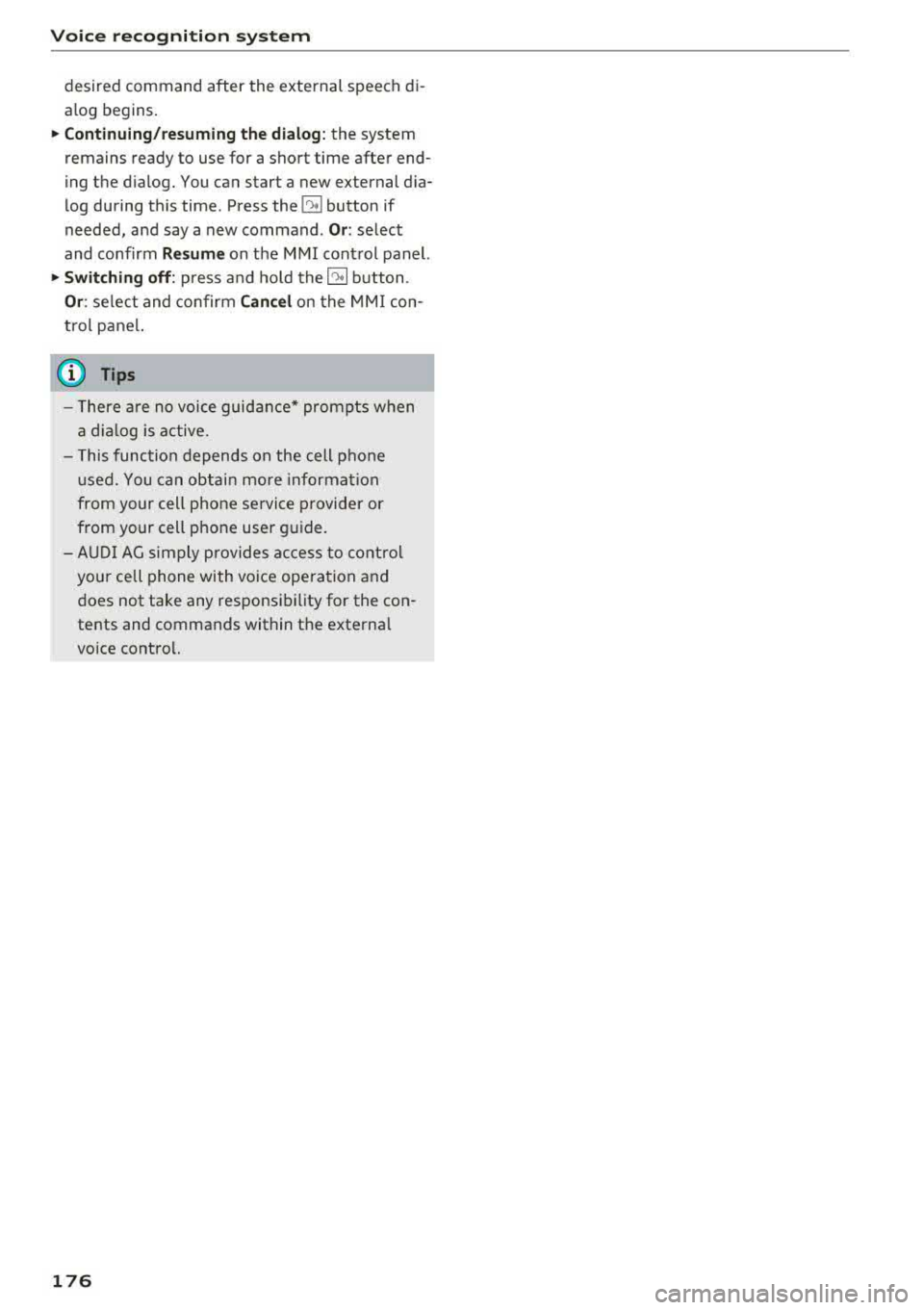
desired command after the external speech di
alog begins.
~ Continuing/resuming the dialog: the system
remains ready to use for a short time after end
ing the dialog. You can start a new external dia
log during this time. Press the
10.I button if
needed, and say a new command .
Or: select
and confirm
Resume on the MMI control panel.
~ Switching off: press and hold the~ button .
Or: select and confirm Cancel on the MMI con
trol panel.
a) Tips
- There are no voice guidance* prompts when
a dialog is active.
- This function depends on the cell phone
used. You can obtain more information
from your cell phone service provider or
from your cell phone user guide.
- AUDI AG simply provides access to control
your cell phone with voice operation and
does not take any responsibility for the con
tents and commands within the external
voice control.
176
Page 180 of 400
Telephone
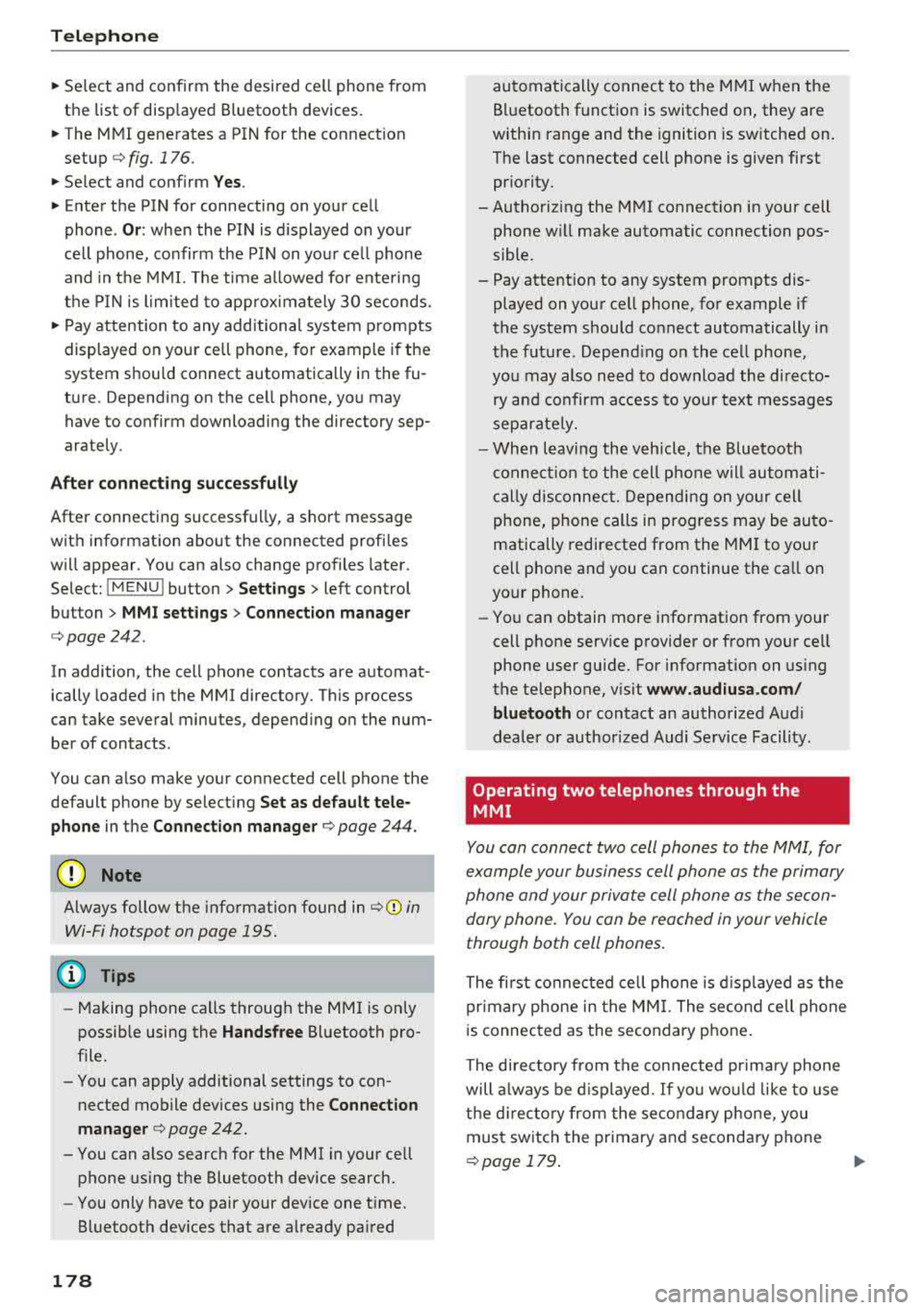
"'Se lect and confirm the desired ce ll phone from
the list of disp layed Bluetooth devices.
"' The MMI generates a PIN for the connect ion
setup
¢ fig. 176 .
"' Select and confirm Y es.
"' Enter the PIN for connecting on your cell
phone .
Or: when the PIN is d isplayed on your
ce ll phone, confirm the PIN on you r ce ll phone
and in the MMI. The time a llowed for ente ring
the PIN is l im ited to app rox imately 30 seconds.
"' Pay attention to any additiona l system prompts
displayed on your cell phone, for example if the
system should connect automatically in the fu
ture . Depending on the ce ll phone, you may
have to confirm downloading the directory sep
arately .
After connect ing succ essfull y
After connecting successfully, a short message
with information about the connected profi les
will appear . You can also change profiles later.
Select:
! MENU ! button> Sett ings> left control
button
> MMI sett ings > Conn ection man ag er
c:::;, page242 .
In addition, the cell phone contacts are automat
ically loaded in the MMI directory. Th is process
can take several minutes, depend ing on the num
ber of contacts .
You can a lso make your connected cell phone the
default phone by select ing
Se t as de fault tel e
phone
in the Conne ct ion man ager c:::;, page 244 .
Q) Note
Always follow the information found in c:::;,(D in
Wi-Fi hotspot on page 195.
(D Tips
- Making phone calls through the MMI is only
possib le using the
Handsfree Bluetooth pro
file.
- You can apply additional settings to con nected mobile devices using the
Connection
manager
c:::;, page 242.
- You can also search for the MMI in your cell phone us ing the Bluetooth device search.
- You only have to pair your device one t ime.
Bluetooth devices that are already paired
178
automatically connect to the M MI when the
Bluetooth function is switched on, they are
within range and the ignition is sw itched on.
The last connected cell phone is given first pr iority.
-Authoriz ing the MMI connect ion in your cell
phone wi ll make automatic connection pos
sible .
- Pay attention to any system prompts dis played on your cell phone, for example if
the system should connect automatically in
the future. Depend ing on the cell phone,
you may also need to download the directo
ry and confirm a ccess to your text messages
separately.
- When leaving the vehicle, the Bluetooth
c onnect ion to the cell phone will automati
cally disconnect. Depending on yo ur cell
phone, phone calls in progress may be auto
matically redirected from the MM I to your
cell phone and you can continue the ca ll on
your phone.
- You can obtain more info rmation from your
cell phone service provider or from yo ur ce ll
phone user guide. For information on us ing
the te lephone, v isit
ww w.audiu sa.com /
bluetooth
or contact an authorized Audi
dealer or author ized Audi Service Facility.
'
Operating two telephones through the
MMI
You can connect two cell phones to the MMI, for
example your business cell phone as the primary
phone and your private cell phone as the secon dary phone. You can be reached in your vehicle
through both cell phones .
The first connected cell phone is d isplayed as the
primary phone in the MM I. The second cell phone
i s connected as the secondary phone .
The directory from the con nected prima ry phone
will a lways be d isplayed . If yo u wo uld like to use
the d irecto ry from the secondary phone, you
must switch the primary and secondary phone
¢ page 179 .
Page 183 of 400
CXl CXl .... N ,.__
N .... 0 N > 00
Accepting/ending a call
Applies to: ve hicles with telephone
- Accepting a call: select and confirm Answer.
- Declining a call: select and confirm Decline.
- Muting the active call: select and confirm
Mute .
- Ending a phone call/cancel dialing: select and
confirm End call.
Caller information: the
name, phone number or
Unknown appears in the Infotainment system
display depending on if the caller has been stored
in the directory and if the phone number has
been transmitted . A picture may also be dis·
played, depending on whether you have assigned
a picture to a contact in your directory and if it
was transferred to your MMI. You can find out if
your cell phone supports this function from your
cell phone network provider, your cell phone
owner's manual or at www.audiusa.com/blue
tooth.
- The radio or media playback is muted during
a phone call.
- Missed calls are displayed with a symbol in the status line of the Infotainment system
display @
~page 167, fig. 174.
During a phone call
Applies to: ve hicles with telephone
Requirement: there must be a call in progress .
.. End call: you can end a phone call.
.. Send tone sequence: you can enter tone se
quences (DTMF) directly using the number
speller and send to the other person on the call.
.,. Other call options: press the right control but-
ton.
The following options are possible during a call depending on the cell phone being used and the
type of connection:
-Answering an additional call: if there is an in
coming call while another call is active, you can
select Answer to put the existing call on hold
Telephone
and answer the incoming call. If you select De
cline, the incoming call will be declined.
- Accepting an incoming call when there is an
ac
tive call and a call on hold: select Replace. The
active call is replaced with the incoming call.
- Muting the incoming call: select and confirm
Mute.
- Additional call: select: Find contact
> Call list/
Directory/Favorites
> an entry from the list.
Mute: if you select and confirm this function, the
other person on the phone cannot hear you . You
can hear the other person. To turn the micro
phone back on, select and confirm Un mute.
Hold call/Resume held call : you can place the
ex
isting call on hold and resume it again. To re
sume the call, select and confirm the call you
would like to resume.
Transfer call to mobile device*: select and con·
firm Transfer call to mobile device to transfer
the existing call from the MMI to your cell phone.
Switch to hands-free mode*: Requirement: you
must have a phone call in progress on your cell
phone . Select and confirm Switch to hands-free
mode to transfer the call from your cell phone
back to the MMI.
Swap call: alternate between two phone calls
while one of the calls is on hold . Selecting End
call will end the active phone call. A phone call on
hold can be resumed using the right control but
ton
> Resume.
Connection manager: see
¢page 242 .
Telephone settings: see~ page 187 .
(D Tips
- To be notified of an incoming call during a
phone call, the
call waiting function in your
cell phone must be switched on when using
the Handsfree profile.
- You can obtain more information from your
cell phone service provider or from your cell
phone user guide.
- When leaving the vehicle, the Bluetooth
connection to the cell phone will automati
cally disconnect. Depending on your cell
phone, phone calls in progress may be
181
Page 185 of 400
CXl CXl .... N ,.__
N .... 0 N > 00
In bo x
Disp lays all received text messages.
Sent
Displays all sent text messages .
Outbox
Displays all text messages to be sent.
Draft s
Displays all text messages that have not yet been
sent and stored text messages.
(D} Tips
- Please note that you may have to act ivate
the re ceiving and send ing of text messages
in your cell phone depending on the SIM
card being used (for example, when using a Multi-SIM). You can obtain more informa
tion from your cell phone service provider or
from your cell phone user guide.
- For more information on supported ce ll
phones, v is it
www.a udiusa .co m/ bluetooth
or contact an author ized Audi dealer or au
thorized Audi Service Facility.
- You need a cell phone with Message Access
Profile that also supports the sending func
tion to be able to send text messages
th rough the MMI.
Message options
A pp lies to: ce ll ph ones w it h Bl uetooth Message Access Profil e
( M AP)
... Select : ITELI button> left control button> text
me ssag e ( MyP hon e)/ tex t m essa ge (secondary
phon e)*> lnbox/Sent /Outbox
> right control
button.
The follow ing options may be available depend
ing on the selected menu.
Storing a t ext m essage a s a templ ate
Ten text message templates are stored in the
MMI. You can save up to ten additional tem
p lates .
l) Not availab le in al l la nguages .
Te le ph on e
- Create a text message .
- Select and confirm
Store a s template .
Resume last text message
The last ed ited text message can be resumed .
Reply*
A reply can be sent for the selected message in
the
Inbo x.
Forward
T he selected text mess age can be forwarded to a
different recipient .
Send again*
The selected text message can be resent.
Delete th is te xt message*
The selected text message can be de leted.
Read out1>
You can have the MM I read an open text mes
sage.
Text messaging settings*
T o display when a new text message is received,
activate the
Text me ssage not ification s. New
text messages are ind icated w ith an enve lope
l2l
in the Info tainment system disp lay status line.
Connection manager
Refer to ¢ page 242.
Wi-Fi setting s
Refer to¢ page 195.
Telephone settings
Refer to ¢ page 187 .
(D Tips
Messages that are deleted in the MM I are also
deleted in the cell pho ne automatically.
183
Page 186 of 400
Telephone
E-mail*
Applies to: cell phones with Bluetooth Message Access Profile
(MAP)
Depending on the type of cell phone being used,
you con receive and send e -mails through the
MMI.
Req uirement: a cell phone must be connected to
the MMI via Bluetooth MAP (Message Access Pro
fi le)
¢page 177 . You can find out in your cell
phone owner's manual if your cell phone sup
ports this function.
~ Se lect : I MENU I button >Telephone > left con
tro l button
> E-mail (MyPhone )/E-mail (se con
dary phone )*.
Write new e-mail
Select and confirm W rite new e-mail.
- Using a template :
select and confi rm the de
sired template from the list.
- Writing your own text *: select and confirm Do
not u se t empl ate.
Ente r tex t us ing the MMI
touch contro l pad* or the letter speller.
- Ente r o ne or mo re recipients.
- Se lect and confirm
Send .
Inbo x
All received e -ma ils are d isplayed.
Sent
All sent e-ma ils are d isplayed.
Outbox
All e-mails that wi ll be sent are d isplayed .
Drafts
All saved e-mails that have not been sent yet are
d isp layed.
0 Note
Always follow the information found in ¢ @ in
Wi-Fi hotspot on page 195.
@ Tips
- Fo r more information on supported ce ll
phones, visit
www .audiu sa.com /bluetooth
184 or contact an authorized Audi dea
ler or au
thorized Audi Service Facility.
- T o ensure that you r sent e -ma ils are re
ceived, connect your cell phone to the Wi-Fi
hotspot* in the vehicle so that the e-mai l
app on your ce ll phone continues to have In
ternet access. If you are still not receiving
e
ma ils even though you have a successfu l
connect ion, then contact your e-mail service
prov ider or you r cell phone serv ice provider .
Message options
Applies to: cell phones with Bluetooth Message Access Profile
(MAP)
~ Select: ! MENUI button> Telephone > left con
trol button >
E-m ail (M yPhone )/E-m ail (secon
dary phone )* > lnbo x/Sent /Ou tbo x
> r ight
cont rol button.
The following options may be available depend i ng on the selected menu .
Store as temp late
Ten e-ma il temp lates are stored in the MMI. You
can save up to ten additional templates.
- Create an e-mail.
- Select and confirm
Store a s template .
Resume last edited e-mail
The last e -ma il in progress can be resumed.
R eply *
A reply can be sent for the se lected e-mai l in the
In bo x.
R eply to all*
A reply c an be sent for the se lected e-mai l in the
In bo x and it will be sent to all of the entered re
cipients .
Forward
The selected e-mail can be forwarded to a d iffer
ent recipient .
Delete this mess age *
The selected e-mail can be deleted .
Page 187 of 400
CXl CXl .... N ,.__
N .... 0 N > 00
Read out1)
You can have the MMI read an open e-mail.
E-mail settings*
To display when a new e-mail is received, act ivate
the
E-mail notifications . New e-mails are indicat
ed with an envelope
121 in the Infotainment sys
tem disp lay status line.
Connection manager
Refer to ¢ page 242 .
Wi-Fi settings
Refer to ¢page 195.
Telephone settings
Refer to¢ page 187.
{]) Tips
-Messages that are deleted in the MMI are
also automatically deleted in the connected
cell phone.
- You cannot read any messages while driv
ing.
Listening to voicemail
Appl ies to: ve hicles with telep hone
.,. Select: I MENU I button > Telephone > left con
trol button. Select and confirm
Call list /Direc·
tory /Favorite s
> Voicemail.
- Entering the voicemail number:
enter the de
s ir ed number. Select and confirm
OK .
-Dialing the voicemail number: select and con
firm
Voicemail.
@ Tips
- This service must be set up and activated in
advance by the cell phone service provider.
You can obta in more information from your
cell phone service prov ider.
- The voicemail number depends on the cell
phone service provider.
l) Not available in all la ng uages .
Telephone
Directory
Opening the directory
Applies to : veh icles w it h te lepho ne
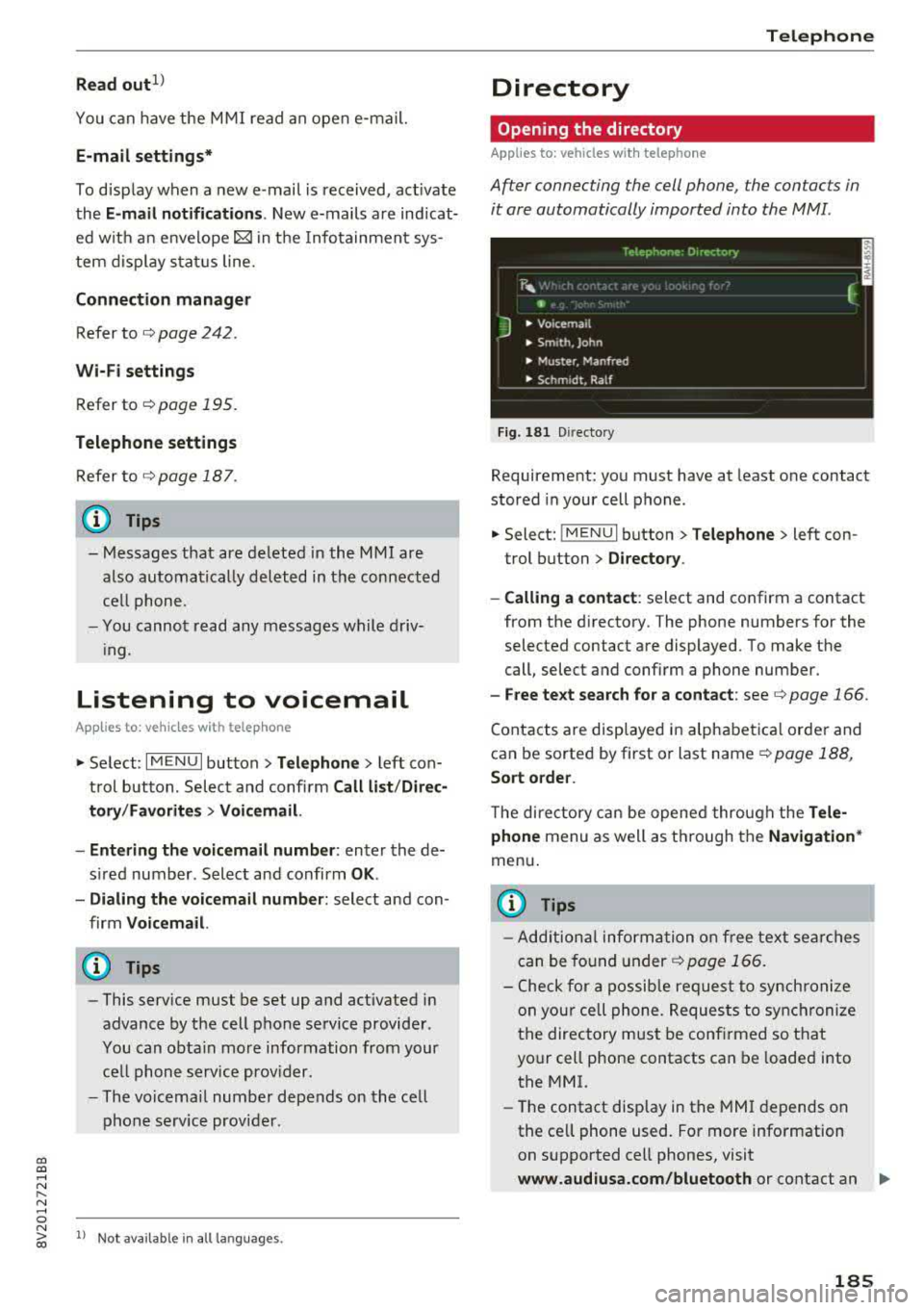
After connecting the cell phone, the contacts in
it are automatically imported into the MMI.
__________ r_e_,e_p_h_o_n_e_· _ o_,_,e_c_t_o_,·_, _________ ,
~ .· f.
"'
J • Voicema1 l
• Sm,th, John
• Muster, Manfred
• Schmidt, Ralf
Fi g. 181 Directory
Requirement: you must have at least one contact
stored in your cell phone.
.,. Select: !MENUI button> Telephone> left con
trol button
> Directory .
- Calling a contact :
select and confirm a contact
from the d irectory . The phone numbers for the
selected contact are displayed. To make the
call, select and confirm a phone number.
- Free text search for a contact : see ¢ page 166.
Contacts are displayed in alphabetical order and
can be sorted by first or last name ¢
page 188,
Sort order .
The directory can be opened through the Tele
phone
menu as well as through the Na vigation*
menu .
(D Tips
-Additiona l information on free text searches
can be found under
¢page 166.
-Check for a possible request to synchronize
on your cell phone. Requests to synchronize
the directory must be confirmed so that
your cell phone contacts can be loaded into
the MMI.
- The contact display in the MMI depends on
the cell phone used. For more information on supported cell phones, visit
www.audiusa.com/bluetooth or contact an .,.
185
Page 188 of 400
Telephone
auth orized Audi dea le r or a uthorized Audi
Service Fac ility .
- T he directory from the cell phone that is ac
tive ly connected will a lways be d isp layed.
- T he cont acts from the ce ll phone m ay not
b e trans ferred in alphabet ica l o rde r. If there
a re too many entries, contacts w ith differ
ent fi rst lette rs may be missing in the MMI.
- The contacts in the loca l M MI memory are
a lways v is ible and ca n be accessed by other
u se rs.
Free text search for a contact
App lies to: ve hicles w ith telep hone
.,. Se lect : I MENU I button> Telephone > left con
trol button
> Directory.
.,. T o limit the search , enter the initials of the con
tact being searched with each init ial sepa ra ted
by a space in t he inpu t field. Enter ad ditiona l
l etters if necess ary .
.,. Se lect an d confirm a con tact from the dire cto
ry. The phone numbers for the sele cte d contact
are disp laye d.
.,. To make the call, select and conf irm a phone
number.
(D Tips
- You can scro ll th rough long lists quick ly by
turning the contro l knob q uic kly. The scroll
i ng speed depends on the n umber of list e n
tries.
- Additional in format ion on free text searches
can be found under
r=>page 166.
186
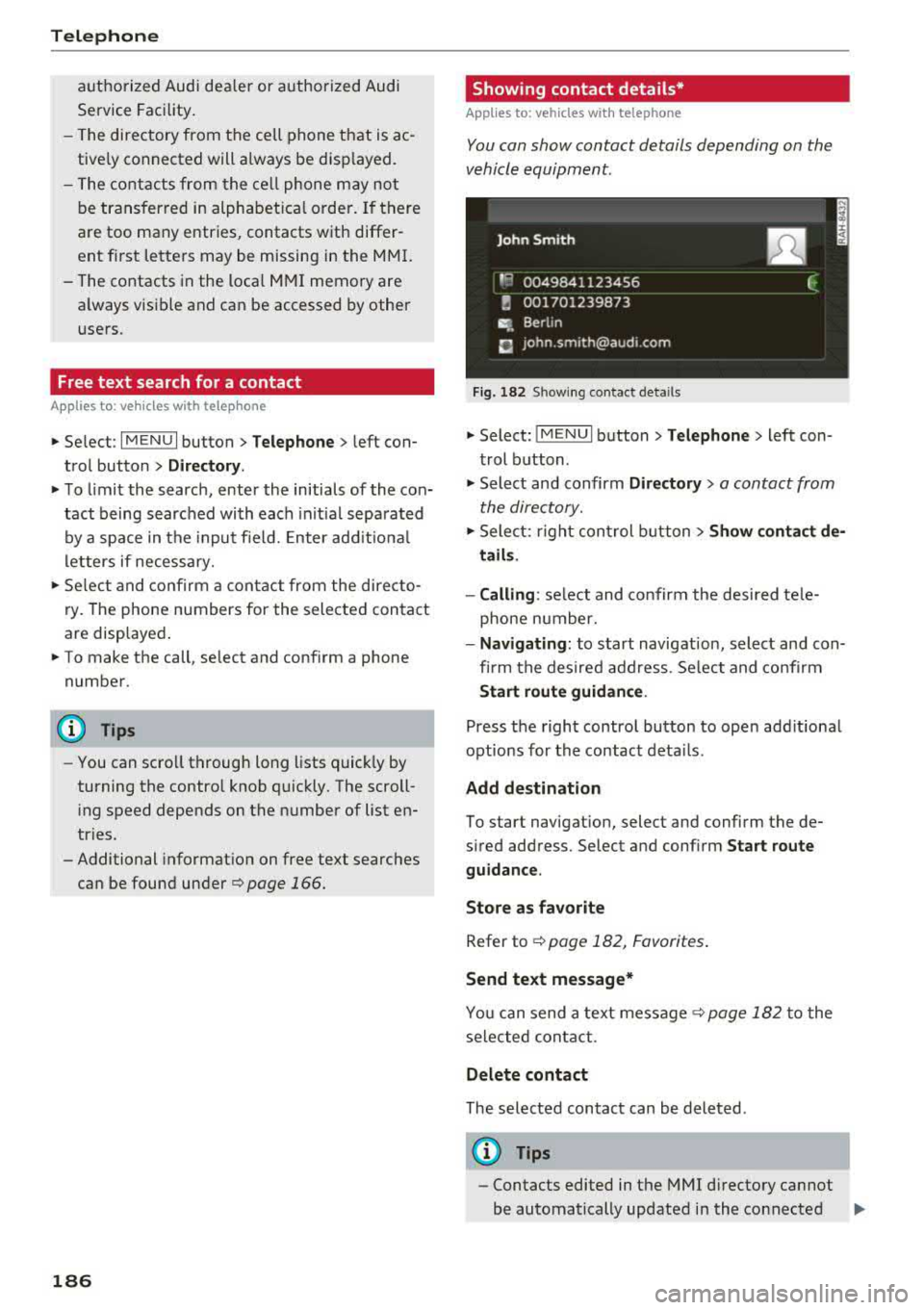
· Showing contact details*
App lies to: vehicles with telephone
You can show contact details depending on the
vehicle equipment.
Fig. 182 S h owi ng co ntact deta ils
.,. Select: !ME NUI button> Telephone > left con
trol b utton .
.,. Select and confirm Directory > a contact from
the direc tory.
.,. Sele ct: r ight con trol button> Show contact de
tails .
- Calling :
select and confirm the desired te le
phone number.
- Navigating: to start navigat ion, select and con
fi rm the desired add ress . Se lect and co nfirm
Start route guidan ce .
Press the right control bu tton to open add itiona l
opt ions for the contact deta ils.
Add destination
To start navigat ion, select and confirm the de
s ired address. Select and conf irm
Start route
guidance.
Store as favorite
Refer to ¢ page 182, Favorites .
Send text message*
You can send a text message¢ page 182 to the
selec te d c onta ct .
Delete contact
The selected contact can be deleted .
(D Tips
-Contacts edited in the MMI d irectory ca nnot
be automatically updated in the connected
.,,.
Page 189 of 400
CXl CXl .... N ,.__
N .... 0 N > 00
cell phone. Audi recommends editing cell
p hone contacts d irectly in the ce ll phone .
- Only the con ta cts in the lo ca l M MI memory
ca n be ed ite d or de leted .
Importing and exporting contacts
Applies to: veh icles with telephone
Contac ts in vCard forma t (. v cf) can be impor ted
in to the directory or exported .
Requ irement: an SD car d mus t be inser ted in one
of the SD c ard
readers *¢ page 223 , a USB stor
a ge devi ce mu st b e connec ted to t he Au di music
inte rface *¢ pa ge 228, or the requirements for
Au di connect Infotainment se rvices * m ust be
met ¢ page 190.
.,. Sele ct: I M ENU I but ton >Telephone > left con
t ro l butto n >
Directory .
... Se lect : rig ht contro l button > Directory set
tings .
- Importing contacts from a storage device :
se
l ect and co nfirm
Import contacts > SD card 1 /
SD card 2 or USB device 1 /USB device 2
> de
sired contacts
> Start import .
- Exporting contacts to a storage device :
select
and confirm
Export contacts > SD card 1 /SD
card 2 or USB device 1 /USB device 2
> desired
contacts
> Start export .
- Selecting all contacts at once to import/e x
port :
select and conf irm Import contacts /Ex
port contacts > SD card 1 /SD card 2
or USB de
vice 1 /USB device 2 > All > Start import /Start
export .
0) Tips
-Always rea d the c hapter ¢ pag e 196, Audi
conn ect (Infotainm ent) g eneral informa
t ion.
- Fo r additional in forma tion on the myAud i
a ccoun t, v is it
www.audiusa.com/myaudi.
- The im po rt ed contac ts are stored i n the lo
ca l memory o f the directory.
l) Depe nds on th e co nnect ed cell p ho ne.
Telephone
- A m aximum of 1,0 00 con tacts can be im
p orted . Yo u can check the directory memory
capaci ty at any t i me
¢ page 1 88.
- Never save im portant data on memo ry ca rds
or USB storage devices . A udi is not responsi
ble for damaged o r lost files and media.
- Contacts t hat were down lo ad ed from a ce ll
phone canno t be e xported .
- The re sho uld b e no ot her files o r fo lders o n
the stora ge medium containi ng the contacts
t o be im port ed.
Additional settings
Telephone settings
Applies to: vehicles with telephone
.,. Sele ct: ! ME NUI butto n> Telephone > right con-
t rol butt on >
Telephone settings .
Call options*
Call forwarding :
you can switch the forwarding
of incom ing ca lls to yo ur voicemai l o r to ano ther
phone nu mber on a nd off. Y ou ca n che ck if t he
funct ion is act ivated or deactivated w it h Check
status .
Call waiting :
you are alerted to an incom ing call
dur ing a pho ne c all whe n the func tion is swit ched
on ~-You ca n che ck if the func tion is acti vated
o r d eacti vate d wi th
Check status.
Send own telephone number :
sending your
phone nu mber wi th an out going c all can b e acti
va ted and de activate d. Wi th t he
Network-de
pendent
se tting , the se tting li ste d in the con
t ract w it h t he ce ll phone service p rovider is used.
T he sett ings on ly app ly to the
Telephone men u in
the MMI. Please note that the set tings o n your
ce ll phone w ill apply after disconnecting the
B luetoot h connection. You can c heck if t he f unc
t ion is activated or deactivated with
Check sta
tus .
Ringtone and volume settings
1>
U sing the Mute telephone function, you can
switch the r ingtone p layback through the M MI
speaker on and off. You can play the r ingtones
187