sim AUDI A3 SEDAN 2018 User Guide
[x] Cancel search | Manufacturer: AUDI, Model Year: 2018, Model line: A3 SEDAN, Model: AUDI A3 SEDAN 2018Pages: 404, PDF Size: 62.3 MB
Page 195 of 404
u. 00 .-< N l' N .-< 0 N > 00
The following categories can be selected in the
Twitter menu:
-My tw eets: News Feed and the Tweets you have
posted are listed.
- Home: the Tweets for everyone you follow are
displayed.
- Trends : topics on Twitte r that are cur rently
popular w ithin a country .
D ifferent functions are available depending on
the Twitter category you have selected:
- New tweet : you can post a new tweet using
pre-made templates or using myAudi tem
plates that you have created yourself .
-Refresh : the selected Tw itter function is re
freshed .
-Favorite : mark a Tweet as favorite to show you
liked it .
-Retweet: you can quote a Tweet to share it with
others.
(D Tips
- Other settings such as account, language,
Tweet security and location settings
cannot
be changed in the MMI. These changes must
be made on the Twitter webs ite.
- You can only connect
one Twitter account
with your myAudi account.
- Audi connect (Infotainment) makes it possi ble to access Tw itter. Permanent ava ilability
cannot be guaranteed, because that de pends on Twitter.
Travel (travel guide)
Applies to: ve hicles with Trave l (travel guide)
You can use the Audi MMI connect opp to store
points of interest on your mobile device (such as a smartphone) and then use them for route
guidance in the
MMI.
Requirement:
The
Audi MMI connect app must be insta lled and
open on your mobile device.
Audi connect (Infotainment)
You must be logged into your myAudi account in
the
Audi MMI connect app and you must have se
l ected your vehicle.
T he Wi-Fi function on your mobile device and on
the MMI must be switched on.
T he M MI must be connected to the network.
.. Press: !MENU ! button> Audi connect> left con-
trol button >
Information category> Travel.
After opening the trave l guide, trave l tips in your
area w ill be displayed including current ratings as
well as the corresponding category .
.. Press the left control button to change the cat
egory (such as bars nearby).
,&. WARNING
- It is only safe to use tablets, laptops, mo
bile devices and other similar devices when
the vehicle is sta tionary because, like all
loose objects, they co uld be thrown around
the inside of the ve hicle in a crash and cause
serious inj uries. Store these types of devices
securely while driving.
- Do not use any wireless devices on the front
seats within range of the airbags while dr iv
ing. Also read the warnings in the chapter
¢ page 2 73, Front airbags .
(D Tips
-Units of measurement, language settings
and time are shown in the Infotainment sys
tem display based on how they were set in
the MMI system sett ings
¢ page 243.
Audi connect (Infotainment) in navigation
App lies to : vehicles wit h a navigat ion syste m and Audi co n
nect (Infota inment)
.. Select: IMENU! button> Audi connect> left
control button>
Navigation.
-
T he following Audi connect Infotainment services
are currently available:
..,.
193
Page 196 of 404
Audi conn ect (Infotainment)
- Navigation with satellite map1> r::!>page 213.
- Po in t o f Inter est (PO I) online se a rc h with
v o ic e re co gni tion
(such as restaurants): plan
route g uidance using the MMI control panel
¢ page 204 and the voice recognition system
¢page 170.
-Set up destinations in your MMI using your
m yAudi acco unt or the sa tellite m ap vie w l)
¢ page 213.
- Online traffic informat ion : receive up-to-the
minute traffic information about accidents,
road construction and other incidents
¢page 216.
- Map updat e: import navigat ion map updates
directly to your vehicle using an SD card or as
an online update
¢page 214.
(D Tips
-For the map update Audi connect Infotain
ment service via SD card, check the current
software vers ion in your vehicle and then
check www.aud iusa .com/myaudi to see if a
newer ve rsion is ava ilable. You can a lso have
the new navigation data insta lled by an A udi
dealer, w hich can be done for an add itional
cha rge.
- You can find add itiona l information abo ut
the
map upda te on line a t
www.audiusa.com/myaud i.
Audi connect (Infotainment) in Media
menu
Applies to vehicles with Audi connect (Infotainment)
.,. Se lect : IMENUI button> Audi connect > right
control button >
Ente rtainment .
- Online medi a and Internet r adio :
offers access
to different online media services as well as In
ternet rad io and operat ion through the MMI us
ing the
Audi MMI conne ct app.
Applies to: vehicles with Wi-Fi audio player
-Wi-Fi audi o player : you can access t he media
center through a Wi -Fi connected media player
(such as a smartphone)
¢ page 22 7.
ll AU DI AG provides access to services fro m third party pro
v iders . Pe rma nent availabil ity can not be guaran teed , be
c a use that depen ds on the th ird party provider.
194
A WARNING
It is only safe to use tablets, laptops, mobile
devices and other similar devices whe n the ve
hi cle is stationary because, like all loose ob
jects, they could be thrown around the inside of the vehicle in a cras h and cause se rious in
j ur ies . Store these types of devices sec urely
while driv ing.
((D} Note
A lways fo llow the information found in r::!> 0 in
Wi -Fi hotspot on page 195.
(D Tips
- Also see the chapter r::!> page 196, Audi con
nect (Infotainment) general information.
- For more informat ion on the W i-F i aud io
player and suppo rted devices, contact an
autho rized A ud i dealer o r autho riz ed Aud i
Serv ice Facility.
Additional options
Applies to vehicles with Audi connect (Infotainment)
.,. Select: IMENUI b utton> Audi conn ect > right
control button.
The following opt ions are available in the Aud i
connect I nfota inment serv ices overv iew :
About Audi conn ect
Here you w ill find legal information for Audi con
nect (Infota inment) usage .
Lo g in *
See ¢ page 190, Logging into myAudi in the vehi
cle.
Connection manager
Seer::!> page 244.
Licens e subscription
The validity and exp iration date of your licenses
a re disp layed. W hen the fu nction is sw itched on
1111-
Page 197 of 404
u. 00 .-< N l' N .-< 0 N > 00
10, the message Warning befo re sub scripti on
e x pire s
will display to warn you that your license
is about to expire.
Refresh
The content of the selected A udi connect Info
tainment service o r the entire Audi connect (Info
tainment) list is updated .
Data privacy
Requirement: the ign it ion must be switched on.
Locat ion and personal data are transmitted when
using Aud i connect Infotainment services . If you
do not want this information to be transm itted,
activate data p rivacy .
-Acti vate pri vacy: the data connection is switch
ed off. Some Audi connect Infotainment serv
ices are not available.
- Deacti vate data priv acy : if the data connection
is switched off, you can switch on the data con
nect ion for the use of all Audi connect Infota in
ment services. Select and confirm
A cti vate d ata
conn ection.
Wi-Fi hotspot
A ppl ies to: ve hicles with Wi-F i hotspot
You can use the MMI as a Wi-Fi hotspot to con
nect up to eight Wi-Fi devices to the Internet.
While driving, restricted use of unsecured, light,
small wireless devi ces is only possible from the
rear of the vehicle.
Requirement: the ign ition must be switched on.
"' Select : I MENU I button> Telephone > right con-
trol button >
W i-Fi settings.
The fo llow ing settings can be selected:
Wi-Fi
The MM I Wi -Fi hotspot is deactivated at the fac
tory. Switch the Wi-Fi hotspot to
Hot spot before
establishing a connection between your vehicle
and your Wi -Fi device.
- On : the MMI Wi -Fi hotspot is active and visib le
to ot her devices. You can connect your Wi -Fi
device to the MMI and use the Internet connec
t ion if necessary.
Audi conn ect (Inf otainment )
-Off : the M MI Wi-Fi hotspot is deactivated. An
Internet connection for Wi -Fi devices is not
possible .
A WARNING
= -
- To reduce the r isk of an accident, use the
Aud i connect Infotainment services with a
W i- F i hotspot only in the rear seat when the
ve hicle is in mot io n, or only when the vehi
cle is stat ionary .
- It is o nly safe to use tablets, laptops, mo
b ile dev ices and other sim ilar devices when
the vehicle is stat ionary because, li ke all
loose objects, they co uld b e thrown around
t he inside o f th e ve hicl e in a c rash and ca use
serio us inj uries . Store these types of devices
secure ly while driving .
- D o not use any wireless dev ices on the front
seats within range of the airbags whi le driv
ing . A lso read the warnings in the chapter
¢ page 2 73, Front airbags .
-As the driver, do not allow usage of the Wi
F i hotspot to distract yo u from driving, as
this cou ld increase the r isk of an accident.
@ Note
- Under some conditions, ce rtain mobile devi
ces and operating systems may automati
cally switch from your vehicle's Wi -Fi hot
spot to the device's mobi le data connection.
In that event, standa rd text and data usage
rates would apply wh ile the device's mobile
data connect ion is in use. Please refer to
documentation prov ided by your mob ile de
vice's manufacture a nd you r data carrier for
details , rela ted te rms an d pr iva cy sta te
ment.
- Yo u ar e respons ib le for all precautions ta k
en for d ata prote ct io n, a nti -vir us p rotec tion
and protec tion agains t loss of data on mo
bile devices t hat are used to access the In
ternet through the Wi -Fi hotspot.
(D Tips
- In ve hicl es w it h out Audi con nect (I nfota in
ment)*, the use of the Wi -Fi hotspot is on ly
possible fo r the Wi -Fi audio player *. A data
.,.
195
Page 226 of 404
Media
(CO) 6/VDE 0837. The optical readers that are in
stalled conform to safety class
1. Lasers in this
class are very weak and well shielded, so there is no danger if used correctly.
Media drives
SO card reader
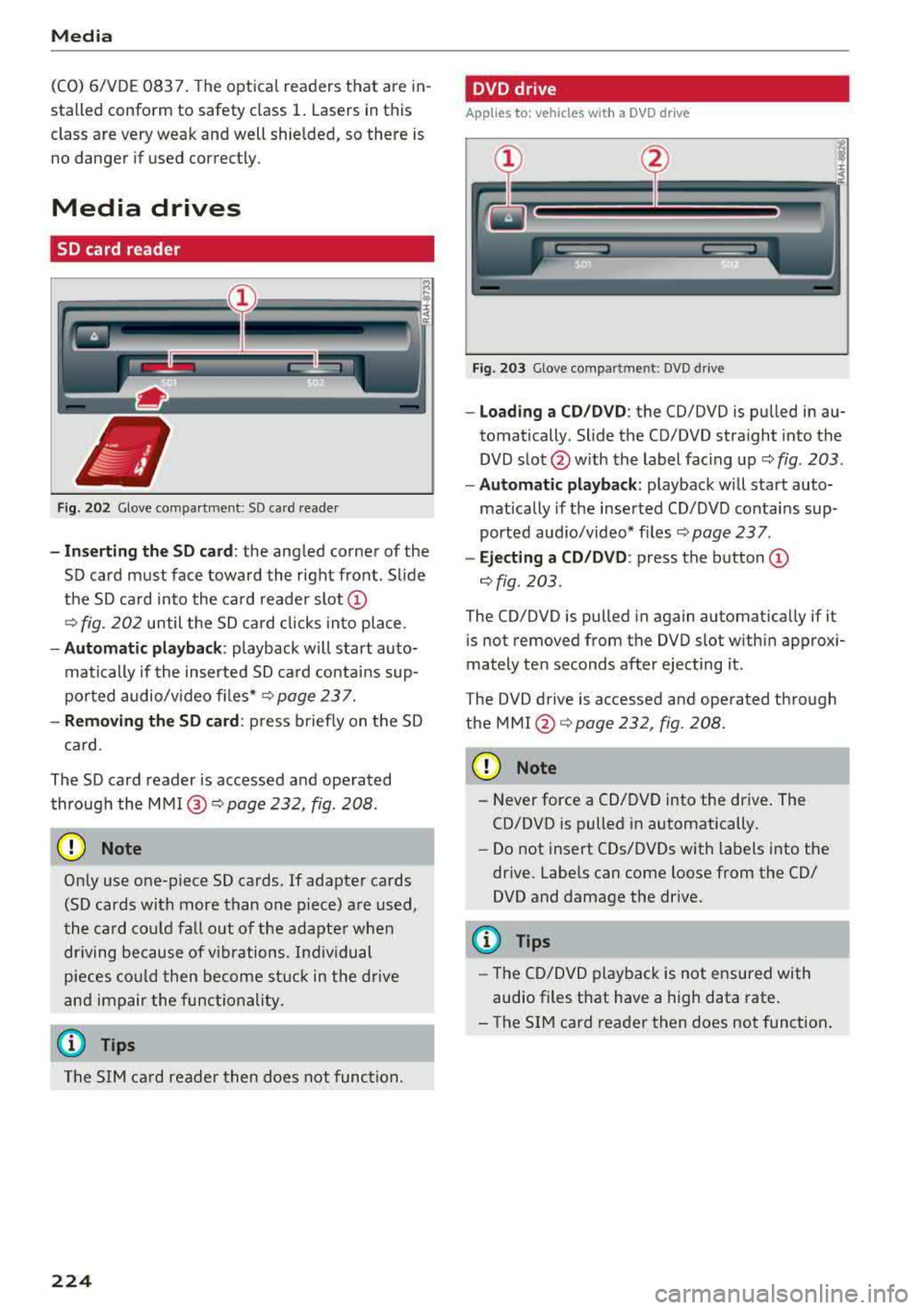
Fig. 202 Glove compa rtment : SD ca rd reader
-I n se rt in g th e S D card : the angled corner of the
SD card must face toward the right front . Sl ide
the SD ca rd into the card reader
slot @
9fig. 202 until the SD ca rd cli cks into place .
-Automatic pla yback : playback will start auto
matically if the inserted SD ca rd contains sup
po rted audio/v ideo fi les*
r:::.> page 23 7.
-Remo vin g the SD card : press briefly on the SD
ca rd.
The SD card reader is accessed and operated
through the
MMI @9 page 232, fig . 208 .
(D Note
Only use one-piece SD cards. If adapter cards
(SD cards with more than one piece) are used,
the card cou ld fa ll out of the adapter when
driving because of v ibrations . Ind ividual
pieces cou ld then become s tuck in the d rive
and impair the func tionality.
(D Tips
The S IM ca rd reader then does not func tion.
224
DVD drive
App lies to : vehicles with a DVD dr ive
Fig. 2 03 Glove comp art m en t: DVD d riv e
-Loading a CD /DVD : the CD/DVD is pu lled in au
tomatically . Slide the CD/DVD straight into the
DVD s lot @ with the label fac ing up
9 fig. 203 .
-Automa tic playback: playback w ill start auto
matically if the inserted CD/DVD conta ins sup
ported aud io/video* f iles
r:::.> page 23 7 .
-Ej ect ing a CD /DVD : press the button @
r:::.>fig . 203 .
The CD/DVD is pulled in again automat ica lly if it
is not removed from the DVD slot w ith in approx i
mately ten seconds after ejecting it.
T he DVD drive is accessed and operated through
the
MMI @r:::.>page 232 , fig . 208.
(D Note
-N ever force a CD/DVD into the drive. The
CD/DVD is pulled in automatically .
-Do not insert CDs/DVDs with labels into the
drive. Labe ls can come loose from the CD/
DVD and damage the drive.
(D Tips
-T he CD/DVD p layback is not ensured with
audio files that have a high data rate.
-T he SIM card reader then does not function .
Page 229 of 404
u. 00 ... N l' N ... 0 N > 00
The media is started and operated through the
mobile device or the
MMI, depending on the de
vice being used.
(D Tips
-Check for any connection requests on your
Bluetooth device.
-Multiple Bluetooth audio players can be
connected to the
MMI, but only one mobile
device can be active.
-Bluetooth protocols AVRCP (1.0/1.3/1.4)
and A2DP are supported.
-Note the volume setting on your Bluetooth
device. Audi recommends setting your mo
bile device to the maximum volume when
using it as a Bluetooth audio player.
-The supported media functions (such as
shuffle) depend on the Bluetooth device be
ing used.
-For more information on the supported de
vices, visit www.audiusa.com/bluetooth or
contact an authorized Audi dealer or author ized Audi Service Facility.
Wi-Fi audio player
Appl ies to: ve hicles with Wi-F i audio playe r
Using the Wi -Fi audio player media source on the
MMI, you can connect and operate your Wi-Fi-ca
pable media player (such as a smartphone) to
wirelessly play music from your media player
li
brary. The media player is connected through the
vehicle's Wi-Fi hotspot. A UPnP Server opp or an
integrated UPnPIDLNA server on your media
player is required to access your media player
li
brary.
Requirement: the Wi-Fi function on your media
player must be switched on. The
Audi MMI con
nect
app or a UPnP server app must be installed
on your media player .
Or: you must be using a
media player with an integrated UPnP/DLNA
server.
-Connecting a media player: press the I MEDIA !
button. Press the left control button until the
sources overview
c::;, page 232 is displayed. Se
lect and confirm
Wi-Fi audio player 0
c::;,page 232, fig . 209 .
Media
-If necessary, select and confirm Wi-Fi turned
off> Turn on Wi-Fi
to activate Wi-Fi in the
MMI. Select
Wi-Fi settings, if necessary. Select
the same settings on the wireless media player
that are used for the Wi-Fi hotspot.
-Starting the Wi-Fi audio player: start the Audi
MMI connect
app or a UPnP server app, or set
media permissions on your media player.
Operating the media player: the media player is
operated through the MMI.
-Press the left control button repeatedly until
the
Folders menu item appears. Select and con
firm
Folders.
-Playing music from the media player: select
and confirm
Media center .
Web radio:
see c::;, page 228 .
A WARNING
-
-As the driver, do not allow usage of the Wi
Fi hotspot to distract you from driving, as
this could increase the risk of an accident.
-It is only safe to use tablets, laptops, mo
bile devices and other similar devices when
the vehicle is stationary because, like all
loose objects, they could be thrown around
the inside of the vehicle in a crash and cause
serious injuries. Store these types of devices
securely while driving.
-Do not use any wireless devices on the front
seats within range of the airbags while driv
ing. Also read and follow the warnings in
c::;, page 2 73, Front airbags.
@ Note
Always follow the information found in ¢@ in
Wi-Fi hotspot on page 195.
(D Tips
-Always read the chapter c::;, page 196, Audi
connect (Infotainment) general informa
tion.
-Please note that a Wi-Fi connection does
not automatically make it possible to use
the Internet. For additional information,
see
c::;, page 190.
227
Page 230 of 404
Media
- To avoid interruptions during playback, de
activate the power saving function on the
media player or connect it to a charger.
- The loading times for the audio data depend
on the media player used and the number of
files that it contains.
- A maximum of 2,000 entries per directory
are displayed in the MMI.
- Songs downloaded for offline use using mu
sic streaming services are stored on your mobile device (such as a smartphone) and
may be DRM protected. The Wi-Fi audio
player will not play ORM protected files.
- Contact an authorized Audi dealer or au thorized Audi Service Facility for additional
information on the Wi-Fi audio player .
Online media and
Internet radio
A pp lies to veh icles with A udi co nnect (Infotainment)
You con playback and operate various online me
dia services and Internet radio using the MMI.
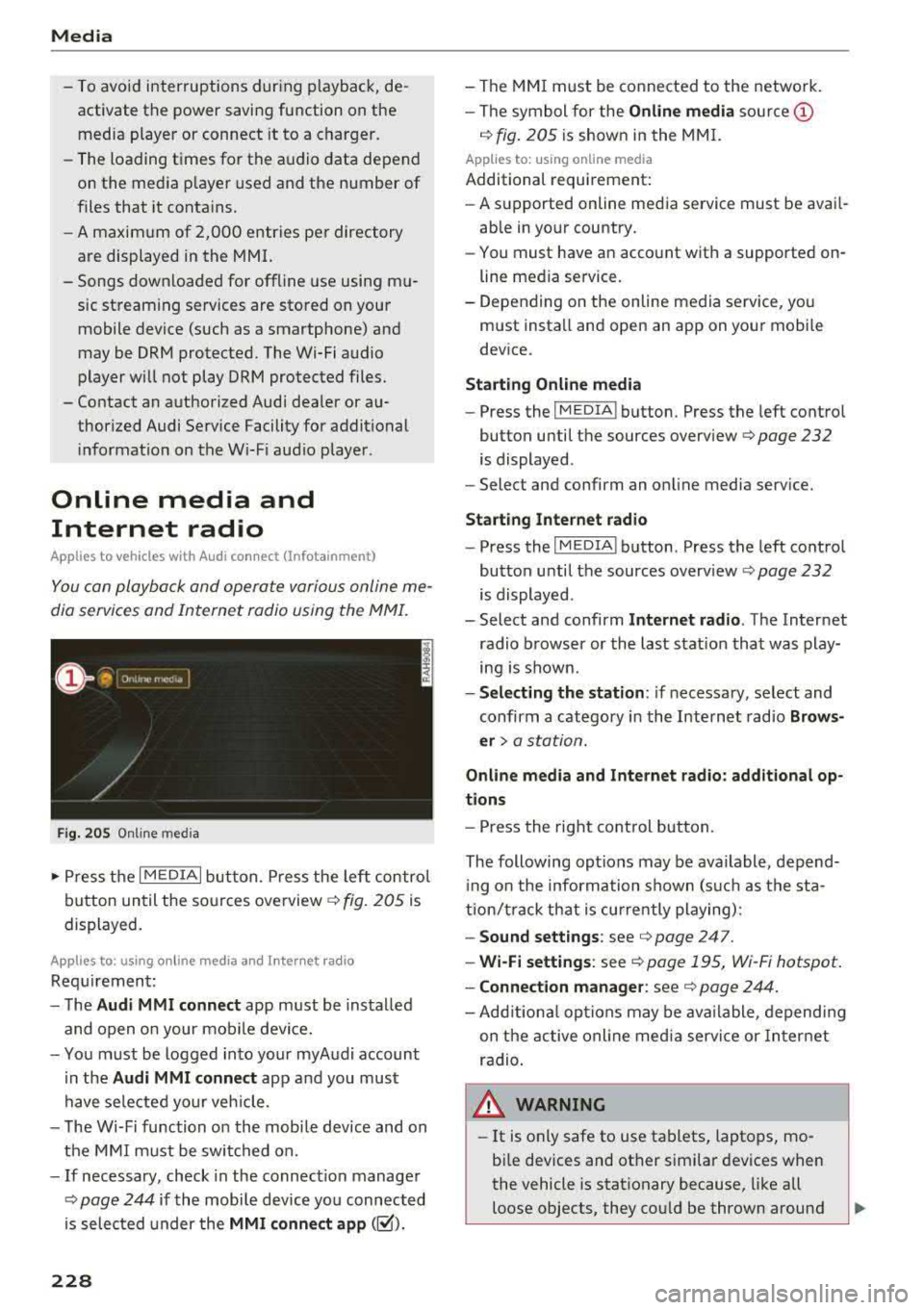
Fig. 205 Online media
.,. Press the I MEDIAi button. Press the left control
button until the sources
overview ¢ fig. 205 is
displayed.
A ppl ies to: using o nline me dia an d Internet radi o
Requirement:
- The
Audi MMI connect app must be installed
and open on your mobile device.
- You must be logged into your myAudi account
in the
Audi MMI connect app and you must
have selected your veh icle.
- The Wi-Fi function on the mobile device and on
the MMI must be switched on.
- If necessary, check in the connection manager
¢
page 244 if the mobile device you connected
is selected under the
MMI connect app (~).
228
-The MMI must be connected to the network.
- The symbol for the
Online media source @
¢ fig. 205 is shown in the MMI.
Applies to: usin g on line media
Additional requirement:
- A supported online media service must be avail
able in your country.
- You must have an account with a supported on
line media service.
- Depending on the online media service, you
must install and open an app on your mobile
device.
Starting Online media
-Press the IM EDIA I button . Press the left control
button until the sources
overview ¢ page 232
is displayed .
- Select and confirm an online media service.
Start ing Internet radio
-Press the IM EDIA I button . Press the left control
button until the sources
overv iew ¢ page 232
is displayed .
- Select and confirm
Internet radio. The Internet
radio browser or the last station that was play
ing is shown .
-Selecting the station : if necessary, select and
confirm a category in the Internet radio
Brows
er>
a station.
Online media and Internet radio: additional op
tions
- Press the right control button.
The following options may be available , depend
i ng on the information shown (such as the sta
tion/t rack that is currently playing):
-Sound settings: see ¢ page 247 .
-Wi-Fi settings: see ¢ page 195, Wi -Fi hotspot.
- Connection manager: see ¢ page 244.
-Add itional options may be available, depending
on the active online media service or Internet
radio .
,&. WARNING
-It is on ly safe to use tablets, laptops, mo
bile devices and other similar devices when
the vehicle is stationary because, like all
loose objects, they could be thrown around
-
Page 231 of 404
LL co .... N
" N .... 0 N > co
the inside of the vehicle in a crash and cause
serious injur ies. Store these types of devices
securely whi le driving.
- Do not use any w ireless devices on the front
seats w ith in range of the a irbags while driv
ing. Also read and follow the warnings in
¢ page 2 73 , Front airbags .
CD Note
-Always fo llow the information found in i::> @
in Wi-Fi hotspot on page 195 .
- Please note that there genera lly are addi
tiona l costs when using an online media
se rvice account, especially when it is used
i nternationally .
(D Tips
-Depending on the Internet connection and
network traffic, a connection loss can occur
duri ng p layback of on line media serv ices .
-Online media and Internet radio usage de
pends on the serv ice availab ility of the third
party provider .
- Audi AG simply makes the access to online
media services possible through the MMI
and does not take any respons ibility for the
contents of the online med ia services .
- Always read the chapter
¢ page 196, Audi
connect (Infotainment) general informa
tion .
- Dependi ng on the mobile device used, the re
may be interruptions during media playback
and whe n using the
Audi MMI connect app.
To avoid i nterruptions when usi ng a mob ile
device , do no t lock the s cree n on you r mo
bile device and keep the
Audi MMI connect
app in the foreground .
- Cont act an a uthorized Audi dea ler or au
thorized Audi Service Facili ty for additional
i nformat ion about online media .
Media
Multimedia connections
USB adapter for Audi music interface
You can connect your mobile devices (such as a
smartphone or MP3 player) to the Audi music in
terface and charge them using a special USB
adapter .
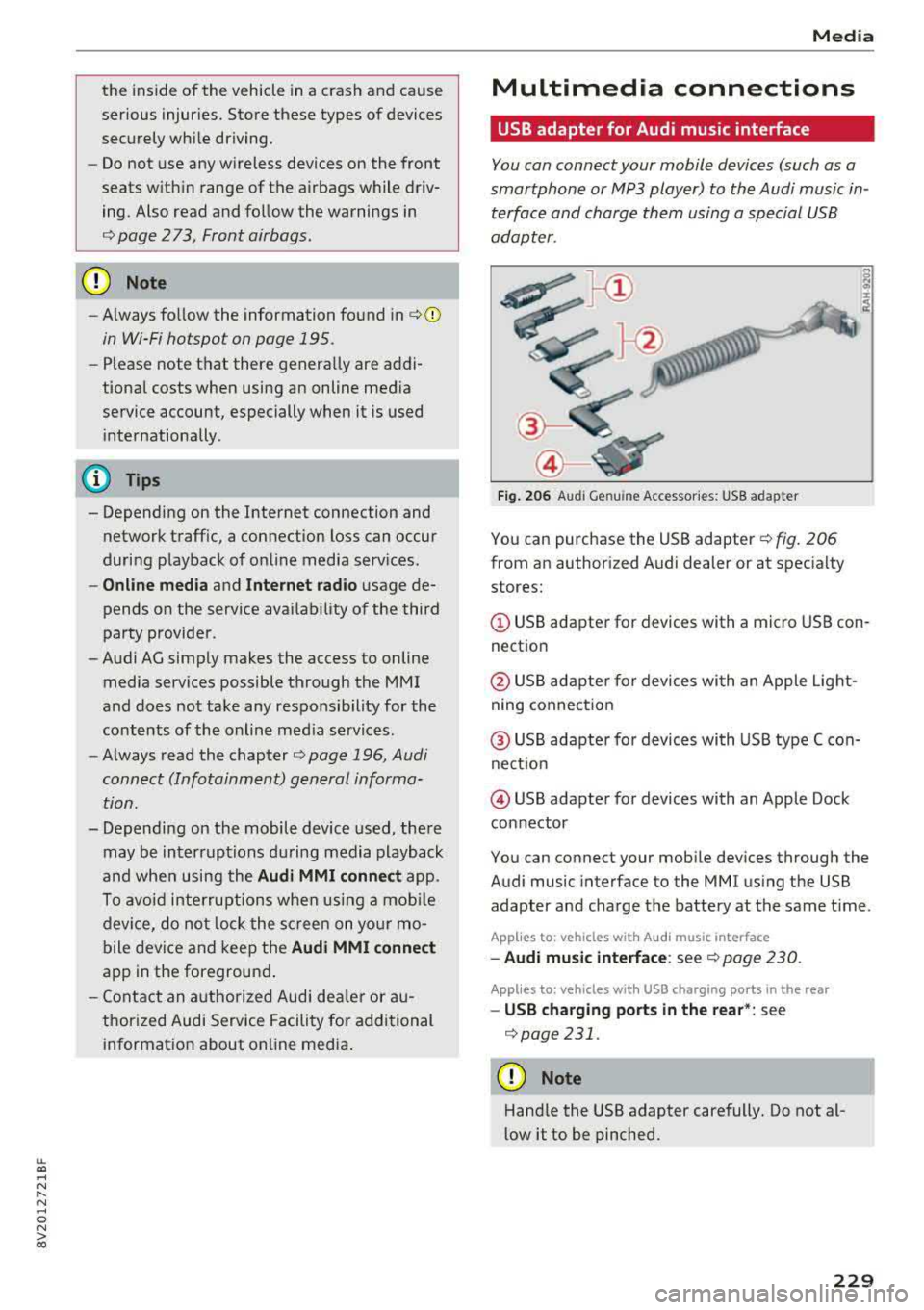
Fig. 206 Audi Genuine Acces sorie s: USB a dap ter
You can purchase the USB adapter ¢ fig. 206
from an author ized Audi deale r or at spec ialty
stores:
© USB adapter for devices with a micro USB con
nect ion
@ USB adapte r for devices with an Apple Light
ning conne ct ion
@ US B adapte r for devices wi th USB type C con
ne ct io n
@ USB adapter for devices with an Apple Dock
connector
You can connect your mob ile dev ices through the
Audi music interface to the MMI us ing the USB
adapter and cha rge the battery at the same t ime .
App lies to : vehicles wit h Audi music interface
-Audi mu sic interfa ce : see c;> page 230 .
Applies to: vehicles wi th USB charging ports in the rear
-USB cha rging ports in the rear *: see
¢page 231 .
CD Note
Hand le the USB adapter carefully. Do not al
low it to be pinched.
229
Page 237 of 404
-Move favorite : select a favorite from the list>
right contro l button > Move favorite . Select
and confirm the location of the se lected favor
ite.
- Deleting a favorite : select a favorite from the
list>
right contro l button > Delete favorite >
Delete this favorite or Delete all favorites .
Additional settings
Options menu
Context-specific functions and settings are avail
ab le depending on the selected so urce.
.,. Press the right control button.
Sound settings
See q page 247.
Input level
Requirement: a mobile device m ust be connected
to the AUX connection cable or to a USB adapter
q page 229, Multimedia connections.
The vo lume of the mobi le device is adapted to
the MMI. Audi recommends adjusting the vo lume
on the mobile device to
70% of the maximum
volume output.
Bluetooth settings
See q page 246.
Wi-Fi settings*
See q page 195, Wi-Fi hotspot .
Connection manager
See q page 244.
Additional track information
With the function switched on l;1 and a playlist
open, var ious information about the current track
(such as a rtist, album and album cover*) as well
as the playing time and the remaining playing
time are displayed.
u. co ... N ~ l) Th e fun ctio n automat ic ally sw itc hes off when th e sou rce
8 is ch an ged . N &j 2> This fun ctio n is not availa ble fo r all cell phone s.
Media
Jukebox memory capacity*
Information on the Jukebox memory capacity and
the number of stored tracks in the Jukebox is dis
played.
Rewind/Fast forward
T urn the cont rol knob to the left or to the right.
Or: move your finger across the MMI touch con
trol pad* from left to right.
Shuffle1>
With the function switched on 1;1, all files in the
playlist are played and shown in random order.
Repeat track1>
When the funct ion is switched on 1;1, the current
track repeats.
Back to 'Playback'
The options menu is closed. The track currently
playing appears in the playlist.
Play similar music*
The track currently playing is quickly analyzed
(s uch as artists, genres, mood , beat) and a smart
playlist with simi lar trac ks is shown .
Play more ...
A smart playlist is shown based on the track cur
r ently playing. You can select between a p laylist
with more tracks
by this artist , from this album
o r of this genre.
Copy to jukebox*
See q page 225, Adding files to the Jukebox .
Set as ringtone*2>
Requirement: a cell phone must be connected to
the MMI. The track currently play ing must be in
the Jukebox"
q page 225.
The selected track wi ll be used as the ringtone
for incoming calls.
235
Page 247 of 404
u. 00 ... N l' N ... 0 N > 00
Secondary phone
Applies to: vehicles with telephone
-Connect new device : search for and connec t a
c e ll phone.
- List of devices already paired : selec t your cell
p hone fro m the lis t of all the devices t hat are
al re ad y p aired.
Data connection
Applies to vehicles with Audi connect (Infotainment)
- T he data conne ct ion is made using the em bed
ded SIM car d
ll i=>page 190. You do not need to
adjust a ny a ddit io n al sett ings.
{Ll) Note
Always follow t he inf ormat ion foun d in i=> @ in
Wi-Fi hotspot on page 195 .
MMI connect app
Applies to vehicles with Audi connect (Infotainment)
Requirement: the Audi MMI connect app m ust
be installed and open on your mobile device.
- Connect new device : search for and connect a
mobile device (s uch as a smartp hone) .
-List of devices already paired : selec t your mo
bile device from the list of a ll the devices that
are already paire d.
Audio player
Applies to vehicles with Bluetooth or Wi-Fi audio player
Bluetooth player*
Requirement: the Bluetooth funct ion and v is ibili
ty must be sw itched on in the MMI
i=> page 246
and on the B luetoot h aud io player.
- Connect new device : press the control knob.
Se lect
Bluetooth audio player . Search fo r and
connect a mobile device .
-List of devices already paired : select a Bl ue
tooth device from the list of a ll the devices that
are already paire d.
ll SIM card inst alle d in t he v eh icle at the fa ctory.
System settings
Wi-Fi audio player*
R eq uiremen t: th e W i-Fi h otspo t* on the M MI
i=> page 195 an d on yo ur Wi -Fi audio playe r must
be switched o n.
-Connect new device: press the co ntrol knob.
Se arch for and conne ct a W i-Fi ca pabl e dev ice.
- Disconnect Wi-Fi audio player: de activate t he
W i-Fi on you r W i-Fi capa ble dev ice. The devi ce
w ill be au tom atic a lly removed from the lis t.
@ Note
Alway s follo w the inf ormat ion foun d in i=> @ in
W i-F i h ots pot on p age 195.
Directory
Applies to: vehicles with telephone
Display contacts from a cell phone (or an addi
tiona l cell phone).
Requirement: no ce ll phones can be connec ted to
the MMI using the
Handsfree pro file.
- Connect new device: search for and connect a
new ce ll phone .
-List of devices already paired : select yo ur cell
phone from t he list of all the cell phones that
are a lready paired .
Audi smartphone
Applies to: vehicles with Audi smartphone interface
-Connect yo ur cell phone to the A udi music in
t erface
i=> page 230 using a USB adap ter
i=> page 22 9, fig. 2 06.
- Sel ect your cell p ho ne from t he list of cell
p ho nes th at h ave already bee n con nec ted.
Additional options
D epen ding on the sele cted fun ct ion, yo u ca n use
t h e righ t contro l bu tton to access the ava ila bl e
additional options in t he connection mana ger .
.,.
245
Page 263 of 404
LL co .... N
" N .... 0 N > co
injury and death in automobile accidents.
For your protect ion and that of your passen
gers, always correctly wear safety belts
when the vehicle is moving .
- Failure to pay attention to the warn ing light
that come on, could lead to personal injury.
Why use safety belts?
Frontal collisions and the law of physics
Frontal crashes create very strong forces for peo
ple riding in vehicles .
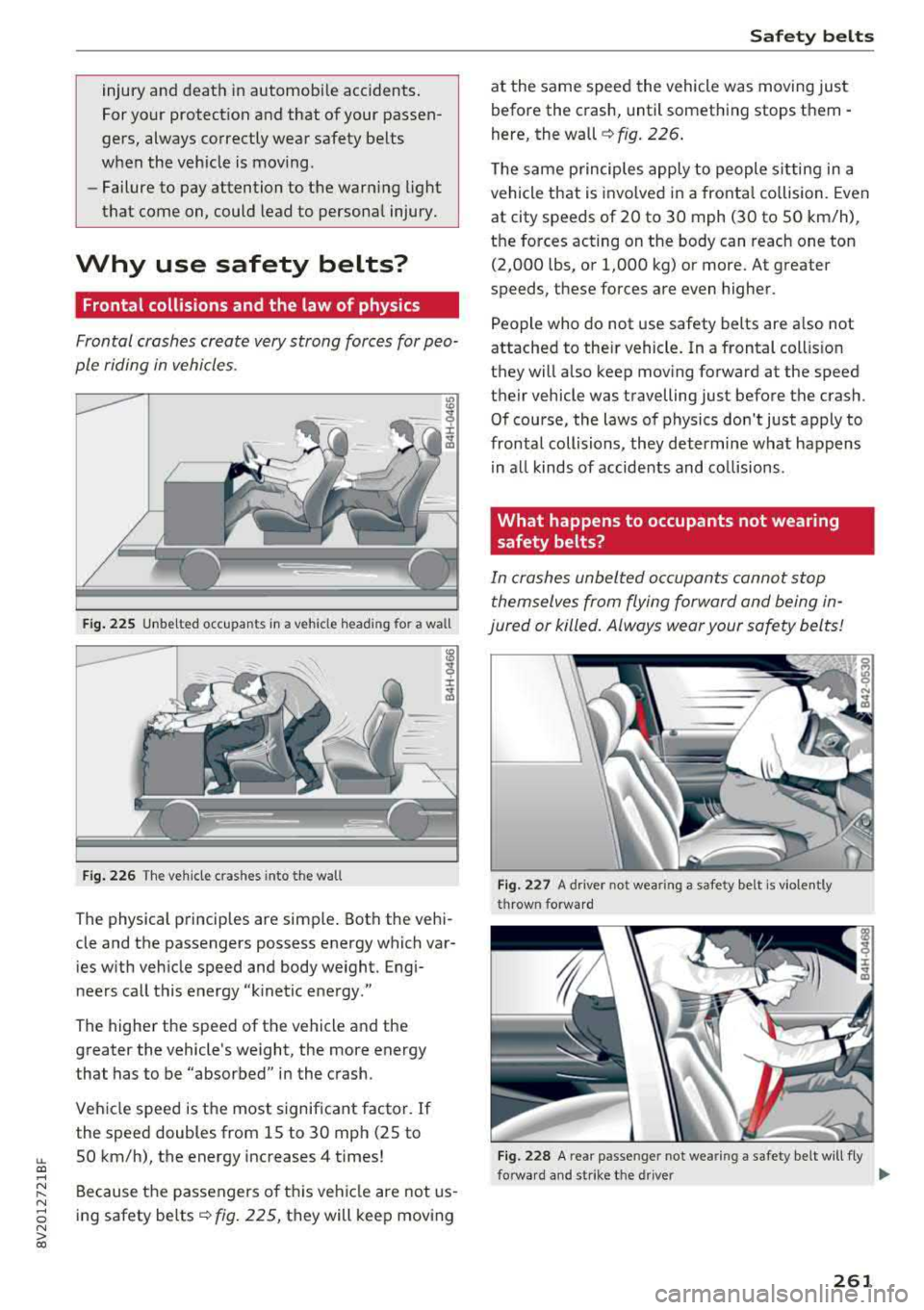
Fig . 225 Unbe lted occupants in a veh icle head ing fo r a wall
Fig . 2 26 The ve hicle c rashes into the wall
The physical principles are simple . Both the vehi
cle and the passengers possess energy which var
ies w ith veh icle speed and body we ight. Engi
neers call this energy "k inetic energy ."
The higher the speed of the vehicle and the
greater the vehicle's we ight, the more energy
that has to be "absorbed" in the crash.
Vehicle speed is the most signif icant facto r. If
the speed doubles from 15 to 30 mph (25 to
SO km/h), the energy increases 4 times!
Because the passengers of t his veh icle are not us
ing safety
belts ~ fig. 225, they will keep mov ing
Safet y bel ts
at the same speed the vehicle was moving just
before the crash, until something stops them -
here, the
wall ~ fig. 226 .
The same p rinciples apply to people s itting in a
vehicle that is invo lved in a fronta l co llision. Even
at city speeds of 20 to 30 mph (30 to SO km/h),
the forces acting on the body can reach one ton (2,000 lbs, o r 1,000 kg) or more. At greater
speeds, these forces are even higher.
People who do not use safety belts are a lso not
attached to the ir vehicle . In a frontal col lis ion
they will also keep mov ing forward at the speed
their vehicle was travelling just before the crash. Of course, the laws of physics don't just apply to
frontal collisions , they determine wha t happens
in a ll kinds of accidents and co llisions .
What happens to occupants not wearing
safety belts?
In crashes unbelted oc cupants cannot stop
them selves from flying forward and being in
jured or killed. Always wear your safety belts!
Fi g. 227 A driver not wear ing a safe ty belt is violen tly
throw n forward
Fig. 228 A rea r passe nge r not we aring a safety be lt w ill fly
forwa rd a nd strike t he drive r
Ill-
261