tow AUDI A3 SEDAN 2018 Owner's Manual
[x] Cancel search | Manufacturer: AUDI, Model Year: 2018, Model line: A3 SEDAN, Model: AUDI A3 SEDAN 2018Pages: 404, PDF Size: 62.3 MB
Page 128 of 404
Ass is tance sy stem s
@Indicator lights
Ill-Adaptive cruise control is switched on . No
veh icles are detected ahead . The stored speed is
maintained.
• -A vehicle driving ahead was detected. The
adapt ive cruise control system regulates the
speed and d istance to the vehicle ahead and
brakes/accelerates automatically.
(-) -Adaptive cruise control is switched on. Ave
h icle was detected ahead . Yo ur vehicle remains
stopped and w ill not start driv ing automat ica lly .
• -The automatic braking is not enough to
maintain a sufficient distance to a vehicle dr iv ing
ahead . You must intervene
r:::;, page 129, Driver
intervention request .
© Instrument clu ster di splay
If adaptive cruise contro l is not shown in the in
strument cluster display, you can call i t up using
the multifunction steering wheel buttons
r:::;, page 13 .
Based on the graphics in the d isp lay, you can de
termine if the system is mainta ining a distance to
a vehicle ahead and what that distance to this ve
h icle is:
No vehicle -no vehicle was detected driving
ahead.
Sil ver vehicle -a vehicle was detected driving
ahead.
Red vehicle -request for driver intervention
r:::;, page 129.
The five distance bar s on the gauge@ represent
the set d istance (refer
to r:::;, page 128 for infor
mat io n on how to change the distance). If yo u
fa ll below the se lected distance, the distance
bars become red from the bottom upward.
A WARNING
If you press the ISE TI b utton when driving at
speeds below 20 mph (30 km/h), the vehicle
accelerates automat ica lly up to 20 mph (30
km/h), which is the m inimum speed that can
be set.
126
@ Tips
- If you switch the ignition or the adaptive
cruise control system off, the set speed is
erased for safety reasons.
- The electronic stabilization control (ESC)
and the anti-slip-regulation (ASR) are auto
matically switc hed on when the adaptive
cruise control is switched on.
Changing the speed
Applies to: vehicles with Audi adaptive cruise control
0
f
I
0
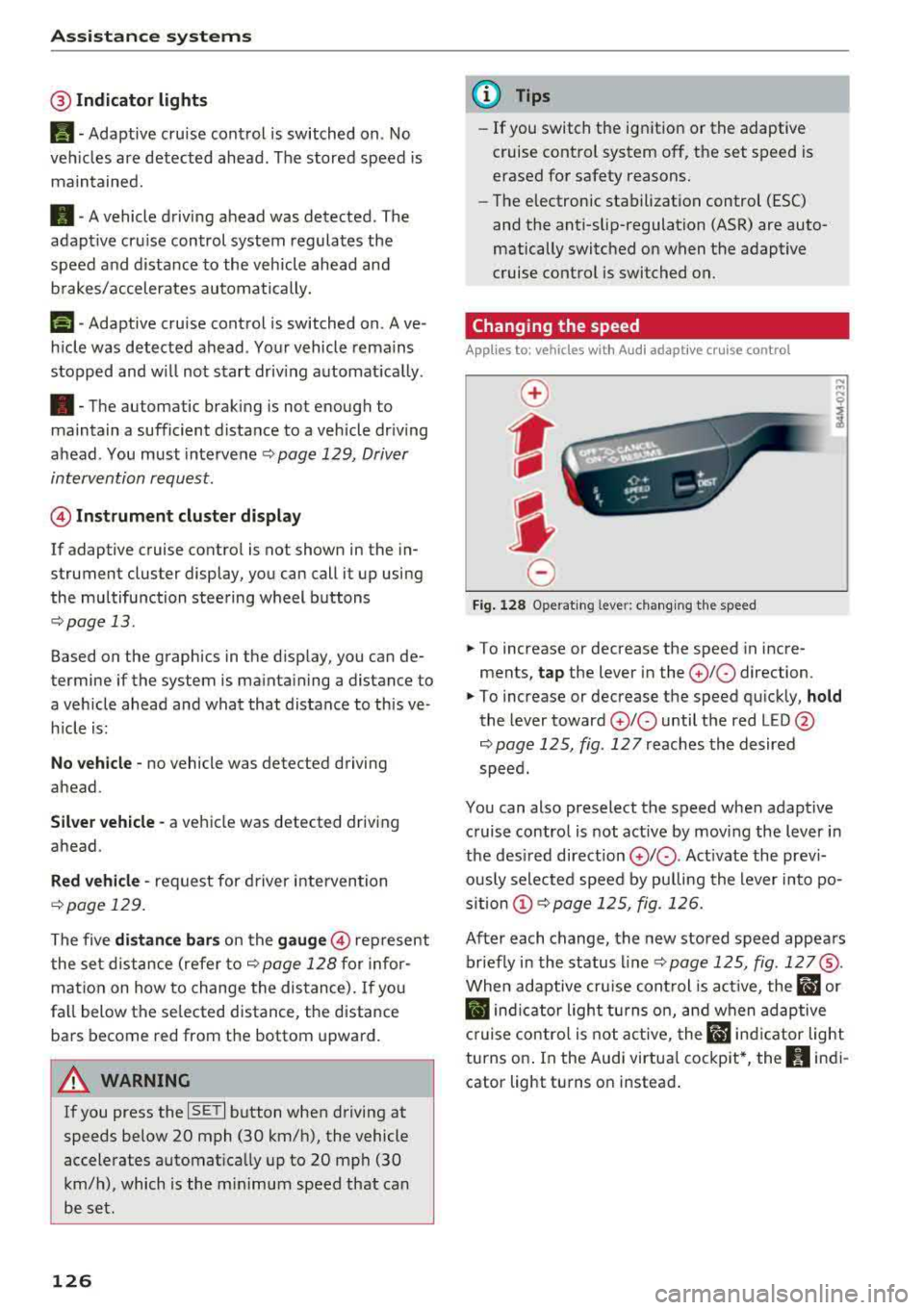
Fig . 12 8 Ope rat ing leve r: chang ing the speed
.. To increase or decrease the speed in incre
ments,
tap the lever in the 0 10 direction.
,... ... ,...
i
.. To increase or decrease the speed qu ick ly, hold
the lever toward 0 10 until the red LED @
r:::;,page 125, fig . 127 reaches the desired
speed.
You can also preselect the speed when adapt ive
c ruise control is not active by moving the lever in
the des ired direction
0 10 . Act ivate the prev i
ous ly selected speed by pulling the lever into po
s ition
(D r:::;, page 125, fig. 126.
After each change, the new stored speed appea rs
br iefly in the status l ine
r:::;, page 125, fig . 127@.
When adaptive cru ise cont rol is act ive , the flJ or
• ind icator light turns o n, and when adaptive
c ruise contro l is not a ctive, the
IIJ ind icator light
turns on . In the Audi virtua l cockpit*, the
II indi
cator light turns o n instead .
Page 129 of 404
LL co .... N
" N .... 0 N > co
Driving in stop-and-go traffic
A pplies to: ve hicles with Audi adaptive cruise co ntro l
Fig. 12 9 In str ument clust er: s afe star t mo nito r
The adaptive cruise control system assists you in
stop -and -go traffic . If a vehicle that is detected
ahead stops, your vehicle will brake and stay at a
stop , within the lim its of the system.
.,. To resume driving w ith adapt ive cruise control,
tap the accelerator pedal or
.,. P ull the lever toward you into position @
¢page 127 , fig. 130.
Starting to drive with adapti ve cruise
controt
1>
As long as the message ACC: a utomatic go is dis
p layed and the objec t detected ahead starts to
move, your veh icle w ill contin ue
d riving ~.&. . You
can act iva te
A CC: automatic go again for a sho rt
time by pu lling the lever to position @.
The
AC C: autom ati c go sta rt mode ends whe n
the brake pedal is pressed.
For safety reasons, your vehicle will o nly start to
d rive automatically if:
- the driver 's safety belt is fastened
- all doors and the hood are closed
-your vehicle is no t stationary for mo re than
t h ree m inutes
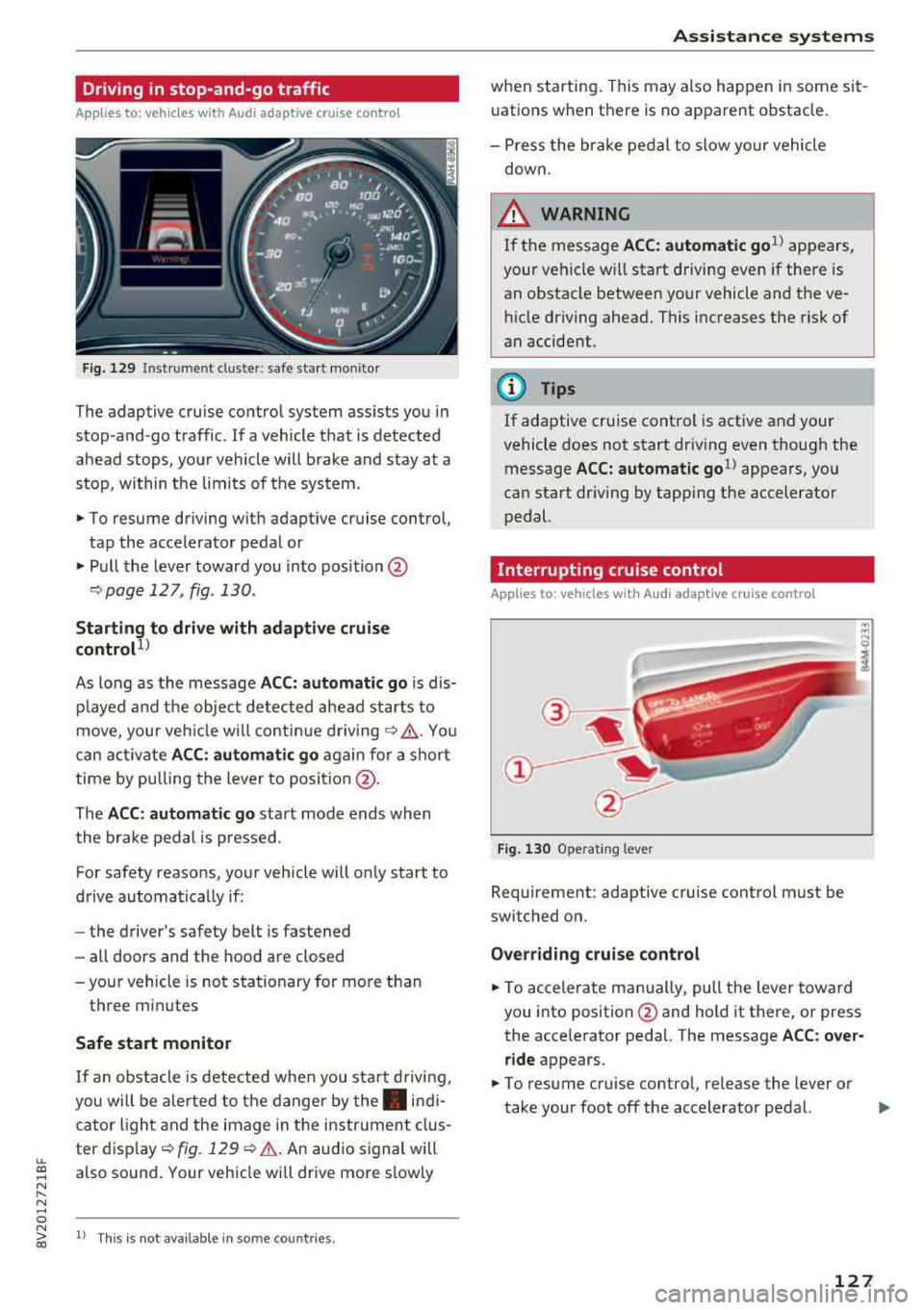
Safe start monitor
I f an obstacle is detec ted when you sta rt drivi ng,
you will be a le rted to the danger by
the . indi
cator ligh t and the image in the instr ument clus
ter
d isp lay ~ fig. 129 ¢.&. .An aud io signal will
also sound . Your veh icle wi ll drive more s lowly
l) Th is is no t av aila ble in so m e co untries.
A ssi st a nce systems
when starting . This may also happen in some sit
uations when there is no apparent obstacle.
- Press the br ake pedal to slow yo ur vehicle
down.
_& WARNING ~
If the message ACC: automatic go1> appears,
your vehicle w ill start driving even if there is
an obstacle between your vehicle and the ve
hicle driving ahead. This increases the risk of
an accident.
(D Tips
If adaptive cruise control is active and your
vehicle does not start dr iving even though the
message
ACC: automatic go1> appears, yo u
can start driving by tapping the accelerator
pedal.
Interrupting cruise control
Applies to : vehicles wit h Audi ada ptive cr uise control
Fig . 130 Opera ting leve r
Requirement: adaptive cruise control must be
switched on.
Overr iding cruise control
.,. To accelerate man ua lly, pull the lever toward
you into position @and hold it there, or press
the acce lerator pedal. The message
A CC: over
ride
appears.
.,. To resume cruise contro l, re lease the lever or
take your foot off the accelerator pedal.
.,..
127
Page 130 of 404
Ass is tance sy stem s
Interrupting cruise contr ol while driving
• Move the leve r into position @. The message
AC C: s tandb y appears . Or
• Press the brake pedal.
• To resume th e stor ed speed, move the lever in
to position
@ .
Inter rupt ing crui se contr ol when stopped
• Push the lever away from you into position @.
The message
A CC : s tandb y appears.
• To resume cruise control , press the brake pedal
and pull the l ev er toward you into position @.
A WARNING
It is dangerous to activate cruise control and
resume the stored speed when the current
road, traffic or weather conditions do not per
mit this. This increases the risk of an accident.
Setting the distance
App lies to: vehicles with Audi adaptive cruise contro l
,
0
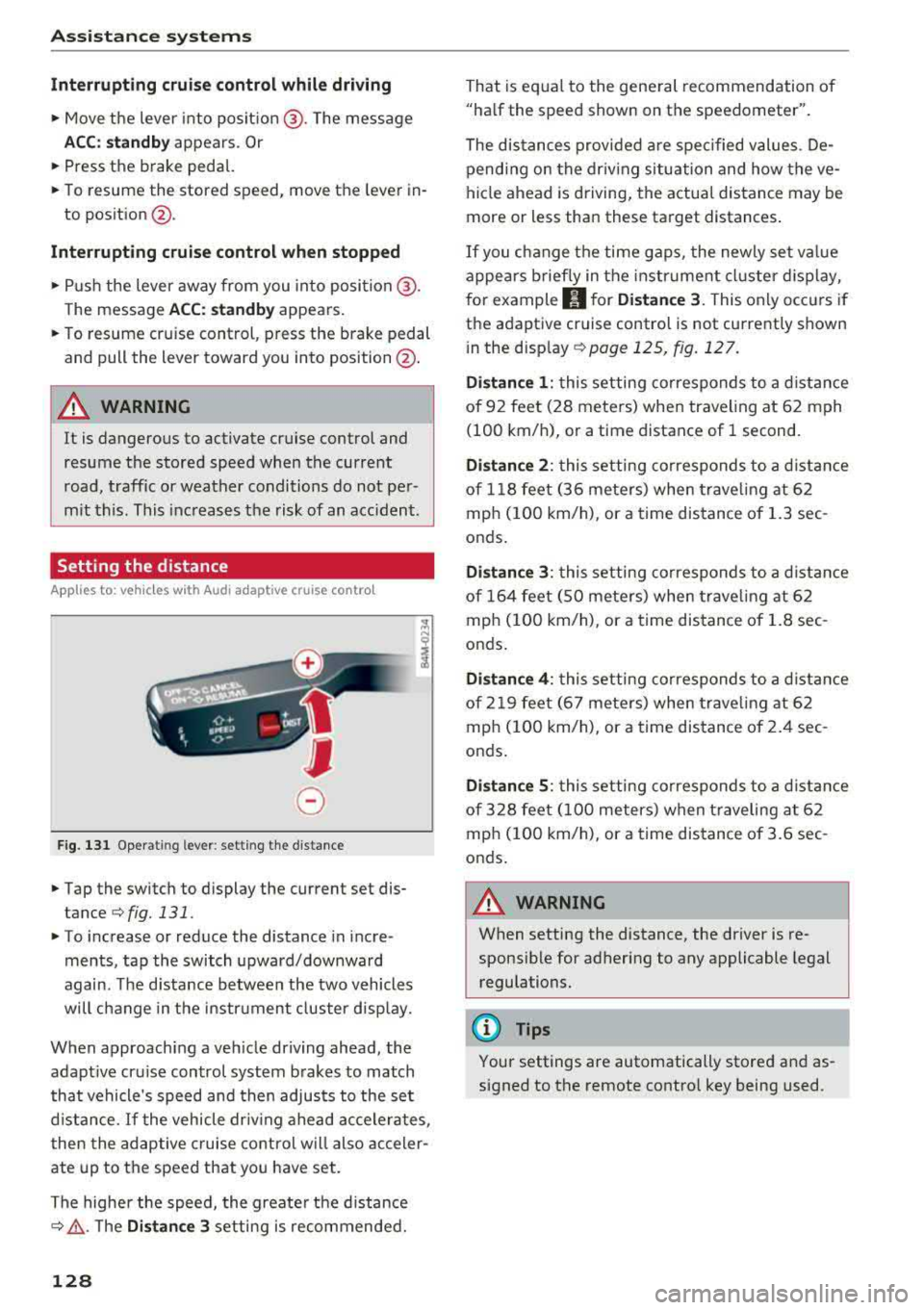
Fig. 131 Oper ating lever: setting the distance
• Tap the switch to display the current set dis
tance
¢fig. 131.
• T o increase or reduce the distance in incre
ments, tap the switch upward/downward
again. The d istance between the two vehicles
will change in the instr ument cluster disp lay.
When approaching a veh icle driving ahead, the
adaptive cru ise control system brakes to match
that vehicle's speed and then adjusts to the set
d istance.
If the vehicle dr iv ing ahead accelerates ,
then the adaptive cruise control will also acceler
ate up to the speed that you have set.
The higher the speed, the greate r the d istance
c::;, ,&. . The Di stan ce 3 setting is recommended.
128
That is equa l to the general recommendation of
"ha lf the speed shown on the spe edometer".
The distances provided a re spec ified values . De
pending on the dr iv ing situation and how the
ve
hicle ahead is driving, the actual distance may be
more or less than these target distances .
If you c hange the time gaps, the newly set va lue
appears b rief ly in the instrument cl uster d isplay,
for example
II for Di stan ce 3. This on ly occurs if
the adaptive cruise control is not currently shown
i n the display
c::;, page 125, fig. 127.
Di stance 1 : this setting corresponds to a d istance
of 92 feet (28 meters) when traveling at 62 mph
(100 km/h), or a time distance of 1 second.
Di stanc e 2: this setting corresponds to a d istance
of 118 feet (36 meters) when trave ling at 62
mph (100 km/h), or a time distance of 1.3 sec
onds.
Di stanc e 3: this setting corresponds to a d istance
of 164 feet ( SO meters) when trave ling at 62
mph ( 100 km/h), or a time distance of 1.8 sec
onds .
Distanc e 4: this setting corresponds to a d istance
of 219 feet (67 meters) when trave ling at 62
mph ( 100 km/h), or a time distance of 2 .4 sec
onds .
Distance 5 : this setting corresponds to a d istance
of 328 feet ( 100 meters) when t raveling a t 62
mph ( 100 km/h), or a time distance of 3 .6 sec
onds .
A WARNING
When setting the distance, the driver is re
sponsible for adhering to any applicable legal
regulations.
(D Tips
-
Your settings are automatically stored and as
signed to the remote contro l key being used.
Page 134 of 404
Ass is tanc e system s
-your vehicle is traveling at speeds between ap
proximately 20 to 50 mph (30 to 85 km/h) and
it approaches a stationary vehicle.
- your vehicle is traveling at speeds between ap
proximately 20 to 155 mph (30 to 250 km/h)
and it approaches a vehicle that is clearly trav
eling more slowly or a veh icle in your direction
o f travel tha t is stopped.
When this warning occurs, it may only be possi
b le to avoid a collision by swerving or braking
strong ly. The message
A udi pre sense.
¢ fig. 134 and a warning tone will warn you
about the danger .
If there is an impending collision with vehicles,
there will a lso be an
acute warning in the form of
sharp braking. If you do not react to the acute
warn ing, pre sense front can brake with increas
ing force within the limits of the system . T his re
duces the vehicle speed in the event of a coll i
sion .
Autom atic deceleration
Depending on the speed, pre sense front can de
cel erate automatica lly
shortly before a collision:
-if there are stationary vehicles when you are
traveling at speeds up to approx imately 28
mph (45 km/h)
-if there are veh icles dr iv ing or stopped ahead
whe n you are traveling at speeds up to approxi
mately 155 mph (250 km/h)
Autom atic bra king force inc rea se
If pre sense front determines that you are not
braking strongly enough when a co llision is imm i
nent, it can inc rease the braking force, depending
on the situation and speed:
-if there are stationary vehicles when you are
traveling at speeds up to approx imately 50
mph (85 km/h)
-if the re are ve hicles driving or stopped ahead
when you are traveling at speeds up to approxi
mately 155 mph (250 km/h)
A WARNING
Pre sense front cannot ove rcome the laws of
physics . It i s a system des igned to assist and
132
it cannot prevent a coll is io n in eve ry ci rc u m
stance . The driver m ust always intervene. The
driver is always respons ible for braking at the
correct time . Do not let the inc reased safety
provided tempt yo u into tak ing risks . This
could inc rease your r isk of a co llision.
-Keep in mind that pre sense front can pro
vide war nings or b rake unexpectedly. Al
ways secure a ny cargo or objects that yo u
a re transporting to reduce t he ris k of dam
a ge or inj ury.
-The system can dep loy in co rre ctly due to
sys tem -specific li mits.
-Please note that the se nsor does not a lways
detect a ll obje cts. Thi s increases the r is k of
a c ollision .
-Pre sense front does not rea ct to ve hicles
tr ave ling towa rd yo u in the same lane, to
peop le, groups of people, anim als, ob je cts
that are crossing the road, or objects t hat
are difficult to
detect ¢.& in General infor
mation on page 124 .
A WARNING
Pre sense front may be restricted o r not avai l
ab le in the fo llow ing example s ituations :
-if there a re othe r reflective objects nearby,
such as gua rd ra ils or vehicles
-when driving into a tunnel
-in heavy fog, ra in, sp ray o r snow
-if the rada r senso r is d irty, covered in ice,
d amaged, or cove red
- in curves
- if the ESC was restr icted or sw itched off
@ Note
The sensor can be d isplaced by impacts or
damage to the bumper, wheel housing and underbody. Pre sense front can be impaired
by this . Have an author ized A udi dealer or au
thor ized Audi Se rvice Facility check t heir func-
-
tion. 1111-
Page 139 of 404
LL co ..... N
" N ..... 0 N > co
detected and class ified as crit ica l. T he disp lay in
the mirror turns on, but is dim .
The display rema ins dim in the info rmat ion s tage
so that your view toward the front is not distur
bed .
Warning stage
If the d isplay in a m irror blinks br ightly when you
activa te a turn signal, side assist is
warning you
about detected vehicles tha t it has classified as
cr it ic a l. If this happens, check traffic by g lan cing
in th e exterior m irrors and over your shoulder
c::> .&. in General information on page 138 .
Applies to: vehicles with Audi active lane assist
The display in the m irror can also b lin k if you
have not activated a t urn signa l: if yo u are ap
proaching a detected lane marker line and it ap
pears yo u wi ll be leav ing the lane , sid e assist w ill
warn you about detected vehicles that it has clas
sified as critical.
@ Tips
You can ad just the brightness on of the dis
play on the rearview mirror
c::> page 138 .
General information
Applies to: veh icles with Audi side assist
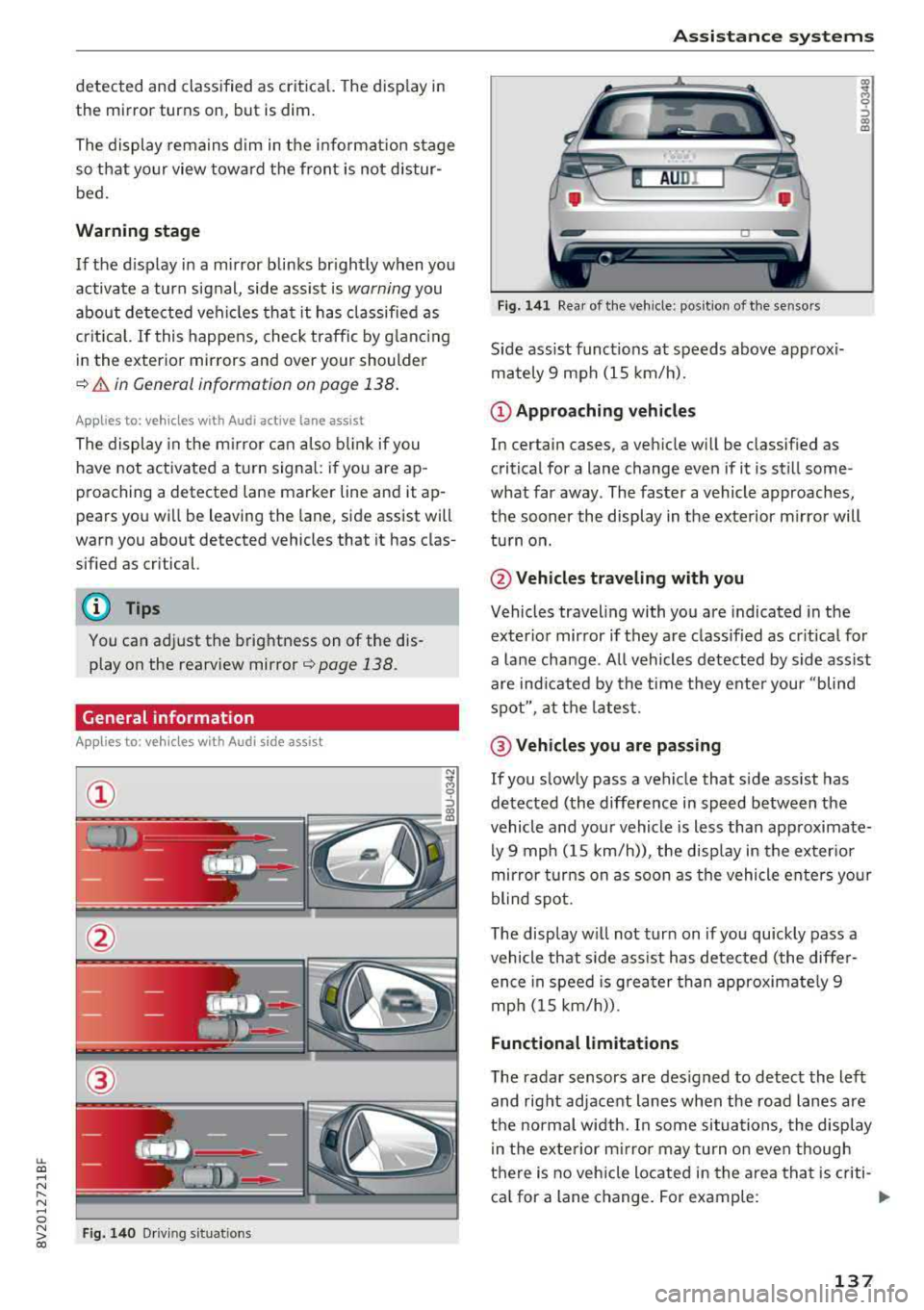
F ig . 140 Drivi ng situat ions
A ssi st a nce systems
Fig. 141 Rea r of the ve hicle: pos it io n of t he se nso rs
Side assist funct ions at speeds above approxi
mately 9 mph (15 km/h).
@ App roaching vehicles
In certain cases, a vehicle w ill be classified as
critical for a lane change even if it is still some
what far away . The faster a vehicle approaches,
the sooner the display in the exterior m irro r will
tu rn on.
@ Vehicles traveling with you
Vehicles traveling with you are indicated in the
exter ior mirror if they a re classified as cr it ical for
a la ne cha nge . A ll vehicles detected by side assist
are ind icated by the time they ente r you r "blind
spot" , at the la tes t.
@ Vehicles you are passing
If you s low ly pass a veh icle that s ide ass ist has
detected (the difference in speed between the
vehicle and you r vehicle is less than app roximate
ly 9 mph ( 15 km/h)) , the disp lay in the exter ior
mir ror tur ns on as soon as the vehicle en te rs yo ur
blind spot .
The display w ill not tur n on if you quickly pass a
vehicle that side ass ist has detected (the diffe r
ence in speed is grea ter than approximate ly 9
mph ( 15 km/h)) .
Functional limitations
The radar sensors are des igned to detect the left
and right adjacent lanes when the road lanes are
t h e norma l width. In some situa tions, the display
in the exte rior m irror may turn o n even though
t h ere is no veh icle located in the area that is criti-
ca l for a lane change. For example :
..,.
137
Page 140 of 404
Ass is tanc e system s
-If the lanes are narrow or i f you are driving on
the edge of your lane. If this is the case, the
system may have detected a vehicle in another
lane that is
not adjacent to your current lane.
- If you are driving t hrough a curve. Side assist
may react to a vehicle that is one lane over
from the adjacent lane .
- If side assist reacts to other objects (such as
high or displaced guard rails).
- In poor weather conditions . The side assist
functions are limited.
Do not cove r the radar
sensors¢ fig . 141 with
stickers, deposits, bicycle whee ls or other ob
jects, beca use they wi ll impair the f unction . Do
not use side assist when towing a trailer. For in
formation on cleaning,
see¢ page 354 .
A WARNING
-Always pay atte ntion to traffic and to the
area aro und your vehicle. Side assist cannot
r ep lace a dr ive r's attent ion. The dr ive r alone
is a lways responsible for lane c hanges and
s imi lar d riving maneuvers.
- In some situat ions, the system may not
func tion or its f un ct io n may be lim ited. Fo r
exa mple:
- If vehicles are approach ing or being le ft
beh ind very quickly. The display may not
tur n on in t ime.
- In poor weather conditions s uch as heavy
rain, snow or heavy mist.
- On very wide lanes, in tight curves, or i f
there is a rise in the road su rface. Vehicles
in the adjacent lane may not be detected
because they are outs ide of the sensor
range.
@ Note
The sensors can be displaced by impacts or
damage to the bumpe r, whee l housing and
underbody. Th is can impa ir the system. Have
an au thor ized A udi dealer or au tho rized Aud i
Serv ice Facility c heck their fu nction .
(D Tips
- If the window g lass in the driver 's door o r
front passenger's doo r has been t inted, the
138 -
display in the exterior mirro
r may be incor
rect.
- For an exp lanat io n on co nform ity w it h t he
FCC reg ulations in the United States and the
Industry Canada regulations, see
¢page 386.
Switching on/off
App lies to : vehicles wit h Audi side ass ist
The system can be switched on/off in the Info
tainment system .
If the system is act ivated, the disp lays in the ex
terior mirrors wi ll turn on brief ly when the igni
tion is switched on .
.,. Select in the Infotainment system: IMENU! but
ton
> Vehicle > l eft control button > Driver as
sistance
> Audi side a ssist. Off switc hes the
system off.
Setting the display brightness
App lies to: vehicles wit h Aud i side ass ist
The display brightness can be adjusted in the In
fotainment system.
.,. Select in the Infotainment system: IMENU ! but
ton
> Vehicle > l e ft control button > Driver as
sistance
> Audi side assist.
The disp lay br igh tness adjusts au toma tically to
t h e b righ tness o f the sur ro undings, bo th in the
i nforma tion and in the warning stage. In very
dar k or very bright surroundings, the automatic
adjustment will set the display to the minim um
or max imum level. In such cases, yo u may notice
no change when adjusting the br ightness, or the
change may only be noticeab le once the sur
r ound ings change .
Adjust the br ightness to a leve l whe re the display
i n the information stage will not disrupt your
v iew ahead. If you change the br ightness, the dis
play in the exterior mirror w ill br iefly show the
brightness leve l in the i nfo rmation stage . The
br ightness of the warn ing stage is linked to the
br ightness in the infor mation stage an d is adjus t-
ed a long w ith the info rm ation st age .
..,.
Page 142 of 404
Assistance systems
-The rear cross-traffic assist will not provide
alerts if the veh icle is in a paralle l parking
space or an angled parking space.
(LlJ Note
Also read the information in <=:>@ in General
information on page 138 .
(D Tips
-You can cancel the automa tic brake activa
tion with increasing braking force if you ap
ply the brakes yourse lf or accelerate consid
erab ly.
- In some situations, rear cross-traffic assist
may warn you even if there is no cross traffic
i n a critical area, for example when backing
i nto a parking space or maneuver ing.
- The rear cross-traffic assist also switches off when you switch off the ESC.
- The system is not available when towing a
trailer.
Messages
A pp lies to: ve hicles w ith Audi side assis t
If the side assist sw itches off automatically, a
message appears in the instrument cluster dis
play.
@j Aud i side assist: malfunction! Please contact
Service
The system cannot guarantee that it wi ll detect
veh icles correctly and it has switched off. The
sensors have been moved or are faulty. Have the
system checked by an authorized Audi dealer or
author ized Audi Service Facility soon .
(ij Audi side assist: currently unavailable. No
sensor view
(ij Audi side assist: currently unavailable. Sen
sor vision restricted due to surroundings. See
owner 's manual
The radar sensor vis ion is impaired . Do not cover
the area in front of the sensors with bike wheels,
stickers, dirt or other objects. C lean the area in
front of the sensors, if necessary
c> page 13 7,
fig . 141.
140
(ij Audi side assist: currently unavailable
Sid e assist cannot be switched on at this time be
cause there is a malfunction (for ex am ple, the
battery charge level may be too low).
@j Audi side assist: unavailable in towing mode
(ij Audi side assist: unavailable in towing mode
Side assist switches off automatically after a
short time when a factory-insta lled trai ler hitch
i s connected to the electr ica l connector on the
trailer. There is no guarantee the system will
switch off when using a retrofitted trailer hitch .
Do not use side assist when tow ing a tra iler .
[I! Rear parking aid : obstacle detection restrict
ed
The rear cross-traffic assist is not available . Ei
ther t he ESC is switched off, or the radar sensors
may be covered by a bike rack, stickers, leaves,
snow or other objects. Switc h the ESC on, or
clean the area in front of the sensors if necessary
<=:>page 137 , fig . 141. If th is message continues
to be displayed, dr ive immed iate ly to an author
iz ed Audi dealer or authorized Audi Se rvice Facili
ty to have the malfunction repaired.
Audi drive select
Introduction
App lies to : vehicles wi th Audi drive se lec t
Audi drive select makes it poss ible to experience
different types of vehicle settings in one vehicle.
The dr iver can select from three modes,
Comfort ,
Auto
and Dynamic , using the ~.'/:.1 button in the
center console or by using the Infotainment sys
tem. This allo ws you to switch between a sporty
and a comfo rtable driving mode, for example. In
the
Individual* mode, the settings can be adjust
ed to your personal preferences . This makes it
possible to comb ine settings such as a sporty en
gine setting with light steering.
Description
Applies to: vehicles wit h Audi drive se lect
The vehicle setup in each mode depends on the
vehicle 's features. However, the engine and
steering are a lways affected .
Page 148 of 404
Parking aid
-Only use the rearview camera to assist you if
it shows a good, clear picture. For example,
the image may be affected by the sun shin
ing into the lens, d irt on the lens, or if there
is a malfunction .
- Use the rearview camera only if the luggage
compartment lid is completely closed . If the
luggage compartment lid is open the orien
tation lines and blue surfaces are hidden .
Make su re any objects you may have mount
ed on the luggage compa rtment lid do not
block the rearview camera.
- T he came ra lens enlarges and distorts the
field of v is ion. Th e object appears both al
tered and inaccurate on the screen.
- In certai n situations, people or objects in
the d isplay appear closer or farthe r away:
- For objects that do not touch the ground,
such as the bumper of a parked vehicle, a
trailer hitch or the rear of a truck . Do not
use the orientation lines in this case .
- If driven from a level surface onto an in
cline, o r a downward slope.
- If driven toward protrud ing objects.
- If the veh icle is carry ing too much load in
the rear.
- Always read and follow the applicable warn
ings ¢(!) in General information on
page 143 .
-The orange-colored orientation lines in the
Infotainment display show the vehicle path
based on the steering wheel angle . The
front of the vehicle swings out more than
the rear of the veh icle. Mainta in plenty of
distance so that an exterio r mirror or a cor
ner of the vehicle does not co llide w ith any
obstacles.
Switching on/off
Applies to : veh icles with rearview camera
Switching on/off
Requirement: the veh icle speed must be under
approximately 6 mph (10 km/h) .
146
.,. Press the p, .//~ button in the center console. A
short confirmation tone sounds and the LED in the button turns on.
Switching on automatically
The system switches on automatically when re
verse gear is engaged wh ile the engine is run
ning.
Switching off automatically
The system switches off automatically when driv i ng fo rward faster than 6 mph ( 10 km/h).
(0 Tips
- The visua l display* in the right sect ion of the
display should help you de tect the critical
vehicle area.
- You can change the volume of the signa ls
and the
display ¢ page 147.
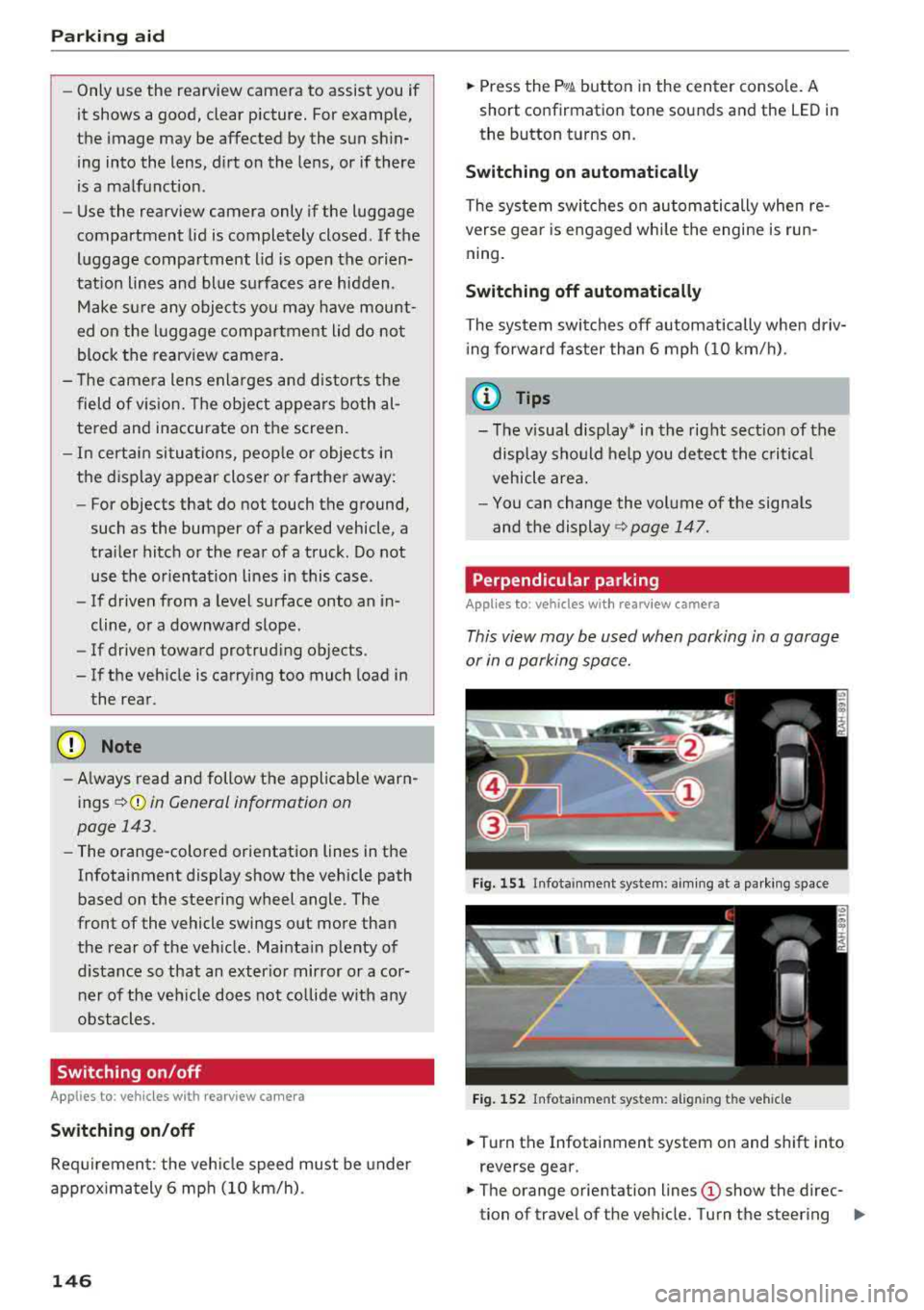
Perpendicular parking
Applies to: vehicles with rearview camera
This view may be used when parking in a garage
or in a parking space.
Fig. 151 Infota inment system: aim ing at a parki ng space
Fig. 152 Infota inm ent sys tem: al ign ing the vehicle
.,. Turn the Infotainment system on and shift into
reverse gear.
.,. The orange orientation lines (D show the direc
tion of travel of the vehicle. Turn the steering
..,.
Page 156 of 404
Multi Media Interface
Multi Media Interface
Traffic safety information
Aud i recommends performing certain Infotain
ment system functions, such as entering a desti
nation, only when the vehicle is stationary . Al
ways be prepared to stop operat ing the Infotain
ment system in the interest of your safety and
the safety of other road users.
_& WARNING
Only use the Infotainment system when traf
fic cond itions permit and always in a way that
allows you to maintain complete control over
your vehicle .
@ Tips
Certain functions are not available whi le driv
ing .
Introduction
The Multi Media Interface , or MMI for short,
combines various systems for communication ,
navigation* and entertainment in your Audi. You
can operate the MMI using the MMI control pan
el, the multifunction steering wheel or the voice
recognition system* .
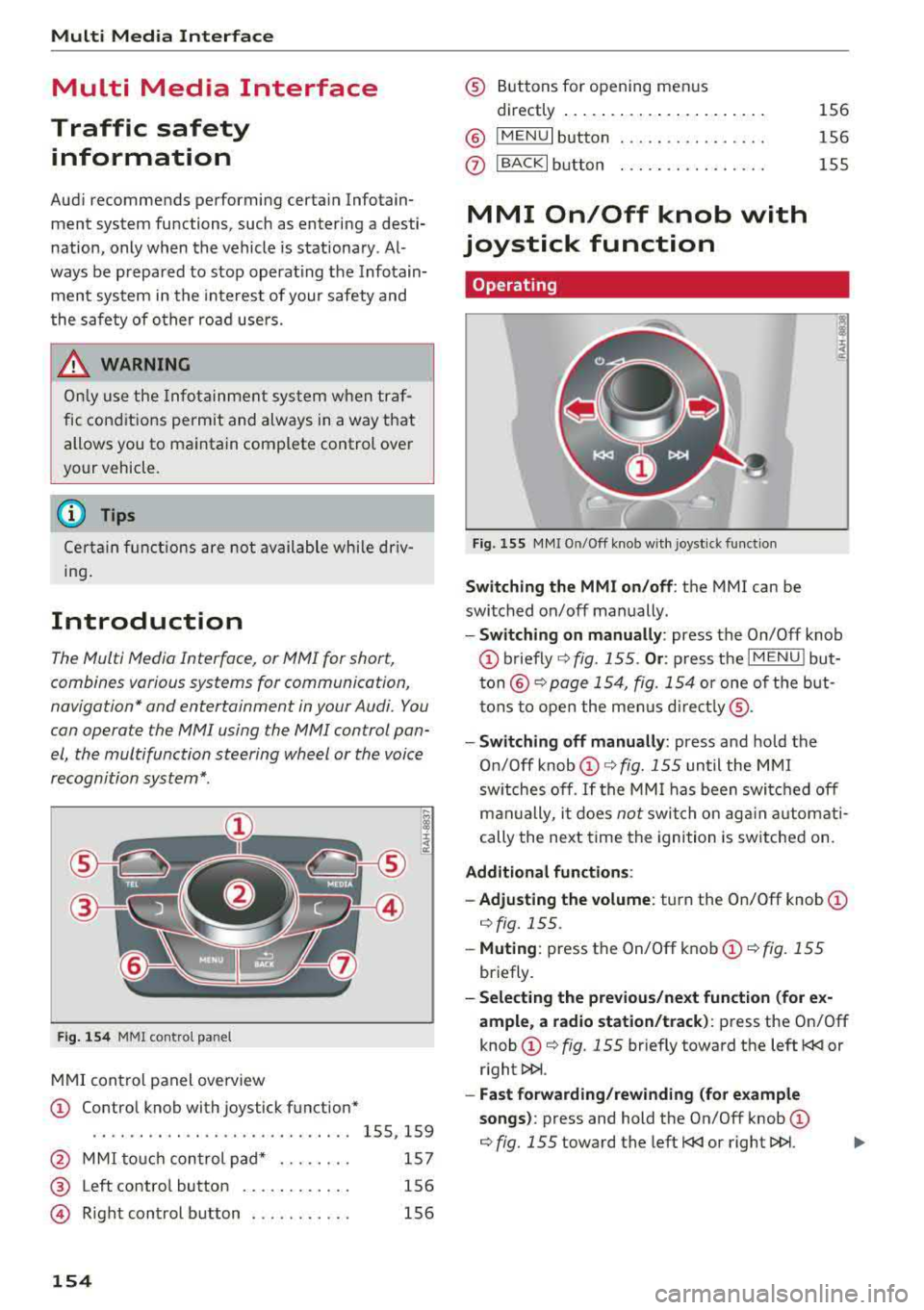
Fig. 154 MMI control panel
MMI control panel overview
CD Control knob with joystick function*
....... .... ........... ...... 155, 159
@ MMI touch control pad* . . . . . . . . 157
® Left contro l button . . . . . . . . . . . . 156
@ R ight control b utton . . . . . . . . . . . 156
154
® Buttons for opening men us
directly ......... .. .......... .
® IMENUI button
0 I BACK I button .. . .. ...... .... .
MMI On/Off knob with
joystick function
Operating
Fig . 155 MMI On/Off knob w ith joystick function
Switching the MMI on /off : the MMI can be
switched on/off manually. 156
156
155
- Switching on manually : press the On/Off knob
CD briefly c:::> fig. 155 . Or: press the I MENU ! but
ton@ c:::> page 154, fig. 154 or one of the but
tons to open the menus directly ®·
-Switching off manually: press and hold the
O n/Off knob
CD c:::> fig. 155 until the MMI
switches off .
If the MMI has been switched off
manually, it does
not switch on again automati
cally the next time the ignition is switched on.
Additional function s:
- Adjusting the volume:
turn the On/Off knob CD
c:::> fig. 155.
-Muting : press the On/Off knob CD c:::> fig. 155
briefly.
-Selecting the previous/next function (for ex
ample , a radio station/track):
press the On/Off
knob
CD c:::> fig. 155 briefly toward the left l
l>l>i .
-Fast forwarding/rewinding (for example
songs) :
press and hold the On/Off knob CD
c:::> fig. 155 toward the left l
Page 171 of 404
LL
"' ..; N ,.... N ..; 0 N > a,
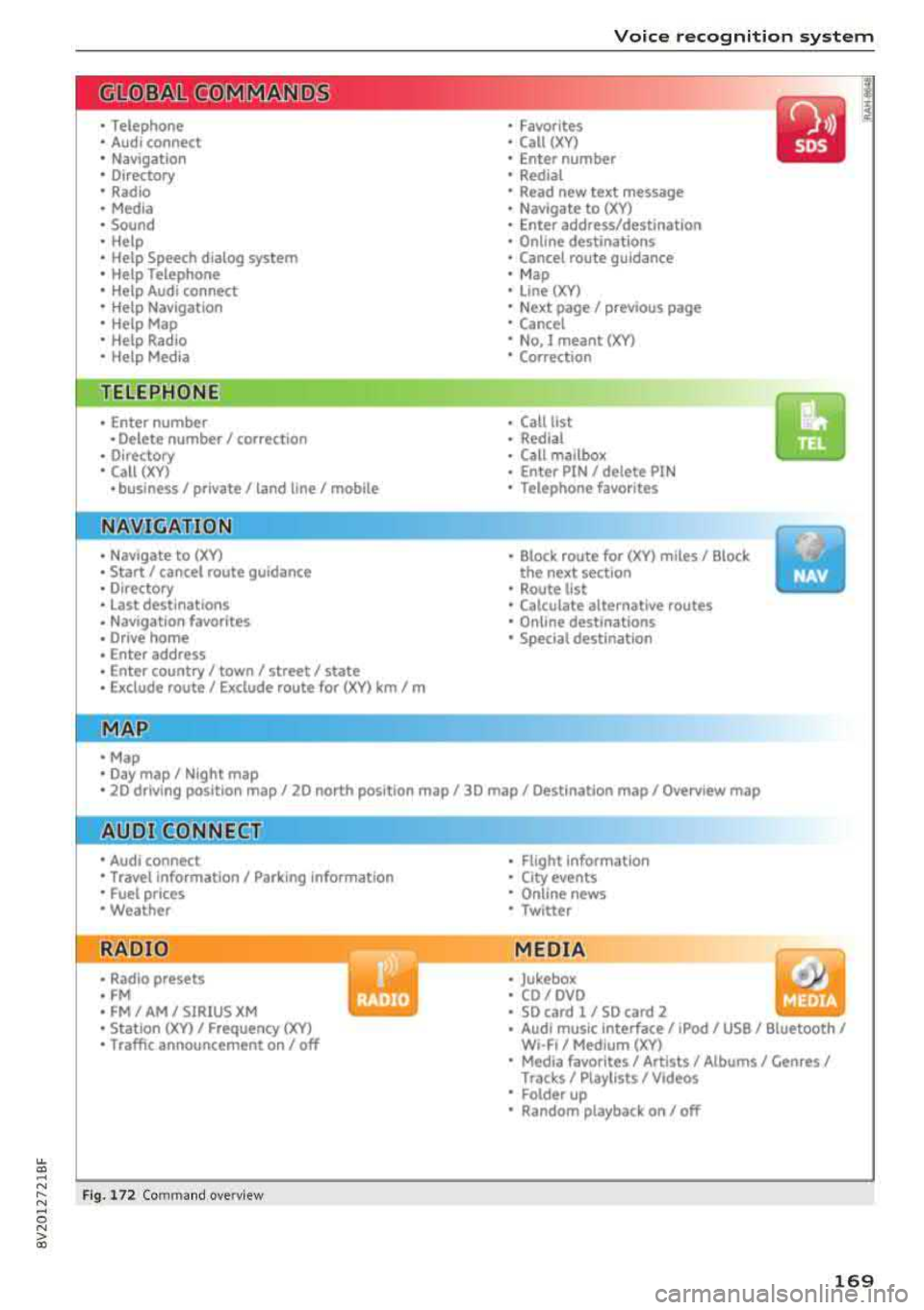
Voice recognition system
• Telephone
• Audi connect •
Favorites
• Call (XY)
• Navigation
• Directory
• Radio
• Media
• Sound •
Enter number
• Redial
• Read new tex t message
• Navigate to
(XY)
• Enter address/destination
• Help • Online destinations
• Help Speech dia log system
• Help Telephone •
Cancel route guidance
• M ap
• Help Audi connect •
Line (XY)
• Help Navigation
• Help Map
• Help Radio
• Help Media • N
ext page/ previous page
• Cancel
• N o. I meant
()(Y)
• Correction
TELEPHONE
• Enter number • Call list
• Delete number/ correc tion
• Redial
•
Directory
• Call (XY) •
Call
mailbox
• Enter PIN/ delete PI N
· business/ private/ land line/ mobile • Telephone favori tes
NAVIG:ATI0N
• Navigate to (XY)
• Start/ cancel route guidance
• Directory
• Last destinations •
Bloc k route for (XYJ miles/ Block
the next section
• Route list
• Calcul.ate alternative routes
• Navigation favorites
• Drive home
• Enter address •
Online destinations
• Special destination
• Enter country
I town/ street/ state
• Exclude route
I Exclude route for (XV) km / m
M~P
• Map
• Day map/ Night map
• 20 driving position map/ 20 north posi tion map/ 30 map/ Destination map/ Overview map
Al!JDI G ONNECT
• Audi connect
• Travel Information/ Parking Information
• Fuel prices
• Weather
RADIO
• Radio presets
• FM
• FM/ AM/ SIRIUS XM
• Station (XYJ / Frequency
(XYJ
• Traffic announcement on/ off
Fig. 172 Com mand ove rview
• Flight Information
• City events
• Online news
• Twitter
MEDIA
• Jukebo x
• CO/ DVD
• SD card l / SD card 2
• Audi music Interface/ 1Pod
I use / Bluetooth /
WI-Fl/ Medium
(XY)
• Media favorites/ Artists/ Albums/ Genres I
Tracks/ Playllsts / Videos
• Folder up
• Random playback on / off
169