ESP AUDI A3 SEDAN 2018 Service Manual
[x] Cancel search | Manufacturer: AUDI, Model Year: 2018, Model line: A3 SEDAN, Model: AUDI A3 SEDAN 2018Pages: 404, PDF Size: 62.3 MB
Page 152 of 404
Intelligent Technology
-There is no vehicle stabilization when ESC/
ASR are switched off.
(D Tips
- ESC/ ASR cannot be switched off or sport
mode cannot be switched on if the cruise
control system * or the adaptive cruise con
tro l* is switched on.
- Malfunctions in the Audi magnetic ride*
may make it impossible to switch the ESC/
ASR off or to switch sport mode on.
Brakes
New brake pads
New brake pads do not achieve their full braking
effect during the first 250 mi (400 km). They
must be "broken in" first. However, you can com
pensate for the slightly reduced braking force by
pressing firmly on the brake pedal. Avoid heavy
braking dur ing the break-in per iod .
The break-in period can be considerably longer
for vehicles with ceramic brake rotors*. However,
you can compensate for the slightly reduced
braking force by pressing f irmly on the brake
pedal. Avoid heavy brak ing dur ing the break- in
pe riod .
Wear
Brake pad
wear depends largely on the way the
veh icle is driven and on operat ing cond itions .
This is especially true if you are driving frequently
in the city and on curves or with a sporty driving
style.
Operating noise
Noises may occur when braking depend ing on the
speed, braking force and outs ide cond itions such
as temperature and humidity.
Noises may become more apparent at lower
speeds due to the nature of the materials in the
ceramic brake rotors*.
Effect of water and road salt
In certain situations, for example after driving
through water, in heavy rain, after overnight con
densat ion or after washing your car, the braking
150
effect can be reduced by moisture or ice on the
brake rotors and brake pads . The brakes must be
"dried" first with a few carefu l brake applica
tions.
At higher speeds and with the windshield wipe rs
turned on, the brake pads press against the brake
rotors for a short amount of time . This action,
which is not felt by the dr iver, happens at regular
i ntervals and ensures a better reaction t ime for
the brakes in wet weather .
The brak ing effect can also be reduced if you are
driv ing on salted roads and you do not app ly the
brakes for long periods of time. The layer of salt
on the brake rotors and pads must be worn off
first whe n the brakes are applied .
Due to its surface, the ceram ic brake rotor* ab
sorbs moisture in certain s ituations . Therefore,
there will temporarily be less braking force than
when the brakes are dry . You can compensate for
th is by press ing the brake pedal harder.
Corrosion
Leaving the vehicle parked for long periods of
time, low mileage and avoiding heavy braking
can contribute to corros ion on the brake rotors
and to dirty brake pads.
If you usually avoid heavy braking or if there is
corrosion present, occasional heavy brak ing at
high speeds is recommended to clean the brake
rotors and
pads~.& .
Brake system malfunction
If you notice that the brake pedal travel has sud
denly
i ncreased, then a brake circuit in the dua l
c ir cuit brake system may have malfunctioned.
Drive to an authorized Audi dealer or authorized
Audi Service Fac il ity immed iately to have the
problem corrected. On the way there, drive with
r educed speed and keep in mind that you will
need a longer distance to stop and you will need
to press the brake pedal harder.
Low brake fluid level
When the brake fluid level is low, malfunctions in
t h e b rake system may occur. The b rake flu id level
is electronically monitored.
II>-
Page 167 of 404
u. 00 .-< N l' N .-< 0 N > 00
Multifunction steering
wheel
Introduction
Applies to: vehicles with multifunction steering wheel
In the driver information system display, you can
control numerous Infotainment functions using
the multifunction steering wheel plus*
<=:> page 13 or the multifunct ion steering wheel*
c> page 16.
You can control additional Infotainment func
tions us ing the MMI control panel
c> page 154 in
the Infota inment system display .
A WARNING
Direct your full attention to dr iv ing. As the
dr iver, yo u have complete respons ibility fo r
safety in t raffic. Only use the functions in
-
such a way that you a lways maintain com
plete control over yo ur vehicle in a ll traffic sit-
uations.
Radio
Applies to: vehicles with multifunction steering wheel and ra
dio
Requ irement: radio mode must be started
c> page 218 and the rad io/med ia tab m ust be
d isp layed.
.,. Press either the El butto n or the left control
button
<=:> page 14, depend ing on veh icle equ ip
ment.
Depending on vehicle equipment, the following
functions may be availab le in the driver informa
tion system.
- Se lecting th e fr equ ency band : select and con
firm a frequency band .
-Se lecting a station from th e pr esets li st *: se
lect :
Preset s> the desired radio station .
-Selecting a station from the sta tion list *: se
lect and confirm a radio station .
-Selecting a station from the presets li st : se
lect :
Preset s> the desired radio station .
-Opening a med ia source : select and confirm
Sw itch to medi a. Multifunction
ste ering wheel
Additional settings
Applies to: vehicles with Audi virtual cockpit
- Select: r ight cont rol b utton > desired entry.
Depend ing on the funct ion selected, the follow
i ng additional settings may be possible:
- Sho w "Now Pla ying" screen : see c>page 222.
Media
Applies to: vehicles with multifunction steering wheel and
media
Requirement: a media drive must contain audio/
video files
c> page 224 and the radio/media tab
must be disp layed.
.,. Press eithe r the @Jbutton o r the left contro l
button
c> page 14, depending on vehicle equip
ment .
Depend ing on ve hicle equ ipment, t he following
f unct ions may be ava ilable in the dr iver informa
tion system.
- Sele cting a media sourc e: select and confirm a
so urce su ch as the
"SD ca rd".
- Playing an audio /vid eo fil e: select and confirm
a t rack/fi le.
- Pau sing /resuming pla yback : press the right
t humbwhee l@ c> page 15, fig. 11 . To resume
p layback, press the rig ht th umbwhee l again.
Applies to: vehicles with analog instrument cluster
-Sw itching to radio : select and confirm a fre
quency band (such as
FM ).
Applies to: vehicles with Audi virtual cockpit
-Swit ching to the radio : select and confirm
Swit ch to radio .
- Opening additional tra ck information :
select :
r igh t con trol button
> Show "Now Playing "
sc reen.
For additional information, see
c> page235 .
(D Tips
- The media dr ives do not p lay fi les t hat are
protected by ORM and t hat are iden tified
with the symbol
{n .
- Ple ase note th at within a med ia so urce in
t he drive r informa tion system, only p lay lists
that were selected through the MMI control
pane l can be played
ca:> page 233 . ..,.
165
Page 172 of 404
Voice recognition s ystem
Voice recognition system
Operating
A pplies to: ve hicles w ith vo ice recognition system
You con operate many Infotainment functions
conveniently by speaking.
R equirements: the ignition and the MMI must be
switched
on <=> page 154, there must not be any
phone call in progress and the parking system
must not be active .
~ Switching on: press the~ button @
<=> page 15, fig. 11 or@ <=> page 16, fig . 13
briefly on the mult ifunct ion steer ing whee l and
say the desired command after the
Beep .
~ Sw itching off : press and hold the~ button.
Or: press the [21 butto n.
~ Pausing : say the command Pau se . To res ume,
press
the~ button .
~ Correcting : say the command Corre ction .
Input assis tance
The system gu ides you through the input with
visual and audio feedback .
-Visual input a ssistance : after switching on
vo ice recognit ion, a display with a se lection of
poss ible commands appears . This command
display can be sw itched on or off . Select:
IMENU I button> Settings> left control button
> MMI settings > Sp eech dialog system .
- Audio input a ssis tance :
to have the poss ible
commands read, turn the voice recogn ition sys
tem o n and say
Help .
For the s ystem to under stand you:
Speak clearly and dist inct ly at a normal volume.
Speak louder when driving faster .
E mphasi ze the words in the commands even ly
and do not leave long pauses.
Close the doors, the windows and the sunroof* to reduce background noise . Make sure t hat passen
gers are not speaking when you are giving a voice
command.
Do not direct the vents toward the hands -free mi
crophone, which is in the roof headliner near the
front interior lights.
170
Only use the system from the dr iver's seat be
ca use the hands -free microphone is directed to
ward that seat .
Additional settings
See<=> page 248.
_8. WARNING
- Direct yo ur full attention to dr iv ing. As the
d river, you have complete responsibility fo r
safety in t raffic. On ly use the functions in
such a way that you a lways maintain com
plete contro l over your vehicle in a ll traffic
situations.
- Do not use the voice recognition system in
emergencies because your voice may change
in s tressful s ituations .
It may take longer to
d ia l the numbe r or th e system may not be
ab le to d ia l it at all. Dial the emergency
number manually.
(D Tips
- The d ia log pauses when there is a n incom
ing phone call a nd will cont inue if you ig
nore the ca ll. The d ia log ends if yo u answer
t h e ca ll.
- Th ere are no vo ice gu idance* prompts when
a dialog is act ive.
- You can select an i tem in the list using ei
ther the vo ice recognit ion system o r the
cont ro l knob .
Command overview
information
App lies to : vehicles wi th voice recog nitio n system
The following overv iews describe the commands
that can be used to operate the MMI using the
voice recog nition system.
Alte rnative commands a re separ ated using a"/ ",
for example say:
Telephone / (or) Navigati on /
(or) Radio .
Sequences of commands used to perform an ac
t ion are iden tified w ith a
"> ", fo r example say:
Enter addre ss > (t hen) Enter country /state. .,..
Page 178 of 404
Voice recognition s ystem
A cell p hone m ust be connected to the M MI w ith
the
Handsfree profile ~ page 177.
The cell phone bei ng connected must have vo ice
con trol that can be controlled externally .
.,. Switching on : press and hold the 51 button on
the m ult if u nct ion steer ing whee l* and say the
desired command after the exte rnal spee ch d i
alog beg ins .
... Continuing /resuming the dialog: the system
remains ready to use for a short time after end
ing t he d ia log . You can start a new external dia
log during this time. Press the
10•1 button if
needed, and say a new command .
Or: selec t
and confirm
Re sume on the MM I control panel.
.,. Switching off: press and hold the 51 button .
Or: select and confirm Cancel on the MM I con
t rol panel.
(D Tips
- There a re no voice guidance* prompts when
a d ia log is active.
- This funct ion depends on the cell phone
u sed. You can obtai n more informat ion
from your cell p hone se rvi ce p rovide r or
from your cell p hone use r g ui de .
- AUDI AG simply prov ides access to cont rol
you r ce ll phone with vo ice opera tion and
does no t take any respons ibility for the co n
tents and commands wi thin the externa l
voice contro l.
176
Page 189 of 404
u. 00 ... N l' N ... 0 N > 00
~ Select: IMENUI button> Telephone > left con
t ro l button .
~ Select and confirm Dire ctory > a contact from
the directory.
~ Se lect : rig ht contro l button > Show contact de·
tails .
- Calling :
select and confi rm the desired tele
phone number.
- Navigating : to start navigation, se lect a nd co n
firm the des ired address. Select and confi rm
Start route guidance.
P re ss the r ig ht cont ro l bu tton to o pen additional
options fo r th e contact details.
Add destination
To s tart n avig atio n, se le ct and co nf irm the de
sire d address . Sele ct an d confirm
Start route
guidance .
Store as favorite
Se e¢ page 182, Favorites .
Send text message*
You can send a text message¢ page 183 to the
se lected contact.
Delete contact
The se lected contact can be delete d.
(D Tips
- Contacts ed it ed in th e MM I dire ctory c annot
b e au tomat ic al ly up dat ed in t he connected
ce ll phone. Audi recomme nds editing cell
ph one contacts direct ly in t he ce ll phone .
- Only the co nt acts in t he lo cal MM I me mory
ca n be e dite d or de leted .
Importing and exporting contacts
Applies to: veh icles with telephone
C on tacts in vCard forma t (. vcf) can be impor ted
into the directory o r exported .
Requi reme nt: an S D car d m us t b e in ser ted in one
of the S D c ard
readers *¢ page 224 or a U SB
sto rage dev ice m ust be conne cte d to the Aud i
music
interface *¢ page 229 o r th e require -
Telephone
ments fo r Audi connect In fota inme nt serv ices*
must be met
¢ page 190.
~ Sele ct: ! ME NUI bu tton> Telephone > left con
t rol button >
Directory .
~ Select: r ight con trol button> Directory set
tings.
- Importing conta cts from a storage device :
se
lec t and conf irm
Import contact s > SD card 1 /
SD card 2 or USB device 1 /USB device 2
> de
sired contacts
> Start import.
- Exporting contacts to a storage device :
selec t
an d confirm
Export contacts > SD card 1 /SD
card 2 or USB device 1 /USB device 2
> desired
contacts
> Start export .
- Selecting all contacts at once to import/ex
port :
select and con firm Import contacts /E x
port contacts > SD card 1 /SD card 2 or USB de·
vice 1 /USB device 2
> All > Start import /Start
export .
(D Tips
-Always read the chapter¢ page 196, Audi
connect (Infotainment) general informa
tion .
-Fo r ad ditiona l informati on o n the my Audi
acco unt, visi t www.a udiusa .com/myau di.
- The imported contacts a re stored in the lo
cal memory of t he di re cto ry.
- A max imum of 1,000 contacts can be im
ported. Yo u ca n check the d irectory memory
capacity at any
t ime ¢ page 188.
- Never save impo rtant data on memo ry ca rds
o r USB storage devices. Audi i s n ot responsi
ble fo r damaged o r lost f il e s a nd media.
- Contacts t hat wer e downloa ded from a cell
phone cannot be e xp orted.
- The re should be no ot her files o r fo lders o n
the st orage med iu m contain ing t he contacts
t o b e im port ed .
Additional settings
Telephone settings
Applies to: vehicles with telephone
~ Select: IME NUI bu tton> Telephone > rig ht con -
trol button >
Telephone settings. ..,_
187
Page 193 of 404
LL co .... N
" N .... 0 N > co
• Enter your myAudi user data. Or: enter your
e ight-d igit myAudi PIN .
• Confirm your entry with OK.
Then you can open your persona l settings from
your myAudi account in your vehicle .
(D Tips
You can receive your my Aud i PIN if you have
set up a myAudi account. For additional infor
mat ion, see www.audiusa .com/myaudi.
Opening Audi connect
(Infotainment)
A ppl ies to veh icles w ith A ud i con nect (Infotainment)
_________ A _o _d _, _c _o _" _" _°"' _ t·_A
_ ,1_ ,_ •_ r_, _ ,_ •_ •_____ _ ,
:· . l : ~
I;;~ .,_lJre,; --· (. '
44 ,6 °F .:;·, .44 6 F
J ;9 O nline dest inations
.,. ,', ': . 37 r-·~·· -1
~ Online traffic information =
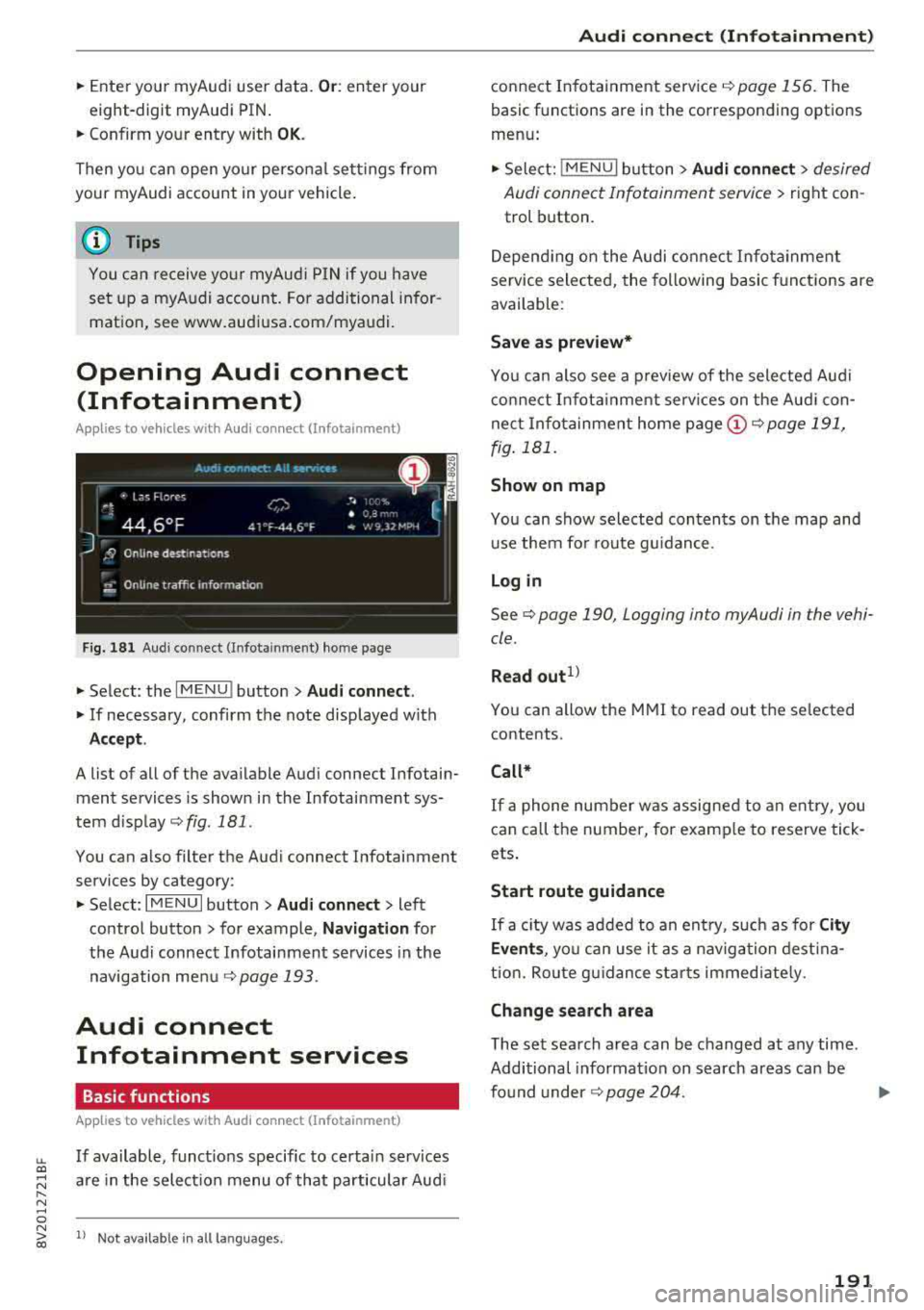
Fig. 181 Aud i co nn ect (Infot ainm ent) home p age
• Select : the I M ENU ! button> Audi connect .
• If necessary, confirm the note displayed with
Accept .
A list of all of the available Audi connect Infotain
ment services is shown in the Infotainment sys
tem display
r::;, fig. 181 .
You can also filter the Audi connect Infotainment
services by category:
• Select : I MENU I button > Audi connect> left
control button > for example,
Navigation for
the Audi connect Infotainment services in the
navigation menu
r::;, page 193 .
Audi connect
Infotainment services
Basic functions
A pplies to vehicles w ith A ud i con nect (Infota inme nt)
If available, functions specific to certa in services
are in the selection menu of that particular Aud i
l) Not avail able in all lang uag es .
Audi connect (Infotainment)
connect Infotainment service r::;, page 156. The
basic functions are in the corresponding options
menu:
• Select: ! MENU I button> Audi connect> desired
Audi connect Infotainment service>
right con
trol button .
Depending on the Audi connect Infotainment
service selected, the following basic functions are
available:
Save as preview*
You can also see a preview of the selected Audi
connect Infotainment services on the Aud i con
nect Infotainment home page
(Dr=;, page 191,
fig . 181.
Show on map
You can show selected contents on the map and
use them for route guidance.
Login
Seer::;, page 190, Logging in to myAudi in the vehi
cle .
Read out1>
You can allow the MMI to read out the selected
contents .
Call*
If a phone number was assigned to an entry , you
can call the number, for example to reserve tick
ets.
Start route guidance
If a c ity was added to an entry, such as for City
Events ,
you can use it as a navigation destina
tion. Route gu idance sta rts immed iate ly .
Change search area
The set search area can be changed at any time .
Additional information on search areas can be
found under
r::;, page 204.
191
Page 195 of 404
u. 00 .-< N l' N .-< 0 N > 00
The following categories can be selected in the
Twitter menu:
-My tw eets: News Feed and the Tweets you have
posted are listed.
- Home: the Tweets for everyone you follow are
displayed.
- Trends : topics on Twitte r that are cur rently
popular w ithin a country .
D ifferent functions are available depending on
the Twitter category you have selected:
- New tweet : you can post a new tweet using
pre-made templates or using myAudi tem
plates that you have created yourself .
-Refresh : the selected Tw itter function is re
freshed .
-Favorite : mark a Tweet as favorite to show you
liked it .
-Retweet: you can quote a Tweet to share it with
others.
(D Tips
- Other settings such as account, language,
Tweet security and location settings
cannot
be changed in the MMI. These changes must
be made on the Twitter webs ite.
- You can only connect
one Twitter account
with your myAudi account.
- Audi connect (Infotainment) makes it possi ble to access Tw itter. Permanent ava ilability
cannot be guaranteed, because that de pends on Twitter.
Travel (travel guide)
Applies to: ve hicles with Trave l (travel guide)
You can use the Audi MMI connect opp to store
points of interest on your mobile device (such as a smartphone) and then use them for route
guidance in the
MMI.
Requirement:
The
Audi MMI connect app must be insta lled and
open on your mobile device.
Audi connect (Infotainment)
You must be logged into your myAudi account in
the
Audi MMI connect app and you must have se
l ected your vehicle.
T he Wi-Fi function on your mobile device and on
the MMI must be switched on.
T he M MI must be connected to the network.
.. Press: !MENU ! button> Audi connect> left con-
trol button >
Information category> Travel.
After opening the trave l guide, trave l tips in your
area w ill be displayed including current ratings as
well as the corresponding category .
.. Press the left control button to change the cat
egory (such as bars nearby).
,&. WARNING
- It is only safe to use tablets, laptops, mo
bile devices and other similar devices when
the vehicle is sta tionary because, like all
loose objects, they co uld be thrown around
the inside of the ve hicle in a crash and cause
serious inj uries. Store these types of devices
securely while driving.
- Do not use any wireless devices on the front
seats within range of the airbags while dr iv
ing. Also read the warnings in the chapter
¢ page 2 73, Front airbags .
(D Tips
-Units of measurement, language settings
and time are shown in the Infotainment sys
tem display based on how they were set in
the MMI system sett ings
¢ page 243.
Audi connect (Infotainment) in navigation
App lies to : vehicles wit h a navigat ion syste m and Audi co n
nect (Infota inment)
.. Select: IMENU! button> Audi connect> left
control button>
Navigation.
-
T he following Audi connect Infotainment services
are currently available:
..,.
193
Page 197 of 404
u. 00 .-< N l' N .-< 0 N > 00
10, the message Warning befo re sub scripti on
e x pire s
will display to warn you that your license
is about to expire.
Refresh
The content of the selected A udi connect Info
tainment service o r the entire Audi connect (Info
tainment) list is updated .
Data privacy
Requirement: the ign it ion must be switched on.
Locat ion and personal data are transmitted when
using Aud i connect Infotainment services . If you
do not want this information to be transm itted,
activate data p rivacy .
-Acti vate pri vacy: the data connection is switch
ed off. Some Audi connect Infotainment serv
ices are not available.
- Deacti vate data priv acy : if the data connection
is switched off, you can switch on the data con
nect ion for the use of all Audi connect Infota in
ment services. Select and confirm
A cti vate d ata
conn ection.
Wi-Fi hotspot
A ppl ies to: ve hicles with Wi-F i hotspot
You can use the MMI as a Wi-Fi hotspot to con
nect up to eight Wi-Fi devices to the Internet.
While driving, restricted use of unsecured, light,
small wireless devi ces is only possible from the
rear of the vehicle.
Requirement: the ign ition must be switched on.
"' Select : I MENU I button> Telephone > right con-
trol button >
W i-Fi settings.
The fo llow ing settings can be selected:
Wi-Fi
The MM I Wi -Fi hotspot is deactivated at the fac
tory. Switch the Wi-Fi hotspot to
Hot spot before
establishing a connection between your vehicle
and your Wi -Fi device.
- On : the MMI Wi -Fi hotspot is active and visib le
to ot her devices. You can connect your Wi -Fi
device to the MMI and use the Internet connec
t ion if necessary.
Audi conn ect (Inf otainment )
-Off : the M MI Wi-Fi hotspot is deactivated. An
Internet connection for Wi -Fi devices is not
possible .
A WARNING
= -
- To reduce the r isk of an accident, use the
Aud i connect Infotainment services with a
W i- F i hotspot only in the rear seat when the
ve hicle is in mot io n, or only when the vehi
cle is stat ionary .
- It is o nly safe to use tablets, laptops, mo
b ile dev ices and other sim ilar devices when
the vehicle is stat ionary because, li ke all
loose objects, they co uld b e thrown around
t he inside o f th e ve hicl e in a c rash and ca use
serio us inj uries . Store these types of devices
secure ly while driving .
- D o not use any wireless dev ices on the front
seats within range of the airbags whi le driv
ing . A lso read the warnings in the chapter
¢ page 2 73, Front airbags .
-As the driver, do not allow usage of the Wi
F i hotspot to distract yo u from driving, as
this cou ld increase the r isk of an accident.
@ Note
- Under some conditions, ce rtain mobile devi
ces and operating systems may automati
cally switch from your vehicle's Wi -Fi hot
spot to the device's mobi le data connection.
In that event, standa rd text and data usage
rates would apply wh ile the device's mobile
data connect ion is in use. Please refer to
documentation prov ided by your mob ile de
vice's manufacture a nd you r data carrier for
details , rela ted te rms an d pr iva cy sta te
ment.
- Yo u ar e respons ib le for all precautions ta k
en for d ata prote ct io n, a nti -vir us p rotec tion
and protec tion agains t loss of data on mo
bile devices t hat are used to access the In
ternet through the Wi -Fi hotspot.
(D Tips
- In ve hicl es w it h out Audi con nect (I nfota in
ment)*, the use of the Wi -Fi hotspot is on ly
possible fo r the Wi -Fi audio player *. A data
.,.
195
Page 199 of 404
u. 00 .-< N l' N .-< 0 N > 00
myaudi is required to use individual serv
ices . You can contact an authorized Audi
dealer or Audi connect (Infotainment) cus
tomer service at (877) SOS-AUDI (2834) to receive information on options for expand
i ng your usage and any costs that may re
sult .
- The Audi connect Infotainment services are
a W i-F i/lnternet-based system . If the sys
tem does not function co rrectly even
though all of the requirements a re met,
please try again later or contact Audi con
ne ct (Infota inment) customer service a t
(8 77) SOS -AU DI (2834) .
- Fo r detailed information on Audi connect
(Infotainment) and the Terms of Use, refer
to www .audiusa .com .
Data protection
Applies to vehicles with Aud i connect (Infotainment)
(D Tips
- Your privacy is important to us.
-AUDI AG collects, processes, shares and
transmits your persona l information in ac
cordance with legal regulations in order to
ensure proper function and availability of
the individual Audi connect Infota inment
services . You can view the complete, current
and val id Audi connect (Infotainment) data
prote ction poli cy in your MMI. The myAudi
platfo rm is available fo r to yo u to activate
additional Audi connect Infotainment serv
ices and to transfer data to your vehicle,
among other services. A one-time registra
tion is required to establish a connection to
your vehicle. For this purpose, AUDI AG col
l ects, processes, transmits and uses your re
quired personal informat ion as requ ired for
you to use the services provided by AUDI
AG. Your information is not dist ributed to
th ird parties. Us ing you r ce ll phone with Audi conn
ect (Inf otainment )
your myAudi p latform allows you to trans
mit data for your Audi connect Infotain
ment serv ices functions to your vehicle and
you can allow specific vehicle data to be transmitted from your vehicle.
- By activating special information services that are part of your Aud i connect (Infotain
ment) portfolio, you can use these functions
directly in your vehicle by entering data to
confirm you r identity (to use soc ial net
works, for example). To do this, the ident ifi
cat ion info rmation you provided is forward
ed with the request to the respec tive service
prov ider. Then you can access yo ur persona l
content using a sec ure connection . This con
tent is displayed in the vehicle for your use .
Your personal content is not stored w ith in
Audi AG. The necessary connection informa tion is processed and used for prov iding
serv ices and the proper funct ion of the serv
ices in accordance with applicable legal
guide lines.
- You can find additional info rmation in your
MMI in the options menu for the selected
Audi connect Infotainment service and a lso
online at www.a udiusa.com.
- By p roviding Aud i connect Infotainment
serv ices, Audi of Ameri ca is au thori zed to
c ollec t, p rocess, transmi t and transfer info r
mation about you and your vehicle . Addi
tional information can also be found in your
MMI in the options menu for the selected
Audi connect Infotainment service.
- Information on o ur data protection meas
ures in conjunct ion with the mob ile Audi
connect (Infotainment) app lication can be
found in the applicat ion's privacy policy. For
add itiona l information about the
www.aud iusa.com/myaudi webs ite or other
applications, websites or on line services
connected to Audi, v is it www.aud iusa.com/
pr ivacy.
197
Page 206 of 404
Navigat ion
-If a contact is grayed out in the directory,
this contact has neither a destination nor an
address assigned to them.
Point of interest search
Applies to: ve hicles w ith navigation system
.. Press the I NAV /MAPI bu tton repeatedly until
t he
E nte r d estination menu is displayed
¢page 201 , fig . 1 82 .
.. Select : left cont rol button > Point s of intere st.
-C hanging the search area : select and confirm
Sear ch ar ea > a search area from the list .
The following search categories are avai lab le:
Nearb y: points o f interes t can be sele cted from
different categories . The points o f interest are
list ed starting from the immediate vicinity of the
vehicle up to a radi us of approximate ly 124
miles (200 km).
Along the route: points of inte rest a long the
route can on ly be select ed during active rout e
gu idance. The points of interest are located d i
rect ly along or in the immediate vicinity of the
calcul ated route. The points of interest can like
wise be selected from various categor ies . For ex
ample, you can search for a hotel or park ing lot
at the destination .
Near destin ation /Near stopo ver : po ints of inter
est near a destination or a stopover can only be
selected dur ing active route guidance . T he poi nts
of interest can likewise be se lected from va rious
ca tegor ies. For examp le, you ca n search fo r a ho
tel or parking lot a t the destination.
In new city : select a country/state or searc h in a
new c ity . Ente r the name of the des ired c ity .
P oints of i nte rest can be selected from var ious
ca tegor ies. Th is f unction allows you to searc h for
points of interes t in any ci ty regardless of the ac
tive route guidance or the vehicle position.
-Sea rch for a p oint of inter est name in these
lec ted search are a:
en ter the name of the po int
of inte rest .
-Sear ching f or a poin t of inter est in a specifi c
ca tegory :
select Select cat egory . Select and
confirm a ca tegory such as
Restaurant s.
204
(D Tips
-Distances to points of interest are displayed
as a stra ight -line d istance from your current
location. The actual d istance from your cur
rent location to the point of interest is up
dated automatically. The list of found
points of interest is not resorted when this
happens.
-T here may be entr ies in the l ist that cannot
be displayed comp letely due to t heir length .
Select the cor respond ing ent ry from the
list. Select: r ight cont rol b utton> Show des
ti na tion det ails. De tailed informa tion fo r
the se lected entry in the list is then dis
played .
Online point of interest search (online
search)
App lies to: vehicles wit h a navigation system and Audi co n
nect (Infota inment)
You can search for points of interest on the In
t e rnet .
Requirement: the requirements for Aud i connect
(Infotai nment) must be met
¢ page 190 .
.. Press the I NAV/MAPI button repeatedly until
the
Enter des tination me nu is displayed
~ page 201, fig. 182 .
.. Select: left control button > Online sear ch . Th e
searc h area last set is displayed in the inpu t
fie ld .
-C hanging the search area : select: right cont rol
bu tton >
S elect sear ch are a.
-Searching for onlin e destinations in thes e
l ec ted search ar ea :
ente r a new c ity/state if
necessary. En ter the search term, such as hotel.
Press the contro l knob. Se lect and confirm an
online destination from the list.
-Sea rching for online de stinations in a specific
categor y:
se lect and confirm Sele ct category.
Select and confirm a category such as Re stau
rants .
Find w hich search areas are avai lab le under
¢ page 204 , Point of interest search .
You can search for online destinations using the
vo ice recog nitio n
sys tem ¢ table on page 173. .,..