ESP AUDI A3 SEDAN 2018 Workshop Manual
[x] Cancel search | Manufacturer: AUDI, Model Year: 2018, Model line: A3 SEDAN, Model: AUDI A3 SEDAN 2018Pages: 404, PDF Size: 62.3 MB
Page 213 of 404
u. co .-< N l' N
@ When the trailer m ode fu nction is switched
on~' the corresponding symbo l is displayed
next to the arriva l time.
© Scale: turn the cont rol knob to the left or
right to decrease or increase the scale . When
the
Automa tic zoom fu nct ion is swit ched on
~' an "A" fo r "Automatic" is displayed in the
magnifying glass .
® Altitude
@ Ve hicle posit ion
(J) Route information: various information wi ll
be disp layed during active route guidance
(for example, the upcoming maneuver in
cluding calculated d istance and street
names) . The disp lay also prov ides traffic in
formation or po ints of interest on the current
route.
@ Street being driven on: displayed here as
"offroad" w hen the vehicle is stationary .
When th e crosshair s ar e swit ch ed on ¢ fig. 190:
® Crosshairs: move the cross ha irs in t he de
sired direction us ing the MMI touch control
pad* o r the control knob and set a po int on
the map as the dest inat ion or have i nfo rma
tion about the foca l point displayed .
@) Speed limit disp lay1>: display of the maxi
mum permitted speed on the expressways
and highways .
@ Enterta inme nt s liding men u*: see
¢ page 159.
@ Addit ional information on the crosshairs po
sition: if you move the crosshairs to a loca
tion on the map, ava ilable information for
the current crossha irs pos ition is displayed .
Pr ess the cont rol knob to open destination
det ails o r to sta rt ro ute gu idance. When the
crossh airs a re tur ned off, the road being cur
ren tly driven on is shown .
@ Map contents (points of interest, favorites).
When there are multip le points of i nterest in
the immed iate vicinity, the symbols are
shown stacked on the map.
8 l ) O nly applies to vehicles without camera-based speed limit N
ii; display.
Na vigation
@ Better route~: if a better route is available
for the current route guidance, it will be indi
cated on the map including the t ime t hat
would be saved. Mo re information can be
found
under¢page215.
Map functions
Applies to: vehicles with navigation system
"Press the !NAV/MAPI button repeatedly until
the map is displayed
¢page 210, fig . 189 .
" Press the left control button .
The following map functions can be se lected:
Switch to de stination input
T he free text search in the Enter destination
men u is displayed ¢ page 201, fig. 182.
Traffic messages
Cu rren t traffic informa tion is disp layed i n the In
f ota inment system display. You can a lso find ad
ditional information under
¢ page 215 .
Route list
The route list can o nly be disp layed when route
guidance is a ctive and con ta ins informat io n re
gard ing the ro ute, the names of t he s treets and
the lengt h of the ro ute sec tions . W hen traveling
on highways, possible parking lots and rest areas
are shown, which you can se lect as a stopover.
POis along the route
Requirement: rou te g uid ance must be active.
Searching for po ints of inte rest a long your cur
r e nt route Fo r additional informat ion, see
¢ page 20 4.
Additional options on the map
Applies to: vehicles with navigation system
"Press the !NAV/MAPI button repeatedly u nti l
the map is displayed
¢page 210, fig . 189.
" Press the right control button.
211
Page 225 of 404
u. 00 .-< N l' N .-< 0 N > 00
Media
Introduction
There are various media drives and connections
avai lab le in the MMI. For example, you can play
audio/video* fi les from t he Jukebox* or connect
your mobi le device to the Audi mus ic interface*
and operate it through the MMI.
Notes
General
Media and format re strictions :
the MM I (includ
ing the SD card reader and the USB storage de
vice connection *) was tested wit h a variety of
products and media on the market. However,
there may be cases where ind ividual devices or
media and audio/video files* may not be recog
n ized, may play on ly w ith restrictions, or may not
play at all.
Digital Rights Management : please note that
the audio/video* files are subjec t to copyright
protection .
The med ia drives do not play f iles that are pro
tected by
ORM and that are ident ified with the
symbol
rfl.
Data secu rity : never store important data on SD
cards, the Jukebox*, CDs/DVDs or mobile devices .
Aud i AG is not responsib le for damaged or lost
f il es and media .
Loading times : th e more files/fo lders/p lay lists
that are on a storage medium, the longer it will
take to load the audio/v ideo* files . Audi recom
mends using storage med ia tha t on ly conta in au
d io/video files* . To decrease the t ime it takes to
l oad audio/v ideo f iles*, create subfolders (fo r ex
ample, fo r th e a rt ist o r album). The loading time
will also increase when importing fi les.
Additional information : when playing, audio
f iles are automatically displayed with any add i
tional informat ion that is sto red (such as the ar
tis t, trac k and albu m cover). If this informa tion is
n o t availa ble o n the sto rage med ium, t he
M MI
will check the Grace note metadata database .
Media
However, in some cases, the additional in fo rma
tion may not be displayed.
Re stri cted functionality : reset the Media set
tings
t o the fac to ry defau lt settings if func tional
ity is restr icted
¢ page 244.
If fu nctionali ty is rest ricted, reset the Jukebox *
to the fa ctory default se tt ings ¢ page 244.
For information about the propert ies of s upport
ed med ia and fi le formats , see
¢ page 237 .
@ Note
Always fo llow the information fo und in ¢ @ in
Wi-Fi hotspot on page 195 .
CD/DVD operation
CD /DVD and format restrictions :
the funct iona li
ty of individ ua l st orage media may be limited due
to the v ariety of b lank CDs/DVDs avai lab le and
t h e various capacities. Audio C Ds or video DV Ds
with copy p rotection, CDs/DVDs that do not con
fo rm to the standard and multi session CDs may
have limit ed playback or may not play at a ll. Audi
recommends finaliz ing the recording process
whe n creat ing mult isess io n CDs . Mult isess ion is
not supported for DVDs .
Using CDs/DVDs , the CD dr ive or the DVD drive :
to ensure correct, hig h-quality playback and to
prevent damage to the dr ive or d isc read ing er
rors, always store CDs/DVDs in a protective
sleeve and do not expose t hem to direct sunlight .
Do
not u se:
- Damaged, dirty or scratched CDs/DVDs
- Sing le CDs/DVDs with 3 in (8 cm) d iameter
- CD/DVDs that a re not round
- CDs/DVDs w it h labe ls
- Protec tive rings
- Clea ning CDs
Thermal protection switch : CD/DVD playback
may be temporarily unavailab le if outs ide tem
peratures a re extremely hot or co ld . A thermal
pro tect io n sw itch is insta lled to p rotect the C D/
D VD and the laser.
La ser devi ce s: lase r devices a re divided i nto safe -
ty classes 1 to 4 in acco rdance w ith DIN I EC 76
.,.
223
Page 231 of 404
LL co .... N
" N .... 0 N > co
the inside of the vehicle in a crash and cause
serious injur ies. Store these types of devices
securely whi le driving.
- Do not use any w ireless devices on the front
seats w ith in range of the a irbags while driv
ing. Also read and follow the warnings in
¢ page 2 73 , Front airbags .
CD Note
-Always fo llow the information found in i::> @
in Wi-Fi hotspot on page 195 .
- Please note that there genera lly are addi
tiona l costs when using an online media
se rvice account, especially when it is used
i nternationally .
(D Tips
-Depending on the Internet connection and
network traffic, a connection loss can occur
duri ng p layback of on line media serv ices .
-Online media and Internet radio usage de
pends on the serv ice availab ility of the third
party provider .
- Audi AG simply makes the access to online
media services possible through the MMI
and does not take any respons ibility for the
contents of the online med ia services .
- Always read the chapter
¢ page 196, Audi
connect (Infotainment) general informa
tion .
- Dependi ng on the mobile device used, the re
may be interruptions during media playback
and whe n using the
Audi MMI connect app.
To avoid i nterruptions when usi ng a mob ile
device , do no t lock the s cree n on you r mo
bile device and keep the
Audi MMI connect
app in the foreground .
- Cont act an a uthorized Audi dea ler or au
thorized Audi Service Facili ty for additional
i nformat ion about online media .
Media
Multimedia connections
USB adapter for Audi music interface
You can connect your mobile devices (such as a
smartphone or MP3 player) to the Audi music in
terface and charge them using a special USB
adapter .
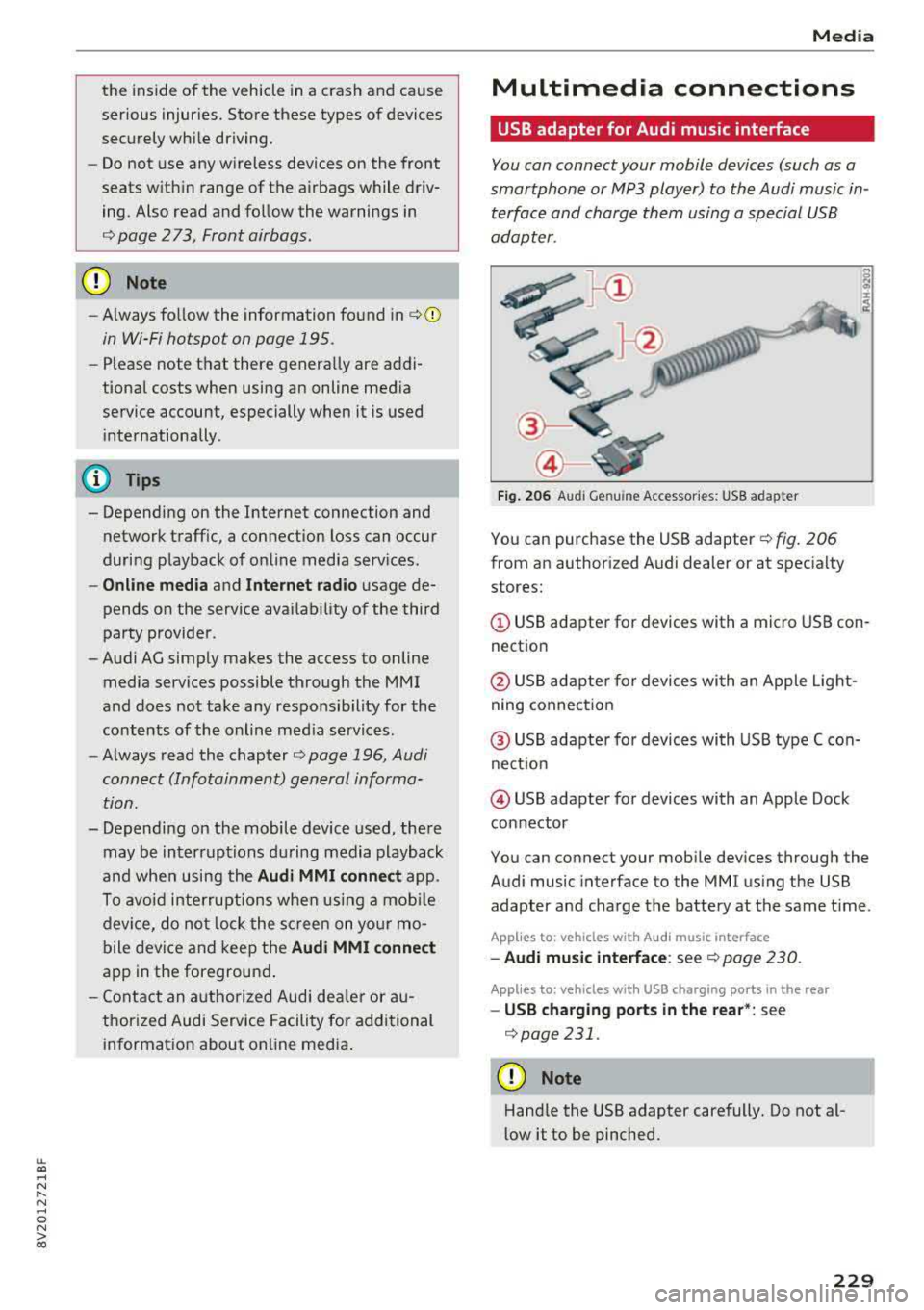
Fig. 206 Audi Genuine Acces sorie s: USB a dap ter
You can purchase the USB adapter ¢ fig. 206
from an author ized Audi deale r or at spec ialty
stores:
© USB adapter for devices with a micro USB con
nect ion
@ USB adapte r for devices with an Apple Light
ning conne ct ion
@ US B adapte r for devices wi th USB type C con
ne ct io n
@ USB adapter for devices with an Apple Dock
connector
You can connect your mob ile dev ices through the
Audi music interface to the MMI us ing the USB
adapter and cha rge the battery at the same t ime .
App lies to : vehicles wit h Audi music interface
-Audi mu sic interfa ce : see c;> page 230 .
Applies to: vehicles wi th USB charging ports in the rear
-USB cha rging ports in the rear *: see
¢page 231 .
CD Note
Hand le the USB adapter carefully. Do not al
low it to be pinched.
229
Page 232 of 404
Media
Audi music interface
Connect your mobile devices to the Audi music
interface in order to operate them through the
MMI and charge the battery.
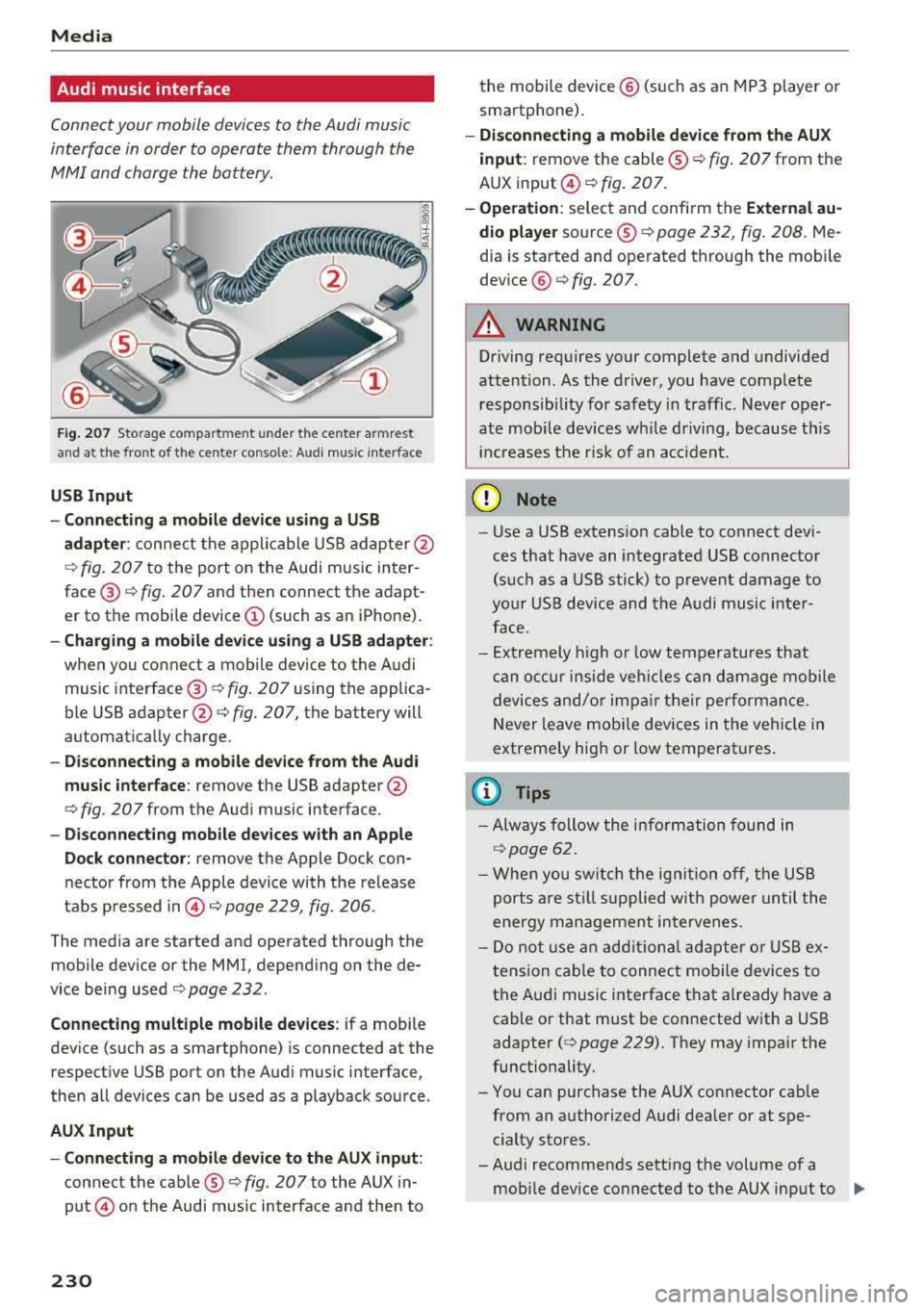
Fig. 207 Storage co mpa rtm ent u nder the cente r armrest
and at the front of t he ce nter con so le: A udi music interface
USB Input
- Connecting a mobile device using a USB
adapter :
connect the applicable USB adapter @
¢
fig. 207 to the port on the Audi music inter
face®¢ fig. 207 and then connect the adapt
er to the mobile device @(such as an iPhone) .
-Charging a mobile device using a USB adapter :
when you connect a mobile device to the Audi
music
interface @¢ fig. 207 using the applica
ble USB
adapter @¢ fig. 207, the battery will
automat ically charge.
- Disconnecting a mobile device from the Audi
music interface:
remove the USB adapter @
¢ fig. 207 from the Audi music interface .
-Disconnecting mobile devices with an Apple
Dock connector:
remove the Apple Dock con
nector from the Apple device with the release
tabs pressed
in © ¢ page 229, fig. 206 .
The media are started and operated through the
mobile device or the MMI, depending on the de
vice being used
¢ page 232 .
Connecting multiple mobile devices: if a mobile
device (such as a smartphone) is connected at the
respective USB port on the Audi music interface,
then all devices can be used as a playback source .
AUX Input
- Connecting a mobile device to the AUX input :
connect the cable ® ¢ fig. 207 to the AUX in
put© on the Audi music interface and then to
230
the mobile device@ (such as an MP3 player or
sma rtphone).
-Disconnecting a mobile device from the AUX
input:
remove the cable ®¢ fig. 207 from the
AUX
input @¢fig. 207.
- Operation: select and confi rm the External au
dio player
source ®¢ page 232, fig. 208. Me
dia is started and operated through the mobile
dev ice @ ¢ fig. 207.
A WARNING
Driving requires your complete and undivided
attention . As the driver , you have comp lete
responsibility for safety in traffic . Never oper
ate mobi le devices wh ile driving, because this
inc reases the risk of an acc ident.
(D Note
- Use a USB extens ion cable to connect devi
ces that have an integrated USB connector
(such as a USB stick) to prevent damage to
your USB device and the Audi music inter
face.
- Extremely high or low temperatures that
can occur inside veh icles can damage mobile
devices and/or impair their performance.
Never leave mobile devices in the vehicle in
extremely high or low temperat ures.
(D Tips
- Always follow the information found in
¢page 62.
-When you switch the ignition off, the USB
ports are still suppli ed with power until the
energy management intervenes.
- Do not use an additional adapter or USB ex
tension cable to connect mobile devices to
the Audi music interface that already have a
cable or that must be connected with a USB
adapter(¢ page 229). They may impair the
functionality.
- You can purchase the AUX connector cable
from an authorized Audi dealer or at spe
cialty stores.
-Audi recommends setting the volume of a mobile device connected to the AUX input to
..,
Page 233 of 404
u. co ... N l' N
approximately 70% of the maximum vol
ume.
- Functionality is not guaranteed for mobile
devices that do not conform to the USB
2.0
specification.
- USB hubs are not supported.
- Some versions of the iPod such as the iPod
shuffle cannot be connected to the USB
adapter for devices with Apple Dock connec
tor. Connect these devices using a AUX con
nector cable.
- Changed content on a mobile device
l) that
is connected to the Audi music interface
may not be displayed in the media center.
In this case, reset the
Media settings back
to
Factory settings c> page 244.
- Video playback through the Audi music in
terface is only supported if the connected
device is recognized as a USB storage device
(for example a USB stick). Apple devices and
MTP devices (such as smartphones) are not
recognized as USB storage devices .
- iPod/iPhone malfunctions also affect the
operation of the MMI. Reset your iPod/
iPhone if this happens.
- For important information on operating
your iPod/iPhone, refer to the user guide for
the device. Audi recommends updating the
iPod/iPhone software to the latest version.
- For more information about the Audi music
interface and supported devices, check the
Audi database for mobile devices at
www.audiusa.com/mp3 or contact an au
thorized Audi dealer or authorized Audi
Service Facility.
8 l ) A pp lies o nly to MTP device s. Does not apply to App le dev i
"' &j ces and USB mass storage d ev ices.
Media
USB charging ports in the rear
App lies to : vehicles wit h USB charging ports in the rear
You can charge the battery on your mobile device
through a USB charging port.
Two USB charging ports* are located at the back
of the center console.
- USB adapter: refer to c> page 229, USB adopter
for Audi music interface.
- Charging a mobile device using the USB
adapter: connect your mobile device to a USB
charging port using a suitable USB adapter.
- Disconnecting a mobile device from the charg
ing port:
remove the USB adapter from the USB
charging port .
-Disconnecting mobile devices with an Apple
Dock connector :
remove the Apple Dock con
nector from the Apple device with the release
tabs pressed in.
A WARNING
-
Driving requires your complete and undivided
attention . As the driver, you have complete
responsibility for safety in traffic. Never oper
ate your mobile devices while driving, because
this increases the risk of an accident.
((D) Note
Extremely high or low temperatures that can
occur inside vehicles can damage mobile devi
ces and/or impair their performance . Never
leave mobile devices in the vehicle in ex
tremely high or low temperatures.
(D Tips
- Always follow the information found in
c>page 62 .
-When you switch the ignition off, the USB
ports are still supplied with power until the
energy management intervenes.
- Do not use any additional USB extension ca
bles or adapters to connect mobile devices
to the USB charging port that have already
liJo-
231
Page 245 of 404
u. 00 .-< N l' N .-< 0 N > 00
System settings
Setting the date and
time
You can set the clock time manually or using the
CPS* .
.. Select : IMENUI button> Settings> left control
button >
MMI settings > Date & time.
.. Or : select : IMENUI button> Vehicle> left con-
trol button >
Vehicle settings > Date & time .
Automatic setting
When this function is switched on g, the time
and date are automatically set.
Time
Requirement: the Automatic setting must be
switched
off .
Press the control knob. You can set the Time
manually by turning and pressing the control
knob.
Date
Requirement: the Automatic setting must be
switched
off.
Press the control knob . You can set the Date
manually by turning and press ing the control
knob.
Time zone
When selecting the appropriate time zone, a
sampling of countries in this zone will be listed .
Automatic time zone*
When this function is switched on g, the time
will automatically adjust to the corresponding
time zone.
Automatic daylight saving time*
When this function is switched on g, the time
will automatically switch to daylight saving time .
Time format
If you select 24h, the clock will display, for ex
ample,
13:00 . If you select AM/PM , the clock
will disp lay, for examp le,
1:00 PM .
System settings
Date format
If you select DD.MM.YYYY , the date display will
show, for example ,
31.08.2017. If you select
MM/DD/YYYY , the date display will show, for ex
amp le,
08/31/2017. If you select YYYY-MM
DD ,
the date display will show, for example,
2017-08-31 .
MMI settings
.. Select: !MENU I button> Settings> left control
button >
MMI settings .
Language
You can change the display language as well as
the language for the voice guidance* and voice
recognition system*.
T he number of languages available depends on
the market.
Measurement units
The following measurement units can be set de
pend ing on availability:
Speed , Distance , Tem
perature , Fuel consumption , Volume , Pressure.
Tool tips
When this funct ion is switched on g, your MMI
shows you tips for input . The frequency of how
often it displays decreases with time.
Speech dialog system
Applies to : vehicles wit h voice recog nitio n system
Depend ing on veh icle equipment, the following
funct ions may be ava ilable:
Command display : when this function is switch
ed on
g, the MMI will show you the possible
commands for voice input in the respective
menu.
Short dialog : when this function is switched on
g, a shorter form of the prompts is used .
Command during voice output*: thi s function is
switched on at the factory . W hen this function is
switched on
g, you can say new commands dur-
ing announcements. You do not need to wait for
the signal tone (beep) dur ing an announcement.
When the funct ion is swi tched off
0, you need to Iii>
243
Page 246 of 404
System settings
wait for the sig nal t one (bee p) to say a new
command.
Volume : you can a djust th e vol ume of th e
p romp ts by turning the con tro l k no b.
Individual speech training (on ly when the v ehi
cle is s ta ti onary): yo u ca n ad apt the vo ice recog
ni tion sy ste m to your voic e or pro nunciati on in
or der to im prove the sys tem's a bili ty to re co gni ze
your speec h. Indivi dua l speech train ing is com
p rised of 20 s peech ent ries t hat consist o f com
mands and sequences of numbers . You can de
lete the p rogrammed voice t rain ing with the
Re
set individual speech training
function.
Display brightness
You can a djust the brigh tness o f the Info tain
ment system disp lay by t urning the cont ro l knob.
Factory settings
D epe ndi ng on t he ve hicle eq uipme nt, th e fo llow
i ng fu nctio ns ca n b e rese t to factory se ttings :
-Sound settings
- Radio
- Media settings
- Jukebox *
- Directory
-Telephone
- Bluetooth and Wi-Fi*
- Navigation settings*
- Navigation and online memory *
- Speech dialog system*
- Message settings *
-Apps*
- Tool tips
- Audi connect*
- Audi smartphone interface *
You can select the des ired functions individually
or all at once with the option
Select all entries .
Select and confirm Restore factory settings .
(D Tips
-Make s ure that n ot on ly t he settings we re
d eleted but also the stored data, if ap plica
b le.
- Pleas e note t hat the vo ice reco gnit io n sys
te m* is not availab le in Cabr io lets .
244
Connection manager
Introduction
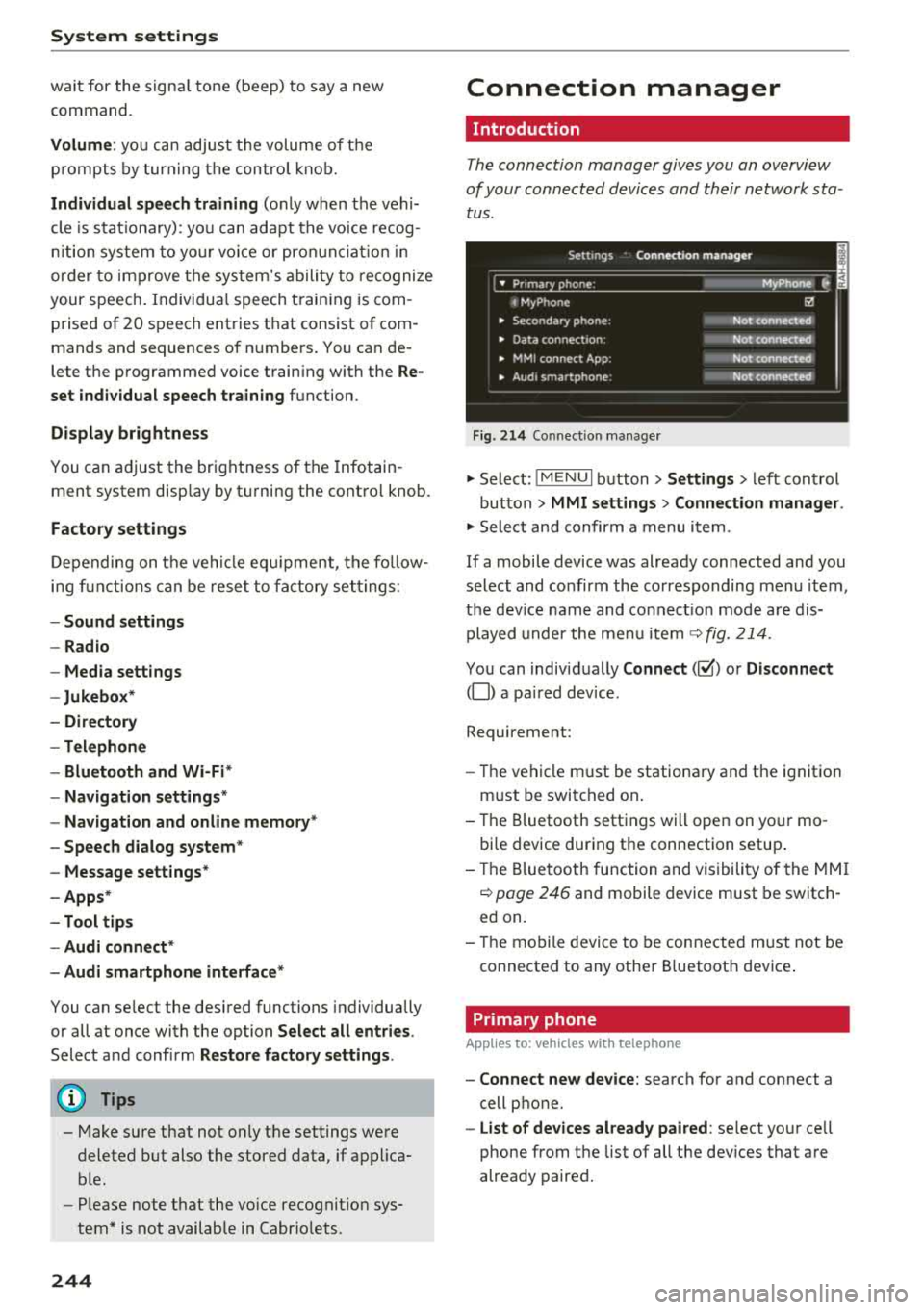
The connection manager gives you an overview
of your conn ected devic es and th eir network sta
tus .
Settings Conne -ction manager I
-====- ,.· • Prima hone: MyPhone .,.
c M yPhone
• Second ary phone :
• Data conn ection :
• MM I connect App :
• Audi smartphone:
Fig. 214 Co nnec tion man ag er
Ii'!
Not connected
Not
conn.,ct.,d
Not connected
Not
conn..cted
"' Select : !ME NUI bu tton> Settings > left con trol
bu tton >
MMI settings > Connection manager .
"'Sele ct a nd confirm a menu item.
If a mobile device was already connected and you
select and co nfirm the co rresponding menu item,
t h e dev ice name and co nnect ion mode a re dis
p layed under the menu i tem
r:!;> fig. 214 .
You can indiv id ually Connect (~ ) or Disconnect
(0) a pa ired device .
Requirement:
- The ve hicl e m ust be statio na ry and the ignit io n
m ust be switc hed on .
- Th e Bluetooth sett ings will open on yo ur mo
bi le device dur ing the connection setup .
- T he Blue tooth func tion and v is ibili ty of the MMI
c:!;> page 24 6 and mobile device must be switc h
ed on.
- T he mo bile device to be con nected m ust not be
connected to any othe r Bluetoot h dev ice .
Primary phone
App lies to: vehicles wit h telepho ne
- Connect new device: search for and connect a
cell p hone.
- List of devices already paired : select yo ur cell
phone from the list of all the dev ices that a re
already paired.
Page 251 of 404
u. 00 .-< N l' N .-< 0 N > 00
Driving safety
Basics
Safe driving habits
Please remember -safety first!
The individual safety features of your vehicle can
work together as a system to help protect you
and your passengers in a wide range of accidents.
These features cannot work as a system if they
are not always correctly adjusted and correctly
used .
This chapter contains important informat ion,
tips, instructions and warnings that you need to
read and observe for your own safety, the safety
of your passengers and others . We have summar
iz ed here what you need to know about safety
belts, airbags, child restraints as well as child
safety. Your safety is for us
priority number 1. Al
ways observe the information and warnings in
this section -for your own safety as well as that
of your passengers.
The informa tion in t his section applies to all
model versions of your vehicle. Some of the fea
tures described in this sections may be standard
eq uip ment on some models, or may be optional
equ ipment on others. If you are not sure, ask
your author ized Audi dealer.
A WARNING
-Always make sure that you follow the in
struct ions and heed the WARNINGS in this
Manual. It is in your interest and in the in
terest of your passengers .
-
-Always keep the complete Owner's Litera
ture in your Audi when you lend or sell yo ur
vehicle so that this important information
w ill always be available to the driver and
passengers.
-Always keep the Owner's literature handy so
that you can find it easily if you have ques
tions .
Driving safety
Important things to do before driving
Safety is everybody 's job ! Vehicle and occupant
safety always depends on the informed and care
ful driver .
For your safety and the safety of your passen
gers,
before driving always:
.. Make sure that a ll lights and signals are operat
ing correctly.
.. Make sure tha t the tire pressure is correct .
.. Make sure that all w indows are clean and afford
good vis ibility to the outs ide.
.. Secure all luggage and othe r items ca refully
c::> page 63, c::> page 63 .
.. Make sure that nothing can interfere with the
peda ls .
.. Adjust front seat, head restraint and mirrors
correct ly for your height.
.. Instruct passengers to adjust the head re
straints according to their height.
.. Make sure to use the right child restraint cor
rectly to protect children
c::> page 294, Child
safety .
.. Sit properly in your seat and make sure t hat
your passengers do the same
c::> page 59, Front
seats .
.. Fasten your safety belt and wear it properly. Al
so instruct your passengers to fasten their safe
ty belts properly
c::> page 260.
What impairs driving safety?
Safe driving is directly related to the condition of
the vehicle , the driver as well as the driver 's abili
ty to concentrate on the road without being dis
tracted.
The driver is responsible for the safety of the ve
hicle and a ll of its occupants. If your ability to
drive is impa ired, safety risks for everybody in the
vehicle increase and you a lso become a hazard to
everyone else on the road
c::> &_ . Therefore:
.. Do not let yourse lf be distracted by passengers
or by using a cellular telephone .
.. NEVER drive when your driving abi lity is im
pa ired (by med ications, alcohol, drugs, etc .) .
.. Observe all traffic laws, rules of the road and
speed lim its and plain common sense .
.,.
249
Page 255 of 404
u. 00 .-< N l' N .-< 0 N > 00
-Every person in the vehicle must have a
properly adjusted hea d restra int.
- Always make sure each person in the vehicle
properly adjusts their head res traint. Adjus t
t h e head restra int so the upper edge is as
even as possib le with the top of your head.
If that is not possib le, try to adjust the h ead
restra int so that it is as close to th is position
as possib le.
- Applies to: forward/back adjustable head
restra ints: Move the head restra int so that it
is as close to the back of the head as possi
ble.
- Never attempt to adjust head restra int
wh ile driving. If you have dr iven off and
must adjust the dr iver head rest for any rea
son, first s top the veh icle sa fely before at
tempting to ad just the head restraint .
- C hildren mus t always be p roperly res trained
in a ch ild restraint that is appropriate for
their age and size
i::> page 294.
Examples of improper seating positions
The occupant restraint system con only reduce
the risk of injury if vehicle occupants ore properly
seated.
I mp roper seating posi tions can cause se rious in
ju ry o r death. Safety bel ts can only work when
they are p roperly positioned on the body. Im
proper seating positions reduce the effectiveness
of safety belts and w ill even increase the r is k of
in ju ry and death by moving the safety belt to crit
ical areas of t he body. Improper seating posit ions
also increase the risk of ser ious injury and death
when an airbag deploys a nd strikes an occupant
who is not i n the prope r seat ing pos ition . A d rive r
i s respons ib le for the safety of all vehicle occu
pants and especia lly fo r children. Therefo re:
"" Never allow anyone to assume an incorrect
seat ing pos it ion when t he ve hicle is being used
i::, & -
The follow ing bulletins list only some sample po
sitions that will increase the risk of serious in jury
a nd death. O ur hope is that these examp les w ill
make you more aw are of sea ting pos it io ns tha t
ar e dange ro us.
Dri ving saf ety
Th erefore , whenever the vehicle is moving :
-neve r st an d up i n the vehicle
- neve r stand on the seats
- neve r kneel on the seats
- never ride wit h the seatback recl ined
- neve r lie down on the seats
- never lean up against the instrument panel
- never sit on t he edge of the seat
- neve r sit sideways
- neve r lean out t he window
- neve r put your feet out the wi ndow
- never put your feet on the instrument panel
- neve r rest your feet on the seat cushion or back
of the seat
- never ride in the footwell
- never ride in the cargo area
A WARNING
--
Improper seating positions inc rease the risk
of ser ious personal in ju ry and death whenever
a veh icle is being used.
- Always make sure that all veh icle occupants
stay in a proper seating posit ion and are
proper ly restrained whenever the vehicle is
be ing used.
Driver's and front
passenger's footwell
Important safety instructions
Applies to : vehicles wit h knee airbags
A WARNING
Always ma ke su re t hat the knee airbag can i n
fl ate w ithout interfe rence. Objects between
yourself and the airbag can in cre ase the risk
of inju ry in an accident by interfering with the
way the ai rbag dep loys o r by being pushed in
to you as the ai rbag dep loys.
- No persons (ch ildren) or animals should ride
in the footwell in front of the passenger
seat . If the airbag deploys, this can res ult in
serio us or fatal injur ies.
- No objects of any kind should be carried in
the footwell area in front of the dr iver's or
passenger's seat. Bu lky objects (shopping
bags, for examp le) can hamper or prevent
~
253
Page 258 of 404
Drivin g saf ety
- After closing the rear lid, a lways make sure
that it is properly closed and locked.
- Never leave yo ur vehicle unattended espe
c ia lly w ith the rear lid left open. A ch ild
could crawl into the ve hicle through the lug
gage compartment and close the rear lid be
coming trapped and unable to get out . Be
ing t rapped in a veh icle can lead to se rious
persona l injury.
- Never let children play in or around the veh i
cle .
- Never let passengers ride in the luggage
compartment. Ve hicle occupants m ust al
ways be prope rly rest ra ined in one of the ve
hicle's seating posi tions.
(D Tips
- A ir c irculat io n helps to reduce window fog
g ing . Stale air escapes to the outside
th rough vents i n the t rim panel. Be s ure to
k eep these slots free and open.
- The t ire pressu re must correspond to the
l oad. The tire p ressure is shown on the tire
p ressure labe l. Th e tire pressu re labe l is lo
ca ted on t he driver 's s ide B-p illar. The tir e
p ressure labe l lists the recommended cold
tire inflation pressures for the vehicle at its max imum capacity weig ht and the t ires t hat
were on your vehicle at the t ime it was man
ufactured. For recommended tire pressures
for normal load cond itions, please see chap
ter
¢ page 341.
Tie-downs
The luggage compartment is equipped with four
tie -downs to secure luggage and other items .
Use the tie-downs to secure your cargo proper ly
¢ page 255, Loading the luggage compartment.
In a col lision, the laws of p hysics mean that even
sma ller items that are loose in the vehicle will
become heavy missiles that can cause ser ious in
jury. Items in t he ve hicle possess energy which
vary with vehicle speed and the weight of the item . Veh icle speed is the most s ignificant factor .
For examp le, in a frontal collision at a speed of
30 mph (48 km/h), the forces act ing o n a 10-lb
256
(4.5 kg) object are about 20 times the normal
weight of the item . This means that the weight
of the item would s udden ly be about
200 lbs. (90 kg). You can imag ine the in juries
that a 200 lbs. (90 kg) item flying freely through
the passenger compartment could cause in a col
l is ion like t his.
A WARNING
Weak, damaged or imp roper straps used to
secure items to tie-downs can fa il dur ing hard
b raking or in a coll is ion and cause ser io us pe r
sona l injury .
- Always use s uitable mo unt ing st raps and
p roper ly sec ure i tems to the t ie -downs in
the l uggage compa rtment to help preven t
items from shifting or flying forward as dan
ge rous missi les .
- W hen the rear seat backrest is fo lded down,
a lways use s uitable mo unting straps and
properly sec ure items to the tie-downs in
the luggage compartment to help prevent items from flying forward as dangerous
m iss iles into the passenger compartment.
- Never attach a child safety seat tether strap
to a t ie-down.
-