change time AUDI A4 2017 User Guide
[x] Cancel search | Manufacturer: AUDI, Model Year: 2017, Model line: A4, Model: AUDI A4 2017Pages: 386, PDF Size: 96.32 MB
Page 104 of 386

Assist
-Your settings are automatically stored and
assigned to the remote control key being
used.
Setting the driving program
A pp lies to: ve hicles w ith Audi adaptive cruise co ntro l
Depending on the selected driving program and
distance, driving behavior when accelerating will
vary from dynamic to comfortable.
Setting the driving program on vehicles
without drive select*
1>-In the Infotainment system, select: I MENU !>
Vehicle > left control button > Driv er assist >
Audi adaptive cruise control > Driving pro
gram > comfort, standard or dynamic .
Setting the driving mode on vehicles with
drive select*
Refer tor=;;, page 122 .
(D Tips
Your sett ings are automatically stored and as
signed to the remote control key being used.
Request for driver intervention
App lies to: ve hicles w ith Aud i ad aptive cruise co ntro l
Fig . 99 Instrument cluster: request for driver interve ntion
The request for driver intervent ion instructs you
to take over if the adaptive cruise contro l bra king
function is not able to mainta in a sufficient dis
tance to the vehicle driving ahead
c::> fig. 99.
l) Thi s is not ava ilab le in som e coun tri es .
102
Predictive control
(efficiency assist)
Description
App lies to: vehicles wit h Audi adap tive c ruise control and p re
dic tive efficiency ass ist
Fig. 100 In stru men t cl uster: p redict ive contro l
General information
The predict ive control 1> uses the map informa
tion from the navigation system in order to react
proactively when driving. Information from the
camera -based traffic sign recognition* is also ap
plied to recognize traffic signs
c::> page 24. When
coming up to areas with speed limits or changes
in the course of the road (such as curves, inter
sections or traffic c ircles), the system brakes au
tomatically and then accelerates back up to the
set speed .
When adaptive cruise control is switched off, the
system only provides notifications without con
trolled interventions
c::> page 95.
The driver can override the predictive contro l at
any time by pressing the accelerator or brake
pedal. If the system changes the veh icle speed to
adapt to speed limits, you can change the speed
using the lever
c::>page 99 , fig . 95.
Always switch off the predictive control in
the following situations:
-When increased attention is needed from the
driver .
- In poor weather conditions such as snow or
heavy rain .
- When driving on roads in poor cond ition.
Page 105 of 386
<( a, .... N ,....
N .... 0 0
3 a,
Indicator in the instrument cluster display
When the adaptive cruise control is switched on
for the first time, th e availability of predictive
control is displayed in the status line with the m essage
ACC: 1111 + B active.
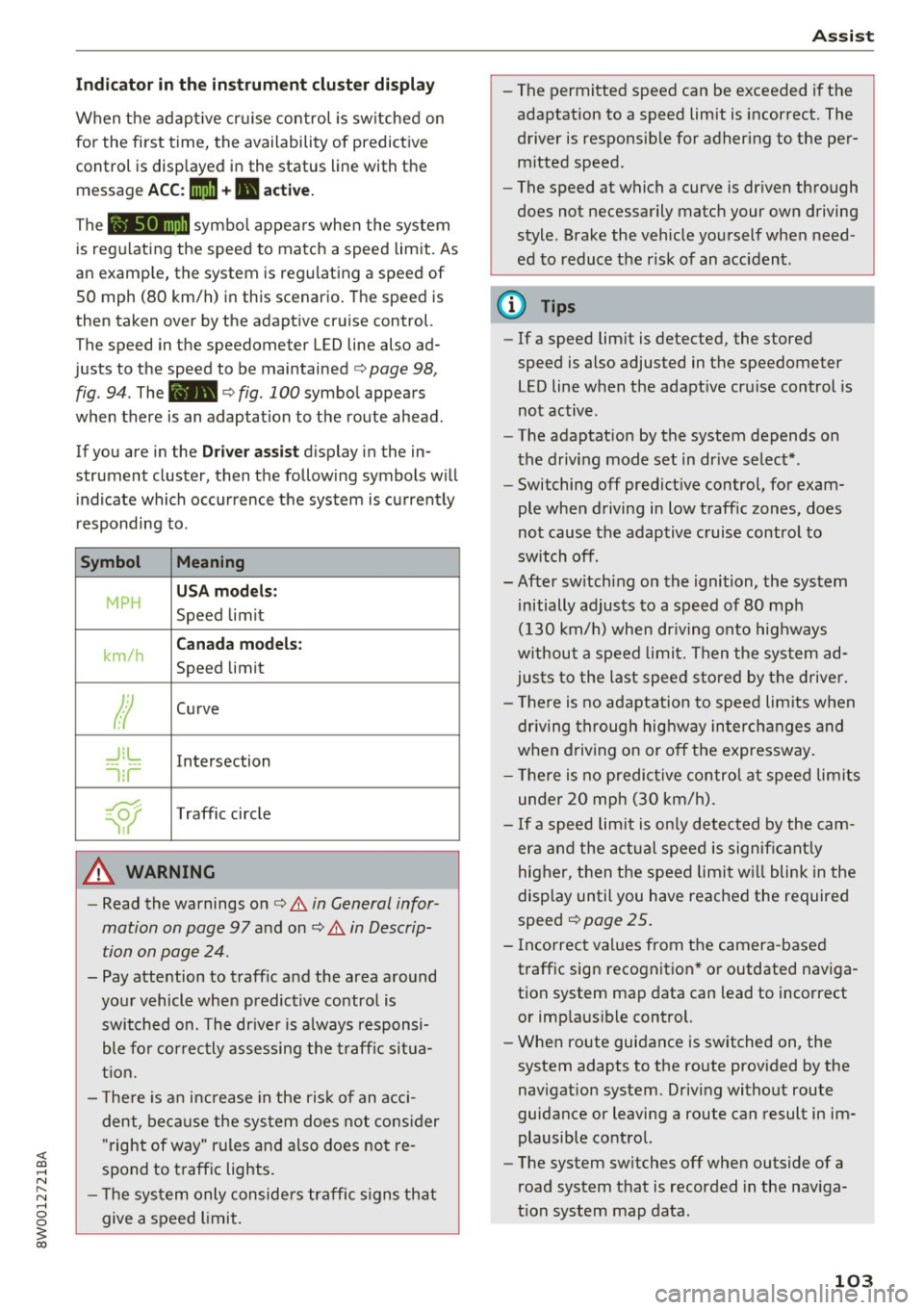
The symbol appears when the system
is regulating the speed to match a speed limit. As
an example, the system is regulating a speed of
50 mph (80 km/h) in this scenario. The speed is
then taken over by the adaptive cruise control.
The speed in the speedometer LED line also ad
justs to the speed to be maintained
c::> page 98,
fig .
94. The 111B c::> fig . 100 symbol appears
when there is an adaptation to the route ahead .
If you are in the
Driver assist display in the in
strument cluster, then the following symbols will indicate which occurrence the system is currently
responding to .
Symbol Meaning
MPH
USA models:
Speed limit
km/h
Canada models:
Speed limit
Ir
Curve
_J!L
-1:r
Intersection
~
Traffic circle
A WARNING
- Read the warnings on c::> & in General infor
mation on page 97
and on c::> & in Descrip
tion on page 24 .
- Pay attention to traffic and the area around
your vehicle when predictive control is switched on. The driver is always responsi
ble for correctly assessing the traffic situa
tion.
- There is an increase in the risk of an acci
dent, because the system does not consider
"right of way" rules and also does not re
spond to traffic lights .
- The system only considers traffic signs that
give a speed limit.
Assist
- The permitted speed can be exceeded if the
adaptation to a speed limit is incorrect. The
driver is responsible for adhering to the per
mitted speed.
- The speed at which a curve is driven through
does not necessarily match your own driving
style . Brake the vehicle yourself when need
ed to reduce the risk of an accident.
(D Tips
-If a speed limit is detected, the stored
speed is also adjusted in the speedometer
LED line when the adaptive cruise control is
not active.
- The adaptation by the system depends on
the driving mode set in drive select* .
- Switching off predictive control, for exam
ple when driving in low traffic zones, does
not cause the adaptive cruise control to
switch off .
-After switching on the ignition, the system
initially adjusts to a speed of 80 mph
(130 km/h) when driving onto highways
without a speed limit. Then the system ad
justs to the last speed stored by the driver.
- There is no adaptation to speed limits when
driving through highway interchanges and
when driving on or off the expressway.
- There is no predictive control at speed limits
under 20 mph (30 km/h).
- If a speed limit is only detected by the cam
era and the actual speed is significantly
higher, then the speed limit will blink in the
display until you have reached the required
speed
c::> page 25.
- Incorrect values from the camera-based traffic sign recognition* or outdated naviga
tion system map data can lead to incorrect
or implausible control.
- When route guidance is switched on, the
system adapts to the route provided by the
navigation system. Driving without route
guidance or leaving a route can result in im
plausible control.
- The system switches
off when outside of a
road system that is recorded in the naviga
tion system map data.
103
Page 114 of 386
Assist
sensors and the area around the camera
~ page 97, fig. 90 or~ page 116, fig . 112.
Ill Audi pre sense: malfunction! Please contact
Service
This message appears when the pre sense func
tion is affected. For examp le, this could be
caused by a faulty sensor. Dr ive to an authorized
Aud i dealer or a utho rized Aud i Serv ice Facility im
mediately to have the malfunction cor rected.
Ill Audi pre sense: currently restricted. Towing
mode
Pre sense rear and the pre sense city braking in
tervent ions sw itch off automatically when the
electrical connector in the factory-installed trail
er hitch is connected. There is no gua rantee the
f unct ions will swi tch off when using a re trofitted
trai ler hitch .
Ill Audi pre sense: currently restricted
This message appears if the ESC is restr icted or
sw itched off, for example.
Ill Audi pre sense: currently restricted. See
owner's manual
This message appears when there is a temporary
fa ilur e in a subsystem, such as the ESC. If this
message appears repeated ly, dr ive to an author
ized Audi dealer or authorized Audi Se rvice Facili
ty to have the malfunction corrected .
Ii] Audi pre sense: emergency braking system
off
This message appears if the pre sense functions
are switched off through the Infotainment sys
tem or if th e system is not ready.
Audi active Lane assist
Description
Applies to: veh icles w ith Audi active lane assist
Active lane assist (lane departure warning) de
tects lane ma rker lines withi n the l imits of the
system using a camera in the windshield. If you
are approaching a detected lane marker line and it appears likely that you will leave the lane, the
system will warn you w ith corrective stee ring .
You can override this steering at any time . If you
112
pass over a line, the steering wheel will vibrate
lightly. In order for this warning vibration to oc
cur, it must first be switched on in the Infotain
ment system. Active lane ass ist is ready for oper
a tion when the lane marker line is detected on at
least one side of the vehicle .
T he system is des igned for driving on express
ways and highways and therefore on ly activates
a t speeds above approximately 40 mph (65 km/
h) .
Applies to vehicles with s ide ass ist*: if you acti
vate a turn signa l when active lane assist is ready
a nd it classifies a lane change as critical bec ause
of veh icles traveling a longside you or approach
i ng you, there will be noticeable corrective steer
i ng shortly before you leave the lane. This will at
tempt to keep your vehicle in the lane.
Applies to vehicles without side assist* : the sys
tem does not warn when it is ready if you act ivate
the turn signal before crossing the lane marker
lin e. In this case, it assumes that you are chang
in g lanes intent ionally.
Applies to vehicles with adaptive cruise contro l*:
there is no corrective steer ing or warnings if the
system recognizes a distinct passing maneuver.
If the conditions are met, congestion assist
switches on at speeds under approximately
40 mph (65 km/h)
¢page 104.
_& WARNING
-The system warns the driver that the vehicle
is leaving the lane using correct ive steering.
The driver is always responsible for keeping
the vehicle within the lane.
- The system can help you keep the vehicle in
the lane, but it does not drive by itself. Al
ways keep your hands on the steering
wheel.
- Corrective steering may not occur in certain
situations, such as during heavy braking .
- There may be cases where the camera does
not recognize all lane marker lines. Correc
tive steering can only take place on the side
of the vehicle where lane marker lines are
detected.
Page 117 of 386

-Th e system has been unable to detect the lanes
for an extended period of time due to road con
ditions . Sw itch act ive lane assist back on when
the lines are more visible .
rm Audi active lane assist: currently unavaila
ble. See owner's manual
There is a temporary active lane assist malfunc
tion . Try sw itching the active lane assist on again
later .
• Audi active lane assist: malfunction! See
owner's manual
Drive to an authorized Aud i dealer or authorized
Audi Service Facility immediately to have the
malfunction corrected.
rm Audi active lane assist: Please take over
steering!
This message appears if you are not steering by
yourself. Active lane assist is activated, but is not ready to give warning
Adjusting the steering time and vibration
warning
Applies to: vehicles with Audi active lane assist
You can adjust individual active lane assist set
tings in the Infotainment system .
... Select in the Infotainment system: !MENUI but
ton
>Ve hicle > left control button > Driver as
sist
> Audi active lane assist .
Steering time Early:
in this setting, the correct ive steering hap
pens continuously to help keep the vehicle in the
center of the lane.
Late: in this setting, the system provides correc
tive steering just before a vehicle whee l goes over
a detected lane marker line.
Vibration warning
You can switch the additional vibration warning
in the steering wheel on or
off.
A WARNING
-
With the vibration warning switched off,
there will also be no visual warning in the in-
Assist
strument cluster disp lay when crossing a lane
marker line.
(D Tips
In certain countries: your settings are stored
automatica lly and assigned to the remote
control key in use.
Audi side assist
Description
Applies to: vehicles with Audi side assist
Fig. 109 Sensor detection range
Fig. 110 Disp lay on th e exterio r m irror
Side assist (lane change assist) helps you mon itor
your blind spot and traffic behind your vehicle .
Within its lim its, the system warns you about
vehicles that are coming closer or that are travel
ing within your sensor range
(D <=?fig. 109. If a
lane change is classified as critical, the display@
turns on in the exterio r mirror
<=? fig. 110 .
The display in the left exterior mirror p rovides as
s istanc e when making a lane change to the left,
wh ile th e display in the rig ht exterior m irro r pro
vides ass istance when making a lane change to
the right. ..,.
115
Page 119 of 386

<( a, .... N ..... N .... 0 0
3 a,
are indicated, at the latest, by the time they en
ter your "blind spot".
© Vehicles you are passing
If you slowly pass a vehicle that side assist has
detected (the difference in speed between the
veh icle and your vehicle is less than approximate
ly 9 mph (15 km/h)), the display in the exterior
mirror turns on as soon as the vehicle enters your
blind spot.
The display will not turn on if you quickly pass a
vehicle that side assist has detected (the differ
ence in speed is greater than approximately 9 mph (15 km/h)).
Functional limitations
The radar sensors are designed to detect the left
and right adjacent lanes when the road lanes are
the normal width. In some situations, the display
in the exterior mirror may turn on even though
there is no vehicle located in the area that is criti
cal for a lane change. For example:
- If the lanes are narrow or if your are driving on
the edge of your lane. If this is the case, the system may have detected a vehicle in another
lane that is
not adjacent to your current lane.
- If you are driving through a curve. Side assist
may react to a vehicle that is in the same lane
or one lane over from the adjacent lane.
- If side assist reacts to other objects (such as
roadside structures like guard rails).
- In poor weather conditions . The side assist
functions are limited.
Do not cover the radar sensors ¢
fig. 112 with
stickers, deposits, bicycle racks or other objects,
because this will impair their function. Do not
use side assist when towing a trailer. For infor
mation on cleaning, refer to¢
page 33 7.
A WARNING
- Always pay attention to traffic and to the
area around your vehicle. Side assist cannot
replace a driver's attention. The driver alone
is a lways responsible for lane changes and
similar driving maneuvers.
Assist
-In some situations, the system may not
function or its function may be limited. For
example:
- If vehicles are approaching or being left
behind very quickly. The display may not
turn on in time.
- In poor weather conditions such as heavy
rain, snow or heavy m ist.
- On very wide lanes, in tight curves, or if
there is a rise in the road surface. Vehicles
in the adjacent lane may not be detected
because they are outside of the sensor
range.
(D Note
The sensors can be displaced by impacts or
damage to the bumper, wheel housing and
underbody. This can adversely affect the sys
tem. Have an authorized Audi dealer or au
thorized Audi Service Facility check their func
tion.
(D Tips
If the window glass in the driver's door or
front passenger's door has been tinted, the
display in the exterior mirror may be incor
rect.
Switching on and off
App lies to : vehicles wi th Audi sid e ass ist
The system can be switched on/off in the Info
tainment system.
If the system is activated, the displays in the ex
terior m irrors will turn on briefly when the igni
tion is switched on.
.,. Select in the Infotainment system:
I MENU ! but
ton
> Vehicle > left control button > Driver as
sist
> Audi side assist. Off switches the system
off.
(D Tips
When you switch side assist on or off, the exit
warning system activates or deactivates
¢ page 118.
117
Page 120 of 386

Ass is t
Adjusting the display brightness
Applies to: ve hicles w ith Audi side assis t
The display brightness con be adjusted in the In
fotainment system.
• Se lect in the Infotainment system : I MENU I but
ton
> Ve hicle > left control button > Dr ive r as
s is t
> Audi side a ssist .
The display brightness adjusts automatically to
the brightness of the surroundings, both in the
i n formation and in the warning stage . In very
dark or very br ight surroundings, the automat ic
ad justment will set the disp lay to the min imum
or maxim um level. In s uch cases , you may notice
no change when adjust ing the b rightness, or the
change may only be noticeable once the s ur
roundings change .
Adj ust the brightness to a level where the disp lay
in the informa tion stage w il l no t dis rup t your
view ahead. If you change the brightness, the dis
p lay in the exterior mirror will briefly show the
brightness level in the information stage . The
brightness of the warning stage is linked to the
brightness in the information stage and is adjust
ed along with the information stage.
@ Tips
- Side assist is not active wh ile you are mak
i ng the adjustment.
- Your settings are automatically stored and
assigned to the remote control key being
used.
Exit warning system
A ppl ies to: ve hicles w ith exit warning system
F ig. 11 3 Examp le display
118
F ig. 11 4 Door : warn ing str ip
When the vehicle is stationary, the exit war ning
system warns the passenge rs of a poss ible coll i
s io n when opening the doo r. Wi thin the limits of
the system, the system monitors the
areas be
hind and next to the vehicle using the radar sen
sors
¢ page 116, fig . 112. Moving objects that
are approached from behind, such as cars, are
detected
¢fig. 113.
When you open the door, the warning strip on
the affected door blinks
¢ fig. 114 if anothe r
road user is detected and the situation is classi
fied as crit ical. The d isp lay in the exterior mirror
on the affected side flashes at the same time.
If
the door is already ope n and another road user is
detected and the sit uat ion is classified as cr itica l,
then the co rresponding disp lays t urn on.
A WARNING
-
- Always pay attention to traffic and to the
area around your vehicle. The ex it wa rning
sys tem does not rep lace the attention o f the
passengers. The veh icle passengers are al
ways responsible for opening the doors and
exiting the vehicle.
- The exit warning system can be ava ilab le for
up to approximately three minutes after un
lock ing the vehicle and opening the door as
well as after switching off the ignition. Then
the system switches off w ith a br ief flashing
of the d isplays.
- The exit warning system ca nnot notify you
of every app roaching object or person, such
as joggers or pe destrians.
Page 126 of 386
Parking systems
Parking systems
General information
A ppl ies to: ve hicles w ith a rea r parking sys te m /pa rking sys
tem p lus/rearv iew camera/peripheral ca meras
Depending on your vehicle's equipment , various
parking aids will help you when parking and ma
neuvering.
The
rear parking system is an audible parking aid
that warns you of obstacles
behind the vehicle
¢ page 125.
Parking system plus assists you when parking by
using audio and visual signals to indicate objects
detected in
front of and behind the vehicle
¢ page 125.
The rearview camera shows the area behind the
vehicle in the Infotainment display . The lines in
the rearview camera image help you to park or
maneuver ¢
page 126. The parking system plus
functions are also available
¢page 125.
The peripheral cameras give various views to
help you when parking or maneuvering
¢ page 128 . fhe parking system plus functions
are also available
¢ page 125.
A WARNING
- Always look for traffic and check the area
around your vehicle by looking at it directly
as well. The parking system cannot replace
the driver 's attention. The driver is always
responsible when entering or leaving a park
ing space and during similar maneuvers.
- Please note that some surfaces, such as
clothing, are not detected by the system.
-
- Sensors and cameras have blind spots in
which people and objects cannot be detect ed . Be especially cautious of small children
and animals .
- Always keep your eyes on the vehicle's sur
roundings, using the rearview mirror as
well .
- The sensors can be displaced by impacts or
damage to the radiator grille, bumper,
wheel housing and the underbody . The park
ing system may be impaired as a result.
Have an authorized Audi dealer or author-
124
ized Audi Service Facility check their func
tion .
(D Note
-Some objects are not detected or displayed
by the system under certain circumstances:
- Objects such as barrier chains, trailer draw
bars, vertical poles or fences
- Objects above the sensors such as wall ex
tensions
- Objects with certain surfaces or structures
such as chain link fences or powder snow
- If you continue driving closer to a low ob
ject, it may disappear from the sensor range. Note that you will no longer be
warned about th is obstacle .
- Keep enough distance from the curb to
avoid damage to the rims.
(D Tips
-The system may provide a warning even
though there are no obstacles in the cover
age area in some situations, such as :
- certain road surfaces or when there is tall
grass.
- external ultrasonic sources such as from
cleaning vehicles .
- in heavy rain, snow, or thick vehicle ex
haust.
- We recommend that you practice parking in
a traffic-free location or parking lot to be
come familiar with the system . When doing
this, there should be good light and weath
er conditions.
- You can change the volume of the signals
and the display ¢
page 131.
-Please refer to the instructions for trailer
towing in
¢page 132.
- What appears in the infotainment display is
somewhat time-delayed.
- Th e sensors must be kept clean and free of
snow and ice for park assist to operate.
Page 163 of 386

<( a, .... N ,....
N .... 0 0
3 a,
~ Enter the PIN for connecting on your cell
phone.
Or : when the PIN is displayed on your
ce ll phone, confirm the PIN on your ce ll phone
and in the MMI. The time allowed for entering
the PIN is limited to approximately 30 seconds.
~ Pay attention to any additional system prompts
displayed on your cell phone, for example if the
system should connect automatically in the fu
ture . Depend ing on the cell phone, you may
have to confirm downloading the directory sep
arately.
After connecting successfully
After connecting successfully, a sho rt message
w ith informat ion about the connected profi les
will appear. You can also change profiles later.
Select:
IMENU ! >Settings > left control button>
MMI settings > Connection manager
c> page230.
In addition, the cell phone contacts are automat
ically loaded in the MMI directory. This process
can take several minutes, depending on the num
ber of contacts.
You can also make your cell phone the default phone by selecting
Store as default te lephone *
in the Connection manager c> page 232.
-Making phone calls through the MMI is only
possible using the
Handsfree Bluetooth pro
file.
- You can apply additional settings to con
nected cell phones using the connection
manager ¢
page 230.
-You can also search for the MMI in your cell
phone using the Bluetooth device search.
- You only have to pair your dev ice one t ime .
Bluetooth dev ices that are already pa ired
a ut omat ically connect to the MMI when the
Bluetooth function is switched on, they are
within range and the ignit ion is switched on.
The last connected ce ll phone is given first
priority.
- Authorizing the MMI connection in your cell
phone will make automatic connection pos
sible .
Telephone
-Pay attention to any system prompts dis
played on your cell phone, for example if
the system should connect automatically in
the future. Depend ing on the cell phone,
you may also need to download the directo ry and confirm access to your text messages
separately .
- When leaving the veh icle, the Bluetooth
connect ion to the cell phone will automati
cally disconnect .
- You can obtain more information from your
cell phone service provider or from your cell
phone user gu ide. For informat ion on us ing
t he telephone , visit
www .audiusa .com/
bluetooth
or your authorized Audi dealer or
authorized Aud i Service Facility.
Operating two telephones through the
MMI
You can connect two cell phones to the MMI, for
exampl e your business cell phone as the primary
phone and your private cell phone as the add i
tional phone. You can be reached in your vehicle
through bo th cell phones.
Th e first connect ed ce ll phone is displayed as the
primary phone in the MMI. The second cell phone
is connected as the add itiona l telephone.
The directory from the connected primary phone
will a lways be display ed . If you would like to us e
the directory from the additional phone, you
must switch the pr imary and addit ional phone
i=> page 162 .
Connecting a cell phone as the primary
phone
Connect your cell phone to the MMI via Blue
tooth . The first connected cell phone is displayed
as the
Primary phone i n the MMI.
Refer to
c> page 160, Connecting a cell phone us
ing Bluetoo th .
Connecting a cell phone as the additional
phone
Requi rement: a ce ll phone must be connected to
the MMI as the primary phone. .,,.
161
Page 178 of 386
Audi connect (Infotainm ent )
After opening the travel g uide, travel tips in your
area will be displayed including current ratings as
well as the corresponding category .
"' Press the left control button to change the cat
egory (such as bars nearby).
A WARNING
- It is only safe to use tablets, laptops, mo
bile devices and other s imilar devices when
the vehicle is stationa ry because, like all
loose objects, they could be throw n aro und
the ins ide of the vehicle in a crash and cause
serious injuries . Store these types of devices
sec urely whi le driving.
- Do not use any wireless devices on the front
seats within range of the ai rbags while driv
ing. Also read the warnings in the chapter
c::, page 236.
(D Tips
Units of measurement, language settings and
time are shown in the Infotainment system
disp lay based on how they were set in the sys
tem sett ings
e> page 229.
Audi connect (Infotainment) in navigation
Applies to: vehicles with a navigation system and Audi con
nect (Infotainment)
.. Se lect: I MENU I button > Audi connect > left
contro l button >
Na vigation.
The fo llow ing A udi connect (Infota inment) serv
ices are currently available :
- Nav igation with
o nline map vi ew and Stre et
View
c::, page 199.
- Poin t of Interest (PO I) online search with
voi ce re cognition
(such as res taurants): plan
r ou te g uidance using the MMI con trol panel
c::> page 190, Online point of interest search
(online search)
and the voice recognition sys
tem
c::> page 153.
- Set up dest inations in your M MI using your
myAud i Account or onl ine map view
c::, page 199.
- Online traffic inform ation:
receive up -to-the
minute t raffic information about accidents,
176
road construction and other incidents
c::> page 202.
- M ap upd ate:
import navigation map updates
direct ly to your vehicle using an SD card or as
an online update
c::> page 200.
(D Tips
- For the Map update Audi connect (Infota in
ment) serv ice using an SD card, check the
current software version in your vehicle and
compare it with
my.audiusa.com to see if a
new version is avai lab le. You can also have
the new navigat ion data installed by an Aud i
dealer, which can be done for an addit ional
charge.
- More informat ion on
map updates can also
be found in the
A udi connect Operat ing
Manual at
http: / /my .audiu sa.com .
Audi connect (Infotainment) on the phone
Applies to vehicles with Audi connect (Infotainment)
"'Sele ct: !MENUI b utton> Aud i conn ect> left
cont rol b utton >
C o mmuni cation .
The following Aud i connect (Infotainment) serv
i ces are currently available :
- Storing co ntacts on your computer using your
m yA udi Account and loading the contacts into
the MMI directory
c::> page 169.
Additional options
Applies to vehicles with Audi connect (Infotainment)
"'Sele ct: !MENUI b utton> Aud i conne ct > righ t
cont rol button.
The following options are available in the Aud i
connect (Infota inme nt) services overview:
Log in*
Refer to c::, page 173, Logging into myAudi in the
vehicle .
C onnection manag er
Refer to c::, page 230 .
Page 186 of 386
Audi connect emergen cy c all and servi ce
Audi connect emergency
call and service
Introduction
Applies to: ve hicles w ith Audi co nnect e merge ncy call a nd
service
Audi connect emergency ca ll and service includes
the following services:
- Emergency call¢
page 184.
- Online roads ide assistance~ page 185.
-Audi Service enquiry~ page 186.
@ Tips
-The services are provided through a SIM
card installed in the vehicle. The cost of the
ca ll and data connections is included in the
p rice for the se rvices. Services a re provided
assuming tha t the cell phone netwo rk re
qui red for the ins talled SIM c ard is fun ct ion
i ng and rea dy to operate . The available serv
i ces set by Aud i AG are only available within
the cell phone network cove rage area fo r
the cell phone service provider se lected by
Audi AG.
- You can read about the data that is trans
mitted at
www .audiusa .com /help/audi
connect .
-These serv ices cannot be deactivated using
the sett ings in the Infotainment system.
Emergency call
Description
Applies to: vehicles with Aud i connect emergency call and
service
You can request help whe n in an emergency or
dangerous situation using the emergency ca ll
f u nction
l) An emergency call is a combinat ion of
data transmission a nd a p ho ne c all. The da ta
tr ansmission from your veh icle forwar ds impor
tant information to the Audi emergency call cen
ter, such as the vehicle and position data.
1l Th e availab ility of the services offered depe nds on t he
c ountry and may change ove r time .
184
Making an emergency call
App lies to: vehicles with A udi connect emergency call and
serv ice
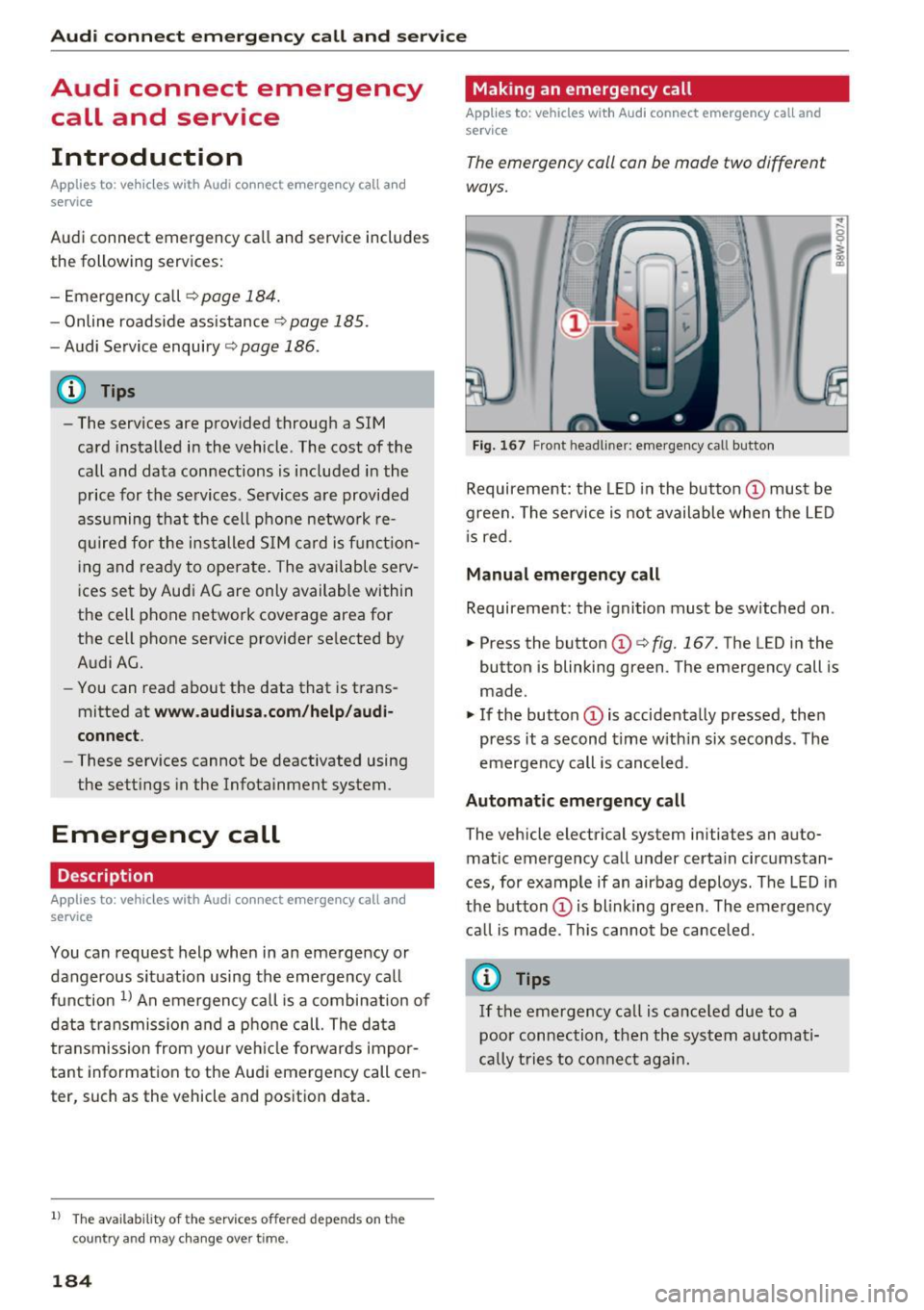
The emergency call can be made two different
ways.
Fi g. 1 67 Front head liner: emergency call butto n
Requireme nt: the LED in the button @must be
green. The se rvice is not available when the L ED
i s red.
Manual emergency call
Requireme nt: the ignition must be switched on.
.,. Press the button (D
¢fig. 167. The LED in the
button is blinking green. The emergency call is
made.
.. If the button (Dis accidenta lly pressed, then
press it a second time w ith in six seconds . The
emergency call is canceled .
Automatic emergency call
The vehicle electrical system initiates an auto
matic emergency call under certain circ umstan
ces, for example if an airbag deploys. The LED in
the button (Dis blink ing green. The eme rge ncy
ca ll is made. This cannot be canceled.
{!) Tips
If the emergency call is ca nce led due to a
poor conn ection, then th e system au toma ti
cally tries to con nect ag ain .