Control AUDI A4 2018 Owners Manual
[x] Cancel search | Manufacturer: AUDI, Model Year: 2018, Model line: A4, Model: AUDI A4 2018Pages: 403, PDF Size: 66.81 MB
Page 213 of 403
Navigation
Additional settings
Home address
App lies to: ve hicles w ith navigation system
~ Press the I NAV/MAPI button repeated ly until
the
Enter destination menu is displayed
¢page 204, fig. 189.
Storing a home address
-Select and confirm Home address @
¢ page 204 , fig . 189 . After opening the home
address for the first t ime, you will be asked to
create a home address.
-Se lec t and confirm Create now .
-Enter a destination or select a dest ination from
the list . Or :
-Select and confirm a destination > right control
button
> Store as home address .
Editing the home address
-Select the Home address @¢ page 204,
fig. 189 .
-Select the right control button > Edit home ad·
dress .
-Select and confirm a new destination as the
home address.
The selected destination is stored as the new
home address.
Favorites
App lies to: ve hicles w ith navigation system
~ Press the I NAV/MAPI button repeated ly until
the
Enter destination menu is displayed
¢ page 204, fig . 189.
-Storing a destination as a favorite: search for
the desired destination using the input fie ld.
Or : se lect a destinat ion from the list. Select:
right control button
> Store as favorite .
-Renaming a favorite : select the left control
button
> Favorites > a favorite from the list >
right control button> Rename favorite .
-Move favorite: select a favorite from the list>
right control button > Move favorite . Select
and confirm the location of the selected favor
i te .
212
-Deleting a favorite : select a favorite from the
list>
right control button > Delete favorite >
Delete this favorite or Delete all favorites.
Directory contacts
App lies to: vehicles wit h nav igat ion syste m
Two addresses (private/business) can be as
signed as destinations for each contact in the di
rectory.
~ Press the I NAV/MAP I button repeatedly until
the
Enter destination men u is displayed
¢page 204, fig . 189.
Storing a destination as a contact in the
directory
Requirement: a ce ll phone must be connected to
the MMI
¢page 175 .
-Select: a destination > right control button >
Add destination to contact.
-Enter the first letters of the desired contact in
the free text search input field
¢ page 204,
fig. 189
and then select a contact from the list.
= Select and confirm Add business destination or
Add private destination.
Navigation settings
App lies to: vehicles wi th navigat ion syste m
~ Press the I NAV/MAP I button repeatedly until
the
Enter destination menu is displayed
¢page 204, fig. 189 .
~ Select: right control button> Navigation set-
tings .
Depend ing on the selected function, the follow
i ng settings can be selected:
Show alternative routes
Up to three suggested routes are shown on the
map when this function is switched
on~
¢ page 211.
Low fuel warning
A message is displayed if the fuel gauge goes be
lo w the rese rve marking when this function is
switched
on~-Confirming this message disp lays ..,
Page 215 of 403
Navigation
Voice guidance volume : you can adjust the vo l
ume d uring voice guidance using the On/Off knob
¢ page 155 Yo u can also f ind additional informa
tion
u nder¢ page 253.
Map
Operating the map
A pp lies to : ve hicles w ith navigat ion system
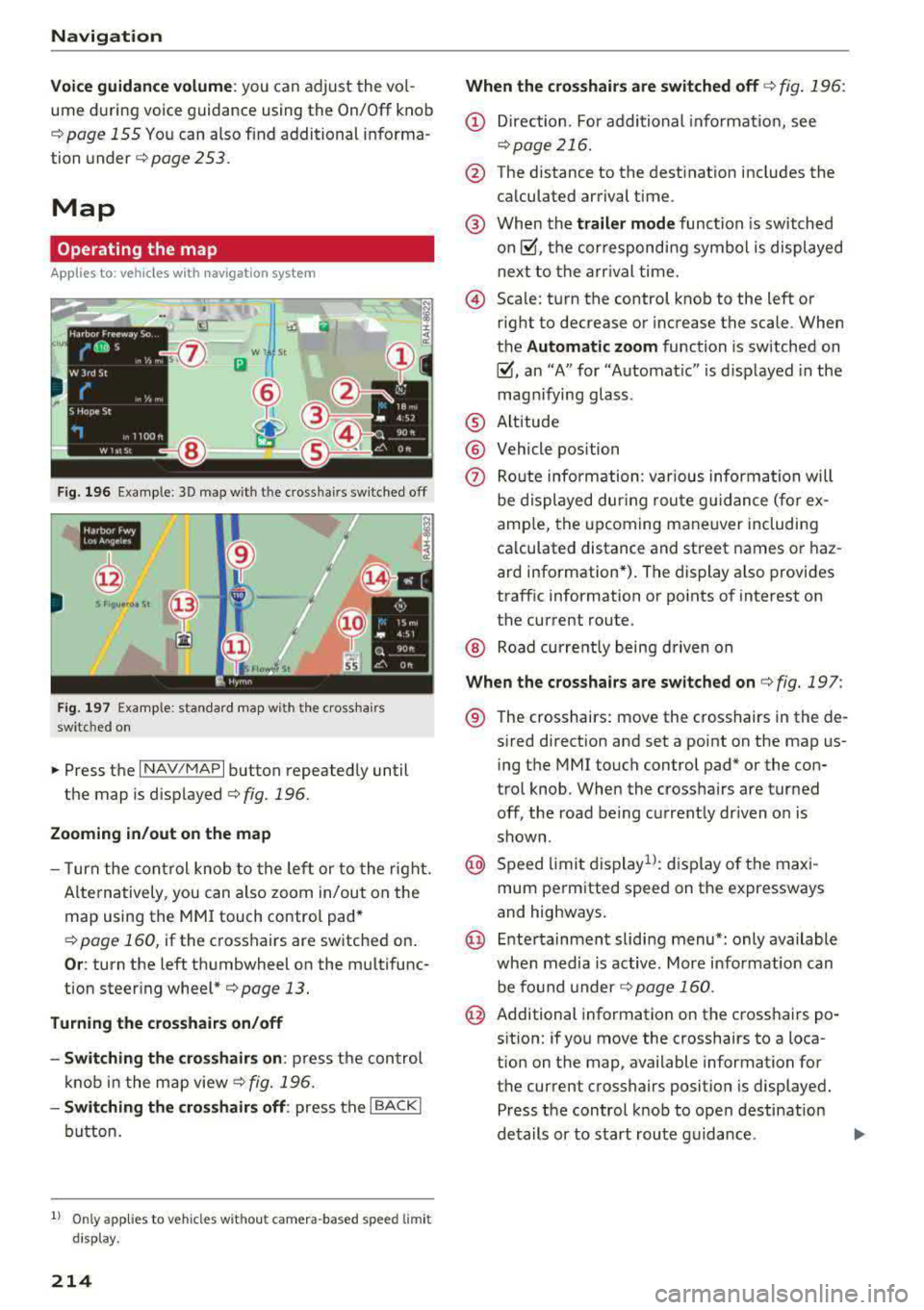
F ig . 196 Exa mple: 30 map with the cross hair s sw itche d off
•IN
r@
S Flo 1Jtro 11 St
F ig . 197 Exa mple: stan dard map w it h the c ross ha ir s
sw itc hed on
• Press the I N AV /MAPI button repeated ly until
the map is
d isp layed ¢ fig. 196.
Zooming in /out on the map
- T urn the co ntr ol knob to the left or to the right.
A lte rnatively, you can also zoom in/out on the
map using the MM I touch contro l pad*
¢ page 160, if the crosshairs are sw itched on.
O r: turn the left t humbwheel on the mu ltifunc
tion steer ing
whee l*¢ page 13 .
Turning the crosshairs on/off
- Switching th e crosshairs on :
press t he con trol
kno b in t he map
view ¢ fig. 196.
-Switching the crosshairs off : press the I BACKI
button.
1l Only app lies to vehi cles w it ho ut camer a-based speed limit
dis play .
214
When the cro sshairs are swit ched off ¢ fig . 196:
(D Direction . Fo r additional info rmat io n, see
¢page 216.
@ The distance to the dest inat ion includes the
ca lculated arrival time .
@ When th e trailer mode funct ion is sw itch ed
on~, th e cor responding symbol is displayed
next to the arr ival time.
© Sca le: turn the control knob to the left or
right to decrease or increase the scale . When
t h e
Automatic zoom function is sw itched on
~, an "A" for "Automat ic" is d isplayed in the
magnifying glass.
® Alt itude
@ Vehicle position
(?) Ro ute info rma tion: various informa tion will
be displayed dur ing rou te g uidance ( fo r ex
amp le, the upcoming m aneuver includi ng
ca lculated distance and street names o r haz
ard information *). The display a lso provides
traff ic information or po ints of interest on
t h e cur rent route.
@ Road curre ntly being d riven on
When the crossha irs are switched on ¢ fig. 197 :
® The crosshairs : move the crosshairs in the de -
s ired direct ion and set a point on the map us
ing t he MMI touch control pad* or the con
trol knob . When the crosshairs are turned
off, the road be ing current ly dr iven on is
shown .
@ Speed limi t display 1l: dis p lay of the ma xi
mum pe rm itted speed on the expressways
and highways.
@ E nte rtainmen t sliding menu*: only available
whe n media is active. More info rmation can
be fo und under
¢ page 160 .
@ Additional information on the cross hairs po
s it ion: if you move the crosshairs to a loca
t ion on the map, available information for
t h e cur rent crosshairs position is displayed .
P ress t he control knob to ope n destinat ion
de tails or to s tart rou te g uidance .
Page 216 of 403
a co .... N ,....
N .... 0 0
3 co
@ Map contents (points o f interest, favori tes).
When there are m ultip le points of interest in
the immediate vicinity, the symbo ls are
shown stacked on the map.
~ Better route rS: if a better route is availab le
for the current ro ute g uidance, it w ill be indi
cated on the map in cl ud ing the time that
wo uld be saved . More informat ion can be
found under
c::> page 220.
Map functions
Applies to: veh icles with navigation system
~ Press the I NAV/MAPI button repeated ly until
the map is d isplayed
c::> page 214, fig. 196.
~ Press the left control button.
The fo llowing map functions can be selected :
Switch to destination input
The free text search in the Navigation menu is
d isplayed
<=:> page 204, fig. 189.
Traffic messages
Current traffic i nformation is displayed in the In
fotainment system d isp lay . You ca n also find ad
d it iona l information under
c::> page 219.
Route list
The route list can only be displayed when route
gu idance is active and contains information re
garding the route, the names of the streets and
the length of the route sect ions . When trave ling
on highways, poss ib le pa rking lots and rest a reas
a re shown, which you ca n selec t as a stopover.
POis along the route
Requirement: route gu idance must be active .
Searching for points of interest along yo ur cur
rent route For addit ional information, see
c::> page 207.
Additional options on the map
App lies to: veh icles with navigation system
~ Press the I NAV/MAPI button repeated ly until
the map is d isplayed
<=:> page 214, fig . 196 .
~ Press t he right contro l butto n .
Na vigation
Depend ing on the function se lected, the follow
ing options can also be selecte d under the
Map
men u:
Cancel route guidance: see c::> page 209.
Map setting s: see <=:> page 215.
Route c riteria : see <=:>page 213.
Voice guidance : see c::> page 213.
Navigation settings : see c::> page 212.
Show alternative route s: see c::> page 211.
Parking along the route *: parking options near
the vehicle are d isplayed.
Sa ve current position : you can save yo ur current
vehicle position as a favorite
c::> page 212 or save
it as a contact in the directory
<=:> page 212.
Audi connect at this location* : allows you to
search for
Travel info rmation at the ente red lo
cation (events, weather at the dest inat ion, etc.).
Online traffic data *: you can switc h the online
t raffic data and, depending on the equipment,
the ha zard information* on or off(~) .
Country information : see c::> page 209.
Avoid route*: when route gu idance is active, the
ca lculated rou te will avoid the area you have
spec ified (maxim um: 12 mi ( 20 km)), if possib le.
T he navigat io n sys tem calcu lates an alte rn ative
rou te. The rou te to be avo ided that you have en
tered applies only to the current route and must
be set again, if nee ded. The areas you have se
l ected to avoid w ill appear with red and white
shading on the map.
Move route *: move your finger over the MMI
touch contro l pad* or use the contro l knob to ad
just the route on the overview map .
Map settings
Applies to: vehicles with navigat ion syste m
~ Press the INAV/MAP I button repeatedly until
the map is displayed .
~ Select: right cont rol b utton > Map settings .
Depend ing on the selected function, the follow-
ing settings can be selected:
IJl,
215
Page 217 of 403
Navigation
Map colors
Day /Night :
the map is displayed with a light/
dark background.
Automatic : the map display adapts to the light
i n g conditions (for example, changing from
Day
to Night when driving through a tunne l).
Map display
Standard :
see c::>page 214, fig. 197 .
Online map view: see c::> page 216, fig. 198.
Map orientation
Destination :
the map indicates the destination
and is oriented to the north.
2D heading up map /2D north up map : the cur
rent vehicle position is d isp layed. The map is ori
ented in the direction of travel or to the north.
3D map *: the current vehicle pos ition is shown
on a th ree-dimensional map and is aligned to the
d irect ion of travel. At a scale of 62 mi (100 km)
and larger, the map orientation is to the north.
Overview: the entire route from the vehicle posi
tion to the destination or the next stopover is dis
p layed on the map. The map scale depends on
the length of the route and adapts automatica lly.
The map is oriented to the north.
Route information
The display of route information, such as the cur
rent street be ing driven on or points of interest
a lo ng the current route
c::> page 214, fig . 196, can
be switched on/off or can be minimized on the
disp lay of upcoming maneuvers .
Automatic zoom
On :
the map scale is adapted automatically de
pending on the type of road being traveled (ex
p ressway, highway, other roads) so that you
al
ways have an optimal overview of the road ahead.
The sca le is also automatically adapted when
there are upcoming maneuvers to provide a bet
ter detailed view.
Intersection : when route gu idance is active, the
map temporarily zooms in to a detailed scale
216
when there are upcoming maneuvers so that you
can see the street or turn better .
Off: the map scale you have chosen is kept.
MMI map contents
Map contents, such as weather, points of inter
est, traffic information or favorites, can be dis
played or hidden.
The weather forecast is disp layed on a 3 m i (5
km) scale on the map.
Instrument cluster map contents
You can also set which map content displays in
the instrument cluster
c::> page 21.
Online map display
App lies to : vehicles wi th a nav iga tion sys te m and Aud i co n·
n ect ( Infota inm ent)
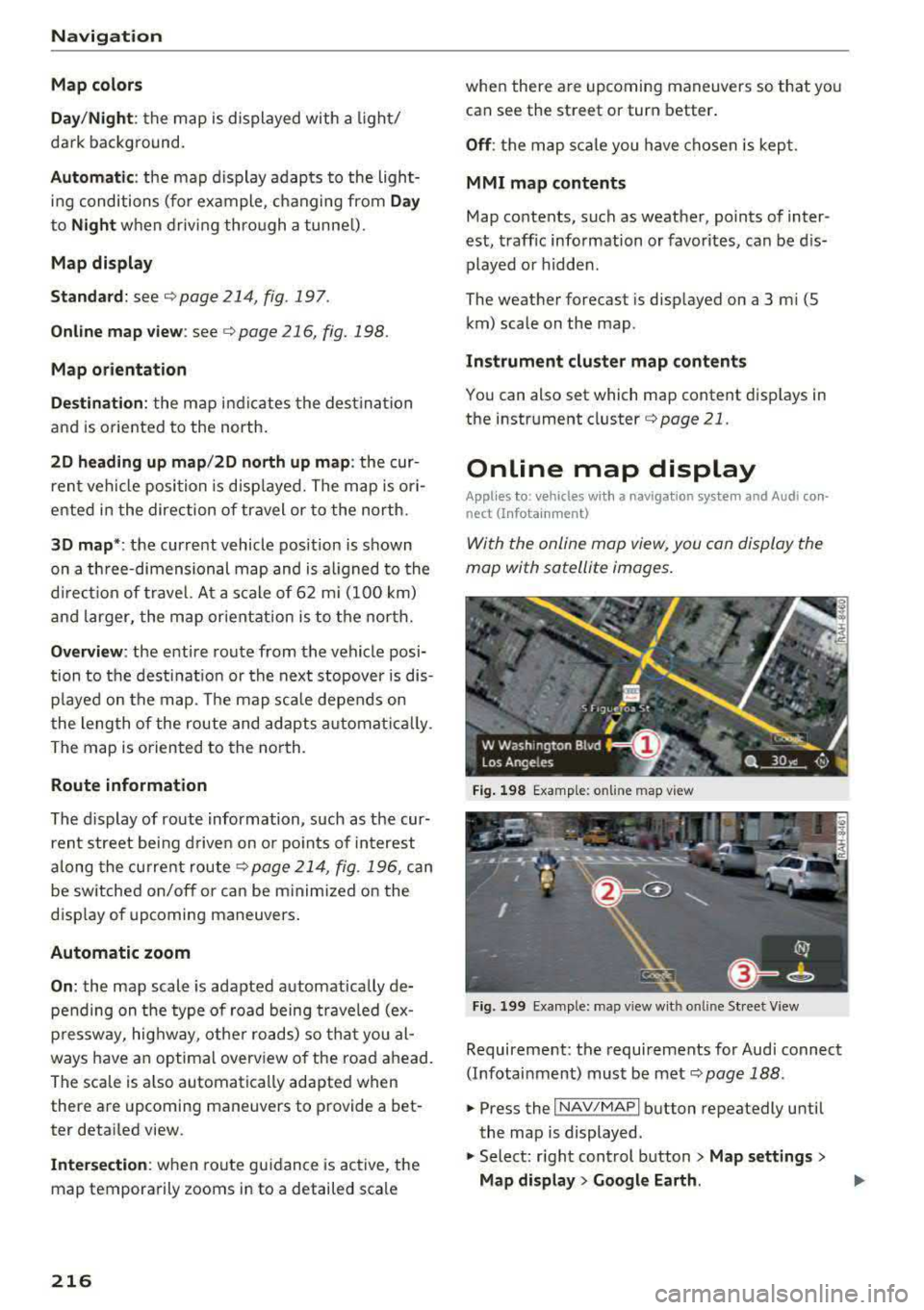
With the online map view, you can display the
mop with satellite images.
Fig. 198 Examp le: on line map view
Fig. 199 Example: map view wit h online St reet
V iew
Requirement: the requi rements for Aud i connect
(Infotainment) must be met
c::>page 188.
.,. Press the I NAV/MAPI button repeatedly until
the map is displayed .
.,. Select: right control button> Map settings>
Map display > Google Earth.
Page 218 of 403
The map display is based on data received from
the Internet in the form of satellite images,
which are then combined with the roadways from
the
S tand ard map view . There are two gigabytes
of memory space in the MMI memory that can be
used to temporar ily store the map or navigation
data that was received. This is roughly the
amo unt required fo r the map/navigation data for
a 2,485 mile (4,000 km) route. As long as t he
satellite images lo aded fo r rou te g uidance are
stored, you can use them w ithout having an a c
tive data connection.
Street View
W ith St reet V iew, yo u can explore many places in
t he world through the eyes of a pedestrian.
S treet View is available whe n the
symbo l@
¢ fig . 198 is d isp layed in the crosshairs mode.
Activating str eet view : turn the cont rol knob to a
scale less than
32 yards (30 m).
T he follow ing funct ions are then ava ilable:
- Ex plo ring an area step-by -step : press the con
trol knob when the
symbol @¢ fig. 199 is d is
played .
-Zoom ing in or out on the current view in four
stages :
turn the control knob to the left or to
the
right @¢ fig. 199 .
-Navigat ing in street view : move your finger in
t h e des ired direct ion on the MMI touch control
pad *.
Additional information
Showing additional informat ion in the Infotain
ment system disp lay can be switched on in the
Map content menu ¢ page 216. To disp lay any
applicable additional information, move the
crossha irs onto an item on the map and press the
control knob .
(D Tips
-The stored onli ne map view data can be de
l eted in
Factory sett ings > Navigation and
online
memory ¢ page 249.
~ -The online map view is an Audi connect In-
.... ~ fota inment service and is regu larly updated
:::l when the func tion is opened . The process 0
3 m ay ta ke several seconds.
- When the online map view is switched on
using the 3D map or ientat ion, the MMI dis
play automatically switches to the
2D map
orientation when driving through tunnels.
- For safety reasons, t he Street View func
tions can only be used when the vehicle is
stat iona ry.
- Always read the
chapter ¢ page 195, Audi
connect (Infotainment) general informa
tion.
- For add itiona l information, v is it
www .audiusa .com .
Map update
Introduction
Applies to: veh icles w ith navigat ion syste m
The re are m ultip le opt io n s av ailabl e for up dat ing
you r map mate rial:
- Map updates through the
online map updat e*
¢page 218.
- I mport map updates from the SD card * to your
M MI. Yo u can fi nd addi tion al i nfo rmation on
line at
www.audiu sa .c om /myaud i.
-Map update at an autho rized Aud i dea le r o r au
t hori zed A udi Servi ce Facili ty. Thi s can resul t in
a ddi tio na l c osts .
217
Page 220 of 403
Traffic information
Introduction
Applies to: ve hicles with nav iga tion system
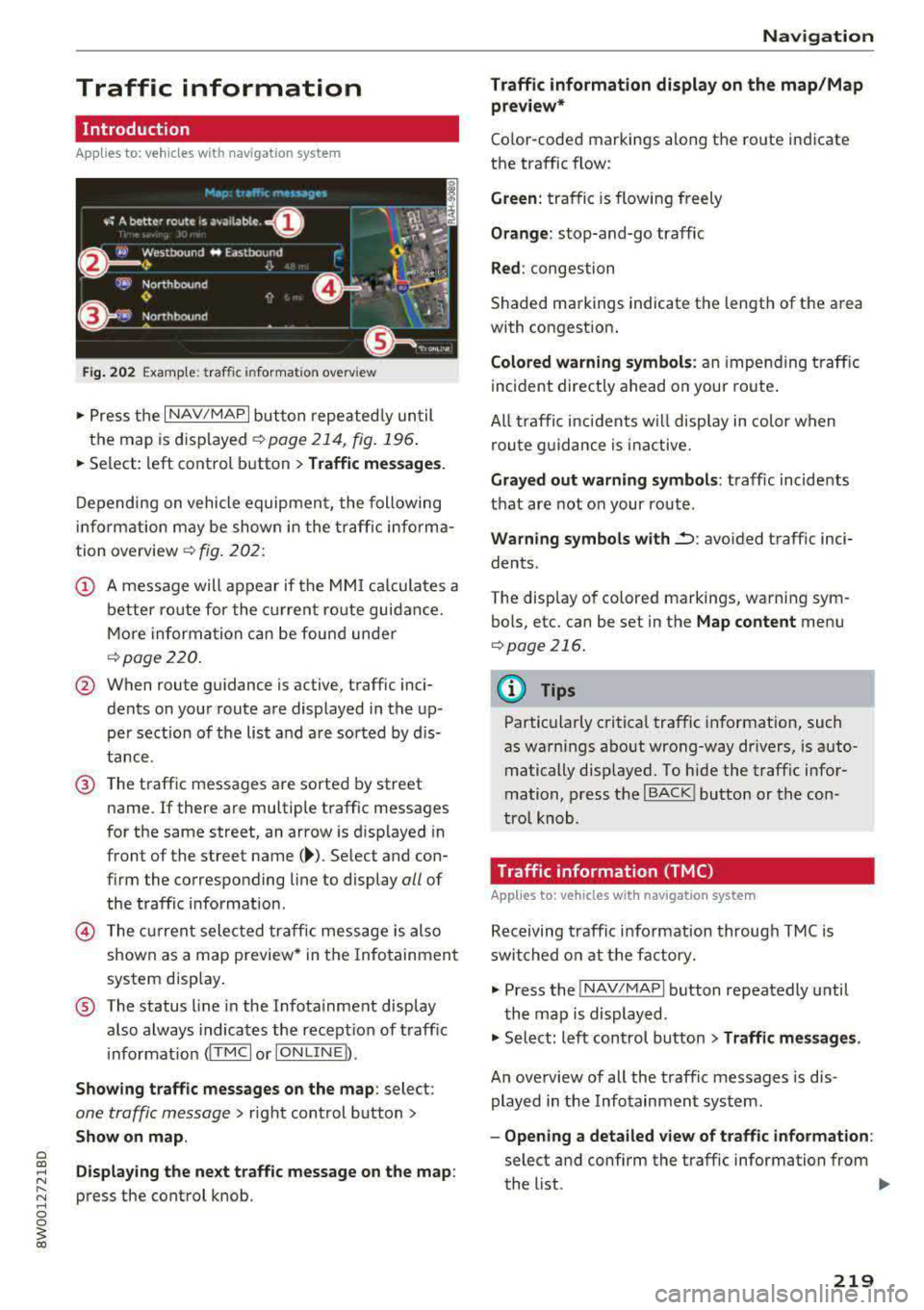
Fig. 202 Example: traffic information overview
"P ress the I NAV/MAPI button repeatedly until
the map is displayed
c>page 214, fig. 196 .
"Se lect: left control button > Traffic messages .
Depending on vehicle equipment, the following
information may be shown in the traffic informa
tion overview
c> fig. 202:
@ A message will appear if the MMI calculates a
better route for the current route guidance.
More information can be found under
c>page220.
@ When route guidance is active, traffic inci
dents on your route are displayed in the up
per sect ion of the list and are sorted by dis
tance.
@ The traffic messages are sorted by street
name.
If there are multiple traffic messages
for the same street, an arrow is d isplayed in
front of the street
name( ~). Select and con
firm the corresponding line to display
all of
the traffic information .
© The current selected traffic message is also
shown as a map preview * in the Infotainment
system disp lay .
® The status line in the Infotainment display
also always indicates the recept ion of traffic
i nformation
dT MCI or IONLINE b.
Showing traffic messages on the map: select:
one traffic message> right control button>
Show on map.
Displaying the next traffic message on the map :
press the control knob.
Navigation
Traffic information display on the map/Map
preview*
Color -coded markings along the route indicate
the traffic flow:
Green: traffic is flowing freely
Orange: stop-and-go traffic
Red: congestion
Shaded markings indicate the length of the area
with congestion.
Colored warning symbols: an impe nding traffic
incident directly ahead on your route .
All traffic incidents w ill display in color when
route guidance is inactive.
Grayed out warning symbols : traffic incidents
that are not on your route .
Warning symbols with~: avoided traff ic inci
dents .
The display of colored markings, warning sym bols, etc. can be set in the
Map content menu
c>page 216.
(@ Tips
Particularly critical traffic information, such
as warnings about wrong-way dr ivers, is auto
matically disp layed. To hide the traffic infor
mation, press the
I BACK ! button or the con
tro l knob.
Traffic information (TMC)
App lies to : veh icles w ith navigat ion syste m
Receiving traffic information through TMC is
switched on at the factory.
"Press the INAV/MAPI button repeatedly until
the map is displayed.
" Select: left control button > Traffic messages.
An overview of all the traffic messages is dis
played in the Infotainment system .
-Opening a detailed view of traffic information:
select and confirm the traffic information from
the list.
..,
219
Page 221 of 403
Navig ation
(D Tips
- TMC traffic reports are not avai lab le in Can
ada. For more information, please contact
Sirius Canada.
- Critical traffic information, such as warn
ings about wrong-way drivers, is automati
cally displayed. To hide the traffic informa
tion, press the
I BACK I button or the control
knob.
Better route
A pp lies to: ve hicles w ith navigation system
By receiving traffic information through TMC,
your MMI calculates a better route
-if available -
and the possible time saved for the current route
guidance . You can decide yourself which route
you would like to use.
~ Press the I NAV/MAPI button repeatedly until
the map is d isplayed .
Requirement: route guidance must be active.
If your MMI has calculated a better route than
the c urrent ro ute guidance, the message
A bette r
route is a vailable.
appears for several seconds
along w ith the time that may be saved. A better
route is indicated in the map v iew by the symbol
tS ¢ page 214, fig . 197 .
A message a lso appears in the traff ic information
overview (i)¢page219, fig. 202.
Apply bette r route
- Press the right contro l button .
- Se lec t and confirm the bet ter rou te.
- T he better route is used for the route guidance
and the ro ute is recalculated.
Online traffic information
A ppl ies to: ve hicles w ith a nav igatio n system a nd Audi con·
n ect (Infotainment)
The MMI can receive real-time online traffic in
formation about congestion, accidents, road
construction and other incidents .
Requirement: the requirements for Audi connect
(Infotainment) must be met
¢ page 188.
220
~ Switch ing online traffic information on and
off :
select I NAV/MAP I b utton> right control
button >
Online tr affic dat a on (~) or off (0).
~ Press the I NAV/MAPI button repeatedly until
the map is displayed.
~ Select: left control button > Traffic messages.
The online traff ic information will also be dis
played in the on line map
v iew ¢ page 216 or on
the standard map
¢page 214, fig. 196 .
If!ONLINEI traffic information cannot be re
ce ived, then traffic information will automatical
l y be rece ived through
! TMCI ¢ page 219 .
@ Tips
-Online traffic i nformation is not availab le in
Canada.
- Always read the
chapter¢ page 195, Audi
connect (Infotainment) general informa
tion.
- Hav ing the Online traffic data funct ion
switched on provides the most accurate re
ports of traffic situations as well as traffic
forecasting. Your vehicle transm its and
processes its anonymo us, encrypted posi
t ion info rmation a t regular i nte rvals to the
t raffic data provider. If you do not want to
u se th is, you c an sw itch off the
online traf
fic information
funct io n at any time.
- Th e
online traffic information netwo rk is
c u rren tly not available in all countries, and
the coverage is not na tionwi de. F or addi
tional information, visi t
www.audiusa.com .
Page 224 of 403
a co .... N ,....
N .... 0 0
3 co
Radio functions
Free text search
Appl ies to: ve hicles wit h free tex t search
Using the free text search, you can select the or
der that the search terms are entered in the in
put field . Search in all frequency bands for a sta
tion name or program type such as
News ).
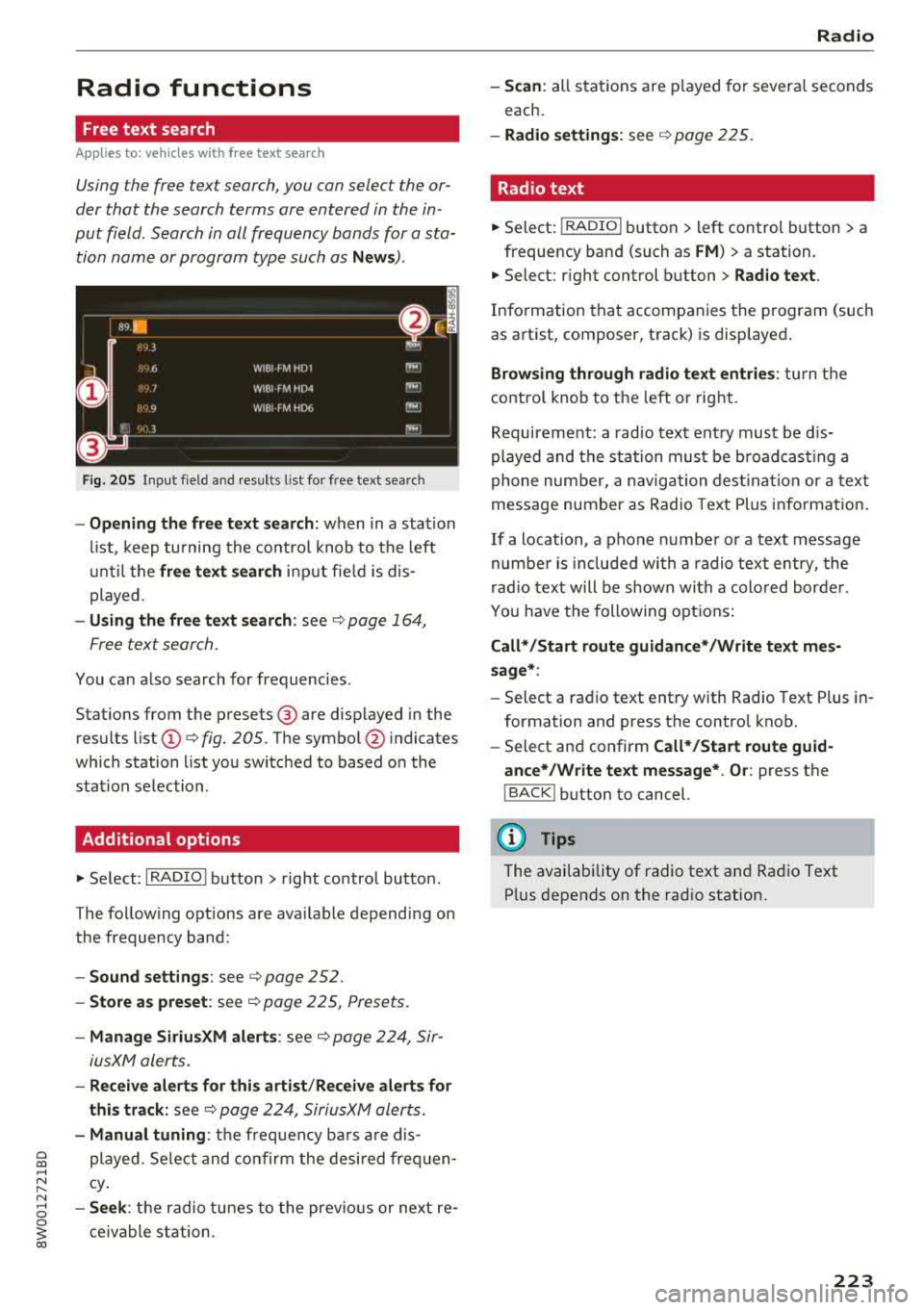
Fig. 2 05 Input f ield and results l ist fo r free text search
- Opening the free text search: when in a station
li st, keep turning the co ntro l knob to t he left
u nti l the
free text s earch in put fie ld is dis
played.
- Using the free text search : see ¢ page 164,
Free text search.
You can a lso search for frequencies.
Stat ions from the presets @are d isp layed in the
results list
(D ¢ fig. 205. T he symbo l@ indicates
which station list yo u switched to based o n the
station se lection.
Additional options
"' Se lect: I RADIO ! button > right co ntro l bu tton.
The follow ing options are ava ilab le depend ing on
the frequency band:
- Sound settings : see ¢page 252.
- Store a s preset : see¢ page 225, Presets.
-Manage SiriusXM alert s: see ¢ page 224, Sir-
iusXM alerts.
- Re ceive alerts for thi s arti st/ Re ceive alerts for
thi s track :
see¢ page 224, Sirius XM alerts.
- Manual tuning : the frequency bars a re dis
played. Se lect and confirm the desi red fre quen
cy .
-Se ek: the radio tunes to the previo us or next re
ce ivable station .
Radio
-Scan : all stat ions are p layed fo r severa l se conds
each.
- Radio setting s: see ¢ page 225.
Radio text
"'Select: !RADIO I button> left control button> a
frequency band (such as
FM ) > a station.
"'Select: right control b utton > Rad io te xt.
Info rmation that accompanies the prog ram (such
as art ist, composer, track) is disp layed .
Browsing through radio text entrie s: turn the
contro l knob to t he left or rig ht.
Requirement: a radio tex t ent ry must be d is
played and the st ation mus t be b road cas tin g a
phone num ber, a naviga tion dest ina tion or a text
message number as Radio Text Plus in fo rmat ion .
If a location, a phone n umbe r or a text message
numbe r is incl uded wi th a radio text entry, the
ra dio tex t will be shown wi th a colo red bor de r.
Yo u have the following o ptions :
Call* /Start route guidance* /Write text mes
s age* :
-Select a rad io text ent ry with Radio Text Plus in
formation and press the control knob.
- Select an d confirm
Call*/Start route guid
ance* /Write text message* . O r:
press the
I BACK ! button to cancel.
(D Tips
The availability of radio te xt an d Ra dio Text
P lus depends on the rad io station.
223
Page 225 of 403
Radio
SiriusXM alerts
Applies to: vehicles w ith SiriusXM
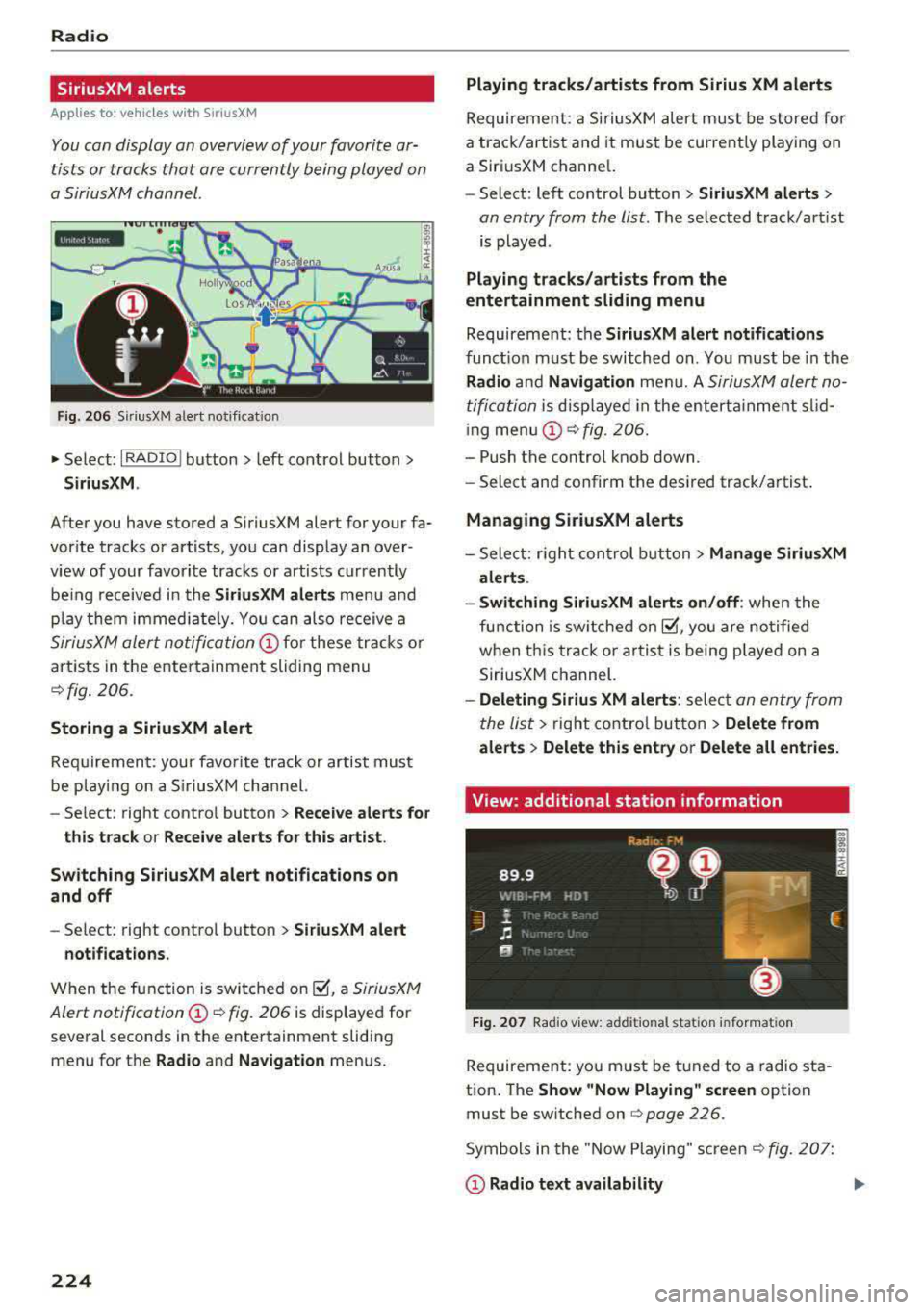
You can display an overview of your favorite ar
tists or tracks that are currently being played on
a SiriusXM channel.
Y. MM iiH A
Fig . 20 6 S iriusXM alert not ificat io n
~ Se lect : I RADIO I button > left control button >
Siriu sXM.
After you have stored a SiriusXM alert for your fa
vor ite tracks or artists , you can display an over
view of your favorite tracks or artists currently
be ing received i n the
SiriusXM alert s menu and
p lay them immed iate ly. Yo u can also receive a
SiriusXM alert notifi cation @ for these tracks o r
artists in the entertainment sliding menu
~ fig . 206 .
Storing a SiriusXM alert
Requiremen t: your favo rite trac k or artist must
be play ing on a S iriusXM channel.
-Se lect : right contro l button > Re ce iv e alerts fo r
thi s track
or Rece ive alert s for this arti st.
Sw itch ing SiriusXM alert notifications on
a nd off
-Se lect: right control button > S ir iusXM alert
notifications .
When the function is sw itched on ~. a SiriusXM
Alert
notification @~ fig. 206 is displayed for
several seconds in the entertainment sliding
menu for the
Radio and Na vigation menus.
224
Playing tracks /artists from Sirius XM alerts
Requireme nt: a SiriusXM alert must be store d for
a track/artist and it must be currently playing on
a SiriusXM channe l.
-Select: left control button > Sirius XM alert s >
an entry from the list . The selected track/art ist
is played .
Playing tr acks /arti sts from the
entertainment sliding m enu
Requirement: the SiriusXM alert notification s
functio n must be switched on. You must be in the
Rad io and Navigation men u. A SiriusXM alert no
tification
i s d isp layed in the enterta inme nt slid
i ng
men u@ ~ fig. 206.
-Push the control knob down.
-Select and confirm the desi red track/artist .
Managing Sirius XM alerts
- Select: r ight con trol b utton> Manage Siriu sXM
alerts .
- Swit ch ing SiriusXM alerts on /off :
when the
function is sw itched
on~. you are no tified
when th is track o r ar tist is being p layed on a
SiriusXM channel.
- Deleting Sirius XM alert s: select an entry from
the list>
right control bu tton > Delete fr om
a lert s
> Delete thi s entr y or Delet e all entries.
View: additional station information
F ig . 207 Rad io v iew: add it io nal sta tion informa tion
Requirement: you must be tuned to a radio sta
tion . The
Sh ow "Now Playing " screen option
must be switched on
q page 226.
Symbols in the "Now Playing" screen c!; fig. 207:
@ Radio tex t a vailabilit y
Page 226 of 403
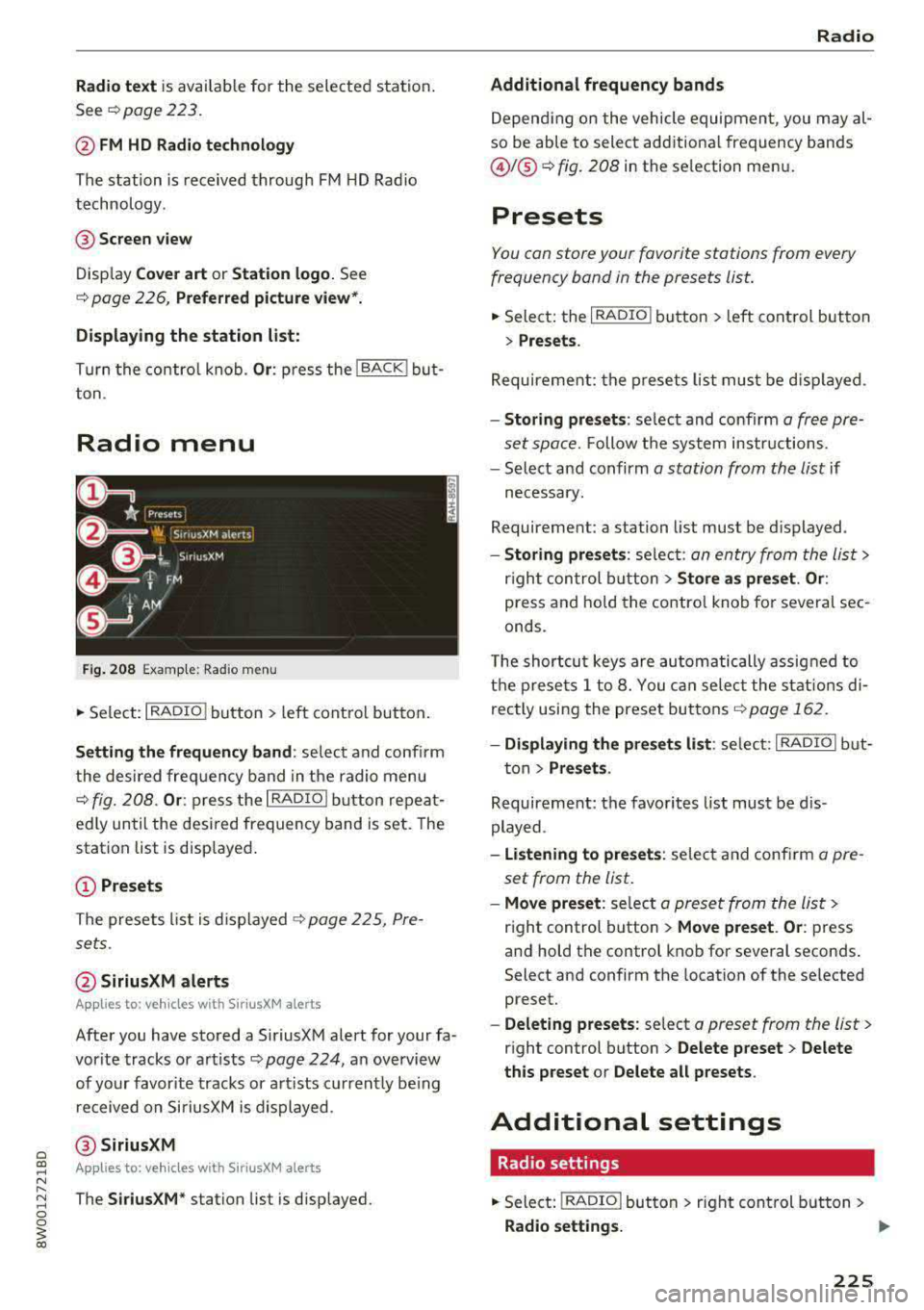
Radio text is avai lable for the selected station .
See
¢ page 223.
@ FM HD Radio technology
The station is received throug h FM H D Radio
technology .
@Screen view
Disp lay Cover art or Station logo. See
¢ page 226 , Preferred picture view*.
Display ing the station list:
T urn the contro l knob. Or : press the I BACK ! but
ton .
Radio menu
Fig. 208 Exam ple: Rad io m enu
.. Se lect : I RADIO I button > left con trol but ton .
Setting the frequency band : selec t and co nfi rm
t he de sired freq uen cy band in t he radio menu
q fig. 20 8. Or : press t he I RADIO I button repea t
e dl y un til the desi red frequency band is set. The
station list is disp layed .
(D Presets
Th e presets list is dis p layed q p age 2 2 5, Pre
s ets .
@ SiriusXM alerts
Applies to : ve hicl es with SiriusXM alerts
After you have s to red a SiriusXM alert for your fa
vor ite tracks or a rtists ¢
page 224, an overview
of your favor ite tracks or a rtists c urren tly be ing
re ceived on SiriusXM is dis played .
@SiriusXM
Appl ies to: ve hicles with SiriusXM alerts
The SiriusXM* station list is disp layed.
Radio
Additional frequency bands
D epen ding on the vehicle equipmen t, you may al
so be able to select add itiona l frequency bands
@ /@ ¢ fig. 208 in the se lection men u.
Presets
You can store your favorit e stations from every
frequency band in the presets list.
.. Select: the I RADIO ! button > left cont rol but ton
> Presets .
Req uireme nt: th e pr eset s list must b e displa yed.
-Storing presets : select and confirm a fr ee p re
se t space.
Fo llow the syste m instr uctions.
- Select an d confirm
a station from the list if
necess ary.
Requirement: a station list mus t be d isplayed .
-Storing presets : selec t: an en try from the lis t>
righ t con trol butt on > Store as preset. Or :
press and ho ld t he con tro l knob fo r severa l se c
onds .
T he shortc ut keys are auto ma tic ally assig ned t o
th e p re set s 1 to 8. You can selec t t he station s di
rectly usin g the preset bu ttons ¢
page 162 .
- Displaying the presets list : selec t: I RADIO I b ut-
t on>
Presets .
Requireme nt: the favorites list must be d is
p layed .
-listening to presets : selec t a nd confi rm a pre
set from the list .
-Move preset : select a p reset from the list>
right control button > Move preset . Or : press
an d hold the control kno b for seve ral secon ds.
Select an d confirm the location of the selected
preset.
- Deleting presets: select a preset from the list >
right control b utton > Delete preset > Delete
this preset or Delete all presets .
Additional settings
Radio settings
.. Select: I RADIO I butto n > ri g ht c ontrol but ton >
Radio settings. ..,.
225