Control AUDI A4 2018 Owners Manual
[x] Cancel search | Manufacturer: AUDI, Model Year: 2018, Model line: A4, Model: AUDI A4 2018Pages: 403, PDF Size: 66.81 MB
Page 165 of 403
a co .... N ,....
N .... 0 0
3 co
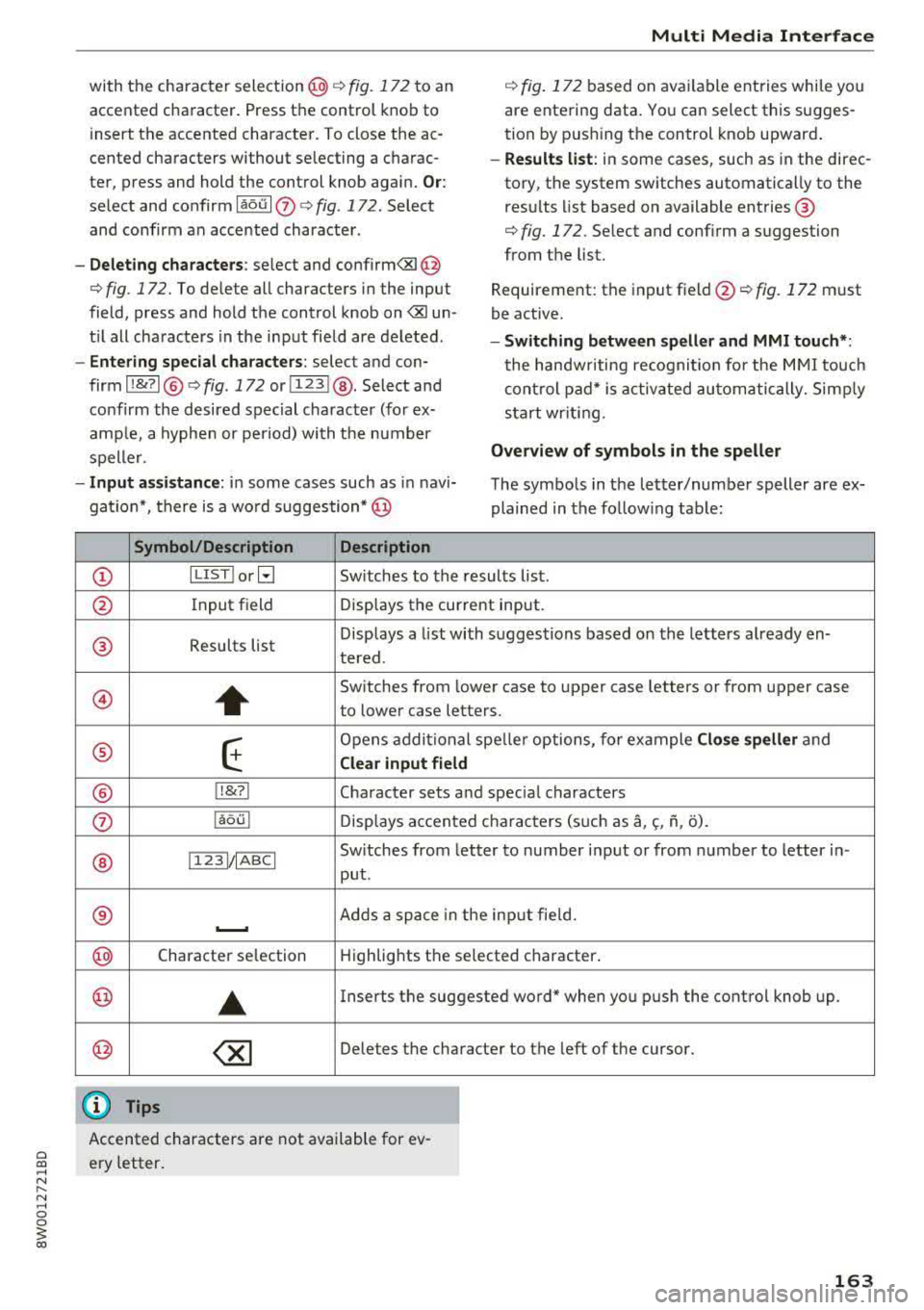
with the character selection@¢ fig. 172 to an
accented character. Press the control knob to
insert the accented character. To close the ac
cented characters without se lecting a charac
ter, press and hold the control knob again.
Or:
select and confirmlaou l(z) ¢fig .172. Select
and co nfirm an accented character .
-Deleting characters: select and confirm<&I @
<=> fig. 172. To delete all characters in the input
field, press and hold the control knob on
<&I un
t il all characters in the input field are deleted.
-Entering special characters : select and con
firm I
!&?I@ <=> fig. 172 or I 123 1@ . Select and
confirm the desired special character (for ex
amp le, a hyphen or period) with the number
speller .
-Input assistance: in some cases such as in navi
gation*, there is a wo rd suggestion* @
Symbol/Description Description
Multi Media Interface
¢ fig. 172 based on available entries while you
are entering data. You can select this sugges
tion by pushing the control knob upward .
-Results list: in some cases, such as in the direc
tory, the system switches automatically to the
resu lts list based on available entries ®
<=> fig. 172. Select and confirm a suggestion
from the list.
Requirement: the input
field @<=> fig. 172 must
be active.
- Switching between speller and MMI touch* :
the handwriting recognition for the MMI touch
control pad* is activated automatically. Simply
start wr iting.
Overview of symbols in the speller
The symbols in the letter/number speller are ex
plained in the followin g table:
CD ILIST lorB Switches to the rresults list.
@ Input field Displays the current input .
® Results list Displays
a list with suggestions based on the letters already
en-
tered.
@
+
Switches from lower case to upper case letters or from upper case
to lower case letters.
® E
Opens additional speller options, for example Close speller and
Clear input field
® 1,&71 Character sets and special characters
0 laou l Displays accented characters (such as a,~. f\, o).
Switches from letter to number input or from number to letter in-
® 1123!/IABCI
put .
® ...__. Adds a space in the inp ut field .
@ Character selection Highlights the selected character .
@ ..
Inserts the suggested word" when you push the control knob up .
@ ~ Deletes the character to the left of the cursor.
@ Tips
Accented characters are not available for ev
ery letter.
163
Page 166 of 403
Multi Media Interface
Free text search
Applies to: ve hicles w ith free tex t search
Using the free text search, you can select the or
der that the search terms are entered in the in
put field.
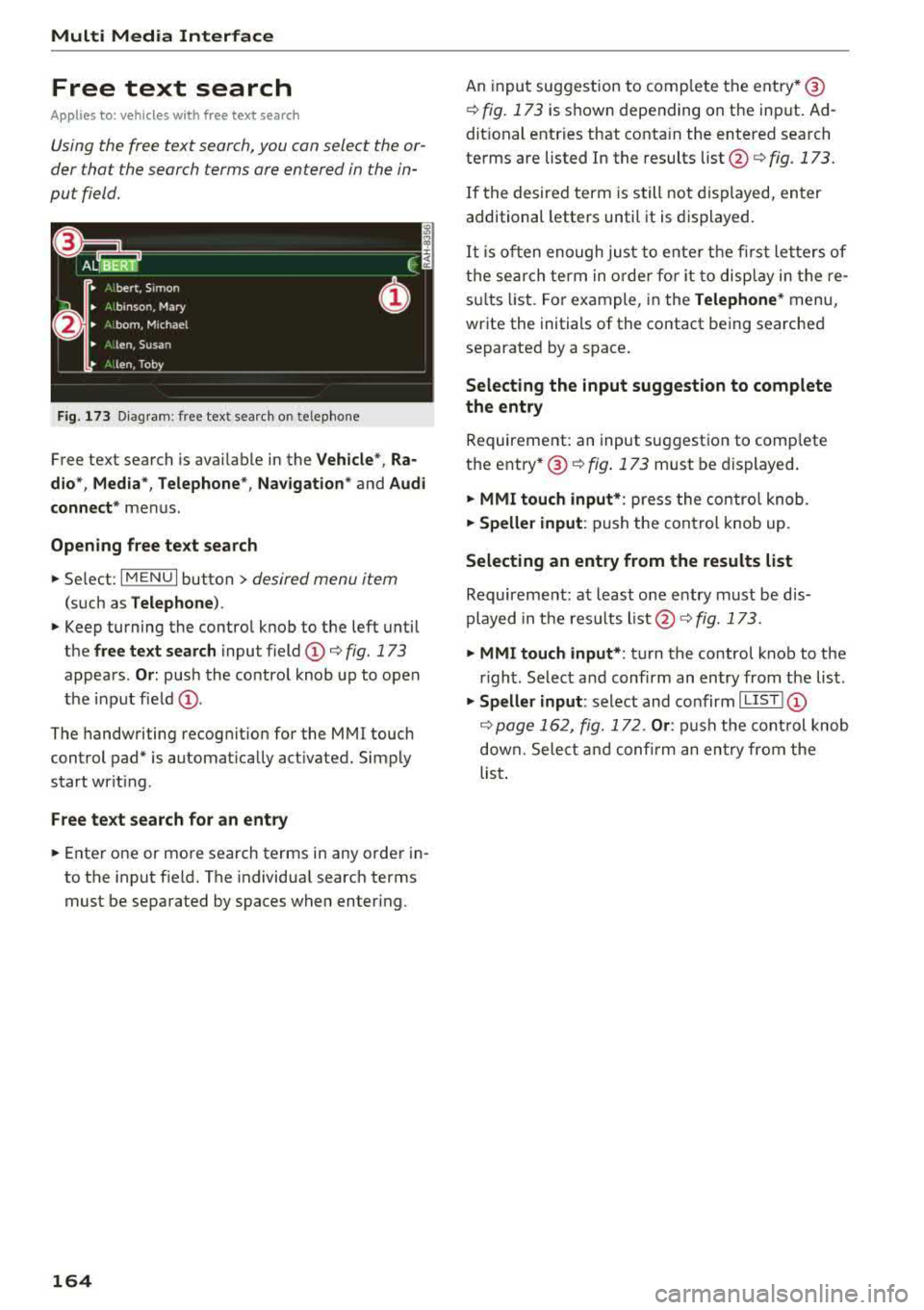
Fig . 173 Diagram : free text search o n te lepho ne
Free text search is available in the Vehicle", Ra
dio *, Media *, Telephone *, Navigation*
and Audi
connect*
menus .
Opening free text search
"'Select: I MENU I button > desired menu item
(such as Telephone ).
"' Keep turning the control knob to the left until
th@ free text search input field (D c::> fig. 173
appears . Or: push the control knob up to open
the input field
(D .
The handwriting recognition for the MMI touch
control pad* is automatically activated. Simply
start writ ing .
Free text search for an entry
"'Enter one or more search terms in any order in
to the input field. The individual search terms
must be separated by spaces when entering.
164
An input suggestion to comp lete the entry* @
c::> fig. 173 is shown depending on the input. Ad
dit ional entries that conta in the entered search
terms are listed In the results
list@ c::> fig. 173.
If the desired term is still not displayed, enter
additional letters until it is displayed.
It is often enough just to enter the first letters of
the search term in order for it to display in the re
su lts list . For example , in the
Telephone* menu,
write the initials of the contact being searched
separated by a space.
Selecting the input suggestion to complete
the entry
Requirement: an input suggestion to comp lete
the entry *@
c::> fig . 173 must be displayed.
"' MMI touch input* : press the control knob.
"'Speller input : push the control knob up.
Selecting an entry from the results list
Requirement: at least one entry must be dis
played in the results
list@c::> fig. 173.
"'MMI touch input* : turn the control knob to the
r ight . Select and confirm an entry from the list .
"'Speller input: select and confirm I LIST ! (D
c::> page 162, fig. 172 . Or: push the control knob
down. Select and confirm an entry from the
list .
Page 167 of 403
Multi Media Interface
Menus and Symbols
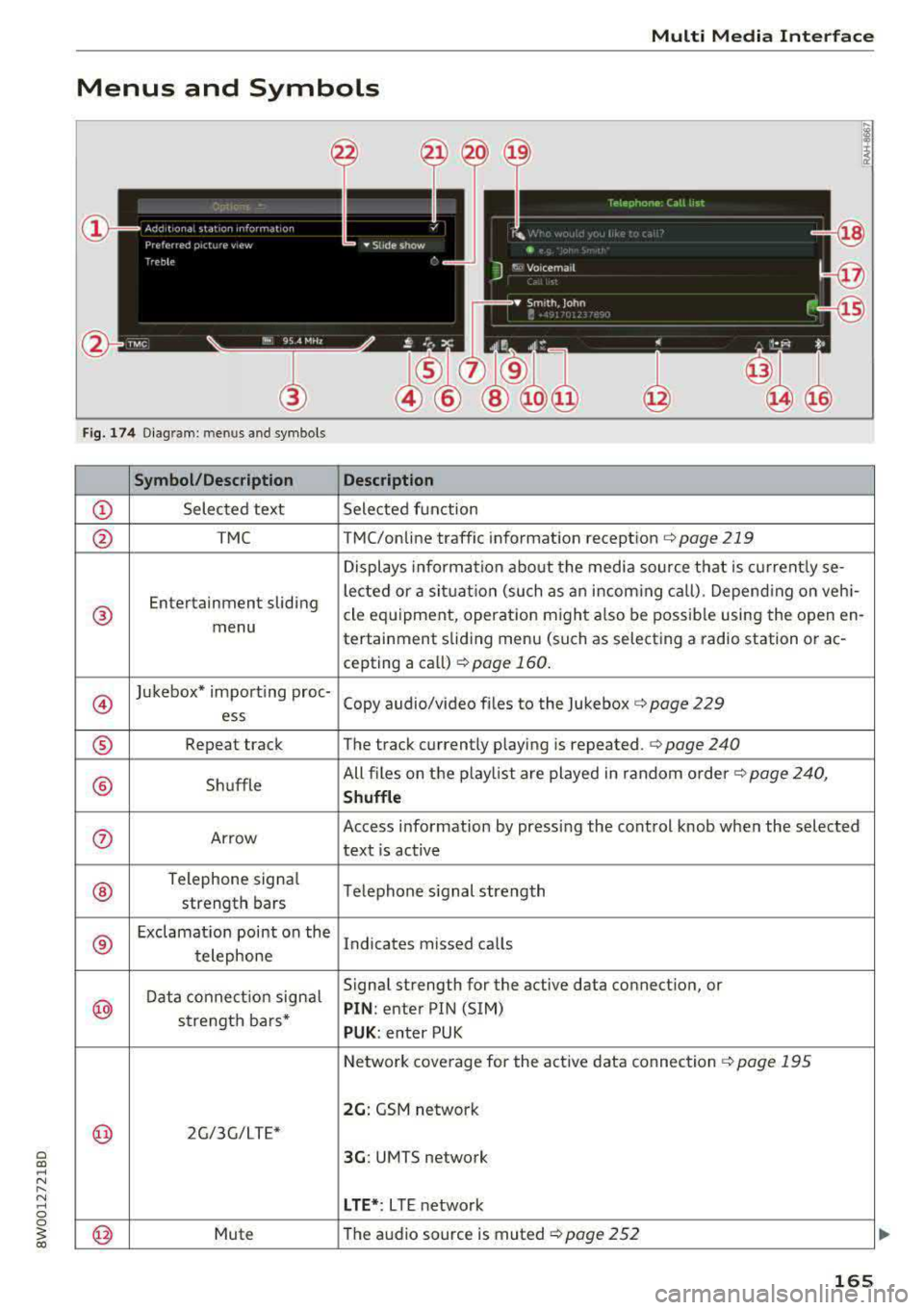
Fig. 174 Diagram: men us and symbols
Symbol/Description
Description
© Selected text Selected function
@ TMC TMC/online traffic information reception c:> page 219
Displays information about the media source that is currently se-
Entertainment sliding lected or
a situat ion (such as an incom ing call) . Depend ing on veh i-
® cle equipment, operat ion might a lso be possible using the open en-
menu tertainment sliding menu (such as selecting a radio station or
ac-
cepting a call) c:>page 160 .
@
Jukebox* import ing proc-
Copy audio/video files to the Jukebox c:> page 229
ess
® Repeat track The track currently playing is repeated . c:> page 240
® Shuffle All files
on the playlist are played in random order
c:> page 240,
Shuffle
®
Telephone signa l
Telephone s ignal strength
strength bars
®
Exclamation point on the
Indicates missed calls
telephone
Data connection signal Signal strength
for the active data connect ion, or
@ PIN : enter PIN (SIM)
strength bars*
PUK: enter PUK
Network coverage for the active data connection
c:> page 195
2G: GSM network
@ 2G/3G/LTE*
3G: UMTS network
LTE*: L TE network
@ Mute The
audio source is muted c:> page 252
165
Page 168 of 403
Multi Med ia Int erfac e
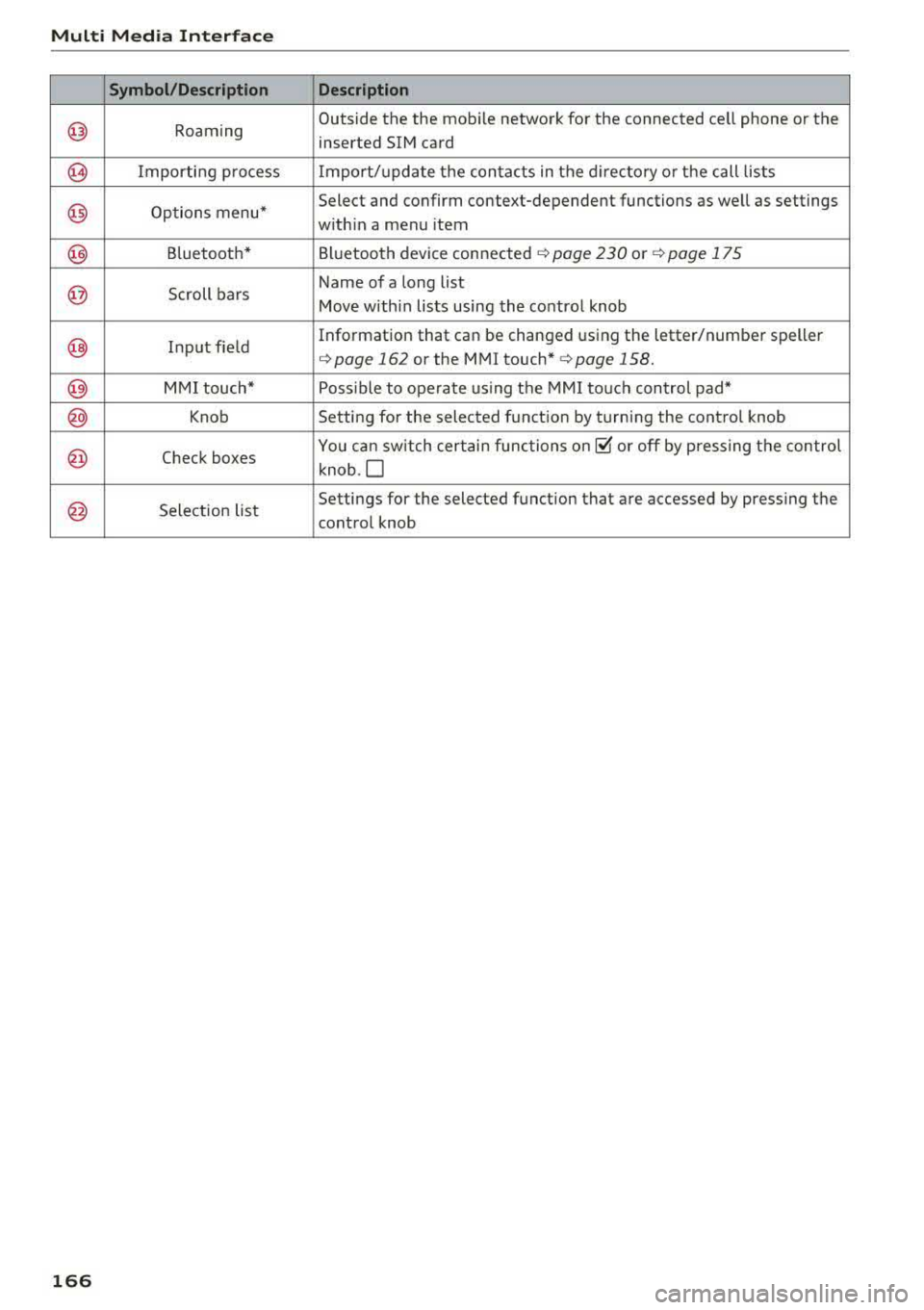
Symbol /Description Descr ipt ion
@ Roaming Outside
the the mobile network for the connected cell phone or the
inserted SIM card
@ Importing process Import/update the contacts in the directory or the call lists
@) Options menu* Select and
confirm context-dependent functions as well as settings
w ith in a menu item
@) Bluetooth* Bluetooth device connected ¢ page 230 o r¢ page 175
@ Scroll bars Name of
a long list
Move within lists using the control knob
@ Input field Information that
can be
changed using the letter/number speller
¢page 162 or the MMI touch* ¢page 158.
@) MMI touch* Poss ible to operate us ing the MMI touch control pad*
@) Knob Setting for the selected funct ion by turning the control knob
@ Check boxes You can sw
itch certain functions on~ or off by pressing the control
knob .O
@ Selection list Settings
for the selected function that are accessed by pressing the
control knob
1 66
Page 176 of 403
Voice recognition system
The parking aid as well as the Audi voice recogni
tion system must not b e active.
A cell phone must be connected to the MMI with
the
Handsfree profile ~ page 175.
The cell phone being connected must have voice
control that can be controlled externally.
~ Switching on: press and hold the l2.;J button on
the multifunction steering wheel* and say the
desired command after the external speech di
alog begins.
~ Continuing/resuming the dialog: the system
remains ready to use for a short time after end
ing the dialog. You can start a new external dia
log during this time. Press the
!'1•1 button if
needed, and say a new command.
Or: select
and confirm
Resume on the MMI control panel.
~ Switching off: press and hold the l2.;J button .
Or: select and confirm Cancel on the MMI con
trol panel.
(D Tips
- There are no voice guidance* prompts when
a dialog is active .
-This function depends on the cell phone
used . You can obtain more information
from your cell phone service provider or
from your cell phone user guide .
-AUDI AG simply provides access to control
your cell phone with voice operation and does not take any responsibility for the con
tents and commands within the external
voice control.
174
Page 178 of 403
Telephone
"'Se lect and confirm the desired ce ll phone from
the list of disp layed Bluetooth devices.
"' The MMI generates a PIN for the connect ion
setup
¢ fig. 176 .
"' Select and confirm Y es.
"' Enter the PIN for connecting on your cell
phone .
Or: when the PIN is d isplayed on your
ce ll phone, confirm the PIN on you r ce ll phone
and in the MMI. The time a llowed for ente ring
the PIN is l im ited to app rox imately 30 seconds.
"' Pay attention to any additiona l system prompts
displayed on your cell phone, for example if the
system should connect automatically in the fu
ture . Depending on the ce ll phone, you may
have to confirm downloading the directory sep
arately .
After connect ing succ essfull y
After connecting successfully, information about
the connected profiles will appear . You can a lso
change the profiles later. Select:
! MENUI button>
S ett ings > left control button > MMI sett ings >
C onn ection m ana ger
c:::;, page 249.
In addition, the cell phone contacts are automat
ically loaded in the MMI directory. This process
can take several minutes, depend ing on the num
ber of contacts.
You can a lso make your connected cell phone the
default phone by select ing
S et as def ault tele ·
phone
in the Connect ion manager c:::;, page 250.
(D Note
Always follow the information found in ¢ @ in
Wi-Fi hotspot on page 194.
(D Tips
-Making phone calls through the MMI is only
possib le using the
Handsfree Bluetooth pro
file.
- You can apply additional settings to con
nected mobile devices using the
C onnection
m anager
c:::;, page 249.
- You can also search for the MMI in your ce ll
phone us ing the Bluetooth device search.
- You only have to pair your device one time.
Bluetooth dev ices that are already paired
automat ically connect to the MMI when the
176
Bluetooth f unct ion is switched on, they are
within range and the ignition is switched on.
The last connected cell phone is given first
pr iority.
- Authorizing the MMI connection in your cell
phone w ill make automatic connection pos
sible.
- Pay attention to any system prompts dis
played on your cell phone, for example if
the system should connect automatically in
the future . Depend ing on the cell phone,
you may also need to download the directo ry and confirm access to your text messages
separately.
- Whe n leavi ng the vehicle, the Bluetooth
connect ion to the cell phone will automati
c ally d isconnect. Dependi ng on your cell
phone, phone calls in prog ress may be auto
matically redirected from the MM I to you r
cell phone and you can continue the ca ll on
your phone.
- Yo u can obtain more information from your
cell phone service provider or from yo ur ce ll
phone user guide. For information on us ing
the te lephone, v isit
w ww. audiu sa.com /
bluetooth
or contact an authorized Audi
dealer or author ized Audi Service Facility.
- Applies to: vehicles without secondary
phone: Several cell phones can be paired to
the MMI, but only one cell phone can be ac
t ively connected to the MMI.
- Applies to: vehicles without secondary
phone: If a Bluetooth device is already con
nected to the MMI, it will be d isconnected
when anothe r device connects to the MM I.
Operating two telephones through the
MMI
You can connect two cell phones to the MMI, for
example your business cell phone as the primary
phone and your private cell phone as the secon
dary phone . You can be reached in your vehicle
through both cell phones.
The first connected ce ll phone is d isplayed as the
primary phone in the MMI. The second cell phone
is connected as the secondary phone .
.,.
Page 180 of 403
Telephone
CD Call list .... .... ... ..... .. ... .
@
®
@
®
Favorites
Dir ectory .. .... ........... .. .
Enter number . .... ..... .. ... .
Text message (MyPhone)* /Text message (secondary phone)* ....
@ E-ma il (My Phone)*/E -mail (secon -
da ry phone)* ... .. .. .... ... .. .
17 8
180
183
178
180
182
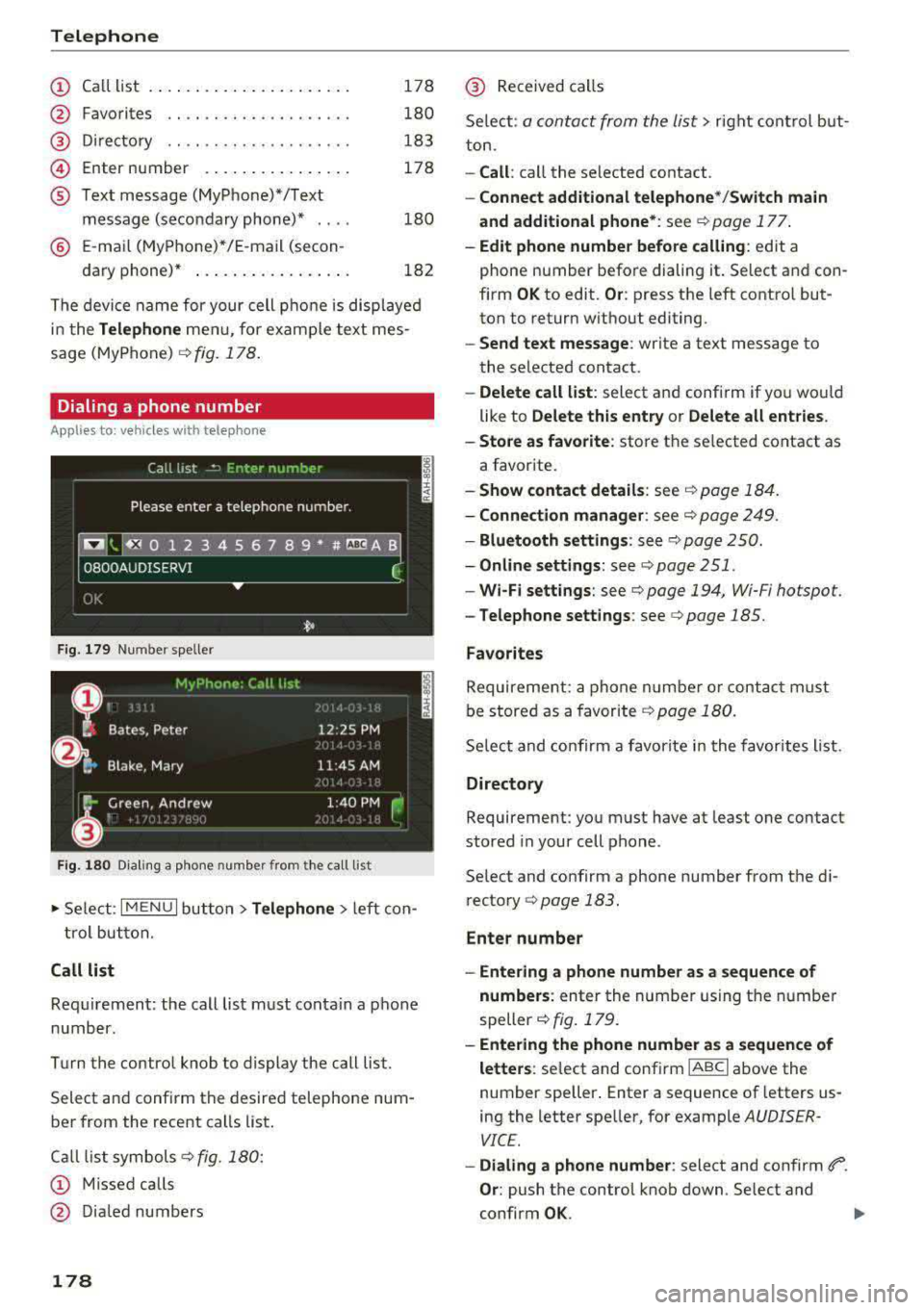
T he devi ce name for your cell p hone is disp laye d
i n t he
Telephone me nu, for e xam ple text mes
sage (MyPhone )
r=:, fig. 178.
Dialing a phone number
A pp lies to: ve hicles with telep hone
F ig . 179 Number speller
Fig. 180 D iali ng a p hone num ber from t he call list
~ Se le ct: I M ENU I but ton> Telephone > left co n
tro l bu tton.
Call list
Req uirement: the call list m ust con ta in a p hone
numb er.
Turn the control knob to display the call list.
Select an d confirm th e desire d telephone num
be r from the recent calls list .
C all li st symbols
r=:, fig. 180:
CD Missed calls
@ D ia led numbers
178
@ Received ca ll s
Se lec t:
a conta ct from the list> rig ht con trol b ut
to n.
-Call : call the se lected contact.
-Connect additional telephone */Switch main
and additional phone* :
see¢ page 1 77 .
-Edit phone number before calling : edit a
phone number befo re dialing it. Se lect a nd con
firm
OK to edit . Or: press t he left contro l but
ton to retur n w ithout editing.
-Send text message : write a text message to
the selected contact.
-Delete call list : select and confi rm if yo u wo uld
like to
Delete this entry or Delete all entries .
-Store as favorite: store the selected contact as
a favor ite.
-Show contact details : see r=:,page 18 4.
-Connection manager : see r=:, page 249 .
-Bluetooth settings : seer=:, pag e 25 0.
-Online settings : see ¢page 251.
-Wi-Fi settings : seer=:, page 194, Wi-Fi hotspot.
-Telephone settings : see c> page 185.
Favorites
Requirement: a phone n um be r or con tact m us t
b e st ored as a favorite
r=:, p age 180.
Se lec t and co nfirm a favori te i n t he f avorites list.
Directory
Requirement: yo u must have at least one contact
stored in your cell pho ne.
Se lect and confirm a phone number from t he d i
r ecto ry
r=:, page 183 .
Enter number
-Entering a phone numbe r as a sequence of
numbers :
enter the num ber u sing t he nu mbe r
speller
r=:, fig . 179.
-Entering the phone number as a sequence of
letters :
select and confirm IABC I above the
number speller . Enter a sequence of letters us
ing the letter spe ller, for example
A UDISER
VICE.
-Dialing a phone number : select and confirm 6'°.
Or: push the contro l kno b down . Select and
confirm
OK .
Page 181 of 403
a co .... N ,....
N .... 0 0
3 co
-Deleting individual character s: select and con
firm
0 .
-Deleting all characters entered at once : tur n
the control knob wit h the character se lection to
0 a nd p ress and ho ld the control knob. Or: se
lect the right contro l button
> Clear input field .
Accepting/ending a call
Applies to: veh icles with telephone
-Accepting a call : select and confirm Answer.
-Declining a call : select and confirm Decline.
-Muting the active call : select and confirm
Mute .
-Ending a phone call/cancel dialing : selec t an d
confirm End call.
Caller information : the
name, phone number or
Unknown appears in the Info tainment sys tem
d is pl ay depending on if the ca ller has been s tored
i n the directory and if the phone number has
been transm itted. A p icture may also be dis
p layed, depending on whether you have assigned
a picture to a contact in your d irectory and if it
was transfer red to your MM I. Yo u can find out if
your cell phone su ppo rts this func tion from yo ur
cell phone network provider, yo ur cell ph one
owner's manual o r at www.audiusa .com/blue
tooth .
(D Tips
-The ra dio or media playback is muted during
a p ho ne c all.
- M issed ca lls are disp laye d with a sy mbol in
the s tat us line o f the Info tainmen t sy stem
disp la y @ 9page 165, fig. 174.
During a phone call
Applies to: vehicles with telephone
Requ iremen t: the re mus t be a call i n progress.
" End call : yo u can end a phone cal l.
" Send tone sequence : yo u can en ter tone se
quences (DTMF ) directly us ing the number
s p elle r and send to the other person on the
ca ll.
"Other call options : press the right cont rol but
ton .
Telephone
T he following op tions a re poss ib le d uring a ca ll
depen ding on the cell phone be ing used and the
type of connect ion :
-Answeri ng an ad diti onal c all: if there is an in
coming call while another call is active, you can
select Answer to put the existing ca ll on ho ld
and answer the incoming call. I f you select De
cline , the incoming ca ll w ill be declined.
-Accepting an incoming call when there is an ac
tive ca ll and a ca ll on ho ld: select Replace. The
active ca ll is replaced with the incoming cal l.
- Muting the incoming call: select and conf irm
Mute .
-Additional call : select: Find contact > Call list /
Directory /Favorites
> an entry from the list.
Mute : if you sele ct and confirm this fun ct ion, the
other person on the phone cannot hear you. You
can hear t he other person. To turn the m ic ro
phone back on, select and con firm Un mute .
Hold call /Resume held call : yo u can pla ce the ex
isting call on hold and resume it aga in . To re
s u me the ca ll, se lect and confirm the call you
would like to res ume .
Transfer call to mobile devi ce* : sele ct and con
firm Transfer call to mobile device to transfer
the exist ing ca ll from the M MI to your cell p hone .
Switch to hands-free mode *: Requir emen t: you
mus t have a p ho ne c all in p rogress on you r ce ll
phone. Se lect and confirm Switch to hands-free
mode to transfer the call from your cell p hone
back to the M MI.
Swap call : alternate between two phone calls
whi le one of the calls is on hold. Se lecting End
call will end the active phone cal l. A phone ca ll on
ho ld can be resumed using the right contro l but
ton
> Resume .
Connection manager: see
9 page 249.
Telephone settings: see 9 page 18 5.
@ Tips
-To be not ified of a n in com ing ca ll dur ing a
phon e call, th e
call waiting funct ion i n your
cell p hone m ust be swit ched on whe n using
t he Handsfree profil e.
ll>-
179
Page 183 of 403
a co .... N ,....
N .... 0 0
3 co
-Writing your own text*: select and confirm Do
not use template.
Enter text using the MMI
touch contro l pad* or the letter speller.
-Enter one or more recipients.
-Select and confirm Send .
lnbox
Displays all received text messages .
Sent
Displays all sent text messages.
Outbox
Displays all text messages to be sent.
Drafts
Displays all text messages that have not yet been
sent and stored text messages .
(D Tips
-Please note that you may have to act ivate
the receiving and send ing of text messages
i n your cell phone depending on the SIM
card being used (for example, when using a
Multi-SIM). You can obtain mo re informa
tion from your cell phone service provider or
from your cell phone user guide.
- Fo r more information on supported cell
phones, vis it
www.audiusa.com/bluetooth
or contact an authorized Audi dealer or au
thorized Audi Service Facility.
- You need a cell phone with Message Access
Profile that also supports the sending func
tion to be able to send text messages
through the MMI.
Message options
Applies to: ce ll phones wit h Bl ue tooth Message Access Profile
(MAP)
~ Select : ITELI button> left control button > text
message (MyPhone)/text message (secondary
phone)* > lnbox/Sent/Outbox
> right control
button.
The following options may be avai lab le depend
ing on the se lected menu .
l) Not available in all la nguage s.
Telephone
Storing a text message as a template
Ten text message templates are stored in the
MM I. You can
save up to ten additiona l tem
plates .
-Create a text message.
-Select and confirm Store as template .
Resume last text message
The last ed ited text message can be resumed .
Reply*
A reply can be sent for the selected message in
the
lnbox.
Forward
T he selected text message can be forwarded to a
diffe rent recipient.
Send again*
The selected text message can be resent.
Delete this text message*
The selected text message can be de leted .
Read out1
)
You can have the MMI read an open text mes
sage .
Text messaging settings*
To display when a new text message is received,
activate the
Text message notifications . New
text messages are indicated w ith an envelope
121
in the Infotainment system display status line .
Connection manager
See¢ page 249.
Wi-Fi settings
See ¢page 194.
Telephone settings
See ¢page 185.
181
Page 184 of 403
Telephone
(D Tips
Messages that are deleted in the MMI are a lso
de leted in the ce ll phone automatica lly .
E-mail*
Applies to: cell phones with Bluetooth Message Access Profile
(MAP)
Depending on the type of cell phone being used,
you can receive and send e-mails through the
MMI .
Requirement: a cell phone must be connected to
the MMI via B luetooth MAP (Message Access Pro
fi le)
r:=:> page 175 . You can find o ut in your cell
phone owner's manua l if your ce ll phone sup
ports this f unction .
.,. Select : I MENU I button> Tel ephon e> left con
trol but ton >
E -m ail (MyPhone )/E-mail ( se con
dar y phone )*.
Write new e-mail
Select and confirm W rit e new e -mail .
- Us ing a templat e:
select and confirm the de
sired template from the list.
-Writing your o wn te xt*: select and confirm Do
not use templ ate .
Enter text using the MMI
touch control pad* or the letter speller .
- Enter one or more recipients.
- Se lect and confirm
Send .
Inbox
All received e-ma ils are d isplayed.
Sent
All sent e-ma ils are d isplayed .
Outbox
All e-mails that will be sent are displayed.
Drafts
All saved e -mails that have not been sent yet a re
d isp layed.
(D Note
Always follow the info rmation found in r:=;, (j) in
Wi-Fi hotspot on page 194.
182
(D Tips
- For more information on supported cell
phones, visit
www.audiusa. com /bluetooth
or contact an authorized Audi dealer or au
thorized Aud i Service Facility.
- To ensure that your sent e-ma ils are re
ceived, connect your cell phone to the Wi-Fi
hotspot* in the vehicle so that the e-mail
app on your cell phone conti nues to have In
ternet access . If you are still not receiving e
ma ils even tho ugh yo u have a successfu l
c onnect io n, then contact you r e-mail se rvice
prov ider o r yo ur ce ll phone serv ice prov ider.
Message options
Appl ies to: cell phones with Bluetooth Message Access Profile
(MAP)
.,. Select: ! ME NUI button> Telephon e> left con
trol b utton >
E-mail (MyPhone )/E-mail (secon
dary phone) *
> Inbox/Sent /Outbox > righ t
control button.
The following options may be ava ilable depend
i ng on the selected menu .
Store as template
Ten e-mail templates are stored in the MMI. You
can save up to ten additional templates.
- Create an e-mail.
- Select and confirm
Store a s template.
Resume last edited e-mail
The last e-ma il in prog ress can be resumed.
Repl y*
A reply can be sent for the selected e-mail in the
lnbo x.
Repl y to all*
A reply can be sent for the se lected e-mai l in the
In bo x and it will be sent to all of the entered re
c ipients.
Forward
The selected e -mail can be forwarded to a differ
ent recipient.