Control AUDI A4 2018 Owners Manual
[x] Cancel search | Manufacturer: AUDI, Model Year: 2018, Model line: A4, Model: AUDI A4 2018Pages: 403, PDF Size: 66.81 MB
Page 154 of 403
Intelligent Technology
Idling current management
The idling c urrent management dec reases the
energy used w hile pa rked. With the engine
sw itched off, it manages the energy distribution
to the different elect rical components . Data from
the battery diagnosis is taken into account for
this .
Depending on the vehicle battery charge level,
e lectrical equipment is switched off one item af
ter the other to prevent the vehicle battery from
draining and to maintain the starting ability.
Dynamic energy manag em ent
W hil e driving, dynamic energy management dis
tr ibutes the appropriate amount of energy to the
electrical equipment. It controls the battery
charge level so that the amount of energy is not
greater than the amount being generated in or
der to mai nta in a n optimal vehicle battery charge
level.
(D Tips
- Energy management cannot overcome the
l aws of phys ics . Note that the charge leve l
and leng th of the vehicle battery life a re
li mi ted .
- When the starting ability is endanger ed, the
(•) ind icator light turns on~ page 30.
What you should know
Maintaining the starting ability is the highest
priority.
A lot of stress is placed on the vehicle battery
when dr iv ing short d istances, dur ing c ity dr iv ing,
and at cold times of the year . A lot of energy is
used but little is gene rated . It is a lso cri tical
wh en the engine is not runn ing but e lectr ica l
e qui pment is swi tc h ed o n. In this case, energy is
u sed bu t none is ge nera te d.
In s ituatio ns l ike this, energy management will
actively regu late the d ist ribu tion of ene rgy.
Long pe riods without use
If you do not drive your vehicle for several days or
weeks, electrica l equipment is gradually scaled
back or swi tched off . This reduces energy use and
152 ensures
the vehicle will be ab le to s tart a fter long
periods of time. Some conven ience f unctions,
such as interior lig hting or power seat ad just
ment, may not be avai lab le under ce rtain circum
stances. These conven ience functions will be
available again once you switch the ignit ion on
and sta rt the eng ine.
With the engine switched off
The vehicle battery will drain if you use Infotain
ment functions such as listening to the radio
whi le the engine is switched off.
If the vehicle's ability to start may be impaired by
the energy use, a message will appear i n the In
fota inment system display. The message indi
cates that the system will switc h off automatical
l y soon. If yo u wou ld like to continue using the
funct io ns, you must s tart the engine .
With the engine running
Although electr ica l energy is generated w hile
driv ing, the veh icle battery can d ra in. This can
happe n if litt le ene rgy is generated but much is
used, and the charge level of the vehicle battery
is not optimal.
To resto re t he ba lance of energy, components
that require large amounts of energy are tempo rarily scaled back or sw itched off. Heat ing sys
te ms in pa rticula r r equir e a great deal of e nergy .
I f you notice, fo r example, t hat the seat heati ng*
o r r ear window defogger is not wor king, then it
h as been tempor arily reduce d or switched off.
These sys tems are avai lab le aga in as soon as t he
energy supp ly has been restored.
I n add it ion, yo u may notice tha t the idle speed
h as slig htly incre ase d. Tha t is normal and no
ca use for concer n. By in creasing the idling spee d,
the addit io na l required energy will be gene rated
and t he vehicle battery w ill be charged.
Page 155 of 403
a co .... N ,....
N .... 0 0
3 co
Notice about data
recorded by the Event
Data Recorder and
vehicle control modules
Event Data Recorder
This vehicle is equipped with an Event Data Re
corder (EDR) . The main purpose of an EDR is to
record, in certain crash or near crash-like situa
tions, such as an airbag deployment or hitting a
road obstacle, data that will assist in understand
ing how a vehicle's systems performed. The EDR
is designed to record data related to vehicle dy
namics and safety systems for a short period of
time, typically 30 seconds or less . The EDR in this
veh icle is designed to record such data as :
- How various systems in your vehicle were oper
at ing;
- Whether or not the driver and passenger safety
belts were buckled/fastened;
- How far (if at all) the driver was depressing the
accelerator and/or brake pedal; and,
- How fast the vehicle was traveling.
These data can he lp prov ide a better understand
ing of the circumstances in which crashes and in
juries occur. NOTE: EDR data are recorded by your
vehicle only if a non-trivial crash situation occurs;
no data are recorded by the EDR under normal
driving conditions and no personal data (e .g.,
name, gender, age, and crash location) are re
corded. Howeve r, other parties, such as law en
forcement, could combine the EDR data with the
type of personally identifying data routinely ac
quired during a crash investigation.
To read data recorded by an EDR, specia l equip
ment is required, and access to the vehicle or the
EDR is needed. In addition to the vehicle manu
facturer, other parties, such as law enforcement,
that have the specia l equipment, can read the in
formation if they have access to the vehicle or the
EDR.
Some state laws restrict the retrieval or down
l oading of data stored by ED Rs insta lled in a vehi
cle for the express purpose of retrieving data af
ter an accident or crash event without the own er's consent.
Intelligent Technology
Audi will not access the EDR and/or simi la r data
or give it to others -
- unless the vehicl e owner (or lessee if the vehi
cle has been leased) agrees; or
- upon the official request by the police; or
- upon the order of a court of law or a govern-
ment agency; or
- for the defense of a lawsuit through the jud ic ial
discovery process.
- Aud i may also use the data for research about
veh icle operation and safety performance or
prov ide the data to a th ird party for research
purposes without ide ntify ing the specific vehi
cle or information about the identity of its own
er or lessee and only after the reco rded vehicle
data has been accessed.
Vehicle control modules
Your vehicle is also equipped w ith a number of
electronic control modules for various vehicle
systems, such as engine management, emiss ion
contro l, airbags, and safety be lts.
T hese elect ronic contro l modu les record data
dur ing normal vehicle operation that may be
needed by trained technicians for diagnostic and
repair purposes. The recording capab ility of these
modules is limited to data (no sound is record
ed). Only a small amount of data is actually re
corded over a very limited period of time, or stor
ed when a system fault is detected by a control
module . Some of the data stored may relate to
vehicle speed, direction, or braking, as well as re
straint system use and performance in the event
of a crash. Stored data can also only be read and
down loaded w it h special equipment that is di
rectly connected to the vehicle .
(D Tips
Your vehicle may be equipped w ith Aud i con
nect. Your use of certain Audi connect fea
tures requires wire less services that are pro
vided by a third party wireless telecommuni
cations provider . For details regarding how in
formation obtained through Audi connect is
collected, processed, transmitted, used, and
shared, please see your contract with the
wireless telecommunications provider and the
IJJJ,-
153
Page 156 of 403

Intelligent Technology
"About Aud i connect" tab in your vehicle's In
fotainment system:
! MENUI b utton> Audi
conne ct >
right control button> About Audi
connect .
154
Page 157 of 403
Multi Media Interface
Traffic safety information
Audi recommends performing certain Infotain
ment system functions, such as entering a desti
nation, only when the vehicle is stationary . Al
ways be prepared to stop operating the Infotain
ment system in the interest of your safety and
the safety of other road users.
A WARNING
Only use the Infotainment system when traf
fic conditions permit and always in a way that
allows you to maintain complete control over
your vehicle.
@ Tips
Certain functions are not available while driv
ing .
Introduction
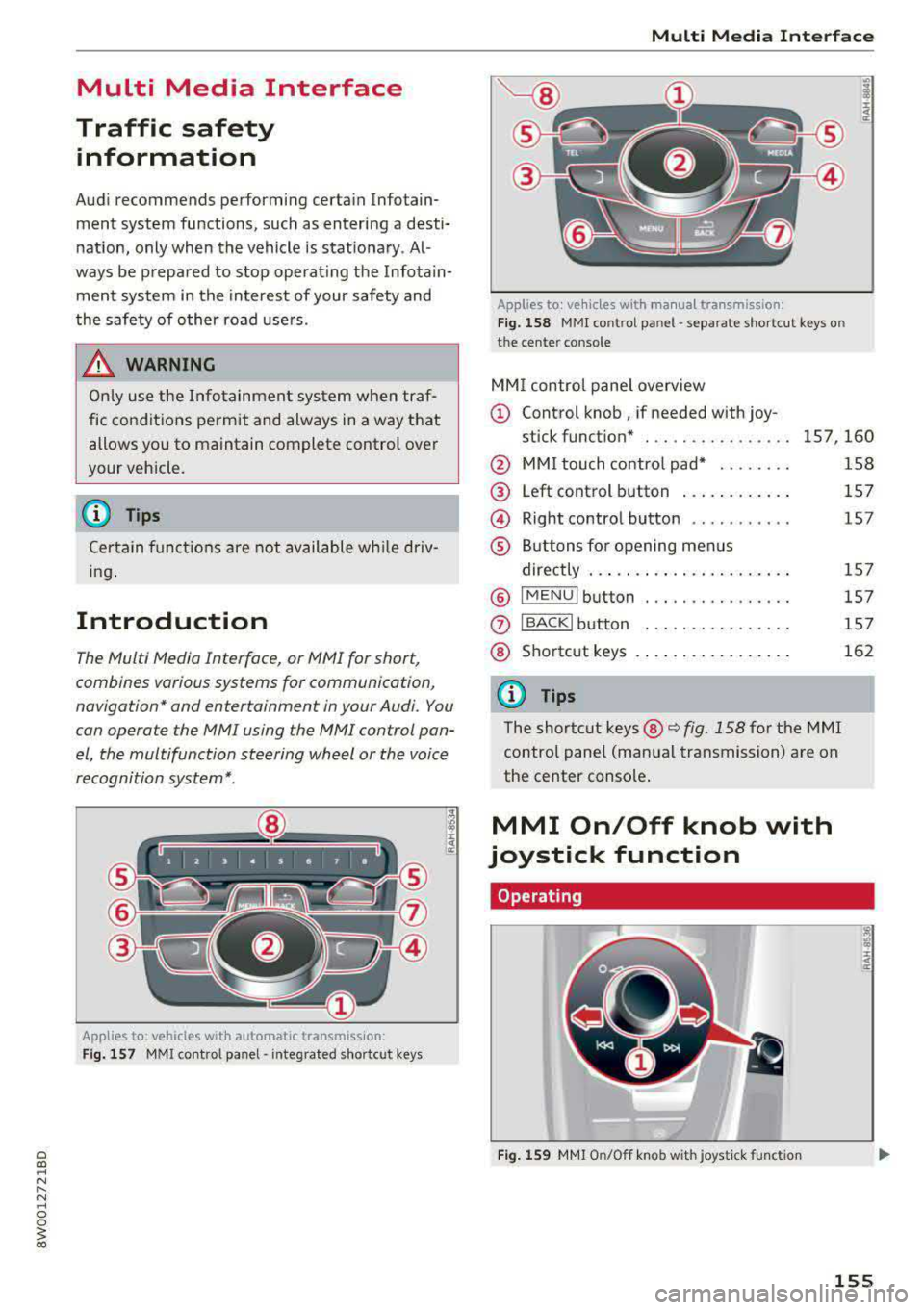
The Multi Media Interface, or MMI for short,
combin es various systems for communication,
navigation* and entertainment in your Audi. You
can operate the MMI using the MMI control pan
el, the multifunction steering wheel or the voice
recognition system*.
Applies to: vehicles with automatic transmiss ion:
Fig. 157 MMI contro l panel· integrated shortc ut keys
Multi Media Interface
Applies to: ve hicles w ith manua l transmission:
Fig . 158 MMI cont rol p anel
-separa te shortcut keys o n
t he ce nte r conso le
MM I control panel overview
(D Control knob , if needed with joy-
stick funct ion* . .. .. .... .. .... . 157 ,160
@ MMI touch control pad* ....... .
@
@
®
Left control button ........... .
Right control button .......... .
Buttons for opening menus
directly .. ... .. .. ............ .
® IMENUI button . .. .. .... ...... .
0
®
I BA CKI button
Shortcut keys
@ Tips
The shortcut keys @~ fig. 158 for the MMI
control panel (manual transmission) are on
the center console .
MMI On/Off knob with
joystick function
Operating
Fig. 159 MMI On/O ff knob with jo ystick f unction
158
157
1 5 7
15 7
157
157
162
155
Page 159 of 403
MMI operation
Selecting and confirming a function
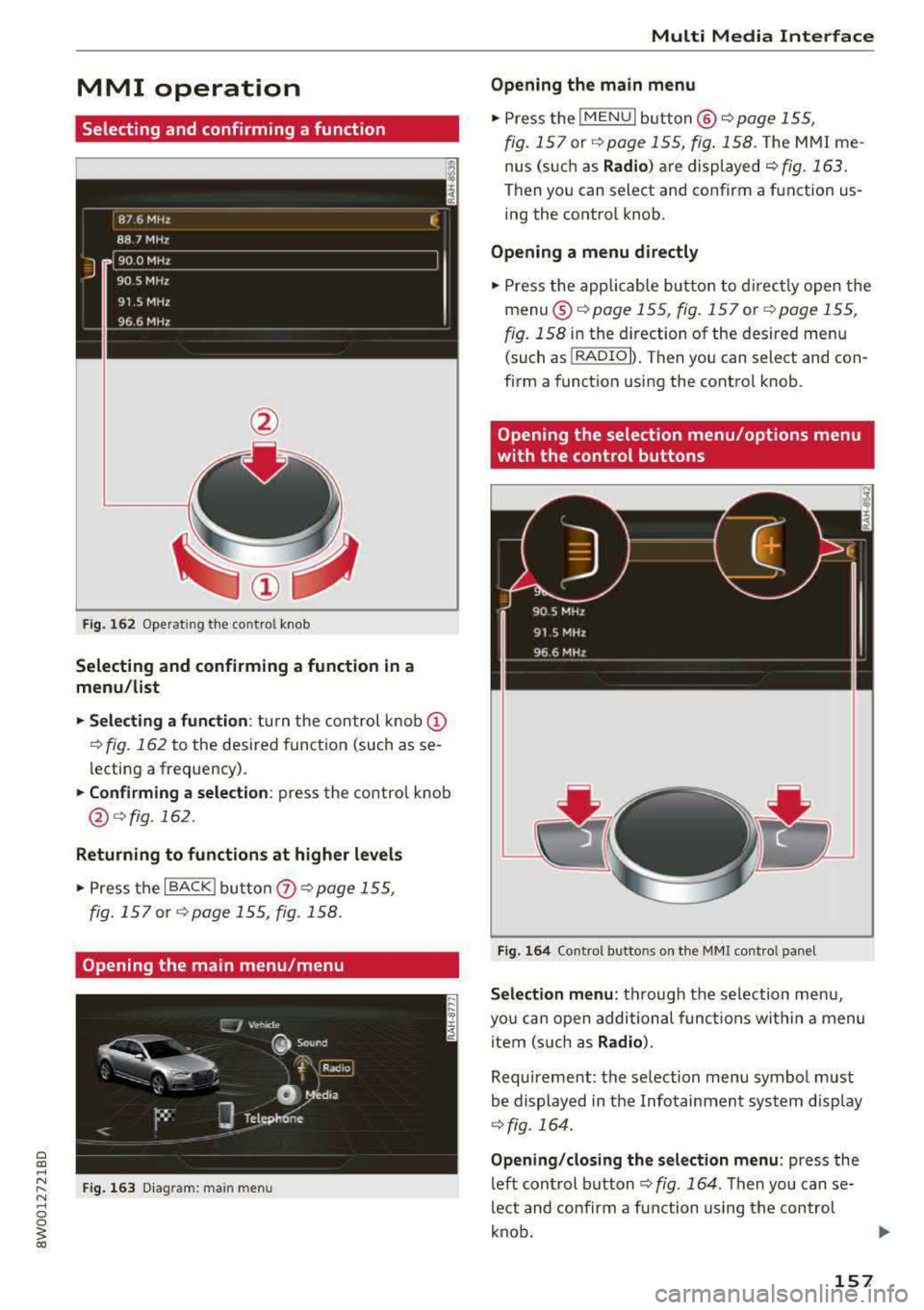
Fig. 16 2 Operat ing t he cont ro l knob
Selecting and confirming a function in a
menu /list
.,. Selecting a function : turn the control k no b(!)
¢ fig. 162 to the desired function (such as se
l ecting a frequ ency) .
.,. Confirming a selection : press the control knob
@ r::!vfig.162 .
Returning to functions at higher levels
.,. Press the I BACK I bu tto n 0 ¢ page 155,
fig . 157
or r::!v page 155, fig. 158 .
Opening the main menu/menu
Fig. 163 D ia gram: main m en u
Multi Media Interface
Opening the main menu
.,. Press the I MEN u I b utt on @ ¢ page 155,
fig . 157
or ¢ page 155, fig . 158 . The MMI me
nus (s uch as
Radio ) are displayed ¢ fig. 163.
Then yo u can sel ect and confirm a f unction us
ing the contro l knob .
Opening a menu directly
.,. Press the applicab le bu tto n t o d irec tly open the
menu ®¢ pag e 155, fig . 157 o r c;> pag e 155 ,
fig . 158
in the direction of the desired me nu
( such as
I RADIO I) . T hen you can s ele ct and con
firm a funct ion using the contro l knob .
Opening the selection menu/options menu
with the control buttons
Fig . 164 Co ntro l b utto ns on t he MM I co ntr ol p an el
Selection menu : thr ough the s election men u,
yo u can open additional funct ions wit hin a menu
item (s uch as
Radio) .
Requireme nt: the se lection menu symbo l must
b e display ed in the Info tainmen t system disp lay
¢ fig . 164.
Opening /closing the selection menu : press the
left cont rol button
¢ fig . 164 . Then you can se
lect and confirm a function us ing the con trol
k nob.
157
Page 160 of 403
Multi Media Interface
Option s menu :
using the opt ions menu, you can
select and conf irm context-dependent functions
as well as sett ings within a menu item (such as
Rad io ).
R eq uiremen t: the options menu symbol B must
be disp layed i n the I nfotainment system display
¢ fig . 164.
Opening /clo sing the option s menu : press the
right control button
~ fig. 164.
Information about paths
This guide sho ws you at a glan ce the paths for
opening a desired menu and its settings and
functions.
Example of a path
• Se lect : IRADIO I button> left cont rol knob> FM.
Following the path
• Press the I RADIO I button .
• Press the left co ntro l button.
• Turn the control knob to the FM menu item to
select it .
• Press the con trol knob to confirm the se lected
FM menu item.
• The selec ted and confirmed f un cti on is execu t
ed. In this example, the FM frequency band is
set .
158
MMI touch
MMI touch control pad
Applies to: vehicles with MMI touch
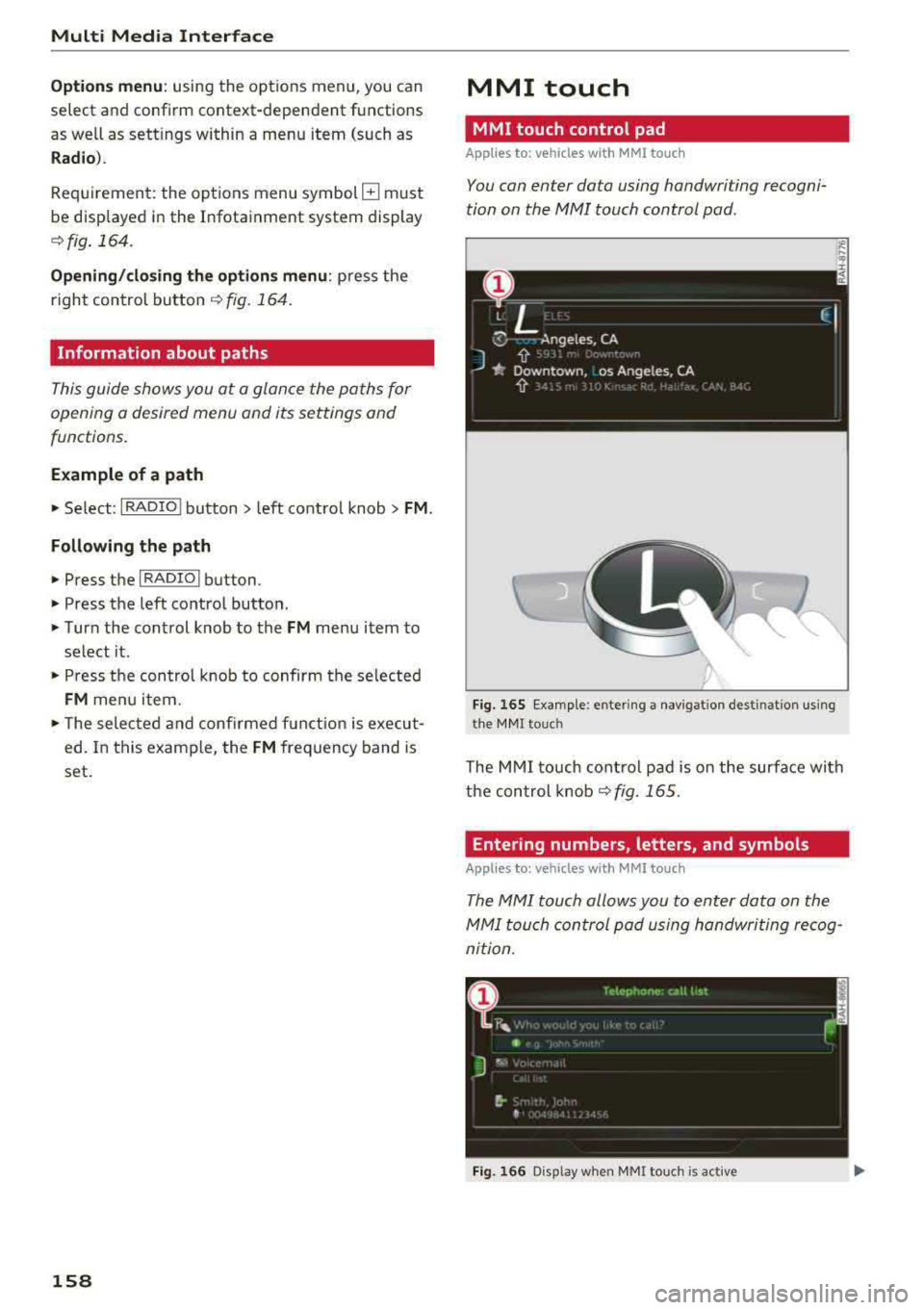
You can enter data using handwriting recogni
tion on the
MMI touch control pad.
Fi g. 16 5 E xamp le : en te ring a navigat ion dest inat ion us ing
t h e MM I touch
The M MI touch cont rol pa d is on the surfa ce with
the con trol knob
¢ fig. 165 .
Entering numbers, letters, and symbols
Applies to: vehicles with MMI touch
The MMI touch allows you to enter data on the
MMI touch control pad u sing handwri ting recog
nition .
Fig. 166 D isp lay whe n MMI to uch is active
Page 161 of 403
Requirement: it must be possible to enter text or
numbers and the
symbol (!)¢ fig. 166 must ap
pear in the Infotainment system display.
- Initial entry: write an individua l uppe r case or
lower case letter or number/symbol on the
MMI touch contro l pad using your finger.
A
symbol that is recognized clearly by the system
is disp layed in the Infotainment system display
(D ¢ page 158, fig. 165, confirmed with an au
dible s ignal if necessary, and transferred to the
i nput field.
- Entering spaces: move your finger across the
MMI touch control pad from left to right.
-Deleting characters : move your finger across
the MMI touch control pad from right to left.
-Selecting the input suggestion: press the con
trol knob.
- Switching directly to the results list: turn the
control knob to the right
- Opening the speller: select the right control
button
> Open speller. Text or numbers are en
tered in using the speller
¢ page 162.
- MMI touch volume: press the right control but
ton.
See r::;, page 253.
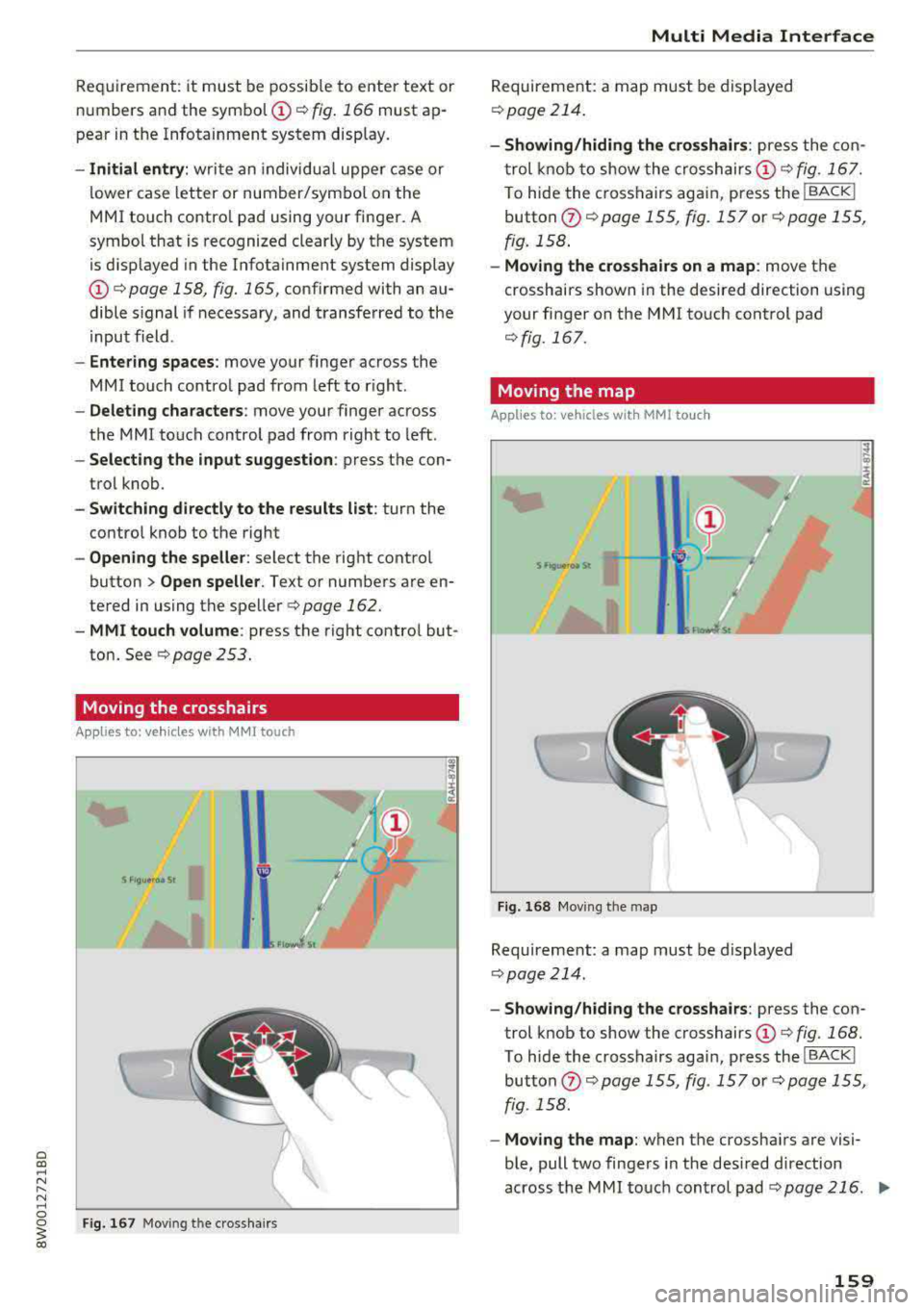
Moving the crosshairs
Appl ies to: ve hicles with MMI touch
Fig . 167 Moving the c rossha irs
Multi Media Interface
Requirement: a map must be displayed
r=>page 214.
-Showing/hiding the crosshairs: press the con
trol knob to show the crosshairs
(D ¢ fig. 167.
To hide the crosshairs again, press the !BACK !
button (J) c:;, page 155, fig. 15 7 or¢ page 155,
fig. 158.
-Moving the crosshairs on a map : move the
crosshairs shown in the desired direction using
your finger on the MMI touch control pad
¢fig. 167.
Moving the map
Applies to : vehicles wi th MMI to uch
Fig. 168 Moving the map
gJ
I
Requirement: a map must be displayed
¢page 214.
- Showing/hiding the crosshairs : press the con
trol knob to show the crosshairs
(D ¢ fig. 168.
To hide the crosshairs aga in, press the !BACK !
button (J) ¢ page 155, fig. 157 or c:;, page 155,
fig . 158.
-Moving the map: when the crossha irs are visi
ble, pull two fingers in the des ired direction
across the MMI touch control pad
r=>page 216 . .,,_
159
Page 162 of 403
Multi Media Interface
-M oving the map quickl y: when the crosshairs
are v isible, pull two fingers ac ross the
MMI
touch contro l pad quickly in the desired direc
tion. The map will come to a stop after several
seconds.
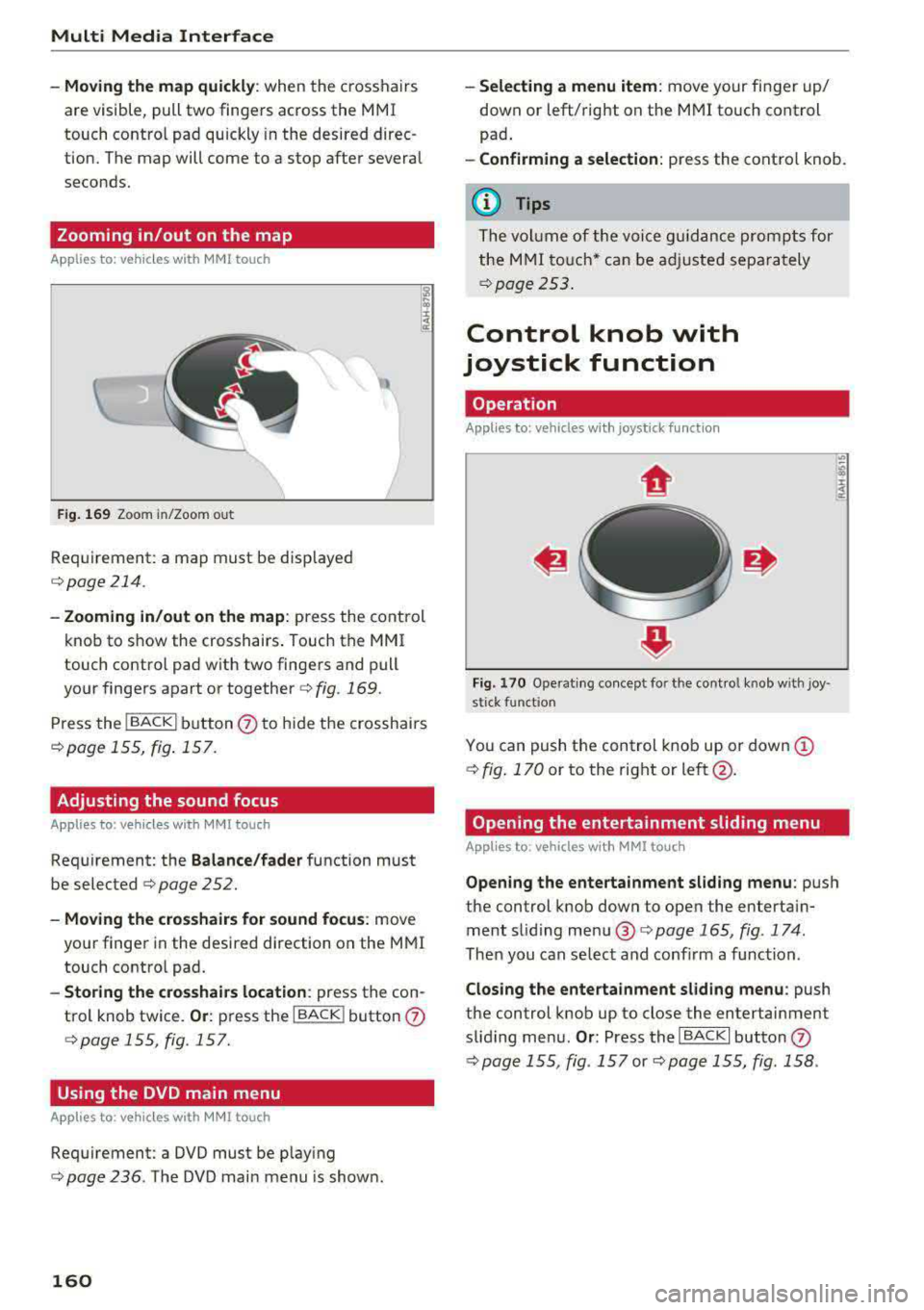
Zooming in/out on the map
Applies to: vehicles with MMI touch
Fig. 169 Zoo m in /Zoom out
Requirement: a map must be disp layed
c:> page214 .
-Zooming in /out on the map : press the control
knob to show the crosshairs . Touch the
MM I
touch contro l pad with two fingers and pull
yo ur fingers a part or together
c;, fig. 169.
Press the !BACK I button 0 to hide the crosshai rs
c;, page 155, fig . 157.
Adjusting the sound focus
Applies to : veh icles w ith MMI touch
Requirement: the Balance /fa der function must
be selected
c;, page 252.
-Moving the crosshairs for sound focus : move
your finge r in the desired direction on the
M MI
touch contro l pad.
-Storing the cro sshai rs location : press the con
trol knob twice.
Or : press the IBACK ! button 0
c:>page 155, fig . 157.
Using the DVD main menu
App lies to: veh icles with MMI touch
Requirement: a DVD must be p lay ing
c;, page 236 . The DVD main menu is show n.
160
-Selecting a menu item : move your fin ger up/
down or left/right on the
M MI to uch control
pad .
-Confirming a selection: press the cont ro l knob.
(i} Tips
T he v olume of the voi ce g uidance pro mpts f or
the
M MI to uch * ca n be adju sted separ ately
¢ page 253 .
Control knob with
joystick function
Operation
Applies to: vehicles wi th joystick function
Fig . 170 Operat ing co ncept fo r the cont ro l knob w ith joy ·
s t ick fun ction
You can push the control knob up or down @
c;, fig. 170 or to the right or left @ .
Opening the entertainment sliding menu
Applies to : vehicles with MMI touc h
Opening the entertainment sliding menu : push
the control knob down to open the enterta in
ment s liding
me nu@ c:>page 165, fig . 174 .
Then you can se lect and conf irm a function .
Closing the enterta inment sliding menu : push
the control knob up to close the entertainment
slid ing men u.
Or : Press the I BACK I button 0
¢ pag e 155, fig . 157 or c:> page 155, fig. 158 .
Page 163 of 403
a co .... N ,....
N .... 0 0
3 co
Additional functions
Appl ies to: ve hicles with joystick function
Display ing the input field /sw itching to
s p ell er input
Push the contro l knob up ¢page 160, fig. 170 to
reach the beginning of a list in the central area or
the input field. If the input field is a lready open,
switch directly to the speller in the input fie ld by
push ing the control knob up again
¢ page 162,
Letter/number speller.
On the map
Requirement: a map must be disp layed
¢ page 214.
- Di splaying the in put fi eld : push the control
knob up.
- Di spla ying rout e guidan ce : when route guid
ance is active , you can also display the ro ute
guidance by pushing the control knob up
¢ page 209, fig. 191 .
-Zooming in /out on the map (zoom ): turn the
contro l knob to the right/ left to zoom in/out on
the map.
A ppl ies to: ve hicles witho ut MMI touch with joystick functi on
- Showing /h iding th e cro ssha irs: press the con
trol knob . The crosshairs are shown on the
map. Press the
I BACK I button to hide the cross
hairs.
- Moving th e cro sshair s: when the crosshairs are
visible, turn the cont rol knob in the d irection
the crossha irs shou ld move. Press the contro l
knob and ho ld i t unti l the crossha irs are in the
desired po int on the map.
- Additional option s on the map : see
¢page 215
Adjusting the sound focus
Appl ies to: ve hicles witho ut MM I touch with joystick fun ction
Requirement: the ba la nce/fader funct ion must
be selected
¢ page 252.
- Mo ving the sound focus using the cro sshai rs :
the crossha irs can be moved horizontally. Turn
the control knob to the left or to the r ight .
Press the control knob to move the crosshai rs
vertically. Turn the contro l knob to the left o r
to the right. Press the con trol knob aga in to
save the setting.
Multi Media Interfac e
Using the DVD main menu
Requirement: a DVD must be playing
¢
page 236 . The DVD main menu is shown.
-Selecting a menu item : move the contro l knob
w it h joys tic k function up or down o r to t he left
or r ight.
- Confirming a s election : press the cont rol knob.
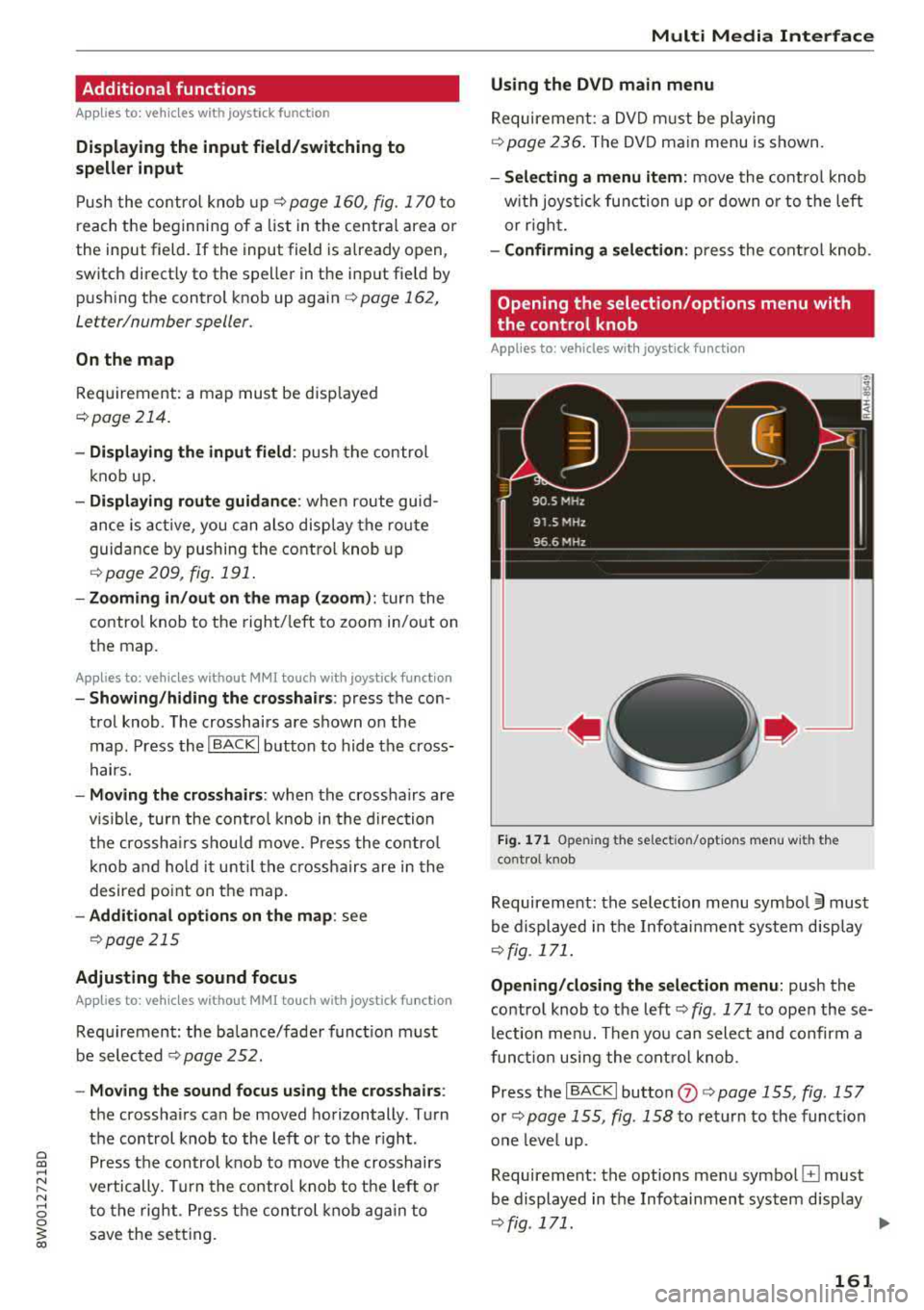
Opening the selection/options menu with
the control knob
Appl ies to : vehicles wi th joys tick fun ctio n
Fig . 17 1 Ope ning the select ion/opt ions menu with the
cont ro l knob
Requirement: the selection menu symbo l 3 must
be displayed in the Infotainment system d isp lay
¢fig. 171.
Opening /closing the sel ect ion m enu: push the
contro l knob to the
left ¢ fig. 171 to open these
lection me nu. Then you can select and confirm a
funct ion usi ng the cont rol knob.
Press the
I BACK I button (J) ¢ page 155, fig. 15 7
or ~ page 155, fig . 158 to ret urn to the funct ion
one leve l up.
Requirement: the options menu symbo l
G must
be displayed in the Infotainment system display
~ fig . 171. ...
161
Page 164 of 403
Multi Media Interface
Opening /closing the opti on s menu : push the
control knob to the rig ht
r=> fig. 171 to open the
options menu. Then you can se lect and confirm a
function using the control knob.
Press the
! BACK I button (J) r=:> page 155, fig . 157
or r=:> page 155 , fig. 158 to return to the function
one level up .
Shortcut keys
Frequently used radio stations can be stored on
the shortcut keys.
A pp lies to : ve hicles w ith a uto mat ic t ra nsmi ssio ns
T he s ho rtcu t keys a re loc ated on the M MI co ntrol
p a nel @
c> page 155, fig. 15 7.
A pp lies to: ve hicles w ith manu al transmiss ion
The shortcut keys are located on the center con
sole @r=> page 155, fig. 158.
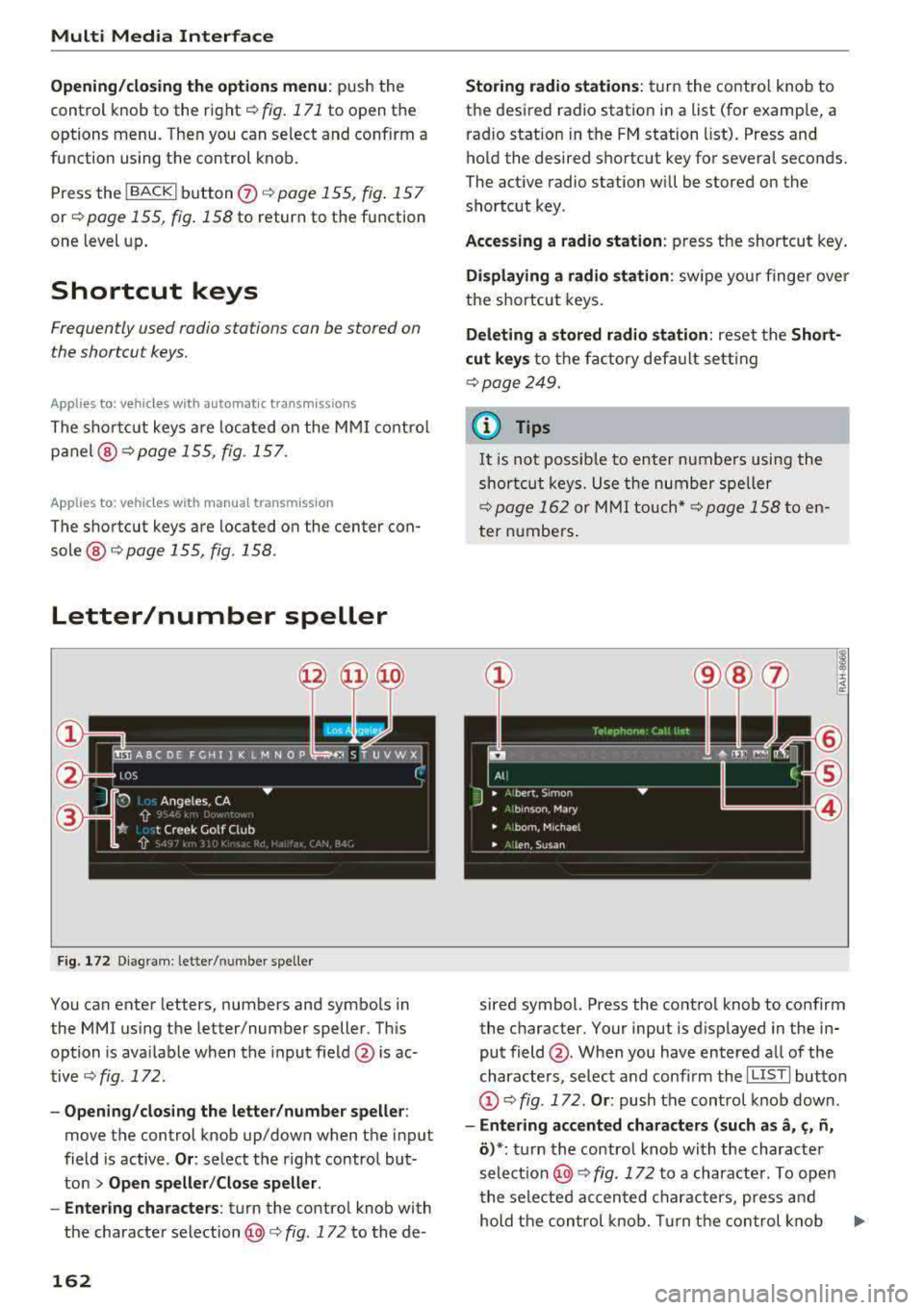
Letter/number speller
Fig . 172 D ia gram: letter/ numbe r spe ller
You can enter letters, numbers and symbo ls in
the
MMI us ing the letter/number speller. Th is
option is ava ilable when t he input field
@ is ac
tive <=>
fig. 172.
-Opening/clos ing the letter /number speller :
move the control knob up/down when the input
field is active .
Or: select t he right control but·
ton
> Open speller /Close speller .
-Entering characters : turn the control knob with
the character
selection @c> fig. 172 to the de -
162
Storing radio st ation s: turn the contro l knob to
the desired radio station i n a list (for examp le, a
rad io station in the FM station list). Press and
hold the desired shortcut key for several seconds.
The act ive radio station w ill be stored on the
sho rtc ut key .
Accessing a radio station : press the shortcut key .
Displaying a radio station : swipe you r finge r over
the shortcut keys.
Deleting a stored radio station : reset the Short·
cut keys
t o t he fa ctory default se tt ing
r=:> page 249.
{!) Tips
It
is no t possible to enter numbers using the
s h or tcut keys. U se the number spe ller
c>page 162 or MM I touch* c>page 158 to en
ter numbers .
sired symbol. Press the control knob to confirm
the character. Your input is displayed in the in
put field @. When you have entered a ll of the
characters, select and confirm the
I L ISTI butto n
@r=> fig . 172 . Or: push the control knob down .
-Entering accented characters (such as a, ~. ii,
o )*: tu rn the control knob with the characte r
se lec tio n @ c=> fig. 172 to a character. To open
the selected accen ted char acters, press an d
hold the con trol knob. Turn the con trol knob
Ill-