radio AUDI A4 2018 Owner's Manual
[x] Cancel search | Manufacturer: AUDI, Model Year: 2018, Model line: A4, Model: AUDI A4 2018Pages: 403, PDF Size: 66.81 MB
Page 223 of 403
Radio
Radio
Opening the radio
The radio supports the FM, AM and SiriusXM*
(satellite radio) bands. Using the HD Radio
re
ceiver also allows you to receive radio stations
on the FM and AM bands in digital format.
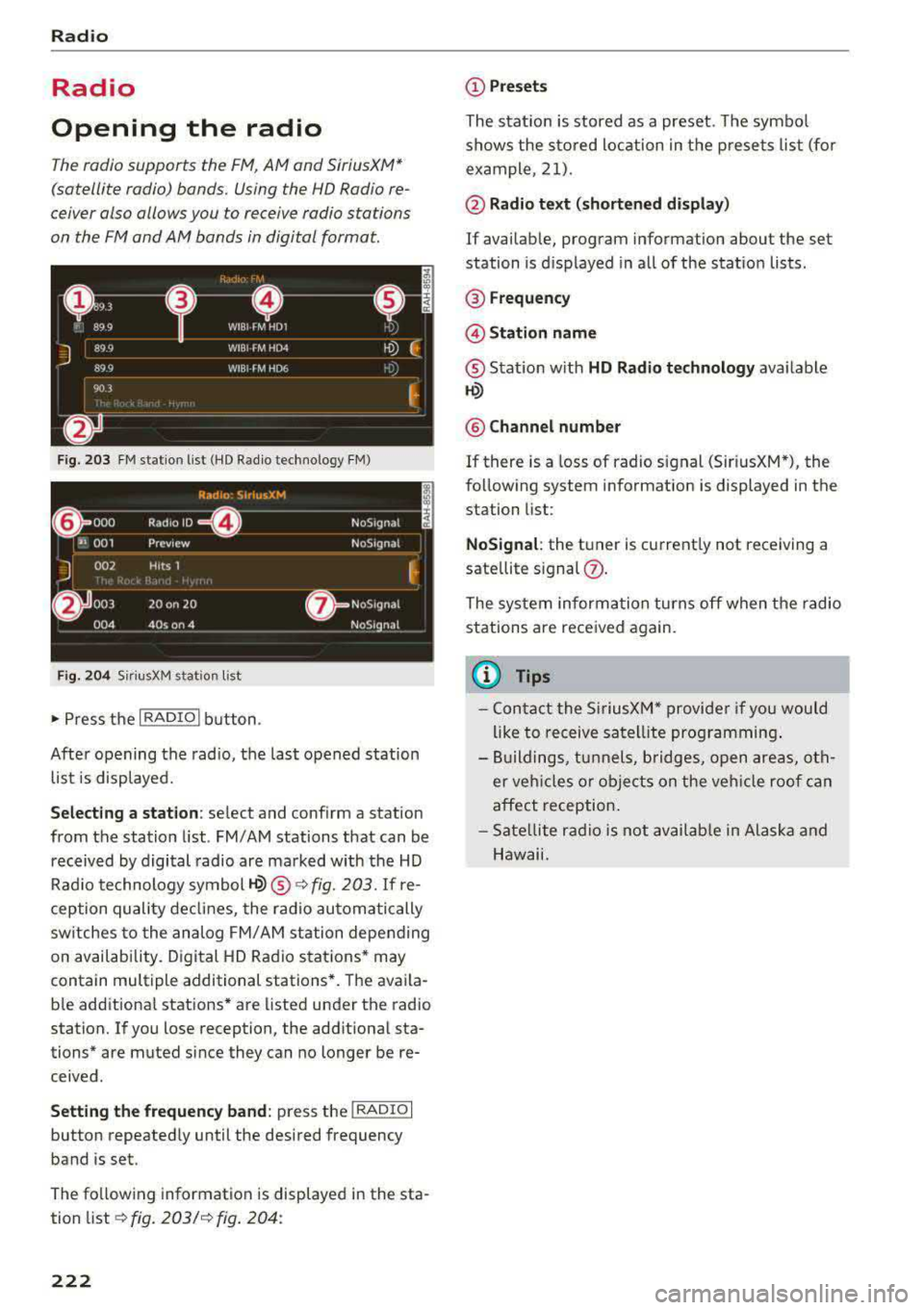
F ig . 203 FM station list (HD Radio technology FM)
F ig. 2 04 Siri usXM stat ion list
~ Press t he I RADIO I button .
After opening the radio, the last opened station
list is displayed.
S e le cting a station : select and conf irm a station
from the station list . FM/ AM stations that can be
received by digital radio are marked with the HD
Rad io technology symbol
1-Q) ® ¢fig. 203. If re
ception quality declines, the radio automatically
sw itches to the analog FM/AM station depending
on availability. Digital HD Radio stations* may
contain multiple additional stations*. The avai la
b le additional stations* are listed under the radio
station. If you lose reception, the additional sta
tions* are muted since they can no longer be
re
ceived .
Setting the fr equ ency band : press the I RADIO I
button repeated ly until the desired frequency
band is set.
The fo llowing information is displayed in the sta
tion
list ¢ fig. 203/ ¢ fig. 204:
222
(D Pre set s
The stat ion is stored as a preset. The symbo l
shows the sto red loc ation in the p resets list (for
example, 21) .
@ Radio text (s horten ed di spl ay)
If availab le, program information about the set
station is d isplayed in all of the statio n lists .
® Frequenc y
@Stati on name
® Stat ion w ith HD Radio technol ogy ava ilable
~
® Chann el numbe r
If there is a Loss of radio signal (Sir i usXM*), the
following system information is displayed in the
station list:
N oSignal : the tuner is current ly not receiving a
sate llite
signal (!).
The system informa tion turns off when the radio
stations are received again.
@ Tips
- Con tact the SiriusXM" provide r if you would
like to receive satel lite programming .
- Buildings, tunnels, bridges, open areas, oth
er veh icles o r objects on the veh icle roof can
affect reception.
- Sate llite rad io is not avai lab le in Alaska and
Hawaii.
Page 224 of 403
a co .... N ,....
N .... 0 0
3 co
Radio functions
Free text search
Appl ies to: ve hicles wit h free tex t search
Using the free text search, you can select the or
der that the search terms are entered in the in
put field . Search in all frequency bands for a sta
tion name or program type such as
News ).
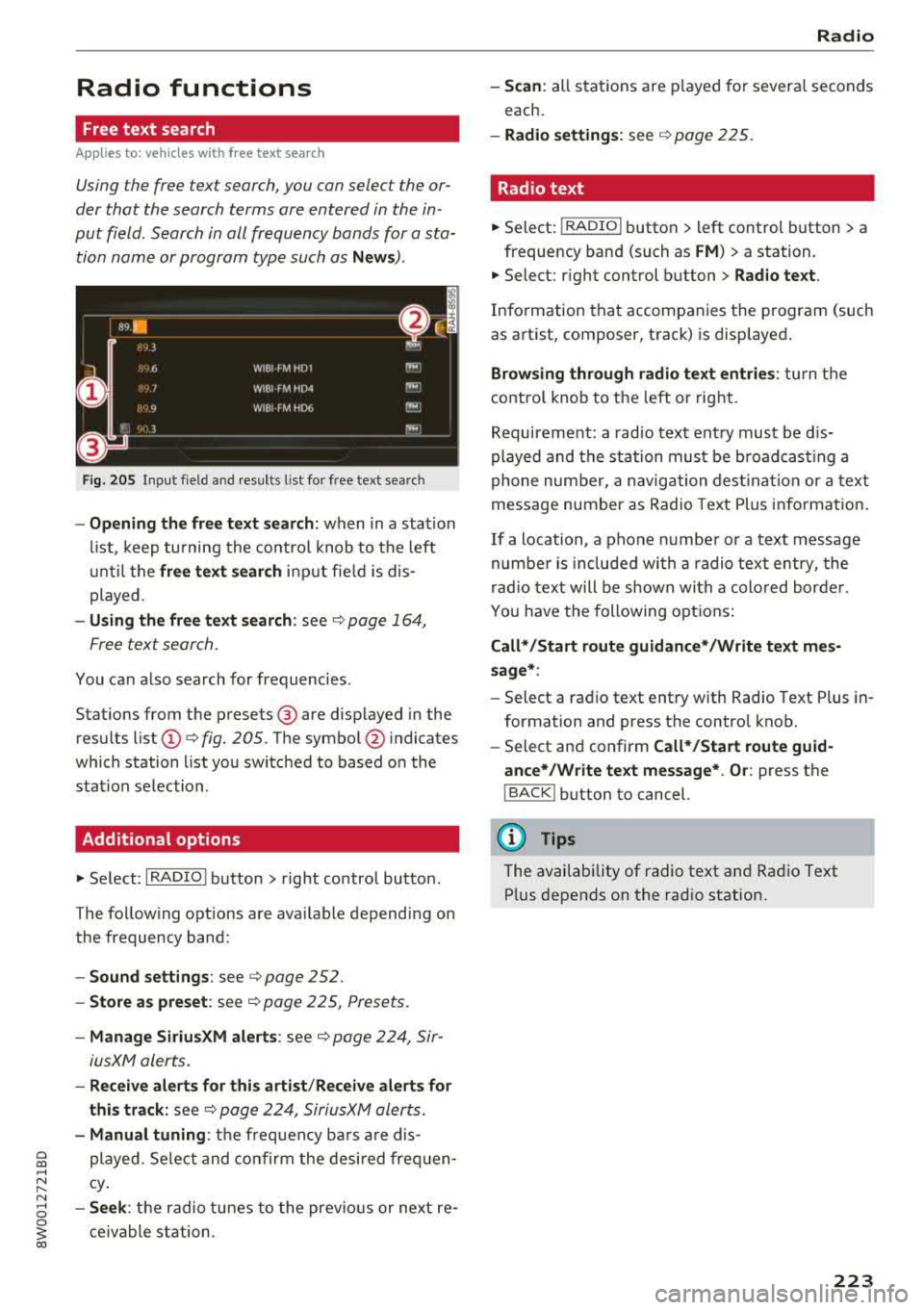
Fig. 2 05 Input f ield and results l ist fo r free text search
- Opening the free text search: when in a station
li st, keep turning the co ntro l knob to t he left
u nti l the
free text s earch in put fie ld is dis
played.
- Using the free text search : see ¢ page 164,
Free text search.
You can a lso search for frequencies.
Stat ions from the presets @are d isp layed in the
results list
(D ¢ fig. 205. T he symbo l@ indicates
which station list yo u switched to based o n the
station se lection.
Additional options
"' Se lect: I RADIO ! button > right co ntro l bu tton.
The follow ing options are ava ilab le depend ing on
the frequency band:
- Sound settings : see ¢page 252.
- Store a s preset : see¢ page 225, Presets.
-Manage SiriusXM alert s: see ¢ page 224, Sir-
iusXM alerts.
- Re ceive alerts for thi s arti st/ Re ceive alerts for
thi s track :
see¢ page 224, Sirius XM alerts.
- Manual tuning : the frequency bars a re dis
played. Se lect and confirm the desi red fre quen
cy .
-Se ek: the radio tunes to the previo us or next re
ce ivable station .
Radio
-Scan : all stat ions are p layed fo r severa l se conds
each.
- Radio setting s: see ¢ page 225.
Radio text
"'Select: !RADIO I button> left control button> a
frequency band (such as
FM ) > a station.
"'Select: right control b utton > Rad io te xt.
Info rmation that accompanies the prog ram (such
as art ist, composer, track) is disp layed .
Browsing through radio text entrie s: turn the
contro l knob to t he left or rig ht.
Requirement: a radio tex t ent ry must be d is
played and the st ation mus t be b road cas tin g a
phone num ber, a naviga tion dest ina tion or a text
message number as Radio Text Plus in fo rmat ion .
If a location, a phone n umbe r or a text message
numbe r is incl uded wi th a radio text entry, the
ra dio tex t will be shown wi th a colo red bor de r.
Yo u have the following o ptions :
Call* /Start route guidance* /Write text mes
s age* :
-Select a rad io text ent ry with Radio Text Plus in
formation and press the control knob.
- Select an d confirm
Call*/Start route guid
ance* /Write text message* . O r:
press the
I BACK ! button to cancel.
(D Tips
The availability of radio te xt an d Ra dio Text
P lus depends on the rad io station.
223
Page 225 of 403
Radio
SiriusXM alerts
Applies to: vehicles w ith SiriusXM
You can display an overview of your favorite ar
tists or tracks that are currently being played on
a SiriusXM channel.
Y. MM iiH A
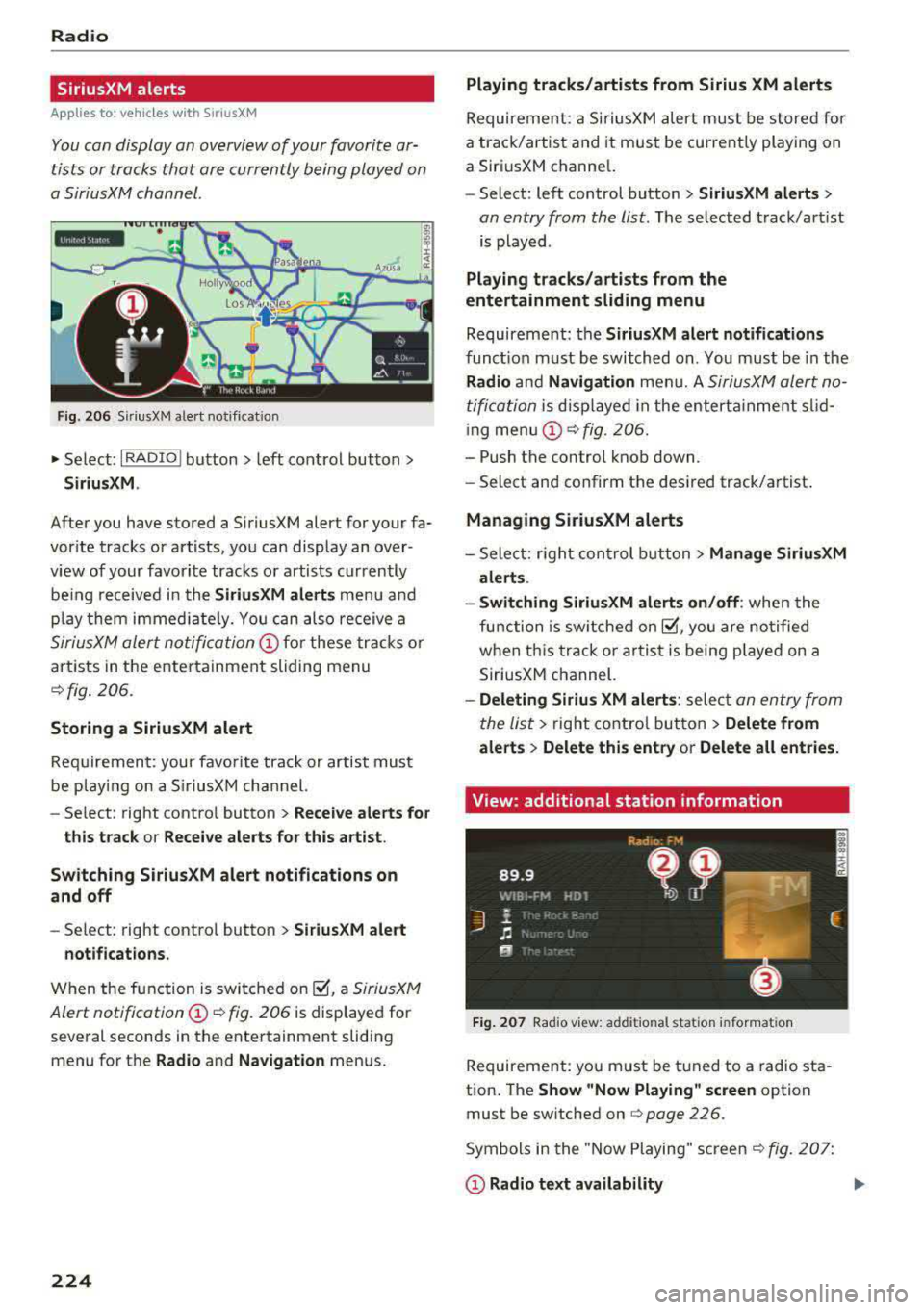
Fig . 20 6 S iriusXM alert not ificat io n
~ Se lect : I RADIO I button > left control button >
Siriu sXM.
After you have stored a SiriusXM alert for your fa
vor ite tracks or artists , you can display an over
view of your favorite tracks or artists currently
be ing received i n the
SiriusXM alert s menu and
p lay them immed iate ly. Yo u can also receive a
SiriusXM alert notifi cation @ for these tracks o r
artists in the entertainment sliding menu
~ fig . 206 .
Storing a SiriusXM alert
Requiremen t: your favo rite trac k or artist must
be play ing on a S iriusXM channel.
-Se lect : right contro l button > Re ce iv e alerts fo r
thi s track
or Rece ive alert s for this arti st.
Sw itch ing SiriusXM alert notifications on
a nd off
-Se lect: right control button > S ir iusXM alert
notifications .
When the function is sw itched on ~. a SiriusXM
Alert
notification @~ fig. 206 is displayed for
several seconds in the entertainment sliding
menu for the
Radio and Na vigation menus.
224
Playing tracks /artists from Sirius XM alerts
Requireme nt: a SiriusXM alert must be store d for
a track/artist and it must be currently playing on
a SiriusXM channe l.
-Select: left control button > Sirius XM alert s >
an entry from the list . The selected track/art ist
is played .
Playing tr acks /arti sts from the
entertainment sliding m enu
Requirement: the SiriusXM alert notification s
functio n must be switched on. You must be in the
Rad io and Navigation men u. A SiriusXM alert no
tification
i s d isp layed in the enterta inme nt slid
i ng
men u@ ~ fig. 206.
-Push the control knob down.
-Select and confirm the desi red track/artist .
Managing Sirius XM alerts
- Select: r ight con trol b utton> Manage Siriu sXM
alerts .
- Swit ch ing SiriusXM alerts on /off :
when the
function is sw itched
on~. you are no tified
when th is track o r ar tist is being p layed on a
SiriusXM channel.
- Deleting Sirius XM alert s: select an entry from
the list>
right control bu tton > Delete fr om
a lert s
> Delete thi s entr y or Delet e all entries.
View: additional station information
F ig . 207 Rad io v iew: add it io nal sta tion informa tion
Requirement: you must be tuned to a radio sta
tion . The
Sh ow "Now Playing " screen option
must be switched on
q page 226.
Symbols in the "Now Playing" screen c!; fig. 207:
@ Radio tex t a vailabilit y
Page 226 of 403
Radio text is avai lable for the selected station .
See
¢ page 223.
@ FM HD Radio technology
The station is received throug h FM H D Radio
technology .
@Screen view
Disp lay Cover art or Station logo. See
¢ page 226 , Preferred picture view*.
Display ing the station list:
T urn the contro l knob. Or : press the I BACK ! but
ton .
Radio menu
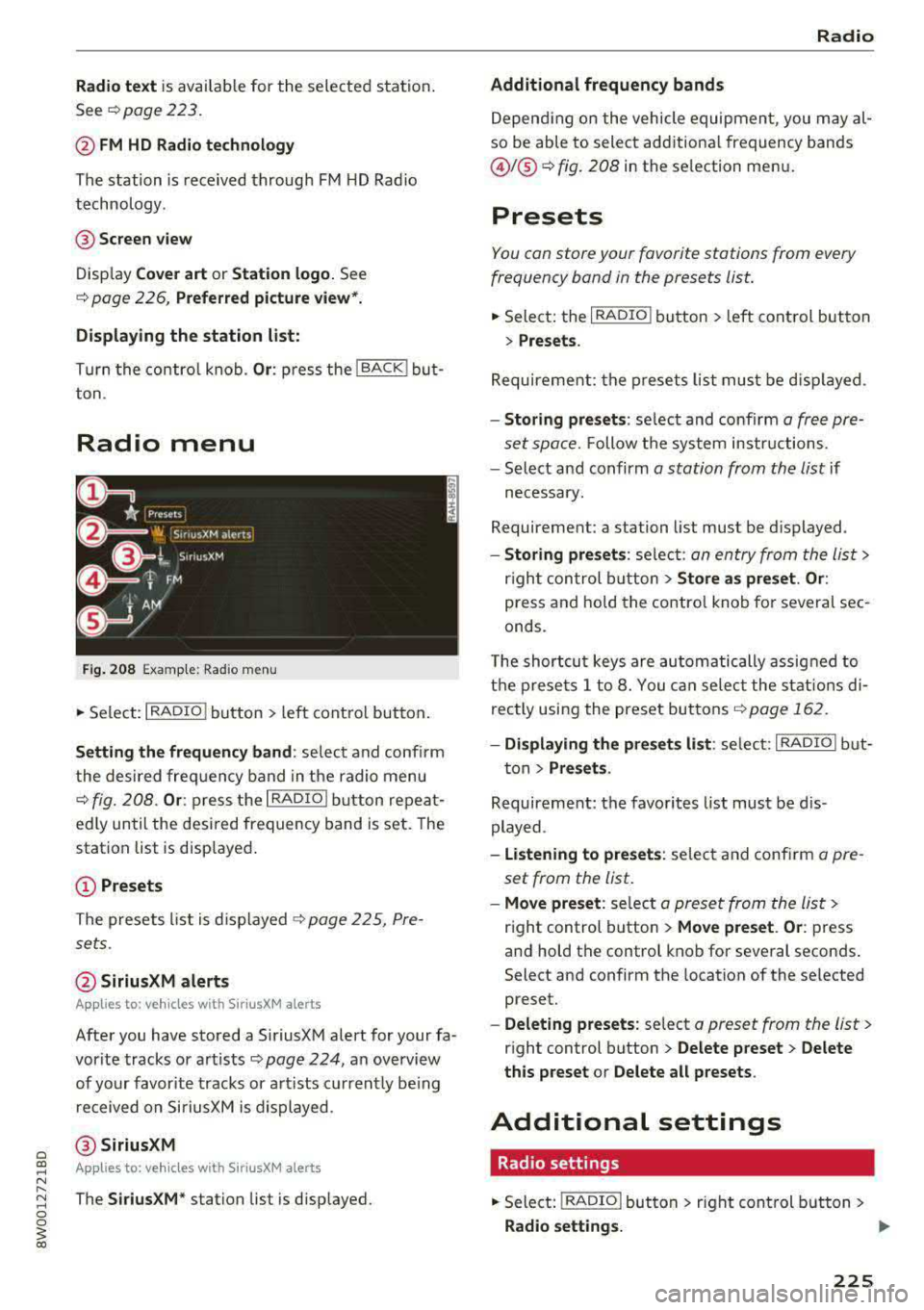
Fig. 208 Exam ple: Rad io m enu
.. Se lect : I RADIO I button > left con trol but ton .
Setting the frequency band : selec t and co nfi rm
t he de sired freq uen cy band in t he radio menu
q fig. 20 8. Or : press t he I RADIO I button repea t
e dl y un til the desi red frequency band is set. The
station list is disp layed .
(D Presets
Th e presets list is dis p layed q p age 2 2 5, Pre
s ets .
@ SiriusXM alerts
Applies to : ve hicl es with SiriusXM alerts
After you have s to red a SiriusXM alert for your fa
vor ite tracks or a rtists ¢
page 224, an overview
of your favor ite tracks or a rtists c urren tly be ing
re ceived on SiriusXM is dis played .
@SiriusXM
Appl ies to: ve hicles with SiriusXM alerts
The SiriusXM* station list is disp layed.
Radio
Additional frequency bands
D epen ding on the vehicle equipmen t, you may al
so be able to select add itiona l frequency bands
@ /@ ¢ fig. 208 in the se lection men u.
Presets
You can store your favorit e stations from every
frequency band in the presets list.
.. Select: the I RADIO ! button > left cont rol but ton
> Presets .
Req uireme nt: th e pr eset s list must b e displa yed.
-Storing presets : select and confirm a fr ee p re
se t space.
Fo llow the syste m instr uctions.
- Select an d confirm
a station from the list if
necess ary.
Requirement: a station list mus t be d isplayed .
-Storing presets : selec t: an en try from the lis t>
righ t con trol butt on > Store as preset. Or :
press and ho ld t he con tro l knob fo r severa l se c
onds .
T he shortc ut keys are auto ma tic ally assig ned t o
th e p re set s 1 to 8. You can selec t t he station s di
rectly usin g the preset bu ttons ¢
page 162 .
- Displaying the presets list : selec t: I RADIO I b ut-
t on>
Presets .
Requireme nt: the favorites list must be d is
p layed .
-listening to presets : selec t a nd confi rm a pre
set from the list .
-Move preset : select a p reset from the list>
right control button > Move preset . Or : press
an d hold the control kno b for seve ral secon ds.
Select an d confirm the location of the selected
preset.
- Deleting presets: select a preset from the list >
right control b utton > Delete preset > Delete
this preset or Delete all presets .
Additional settings
Radio settings
.. Select: I RADIO I butto n > ri g ht c ontrol but ton >
Radio settings. ..,.
225
Page 227 of 403
Radio
The following settings can be selected, depend
ing on the band that is selected :
Station names (FM)
Varia ble:
sc roll ing text transmitted by the FM
s ta tions is shown in the Infotainment system dis
p lay .
Fixed : scrolling text transm itted by the FM sta
tions is no t sh own in the Infota inment system
d isp lay. On ly the cu rrent sect io n of the scro lling
text is disp layed.
FM /AM HD Radio*
You can sw itch HD Rad io recept ion on o r off .
Station sorting (Siriu sXM*)
You can set the station sorting for SiriusXM sta
tion lists* by:
- Channel number: the stations are sorted in as
cending order according to their station num
ber.
- Channel name : the stations are listed in a lpha
betica l order.
- First category, then channel number : the sta
tions are sorted by their category and then by
their channe l numbers.
- First category, then channel name : the sta
tions are sorted by their category and then by
their channe l names.
Category filter (SiriusXM* )
The stations shown in the s ta tion lis t can be fi l
tered by your pe rsonal prefe rences and by pro
gram type. The program categories that yo u can
select depend on what is offered by yo ur provid
er. Select the
All catego ries option to deactivate
all filter options and display all ava ilable stations
i n the satellite station list.
Troubleshooting
Problem Solution Show "Now Playing" screen
When
the fun ct io n is switched on~ and the st a
tions or presets list is open, the display w ill
switch to the
Show "Now Playing " screen view
after approximate ly five
seconds ~ page 224. De
pending on avai lab ility, information abo ut the
set stat ion (such as stat ion name, artist and sta
tion logo) is displayed in this v iew .
Prefe rred picture vi ew*
You can set your preferred screen view for the
Show "Now Playing " screen ~ page 224.
-Station logo : the st ation logo is displayed, de
pending on ava ilability .
-Cover art : the album cove r is d isplayed if availa -
ble.
Gracenote online database *
Requirement: the MMI must be co nnected to the
Intern et. Th e
Cover art option m ust be selected
~ page 226, Pr eferred picture vi ew *.
When the funct io n is switched on~, the alb um
cover or genre cover for the song that is p lay ing
i s loaded from the Gracenote online da tabase,
depe nd ing on ava ilability.
Subscription status (SiriusXM }*
This opt io n is available when your subscr ipt io n is
about to expire or has already expired . The expi
r ation date for your license is displayed .
Call to SiriusXM *: the contact info rmation for
you r sate llite radio provider is d isplayed . To call
you r sate llite rad io provider using the MMI, press
Call to Siriu sXM*.
A station with poo r reception is no longer Store the stat ion as a preset in advance . Access the p re-
displayed in the station l ist once you sets using the presets
list~ page 225.
swit ch to a d ifferen t sta tion.
226
Page 232 of 403
@ Tips
-Check for any connection requests on your
Bluetooth device.
- Multiple Bluetooth audio players can be
connected to the MMI, but only one mobile
device can be active.
- Bluetooth protocols AVRCP (1.0/1.3/1.4)
and A2DP are supported.
- Note the volume setting on your Bluetooth device. Audi recommends setting your
mo
bile device to the maximum volume when
using it as a Bluetooth audio player.
- The supported media functions (such as
shuffle) depend on the Bluetooth device
be
ing used.
- For more information on the supported
de
vices, visit www.audiusa.com/bluetooth or
contact an authorized Audi dealer or author
ized Audi Service Facility.
Wi-Fi audio player
Applies to: vehicl es with Wi ·F i audio player
Using the Wi-Fi audio player media source on the
MMI, you can connect and operate your Wi-Fi-ca
pable media player (such as a smartphone) to
wirelessly play music from your media player
li
brary. The media player is connected through the
vehicle's Wi-Fi hotspot. A UPnP Server app or an
integrated UPnPIDLNA server on your media
player is required to access your media player
li
brary.
Requirement: the Wi-Fi function on your media
player must be switched on. The
Audi MMI con·
nect
app or a UPnP server app must be installed
on your media player .
Or: you must be using a
media player with an integrated UPnP/DLNA
server.
- Connecting a media player: press the I MEDIA !
button. Press the left control button until the
sources
overview¢ page 236 is displayed . Se
lect and confirm Wi-Fi audio player (J)
¢page 236, fig . 216 .
~ -If necessary, select and confirm Wi-Fi off>
;::; Turn on Wi-Fi to activate Wi-Fi in the MMI. Se-,....
:::l Leet Wi·Fi settings, if necessary. Select the 0 0
3
same settings on the wireless media player
that are used for the Wi-Fi hotspot.
-Starting the Wi-Fi audio player: start the Audi
MMI connect
app or a UPnP server app, or set
media permissions on your media player.
Operating the media player: the media player is
operated through the MMI.
- Press the left control button repeatedly until
the
Folders menu item appears. Select and con
firm
Folders.
-Playing music from the media player: select
and confirm
Media center .
Web radio:
see ¢ page 232.
A WARNING
= -
-As the driver, do not allow usage of the Wi
Fi hotspot to distract you from driving, as
this could increase the risk of an accident.
- It is only safe to use tablets, laptops, mo·
bile devices and other similar devices when
the vehicle is stationary because, like all
loose objects, they could be thrown around
the inside of the vehicle in a crash and cause
serious injuries . Store these types of devices
securely while driving.
- Do not use any wireless devices on the front
seats within range of the airbags while driv
ing. Also read and follow the warnings in
¢ page 2 75, Front airbags.
(D Note
Always follow the information found in ¢Q) in
Wi-Fi hotspot on page 194.
(D Tips
-Always read the chapter¢ page 195, Audi
connect (Infotainment) general informa
tion.
- Please note that a Wi-Fi connection does
not automatically make it possible to use
the Internet. For additional information,
see
¢ page 188.
- To avoid interruptions during playback, de
activate the power saving function on the
media player or connect it to a charger.
231
Page 233 of 403
Media
-The loading times for the audio data depend
on the media p layer used and the number of
files that it contains.
-A maximum of 2,000 entr ies per directory
are displayed in the MMI.
-Songs down loaded for offline use using m u
sic streaming services are stored on your
mobile device (such as a smartphone) and
may be DRM protected. The Wi-Fi audio
player will not play DRM protected files.
-Contact an authorized Audi dea ler or au
thorized Audi Service Facility for additional i nformat ion on the Wi-Fi audio player.
Online media and
Internet radio
A pplies to: ve hicles w ith Aud i co nnect
You can playba ck and operate various online me
dia services and Internet radio using the MMI .
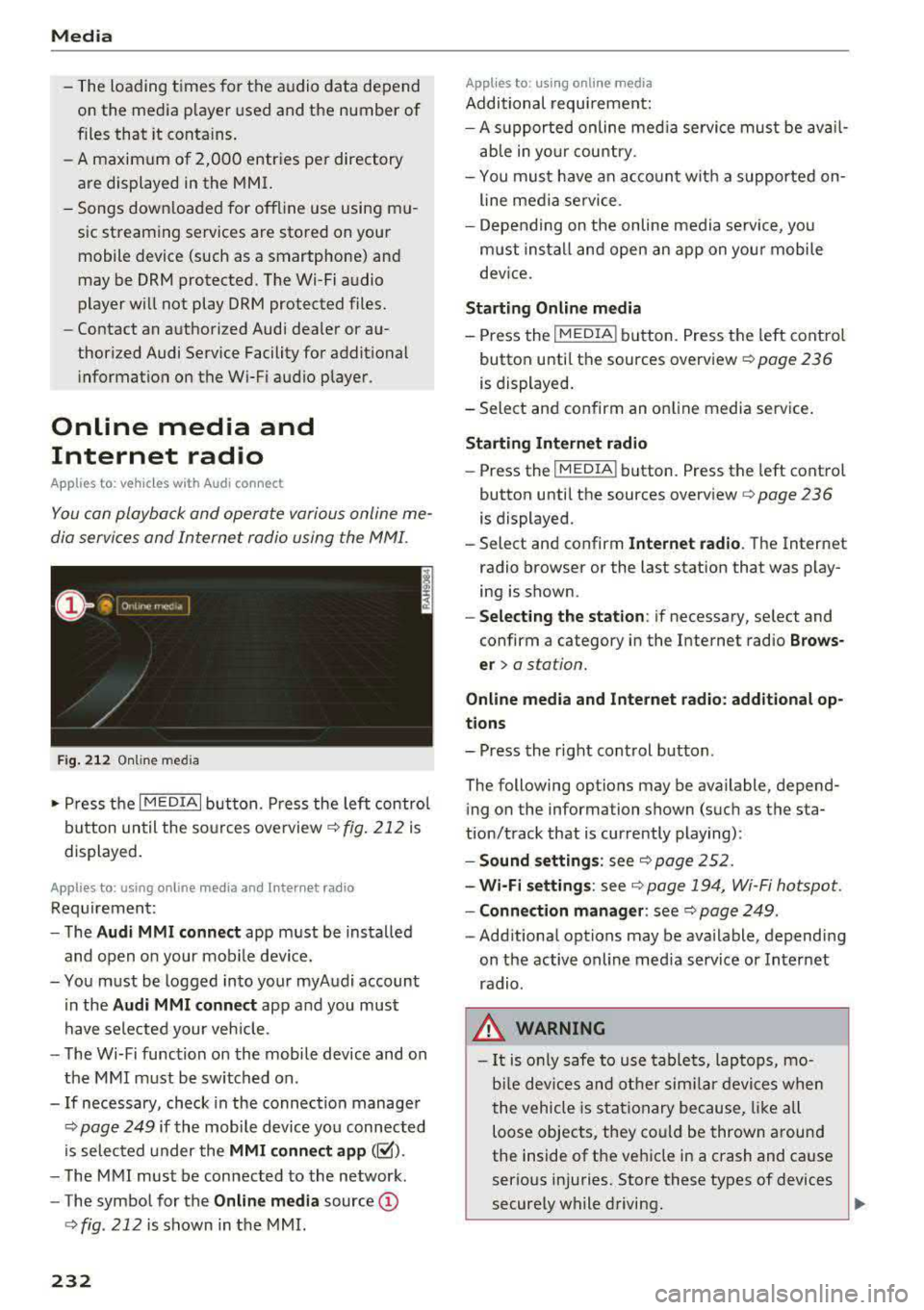
Fig. 212 Online media
.- Press the I MEDIAi button. Press the left control
button until the sources overview
r::!;> fig . 212 is
displayed.
A ppl ies to: using o nline media an d In te rnet ra di o
Requirement:
- The
Audi MMI connect app must be installed
and open o n your mob ile device.
-You must be logged into your myAudi account
in the
Aud i MMI conn ect app and you must
have selected your veh icle.
- The Wi-Fi function on the mobile device and on the MMI must be switch ed on.
-If necessary, check in the connection manager
r::!;> page 249 if the mobile device you connected
is selected under the
MMI conn ect app (~).
-The MMI must be connected to the network.
-The symbol for the Online m edia source CD
r::!;> fig . 212 is shown in the MMI.
232
App lies to : usin g on l ine media
Additional requirement:
- A su pported online med ia service must be ava il
able in yo ur cou ntry.
- You must have an acco unt with a supported on
line media se rvice .
- Depending on the on line media se rvice, yo u
must install and open an app on you r mobile
dev ice.
S tarting Onlin e med ia
-Press the IM EDIA ! button. Press the left cont rol
button until the sources overview
r::!;> page 236
is displayed.
-Select and confirm an on line media service .
Starting Internet radio
-Press the I MEDIA ! button. Press the left control
button until the sources
overview ¢ page 236
is displayed.
-Select and confirm Internet r adio . The Internet
radio browser or the last stat ion that was play
ing is shown.
-Sel ect ing the station : if necessary, select and
confirm a category in the Internet radio
Brow s
er > a station.
Online media and Interne t ra dio : additional op
t ion s
-Press the right control button.
The following options may be available, depend ing on the information shown (such as the sta
tion/track that is currently playing):
- Sound setting s: see r::!;> page 252 .
- Wi -Fi setting s:
see¢ page 194, Wi-Fi hotspot.
- Connection manage r:
see¢ page 249 .
-Additional options may be ava ilable, depending
on the active on line media service or Internet
radio .
.&_ WARNING
-It is o nly safe to use tablets, laptops, mo
bi le dev ices and ot her simi la r devices when
the vehicle is s tat ionary because, like a ll
loose objects, they could be thrown around
the inside of the vehicle in a crash and cause
serio us injuries. Store these types of devices
securely while driving.
~
Page 234 of 403
-Do not use any wireless devices on the front
seats within range of the airbags while driv
ing. Also read and follow the warnings in
c::> page 275, Front airbags.
CJ) Note
- Always follow the information found in c::>0
in Wi-Fi hotspot on page 194.
- Please note that there genera lly are addi
tional costs when using an online media
service account, especially when it is used internationally .
@ Tips
-Depending on the Internet connection and
network traffic, a connection loss can occur
during playback of on line media services.
-Online media and Internet radio usage de
pends on the service availability of the third
party provider.
- Audi AG simply makes the access to on line
media services possible through the MMI
and does not take any responsibility for the
contents of the on line media services.
- Always read the chapter
c::> page 195, Audi
connect (Infotainment) general informa
tion.
- Depending on the mobile device used, there
may be interruptions during media playback
and when using the
Audi MMI connect app.
To avoid interruptions when using a mobile
device, do not lock the screen on your mo
bile device and keep the
Audi MMI connect
app in the foreground .
- Contact an authorized Audi dealer or au
thorized Audi Service Facility for additional
information about online media.
Media
Multimedia connections
USB adapter for Audi music interface
You can connect your mobile devices (such as a
smartphone or
MP3 player) to the Audi music in
terface and charge them using a special
USB
adapter .
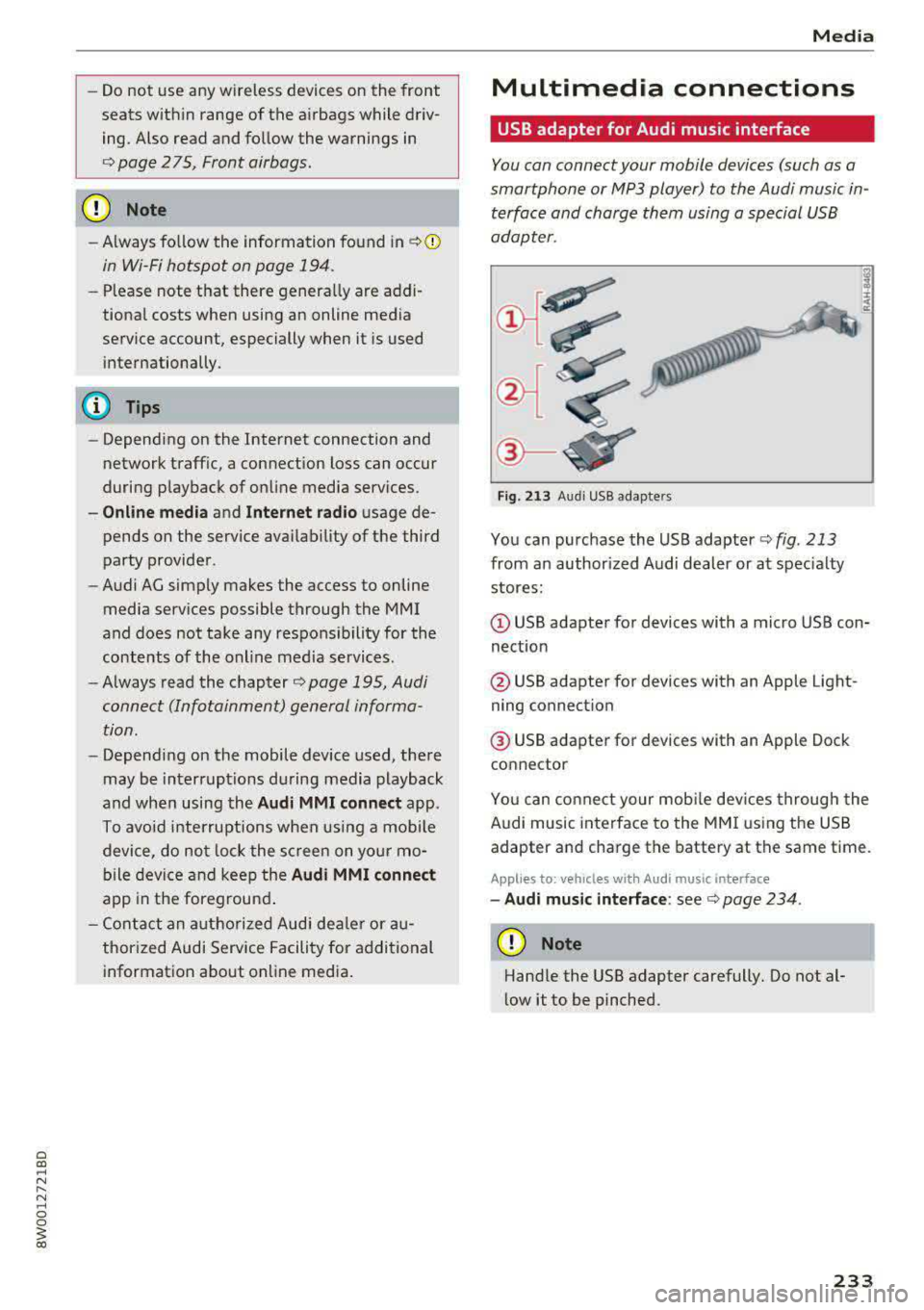
Fig. 213 Audi USB adap ters
You can purchase the USB adapter c::> fig. 213
from an author ized Audi dealer or at specialty
stores:
(D USB adapter for devices with a micro USB con
nection
@ USB adapter for devices with an Apple Light
ning connect ion
@ USB adapter for devices with an Apple Dock
connector
You can connect your mobile dev ices through the
Audi music interface to the MMI using the USB
adapter and charge the battery at the same time.
Applies to : veh icles w it h Aud i music interface
- Audi music interface: see c::> page 234.
(D Note
Handle the USB adapter carefully. Do not al
low it to be pinched.
233
Page 237 of 403
Media
Playing media
Accessing media
You can start and operate various media
through the
MMI control panel.
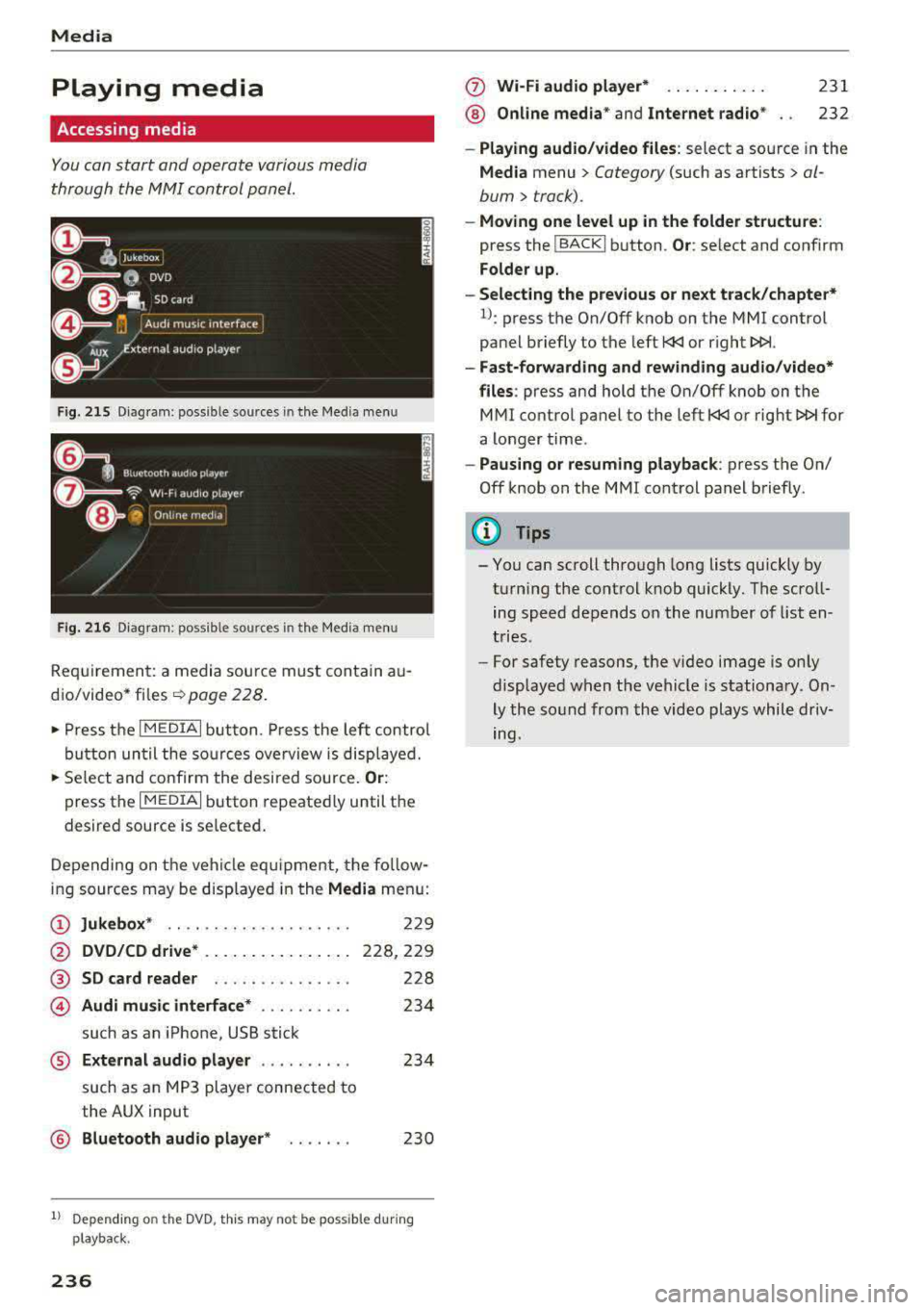
F ig . 215 D ia gr am : p oss ible sources in th e M ed ia m enu
F ig. 216 D iag ra m : possible sources in th e M edi a me nu
Re qu ir emen t: a media sou rce must contain a u
d io/video*
fi les -=> page 228.
• Press t he I M EDIAi bu tton. Press the left co ntro l
b utton until the so urces ove rview is disp layed.
• Se lect and confirm the desi red sou rce. Or :
press th e I M ED IAi b utton repeate dly until the
desired source is selected .
D epending on the ve hicle eq uipme nt, t he fo llow
i ng sources may be disp laye d in the
Media men u:
(D Jukebox * .. .... ........ ..... .
@ DVD/CD drive * .. .. .. .... .. ... .
@ SD card reader ... ..... .. ... . .
© Audi music interface * .. ..... .. .
such as an iPhone, USB stick
229
228,2 29
228
23 4
® External audio player . . . . . . . . . . 234
such as an MP3 player connected to
the AUX input
@ Bluetooth aud io player * . . . . . . . 230
1l Depe ndin g on the DVD , thi s may not be possible du rin g
p laybac k.
236
(f) Wi-Fi audio player* ... .. . .... .
® Online media* and Internet radio *
231
232
-Playing audio /video files : select a source in the
Media menu > Category (such as artists > al
bum
> track).
- Moving one level up in the folder structure :
press the !BACKI b utton . Or: select and confirm
Folder up.
-Selecting the previous or next track/chapter*
1l: press the On/Off knob on the MMI control
pa nel briefly to the left
l
-Fast-forwarding and rewinding audio /video*
files :
press and hold th e On/Off knob on the
M Ml control panel to the left
l
a longer time .
-Pausing or resuming playback : press th e On/
Off knob on the MMI cont rol panel b riefly.
(D Tips
- Yo u can scroll through long lists quickly by
t u rning the control knob quickly. T he scro ll
ing speed depends o n the num ber of list en
t ries.
- For safety reas ons, the video image is only
display ed w hen t he vehicl e is stationa ry . On
ly the so und from the vid eo plays whil e driv
ing.
Page 238 of 403
Media center
Various categories for selecting audio/video*
files are available in the media center .
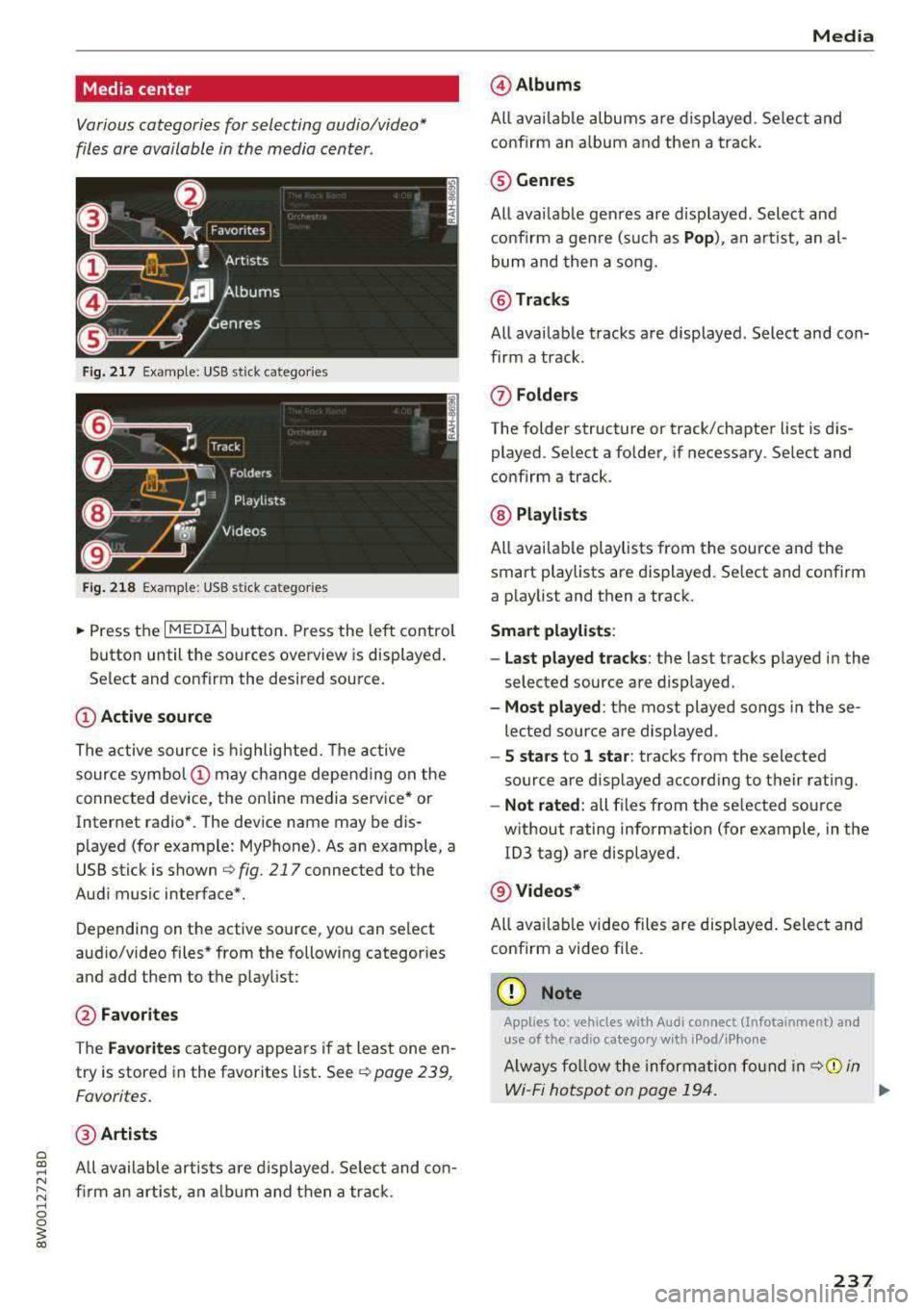
Fig. 217 Example: USB stick catego ries
Fig . 218 Examp le: USB s tick categories
~ Press the I MEDIAi button. Press the left control
button until the sources overview is displayed .
Se lect and confirm the desired source.
(!) Active source
The active source is highlighted. The active
source
symbol @ may change depending on the
connected device, t he online media service* or
Internet radio*. The device name may be dis
p layed (for example: MyPhone) . As an example, a
USB stick is shown
r::;, fig. 217 connected to the
Audi music interface*.
Depend ing on the active source, you can select
aud io/video files* from the following categor ies
and add them to the p laylist :
@Favorites
The Favorites category appears if at least one en
try is stored in the favorites list .
Seer::;, page 239,
Favorites.
@ Artists
All available artists a re displayed . Se lect and con
firm an artist , an album and then a track .
Media
@Albums
All available albums are displayed . Select and
confirm an album and then a track .
® Genres
All availab le genres are displayed . Select and
confirm a genre (such as
Pop), an artist, an al
bum and then a song.
@ Tracks
All available tracks are displayed . Select and con
firm a track.
0 Folders
The folder structure or track/chapter list is dis
played . Select a folder, if necessary . Select and
confirm a track .
® Playlists
All available playlists from the source and the
smart playlists are displayed. Se lect and confirm
a playlist and then a track.
Smart playlists :
- Last played tracks :
the last tracks played in the
selec ted source are displayed .
-Most played : the most played songs in these
lected source are displayed .
-5 stars to 1 star: tracks from the selected
source are displayed according to their rating.
- Not rated: all files from the selected source
without rating information (for example , in the
103 tag) are displayed.
@ Videos*
All ava ilab le video files are displayed . Select and
confirm a video file.
(D Note
Applies to: vehicles with Aud i connect (Infotainment) and
use of the radio category w ith iPod/iPhone
Always follow the information foun d in ¢Ci) in
Wi-Fi hotspot on page 194.
..,_
237