radio AUDI A4 2018 User Guide
[x] Cancel search | Manufacturer: AUDI, Model Year: 2018, Model line: A4, Model: AUDI A4 2018Pages: 403, PDF Size: 66.81 MB
Page 159 of 403
MMI operation
Selecting and confirming a function
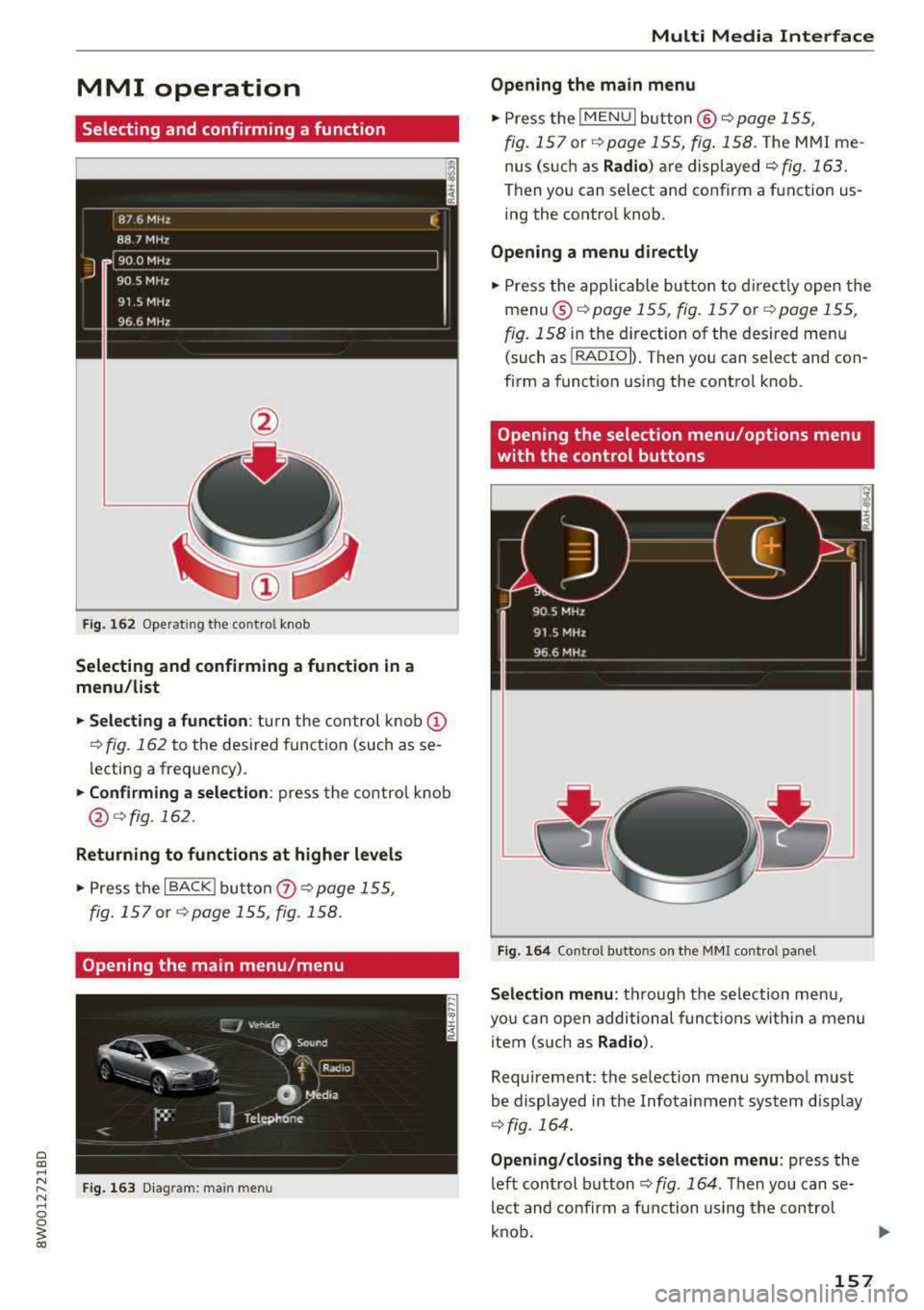
Fig. 16 2 Operat ing t he cont ro l knob
Selecting and confirming a function in a
menu /list
.,. Selecting a function : turn the control k no b(!)
¢ fig. 162 to the desired function (such as se
l ecting a frequ ency) .
.,. Confirming a selection : press the control knob
@ r::!vfig.162 .
Returning to functions at higher levels
.,. Press the I BACK I bu tto n 0 ¢ page 155,
fig . 157
or r::!v page 155, fig. 158 .
Opening the main menu/menu
Fig. 163 D ia gram: main m en u
Multi Media Interface
Opening the main menu
.,. Press the I MEN u I b utt on @ ¢ page 155,
fig . 157
or ¢ page 155, fig . 158 . The MMI me
nus (s uch as
Radio ) are displayed ¢ fig. 163.
Then yo u can sel ect and confirm a f unction us
ing the contro l knob .
Opening a menu directly
.,. Press the applicab le bu tto n t o d irec tly open the
menu ®¢ pag e 155, fig . 157 o r c;> pag e 155 ,
fig . 158
in the direction of the desired me nu
( such as
I RADIO I) . T hen you can s ele ct and con
firm a funct ion using the contro l knob .
Opening the selection menu/options menu
with the control buttons
Fig . 164 Co ntro l b utto ns on t he MM I co ntr ol p an el
Selection menu : thr ough the s election men u,
yo u can open additional funct ions wit hin a menu
item (s uch as
Radio) .
Requireme nt: the se lection menu symbo l must
b e display ed in the Info tainmen t system disp lay
¢ fig . 164.
Opening /closing the selection menu : press the
left cont rol button
¢ fig . 164 . Then you can se
lect and confirm a function us ing the con trol
k nob.
157
Page 160 of 403
Multi Media Interface
Option s menu :
using the opt ions menu, you can
select and conf irm context-dependent functions
as well as sett ings within a menu item (such as
Rad io ).
R eq uiremen t: the options menu symbol B must
be disp layed i n the I nfotainment system display
¢ fig . 164.
Opening /clo sing the option s menu : press the
right control button
~ fig. 164.
Information about paths
This guide sho ws you at a glan ce the paths for
opening a desired menu and its settings and
functions.
Example of a path
• Se lect : IRADIO I button> left cont rol knob> FM.
Following the path
• Press the I RADIO I button .
• Press the left co ntro l button.
• Turn the control knob to the FM menu item to
select it .
• Press the con trol knob to confirm the se lected
FM menu item.
• The selec ted and confirmed f un cti on is execu t
ed. In this example, the FM frequency band is
set .
158
MMI touch
MMI touch control pad
Applies to: vehicles with MMI touch
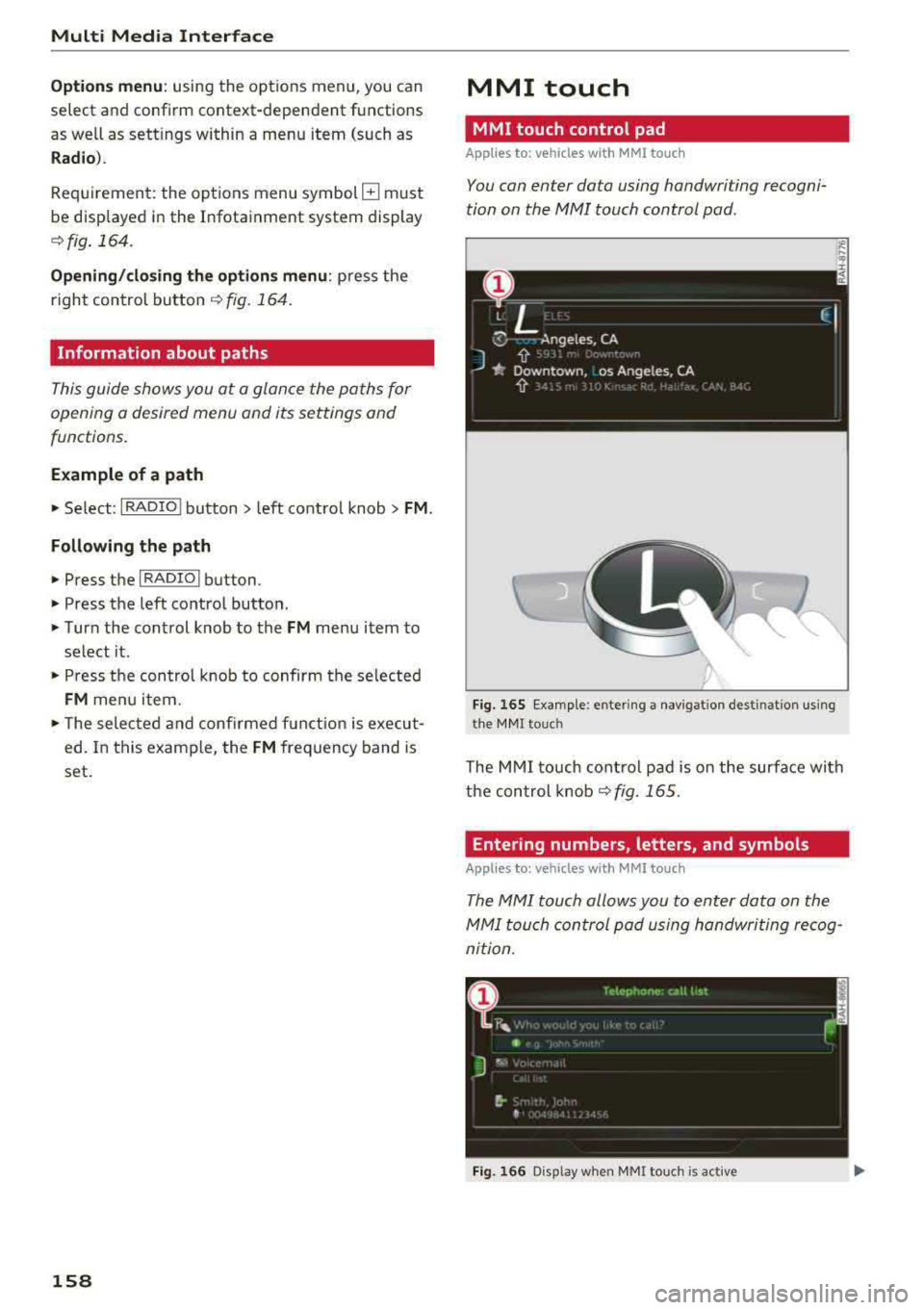
You can enter data using handwriting recogni
tion on the
MMI touch control pad.
Fi g. 16 5 E xamp le : en te ring a navigat ion dest inat ion us ing
t h e MM I touch
The M MI touch cont rol pa d is on the surfa ce with
the con trol knob
¢ fig. 165 .
Entering numbers, letters, and symbols
Applies to: vehicles with MMI touch
The MMI touch allows you to enter data on the
MMI touch control pad u sing handwri ting recog
nition .
Fig. 166 D isp lay whe n MMI to uch is active
Page 164 of 403
Multi Media Interface
Opening /closing the opti on s menu : push the
control knob to the rig ht
r=> fig. 171 to open the
options menu. Then you can se lect and confirm a
function using the control knob.
Press the
! BACK I button (J) r=:> page 155, fig . 157
or r=:> page 155 , fig. 158 to return to the function
one level up .
Shortcut keys
Frequently used radio stations can be stored on
the shortcut keys.
A pp lies to : ve hicles w ith a uto mat ic t ra nsmi ssio ns
T he s ho rtcu t keys a re loc ated on the M MI co ntrol
p a nel @
c> page 155, fig. 15 7.
A pp lies to: ve hicles w ith manu al transmiss ion
The shortcut keys are located on the center con
sole @r=> page 155, fig. 158.
Letter/number speller
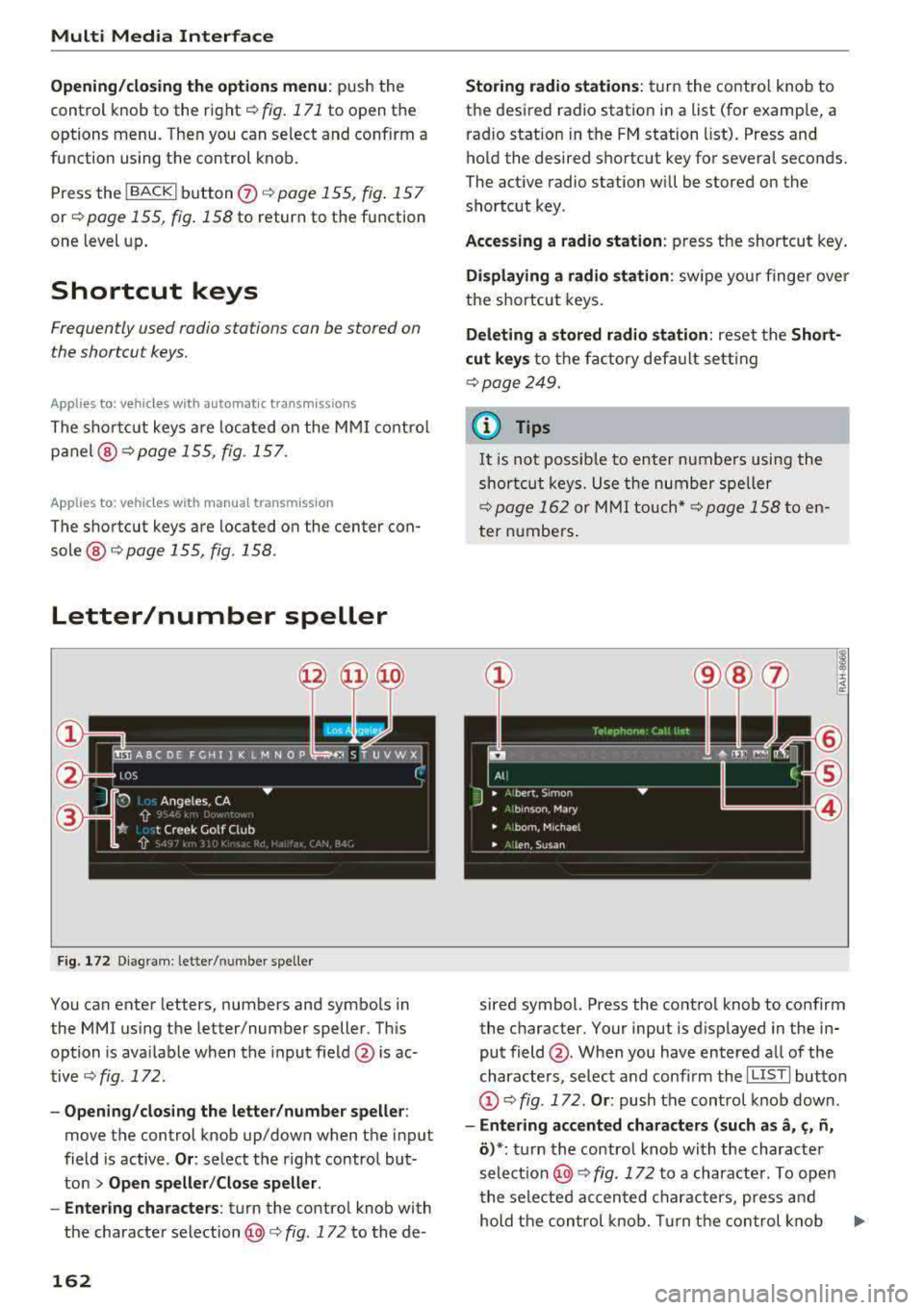
Fig . 172 D ia gram: letter/ numbe r spe ller
You can enter letters, numbers and symbo ls in
the
MMI us ing the letter/number speller. Th is
option is ava ilable when t he input field
@ is ac
tive <=>
fig. 172.
-Opening/clos ing the letter /number speller :
move the control knob up/down when the input
field is active .
Or: select t he right control but·
ton
> Open speller /Close speller .
-Entering characters : turn the control knob with
the character
selection @c> fig. 172 to the de -
162
Storing radio st ation s: turn the contro l knob to
the desired radio station i n a list (for examp le, a
rad io station in the FM station list). Press and
hold the desired shortcut key for several seconds.
The act ive radio station w ill be stored on the
sho rtc ut key .
Accessing a radio station : press the shortcut key .
Displaying a radio station : swipe you r finge r over
the shortcut keys.
Deleting a stored radio station : reset the Short·
cut keys
t o t he fa ctory default se tt ing
r=:> page 249.
{!) Tips
It
is no t possible to enter numbers using the
s h or tcut keys. U se the number spe ller
c>page 162 or MM I touch* c>page 158 to en
ter numbers .
sired symbol. Press the control knob to confirm
the character. Your input is displayed in the in
put field @. When you have entered a ll of the
characters, select and confirm the
I L ISTI butto n
@r=> fig . 172 . Or: push the control knob down .
-Entering accented characters (such as a, ~. ii,
o )*: tu rn the control knob with the characte r
se lec tio n @ c=> fig. 172 to a character. To open
the selected accen ted char acters, press an d
hold the con trol knob. Turn the con trol knob
Ill-
Page 167 of 403
Multi Media Interface
Menus and Symbols
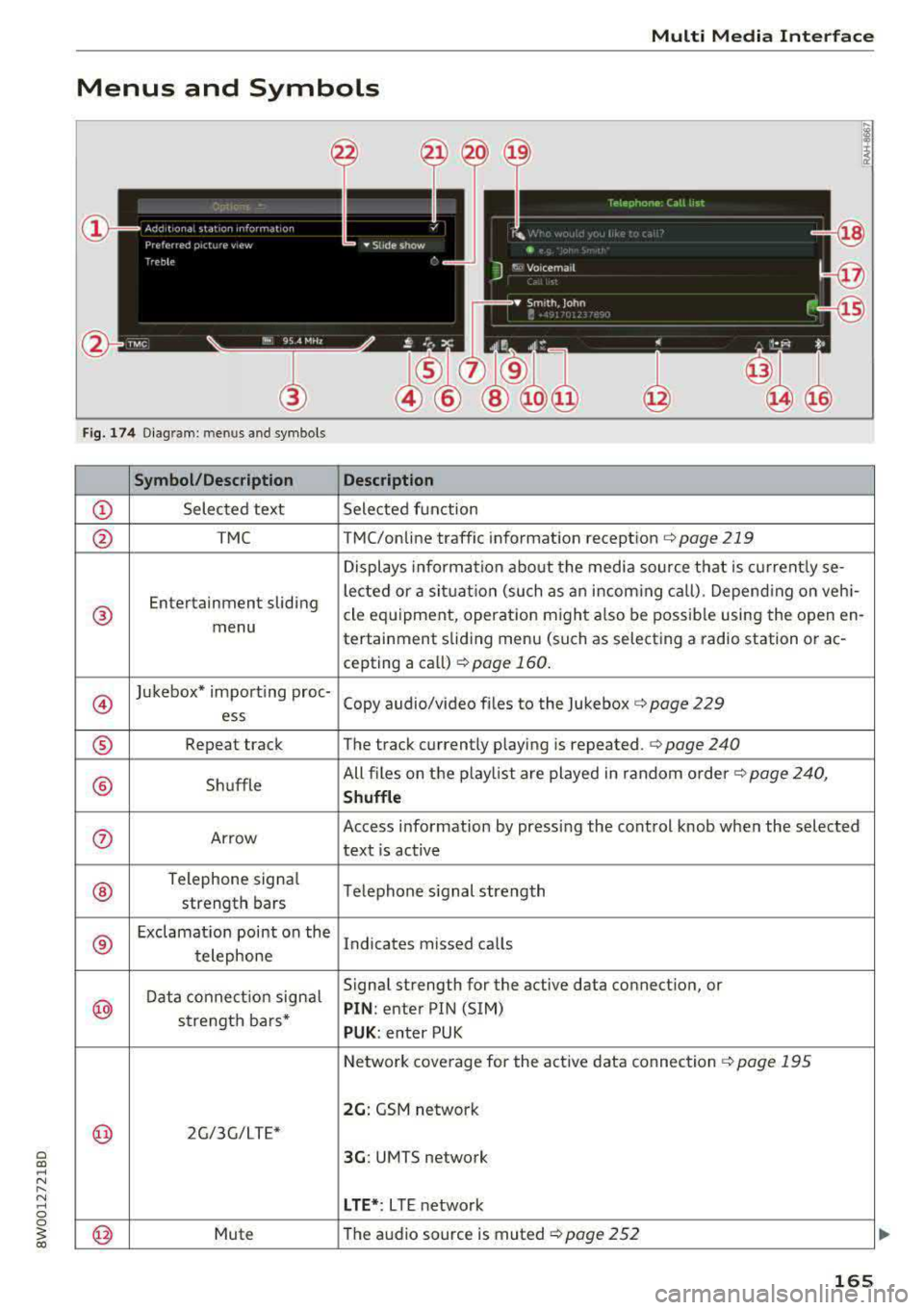
Fig. 174 Diagram: men us and symbols
Symbol/Description
Description
© Selected text Selected function
@ TMC TMC/online traffic information reception c:> page 219
Displays information about the media source that is currently se-
Entertainment sliding lected or
a situat ion (such as an incom ing call) . Depend ing on veh i-
® cle equipment, operat ion might a lso be possible using the open en-
menu tertainment sliding menu (such as selecting a radio station or
ac-
cepting a call) c:>page 160 .
@
Jukebox* import ing proc-
Copy audio/video files to the Jukebox c:> page 229
ess
® Repeat track The track currently playing is repeated . c:> page 240
® Shuffle All files
on the playlist are played in random order
c:> page 240,
Shuffle
®
Telephone signa l
Telephone s ignal strength
strength bars
®
Exclamation point on the
Indicates missed calls
telephone
Data connection signal Signal strength
for the active data connect ion, or
@ PIN : enter PIN (SIM)
strength bars*
PUK: enter PUK
Network coverage for the active data connection
c:> page 195
2G: GSM network
@ 2G/3G/LTE*
3G: UMTS network
LTE*: L TE network
@ Mute The
audio source is muted c:> page 252
165
Page 169 of 403
0
"' .-< N r-N .-< 0
~ CX)
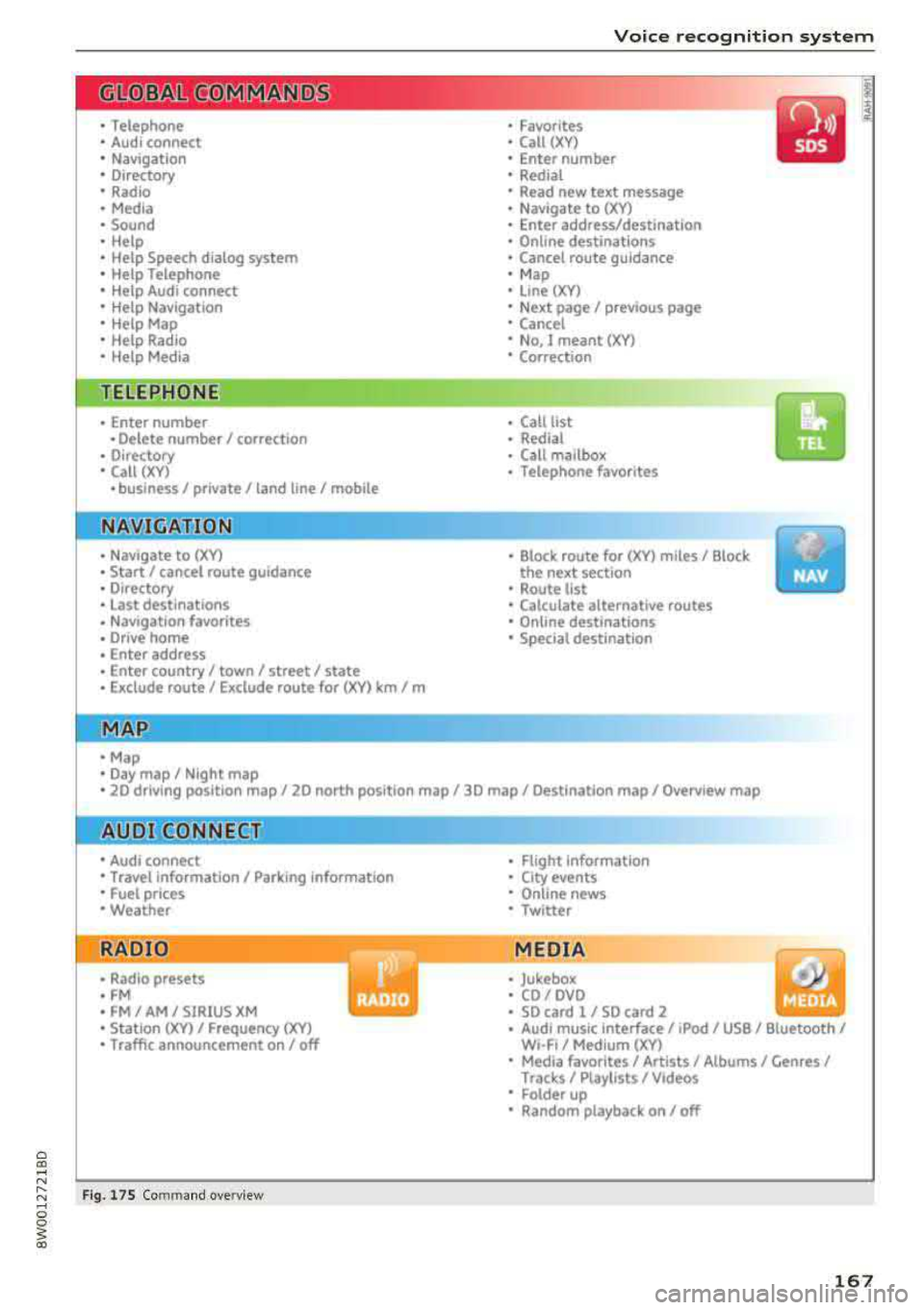
Voice recognition system
• Telephone
• Audi connect •
Favorites
• Call (XY)
• Navigation
• Directory
• Radio
• Media
• Sound •
Enter number
• Redial
• Read new tex t message
• N avigate to (XV)
• Enter address/destination
• Help • Onhne destinations
• Help Speech dia log system
• Help Telephone •
Cancel route guidance
• M ap
• Help Audi connect •
Line (XY)
• Help Naviga tion
• Help Map
• Help Radio
• Help Media •
Next page/ previous page
• Cancel
• N o, l meant
()(Y)
• Correction
TELEPHONE
• Enter number • Call list
• Delete number/ correc tion
• Redial
•
Oltectory
• Call (XY) •
Call mailbox
• Telephone favorites
· business/ private/ land line/ mobile
NAVIG:ATI0N
• N avigate to CXV)
• Start/ cancel route guidance
• Directory
• Last destinations •
Bloc k route for
(XYJ miles/ Block
the next section
• Route list
• Calculate alternative routes
• Navigation favorites
• Drive home
• Enter address •
Online destinations
• Special destination
• Enter country/ town/ street/ state
• Exclude route / Exclude route for (XY)
km / m
M~P
• M ap
• Day map/ Night map
• 20 driving position map/ 20 north posi tion map/ 30 map/ Destination map/ Overview map
AllJDI G QNNECT
• Audi connect
• Travel Information/ Parking Information
• Fuel prices
• Weather
RADIO
• Radio presets
• FM
• FM/ AM/ SIRIUS XM
• Station (XY) / Frequency
(XYJ
• T raffic announcement on/ off
Fig . 17 S Co mmand overv ie w
• Flight Information
• City events
• Online news
• Twitter
MEDIA
• Jukebo x
• CO/ DVD .))
• SD card 1 / SD card 2
• Audi music Interface/
IPod I use / Bluetooth /
WI-Fl/ Medium ( XV)
• Media favorites/ Artists/ Albums/ Genres/
Trac ks/ Ptaylls ts / Videos
· Folder up
• Random playback on / off
167
Page 170 of 403
Voice recognition system
Voice recognition system Operating
Applies to: vehicles with vo ice recognition system
You con operate many Infotainment functions
conveniently by speaking.
Req uirements: the ignition and the MM I must be
sw itched
on~ page 155 , there must not be any
phone call in progress and the parking system
m ust not be active .
.. Switching on: press the~ button @
¢
page 15, fig. 11 or ¢ page 16, fig . 13 briefly
on the multifunction steering wheel and say
the des ired command after the
Beep .
.. Switching off : press and hold the~ button.
Or: press the l2l button.
.,. Pause : say the command Pause . To resume,
press
the~ button .
.,. Correcting : say the command Correction . Or :
simp ly say a new comma nd during an an
no uncement ¢
page 248.
Input assistance
The system gu ides you throug h the input with
visual and audio feedbac k.
- Visual input as sistance : after switching on
vo ice recognit ion, a display with a selection of
poss ible commands appears . This command
display can be sw itched on o r off. Se lect:
IMENU I button> Set tings > left co ntrol button
> MMI setting s> Speech di alog system .
- Audio input a ssistanc e:
to have the poss ible
commands read, turn t he voice recogn ition sys
tem on and say
Help.
For the system to understand you:
Speak clearly and dist inctly at a normal volume .
Speak louder when d riving faster .
Emphasize the words in the commands even ly
and do not leave long pauses .
Close the doors, the windows and the sunroof* to reduce background noise . Make sure that passen
gers are not speaking when you are giving a voice
command .
168
Do not direct the air vents toward the hands -free
microp hone, which is on the roof headliner near
the front interior lights .
Only use the system from the dr iver's seat be
ca use the hands -free microphone is directed to
ward that seat .
Additional settings
See¢ page 248, Speech dialog system .
.8, WARNING
-Dire ct yo ur full attention to dr iv ing . As the
driver, you have complete responsibility fo r
safety in traffic. Only use the functions in
such a way that yo u always maintain com
plete contro l over your vehicle in a ll traffic
situations .
- Do not use the voice recognition system in
emergencies beca use your voice may change
in stressful s ituations. It may take longer to
dia l the number or the system may not be
ab le to dial it at all. Dial the emergency
number manually.
(D Tips
- The d ialog pauses when there is an incom
ing phone call and will continue if you ig
nore the call. The dia log ends if you answer
the ca ll.
- You can select an item in the list us ing ei
ther the vo ice recognit ion system or the
cont rol knob.
Command overview
information
Applies to: vehicles with voice recognition system
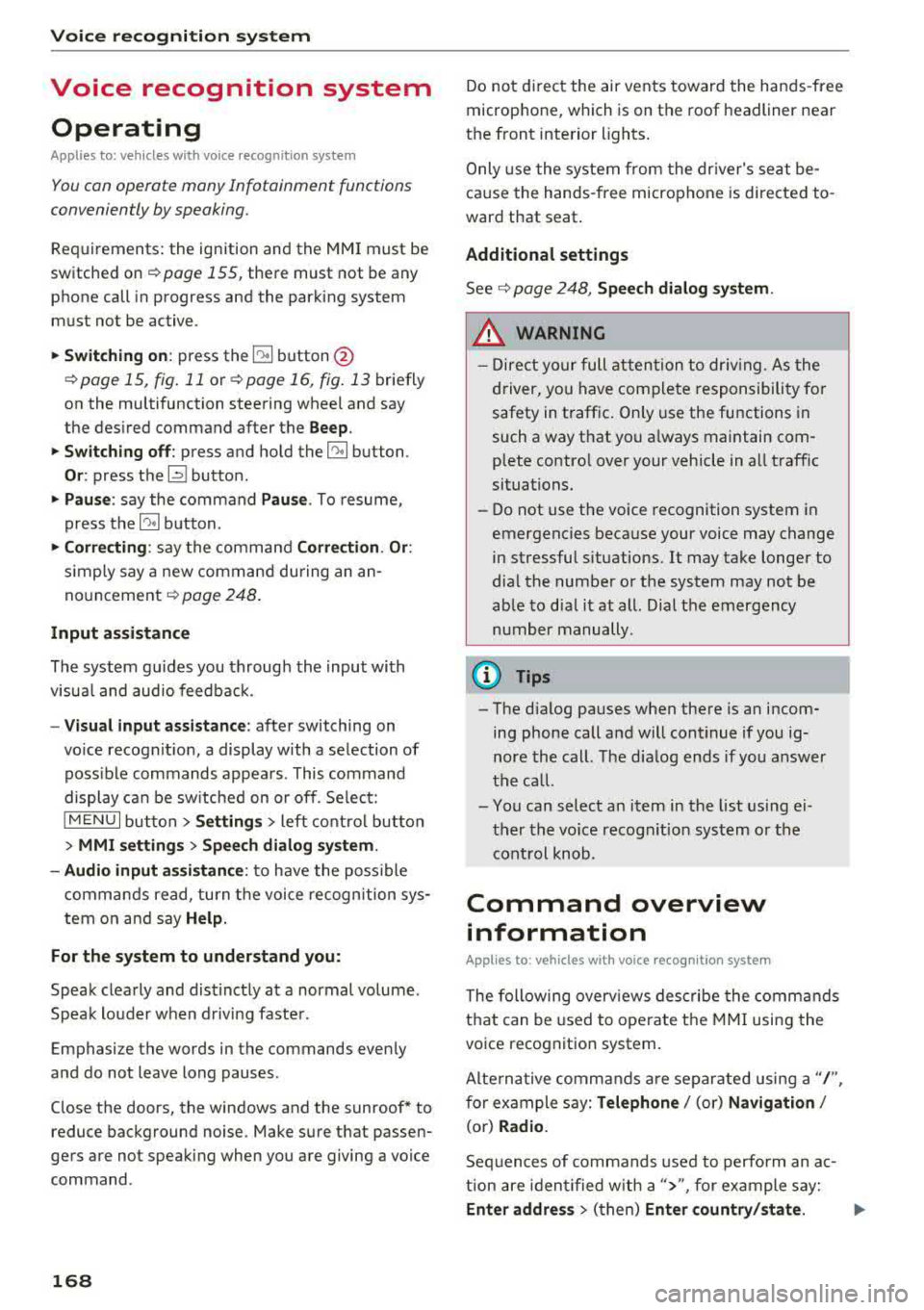
The following overv iews des cribe the commands
that can be used to operate the MMI using the
voice recognition system.
Alte rnative commands are separated using a"/ ",
for example say:
Telephone / (or) Navigation /
(or) Radio.
Sequences of commands used to perform an a c
tion are identified w ith a
"> ", fo r example say:
Enter addre ss> (t hen) Enter country /state . ..,.
Page 171 of 403
a co .... N ,....
N .... 0 0
3 co
Voice recognition system
The majority shown are main commands. This
system also recognizes synonyms in certain cas-es
. For a bu siness add re ss, yo u can also say busi
ness , work , office or at the office .
Commands
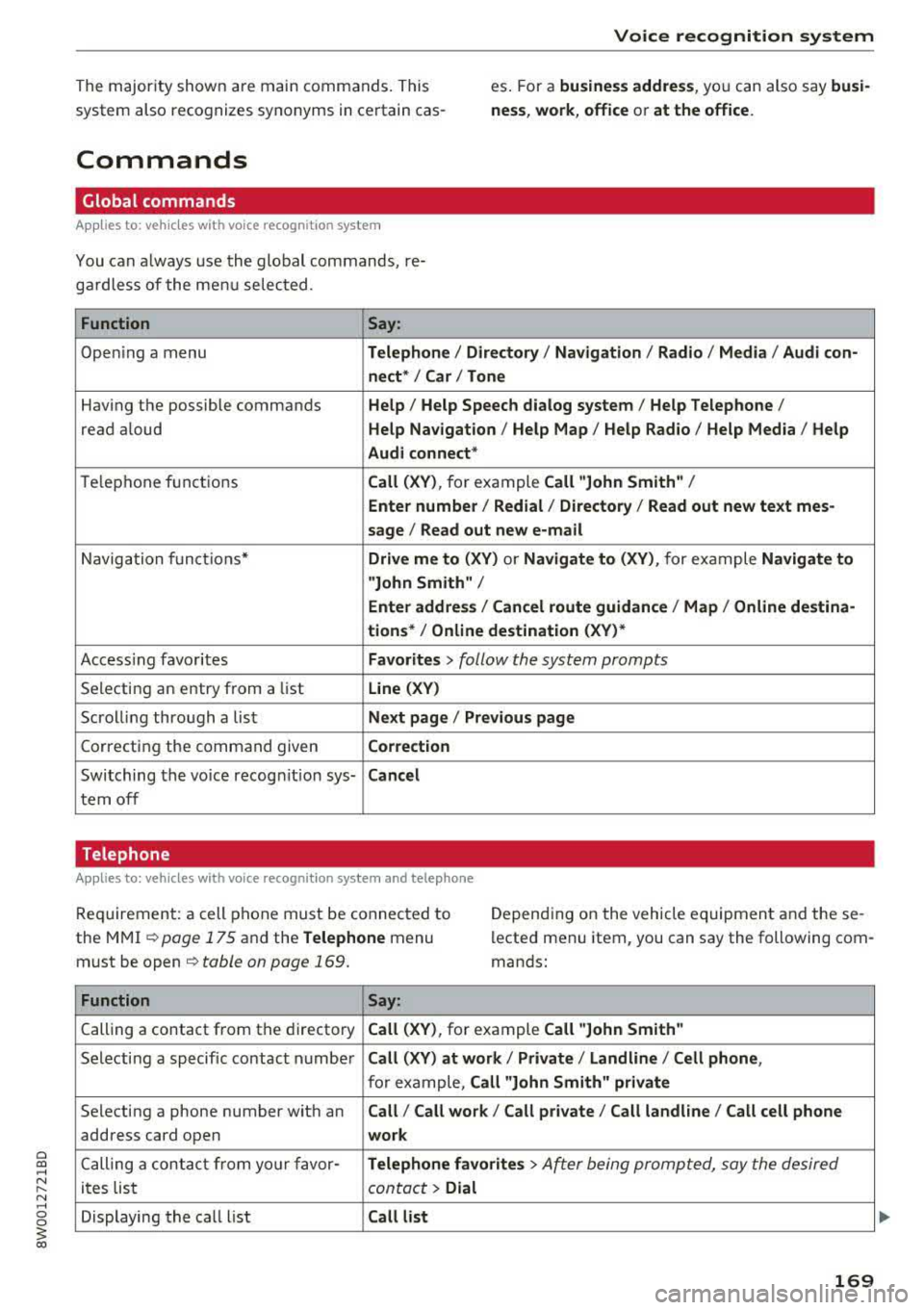
Global commands
Applies to: vehicles with voice recognition system
You can a lways use the global commands, re
ga rdless of the me nu selected.
Function Say:
Open ing a menu Tel ephon e/ Directory / Navigation / Radio / Medi a/ Audi con -
n ec t*
I Car I Tone
Hav ing the possible commands Help / Help Speech dialog system I Help Telepho ne /
read aloud Help Na vigat ion / Help Map / Help Radio / Help Med ia / He lp
Aud i connect *
Telephone fu nctions Call (XV ), for example Call "John Smith" /
Enter numbe r/ Redial / Di rectory / Read out new te xt me s-
s age
I Read out new e -mail
Navigation funct ions* Drive me to (XV ) or Navigate to (XV ), for example Navigate to
"John Smith" /
Enter addre ss/ Cancel r oute guidance / Map / Online de stin a-
tion s*
I Online destinat ion (X V)*
Access ing favorites Favorites > follow the system prompts
Selecting an entry from a list Line (XV)
Scrolling through a list N ex t page / Pre viou s page
Correcting the command given Correction
Switching the vo ice recogn it io n sys-Canc el
tern off
Telephone
Applies to: veh icles with vo ice recognition system and telephone
Req uirement: a cell phone must be connected to
the MMI ¢
page 175 and the Telephone menu
must be open ¢
table on page 169.
Depending on the vehicle equipment and these
l ected menu item, you can say the following com
mands:
Function Say:
Calling a contact from the directory Call (X V ), for example Call "John Smith "
Selecting a specific contact number Call (XV) at work / Private / Landline /Cellphone ,
for example, Call "John Smith" p riv at e
Selecting a phone number with an Call/ Call wo rk / Call private / Call land l ine / Call cell phone
address card open wo rk
C alling a contact from yo ur favor -Teleph one fav orite s > After being prompted, say the desired
ites list contact > Dial
Displaying the call list Call list
169
Page 175 of 403
a co .... N ,....
N .... 0 0
3 co
Voice recognition system
Radio
Applies to: vehicles with voice recognition system
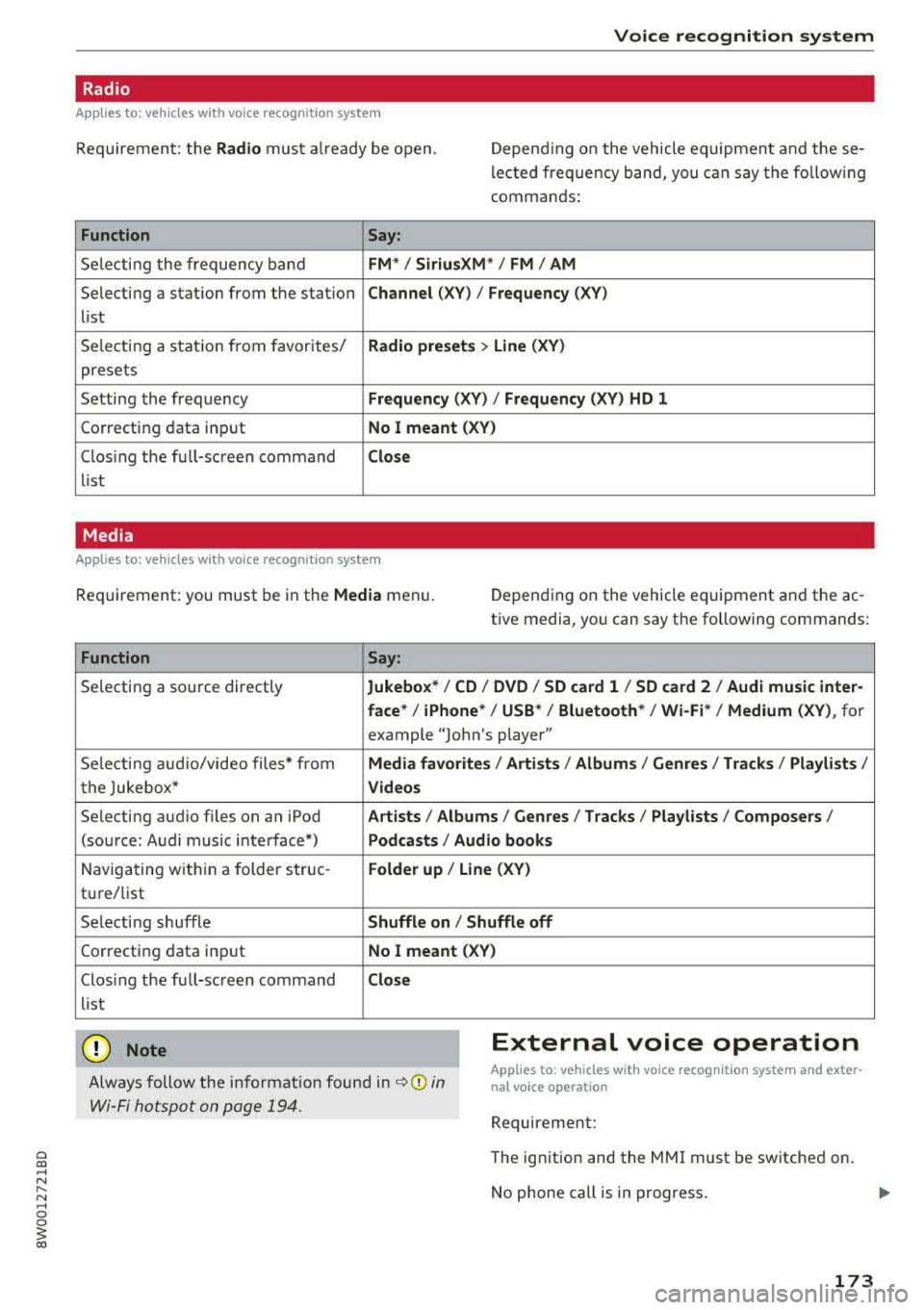
Req uirement: the Radio must a lready be open. Depend ing on the vehicle equipmen t and these
lected frequency band, you can say the fo llow ing
commands :
Function
Say:
Selecting the frequency band FM*/ Siriu sXM * / FM / AM
Selecting a station from the station Channe l (XY) / Frequency (XV)
list
Selecting a stat ion from favorites/
Rad io prese ts > Line (XV )
presets
Setting the frequency
Frequency (XV) I Frequency (XV ) HD 1
Correcting data input No I mea nt ( XV)
Clos ing the full-sc reen command Clo se
list
Media
Applies to: vehicles with voice recognitio n system
Req uirement: you must be in the Media menu. Depending on the vehicle equipment and the ac
t ive media, yo u can say the following commands:
Function
Say:
Selecting a so urce directly Jukebox */ CO / DVD / SO card l / SO card 2 / Aud i music inte r-
face *
I iPhone* /USS */ Bluetooth* / Wi-Fi * / Medium (X V ), for
example "Jolhn's player"
Selecting aud io/video files* from
Media fav orites / Arti sts/ Album s/ Genr es / Track s/ Playli st s /
the Jukebox* V id eos
Selecting aud io files on an iPod Art ists I Albums / Genre s I Tracks / Pla ylists /Composer s/
(source: Audi music interface*) Podcast s / Audio books
Navigating w ith in a folder struc-Fo lde r up / Line (XV )
tu re/list
Selecting shuffle
Shuffle on / Shuffle off
Correcting data input No I meant (XV)
Clos ing the full-screen command Clos e
list
(D Note External voice operation
Always follow the i nformat io n found in ~0 in
Wi-Fi hotspot on page 194.
Applies to: vehicles with voice recognition system and exter
nal voice operation
Requirement:
The ignition and the MMI must be switched on.
No phone call is in progress.
173
Page 182 of 403
Telephone
-You can o btai n mo re information from your
ce ll phone service prov ider or from your cell
phone user guide .
- W hen leaving the vehicle, the Bl uetooth
connection to the ce ll phone wi ll automat i
cally disconnect. Depending on your cell phone, phone ca lls in progress may be a uto
matically redirected from t he MMI to your
cell phone and yo u can cont inue the call on
your phone.
- The display of a n in coming phone call in the
Infotainment system d is pl ay may still be
v is ib le for a few seconds after a call is an
swered/ ig nored depe nding on the cell
p hone in use .
Making an emergency call
Applies to: vehicles with telephone
~ Se lect: I M ENU I but ton > Telephone > left con
trol button >
Enter number > Enter emer gency
ca ll number (for examp le, 911) >
OK.
A WARNING
- Beca use your phone wo rks with radio s ig
nals, a connection cannot be guaranteed un
der all ci rc u ms tances. Do not rely on only
yo ur phone when it comes to essent ial com
mun ication (s uch as a medica l emer ge ncy).
-Always follow the ins truct ions gi ven by the
em ergency perso nnel during an eme rgency
c a ll and only e nd th e call whe n they inst ruct
y ou to d o so .
{1) Tips
Eme rg en cy numbers are not the same eve ry
wher e. Fin d ou t which eme rgency number is
used in yo ur cur rent lo ca ti on.
Favorites
Applies to: vehicles with telephone
Up to 5 0 contacts, in addition to the voicemail
num ber, can be stored in any order in the favor
ites lis t.
~ Select: I M ENU I button> Telephone > lef t con
tro l but ton.
180
Storing an existing phone number as a
favorite:
- Select and confirm Call list /Directory.
- Sele ct a contac t or phone n umbe r from the list.
- Select: r ig ht con trol button>
Store as favorite .
-Enter a name for the favor ite or select a s ug-
gestion.
- Select and confirm
Store .
Renaming stored favorites
- Select: Favorites > a favorite from the list.
-Select the right contro l button > Rename fa-
vorite .
Moving stored favorites
- Sele ct: Favorites > a favorite from the lis t.
- Sele ct the rig ht cont ro l bu tton > Move favorite .
-Select and confirm t he location of the se lected
favor ite.
Deleting a stored favorite
- Select: Favorites > a favorite from the list.
-Select the right contro l button > Delete f avor-
ite
> Delete this favor ite or Delete all fa vor
i tes .
Messages
Text messages
Applies to: cell phones with Bluetooth Message Access Profile
(MAP)
Depending on the cell phone being used and the
cell phone network contract, you can receive and
send text messages using the MMI .
Requirement
A cell phone must be connected to t he MM I via
B luetoot h MAP ( Message Access Profi le)
¢ page 175.
~ Select: !ME NUI button> Telephone > le ft con
trol button >
Text message (MyPhone )/Text
message (secondary phone)* .
Write new text message
Se lec t and confi rm Write new text message .
- Using a template :
select and confirm the de
sired template from the list .
Page 195 of 403
a co .... N ,....
N .... 0 0
3 co
The follow ing Audi connect In fota inment services
are current ly available:
- Naviga tion wi th
online map view an d Street
View ¢ page 216.
-Point of Interest (POI) online search with
voi ce re cognition
(such as res taur ants): plan
rou te g uidance using t he M MI con trol panel
¢ page 208 and the voice recognition system
¢ page 168 .
-Set up des tina tions i n your M MI using yo ur
myAudi account or online map view
¢page 216 .
-Online traffic information : receive up-to -the
minute traffic info rmation about accidents,
road constr uction and other incidents
¢ page 220.
- Map update : import navigation map updates
directly to yo ur vehicle using an SD ca rd or as
an on line
update ¢ page 218.
(D Tips
-Fo r the map update A udi connect Infotain
ment service via SD card, check the current
software vers ion in your vehicle and t hen
check
www .audiusa.com/myaudi to see if a
newe r version is ava ilable. You can a lso have
t h e new navigation da ta insta lled by an Audi
dealer , w hich can be done for an add itio nal
c ha rge.
- Y ou can also find addi tiona l info rmation
abo ut the
map update onl ine a t
www.audiusa .com/myaudi .
Audi connect (Infotainment) on the phone
Applies to vehicles with Audi connect (Infotainment)
~ Se lect : I MENU I button > Audi connect > left
contro l button >
Communication .
The follow ing A udi con nect In fot ainm ent service s
a re cu rrent ly availab le:
- Stor ing contacts on yo ur computer using yo ur
myAudi Account and load ing the con ta cts in to
t h e M MI
direct ory ¢ page 185.
Audi connect (Infotainment)
Audi connect (Infotainment) in Media
menu
Applies to vehicles with Audi connect {Infota inment}
~ Sele ct : iME NUI button> Audi connect > right
control button >
Entertainment.
- Online media and Internet radio :
offers acce ss
t o d ifferent online media se rvices as well as I n
ternet radio an d ope ration th ro u gh the MMI us
ing the
Audi MMI connect app ¢ page 232.
Applies to: vehicles with Wi·Fi audio player
- Wi-Fi audio player : you can access the med ia
cen ter through a Wi-Fi connec ted med ia p layer
(su ch as a smartp hone)
¢ page 231.
_&. WARNING
It is only safe to use table ts, l aptops , m obile
d evi ces and other simila r devices whe n the ve
hicl e is stationary beca use, like a ll loose ob
j ects, they could be thrown aroun d the inside
of the vehicle in a crash an d cause serious in
jur ies. Store these types of devices sec urely
while driv ing .
(D Note
Always fo llow the information fo und in ¢ 0 in
Wi-Fi hotspot on page 194 .
(D Tips
-Also see the cha pter ¢ page 195, Audi con
nect (Infotainment) general information .
- For more in forma tion on the Wi -Fi a ud io
p layer a nd sup ported devices, contact an
authorized A udi dealer or authorized Audi
Service Facility.
Additional options
Applies to vehicles with Audi connect (Infotainment}
~ Select: ! M EN UI button> Audi connect > right
cont rol button .
The following options a re available in the Aud i
connect Infota inment serv ices overv iew :
Log in*
See ¢ page 188, Logging into myAudi in the vehi -
de. ~
193