Scr AUDI A4 2018 Service Manual
[x] Cancel search | Manufacturer: AUDI, Model Year: 2018, Model line: A4, Model: AUDI A4 2018Pages: 403, PDF Size: 66.81 MB
Page 186 of 403
Telephone
-The contact display in the MMI depends on
the cell phone used. For more information
on supported cell phones, visit
www.audiusa.com/bluetooth or contact an
authorized Audi dealer or authorized Audi
Service Facility.
- Please note that only the directory from the
primary phone* is always displayed.
- The contacts from the cell phone may not be transferred in alphabetical order. If there
are too many entries, contacts with differ
ent first letters may be missing in the MMI.
- The contacts in the local MMI memory are
always visible and can be accessed by other
users.
Free text search for a contact
Applies to: vehicles with telephone
.. Select: I MENU I button> Telephone> left con
trol button >
Directory .
.. To limit the search, enter the initials of the con
tact being searched with each initial separated
by a space in the input field. Enter additional
letters if necessary.
.. Select and confirm a contact from the directo
ry. The phone numbers for the selected contact
are displayed.
.. To make the call, select and confirm a phone
number .
- You can scroll through long lists quickly by
turning the control knob quickly. The scroll
ing speed depends on the number of list en
tries.
-Additional information on free text searches
can be found under
<:}page 164.
184
· Showing contact details*
Applies to: vehicles with telephone
You con show contact details depending on the
vehicle equipment.
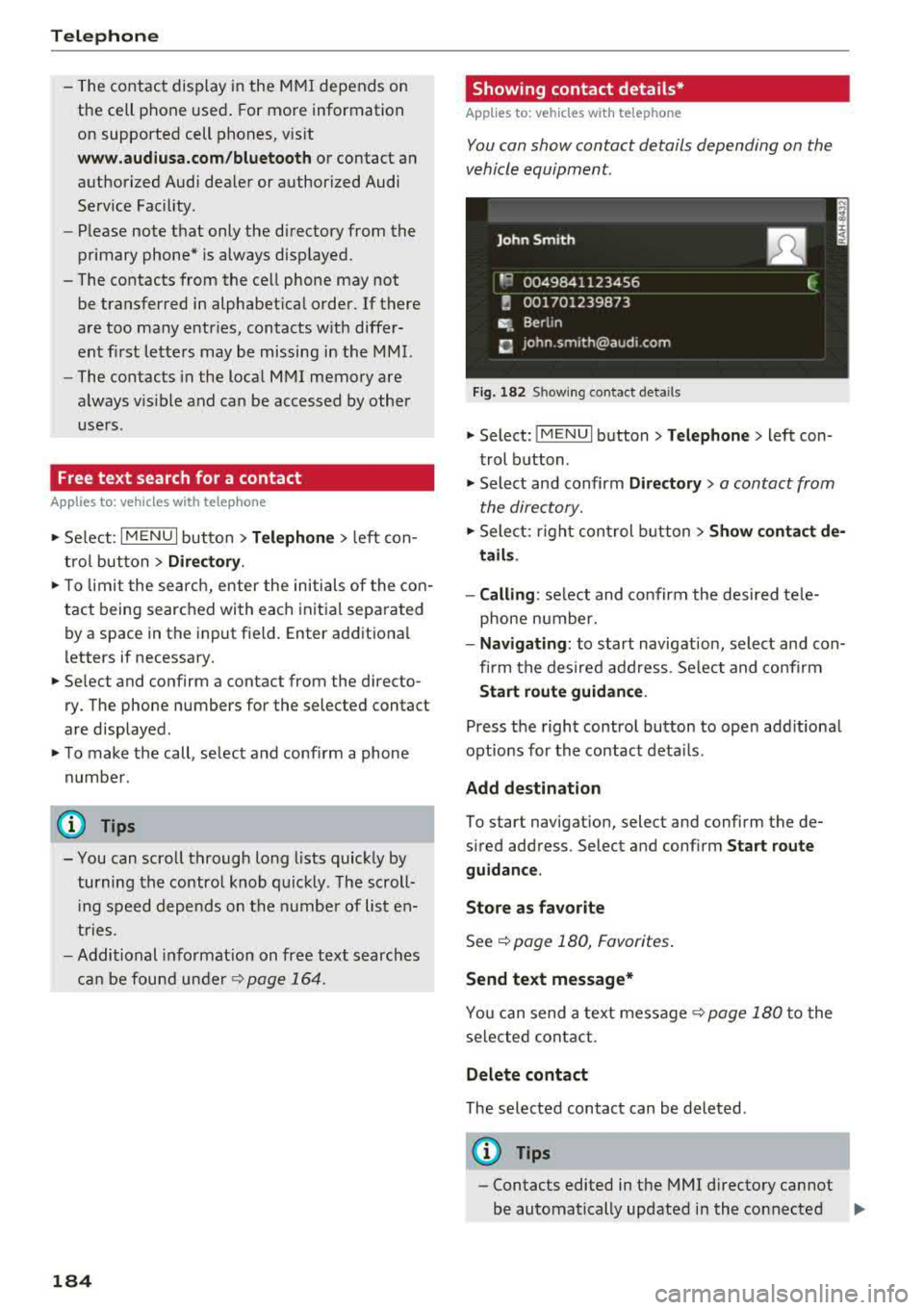
Fig. 182 S h owing contact deta ils
.. Select: !MENUI button> Telephone> left con
trol button .
.. Select and confirm Directory> a contact from
the directory .
.. Select: right control button> Show contact de
tails.
- Calling :
select and confirm the desired tele
phone number.
- Navigating: to start navigation, select and con
firm the desired address . Select and confirm
Start route guidance.
Press the right control button to open additional
options for the contact details .
Add destination
To start navigation, select and confirm the de
sired address. Select and confirm
Start route
guidance.
Store as favorite
See c::> page 180, Favorites.
Send text message*
You can send a text message c::> page 180 to the
selected contact .
Delete contact
The selected contact can be deleted .
(D Tips
-Contacts edited in the MMI directory cannot
be automatically updated in the connected
.,,.
Page 190 of 403
Audi connect (Infotainm ent )
Audi connect
(Infotainment)
Introduction
Applies to vehicles with Audi connect (Infotainment)
With Audi connect Infotainment services, on line
information is transmitted directly to the vehicle
and then integrated .
A WARNING
To reduce the risk of an accident, only use
Audi connect Infotainment services when
road and traffic cond itions permit. A lways
read and fo llow the notes in
9page 155,
Traffic safety information.
Setup
Requirements for Audi connect
(Infotainment)
Applies to vehicles with Audi connect (Infota inment)
The data connection fo r Audi connect Infota in
ment services is made thro ugh an embedded SIM
card (eS IM card) that is equipped in the veh icle.
The fo llow ing requ irements must be met to use
the embedded SI M card:
- You have already registered at
www .audiu sa.com /my audi and ass igned ave
hicle.
- You have also already logged in to your myAudi
account under
Audi conn ect plan for the em
bedded SIM ca rd and accepted the terms of use
given there. For add it iona l info rmation, co ntact
an a uth orized Aud i de aler or a uthorized Audi
Service Facility .
Then you r Audi co nnect Infota inment services are
activated and can be used in your veh icle.
(D Tips
- After the free subscription has ended or the
data volume has been used up, data pac kets
ca n be purchased for the use of Audi con
nect Infot ainment serv ices. Yo u can find a d
dit ional info rmation about fees and pur
chasing at
www .audiusa .com /myaudi.
188
-Read this chapter before operating
~ page 195, Audi connect (Infotainment)
general information.
Configuration through myAudi
Audi connect (Infotainment) configuration
Applies to vehicles with Aud i connect (Infotainment)
Some Audi connect Infotainment services must
be configured through your personal myAudi ac
count before using them for the first time.
-If you do not have a persona l myAud i acco unt
yet, you can register online at
www.audiusa.com /m yaudi .
-Add your vehicle to your my Audi account.
- Activate/configure the A ud i connect (Infotain -
ment) services you would like for your veh icle in
your myAudi account.
-For some Audi connect Infotainment services,
you may also have to enter your myAudi user
data or your myAudi PIN when accessing serv
ices in the MMI to connect your vehicle to
myAudi.
For detailed information on configuration, visit
www.audiu sa.com /m yaudi .
Logging into myAudi in the vehicle
Applies to vehicles with Audi connect (Infotainment)
To use some Audi connect Infotainment services
(such as Twitter*), you must first connect your
vehicle to myAudi to transfer your personal set
tings from your myAudi account.
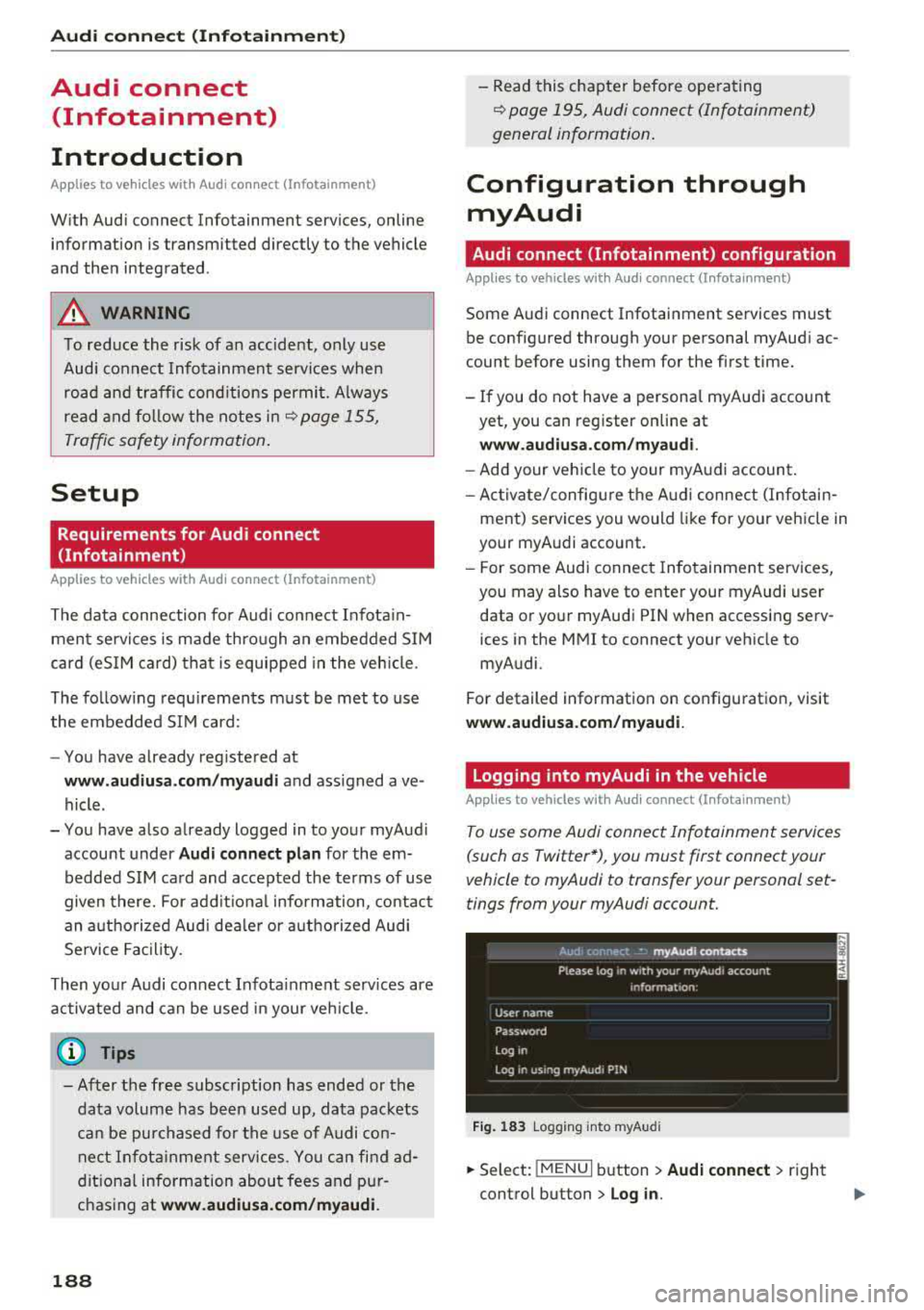
Fig . 1 83 Logging into myA udi
... Select: !MENUI b utton> Audi conne ct > right
control button >
Log in.
Page 191 of 403
.. Enter your myAudi user data. Or : enter your
eight-digit myAudi PIN .
.. Confirm your entry with OK.
Then yo u can open your persona l sett ings from
your my Audi account in your vehicle .
(D Tips
You can receive your my Audi P IN if you have
set up a myA udi account. For addi tional in for
mat io n, see
www.audiu sa.com /myaudi.
Opening Audi connect
(Infotainment)
Applies to vehicles with Audi connect (Infotainment)
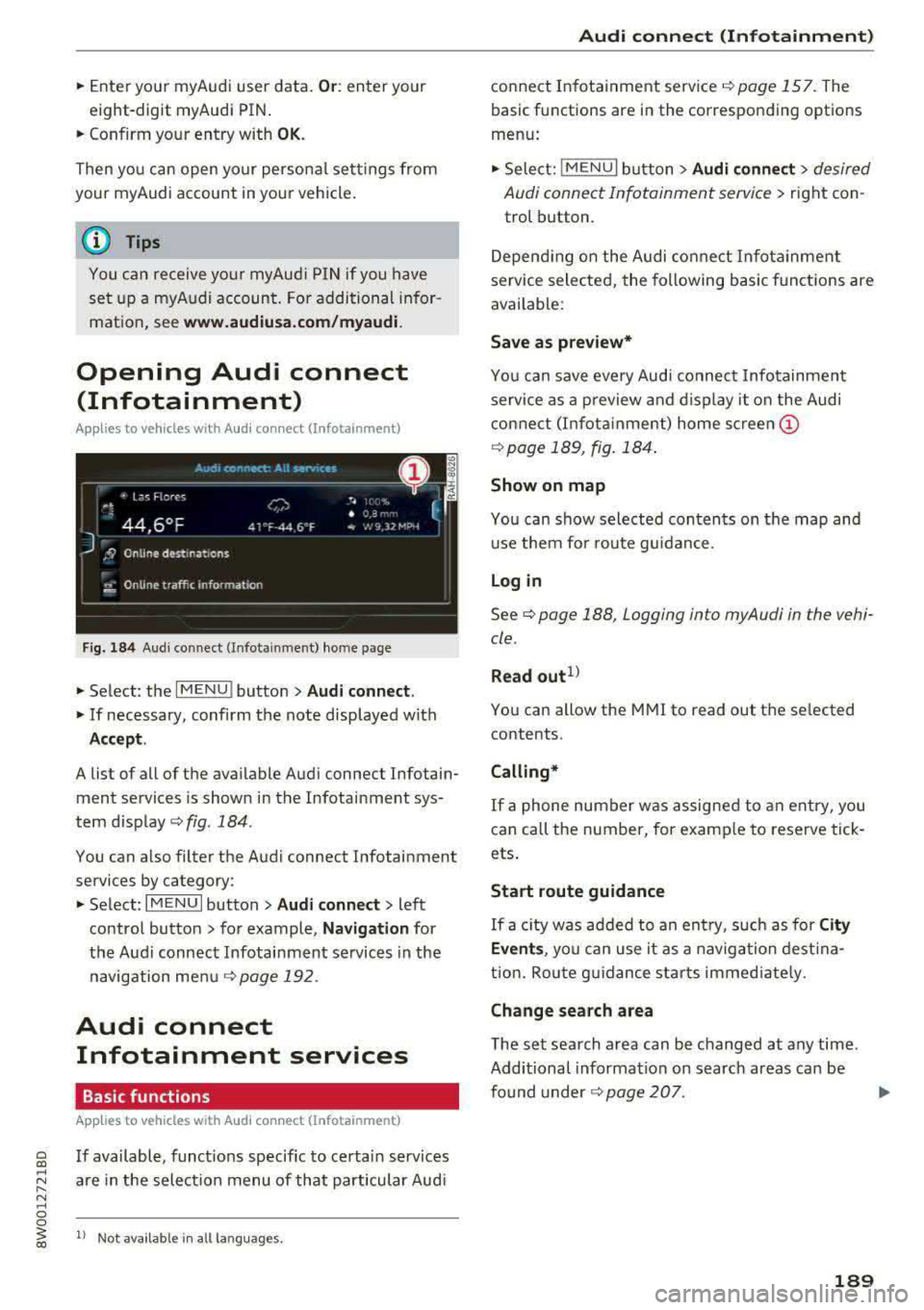
F ig. 184 Aud i co nn ect (Infot ainmen t) home page
.. Select : the I MENU ! button> Audi connect .
.. If necessary, confirm the note displayed with
Accept .
A list of all of the ava ilable Audi connect Infotain
ment services is shown in the Infotainment sys
tem disp lay
c::;, fig. 184 .
You can a lso filter the Audi connect Infotainment
services by category:
.. Select : I MENU I button > Audi connect > left
contro l button> for example,
Na vig ation for
the Audi connect Infotainment services in the
navigation me nu
r::!) page 192.
Audi connect
Infotainment services
Basic functions
App lies to vehicles with Audi connect (Infotainment)
~ If available, funct ions specific to certa in services
~ "' are in the selection menu of that particular Aud i ...... N ~ 0 0
~ 1> Not availab le in all la n guag es.
Audi conne ct (Inf otainment )
connect Infotainment service r=!)page 157. The
basic functions are in the corresponding options
menu:
.. Sele ct: !MENU I button> Audi con nect > desired
Audi connect Infotainment service>
right con
trol button .
Depend ing on the Audi co nnect Infota inment
se rvice sele cted, the following basic f unct ions are
available :
Save as prev iew*
Yo u can save every Audi connec t Infotainmen t
se rvice as a preview a nd d isplay it on the Audi
connect (I nfota inme nt) home
scr een @
r=!)page 189, fig . 184 .
Show on map
You can show selected contents on the map and use them fo r route g uidance.
Login
See c::;, page 188 , Logging in to myAudi in the vehi
cle .
Read out1l
You can allow the MMI to read out t he se lected
contents .
Calling*
If a phone number was assigned to an entry , you
can call the number, for examp le to reserve tick
ets.
Start route guidance
If a c ity was added to an ent ry, such as for City
Event s,
you can use it as a nav igation dest ina
t io n. Rou te g uidance sta rts immed iate ly .
Change search area
The set search area can be changed at any time .
Additional information on search areas can be
fo und
under ¢ page 207 .
189
Page 192 of 403
Audi connect (Infotainment)
Closing Audi connect Infotainment services
Regardless of the fu nction se lected, you c an
close an Aud i connect Infotainmen t se rvice at any
time and ret urn to the home screen¢
page 189,
fig. 184 .
Parking information
App lies to veh icles with Aud i co nn ect (Infotainment)
Information on parking locations and fees in the
selected search area (for example
Nearby ) .
.,. Select and confirm Park ing information .
You can use the rig ht cont rol but ton to sort the
pa rking loc ations
By distance or By availability.
Travel information
Applies to veh icles with Audi co nnect (Infotainment)
Information on att ractions in the selected search
area .
.,. Select and confirm Travel information .
.,. Select an d confirm an attraction to display the
details .
Fuel prices
Appli es to veh icles with Audi co nnect (Infotainment)
Information on gas stations with the lowest fue l
prices for your vehicle in the selected search area .
.,. Select and confirm F uel prices.
You can use the rig ht cont ro l button to sort the
f u e l pri ces
By price or By distance .
1l Service in preparat ion at t he t ime of print ing. Ca n add lat
e r or is only availab le in certa in regio ns.
190
Traffic light information
App lies to vehicles w it h Au di connect (I nfo tainme nt)
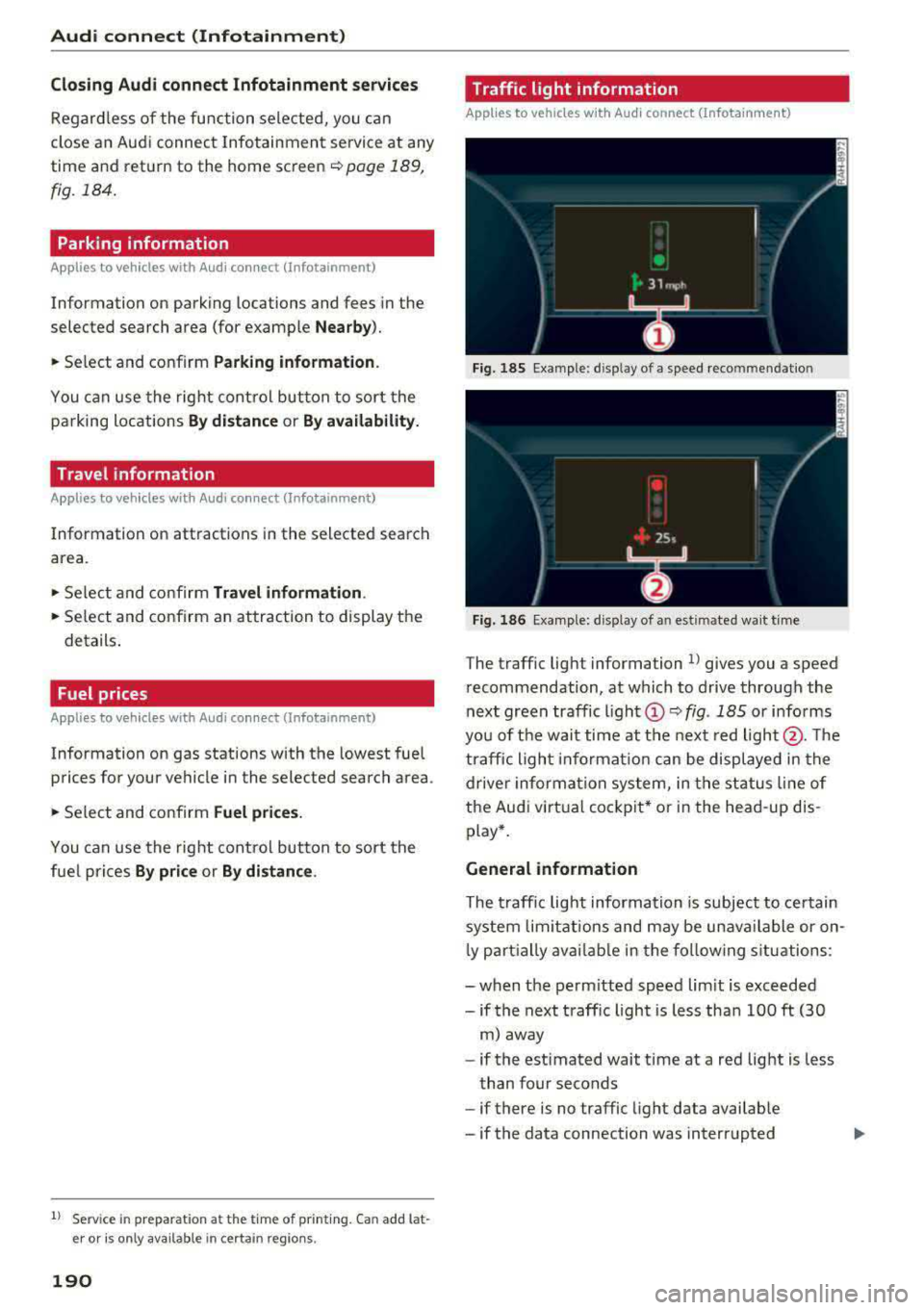
Fi g. 185 Examp le : display of a speed recommenda tion
Fig . 186 Examp le: display of an estimated wa it t im e
The t raffic light information l) g ives you a speed
r ecommendation, at which to drive through the
next green traffic
li gh t@ ~ fig. 185 or informs
yo u of t he wai t time at the next red light @. Th e
tr affic ligh t info rm ati on ca n be displ aye d in the
dr ive r in forma tio n sy stem, in t he sta tus line of
the Audi virt ua l coc kp it* or in the he ad-up dis
p lay *.
General information
The traff ic lig ht inform ation is subject to ce rtain
sy stem lim itation s and may be un avail able or on
l y part ially ava ilable in the fo llow ing s itu ations:
- when t he pe rm itted speed lim it is exceeded
-if the next t raffic light is less tha n 100 ft (30
m) away
- if the estimated wait time at a red lig ht is less
t han four seconds
- if there is no traffic light data avai lab le
- if the data connection was interrupted
Page 196 of 403
a co .... N ,....
N .... 0 0
3 co
Configuring the data
connection
Applies to vehicles with Aud i connect (Infotainment)
The data connection for Audi connect Infotain·
ment services is pre-configured at the factory .
However , if a configuration should be necessary,
you can adjust the following settings .
.,. Select: I MENU I button > right control button>
Connection manager .
.,. Select: right control button > Online settings>
Data connection settings .
Using the Data connection settings menu, you
can set when an Internet connection should be
made . T he Internet connect ion disconnects auto
matica lly on ce the requested Audi connect Info
tainment service no longer requires any data.
The fol low ing settings can be selected:
Audi connect (MMI)
With the Audi connect (MMI) f unction, you can
Allow or Deny the use of Audi connect Infotain ·
ment services if the connection is set to No re·
quest or With request .
Wi-Fi devices*
Using the Wi-Fi devices function, you can Allow
or Deny a connection to the In ternet.
A WARNING
-As the driver, do not allow usage of the Wi
Fi hotspot to distract you from driving, as
this could increase the risk of an accident.
-It is only safe to use tablets, laptops, mo·
bile devices and other s imilar dev ices when
the vehicle is stationary because, like all
loose objects, they could be thrown around
the inside of the vehicle in a crash and cause
serious injuries . Store these types of devices
securely whi le driving.
-Do not use any wireless devices on the front
seats within range of the airbags while driv·
ing. Also read the warnings in the chapter
t::> page 275, Front airbags.
Audi connect (Infotainment)
(D Note
Always fo llow the information found in ~0 in
Wi-Fi hotspot on page 194.
Audi connect (Infotainment) general
information
Audi connect Infotainment services
Applies to vehicles wit h Aud i connect (Infota inment)
@ Tips
-You can only use services supported by Aud i
connect (Infotainment) if you have the
op·
tional MMI Navigation plus equipment w ith
MMI touch* and Audi connect (Infotain
ment).
-Use of the L TE* mobile network standard is
not available in every country. Contact an
authorized Audi dealer or authorized Audi
Service Facility or your cell phone service
provider for additional information.
-Usage of Audi connect Infotainment serv
ices depends on the ava ilability of services
through third party providers.
-Audi connect Infotainment services are only
availab le within the cell phone network cov
erage from your cell phone service provider.
-Audi connect Infotainment services are
available in the USA. Audi connect Infotain·
ment services are currently not availab le in
Canada or in Mexico.
- Also read the information in the chapter
t::> page 175, Telephone.
- Availability, scope, providers, screen display
and costs of services may vary depending on
the country, model, model year, end device
and rates. For add itional information, v is it
www.audiusa.com .
-An initial registration/activation on the
myAudi platform at
www.audiusa.com/
myaudi
is requ ired to use individual serv
ices . You can contact an authorized Audi
dealer or Aud i connect (Infotainment) cus
tomer service at (87 7) SOS-AUDI (2834) to
195
Page 200 of 403
a co .... N ,....
N .... 0 0
3 co
-Pay attention to upper-an d lowe r-case let
ters when enter ing the ve hicl e code.
-If yo u do no t have the 10- digit ve hicle code,
contact a n author ized A udi dealer or author
i zed Audi Se rvice Facility .
Additional options
Applies to vehicles with Audi connect vehicle control
License subscription
Th e validi ty and expirat io n date o f yo ur sub scr ip
tions a re displaye d. When
Warning before sub
scr iption expires
is activated, a message w ill be
d isp layed warning yo u that you r license is about
to expire.
Select:
IME NU! button> Audi connect > Display
available function s>
right control button> Li
cense subscription .
Resetting the primary user
F or example, y ou ca n rese t the key use r whe n
se lling your vehicle in o rder to dea ctivate these
services .
R eq uirement: the ign it ion mu st be swi tched on.
Select:
IMENU ! button> Audi connect > right
control b utton >
Audi connect user management
> Key user > Reset key user .
Warning levels
Req uirement: the primary use r must have set one
or more warning levels. Secondary users can only
see if a warning level is active or not .
Select:
IMENU ! button> Audi connect > right
control b utton >
Alerts .
Remote locking and
unlocking
Applies to vehicles with Audi connect vehicle control
You can lock a nd u nlock your vehicle using this
service .
Requirement
- This requires the 4-dig it PIN that you specified
dur ing the verification on www.audiusa.com/
myaud i .
- The veh icle must be stationary.
Audi connect veh icle control
- The ignition must be sw itched off.
Vehicle status report
Applies to vehicles with Audi connect vehicle control
T he Dr iver Info rmat ion System collec ts da ta u n
der certai n conditions and sends it to a serve r.
When data is sto red, you ca n access va lues such
as the se u sing the se rvice:
- Remaining range
- Fue l tank leve l
- O il level
- Veh icle doors a re open/closed or locked/un -
loc ke d
- Mileage
- Next o il ch ange
- N ext inspec tion
- Wa rning messages
- Side marker lights/parking lights on/off
For additional information on the D river Informa
t ion System, refe r to
c:> page 17, Driver informa
tion system .
A WARNING
Do not ignore messag es and wa rni ng or indi
cator lights that t urn on i n the vehicle be
cau se o f th e i nfo rmation in the status report .
Thi s could lea d to brea k downs in on the roa d,
a cci dents a nd ser iou s injuries.
Parking location
Applies to vehicles with Audi connect vehicle control
The vehicle collec ts data unde r ce rtain co ndit ions
and sends it to a serve r.
When data is sto red, you ca n access va lues such
as these using the se rvice:
- Veh icle location display,
- Display of one's own location,
- Rou te to you r vehicle .
If your mob ile dev ice also has a navigation func
t io n, you c an navigate to y our la st k nown par kin g
l oc ation .
199
Page 203 of 403
Emergency call
Emergency call
Introduction
The following functions may be available depend
ing on the vehicle and the market.
- Emergency call
¢page 202.
- Online roadside assistance Q page 203 .
(D Tips
-The services are provided through a SIM
card installed in the vehicle. The cost of the
call and data connections is included in the
price for the services. Services are provided
assuming that the cell phone network re
quired for the installed SIM card is function
ing and ready to operate. The available serv
ices set by Audi AG are only available within
the cell phone network coverage area for
the cell phone service provider selected by
Audi AG.
- You can find what data will be transferred
at www.aud iusa.com.
- These services cannot be deactivated using
the settings in the Infotainment system .
Emergency call
Description
Applies to: vehicles with emergency call function
You can request help when in an emergency or
dangerous situation using the emergency call
function
l) _ An emergency call is a combination
of data transmission and a phone call. The data
transmission from your vehicle forwards impor
tant information, such as the vehicle and position
data, to the emergency call center.
1l The avai lability of the serv ices o ffere d de pen ds on t he
c oun try a nd may chang e ove r tim e.
202
Making an emergency call
Applies to: vehicles with emergency call function
The emergency call can be made two different
ways .
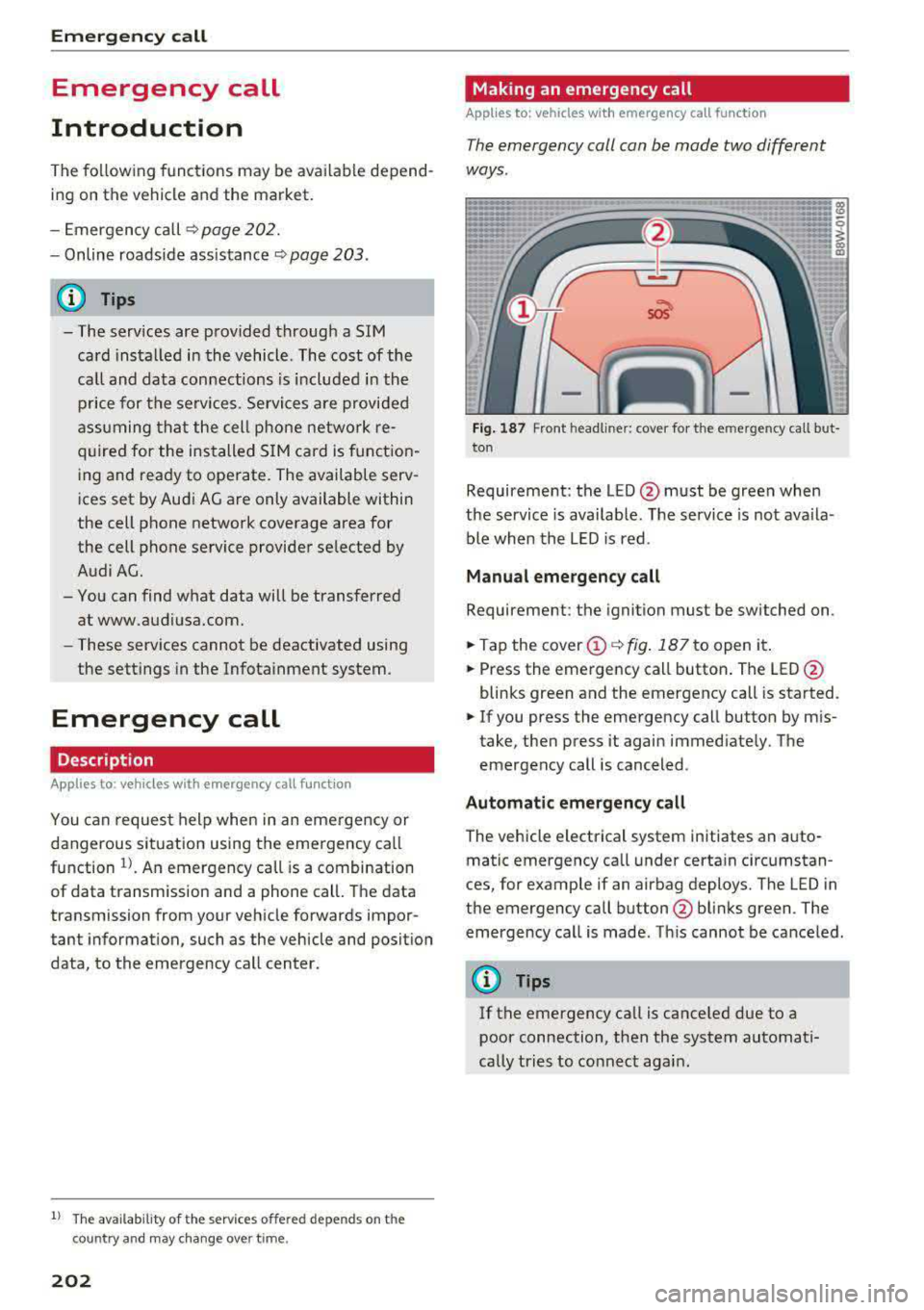
Fig. 187 Front headli ner: cover for the e mergency cal l but
ton
Requirement: the LED @must be green when
the service is available. The service is not ava ila
ble when the LED is red .
Manual emergency call
Requirement: the ignition must be switched on.
.. Tap the cover@¢ fig. 187 to open it .
.. Press the emergency call button. The LED@
blinks green and the emergency call is started.
.. If you press the emergency call button by mis
take, then press it again immediate ly. The
emergency call is canceled .
Automatic emergency call
The vehicle electrical system initiates an auto
matic emergency call under certain circumstan
ces, for example if an airbag deploys. The LED in
the emergency call button @blinks green . The
emergency call is made . Th is cannot be canceled.
(D Tips
If the emergency call is canceled due to a
poor connection, then the system automati
cally tries to connect again .
Page 204 of 403
a co .... N ,....
N .... 0 0
3 co
Messages
Appl ies to: ve hicles with emergency call f unctio n
II Emergency call function : malfunction! Re
stricted functionality . Pl ease contact Servi ce
If the indicator lig ht turns on and the message
appears, you ca n only make an emergency ca ll
wit h restricted f unc tion. For examp le, yo u ca nnot
call the emergen cy c all cente r, b ut d ata may st ill
b e tra nsmi tted under cert ain circumst ances/
D rive to an autho rized Aud i dea le r or a uthorized
Audi Service Facility immediately to have t he
mal funct ion corrected.
II Emergency call function : malfunction! Fun c
tion unavailable. Plea se contact Servi ce
If t he i ndi cator lig ht tur ns on and t he message
ap pears, yo u ca nn ot m ake a n eme rge ncy call.
D rive to an autho rize d Aud i de aler or au th orized
Au di Service Facility immediately to have the
malfunct ion corrected.
Online roadside
assistance
Description
A pp lies to: ve hicles with online roads ide ass istance
You can request help if you are in an accident o r
b reakdown situation using on line roadside assis
tance
l) _ A roads ide ass istance call is a comb ina
tion of data transmission and a ph one call. The
data tra nsmission from your vehicle fo rwards im
portant information to the A udi se rvice cente r,
such as the vehicle and posit io n d ata.
l) The ava ilab ility of the services offered depends on t he
c oun try and may ch an ge over tim e.
Emergency call
Calling online roadside assistance
App lies to : vehicles wit h on li ne roa dside assista nce
The roadside assistance call can be made two
diff ere nt ways .
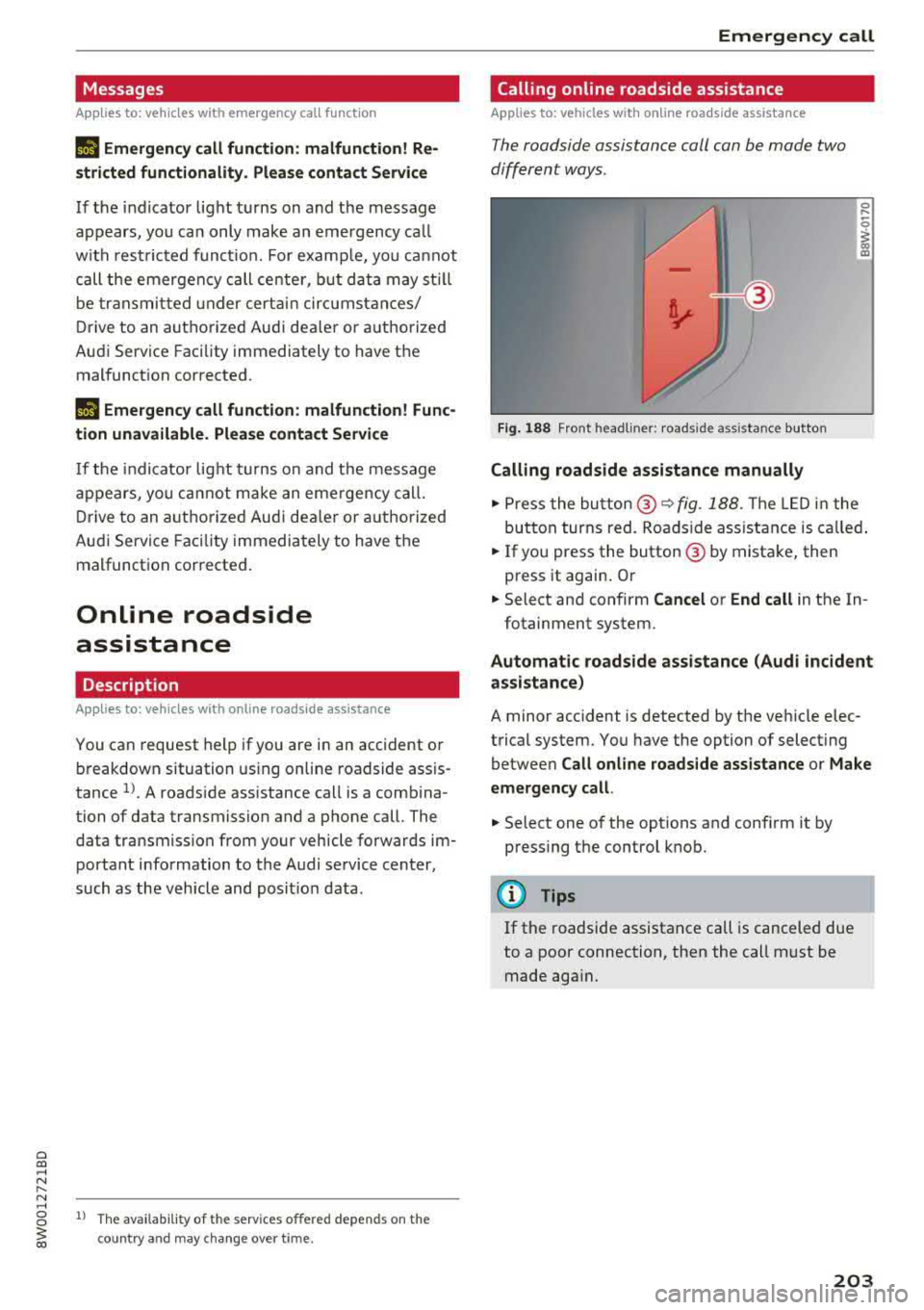
Fig. 188 Front headl ine r: roads ide assistance button
Calling roadside assistance manually
.,. Press the bu tton @~ fig. 188. The LED in t he
but ton turns red. Roadside ass ist an ce is c alled.
.,. If you press the button @ by mista ke , then
press it again. Or
.,. Select an d confirm Cancel or End call in the In -
fotainment system.
Automatic roadside assistance (Audi incident
assistance)
A minor accident is detected by the ve hicle elec
trical system. You have the option of select ing
betwee n
Call online roads ide assistance o r Make
emergency call.
.,. Select one of the options and conf irm it by
press ing the control knob.
(D Tips
If the roadside assistance call is canceled due
to a poor connection, then the call m ust be
made aga in.
203
Page 225 of 403
Radio
SiriusXM alerts
Applies to: vehicles w ith SiriusXM
You can display an overview of your favorite ar
tists or tracks that are currently being played on
a SiriusXM channel.
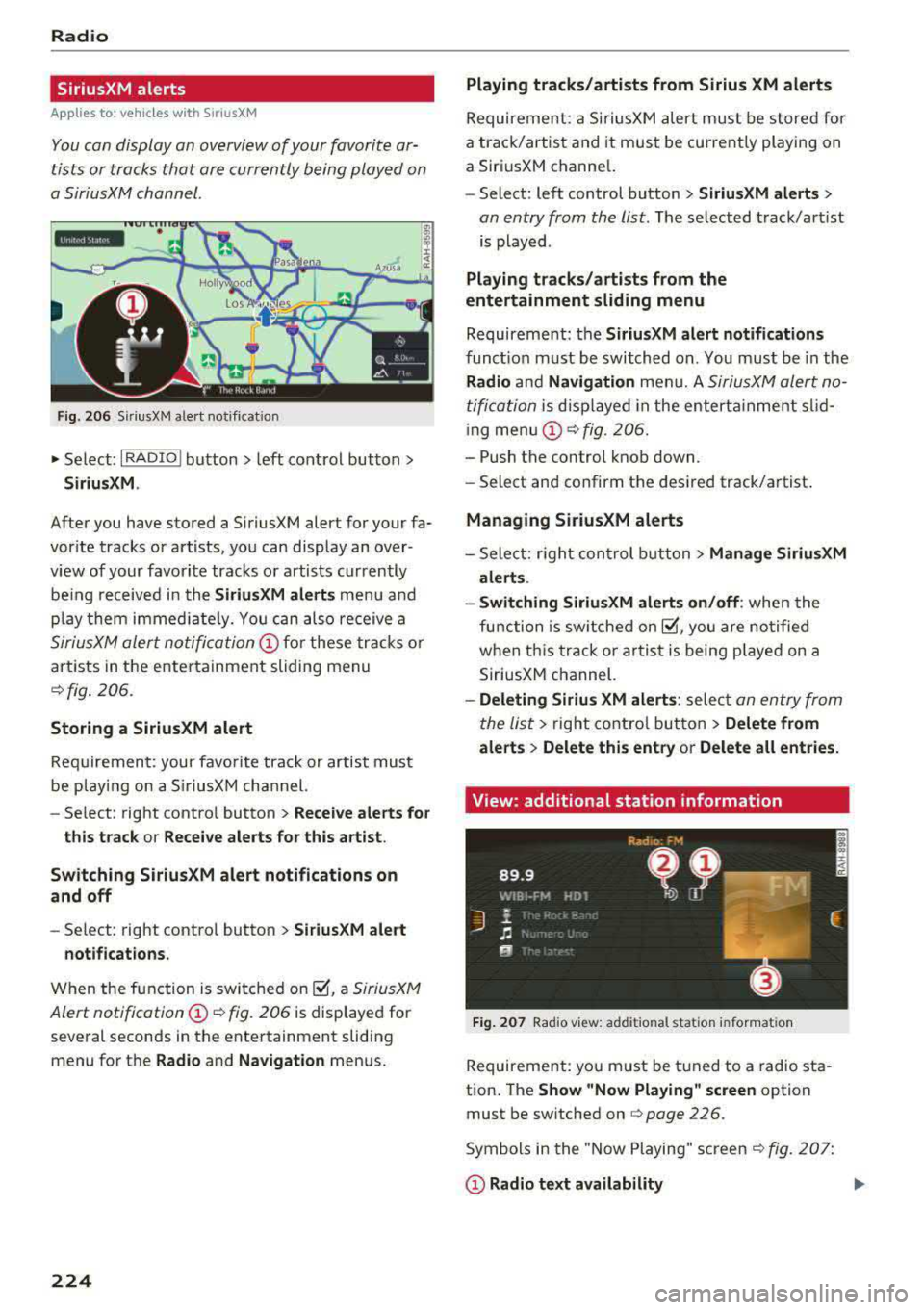
Y. MM iiH A
Fig . 20 6 S iriusXM alert not ificat io n
~ Se lect : I RADIO I button > left control button >
Siriu sXM.
After you have stored a SiriusXM alert for your fa
vor ite tracks or artists , you can display an over
view of your favorite tracks or artists currently
be ing received i n the
SiriusXM alert s menu and
p lay them immed iate ly. Yo u can also receive a
SiriusXM alert notifi cation @ for these tracks o r
artists in the entertainment sliding menu
~ fig . 206 .
Storing a SiriusXM alert
Requiremen t: your favo rite trac k or artist must
be play ing on a S iriusXM channel.
-Se lect : right contro l button > Re ce iv e alerts fo r
thi s track
or Rece ive alert s for this arti st.
Sw itch ing SiriusXM alert notifications on
a nd off
-Se lect: right control button > S ir iusXM alert
notifications .
When the function is sw itched on ~. a SiriusXM
Alert
notification @~ fig. 206 is displayed for
several seconds in the entertainment sliding
menu for the
Radio and Na vigation menus.
224
Playing tracks /artists from Sirius XM alerts
Requireme nt: a SiriusXM alert must be store d for
a track/artist and it must be currently playing on
a SiriusXM channe l.
-Select: left control button > Sirius XM alert s >
an entry from the list . The selected track/art ist
is played .
Playing tr acks /arti sts from the
entertainment sliding m enu
Requirement: the SiriusXM alert notification s
functio n must be switched on. You must be in the
Rad io and Navigation men u. A SiriusXM alert no
tification
i s d isp layed in the enterta inme nt slid
i ng
men u@ ~ fig. 206.
-Push the control knob down.
-Select and confirm the desi red track/artist .
Managing Sirius XM alerts
- Select: r ight con trol b utton> Manage Siriu sXM
alerts .
- Swit ch ing SiriusXM alerts on /off :
when the
function is sw itched
on~. you are no tified
when th is track o r ar tist is being p layed on a
SiriusXM channel.
- Deleting Sirius XM alert s: select an entry from
the list>
right control bu tton > Delete fr om
a lert s
> Delete thi s entr y or Delet e all entries.
View: additional station information
F ig . 207 Rad io v iew: add it io nal sta tion informa tion
Requirement: you must be tuned to a radio sta
tion . The
Sh ow "Now Playing " screen option
must be switched on
q page 226.
Symbols in the "Now Playing" screen c!; fig. 207:
@ Radio tex t a vailabilit y
Page 226 of 403
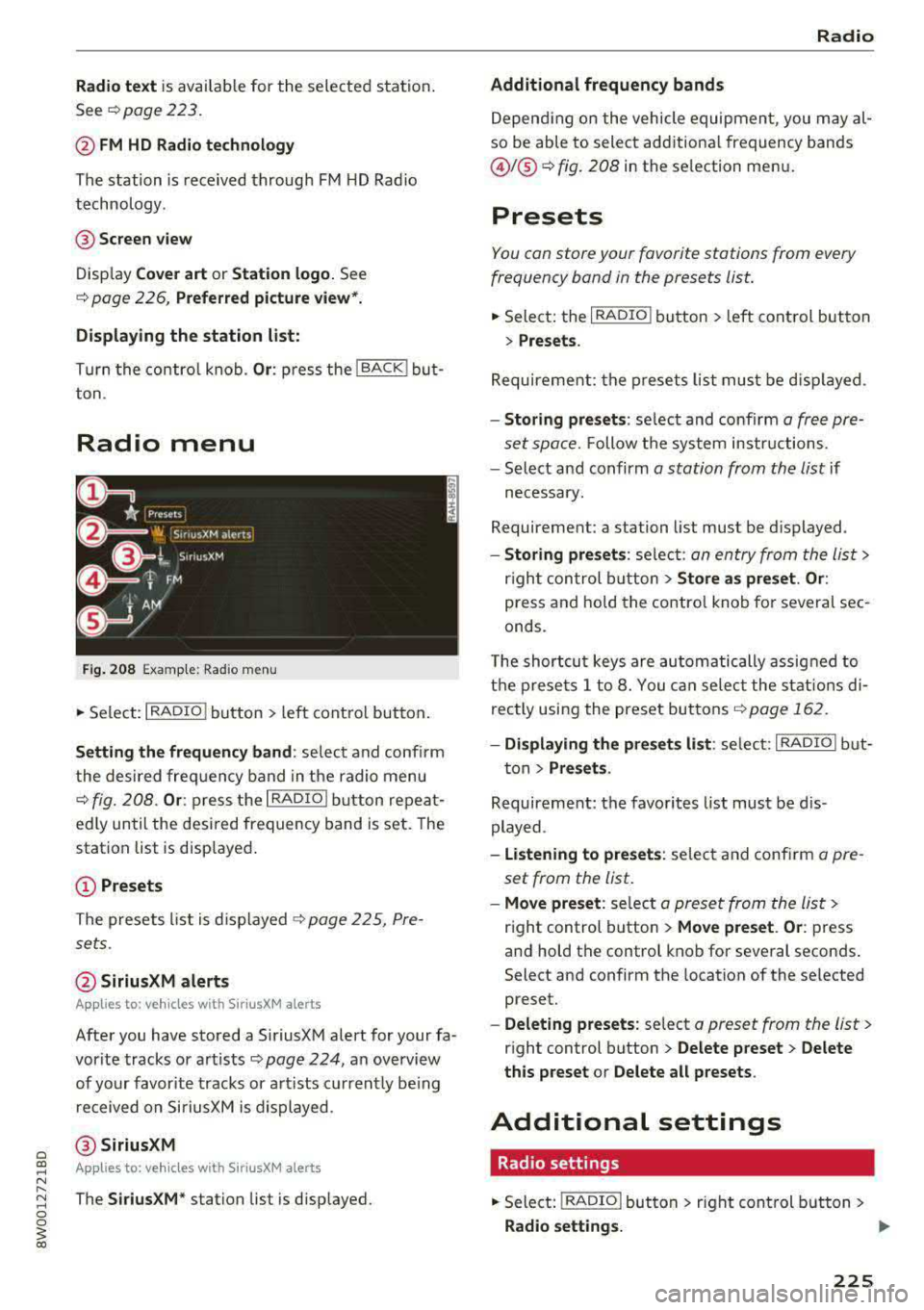
Radio text is avai lable for the selected station .
See
¢ page 223.
@ FM HD Radio technology
The station is received throug h FM H D Radio
technology .
@Screen view
Disp lay Cover art or Station logo. See
¢ page 226 , Preferred picture view*.
Display ing the station list:
T urn the contro l knob. Or : press the I BACK ! but
ton .
Radio menu
Fig. 208 Exam ple: Rad io m enu
.. Se lect : I RADIO I button > left con trol but ton .
Setting the frequency band : selec t and co nfi rm
t he de sired freq uen cy band in t he radio menu
q fig. 20 8. Or : press t he I RADIO I button repea t
e dl y un til the desi red frequency band is set. The
station list is disp layed .
(D Presets
Th e presets list is dis p layed q p age 2 2 5, Pre
s ets .
@ SiriusXM alerts
Applies to : ve hicl es with SiriusXM alerts
After you have s to red a SiriusXM alert for your fa
vor ite tracks or a rtists ¢
page 224, an overview
of your favor ite tracks or a rtists c urren tly be ing
re ceived on SiriusXM is dis played .
@SiriusXM
Appl ies to: ve hicles with SiriusXM alerts
The SiriusXM* station list is disp layed.
Radio
Additional frequency bands
D epen ding on the vehicle equipmen t, you may al
so be able to select add itiona l frequency bands
@ /@ ¢ fig. 208 in the se lection men u.
Presets
You can store your favorit e stations from every
frequency band in the presets list.
.. Select: the I RADIO ! button > left cont rol but ton
> Presets .
Req uireme nt: th e pr eset s list must b e displa yed.
-Storing presets : select and confirm a fr ee p re
se t space.
Fo llow the syste m instr uctions.
- Select an d confirm
a station from the list if
necess ary.
Requirement: a station list mus t be d isplayed .
-Storing presets : selec t: an en try from the lis t>
righ t con trol butt on > Store as preset. Or :
press and ho ld t he con tro l knob fo r severa l se c
onds .
T he shortc ut keys are auto ma tic ally assig ned t o
th e p re set s 1 to 8. You can selec t t he station s di
rectly usin g the preset bu ttons ¢
page 162 .
- Displaying the presets list : selec t: I RADIO I b ut-
t on>
Presets .
Requireme nt: the favorites list must be d is
p layed .
-listening to presets : selec t a nd confi rm a pre
set from the list .
-Move preset : select a p reset from the list>
right control button > Move preset . Or : press
an d hold the control kno b for seve ral secon ds.
Select an d confirm the location of the selected
preset.
- Deleting presets: select a preset from the list >
right control b utton > Delete preset > Delete
this preset or Delete all presets .
Additional settings
Radio settings
.. Select: I RADIO I butto n > ri g ht c ontrol but ton >
Radio settings. ..,.
225