infotainment AUDI A4 2018 Repair Manual
[x] Cancel search | Manufacturer: AUDI, Model Year: 2018, Model line: A4, Model: AUDI A4 2018Pages: 403, PDF Size: 66.81 MB
Page 199 of 403

Audi connect vehicle control
Audi connect vehicle
control
Introduction
Applies to veh icles with Audi co nnect vehicle control
With the Audi connect vehicle control services 1>,
you can access various information or use individ
ual functions in the
Audi MMI connect app or in
myAudi .
Audi connect vehicle control includes the follow
ing services:
- Remote locking and unlocking ¢
page 199.
-Vehicle status report <:!>page 199 .
-Parking location o page 199.
-Geofencing Alert r::!> page 200.
-Speed Alert o page 200 .
-Valet Alert o page 200 .
- Stolen Vehicle Locator o page 200.
-Online Audi service request o page 200.
(D Tips
-Accessing specific data or controlling func
tions remote ly depends on the charge level
of the vehicle battery. Therefore, these
funct ions only have limited availability after
switching off the ignit ion.
- The services are provided through a SIM
card installed in the vehicle. The cost of the
call and data connections is included in the
price for the services . Services are provided
assuming that the cell phone network re
quired for the installed S IM card is funct ion
in g and ready to operate. The available serv
ic es set by Aud i AG are only available within
the cell phone network coverage area for
the cell phone service provider selected by
Audi AG .
- You can also find more information on Audi
connect on line at www .audiusa .com .
ll In pr ep aratio n at t he tim e of p rinting. The ava ilab ilit y o f
the serv ice s offe re d depends on th e co untry and may
c han ge ove r tim e.
198
Setup
Applies to vehicles w it h Aud i connect vehicle control
To use Audi connect vehicle control services l),
please note the fo llowing :
Creating and verifying a user account
""Create an account at www.audiusa.com/myaudi
and verify it.
Setting a key user in the vehicle
Requirements : the ignit ion must be switched on .
Anothe r key user must not be set in the veh icle .
If necessary, reset the key user ¢
page 199.
""Select in the Infotainment system: IMENU ! but-
ton >
Audi connect > if necessary, Display
available functions >
right control button>
Audi connect user management > Key user >
Set key user .
"" Enter the user name for your ve rified account
and enter the IO-digit vehicle code. You can rub
the key tag for your remote control key to re
veal the vehicle code
r::!> page 38.
"" Select and confirm Log in .
You can now use the veh icle control services
through the
Audi MMI connect app or through
www.audiusa.com/myaudi .
Using vehicle control services in the Audi
MMI connect app
Requirement: your mobile devices must be com
patible.
"" Insta ll and start the
Audi MMI connect app on
your mobi le device .
"" Log in to the
Audi MMI connect app using your
user name and Audi online password and select
your vehicle .
(D Tips
-Store the vehicle code in a secure place. It
may be necessary to re-enter the vehicle
code.
Page 203 of 403
Emergency call
Emergency call
Introduction
The following functions may be available depend
ing on the vehicle and the market.
- Emergency call
¢page 202.
- Online roadside assistance Q page 203 .
(D Tips
-The services are provided through a SIM
card installed in the vehicle. The cost of the
call and data connections is included in the
price for the services. Services are provided
assuming that the cell phone network re
quired for the installed SIM card is function
ing and ready to operate. The available serv
ices set by Audi AG are only available within
the cell phone network coverage area for
the cell phone service provider selected by
Audi AG.
- You can find what data will be transferred
at www.aud iusa.com.
- These services cannot be deactivated using
the settings in the Infotainment system .
Emergency call
Description
Applies to: vehicles with emergency call function
You can request help when in an emergency or
dangerous situation using the emergency call
function
l) _ An emergency call is a combination
of data transmission and a phone call. The data
transmission from your vehicle forwards impor
tant information, such as the vehicle and position
data, to the emergency call center.
1l The avai lability of the serv ices o ffere d de pen ds on t he
c oun try a nd may chang e ove r tim e.
202
Making an emergency call
Applies to: vehicles with emergency call function
The emergency call can be made two different
ways .
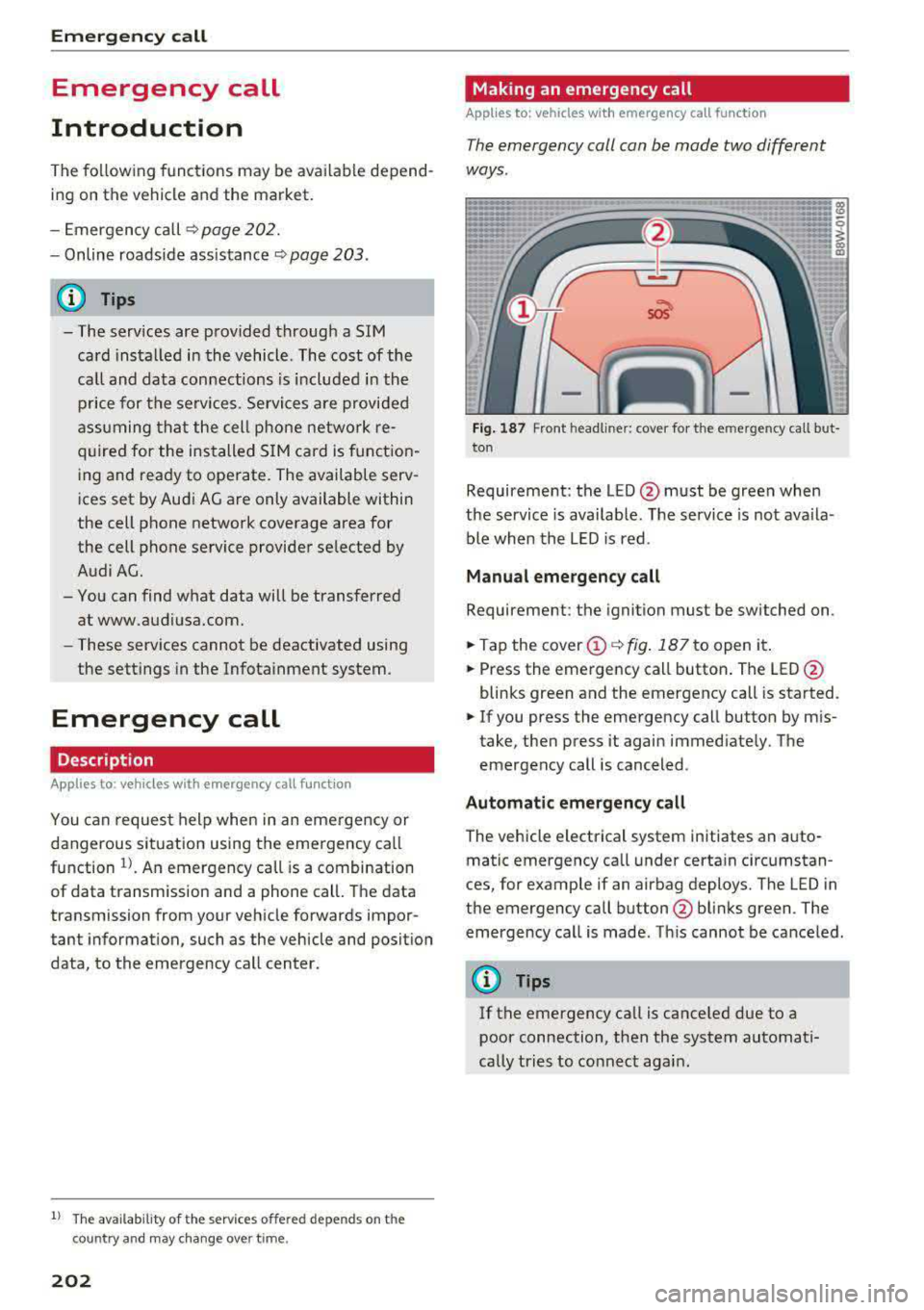
Fig. 187 Front headli ner: cover for the e mergency cal l but
ton
Requirement: the LED @must be green when
the service is available. The service is not ava ila
ble when the LED is red .
Manual emergency call
Requirement: the ignition must be switched on.
.. Tap the cover@¢ fig. 187 to open it .
.. Press the emergency call button. The LED@
blinks green and the emergency call is started.
.. If you press the emergency call button by mis
take, then press it again immediate ly. The
emergency call is canceled .
Automatic emergency call
The vehicle electrical system initiates an auto
matic emergency call under certain circumstan
ces, for example if an airbag deploys. The LED in
the emergency call button @blinks green . The
emergency call is made . Th is cannot be canceled.
(D Tips
If the emergency call is canceled due to a
poor connection, then the system automati
cally tries to connect again .
Page 205 of 403
Nav igatio n
Navigation
Opening navigation
Applies to: vehicles with navigation system
The navigation system directs you to your desti
nation , around traffic incidents and on alterna
tive routes, if desired .
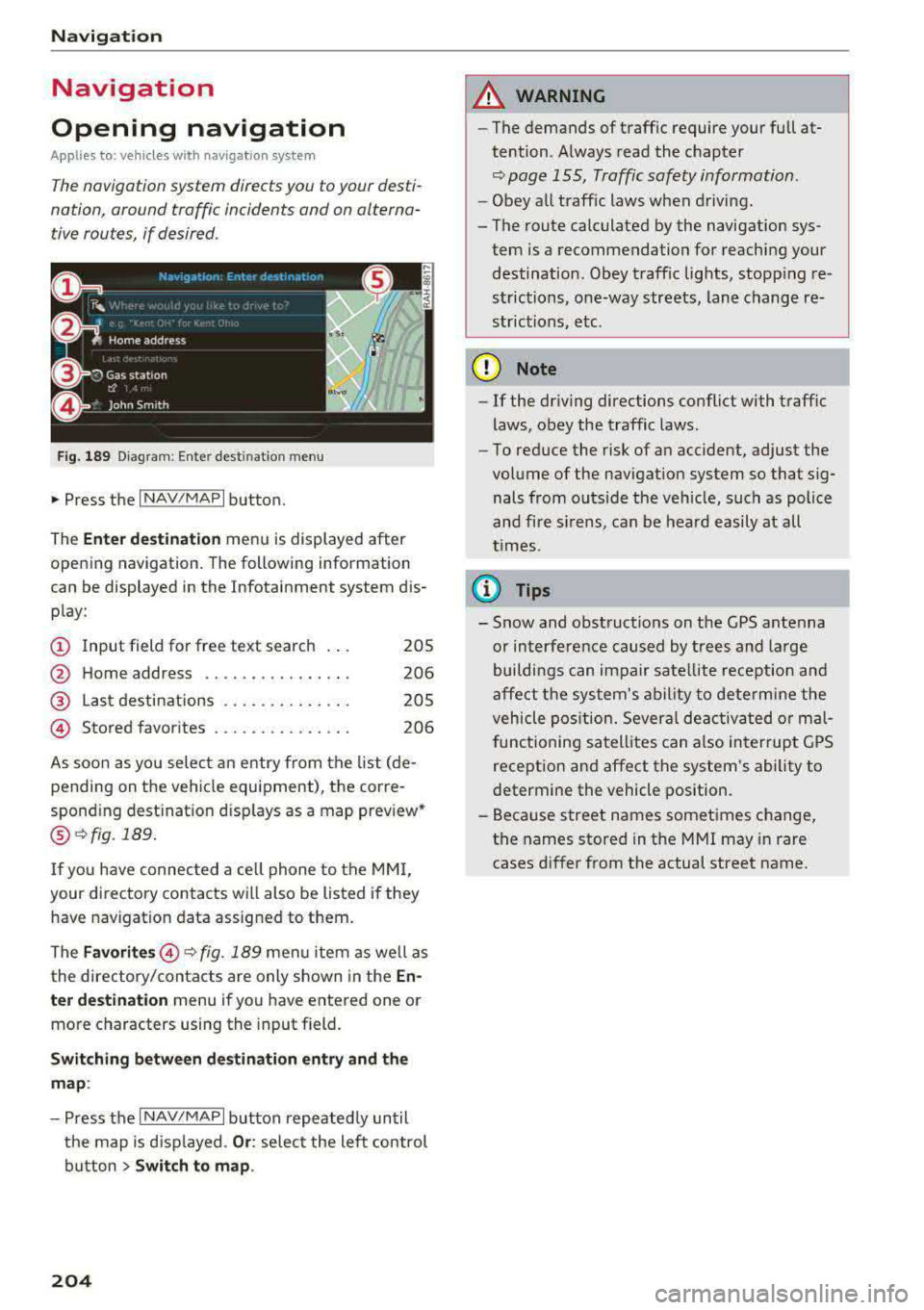
Fig. 189 Diagram: Ente r dest inatio n menu
• Press the I NAV/MAPI button.
The
Enter d estina tion menu is displayed after
opening navigation . The following information
can be displayed in the Infotainment system dis
play:
(D Input field for free text search 205
@ Home address . . . . . . . . . . . . . . . . 206
@ Last destinations . . . . . . . . . . . . . . 205
@ Stored favorites . . . . . . . . . . . . . . . 206
As soon as you select an entry from the list (de
pending on the vehicle equipment), the corre
spond ing dest ination d isp lays as a map prev iew*
@ ~ fig . 189.
If you have connected a cell phone to the MMI,
your directory contacts will also be listed if they
have navigation data assigned to them.
The
F avo rites @ ~fig. 189 menu item as we ll as
the directory/contacts are only shown in the
En ·
t e r d estination
menu if you have entered one or
more characters using the input field.
S w itc hin g betwe en dest inati on entry and th e
m ap :
- Press the I NAV/MAPI button repeated ly until
the map is displayed .
Or: select the left control
button
> Swi tch to map .
204
A WARNING
-The demands of traffic require your fu ll at
tention. Always read the chapter
~ page 155, Traffic safety information.
- Obey all traff ic laws when driving.
- The route calculated by the navigation sys- tem is a recommendation for reaching your destination. Obey traffic lights, stopping re
strictions, one-way streets, lane change re
strictions, etc.
{Q) Note
- If the dr iving directions conflict with traff ic
laws, obey the traffic laws.
- To reduce the risk of an accident, adjust the
volume of the navigation system so that sig nals from outs ide the veh icle, such as police
and fire s irens, can be heard easily at all
t imes.
@ Tips
- Snow and obstruct ions on the GPS antenna
or interference caused by trees and large
buildi ngs can impair satellite reception and
affect the sys tem's ability to dete rmine the
vehicle pos ition. Several deactivated or ma l
functioning satellites can also inter rupt GPS
reception and affect the system's ability to
determine the vehicle position.
- Because street names sometimes change, the names stored in the MMI may in rare cases differ from the actual street name .
Page 209 of 403
Navig ation
-Se arching for a point of intere st in a specific
categor y:
select Select category . Select and
confirm a category such as
Restaur ant s.
(D Tips
-D istances to points of interest are d isplayed
as a straight-line distance from your current
l ocation. The actua l distance from your cur
rent location to the point of interest is up
dated automat ically. The list of found
po ints of interest is not resorted when this
happens.
-There may be entries in the list that cannot
be d isplayed completely due to their length.
Select the corresponding entry from the
li st. Se lect: right co ntro l button
> Show des
tin ation details. Deta iled i nfo rmation for
the selec ted ent ry in the list is then dis
played.
Online point of interest search (on line
search)
Applies to: vehicles with a navigation system and Audi con
nect (Infotainment)
You con search for points of interest on the In
ternet.
Requirement: the requirements for Audi connect
( I nfo tainment) m ust be met
r=v poge 188.
"'Press the I NAV/MAPI button repeated ly until
the
Ent er de stination menu is displayed
r=v poge 204, fig . 189.
.. Se lect: left cont rol button > Online search . The
search area last set is d isplayed in the inp ut
f ield.
-Changing the search area : select: right control
button
> Sele ct sear ch area .
-Searching for onl ine de stination s in the se
lected search area :
enter a new city/state if
necessary. Ente r the se arch te rm, such as hotel.
Press the con trol knob. Select and confirm an
online destination from the list.
-Sea rching f or online de stination s in a specific
categor y:
select and confi rm S elect category.
Se lect and confirm a category such as Restau
rants .
208
Find which search areas are avai lab le under
r=v page 207, Point of interest search.
You can search for online des tinations using the
vo ice recog nit ion
sys tem¢ table on page 171.
¢j) Tips
-Always read the chapter r=v page 195, Audi
conne ct (Infotainment) general informa
tion.
-For add itio na l information, v is it
www .audiu sa .com .
Accessing destinations from myAudi
account
Applies to: vehicles with a navigation system and Audi con
nect (Infotainment)
Import individual destinations from your myAudi
account into the MMI.
Requirement:
The requirements for Audi connect (Infotain
ment) must be
met¢ page 188.
You must have a registered myAudi acco unt at
www.audiu sa.com /myaudi. You must have ave
hicle assigned to your myAudi account and you
must have stored one or more destinations.
.. Press the I NAV/MAPI button repeatedly unti l
the
Enter dest ination me nu is displayed
r:!vpage 204, fig. 189.
"'Select: left control button > myAudi contacts .
"'If necessary, enter your myAud i user data or
your myA udi PIN
<=.> page 188. The contacts
sto red in myAud i are displayed .
-Select and confirm a contact.
-Select and confirm a private or business dest i-
nation.
-Select and confirm Start route guid ance .
(D Tips
-You only need to enter the myA udi use r data
one time.
-You can rece ive your myAudi P IN if yo u have
set up a myAudi account .
-For add itiona l information, v is it
www .audiu sa .com.
Page 214 of 403
a co .... N ,....
N .... 0 0
3 co
a list of gas stations in the area. When a gas sta
tion is se lect ed, route guidance from the current
ve hicle position is calcu lated .
Trailer mode *
Trailer mode is sw itched off at the factory.
When the function is switched
on~' the maxi
mum permitted speed for vehicles with trailers is
in corporated into the route guidance and the ca l
culated arrival time is adjusted acco rding ly. Trail
e r mode is d isp layed us ing symbols -"" in the side
menu on the map .
Personal route assistance *
Pe rsonal ro ute assistance is sw itched off at the
factory.
Your tr ips are recorded and destinat ions are sug
gested by the MMI when this funct io n is switched
on~ <>page210 .
The persona l route ass istance is indicated by the
~ symbo l in the status line of the Infotainment
system display.
Not ification when ne arby *
The notification when nearby is switched off at
the factory .
The MM I notifies you when you are approaching
selected points of interest when this function is
switched
on ~-You can also have a Notification
tone .
Pres entation mode
The Pre sentation mode he lps yo u to e ffect ively
p lan a trip and follow the p lanned route without
moving the ve hicle . You can
Select starting point
when, for example, you wou ld like to ca lculate a
route starting from a locat ion other than the ve
h icle posit ion . Start
Pre sentation mod e to simu
late route gu idance .
1) Hig h occupa ncy v ehi cle
Na vigation
Route criteria
Applies to: vehicles with navigation system
Jl
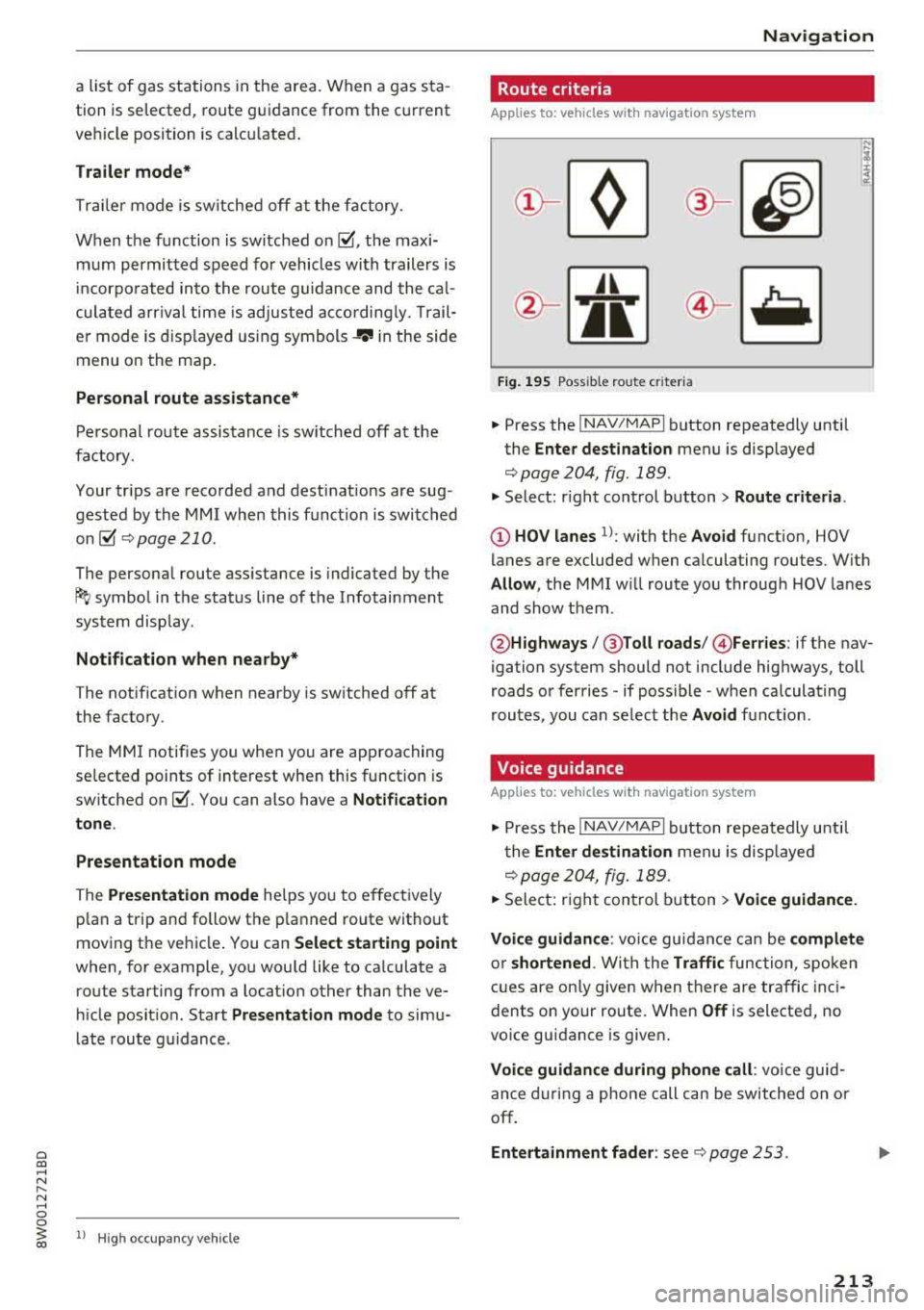
Fig . 1 95 Possible ro ute c riter ia
.,. P ress the ! NAV/MAP I button repeatedly until
the
Enter dest ination menu is displayed
<> page 204, fig. 189 .
.,. Select: right cont rol button> Route criteri a.
@ HOV lanes 1>: with the Avoid function, HOV
lanes are excluded when ca lculating rou tes. With
Allow , the MMI w ill route you throug h HOV lanes
and show them .
@Highways /@ Toll roads /@ Ferries : if the nav
igation system should not include highways, toll
roads or ferries
-if possible -when calculating
routes , you can se lect the
Avoid function .
Voice guidance
Applies to: vehicles with navigation system
.,. Press the !NAV/MAPI button repeatedly u nti l
t he
Enter destination men u is disp layed
<> page 204, fig. 189.
.,. Sele ct: righ t con trol b utton > Voice guidance.
Voic e guidan ce :
vo ice gu idance can be compl ete
o r shortened . With the Traffic function, spoken
cues are on ly given when there are traffic inc i
dents on your route. When
Off is selected, no
vo ice guidance is given .
Voice guidance during phone call : voice guid
an ce d uring a phone call can be switched on or
off.
Entertainment fad er: see <> page 253 .
213
Page 217 of 403
Navigation
Map colors
Day /Night :
the map is displayed with a light/
dark background.
Automatic : the map display adapts to the light
i n g conditions (for example, changing from
Day
to Night when driving through a tunne l).
Map display
Standard :
see c::>page 214, fig. 197 .
Online map view: see c::> page 216, fig. 198.
Map orientation
Destination :
the map indicates the destination
and is oriented to the north.
2D heading up map /2D north up map : the cur
rent vehicle position is d isp layed. The map is ori
ented in the direction of travel or to the north.
3D map *: the current vehicle pos ition is shown
on a th ree-dimensional map and is aligned to the
d irect ion of travel. At a scale of 62 mi (100 km)
and larger, the map orientation is to the north.
Overview: the entire route from the vehicle posi
tion to the destination or the next stopover is dis
p layed on the map. The map scale depends on
the length of the route and adapts automatica lly.
The map is oriented to the north.
Route information
The display of route information, such as the cur
rent street be ing driven on or points of interest
a lo ng the current route
c::> page 214, fig . 196, can
be switched on/off or can be minimized on the
disp lay of upcoming maneuvers .
Automatic zoom
On :
the map scale is adapted automatically de
pending on the type of road being traveled (ex
p ressway, highway, other roads) so that you
al
ways have an optimal overview of the road ahead.
The sca le is also automatically adapted when
there are upcoming maneuvers to provide a bet
ter detailed view.
Intersection : when route gu idance is active, the
map temporarily zooms in to a detailed scale
216
when there are upcoming maneuvers so that you
can see the street or turn better .
Off: the map scale you have chosen is kept.
MMI map contents
Map contents, such as weather, points of inter
est, traffic information or favorites, can be dis
played or hidden.
The weather forecast is disp layed on a 3 m i (5
km) scale on the map.
Instrument cluster map contents
You can also set which map content displays in
the instrument cluster
c::> page 21.
Online map display
App lies to : vehicles wi th a nav iga tion sys te m and Aud i co n·
n ect ( Infota inm ent)
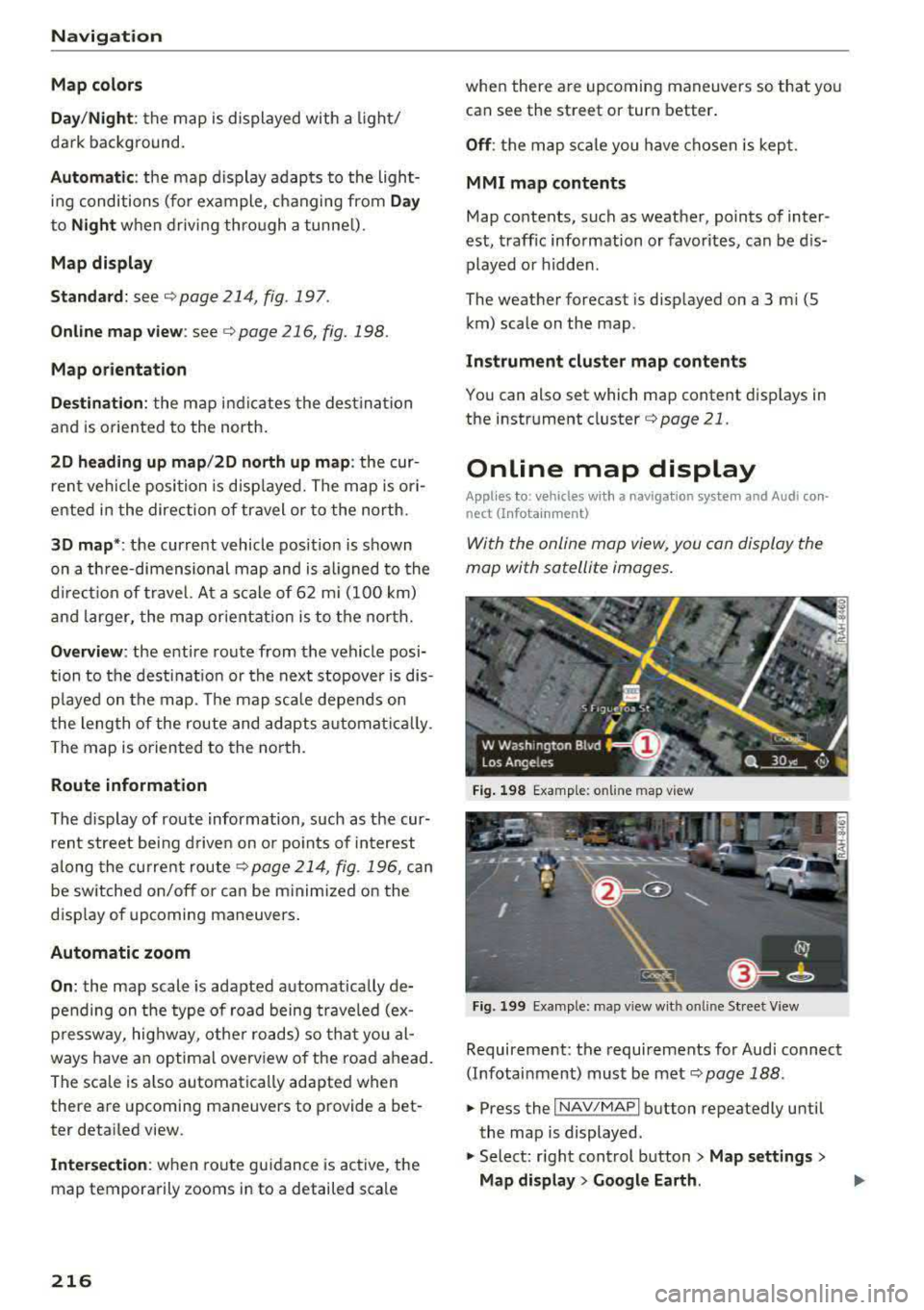
With the online map view, you can display the
mop with satellite images.
Fig. 198 Examp le: on line map view
Fig. 199 Example: map view wit h online St reet
V iew
Requirement: the requi rements for Aud i connect
(Infotainment) must be met
c::>page 188.
.,. Press the I NAV/MAPI button repeatedly until
the map is displayed .
.,. Select: right control button> Map settings>
Map display > Google Earth.
Page 218 of 403
The map display is based on data received from
the Internet in the form of satellite images,
which are then combined with the roadways from
the
S tand ard map view . There are two gigabytes
of memory space in the MMI memory that can be
used to temporar ily store the map or navigation
data that was received. This is roughly the
amo unt required fo r the map/navigation data for
a 2,485 mile (4,000 km) route. As long as t he
satellite images lo aded fo r rou te g uidance are
stored, you can use them w ithout having an a c
tive data connection.
Street View
W ith St reet V iew, yo u can explore many places in
t he world through the eyes of a pedestrian.
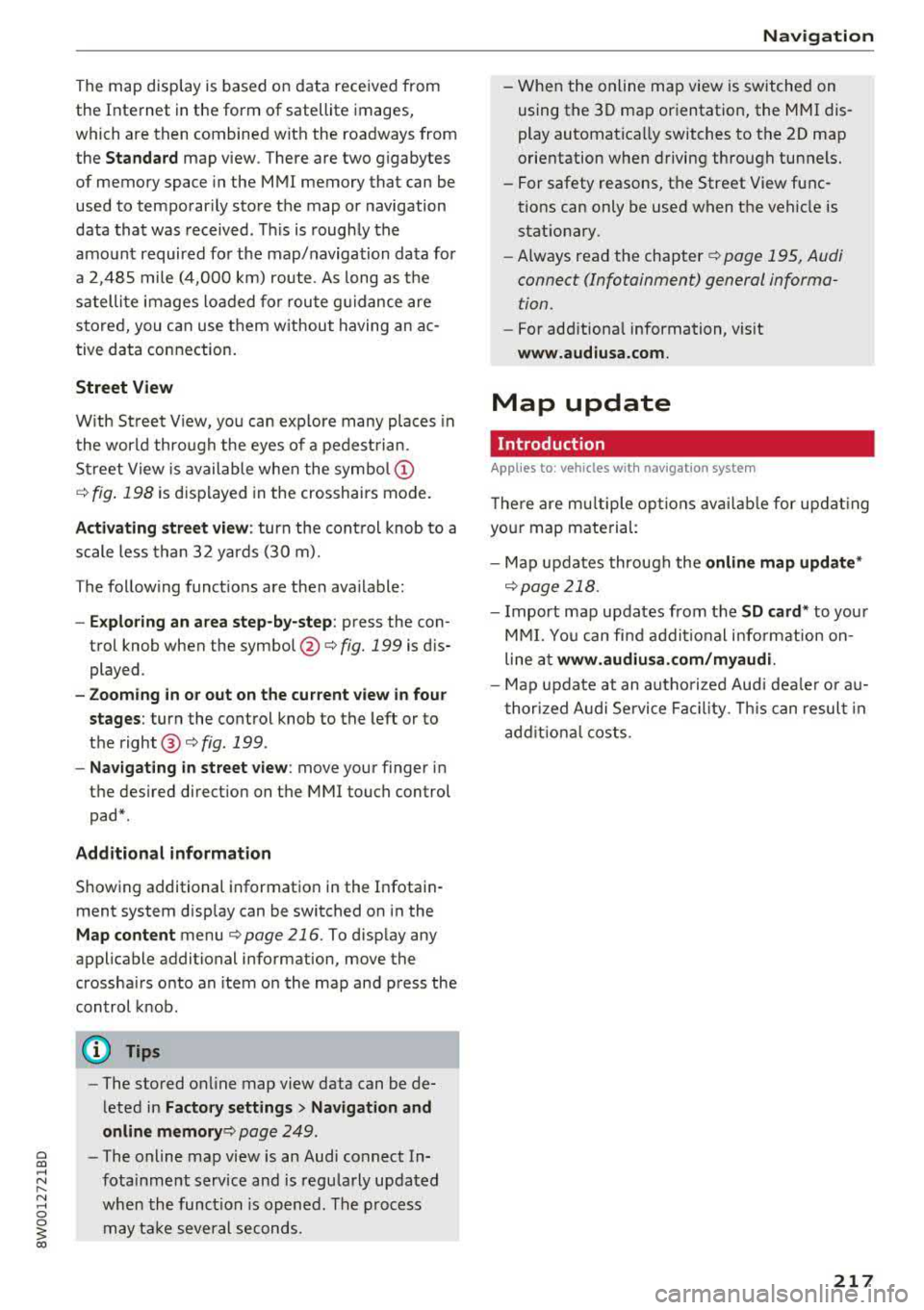
S treet View is available whe n the
symbo l@
¢ fig . 198 is d isp layed in the crosshairs mode.
Activating str eet view : turn the cont rol knob to a
scale less than
32 yards (30 m).
T he follow ing funct ions are then ava ilable:
- Ex plo ring an area step-by -step : press the con
trol knob when the
symbol @¢ fig. 199 is d is
played .
-Zoom ing in or out on the current view in four
stages :
turn the control knob to the left or to
the
right @¢ fig. 199 .
-Navigat ing in street view : move your finger in
t h e des ired direct ion on the MMI touch control
pad *.
Additional information
Showing additional informat ion in the Infotain
ment system disp lay can be switched on in the
Map content menu ¢ page 216. To disp lay any
applicable additional information, move the
crossha irs onto an item on the map and press the
control knob .
(D Tips
-The stored onli ne map view data can be de
l eted in
Factory sett ings > Navigation and
online
memory ¢ page 249.
~ -The online map view is an Audi connect In-
.... ~ fota inment service and is regu larly updated
:::l when the func tion is opened . The process 0
3 m ay ta ke several seconds.
- When the online map view is switched on
using the 3D map or ientat ion, the MMI dis
play automatically switches to the
2D map
orientation when driving through tunnels.
- For safety reasons, t he Street View func
tions can only be used when the vehicle is
stat iona ry.
- Always read the
chapter ¢ page 195, Audi
connect (Infotainment) general informa
tion.
- For add itiona l information, v is it
www .audiusa .com .
Map update
Introduction
Applies to: veh icles w ith navigat ion syste m
The re are m ultip le opt io n s av ailabl e for up dat ing
you r map mate rial:
- Map updates through the
online map updat e*
¢page 218.
- I mport map updates from the SD card * to your
M MI. Yo u can fi nd addi tion al i nfo rmation on
line at
www.audiu sa .c om /myaud i.
-Map update at an autho rized Aud i dea le r o r au
t hori zed A udi Servi ce Facili ty. Thi s can resul t in
a ddi tio na l c osts .
217
Page 219 of 403
Navigation
Online map update
Applies to: vehicles w ith a nav igatio n system a nd Audi con
n ect (I nfotainment)
Using the online map update, you can update
the map material in your navigation system di
rectly from your vehicle.
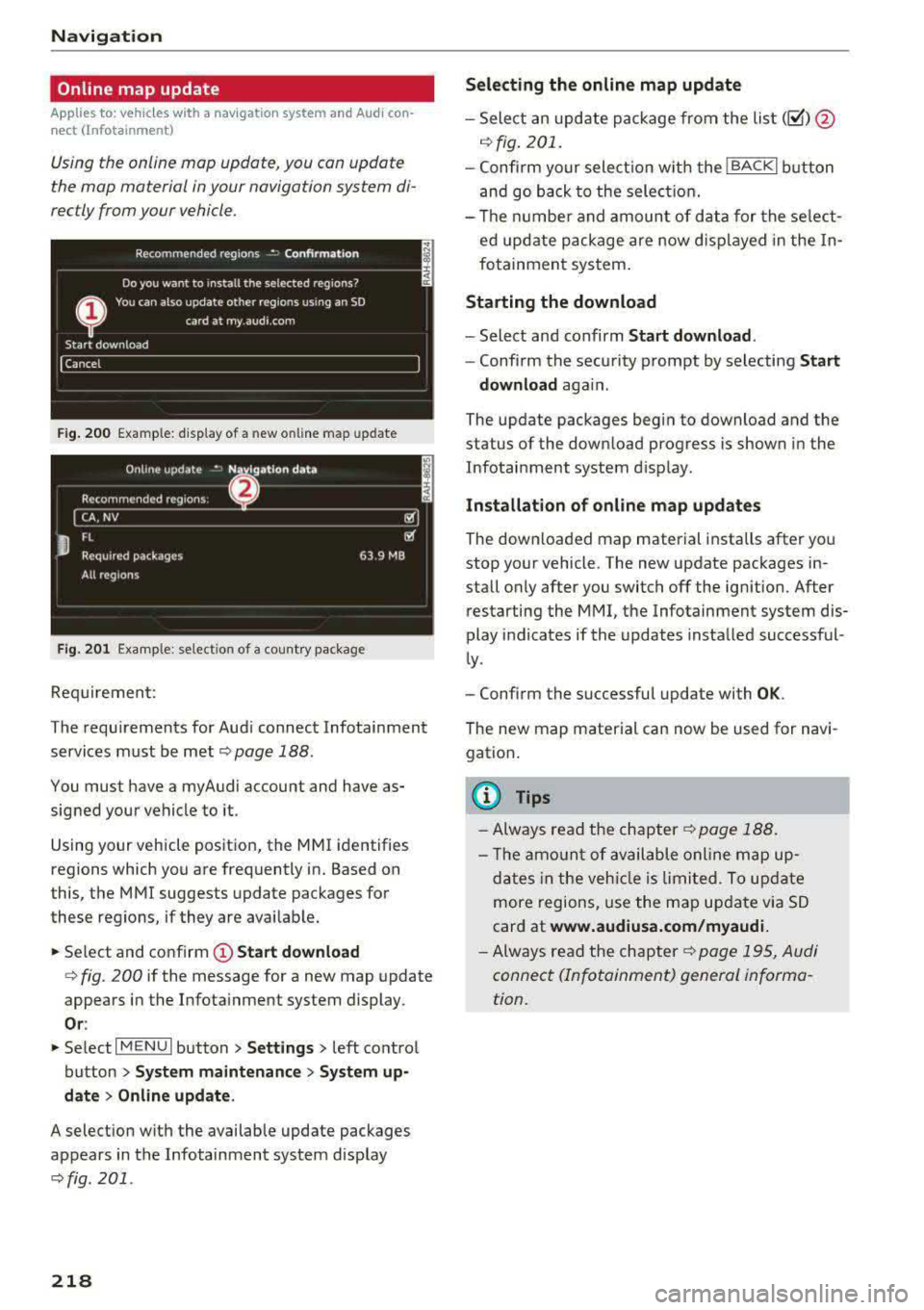
F ig. 20 0 Example: d isp lay of a new o nlin e map update
F ig . 201 Example: se lect io n of a cou ntry pac kage
Req uirement:
The requ irements for Aud i connect Infotainment
services must be met
¢ page 188.
You must have a my Audi account and have as
sig ned your ve hicle to it .
Using your vehicle pos itio n, the M MI identifies
regions which you a re frequently in. Based on
this, the MMI suggests update packages for
these regions, if they are avai lab le.
.,. Se lect and confirm (D Start download
q fig . 200 if the message for a new map update
appears i n the Infota inment system display.
Or :
.,. Se lect I MENU I button> Settings > left co ntro l
button >
System maintenance > System up
date > Online update .
A selection w ith the availab le update packages
appears in the Infotainment system disp lay
¢fig. 201 .
218
Selecting the online map update
-Sele ct an upd ate p ack age fro m the list(~ )@
.:;, fig . 201.
-Confi rm y our select io n w ith the I BACK I button
a nd go back to the sele ction.
- Th e nu mbe r and amoun t of d ata for the se le ct
ed upd ate pa ckage are n ow d is pla yed in the In
fo tainmen t sys tem .
Starting the download
-Select an d confirm Start download .
-Confi rm the secu rity p rompt by selecting Start
download
aga in .
The update packages begin to download and the
status of the down load progress is shown in the
Infotainment system d is p lay.
Installation of online map update s
The downloa ded map material installs after yo u
stop yo ur vehicle . The new update pac kages in
stall o nly after you switch
off the ign ition. After
restarting the MMI, t he Infotainment system dis
play i ndicates if the updates insta lled successf ul
l y .
- Confirm the successful update with
OK .
The new map material can now be used for navi
gation .
@ Tips
-Alw ays re ad the ch apter¢ p age 1 88.
- Th e am ount o f available onlin e m ap u p-
d at es in th e veh icle i s lim ited. To update
more regions, use the ma p up date v ia SD
card at
www.audiusa.com/myaudi.
- Always read the cha pter¢ p ag e 19 5, Au di
connect (In fo ta inment) genera l inf orma
tion .
Page 220 of 403
Traffic information
Introduction
Applies to: ve hicles with nav iga tion system
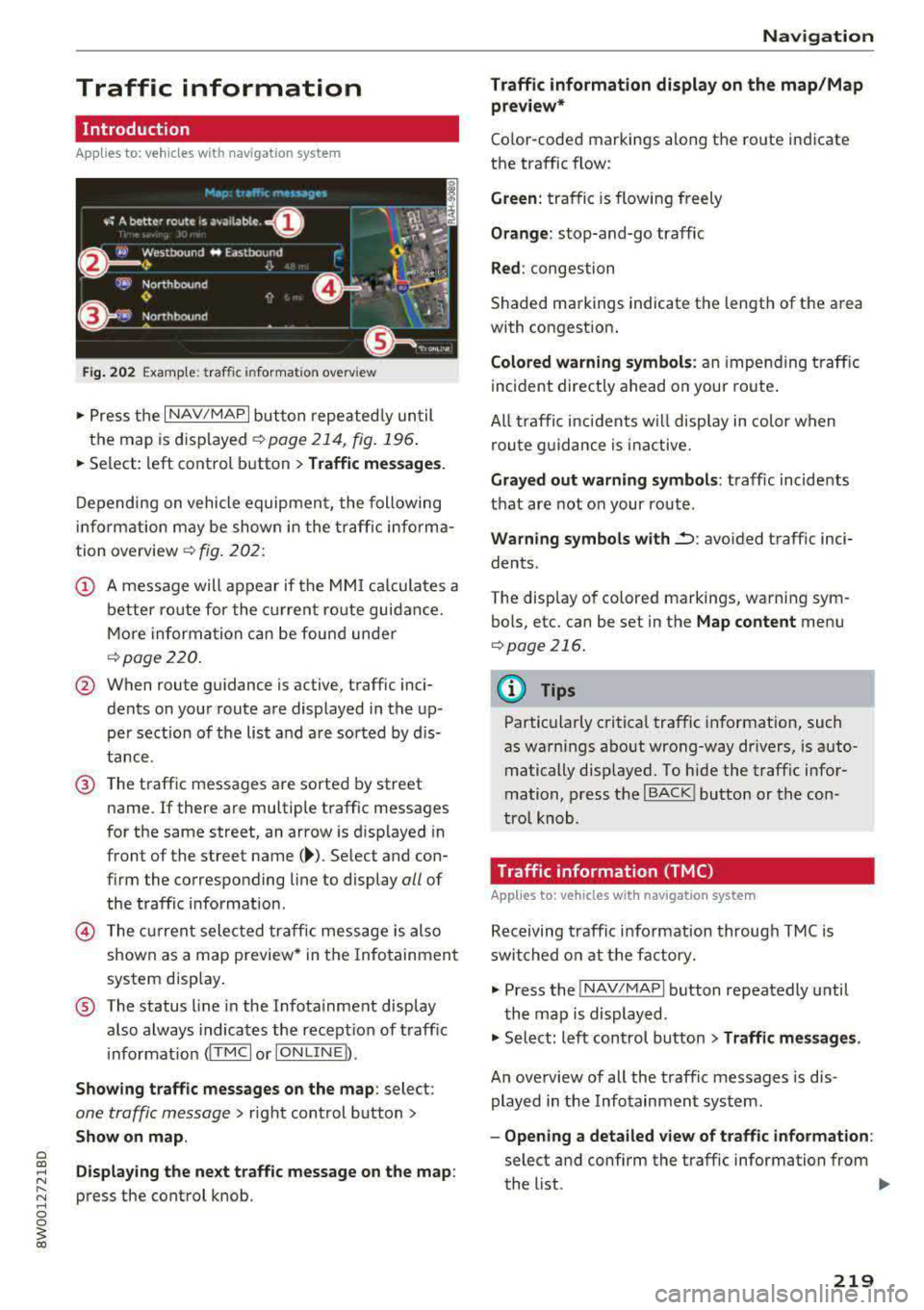
Fig. 202 Example: traffic information overview
"P ress the I NAV/MAPI button repeatedly until
the map is displayed
c>page 214, fig. 196 .
"Se lect: left control button > Traffic messages .
Depending on vehicle equipment, the following
information may be shown in the traffic informa
tion overview
c> fig. 202:
@ A message will appear if the MMI calculates a
better route for the current route guidance.
More information can be found under
c>page220.
@ When route guidance is active, traffic inci
dents on your route are displayed in the up
per sect ion of the list and are sorted by dis
tance.
@ The traffic messages are sorted by street
name.
If there are multiple traffic messages
for the same street, an arrow is d isplayed in
front of the street
name( ~). Select and con
firm the corresponding line to display
all of
the traffic information .
© The current selected traffic message is also
shown as a map preview * in the Infotainment
system disp lay .
® The status line in the Infotainment display
also always indicates the recept ion of traffic
i nformation
dT MCI or IONLINE b.
Showing traffic messages on the map: select:
one traffic message> right control button>
Show on map.
Displaying the next traffic message on the map :
press the control knob.
Navigation
Traffic information display on the map/Map
preview*
Color -coded markings along the route indicate
the traffic flow:
Green: traffic is flowing freely
Orange: stop-and-go traffic
Red: congestion
Shaded markings indicate the length of the area
with congestion.
Colored warning symbols: an impe nding traffic
incident directly ahead on your route .
All traffic incidents w ill display in color when
route guidance is inactive.
Grayed out warning symbols : traffic incidents
that are not on your route .
Warning symbols with~: avoided traff ic inci
dents .
The display of colored markings, warning sym bols, etc. can be set in the
Map content menu
c>page 216.
(@ Tips
Particularly critical traffic information, such
as warnings about wrong-way dr ivers, is auto
matically disp layed. To hide the traffic infor
mation, press the
I BACK ! button or the con
tro l knob.
Traffic information (TMC)
App lies to : veh icles w ith navigat ion syste m
Receiving traffic information through TMC is
switched on at the factory.
"Press the INAV/MAPI button repeatedly until
the map is displayed.
" Select: left control button > Traffic messages.
An overview of all the traffic messages is dis
played in the Infotainment system .
-Opening a detailed view of traffic information:
select and confirm the traffic information from
the list.
..,
219
Page 221 of 403
Navig ation
(D Tips
- TMC traffic reports are not avai lab le in Can
ada. For more information, please contact
Sirius Canada.
- Critical traffic information, such as warn
ings about wrong-way drivers, is automati
cally displayed. To hide the traffic informa
tion, press the
I BACK I button or the control
knob.
Better route
A pp lies to: ve hicles w ith navigation system
By receiving traffic information through TMC,
your MMI calculates a better route
-if available -
and the possible time saved for the current route
guidance . You can decide yourself which route
you would like to use.
~ Press the I NAV/MAPI button repeatedly until
the map is d isplayed .
Requirement: route guidance must be active.
If your MMI has calculated a better route than
the c urrent ro ute guidance, the message
A bette r
route is a vailable.
appears for several seconds
along w ith the time that may be saved. A better
route is indicated in the map v iew by the symbol
tS ¢ page 214, fig . 197 .
A message a lso appears in the traff ic information
overview (i)¢page219, fig. 202.
Apply bette r route
- Press the right contro l button .
- Se lec t and confirm the bet ter rou te.
- T he better route is used for the route guidance
and the ro ute is recalculated.
Online traffic information
A ppl ies to: ve hicles w ith a nav igatio n system a nd Audi con·
n ect (Infotainment)
The MMI can receive real-time online traffic in
formation about congestion, accidents, road
construction and other incidents .
Requirement: the requirements for Audi connect
(Infotainment) must be met
¢ page 188.
220
~ Switch ing online traffic information on and
off :
select I NAV/MAP I b utton> right control
button >
Online tr affic dat a on (~) or off (0).
~ Press the I NAV/MAPI button repeatedly until
the map is displayed.
~ Select: left control button > Traffic messages.
The online traff ic information will also be dis
played in the on line map
v iew ¢ page 216 or on
the standard map
¢page 214, fig. 196 .
If!ONLINEI traffic information cannot be re
ce ived, then traffic information will automatical
l y be rece ived through
! TMCI ¢ page 219 .
@ Tips
-Online traffic i nformation is not availab le in
Canada.
- Always read the
chapter¢ page 195, Audi
connect (Infotainment) general informa
tion.
- Hav ing the Online traffic data funct ion
switched on provides the most accurate re
ports of traffic situations as well as traffic
forecasting. Your vehicle transm its and
processes its anonymo us, encrypted posi
t ion info rmation a t regular i nte rvals to the
t raffic data provider. If you do not want to
u se th is, you c an sw itch off the
online traf
fic information
funct io n at any time.
- Th e
online traffic information netwo rk is
c u rren tly not available in all countries, and
the coverage is not na tionwi de. F or addi
tional information, visi t
www.audiusa.com .