Mmi AUDI A4 2018 Manual PDF
[x] Cancel search | Manufacturer: AUDI, Model Year: 2018, Model line: A4, Model: AUDI A4 2018Pages: 403, PDF Size: 66.81 MB
Page 233 of 403
Media
-The loading times for the audio data depend
on the media p layer used and the number of
files that it contains.
-A maximum of 2,000 entr ies per directory
are displayed in the MMI.
-Songs down loaded for offline use using m u
sic streaming services are stored on your
mobile device (such as a smartphone) and
may be DRM protected. The Wi-Fi audio
player will not play DRM protected files.
-Contact an authorized Audi dea ler or au
thorized Audi Service Facility for additional i nformat ion on the Wi-Fi audio player.
Online media and
Internet radio
A pplies to: ve hicles w ith Aud i co nnect
You can playba ck and operate various online me
dia services and Internet radio using the MMI .
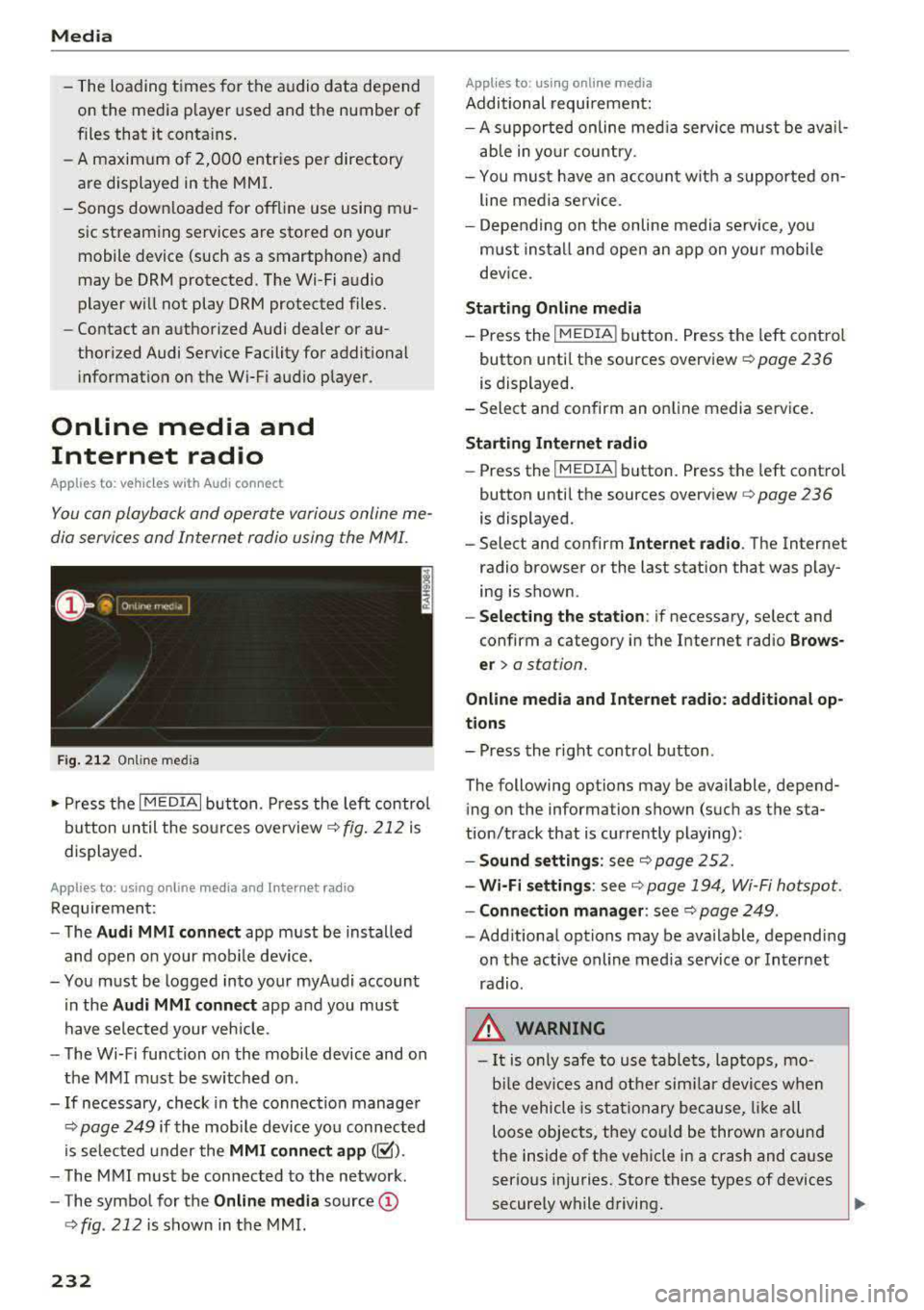
Fig. 212 Online media
.- Press the I MEDIAi button. Press the left control
button until the sources overview
r::!;> fig . 212 is
displayed.
A ppl ies to: using o nline media an d In te rnet ra di o
Requirement:
- The
Audi MMI connect app must be installed
and open o n your mob ile device.
-You must be logged into your myAudi account
in the
Aud i MMI conn ect app and you must
have selected your veh icle.
- The Wi-Fi function on the mobile device and on the MMI must be switch ed on.
-If necessary, check in the connection manager
r::!;> page 249 if the mobile device you connected
is selected under the
MMI conn ect app (~).
-The MMI must be connected to the network.
-The symbol for the Online m edia source CD
r::!;> fig . 212 is shown in the MMI.
232
App lies to : usin g on l ine media
Additional requirement:
- A su pported online med ia service must be ava il
able in yo ur cou ntry.
- You must have an acco unt with a supported on
line media se rvice .
- Depending on the on line media se rvice, yo u
must install and open an app on you r mobile
dev ice.
S tarting Onlin e med ia
-Press the IM EDIA ! button. Press the left cont rol
button until the sources overview
r::!;> page 236
is displayed.
-Select and confirm an on line media service .
Starting Internet radio
-Press the I MEDIA ! button. Press the left control
button until the sources
overview ¢ page 236
is displayed.
-Select and confirm Internet r adio . The Internet
radio browser or the last stat ion that was play
ing is shown.
-Sel ect ing the station : if necessary, select and
confirm a category in the Internet radio
Brow s
er > a station.
Online media and Interne t ra dio : additional op
t ion s
-Press the right control button.
The following options may be available, depend ing on the information shown (such as the sta
tion/track that is currently playing):
- Sound setting s: see r::!;> page 252 .
- Wi -Fi setting s:
see¢ page 194, Wi-Fi hotspot.
- Connection manage r:
see¢ page 249 .
-Additional options may be ava ilable, depending
on the active on line media service or Internet
radio .
.&_ WARNING
-It is o nly safe to use tablets, laptops, mo
bi le dev ices and ot her simi la r devices when
the vehicle is s tat ionary because, like a ll
loose objects, they could be thrown around
the inside of the vehicle in a crash and cause
serio us injuries. Store these types of devices
securely while driving.
~
Page 234 of 403
-Do not use any wireless devices on the front
seats within range of the airbags while driv
ing. Also read and follow the warnings in
c::> page 275, Front airbags.
CJ) Note
- Always follow the information found in c::>0
in Wi-Fi hotspot on page 194.
- Please note that there genera lly are addi
tional costs when using an online media
service account, especially when it is used internationally .
@ Tips
-Depending on the Internet connection and
network traffic, a connection loss can occur
during playback of on line media services.
-Online media and Internet radio usage de
pends on the service availability of the third
party provider.
- Audi AG simply makes the access to on line
media services possible through the MMI
and does not take any responsibility for the
contents of the on line media services.
- Always read the chapter
c::> page 195, Audi
connect (Infotainment) general informa
tion.
- Depending on the mobile device used, there
may be interruptions during media playback
and when using the
Audi MMI connect app.
To avoid interruptions when using a mobile
device, do not lock the screen on your mo
bile device and keep the
Audi MMI connect
app in the foreground .
- Contact an authorized Audi dealer or au
thorized Audi Service Facility for additional
information about online media.
Media
Multimedia connections
USB adapter for Audi music interface
You can connect your mobile devices (such as a
smartphone or
MP3 player) to the Audi music in
terface and charge them using a special
USB
adapter .
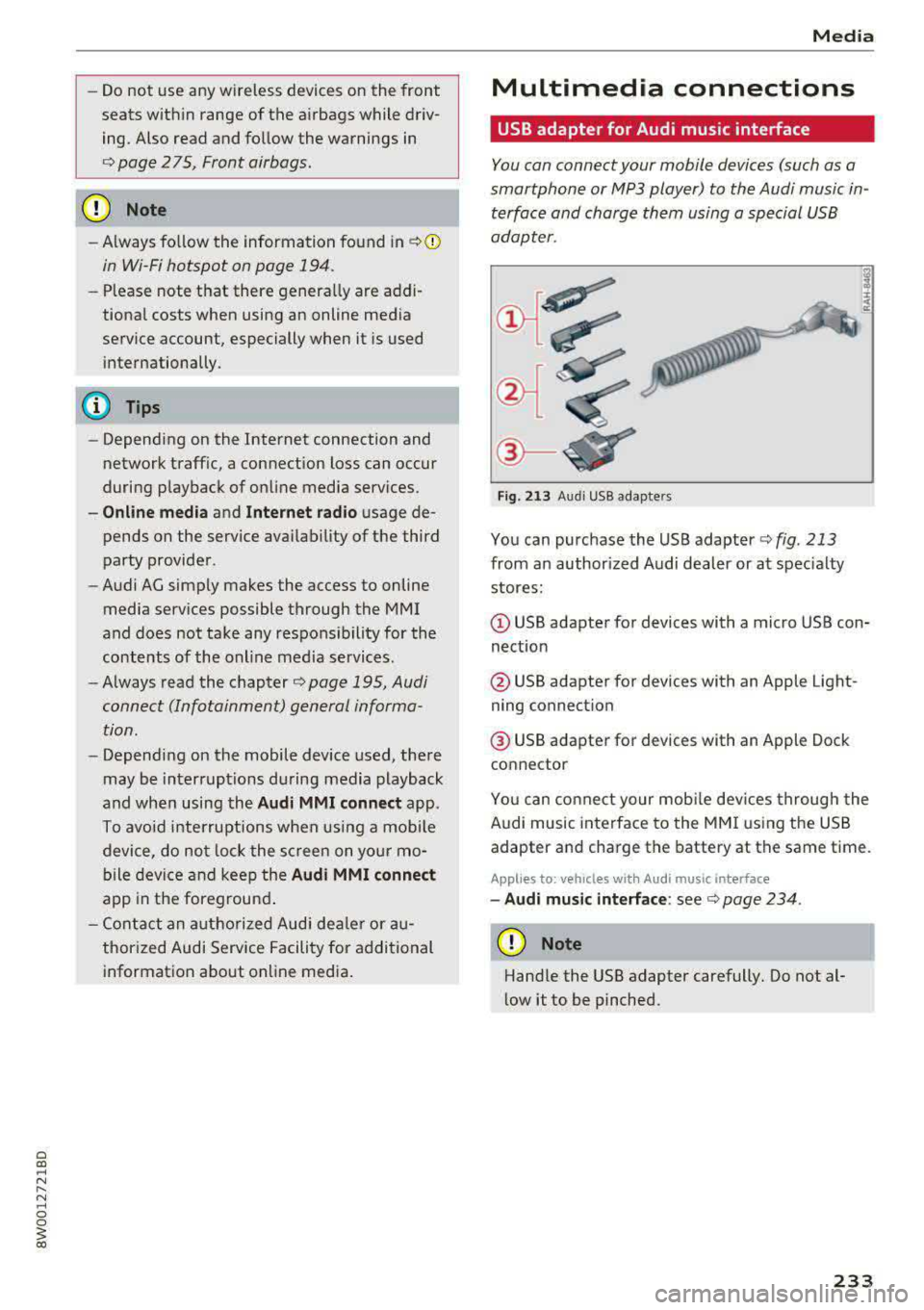
Fig. 213 Audi USB adap ters
You can purchase the USB adapter c::> fig. 213
from an author ized Audi dealer or at specialty
stores:
(D USB adapter for devices with a micro USB con
nection
@ USB adapter for devices with an Apple Light
ning connect ion
@ USB adapter for devices with an Apple Dock
connector
You can connect your mobile dev ices through the
Audi music interface to the MMI using the USB
adapter and charge the battery at the same time.
Applies to : veh icles w it h Aud i music interface
- Audi music interface: see c::> page 234.
(D Note
Handle the USB adapter carefully. Do not al
low it to be pinched.
233
Page 235 of 403
Media
Audi music interface
Connect your mobile devices to the Audi music
interface in order to operate them through the
MMI and charge the battery.
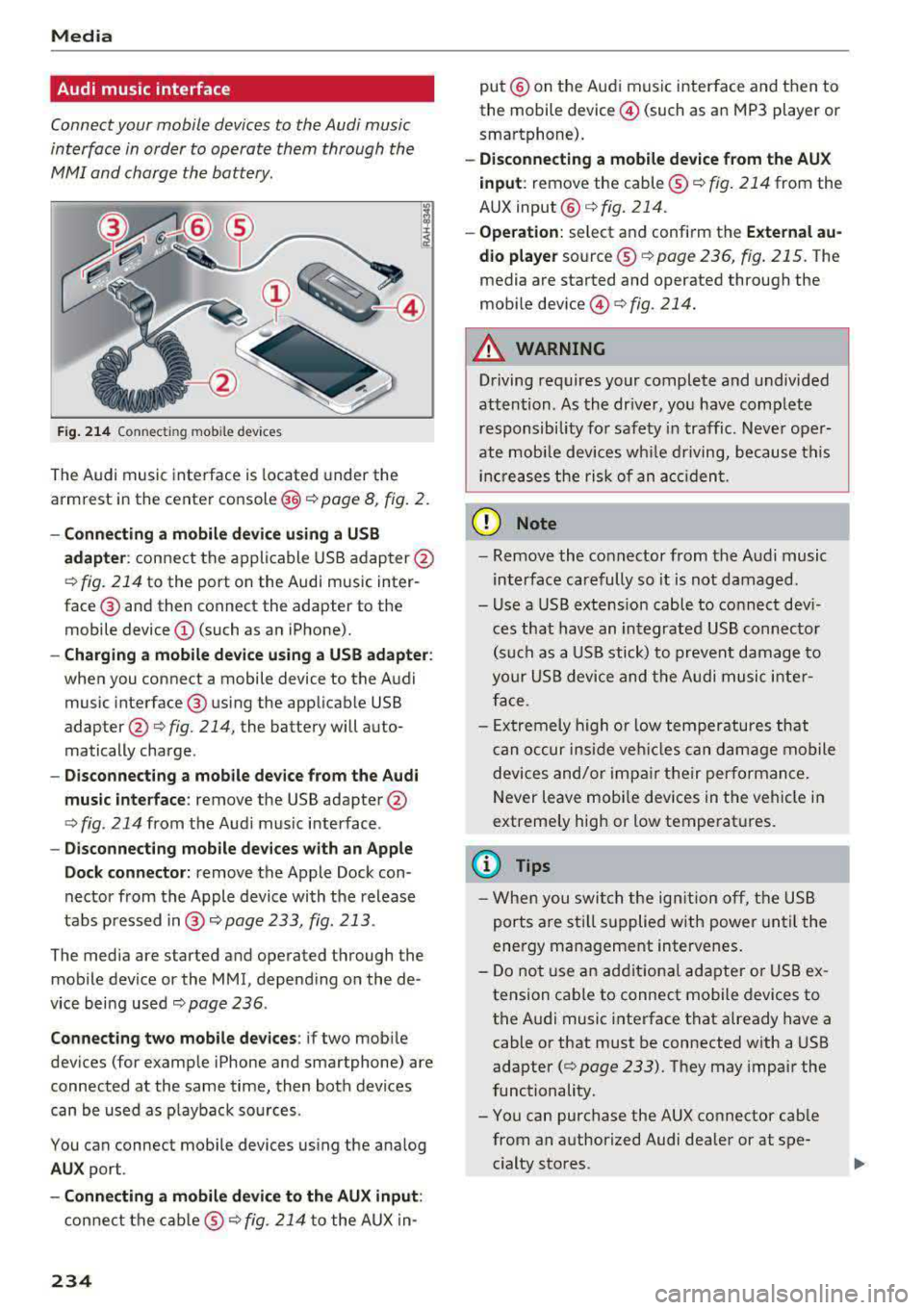
F ig . 214 Connec ting mob ile dev ices
The Audi music inte rface is located under the
armrest in the center
console @c::> page 8, fig. 2.
-Connecting a mobile device u sin g a U SB
a dapt er:
connect the applicable USB adap ter @
c::> fig. 214 to the port on the Audi music inter
face ® and then connect the adapter to the
mobile device @(such as an iPhone).
-Charging a mobile device u sing a USB adapter :
when you connect a mobile device to the Audi
music interface ® using the applicab le USB
adapter @
c::> fig. 214, the battery will auto
matically charge .
-Disconnec ting a mobil e dev ice from the Au di
music int erfac e:
remove the USB adapter@
<=> fig. 214 from the Audi music interface .
-Di sco nn ect ing mob ile d evices with an Apple
Do ck con nector:
remove the Apple Dock con
nector from the Apple device with the release
tabs pressed
i n @ c::> page 233, fig. 213 .
The media are started and operated through the
mobile device or the MMI, depending on the de
vice being used
c::> page 236 .
Connecting two m obile d evi ce s: if two mob ile
dev ices (for example iPhone and smartphone) are
connected at the same time, then both devices
can be used as p layback so urces .
You can connect mobile devices using the analog
AU X port .
-Conn ecting a mobile d evic e to th e AU X input :
connect the cab le ® c::> fig. 214 to the AUX in-
234
put @ on the Audi music interface and then to
the mobile device @(such as an MP3 player or
smartphone).
- Discon necti ng a mobile d evice from the AU X
i nput :
remove the cable ® c::> fig. 214 from the
AUX
input @c::> fig. 214.
-Ope ration: select and confirm the Extern al au
d io player
source ® c::> page 236, fig. 215 . The
media are started and operated through the
mobile
device @<=> fig. 214.
A WARNING
Driving requires your complete and undivided
attention . As the dr iver, you have complete
responsibility for safety in traffic . Neve r oper
ate mobi le devices wh ile driving, because this
inc reases the risk of an acc iden t.
(D Note
- Remove the connector from the A udi music
interface carefully so it is not damaged.
- Use a USB extens ion cable to connect dev i
ces that have an integrated USB connecto r
(s uch as a USB stick) to prevent damage to
your USB device and the A udi musi c inte r
face.
- Ex tremely high o r low temperatures that
c an occur inside veh icles can damage mobile
devices and/or impa ir their performan ce.
Never leave mobi le devices in the vehicle in
extremely high or low temperat ures.
(D Tips
- Whe n you swi tch the ign ition o ff, the USB
ports are sti ll supplied w ith power until the
energy management intervenes.
- Do not use an additiona l adapter o r USB ex
tension cab le to connect mobile devices to
the A udi music interface that already have a
cable or that must be connected with a USB
adapter
(c::> page 233). They may impair the
functionality.
- You can purchase the AUX connector cab le
from an authorized Audi dealer or at spe
cialty stores .
Page 236 of 403
a co .... N ,....
N .... 0 0
3 co
-Functionality is not guaranteed for mobile
devices that do not conform to the USB 2.0
specification.
-USB hubs are not supported.
-Some versions of the iPod such as the iPod
shuffle cannot be connected to the USB
adapter for devices with Apple Dock connec
tor. Connect these devices using a AUX con nector cable.
-Changed content on a mobile device l) that
is connected to the Audi music interface
may not be displayed in the media center.
In this case, reset the
Media settings back
to
Factory settings <=> page 249.
-Video playback through the Audi music in
terface is only supported if the connected
device is recognized as a USB storage device
(for example a USB stick). Apple devices and
MTP devices (such as smartphones) are not
recognized as USB storage devices.
-iPod/iPhone malfunctions also affect the
operation of the MMI. Reset your iPod/
iPhone if this happens.
-Audi recommends updating the iPod/iPhone
software to the latest version. For impor
tant information on operating your iPod/
iPhone, refer to the user guide for the de
vice.
-The USB adapter on the Audi music inter
face will support iPod touch/iPhone from
the Sth generation or later with the light
ning connector.
-For more information about the Audi music
interface and supported devices, check the
Audi database for mobile devices at
www.audiusa.com/mp3 or contact an au
thorized Audi dealer or authorized Audi
Service Facility.
1 > A pplies onl y to MTP devices. Does not app ly to App le dev i
ces and USB mass storage devices.
Media
Rear Seat Entertainment preparation
Applies to : vehicles wi th Rear Seat Enter ta inm ent preparat ion
The Rear Seat Entertainment preparation in
cludes cables and a mount for Audi Entertain
ment mobile in the driver's and front passenger's
seat backrests.
The suitable Audi Entertainment mobile Rear
Seat Entertainment package is available through
Audi Genuine Accessories.
Using Audi Genuine Accessories is recommended.
Audi has established their reliability, safety and
suitability.
We cannot evaluate or endorse other products in
t his way, even if the product is approved by acer
tified testing agency or government agency .
(D Note
Only use devices that are approved for the
Rear Seat Entertainment preparation. Unap
proved devices may cause damage to the vehi
cle electronics .
(D Tips
-Contact an authorized Audi dealer or au
thorized Audi Service Facility for additional
information about
Audi Entertainment mo
bile .
-Always read the chapter<=:> page 385.
-The Rear Seat Entertainment preparation is
not intended to charge external electronic
devices .
235
Page 237 of 403
Media
Playing media
Accessing media
You can start and operate various media
through the
MMI control panel.
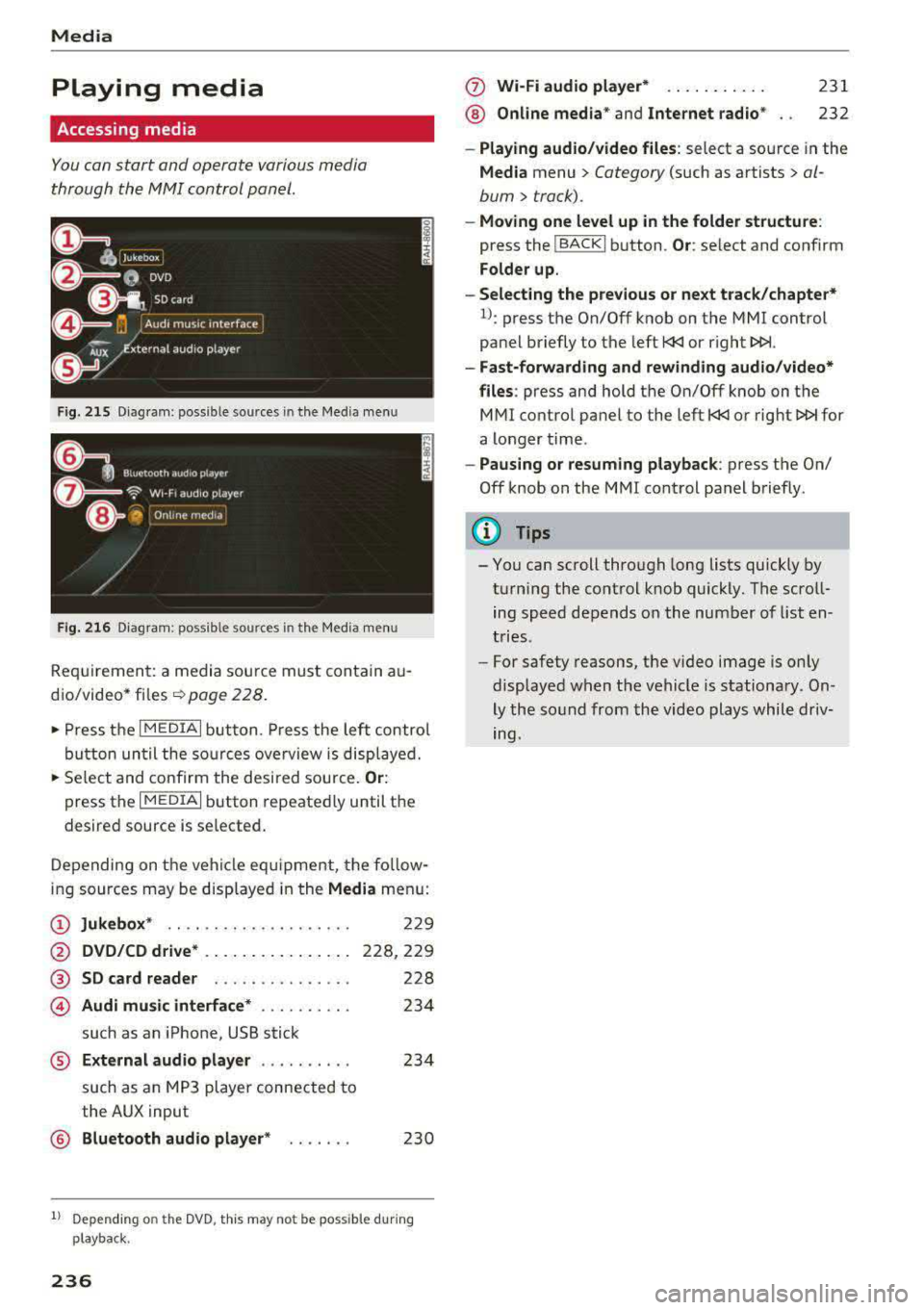
F ig . 215 D ia gr am : p oss ible sources in th e M ed ia m enu
F ig. 216 D iag ra m : possible sources in th e M edi a me nu
Re qu ir emen t: a media sou rce must contain a u
d io/video*
fi les -=> page 228.
• Press t he I M EDIAi bu tton. Press the left co ntro l
b utton until the so urces ove rview is disp layed.
• Se lect and confirm the desi red sou rce. Or :
press th e I M ED IAi b utton repeate dly until the
desired source is selected .
D epending on the ve hicle eq uipme nt, t he fo llow
i ng sources may be disp laye d in the
Media men u:
(D Jukebox * .. .... ........ ..... .
@ DVD/CD drive * .. .. .. .... .. ... .
@ SD card reader ... ..... .. ... . .
© Audi music interface * .. ..... .. .
such as an iPhone, USB stick
229
228,2 29
228
23 4
® External audio player . . . . . . . . . . 234
such as an MP3 player connected to
the AUX input
@ Bluetooth aud io player * . . . . . . . 230
1l Depe ndin g on the DVD , thi s may not be possible du rin g
p laybac k.
236
(f) Wi-Fi audio player* ... .. . .... .
® Online media* and Internet radio *
231
232
-Playing audio /video files : select a source in the
Media menu > Category (such as artists > al
bum
> track).
- Moving one level up in the folder structure :
press the !BACKI b utton . Or: select and confirm
Folder up.
-Selecting the previous or next track/chapter*
1l: press the On/Off knob on the MMI control
pa nel briefly to the left
l
-Fast-forwarding and rewinding audio /video*
files :
press and hold th e On/Off knob on the
M Ml control panel to the left
l
a longer time .
-Pausing or resuming playback : press th e On/
Off knob on the MMI cont rol panel b riefly.
(D Tips
- Yo u can scroll through long lists quickly by
t u rning the control knob quickly. T he scro ll
ing speed depends o n the num ber of list en
t ries.
- For safety reas ons, the video image is only
display ed w hen t he vehicl e is stationa ry . On
ly the so und from the vid eo plays whil e driv
ing.
Page 240 of 403
a co .... N ,....
N .... 0 0
3 co
Playlist
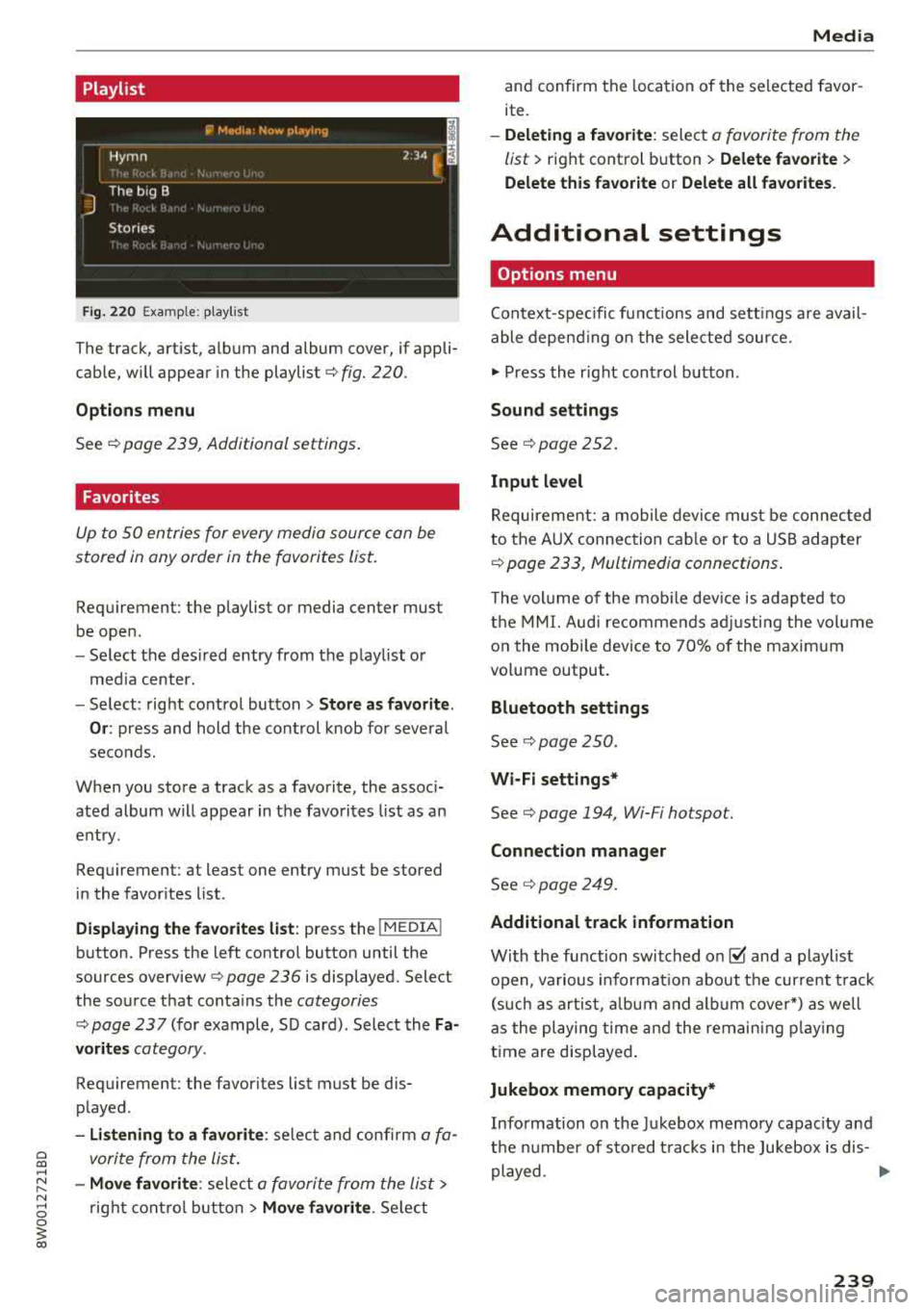
Fig. 220 Example: p lay list
The track, art ist, album and album cover, if appli
cable, will appear in the playlist
¢ fig. 220.
Option s m enu
See ¢ page 239, Additional settings .
Favorites
Up to 50 entries for every media source can be
stored in any order in the favorites list.
Requirement: the playlist or media center must
be open.
- Select the des ired entry from the playlist or
med ia center.
- Select: right control button
> Stor e as fa vori te.
O r:
press and hold the control knob for several
seconds.
When you store a track as a favorite, the assoc i
ated album will appear in the favorites list as an
entry .
Requirement: at least one entry must be stored
in the favorites list.
Dis play ing the fa vorit es list : press the I MEDIA !
button. Press the left contro l button until the
sources
overview ¢ page 236 is displayed. Select
the source that conta ins the
categories
¢ page 237 (for example, SD card) . Select the Fa
v or it e s
category.
Requirement: the favorites list must be dis
played.
- Listening to a fav orite : select and confirm a fa
vorite from the list.
- Mo ve fa vorite : select a favorite from the list>
rig ht cont rol button > Move f avorite . Select
Media
and confirm the location of the selected favor
ite.
- Deleti ng a fav orit e: select a favorite from the
list>
right control b utton> Delete f avorite >
Delete thi s fa vorite or Delete all fa vorite s.
Additional settings
Options menu
Context-spec ific functions and sett ings a re avail
able depend ing on the sele cted source.
.,. Press the right control button.
Sound setting s
See¢ page 252.
Input level
Requirement: a mobile device mus t be connected
to the AUX connection cab le or to a USB adapter
¢ page 233, Multimedia connections.
T he volume of the mob ile dev ice is adapted to
the MMI. Audi recommends adj usti ng the vol ume
on the mobi le device to 70% of the maxim um
vo lume output.
Bluetooth settings
See ¢ page 250 .
Wi-Fi sett ings *
See¢ page 194, Wi-Fi ho tspot.
C onn ection manag er
See ¢ page 249.
Addit ional track information
With the function switched on@' and a playlist
open , va rious informat ion about the current t rack
(s uch as artist, a lbum and alb um cove r*) as we ll
as the playing time and the remaining p lay ing
time are displayed .
Jukebox memory capacity*
Information on the Jukebox memory capac ity and
the number of sto red t racks in the Jukebox is dis-
played.
..,
239
Page 241 of 403
Media
Change pl aying po sition
Tu rn the control knob to the left o r to the right .
Or: move your finger across the MMI to uch con
trol pad* from left to r ight .
Shuffle1
)
W ith the funct io n sw itched on~ . all files in the
p laylist a re played and show n in random orde r.
Repeat t rack1
l
When the function is switched on~ . the current
track repeats.
Repe at*
Req uirement: an iPod/ iPhone* must be selected
as the media source in the Aud i mu sic interface
¢ page 236, Accessing media.
- Trac k: th e current track will be rep eat ed .
- Folder : the tracks in the current folder are re -
peated contin uously in a loop.
- Off : the f un ct ion is swi tched off .
Back to 'Pla yback'
The options men u is closed. The track currently
p laying appears in the playlist .
Play similar music*
The track currently p lay ing is qu ic kly analy zed
(such as art ists, gen res, mood, beat) and a smart
playlist with s imilar tracks is shown .
Play mo re ...
A smart playlist is show n based on th e track cur
r ently p laying. You c an se lect between a playlist
with more tracks
b y this a rti st, from thi s album
or of this g en re .
Copy to ju keb ox*
See ¢ pag e 229, Adding files to the Jukebox.
Set a s ringtone*2
)
Requ irement: a cell phone must be connected to
the MMI. The track currently playing m ust be in
the Jukebo x*
¢ page 229 .
l) The fun ctio n auto matic ally sw itche s off when th e sour ce
is changed .
2> This fun ction is not a vai lable for all cell phon es.
240 The selected track will be
used as the ringtone
for incoming calls .
Gracenote online databa se *
Requirement: the MMI must be connected to t he
Interne t.
Depend ing on availab ility, var ious information
will load about the track current ly playing when
t hi s function is switc hed
on~-
Favori te s
See¢ page 239.
Addition al opt ion s
Requirement: the vehicle m ust be stationary and
a video fi le* or a DVD* must be playing .
Parental control*
Playback of video DVDs can be restr icted using
parenta l cont rol.
Ente r the passwo rd for parental control. Pass
word set at the factory: 1234. You have the fol
l owing opt ions:
- Prot ection lev el: select and confirm the protec
tion level (for example, Level S) . Eight different
content rat ing levels can be set for parental
cont rol.
If you se t the paren tal control level at
Level 5, all DVDs from level 1-5 c an be pl ayed.
Video DVDs with a higher level will not play . Se
lect
No re striction to remove all of the restr ic
tions .
-Change password : edit the c urrent password .
Switch to full screen
The video image is displayed. Tu rn the contro l
k nob to d isplay the playlist.
Or : press the I BAC KI
button.
Replay v ideo l)
When this function is switched on~' the current
video will replay .
.,._
Page 242 of 403
a co .... N ,....
N .... 0 0
3 co
Show DVD menu
The DVD main menu opens in t he Infotainment
system display.
- Sele cting a m enu it em : select and confirm a
menu item.
O r: move your finger on the M MI
touch contro l pad* and press the control knob.
Aud io track1
)
You can manually set the audio track (language
and audio format). The language and aud io for
mat options depend on the video DVD.
Subtitle sl)
You can set subtit les for playback manually. The
l anguages available depend on the DVD.
A sp ect
Aud i recommends the Automat ic setting for the
picture format. You can set the picture format
depending on the active file or source (for exam
p le video file*, DVD*).
Picture for- Description
mat
Automatic
The MMI detects the picture for-
mat of the source and d isplays the
image in the optimum ratio . B lack
ba rs may appea r on the sides of
the display, depending on the
source format and the Info tain-
ment system d isp lay that is instal-
l ed .
Zoom The image is enlarged to fill the
ent ire Infota inment system d is-
p lay. Switch the function off if t he
image is distorted.
l ) Depe ndi ng o n the DVD, t his may not be poss ib le dur ing
playback .
Media
Picture for- Description
mat
Cinem a-
Use this setting for fil ms in cinema
scope format 21:9. Black bars are shown
in the upper and lower edges of the
Infotainment system display .
Original The image is disp layed in the ratio
of the source format . Select this
opt ion if the image is distorted or a
section of the image is cut off
when
Auto is selected .
4:3 T he image is f ixed i n the 4:3 pie -
ture format . Black bars are shown
on the sides of the Infotainment
system display.
16 :9 The image is fixed i n the 16:9 p ie-
t ur e format. Blac k ba rs are shown
in the upper and lower edges of the
Infotainment system display.
(D Tips
- Not all video DVDs have parenta l cont ro l.
- The p rotection levels for the
Parental con-
trol
are based on the US s tandards from the
Motion Picture Association of America
(MPAA) . Note that the age levels for video
DVDs in European countr ies may di ffer.
- Password ent ry for
Parental control will be
locked for approx imately one m inute if you
enter the incorrect password th ree t imes in
a row. The password can on ly be reset by an
authorized Audi dealer.
241
Page 245 of 403
Media
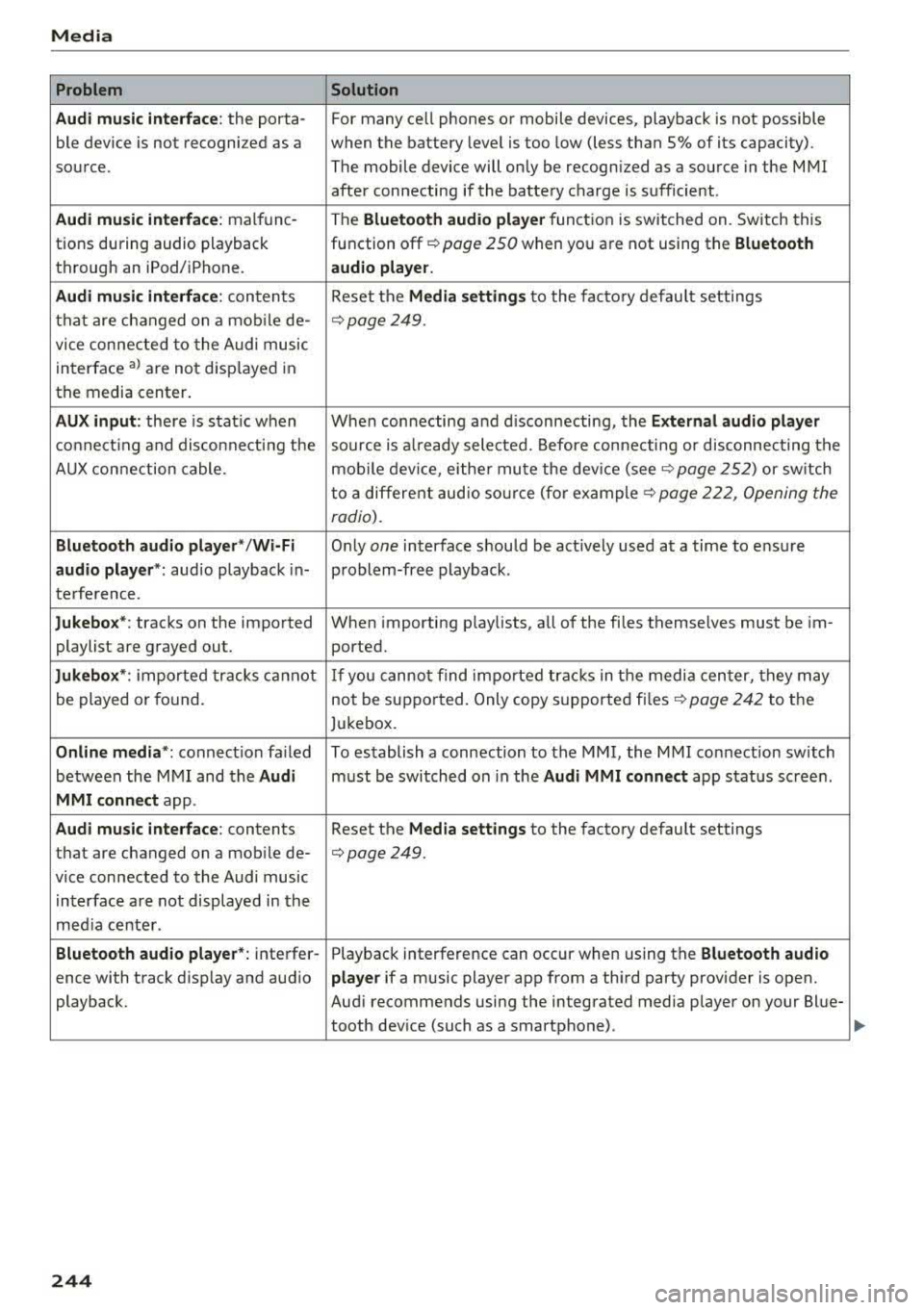
Problem Solution
Audi music inte rface :
the porta- For many ce ll phones or mobile devices, playback is not possible
ble device is not recognized as a when the battery level is too low (less than 5% of its capacity).
source. The mobile device will only be recognized as a source in the MMI
after connecting if the battery charge is sufficient .
Audi music interface: malfunc-The Bluetooth audio player function is switched on. Switch this
tions during audio playback function
off¢ page 250 when you are not using the Bluetooth
through an iPod/ iPhone. audio player.
Audi music interface:
contents Reset the Media settings to the factory default settings
that are changed on a mobile de-
¢page 249.
vice connected to the Audi music
interface
al are not disp layed in
the media center.
AUX input: there is stat ic when When connecting and disconnecting, the External audio player
connecting and disconnecti ng the source is already selected. Before connecting or disconnecting the
AUX connection cable. mobile device, either mute the device
(see¢ page 252) or sw itch
to a different audio sourc e (fo r
example ¢ page 222, Opening the
radio).
Bluetooth audio player* /Wi-Fi Only one interface should be act ively used at a time to ensure
audio player*: audio playback in- problem-free playback.
terference.
Jukebox*: tracks on the imported When importing playlists, all of the fi les themselves must be im-
playlist are grayed out. ported.
Jukebox*: imported tracks ca nnot If you cannot find imported tracks in the media center, they may
be played or found. not be supported. Only copy supported
files¢ page 242 to the
Jukebox.
Online media *: connection fa iled To establish a connection to the MMI, the MMI connection switch
between the MMI and the
Audi must be switched on in the Audi MMI connect app status sc reen.
MMI connect app.
Audi music interface: contents Reset the Media settings to the factory default settings
that are changed on a mob ile de-
¢page 249.
vice connected to the Audi music
interface are not displayed in the
med ia center .
Bluetooth audio player *: interfer- Playback interference can occur when using the Bluetooth audio
ence with track d isp lay and aud io player if a music player app from a third party provider is open.
playback. Audi recommends using the integrated media player on your Blue-
tooth device (such as a smartphone) .
244
Page 247 of 403
Audi smartph one inte rfac e
Audi smartphone
interface
Setup
App lies to: ve hicles w ith Audi smartpho ne in te rface
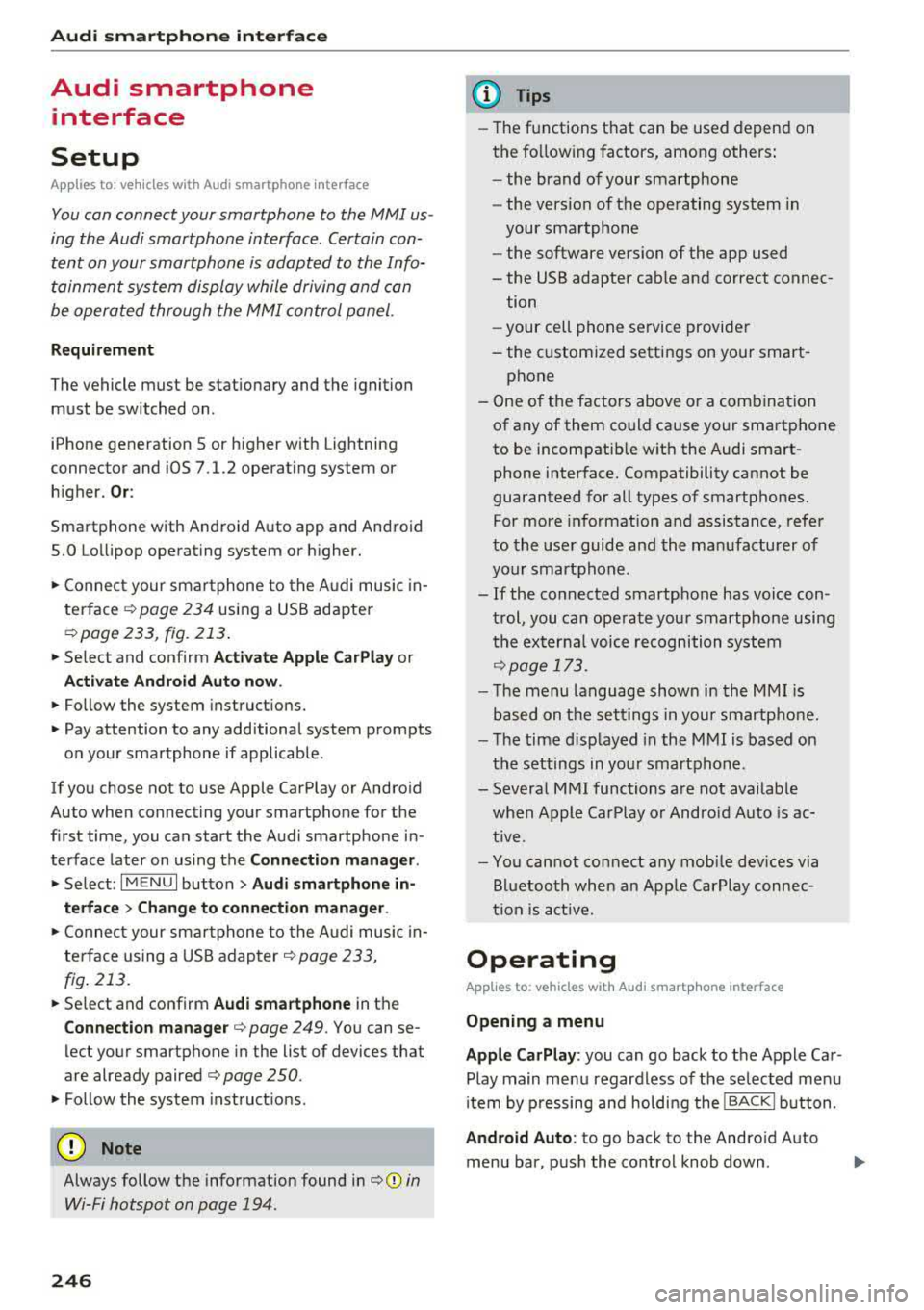
You can connect your smartphone to th e MMI us
ing the Audi smartphone int erfac e. Certain con
te nt on your smartph on e is ada pted to the Info
t ainment syste m display while driving and can
be operated through the
MMI control panel.
Requirement
The vehicle must be stat ionary and the ignition
must be switched on .
iPhone generation 5 or higher with Lightning
connector and iOS 7.1.2 operating system or h igher.
Or :
Sma rtphone with Android Auto app and Android
5 .0 Lo llipop operating system or h ighe r.
"' Connect your smar tphone to the Audi music in -
te rface <=?
page 234 using a USB adapter
r=;,page 233 , fig . 213 .
.. Select and confirm A cti va te Apple CarPla y or
Activate And roid Auto now .
.. Follow the system instruct ions.
"' Pay attention to any additional system prompts
on your smartphone if applicable .
If you chose not to use Apple CarPlay or Andro id
Auto when connect ing your sma rtphone for the
first time, you can start the Audi smartp hone in
terface later on using the
Connection manager .
.. Select: I MENU I button > Audi smartphone in-
terfa ce > Change to conne ction manager .
.. Connect your sma rtphone to the A udi music in
terface using a USB adapter
r=;, page 233,
fig . 213.
.. Se lect and confirm Audi smartphone in the
Conne ction man ager r=;, page 249 . You can se
lect your smartphone in the list of devices that
are already paired
r=;, page 250.
"' Fol low the system instruct ions .
{U) Note
Always follow the information found in r=;,(D in
Wi-Fi hotspot on page 194.
246
(D Tips
- The functions t hat can be used depend on
t h e fo llow ing factors, among others :
- the brand of your smartpho ne
- the vers io n of the ope rating system in
your smartphone
- the software version of the app used
- the USB adapter cab le and correct connec-
tion
- your cell phone se rvice provide r
- the customized settings on your smart -
phone
- One o f the factors above or a combina tion
of any of them could cause your smartphone
to be incompatib le wit h the Audi smart
phone interface. Compatibility cannot be
guaranteed for all types of smartphones.
For more informat ion and assistance, refer
to the user guide and the manufactu rer of
you r smartphone .
- If the connected smartphone has voice con
t rol, you can ope ra t e you r smartpho ne usi ng
the externa l voice recognition system
r=;, page 173.
- The menu language shown in the MMI is
based on t he sett ing s in you r smartpho ne.
- Th e time d isp layed in the M MI is based on
t h e settings in yo ur smartp hone .
- Severa l MMI funct ions a re not availab le
when Apple Car Play o r Andro id Auto is ac
t ive.
- Yo u cannot connect any mobi le devices via
B lu etoo th when an App le Car Play connec
ti on is a ct ive .
Operating
App lies to: vehicles with A ud i smartp hone interface
Opening a menu
App le CarP lay:
you can go back to t he Apple Car
Play main menu regardless of the selec ted menu
i tem by p ressing and holdi ng the
!BACKI b utton .
Android Auto : to go back to the Andro id Auto
menu bar, pus h the co ntrol knob down.