Mmi AUDI A4 2018 Owners Manual
[x] Cancel search | Manufacturer: AUDI, Model Year: 2018, Model line: A4, Model: AUDI A4 2018Pages: 403, PDF Size: 66.81 MB
Page 5 of 403
a co .... N ,....
N .... 0 0
3 co
Error messages . . . . . . . . . . . . . . . . . . . . . 144
Trai ler hitch . . . . . . . . . . . . . . . . . . . . . . . . 144
Intelligent Technology . . . . . . . . . . 146
Elect ronic stabilization control (ESC) . . . . 14 6
Brakes ... .. .. ... .. ..... ... .. .. .... . 14 9
Electromechanica l steer ing, Dynamic
steering . . . . . . . . . . . . . . . . . . . . . . . . . . . 150
All-wheel drive (quattro) . . . . . . . . . . . . . . 150
Energy ma nagement . . . . . . . . . . . . . . . . . 151
Not ice about data reco rded by the Event
D ata Reco rde r and vehicle control
mod ules . . . . . . . . . . . . . . . . . . . . . . . . . . . 153
Infotainment system . . . . . . . . . . . . 155
Multi Media Interface . . . . . . . . . . . . 155
Traffic safety information . . . . . . . . . . . . . 155
I n troduction . . . . . . . . . . . . . . . . . . . . . . . . 155
M MI On/Off knob with joystic k function . . 155
Infotainment system display . . . . . . . . . . 156
M MI operat ion . . . . . . . . . . . . . . . . . . . . . . 157
MMI touc h . . . . . . . . . . . . . . . . . . . . . . . . . 158
Contro l knob with joystick f unction . . . . . 160
Shortcut keys . . . . . . . . . . . . . . . . . . . . . . . 162
L etter/numbe r speller . . . . . . . . . . . . . . . . 162
Fr ee tex t sea rch . . . . . . . . . . . . . . . . . . . . . 164
M enus and Symbols . . . . . . . . . . . . . . . . . . 165
Voice recognition system . . . . . . . . 168
Operating . . . . . . . . . . . . . . . . . . . . . . . . . . 167
Command overview inform ation . . . . . . . . 168
Commands . . . . . . . . . . . . . . . . . . . . . . . . . 169
External vo ice operat ion 173
Telephone . . . . . . . . . . . . . . . . . . . . . . . . 175
I ntroduction . . . . . . . . . . . . . . . . . . . . . . . . 17 S
Setup . . . . . . . . . . . . . . . . . . . . . . . . . . . . . 175
Using the te lephone . . . . . . . . . . . . . . . . . 177
Favorites . . . . . . . . . . . . . . . . . . . . . . . . . . . 180
Messages . . . . . . . . . . . . . . . . . . . . . . . . . . 180
Listening to voicema il . . . . . . . . . . . . . . . . 183
D irectory . . . . . . . . . . . . . . . . . . . . . . . . . . . 183
Addit ional settings . . . . . . . . . . . . . . . . . . 185
Tr oubleshoo ting . . . . . . . . . . . . . . . . . . . . . 187
Audi connect (Infotainment) . . . . 188
I ntroduction . . . . . . . . . . . . . . . . . . . . . . . . 188
Setup . . . . . . . . . . . . . . . . . . . . . . . . . . . . . 188
Table of contents
Configuration thro ugh myAudi . . . . . . . . . 188
Opening A udi connect (Infotainment) . . . 189
A udi connect Infotainment services . . . . . 189
Wi-Fi hotspot . . . . . . . . . . . . . . . . . . . . . . . 194
Configuring the data connection........ 195
Audi connect (Infotainment) general
i nformation . . . . . . . . . . . . . . . . . . . . . . . . 195
T roub leshooting . . . . . . . . . . . . . . . . . . . . . 197
Audi connect vehicle control . . . . 198
I n trod uction . . . . . . . . . . . . . . . . . . . . . . . . 198
Setup . . . . . . . . . . . . . . . . . . . . . . . . . . . . . 198
Additional o ptions . . . . . . . . . . . . . . . . . . . 199
Remote locking and un lo cki ng . . . . . . . . . 199
Vehicle sta tus report . . . . . . . . . . . . . . . . . 199
Parking location . . . . . . . . . . . . . . . . . . . . . 199
Geofencing Alert . . . . . . . . . . . . . . . . . . . . 200
Speed Alert . . . . . . . . . . . . . . . . . . . . . . . . . 200
Valet Alert . . . . . . . . . . . . . . . . . . . . . . . . . 200
Stolen Vehicle Locator . . . . . . . . . . . . . . . . 200
Online Aud i serv ice reques t . . . . . . . . . . . . 200
Eme rgency call . . . . . . . . . . . . . . . . . . . 202
I n trod uction . . . . . . . . . . . . . . . . . . . . . . . . 202
E mergency call . . . . . . . . . . . . . . . . . . . . . . 202
Online roads ide ass ista nce . . . . . . . . . . . . 203
N avigation . . . . . . . . . . . . . . . . . . . . . . . . 204
Open ing navigation . . . . . . . . . . . . . . . . . . 204
E nte ring a des tina tion . . . . . . . . . . . . . . . . 205
Persona l rou te ass istance . . . . . . . . . . . . . 210
Alte rnative rou tes . . . . . . . . . . . . . . . . . . . 2 11
Additional settings . . . . . . . . . . . . . . . . . . 212
Map. ... .. .. .. .. .. .... . ..... ... .. .. 214
Online map d isp lay . . . . . . . . . . . . . . . . . . 216
Map update . . . . . . . . . . . . . . . . . . . . . . . . 217
Traffic information . . . . . . . . . . . . . . . . . . 219
T roubleshooting . . . . . . . . . . . . . . . . . . . . . 221
Radio ............................. 222
Open ing the radio . . . . . . . . . . . . . . . . . . . 222
Radio funct ions . . . . . . . . . . . . . . . . . . . . . 223
Radio menu . . . . . . . . . . . . . . . . . . . . . . . . 225
Presets . . . . . . . . . . . . . . . . . . . . . . . . . . . . 22 5
Addition al settings . . . . . . . . . . . . . . . . . . 22 5
T roub leshooting . . . . . . . . . . . . . . . . . . . . . 226
3
Page 6 of 403
Table of content s
Media ... . ... ... .. .. ..... ... .. .. ...
227
Introduction . . . . . . . . . . . . . . . . . . . . . . . . 227
Notes . . . . . . . . . . . . . . . . . . . . . . . . . . . . . 227
Media drives . . . . . . . . . . . . . . . . . . . . . . . . 228
Bluetooth audio player . . . . . . . . . . . . . . . 230
W i- F i aud io player . . . . . . . . . . . . . . . . . . . 231
O nline med ia and Internet radio . . . . . . . . 232
Mu ltimedia connect io ns . . . . . . . . . . . . . . 233
P lay ing media . . . . . . . . . . . . . . . . . . . . . . . 236
Addit io nal sett ings . . . . . . . . . . . . . . . . . . 239
Supporte d media and file formats . . . . . . 242
Troubleshooting . . . . . . . . . . . . . . . . . . . . . 243
Audi smartphone interface ...... 246
Se tup ... .. .... ... . ...... ... .. .. ... 246
Operating . . . . . . . . . . . . . . . . . . . . . . . . . . 246
Troubleshoot ing . . . . . . . . . . . . . . . . . . . . . 24 7
System settings . . . . . . . . . . . . . . . . . . 248
Setting the date and time . . . . . . . . . . . . . 248
MMI sett ings . . . . . . . . . . . . . . . . . . . . . . . 248
Connection manager . . . . . . . . . . . . . . . . . 249
System update . . . . . . . . . . . . . . . . . . . . . . 251
Sound settings . . . . . . . . . . . . . . . . . . . . . . 252
Volume sett ings . . . . . . . . . . . . . . . . . . . . . 252
Restart ing the M MI . . . . . . . . . . . . . . . . . . 253
Sof twa re license i nfo rm at ion 253
Safety first . . . . . . . . . . . . . . . . . . . . . . . 2 54
Driving safety . . . . . . . . . . . . . . . . . . . . 254
B asics . . . . . . . . . . . . . . . . . . . . . . . . . . . . . 254
Correct passenger se ating positions . . . . . 255
D river's and front passenger 's footwell . . 2S8
Pedal area . . . . . . . . . . . . . . . . . . . . . . . . . . 259
Storing cargo correctly . . . . . . . . . . . . . . . 259
Reporting Safety Defects . . . . . . . . . . . . . . 261
Safety belts . . . . . . . . . . . . . . . . . . . . . . 263
Gene ral information . . . . . . . . . . . . . . . . . 263
Why use safety belts? . . . . . . . . . . . . . . . . 264
Safety belts . . . . . . . . . . . . . . . . . . . . . . . . 266
Belt tensioners . . . . . . . . . . . . . . . . . . . . . . 269
Airbag system .................... 271
Important information . . . . . . . . . . . . . . . 27 1
Front airbags ....................... 275
M on itor ing the Advan ced Airbag System . 283
Knee airbags . . . . . . . . . . . . . . . . . . . . . . . . 28 7
4
Side a irbags . . . . . . . . . . . . . . . . . . . . . . . . 289
Side curtain airbags . . . . . . . . . . . . . . . . . . 292
Child safety . . . . . . . . . . . . . . . . . . . . . . 295
Important information . . . . . . . . . . . . . . . 295
Child safety seats . . . . . . . . . . . . . . . . . . . . 301
Securing child safety seats . . . . . . . . . . . . 306
LATCH system (lower anchorages and
tethers for c hildren) . . . . . . . . . . . . . . . . . 309
Additional informat ion . . . . . . . . . . . . . . . 314
Maintenan ce and Care ........... 31S
Checking and Filling . . . . . . . . . . . . . 31S
Gasoline ........................... 315
D iesel fue l . . . . . . . . . . . . . . . . . . . . . . . . . 316
Refueling . . . . . . . . . . . . . . . . . . . . . . . . . . 31 7
Se lective cata lytic red uction (AdBlue/
DE F) . . . . . . . . . . . . . . . . . . . . . . . . . . . . . . 3 19
Emissions control systems . . . . . . . . . . . . 322
Engine compartment . . . . . . . . . . . . . . . . . 323
Engine o il . . . . . . . . . . . . . . . . . . . . . . . . . . 325
Cooling system . . . . . . . . . . . . . . . . . . . . . . 329
Brake fluid . . . . . . . . . . . . . . . . . . . . . . . . . 330
Battery . . . . . . . . . . . . . . . . . . . . . . . . . . . . 331
Windshie ld washer system . . . . . . . . . . . . 332
Se rvice interva l display 333
Wheels ........ ................ ... 334
Whee ls and Tires . . . . . . . . . . . . . . . . . . . . 334
T ire p ressure mo nitoring system 351
Care and cleaning . . . . . . . . . . . . . . . . 354
Genera l information . . . . . . . . . . . . . . . . . 354
Car w ash es . . . . . . . . . . . . . . . . . . . . . . . . . 35 4
Cleaning an d care information . . . . . . . . . 355
Placing your vehicle out of service . . . . . . 3 59
Do It Yourself ... .. .. ........... .. 3 60
Emergency as sistance . . . . . . . . . . . 360
Genera l information . . . . . . . . . . . . . . . . . 360
Eq uipment . . . . . . . . . . . . . . . . . . . . . . . . . 360
Tire mobility kit . . . . . . . . . . . . . . . . . . . . . 361
Replacing a whee l . . . . . . . . . . . . . . . . . . . 363
Space-sav ing spare t ire . . . . . . . . . . . . . . . 367
Collaps ible spa re ti re . . . . . . . . . . . . . . . . . 367
Page 15 of 403
Multifunction steering
wheel plus
Operating
Applies to: vehicles with multifunction steering wheel plus
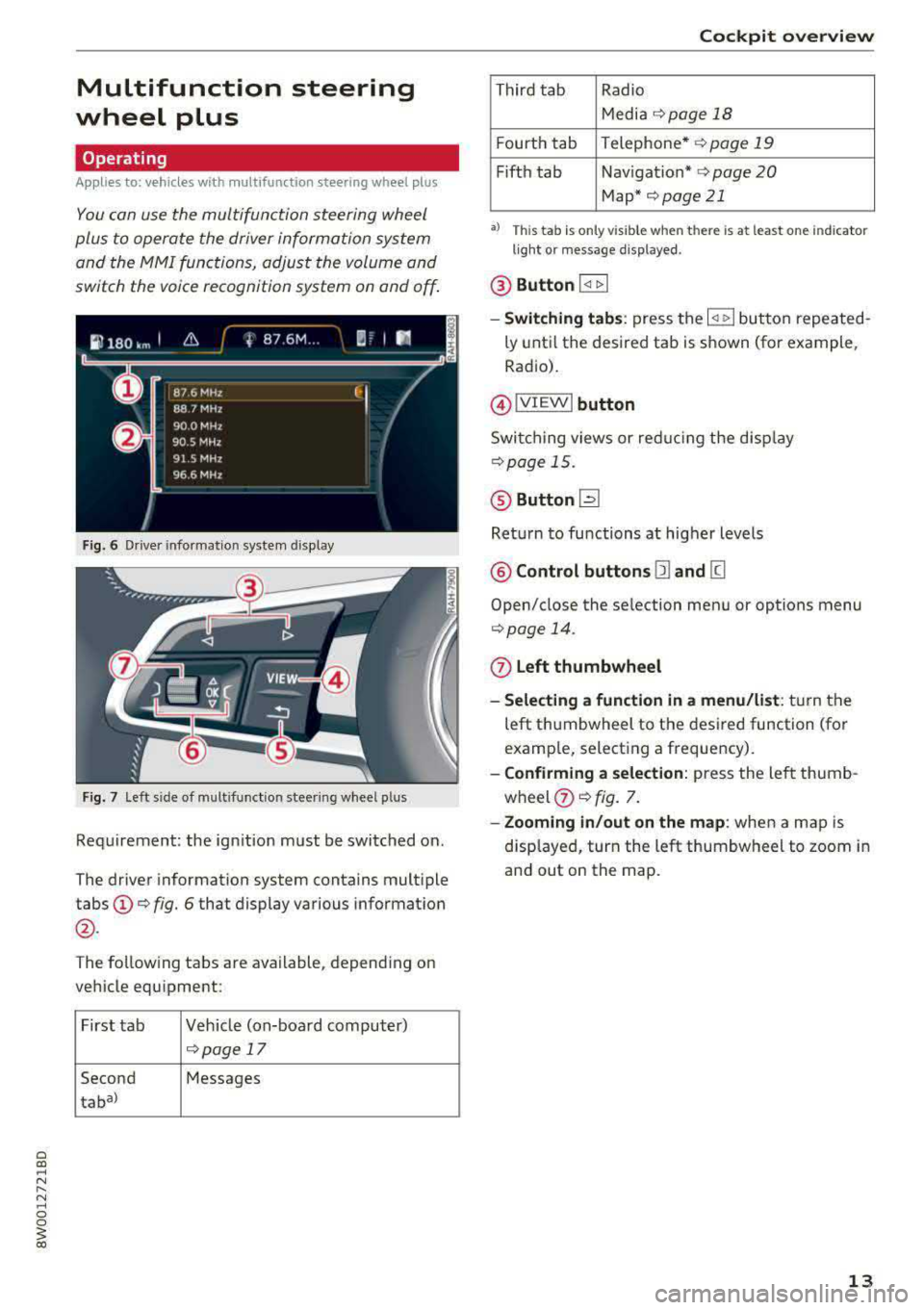
You can use the multifunction steering wheel
plus to operate the driver information system
and the
MMI functions, adjust the volume and
switch the voice recognition system on and off.
Fig. 6 Dr iver information system d isplay
Fig. 7 Left s ide of multifunction steer ing wheel p lus
Requirement: the ignition must be switched on.
The driver information system contains multiple
tabs©¢ fig. 6 that display various information
@.
The following tabs are available , depending on
vehicle equipment:
First tab Vehicle (on-board computer)
¢ page 17
Second Messages
taba)
Cockpit overview
Third tab
Radio
Media
¢ page 18
Fourth tab Telephone* ¢
page 19
Fifth tab Nav igation* ¢ page 20
Map*¢page21
•> Thi s tab is only v is ible when t he re is at leas t one indicato r
light or message displayed .
@ Button l<1 t>I
- Switching tabs : press the l<1 t> I button repeated
ly until the desired tab is shown (for example,
Radio).
@ !VIEWI button
Switching views or reduc ing the display
¢page 15.
® Button ~
Return to functions at higher levels
@ Control buttons Q] and Kl
Open/close the selection menu or options menu
¢page 14.
0 Left thumbwheel
- Selecting a function in a menu/list :
turn the
left thumbwheel to the desired function (for
example, selecting a frequency).
- Confirming a selection: press the left thumb
wheel
(i) ¢ fig. 7.
- Zooming in/out on the map : when a map is
disp layed, turn the left thumbwheel to zoom in
and out on the map.
13
Page 21 of 403
Applies to: ve hicles with multifunction steering wheel plus
"Press th e l<1 1>I butto n repeated ly until the Ra -
dio/Media tab is disp layed .
" Press the left control button ¢ page 14 .
Depending on vehicle equipmen t, the following
functions may be availab le in the driver informa
tion system .
-Selecting a source : select and confi rm a source
s u ch as the SD card.
- Selecting a radio station from the source li st:
sele ct and confirm Switch to radio .
- Playing an audio /video file :
select and confi rm
a file.
- Pau sing/resuming playba ck : press the r ight
t hu mbwheel @
~page 15, fig. 11. To res ume
playb ack , p ress the r igh t thumbw heel again .
-Re starting playback of an audio file : select the
file that is curre ntly playing, if necessary. Press
the left th umbwheel.
- Opening additional track information: select:
r ig ht cont rol bu tton>
Show "Now Playing"
screen .
@ Tips
-The media drives do not play files that are
p ro te cte d by DRM and that a re identif ied
wi th the sym bol
1'.D.
- Please note t hat w ithin a media sou rce in
th e d river i nfo rm at ion s ystem, o nly pl aylis ts
tha t we re sele cted t hroug h the MMI cont rol
p anel c an be
playe d~ page 23 7.
-Pay attention to t he Infotai nmen t sys te m
display if ne cessary. Depen din g on these
l ected function, it may
be necess ary to use
t h e MM I cont rol panel.
Cockpit overview
Telephone
Applies to: vehicles with te lephone
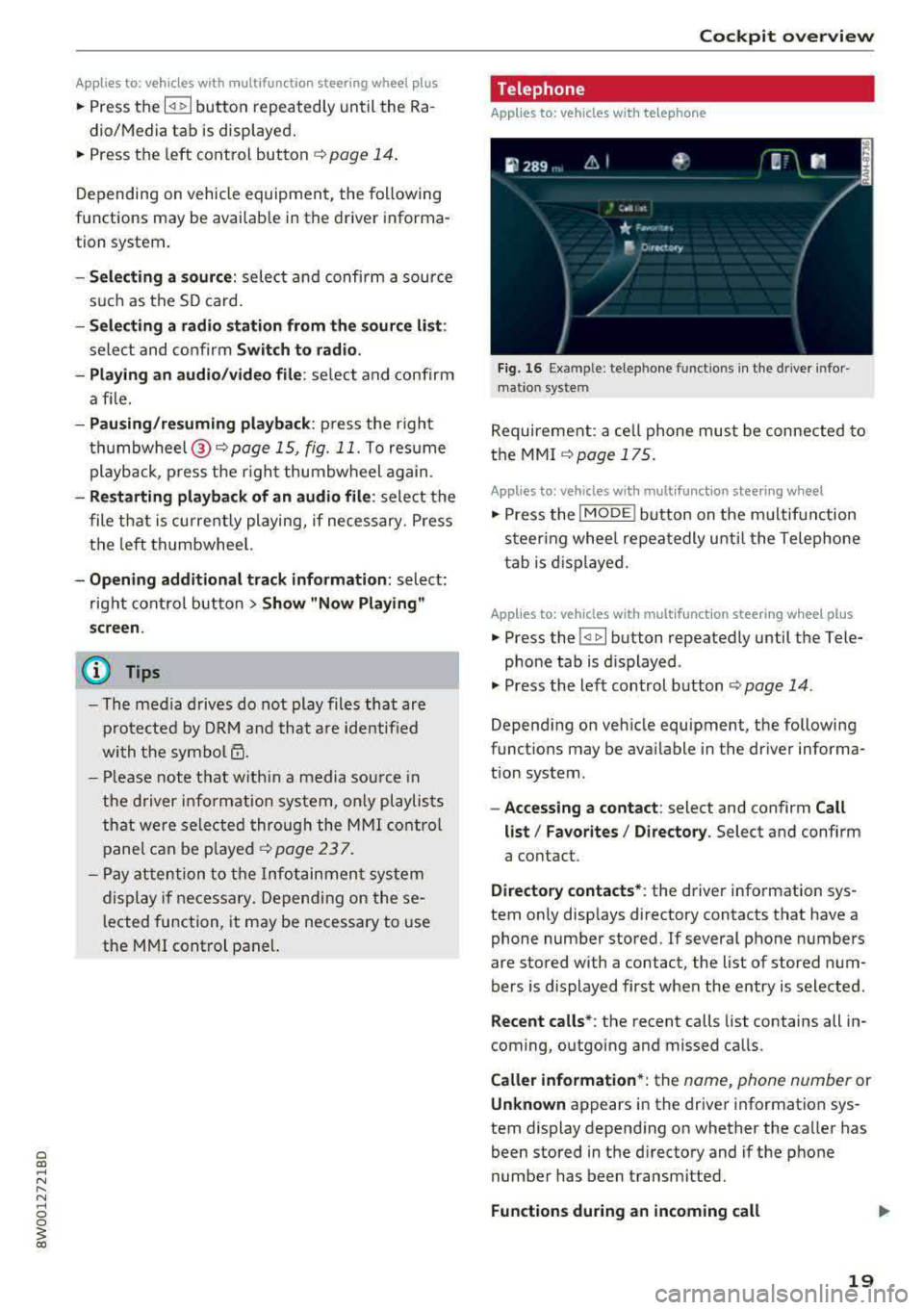
Fig . 1 6 Ex ampl e: telep hone functio ns in th e drive r info r
m ati on sys te m
Requireme nt: a ce ll phone must be connected to
the MMI
~ page 175.
Applies to: vehicles wit h mult ifunction stee ring wheel
" Press the IMODE ! button on the m ultifun ction
steer ing whee l re peat edly u ntil t he Telephone
t ab is d is pla yed .
Applies to: vehicles with mult ifunction steering wheel plus
" Press the l<1 1>I button repeatedly until the Tele-
p ho ne tab is d isplayed .
" Press the le ft con trol b utton ¢ page 14 .
Depending on veh icle equipment , the following
funct ions may be ava ilable i n the dr iver informa
t ion system .
-Accessing a contact : select and confirm Call
list / Favorites / Directory .
Select and confirm
a contact .
Directory contacts* : the driver info rmation sys
tem on ly disp lays directory contacts that have a
phone number stored .
If several phone numbers
are stored with a contact, the list of stored num
bers is d isplayed first when the entry is selected .
Recent calls*: the recent calls list contains all in
coming, o utgoing and missed ca lls.
Caller information *: the name, phone number or
Unknown ap pears in the drive r information sys
tem display depend ing on whether the ca ller has
been stored in the d irecto ry and if the phone
number has been transmitted.
Functions during an incoming call
19
Page 25 of 403
Cockpit o verview
Arrow view with route guidance started
Applies to: vehicles with nav igation system and arrow view
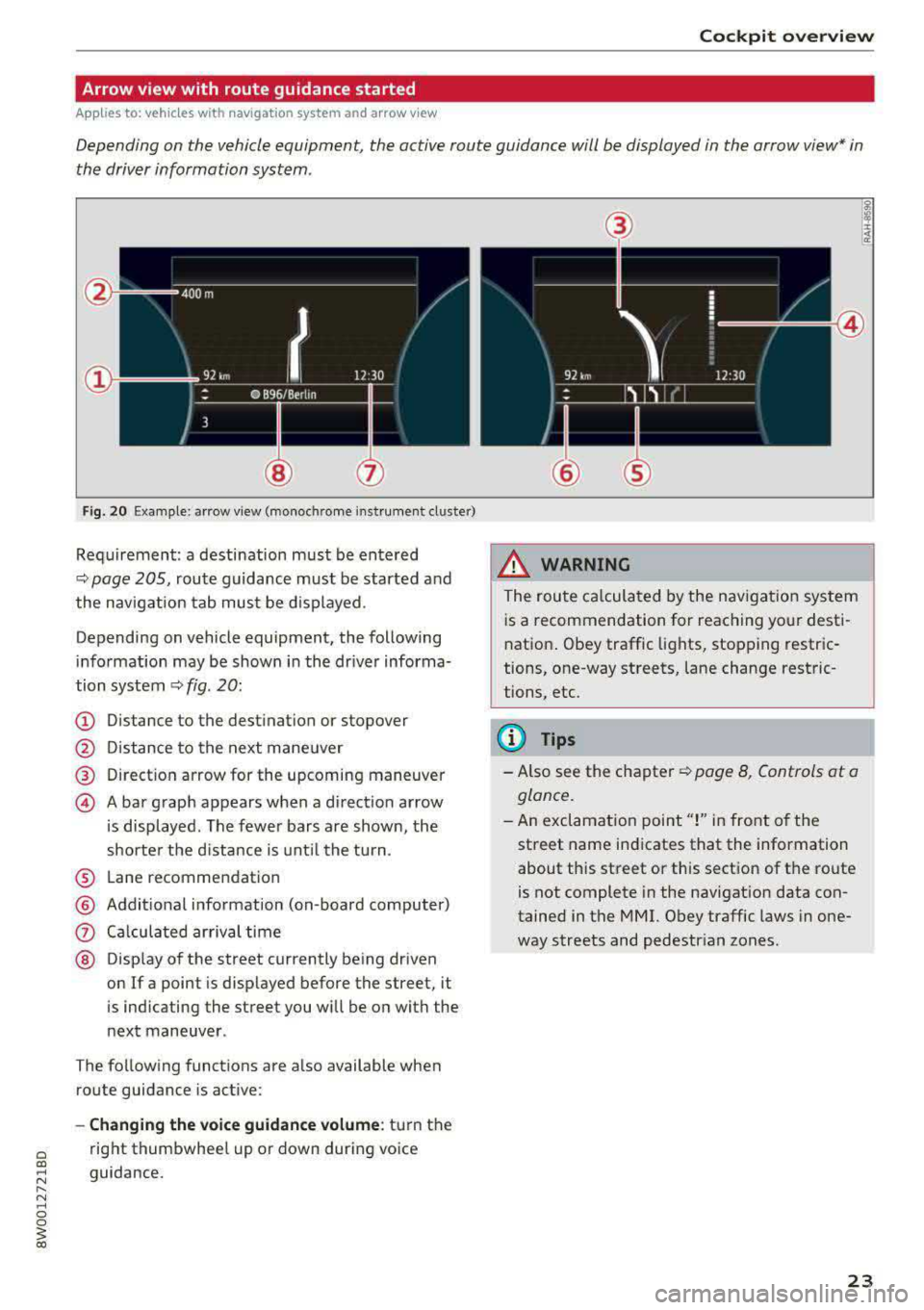
Depending on the vehicle equipment, the active route guidance will be displayed in the arrow view* in
the driver information system .
Fig. 20 Example: arrow view (monoch rome instrument cluster)
Requirement: a destination must be entered
<::> page 205, route guidance must be started and
the navigation tab must be displayed .
Depending on vehicle equipment, the following
information may be shown in the dr iver informa
tion system
ca:> fig . 20:
(D Distance to the destination or stopover
@ Distance to the next mane uver
@ Direct ion arrow for the upcoming maneuver
@ A bar graph appears when a direct ion arrow
i s displayed . The fewer bars are shown, the
shorte r the d istance is unt il the turn .
® Lane recommendation
@ Additional information (on -board computer)
Q) Calculated arrival time
® Disp lay of the street currently being driven
on If a point is disp layed before the street, it
is indicating the street you will be on with the
next maneuver .
T he following functions are a lso available when
route guidance is active:
- Changing the voice guidan ce volum e: turn the
right thumbwhee l up or down during
voice
guidance.
@
@
.&_ WARNING
The route ca lcula ted by the nav igat io n system
i s a recommendation for reaching your dest i
nation . Obey traffic lights, stopping restric
tions, one-way streets, lane change restric
tions, etc.
@ Tips
- Also see the chapter ca:> page 8, Controls at a
glance.
-An exclamat ion point"!" in front of the
street name indicates that the information
about this street or this section of t he route
is not complete in the navigat ion data con
tained in the MMI. Obey traffic laws in one
way streets and pedestr ian zones.
23
Page 54 of 403
Opening and clo sin g
When the valet parking function is switched on,
the message
V alet pa rking acti vated appears in
the instrument cluster display when you switch
the ignition on.
(D Tips
Please note that the luggage compartment
can still be accessed from the vehicle interior
in vehicles with fixed rear seat backrests or
ones that cannot be locked, even when the
valet parking function is switched on.
Garage door opener (HomeLink)
Description
Applies to: veh icles with garage door opener (Homelink)
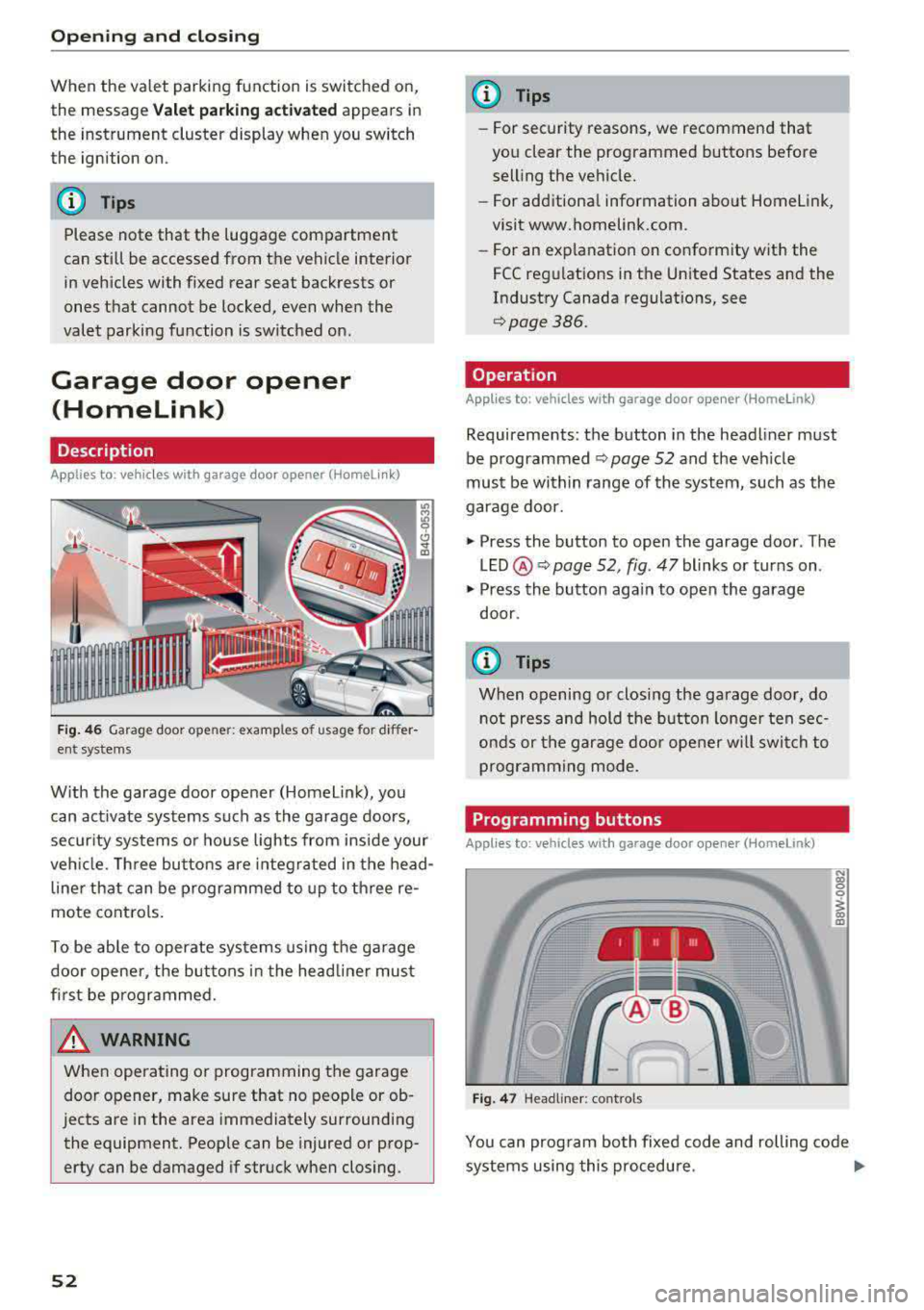
Fig. 46 Garag e door ope ner: exa mples o f usage for di ffer
ent systems
W ith the garage door opener (Homel ink), you
can act ivate systems such as the garage doors,
security systems or house lights from inside your
veh icle. Three buttons are integ ra ted in the head
line r that can be programmed to up to th ree re
mote controls.
To be ab le to operate systems using the garage
door opene r, the buttons in the head line r must
first be programmed.
A WARNING
When ope rating o r programming the garage
door opener, make sure that no people or ob
jects are in the area immediately surrounding
the equipment. Peop le can be injured or prop
erty can be damaged if struck when closing.
52
@ Tips
- For security rea.sons, we recommend that
you clear the programmed buttons before
selling the vehicle.
- For additiona l information about Homelink,
visit www.homelink.com.
- For an exp lanation on conformity w ith the
FCC regulations in the Un ited States and the
Industry Canada regulat ions, see
q page386.
Operation
Applies to : vehicles with garage door opener (Homelink)
Requirements : the button in the headliner must
be programmed ¢
page 52 and the vehicle
must be w ithin range of the system, such as the
garage door.
.,. Press the button to open the garage door . The
LED @ Q page 52, fig. 47 blinks or turns on .
.,. Press the button aga in to open the garage
door .
{D Tips
When opening or closing the garage door, do
not press and hold the button longe r ten sec
onds or the garage doo r opener w ill swi tch to
programming mode.
Programming buttons
Applies to: vehicles with garage door opener (Home link)
I 111 111
Fig. 47 Headline r: cont rols
N (0 0 0
1 m
You can prog ram bo th fixed code and rolling code
systems using this procedure .
..,.
Page 55 of 403
a co .... N ,....
N .... 0 0
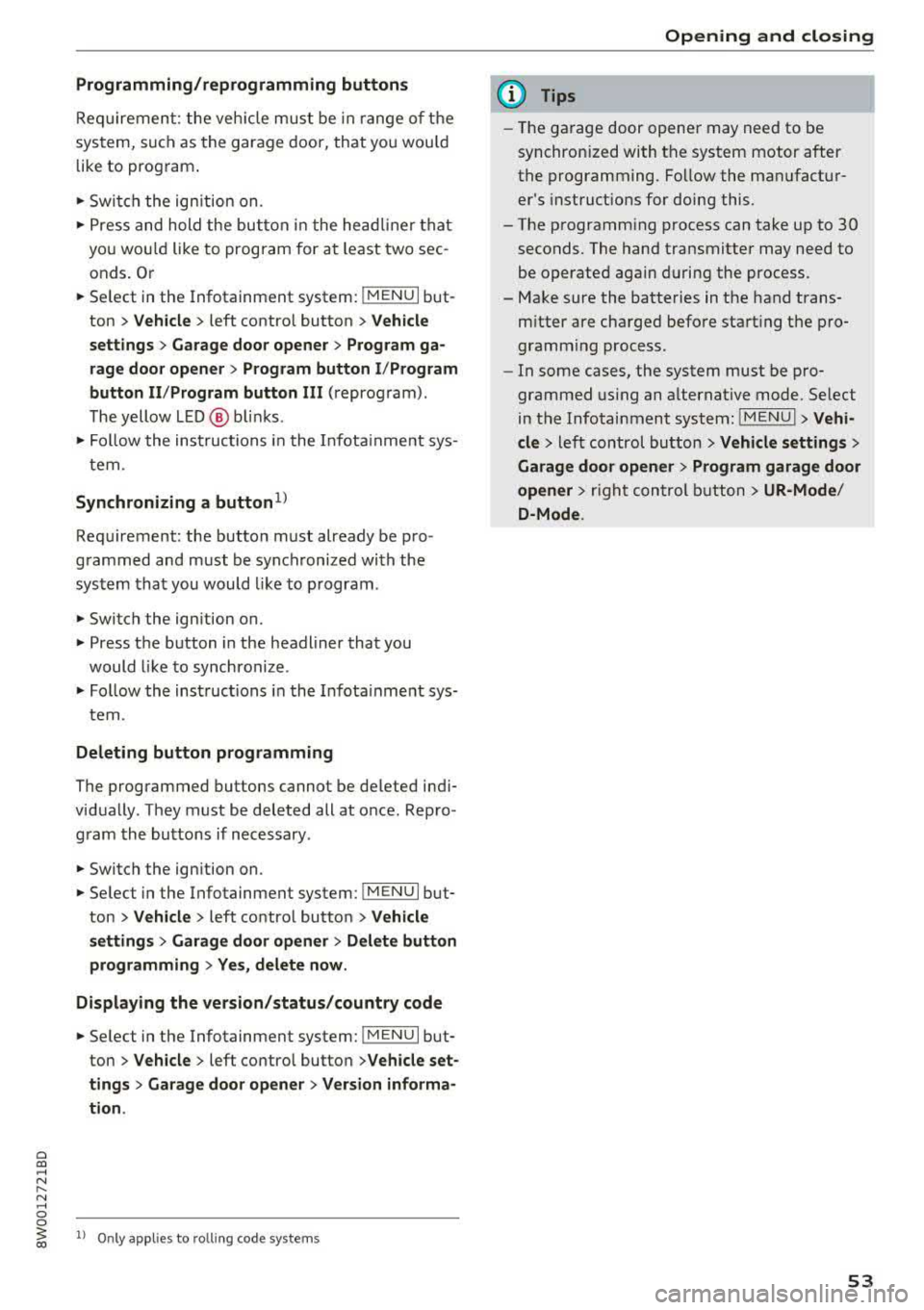
Programming/reprogramming buttons
Requirement: the vehicle must be in range of the
system, such as the garage door, that you would
like to program .
• Switch the ignition on.
• Press and hold the button in the headliner that
you wou ld like to program for at least two sec
onds. Or
• Se lect in the Infotainment syst em: !MENUI but
ton
> Vehicle > left contro l button > Vehicle
settings > Garage door opener > Program ga
rage door opener> Program button I/Program
button II /Program button
III (reprogram).
The yellow LED @ blin ks.
• Follow the instructions in the I nfota inment sys-
tem .
Synchronizing a button1
)
Requirement: the button must already be pro
grammed and must be synchronized with the
system that you would like to program .
• Switch the ign ition on.
• Press the button in the headliner that you
would like to synchronize .
• Follow the instructions in the Infota inment sys
tem .
Deleting button programming
The programmed buttons cannot be deleted ind i
vidually . They must be deleted all at once . Repro
gram the buttons if necessary .
• Switch the ignition on.
• Select in the Infotainmen t system: !M ENUI but
ton
> Vehicle > left control button > Vehicle
settings > Garage door opener > Delete button
programming > Yes, delete now.
Displaying the version/status/country code
• Select in the Infotainment system: ! MENUI but
ton
>Ve hicle > left contro l bu tton >Ve hicle set
tings > Garage door opener > Version informa
tion .
~ l) Only appl ies to rolling cod e sys tems
Opening and closing
{!) Tips
-The garage door opener may need to be
synchron ized with the system motor after
the programming. Follow the manufactur
er's instruct ions for doing this .
- The programming process can take up to 30
seconds. The hand transmitter may need to be operated again during the process .
- Make sure the batteries in the hand trans
m itter are charged before start ing the pro
gramming process .
- In some cases, the system must be pro
grammed using an alternative mode. Select
in the Infotainment system:
!MENU I > Vehi
cle
> left control button > Vehicle settings>
Garage door opener > Program garage door
opener >
right control button > UR-Mode /
D-Mode .
53
Page 58 of 403

Lights and Vision
Ir.a Head light a ssista nt: malf unction! See own
er' s manual
Drive to an a utho rized Aud i de aler or authorized
Aud i Serv ice Facility immediately to have the
malfunction corrected . You can still switch the
high beams on or off manually .
II Headlight assi stant : currently unavail able .
Camera view re stricted due to surroundings .
See owner's manual
The camera view is b lo cked , fo r example by a
s t icker o r debr is.
The sensor is located between the interior rear
view mir ror and the windshield . Do not p lace any
stickers in th is area on the windshield .
_& WARNING
High beam assistant is only i ntended to assist
t he driver. The dr iver is still res ponsible for
cont ro lling the headlights and may need to
switch them on and off manually depend ing
on light and visib ility co nditions . It may be
necessary to ope rate them manua lly in s itua
tions such as:
- In adve rse weathe r cond itions such as fog,
heavy ra in, b low ing snow or sp raying water .
- On roads where oncoming traffic may be
partia lly obscured, s uch as exp ressways .
- When there a re road users that do not have
s uf ficient lighting, s uch as bicyclers o r
vehicles with dirty ta il lamps.
- In tight curves and o n steep hills .
- In poorly lit areas .
- Wi th stro ng reflecto rs, such as s igns.
- If the area of the windsh ield near the senso r
is fogged ove r, dirty, i cy or covere d with a
st icker .
Adjusting the exterior lighting
The functions ar e adjust ed in the Infotainm ent
system.
• Se lect in the Infotainment system: I M ENU I but
ton
> Vehi cle > left contro l button > Vehicle
setting s
> Exterior lighting .
56
Automatic headlights
You can adjus t the following se ttings in the Au
to-dimming high beam s
menu:
Activation time -you can adjust if the headlights
swi tch on
Early , Medium or Late accor ding to t he
sens itivity of t he lig ht sen sor .
Headlight assistant * -you can switch the high
bea m assis tant* on and off.
Entry/exit lighting
When it is dark, the Ent ry /exit lighting ill umi
nates the area a round the vehicle when unlocking
the veh icle and after switch ing off the ig nition
and opening the dr ive r's door .
The
Entry /e xit lighting only works when it is
dark and the light sw itch is in the
AUTO posit ion.
Daytime running lights
USA models :
the daytime r unning lights can be
switch ed on/off . S elect
On or Off.
Canada models: this f unction canno t be sw itched
off. They activate automatically each time the ig
nit ion is switched on.
Emergency flashers
-- - ---
] -~ ~-
-------
Fig. SO Ce nter conso le: emerge ncy flashe r bu tt o n
The emergen cy fl ashe rs m akes ot her d rivers
aware of your veh icle in dangerous situations.
• Press the ~ b utton to switch the emergency
flashe rs on or off .
Yo u can indicate a la ne change or a turn when the
eme rgency flashers are switched o n by using the
turn s ignal leve r. T he eme rgency f lashe rs stop
tempor arily .
ll-
Page 59 of 403

The emergency flashers also work when the igni
tion is turned off.
@ Tips
You should switch the emergency flashers on
if:
- you are the last car in a traffic jam so that
all other vehicles approaching from behind
can see you, or if
-your vehicle has broken down or you are
having an emergency, or if
-your vehicle is being towed or if you are tow
ing another vehicle
Interior Lighting
Front interior lighting
Fig. 51 Hea dlin er: fr ont inte ri or lig htin g
Press the corresponding button ~ fig. 51:
-!;I -Door contact switch on/off . The interior light
ing is controlled automatically.
-M --Interior lighting on/off
Applies to: vehicles with to uch-se nsitive reading
l ights : To turn the respective reading light on or
off , touch the surface @ briefly . To activate the
manual dimming function , touch the surface @
when the light is switched off and keep touching
it until the desired brightness is reached.
Lights and Vision
Rear interior lighting
Fig. 52 Headliner: re ar readi ng ligh ts
.. To turn a reading light on or off, press the "<~
button.
.. To activate the manua l dimming function*,
touch the surface when the light is switched off
"@-and keep touching it until the desired
brightness is reached .
Interior lighting
Applies to: ve hicles w ith interio r light ing
.. Select in th e Infota inment system : I MENU! but
ton
> Vehicle > l e ft control button > Vehicle
settings
> Interior lighting.
The interior lighting turns on when you switch
the headlights on while the ignition is on.
Version 1
To adjust the brightness of individual zones, se
lect
Front brightness*, Door brightness or Foot
well brightness.
Turn the control knob to the left
or to the right. Press the control knob to confirm
the brightness.
Version 2
Select and confirm one of the displayed profiles
by pressing the control knob.
Individual: you can customize the brightness and
color of individual zones. Press the right control
button . Press the control knob again to confirm
the settings .
Audi drive select : the interior and contour light
ing color changes depending on the driving mode
selected in drive select*
~ page 133 . ..,.
57
Page 61 of 403

a co .... N ,....
N .... 0 0
3 co
make objects in the mirror appear smaller
and farther away. Your may estimate incor
rectly when you use these mirrors to gauge
your distance from the vehicles behind you
when changing lanes, which increases the risk of an accident .
Q) Note
- Applies to vehicles with power folding exte
rior mirrors: if the mirror housing was
moved by outside forces (such as an impact
when maneuvering), you must use the pow
er folding function to fold the mirror all the
way out. The mirrors will make a loud noise
when they latch into place. The mirror hous
ing must not be moved back into place by
hand because this would impair the func
tion of the mirror mechanism.
-Applies to vehicles without power folding
exterior mirrors: if the mirror housing was
moved by outside forces (such as an impact
when maneuvering), you must move it back
in place by hand.
- If you wash
th@ vehicle in an automatic car
wash, you must fold the exterior mirrors in
to reduce the risk of damage to the mirrors.
Never fold power folding exterior mirrors*
by hand . Only fold them in and out using
the power controls.
{!) Tips
-If the power adjusting function malfunc
tions, the glass in both mirrors can be ad
justed by pressing on the edge of it by hand.
- The exterior mirror settings are stored with
the memory function*
9 page 67.
Dimming the mirrors
Your vehicle is equipped with a manual or auto
matic* dimming rearview mirror .
Manual dimming rearview mirror
.,. Pull the lever on the bottom of the mi rror back .
Lights and Vision
Automatic dimming rearview mirror*
.,. The interior and exterior mirrors dim automati
cally when light shines on them, for example
from headlights on a vehicle behind you.
A WARNING ,-
If the glass on an automatic dimming mirror
breaks, electrolyte can leak out. This liquid
can irritate the skin, eyes and respiratory sys
tem. If there is contact with the fluid, flush
immediately with plenty of water. Consult a
physician if necessary .
- Repeated or long -term exposure to electro
lyte fluid can lead to irritation of the air
ways, especially in people with asthma or
other respiratory conditions. Take deep
breaths immediately after leaving the vehi
cle or, if this is not possible, open all of the
doors and windows as wide as possible.
- If electrolyte fluid enters the eyes, flush
them thoroughly with a large amount of
clean water for at least 15 minutes and then
seek medical attention.
- If electrolyte fluid comes into contact w ith
the skin, flush the affected area with clean
water for at least 15 minutes and then clean
with soap and water and seek medical at
tention . Clean affected clothing and shoes
thoroughly before wearing again.
- If the fluid was swallowed and the person is
conscious, flush the mouth with water for at least 15 minutes . Do not induce vomiting
unless this is recommended by medical pro
fessionals . Seek medical attention immedi
ately .
0 Note
If the glass on an automatic dimming mirror
breaks, electrolyte can leak out. This liquid
damages plastic surfaces and paint . Clean
this liquid as quickly as possible, for example
with a wet sponge .
(D Tips
-If the light reaching the rearview mirror is
obstructed, the automatic dimming mirror
will not function correctly,
59