ignition AUDI A4 2020 Service Manual
[x] Cancel search | Manufacturer: AUDI, Model Year: 2020, Model line: A4, Model: AUDI A4 2020Pages: 296, PDF Size: 80.45 MB
Page 105 of 296
8W1012721BB
Driving
manually or automatically when you start to
drive.
Setting and releasing the parking brake
> Setting: pull the ©) switch.
> ris appears, the parking brake is hold-
ing the vehicle. You can remove your foot from
the brake pedal.
> Releasing: when the ignition is switched on,
press and hold the brake pedal and press the ©)
button.
If the red indicator light flashes, the braking
force has not built up enough or it has decreased.
You can also secure the vehicle by selecting the
“P” gear or pressing the brake pedal. Make sure
the indicator light is off before you start driving.
Automatically releasing the parking brake
when starting to drive
Requirement: the driver's door must be closed
and the driver’s safety belt must be fastened.
> Press the accelerator pedal to start to drive.
ZA\ WARNING
—To reduce the risk of an accident, always
make sure the vehicle is situated safely
while stationary.
— If the parking brake is set, it can release au-
tomatically when the accelerator pedal is
pressed. To reduce the risk of an accident,
do not inadvertently press the accelerator
pedal and always shift into “P” when the ve-
hicle is stopped.
— If the power supply fails, you cannot set the
parking brake once it is released, or release
it if it is set. In this case, park the vehicle on
level ground and secure it by engaging the
"P” gear. Contact an authorized Audi dealer
or authorized Audi Service Facility for assis-
tance.
@) Tips
— On steep inclines, especially when in trailer
mode, the vehicle may roll backwards unin-
tentionally when starting to drive. To re-
duces the risk of this happening, pull and
hold the ©) switch while pressing the accel-
erator pedal. If enough drive power has
built up at the wheels and the vehicle does
not roll backwards, then release the switch
to start to drive.
— If you leave the vehicle when “D” or “R” are
engaged, the parking brake will be set auto-
matically.
— Noises when the parking brake is set and re-
leased are normal and are not a cause for
concern.
— The parking brake goes through a self-test
cycle at regular intervals when the vehicle is
stopped. Any noises associated with this are
normal.
Emergency braking function
Emergency braking should only be used in an
emergency, if the standard brake pedal is mal-
functioning or obstructed. When the emergency
braking function is activated, the braking effect is
similar to a heavy braking maneuver.
> Pull and hold the ©) switch while driving.
» An audio warning signal will sound and emer-
gency braking will begin.
> If you press the accelerator pedal, emergency
braking will be canceled.
ZA WARNING
Heavy braking while driving through curves or
in poor road or weather conditions can cause
the vehicle to slide or the rear of the vehicle to
swerve, which increases the risk of an acci-
dent.
Ea / @ Parking brake: malfunction! Safely
stop vehicle. See owner's manual
EG / @ Parking brake: malfunction! Please
release parking brake
If one of the two messages appears, there is a
malfunction in the parking brake. If the message
appears while stationary, check if the parking
brake is released and can be reset. If this is the
case,
switch the ignition off and back on.
103
Page 108 of 296

Driving dynamic
Driving dynamic
Audi drive select
Introduction
Applies to: vehicles with Audi drive select
Drive select makes it possible to experience dif
ferent types of vehicle characteristics in one vehi-
cle. With different driving modes, the driver can
switch the setting, for example from sporty to
comfortable. This allows you to adjust the set-
tings to your personal preferences. This makes it
possible to combine settings such as a sporty
drivetrain setting with comfortable steering.
Selecting an Audi drive select mode
Applies to: vehicles with Audi drive select
The sie button is located above the selector lever
in the center console.
> Press the left or right arrow key until the de-
sired mode appears in the MMI. Or:
» Applies to: MMI: Select on the home screen:
VEHICLE > Audi drive select.
You can change the driving mode when the vehi-
cle is stationary or while driving. If traffic per-
mits, briefly remove your foot from the accelera-
tor pedal after changing modes so that the mode
you have selected will be activated for the drive
system.
The following modes may be available depending
on the equipment:
Offroad - Provides assistance when driving off-
road. The ESC will be restricted and the hill de-
scent assist* will be activated. The vehicle will ex-
it this mode after the ignition is switched off.
Comfort - Provides a comfort-oriented vehicle
setup and is suited for long drives on highways.
Auto
- Provides an overall comfortable yet dy-
namic driving feel and is suited for everyday use.
Dynamic - Gives the driver a sporty driving feel
and is suited to a sporty driving style. The “S”
driving program is selected.
106
Individual - Provides the option for personalized
vehicle settings. Press [7 to configure the mode
= page 106, Individual settings.
G) Tips
When the ignition is being switched on, indi-
vidual systems, such as the drive system, will
be reset to a balanced setting. Select the cur-
rent mode again to attain its full configura-
tion.
Individual settings
Applies to: vehicles with Audi drive select
The equipment in your vehicle will determine
which settings you can adjust.
Drive
The drive system will react to accelerator pedal
moves more quickly or in a more balanced man-
ner. The shift points are located in higher or low-
er engine speed ranges on vehicles with automat-
ic transmissions.
Depending on the setting, the drive power at the
rear axle will be distributed with the sport differ-
ential* to be more sporty or moderate
=> page 108.
Steering
The power steering will adapt. Light steering is
suitable for long trips on highways or smooth
driving around curves, for example.
Suspension
The suspension adjusts to be tighter or more
comfort-oriented when it comes to compensat-
ing for uneven spots on the road.
Engine sound
The engine sound adapts and can be subtle to
sporty.
Suspension
Adaptive dampers
Applies to: vehicles with suspension control
The adaptive dampers are an electronically-con-
trolled damping system. The firmness of the >
Page 111 of 296
8W1012721BB
Driving dynamic
Electronic Stabilization
Control
Electronic Stabilization Control (ESC) supports
driver safety. It reduces the risk of slipping and
improves driving stability. ESC detects critical sit-
uations, such as if the vehicle is oversteering or
understeering, or if the wheels are spinning. The
brakes are applied or the engine torque is re-
duced in order to stabilize the vehicle.
If the BB indicator light blinks while driving, the
ESC is actively regulating.
If the BB indicator light turns on, the system has
switched the ESC off. In this case, you can switch
the ignition off and then on to switch the ESC on
again. The indicator light turns off when the sys-
tem is fully functional.
If the B indicator light turns on, ESC was limit-
ed or switched off manually > page 110.
The following systems are integrated in the ESC:
Anti-lock braking system (ABS)
ABS prevents the wheels from locking when brak-
ing. The vehicle can still be steered even during
hard braking. Apply steady pressure to the brake
pedal. Do not pump the pedal.
A pulsing in the brake pedal indicates that the
system is acting to stabilize the vehicle.
Brake assist
The brake assist system can decrease braking dis-
tance. It increases braking power when the driver
presses the brake pedal quickly in emergency sit-
uations. You must press and hold the brake pedal
until the dangerous situation is over. Depending
on the activated driver assistance systems, the
brake assist system may react with increased sen-
sitivity.
Anti-Slip Regulation (ASR)
ASR reduces drive power when the wheels begin
spinning and adapts the power to the road condi-
tions. This will increase the driving stability.
Electronic Differential Lock (EDL)
The EDL applies the brakes to wheels that are
slipping and transfers the drive power to the oth-
er wheels. This function is not available at higher
speeds.
In extreme cases, EDL automatically switches off
to keep the brake on the braked wheel from over-
heating. The vehicle is still functioning correctly.
EDL will switch on again automatically when con-
ditions have returned to normal.
Power steering
The ESC can also support vehicle stability
through steering.
Selective wheel torque control
Selective wheel torque control is used when driv-
ing on curves. Braking is targeted toward the
wheels on the inside of the curve as needed. This
allows more precise driving in curves.
Automatic post-collision braking system
The automatic post-collision braking system can
help to reduce the risk of sliding and of addition-
al collisions after an accident. If the airbag con-
trol module detects a collision, the vehicle is
braked by the ESC.
The vehicle does not brake automatically if one of
the following occurs:
— The driver presses the accelerator pedal, or
— The braking force generated by the pressed
brake pedal is greater than the braking force
that would be initiated by the system
— The ESC, the brake system, or the vehicle elec-
trical system is not functioning
Z\ WARNING
— The ESC and its integrated systems cannot
overcome the limits imposed by natural
physical laws. This is especially important on
slippery or wet roads. If the systems begin
acting to stabilize your vehicle, you should
immediately alter your speed to match the
109
Page 112 of 296
Driving dynamic
road and traffic conditions. Do not let the in-
creased safety provided tempt you into tak-
ing risks. This could increase your risk of a
collision.
— Please note the risk of a collision increases
when driving fast, especially through curves
and on slippery or wet roads, and when driv-
ing too close to objects ahead. There is still
a risk of accidents because the ESC and its
integrated systems cannot always prevent
collisions.
— Accelerate carefully when driving on
smooth, slippery surfaces such as ice and
snow. The drive wheels can spin even when
these control systems are installed and this
can affect driving stability and increase the
risk of a collision.
G) Tips
— The ABS and ASR only function correctly
when all four wheels have a similar wear
condition. Different tire sizes can lead toa
reduction in engine power.
— You may hear noises when the systems de-
scribed are working.
The 0 button for controlling the ESC is located
in the center console, in front of the selector lev-
er.
The ESC is automatically switched on when the
ignition is switched on. It may make sense in
some situations to limit the ESC so that the
wheels can spin:
— Rocking the vehicle to free it when it is stuck
— Driving in deep snow, on unpaved ground, or
with snow chains
— Applies to: allroad: Driving downhill while brak-
ing on loose ground
— Applies to: allroad: Driving with axle articula-
tion
Limiting ESC (Sport/Offroad mode)
—To limit the ESC, press the 20" button briefly.
The B indicator light turns on.
110
— To completely reactivate the ESC stabilization
function, press the button again. The indicator
light turns off.
When ESC is limited, allroad models switch to
Offroad mode. All other model versions switch to
Sport mode. Sport mode is particularly suited for
driving on an even road surface. Offroad mode is
designed for uneven terrain or loose ground.
Switching off ESC
— To switch off the ESC, press and hold the Sor
button for more than three seconds. The B
and Ea indicator lights turn on.
— To completely reactivate the ESC stabilization
function, press the button again. The indicator
lights turn off.
Z\ WARNING
— When the ESC is switched off or limited,
there will be no vehicle stabilization or it will
be limited. The driving wheels could spin
and the vehicle could swerve, especially on
slick or slippery road surfaces, which in-
creases the risk of an accident.
— Because of the increased risk of an accident,
only drive with the ESC switched off or limit-
ed when it is necessary. Reactivate the ESC
as soon as possible.
@ Tips
— If the ESC is limited, switched off, or mal-
functioning, systems with an automatic
braking intervention function may not be
fully available.
— If malfunctions occur in other systems or
certain driver assist systems are active, the
ESC must be switched on by the system. The
ESC
may switch on automatically and can-
not be operated with the button.
B fs i B © Stabilization control (ESC/
ABS): malfunction! See owner's manual
There is a malfunction in the ABS or EDL. This al-
so causes the ESC to malfunction. The brakes still >
Page 117 of 296
8W1012721BB
Assist systems
Surrounding area
detection
Sensor and camera coverage areas
B8V-0687
Fig. 105 Rearview camera coverage area
The assist systems analyze the data from various
sensors and cameras installed in the vehicle. Do
not use any assist systems if there is damage in
there area of the sensors and cameras or on the
vehicle underbody. Damage can impair the func-
tion of the sensors and cameras or cause mal-
functions. Have an authorized Audi dealer or au-
thorized Audi Service Facility check their func-
tion.
Radar sensors
Depending on the vehicle equipment, the area
surrounding the entire vehicle may be detected
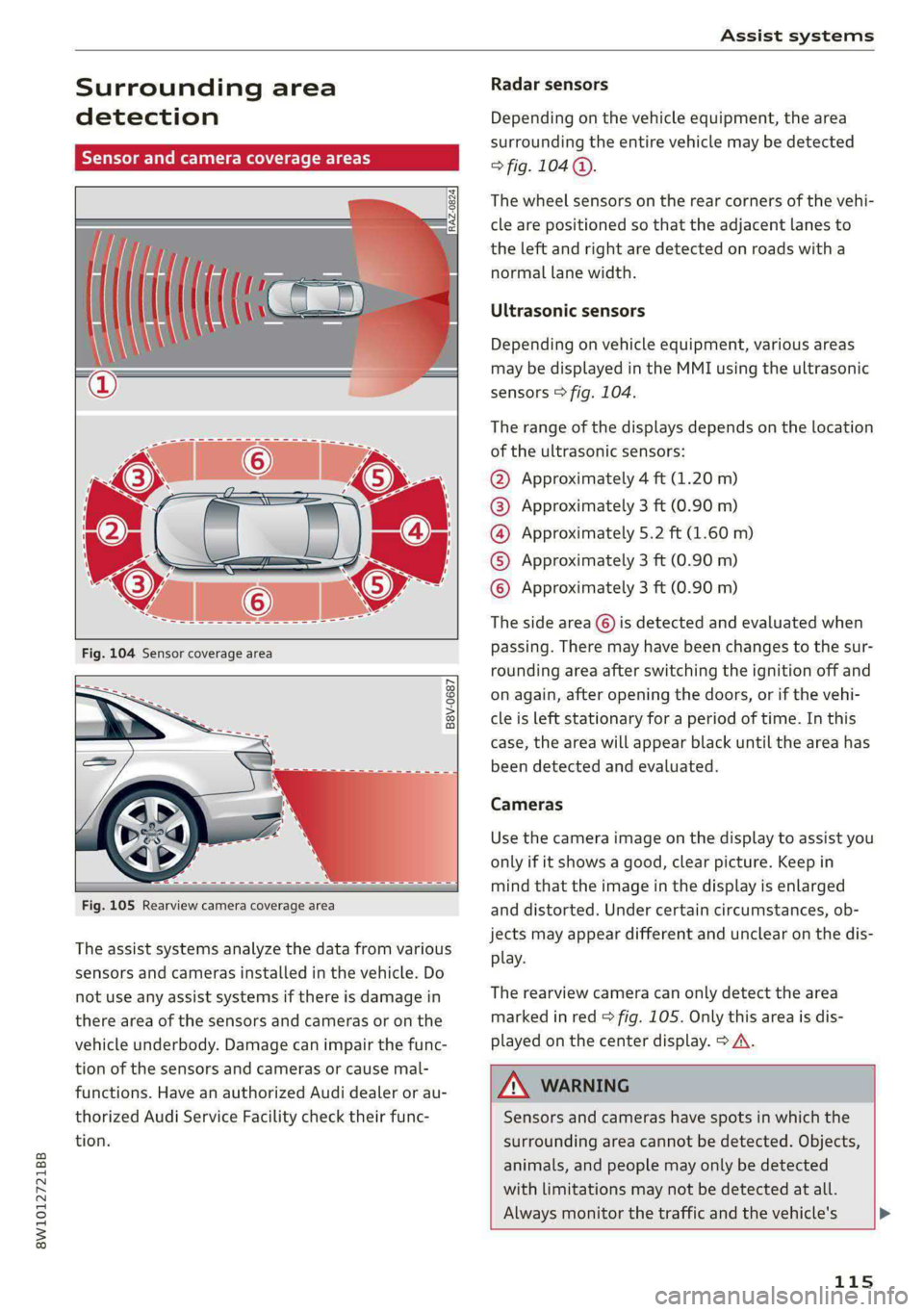
> fig. 104 ©.
The wheel sensors on the rear corners of the vehi-
cle are positioned so that the adjacent lanes to
the left and right are detected on roads with a
normal lane width.
Ultrasonic sensors
Depending on vehicle equipment, various areas
may be displayed in the MMI using the ultrasonic
sensors > fig. 104.
The range of the displays depends on the location
of the ultrasonic sensors:
@ Approximately 4 ft (1.20 m)
@® Approximately 3 ft (0.90 m)
@® Approximately 5.2 ft (1.60 m)
© Approximately 3 ft (0.90 m)
© Approximately 3 ft (0.90 m)
The side area ©) is detected and evaluated when
passing. There may have been changes to the sur-
rounding area after switching the ignition off and
on again, after opening the doors, or if the vehi-
cle is left stationary for a period of time. In this
case, the area will appear black until the area has
been detected and evaluated.
Cameras
Use the camera image on the display to assist you
only if it shows a good, clear picture. Keep in
mind that the image in the display is enlarged
and distorted. Under certain circumstances, ob-
jects may appear different and unclear on the dis-
play.
The rearview camera can only detect the area
marked in red > fig. 105. Only this area is dis-
played on the center display. > A\.
ZA WARNING
Sensors and cameras have spots in which the
surrounding area cannot be detected. Objects,
animals, and people may only be detected
with limitations may not be detected at all.
Always monitor the traffic and the vehicle's >
115
Page 123 of 296
8W1012721BB
— The traffic signs on the road always take pri-
ority over the display. The driver is always
responsible for adhering to the regulations
applicable in the country where the vehicle
is being operated.
— Units of measurement and language set-
tings are displayed based on how they were
set in the MMI system settings > page 206.
Applies to: vehicles with traffic light information
Switching traffic light information on and
off
The system and be switched on and off in the
MMI.
> Applies to: MMI: Select on the home screen:
VEHICLE > Driver assistance > Traffic light in-
formation.
Accessing traffic light information
> Select in the instrument cluster: vehicle func-
tions tab > Traffic signs.
@) Tips
If another tab or another function is selected
in the instrument cluster, the traffic light in-
formation will appear in the status bar on the
instrument cluster.
Applies to: vehicles with traffic light information
Malfunction! See owner's manual
The system could not be configured, for example
due to a network malfunction. Switch the igni-
tion off and shut down the vehicle to restart the
system. Wait several minutes until the vehicle
has shut down completely and then switch the
ignition back on.
Function currently unavailable. See owner's
manual
There is a temporary system malfunction. Check
if one or more of the following situations applies
and correct the issue if necessary:
— Traffic light information is switched off
Driving information
— Data transmission is deactivated
— The vehicle is not equipped with traffic sign rec-
ognition.
— There is no valid license
— Traffic light information is not available in that
area
Lap timer
Introduction
Applies to: vehicles with lap timer
You can record and evaluate lap times with the
lap timer. You can operate the lap timer using the
multifunction steering wheel > page 12.
Opening the lap timer
> Select in the instrument cluster: Vehicle func-
tions tab > J button > Lap times.
An additional indicator appears in the head-up
display”.
ZA WARNING
Your focus should always be on driving your
vehicle safely. As the driver, you have com-
plete responsibility for safety in traffic. To re-
duce the risk of an accident, only use the lap
timer functions in such a way that you always
maintain complete control over your vehicle in
all traffic situations.
@ Tips
You can retrieve information from the trip
computer while the lap timer stopwatch is
running.
Lap times and timing
Applies to: vehicles with lap timer
Requirement: the lap timer must be open
> page 121.
Timing laps
> To start timing manually, select Start lap 1 in
the menu.
> To start timing automatically as soon as you be-
gin to drive, select Start lap 1 by driving off or
Start by driving off in the menu. >
121
Page 124 of 296
Driving information
> To start timing a new lap after driving a lap, se-
lect New lap in the menu. This starts timing
the next lap at the same time.
After completing a lap, the difference between
the last lap and the previous best lap time will be
ayn indicated with a “~” or “+”.
Pausing timing and displaying a split time
> To insert a pause @ select Pause in the menu.
> To resume timing, select Resume in the menu.
> To display a split time, select Split time in the
menu. The split time appears for approxi-
mately ten seconds in the instrument cluster.
The current lap timing will continue running.
Canceling lap timing
The timing of the current lap will stop. The lap
time will be erased and will not be included in the
statistics.
> Select Cancel lap in the menu.
Resetting the time
> Select Reset lap times in the menu.
G) Tips
—A maximum of 99 lap times can be meas-
ured.
— If timing is paused, you can continue it later
even if you switch the ignition off.
— Saved lap times cannot be individually de-
leted from the total results.
— The saved lap timer values will remain after
switching the ignition off.
Lap statistics
Applies to: vehicles with lap timer
Displaying lap statistics
You can display the number of laps driven ES.
aon the fastest lap “+”, the slowest lap “-”, and the
average time “®” in the instrument cluster.
> Select in the instrument cluster: Vehicle func-
tions tab > ] button > Lap statistics.
> Turn the thumbwheel down or up to display the
individual lap times.
> To return to the lap timing that was started, se-
lect the [I button > Lap times.
122
Resetting lap statistics
Requirement: the lap statistics menu must be
displayed.
> To reset the lap statistics, press and hold the
left thumbwheel until the message No lap
times have been recorded yet. appears.
G) Tips
The lap statistics list the lap times for the last
30 laps. The fastest and slowest lap times out
of up to 99 measured laps are also displayed.
Page 125 of 296
8W1012721BB
Driver assistance
Driver assistance
Cruise control system
Applies to: vehicles with cruise control system
The cruise control system assists the driver in
maintaining a constant speed above approxi-
mately 15 mph (20 km/h). The system maintains
the desired speed by braking and accelerating.
ZA\ WARNING
— Always pay attention to the traffic around
your vehicle when the cruise control system
is in operation. As the driver, you are always
responsible for controlling your vehicle
speed and the distance between your vehicle
and
other vehicles.
— For safety reasons, cruise control should not
be used in the city, in stop-and-go traffic, on
winding roads, and when road conditions are
poor (such as ice, fog, gravel, heavy rain,
and conditions that could lead to hydroplan-
ing), because this increases the risk of an ac-
cident.
— Switch the cruise control off temporarily
when driving in turning lanes, highway exits,
or in construction zones.
—To reduce the risk of an accident, you should
only resume the stored speed if it is suitable
for the current traffic conditions.
() Note
Before driving downhill a long distance ona
steep hill, decrease your speed and select a
lower gear. This makes use of the engine brak-
ing effect and reduces the load placed on the
brakes.
@) Tips
The brake lights turn on when the brakes are
applied automatically.
Switching the system on
Applies to: vehicles with cruise control system
BFV-0220
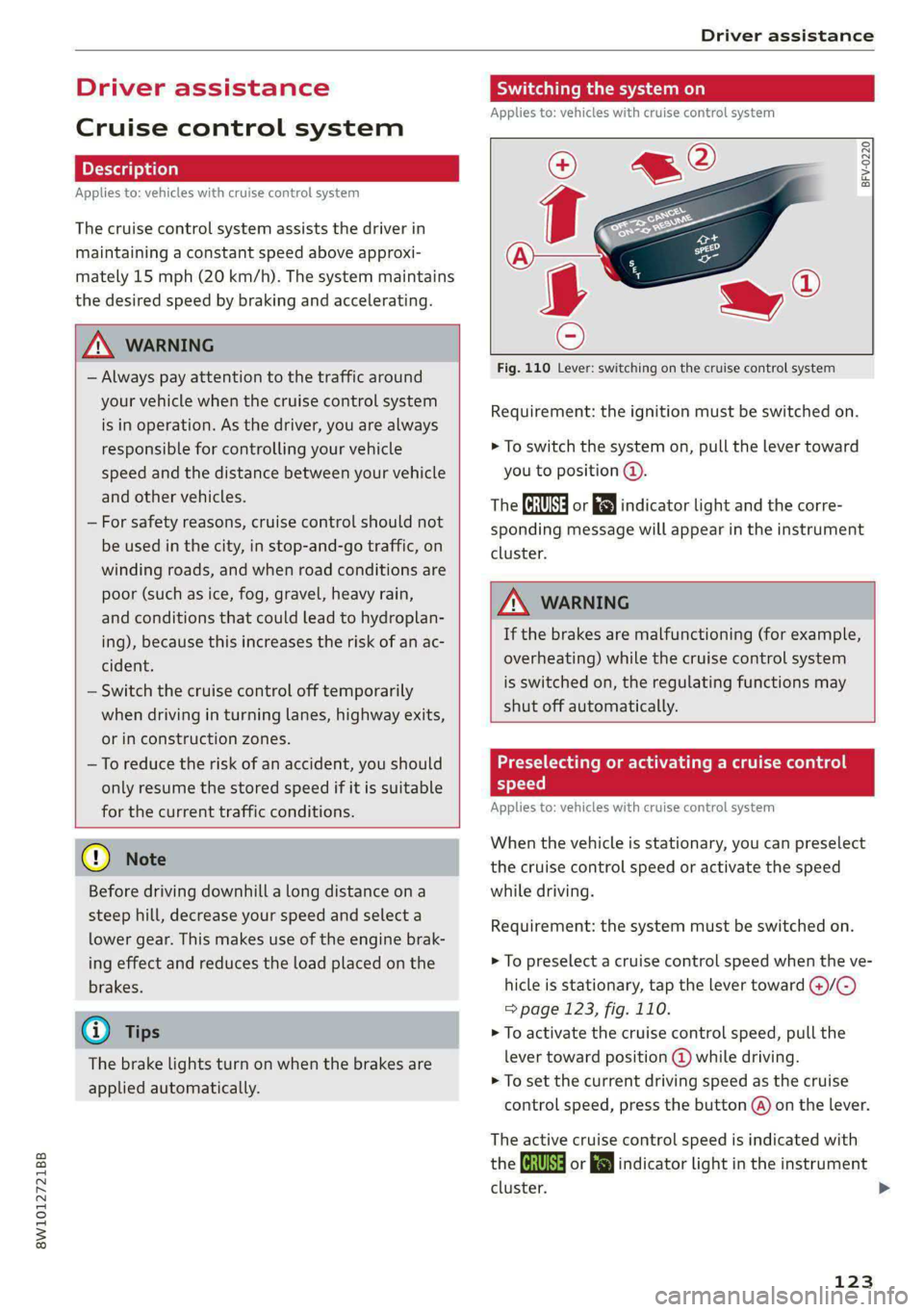
Fig. 110 Lever: switching on the cruise control system
Requirement: the ignition must be switched on.
> To switch the system on, pull the lever toward
you to position @).
The ICRUISE| or i$) indicator light and the corre-
sponding message will appear in the instrument
cluster.
ZA\ WARNING
If the brakes are malfunctioning (for example,
overheating) while the cruise control system
is switched on, the regulating functions may
shut off automatically.
etal Rome ladle Rogen)
yet -t-te)
Applies to: vehicles with cruise control system
When the vehicle is stationary, you can preselect
the cruise control speed or activate the speed
while driving.
Requirement: the system must be switched on.
> To preselect a cruise control speed when the ve-
hicle is stationary, tap the lever toward (@)/G)
=> page 123, fig. 110.
> To activate the cruise control speed, pull the
lever
toward position @ while driving.
> To set the current driving speed as the cruise
control speed, press the button @) on the lever.
The active cruise control speed is indicated with
the Gl or indicator light in the instrument
cluster. >
123
Page 126 of 296
Driver assistance
An additional indicator appears in the head-up
display*.
Changing the cruise control speed
Applies to: vehicles with cruise control system
> To increase or decrease the cruise control speed
in small increments, tap the lever up to the
first level toward @)/G) > page 123, fig. 110.
> To increase or decrease the cruise control speed
in larger increments, tap the lever up to the
second level toward @)/C).
> To increase or decrease the cruise control speed
continuously, tap and hold the lever at the first
or second level toward @)/C).
Overriding or deactivating the cruise
control speed
Applies to: vehicles with cruise control system
You can override or deactivate the cruise control
system. When you deactivate the system, your
cruise control speed will be stored and you can
resume that speed.
Requirement: the system must be switched on
and activated.
Overriding
> To temporarily override the cruise control
speed, press the accelerator pedal.
> Once you release the accelerator pedal, the sys-
tem will adjust back to the stored cruise control
speed.
If you override the cruise control system for a
long period of time, the cruise control system
will be deactivated. The Gg or {§8) indicator
light will be displayed and the cruise control
speed will be saved.
Deactivating
> To deactivate the cruise control speed, press
the lever toward (2) (not locked into place)
=> page 123, fig. 110, or
> Press the brake pedal.
124
ZA WARNING
Resting your foot on the accelerator pedal
could override the cruise control. This will pre-
vent braking interventions by the system.
Seem Lola
Applies to: vehicles with cruise control system
When you switch the system off completely, the
cruise control speed will be deleted.
Requirement: the system must be switched on.
> To switch the system off, press the lever toward
@ (locked into place) > page 123, fig. 110, or
> Switch the ignition off.
Applies to: vehicles with cruise control system
Gir / §) Speed control system: currently un-
available. See owner's manual
If the indicator light turns on and this message
appears, the cruise control system has been deac-
tivated. There is a temporary malfunction, for ex-
ample the brakes are overheating. Switch the
cruise control system on again later.
Efficiency assist
Applies to: vehicles with efficiency assist
Efficiency assist can assist the driver with predic-
tive information in order to reduce fuel consump-
tion. Depending on vehicle equipment, the sys-
tem may access data from the navigation system,
the camera behind the windshield, and the radar
sensors.
Adjusting the efficiency assist
You can adjust efficiency assist functions individ-
ually. The settings depend on the vehicle equip-
ment.
— Predictive messages > page 125.
— Predictive control > page 126.
Page 128 of 296
Driver assistance
— When a route is planned using the naviga-
tion system*, then system displays messag-
es based on an assumed route. Without
route guidance, the system displays mes-
sages based on an assumed route.
— The wording of the message may vary de-
pending on the selected Audi drive select*
mode and the selected gear. No messages
are displayed when in the "S" driving pro-
gram.
Predictive control
Applies to: vehicles with Audi adaptive cruise control and effi-
ciency assist
With predictive control, efficiency assist adapts
the set speed in adaptive cruise control @
=> page 128 based on detected speed limits and
the upcoming route. Once the system no longer
detects any incidents ahead, adaptive cruise con-
trol will accelerate back up to the last speed that
the driver set. After switching on the ignition, the
availability of predictive control is indicated by a
message when the adaptive cruise control is first
activated.
The displays depend on the vehicle equipment.
Requirements
— Adaptive cruise control is actively regulating
=> page 129.
— The system can only react to speed limits that
are 15 mph (20 km/h)2) or higher.
Overriding control
The driver can override the predictive control to
the route ahead at any time by pressing the ac-
celerator or brake pedal. If the system changes
the vehicle speed to adapt to speed limits, you
can change the speed using the lever
=> page 129, fig. 116.
Setting predictive control
You can switch off predictive control functions or
adjust them individually. The settings depend on
the vehicle equipment.
D_ This is not available in some countries.
2) Analog instrument cluster: 20 mph (30 km/h)
126
Applies to: MMI: Select on the home screen: VE-
HICLE > Driver assistance > Audi adaptive cruise
control > Predictive control.
Possible settings:
Set speed limit - Adjusts to speed limits. You can
also set With tolerance if desired. In this scenar-
io, you may fall below or exceed the set speed in
favor of increased efficiency.
Adjustment to curves along route - Regulates
based on the route ahead, for example by con-
trolling the speed at which the vehicle drives
through curves.
Messages
Ife and a message with Predictive control is
displayed when there is a malfunction, the effi-
ciency assist functions are unavailable or limited.
A message that indicates the cause and possible
solution may appear with some displays. The
weather conditions may be too poor or a sensor
may be covered. Clean the area in front of the
sensors > page 116 and try to turn on the sys-
tems again later.
If the malfunction remains, drive to an author-
ized Audi dealer or authorized Audi Service Facili-
ty immediately to have the malfunction correct-
ed.
ZX WARNING
— Follow the safety precautions and note the
limits of the assist systems, sensors, and
cameras > page 114.
— Pay attention to traffic and the area around
your vehicle when predictive control is
switched on. The driver is always responsible
for assessing the traffic situation.
— The system does not consider “right of way”
rules and does not respond to traffic lights,
so lack of driver attention in these situations
can increase the risk of an accident.
— The speed when driving through curves may
be different from what you as a driver would
do or may not be suitable for the weather