ad blue AUDI A5 COUPE 2018 Owner's Manual
[x] Cancel search | Manufacturer: AUDI, Model Year: 2018, Model line: A5 COUPE, Model: AUDI A5 COUPE 2018Pages: 409, PDF Size: 67.63 MB
Page 235 of 409
<( a, .... N ,....
N .... 0 \0
3 a,
When importing, the audio files a re automatical
l y sorted into the media center categor ies based
on the stored addit ional info rmation
c:> page 240. The copied video files are stored in
the media ce nter under the
Videos category.
Playing the Ju kebo x
Req uirement: the J ukebox must contain audio/
vi deo fi les
c:> page 232, Adding files to the Juke
box.
The Jukebox is a ccesse d and ope rated thr ou gh
the
M MI(D c:>page239, fig. 219.
Displaying Jukebox memory capacity
Select: r igh t control button > Jukebox memory
capacity .
Inform ation abou t the J ukebox memory
c a pacity an d the numbe r of store d tra cks is dis
p layed .
Deleting tracks from the Jukebox1
)
Req uirement: the Ju kebox must contain audio/
video fi les.
- Deleting an entry : select an entry from the
Jukebox media center. Select: rig ht cont ro l but
ton
> Delete from jukebox > This entry or En
tire list .
- The s tatus of the de leti ng p rocess is shown in
the MMI. Jukebox playback stops d uring the de
l eting process a nd starts again au tomatically
on ce the dele tio n i s comp lete.
(D Note
D o not import au dio/video files when the en
g in e is t urned off because this will d rain the
ve hicl e battery.
(D Tips
-Tracks fro m aud io C Ds cannot be impo rted
t o the Jukebox for leg al re as ons.
- Files that have al rea dy been import ed are
a utomat ica lly r ecogn ized and ca n not be
cop ied to the Juk eb ox again.
- It is no t possib le to play audio/v ideo* files
i n the C D/D V D* drive while import ing the m.
l) Not in th e Playba ck view .
Media
-The Jukebox does not provi de a n export
function d ue to legal reasons .
- F iles o r trac ks w ithout addi tio nal store d in
formatio n are listed as
Unknown . Audi rec
ommends adding a dditio nal info rmation
(such as ID3 tags) to a udio f iles.
- Reset the
Jukebox to the factory defa ult
sett ings when selling yo ur vehicle
<=:>page 252.
Bluetooth audio player
Appl ies to: vehicles with Bluetooth audio player
With the Bluetooth audio player, you con ploy
music wirelessly from your Bluetooth-capoble
device (such as a cell phone) through th e MMI.
Requirement: the vehicle must be stationary and
the Bluetooth function on your Bl uetooth device
and the
Bluetooth audio player c:> page 254 in
the MMI m ust both be sw itched on .
-Connecting a Bluetooth device : press the
!MEDI Ai butto n. Press the left control button
until the sources overview is disp layed. Selec t
and confirm Bluetooth audio player ®
<=:>page 239, fig. 220 .
-If necessa ry, select and co nfirm, Not connected
> Connect Bluetooth audio player . The Blue
t oot h dev ice searc h starts. Follow the inst ru c
tion s in the M MI.
- Select and confirm the des ire d B luetooth d e
vice from the list. The M MI generates a PIN fo r
t he conne ction.
- Select an d confirm
Yes .
-En ter the PIN for connect ing o n your Bl uetoo th
dev ice .
Or : if the PIN is already displayed on
your Bl uetoo th device, co nfi rm i t in the Bl ue
t ooth dev ice and in the MMI. The t ime a llowed
for ente ring the P IN is lim ite d t o approx ima tely
30 seconds.
T he media is s tarted and operated thro ugh the
mobile device o r th e
M MI, depending on t he de-
vi ce being used.
..,.
233
Page 236 of 409
Media
(D Tips
-Check for any connection requests on your
Bluetooth dev ice .
- Mult iple Bluetooth audio players can be
connected to the MMI, but only one mobile
device can be active.
- Bluetooth protocols AVRCP ( 1.0/1.3/1.4)
and A2DP are suppo rted.
- Note the volume setting on your Bluetooth device. A ud i recommends setting your mo
bile device to the maxim um vo lume when
us ing it as a Bluetooth audio player.
- The supported media functions (such as
sh uffle) depend on the Bluetooth device be
i ng used.
- For more information on the supported de
v ices, visit
www.aud iusa.com /bluetooth or
contact an author ized Audi dealer or author
i zed Audi Service Facility.
Wi-Fi audio player
A ppl ies to: ve hicles w ith Wi-F i audio playe r
Using the Wi-Fi audio player media source on the
MMI, you can connect and operate your Wi-Fi-ca
pable media player (such as a smartphone) to wirelessly play music from your media player
li
brary. The media player is connected through the
vehicle's Wi -Fi hotspot. A UPnP Server opp or an
integrated UPnPIDLNA server on your media
player is required to access your media player
li
brary.
Requirement: the Wi-Fi function on your media
p layer must be sw itched on. The
Aud i MMI con
n ect
app or a UPnP server app must be installed
on your med ia p layer .
Or: you must be us ing a
media player with an integrated UPnP/DLNA
server.
- Connecting a medi a playe r: press the I MEDIA !
button. Press the left control button unt il the
sources
overview ¢ page 239 is d isplayed . Se
lect and co nfirm
W i-Fi audio play er 0
¢ page 239, fig . 220.
- If necessary, select and confirm Wi-F i turn ed
off > Turn on Wi-Fi
to activate Wi-Fi in the
MMI. Select
Wi-Fi s etti ng s, if necessa ry . Se lect
234
the same settings on the wireless media player
that are used for the Wi- Fi hotspot .
-Starting the Wi-Fi audio pla yer : start the Audi
MMI connect
app or a UPnP server app, or set
media permissions on your media player.
Operating the medi a pl ayer : the med ia p layer is
operated through the MM I.
- Press the left control button repeatedly until
the
Folders menu item appears. Select and con
firm
Folder s.
- Playing music from the medi a pla yer:
select
and confirm
M edia cent er.
Web r adio :
see ¢page 235.
A WARNING
- As the d river, do not allow usage of the Wi
Fi hotspot to distract you from driving, as
this could increase the r isk of an accident.
- It is on ly safe to use tablets, laptops, mo
bi le devices and other similar dev ices when
the vehicle is stat ionary because, like all
loose objects, they co uld be thrown around
the inside of the ve hicle in a c rash and ca use
serio us inju ries . Store these types of devices
secure ly while driving.
- Do not use any wire less devices on the front
seats wi thin range of the airbags while dr iv
ing . Also read and follow the warn ings in
¢ page 281, Front airbags.
(D Note
A lways fo llow the information fo und in ¢ (!) in
Wi -Fi hotspo t on page
197.
(D Tips
- Always read the chapter¢ page 198, Audi
connect (Infotainment) general informa
tion.
- Please note that a Wi-F i connection does
not automatically make it possible to use
the Interne t. For addit io nal info rm ation,
see
¢ page 191 .
- To avoid interr upt ions du ring playback, de
act ivate the powe r saving function on the
media player or connect it to a charger.
Page 244 of 409
Media
Playlist
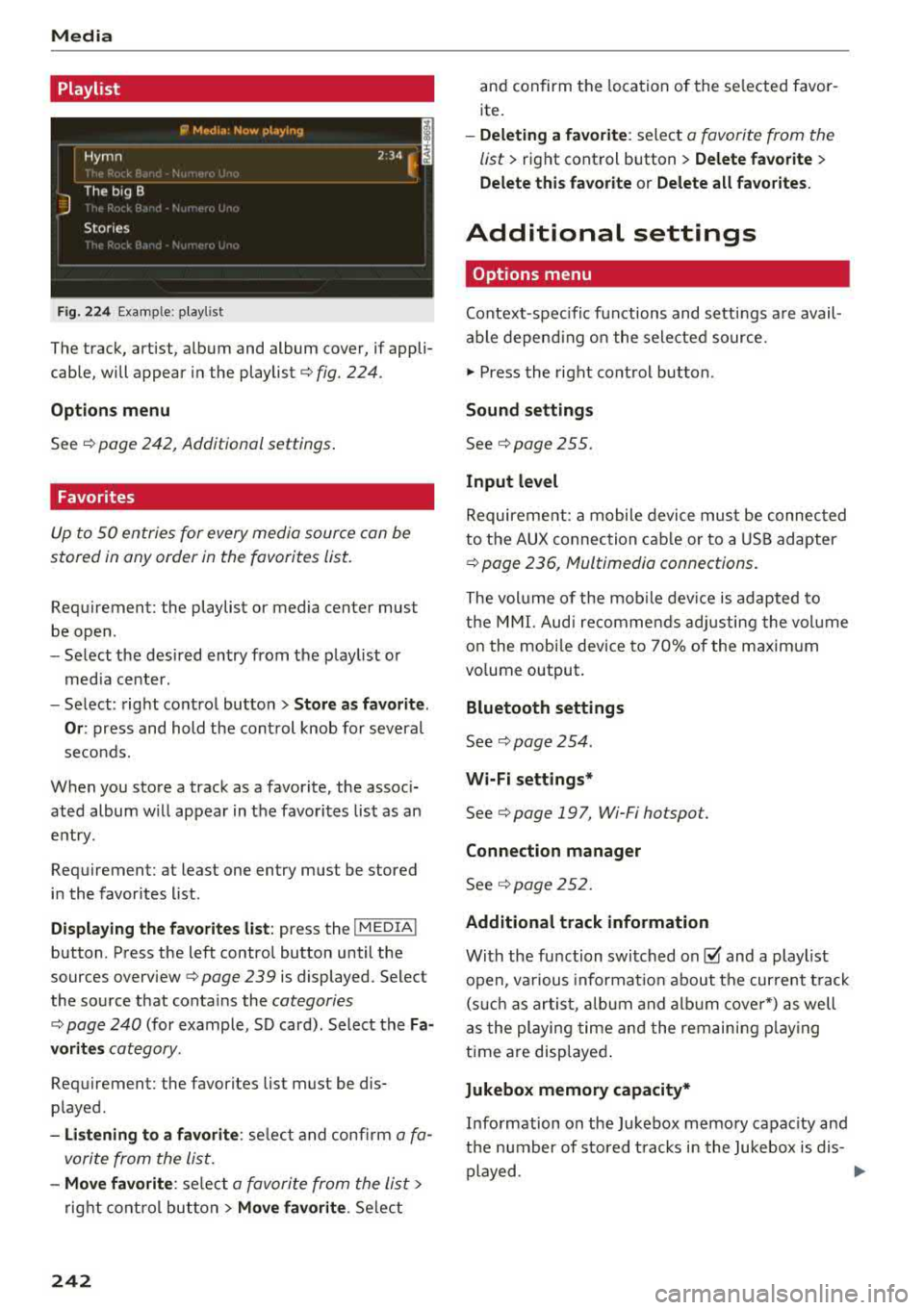
Fig . 2 24 Example: play list
The track, artist, album and album cover, if appli
cable, will appear in the playlist
¢ fig. 224.
Option s menu
See ¢ page 242, Additional settings .
Favorites
Up to 50 entries for every media source can be
stored in any order in the favorites list.
Requirement: the playlist or media center must
be open.
- Select the des ired entry from the play list or
med ia center.
- Select: right control button
> Store a s favorit e.
Or :
press and hold the cont rol knob for several
seco nds.
When you store a track as a favorite, the assoc i
ated album w ill appear in the favorites list as an
entry.
Requirement: at least one entry must be stored
in the favorites list.
Displaying the fa vorite s list : press the !MEDIA !
button. Press the left contro l button until the
sources
overview ¢ page 239 is displayed. Select
the source that conta ins the
categories
¢ page 240 (for example, SD card). Select the Fa
v orit es
category .
Requirement: the favorites list must be dis
p layed.
- List ening to a favorite : select and confirm a fa
vorite from the list.
- Mov e favorite : select a favorite from the list>
right cont rol button > Move fa vorite . Select
242
and confirm the location of the se lected favor
ite.
- Deleting a f avorit e: select a favorite from the
list>
right control b utton> Delete fa vorite >
Delete thi s favorite or Delete all fa vo rite s.
Additional settings
' Options menu
Context-spec ifi c fu nctions and settings a re avail
able depend ing on the sele cted source.
" Press the right control button .
Sound settings
See c:::> page 255.
Input l evel
Requirement: a mobile device mus t be connec ted
to the AUX connection cab le or to a USB adapter
c:::> page 236, f\1ultimedia connections .
The volume of the mob ile dev ice is adapted to
t h e MMI. Aud i recommends adj usting the volume
on the mobi le device to 70% of the maximum
vo lume output.
Bluetooth settings
See c:::> page 2 54.
Wi-Fi settings*
See ¢ page 19 7, Wi-Fi hotspot.
Connection manager
See c:::> page 252.
Additional track information
With the fu nction swi tched on~ and a playlist
open, va rious informat io n about t he cur rent t rack
(such as artist, a lbum and alb um cove r*) as well
as the playing time and the remain ing p lay ing
time are displayed .
Jukebox memory capacity*
Information on the Jukebox memory capac ity and
the number of stored t racks i n the Jukebox is dis-
played.
""'
Page 248 of 409
Media
-The manufactu rer of the storage device can
provide information about its "USB Device
Subclass" . - Some MTP player functions are not support
ed, such as rating music tracks and video
playback.
CD drive
Applies to: ve hicles w ith a CD drive
The following audio file properties are supported by the CD drive:
Audio files
Supported
Audio CDs (up to 80 min) with CD text (artist, alb um, track)*, CO-ROMs with a capaci-
media ty of up to 700 MB
File system CD file system: 1509660, Joliet, UDF
Metadata Album
cover : GlF, )PG, PNG with max . 800x800 px. The album cover from the medi-
um may be disp layed, depending on availability.
Format M PE G 1/2 Windows Media Au- MP EG 2/4 FLAC
Layer 3 dio 9 and 10
File extension .mp3 .wma
.m4a; .flac
. m4b;
. aac
Playlists .M3U; .PLS; .WPL; .M3U8; .ASX
Characteristics up to maximum 320 kbit/s and 48 kHz sampling frequenc ies 48 k Hz sampling
frequency
Number Maximum 1,000 files per medium
of files
(D Tips
-For compressing MP3 files, Audi recom
mends a bit rate of at least 160 kb it/s. The
display showing the remaining play time
may differ for audio files with variable bit
rate .
-Special characters (such as those in 103 tag
information) display differently depending
on the system language and cannot always
be guaranteed .
Troubleshooting
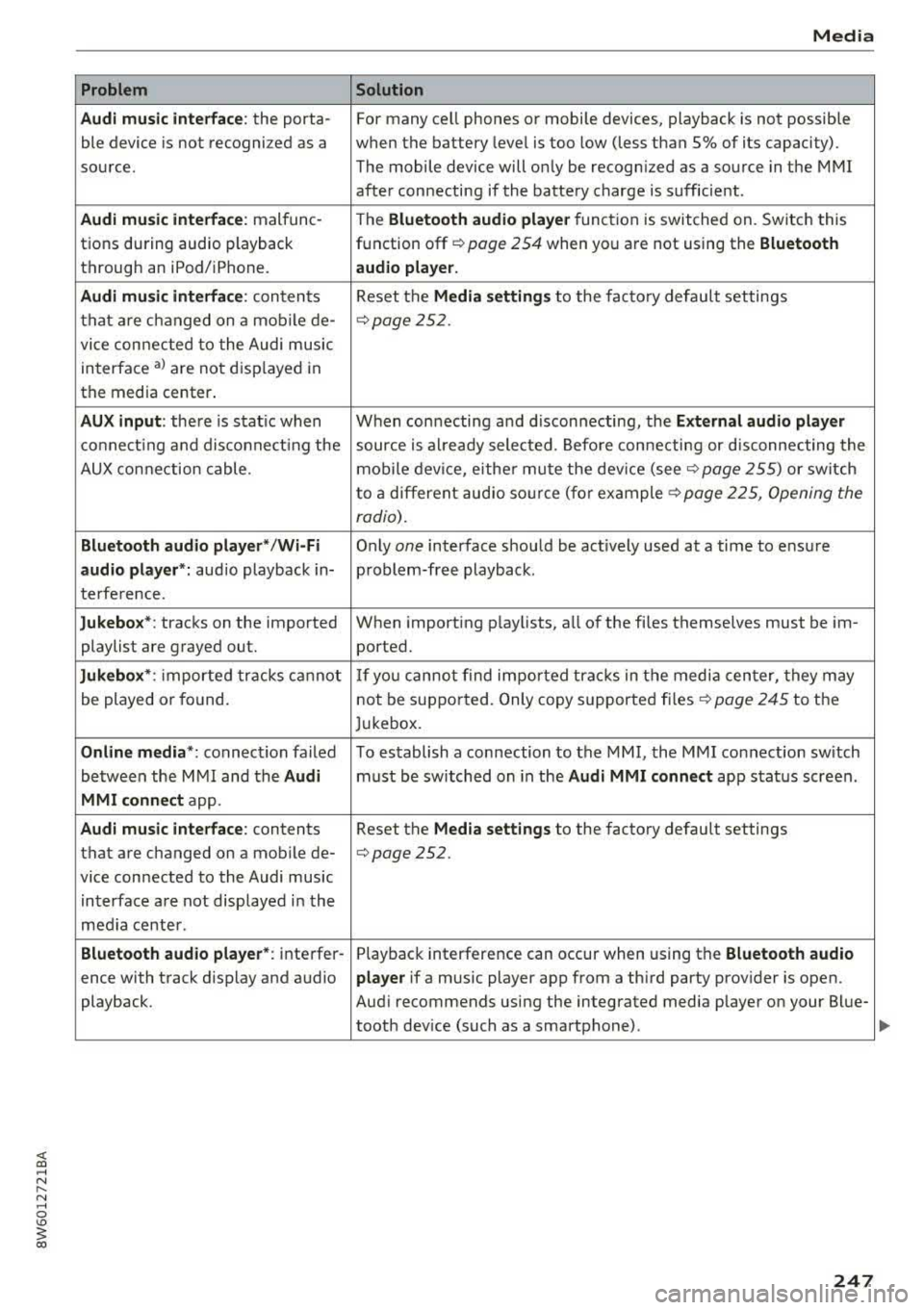
Problem Solution
Audi music interface /Bluetooth
Read the instructions in the chapter ~ page 236, Multimedia con-
audio player *: mobile dev ice is nectionsl~ page 233, Bluetooth audio player . You can learn
not supported . about
supported mobi le devices in the Audi database for mobile
devices at
www.audiusa.com/bluetooth.
Audi music interface :
the volume Adjust the volume of the mobile device to approximately 70% of
is too h igh/too low when start ing the maximum
output ~ page 242, Input level.
playback th ro ugh the AUX input.
246
Page 249 of 409
<( a, .... N ,....
N .... 0 \0
3 a,
Problem
Audi music interface :
the porta-
ble device is not recogni zed as a
source.
Audi music interface : malfunc-
tions during audio playback
through an iPod/ iPhone.
Audi music interface : contents
that are changed on a mobile de-
vice connected to the Audi music
interface
a l are not displayed in
the media center.
AUX input: there is stat ic when
connecting and disconnecting the
AUX connection cable .
Bluetooth audio player* /Wi-Fi
audio player *:
aud io playback in-
terference.
Jukebox* : tracks on the imported
playlist are grayed out.
Jukebox* : imported tracks cannot
be played or found.
Online media *: connection failed
between the MMI and the
Audi
MMI connect
app.
Audi music interface: contents
that are changed on a mobile de-
vice connected to the Audi music
interface are not displayed in the
med ia center .
Bluetooth audio player *: interfer-
ence with track d isplay and audio
playback.
Media
Solution
For many ce ll phones or mobile devices, playback is not possible
when the battery level is too low (less than 5% of its capacity).
The mobile
de -vice will only be recognized as a source in the MMI
after connecting if the battery charge is sufficient .
The
Bluetooth audio player f unction is switched on. Switch this
function off
c:> page 2 54 when you a re not using the Bluetooth
audio player.
Reset the Media settings to the facto ry defau lt settings
¢ page 2 52.
When connecting a nd disconnecting, the External audio player
source is already selected. Before connecting or disconnecting the
mobile device, either mute the device (see
c:> page 255) or switch
to a different audio source (for example
c:> page 225, Opening the
radio) .
Only one interface should be act ively used at a time to ensure
problem-free playback .
When importing playlists, a ll of the fi les themselves must be im-
ported.
If yo u cannot find impor ted tracks in the media center, they may
not be supported. Only copy supported files
c:> page 245 to the
Jukebox.
To establish a connection to the MMI, the MMI connection sw itch
must be switched on in the
Audi MMI connect app status screen .
Reset the
Media settings to the factory default settings
c:> page 252.
Playback interference can occur when using the Bluetooth audio
player
if a music player app from a th ird party provider is open.
Aud i recommends using the integrated media player on your Blue-
tooth dev ice (such as a smartphone) .
247
Page 253 of 409
System settings
Short dialog : when this function is switched on
~ ' a shorter form of the prompts is used.
Command during voice output*1>: this function
is switched on at the factory. When this function
is switched
on~' you can say new commands
during announcements . You do not need to wait
for the signal tone (beep) during an announce
ment. When the function is switched off
0, you
need to wait for the signal tone (beep) to say a
new command.
Volume: you can adjust the volume of the
prompts by turning the control knob.
Individual speech training (on ly when the vehi
cle is stationary): you can adapt the voice recog
n ition system to yo ur voice or pronunciat ion in
order to improve the system's ability to recognize
your speech. Individual train ing is comprised of
20 speech entries that consist of commands and
sequences of numbers . You can delete the pro
grammed voice tra ining w ith the
Reset individu·
al speech training
function.
Display brightness
You can adjust the brightness of the Infotain
ment system display by turning the control knob .
Factory settings
The following functions can be reset to the facto
ry default settings:
-Sound settings
- Radio
- Media settings
- Jukebox*
- Directory
- Telephone
- Bluetooth and Wi-Fi *
- Navigation settings*
- Navigation and online memory*
- Voice recognition system *
- Shortcut keys
- Message settings*
- Apps*
- Tool tips
1
> Please note that this func tion is not available in Cab rio
lets.
252
- Audi connect*
- Audi smartphone interface*
You can select the desired functions individually
or a ll at once with the option
Select all entries .
Select and confirm Restore factory settings.
(D Tips
Make sure that not only the settings were de
leted but also the stored data, if applicable.
Connection manager
Introduction
The connection manager gives you an overview
of your connected devices and their network sta
tus .
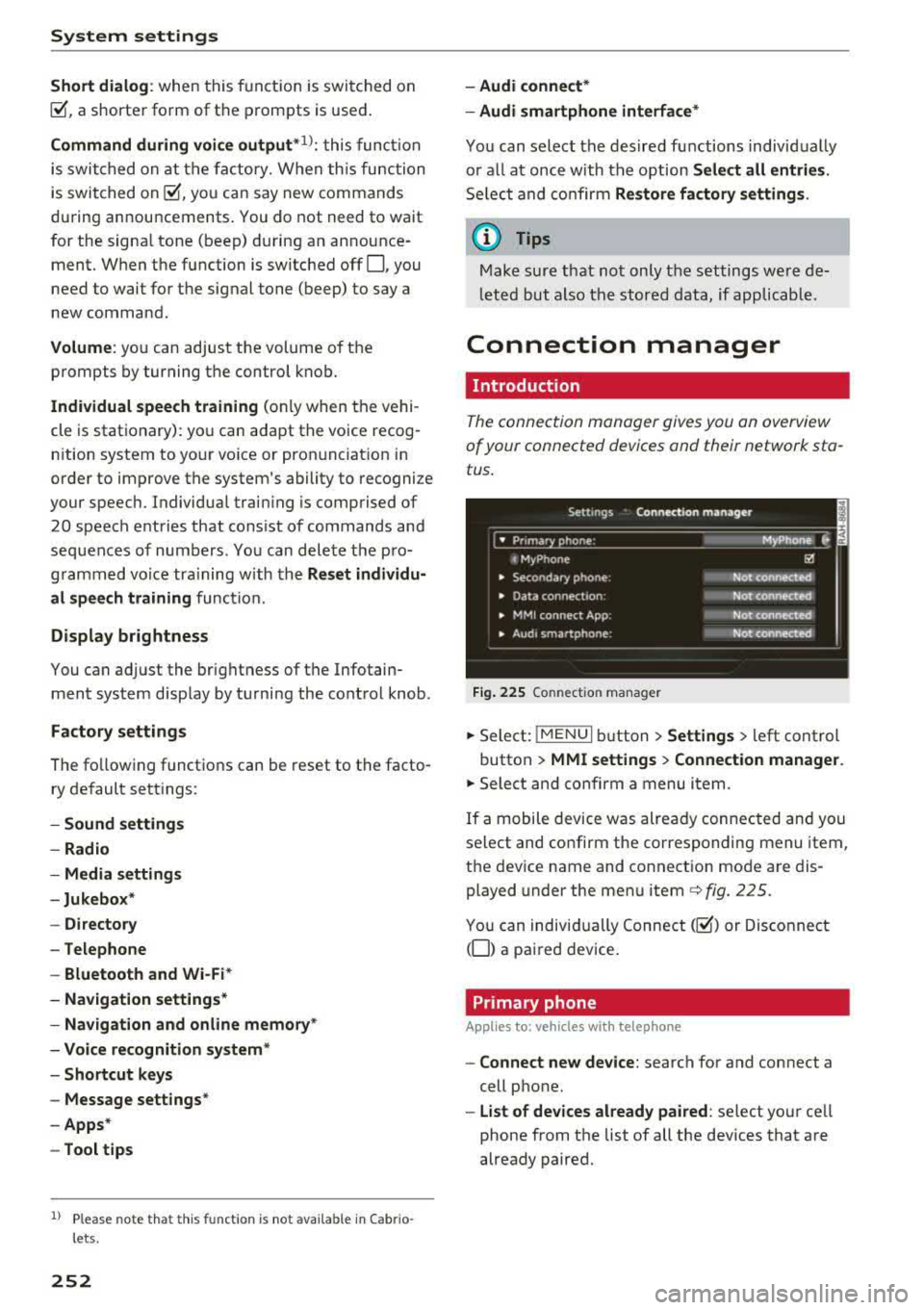
Fig. 225 Connection manager
.,. Select: !MENUI button> Settings > left control
button >
MMI settings > Connection manager.
.,. Select and confirm a menu item.
If a mobile device was already connected and you
select and confirm the corresponding menu item,
the device name and connection mode are dis
played under the menu
item¢ fig. 225.
You can individually Connect(~) or Disconnect
(0) a paired device.
Primary phone
App lies to: vehicles wi th telepho ne
- Connect new device: search for and connect a
cell phone.
- List of devices already paired : select your cell
phone from the list of all the dev ices that are
already paired.
Page 254 of 409
<( a, ..... N ,....
N ..... 0 \0
3 a,
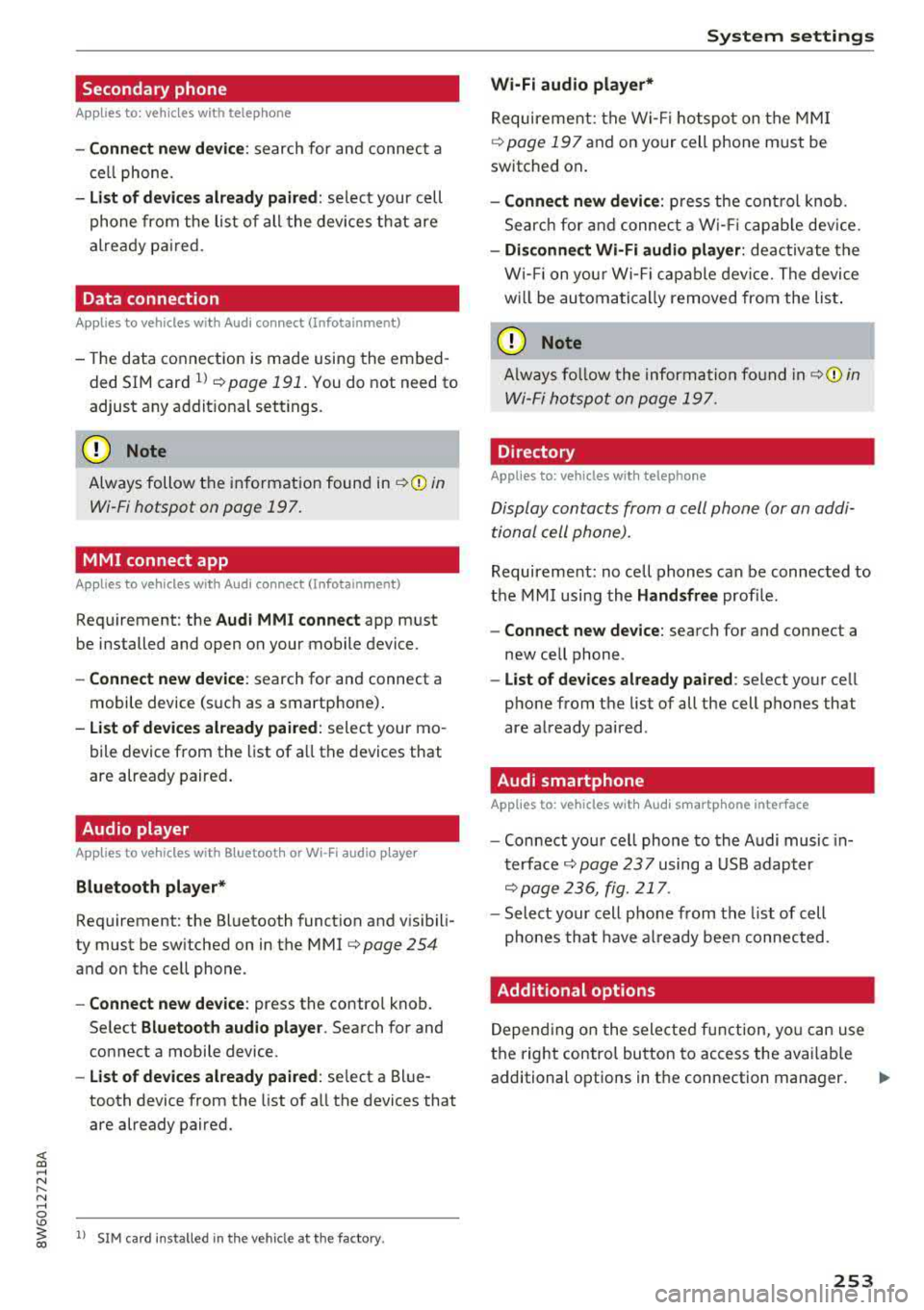
Secondary phone
Applies to: vehicles with telephone
-Connect new device: search for and connect a
cell phone.
- List of devices already paired: select your cell
phone from the list of all the devices that are
already paired.
Data connection
Applies to vehicles with Audi connect (Infotainment)
- The data connection is made using the embed
ded SIM card
ll ¢ page 191. You do not need to
adjust any additional settings.
Always follow the information found in
¢(D in
Wi-Fi hotspot on page 197.
MMI connect app
Applies to vehicles with Aud i connect (Infotainment)
Requirement: the Audi MMI connect app must
be installed and open on your mobile device.
- Connect new device: search for and connect a
mobile device (such as a smartphone).
- List of devices already paired: select your mo
bile device from the list of all the devices that
are already paired.
Audio player
Applies to vehicles with Bluetoot h or Wi-F i a udio player
Bluetooth player*
Requirement : the Bluetooth function and visibili
ty must be switched on in the MMI
¢ page 254
and on the cell phone.
-Connect new device: press the control knob.
Select
Bluetooth audio player . Search for and
connect a mobile device.
- List of devices already paired: select a Blue
tooth device from the list of all the devices that
are already paired.
l) S IM card inst alle d in the v ehicle at th e fac to ry .
System settings
Wi-Fi audio player*
Requirement: the Wi-Fi hotspot on the MMI
¢
page 197 and on your cell phone must be
switched on.
- Connect new device: press the control knob.
Search for and connect a Wi-Fi capable device.
-Disconnect Wi-Fi audio player: deactivate the
Wi-Fi on your Wi-Fi capable device. The device
will be automatically removed from the list.
(Q) Note
Always follow the information found in ¢Q) in
Wi-Fi hotspot on page 197.
Directory
Applies to: vehicles with telephone
Display contacts from a cell phone (or an addi
tional cell phone).
Requirement: no cell phones can be connected to
the MMI using the
Handsfree profile.
-Connect new device: search for and connect a
new cell phone .
-List of devices already paired : select your cell
phone from the list of all the cell phones that
are already paired .
Audi smartphone
Applies to: vehicles with Aud i smartphone interface
-Connect your cell phone to the Audi music in
terface¢ page 23 7 using a USB adapter
¢page 236, fig. 217 .
-Select your cell phone from the list of cell
phones that have already been connected.
Additional options
Depending on the selected function, you can use
the right control button to access the available
additional options in the connection manager.
.,.
253
Page 255 of 409
System settings
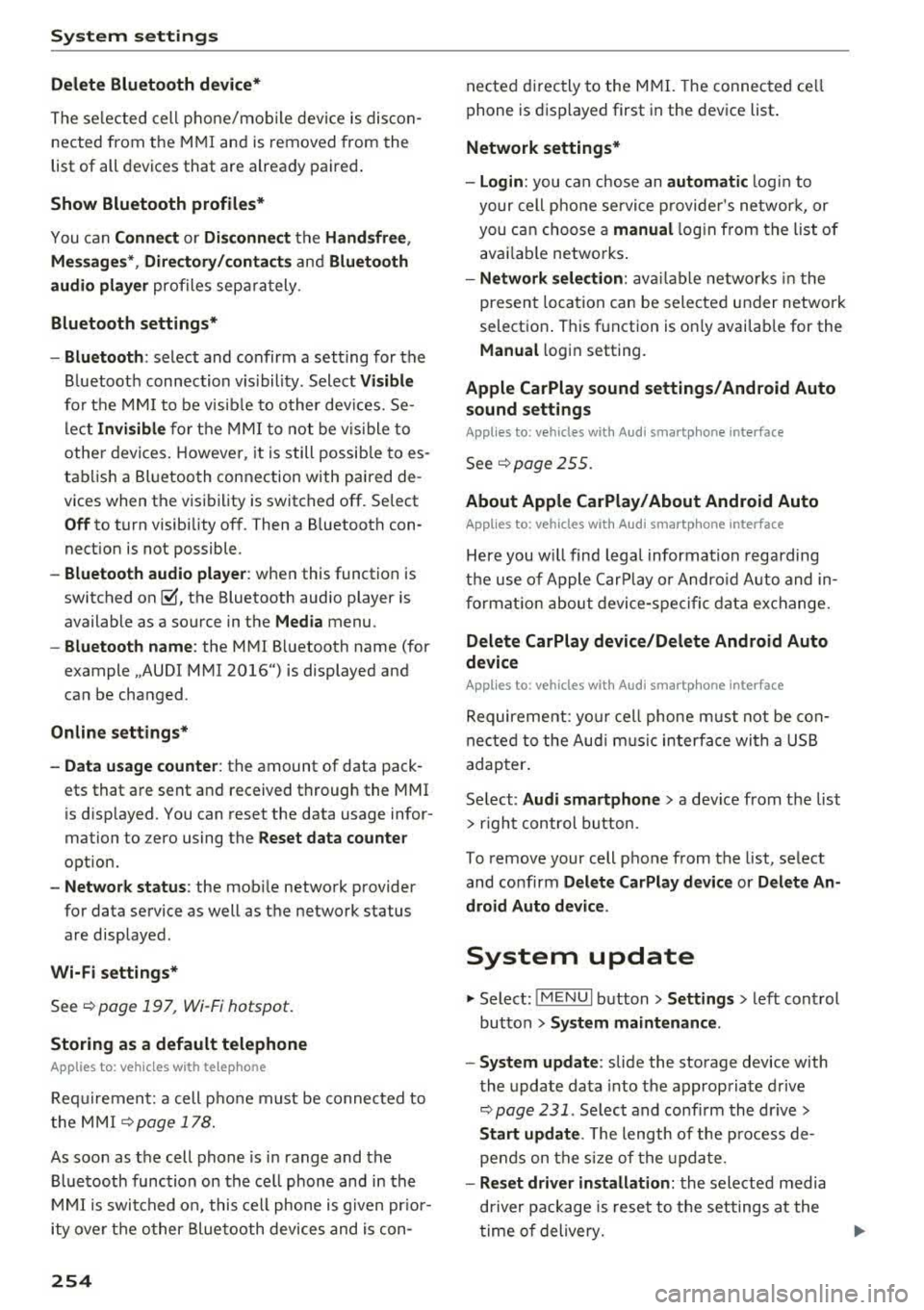
Delete Bluetooth device*
The selected cell phone/mobile device is discon
nected from the MMI and is removed from the
list of all devices that are already paired .
Show Bluetooth profiles*
You can Connect or Disconnect the Handsfree ,
Messages *, Dire ctory/contacts
and Bluetooth
audio player
profiles separately.
Bluetooth settings*
- Bluetooth :
select and confirm a setting for the
B luetooth connection v is ibility. Select
Visible
for the MMI to be visible to other dev ices. Se
lect
Invisible for the MMI to not be vis ible to
other devices. Howeve r, it is still possib le to es
tablish a Bluetooth connection with paired de
vic es when the visibility is switched off. Select
Off to turn visibility off. Then a B luetooth con
nection is not possible .
-Bluetooth audio player: when this function is
switched
on~' the Bluetooth audio player is
available as a source in the
Media menu .
-Bluetooth name : the MMI Bluetooth name (for
example ,,AUDI MM I
2016") is displayed and
can be changed .
Online settings*
- Data usage counter :
the amount of data pack
ets that are sent and received through the MMI
is disp layed. You can reset the data usage infor
mation to zero using the
Reset data counter
option.
-Network status : the mobile network provider
for data service as well as the network status
are displayed .
Wi-Fi settings*
See <=> page 19 7, Wi-Fi hotspot.
Storing as a default telephone
Applies to: veh icles with telephone
Requirement: a cell phone must be connected to
the MMI
<=> page 178.
As soon as the cell phone is in range and the
Bluetooth function on the cell phone and in the
MMI is swit ched on, this cell phone is given pr ior
ity ove r the other Bluetooth devices and is con-
254
nected directly to the MMI. The connected ce ll
phone is displayed first in the device list .
Network settings*
- Login :
you can chose an automatic log in to
your cell phone service provider's network, or
you can choose a
manual login from the list of
avai lab le networks .
-Network selection: available networks in the
present location can be selected under network
selection . This function is on ly availab le for the
Manual l ogin setting.
Apple CarPlay sound settings/ Android Auto
sound settings
Applies to: vehicles with Audi sma rtphone interface
See ~page255.
About Apple CarPlay/ About Android Auto
Applies to: vehicles with Audi smartphone interface
Here you wi ll find legal information regarding
the use of Apple CarPlay or Andro id Auto and in
formation about device-specific data exchange.
Delete CarPlay device/Delete Android Auto
device
Applies to: vehicles with Audi smartphone interface
Requirement: your cell phone must not be con
nected to the Audi music interface with a USB
adapter .
Se lect:
Audi smartphone > a device from the list
> r ight control button.
T o remove your cell phone from the list, select
and confirm
Delete CarPlay device or Delete An
droid Auto device .
System update
"Select: !M ENUI button> Settings > left control
button >
System maintenance .
- System update:
slide the storage device with
the update data into the appropriate drive
<=> page 231 . Select and confirm the dr ive>
Start update . The length of the process de
pends on the size of the update .
-Reset driver installation: the selected media
dr iver package is reset to the settings at the
time of delivery.
Page 327 of 409
Checking and Filling
an authorized Audi dealer or authorized Audi
Service Facility for assistance .
Fuel filler door emergency release
If the central locking system is faulty, the fuel
filler door can be unlocked manually.
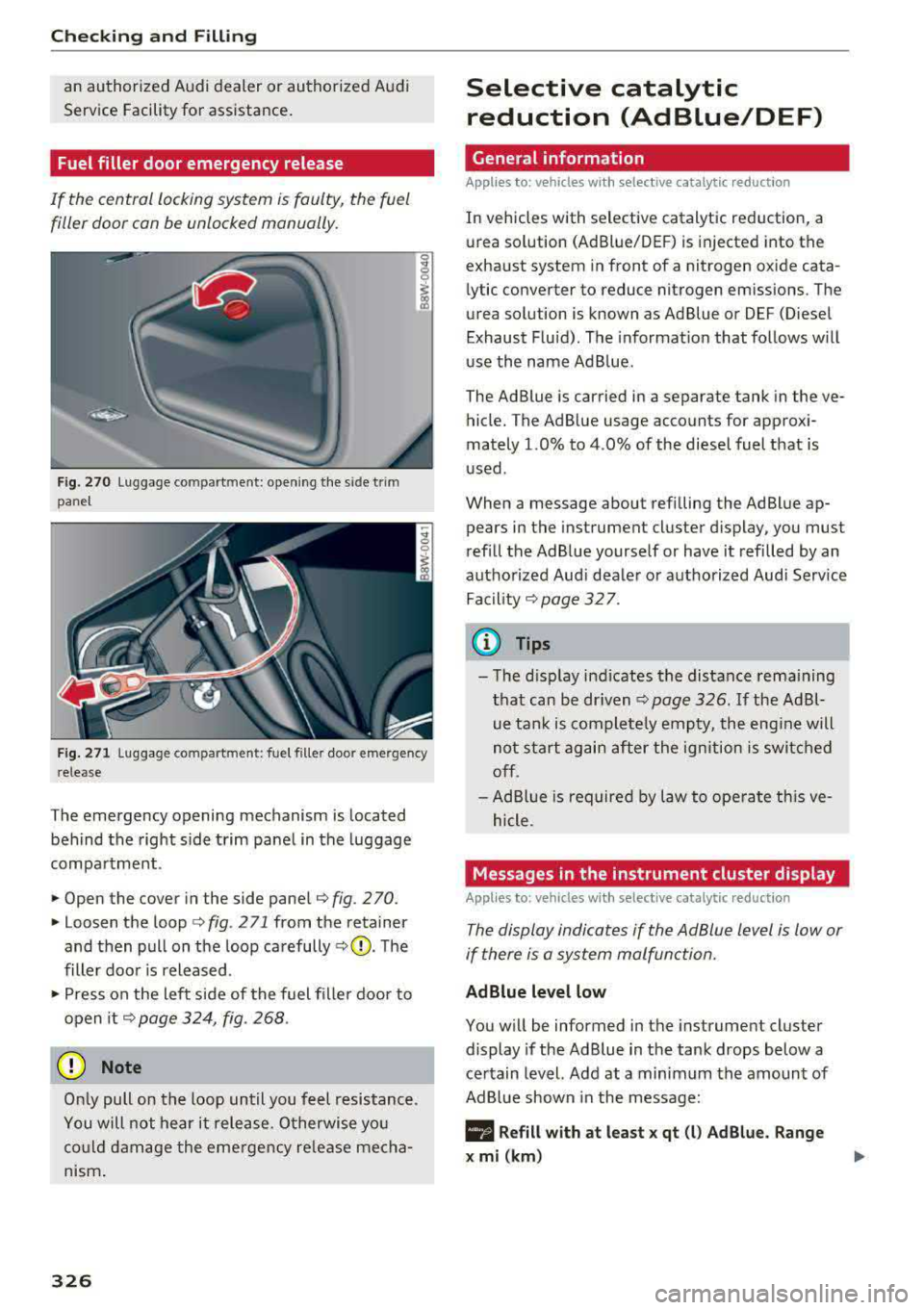
F ig. 270 Luggage compartment: open ing the s ide tr im
panel
F ig. 271 luggage compartment: fuel fi ller door emergency
release
The emergency opening mechanism is located behind the right s ide trim panel in the luggage
compartment.
• Open the cover in the side pane l ¢fig. 270.
• Loosen the loop <=>fig . 271 from the retainer
and then pull on the loop carefully
<=> 0 . Th e
filler door is released.
• P ress on the left side of the fuel fi ller door to
open
i t¢ page 324, fig. 268 .
(D Note
Only pull on the loop until you feel resistance .
You will not hear it release. O therwise yo u
co uld damage the eme rgency re lease mecha
nism .
326
Selective catalytic
reduction (AdBlue/DEF)
General information
Applies to: vehicles with selective catalytic reduct ion
In vehicles with selective catalytic reduction, a
urea solution (AdBlue/DE F) is injected into the
exhaust system in front of a nitrogen oxide cata l ytic converter to reduce nitrogen em issions. The
urea solution is known as Ad Blue or DEF (Diesel
Exhaust Flu id) . The informat ion that fo llows w ill
u se the name Ad B lue .
The Ad Blue is carried in a separate tank in the ve
hicle. The Ad Blue usage accounts for approxi
mately 1.0% to 4.0% of the diesel fuel that is
u sed.
When a message about refilling the AdBlue ap pears in the instrument cluster display, you must
refill the Ad B lue yourse lf or have it refilled by an
authorized Aud i dea ler or authorized Audi Serv ice
Fac ility<::>
page 32 7.
(0 Tips
-Th e d isp lay indicates the distance rema ining
that can be
dr iven¢ page 326. If the Ad Bl
ue tank is comple tely emp ty, the eng ine will
not s tart again after the ign ition is switched
off.
-Ad Bl ue is required by law to ope rate th is ve
hicle.
Messages in the instrument cluster display
App lies to: vehicles wi th selective catalyt ic reduct ion
The display indicat es if the Ad Blue level is low or
if there
is a system malfun ction.
AdBlue level low
You w ill be informed in the instrument cluster
display if the AdBlue in the tank drops below a
ce rtain level. Add at a minimum the amount of
AdBlue shown in the message:
II Refill with a t lea st x qt ( l) Ad Blu e. Range
x mi (km )
Page 328 of 409
This message appears when there is only enough
Ad Blue left to drive the distance indicated in the
i nstr ument cluster . Fill the Ad Blue .
• Refill with at least x qt (l) AdBlue. No en·
gine start in
x mi (km ). See owner 's manual
This message appears when there is only eno ugh
Ad Blue lef t to d rive the distance indicated in the
i nstr ument cluster. Fill the Ad B lue. O therwise
the engine will not start again if you stop it once
the distance indicated has been driven .
• Refill with at least x qt (l) AdBlue . Engine
start n ot possibl e. See owner 's manual
This message appea rs when the Ad Blue tank is
empty. Fill the AdB lue. Otherwise you will not be
ab le to s tart the engine aga in once yo u stop it.
The AdBlue must be refilled when the amount in
the tank has reached the minimum level
¢ page 327, Preparation.
Incorrect filling /system ma lfunction
A message appears if the Ad Blue tank was filled
with a fluid other than AdBlue and the system
has detected that the tank was f illed incor rectly,
or if there is a system malfunction .
II Ad Blue: malfunct ion ! No engine start in
x mi (km ). Se e owner's manual
This message appears when it is only possible to
drive the d istance ind icated in the instrument
cluster . Drive to the nearest author ized Audi
dealer o r authorized Aud i Serv ice Facility to have
the malfunction corrected . Otherwise the engine
w ill not start again if you stop it once the d is
tance indicated has been dr iven .
• Ad B lu e: malfunction! No engine start poss i
ble . See owner' s manual
This message appears if the system has detected
that the tank was filled incorrectly or that there
is a malfunction . Drive immediately to the near
est autho rized Aud i dea ler or authorized Aud i
Service Facility to have the malfunction correct
ed. Othe rwise you will not be able to start the en
g ine again once you stop i t.
Checking and Filling
Preparation
Applies to: vehicles with selective cata lytic reduction
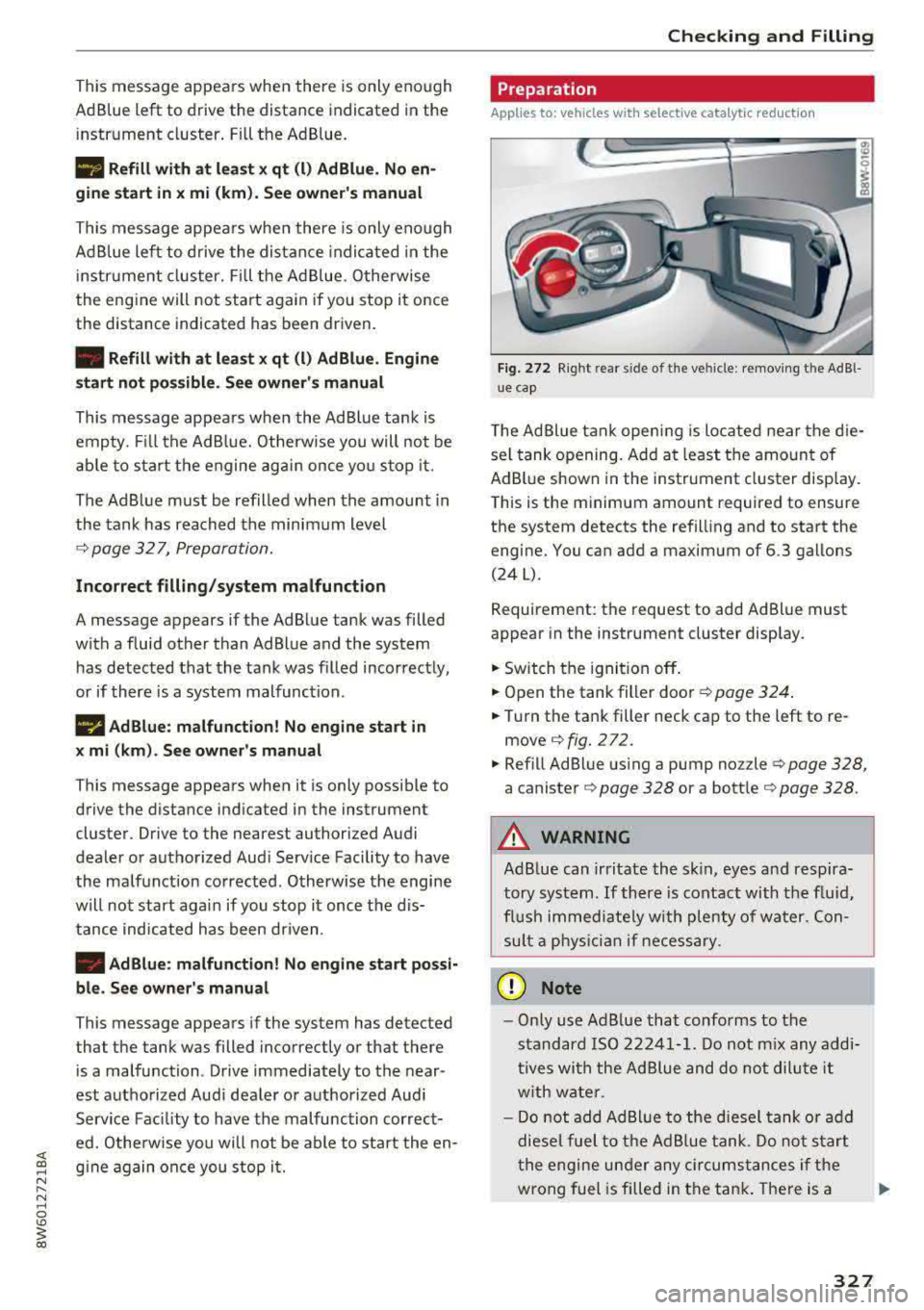
Fig. 272 R ight rear s ide o f th e ve hicle: removing t he Ad Bl
u e cap
The Ad Blue tank ope ning is located near the d ie
se l tank opening. Add at least the amount of
AdB lue shown in the instrument cluster display.
This is the minimum amount required to ensure
the system detects the refilling and to start the
engine. You can add a maximum of 6.3 gallons
(24 L).
Requirement: the request to add Ad Bl ue must
appear in the instrument cluster display.
.. Switch t he ignit ion off .
.. Open the tank filler door¢ page 324 .
.. Turn the ta nk filler neck cap to the left to re
move
¢fig . 272.
.. Refill Ad Blue us ing a pump noz zle ¢ page 328,
a canister ¢ page 328 or a bott le ¢ page 328 .
A WARNING ,~ -Ad B lue can irritate the s kin, eyes and respira
tory sys tem.
If th ere is contact with t he flu id,
flus h immed iate ly w ith plenty of wa ter. Con
su lt a phys icia n if necessary .
(D Note
- Only use Ad Blue that conforms to the
standard ISO 22241-1. Do not m ix any addi
tives with the Ad Blue and do not dilu te it
w ith wate r.
- Do not add AdBl ue to the diesel tank or add
diese l fuel to t he A d Bl ue tank. Do not s tart
t he engine un de r any c ircumst ances if th e
wrong fuel is filled in the tan k. There is a
327