instrument cluster AUDI A5 COUPE 2018 Owner's Manual
[x] Cancel search | Manufacturer: AUDI, Model Year: 2018, Model line: A5 COUPE, Model: AUDI A5 COUPE 2018Pages: 409, PDF Size: 67.63 MB
Page 111 of 409
Switching off completely
• Press the lever into position @(clicked into
place), or
• Switch the ignition off .
The speed yo u stored w ill be mainta ined if the
cru ise control has been switched off tempora rily .
To resume the stored speed, release the brake or
clutch pedal and p ull the lever into
position (!).
Sw itching the ig nition off will erase the stored
speed .
A WARNING
You should only resume the stored speed if it
is not too high for existing traffic conditions .
Otherwise you can increase the r isk of an acci
dent.
Camera-based traffic
sign recognition
Description
A pp lies to: ve hicles with camera-based t raffic sign recogni
tion
~ 180 m, & I ~ IPFl '1 iJ
I I /I
:I)' mmml ll : I tm ,, '
) ' ' ' ,,' :
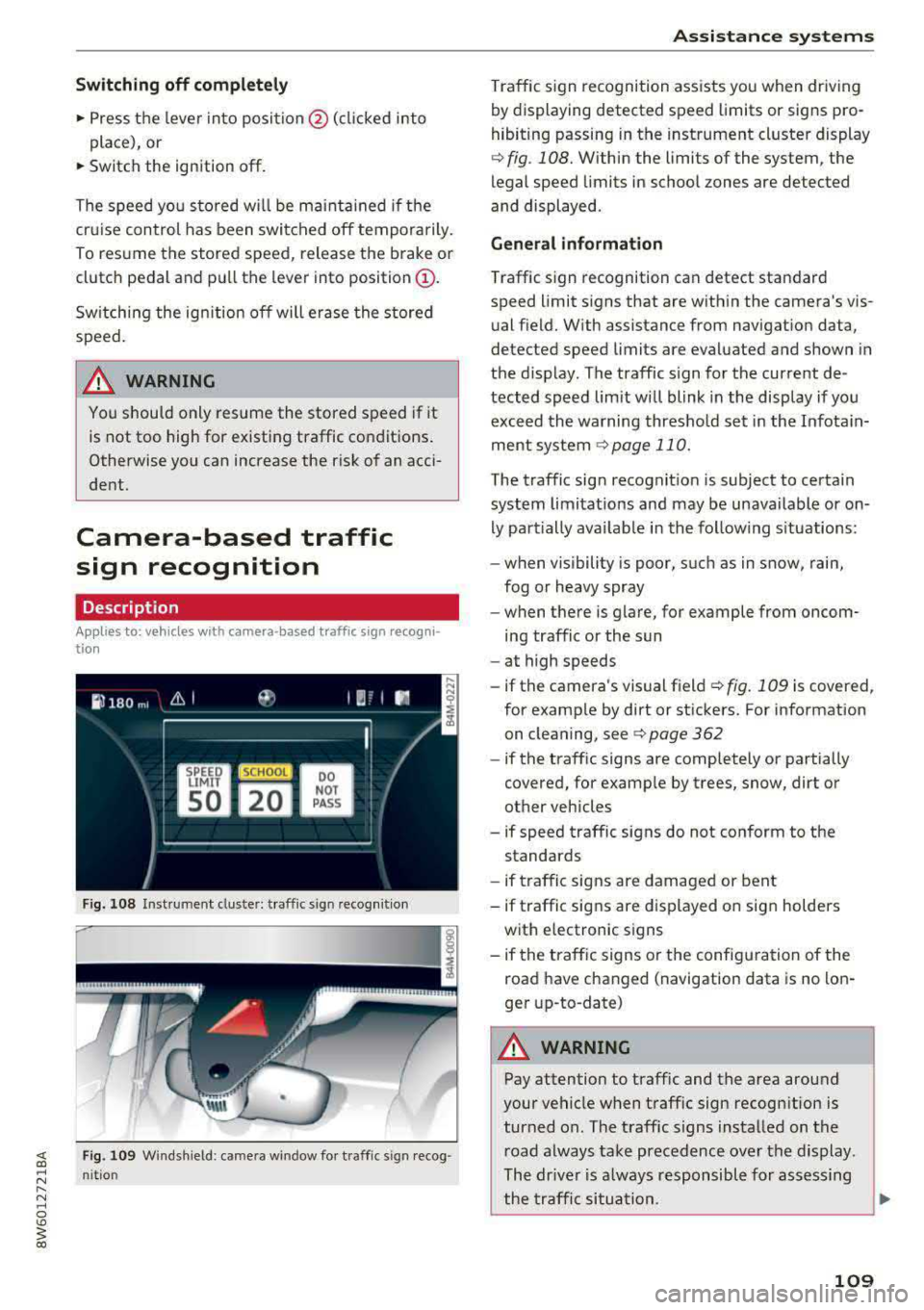
Fig. 108 Inst ru ment cluste r: traffic s ig n recognit ion
F ig. 109 Windshield : came ra window for traffic sign recog
n it io n
Assistance systems
Traffic sign recognition assists you when driving
by displaying detected speed limits or signs pro
hibiting passing in the instrument cluster display
¢ fig . 108. Within the limits of the system , the
legal speed limits in school zones are detected
and displayed.
General information
Traffic sign recognition can detect standard
speed limit signs that are within the camera's vis
ual field. With assistance from navigation data,
detected speed limits are evaluated and shown in
the display. The traffic s ign for the current de
tected speed lim it w ill blink in the disp lay if you
exceed the warning threshold set in the Infotain
ment
system ¢ page 110.
The traffic sign recognition is subject to certain
system limitat ions and may be unavailable or on
ly part ially ava ilable in the follow ing s ituations:
- when visibility is poor, such as in snow, rain,
fog or heavy spray
- when there is glare, for example from oncom
ing traffic or the sun
- at high speeds
- if the camera's visual
field ¢ fig. 109 is covered ,
for examp le by dirt or stickers. For information
on cleaning, see
¢ page 362
- if the traffic signs are completely or partially
covered, for examp le by trees, snow, dirt or
other vehicles
- if speed traffic signs do not conform to the standards
- if traffic signs are damaged or bent
- if traffic signs are displayed on sign holders
with electronic signs
- if the traffic signs or the configuration of the
road have changed (navigation data is no lon
ger up-to-date)
A WARNING
-Pay attention to traffic and the area around
your vehicle when traff ic sign recognition is
turned on. The traff ic signs installed on the
road always take precedence over the display.
The drive r is a lways responsible for assessing
the traffic situation .
-
109
Page 112 of 409
Ass is tance sy stems
- Under some circumstances, traffic sign rec
ognition may not detect traffic signs cor
rectly or detect them at all. As a result, the
system may not display the correct speed limit or any speed limit.
- Traffic s ign recognition does not adapt your
vehicle's speed to match the speed limit!
- The disp lay in the instrument cluster is
based on the units of measurement used for
speed in that country . As a result, the d is
play
SO in the instr ument cluster can mean
ei ther km/h o r mph, depending on the coun
t ry .
Operation
Applies to : vehicles with camera-based traffic sign recogn i
tion
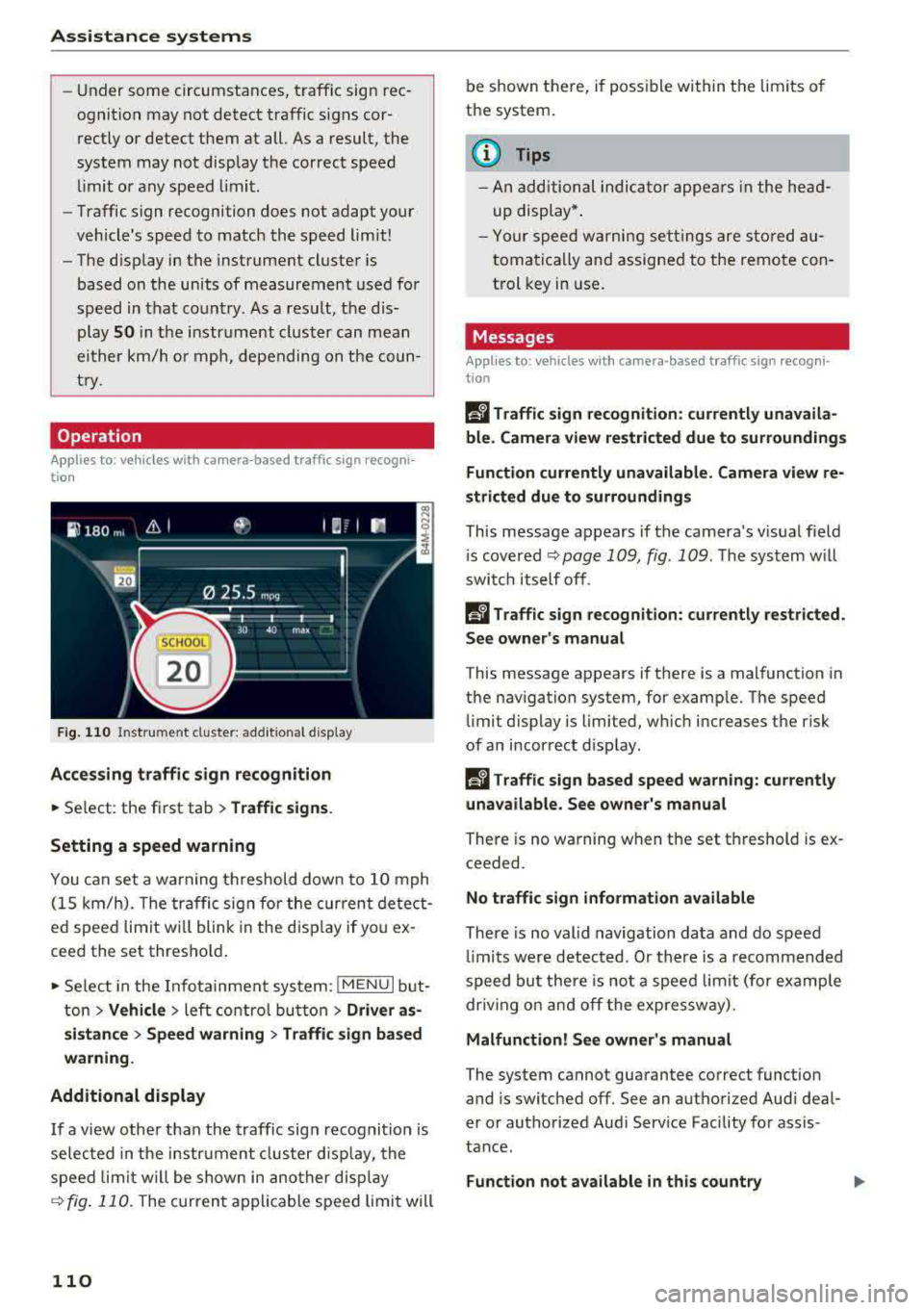
F ig. 11 0 In stru ment cl uste r: add it iona l d isplay
Acces sing traffic sign recogniti on
.,. Se lect : the first tab> Traffic signs .
Setting a speed warning
You can set a warning t hreshold down to 10 mph
(15 km/h). The tra ffic sign for the current detect
ed spee d limit w ill blink in the disp lay if yo u ex
ceed the set thresho ld .
.,. Se lect in the Infotainment sys tem : I MENU I but
t on
> Vehicle > left contro l button > Driver a s
sistan ce
> Speed warning > Traffic sign ba sed
warning .
Additional display
I f a view othe r than the traffic sign recogni tion is
selec ted in the instrument cluster disp lay, the
speed lim it w ill be shown in ano ther disp lay
q fig . 110 . The curren t appl ica ble speed limi t will
110
be shown there, if possible within t he limits o f
the system .
(1) Tips
-An additional indica tor appe ars in the he ad
up display* .
- Your speed w arning set tings are sto red au
toma tic ally and assigned to the remo te con
t rol key in use .
Messages
Applies to: vehicles with camera -based traff ic sign recogn i
tio n
Ii Traffic sign recognition: currently unavaila
ble . C amera view re str icted due to surroundings
Fun ction currently unavailable. Camera view r e
strict ed due to surroundings
This message appears if the camera's v is ual field
i s covered
q page 109, fig . 109 . The system w ill
swi tch itself off .
Ii Traffic sign recognition: currently restricted.
Se e own er's manual
This message appears if there is a malfunction in
the nav igation system, for examp le. The speed
limit d isplay is limited, w hich increases the risk
of an incor rect d isplay .
Ii Tra ffic sign based speed warning : currently
unavailable. See owne r's manual
There is no warning when the set threshold is ex
ceeded.
No traffic sign inform ation available
There is no valid navigation data and do speed
li mi ts were detec ted . Or there is a recommended
speed bu t there is not a speed limit (for examp le
dr iv ing on and off the exp ressw ay).
Malfunction! See owner' s manual
The system cannot guarantee correct function
and is switched off. See an authorized Aud i deal
er o r autho rized Aud i Serv ice Facility for assis
tance.
Function not a vailable in this country
Page 113 of 409
<( a, .... N ,....
N .... 0 \0
3 a,
The vehicle is in a country where the function is
n ot available.
Lap timer
Introduction
Appl ies to: vehicles with lap timer
You can measure and analyze lap times with the
lap timer in the display.
Opening the lap timer
• Open the first Vehicle tab (trip computer) using
the
l <1 t> I button on the mult ifunct ion steer ing
wheel.
• Se lect o n the multifunction steering wheel: left
contro l button
> Lap times .
Operating the lap t imer
• On t he multifunction steer ing whee l, tu rn the
left thumbwheel
(J) c> page 13 unt il the desired
menu item is displayed in the instrument cl us
te r.
• Press the left thumbwhee l to confirm t he selec
t io n.
_& WARNING
Your focus s hould always be on driving your
vehicle sa fely. A s the dr iver, y ou have com
ple te responsib ility for safety in tra ffic. Only
use the f unctions s uch as t he la p timer in s uch
a way that you always mainta in comp lete co n
trol over your vehicle in all traffic s ituations.
(D Tips
You c an ret rieve information from the trip
computer while the lap time r stopwatch is
r u nning .
Lap times and timing
Applies to: vehicles with lap timer
Req uirement: the lap t imer must be open
c>page 111.
Timing laps
• T o start timing manually, se lect Start lap 1 in
the menu.
Assistance systems
• To star t timing automatica lly as soon as you
beg in to drive, select
Start lap 1 by driving off
or Start b y driving off in the menu.
• To meas ure the lap time, select New lap in the
menu. This starts timing the next lap at the
same time.
A fter completing a lap, the difference between
the last lap and the previo us best lap time will be
indicated with a" -" or" +".
Pausing timing and displaying a split time
• To insert a pause m , select Pause in the menu .
• To resume timing, select Resume in the menu.
• To display a sp lit t ime, select Split time in the
menu. The split
time [~] appears for app rox i
mate ly 10 seconds in the instr ument cluster.
The tim ing of the cur rent lap con tinues .
Resetting timing
• Using the mult ifunct io n steer ing whee l, select
Reset times i n the menu.
(!) Tips
- A maximum of 99 lap t imes can be meas
ured.
- If tim ing is pa used, you can continue it later
even if you switch the ignition off.
- Saved lap times cannot be indivi dually de
leted from the total results .
- The s ave d la p time r va lues w ill rem ain after
switchin g the ignition off.
Lap statistics
Applies to: vehicles with lap timer
Displaying lap statistics
You can display t he n umbe r of laps driven, the
f astest lap" +", the slowest lap" -", an d the aver
age t ime
"0" in the instrument cluster.
• On t he mul tif unc tion stee ring w heel, selec t th e
left contro l button
> Lap statistics or Statis
tics .
• Turn the thumbwheel down o r up to display the
ind ividual lap times .
• To return to t he lap timing that was begun,
press the left thumbwheel.
111
Page 114 of 409
Assistance systems
Resetting lap statistics
.,. On the multif unction steering whee l, select:
the right control button
> Reset statistics.
@ Tips
The lap stat istics l ist the lap times for the last
30 laps. The fastest and slowest lap time out
o f up to 99 measured laps are also displayed .
Predictive efficiency
assist
Description
Applies to: vehicles with predictive efficiency assist
General information
The predictive efficiency assist helps the driver to
d rive with anticipation and therefore helps to
save fuel. The system accesses predict ive trip da
ta (including speed limits, inclines and the radius
of curves) from the navigation system*. Informa
tion from the camera-based traffic sign recogni
tion* is also applied to recogni ze traffic signs
r::;i page 109 .
The messages displayed depend on the naviga
tion data * being up-to-date and the correct iden
tification by the traffic sign recognition*.
When adaptive cruise contro l* is switched off,
the predict ive efficiency assist only provides noti
fications without controlled interventions. When
adaptive cruise control* is switched on, the sys
tem responds to upcoming situations automati
cally .
Vehicles with adaptive cruise control*
Refer to predictive control c> page 120.
Indicator in the instrument cluster display
Predictive messages appear in the instrument
cluster display to show the driver the appropriate
time to coast when a situation ahead requires
you to drive at a lower speed.
The messages are only shown if the cr uise control
system* or adaptive cruise control* is switched
off.
112
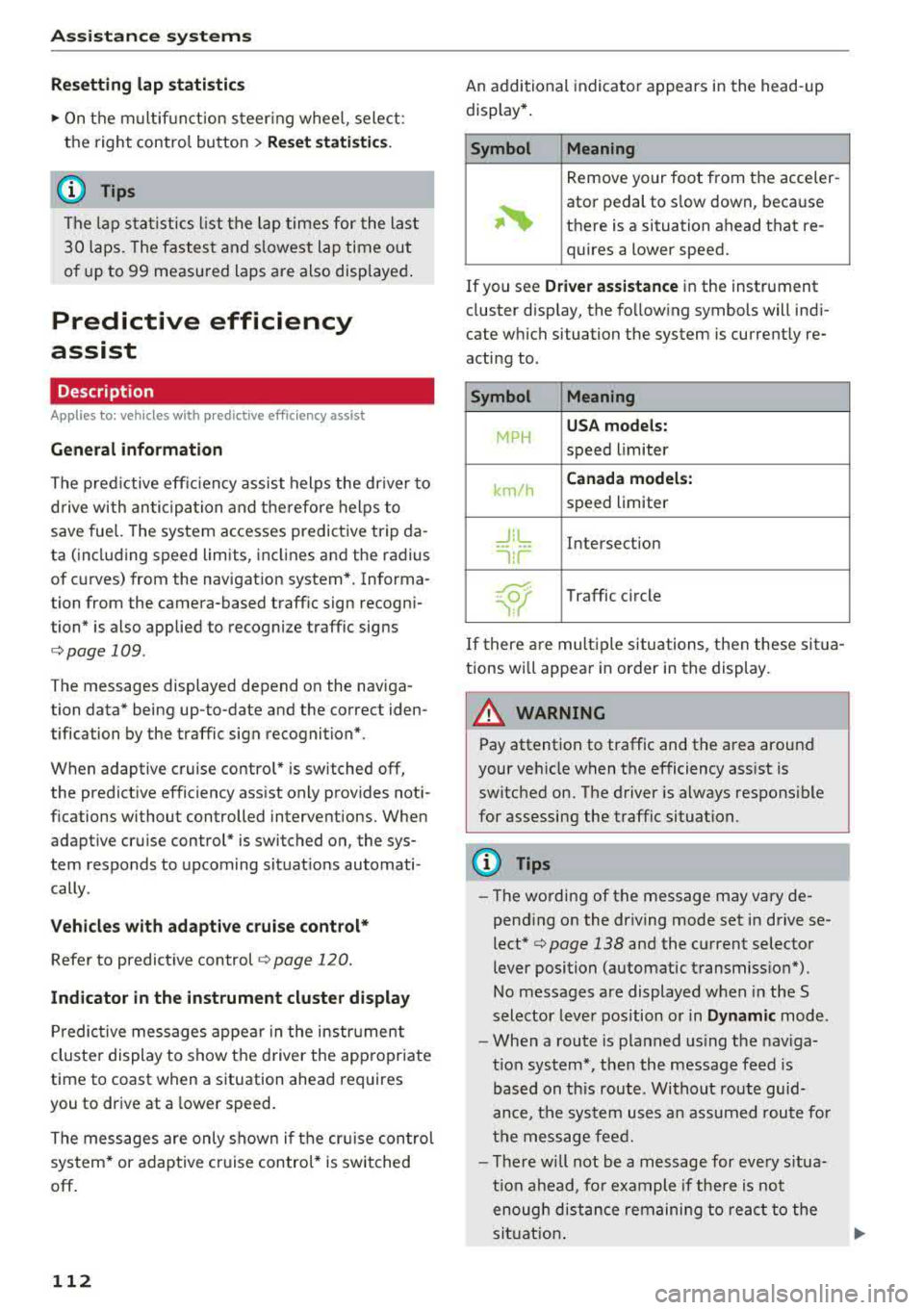
An additional indicator appears in the head-up
display* .
Symbol Meaning
Remove your foot from the acceler-
~
ator pedal to slow down, because
there is a situation ahead that re- quires a lower speed.
If you see
Driver assistance in the instrument
cluster display, the following symbols will indi
cate which situation the system is currently re
acting to .
Symbol Meaning
MPH
USA models:
speed limiter
km/h
Canada models:
speed limiter
_J!L Intersection
'"l i r
w
Traffic c ircle
If there are mult iple situations, then these situa
tions wi ll appear in order in the display.
_&. WARNING
Pay attention to traffic and the area around
your vehicle when the efficiency assist is
switched on. The driver is always respons ible
for assessing the traffic situation.
(D Tips
- The wording of the message may vary de
pending on the dr iving mode set in drive se
lect* c> page 138 and the current selector
lever position (automatic transmiss ion*) .
No messages are displayed when in the S
selector lever position or in
Dynamic mode.
- When a route is planned using the nav iga
t ion system*, then the message feed is
based on this route . Without route guid
ance, the system uses an assumed route fo r
the message feed.
- There will not be a message for every situa
tion ahead, fo r example if there is not
enough distance remaining to react to the
situation.
Page 118 of 409
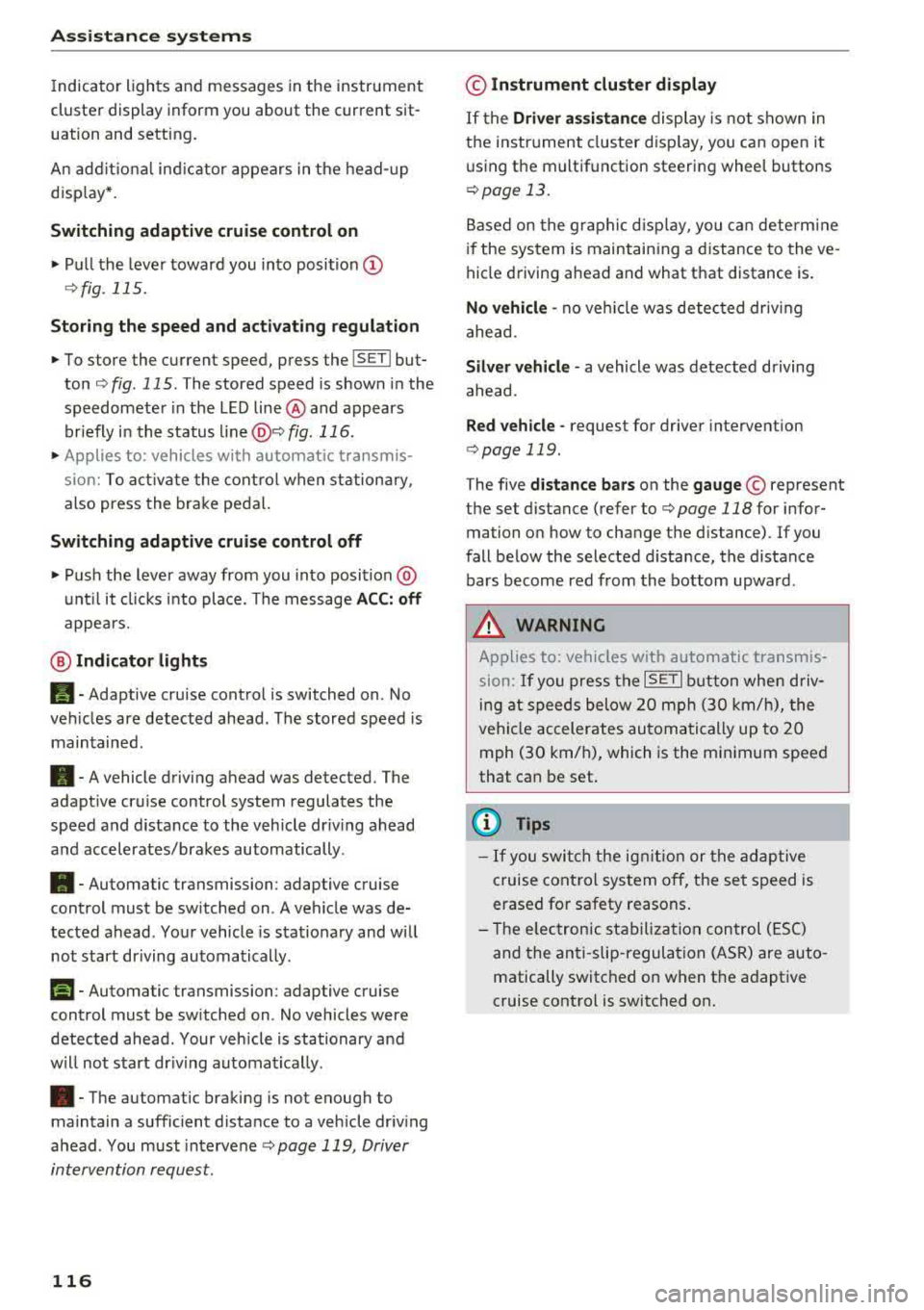
Assistance systems
Indicator lights and messages in the instrument
cluster display inform you about the current sit
uation and setting.
An add itiona l ind icator appears in the head-up
disp lay*.
Switching adaptive cruise control on
.,. Pull the lever toward you into position@
<::;,fig. 115.
Storing the speed and activating regulation
.,. To store the current speed, press the !SET ! but
ton
¢ fig . 115 . The stored speed is shown in the
speedometer in the LED line @and appears
briefly in the status
line @c:;, fig. 116 .
.,. Applies to: vehicles with automatic transmis
sion: To activate the control when stationary,
also press the brake pedal.
Switching adaptive cruise control off
.,. Push the lever away from you into position @
until it clicks into place. The message
ACC: off
appears.
@ Indicator lights
Ill-Adaptive cruise control is switched on . No
veh icles are detected ahead . The stored speed is
maintained.
• -A vehicle driving ahead was detected. The
adapt ive cruise control system regulates the
speed and distance to the vehicle dr iv ing ahead
and accelerates/brakes automatically.
• -Automatic transmission : adaptive cruise
control must be switched on . A vehicle was de
tected ahead . Your vehicle is stat ionary and will
not start driving automatically .
fai-Automatic transmission : adaptive cruise
control must be switched on . No vehicles were
detected ahead. Your vehicle is stationary and
will not start dr iving automatically .
•-The automatic braking is not enough to
maintain a sufficient distance to a vehicle driving
ahead . You must intervene
c:;, page 119, Driver
intervention request.
116
© Instrument cluster display
If the Driver assistance display is not shown in
the instrument cluster display, you can open it
using the multif unction steering wheel buttons
c:;, page 13.
Based on the graphic display, you can determine
if the system is maintaining a distance to the ve
hicle driving ahead and what that distance is .
No vehicle -no veh icle was detected driv ing
ahead .
Silver vehicle -a vehicle was detected driving
ahead.
Red vehicle -request for driver intervention
¢ page 119 .
The five distance bars on the gauge© represent
the set distance (refer to
c:;, page 118 for infor
mation on how to change the distance). If you
fall below the selected d istance, the distance
bars become red from the bottom upwa rd .
A WARNING
Applies to: vehicles with automatic transmis
sion: If you press the
ISET ! button when driv
ing at speeds below 20 mph (30 km/h), the
vehicle accelerates automatically up to 20
mph (30 km/h), which is the minimum speed
that can be set.
(D Tips
- If you switch the ignitio n or the adaptive
cruise control system off, the set speed is
erased for safety reasons .
- T he electronic stabilization control (ESC)
and the anti-slip-regulation (ASR) are auto
matically switched on when the adaptive
cruise control is switched on.
Page 121 of 409
That is equal to the general recommendation of
"half the speed shown on the speedometer".
The distances provided are specified val ues. De
pending on the d riving situation and how the ve
hicle ahead is driving, the actual distance may be
more or less than these target distances.
If you change the time gaps, the newly se t value
appears briefly in the instrument cluster display,
for example
II for Distance 3. This only occurs if
the
Driver assistance disp lay is not currently
shown in the display
~ page 115, fig. 116.
Distance 1 : this setting corresponds to a distance
of 92 feet (28 meters) when traveling at 62 mph
(100 km/h), or a time distance of 1 second.
Distance 2 : this setting corresponds to a distance
of 118 feet (36 meters) when traveling at 62
mph (100 km/h), or a time distance of 1.3 sec
onds.
Distance 3: this setting corresponds to a distance
of 164 feet (SO meters) when traveling at 62
mph (100 km/h), or a time distance of 1.8 sec
onds.
Distance 4: this setting corresponds to a distance
of 219 feet (67 meters) when traveling a t 62
mph (100 km/h), or a time distance of 2.4 sec
onds.
Distance 5: this setting corresponds to a distance
of 328 feet (100 meters) when traveling at 62
mph (100 km/h), or a time distance of 3.6 sec
onds.
A WARNING
When setting the distance, the driver is re
sponsible for adhering to any applicab le legal
regulations.
@ Tips
- Depending on the selected driving mode in
drive select* and the set distance, the driv
ing behavior will vary from dynamic to com
fortable when accelerating
c::;, page 139.
- Distance 3 is set automatically each time
you switch the ignition on. If you would like
to set another d istance as the default set
ting, you can have the
adaptive cruise con-
Assistance systems
trol menu enabled by an authorized Audi
dealer or authorized Audi Service Facility.
- Your settings are automatica lly stored and
assigned to the remote control key being
used.
Setting the driving program
Applies to : vehicles wit h Audi ada ptive c ruise control
Depending on the selected driving program and
distance, driving behavior when accelerating will
vary from dynamic to comfortable .
Setting the driving program on vehicles
without drive select*
.,. Select in the Infotainment system: I MENU! but
ton
> Vehicle > left control button > Driver as
sistance> Audi adaptive cruise control > Driv
ing program
> Comfort, Standard or Dynamic.
Setting the driving mode on vehicles with
drive select*
See c::;, page 139.
¢j) Tips
Your settings are automatically stored and as
s igned to the remote control key being used .
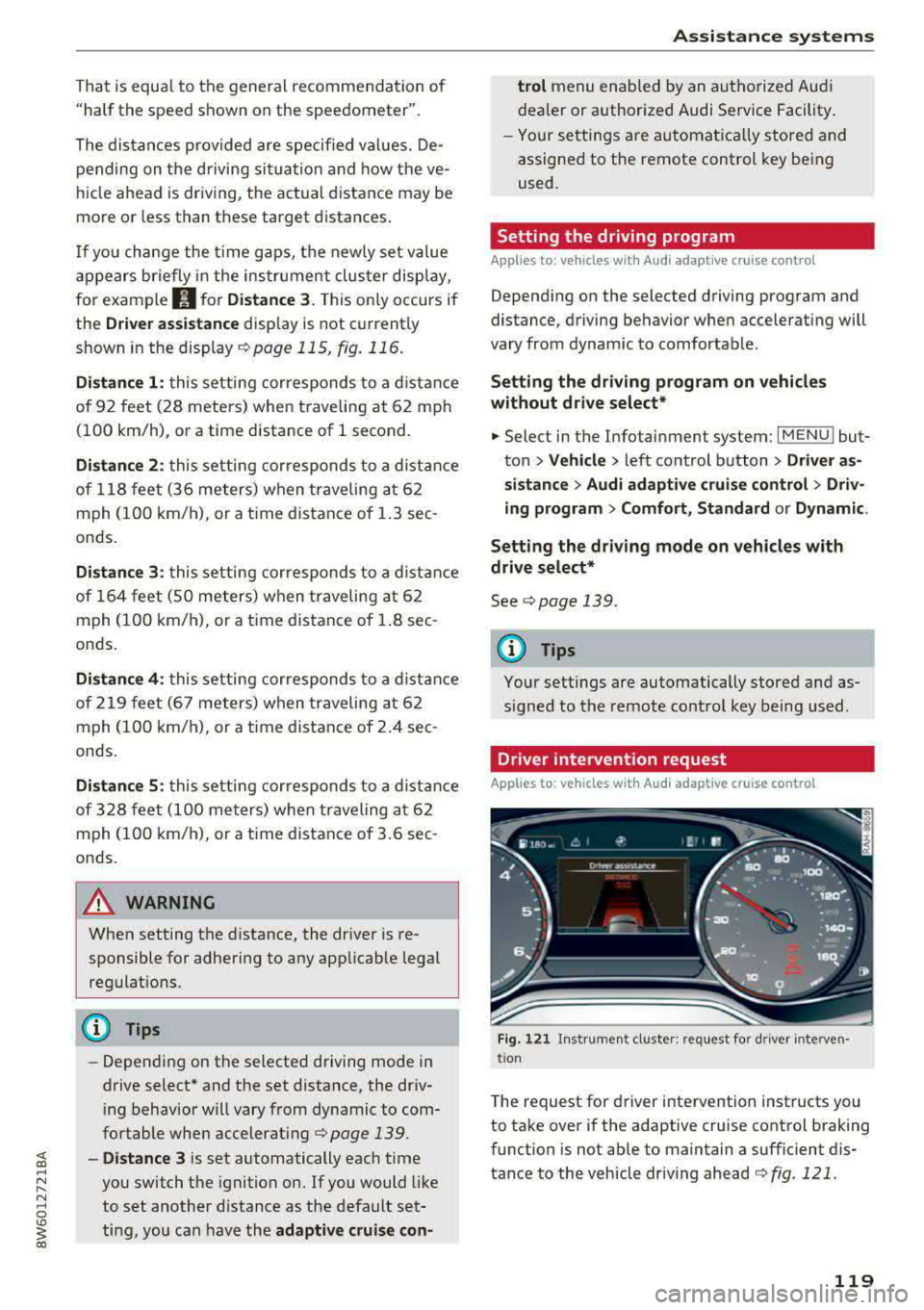
Driver intervention request
Applies to: vehicles wit h Audi ada ptive cr uise contro l
Fig. 121 Instrument cluster : request for driver interven·
t ion
T he request for driver intervention instructs you
to take over if the adaptive cruise control braking
function is not able to maintain a sufficient dis
tance to the vehicle driving ahead
c::;, fig. 121 .
119
Page 122 of 409
Assistance systems
Predictive control
(efficiency assist)
Description
Applies to: vehicles with Audi adaptive cruise control and pre·
dict ive efficiency assist
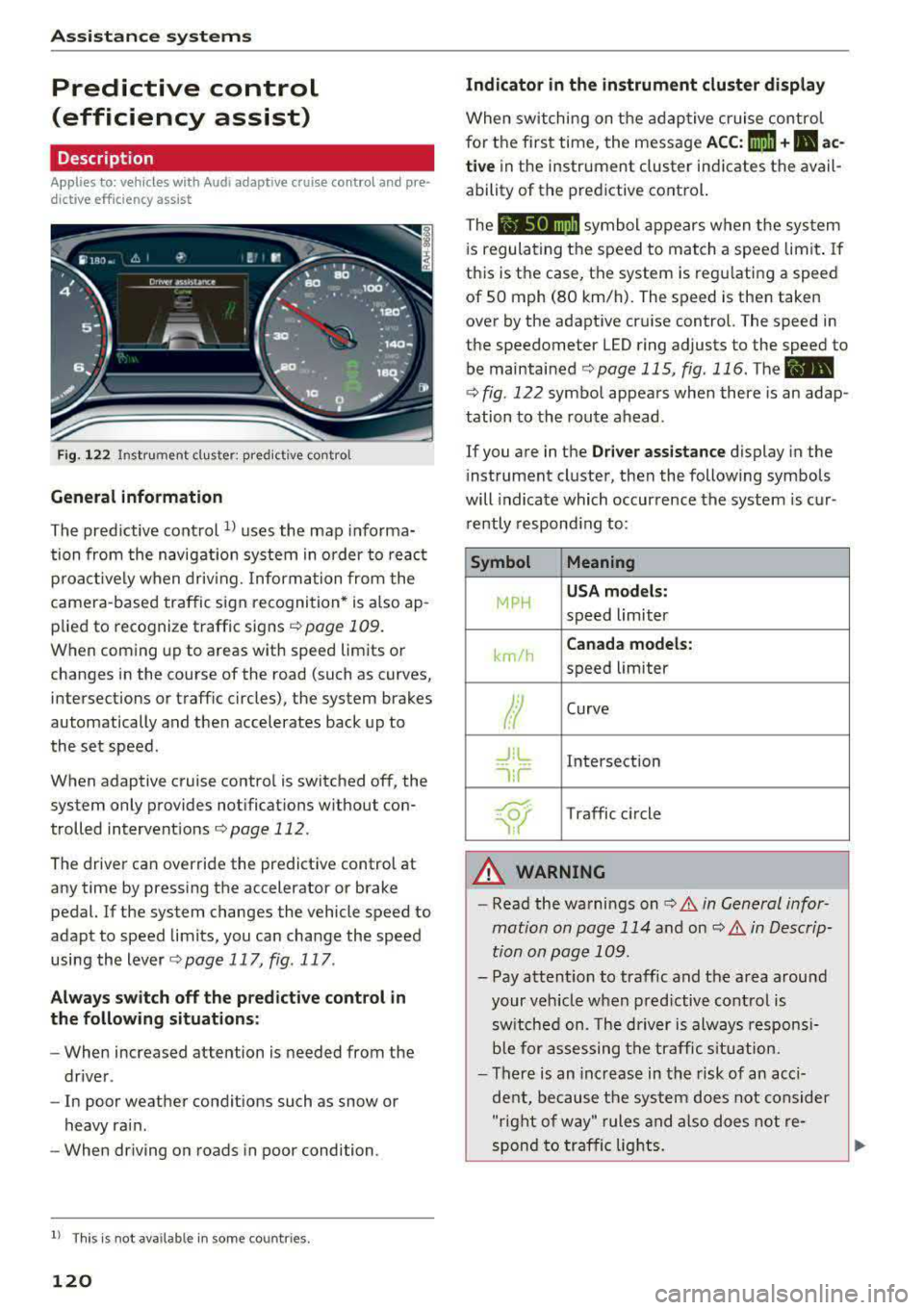
Fig. 122 Instrument cluster: predictive control
General information
The predictive control 1l uses the map informa·
tion from the navigation system in order to react
proactively when driving. Information from the
camera -based traffic sign recognition* is also ap·
plied to recognize traffic signs
r::!> page 109.
When coming up to areas with speed limits or
changes in the course of the road (such as curves,
inte rsections or traffic circles), the system brakes
automatically and then accelerates back up to
the set speed.
When adaptive cruise cont rol is switched off, the
system only provides notificat ions without con
trolled intervent ions
r::!> page 112 .
The driver can override the predictive control at
any time by pressing the accelerator or brake
pedal. If the system changes the vehicle speed to
adapt to speed limits, you can ch ange the speed
using the lever
<:!> page 117 , fig . 117 .
Always switch off the predictive control in
the following situations:
- When increased attention is needed from the
driver .
- In poor we ather condit ions such as snow or
heavy rain .
- When driving on roads in poor condition.
l) This is no t a vail able in som e coun trie s.
120
Indicator in the instrument cluster display
When switching on the adaptive cruise control
for the first time, the message
ACC: 1111 + B ac
tive
in the instr ument cluster indicates the avail
ability of the predictive control.
The symbol appears when the system
i s regulating the speed to match a speed limit .
If
this is the case, the system is regulating a speed
of 50 mph (80 km/h). The speed is then taken
over by the adaptive cruise control. The speed in
the speedometer LED ring adjusts to the speed to
be maintained
r::!> page 115, fig. 116 . The ..
r::!> fig. 122 symbol appears when there is an adap
tation to the route ahead .
If you are in the
Driver assistance display in the
i nstrument cluster, then the following symbols
will indicate which occurrence the system is cur
rently responding to:
Symbol Meaning
MPH
USA models:
speed limiter
km/h
Canada models:
speed limiter
Ir
Curve
_J!L
,ir
Intersection
~ Traffic circle ·· Of );
A WARNING
- Read the warnings on c> .& in General infor
mation on page 114
and on r::!> .& in Descrip
tion an page 109 .
-Pay attention to traffic and the area around
your vehicle when predictive control is
sw itched on. The driver is always responsi
ble for assessing the traffic situation.
-There is an increase in the risk of an acci
dent, because the system does not consider
"right of way" rules and also does not re-
spond to traffic lights.
._
Page 128 of 409
Assistance systems
-Activating the emergency flashers l) .
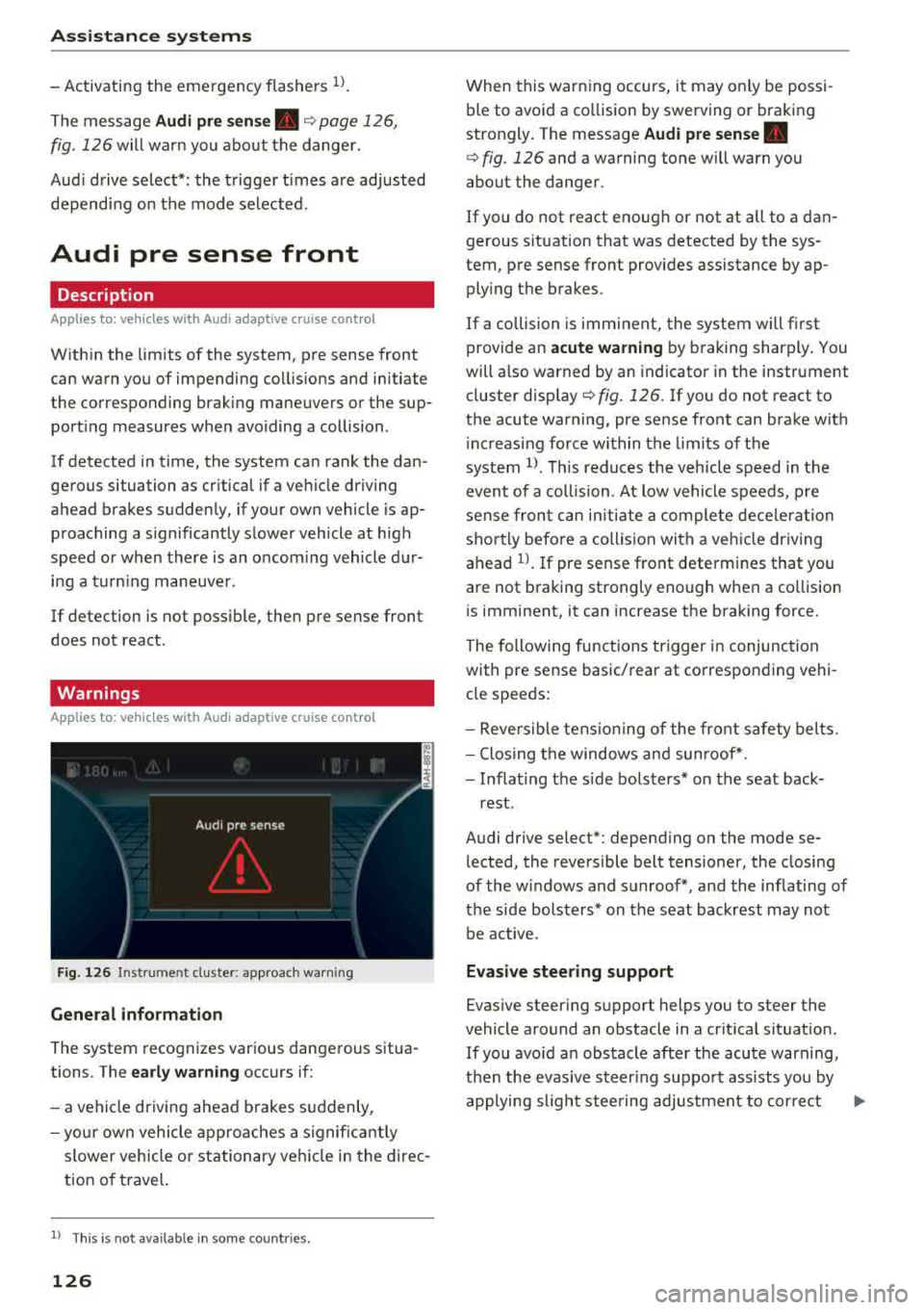
The message Audi pre sense. ¢ page 126,
fig. 12 6 will wa rn you abo ut the danger.
Aud i d rive select *: the t rigger t imes are adjusted
dependi ng on the mode selected.
Audi pre sense front
Description
A ppl ies to: ve hicles w ith Audi a daptive cruise co ntrol
W ith in the limits of the system, pre sense front
can warn you of impending coll is ions and initiate
t he corresponding brak ing maneuvers or the sup
port ing measures when avo iding a collision .
I f detected in time, the system can rank the dan
ge rous situation as cr itical if a ve hicle driving
a head brakes s udden ly, if your own vehicle is ap
p roaching a s ignificantly s lower vehicle at high
speed or when there is an oncom ing vehicle d ur
i n g a t urning maneuve r.
If detection is not poss ible , the n pre sense front
does not react .
Warnings
App lies to: ve hicles w ith Audi a daptive cruise co ntro l
F ig . 126 In strum ent cl uste r: appro ach warn ing
General information
The system recognizes var ious dangerous situa
tions. The
early warning occurs if:
-a veh icle d riving ahead brakes s uddenly,
- yo ur own vehicle ap pro aches a signific antly
s lower vehicle o r stationary ve hicle in the direc
tion o f travel.
l) Thi s is not a va ilab le in some co untri es .
126
When this warn ing occurs, i t may o nly be pos si
ble to avo id a co llision by swerving o r braking
strongly . T he message
Audi pre sense.
¢ fig. 126 and a wa rning tone will warn you
about the danger .
If you do not react enough or not at all to a dan
gerous s ituat ion that was detected by the sys
tem, pre sense front provides assistance by ap plying the b rakes.
If a collision is imminent, the system will fi rst
provide an
acute warning by b raking sharply . You
will a lso warned by an indicato r in the instrument
cluster
disp lay¢ fig. 126. If yo u do not react to
the acute warning, pre se nse front can bra ke w it h
i nc reas ing force wi thin the lim its o f th e
system
1> . Thi s reduc es the v ehicl e spe ed in t he
even t of a collision . At low vehicle s peeds , pre
s ense fr on t can initi ate a com plete dece le rat ion
sho rtly befo re a collision with a veh icle dr iv ing
ahead
l ) . If pre sense front determines that you
a re not b raking st rongly enough when a co llision
i s imminent, it can increase t he b raking force.
The followi ng func tions trigge r in conjunc tion
with pre sense basic/ rear at corresponding vehi
cl e speeds :
-Reversible tens io nin g of the front s afety bel ts.
-Clos ing t he windows and sun roof* .
-Infla ting t he side bols ters* on the seat back-
rest .
Audi drive select* : depending on the mode se
l ected , the reversible belt tensioner, the closing
of the windows and s unroof*, and the inflating of
t h e side bolste rs* on the seat backrest may not
be active.
Evasive steering support
Evas ive steering s upport helps you to steer the
vehicle around an obstacle in a crit ica l sit uat io n.
If you avo id a n obs tacle afte r the acu te warning,
t he n th e evasive ste ering suppo rt assists you by
applying slight stee ring adjus tment to corre ct
.,..
Page 134 of 409
Assistance systems
Display in the instrument cluster
Applies to: vehicles w ith Audi active lane assist
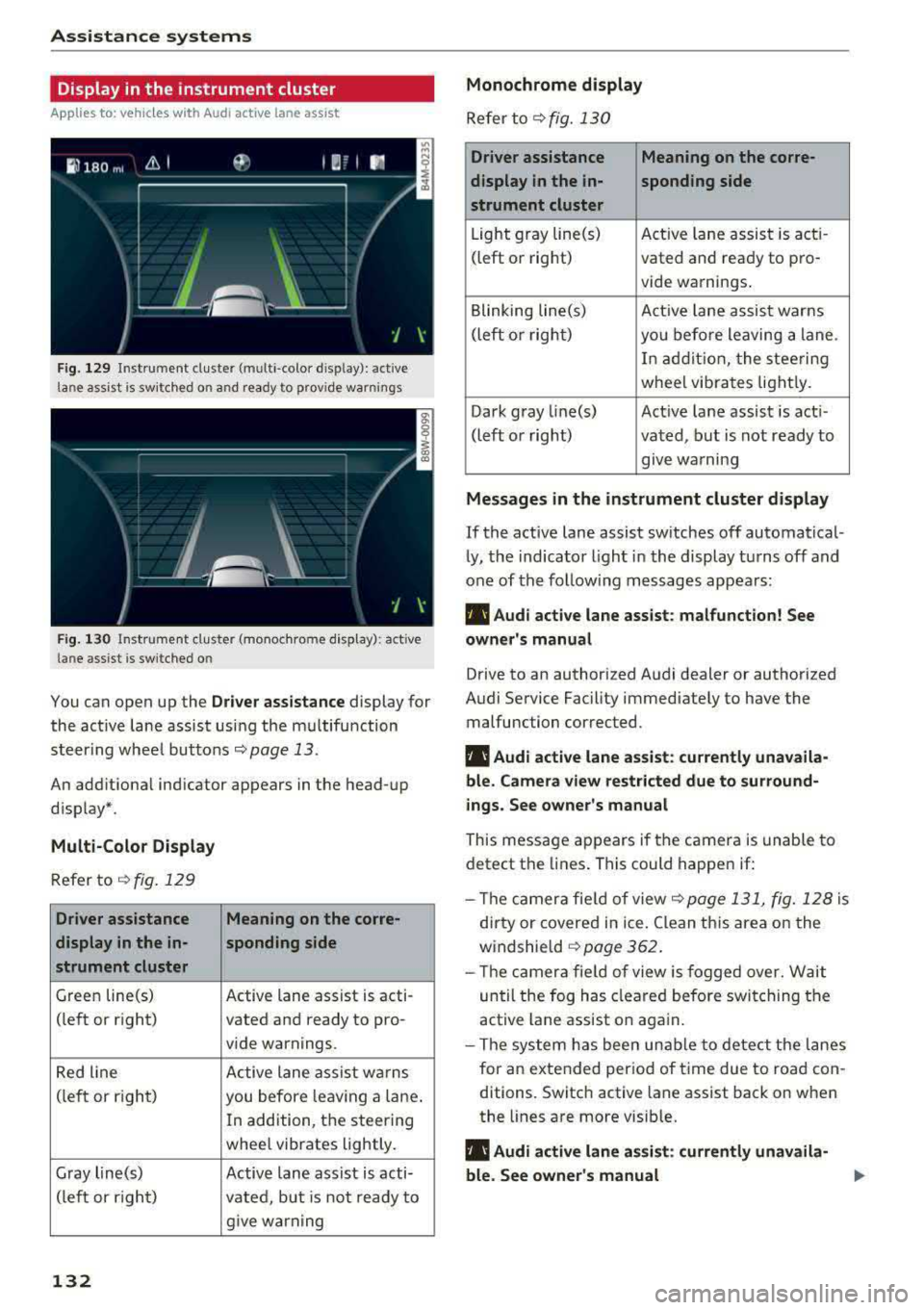
Fig. 129 Instrument cluster (multi -color d isplay): active
lane assist is sw itched on an d ready to provide warnings
Fig. 1 30 Instrument cluster (monoc hrome display): active
lane assist is switched on
You can open up the Driver assistance display for
the act ive lane assist usi ng the m ultifunction
steer ing whee l buttons
r::;, page 13.
An add itional ind icator appears in the head-up
d isplay* .
Multi-Color Display
Refer tor::;, fig. 129
Driver assistance Meaning on the corre-
display in the in- sponding side
strument cluster
Green line(s) Active lane assist is acti-
(left or right) vated and ready to pro-
vide warnings.
Red line Active lane assist w arns
(left or r ight)
you before leav ing a lane.
In addition, the steering
wheel vibrates lightly.
Gray line(s) Active lane assist is acti-
(left or right) vated, but is not ready to
give warning
132
Monochrome display
Refer to r;;;, fig. 130
Driver assistance Meaning on the corre-
display in the in-
sponding side
strument cluster
Light gray line(s) Act ive lane assist is acti-
(left or right) vated and ready to pro-
vide warnings .
Blinking line(s) Active lane assist warns
(left or right)
you before leaving a lane.
I n addition, the steering
wheel vibrates lightly.
Dark gray line(s) Active lane assist is acti-
(left or right) vated, but is not ready to
. . give warning
Messages in the instrument cluster display
If the active lane assist sw itches off automatical
ly, the indicator light in the display turns off and
one of the follo wing messages appears:
rl1 Audi active lane assist: malfunction! See
owner's manual
Drive to an authorized Audi dealer or authorized
Audi Service Facility immed iately to have the
malfunction corrected.
rl1 Audi active lane assist: currently unavaila
ble. Camera view restricted due to surround
ings. See owner's manual
This message appears if the camera is unable to
detect the lines. This could happen if:
- Th e camera fie ld of view
c;;;,page 131, fig. 128 is
dirty or covered in ice . Clean th is area on the
windshield
c;;;, page 362.
-Th e camera fie ld of view is fogged over. Wait
until the fog has cleared before switching the
active lane assist on again.
- The system has been unable to detect the lanes
for an extended period of time due to road con
ditions. Switch active lane assist back on when
the lines are more visib le.
rl1 Audi active lane assist: currently unavaila
ble. See owner 's manual
Page 221 of 409
Map colors
Day /Night :
the map is displayed with a light/
dark background.
Automatic : the map display adapts to the light
i ng conditions (fo r example, changing from
Day
to Night when driving thro ugh a tunne l).
Map display
Standard :
see ¢page 217, fig. 201.
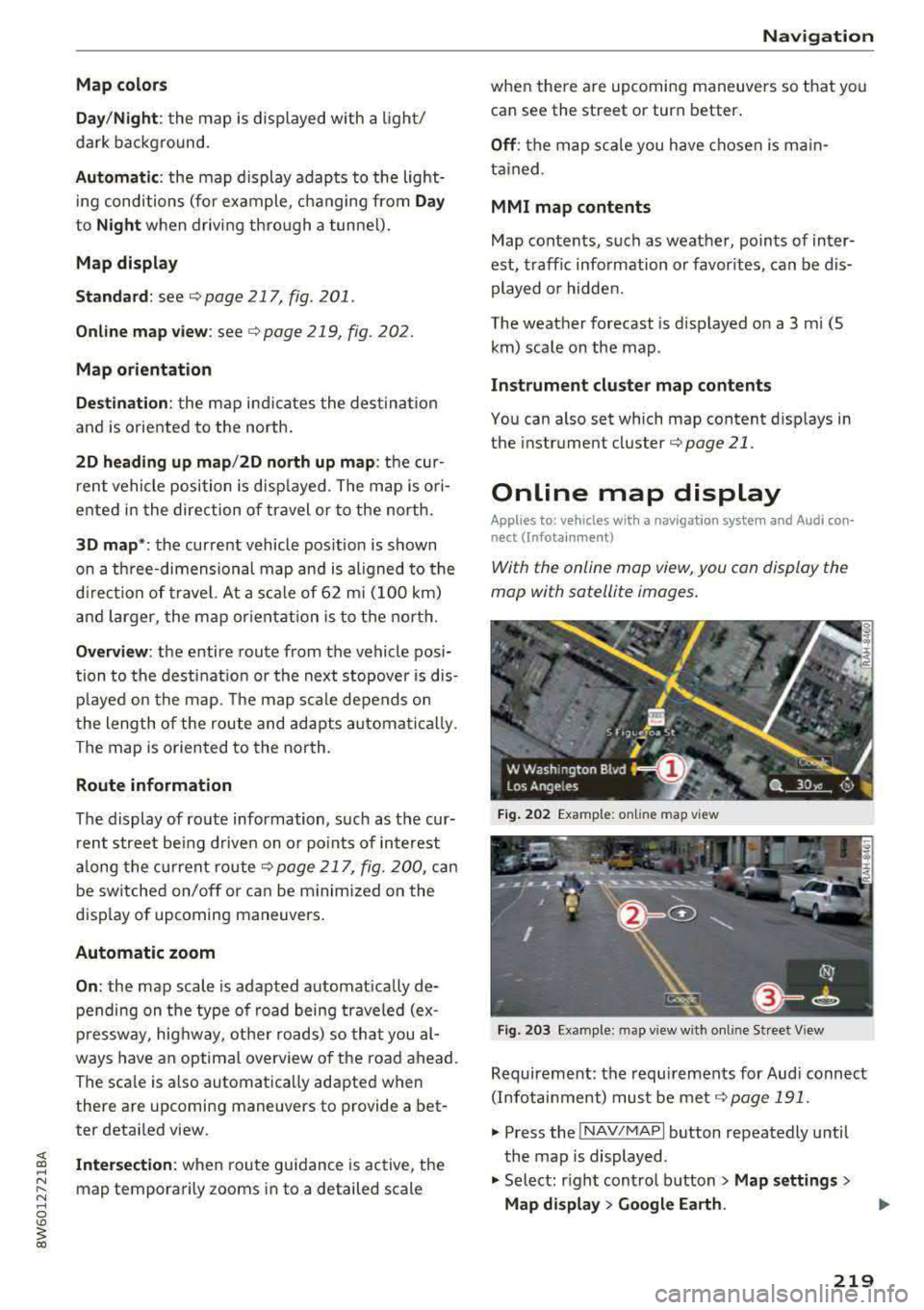
Online map view: see¢ page 219, fig. 202.
Map orientation
Destination :
the map indicates the dest ination
and is oriented to the north.
2D heading up map /2D north up map : the cur
rent vehicle position is dis played. The map is o ri·
ented in the direction of travel or to the north.
3D map *: the current vehicle pos ition is shown
on a th ree-dimensional map and is a ligned to the
d irection of travel. At a scale of 62 mi (100 km)
and larger, the map orientation is to the north.
Overview : the entire route from the vehicle posi·
tion to the destination or the next stopover is dis·
played on the map. The map scale depends on
the length of the route and adapts a utomatica lly.
The map is oriented to the north.
Route information
The display of route information, such as the cur·
rent street being driven on or po ints of in terest
along the current route
c;,page 217, fig. 200, can
be switched on/off or can be m inim ized on the
display of upcoming maneuvers .
Automatic zoom
On :
the map scale is adapted automat ically de·
pending on the type of road being traveled (ex·
pressway , hig hway, other roads) so that you
al
ways have an optimal overview of the road ahead.
The sca le is also automatica lly adapted when
there are upcoming maneuvers to provide a bet·
ter detai led view.
Intersection : when route guidance is active, the
map temporarily zooms in to a detailed scale
Navigation
when there are upcoming maneuvers so that you
can see the street or turn better.
Off : the map scale you have chosen is main·
tained .
MMI map contents
Map contents, such as weather, points of inter·
est, traffic information or favorites, can be dis·
played or hidden.
The weather forecast is displayed on a 3 m i (5
km) scale on the map.
Instrument cluster map contents
You can also set which map content disp lays in
the instrument
cluster¢ page 21.
Online map display
Applies to: vehicles with a navigation system and Audi co n·
nect (Infotainment)
W ith the on line map view, you can display the
map with satellite images.
Fig. 202 Example: on line map vie w
Fig . 203 Examp le: map view with onli ne St reet V iew
Requirement: the requirements for Aud i connect
(Infotainment) must be met
¢page 191 .
.,. Press the !NAV/MAPI button repeatedly until
the map is displayed.
.,. Select: r ight control button > Map settings >
Map display > Google Earth.
219