steering wheel AUDI A6 2011 User Guide
[x] Cancel search | Manufacturer: AUDI, Model Year: 2011, Model line: A6, Model: AUDI A6 2011Pages: 370, PDF Size: 87.15 MB
Page 111 of 370
_________________________________________________ O_ n_ t_ h_ e_ r _o_ a_d _ __._
& WARNING
• Never remove the key from the ignition lock while the vehicle
is moving. The steering wheel will lock , cau sing loss of control.
• If you ha ve to leave your vehicle, even for ju st a minute, alw ays
remove the ignition key and take it with you. This i s especially
important if you are going to leave children unattended in the
vehicle. The children could start the engine or use other vehicle c ontrols . Unsupervised us e of vehicle controls (for example, power
windows) can cause serious personal inju ries.
0 Note
• If the ~ symbol in the display blinks, there is a malfunction in the
electronic stee ring column lock. Follow the instr uctions in
~ page 28, "Steering malfu nction i" .
• If the ~ symbol in the display blinks, there is a malfunction in the
electronic ignition lock . Follow the instr uctions in~
page 29, "Igni
t ion lock malfunct ion ~" .
(I] Tips
• If you release the ignit ion key i n pos it io n @ , the key automati cally
returns to pos ition
(D .
• If you open the driver 's doo r whe n the ignition is sw itched on, a
buzze r sounds and the message
Ignition is on appears in the instru
ment cl uster d isplay. Please swi tch the ignition off. •
Ignition key safety lock
The ignition key con on ly be removed when the selector
lever is in the "P" (Pork) positi on.
After turning off the ignition, the ign ition key can only be removed
from the ignition lock when the se lector lever is in the "P " (Park) posi-
Con tro ls a nd e quip
m en t Vehicle
OP-eration
tion . After you have removed the key, the selector lever is locked and
canno t be move d.•
Starting and stopping the engine
Starting the engine
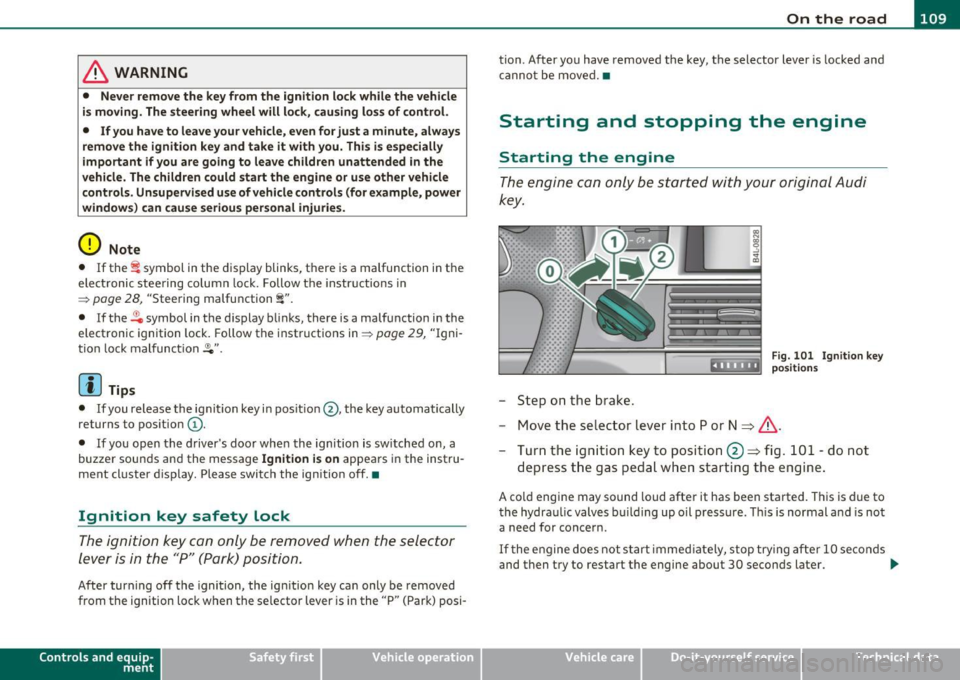
The engine can only be started with your original A udi
key.
.... _:::::•:
- Step on the b rak e.
Fig . 10 1 Ig nitio n key
positio ns
- Move the se lector lever into P or N ~ &,.
- Turn the ig ni tion key to position @~ fig. 101 -do not
depress t he gas pedal when start ing t he engine .
A cold engine may sound loud after it has been started . T his is due to
the hydra ulic valves bu ilding up oil p ressu re . Thi s is normal and is not
a need for concern.
If t he e ngine does no t s tart immed iate ly, stop try ing af te r 10 seco nds
and then try to restart the engine about 30 seconds later . _.,
Vehicle care Do-it-yourselt service iTechnical data
Page 136 of 370
IIIIL_!_A~u~d~i~l!:!a~n~e '...:a~s~s:!:is~t ~--------------------------------------------
Aud i Lane assist
Lane assist
Applies to veh icles : w ith lane assist
Description
Lane assist helps you keep your vehicle in your lane.
Lane assist uses a camera to detect lane boundary lines. If the system
detects that your vehicle is about to leave a lane boundary line, the
steering wheel
vibrates to alert the driver. If lane assist detects
boundary lines on both sides o f the veh icle's lane, the system enters
act ive standby mode, which is indicated by t he gree n indicator light
/: on the instrument cluster .
If the system is in active standby mode and the turn signal is acti
vated before driving over the boundary line , the warning does not
occur sinc e th e system allows for in tention al lane changes.
The system is designed for driving on freeways and expanded high
ways and th us works only at speeds of 40 mph (65 km/h) or more.
& WARNING
• Lane assist will not keep your vehicle in your lane. The system
only warns the driver when the vehicle is leaving the lane. The
driver is always responsible for keeping the vehicle in the lane.
• The camera is not able to detect all lane boundary lines and in
some cases might also detect lane structures or objects as
boundary lines. This can lead to incorrect warnings or warnings
that fail to go off at all.
• The camera's visibility can be impaired by vehicles ahead of
you, for instance, or by rain, snow, heavy spray or light shining
into the camera lens. This can cause lane assist to fail to detect
boundary lines. •
Applies to veh icles: wit h lane assist
Activating and deactivating
Fig. 126 Turn signal
lever: Lane assist
button
Fig. 127 Windshield:
Lane assist camera
viewing window
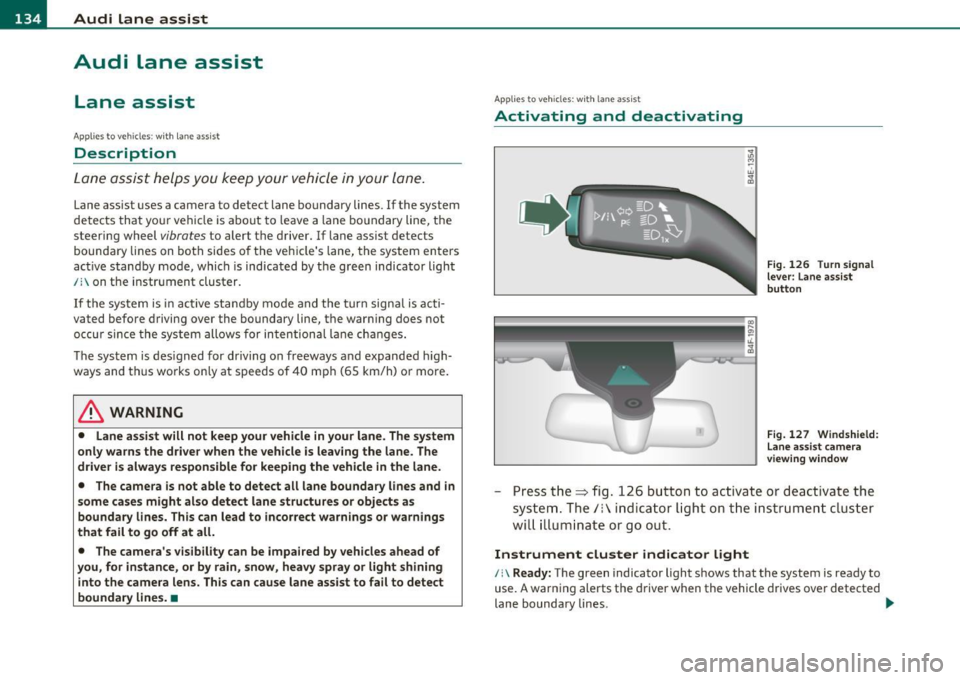
-Press the=> fig . 126 button to act ivate or deactivate the
system. The/: ind icator light o n the instrument cluster
will illumi nate or go out.
Instrument cluster indicator light
/:\Ready: The green indicator light shows that the system is ready to
use. A warning alerts the driver when the vehicle drives over detected
lane boundary lines . -.,
Page 137 of 370

Audi lane assist -________________ lff'II
Not ready: The yellow indicator light shows that the system is
turned on but unable to send a warning. This can be due to the
following:
• Th ere are no boundary lines, or there is only one boundary line
present.
• The boundary lines are not detected (e .g . due to snow, dirt, wet
conditions or light shining into the camera lens).
• More than two boundary lines (such as at construction sites) are
located in the vehicle's lane.
• Th e vehicle's speed is below the speed needed to activate it, which
is about 40 mph (65 km/h) .
• Th e lane is narrowe r than about 8
ft. (2.5 m), or wider than about
16 ft. (5 m).
• The curve is too sharp.
Notes on the instrument cluster display
When the lane assist turns off automatically, the instrument cluster
indicator goes out and one of the fo llowing messages appears on the
display:
Audi lane assist not available: currently no sensor vision
Thi s message appears when the camera can no longer function
because it cannot detect the boundary lines. This may be due to the
following:
• Th e exte rior side of the camera viewing window=>
page 134,
fig. 127 is covered with dirt or ice. Clean this part of the windsh ield.
• Th e came ra viewing window is fogged up on the inside. In this
case, wait until the fog disappears before turning lane assist on
again.
• Th e system was unable to detect boundary lines over an extended
period of time due to road conditions (such as snow-cove red lanes).
Do not turn lane assist on aga in until the lines can be more easily
detected.
Audi lane assist currently not available
Controls and equip
ment Safety first A temporary malfunction
is preventing lane assist from operating .
Tr y turning on lane assist again at a lat er time.
Audi lane assist: system fault
The system shou ld be checked by an authorized Audi dealer or other
qualified wo rkshop.
[ i ] Tips
• Make sure that the camera viewing window => page 134, fig. 127
is not covered by stickers or similar objects.
• Always keep the camera viewing w indow clean. This can us ually be
done by operating the windshie ld wipers. •
Applies to vehicles: wi th lane assist
MMI settings
You can use the fv1fv1I to adjust the warning time and
steering wheel vibration.
-Select: Function button [CAR ]> Systems *> Audi lane
assist.
Setting the warning time
Early: This setting warns the driver before a wheel touches the
detected lane boundary line. The warning depends on the vehicle's
angle as it approaches the boundary line. If you approach a boundary
line gradually, the warn ing will occur earlier. If you approach the
boundary line at a very sha rp angle, the warn ing will occur just befo re
a wheel touches the line.
Medium : In this setting, the warning time adjusts to the characteris
tics of the road and the vehicle speed. The wa rning occurs later fo r
curves and occurs earlier for straight stretches of road . The warning
occurs later on narrow roads than on wide ro ads.
Late : This setting warns the driver when a wheel dr ives over the
detected lane boundary line.
Vehicle care Technical data
Page 138 of 370
1111....__A_ u_ d_i_ l_ a_ n_ e_ a_s_ s_ is_t _________________________________________________ _
Setting the steering wheel vibration
When ad justing the steering wheel v ibration, the s teer ing whee l
vibrates so that you can check the in tensity you have set.
Cl] Tips
• When mak ing t he ad justment, lane assist is not act ivated . The
steering wheel vibrates briefly only to ass ist you in chang ing the
sett ing.
• Your settings a re automatically stored and assigned to the remote
cont rol key being used .•
Page 153 of 370
![AUDI A6 2011 User Guide Automatic transmission -_______________ ____.
(]] Tips
• When you shift into the next lower gea r, the tra nsmission w ill
downs hift o nly when there is no possibi lity of ov er](/img/6/57593/w960_57593-152.png "AUDI A6 2011 User Guide Automatic transmission -_______________ ____.
(]] Tips
• When you shift into the next lower gea r, the tra nsmission w ill
downs hift o nly when there is no possibi lity of ov er")
Automatic transmission -_______________ ____.
(]] Tips
• When you shift into the next lower gea r, the tra nsmission w ill
downs hift o nly when there is no possibi lity of ov er-revving the
eng ine.
• When the kickdown comes on, the transmission will s hift down to
a lower gear, depending on vehicle a nd e ng ine speeds.
• tiptronic ® is inoperative when the transm ission is in the fai l-safe
mode .•
Ap plies to veh icl es: wit h 6-spee d auto matic t ransmiss io n
Steering wheel with tiptronic ®
The shift buttons on the steering wheel allo w the driver to
shift gears manually.
Fi g. 143 Stee ring
wheel : Sh ift butt ons
- To downs hif t, touch the bu tton on the le ft 0-
- To upshift , touc h the button on the right G) .
The sh ift buttons are activated when the sel ector lever is in D, Sor in
t he m anual shift pr ogram (ti ptroni c).
Of course, you can cont inue to use the manual sh ift program with the
sele ctor lever o n the cente r console. •
Contro ls a nd e quip
m en t Vehicle
OP-eration
Applies to vehicles : w ith 6 -s p eed a utomatic transm ission
Automatic transmission malfunction 0
I n the event of a sys tem malfu nction, the automatic transm issio n
switches to emergency ope ra tion mode .
Gearbox malfunction: you can continue driving
Yo u ca n cont inue to dr ive the vehicle. See an a uth o rized Audi dealer
or other qualified workshop at the next opportunity .
Gearbox malfunction: you can continue driving (limited
fun ct ionality )
There is a ser ious system malfunction:
• T he progr am shif ts only int o c ertain gea rs.
• T he engine may sta ll.
• It is not poss ible to restart the engine if it has bee n sw itched off .
• C ontinuing to d rive cou ld resu lt in subsequent d amage.
0 Note
If the transmission switc hes to fa il-s afe mo de, you sho uld take the
veh icle to an autho rized Audi dealers hip as soon as poss ible to have
the con dition corrected .•
Vehicle care Do-it-yourselt service iTechnical data
Page 160 of 370
llffl..__A_ u_ t_ o_ m_ a_ t _ ic_ t_r_a _ n_ s_m _ i_ s _s_ i_ o _ n _____________________________________________ _
(I) Tips
• When you sh ift into t he next lower gea r, the engine will downshift
only when there is no possibility of over-revving.
• When the kick-down comes on, the transm ission will shift down to
a lower gear depending on vehicle and engine speeds.
• The tiptron ic ® is inoperative when the transm ission is in the fail
safe mode .•
Applies to vehic les : w ith multitronic ® Continuously Variable Transm ission (CVT)
Steering wheel with tiptronic ®
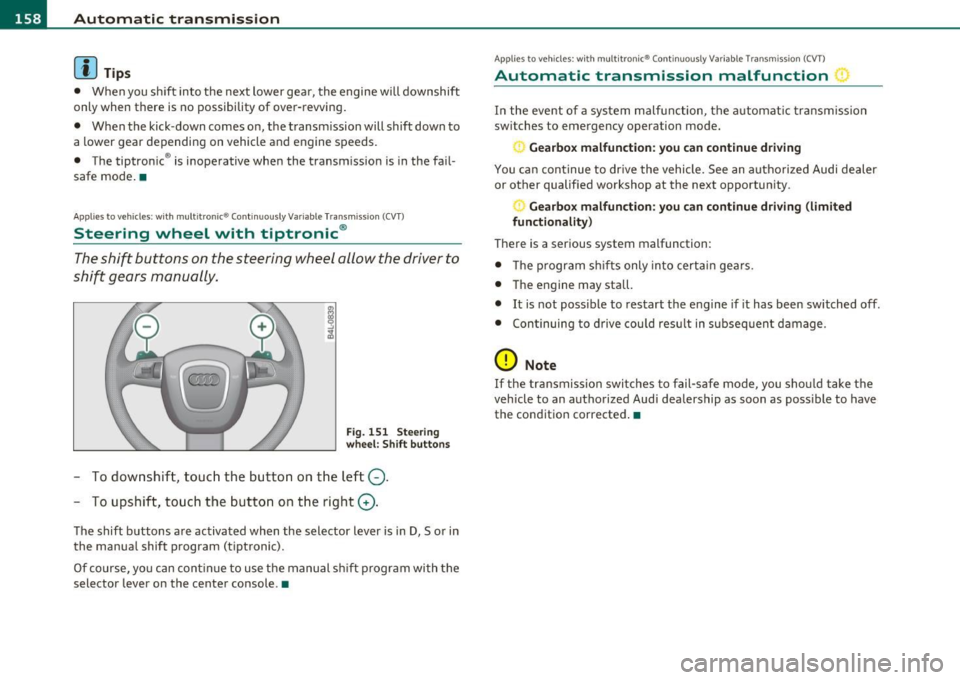
The shift buttons on the steering wheel allow the driver to
shift gears manually.
F ig. 15 1 Ste eri ng
whe el: Shift butt ons
- To downshift, touc h the bu tton on t he l eft Q .
- To upshift, touch the button on t he right G).
The shift buttons a re activated when the selector lever is in D, Sor in
the manua l shift program (tiptronic).
Of co urse, yo u can cont in ue to use t he manual sh ift p rogr am with t he
selector lever on the center console .•
Applies to veh icles: w ith multitron ic® Conti nuously Variable Transmission (CVT)
Automatic transmission malfunction :)
In the event of a system malfunction, the automat ic tra nsm iss ion
switches to emergency operation mode.
Ge arbox malfunction: you can continue driving
You ca n con tinue to dr ive the vehicle. See an autho rized Audi dealer
or other qualified workshop at the next opportunity.
Gearbox malfunction : you can c ontinue dr iving (limited
functionality)
There is a serious system malfunction:
• T he program sh if ts only into certa in ge ars.
• T he engine may sta ll.
• It is not poss ible to restart the engine if it has been switched off.
• Con tinuing to d rive cou ld res ult in subseq uen t damage.
0 Note
If the transmission switches to fail-safe mode, you sho uld take t he
vehicle to an authorized Aud i dealership as soon as poss ible to have
the cond ition corrected .•
Page 167 of 370

___________________________________________________ P_ a _ r_k :...:.; a..::s ...:s...: i..::s ...:t _ ___,Jfflll
Fig. 159 MMI D isplay:
al igni ng the veh icle
- Switch the MMI on and se lect the reverse gear .
- Turn the steering wheel until the orange orientation lines
(D appear in the parking spot=> page 164, fig. 158 . Use
the markings @to help you estimate the distance from an
obstacle. Each marking presents to 3 f t (1 m) . The blue
area represen ts a n extension of the vehi cle's o utline by
approximately 16 ft (5 m) to the rear .
- While driving in reverse gear, adjust the steering wheel ang le to fit the parking space with the aid of the orange
orientation lines =>
0. ® marks the rear bumper . You
should stop driving in reverse as soon as and no la ter than
when the red orientation line© abuts an object=>& !
& WARNING
• The rear view came ra does not show the enti re area beh ind the
v ehicle =>
page 162, fi g. 156. Watch out e spe cially fo r s mall chil ·
dren and animal s. The rear v iew cam era cannot alwa ys dete ct
them , posing ri sk of an accident!
• Plea se note that obje ct s not tou ching the groun d can appear to
be further awa y than th ey reall y are (for example , th e bumpe r of
a parked vehi cle, a trailer hit ch , or the r ear of a truck) . In thi s case ,
Con tro ls a nd e quip ·
m en t Vehicle
OP-eration
& WARNING (con tin ued)
you sh o uld not use the help lin es to help with p arking , whic h
po se s dang er of an accident!
0 Note
• Low obstacles a lready signaled by a wa rning c an disappear from
the sys tem's de te ct ion range as they are app roached and will no t
conti nue to be signaled . Objects such as barrier cha ins, trailer draw
bars, thin painted ve rtica l poles or fences may not be detected by the
system , posing risk of damage.
• In the MMI display , the direc tion o f travel o f the vehicle rear is
represen ted depend ing on the steering whee l angle. The vehicle front
swings out more than the veh icle rear . Maintain plenty of distance
from an obstacle so that your outside mirror or a corner of your
vehicle does not collide with any obstacles -danger of accident !•
Ap plie s to veh icle s: with pa rk ing syst e m (r ea r, wi th rear vie w cam era)
Parallel P arking
Use parking mode 2 to help you park on the edge of a
street.
Vehicle care
Fig. 160 MM I Displ ay :
blue surface In the
p arking s pot
~
Do-it-yourselt service iTechnical data
Page 168 of 370

lffll.___P_ a_r_ k_ a_s_ s_ i_ s _t __________________________________________________ _
Fig.161 MMI Display:
Blue curve on the curb
The following steps apply only when there is no obstacle
(such as a wall) near the parking spot. Otherwise, please read
the "Tips on Parking Next to Obstacles".
- Activate the turn signal.
- Switch the MMI on and select the reverse gear. The
parking aid turns on and parking mode 1 appea rs on the
display.
- Position your vehicle parallel to the edge of the street,
approximately 3 ft (1 m) from a parked vehicle.
- Press the control button
(D => page 165, fig. 160 on the
MMI control console. Parking mode 2 appears.
- Back up in reverse gear and align your vehicle so that the
blue area ® borders on the rear end of the vehicle or on
the parking spot line. The blue area represents an exten
sion of the vehicle's outline by approximately 16 ft (5 m)
to the rear. The long side of the blue area should be on the
curb. The entire blue area must fit into the parking spot.
- While the vehicle is stationary, turn the steering wheel to
the right as far as it will go. -
Back into the parking spot until the blue curve touches the
curb => fig. 161. Stop the vehicle.
- While the vehicle is stationary , turn the steering wheel to
the left as far as it will go .
- Continue to back up into the parking spot until the vehicle
is parked parallel to the curb .® marks the rear bumper .
You should stop driving in reverse as soon as and no later
than when the red orientation line© abuts an object
=> & !Keep an eye on the front of your vehicle while doing
this =>
0.
Parking next to obstacles
When there is an obstacle (such as a wall) next to the parking spot,
choose a spot with more space on the sides. Position the long side of
the blue a rea so that the re is sufficient space from the curb. The area
must not be on the curb. You will also need to start turning the
steering wheel much earlier. There should be a sufficient amount of
space between the curb and the blue curve, and the blue curve
=> fig . 161 must not touch the curb.
& WARNING
• The rear view camera does not show the entire area behind the
vehicle => page
162, fig. 156. Watch out especially for small chil
dren and animals. The rear view camera cannot always detect
them, posing risk of an accident!
• Please note that objects not touching the ground can appear to
be further away than they really are (for example, the bumper of
a parked vehicle, a trailer hitch, or the rear of a truck). In this case,
you should not use the help lines to help with parking, which
poses danger of an accident! _,,,
Page 169 of 370
Park assist ffl'I _________________________________ _____;.....:;_;_.:..:,____;;_ ____ _
0 Note
In the MMI display, the d irect ion of t ravel of the vehicle rear is rep re
sented depend ing on the steering wheel angle. The vehicle front
swi ngs ou t mo re t han t he ve hicle re ar. M ain tain ple nty of dist ance
from an obstacle so t hat your outs ide mirror or a corner of your
vehicle d oes no t collide with any o bstacles - dange r of accide nt!
[ i ) Tips
Th e left or right or ientat ion lines and s urfaces will be displ aye d,
depending on the tu rn signal being used. •
App lies to veh icles : with park ing syst em (rear, wit h rea r view cam era)
Adjusting the display and warning tones
Th e display and warning tones can be adjusted in the
MM I.
-Select: Funct ion button !CA R]> Systems *> Parking
system .
Display
• Off -when the parking system is switche d off, only audible sig na ls
are given.
• On -when t he pa rking system is swi tched on, the pic ture from the
rear view camera is displayed.
Warning tones
• Rear volume -rear sensor vo lume
• Rear frequency -rear sensor frequency
• In-car entertainment fader -w hen the p ark in g sys tem is switche d
on, t he volume of the active audio source is lowered.
Th e newly adj uste d value is briefly hear d from the signal generator .
Th e set tings are automat ically stored and assigned to the master key
with remote control.
Controls and equip
ment Safety first
& WARNING
•
Always make sure that the volume and frequency of the
warning tones i s adju sted so that you can easily hear the acou stic
distance signal even if the radio is playing , the air-conditioner
blower is on High or there is a high level of outside noise.
• Check the settings whenever someone else has driven the
vehicle before you.
[I] Tips
• Th e warning tones can also be ad justed direct ly from the rear -view
camera image . Simply p ress the
[Settings I co ntro l button .
• C han ged settings are a ctivat ed w hen parking assist is switched on
again .•
A pplies to v ehicl es: w ith park ing syst em (r e a r, wi th re ar view cam era)
Error messages
If a warni ng tone is aud ible fo r about five se conds when yo u turn on
the ignition, the re is a ma lfunction in t he system. Have the prob lem
co rrected by yo ur a utho rized Audi dea ler .
K eep the se nsors in the rear b umper clean and free from i ce so t hat
the acoustic pa rk assist system can function p roper ly .•
Vehicle care Technical data
Page 180 of 370

___ D_ r_ i_ v _i_n _.g"-- S_ a_ f_ e__. LY.__ _____________________________________________ _
Proper occupant seating positions
Proper seating position for the driver
The proper driver seating position is important for safe,
relaxed driving.
Fig. 166 The correct
distance between
driver and steering
wheel
Fig . 167 Correct head
restraint position for
driver
For your own safety and to reduce the risk of injury in the
event of an accident, we recommend that you adjust the
driver's seat to the following position:
- Adjust the driver's seat so that you can easily push the
pedals all the way to the floor while keeping your knee(s)
slightly bent==>& . -
Adjust the angle of the seatback so that it is in an upright
position so that your back comes in full contact with it
when you drive.
- Adjust the steering wheel so that there is a distance of at least 10 inches (25 cm) between the steering wheel and
your breast bone==> fig. 166. If not possible, see your
authorized Audi dealership about adaptive equipment.
- Adjust the steering wheel so that the steering wheel and airbag cover points at your chest and not at your face.
- Grasp the top of the steering wheel with your elbow(s) slightly bent.
- Adjust the head restraint so that the upper edge is as even
with the top of your head as possible but no lower than eye
level and so that it is as close to the back of your head as
possible ==> fig. 167.
- Fasten and wear safety belts correctly=>
page 191.
-Always keep both feet in the footwell so that you are in
control of the vehicle at all times.
For detailed information on how to adjust the driver's seat, see
=:>page 76 .
& WARNING
Drivers who are unbelted, out of position or too close to the airbag
can be seriously injured by an airbag as it unfolds. To help reduce
the risk of serious personal injury:
• Always adjust the driver's seat and the steering wheel so that
there are at least 10 inches (25 cm) between your breastbone and
the steering wheel.
• Always hold the steering wheel on the outside of the steering
wheel rim with your hands at the 9 o'clock and 3 o'clock positions ..