infotainment AUDI A6 2016 Owner's Manual
[x] Cancel search | Manufacturer: AUDI, Model Year: 2016, Model line: A6, Model: AUDI A6 2016Pages: 294, PDF Size: 73.88 MB
Page 119 of 294
.... N
0 CJ '
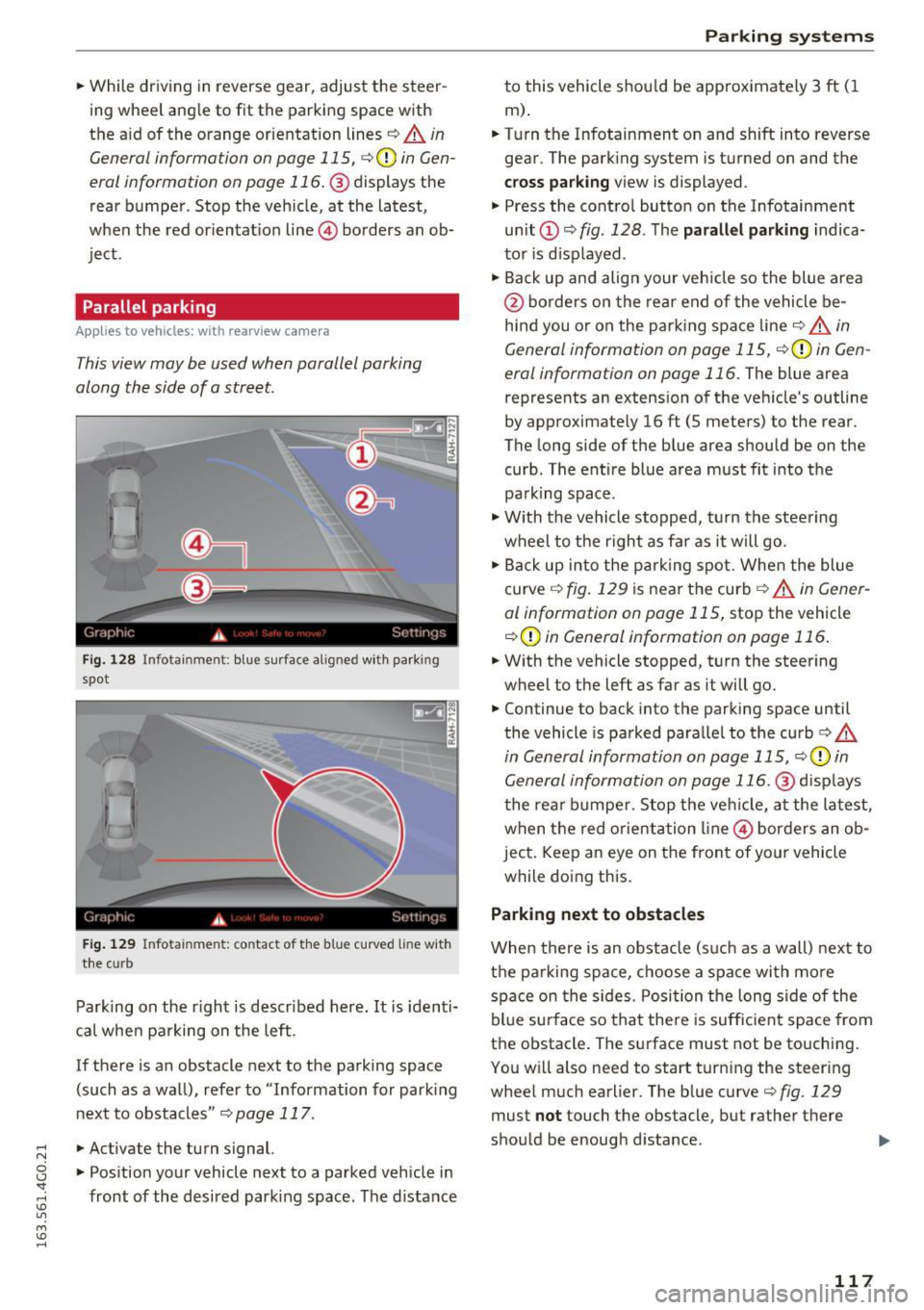
.. While driving in reverse gear, adjust the steer
ing wheel ang le to fit the parkin g space with
the a id of the orange orientation lines
c::> A in
General information on page 115,
c:> (D in Gen
eral information on page 116. @
displays the
rear bumper . Stop the veh icle, at the latest,
when the red or ientat io n line @ borders an ob
ject.
Parallel parking
App lies to vehicles : wit h re arv iew camera
This view may be used when parallel parking
along the side of a street.
Fi g. 128 Infotai nmen t: b lue surface a lig ned w it h park ing
spot
F ig . 12 9 In fota inmen t: co ntac t of t he blue curved li ne w it h
t h e cu rb
Pa rk ing on the r ight is descr ibed here. It is iden ti
cal whe n pa rking on the left .
If there is an obstacle next to the pa rking space
(such as a wall), refe r to "Information for park ing
nex t to obstacles"
c:> page 117 .
.. Activate the turn s ignal.
.. Pos ition your vehicle next to a parked veh icle in
front of the desired parking space. The d istance
Parking systems
to this vehicle shou ld be app roximately 3 ft ( 1
m).
.. Turn the Infotainment on and shift into reverse
gear . The park ing system is turned on and the
cross parking view is displayed .
.,. Press the contro l button on the Infotainment
unit
(D c:> fig . 128 . The parallel parking indica
to r is d isp layed .
.,. Back up and align your veh icle so the blue a rea
@ bo rde rs on the re a r end of the vehicle be
hind you o r on the park ing spa ce line
c::> A in
General information on page 115,
c::> (D in Gen
eral information on page 116.
The blue area
represents an extension of the ve hicle's outline
by approximate ly 16 ft (5 meters) to the rear.
The long side of the b lue area should be on the
curb . The ent ire blue area must fit into the
pa rk ing space .
.,. With the vehicle s topped, t urn the stee ring
wheel to the r ight as far as it will go .
.,. Back up into the park ing spot. Whe n the blue
curve
c::> fig . 129 is near the curb c::> A in Gen er
al information on page 115,
stop the vehicle
c::> (D in General information on page 116 .
.. W ith the vehicle stopped, t urn the steering
wheel to the left as far as it will go .
.. Continue to back into the parking space until
the vehicle is parked para llel to the curb
c:> .&.
in General information on page 115, c::> (D in
Gen eral information on page 116. @
disp lays
t he rea r bu mpe r. Stop the ve hicle, at the la test,
w hen t he red o rient ation line @ bor ders an o b
ject. Keep a n eye on the fron t of yo ur vehicle
while do ing this.
Parking next to obstacles
When there is an obstacle (suc h as a wall) next to
t h e pa rking space, c hoose a spa ce with mo re
spa ce on the s ides. Posi tion t he long side of the
bl ue su rface so that the re is suff ic ient space from
the obstacle . The su rface must not be touching.
Yo u w ill also need to start t urn ing the steer ing
whee l much earlier. The b lue curve
c:> fig. 129
must not touch the obstacle, but rathe r the re
sho uld be enough d istance .
117
Page 120 of 294
Parking system s
CD Note
Keep enough distance from the curb to avoid
damage to the rims .
@ Tips
The left or right orientation lines and surfaces
wi ll be displayed, depending on the turn sig
nal being used .
Peripheral cameras
Introduction
Applies to vehicles: with peripheral cameras
With this equipment, die parking system plus* is
supp lemented with var io us peripheral cameras
qpage 114. Depending on vehicle equipment,
you are provided with the following views: Around the vehicle, front corner and rear corner,
in front of the vehicle and behind the vehicle.
General information
Applies to veh icles: with peripheral cameras
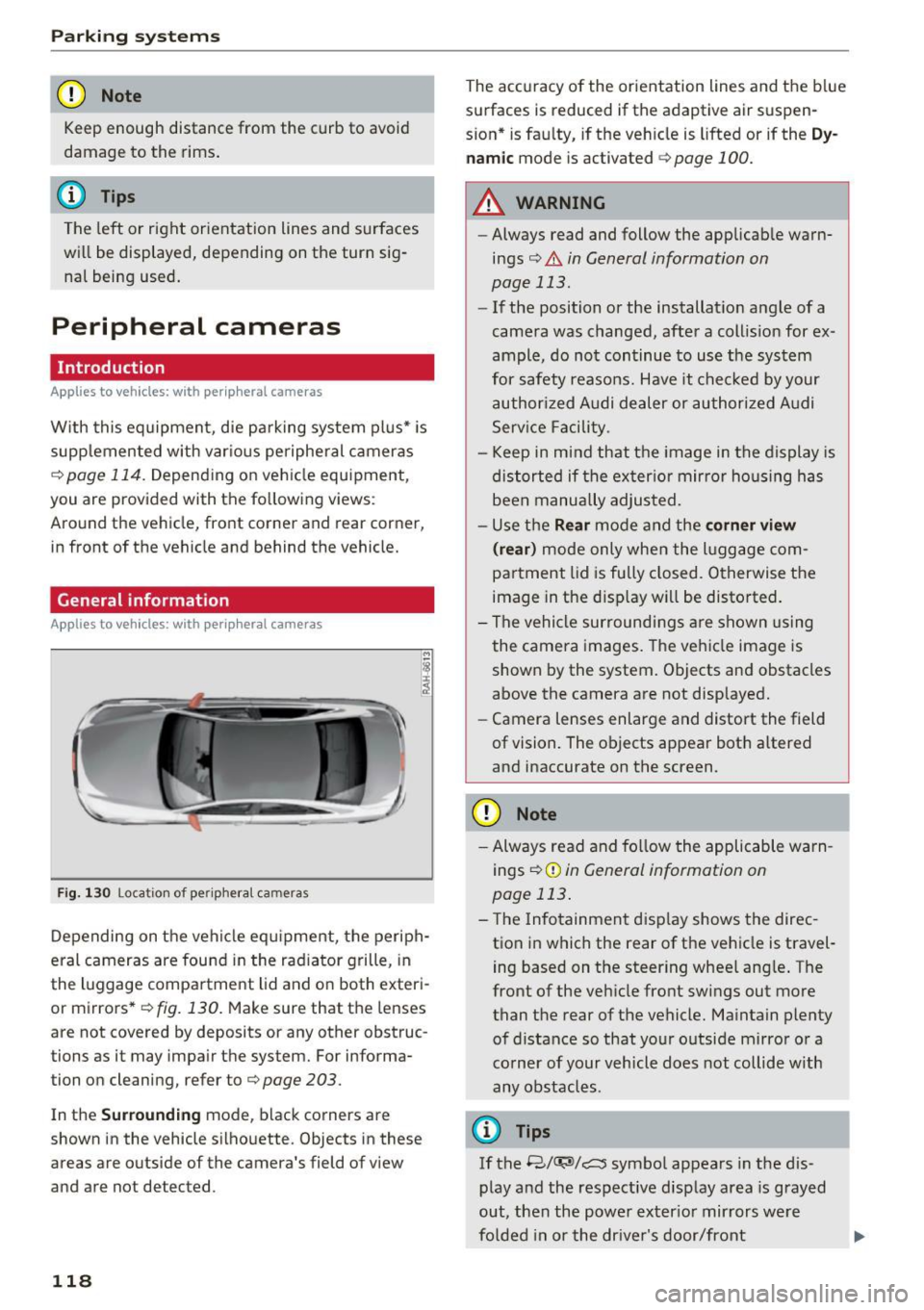
F ig . 1 30 Location of periphe ral cameras
Depending on the vehicle eq uipment, the periph
eral cameras are fou nd in the radiator grille, in
the luggage compa rtment lid and on both exteri
or mirrors *
q fig. 130. Make sure that the lenses
are not covered by deposits or any other obstruc
tions as it may impair the system. For informa
tion on cleaning, refer to¢
page 203.
In the Surrounding mode, black corners are
shown in the vehicle silhouette. Objects in these
areas are outside of the camera's field of v iew
and are not detected.
118
The accuracy of the orientation lines and the b lue
surfaces is reduced if the adaptive air suspen
s ion* is fau lty, if the veh icle is lifted or if the
D y
nam ic mode is activated qpage 100.
A WARNING
-Always read and follow the applicab le warn
ings¢ .&
in General information on
page 113.
- If the position or the installat ion angle of a
camera was changed, after a collis ion for ex
ample, do not continue to use the system
for safety reasons. Have it chec ked by your
authorized Audi dealer or authori zed A udi
Serv ice Facility.
- Keep in mind that the image in the display is
distorted if the exter ior mir ror ho using has
been manually adjusted.
- Use the
Rear mode and the corner view
( rear )
mode only when the l uggage com
partment lid is fu lly closed. Otherwise the
image in the disp lay will be disto rted.
- The vehicle surroundi ngs a re shown using
the camera images. The veh icle image is
shown by the system. Objects and obstacles
above the camera are not displayed.
- Camera lenses enlarge and distort the field
of vision. The objects appear both a ltered
and inaccurate on the screen.
CD Note
- Always read and fo llow the applicable warn
ings
¢ (Din General information on
page 113 .
-The Infotainment d isp lay shows the direc
tion in which the rear of the vehicle is travel
ing based on the steering wheel ang le . The
front of the vehicle front sw ings out more
than the rear of the vehicle. Maintain plenty of distance so that your o utside mirror or a
corner of your vehicle does not collide with
any obstacles.
(I} Tips
If the 8/(J;(SJ/c:, symbol appears in the dis
play and the respective display area is grayed
out, then the power exter io r mir rors we re
fo lded in or the dr ive r's door/front
Page 121 of 294
passenger's door/luggage compartment lid
was opened.
Switching on or off
Applies to vehicles: with pe ripheral cameras
Fig . 131 Center co nso le: Button P.i
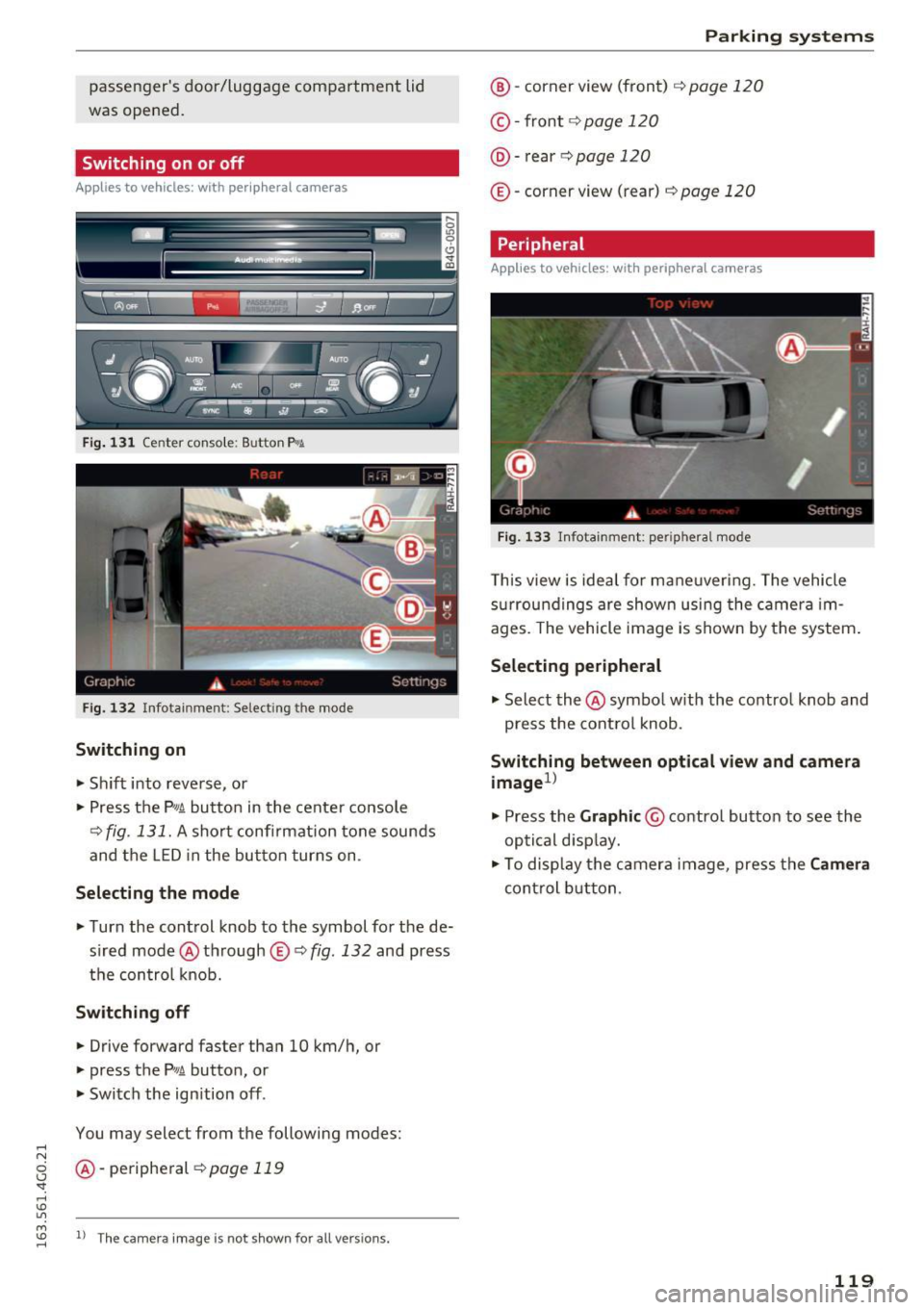
F ig. 132 Infotainment: Selecting the mode
Switching on
• Sh ift into reverse, or
• Press the P"'A button in the cente r console
¢ fig. 131. A short confi rmation tone sounds
and the LED in the button turns on .
Selecting the mode
• Turn the control knob to the symbol for the de
s ired mode @through
© Q fig. 132 and press
the con trol knob.
Sw itching off
• Drive forward faster than 10 km/h, or
• press the P'"A button, or
• Switch the ignition off.
You may select from the following modes:
..... N
g @-periphe ral 9page119
'
Parking systems
@ -corner view (front) ¢ page 120
©-front 9 page 120
@-rear ¢ page 120
©-corner view (rear) ¢ page 120
Peripheral
Applies to vehicles: with peripheral cameras
Fig. 133 In fotainme nt: peripheral mode
This view is ideal for mane uver ing. The vehicle
s u rroundings are shown using the came ra im
ages. The vehicle image is shown by the system .
Selecting peripheral
• Select the @symbo l w ith the co ntro l knob and
press the cont rol knob .
Switching between optical view and camera
image
1>
• Press the Graphic @ control button to see the
optical d isp lay.
• To display the camera image, press the
Cam era
control button .
119
Page 123 of 294
.... N
0 CJ '
.. Se lect the @symbol with the control knob .
You can choose between three different v iews in
this mode. .. To c ross park, pa rallel park or position the vehi
cle in front o f a trailer*, press the control but
ton ® on the contro l pane l repeatedly unti l the
symbol for the des ired mode is selected .
Cross parking
Applies to vehicles: with peripheral cameras
This view may be used when parking in a garage
or in a parking space.
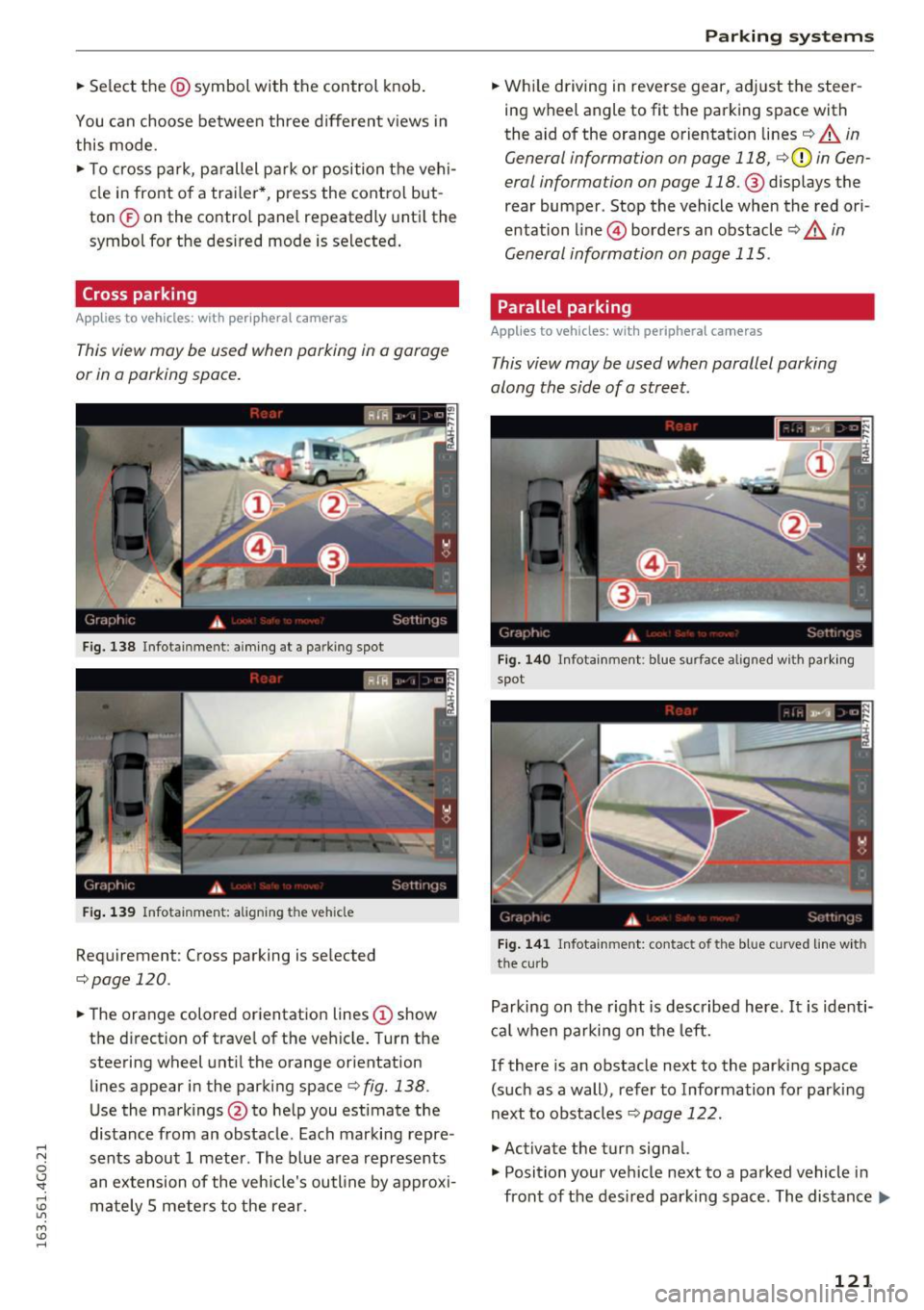
Fig. 138 Infotainment: aiming at a parking spot
Fig . 139 Infotainment: aligning the veh icle
Requirement: Cross parking is se lected
,=;,page 120.
.. The orange colored orientation lines (D show
the d irection of trave l of the veh icle. Turn the
steering wheel unt il the orange orientation
lines appear in the parking space¢
fig. 138.
Use the markings@to help you estimate the
distance from an obstacle. Each marking repre
sents about 1 meter. The blue area represents an extension of the vehicle's outline by approx i
mately 5 mete rs to the rear.
Parking systems
.. Wh ile driving in reverse gear, adj ust the steer
ing wheel angle to fit the parking space with
the aid of the orange orientation lines¢
A in
General information on page 118,
c;, (D in Gen
eral information on page
118. @displays the
rear bumper . Stop the vehicle when the red ori
entation line@) borders an obstacle¢
A in
General information on page 115 .
Parallel parking
Applies to vehicles: with peripheral cameras
This view may be used when parallel parking
along the side of a street.
Fig. 14 0 Infotainment: blue surface a lig ned w ith parki ng
spot
F ig. 14 1 Infotainment: contact of the blue curved line with
the curb
Parking on the right is described here. It is identi
cal when parking on the left.
If there is an obstacle next to the parking space
(such as a wall), refer to Information for parking
next to obstacles¢
page 122.
.,. Activate the turn signal.
.,. Position your ve hicle next to a parked vehicle in
front of the des ired parking space. The distance..,.
121
Page 124 of 294
Parking system s
to this vehicle should be approximately 3 ft (1
m).
.. Turn the Infota inment on and shift into reverse
gear. The parking system is turned on and the
cro ss park ing view is disp layed .
.. Press the control button on the Infotainment
unit (D
¢page 117, fig . 128 . The par all el park
ing
ind icator is displayed .
.,. Back up and align yo ur vehicle so the b lue area
@ borders on the rear end of the ve hicle be
hind you or on the parking space line
¢ ..&. in
General information on page 118, ¢(D in Gen
eral information on page 118 .
The blue area
represents an extension of the vehicle's out line
by approximately
16 ft (5 meters) to the rear .
The long side of the blue area should be on the
curb . The entire blue area must f it into the
parking space .
.,. With the veh icle stopped, turn the steer ing
whee l to the right as far as it w ill go .
.,. Back in to the par king space until the b lue curve
¢
page 117, fig. 129 touches the curb¢..&. in
General information on page 118, ¢(D in Gen
eral information on page 118 .
Stop the vehicle.
.. With the veh icle stopped, turn the steering
whee l to the left as far as it will go.
.. Cont inue to back into the parking space unt il
the ve hicle is parked parallel to the curb¢
&
in General information on page 118, ¢(D in
General information on page 118. @
displays
the rear bumper. Stop the vehicle, at the latest ,
whe n the re d or ien ta ti on line @ borders an ob
ject. Keep an eye on the front of your vehicle
whi le doing this.
Parking next to obstacles
When the re is an obs tacle (such as a wa ll) next to
the par king space, choose a space with more
space on the sides. Posit ion the long side of the
b lue area so t hat there is sufficient space from
the object . The area must not be on the curb . You
will also need to start turn ing the steer ing whee l
much earlier. The b lue curve¢
page 117,
fig . 129
must not touch the obstacle, but rather
there should be enough distance.
122
@ Tips
The left or right orientation lines and surfaces
will be d isp layed, depend ing on the tu rn s ig
nal be ing used.
Trailer mode
App lies to vehicles: wit h peripheral ca meras a nd trailer hitch
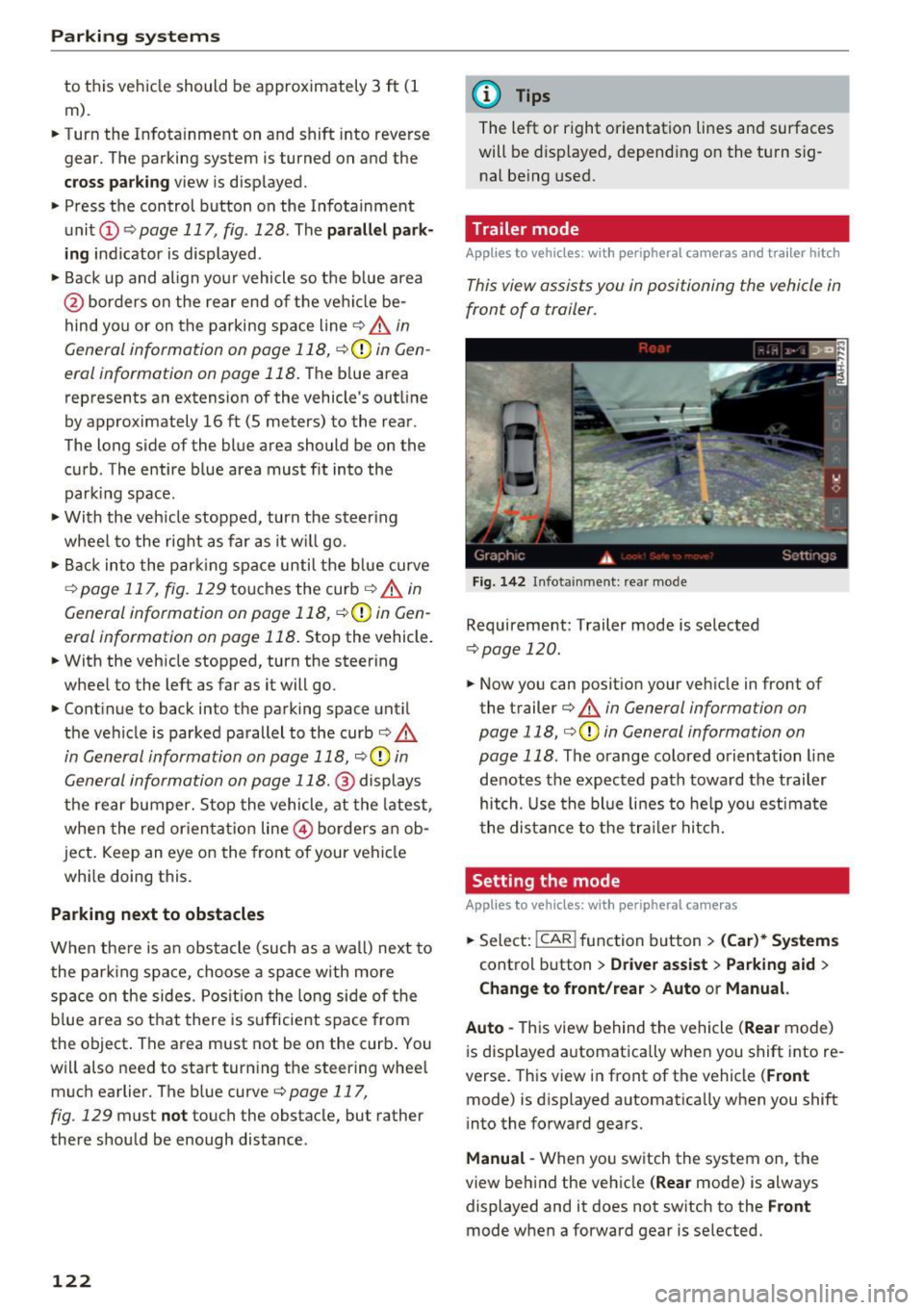
This view assists you in positioning the vehicle in
front of a trailer.
F ig. 142 I n fota inment: rea r mode
Requirement: Trailer mode is selected
¢ page 120 .
.. Now you can posit ion your veh icle in front of
the trailer
¢ & in General information on
page 118, ¢(D in General information on
page 118 .
The orange colored orientation line
denotes the expected path towa rd the trailer
hitch. Use the bl ue lines to he lp you est ima te
the distance to the tra ile r hitc h.
Setting the mode
App lies to vehicles : wit h peripheral ca meras
.. Select: !CAR ! function b utton> (Car )* System s
control button > Driver assi st > Parking aid >
Change to front/rear > Auto or Manual.
Auto -
This view behind the vehicle (Rear mode)
i s disp layed automatica lly when you shift into re
verse. This view in front of the vehicle
( Front
mode) is displayed automat ica lly when you shift
i nto the forward gears.
Manu al -When yo u sw itch the system on, the
view beh ind the veh icle
( Rear mode) is always
displayed and it does not switch to the
Front
mode when a forward gear is se lected.
Page 125 of 294
Adjusting the display and the warning tones
A ppl ies to vehicles: W it h parkin g system plus/rearview c am·
era/peripheral ca meras
The display and warning tones can be adjusted in
the Infotainment.
~ Se lect: the ICARI function button > ( Car)* Sys
tems control b utton
> Driver ass istance > Pa rk
ing aid .
Display
On * -An op tical d isp lay is shown for the parking
system plus, a rearview camera image is s hown
for the rearview camera *.
Off -Whe n the par king system is switched off,
only audib le signa ls are give n.
Warning tones Front volume - Volume for the front a rea
Rear volume - Volume fo r the rear area
Front frequency· Frequency for the front a rea
Rear frequency · Freq uency for the rear area
Entertainment volume lowering - When the
pa rking system is turned on, the volume of the
aud io/video so urce is lowered .
The new ly adjusted value is briefly heard from
the signal generato r.
@ Tips
- The warning tones can also be adjusted d i
rectly by the vis ual disp lay or the pictu re
from the camera. Simply press the Settings
control bu tton.
- Changed settings are activated when the
parking system is switched o n aga in.
- The settings for volume and frequency are
automat ica lly saved and assigned to the re
mote control key be ing used .
Error messages
Appl ies to vehicles: W ith pa rk in g syste m plus/rearview ca m·
era/per ipheral ca meras
There is an erro r in the system if the LED in the
Pw , button is b linking and yo u hear a continuous
Parking systems
alarm for a few seconds after sw itch ing on the
par king system or w hen the pa rking system is a l·
ready activated. If the error is not cor rected be
fo re you switch
off the ignition, the LED in the Pw ,
button wi ll blink the next time you switch on the
park ing system by shifting into reverse.
Parking sy stem plus
If a sensor is fa ulty, the .l?4 symbo l will appear i n
front of/behind the vehicle in the Infotainment
display. If a rear sensor is faulty, on ly obstacles
that are in areas @and @ are shown
¢ page 114, fig . 120 . If a front sensor is faulty,
only obs tacles tha t are in areas © and @are
shown. The re is a lso a system ma lf u nction if all
segme nts ar ound the veh icle are red or if no seg·
me nts are disp laye d.
Peripheral cameras*
T he re is a system malfu nction if t he
t8> • symbol
appea rs and the co rresponding disp lay area is
shown in bl ue. The camera is not wo rking in this
area.
Drive to an authorized A udi dealer or authorized
Audi Service Facility immed iate ly to have the
malfunction corrected.
Trailer hitch
App lies to vehicles: wit h parking system pl us/rea rv iew cam
era/periphera l cameras an d tra ile r hitc h
For vehicles using the t rai ler socket, the park ing
system rear sensors do not tu rn on whe n you
shift into reverse gear or when yo u press the
Pwi
button. This resu lts in the following restrict ions.
Parking system plus
There is no distance warning for the rear. The
front senso rs remain activated. The v isua l display
switches to t he tra iler tow ing mode.
Rearview camera* /peripheral cameras *
T he re is no distance warning for the rear . The
front sensors remain activated . The visua l display
switches to the tra ile r towing mode. The rearv iew
camera image w ill not show the orientation lines
and the b lue surfaces. .,,.
123
Page 222 of 294
Checking and Filling
@ Tips
-The oil pressure warning display. is not
an indicator of the oil level. Do not rely on
it. Instead, check the oil level in your en
gine at regular intervals, preferably each
time you refuel, and always before going
on a long trip.
- If you have the impression your engine con
sumes excessive amounts of oil, we recom
mend that you consu Lt your Audi dealer to
have the cause of your concern properly di
agnosed . Keep in mind that the accurate
measurement of oil consumption requires
great care and may take some time. Your
Audi dealer has instructions about how to
measure oil consumption accurately.
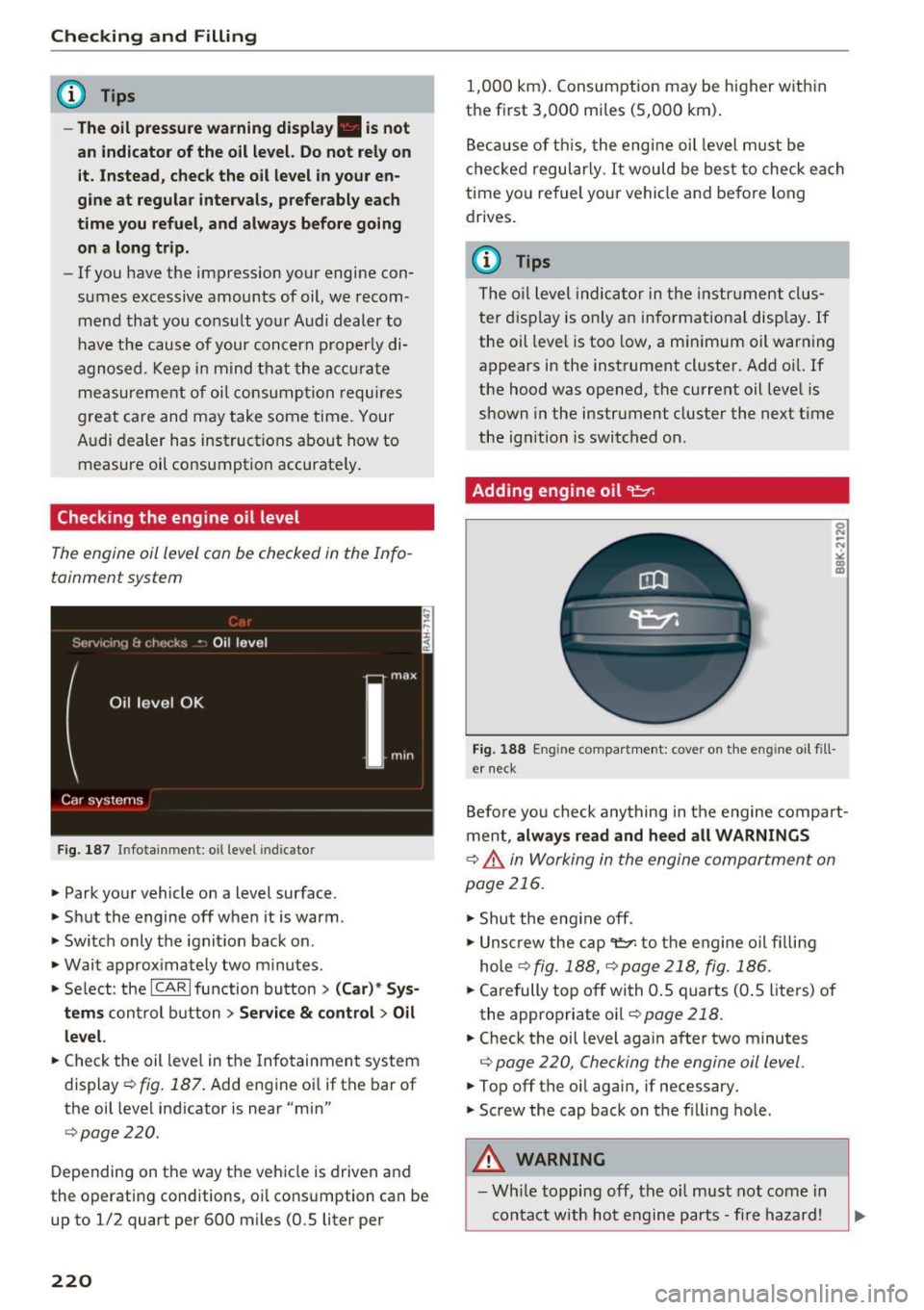
Checking the engine oil level
The engine oil level can be checked in the Info
tainment system
Fig. 187 I n fo tai nme nt: oil level indic a to r
• Park your vehicle on a level surface.
" Shut the engine off when it is warm .
.. Switch only the ignition back on.
.. Wait approximately two minutes.
" Select : the
ICAR I function button > (Car)* Sys
tems
control button > Service & control > Oil
level.
.. Check the oil level in the Infotainment system
display ¢
fig. 187. Add engine oil if the bar of
the oil level indicator is near "min"
¢page 220.
Depending on the way the vehicle is driven and
the operating conditions, oil consumption can be
up to 1/2 quart per 600 miles (0 .5 liter per
220
1,000 km). Consumption may be higher within
the first 3,000 miles (5,000 km).
Because of this, the engine oil level must be
checked regularly. It would be best to check each
time you refuel your vehicle and before long
drives.
{!) Tips
The oil level indicator in the instrument clus
ter display is only an informational display. If
the oil level is too low, a minimum oil warning
appears in the instrument cluster. Add oil. If
the hood was opened, the current oil level is
shown in the instrument cluster the next time
the ignition is switched on.
Adding engine oil 'l:::1:
Fig. 188 En g in e compartment : cover on the engine oil fill
er neck
Before you check anything in the engine compart
ment,
always read and heed all WARNINGS
¢ .&. in Working in the engine compartment on
page 216.
"Shut the engine off .
"Unscrew the cap~ to the engine oil filling
hole
¢ fig. 188, ¢page 218, fig. 186.
.. Carefully top off with 0.5 quarts (0.5 liters) of
the appropriate oil ¢
page 218.
.. Check the oil level again after two minutes
¢ page 220, Checking the engine oil level.
"Top off the oil again, if necessary.
"Screw the cap back on the filling hole.
_&. WARNING
- While topping off, the oil must not come in
contact with hot engine parts - fire hazard!
Page 252 of 294
Wheels
the recommended tire pressure for your vehicle
¢ page 241, fig. 196.
Tire tread circumference and vibration character
istics can change and cause a tire pressure warn
ing if:
- the tire pressure in one or more tires is too low.
- the tire has structural damage .
- the tire was replaced or the tire pressure was
changed and it was not stored¢
page 250.
-the spare tire* is installed.
Indicator lights
IE Loss of pressure in at least one tire¢&. .
Check the tires and replace or repair if necessary.
Check/correct the pressures of all four tires and
store the pressure again in the Infotainment sys
tem ¢
page 250 .
mm (Tire Pressure Monitoring System) Tire
pressure: System malfunction!.
Ifmm appears
after switching the ignition on or while driving
and the
IE indicator light in the instrument clus
ter blinks for approximately one minute and then
stays on , there is system malfunction . Try to
store the correct tire pressures¢
page 250. If
the indicator light does turn off or turns on again
after a short period of time, drive to your author
ized Audi dealer or qualified repair facility imme
diate ly to have the malfunction corrected.
A WARNING
- If the ti re pressure indicator appears in the
display, reduce your speed immediately and
avoid any hard steering or braking maneu
vers. Stop as soon as possible and check the
t ir es and their pressure .
- The driver is responsible for maintaining the
correct tire pressure. You must check the
t ir e pressure regularly.
- Under certain conditions (such as a sporty
dr iv ing style, winter cond itions or unpaved
roads), the tire pressure mon itoring system
indicator may be delayed.
- Do not use run-flat tires on your vehicle. Us
ing them when not permitted can lead to
vehicle damage or accidents.
250
(D Tips
-The tire pressure monitoring system can al
so stop working when there is an ESC mal
function.
- Using snow chains may result in a system
malfunction.
- The tires with the identification "AO" or
"RO" ¢
page 2 38 have been matched with
your Audi tire pressure monitoring system.
We recommend that you use these tires.
Storing tire pressures
If the tire pressure changes or a tire is replaced,
it mus t be confirmed in the Infotainmen t sys
tem.
... Make sure before storing that the tire pressures
of all four tires meet the specified values and
are adapted to the load ¢
page 241.
... Switch the ignition on .
... Select: the
I CARI function button > (Car)* Sys
tems
contro l button > Servicing & checks >
Tire pressure monitoring > Store tire pressures
> Yes, store now.
(D Tips
Do not sto re the tire pressures if snow chains
a re installed.
Page 262 of 294
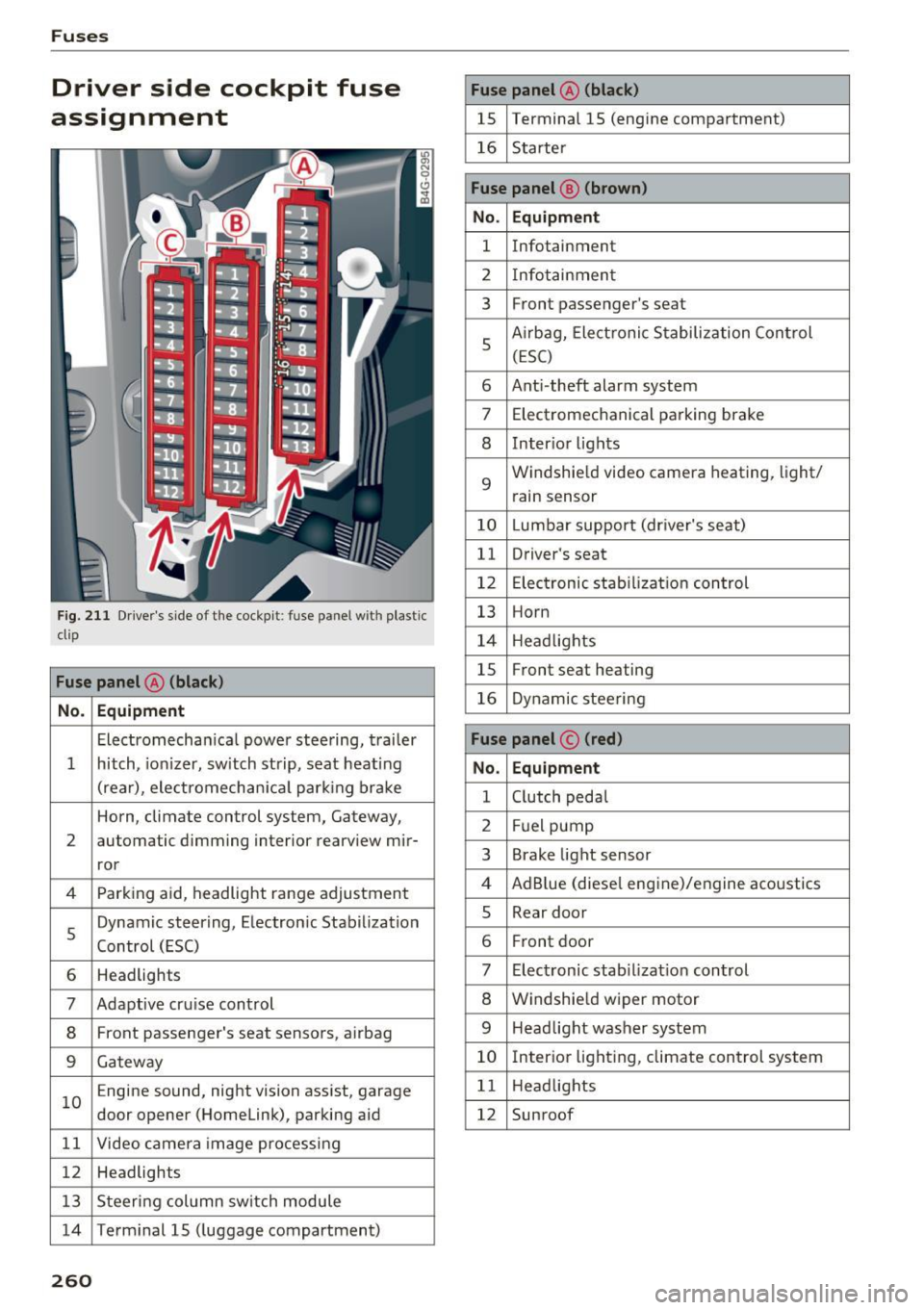
Fuses
Driver side cockpit fuse
assignment
F ig. 211 Driver 's side of t he cockpit : fuse pa nel w it h plastic
clip
Fuse panel @ (black )
No . Equipment
Electromecha nica l powe r stee ring, trai ler
1 hitch, io nizer, sw itch st rip, sea t heat ing
(rear), ele ctromech an ical parking br ake
Horn, climate control system, Gateway,
2 automatic dimming interior rearv
iew mir-
ror
4 Parking aid, headlight range adjustment
5 Dynamic steering, Electron
ic Stabilization
Control (ESC)
6 Headlights
7 Adaptive cru ise control
8 Front passenger's seat senso rs, airbag
9 Gateway
1 0 E
ngine sound, night vision ass ist, garage
door opener (Homelink), parking aid
1 1 Video camera im age pro cessing
12 Headlights
1 3 Steeri ng col umn sw itch module
14 Term inal 15 ( luggage compartment)
260
Fuse panel @ (black)
15 Terminal 15 (engine compartment)
16 Starte r
Fuse panel @ (brown )
No. Equipment
1 Infotainment
2 Infotainmen t
3 F
ront passenger's seat
5 A
irbag, Elect ronic S tabiliza tion Con trol
( E SC)
6 Ant i- theft alarm system
7 Electromechanical pa rking brake
8 Inter io r li ghts
9
Windshie ld video camera heating, light/
rain sensor
10 Lumbar support (dr iver's seat)
11 Driver's seat
12 Elec tronic stab ilizati on con trol
13 Horn
1 4 H eadlights
15 Front seat heating
16 Dynamic stee ring
Fuse panel © (red)
No . Equipment
1 C lutch peda l
2 Fuel pump
3 Brake light sensor
4 AdB
lue (diese l eng ine)/engine aco ustics
5 Rear door
6 Fr
ont door
7 Electronic stab ili z at ion con trol
8 Windshie ld wiper motor
9 Headlight washer system
10 Inter
ior lig hting, climate control system
1 1 Headlights
12 Sunroof
Page 263 of 294
..... N
0 CJ '
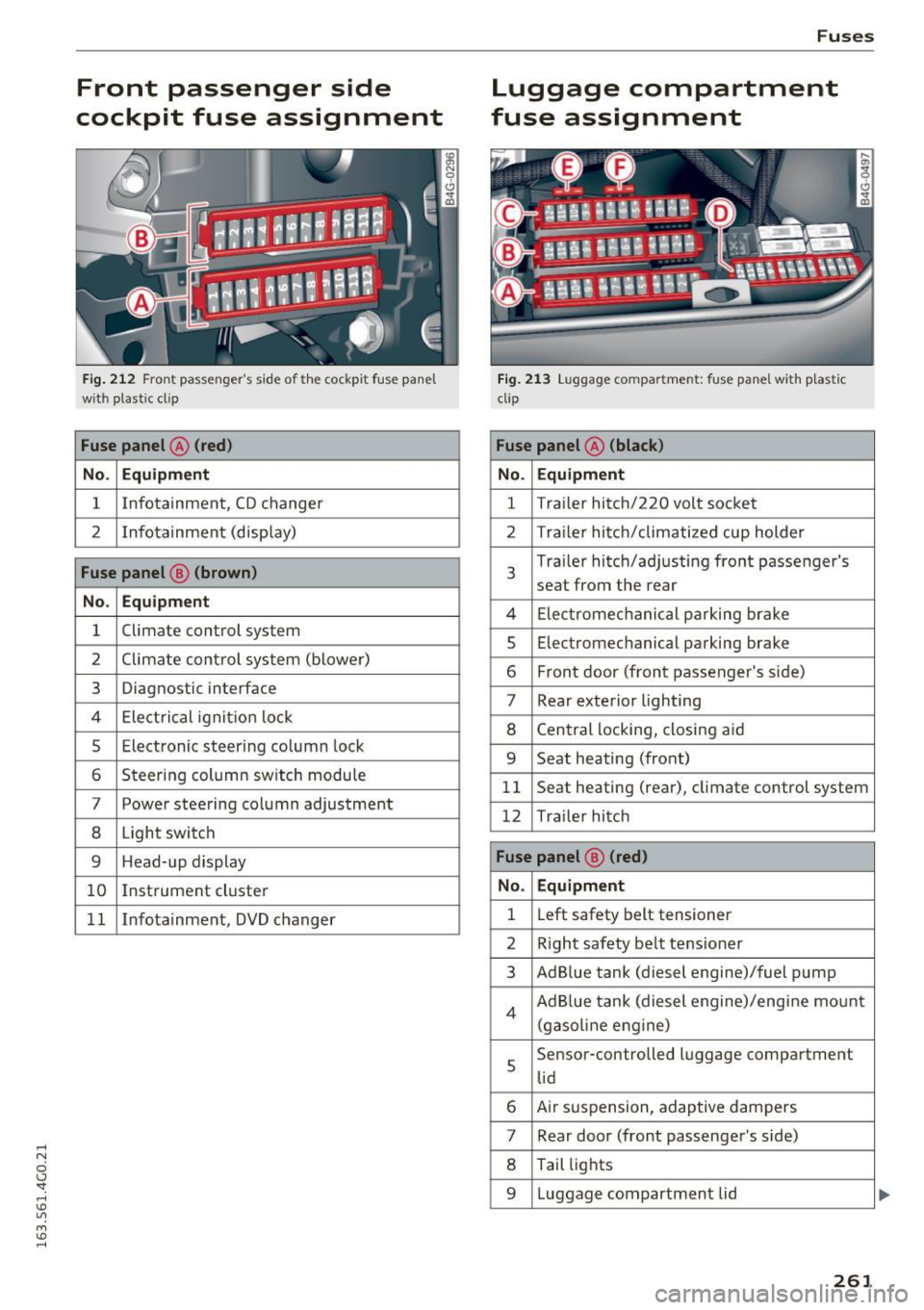
Front passenger side
cockpit fuse assignment
Fig. 212 Front passenger's sid e of t he cockpit fuse pane l
with plastic cl ip
Fuse panel @ (red)
No. Equipment
1 Infotainment, CD changer
2 Infotainment
(display)
Fuse panel@ (brown)
No . Equipment
1 Climate
control system
2 Climate control
system (blower)
3 Diagnostic interface
4 Electrical ignition lock
5 Electronic steering column lock
6 Steering column sw itch module
7 Power steering column adjustment
8 Light switch
9 Head-up display
10 I
nst rument cluster
1 1 Infotainment, DVD changer
Fuses
Luggage compartment
fuse assignment
Fig. 213 Luggage compartment: fuse panel with plastic
clip
Fuse panel @ (black )
No. Equipment
1 Tra
iler hitch/220 volt socket
2 Tra ile r hitch/climatized cup holder
3
Tra iler hitch/adjusting front passenger's
seat from the rear
4 Elec trom echan ica l parking brake
5 Electromec hanical parking brake
6 Front door (front passenger's side)
7 Rear exterior lighting
8 Central locking, closing aid
9 Seat heating (front)
1 1 Seat heating
(rear), climate control system
12 Tra iler hitch
Fuse panel @ (red)
No . Equipment
1 Left
safety belt tensioner
2 R ight safety belt tensioner
3 Ad Blue tank (diesel engine)/fuel pump
4 Ad Blue tank (diesel engine)/engine mount
(gasoline eng ine)
s
Sensor-controlled luggage compartment
lid
6 Air suspension, adaptive dampers
7 Rear door (front passenger's side)
8 Tail lights
9 Luggage compartmen t lid
261