steering wheel AUDI A6 2017 User Guide
[x] Cancel search | Manufacturer: AUDI, Model Year: 2017, Model line: A6, Model: AUDI A6 2017Pages: 280, PDF Size: 70.24 MB
Page 82 of 280
Driving
-Never hold the vehicle on an incline with a
slipping clutch. The clutch opens automati
cally when it becomes too hot from the
overload . The
[i1 indicator Light turns on
and a message appears~
page 81 when
the clutch is overloaded.
(D Note
-When stopping on an incline, do not try to
hold the vehicle in place by pressing the ac
celerator pedal while a driving gear is se
lected. This can cause the transmission to
overheat and can damage it. Set the parking brake or press the brake pedal to prevent
the vehicle from rolling.
- Allowing the vehicle to roll when the engine
is stopped will damage the transmission be
cause it is not lubricated .
@ Tips
For safety reasons, the parking brake is re
leased automatically only when the driver's
safety belt is fastened.
Hill descent control
The hill descent control system assists the driver
when driving down hills .
Hill descent control is activated when the selec
tor lever is in the Dor S position and you press
the brake pedal. The transmission automatically
selects a gear that is suitable for the hill . Hill de
scent control tries to maintain the speed ach
ieved at the time of braking, within physical and
technical limitations. If may still be necessary to
adjust the speed with the brake pedal.
Hill descent control switches off once the hill lev
els out or you press the accelerator pedal.
On vehicles with a cruise control system*
~ page 86, hill descent control is also activated
when the speed is set.
A WARNING
Hill descent control cannot overcome physical
limitations , so it may not be able to maintain
80
a constant speed under all conditions. Always
be ready to apply the brakes .
Shifting manually (tiptronic mode)
The tiptronic mode allows the driver to shift the
gears manually.
'
}
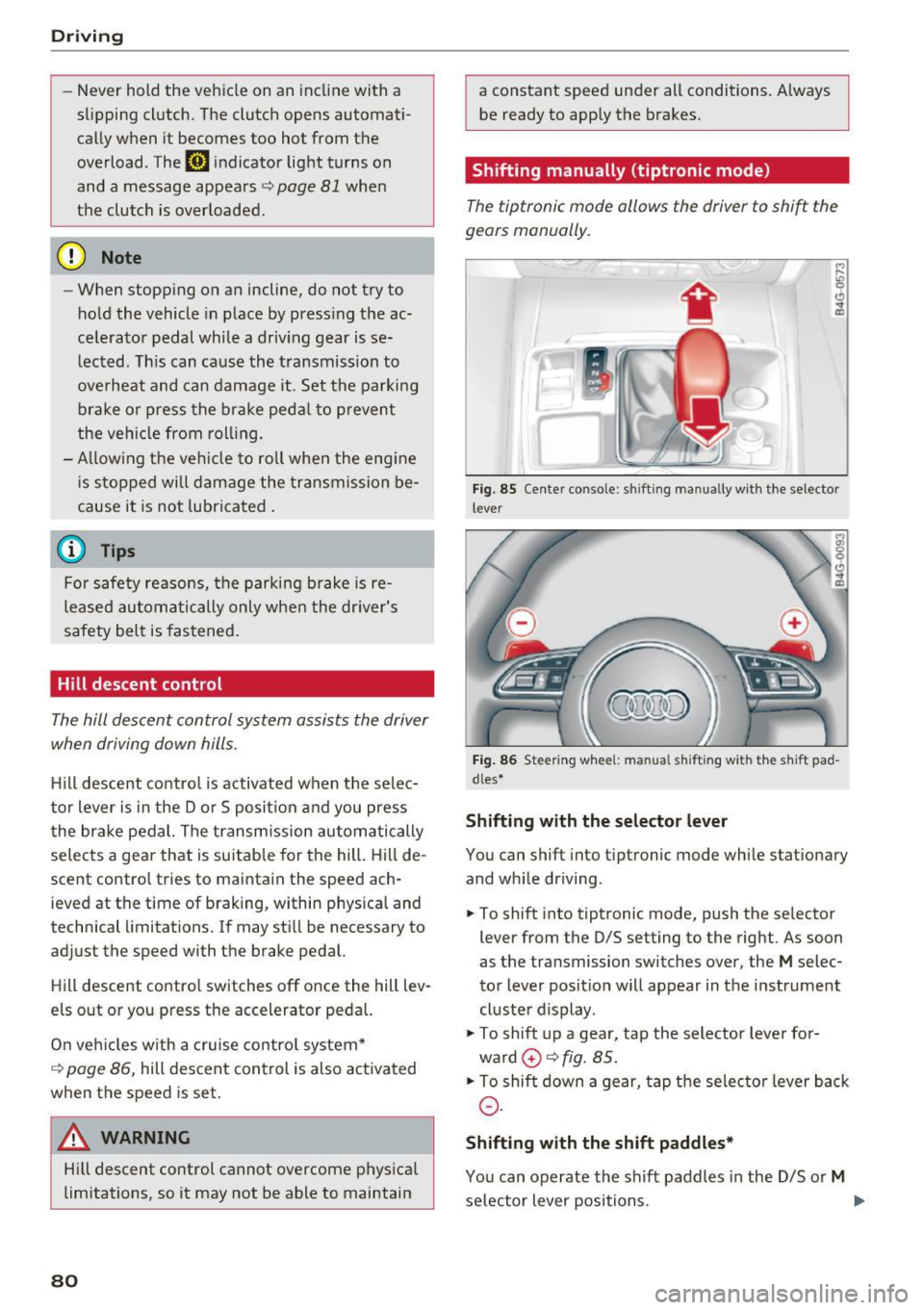
Fig . 85 Center console: sh ift ing manually with the selector
l ever
Fig. 86 Steering wheel : manual s hift ing with the s hift pad
dles*
Shifting with the selector lever
You can shift into tip tron ic mode while stationary
and while driving.
.,. To shift into tiptronic mode, push the selector
lever from the D/S setting to the right. As soon
as the transmission switches over, the
M selec
tor lever position will appear in the instrument
cluster display .
.,. To shift up a gear, tap the selector lever for
ward
0 ~ fig. 85.
.,. To shift down a gear, tap the selector lever back
0-
Shifting with the shift paddles*
You can operate the shift paddles in the D/S or M
selector lever positions. ..,.
Page 83 of 280
co
co
.... N
" N .... 0 0 <..:l '
¢fig. 86.
~ To shift down one gear, tap the 0 shift paddle.
The transmission automatically shifts up or down before critical engine speed is reached.
The transmission only allows manual shifting
when the engine speed is within the permitted
range.
Kick-down
Kick-down enables maximum acceleration.
When you press the accelerator pedal down be
yond the resistance point, the automatic trans
mission downshifts into a lower gear, depending
on vehicle speed and engine RPM.
It shifts up in
to the next higher gear once the maximum speci
fied engine RPM is reached.
A WARNING
Please note that the wheels could spin on
slick or slippery roads when kick-down is ac
tive.
Launch control program
A ppl ies to: ve hicles wit h S tro nic
-
The launch control program provides the best
possible acceleration when starting from a stop.
Requirement: the engine must be at operating
temperature and the steering wheel must not be
turned .
~ Deactivate the Start/Stop system*¢ page 74.
The LED in the l0 u•I button turns on.
~ Switch the Electronic Stabilization Control
(ESC) sport mode on ¢
page 121. The II i ndi
cator light turns on.
~ Pull the selector lever back out of the D/S posi
tion briefly to select the S position or select the
DYNAMIC driving mode in drive select
¢page 106.
~ Press the brake pedal firmly with your left foot
and hold it all the way down for at least one
second .
Driving
~ At the same time, press the gas pedal all the
way down with your right foot until the engine reaches and stays at a high RPM level.
~ Remove your foot from the brake pedal within
five seconds ¢_& .
A WARNING
-Always adapt your driving to the traffic flow.
- Only use the Launch control program when
road and traffic conditions allow it and oth
er drivers will not be endangered or both
ered by your driving and the vehicle's accel
eration.
- Please note that the drive wheels can spin
and the vehicle can break away when sport
mode is switched on, especially when the
road is slippery.
- Once the vehicle has started moving, press
the
I.P-O FFI button briefly to turn the sport
mode off.
@ Tips
- The transmission temperature may increase
significantly after using the launch control
program. If that happens, the program may
not be available for a few minutes.
It will be
available again after a cool-down period.
- When accelerating using the launch control
program, all vehicle parts are subject to
heavy loads. This can lead to increased
wear.
Transmission malfunction
DD Transmission: please press brake pedal and
select gear again
Press the brake pedal and select the desired se
lector lever position again. You can then continue
driving.
DD Transmission overheating: Please drive con
servatively.
The transmission temperature has increased sig
nificantly due to the sporty driving manner. Drive
in a less sporty manner until the temperature re
turns to the normal range and the indicator light switches of. .,..
81
Page 93 of 280
co
co
.... N
" N .... 0 0 <..:l 'SI'
•-T he automatic braking is not enough to
maintain a sufficient distance to an object ahead.
You must intervene ¢
page 93, Request for
driver intervention.
© In str um ent clust er dis pla y
If adaptive cruise control is not shown in the in
strument cluster display, you can call it up using
the multifunction steering wheel b uttons
¢ page 21.
Based on the graphics in the d isp lay, you can de
termine if the system is maintaining a distance to
the object ahead and what that distance is.
No v ehi cle -No object ahead was detected .
Whit e v ehicle -An object ahead was detected .
Red veh icle -Request for driver intervention
¢page 93.
Both arro ws on the scale© indicate the distance
to the object ahead. No arrow appears when the
vehicle is on an open road and there is no object
ahead .
If an object is detected ahead, the arrow
moves on the scale .
The green zone on the scale indicates the store
distance. For information on changing the dis
tance, refer to ¢
page 92 . If the distance se
lected is exceeded or not reached, the arrow
moves into the red zone on the scale.
A WARNING
If you press the !SETI button when driving at
speeds below 20 mph (30 km/h), the vehicle
accelerates automatically up to 20 mph (30
km/h), which is the minimum speed that can
be set .
(}) Tips
-If yo u switch the ignition or the adapt ive
cruise control system off, the set speed is
erased for safety reasons .
- The elect ronic stabi lization cont rol (ESC)
and the anti-slip-regulation (ASR) are au to
matically sw itched on when the adaptive
cruise control is switched on .
Ass ist
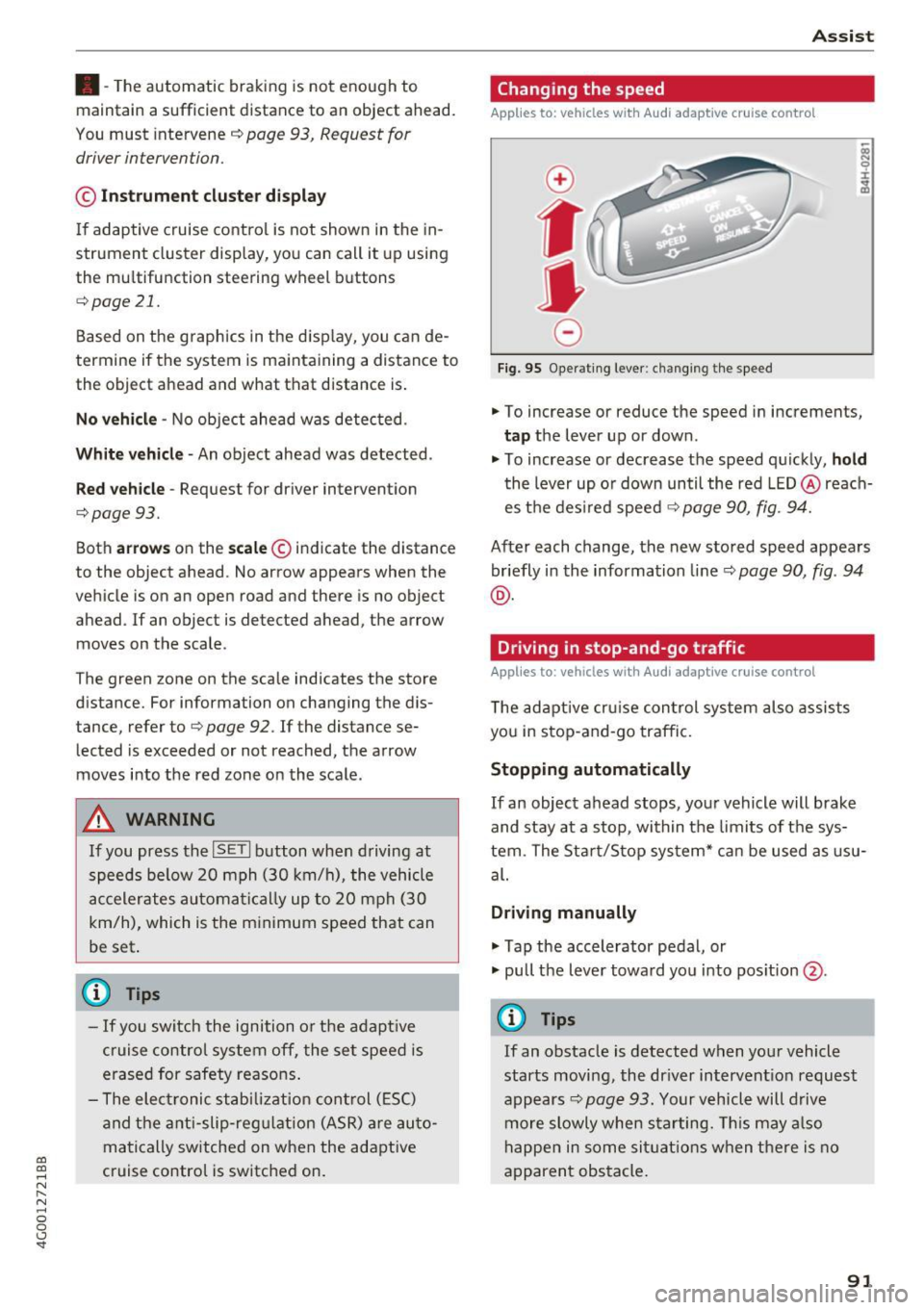
Changing the speed
Applies to: vehicles with Audi adaptive cruise control
0
f
•
0
Fig. 95 Operating lever: changing the speed
.,. To increase or reduce the speed in increments,
tap the lever up or down .
.. To increase or decrease the speed quickly,
ho ld
the lever up or down until the red LED @reach
es the des ired speed ¢
page 90, fig. 94.
After each change, the new stored speed appears
briefly in the information line¢
page 90, fig. 94
@ .
Driving in stop-and-go traffic
Applies to: vehicles with Audi adaptive cruise control
The adaptive cru ise con trol system also assists
you in stop-and-go traffic.
Stopping automatically
If an object ahead stops, your vehicle will brake
and stay at a stop, within the limits of the sys
tem. The Sta rt/Stop system* can be used as usu
al.
Dri ving manu ally
.,. Tap the accelerator pedal, or
.,. pull the lever toward you into pos ition @.
(D Tips
If an obstacle is detected when your vehicle
starts moving, the dr iver intervent ion request
appears¢
page 93. Your vehicle will drive
more slowly when starting. Th is may a lso
happen in some sit uat ions when there is no
apparent obstacle.
91
Page 98 of 280
Ass is t
D oor open
The adaptive c ruise contro l system cannot sw itch
on when a door is open.
Stat ionar y obj ect ah ead
This message appears if you would like to switch
adapt ive cruise control on and there is a station
ary object or obstacle directly ahead of your vehi
cle .
Audi active Lane assist
Description
Appl ies to: ve hicles w ith Audi active lane assist
Active lane assist detects lane marker lines with
in the limits of the system using a camera in the
windshield. If you are approaching a detected lane marker line and it appears likely that you
will leave the lane, the system will warn you with
correct ive steering . You can ove rride th is steer ing
at any time . If you pass over a line, the steer ing
wheel will v ibrate l ightly. In order for this warn
ing vib ration to occur, it must fi rst be sw itched
on in the Infotainment sys tem . Active lane assist
is ready for operation when the lane marker line
is detected on at least one side of the vehicle .
The system is designed for driving on express
ways and highways and therefore only activates
at speeds above approximately 40 mph (65 km/
h).
A pp lies to: ve hicles w ith s ide assist
If you activate a turn sig na l when active lane as
sist is ready and it classifies a lane change as crit
ical because of vehicles traveling alongside you or
approaching you, there will be noticeab le correc
tive steering shortly before you leave the lane.
This will attempt to keep your vehicle in the lane.
A ppl ies to: ve hicles w ithout s ide ass ist
The system will not warn you before crossing a
lane marker line if yo u have activated the tu rn
signa l. In this case, it ass umes that you are
changing lanes intentiona lly .
A ppl ies to: ve hicles with adaptive cruise co ntrol
The corrective stee ring is targeted based on the
driving situat ion . In addition to the lane marker
96
li nes, the system can a lso take into account other
objects such as guard rails. If they are detected in close prox imity to the ve hicle, active lane assist
helps prevent the vehicle from dr iving too close
to them. There is a lso pass ing ass istance. The
system does not provide any corrective steering if i t detects that you are pass ing another vehicle .
A WARNING
-The system warns the drive r that the vehicle
is leaving the lane using cor rect ive steering.
The drive r is always responsible fo r keeping
the vehicle within the lane.
- The system can help you keep the vehicle in
the lane, but it does not drive by itse lf. Al
ways keep your hands on the steering
wheel.
- Cor rective steering m ay no t occur in certain
si tuations, such as during heavy braking.
- There may be cases where t he camera does
not recognize all lane marker lines . Correc
tive steering can only take place on the s ide
of the vehicle where lane marker lines are
detected.
- Other road structures or objects could possi
bly be identified unintent ionally as lane
marker lines. As a result, corrective steering
may be unexpected or may not occur.
- The camera view can be restricted, for ex
ample by vehicles driving ahead or by rain,
snow, heavy spray or light shining into the
camera . This can result in active lane ass ist
not detecting the lane marker lines or de
tect ing them inco rrectly .
- Under certain cond it ions such as ruts in the
road, a banked roadway or crosswinds, the
corrective steer ing alone may not be enough
to keep the vehicle in the m iddle of the lane.
- For safety reasons, act ive la ne assist must
no t be use d when there are poor road and/
or weather condi tions such as slippery
roads, fog, gravel, heavy rain, snow and the potential for hydrop laning. Using active lane
assist under these conditions may increase
the risk of a crash.
Page 99 of 280
Switching on/off
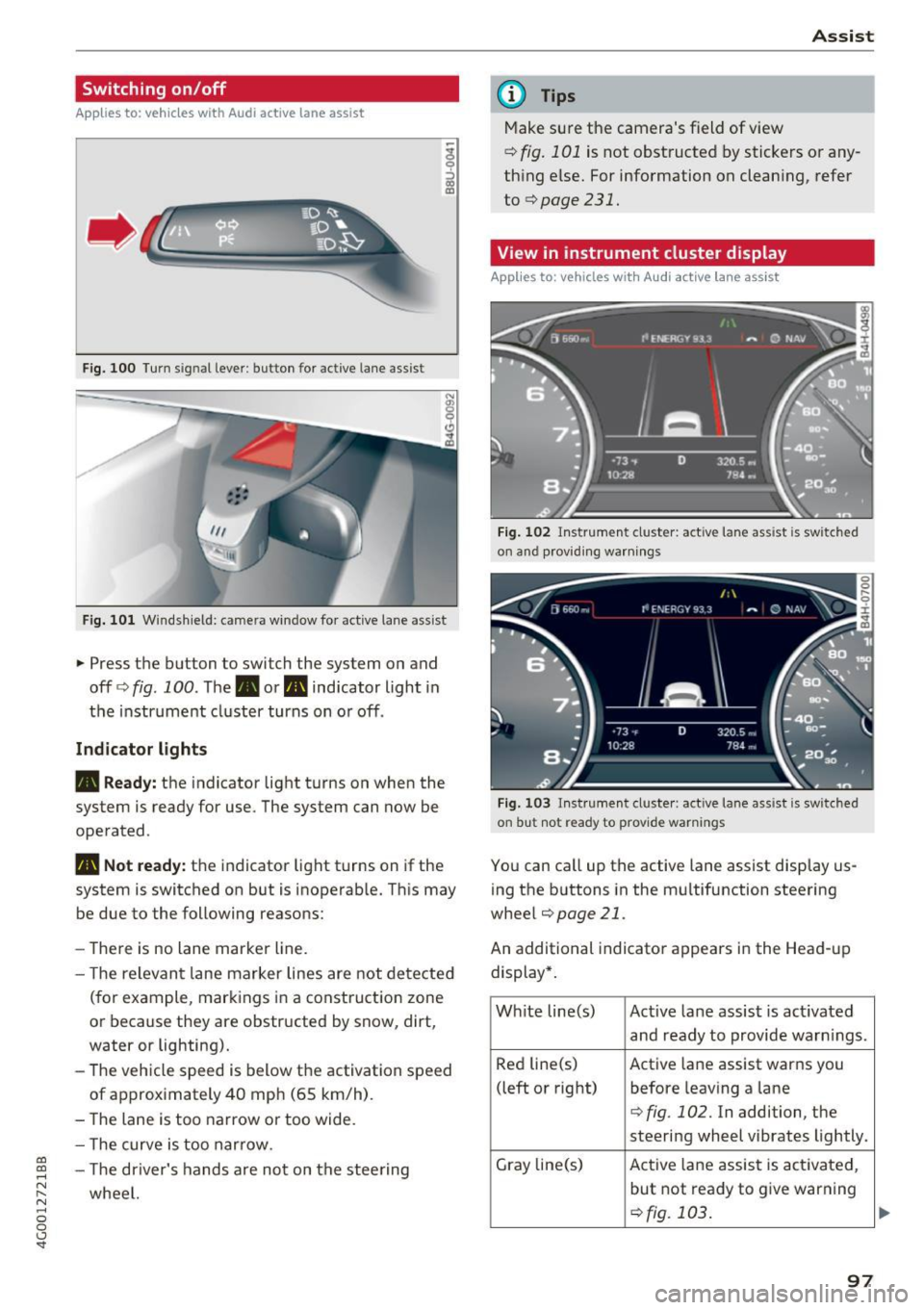
A ppl ies to: ve hicles with Audi active lane assist
Fig. 100 Turn s ig n al lever: button for active lane ass ist
F ig. 101 Windsh ield: camera window fo r ac tive lane assist
... Press the button to switch the system on and
off ¢fig . 100 . The. or. indicator light in
the instrument cluster turns on o r off .
Indicator lights
• Ready: the indicator light turns on when the
system is ready for use. The system can now be
operated .
., Not ready: the indicator light turns on if the
system is switched on but is inoperab le. Th is may
be due to the following reasons:
- The re is no lane marker line.
- T he relevan t lane marker lines are not detected
(for example, mark ings in a construction zone
or because they are obstructed by snow, dirt,
water or lighting).
- The vehicle speed is below the activation speed
of approx imately 40 mph (65 km/h) .
- The lane is too narrow or too wide.
- The curve is too narrow.
co ~ - The driver's hands are not on the stee ring
~ wheel. N .... 0 0 <.,;) 'SI"
Assist
(D Tips
Make sure the camera's field of view
¢ fig. 101 is not obstructed by stickers or any
thing else. For information on clean ing, refer
to
¢page 231.
View in instrument cluster display
App lies to: vehicles with Audi a ctive la ne ass ist
Fig. 102 Instrument cluster: active lane ass ist is sw itc hed
on and providing warnings
Fig. 103 Instrument cluste r: act ive lane ass ist is sw itc hed
on b ut not ready to provide warnings
You can call up the active lane assist display us
ing the b uttons in the mu ltifunction steering
wheel
¢ page 21 .
An additional indicato r appears i n the Head-up
display*.
White line(s) Active lane assist is act ivated
and ready to provide warn ings .
Red line(s) Active lane assist warns you
(left or right) before leav ing a lane
¢fig . 102. In addition, the
steering wheel vibrates lightly.
Gray line(s) Active lane assist is activated,
but not ready to give warning
¢fig. 103 .
97
Page 100 of 280
Ass is t
Messag es in the instrument cluster display
If the active lane ass ist switches off automatica l
ly, the indicator lig ht in the display turns off and
one of the follow ing messages appears:
Audi acti ve lan e ass ist : Cur rently un availabl e.
No camera vie w
This message appears if the camera is unable to
detect the lines. This co uld happen if :
- The camera field of view
9 page 97, fig . 101 is
dirty or cove red in ice . Clean this area on the
windshield .
- The camera field of v iew is fogged over . Wait
unt il the fog has cleared before sw itch ing the
active lane assist on again .
- The system has been unable to detect the lanes for an extended period of time d ue to road con
ditions . Switch a ctive lane assist back on when
the lines are mo re visible .
Audi acti ve lan e ass ist : Cu rrently un available
There is a temporary active lane assist ma lf u nc
tion . Try sw itching the ac tive lane assist on aga in
la ter.
Audi active lane a ssist : System fault!
Dr ive to an a utho rized Aud i dea le r or a uthorized
Aud i Serv ice Facility immediately to have t he
malfunction corrected.
Audi active lane a ssist : Please take over steering
This message appea rs if you are not steering by
yourself . If th is is the case, active lane assist does
no t swi tch off, but it is "not ready " to provide a
warn ing . The system ca n he lp you keep the veh i
cle in the lane . However, yo u are responsib le for
d riving the vehicle and must steer it yo ursel f.
Adju sting the vibrat ion warning
Applies to: ve hicles with Audi active lane assist
.,. Se lect : th e ICARI function button > (Car )* Sys
tems
control button > Drive r assist ance > Audi
acti ve lane assist .
V ibrat ion warning
You can switch the additional vibration warni ng
in the steer ing wheel o n or off.
98
@ Tips
Your settings are automatically stored and as
signed to the remote contro l key being used.
Audi side assist
Description
App lies to: vehicles with Aud i side ass ist
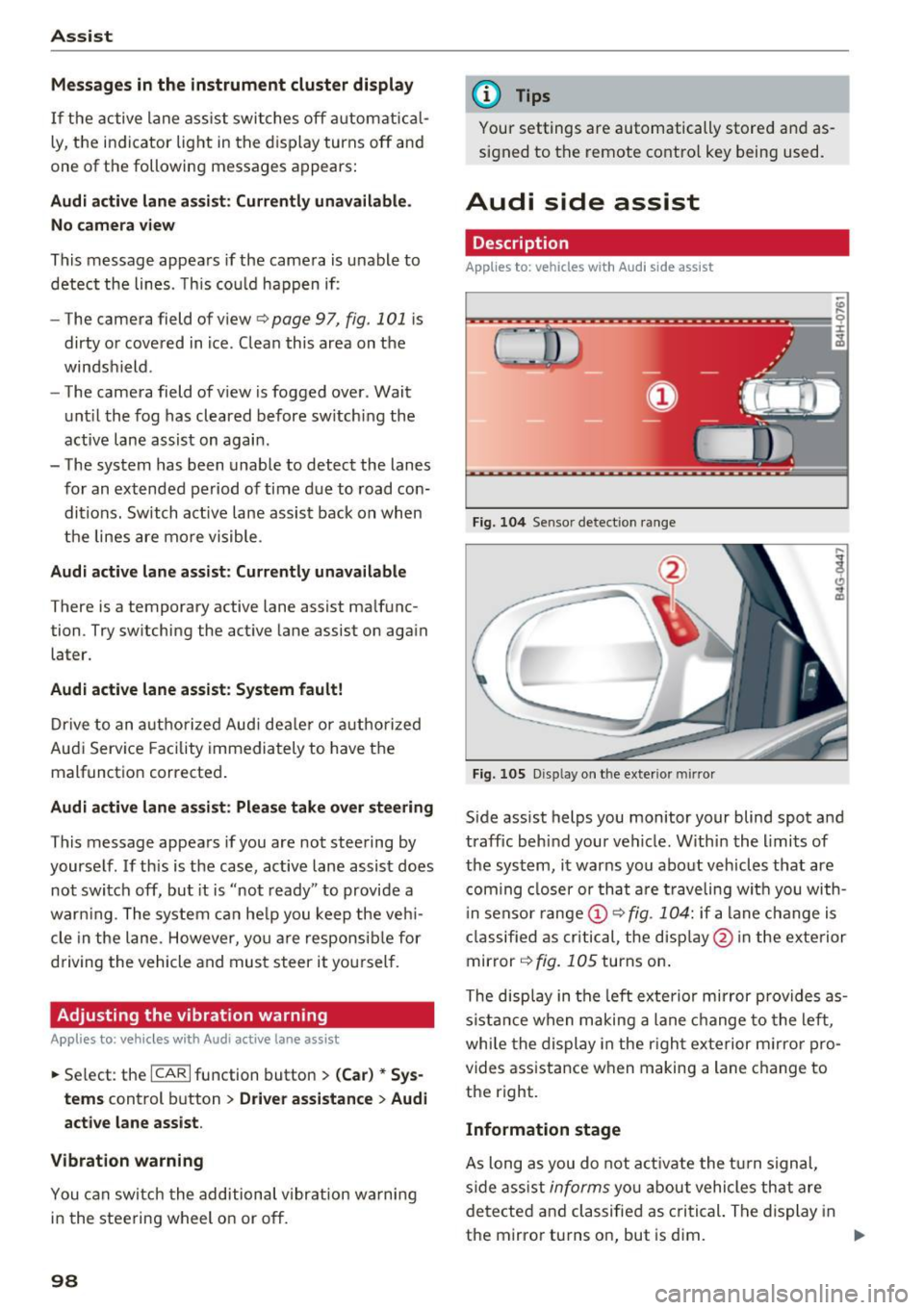
Fi g. 10 4 Senso r detect ion ra nge
Fig. 10 5 Dis pla y on t he exterio r mirr or
Side assist helps you monitor your blind spot and
traffic behind your vehicle. W ithin the limits of
the system, it warns you abo ut vehicles that are
coming closer or th at a re t raveling wit h you with
i n senso r range @
9 fig. 104: if a lane change is
classified as cri tical, the disp lay @ in the exte rior
mirror
9 fig. 105 turns on .
The disp lay in the left exte rio r mirror prov ides as
s ista nce when making a lane change to the left ,
whi le the display in the r igh t exterior m irror pro
vides assistance w hen making a lane c hange to
the right.
Information stage
As long as you do not a ct iva te the t urn signal,
side ass ist
informs yo u about vehicle s th at are
detected a nd classified as c rit ical. The di splay in
t he mirror turns on, but is dim. ""
Page 104 of 280
Ass is t
Highlighting detected pedestrians and wild
animals
A pplies to: ve hicles w ith night vi sion ass ist
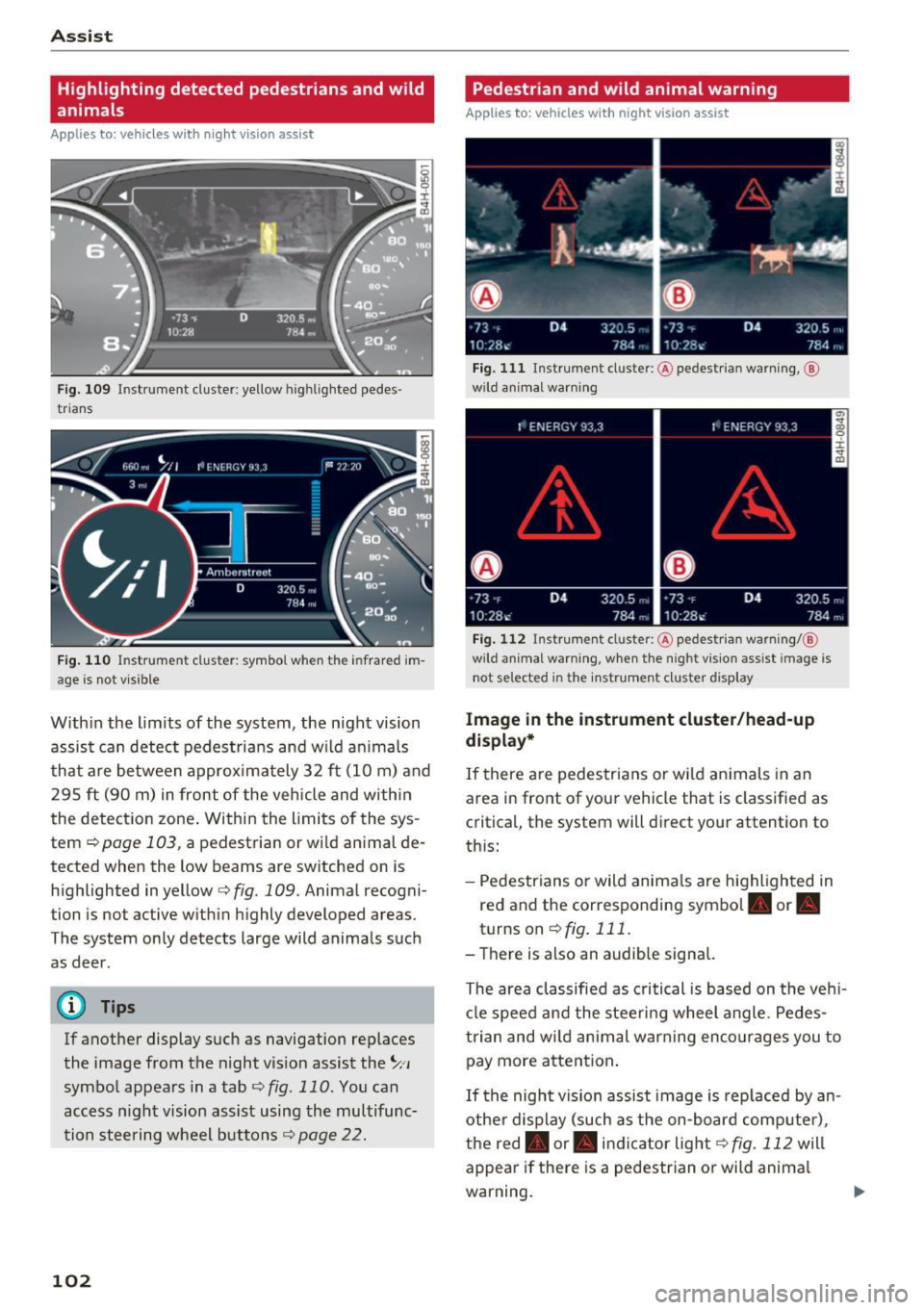
F ig. 109 Instrument cluster: yellow highl ighted pedes
trians
F ig. 110 Instrument cluster: symbol when the infrared im
age is not vi sible
With in the limits of the system, the night vision
assist can detect pedestria ns and w ild an imals
that are between approximately 32 ft (10 m) and 295
ft (90 m) in front of the vehicle and within
the detection zone . Within the limits of the sys
tem
q poge 103, a pedestrian or wild an imal de
tected when the low beams are switched on is
highlighted in yellow
q fig. 109. Animal recogni
tion is not active with in h ighly developed areas.
The system only detects large wild animals such
as deer.
@ Tips
If another display such as navigation replaces
the image from the night v is ion assist the~,,
symbo l appears in a tab
q fig . 110 . You can
access n ight vision assist using the multifunc
tion steering wheel buttons
q page 22.
102
Pedestrian and wild animal warning
App lies to : vehicles wit h night vision assis t
Fig. 111 Instrument cluster: @ pedest rian warning, @
wild anim al warn ing
Fig . 112 Instr ument clus ter: @pedestria n warning/ @
wild animal warning, when the nigh t vision ass ist im age is
not selected in the instru ment cluster display
Image in the instrument cluster /head-up
di spl ay *
If there are pedestrians or wild an imals in an
area in front of your vehicle that is classified as
cr itical, the system will direct your attention to
th is:
- Pedestrians or wild anima ls are highlighted in
red and the corresponding symbol. or.
turnson ~fig.111 .
- There is also an audible signal.
The area classified as critical is based on the veh i
cle speed and the steeri ng wheel angle . Pedes
trian and wild animal warning enco urages you to
pay more attention.
If the night vision assist image is rep laced by an
othe r d isplay (such as the on-board compute r),
the red. or. in dicator light~
fig. 112 will
appear if there is a pedestrian or wild anima l
warning.
Page 107 of 280
The adjustment depends on the driving mode se
l ected, steering movements, the driver's brak ing
and accelerat ion, and as the road su rface, vehicle
speed and load.
The vehicle ground clearance depends on the mode se lected and the speed . When you are in
the
auto , the highway setting is act ivated when
you dr ive above 75 mph (120 km/h) for more
than 30 seconds. The g round clearance is in
creased automat ica lly if the speed drops below
44 mph (70 km/h) for more than 120 seconds .
Steering
The power steering adapts. Ind irect steering that
moves easily as in comfort mode is especially
sui ted to long drives on a h ighway. The Dynamic
mode provides sporty, direct steering .
Applie s to: vehicles with dynamic steering
The steering ratio changes based on vehicle
speed in order to maintain optimum steering ef
fort for the dr iver at a ll times. This sets the steer
i ng to be less sensit ive at higher speeds in order
to p rovide imp roved vehicle contro l. At reduced
speeds, steer ing is mo re direct in order to keep
t he s teering effo rt as m inima l as poss ib le when
t he dr iver is maneuvering the vehicle . At low and
ave rage speeds, dynamic steering* additionally
p rovides more responsive stee ring performance.
Sport differential *
As a component of the all wheel d rive system
(quattro)
<=? page 124 , the sport diffe rential dis
tr ib utes the dr iv ing power to the rear ax le de
pending on the situation. The distribution o f
power varies from balanced (comfort) to sporty
(dynamic) depending on the selected mode . The
goa l is a high leve l of agility and ab ility to accel
erate on curves. The ve hicle is very respons ive to
steer ing.
Cornering light*
The cornering light adapts the high beams to the
direction of the curve depending on the speed.
The pivot ing action and the light ing also adapt to
~ t he mode . .... N
" N .... 0 0 <..:l -
Adaptive cruise control*
T he behavio r whe n accelerating ca n be adjusted
from comfortable to sporty, depending on the
drive select mode. Adaptive cruise control also
responds to the driving behavior of the vehicle
ahead in a more conservative or sporty manner.
Engine sound *
The eng ine sound adapts to the c urren t mode
and can be subtle to sporty.
(D Note
Applies to: vehicles with adaptive ai r suspension
- Make sure there is enough clearance above
and be low the vehicle when parking. The
height of the vehicle (gro und clearance) can
change once it is parked due to temperature
fluctuations, changes to the load conditions
and changes to the dr iving modes .
- When transporting the vehicle on a car car
r ie r, train, ship or by other means, o nly tie
the vehicle down at the run ning s urface of
the t ires , which is the outer c ircumference.
Se cur ing the vehicle at the axle compo
nents, sus pen sion str uts o r towing eyes is
no t perm itted because the pressure in the
air suspens ion struts can change d uring
transport . The vehicle may not be secured
sufficiently if th is happens .
(D Tips
-In some models, the maximum vehicle
speed can only be reached in the auto and
dynamic modes.
- The S selector lever position automatica lly
engages if the dynamic mode is selected.
- Applies to: vehicles with dynamic steering:
operating noise is heard when starting or
stopping the engine. Th is does not ind icate
a problem.
105
Page 113 of 280
co
co
.... N
" N .... 0 0 <.,;) 'SI"
-For objects that do not touch the ground,
such as the bumper of a parked vehicle, a
tra iler hitch or the rear of a truck. Do not
use the orientation lines in this case .
- If driven from a level surface onto an in
cline, or a downward slope.
- If driven toward protrud ing objects .
- If the vehicle is carrying too much load in
the rear.
- Applies to: vehicles with air s uspension: the
accuracy of the orientation lines and bl ue
surfaces decreases when the vehicle is raised/lowered
Q page 104.
(D Note
- Always read and follow the applicable warn
ings
Q 0 in General information on
page 108 .
-The orange-colored orientation lines in the
Infotainment display show the vehicle path
based on the steering wheel angle . The
front of the vehicle swings out more than
the rear of the veh icle . Mainta in plenty of
distance so that an exterio r mirror or a cor
ner of t he ve hicle does not co llide w it h any
obstacles.
Switching on/off
Applies to : vehicles wit h rearv iew came ra
Switching on
.,. Shift into reve rse , or
.,. Press t he
P' #A bu tton in the cente r console
Q page 109, fig . 117 . A short conf irmation
tone sounds and the LED in the button turns
on.
Switching between the r earview camera and
optical di splay
.,. Press t he Graphic control button ®
Q page 111, fig. 122 to see the opt ica l display.
.,. Press the
Rear view contro l button to see the
rearview camera image.
Switching off
.,. Drive faster than 6 mph ( 10 km/h), or
.,. Press the P•
11A button, or
.,. Switch the ign ition off .
Parking systems
(D Tips
-The visua l display in the left part of the d is
play sho uld he lp you detect the critical veh i-
cle areas.
- You can change the vol ume and pitch of the
signa ls as well as the d isplay
Q page 118.
Perpendicular parking
Applies to : veh icles w it h rearv iew camera
This view may be used when parking in a garage
or in a parking space .
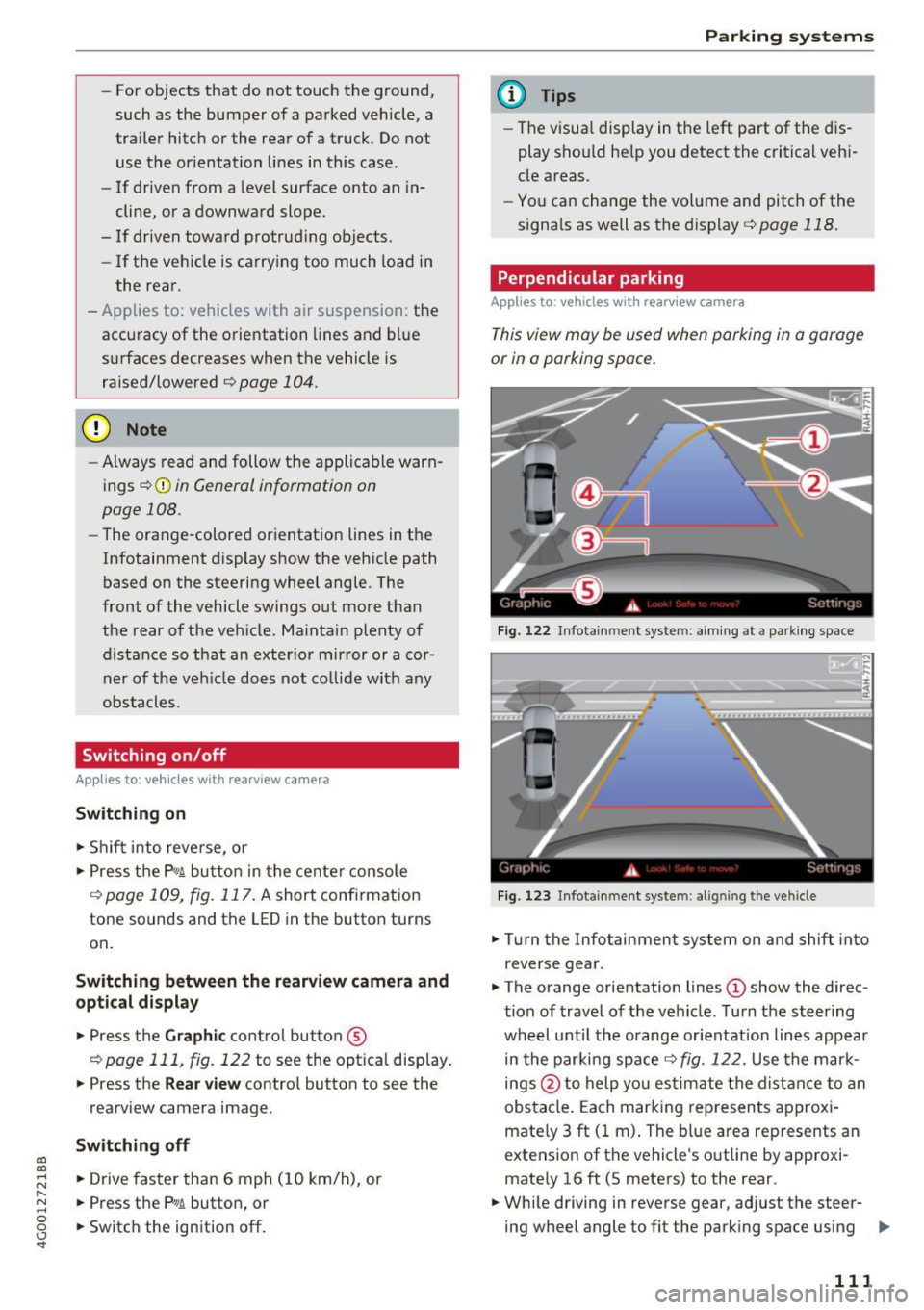
Fig. 1 22 In fota inme nt syste m: a im ing at a park in g space
Fi g. 123 Infot ainment syste m: alig ning t he vehicl e
.,. Turn the Infotainment system on and shift into
reverse gear .
.,. The orange orientation lines
(D show the direc
tion of trave l of the vehicle . Turn the steering
whe el unti l the orange orientation lines appear
in the parking space
Q fig. 122. Use the mark
ings @to help you es timate the distance to an
obs ta cl e. Each mar king represen ts approxi
mately 3 ft ( 1 m) . The blue area represents an
extens ion of the vehicle 's o utline by app roxi
mately 16 ft (5 meters) to the rear .
.,. Wh ile driving in reverse gear , adjust the steer-
ing wheel angle to fit the park ing space using ..,_
111
Page 114 of 280
Parking system s
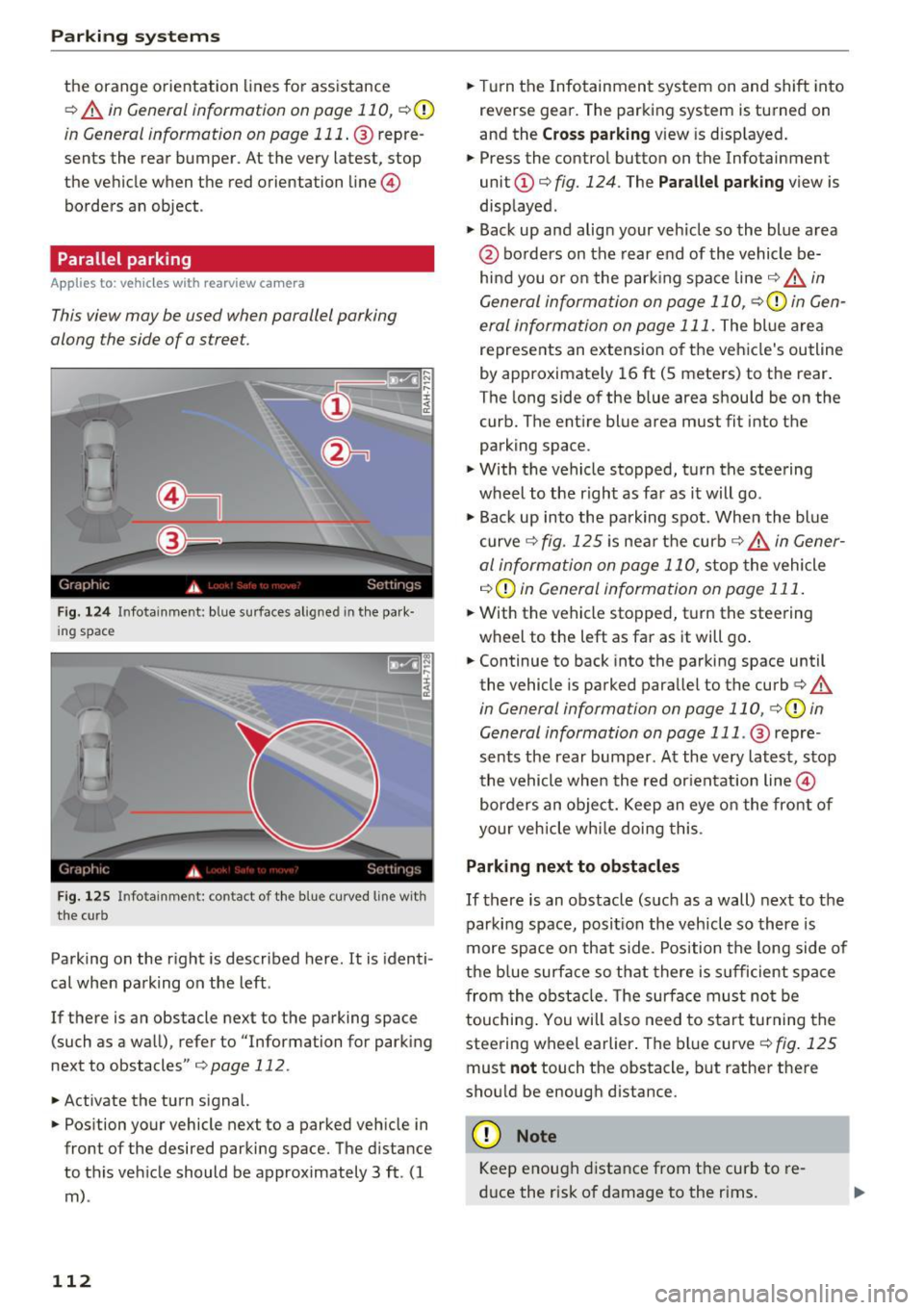
the orange orientation lines for assistance
¢ A in General informat ion on page 110 , ¢0
in General information on page 111 . @ repre
sents the rear bumper . At the very latest, stop
the vehicle when the red orientation line©
borders an object .
Parallel parking
Appl ies to: ve hicles w ith rearview ca mera
This view may be used when parallel parking
along the side of a stree t.
Fig. 124 In fotainment : blue surfaces alig ned in t he pa rk·
ing spac e
Fig . 1 25 Infotainme nt: conta ct of th e bl ue curv ed lin e with
the cu rb
Parking on the right is described here. It is identi
cal when parking on the left .
If there is an obstacle next to the parking space (such as a wall), refer to "Information for park ing
next to obstacles" ¢
page 112.
• Activate the turn signal.
• Position your vehicle next to a parked veh icle in
front of the desired parking space. The distance
to this vehicle should be approximately 3 ft . (1
m) .
112
• Turn the Infotainment system on and shift into
reverse gear. The parking system is turned on
and the
C ross par king view is disp layed .
• Press the contro l button on the Infotainment
unit
(D ¢ fig. 124. The Pa rallel pa rking view is
displayed .
.,. Back up and align your veh icle so the blue area
@ borders on the rear end of the vehicle be
hi nd you o r o n the parking space line ¢.&.
in
General information on page 110,
¢ 0 in Gen
eral information on page 111.
The blue area
represents an extension of the vehicle's outline
by approx imate ly 16 ft (5 meters) to the rear .
The long side of the blue area should be on the
curb. The ent ire blue area must fit into the
parking space .
.,. With the vehicle stopped, turn the steering
wheel to the r ight as far as it will go .
.,_ Back up into the parking spot . When the blue
curve ¢
fig. 125 is near the curb¢.&. in Gener
al information on page 110,
stop the vehicle
¢ (i) in Gen eral information on page 111 .
.,. With the vehicle stopped, turn the steering
wheel to the left as far as it will go .
• Continue to back into the parking space until
the vehicle is parked parallel to the curb¢
A
in General information on page 110, ¢0 in
General information on page 111 .
@ repre
sents the rear bumper. At the very latest, stop
the vehicle whe n the red or ientation line©
borders an object. Keep an eye o n the front of
your veh icle wh ile doing this .
Parking next to obstacles
If there is an obstacle (such as a wall) next to the
parking space, posi tion the vehicle so there is
more space on that s ide. Position the long side of
the b lue surface so that there is s ufficient space
from the obstacle. The surface must no t be
touching . You will a lso need to sta rt turning the
steer ing wheel earlier . The bl ue curve ¢
fig. 125
must not touch the obstacle, but rather the re
shou ld be enough distance.
(D Note
Keep enough distance from t he curb to re
d uce the risk of damage to the r ims.