95 RON AUDI A8 2018 Manual Online
[x] Cancel search | Manufacturer: AUDI, Model Year: 2018, Model line: A8, Model: AUDI A8 2018Pages: 356, PDF Size: 54.71 MB
Page 165 of 356
u. co .... N
" N .... 0 0 :c '
The numbe r of data packets that are sen t and re
ceived through the MMI is displayed. You can re
set the data usage information to zero using the
Reset d ata usa ge option .
Start automatic configuration
An online profile is set up and configu red auto
mat ica lly. The connection settings that you
changed manua lly are reset to the defa ult set
tings.
Online status overvi ew
An on line status overv iew with information abo ut
your data connect io n (such as the cell phone
service provider) is shown in the Infotainment
disp lay .
Switching the data conn ection module off
The data connection module is sw itched off . An
I nternet connect ion is no longe r poss ible.
Network set ting s
Under Login , select Auto to log into a network
automatically or select
Manu al to select from a
list of networks w ith in range . The available net
works in the area can be selected in the
Netw ork
se lec tion
list. Th is function is on ly avai lab le when
M anu al Login is set.
Seri al numb er (IMEi )
The serial number for the MMI that is installed is
d isplayed .
A WARNING
-As the dr iver, do not allow usage of the Wi
Fi hotspot to dist rac t you from d riving, as
th is could inc rease the risk of an ac cident .
-It is only safe to use tab lets and s imilar mo
bile devices whe n the vehicle is s tat io nary
because, like all loose objects, t hey could be
thrown aro und the inside of the vehicle
when invo lved in an accident and can cause
serious injur ies. Store these types of devices
securely whi le driving.
-Do not use any wire less devices on the front
seats w it hi n range of the a irbags while driv -
Audi conn ect
ing . A lso read the warnings in the chapter
¢page 208.
@ Note
You are responsible fo r all precautions taken
for data protection, anti -virus protection and
protection against loss of data on mobi le de
v ices that are used to access the Internet
through the W i-F i hotspot.
(D Tips
- When using On line map view, you are
prompted again to allow roam ing before
connect ing to a foreign mob ile network.
- The speed of the data connection may vary
depending on the veh icle location, the cov
erage area of your cell phone serv ice prov id
er and if the recommended provider is used
o r not.
- A data connection cannot be established if
incorrect data is entered in the
Conn ect ion
s ett ing s.
-The W i-F i hotspot recept io n quality depends
on the sig nal st rengt h and the availab ility of
the mobile network. You can obtain more
information from your cell phone se rvice
prov ider.
About Audi connect
Audi connect services
Applies to: vehicles with Aud i connect
(D Tips
- You can only use serv ices supported by Aud i
connect if you have t he optional MMI Nav i
gation pl us eq uipment and Aud i connect.
- Audi connect is designed for use only with
the provided Aud i SIM ca rd . Receiving data
packets from the Internet w ill quickly in
cr ease the vo lume of data used. Fo r more
information, contac t A udi connect cus tome r
support at 87 7-505 -AU DI (2834) .
-The Aud i connect se rvices a re availab le in
t he USA. Audi connect serv ices are currently
not avai lab le in Canada or in Mexico .
163
...
Page 178 of 356
Navigation
specified, if possible. The navigation system cal
culates an a lternative route.
The route to be avoided that you ha ve ente red
applies only to the current route and must be set
again, if needed.
The areas you have se lected to avoid w ill appear
with red and white shading on the map.
0) Tips
If the MMI does not calculate an alternative
route, that means there is none available.
Accessing traffic
information
Auto rerouting (traffic)
A pp lies to: ve hicles w ith navigation system an d Sirius (satel
li te radi o)
By receiving traffic information from the TMC or
satellite - depend ing on ava ilability -the MMI cal
culates an optim ized route and the possible t ime
saved for the current route guidance. You can de
cide yourse lf wh ich route you would like to use.
Traffic information (TMC)
App lies to: ve hicles w ith naviga tion system and Sirius (satel
li te ra dio)
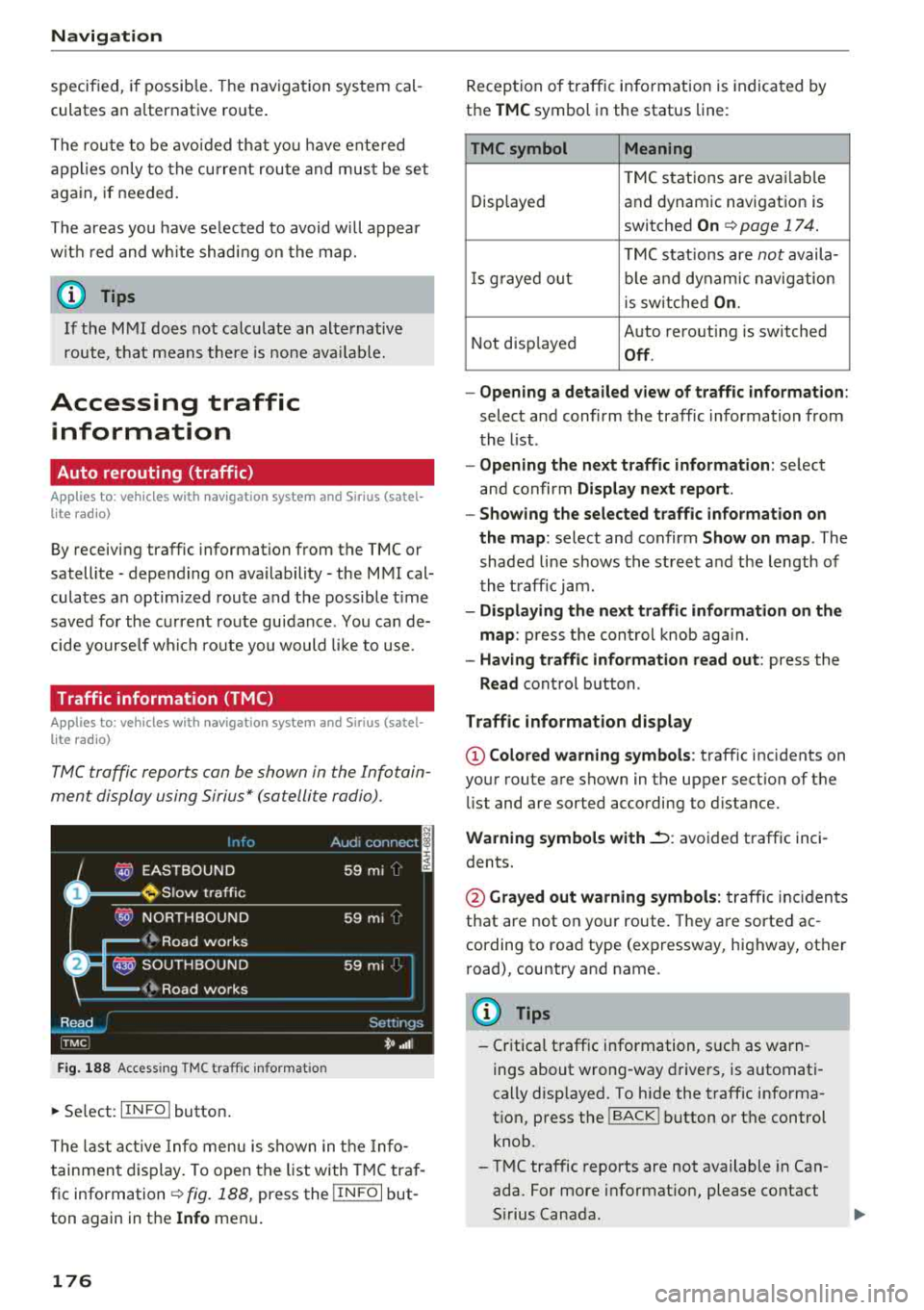
TMC traffic reports can be shown in the Infotain
ment display using Sirius* (satellite radio).
Fig. 188 Access ing TMC traff ic informa tion
~ Se lect: IIN FOI button .
The last active Info menu is shown in the Info
tainment display. To open the list with TMC traf
fic information
c:tv fig. 188, press the I IN FO I but
ton again in the
Info menu .
176
Reception of traffic information is indicated by
the
TMC symbol in the status line:
TMC symbol Meaning
TMC stations are avai lable
Displayed and dynamic navigation is
switched
On c:tv page 17 4.
TMC stations are not availa-
Is gra yed o ut ble and dynamic navig ation
i s sw itched
On.
Not disp layed Auto
rerouting is switched
Off.
- Opening a detailed view of traffic information :
select and confirm the traffic information from
the list .
- Opening the next traffic information : select
and confirm
Display next report.
- Showing the selected traffic information on
the map :
select and confirm Show on map . The
shaded line shows the street and the length of
the traff ic jam .
-Displaying the next traffic information on the
map :
press the cont rol knob aga in.
- Having traffic information read out : press the
Read control button.
Traffic information display
@Colored warning symbols: traffic incidents on
your route are shown in the upper sect ion of the
li st and are sorted according to distance.
Warning symbols with.::->: avoided traffic inci
dents.
@ Grayed out warning symbols: traffic incidents
that are not on your route. They are sorted ac
cording to road type (expressway, highway, other
road), country and name.
(D Tips
-Critical traffic information, s uch as warn
ings about wrong -way drivers, is automati
cally disp layed. To hide the traffic informa
t ion, press the
I BACK I button or the control
knob.
- TMC traffic reports are not available in Can
ada. For more information, please contact
S ir ius Canada .
Page 182 of 356
Radio
display. Only the curren t sec tion of the sc roll
ing text is displayed .
-Off : scr oll ing text tra nsmi tte d b y the F M sta
tions is not shown in the Infotainment display .
Scro lling text from HD stations is shown in the
Infotainment display.
Show channel information (Sirius*)
If tr ack info rm at ion is ava ilable fo r the cur rent ti
t le (such as a rtist or album), i t will be d isp layed
i n a pop -up win dow if this function is act ivated .
Station sorting (Sirius*)
- Channel number:
the sta tio ns are sorted in as
c ending ord er acc ording to their ch annel num
b er.
- Channel name : the stations a re listed in alpha
be tica l o rd er.
- Category and channel number: the stations are
so rted acc ordin g to their ca tegory a nd then ac
cordi ng to their ch annel number.
-Category and channel name : the sta tions are
sor ted a cco rdin g to their ca tegory a nd then ac
cording to their s ta tion name .
Troubleshooting
Problem Solution Category filter (Sirius*)
The s
tations shown in the st ation list c an be fil
te red by yo ur persona l pre ferences and b y pro
g ram type . The program cate gories that you can
se lect depen d on w hat is offere d by your provid
e r. Se lect the
Deact ivate category filter option to
deact ivate all filte r opt ions and disp lay all ava ila
ble stations in the sate llite station list.
Receiver serial number (Sirius*)
The elect ronic se rial num ber (ES N) is disp layed .
The number is requ ired w hen logg ing in to Si r
i us *.
Deleting presets
Require ment: a sta tion mus t be s to re d in th e
p resets list ¢ page
179 .
Store d sta ti ons can be dele ted Individually or All
at once .
A station with poo r reception is no Sto
re the station ahead of time and then se lect it from the pre -
longer disp laye d in the station list
sets list
later (z) <=>page 179, fig. 191 .
once you switch to a diff erent sta-
t io n.
180
Page 184 of 356
Media dri ve s and connection s
protection switch is installed to protect the CD/
DVD and the laser.
L a se r d evice s: laser dev ices are d iv ided into safe
ty classes 1 to 4 in accordance with DIN IEC 76
(CO) 6/VDE 0837 . The various types of audio
equipment installed conform to safety class
1.
The laser uses so little power or is sh ielded so
there is no danger when it is used correctly.
De vice co ver: do not remove the cover from the
device . The device does not contain any parts that
the owner can repair.
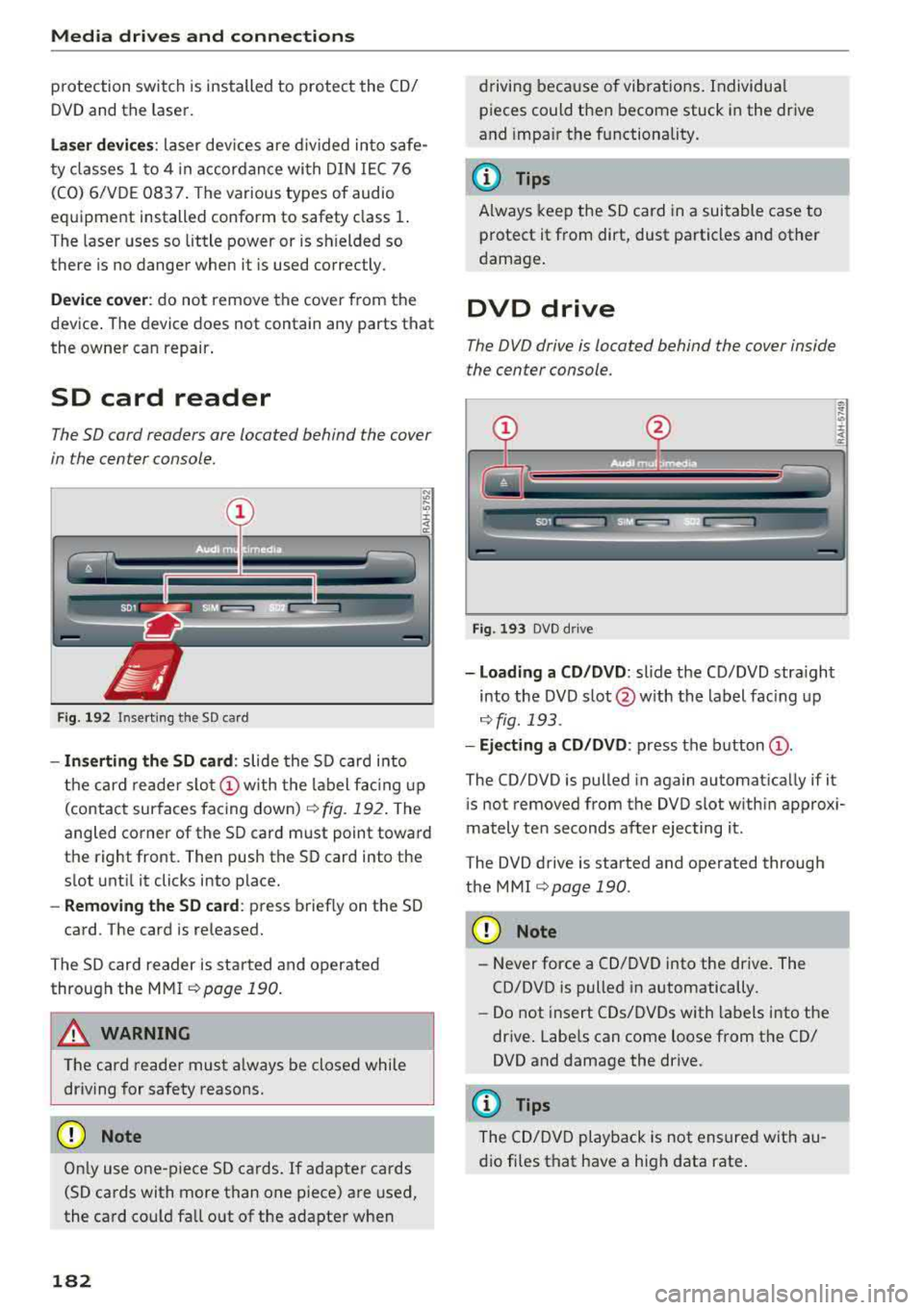
SD card reader
The SD cord readers ore located behind the cover
in the center console.
Fig. 192 Inserting the SD card
- In serting the SD card : slide the SD card into
the card reade r
slo t(!) w ith the label fac ing up
(contact surfaces facing down)
r:!> fig. 192 . The
angled corner of the SD card must point toward
the right front. Then push the SD card into the
slot unt il it clicks into place.
- Remo ving the SD ca rd: press briefly on the SD
card. The card is re leased.
The S D card reader is started and operated
through the MMI
r::;,poge 190.
A WARNING
The card reader must a lways be closed while
driving for safety reasons.
CD Note
On ly use one-piece SD cards. If adapter cards
(SD cards with more than one piece) are used,
the card could fa ll out of the adapter when
182
driving because of vibrat ions . Individua l
pieces could then become stuck in the drive
and impa ir the functionality.
(D Tips
A lways keep the SD card in a suitable case to
protect it from dirt, dust particles and other
damage .
DVD drive
The DVD drive is located behind the cover inside
the center console.
Fig . 193 DVD d rive
- Loading a CD /DVD : slide the CD/DVD stra ight
into the DVD s lot @ with the label fac ing up
¢ fig. 193 .
-Eject ing a CD /DVD : press the b utton (D .
The CD/DVD is pulled in again automat ica lly if it
is not removed from the DVD slot w ith in approx i
mately ten seconds after ejecting it.
The DVD drive is started and operated through
the MMI
r::;,poge 190 .
CD Note
-Never force a CD/DVD into the drive. The
CD/DVD is pulled in automatically.
- Do not insert CDs/DVDs with labels into the
drive . Labe ls can come loose from the CD/
DVD and damage the drive.
@ Tips
The CD/DVD playback is not ensured with au
dio fi les that have a high data rate .
Page 187 of 356
u. co ..... N
" N ..... 0 0 :c '
Applies to: vehicles with Wi-Fi audio player
Wireless media players (such as smortphones)
con be connected via Wi-Fi hotspots and control
led with the
MMI. You con access the media cen
ter on your media player using on UPnP server
opp or on UPnPIDLNA server integrated in the
media player .
Requirements: the Wi-Fi function for the media
player and the MMI must be act ivated. A network
connection must be established
¢ page 162 . An
UPnP serve r must be installed on your W i- Fi me
d ia p laye r.
-Connecting the Wi-Fi audio pla yer : select the
I MEDIAi button> Source cont rol button> Wi-Fi
audio
play er(2) ¢poge 190, fig. 197. A mes
sage will appear i n the Infota inment displ ay
say ing there is no W i-Fi aud io player connec ted
to the system . The access data for the Wi -Fi
hotspot is disp layed.
-Se lect the same settings on the w ireless med ia
player that are used for the Wi-Fi hotspot .
-Starting th e Wi •Fi audio pl ayer : start an UPnP
server app or a llow media sharing on your de
vice . The first song in the media center on your
Wi-Fi audio player begins playing .
-Operating the Wi-Fi audio player : the media
player is operated throug h the MMI
¢page 190.
A WARNING
-As the driver, do not allow usage of the Wi
Fi hotspot to distract you from driving, as
this could inc rease the risk of an accident .
-It is only safe to use laptops and simi lar mo
bile devices when the vehicle is stat ionary
because, l ike all loose objects, they could be
t h row n aro und the ins ide of the vehicle in a
cr ash and cause se rious inj uries. Store these
ty pes of dev ices se curely wh ile d riving.
-Do not use any w ireless devices on the front
seats w it hi n range of the a irbags while d riv
ing. Also read the wa rn ings in the chap ter
¢page 208.
Media dr ives and conn ection s
@ Note
Always fo llow the information fo und in ¢ @ in
Wi -Fi hotspot on page
161.
(D Tips
-Read an d follow t he notes abo ut Aud i con
nect before sta rting it¢
page 163.
-Th e W i-Fi connec tion is reconfigure d when
inserting or removing the Audi SI M card in
the SIM card reader. There may be a tempo
ra ry interruption in aud io playback, depend
ing on the media player.
-In ve hicles w ithout Audi con nect*, the use
o f th e W i-F i hotspot is on ly possible for t he
Wi-Fi audio player". A data co nnect ion to
the Internet cannot be estab lished .
-Depending on the w ireless media player,
network or media access may need to be ap
proved on the device or a program may need
t o be sta rted .
-Check for any connection requests on yo ur
w ireless media player.
-To avo id interr upt ions during playback, de
act ivate the powe r sav ing function on the
w ireless media player or connect it to a
charger.
-T he loadi ng times for the audio da ta depend
on the media player used and the numbe r of
files t hat it contains.
-A max imum of 2,000 en tries per d irec tory
are d is pl ayed in the Infota inment disp lay.
-For more informat io n on Wi-Fi audio players
and supported dev ices, visi t
www.audiusa .com or cont act an a uth o rize d
Audi de aler or author ized Audi Se rvice Fa
ci lity.
185
Page 192 of 356
Playing media
Playing media
Accessing media
You con start and operate various media drives
through the
fvtfvtl control panel.
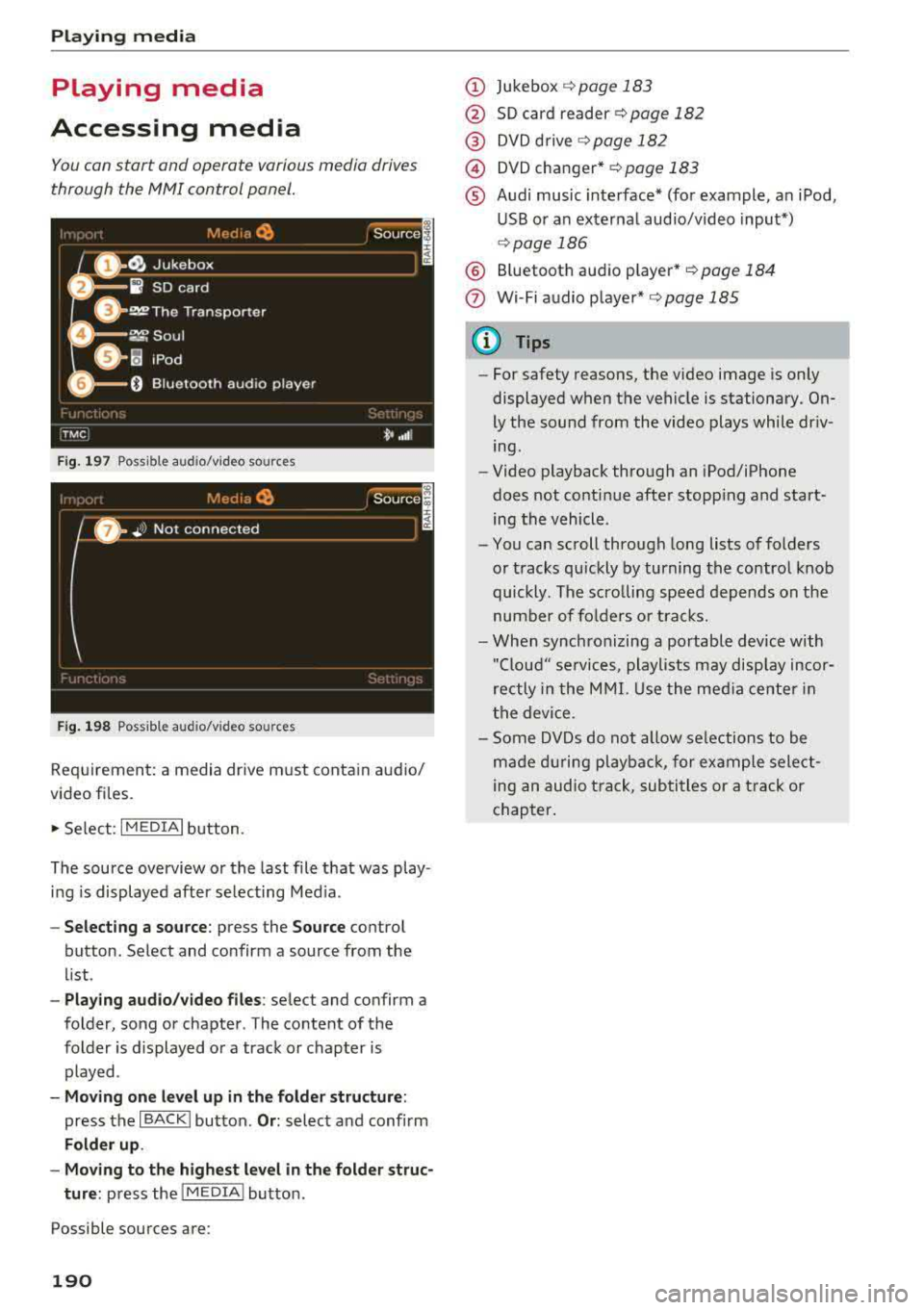
F ig. 197 Possible audio/video sources
Fig . 19 8 Possible aud io/video sources
Requirement: a media drive m ust cont ain audio/
video files.
., Select: I MEDIAi button.
The source overview or the last file that was play
i n g is displayed afte r se lecting Med ia .
- Selecting a source : press the Source control
button. Select and confirm a source from the
l ist .
-Play ing audio /video files : select and confirm a
folder, song or chapter. The content of the
folder is displayed or a track or chapter is
played .
-Mo ving one l eve l up in the folder struct ure:
press the I BACKI button. Or : select and confirm
Folder up .
- Movin g to th e highest level in the folder str uc
ture :
press the I MEDIA i button.
Possible sources are:
190
(D Jukebox ¢page 183
@ SD card reader¢ page 182
@ DVD d rive ¢ page 182
@) DVD changer* r::!:>poge 183
® Audi music interface* (for example, an iPod,
USB or an externa l audio/v ideo input*)
¢ page 186
® Bluetooth aud io p layer* <::!; page 184
(!) Wi-Fi audio player*¢ page 185
{!) Tips
-For safety reasons, the video image is only
displayed when the vehicle is stationary.
On
ly the sound from the video plays while dr iv
ing .
- Video playback through an iPod/iPhone
does not conti nue after stopp ing and start
ing the vehicle.
- You can scroll through long lists of folders
or tracks qu ickly by turning the control knob
quickly. The scro lling speed depends on the
number of fo lders o r tracks.
- When synchronizing a portable device w ith
"Clou d" services, playlists may disp lay incor
rectly in the M MI. Use the med ia ce nter in
t h e device.
- Some DVDs do not allow selections to be
ma de d uring playbac k, for ex ample sele ct
ing an audio track, subtitles or a t rack or
chapter .
Page 202 of 356
Rear Seat Ent ertainm ent
right and change the batteries as labeled in the
battery compartm ent . Then attach the cover
back on to the left earpiece
(L).
You can ident ify t he charge status of the battery
q table on page 200 based on the blinking
speed of the LED in the charging cable conn ec
tion
CD q fig. 209.
Blinking fre- Charge status
quency
Blinking The batteries are cha rging.
Rema ins on The batte ries are charged .
Blinking An error occurred while charg-
quickly ing.
A WARNING
- Do not use damaged rechargeable batteries .
T his increases the r isk of an explos ion.
- The headphones can become warm when
the batteries a re charg ing and increase the
risk of injury .
- Do not charge standard batteries with the
charg ing cable. This increases t he risk of an
exp losion .
- Be careful when using the c igarette lighter .
I n attentive or unsupe rvised use of the c iga
rette lighte r can cause burns.
- T he ciga rette lighter/sockets and any elec
t rical accessor ies connected to t hem func
t ion only whe n the ign ition is sw itched on.
U sing the ciga rette lighter/sockets o r elec
trical accessories incorrect ly can lead to se
rious injuries or cause a fire. To reduce the
risk of in juries, never leave children unat
tended in the vehicle with the vehicle key.
@ Note
- Do not charge the batteries in the wireless headphones when the engine is not run
ning . This will dra in the vehicle battery .
- For wireless headphones, on ly use batteries
that are approved for that type of device,
for example NiMH batteries with a mini
mum capacity of 550 mAh in AAA size that
are suitable for quick charging .
200
@ For the sake of the environment
Batteries contain polluting substances. They
must be disposed of us ing methods that w ill
not harm the env ironment. Do not dispose of
them in househo ld trash.
(D Tips
The charging time for t he included rechargea
ble batter ies is approximate ly three to four
hours and may increase by approximately 25
percent if the batter ies are in use while charg
ing .
Headphones connected by cable
App lies to: vehicles with Rear Seat Entertainment
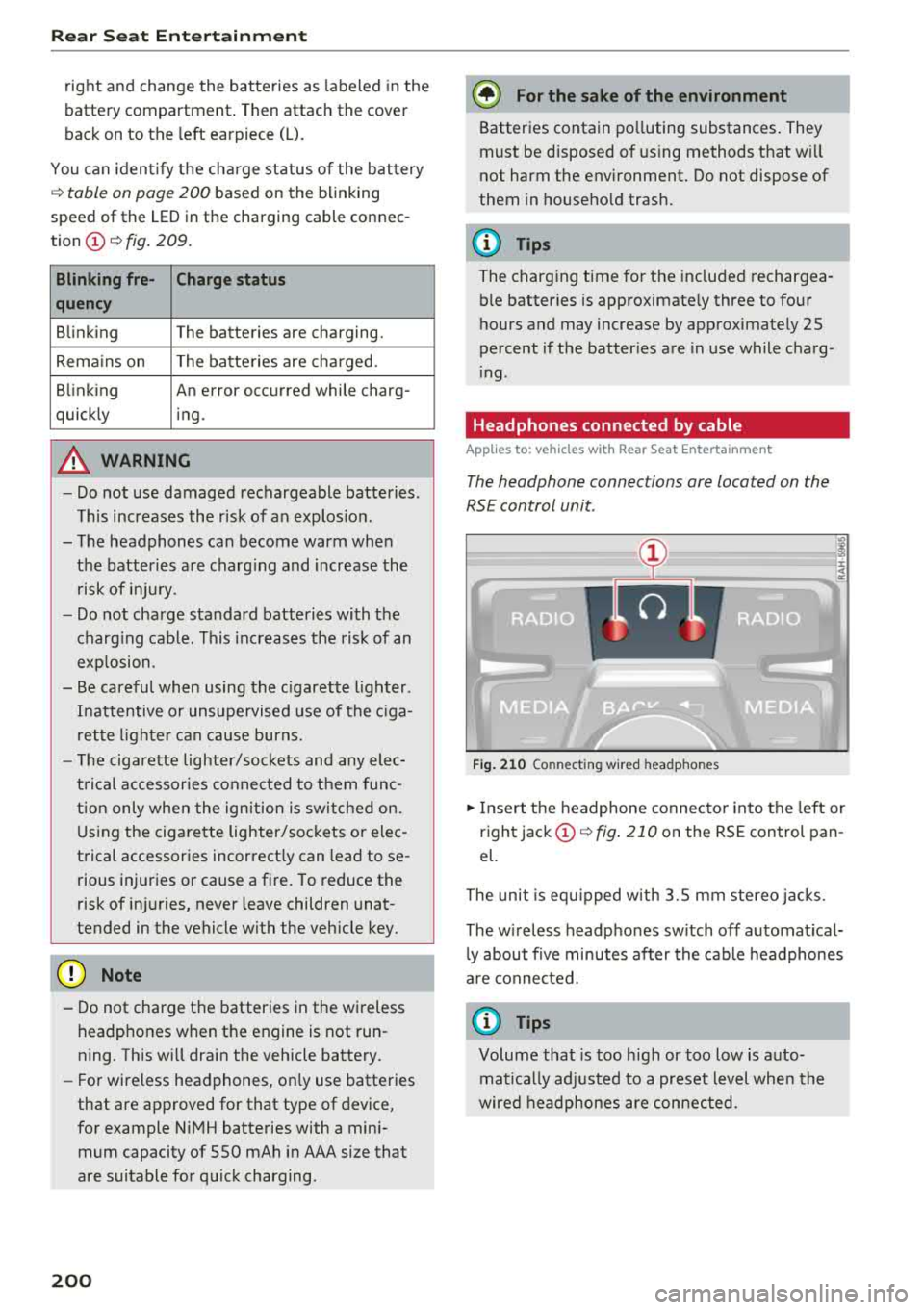
The headphone connec tions are located on the
RS E control unit.
Fig . 21 0 Co nn ect in g wir ed h eadpho nes
.,. Insert t he headphone connecto r into the left or
right jack
CD q fig . 210 on the RSE control pan
el.
The unit is eq uipped w ith 3.5 mm stereo jacks .
The w ireless headphones sw itch off automat ical
l y about f ive minutes after the cable headphones
a re connected.
(D Tips
Volume that is too h igh or too low is auto
mat ica lly adjusted to a preset level whe n the
wired headphones are connected.
Page 204 of 356
Rear Seat Ent ertainm ent
® Searching for a destination online l)
The route is calcu lated based on var ious route cri
ter ia. To set the cr iteria , you must first plan a
destination and then display the ro ute in the RSE
disp lay using th e
Show route function . When you
transf er a planned dest ination to th e MMI using
the
Send d estin ation to the dri ver function, th e
cr it er ia are trans fer red automat ica lly.
A planned destination is shown in the RSE display in whi te and act ive route guidance is marked in
b lue .
Displaying a rout e
The planned destination and the distance to the
destination/ar rival time are displayed on t he
map. The route is calcu lated based on the current
ve hicle location and can be updated.
To disp lay act ive route gu idance on the map, se
lect the
Route guid anc e control button > Ex it
r o ut e displa y.
Send destination to the dri ver
To start route gu idance fo r a planned route, t he
destination must be transferred to the M MI. If
t he
D est ination s are set to Co nfirm in the MM I
se tup
men u ¢pag e 197, the destination m ust be
confirmed before transferring to t he MMI.
(D Tips
- The display of nav iga tion f unct ions is
sync hronized to both RS E disp lays.
- Refer to the notes i n the chapter
About
Audi c onnect
¢ page 163.
- The conte nt, scope and p roviders of offe red
A udi con nect se rvices may vary.
- The navigat ion functions match those in t he
MM I to a large extent. Fo r mo re informa
tion, refer to
¢ page 166 .
-The functions for the on line Street V iew
c::!;> page 160 can also be used in t he RS E
while dr iv ing.
- If
On request is selected fo r the data con
nect ion in the
Da ta connection menu
¢ page 162, rece iving data packets, s uch as
1> Applies t o ve hicl es w it h A udi co nnec t
202
weat her information, must be confirmed in
the MMI.
Accessing traffic information
Applies to: vehicles with Rear Seat Entertainment and naviga·
tion system
.,. Select: the I MENU I button > Info.
- Op ening a d etail ed view of traffic inf orm ation :
select and confirm the traffic informa tion from
the list.
- Op ening th e ne xt tr affic rep ort : se lect and
confirm
Show n ex t re port .
© Tips
For more information on accessing traff ic in
fo rmation, refer
to ¢ page 176 .
Accessing Audi connect services
Applies to: vehicles with Rear Seat Entertainment, navigation
system and Audi connect
Requirement: the requirements for Aud i connect
se rvices must be met
¢ page 158 .
.,. Select: the I MENU I button> Audi connect > the
desired Audi connect service .
-Fo r ex ample , d is pl ay w eathe r info rm ation : se
lect and confirm
Weather . Selec t and confirm
the desired search area:
Imm edi ate v ici nity /Vi
cinity of de stin ation /stopo ver or In new city .
Enter a location and confirm the input with OK.
(D Tips
-Refer to the notes in the chapter About
Audi
conn ect ¢ page 163 .
-Additional information about access ing Audi
connect services can be found under
¢ page 158 .
Entertainment systems
Listening to the radio
Applies to: vehicles with Rear Seat Entertainment
.,. Sele ct: th e I RADIO I button.
Page 208 of 356
System settings
sound di stribu tion)/ Driver (sound dis tribution
aime d towa rd the d river) or
All /Front /Rear.
- Surround level* :
you can a dju st the vo lume of
t h e sur round effect by tu rning the contro l
k no b.
-AudioPilot (dynamic road noise compensa
tion)* :
select and confirm Active /Inactive.
When t he f unct io n is act ive, the vo lume is auto
matically ad justed depending on t he leve l o f
noise ins ide the ve hicle.
- Sound focus * (adjusting the sound distribu
tion ):
select and confi rm All (symmet rical
sound d istr ibutio n)/ Movie (optima l so und dis
tribution fo r playing a
movie)/ Front/Rear .
- Volume balancing *:
the dynamic road noise
compensation ca n be ad justed by turning the
contro l knob.
@ Subwoofer* I @ Bass/ @Treble
You can a djust the Subwoofer *, Bass and Treble
sett ings by turning the contro l kno b. The
cha nged settings only apply fo r the aud io so urce
that is active at the t ime . This allows you to ad
jus t th e sound se tt in gs for eac h aud io so urce sep
ara tely.
® Balance/Fader (sound focus)
- Adjusting the sound distribution using the
MMI touch :
move your finger on the MMI t ouch
contro l pane l in the des ired d irec tion.
Adjusting the system
volume
.,. Se le ct: the IMENU ! butto n> Tone .
Navigation* control button
Voice guidance volume /Music volume during
nav. prompts:
vol ume o f navigation prompts
d ur ing ac tive ro ute g uidance . Mu sic volume dur
i n g nav iga tion prom pts mea ns tha t th e vol ume
of audio playb ack is te m porar ily lowered whe n
t he p arkin g sys tem or v oic e gu idance i s act ive.
Voice guidance: se e ¢page 175.
Voice guidance during call : see ¢ page 175.
206
Telephone* control button
Ringtone volume /Phone call volume :
you ca n
adjus t the sele cte d r ing tone vo lume or call vol
u me by tu rnin g the cont ro l knob. The
Phone call
volume
can on ly be adjusted durin g a call.
Systems control button
Speech dialog system volume :
you can adju st
th e vol ume o f th e ann ounc emen ts by tur ning the
contro l kno b.
MMI touch volume *: the vo lu m e of the MM I
tou ch pro mpts can be adjus ted by tur ning the
c on tro l k no b.
Other settings
.,. Sele ct: th e I M ENU I button > MMI setup contro l
bu tton.
Language
The language can be changed fo r the Info ta in
men t display, t he dr iver i nfo rm ation system dis
play, voice guid ance* and t he voice recogn itio n
sys te m* .
En glish, French and Spanish are ava ila bl e.
Measurement units
The following meas urement u nits ca n be set in
the Infotainment d isp lay a nd dr iver info rmat ion
system.
- Speed (mph o r km/ h)
- Distance (miles o r kilomete rs)
- Temperature (°For 0
( )
-Fuel consumption (l/l0 0km, mpg (US), mpg
(U K) or k m/l)
- Volume (lite rs, ga llons ( UK) o r gallo ns (US))
Speech dialog system
App lies to : vehicles wi th voice recog nitio n syste m
Display speech commands : th e d isplay of poss i
ble commands dur ing vo ice input can be switc h
ed
On or Off .
Short dialog :
prompts in a s horter format can be
switc hed
On or Off .
Input signal :
the beep input signa l dur ing a dia-
l og can be switc hed
On or Off. ..,.
Page 209 of 356
u. co .... N
" N .... 0 0 :c '
the vo lume of the announcements by turning the
control knob .
Individual voice training (only when the vehicle
i s stat iona ry): you can adap t th e voice recognition
system to your voice or p ronunciation i n order to
i mprove the system 's ability to recognize your
speec h. Individ ua l tra ini ng is comp rised of 40
speec h entr ies that cons ist of commands and se
q uences of numbers . Yo u can delete the p ro
g rammed vo ice tra ining using
Reset voice train
ing .
Delete all name tags :
all of the name tags that
you have stored (s poke n names) a re deleted .
Display brightnes s
You can adjust the Infotainment display brig ht
ness by t urning the cont ro l knob.
Factory settings
You can rese t the following fu nctions to th e fac
tory def ault setti ngs:
- Sound settings
- Radio
- Media sett ings
- Jukebox
- Directory *
- Telephone *
- Bluetooth *
- Navigation settings*
- Navigation and online memory *
- Speech dialog system
You can se lect the desi red functions i ndividually
or all at once with the option
Select all entries .
Select and confi rm Restore factory settings .
If yo u reset the Jukebox to facto ry settings, a ll of
the music/video files are deleted and t he
Media
settings
are reset.
System update
The MMI softwa re, s uch a s th e navig ati on da ta *,
can be upd ate d by DV D, US B or SD c ard using t he
system update feature .
F or more inform ation ab out th e
System update ,
vis it www.audiusa.com/bluetooth o r co nta ct a n
System settings
authori ze d Au di d eale r or auth o rized Au di Serv ice
Fac ility .
Data encryption
You can protect your pe rsonal data, such as con
t ac ts in the dir ectory, desti nations in navig ation*
and n ame tags with a person al passwor d. If th e
u ni t is rep lace d, you ca n on ly t ransfe r yo ur p er
sona l data to the new M MI unit usin g your pass
word . The default password " MMI3G" is valid un
t il you assign a personal passwo rd.
Version information
I nfo rm ation on the so ftwar e ve rsion o f the M MI
and t he navigatio n data base * is disp layed .
207