95 RON AUDI A8 2018 Repair Manual
[x] Cancel search | Manufacturer: AUDI, Model Year: 2018, Model line: A8, Model: AUDI A8 2018Pages: 356, PDF Size: 54.71 MB
Page 114 of 356
Ass is tanc e system s
In the sporty dynamic mode, the transmission
shifts at higher speed ranges.
Air su spen sion
The adaptive air suspension/adaptive air suspen
sion spo rt* is an e lectron ica lly contro lled a ir sus
pens ion and damping system . The adjustment
depends on the driving mode selected, steering movements, the driver's braking and accelera
tion , and as the road surface, vehicle speed and
load . A sporty sett ing is generally used in vehicles
with adap tive a ir suspension sport*.
The vehicle ground clearance depends on the mode se lected and the speed . When you are in
the auto or dynamic mode, the h ighway sett ing is
activated when you dr ive above 75 mph (120 km/
h) for more than 30 seconds . The ground clear
ance is increased automatically if the speed
drops below 44 mph (70 km/h) for more than 120 seconds .
Stee ring
The power steer ing adap ts . Indirect steer ing that
moves easily as in comfort mode is especially
suited to long drives on a h ighway . The dynam ic
mode p rovides spo rty , d irect steering.
Applies to: vehicles with dynamic steering
The steering ratio changes based on vehicle
speed in order to ma intain optimum steering ef
fort for the dr ive r at all times . This sets the steer
i n g to be less sensit ive at hig he r speeds in o rder
to p rovide imp roved vehicle contro l. At reduced
speeds, steer ing is more direct in order to keep
the steering effort as minima l as possib le when
the driv er is maneuvering the v ehicl e. At low and
average speeds, dynamic steering* addit ionally
provides more responsive steering performance.
Sport diff ere ntial *
As a component of the all wheel drive system (quattro)
¢ page 131, the sport differential dis
tributes the driving power to the rear axle de
pending on the situation. The distribution of
power va ries from balanced (comfort) to sporty
(dynamic) depending on the selec ted mode . The
goal is a high level of agility and ab il ity to accel
erate on curves . The ve hicle is very respons ive to
steer ing .
112 Corn
ering light *
The co rnering ligh t adapts the hig h beams to the
direction of the curve depending on the speed.
The pivoting action and the lighting also adapt to
the mode.
Adaptive cruise cont rol*
The be hav io r whe n accelerat ing ca n be adjusted
from comfortable to sporty, depending on the drive select mode. Adaptive cruise control also
responds to the driving behavior of the vehicle
ahead in a more cons ervative or sporty manner.
Engine sound *
The eng ine sound adapts to the c urrent mode
and can be subtle to spo rty.
{[» Note
- Make s ure there is enough clearance above
and be low the vehicle when pa rk ing . T he
heig ht of t he ve hicle can change on ce it is
parked d ue to temperature fluctuations,
changes to the load conditions and changes
to the driv ing modes, which can affect clear
ance .
- When transporting the vehicle on a car car
rier, train, ship or by other means, on ly tie
the vehicle down at the runn ing surface of
the tires, which is the outer c ircumference.
Securing the vehicle at the axle compo
nents, suspens ion struts o r tow ing eyes is
not pe rm itted because the p ressure i n the
air suspe nsion s truts ca n change d uring
t ra nspo rt. The vehi cle may not be secu red
sufficiently i f th i s happens.
(D Tips
- In some mo dels, the max imum ve hicle
speed can only be reached in t he auto and
dynamic modes.
- Th e S se lector lever posi tion a utomat ic all y
engages if the dynami c mode is selected.
- In ve hicl es tha t h ave dynam ic stee rin g*, op
erat ing no ise is he ard when sta rting o r stop
ping the engine . This does no t indi ca te a
prob lem.
Page 117 of 356
u. co .... N
" N .... 0 0 :c '
General information
A pp lies to: ve hicles with pa rk in g system p lus/rearview cam
era/peripheral camera
Depending on your vehicle 's equipment, various
pa rking aids wi ll help you when parking and ma
ne uvering.
The
p arki ng sys tem plu s assists you when park
ing by aud ibly and visua lly indicating objects de
tected in front of and behind the vehicle
¢ page 116.
The re arv ie w ca mer a shows the area beh ind the
veh icle in the Infotainment system d isplay. This
d isplay assists you when you are cross or parallel
pa rking
¢ page 117 . The park ing system p lus
functions are also available
¢ page 116.
The periph eral ca mera s give var ious views to
h e lp you whe n pa rking or maneuver ing
¢ page 120. T he pa rking system pl us functions
are also availab le
¢ page 116.
& WARNING
-Always look for traffic and check the area
around your vehicle by looking at it direct ly
as well. The parking system cannot replace
the driver's attent ion. The driver is always
responsible when enter ing or leav ing a park
ing space and during similar maneuvers.
- Please note that some surfaces, such as
clothing, are not detected by the system .
-
-Sensors and cameras have blind spots in
wh ich people and objects cannot be detect
ed . Be especially caut ious of small children
and animals .
- The sensors can be displaced by impacts or
damage to the radiator gr ille, bumper,
wheel housing and the underbody . The park
ing system may be impa ired as a result.
Have a n author ized A udi dealer or author
ized Audi Serv ice Facility check their func
tion .
- Make s ure the senso rs a re not obstructed by
stickers, deposits o r other materia ls. If they
are, the sensor function could be impaired.
For additiona l information on cleaning, see
¢ page 306.
Parking syste m s
@ Note
-Some objects are not detected or disp layed
by the system under certain circumstances:
- objects such as barrier cha ins, tra iler draw
bars, vertical po les or fences
- objects above the sensors such as wall ex
tensions
- objects with certain surfaces or structures
such as cha in link fences or powder snow
- If you continue driving closer to a low ob
ject, it may disappear from the sensor range . Note that you will no longer be
wa rned about t his obstacle.
(D Tips
-The system may provide a warning even
tho ugh the re are no obstacles in the cover
age area in some situations, such as:
- certain road surfaces or when there is tall
grass
- externa l ultrasonic sources such as from
cleaning vehicles
- in heavy rain, snow, or th ick vehicle ex
haust
- We recommend tha t you practice par king in
a traffic-free location or parking lot to be
come fami liar with the system . W hen doing
this, there sho uld be good light and weath
er conditions.
- You can change the volume and pitch of the
signa ls as well as the
display ¢ page 125.
-Please refer to the instructions for towing a
trai ler located in
r:!:> page 125 .
-What appears in the infotainment display is
somewhat time-delayed .
- T he sensors m ust be kept clean and free of
snow and ice for the parking aid to operate .
115
Page 118 of 356
Parking systems
Parking system plus
Description
Applies to: ve hicles with park ing system p lus
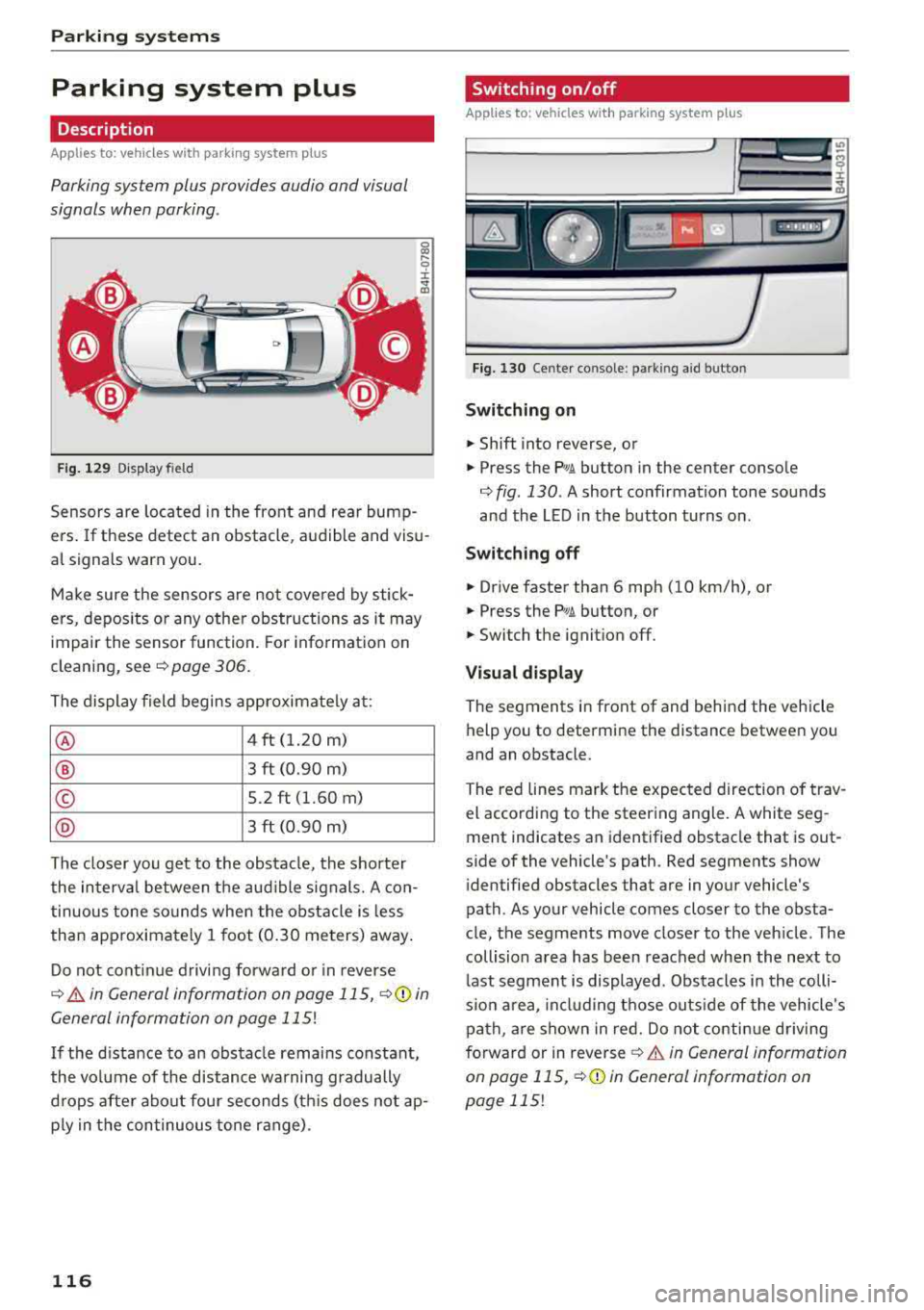
Parking system plus provides audio and v isual
signals when parking .
C>
Fig. 129 Displa y fi eld
Sensors are located in the front and rear bump
ers. If these detect an obstacle , audible and visu
al signals warn you.
Make sure the sensors are not covered by stick
ers, depos its or any other obstructions as it may
impair the sensor function. For information on
cleaning, see
c::> page 306.
The display field begins approximately at:
® 4 ft (1.20 m)
® 3 ft (0.90 m)
© 5.2 ft (1.60 m)
@ 3 ft (0.90 m)
The closer you get to the obstacle, the shorter
the interval between the audible signals. A con
tinuous tone sounds when the obstacle is less
than approximately 1 foot (0.30 meters) away.
Do not continue driving forward or in reverse
c::> & in General information on page 115, c::> ([) in
General information on page
115!
If the distance to an obstacle remains constant,
the volume of the distance warning gradually
drops after about four seconds (th is does not ap
p ly in the continuous tone range) .
116
Switching on/off
Applies to : vehicles with parking system plus
Fig. 130 Center console : par kin g aid b utto n
Switching on
.. Shift into reverse, or
.. Press the PwA button in the center console
c::> fig. 130 . A short confirmation tone sounds
and the LED in the button turns on .
Switching off
.. Drive faster than 6 mph (10 km/h), or
.. Press the PwA button, or
.. Switch the ignition off.
Visual display
The segments in front of and behind the vehicle
help you to determine the distance between you
and an obstacle .
The red lines mark the expected direction of trav
el according to the steering angle. A white seg
ment indicates an identified obstacle that is out
side of the vehicle's path . Red segments show
identified obstacles that are in your vehicle's
path. As your vehicle comes closer to the obsta
cle, the segments move closer to the vehicle . The
collision area has been reached when the next to
last segment is displayed . Obstacles in the colli
s io n area, including those outside of the vehicle 's
path , are shown in red. Do not continue driving
forward or in
reverse ¢ & in General information
on pag e 115 ,
c::>(D in General information on
page
115!
Page 120 of 356
Parking syste m s
-For objects that do not touch the ground,
such as the bumper of a parked vehicle, a
trailer hitch or the rear of a truck. Do not
use the orientation lines in this case.
- If driven from a level surface onto an in
cline, or a downward slope.
- If driven toward protruding objects.
- If the vehicle is carrying too much load in
the rear.
- The accuracy of the orientation lines and
blue surfaces decreases when the vehicle is
raised/lowered
¢ page 111.
(D Note
-Always read and follow the applicable warn
ings
¢ (D in General information on
page 115.
- The orange -colored or ientation lines in the
Infotainment display show the vehicle path based on the steering wheel angle. The
front of the vehicle swings out more than
the rear of the veh icle. Maintain p lenty of
distance so that an exterior mirror or a cor ner of the veh icle does not co llide w ith any
obstacles.
Switching on/off
Ap plies to: ve hicles w ith rearview camera
Switching on
~ Sh ift i nto reverse, or
~ P ress the p, qA bu tton in the cente r console
¢ page 116, fig . 130. A sho rt confirmat io n
tone sounds and the LED in the but ton turns
on .
Switching between the rearview camera and
optical display
~ Press t he Graphic contro l but ton ®
¢ page 118, fig. 135 to see the optica l disp lay.
~ Press the Rear view contro l button to see the
rearview camera image.
Sw itch ing off
~ D rive faster than 6 mph (10 km/h), or
~ Press the p, qA bu tton, or
~ Switch the ignition off.
118
@ Tips
- The visua l display in the left part of the dis
play should he lp you detect the crit ica l vehi-
cle areas.
- You can change the vol ume and pitch of the
signals as well as the display¢
page 125.
Perpendicular parking
App lies to : vehicles wi th rearv iew camera
This view may be used when parking in a garage
or in
a parking space.
F ig. 13 S Infota inment system: aim ing at a pa rk in g space
Fig. 1 36 Infota inment system : alig ning the vehicle
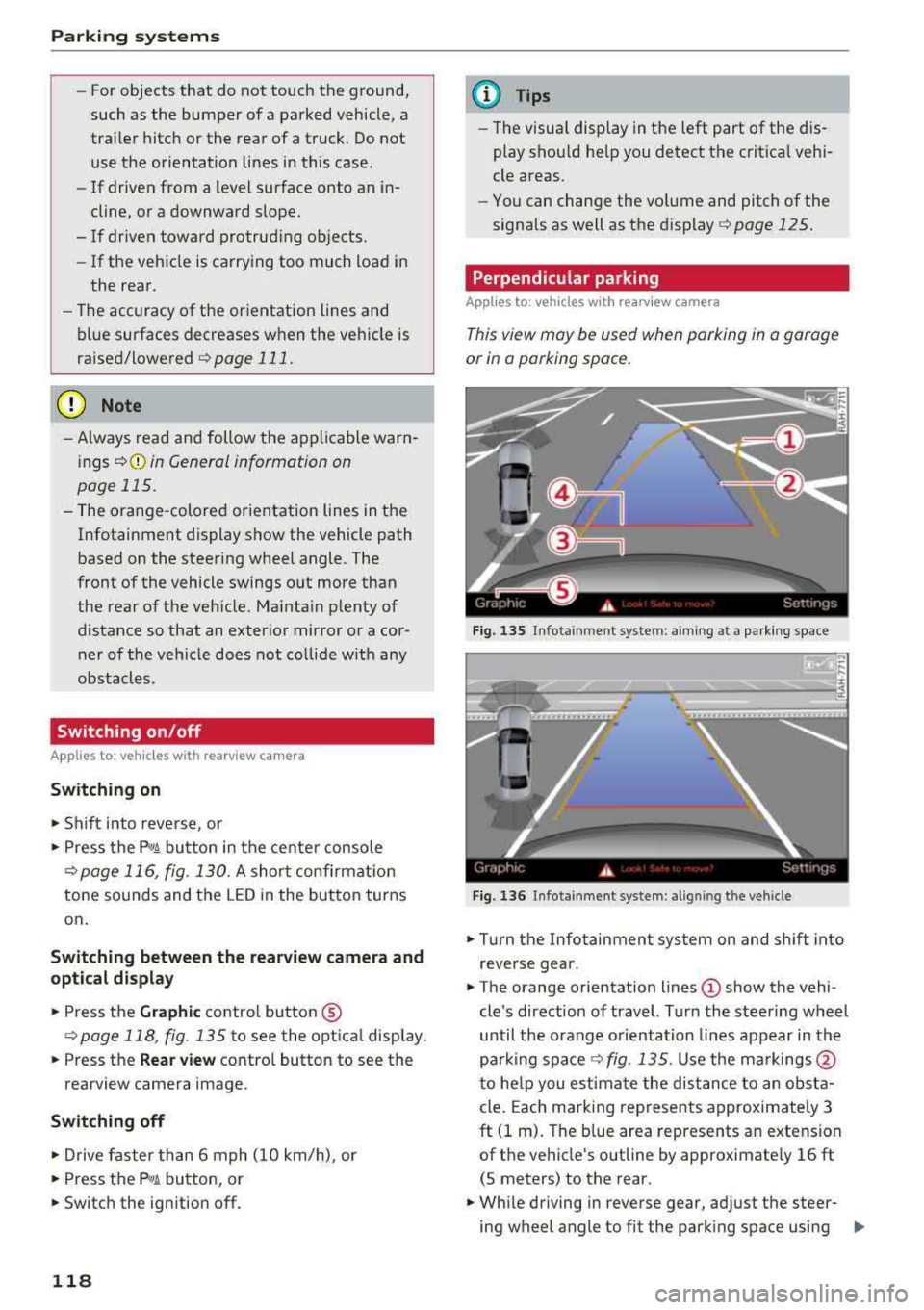
~ Turn the Infotainment system on and shift into
reverse gear.
~ The orange orie ntation lines (!) show the vehi
cle 's direction of travel. Turn the steering wheel
until the orange o rientation lines appear in th e
parking
space ¢ fig. 135. Use the ma rkings @
t o he lp you estima te the dist ance to an obsta
cle . Each marking represents approximate ly 3
ft (1 m). The b lue area represents an extension
of the vehicle's outline by approximate ly 16 ft
(5 meters) to the rear.
~ Wh ile driving in reverse gear, ad just the steer-
ing wheel angle to fit the park ing space using
..,.
Page 121 of 356
lL t:0 ....
"' ......
"' .... 0 0 :c '
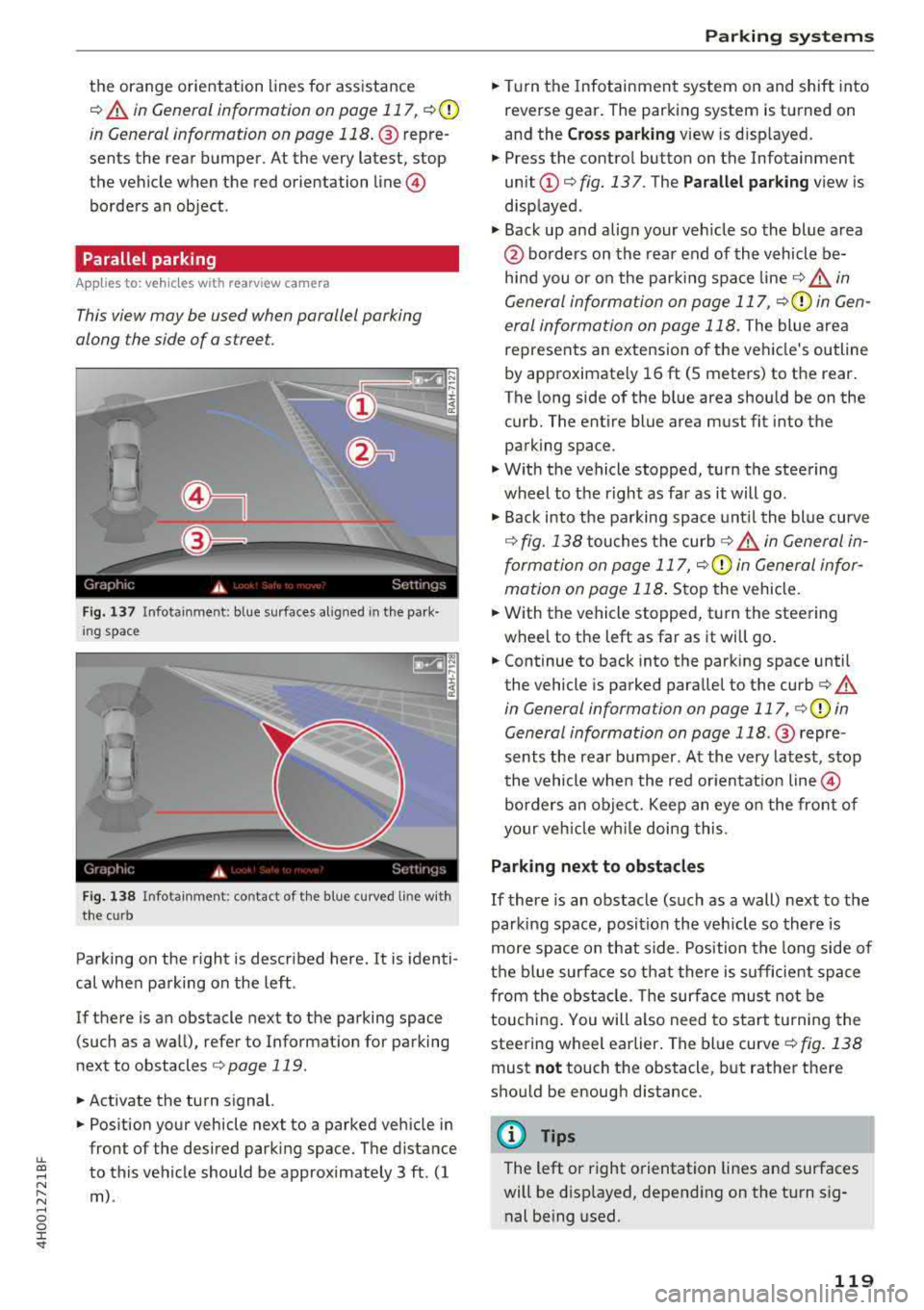
¢ A in General information on page 117, ¢(D
in General information on page 118 .@ repre
sents the rear bumper . At the very latest, stop
the vehicle when the red orientation
line @
borders an object .
Parallel parking
Applies to: veh icles with rearview camera
This view may be used when parallel parking
along the side of a stree t.
Fig . 137 In fota inment : blue surfaces alig ned in the pa rk ·
i ng space
Fi g. 138 In fo ta inm ent: c onta ct of the blue curv ed li ne with
the curb
Parking on the r ight is described here. It is identi
cal when parking on the left .
If there is an obstacle next to the parking space (such as a wall), refer to Informat ion for parking
next to obstacles
¢ page 119 .
.. Activate the turn signal.
.. Position your vehicle next to a parked veh icle in
front of the desired parking space. The d istance
to this vehicle should be approximately 3 ft . (1
m) .
Parking systems
.. T urn the Infotainment system on and shift into
reverse gear. The parking system is turned on
and the
C ros s parking view is d isp layed .
.. Press the contro l button on the Infotainment
unit @¢ fig. 137 . The Parallel parking view is
disp layed .
.. Back up and alig n your veh icle so the blue area
@ bo rders on the rear end of the vehicle be
hind you o r on the park ing spa ce
line ¢&_ in
General information on page 117,
¢ (Din Gen
eral information on page 118.
The blue area
represents an extension o f the vehicle's outline
by approximate ly 16 ft (5 meters) to the rear.
T he long side of the b lue area s hou ld be on the
curb. The entire blue area must fit into the
parking space .
.,. With the vehicle stopped, turn the steering
wheel to t he right as far as it will go .
.,. Back into the parking space unt il the blue curve
¢ fig. 138 touches the curb ¢&_ in General in
formation on page 117,
¢ (Din General infor
mation on page 118 .
Stop the vehicle .
.. With the vehicle stopped, t urn the steering
wheel to the left as far as it wi ll go .
.. Continue to back into the parking space until
the vehicle is parked parallel to the
curb ¢ A
in General informa tion on page 117, ¢ @ in
General information on page 118 .@ repre ·
sents the rear bumper. At the very latest, stop
the vehicle when the red or ien tat io n line
@
borders an object. Keep an eye o n the front of
your veh icle w hile doing this.
Parking next to obstacles
If there is an obstacle (such as a wall) next to the
parking space, position the veh icle so there is
more space on that side . Position the long side of
the b lue surfa ce so t hat there is sufficient spa ce
from the obstacle . T he su rface must not be
touchi ng . You will a lso need to s tart tu rning the
steering wheel earlier . The blue curve
¢ fig . 138
must not touch the obstacl e, b ut rather there
should be enough d istance .
(D Tips
The left or right orientation lines an d surfaces
will be disp layed, depend ing on the turn sig
nal be ing used.
119
Page 122 of 356
Parking systems
Peripheral cameras
Introduction
Applies to: ve hicles with per ipheral cameras
W ith this equipment, the parking system plus*
¢ page 116 is supplemented w ith vario us periph
eral cameras.
The four cameras g ive you the following views:
area around the vehicle, front corner view and rear corner v iew, view in front of the veh icle and
behind the vehicle.
General information
Applies to: ve hicles w ith pe ripheral cameras
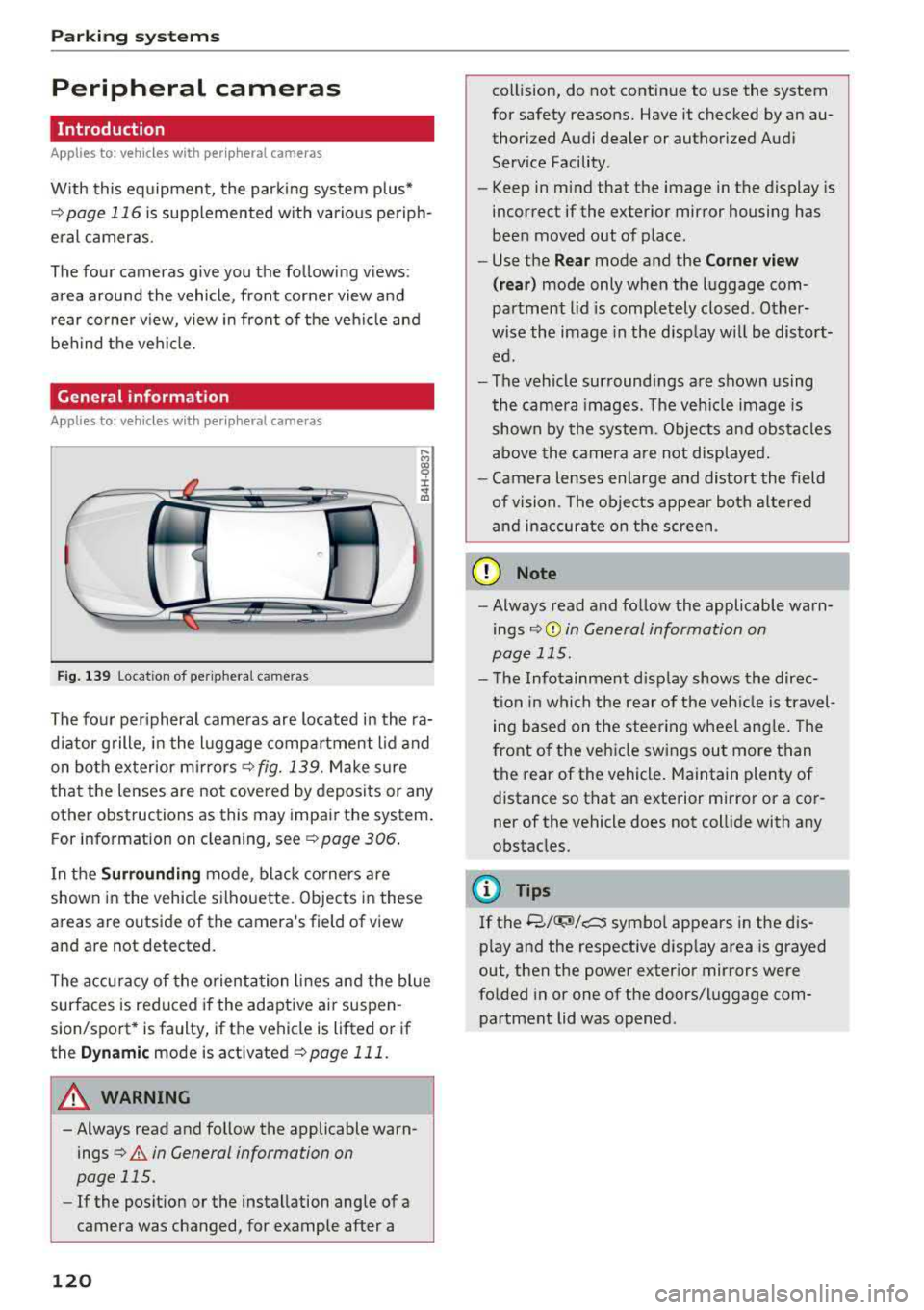
F ig. 139 Location of peripheral cameras
....
"' gg
± ., a,
The four peripheral cameras are located in the ra
d iator grille, in the luggage compartment lid and
on both exterior mirrors¢
fig. 139. Make sure
that the lenses are not covered by deposits or any
other obstructions as this may impair the system.
For information on cleaning, see ¢
page 306.
In the Surrounding mode, black corners are
shown in the vehicle silhouette. Objects in these
areas are outside of the camera's field of view
and are not detected.
The accuracy of the orientation lines and the blue
surfaces is reduced if the adaptive ai r suspen
sion/sport* is faulty, if the vehicle is lifted or if
the
Dynamic mode is activated ¢ page 111.
A WARNING
-Always read and follow the applicable warn
ings
¢&. in General information on
page 115.
-If the position or the installation angle of a
camera was changed, for example after a
120
collision, do not continue to use the system
for safety reasons. Have it checked by an au thorized Audi dealer or authorized Audi
Service Facility .
- Keep in mind that the image in the display is
incorrect if the exterior mirror housing has
been moved out of place.
- Use the
Rear mode and the Corner view
( rear)
mode only when the luggage com
partment lid is completely closed . Other
wise the image in the disp lay w ill be distort
ed.
- The vehicle surroundings are shown using
the camera images. The vehicle image is
shown by the system. Objects and obstacles
above the camera are not displayed .
- Camera lenses enlarge and distort the field
of vision. The objects appear both altered
and inaccurate on the screen.
(D Note
-Always read and follow the applicable warn
ings
¢ (Din General information on
page 115.
-The Infotainment disp lay shows the direc
tion in which the rear of the veh icle is travel
ing based on the steer ing wheel angle. The
front of the veh icle swings out more than
the rear of the vehicle. Maintain plenty of
distance so that an exterior mirror or a cor
ner of the vehicle does not collide with any
obstacles.
@ Tips
If
the 8/IT;M/c:5 symbol appears in the dis
play and the respective disp lay area is grayed
out, then the power exterior mirrors were
folded in or one of the doors/luggage com
partment lid was opened .
Page 123 of 356
lL t:0 ....
"' " "' .... 0 0 :c '
Applies to: ve hicles with per ip heral came ras
F ig. 140 Center console: f'w! but ton
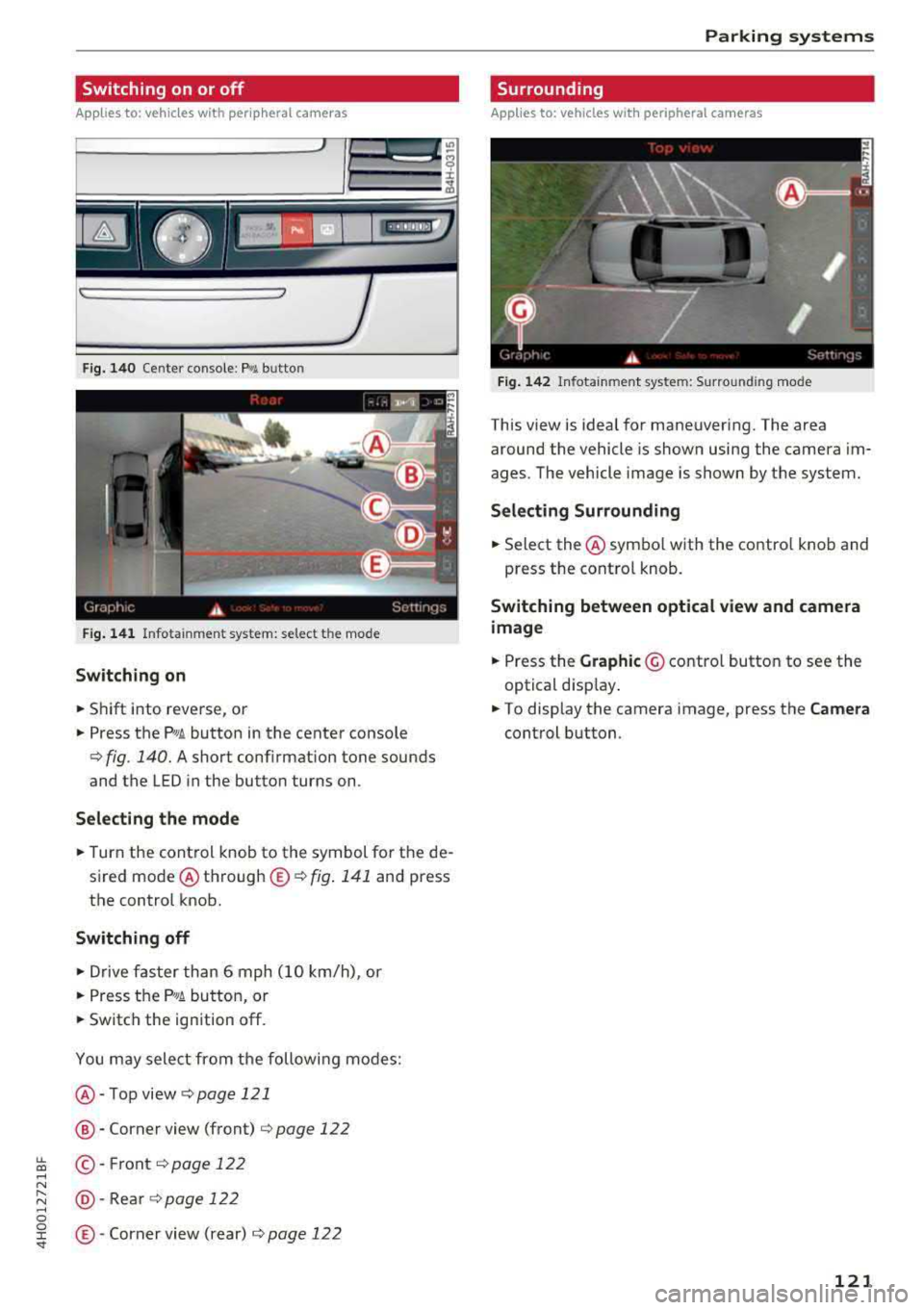
Fig. 141 Infotainment system: select the mode
Switching on
.,. Shift into reverse, or
.,. Press the P"'A button in the center console
¢ fig . 140. A short conf irmation tone sounds
and the LED in the button turns on.
Selecting the mode
.,. Turn the control knob to the symbol for the de
sired mode @ through ®
c:> fig. 141 and press
the control knob.
Switching off
.,. Drive faster than 6 mph (10 km/h), or
.,. Press the P,,1~ button, or
.,. Switch the ignition off.
You may select from the following modes:
@-Top view c:>page 121
@ -Corner view (front) c:> page 122
©-Front c;, page 122
@ -Rea r c:> page 122
®-Corner view (rear) c;, page 122
Parking systems
Surrounding
Applies to : vehicles wit h peripheral ca meras
Fig. 142 Infot ainme nt system: Surround ing mo de
This view is ideal for maneuvering. The area
around the vehicle is shown using the camera im
ages. The vehicle image is shown by the system.
Selecting Surrounding
.,. Select the @ symbo l with the contro l knob and
press the control knob.
Switching between optical view and camera
image
.,. Press the Graphic @ control button to see the
optical disp lay .
.,. To display the camera image, press the Camera
control button .
121
Page 124 of 356
Parking systems
Corner view (front)/corner view (rear)
Applies to: vehicles with peripheral cameras
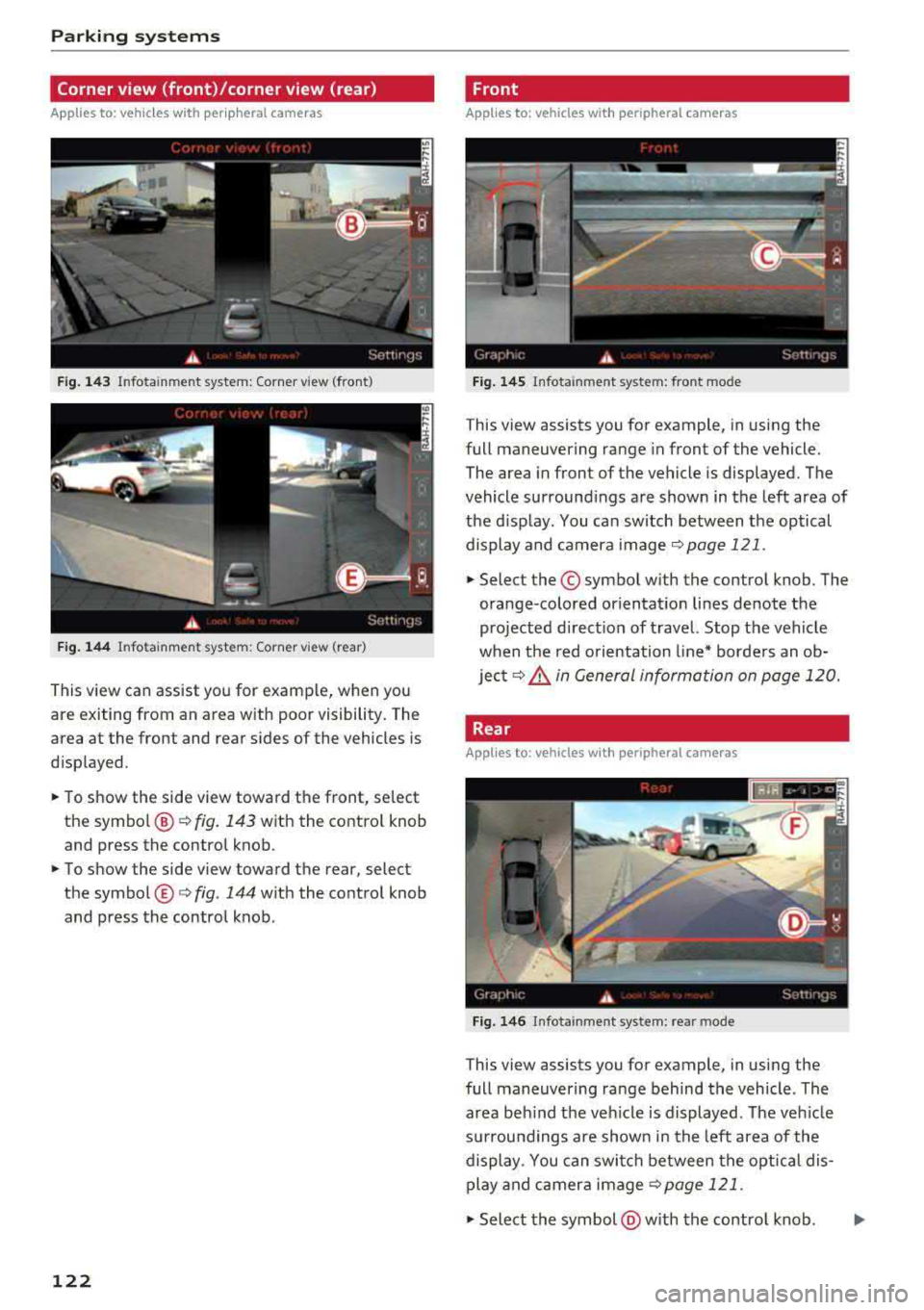
F ig . 143 Infotainment system: Corner view (front)
F ig. 144 Infotainment system: Corner view (rear)
This view can assist you for examp le, when you
are exiting from an area with poor visibility. The
area at the front and rear sides of the vehicles is
d isplayed .
.,. To show the side view toward the front, select
the symbo l@ ¢
fig. 143 with the contro l knob
and press the control knob .
.,. To show the side view toward the rear, select
the symbol ®¢
fig. 144 with the control knob
and press the control knob.
122
Front
Applies to: vehicles with peripheral cameras
Fig. 145 Infot ainment system: front mode
This view assists you for example, in using the
full maneuvering range in front of the vehicle.
The area in front of the vehicle is displayed. The
vehicle surround ings are shown in the left area of
the display . You can switch between the optical
display and camera image
¢page 121 .
.,. Select the© symbol with the control knob. The
orange-colored or ientat ion lines denote the
projected direct ion of travel. Stop the vehicle
when the red o rientation line* borders an ob
ject¢
8. in General information on page 120.
Rear
Applies to: vehicles with peripheral cameras
Fig. 146 Infota inmen t system: rear mode
This view assists you for example, in using the
full maneuvering range behind the vehicle. The
area beh ind t he veh icle is displayed. The veh icle
s ur roundings are shown in the left area of the
display . You can switch between the optical dis
play and camera image
¢page 121 .
.,. Select the symbol @with the contro l knob. ..,.
Page 125 of 356
lL t:0 ....
"" ......
"" .... 0 0 :c '
this mode.
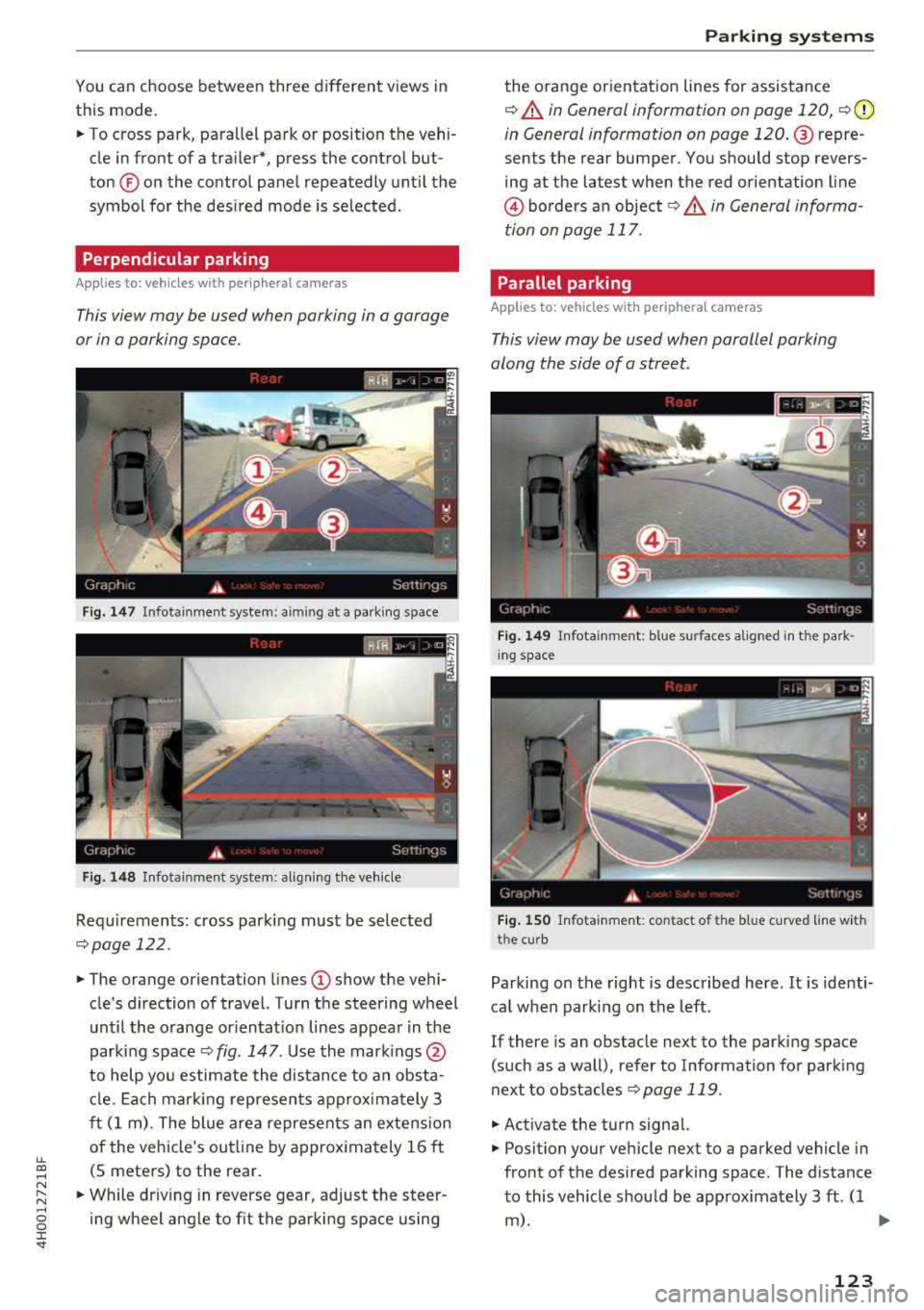
.,. To cross park, parallel park or position the vehi
cle in front of a tra iler*, press the control but
ton ® on the control panel repeatedly unt il the
symbol for the des ired mode is selected .
Perpendicular parking
Applies to: vehicles with peripheral cameras
This view may be used when parking in a garage
or in a parking space .
Fig . 1 47 In fota inmen t system: aiming at a pa rking s pace
Fig. 1 48 In fot ainm en t system : align ing t he vehicle
Requ irements: cross park ing must be selected
q page 122 .
.,. The orange orientation lines (I) show the vehi
cle's direction of travel. Turn the steering wheel
unt il the orange or ientat io n lines appear in t he
parking space
q fig . 147 . Use the mark ings @
to help yo u estimate the distance to an obsta
cl e. Ea ch mar king represen ts approx imately 3
ft (1 m) . The blue are a represents an extens ion
of the vehicle's outl ine by approx imately 16 ft
(S meters) to the rear.
.,. While dr iv ing in reverse gear, adjust the steer
ing wheel ang le to fit the parking space using
Parking systems
the orange orientat ion lines for assistance
q &. in General information on page 120, q (D
in G eneral information on page 120 . @repre
sents the rear bumper. You should stop revers
ing at the la test when the red orientation line
@ borders an object ¢&. in General informa
tion on page 117 .
Parallel parking
Applies to: vehicles with peripheral cameras
This view may be used when parallel parking
along the side of a street.
F ig. 149 In fota inment : blue s urfaces a lig ned i n th e pa rk ·
i ng space
Fi g. 1 50 Info tainment: con tac t of th e blu e curved line w ith
t he cu rb
Parking on the right is described here . It is identi·
ca l when parking on the left.
If there is an obstacle next to the parking space
(such as a wall), refer to Information for parking
next to obstacles
q page 119 .
.,. Activate the turn signal.
.,. Position your vehicle next to a parked vehicle in
front of the des ired parking space. The distance
to this vehicle shou ld be approximately 3 ft . (1
m). ..,.
123
Page 126 of 356
Parking systems
,.. Turn the Infotainment system on and shift into
reverse gear. The parking system is turned on
and the
Cross parking view is displayed.
,.. Press the control button on the Infotainment
unit @ Q page 119, fig . 13 7. The Parallel park
ing
view is displayed .
,.. Back up and align your vehicle so the blue area
@ borders on the rear end of the vehicle be
hind yo u or on the parking space line
Q .&. in
General information on page 120,
Q (Q) in Gen
eral information on page 120 .
The blue area
rep resents an extension of the vehicle's out line
by approximately 16 ft (5 meters) to the rear.
The long s ide of the blue area should be on the
curb . The entire blue area must f it into the
parking space.
,.. With the vehicle stopped, turn the steering
wheel to the right as far as it w ill go .
,.. Back into the parking space until the b lue curve
Q fig. 150 touches the curb-=?.&. in General in
formation on page 120, ¢@ in General infor
mation on page 120.
Stop the vehicle .
,.. With the vehicle stopped, turn the steering
whee l to the left as far as it will go.
,.. Continue to back into the parking space until
the vehicle is parked parallel to the
curb¢ &.
in General information on page 120, ¢@ in
General information on page 120 .
® repre
sents the rear bumper. At the very latest, stop
the vehicle when the red orientation
line ©
borde rs an object . Keep an eye on the front of
your vehicle while doing this.
Parking next to obstacles
If there is an obstacle (such as a wall) next to the
parking space, position the vehicle so there is
mo re space on that side. Position the long side of
the blue area so that there is sufficient space
from the object. The area must not be on the
ob
stacle. You will a lso need to start turning the
steering whee l earlier. The blue curve
¢ page 119, fig . 138 must not touch the obsta
cle , but rather there should be enough distance.
@ Tips
The left or right orientation lines and surfaces
will be displayed, depending on the turn
sig
nal being used.
124
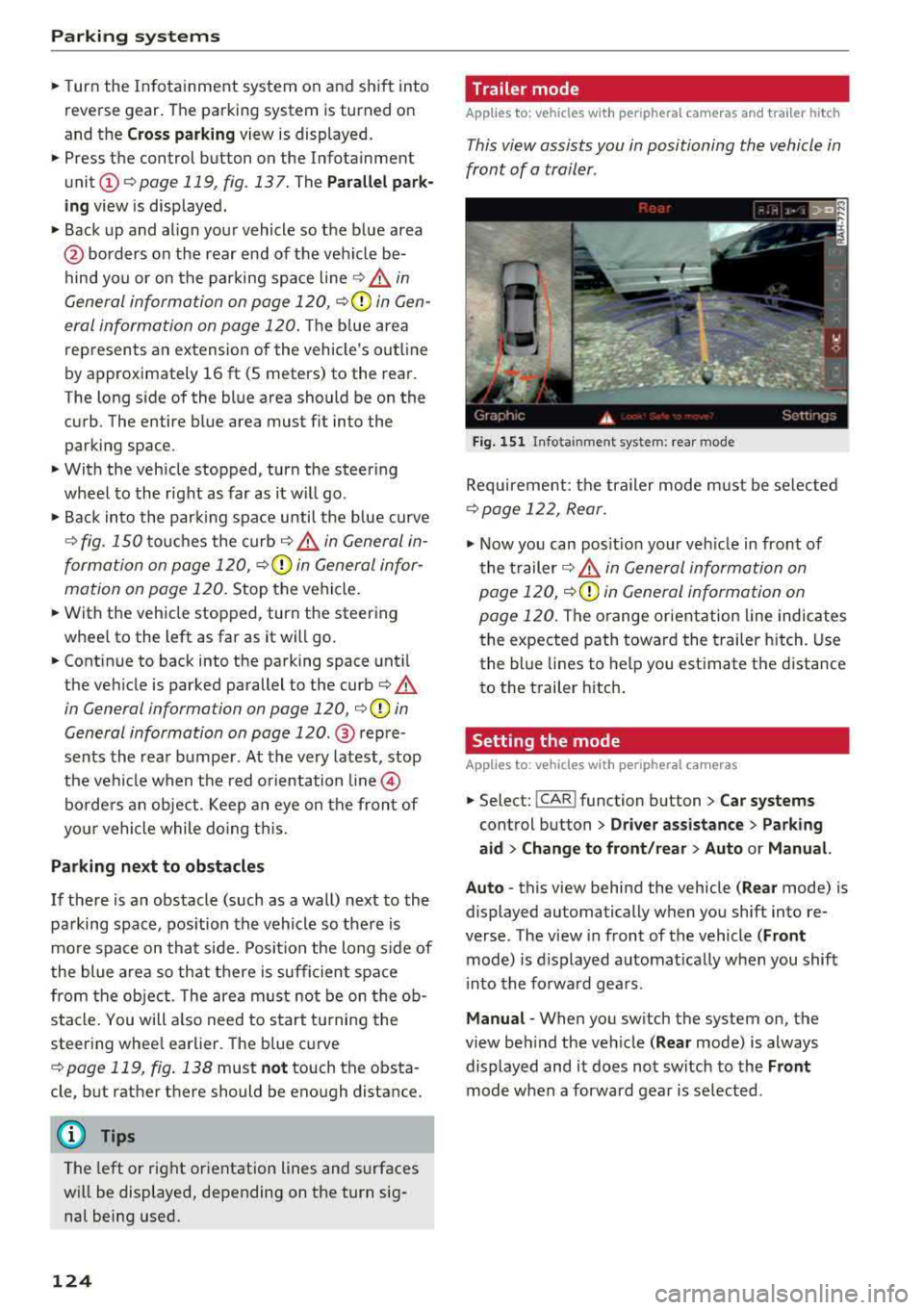
Trailer mode
Applies to: vehicles with peripheral cameras and trailer hitch
This view assists you in positioning the vehicle in
front of a trailer .
Fig. 151 In fota inment system: rear mode
Requirement: the trailer mode must be selected
¢ page 122, Rear.
.,. Now you can posit ion your veh icle in front of
the trailer
c::;, .&. in General information on
page 120,
c::;, (Q) in General information on
page 120.
The orange or ientation line indicates
the expected path toward the trailer hitch. Use
the blue lines to help you estimate the d istance
to the trailer hitch.
Setting the mode
Applies to : vehicles with peripheral cameras
,.. Select: !CAR ! function button> Car systems
control button > Driver assistance > Parking
aid > Change to front/rear > Auto or Manual.
Auto
-this view behind the vehicle ( Rear mode) is
displayed automatically when you shift into re
verse. The view in front of the vehicle
(Front
mode) is d isplayed automat ically when you shift
i nto the forward gears .
Manual -When you switch the system on, the
view beh ind the veh icle
( Rear mode) is always
displayed and it does not switch to the
Front
mode when a forward gear is se lected.