change wheel AUDI A8 2020 User Guide
[x] Cancel search | Manufacturer: AUDI, Model Year: 2020, Model line: A8, Model: AUDI A8 2020Pages: 360, PDF Size: 95.38 MB
Page 177 of 360

4N0012721BD
Driver assistance
— The driver's hands are not on the steering
wheel
Steering intervention request
If no steering activity is detected or the steering
power is not sufficient, the driver steering inter-
vention request will alert the driver using audio
and visual signals. Take over the steering and
keep your hands on the steering wheel so that
you will be ready to steer at any time. The system
will become inactive after a short time and will
only be active again later.
If the driver does not take over steering, adaptive
cruise assist will be canceled. If the vehicle is
equipped with emergency assist and it is ready to
function, it will be activated > page 190.
ZA WARNING
Follow the safety precautions and note the
limits of the assist systems, sensors, and
cameras > page 154.
@ Tips
— Always keep your hands on the steering
wheel. The driver is always responsible for
adhering to the regulations applicable in
the country where the vehicle is being oper-
ated.
— It is recommended to only switch on lane
guidance on well-constructed roads.
— Certain settings are stored automatically in
the active personal profile.
—The & fig. 131 button switches lane guid-
ance availability and the lane departure
warning on or off simultaneously, if lane
guidance is preset in the adaptive cruise as-
sist settings.
Setting the distance
Applies to: vehicles with adaptive cruise assist
B4M-0234
Fig. 132 Operating lever: setting the distance
If you adjust the speed, you must also change the
time gap to the vehicle driving ahead. The higher
the speed, the greater the distance that is need-
ed.
> Tap the rocker switch to display the distance
that is currently set.
> To increase or decrease the distance in incre-
ments, tap the switch again toward G) or ().
The newly-set distance will be shown briefly, for
example with the indicator light. In the Driv-
er assistance display, a graphic display is shown
instead of the indicator lights > page 172,
fig. 128. The display matches the functions of
the indicator lights.
When approaching a vehicle driving ahead, the
adaptive cruise assist brakes to the set speed and
then maintains the set distance. If the vehicle
driving ahead accelerates, then the adaptive
cruise assist will also accelerate up to the speed
that you have set.
The following distances can be set:
175
Page 182 of 360

Driver assistance
Lane departure warning
(erreur laced)
Applies to: vehicles with lane departure warning
The lane departure warning can detect lane
marker lines within the limits of the system. If
you are approaching a detected lane marker and
it appears likely that you will leave the lane, the
system can warn you with corrective steering and
a steering wheel vibration, if necessary.
The system functions in the speed range of ap-
proximately 40 mph - 155 mph (65 km/h -
250 km/h).
Applies to: vehicles with lane departure warning
and without side assist: The system will not warn
you before crossing a lane marker line if you have
activated the turn signal. In this case, it assumes
that you are changing lanes intentionally.
Applies to: vehicles with lane departure warning
combined with side assist: A noticeable corrective
steering movement will occur briefly before the
vehicle exits the lane if the turn signal is activat-
ed, the lane departure warning is ready, anda
lane change has been classified as critical by the
system due to vehicles traveling beside you or
due to approaching vehicles. This will attempt to
keep your vehicle in the lane.
ZA\ WARNING
Follow the safety precautions and note the
limits of the assist systems, sensors, and
cameras > page 154.
YD In certain countries
180
Applies to: vehicles with lane departure warning
B8V-0692
Fig. 138 Turn signal lever: switching the lane departure
warning on and off
RAZ-0107
Fig. 139 Instrument cluster: driver assistance display
Switching the lane departure warning on and
off
The lane departure warning switches on auto-
matically once the ignition is switched on )).
> To switch the system on or off, press the button
> fig. 138. The respective indicator light in the
instrument cluster will turn off or on.
Display and warning
The availability and readiness to provide warn-
ings will be indicated with the HL Hi indicator
lights.
Corrective steering will be indicated with the Hi
indicator light. If the lane departure warning
must intervene for a long period of time, a mes-
sage will request the driver to drive in the center
of the lane.
You can also open the Driver assistance display in
the on-board computer > page 16. The display
matches the functions of the indicator lights. >
Page 228 of 360

Navigation
— Applies to: Audi tablet: Follow the safety
precautions > page 29, Rear Seat Entertain-
ment (Audi tablet).
@) Note
Read the information about Audi connect, and
be sure to note the connectivity costs section
>@ in General information on page 216.
G) Tips
— Snow and obstructions on the GPS antenna
or trees and large buildings can impair sat-
ellite reception and affect the system's abil-
ity to determine the vehicle position. Sever-
al deactivated or malfunctioning satellites
can also interrupt GPS reception and affect
the system's ability to determine the vehicle
position.
— Because street names sometimes change,
the names stored in the MMI may in rare
cases differ from the actual street name.
— Applies to: Multifunction steering wheel:
Depending on the selected function, it may
be necessary to use the upper display.
— Applies to: vehicles with Audi connect Info-
tainment: Other services may be available
depending on the country and vehicle equip-
ment.
— An additional indicator will appear in the
head-up display.
myAudi navigation
Applies to: vehicles with Audi connect Infotainment
MMI navigation works seamlessly with the myAu-
di app.
Your destinations (favorites, last destinations)
are synchronized through your myAudi account.
All top destinations are available in the vehicle
and in the myAudi app.
To download the destinations automatically into
the vehicle, we recommend linking the access da-
ta from your myAudi account to your personal
profile > page 41.
226
myAudi navigation functions:
— You can send destinations and routes from the
myAudi app to the vehicle > page 229.
— Active route guidance in the myAudi app can be
continued in the MMI.
— Depending on the situation, it may be possible
to continue active route guidance from the MMI
in the myAudi app to continue navigating to the
destination after leaving the vehicle.
@) Note
Read the information about Audi connect, and
be sure to note the connectivity costs section
=@ in General information on page 216.
Entering a destination
Select destination
Applies to: vehicles with navigation system
Select destination
a ©)
Intelligent Last
Pec eerie Cesc
Yee
fp |
ees
Fig. 161 Upper display: Select destination menu
o
a a
C.
Opening a menu
Applies to: MMI
> Press NAVIGATION on the home screen.
> If the map is displayed, press 88 @) > page 225,
fig. 160.
The following functions are available > fig. 161:
@ Intelligent search .............. 227
@ Entering anaddress ............ 227
@® Last destinations .............. 228
(@)i Favorites! «cox « : cacy ss ewe 2 2 ee 228
© POs... 22... 228
KG): Contacts: cs sees ss sues v2 woo os 229
@ Received destinations & routes . . 229
Page 230 of 360
Navigation
Route guidance will be activated and the map will
be displayed > page 231, fig. 163.
Destination entry for a street intersection
> Select: Intersection > enter a street > Start.
Loading previous destinations
Applies to: vehicles with navigation system
Your last destinations and routes can be loaded
directly as a navigation destination.
As soon as you start route guidance, the destina-
tion is automatically saved in the last destina-
tions. Your previous destinations are marked with
the © symbol.
If you have met the requirements for myAudi
navigation, your previous destinations will be
synchronized with your myAudi account
=> page 226.
Accessing previous destinations
» Applies to: MMI: Select on the home screen:
NAVIGATION > (&5) > Last destinations > select
the desired destination > Start.
> Applies to: multifunction steering wheel: Select
in the instrument cluster: Navigation tab >
button > Last destinations > desired destina-
tion.
Changing and loading a previous destination
> Applies to: MMI: Select on the home screen:
NAVIGATION > (G2) > Last destinations > Z >
>
change the address > Use address > Start.
Restore last tour
Requirement: a route with at least two stopovers
must have already been canceled.
Your last route is labeled with the © symbol.
> Applies to: MMI: Select on the home screen:
NAVIGATION > (G5) > Last destinations > Re-
store last tour. Route guidance will start imme-
diately.
Deleting previous destinations
> Applies to: MMI: Select on the home screen:
NAVIGATION > (88) > Last destinations > Z >
228
select one or more entries or Select all > Delete
> (Done).
@) Tips
The last route will be automatically deleted
from the list if you start a new route guidance
after canceling the route.
Setting a favorite as the destination
Applies to: vehicles with navigation system
You can access frequent destinations in the fa-
vorites. You can quickly and easily start route
guidance using the home address or business ad-
dress function.
Requirement: a favorite must be stored
> page 234.
> Applies to: MMI: Select on the home screen:
NAVIGATION > (68) > Favorites > select a de-
sired destination > Start. Or
> Applies to: multifunction steering wheel: Select
in the instrument cluster: Navigation tab >
button > Favorites > desired destination.
POIs (Online Points of Interest)
Applies to: vehicles with a navigation system and Audi con-
nect Infotainment
Search for points of interest such as restaurants.
If the MMI is connected to the Internet, points of
interest will be automatically included in the
search.
> Applies to: MMI: Select on the home screen:
NAVIGATION > (éa) > Points of interest.
The system always searches in the search area
that is currently selected > table on page 229.
> Searching for points of interest: enter the
name of a POI.
> Searching for a point of interest in a specific
category: Select: a category (for example, res-
taurants) > a point of interest.
> Changing the search area: Requirement: route
guidance must be active. Press (a)/2:9/B! repeat-
edly until the desired search area > table on
page 229 is selected.
Sorting points of interest
Page 241 of 360
4N0012721BD
Navigation
@) Tips
— Having the online traffic information func-
tion switched on provides the most accurate
reports of traffic situations and traffic fore-
casting. Your vehicle transmits and process-
es its anonymous, encrypted position infor-
mation at regular intervals to the traffic da-
ta provider. You can switch off data transfer
at any time > page 333.
— The online traffic information network is
not available in all countries, and the cover-
age is not nationwide.
Options and settings
Applies to: vehicles with navigation system
Context-specific functions and settings may be
available depending on the vehicle equipment.
> Press More, or
> Open a list with navigation destinations (such
as recent destinations) and press and hold an
item until the Options menu is displayed.
Storing a favorite
See > page 234.
Edit address
You can edit an address for the next destination
entry and navigate to the destination. Select: Ed-
it address > enter a street > Use address > Start.
If the address is permanently stored (for exam-
ple, in the favorites), the stored entry will not be
changed.
Change address
See > page 234, Favorites.
Entering an address
See > page 235, Contacts as navigation destina-
tions.
Change name
See > page 234, Favorites.
Weather
See > page 218, Services.
Save as a shortcut
See > page 23, Shortcuts.
Applies to: vehicles with navigation system
You can adjust the navigation system settings in
the instrument cluster and in the MMI display
separately. The settings depend on the country
and vehicle equipment.
Accessing settings
> Applies to: MMI: Select on the home screen:
NAVIGATION > ©
Accessing settings using the multifunction
steering wheel
>» Applies to: multifunction steering wheel: Select
in the instrument cluster: Navigation tab >
button.
Please note that a setting applied to the multi-
function steering wheel is only valid for the in-
strument cluster map.
Map settings
Satellite map: see > page 236.
Show range: See > page 236.
Traffic: you can display current traffic informa-
tion on the map. See > page 232, Traffic infor-
mation display on the map or map preview
— Free flow of traffic
— Traffic obstructions
— Traffic information
Map colors
— Automatic: the map display adapts to the light-
ing conditions (for example, by changing from
day to night when driving through a tunnel).
— Day or Night
Map orientation
— 2D map or 2D north: the current vehicle posi-
tion is displayed. The map is oriented in the di-
rection of travel or to the north.
— 3D map: the current vehicle position is shown
on a three-dimensional map and is oriented in
the direction of travel.
239
>
Page 257 of 360
4N0012721BD
Media
— For more information about the Audi music
interface and supported devices, check the
Audi database for mobile devices at www.
audi.com/mp3 or contact an authorized
Audi dealer or authorized Audi Service Fa-
cility.
Playing media
The following sources can be selected depending
on the vehicle equipment:
— Amazon Alexa > page 253.
-SD card > page 250.
— USB > page 254.
— DVD drive > page 251.
— Connect external device: you can connect ex-
ternal devices via Bluetooth and use the Blue-
tooth audio player > page 252, or you can con-
nect
an external device directly to the Audi mu-
sic interface > page 254.
— Connect online media > page 252.
— DVD changer > page 251.
Accessing media
Playing media files using the MMI
> Applies to: MMI: Select on the home screen:
MEDIA > Source > a source. Depending on the
connected device or online media service*, the
symbol for a source may change. The device
name may be displayed (for example: my-
Phone).
> Select a track from the categories in the media
center > page 256.
Playing media files using the multifunction
steering wheel
Requirement: a media drive must contain media
files > page 255.
> Select the Radio/Media tab using the multi-
function steering wheel.
> Turn the left thumbwheel to display the play-
list.
> To switch to a different source, press the
button.
> To select a media file or a source, turn and
press the left thumbwheel.
> To switch between radio and media, select the
button > Switch to radio/Switch to media.
Playing media files using the Rear Seat
Remote
Applies to: vehicles with Rear Seat Remote
Requirement: the Rear Seat Remote must be con-
nected to the MMI > page 27.
> Applies to: Rear Seat Remote: Press MEDIA on
the home screen.
Operation of the available media functions with
the Rear Seat Remote is very similar to operation
in the MMI > page 258.
Playing media files using the Audi tablet
Applies to: Vehicles with Audi tablet
Requirement: the Audi tablet must be connected
to the MMI & page 34.
> Applies to: Audi tablet: Press MEDIA on the
home screen.
If a media source is available in the MMI and is
supported by the Audi tablet, it can be selected
as the media source. Operation of available me-
dia functions in the Audi tablet is very similar to
operation in the MMI => page 258.
Audi tablet media source
Requirement: media files must be stored on the
SD card in the Audi tablet or on the internal flash
drive.
> Applies to: Audi tablet: Select on the home
screen: MEDIA > Source > Local media source.
> Select a title from the media center
=> page 256.
Playlists in the Audi tablet media source
> Applies to: Audi tablet: Select on the home
screen: MEDIA > Source > Local media source >
Playlists.
> Creating a new playlist: select: Z > Create
new playlist > enter a name > Create.
> Renaming a playlist: select: Z > 7 > entera
name > Save.
> Deleting a playlist: select: Z > (I.
255
Page 258 of 360
Media
> Adding files to a playlist: press on a song or an
album until the Options menu is displayed. Se-
lect: Add to playlist > select a list > Add.
> Playing a playlist: select: a playlist > a song.
ZX WARNING
Note the safety precautions > page 25, Rear
Seat Remote and > page 29, Rear Seat Enter-
tainment (Audi tablet).
@) Tips
— For safety reasons, the video image is only
displayed when the vehicle is stationary. On-
ly the sound from the video plays while driv-
ing.
— Applies to: Multifunction steering wheel:
Depending on the selected function, it may
be necessary to use the MMI.
— Applies to: Audi tablet
— Transferring video files from the MMI to
the Audi tablet is not available in all coun-
tries.
— Transferring video files from MMI to the
Audi tablet is only possible under the fol-
lowing circumstances for vehicles without
a navigation system: The embedded SIM
card in the vehicle must be registered in
the mobile phone network > page 216.
Make sure the function > page 211, Turn
on car phone or data module is switched
on.
— The file formats supported by the Audi
tablet may differ from the MMI. A mes-
sage will appear if you attempt to play a
file format that is not supported.
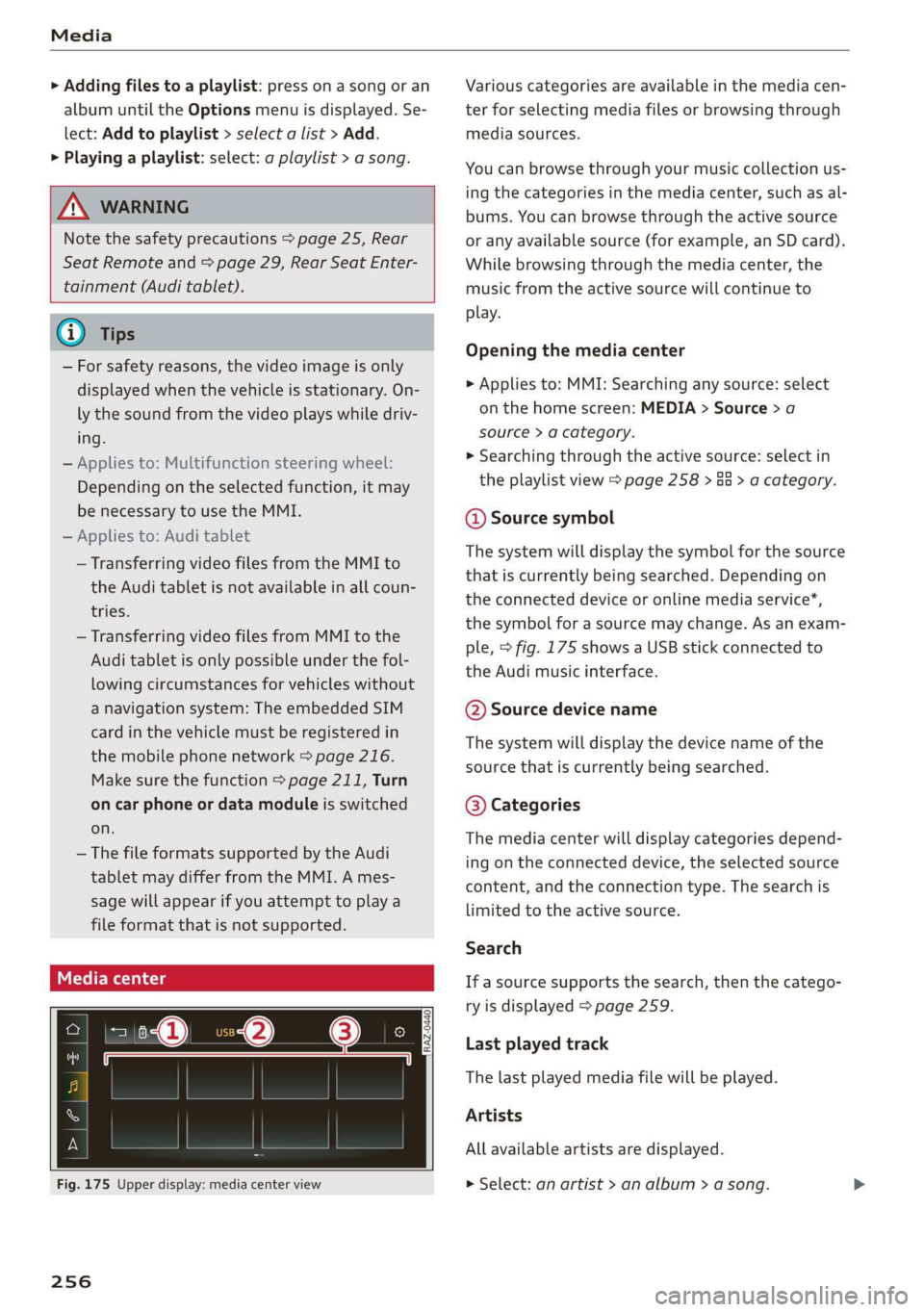
Fig. 175 Upper display: media center view
256
Various categories are available in the media cen-
ter for selecting media files or browsing through
media sources.
You can browse through your music collection us-
ing the categories in the media center, such as al-
bums. You can browse through the active source
or any available source (for example, an SD card).
While browsing through the media center, the
music from the active source will continue to
play.
Opening the media center
> Applies to: MMI: Searching any source: select
on the home screen: MEDIA > Source > a
source > a category.
» Searching through the active source: select in
the playlist view > page 258 > Ga > a category.
@ Source symbol
The system will display the symbol for the source
that is currently being searched. Depending on
the connected device or online media service*,
the symbol for a source may change. As an exam-
ple, > fig. 175 shows a USB stick connected to
the Audi music interface.
©@ Source device name
The system will display the device name of the
source that is currently being searched.
@® Categories
The media center will display categories depend-
ing on the connected device, the selected source
content, and the connection type. The search is
limited to the active source.
Search
If a source supports the search, then the catego-
ry is displayed > page 259.
Last played track
The last played media file will be played.
Artists
All available artists are displayed.
> Select: an artist > an album > a song.
Page 296 of 360

Wheels
Production options weight
means the combined weight of
those installed regular production
options weighing over 5 lbs.
(2.3 kg) in excess of those stand-
ard items which they replace, not
previously considered in curb
weight or accessory weight, in-
cluding heavy duty brakes, ride
levelers, roof rack, heavy duty
battery, and special trim.
Radial ply tire
means a pneumatic tire in which
the ply cords that extend to the
beads are laid at substantially
90 degrees to the centerline of
the tread.
Recommended inflation
pressure
see > page 292, Cold tire infla-
tion pressure.
Reinforced tire
means a tire designed to operate
at higher loads and at higher in-
flation pressures than the corre-
sponding standard tire. Rein-
forced tires may be identified as
“XL”, “xl”, “EXTRA LOAD”, or “RF”
on the sidewall.
294
Rim
means a metal support for a tire
ora tire and tube assembly upon
which the tire beads are seated.
Rim diameter
means nominal diameter of the
bead seat. If you change your
wheel size, you will have to pur-
chase new tires to match the new
rim diameter.
Rim size designation
means rim diameter and width.
Rim width
means nominal distance between
rim flanges.
Sidewall
means that portion of a tire be-
tween the tread and bead.
Speed rating (letter code)
means the speed at which a tire is
designed to be driven for extend-
ed periods of time. The ratings
range from 93 mph (150 km/h)
to 186 mph (298 km/h) > table
on page 290. You may not find
this information on all tires be-
cause it is not required by law.
The speed rating letter code,
where applicable, is molded on
the tire sidewall and indicates the >
Page 302 of 360
Wheels
Checking and correcting tire
pressure
>Check the tire pressure at least
once per month and also check it
before every long drive.
> Always check the tire pressure
when the tires are cold. Do not
reduce the pressure if it increas-
es when the tires are warm.
>Refer to the sticker > fig. 192
for the correct tire pressure.
>Correct the tire pressure if nec-
essary.
>Store the new tire pressure in
the MMI & page 308.
> Check the pressure in the spare
tire*. Always maintain the maxi-
mum temperature that is speci-
fied for the tire.
and follow the important safe-
ty precautions in > page 301.
—The tire must flex more if the
tire pressure is too low or if
the vehicle speed or load are
too high. This heats the tire up
too much. This increases the
risk of an accident because it
can cause the tire to burst and
result in loss of vehicle con-
trol.
—Incorrect tire pressure increas-
es tire wear and has a negative
effect on driving and braking
behavior, which increases the
risk of an accident.
Z\ WARNING
Always adapt the tire pressure
to your driving style and the ve-
hicle load.
—Overloading can lead to loss of
vehicle control and increase
the risk of an accident. Read
() Note
Replace lost valve caps to re-
duce the risk of damage to the
tire valves.
©) For the sake of the envi-
ronment
Tire pressure that is too low in-
creases fuel consumption.
Ncw ee] c
Please note that the information
contained in the following table
was correct at the time of print-
ing, and the information is sub-
300
ject to change. If there are any
differences, you should always
follow the tire pressure sticker
> page 299, fig. 191.
Page 309 of 360

4N0012721BD
Wheels
AN WARNING
The traction grade assigned to this tire is
based on straight-ahead braking traction
tests, and does not include acceleration, cor-
nering, hydroplaning or peak traction charac-
teristics.
ZA\ WARNING
The temperature grade for this tire is estab-
lished for a tire that is properly inflated and
not overloaded. Excessive speed, underinfla-
tion, or excessive loading, either separately or
in combination, can cause heat buildup and
possible tire failure.
Z\ WARNING
Temperature grades apply to tires that are
properly inflated and not over or underinflat-
ed.
Tire pressure monitoring
system
(1) General notes
Each tire, including the spare (if provided),
should be checked monthly when cold and inflat-
ed to the inflation pressure recommended by the
vehicle manufacturer on the vehicle placard or
tire
inflation pressure label. (If your vehicle has
tires of a different size than the size indicated on
the vehicle placard or tire inflation pressure la-
bel, you should determine the proper tire infla-
tion pressure for those tires).
As an added safety feature, your vehicle has been
equipped with a tire pressure monitoring system
(TPMS) that illuminates a low tire pressure tell-
tale when one or more of your tires is significant-
ly under-inflated. Accordingly, when the low tire
pressure telltale illuminates, you should stop and
check your tires as soon as possible, and inflate
them to the proper pressure. Driving on a signifi-
cantly under-inflated tire causes the tire to over-
heat and can lead to tire failure. Under-inflation
also reduces fuel efficiency and tire tread life,
and may affect the vehicle's handling and stop-
ping ability.
Please note that the TPMS is not a substitute for
proper tire maintenance, and it is the driver's re-
sponsibility to maintain correct tire pressure,
even if under-inflation has not reached the level
to trigger illumination of the TPMS low tire pres-
sure telltale.
Your vehicle has also been equipped with a TPMS
malfunction indicator to indicate when the sys-
tem is not operating properly. The TPMS mal-
function indicator is combined with the low tire
pressure telltale. When the system detects a
malfunction, the telltale will flash for approxi-
mately one minute and then remain continuously
illuminated. This sequence will continue upon
subsequent vehicle start-ups as long as the mal-
function exists.
When the malfunction indicator is illuminated,
the system may not be able to detect or signal
low
tire pressure as intended. TPMS malfunctions
may occur for a variety of reasons, including the
installation of replacement or alternate tires or
wheels on the vehicle that prevent the TPMS
from functioning properly. Always check the
TPMS malfunction telltale after replacing one or
more tires or wheels on your vehicle to ensure
that the replacement or alternate tires and
wheels allow the TPMS to continue to function
properly.
ee emule Melle
appears
Applies to: vehicles with Tire Pressure Monitoring System
The tire pressure indicator in the instrument
cluster informs you if the tire pressure is too low
or if there is a system malfunction.
Using the ABS sensors, the tire pressure monitor-
ing system compares the tire tread circumference
and vibration characteristics of the individual
tires. If the pressure changes in one or more
tires, this is indicated in the instrument cluster
display with an indicator light @ and a message.
If only one tire is affected, the location of that
tire will be indicated.
The tire pressures must be stored again each
time you change the pressures (switching be-
tween partial and full load pressure) or after
307
>