park assist AUDI A8 2020 Owner's Manual
[x] Cancel search | Manufacturer: AUDI, Model Year: 2020, Model line: A8, Model: AUDI A8 2020Pages: 360, PDF Size: 95.38 MB
Page 194 of 360
Parking and maneuvering
Parking and
maneuvering
Introduction
Depending on the vehicle equipment, various
parking aids will help you when parking and ma-
neuvering.
Parking system
The parking system plus assists you while park-
ing using audio and visual signals to warn you
about objects detected in front of, behind, and at
the sides* of the vehicle > page 192.
The rearview camera shows the area behind the
vehicle in the MMI display. The lines in the rear-
view camera image help you to park and maneu-
ver > page 194.
The peripheral cameras are an addition to the
rearview camera and help you to see various
areas around the vehicle while parking and ma-
neuvering > page 194.
The rear cross-traffic assist can warn you of ap-
proaching cross traffic when driving in reverse or
exiting a parking space > page 198.
Settings options
You can adjust parking system functions individu-
ally. The adjustment options depend on the vehi-
cle equipment.
— Activating automatically > page 192
— Front and rear volume > page 193
— Entertainment fader > page 193
— Clean rearview camera > page 195
— View > page 197
— Rear cross-traffic assist > page 198
_ WARNING
Follow the safety precautions and note the
limits of the assist systems, sensors, and
cameras > page 154.
G) Tips
Practicing parking in a traffic-free location or
parking lot to become familiar with the sys-
tems is recommended. Practice parking in
good light and weather conditions.
192
Parking system plus
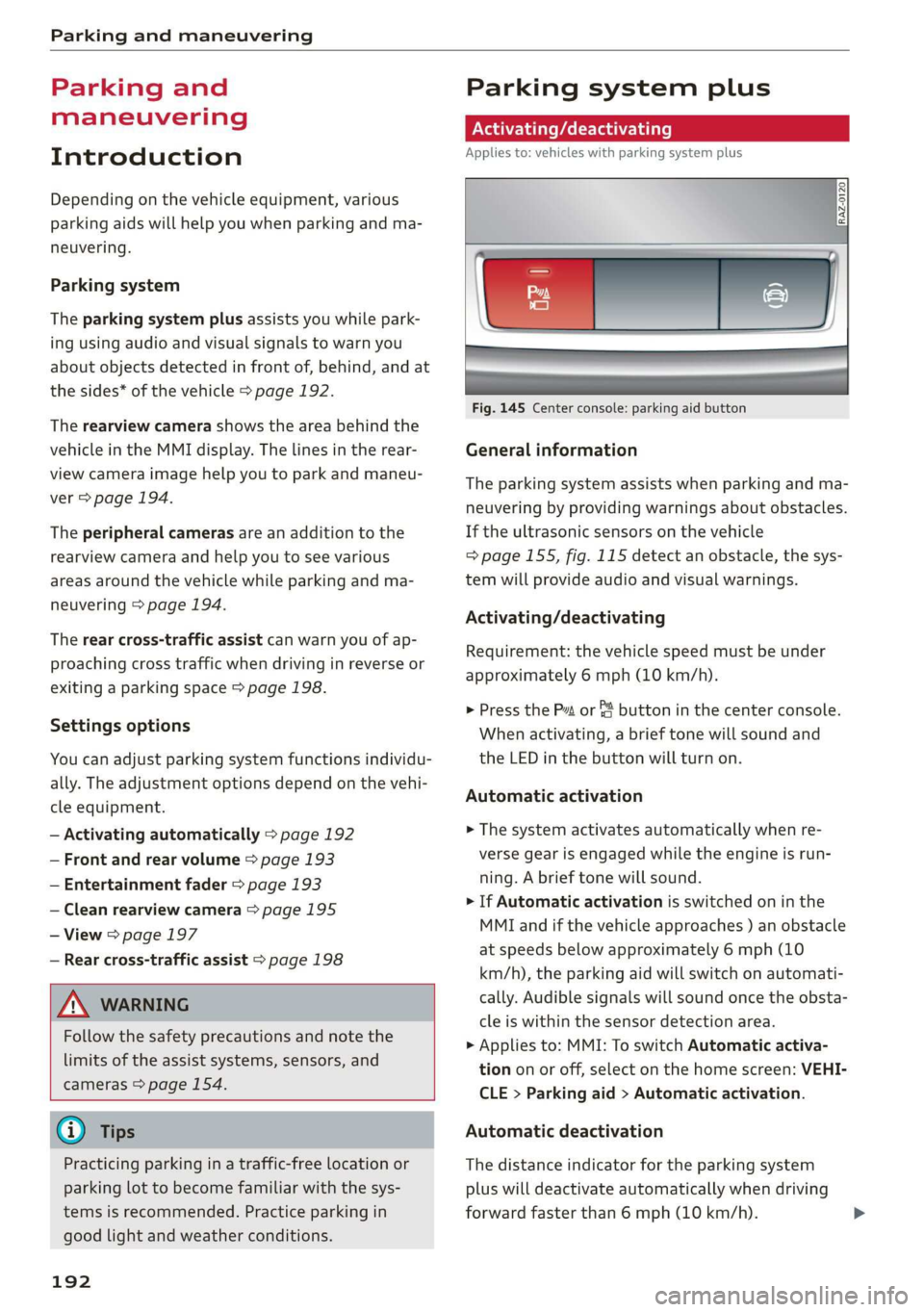
Activating/deactivating
Applies to: vehicles with parking system plus
Fig. 145 Center console: parking aid button
General information
The parking system assists when parking and ma-
neuvering by providing warnings about obstacles.
If the ultrasonic sensors on the vehicle
=> page 155, fig. 115 detect an obstacle, the sys-
tem will provide audio and visual warnings.
Activating/deactivating
Requirement: the vehicle speed must be under
approximately 6 mph (10 km/h).
> Press the Pt or & button in the center console.
When activating, a brief tone will sound and
the LED in the button will turn on.
Automatic activation
> The system activates automatically when re-
verse gear is engaged while the engine is run-
ning. A brief tone will sound.
> If Automatic activation is switched on in the
MMI and if the vehicle approaches ) an obstacle
at speeds below approximately 6 mph (10
km/h), the parking aid will switch on automati-
cally. Audible signals will sound once the obsta-
cle is within the sensor detection area.
> Applies to: MMI: To switch Automatic activa-
tion on or off, select on the home screen: VEHI-
CLE > Parking aid > Automatic activation.
Automatic deactivation
The distance indicator for the parking system
plus will deactivate automatically when driving
forward faster than 6 mph (10 km/h).
Page 195 of 360
4N0012721BD
Parking and maneuvering
ZA\ WARNING
Follow the safety precautions and note the
limits of the assist systems, sensors, and
cameras > page 154.
@) Note
Keep enough distance from the curb to avoid
damage to the rims.
@) Tips
— Certain settings are stored automatically in
the active personal profile.
— If the parking aid is deactivated, it can only
be reactivated automatically when one of
the following conditions is met:
— The vehicle speed exceeds 6 mph
(10 km/h)
— The ignition is switched off and back on
again
— The parking brake is set and then released
—The “P” gear is engaged and released
again
Applies to: vehicles with parking system plus
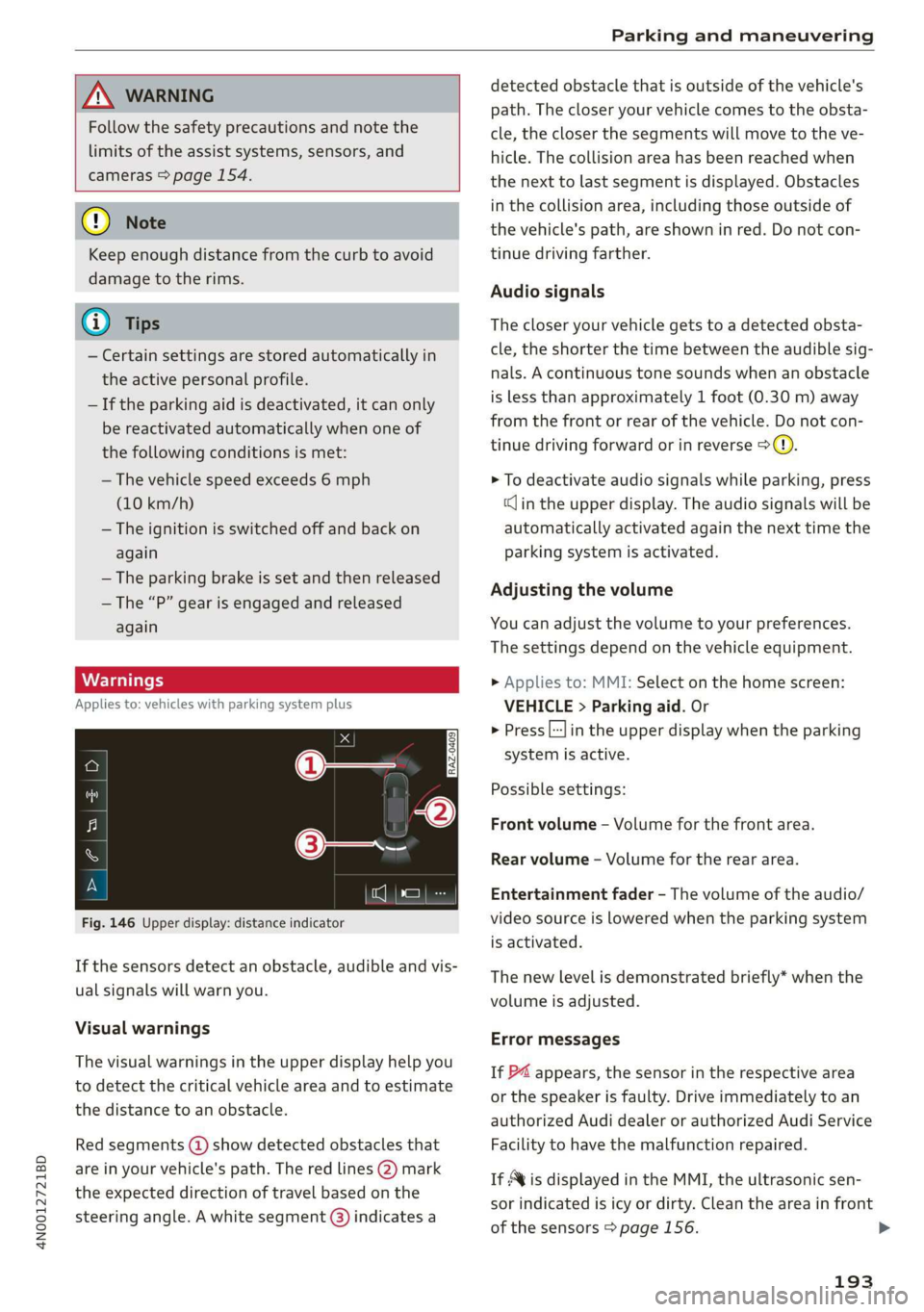
Fig. 146 Upper display: distance indicator
If the sensors detect an obstacle, audible and vis-
ual signals will warn you.
Visual warnings
The visual warnings in the upper display help you
to detect the critical vehicle area and to estimate
the distance to an obstacle.
Red segments (4) show detected obstacles that
are in your vehicle's path. The red lines (2) mark
the expected direction of travel based on the
steering angle. A white segment (3) indicates a
detected obstacle that is outside of the vehicle's
path. The closer your vehicle comes to the obsta-
cle, the closer the segments will move to the ve-
hicle. The collision area has been reached when
the next to last segment is displayed. Obstacles
in the collision area, including those outside of
the vehicle's path, are shown in red. Do not con-
tinue driving farther.
Audio signals
The closer your vehicle gets to a detected obsta-
cle, the shorter the time between the audible sig-
nals. A continuous tone sounds when an obstacle
is less than approximately 1 foot (0.30 m) away
from the front or rear of the vehicle. Do not con-
tinue driving forward or in reverse >(@).
> To deactivate audio signals while parking, press
«Jin the upper display. The audio signals will be
automatically activated again the next time the
parking system is activated.
Adjusting the volume
You can adjust the volume to your preferences.
The settings depend on the vehicle equipment.
> Applies to: MMI: Select on the home screen:
VEHICLE > Parking aid. Or
> Press |---| in the upper display when the parking
system is active.
Possible settings:
Front volume - Volume for the front area.
Rear volume - Volume for the rear area.
Entertainment fader - The volume of the audio/
video source is lowered when the parking system
is activated.
The new level is demonstrated briefly* when the
volume is adjusted.
Error messages
If P4 appears, the sensor in the respective area
or the speaker is faulty. Drive immediately to an
authorized Audi dealer or authorized Audi Service
Facility to have the malfunction repaired.
If Avis displayed in the MMI, the ultrasonic sen-
sor indicated is icy or dirty. Clean the area in front
of the sensors > page 156. >
193
Page 196 of 360
Parking and maneuvering
iffy or fa is displayed when there is a malfunc-
tion, the parking system functions may be un-
available or may be limited.
A message that indicates the cause and possible
solution may appear with some displays. The
weather conditions may be too poor or a sensor
may be covered. Clean the area in front of the
sensors > page 155, fig. 115 and try to turn on
the systems again later.
If the malfunction remains, drive to an author-
ized Audi dealer or authorized Audi Service Facili-
ty immediately to have the malfunction correct-
ed.
ZA WARNING
— Follow the safety precautions and note the
limits of the assist systems, sensors, and
cameras > page 154.
— Sensors and cameras have spots in which
the surrounding area cannot be detected.
Objects, animals, and people may only be
detected with limitations may not be detect-
ed at all. Always monitor the traffic and the
vehicle's surroundings directly and do not
become distracted.
Q Note
Keep enough distance from the curb to avoid
damage to the rims.
@) Tips
— Certain settings are stored automatically in
the active personal profile.
— If the distance to an obstacle remains con-
stant, the volume of the distance warning
gradually lowers after a few seconds until it
is muted (this does not apply to the continu-
ous tone). If the obstacle comes closer than
it was before the sound was muted, the
tone will sound again. If the obstacle be-
comes farther away than it was before the
sound was muted, no tone will sound. Pay
attention to the vehicle's surroundings
when you start to drive.
194
Rearview camera and
peripheral cameras
Introduction
Applies to: vehicles with rearview camera/peripheral cameras
B8V-0629
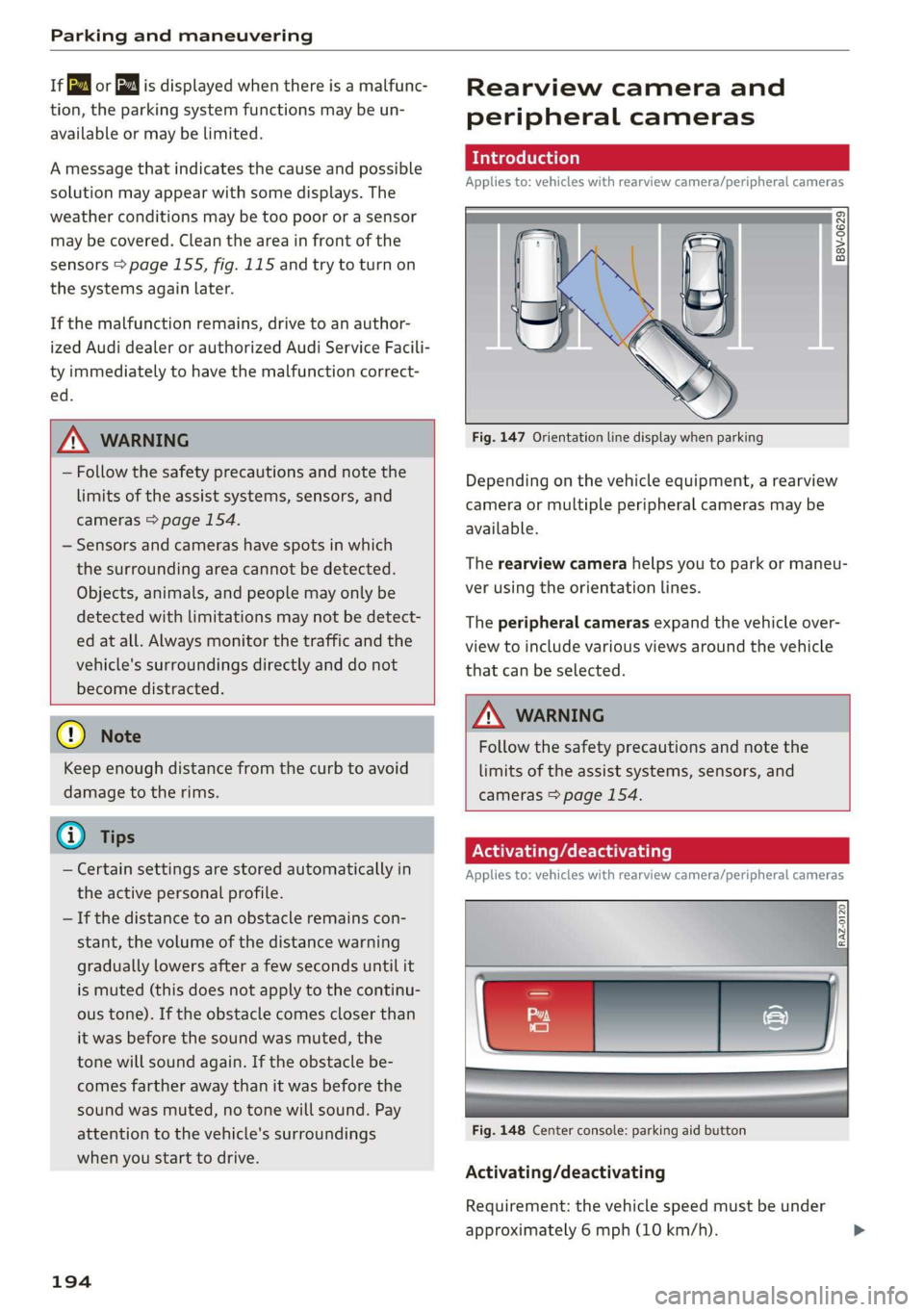
Fig. 147 Orientation line display when parking
Depending on the vehicle equipment, a rearview
camera or multiple peripheral cameras may be
available.
The rearview camera helps you to park or maneu-
ver using the orientation lines.
The peripheral cameras expand the vehicle over-
view to include various views around the vehicle
that can be selected.
A WARNING
Follow the safety precautions and note the
limits of the assist systems, sensors, and
cameras > page 154.
ONSET PAs La)
Applies to: vehicles with rearview camera/peripheral cameras
Fig. 148 Center console: parking aid button
Activating/deactivating
Requirement: the vehicle speed must be under
approximately 6 mph (10 km/h).
Page 197 of 360
4N0012721BD
Parking and maneuvering
> Press the & button in the center console. When
activating, a brief tone will sound and the LED
in the button will turn on. Or
> Press bin the upper display if the visual dis-
tance indicator is shown > page 193, fig. 146.
Automatic activation
The system activates automatically when reverse
gear is engaged while the engine is running. A
brief tone will sound.
Automatic deactivation
The system deactivates automatically when driv-
ing forward faster than 6 mph (10 km/h).
ZA WARNING
Follow the safety precautions and note the
limits of the assist systems, sensors, and
cameras > page 154.
(era Wael]
Applies to: vehicles with rearview camera/peripheral cameras
You can manually start the cleaning of the rear-
view camera. The settings depend on the vehicle
equipment.
> Select |---| > Clean rearview camera in the upper
display when the parking system is active.
Z\ WARNING
Follow the safety precautions and note the
limits of the assist systems, sensors, and
cameras > page 154.
Applies to: vehicles with rearview camera/peripheral cameras
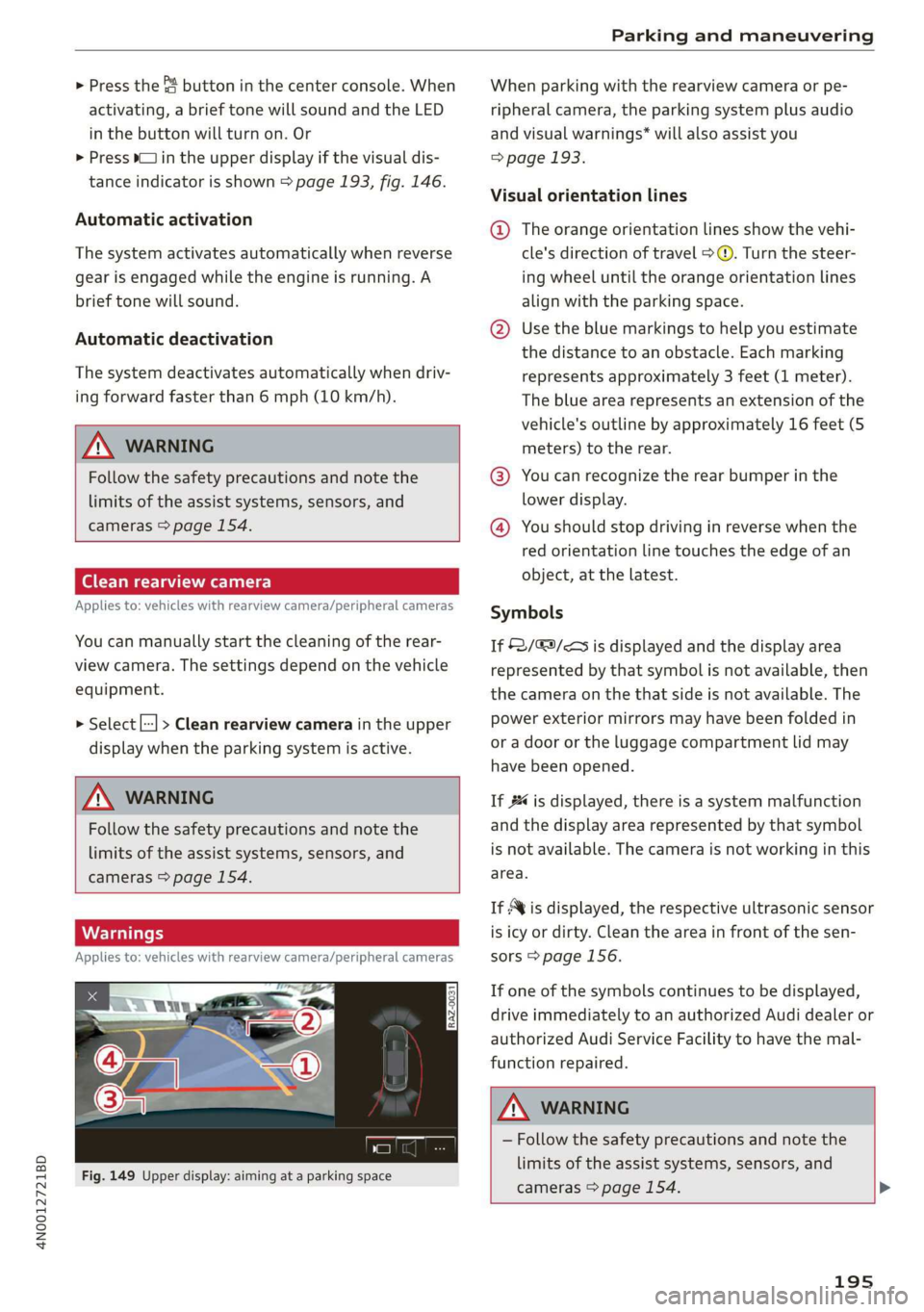
Fig. 149 Upper display: aiming at a parking space
When parking with the rearview camera or pe-
ripheral camera, the parking system plus audio
and visual warnings* will also assist you
=> page 193.
Visual orientation lines
@ The orange orientation lines show the vehi-
cle's direction of travel > ©. Turn the steer-
ing wheel until the orange orientation lines
align with the parking space.
@ Use the blue markings to help you estimate
the distance to an obstacle. Each marking
represents approximately 3 feet (1 meter).
The blue area represents an extension of the
vehicle's
outline by approximately 16 feet (5
meters) to the rear.
@® You can recognize the rear bumper in the
lower display.
@ You should stop driving in reverse when the
red orientation line touches the edge of an
object, at the latest.
Symbols
If $2/&9/< is displayed and the display area
represented by that symbol is not available, then
the camera on the that side is not available. The
power exterior mirrors may have been folded in
or a door or the luggage compartment lid may
have been opened.
If #4 is displayed, there is a system malfunction
and the display area represented by that symbol
is not available. The camera is not working in this
area.
If Avis displayed, the respective ultrasonic sensor
is icy or dirty. Clean the area in front of the sen-
sors > page 156.
If one of the symbols continues to be displayed,
drive immediately to an authorized Audi dealer or
authorized Audi Service Facility to have the mal-
function repaired.
ZA\ WARNING
— Follow the safety precautions and note the
limits of the assist systems, sensors, and
cameras > page 154. >
195
Page 199 of 360

4N0012721BD
Parking and maneuvering
> To select a 3D surroundings view, press the »G2)
symbol (@). Then select the desired 3D
surroundings view @) - @).
> To re-center the 3D surroundings, tap the cam-
era image twice.
Switching the views quickly
To switch the views quickly (for example, from
Front corner to Front):
> Tap the camera image twice. Or
> Pull two fingers apart or together in a sideways
Tilting or rotating the views
Applies to: 3D surroundings view
> To tilt or rotate the 3D surroundings, use your
finger to drag it in any direction > fig. 150, on
the right side.
> To re-center the 3D surroundings behind the
vehicle, tap the camera image twice.
motion on the camera image.
Selecting a view in the side area
Zooming in and out on the views
Applies to: surroundings and 3D surroundings views
> To zoom in or out on an area, place two fingers
on that area and push them apart or pull them
together > fig. 150, left side.
Moving the view
Applies to: surroundings and 3D surroundings views
The vehicle surroundings are shown in the side
area of the display. You can switch between a vis-
ual display (Graphic) and the vehicle surround-
ings (Camera).
> Select |--] > View in the upper display when the
parking system is active.
> To move the view, press and pull it in any direc-
tion using one finger.
Symbol/Descrip-
tion
Description
ED)
Switch between 3D surroundings and Surroundings
Front corner
or display the selec-
tion bar
This view makes it easier to drive out of tight parking spaces or areas and
intersections with poor visibility. It shows an almost 180° panorama view
in front of the vehicle.
Front
This view assists you in using the full area for maneuvering in front of the
vehicle.
Surroundings
This view helps you to maneuver and position the vehicle more precisely.
The area around the vehicle is shown using the camera images. The vehi-
cle image is shown by the system > A\.
Rear
This view assists you in using the full area for maneuvering behind the ve-
hicle. This is the rearview camera image.
Rear corner
This view can assist you when driving out of tight parking spaces or areas
with poor visibility. It shows an almost 180° panorama view behind the
vehicle.
Front tires
This view helps you to see the distance between the front tires and the
curb and the steering wheel angle when parking.
Rear tires
This view helps you to detect the distance between the rear wheels and
the curb when parking.
ef
|e|eo|
©
|o|/
e®
|e]
©
|e
3D surroundings
In these views, you can see the areas surrounding the vehicle in 3D when
parking. The vehicle surrounding views are created from the camera im-
ages and sensor data. The vehicle image is shown by the system > A\.
197
Page 200 of 360
Parking and maneuvering
A WARNING
— Follow the safety precautions and note the
limits of the assist systems, sensors, and
cameras > page 154.
— The Surroundings and 3D surroundings are
created from the individual camera images.
The vehicle image is shown by the system.
Objects and obstacles above the camera are
not displayed.
@) Note
Only use the images provided by the camera
on the rear of the vehicle when the luggage
compartment lid is completely closed. Make
sure any objects you may have mounted on
the luggage compartment lid do not block the
rearview camera.
iG) Tips
— Depending on the selected gear, it will auto-
matically switch between the Front and
Rear views. If you switch the view manually,
the automatic front/rear camera change will
be temporarily deactivated.
— When first activated while a forward gear is
engaged, the Front corner is displayed.
Rear cross-traffic assist
Applies to: vehicles with rear cross-traffic assist
7]
s
g
= = a
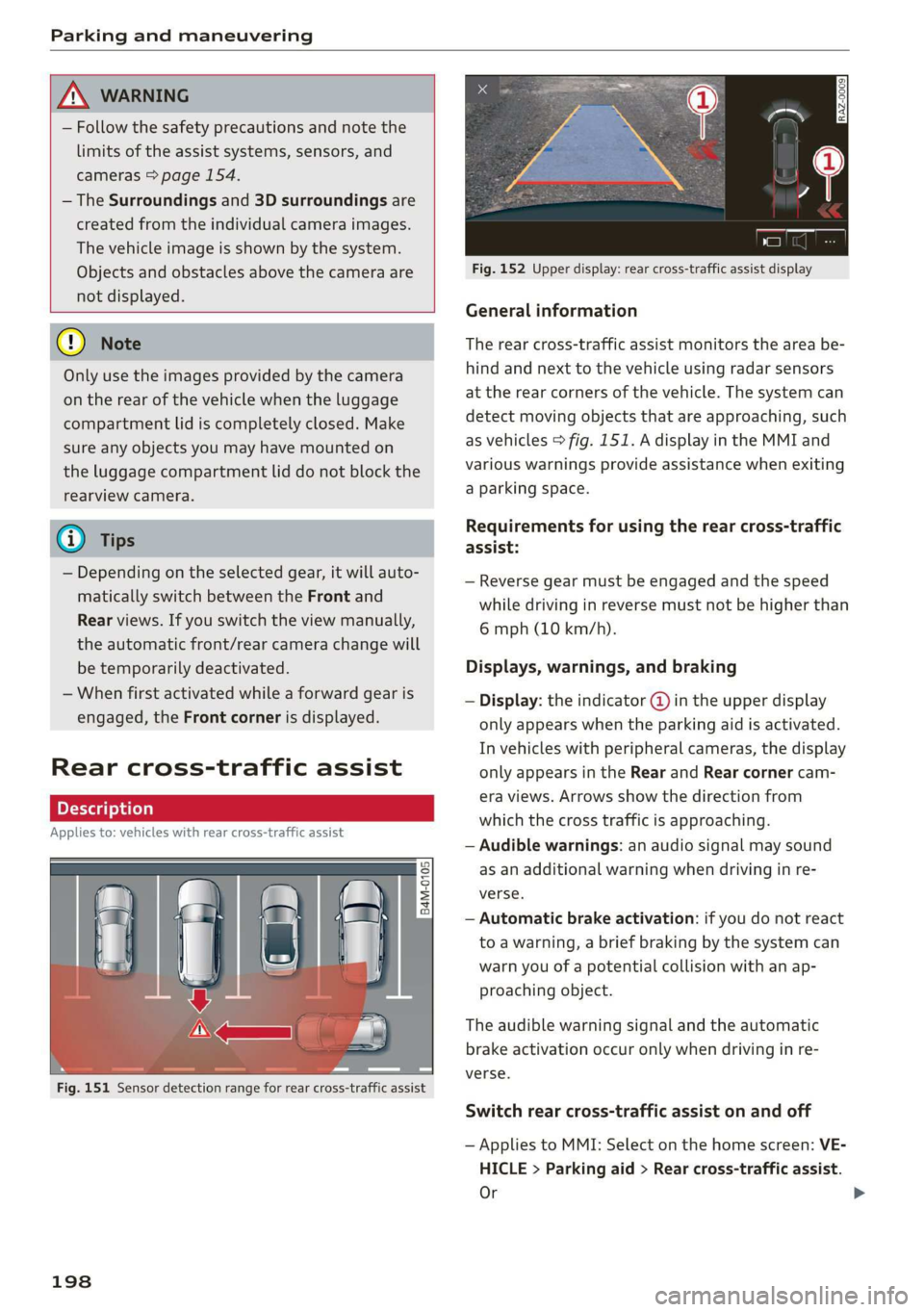
Fig. 151 Sensor detection range for rear cross-traffic assist
198
Fig. 152 Upper display: rear cross-traffic assist display
General information
The rear cross-traffic assist monitors the area be-
hind and next to the vehicle using radar sensors
at the rear corners of the vehicle. The system can
detect moving objects that are approaching, such
as vehicles > fig. 151. A display in the MMI and
various warnings provide assistance when exiting
a parking space.
Requirements for using the rear cross-traffic
assist:
— Reverse gear must be engaged and the speed
while driving in reverse must not be higher than
6 mph (10 km/h).
Displays, warnings, and braking
— Display: the indicator @ in the upper display
only appears when the parking aid is activated.
In vehicles with peripheral cameras, the display
only appears in the Rear and Rear corner cam-
era views. Arrows show the direction from
which the cross traffic is approaching.
— Audible warnings: an audio signal may sound
as an additional warning when driving in re-
verse.
— Automatic brake activation: if you do not react
to a warning, a brief braking by the system can
warn you of a potential collision with an ap-
proaching object.
The audible warning signal and the automatic
brake activation occur only when driving in re-
verse.
Switch rear cross-traffic assist on and off
— Applies to MMI: Select on the home screen: VE-
HICLE > Parking aid > Rear cross-traffic assist.
Or
Page 201 of 360
4N0012721BD
Parking and maneuvering
— Select |--| > Rear cross-traffic assist in the upper
display when the parking system is active.
Messages
re or > is displayed when there is a mal-
function, the rear cross traffic assist functions
may be unavailable or may be limited.
A message that indicates the cause and possible
solution may appear with some displays. The
weather conditions may be too poor or a sensor
may be covered. Clean the sensor area in the ve-
hicle rear and try to turn the systems on again
later.
If the malfunction remains, drive to an author-
ized Audi dealer or authorized Audi Service Facili-
ty immediately to have the malfunction correct-
ed.
Z\ WARNING
— Follow the safety precautions and note the
limits of the assist systems, sensors, and
cameras > page 154.
— The rear cross-traffic assist will not provide
alerts about people and cannot warn you
about every type of approaching objects,
such as cyclists. Always monitor the traffic
as well as the vehicle's surroundings with di-
rect eye contact.
— The system may not react if objects are ap-
proaching very quickly.
— The rear cross-traffic assist will not provide
alerts if your vehicle is parallel parked or if
your vehicle is pulled too far into the park-
ing space so that it is hidden by adjacent
vehicles.
@) Tips
— Certain settings are stored automatically in
the active personal profile.
— Once an automatic brake activation occurs,
the system cannot initiate another activa-
tion for several seconds.
— System functions may not be available if the
ESC is limited or switched off, or if there is a
malfunction.
— If there is an acoustic warning signal from
the rear cross-traffic assist, then the park-
ing system may not warn you of detected
obstacles under certain circumstances.
— For an explanation on conformity with the
FCC regulations in the United States and the
Industry Canada regulations, see
> page 339.
— The coverage areas of the sensors > fig. 151
are diagrams and do not represent a true-
to-scale image of the sensor ranges.
199
Page 221 of 360

4N0012721BD
Audi connect
services. The cell phone network, for exam-
ple, must be available to use these services.
Applies to: vehicles with Audi connect vehicle control
> Register at my.audi.com.
> Set the key user > page 42.
> Install the myAudi app on your mobile device
and log in with your access information.
G@) Tips
It may also be necessary to enter your 4-digit
PIN set at my.audi.com when accessing some
Audi connect vehicle control services.
Yate]
Applies to: vehicles with Audi connect vehicle control
Depending on the country and the vehicle equip-
ment, the following services may be available:
Locking and unlocking the vehicle by remote
control
Requirement: the vehicle must be parked and the
ignition must be switched off.
This service allows you to unlock or lock your ve-
hicle.
Vehicle status report
This service transfers driver information system
data to a server. Depending on the vehicle equip-
ment, certain data may be accessed, such as the
remaining range or mileage. The values may dif-
fer from the values displayed in the vehicle.
Car Finder
This service transmits the parking location to a
server when the ignition is switched off. The vehi-
cle location, your location, or the route to your
vehicle can be displayed. The new parking loca-
tion cannot be determined with this service if the
vehicle is moved after shutting the vehicle off
and without switching the ignition on and off
again, for example if the vehicle is towed or sto-
len.
Online Audi service request
Requirement: the service must be activated on-
line at my.audi.com and an authorized Audi deal-
er or authorized Audi service facility must be se-
lected.
This service transmits service-relevant data to
your selected authorized Audi dealer or author-
ized Audi service facility. They will contact you
before your next service appointment.
Stolen Vehicle Locator
This service assists you in locating your vehicle if
it is stolen.
— Contact the police. You receive a Case ID.
— Call the service hotline and give your Case ID.
The service hotline will forward the established
data to the police. You receive the Audi Service
hotline number when you purchase your vehicle.
Trip data
Applies to: vehicles with plug-in hybrid drive
Depending on the vehicle equipment, certain
driver information system data is transmitted to
a server. An overview of your trips with the values
from the short-term memory/long-term memory
can be displayed, for example, the driving dura-
tion. The values may differ from the values dis-
played in the vehicle.
Remote charging
Applies to: vehicles with plug-in hybrid drive
Requirement: When changing the charging mode
the ignition is switched off.
You can control and monitor the charging process
remotely with the service.
— Charging mode: immediate charging or delayed
charging (timer)
— Program the timer
— Deactivate or activate the timer
For additional information, see > page 137.
Auxiliary climate control
Applies to: vehicles with auxiliary climate control
Requirement: the ignition must be switched off
when starting or stopping climate control. >
219
Page 318 of 360

Emergency assistance
Emergency assistance
General information
> Park the vehicle as far as possible from moving
traffic in the event of a breakdown. In the event
of a flat tire, park the vehicle ona level surface.
If you are ona steep hill, be especially careful.
> Set the parking brake.
> Switch the emergency flashers on.
> Have the passengers exit the vehicle. They
should move to a safe place, for example be-
hind a guard rail.
WARNING
Follow the steps given above. This is for your
protection and the for the safety of others on
the road.
Equipment
Vehicle tool kit, tire mobility kit, and
Wuts BE la4
Applies to: vehicles with the vehicle tool kit, tire mobility kit,
and vehicle jack
Applies to:
Fig. 193 -Vehicles with conventional drive system- Lug-
gage compartment: cargo floor cover
Applies to:
Fig. 194 ---Vehicles with plug-in hybrid drive- Luggage
compartment: cover
316
Conventional drive system: The vehicle tool kit,
vehicle jack”, tire mobility kit*, and compressor*
are stored in the luggage compartment under
the cargo floor cover > fig. 193.
Plug-in hybrid drive: The vehicle tool kit, tire mo-
bility kit and the compressor are located on the
back side of the cover and in the compartment
underneath it > fig. 194.
Conventional drive system
> Lift the cargo floor by the plastic handle
> fig. 193.
> Hook the handle into the luggage compart-
ment weather strip.
> Applies to: vehicles with spare tire: Remove the
handle by turning it counter-clockwise and re-
move the spare tire.
> Unhook the cargo floor cover before closing the
luggage compartment lid.
Plug-in hybrid drive
> Open the cover using the handle > fig. 194.
Conventional drive system: Depending on the
equipment, the vehicle tool kit* may be located
under the spare tire*, under another cover, or in
the tool box.
@ Tips
— The vehicle jack* does not require any main-
tenance.
— Plug-in hybrid drive: The vehicle must not
be operated without the tire repair set.
Tire mobility kit
Applies to: vehicles with tire mobility kit
> Read and follow the important safety precau-
tions > page 316.
> Set the parking brake.
> Select the “P” position.
> Check if a repair with the tire mobility kit is pos-
sible > page 317.
Page 321 of 360
4N0012721BD
Emergency assistance
Replacing wheels
You must complete the preparation before
changing a tire.
> Read and follow the important safety precau-
tions > page 316.
> Set the parking brake.
> Select the “P” position.
> When towing a trailer: disconnect the trailer
from your vehicle.
> Lay out the vehicle tool kit > page 316 and the
spare tire > page 322.
> Applies to: MMI: Select on the home screen:
VEHICLE > Settings & Service > Air suspen-
sion: wheel change.
> Switch the ignition off.
Z\ WARNING
The vehicle must also be secured to prevent it
from rolling when using the vehicle jack”. Use
suitable objects to block the front and back of
the wheel that is diagonal from the wheel
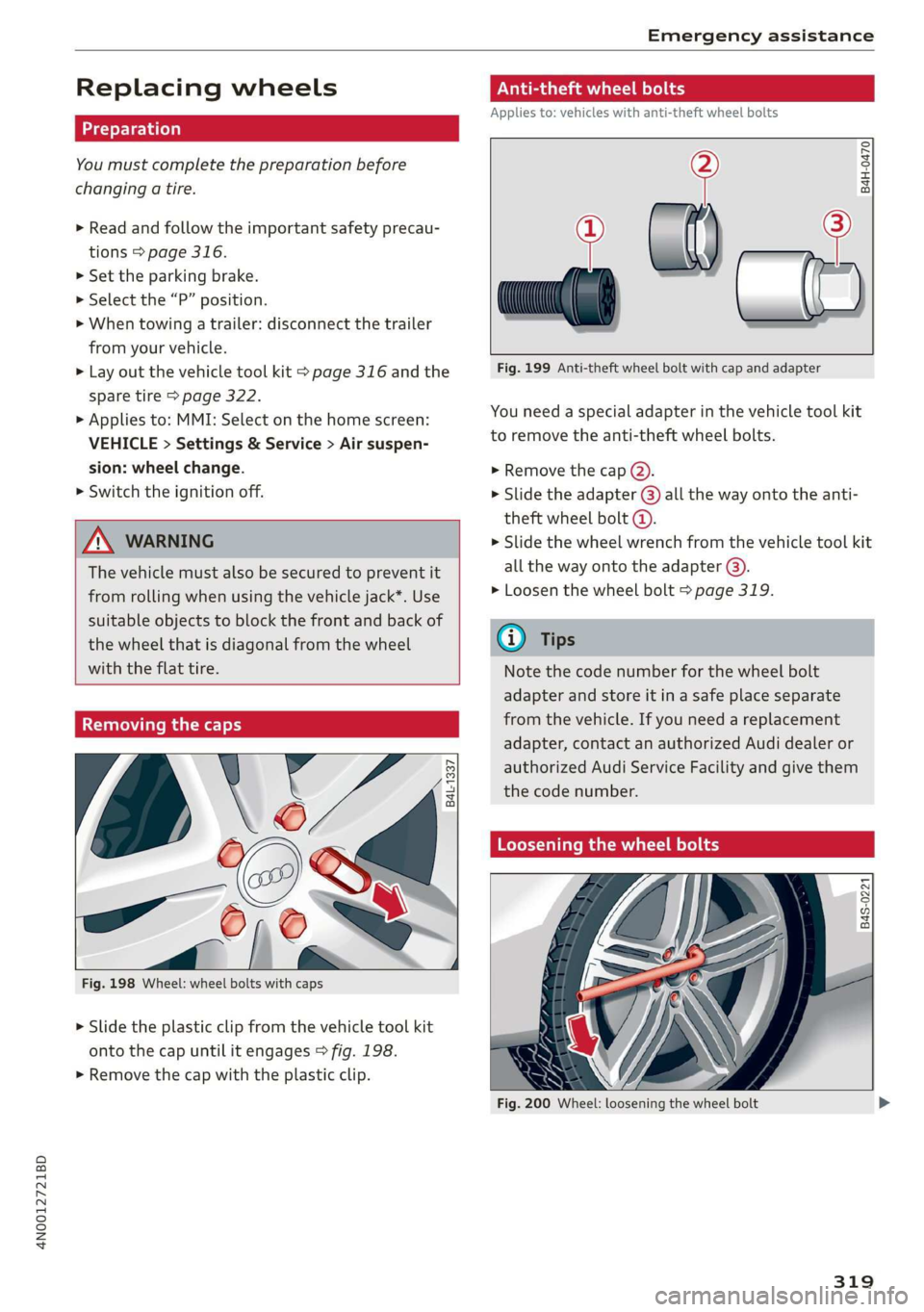
Removing the caps
with the flat tire.
B4L-1337
&
[
Fig. 198 Wheel: wheel bolts with caps
> Slide the plastic clip from the vehicle tool kit
onto the cap until it engages > fig. 198.
> Remove the cap with the plastic clip.
Anti-theft wheel bolts
Applies to: vehicles with anti-theft wheel bolts
i
> all
Fig. 199 Anti-theft wheel bolt with cap and adapter
B4H-0470
v
You need a special adapter in the vehicle tool kit
to remove the anti-theft wheel bolts.
>» Remove the cap @).
> Slide the adapter @) all the way onto the anti-
theft wheel bolt @.
» Slide the wheel wrench from the vehicle tool kit
all the way onto the adapter @).
> Loosen the wheel bolt > page 319.
@) Tips
Note the code number for the wheel bolt
adapter and store it in a safe place separate
from the vehicle. If you need a replacement
adapter, contact an authorized Audi dealer or
authorized Audi Service Facility and give them
the code number.
Loosening the wheel bolts
B4S-0221
Fig. 200 Wheel: loosening the wheel bolt
319