reset AUDI A8 2020 Owner's Manual
[x] Cancel search | Manufacturer: AUDI, Model Year: 2020, Model line: A8, Model: AUDI A8 2020Pages: 360, PDF Size: 95.38 MB
Page 252 of 360
Media
Media
General information
There may be different media drives and connec-
tions available depending on the vehicle equip-
ment. For example, you can play media files us-
ing the SD card reader or connect your mobile de-
vices to the Audi music interface and operate
them through the MMI.
Media and format restrictions: the MMI (includ-
ing the SD card reader and the USB storage de-
vice connection) was tested with a variety of
products and media on the market. However,
there may be cases where individual devices or
media and audio/video files may not be recog-
nized, may play only with restrictions, or may not
play at all.
Restricted functionality: reset the Media to the
factory default settings if functionality is restrict-
ed.
Digital Rights Management: please note that
the audio/video files are subject to copyright pro-
tection.
The media drives do not play files that are pro-
tected by DRM and are identified with the symbol
&.
Data security: never store important data on SD
cards, CDs/DVDs, or mobile devices. Audi is not
responsible for damaged or lost files and media.
Loading times: the more files/folders/playlists
there are on a storage medium, the longer it will
take to load. To reduce the amount of time it
takes the audio/video files to load, use a storage
medium that only contains audio/video files, and
create subfolders (for example, for each artist or
album).
Additional information: when playing, audio
files are automatically displayed with any addi-
tional information that is stored (such as the ar-
tist, track and album cover). If this information is
not available on the storage medium, the MMI
will check the Gracenote metadata database.
However, in some cases, the additional informa-
tion may not be displayed.
250
C@) Note
Read the information about Audi connect, and
be sure to note the connectivity costs section
=>@ in General information on page 216.
SD card reader
The SD card reader is in the storage compartment
under the front center armrest.
Inserting the SD card
> The angled corner of the SD card must face to-
ward the right front side when being inserted.
> Slide the SD card into the card reader slot until
the SD card clicks into place.
The SD card reader is accessed and operated
through the MMI = page 255.
@) Note
— Only use one-piece SD cards. If adapter
cards (SD cards with more than one piece)
are used, the card could fall out of the
adapter when driving because of vibrations.
Individual pieces could then become stuck
in the drive and impair the functionality.
—To reduce the risk of damaging drives and
data carriers, always keep data carriers ina
sleeve and never expose them to direct sun-
light.
DVD drive
General information
Applies to: vehicles with a DVD drive
The functionality of individual storage mediums
may be limited due to the variety of blank CDs/
DVDs available and the various capacities. Audio
CDs or video DVDs with copy protection, CDs/
DVDs that do not conform to the standard, and
multisession CDs may have limited playback or
may not play at all. Audi recommends finalizing
the recording process when creating multisession
CDs. Multisession DVDs are not supported.
C) Note
To reduce the risk of damaging the drive and
data carriers:
Page 256 of 360
Handle the USB adapter carefully. Do not al-
low it to be pinched.
@) Tips
Mobile devices with an Apple Dock connector
can only be charged using a USB adapter de-
signed for devices with an Apple Dock connec-
tor. Data cannot be transmitted.
ON ae 1e)
Connect your mobile devices to the Audi music in-
terface in order to operate them through the
MMI and charge the batteries.
The Audi music interface USB ports are located in
the storage compartment under the front and
rear* center armrest and are labeled with the «<>
symbol. If multiple USB devices are connected to
the USB ports (for example, a smartphone and a
USB flash drive), all of these devices can be used
as the playback source.
Connecting or charging mobile devices using
a USB adapter
> Connect the matching USB adapter to the Audi
music interface USB port and connect it to the
mobile device, such as a smartphone.
The battery will charge automatically.
Mobile devices connected to the Audi music inter-
face can be started and operated using the MMI
=> page 255.
Disconnecting a mobile device from the Audi
music interface
> Remove the USB adapter cable from the Audi
music interface.
ZA\ WARNING
Driving requires your complete and undivided
attention. As the driver, you have complete re-
sponsibility for safety in traffic. Never operate
mobile devices while driving, because this in-
creases the risk of an accident.
254
@) Note
— Pull the cable out of the Audi music inter-
face carefully so that the USB ports are not
damaged.
— Use a USB extension cable to connect devi-
ces that have an integrated USB connector
(such as a USB stick) to reduce the risk of
damage to your USB device and the Audi
music interface.
— Extremely high or low temperatures that
can occur inside vehicles can damage mobile
devices and/or impair their performance.
Never leave mobile devices in the vehicle in
extremely high or low temperatures.
@ Tips
— Always follow the information found in
=> page 97.
— When you switch the ignition off, the USB
ports are still supplied with power until the
energy management intervenes.
— Do not use an additional adapter cable or
USB extension cable to connect mobile devi-
ces to the Audi music interface that already
have a cable or that must be connected with
a USB adapter cable (> page 253, fig. 174).
Using an additional adapter or US extension
cable may impair functionality.
— Functionality is not guaranteed for mobile
devices that do not conform to the USB 2.0
specification.
— USB hubs are not supported.
— Video playback through the Audi music in-
terface is not supported on Apple and MTP
devices (such as smartphones).
— iPod or iPhone malfunctions also affect the
operation of the MMI. Reset your mobile de-
vice in these situations.
— Audi recommends updating the iPod or
iPhone software to the latest version. Refer
to your mobile device owner's manual for
more information.
— The USB adapter on the Audi music inter-
face will support iPod touch or iPhone devi-
ces from the 5th generation or newer with
the lightning connector.
Page 263 of 360

4N0012721BD
Media
If available, various information about the track
currently playing (such as the cover) will be load-
ed from the Internet when this function is
switched on.
DVD playback parental control*
Playback of video DVDs can be restricted based
on age restrictions using parental control.
Displaying the parental control menu
> Applies to: MMI: Select on the home screen:
MEDIA > ©} > DVD playback parental control.
> Enter the PIN for parental control. The PIN set
at the factory is 1234.
> Press OK.
Switching the rating level on and off
Requirement: the parental control menu must be
displayed.
> Select: Set rating level > select a rating level
(for example, level 5) > ~—, or:
> To remove all restrictions, select Off.
Eight different protection levels can be set for
parental control. If you set the parental control
level at Level 5, all DVDs from levels 1-5 can be
played. Video DVDs with a higher level will not
play.
Changing the PIN
Requirement: the parental control menu must be
displayed.
> Select: Change PIN > enter a new PIN for pa-
rental control > OK.
>» Repeat the entry and press OK.
DVD changer in repeat mode*
Applies to: vehicles with DVD changer
— One disk: a CD/DVD that is playing )) repeats
when the end is reached.
— All disks: when an audio CD finishes playing,
the DVD changer switches to the next occupied
DVD slot and starts playback automatically.
@ Tips
— Not all video DVDs have parental control.
— The protection levels for the parental con-
trol are based on the US standards from the
Motion Picture Association of America
(MPAA). Note that the age levels for video
DVDs in European countries may differ.
— PIN entry for parental control will be locked
for approximately one minute if you enter
the incorrect PIN three times in a row. The
PIN can only be reset by an authorized Audi
dealer.
Supported media and file formats
The DVD drive*, SD card reader, and the USB stor-
age device connection support the following me-
dia file properties:
)) Video DVDs may function differently.
261
Page 268 of 360
Additional settings
Additional settings
System settings
Introduction
General settings are described in this chapter.
You can find specific settings in the chapters
about those settings. The available settings de-
pend on the vehicle equipment.
Date and time
> Applies to: MMI: Select on the home screen:
SETTINGS > General > Date & time.
Possible settings:
— Set date and time automatically
— Date format
— Use 24h time format
— Automatic time zone
— Time zone
— Automatic daylight saving time
— Manual daylight saving time
CET Tnat tala Lah ay
> Applies to: MMI: Select on the home screen:
SETTINGS > General > Measurement units.
Possible settings:
— Speed
— Distance
— Temperature
— Pressure
— Consumption (engine)
— Consumption (electric motor)
— Volume
Language and keyboard
> Applies to MMI: Select on the home screen:
SETTINGS > Language & keyboard.
266
Language
You can change the languages for the display,
navigation announcements, and the voice recog-
nition system.
Keyboard
See > page 24.
Requirement: an audio source must be selected.
> Applies to MMI: Select on the home screen:
SETTINGS > Sound.
> Applies to: Rear Seat Remote/Audi tablet: Se-
lect on the home screen: Sound.
Possible settings:
— Treble
— Bass
— Balance/fader
— Speed-dependent volume control
— Subwoofer
— Surround Level
Focus
You can optimize the sound distribution for vari-
ous locations in the vehicle.
3D effect
You can adjust the intensity of the 3D effect.
With the Medium setting, you will hear an opti-
mal 3D effect for all sources.
Factory settings
Applies to: Rear Seat Remote: You can reset the
sound settings.
Restore factory settings
Applies to: Audi tablet: You can reset the sound
settings.
Announcements and tones
> Applies to: MMI: Select on the home screen:
SETTINGS > Announcements & tone.
Page 269 of 360
4N0012721BD
Additional settings
Possible settings:
— Volume of announcements
— Welcome sound
ZA WARNING
Adjust the volume of the audio system so that
signals from outside the vehicle, such as po-
lice and fire sirens, can be heard easily at all
times.
Gi) Tips
The volume is automatically adjusted to a pre-
set level when the MMI is switched on.
> Applies to: MMI: Select on the home screen:
SETTINGS > Connection settings > Bluetooth.
> Applies to: Rear Seat Remote: Select on the
home screen: SETTINGS > Connection > Blue-
tooth.
> Applies to Audi tablet: Select on the home
screen: SETTINGS > Bluetooth.
Bluetooth
Applies to: MMI: You can select a setting for visi-
bility of the MMI to other Bluetooth devices. To
connect a new Bluetooth device, the Visible set-
ting must be selected. If Invisible is selected, a
Bluetooth connection will only be possible with
paired devices. If Off is selected, no Bluetooth
device can be connected.
Applies to: Audi tablet: You can switch the Blue-
tooth function on or off.
Bluetooth audio player
Applies to: MMI: When this function is switched
on, the profile will load automatically when your
Bluetooth audio player is within range.
Bluetooth name
Applies to: MMI: The MMI’s Bluetooth name is
displayed and can be changed.
Applies to: Rear Seat Remote: The Bluetooth
name of the MMI will be displayed.
Rename device
Applies to: Audi tablet: The Audi tablet’s Blue-
tooth name is displayed and can be changed.
Displaying received files
Applies to: Audi tablet: You can view the files
that were sent to the Audi tablet via Bluetooth.
Software update
> Applies to: MMI: Select on the home screen:
SETTINGS > System maintenance > Software
update.
> If necessary, insert a storage medium with the
update data into the corresponding drive
=> page 261.
> Press Search for updates.
> Select the corresponding update.
> Press Next.
> Follow the system instructions.
Z\ WARNING
— Perform the installation only when the vehi-
cle is stationary. Otherwise, this increases
the risk of an accident
— If the installation fails, contact an author-
ized Audi dealer or authorized Audi Service
Facility immediately to have the malfunction
corrected.
@) Note
The connection costs for the software update
are included in the Audi connect pricing.
@ Tips
The length of the process depends on the size
of the update.
Factory settings
> Applies to: MMI: Select on the home screen:
SETTINGS > System maintenance > Restore
factory settings.
> Select the desired functions individually, or
> Select the option Select all.
> Press Apply. The settings will be reset. The key
user will remain stored. >
267
Page 270 of 360
Additional settings
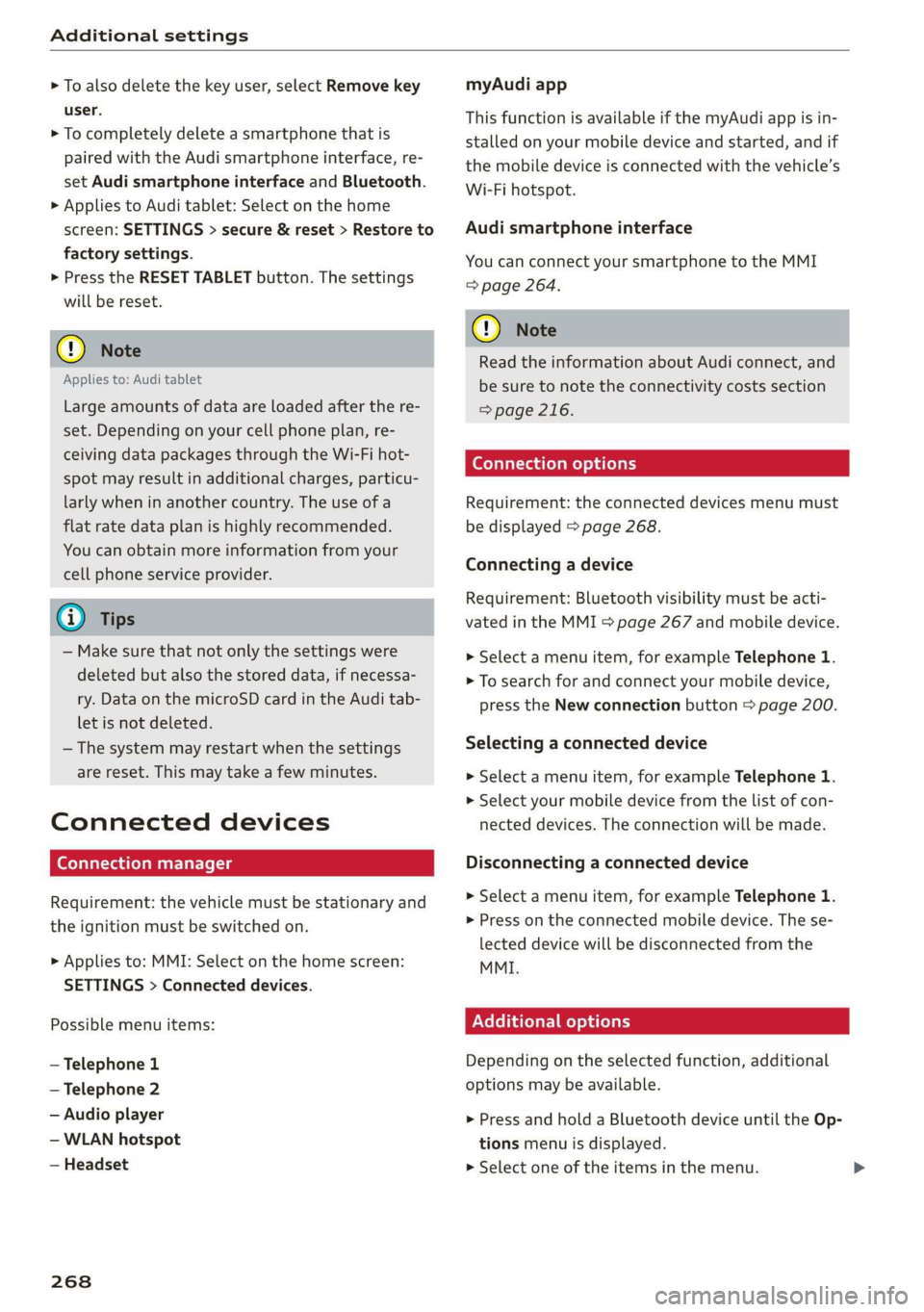
> To also delete the key user, select Remove key
user.
> To completely delete a smartphone that is
paired with the Audi smartphone interface, re-
set Audi smartphone interface and Bluetooth.
> Applies to Audi tablet: Select on the home
screen: SETTINGS > secure & reset > Restore to
factory settings.
» Press the RESET TABLET button. The settings
will be reset.
@) Note
Applies to: Audi tablet
Large amounts of data are loaded after the re-
set. Depending on your cell phone plan, re-
ceiving data packages through the Wi-Fi hot-
spot may result in additional charges, particu-
larly when in another country. The use of a
flat rate data plan is highly recommended.
You can obtain more information from your
cell phone service provider.
@) Tips
— Make sure that not only the settings were
deleted but also the stored data, if necessa-
ry. Data on the microSD card in the Audi tab-
let is not deleted.
— The system may restart when the settings
are reset. This may take a few minutes.
Connected devices
(ey atas time liel: (9
Requirement: the vehicle must be stationary and
the ignition must be switched on.
> Applies to: MMI: Select on the home screen:
SETTINGS > Connected devices.
Possible menu items:
— Telephone 1
— Telephone 2
— Audio player
— WLAN hotspot
— Headset
268
myAudi app
This function is available if the myAudi app is in-
stalled on your mobile device and started, and if
the mobile device is connected with the vehicle’s
Wi-Fi hotspot.
Audi smartphone interface
You can connect your smartphone to the MMI
=> page 264.
C) Note
Read the information about Audi connect, and
be sure to note the connectivity costs section
=>page 216.
Connection options
Requirement: the connected devices menu must
be displayed > page 268.
Connecting a device
Requirement: Bluetooth visibility must be acti-
vated in the MMI > page 267 and mobile device.
> Select a menu item, for example Telephone 1.
> To search for and connect your mobile device,
press the New connection button > page 200.
Selecting a connected device
> Select a menu item, for example Telephone 1.
> Select your mobile device from the list of con-
nected devices. The connection will be made.
Disconnecting a connected device
> Select a menu item, for example Telephone 1.
> Press on the connected mobile device. The se-
lected device will be disconnected from the
MMI.
Additional options
Depending on the selected function, additional
options may be available.
> Press and hold a Bluetooth device until the Op-
tions menu is displayed.
>» Select one of the items in the menu.
Page 290 of 360
Checking and Filling
Applies to: Audi tablet: Select on the home
screen: VEHICLE > Service intervals.
Resetting the indicator
An authorized Audi dealer or authorized Audi
Service Facility will reset the service interval dis-
play after performing service.
If you have changed the oil yourself, you must re-
set the oil change interval.
Applies to: MMI: To reset the display, select on
the home screen: VEHICLE > Settings & Service
> Service intervals.
@) Note
— Only reset the oil change indicator if the oil
was changed.
— Following the service intervals is critical to
maintaining the service life and value of
your vehicle, especially the engine. Even if
the mileage on the vehicle is low, do not ex-
ceed the time for the next service.
288
Page 352 of 360
Index
OPeRatiG’s « exssses wo emcee so cmsnoes ov comes 2 o 2311.
Setting the destination................ 230
MAP
refer to Message Access Profile......... 208
Map preview. .... 00... cece ee ee eee eee 230
Map update........... 0... e eee eee eee 236
ONLINE = sep s » sewn se eee o eR ex ee ee 237.
SD card/USB connection............... 237
Massage function.................00. 73,76
FROME. 6: wissers « oi wean © ovamene a 8 sceceun a 8 emma es 74
Matrix LED headlights .............0e.eee 61
Mechanicalkeyios «+ scauia 6 awa @ 6 scans a © asi 47
Media erase: sy casas & 2 navos x 5 nous 8 2 new 250, 255
DIV OSkec. a 5 were x ures wn ramets 0 8 acannon 250
Supported formats............-000 eee 261
Media center.....................00005 256
Memory card
AUGISDIEt = exes ¢ eas 2 i paws s 3 Ream sc eR 31
SD card reader (MMI). « « wes « » sa ss we 250
Supported types and formats........... 261
Memory PUmetiomcncce « s cmeree « 0 amivive « waveren » « 85
Menu language
refer to Setting the language........... 266
Message Access Profile............00005 208
Messages so cssne » « saanins w s anecams 6 0 sauce 6 a a 208
microSD card reader (Audi tablet).......... 31.
Mild hybrid drive system.............0.. 118
Mirror eompass's « zqes ss sees 5 wows § ew 70
Mirrors
Adjusting exterior mirrors.............-. 66
Dimming..............0 000 e ee eee eee 67
Vanity Mirror’: sens « s cows ¢ 2 eee x tees ae 67
MMI
refer to Multi Media Interface........... 20
Mobile device
refer to Telephone..............2.-00- 200
Mobile phone network
Connection settings ..............00. 212
Mountain passes. « vsenes « ceneus © + ances 6 evens 126
Mountain toads:: + asec
BUEEOMS.. « sccsene so stisous @ weno « wroteas wo 13, 40
Operating...............2..2..0-0000. 13
Programming buttons.................. 40
Voice
recognition system............... 38
350
Multi Media Interface...............0085 20
Menus and symbols............0.2e-008 21
OPECAtING: « x naw « ¢ wows 4 2 wares 5 8 eae 18, 21
Switching the displays on or off.......... 20
MUNG) (MULE), sews 2 3 seems oe eee o re Yai 40
MYAUIs ss aces s cen + pews ss Herwe ov Hews = 41
myAudi navigation................. 226, 229
N
Narrow areas : ssysu a 3 mas 5 # saupe oF aeree Fs 178
Natural
leather care and cleaning......... 312
Navigation ..... 0.0.00. cece eee eee 225
Better fOUtE ssa< 2 yarn 2 2 new se momD § eo 238
GAULIING) scons = eamais ov omases Gs x aaaete x eam 230
Changing thescale.................0. 230
also refertoMap...........--0eee eee 231
Navigation database
Version information...............05- 269
Navigation (instrument cluster) .......... 233
NHITSAc: « 2 sxene x x gems © 2 eee 2s eee 2s see 338
Night vision assist. ............2.-0000- 163
Cleaning the camera.........0eeseeuee 310
Notification center.............. 0s eee aes 22
O
Octane rating (gasoline)................ 270
Odometer............. 00 eee eee eee 15
RESEtEING sous: ¢ « mown 2 » mewn yee e eee 8 15
Office address
refer to Business address.............. 234
OFF (climate control system)............. 105
Oil
referto Engine oil..................4. 277
On-board computer... .. 0.0... 000ee eee ee 16
On Board Diagnostic System (OBD)... 274, 332
Online destination
refer to Online Points of Interest........ 228
Online map
refer to Satellite map...............4. 236
Online media.................02.0000. 252
Online Points of Interest.............0.. 228
Onlinerradio:. « sven 2 = wasn +o esses vv enews # 245
also refer to Online radio.............. 245
Online roadside assistance.............. 224
Page 355 of 360
4N0012721BD
Replacing fuses’. « cise. <6 sews oe comans = + eee 327
Reporting Safety Defects................ 338
Rewinding (media files)................. 255
RIMS: & way « ¢ eewe < RaOE F TEU EE OR gE 304
Cleaning « « csi oe scene ve sone ¥ a ssereue wo ave 311
Road carrier sisi 2 a wos 2 x anon 2 oem 2 ae 129
Roof
refer to Panoramic glass roof............ 55
Roof load... 2... cece eee eee 102, 342
ROOT TACK cos +s semis so mceoe sw coe AGO Rw 102
also refer to Roof rack..........-.00 005 102
Route guidance
Stopping ......... 0. ce eee eee eee eee 2311,
also refer to Navigation............... 225
Running direction (tires)................ 321
S
Safety Delts: «x + < sane 4s eee + Fee eB eS ee 82
GLEAMING « « sms so sims 2 a me ow seem eo oo 312
Locking... . 0... cee eee eee eee eee 94
Securing child safety seats.............. 94
Satellite map...... 2... eee eee eee ee 236
Saving fuel
Energy COnsumensicae s x azax : name a 2 neem g 17
RECUPErAation « cscs % 2 svene wo wrme oo eeoene o 0 17
Screen
refer to Touch display...............-.. 18
Serewaniver's « casa 2 + sous oo amesne < v cemuwe fo 316
SDicard réader'(MML]) sven < sii ws aaren oo a 250
Searchvared (POD) wxce: < exes 2 s seems = ¥ sees 5 228
Search for charging station
refer to Online Points of Interest........ 228
Search function
refer to Free text search. .........00005 259
Seatiheatingsecs s+ sass ao naman x 6 aces © 6 sme 106
Sea transports wivwsu + wenwm oo ewunm a 2 wae s 136
Seats
Adjusting the front seats................ 73
Adjusting the rear seats................ 76
Cleaning « « caves ¢ 2 wars x ews x o sew so oe 312
Front passenger's seat adjustment....... 77
Front passenger’s seat adjustment....... 75
Head restraints’: « scros « x nome = 2 saree 2 o oes 81
Massage fumcbiomesiss « 6 omnes 0 ven + 6 cone 73
Memory function.............0... ee eee 85
Resetting the position.................. 75
Storing aseat profile...............0005 85
Seat ventilation................000-00. 106
Selecting a source (media).............. 255
Selector lever’. « « csvve oe cess oe sews ve ese 113
Self-learning navigation
refer to Personal route assistance....... 233
Sensors
Coverage areaS... 6... eee eee eee 155
LOGAtONS i i% 2 xa: ss gem & ¥ Ree Ey Beg 156
Service interval display................. 287
Setting measurement units.............. 266
SettingS 0... 0... cece eee eee eee 266
Announcements and tones............. 266
Bluetooth: « ccs + sao 2 worm a 6 ane 2 0 267
Date andtime.................00200. 266
LANGUAGE srs « wees 5 ¢ ewe 8 o eRe Fe ee 266
Measurement units................005 266
Media... ... ccc eee cece eee ee 260
NaVigatioti=s: s = saw 3 » sean se meee s eee se 239
RadiOsscsns s+ ane: ov omen «2 omen a 2 smn 8 a 3 248
Sound...... 2... cee eee eee eee 266
SYSEEMs = » wee ¢ oes st SoH & ESS § FOR 266
TIMOZON Grea 3 a was oo sees + eRe Ts REE 266
Wi-Fi hotspot..................20200. 221
Setting the language................... 266
Setting the timeter « «ccc «2 ees ow cane ¥ oe 266
Shift paddlesiiicc so wiwe = wwen e 2 aan o were 115
Shipearrier « sages ¢ ¢ cows yo ews xy cape e oer 129
ShiptranspOrts: « « sees ¢ © axww ¢ e owen 2 ve 136
Shortcut
referto Shortcuts « secs es vss se wees aoe 23
Shortcuts: < = sees 2s sews sy eee ge owe eS 23
Shufflesecs < = ems < eeees x ees 6 ¥ cee «ee 258
also:referto. Shuffl@iss ¢ «sss ve emcen 6 & ee 258
Sid@sassiStienws «wien ae emen ae een = a own ee 186
Cleaning the sensors.............00005 310
SIMicard « cisvaie x a eevee + x ovavens @ 6 svatana wm enero 217
SiriusXM alert notifications.............. 247
Sliding/tilting sunroof
refer to Panoramic glass roof............ 55
Smartsfavoritese. «acces « o cacuers s sveene «6 wesein 245
Smartphone
Wireless charging............-....--5 202
also refer to Telephone................ 200
Snow chains......... 00... eee eee eee 305
353