phone AUDI A8 2020 Workshop Manual
[x] Cancel search | Manufacturer: AUDI, Model Year: 2020, Model line: A8, Model: AUDI A8 2020Pages: 360, PDF Size: 95.38 MB
Page 258 of 360
Media
> Adding files to a playlist: press on a song or an
album until the Options menu is displayed. Se-
lect: Add to playlist > select a list > Add.
> Playing a playlist: select: a playlist > a song.
ZX WARNING
Note the safety precautions > page 25, Rear
Seat Remote and > page 29, Rear Seat Enter-
tainment (Audi tablet).
@) Tips
— For safety reasons, the video image is only
displayed when the vehicle is stationary. On-
ly the sound from the video plays while driv-
ing.
— Applies to: Multifunction steering wheel:
Depending on the selected function, it may
be necessary to use the MMI.
— Applies to: Audi tablet
— Transferring video files from the MMI to
the Audi tablet is not available in all coun-
tries.
— Transferring video files from MMI to the
Audi tablet is only possible under the fol-
lowing circumstances for vehicles without
a navigation system: The embedded SIM
card in the vehicle must be registered in
the mobile phone network > page 216.
Make sure the function > page 211, Turn
on car phone or data module is switched
on.
— The file formats supported by the Audi
tablet may differ from the MMI. A mes-
sage will appear if you attempt to play a
file format that is not supported.
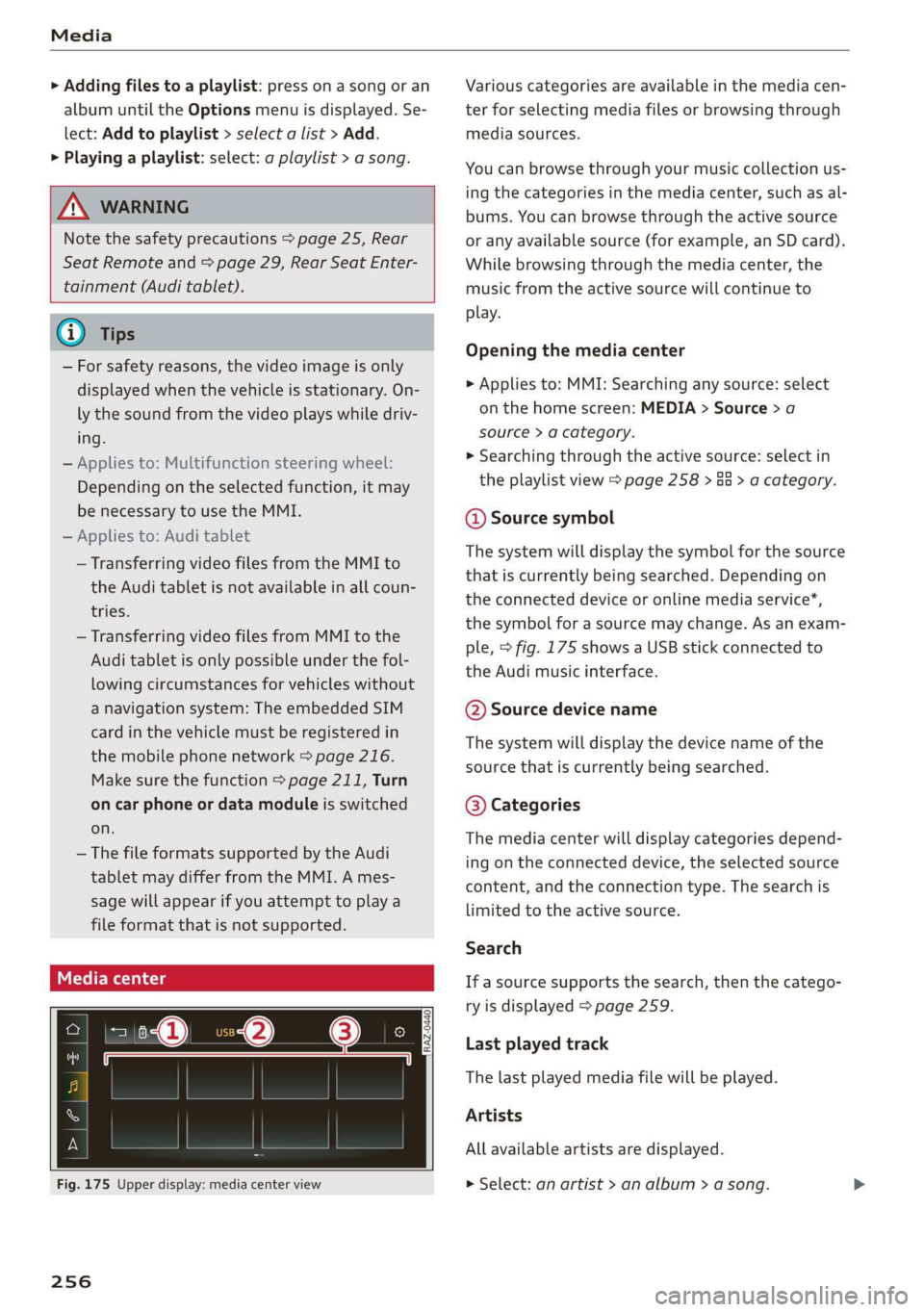
Fig. 175 Upper display: media center view
256
Various categories are available in the media cen-
ter for selecting media files or browsing through
media sources.
You can browse through your music collection us-
ing the categories in the media center, such as al-
bums. You can browse through the active source
or any available source (for example, an SD card).
While browsing through the media center, the
music from the active source will continue to
play.
Opening the media center
> Applies to: MMI: Searching any source: select
on the home screen: MEDIA > Source > a
source > a category.
» Searching through the active source: select in
the playlist view > page 258 > Ga > a category.
@ Source symbol
The system will display the symbol for the source
that is currently being searched. Depending on
the connected device or online media service*,
the symbol for a source may change. As an exam-
ple, > fig. 175 shows a USB stick connected to
the Audi music interface.
©@ Source device name
The system will display the device name of the
source that is currently being searched.
@® Categories
The media center will display categories depend-
ing on the connected device, the selected source
content, and the connection type. The search is
limited to the active source.
Search
If a source supports the search, then the catego-
ry is displayed > page 259.
Last played track
The last played media file will be played.
Artists
All available artists are displayed.
> Select: an artist > an album > a song.
Page 259 of 360
4N0012721BD
Media
Playlists
All playlists and smart playlists in the source are
displayed.
> Select: a playlist > a song.
Smart playlists
Last played tracks: the tracks that were dis-
played last are displayed.
Most played tracks: the tracks that are played
most frequently are displayed.
Directories
The folder structure or track/chapter list is dis-
played.
>» Select: a folder > a song.
Compilations
You can control your playlists through the MMI.
> Select: a playlist > a song.
Composers
All available composers are displayed.
> Select: d composer > an album > a song.
Radio
> Press on a radio station.
Audio books
You can control your audio books on the MMI.
> Press on an audio book.
Podcasts
You can control your podcasts through the MMI.
» Select: a podcast > a podcast episode.
Genres
All available genres are displayed.
> Select: a genre > an artist > an album > a song.
Videos
All available video files are displayed.
> Press on a video.
Tracks
All available tracks are displayed.
> Press ona track.
Albums
All available albums are displayed.
> Select: an album > a track.
@) Note
Applies to: vehicles with Audi connect Infotainment
— Cloud services and category radio always re-
quire an Internet connection.
— Read the information about Audi connect,
and be sure to note the connectivity costs
section >@ in General information on
page 216.
G) Tips
— Only the categories supported by the medi-
um are available.
— For safety reasons, the video image is only
displayed when the vehicle is stationary. On-
ly the sound from the video plays while driv-
ing.
— When synchronizing a portable device with
Cloud services, playlists may display incor-
rectly in the MMI. Use the media center in
the device.
@) Tips
Applies to: iPod/iPhone
Also read the information on the Audi music
interface and the supported devices
=> page 253.
257
Page 265 of 360
4N0012721BD
Media
Troubleshooting
The information that follows lists some trouble-
shooting options. They depend on the equip-
ment.
Problem Solution
Audi music interface/Bluetooth
audio player: the mobile device is
not supported.
Read the instructions in the chapter > page 253, Multimedia
connections/> page 252, Bluetooth audio player.
Audi music interface: the mobile
device is not recognized asa
source.
For many mobile phones or mobile devices, playback is not possi-
ble when the battery level is too low (less than 5% charge level).
The mobile device will only be recognized as a media source in
the MMI after connecting if the battery charge level is sufficient.
Audi music interface: malfunc-
tions during audio playback
through an iPod/iPhone.
The Bluetooth audio player function is switched on. Switch this
function off > page 267 when you are not using the Bluetooth
audio player.
Audi music interface: audio play-
back through the connected mo-
bile device is not possible.
Make sure the USB mode M7P is selected in the settings on your
mobile device.
Bluetooth audio player: interfer-
ence with track display and audio
playback.
Playback interference can occur when using the Bluetooth audio
player if a music player app from a third party provider is open.
AUDI AG recommends using the integrated media player on your
Bluetooth device (such as a smartphone).
Online media: connection failed
between the MMI and the myAudi
app.
To establish a connection to the MMI, the MMI connection switch
must be switched on in the myAudi app status screen.
Online media: no playback of on-
line media.
Check if a suitable data plan has been purchased.
Wi-Fi hotspot: your Wi-Fi device is
disconnected from the Wi-Fi hot-
spot.
Make sure the network optimization functions are switched off in
the Wi-Fi settings or in the network settings for your Wi-Fi de-
vice. For additional information, refer to the user guide for your
Wi-Fi device.
263
Page 266 of 360
Audi smartphone interface
Audi smartphone
interface
Setup
Applies to: vehicles with Audi smartphone interface
You can connect your smartphone to the MMI
with a cable or wirelessly* using the Audi smart-
phone interface. Certain content on your smart-
phone is adapted in the MMI while driving and
can be operated through the MMI.
Requirement: the vehicle must be stationary and
the ignition must be switched on. iPhone genera-
tion 5 or higher with Lightning connector and iOS
7.1.2 operating system or higher, or smartphone
with Android Auto app and Android 5.0 Lollipop
operating system or higher.
> Applies to: MMI: Select on the home screen:
SETTINGS > Connected devices > Audi smart-
phone interface > New connection.
> Connect your smartphone to the Audi music in-
terface > page 254 using a USB adapter
=> page 253, fig. 174, or
> To connect your iPhone wireless*, switch on the
Bluetooth function and Wi-Fi on your iPhone.
Open the CarPlay settings in your iPhone. In the
MMI, press on your iPhone in the list of dis-
played devices.
> To update the list, press O.
> Follow the system instructions.
> Pay attention to any additional system prompts
on your smartphone, if applicable.
> Applies to: MMI: If you declined use of Apple
CarPlay or Android Auto the first time you con-
nected your smartphone, then select on the
home screen: SETTINGS > Connected devices >
Audi smartphone interface > a smartphone.
> Follow the system instructions.
Z\ WARNING
Driving requires your complete and undivided
attention. As the driver, you have complete re-
sponsibility for safety in traffic. Never operate
mobile devices while driving, because this in-
creases the risk of an accident.
264
@) Note
Read the information about Audi connect, and
be sure to note the connectivity costs section
=> page 216.
@) Tips
— The functions that can be used depend on
the following factors, among others:
— The brand of your smartphone
— The version of the operating system in
your smartphone
— The software version of the app used
— The USB adapter cable and correct connec-
tion
— Your cell phone service provider
— The customized settings on your smart-
phone
— One of the factors above or a combination
of any of them could cause your smart-
phone to be incompatible with the Audi
smartphone interface. Compatibility cannot
be guaranteed for all types of smartphones.
For more information and assistance, refer
to the user guide and the manufacturer of
your smartphone.
— Please note that you can only connect your
smartphone via the front Audi music inter-
face in order to use the Audi smartphone in-
terface.
— Wireless CarPlay* is not available in all
countries.
— Wireless CarPlay* is only possible in vehicles
without a navigation system if the following
requirement is met: the embedded SIM card
for the vehicle must be logged into the mo-
bile phone network > page 216. Make sure
the function > page 211, Turn on car phone
or data module is switched on.
— If the connected smartphone has voice con-
trol, you can operate your smartphone using
the external voice recognition system
=> page 39.
— The menu language shown in the MMI is
based on the settings in your smartphone.
— Some MMI functions are not available when
there is an active Audi smartphone interface
connection.
Page 267 of 360
4N0012721BD
Audi smartphone interface
— You cannot connect any mobile devices via
Bluetooth when an Apple CarPlay connec-
tion is active.
— Usage of the Audi smartphone interface de-
pends on the availability of services through
third party providers.
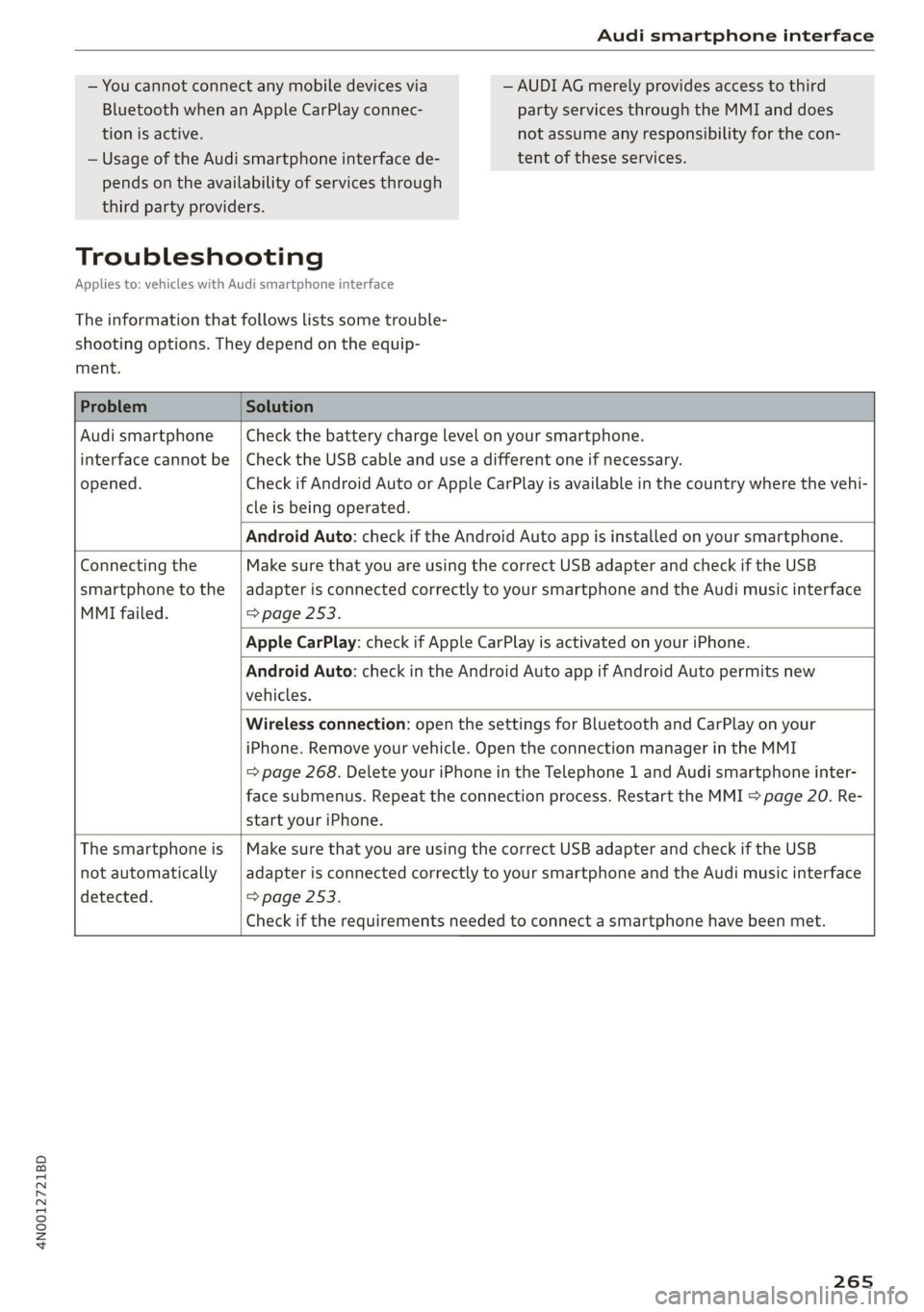
Troubleshooting
Applies to: vehicles with Audi smartphone interface
The information that follows lists some trouble-
shooting options. They depend on the equip-
ment.
— AUDI AG merely provides access to third
party services through the MMI and does
not assume any responsibility for the con-
tent of these services.
Problem Solution
Audi smartphone Check the battery charge level on your smartphone.
interface cannot be | Check the USB cable and use a different one if necessary.
opened.
cle is being operated.
Check if Android Auto or Apple CarPlay is available in the country where the vehi-
Android Auto: check if the Android Auto app is installed on your smartphone.
Connecting the Make sure that you are using the correct USB adapter and check if the USB
smartphone to the | adapter is connected correctly to your smartphone and the Audi music interface
MMI failed. => page 253.
Apple CarPlay: check if Apple CarPlay is activated on your iPhone.
vehicles.
Android Auto: check in the Android Auto app if Android Auto permits new
start your iPhone.
Wireless connection: open the settings for Bluetooth and CarPlay on your
iPhone. Remove your vehicle. Open the connection manager in the MMI
=> page 268. Delete your iPhone in the Telephone 1 and Audi smartphone inter-
face submenus. Repeat the connection process. Restart the MMI > page 20. Re-
The smartphone is
not automatically
detected. => page 253.
Make sure that you are using the correct USB adapter and check if the USB
adapter is connected correctly to your smartphone and the Audi music interface
Check if the requirements needed to connect a smartphone have been met.
265
Page 270 of 360
Additional settings
> To also delete the key user, select Remove key
user.
> To completely delete a smartphone that is
paired with the Audi smartphone interface, re-
set Audi smartphone interface and Bluetooth.
> Applies to Audi tablet: Select on the home
screen: SETTINGS > secure & reset > Restore to
factory settings.
» Press the RESET TABLET button. The settings
will be reset.
@) Note
Applies to: Audi tablet
Large amounts of data are loaded after the re-
set. Depending on your cell phone plan, re-
ceiving data packages through the Wi-Fi hot-
spot may result in additional charges, particu-
larly when in another country. The use of a
flat rate data plan is highly recommended.
You can obtain more information from your
cell phone service provider.
@) Tips
— Make sure that not only the settings were
deleted but also the stored data, if necessa-
ry. Data on the microSD card in the Audi tab-
let is not deleted.
— The system may restart when the settings
are reset. This may take a few minutes.
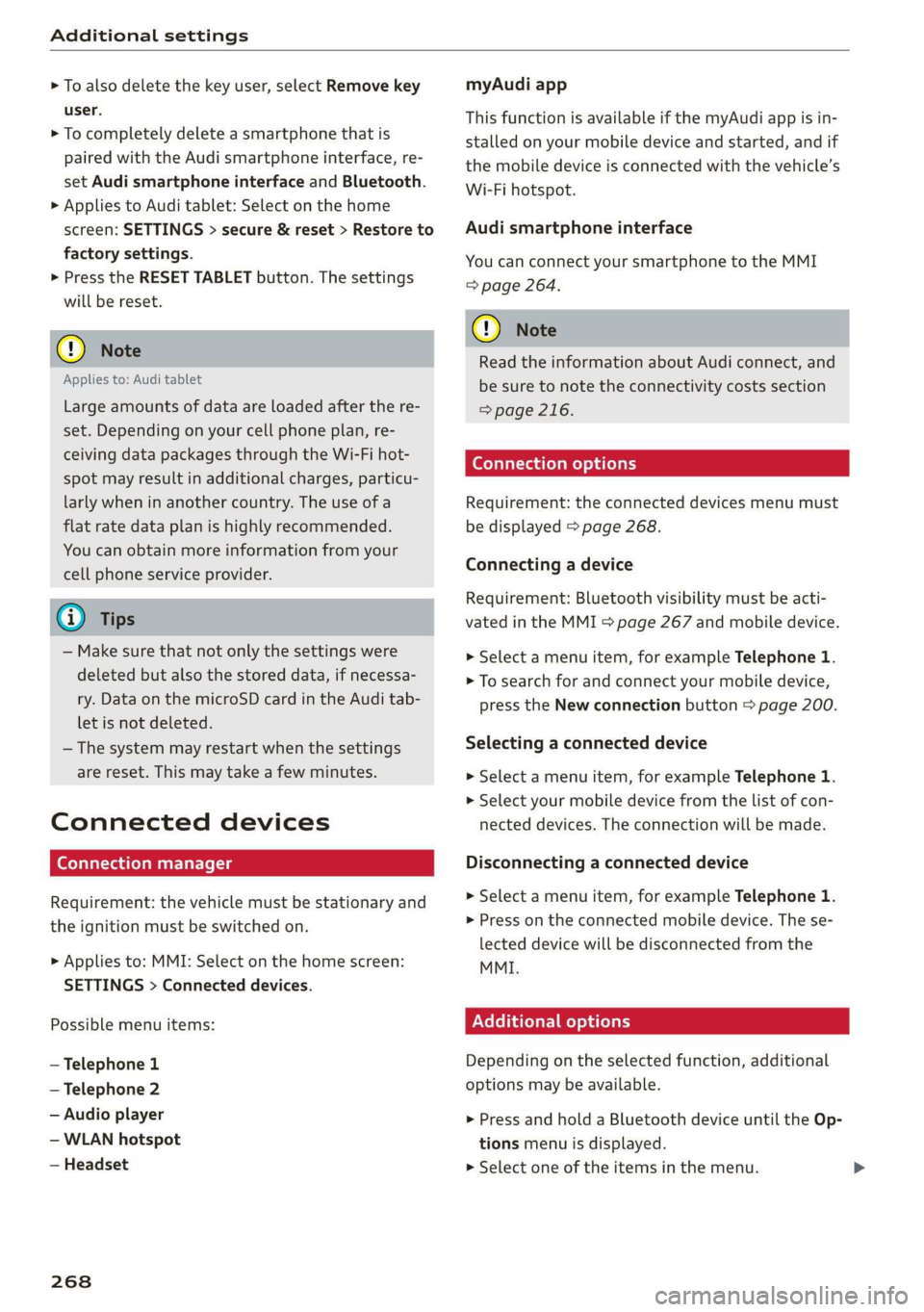
Connected devices
(ey atas time liel: (9
Requirement: the vehicle must be stationary and
the ignition must be switched on.
> Applies to: MMI: Select on the home screen:
SETTINGS > Connected devices.
Possible menu items:
— Telephone 1
— Telephone 2
— Audio player
— WLAN hotspot
— Headset
268
myAudi app
This function is available if the myAudi app is in-
stalled on your mobile device and started, and if
the mobile device is connected with the vehicle’s
Wi-Fi hotspot.
Audi smartphone interface
You can connect your smartphone to the MMI
=> page 264.
C) Note
Read the information about Audi connect, and
be sure to note the connectivity costs section
=>page 216.
Connection options
Requirement: the connected devices menu must
be displayed > page 268.
Connecting a device
Requirement: Bluetooth visibility must be acti-
vated in the MMI > page 267 and mobile device.
> Select a menu item, for example Telephone 1.
> To search for and connect your mobile device,
press the New connection button > page 200.
Selecting a connected device
> Select a menu item, for example Telephone 1.
> Select your mobile device from the list of con-
nected devices. The connection will be made.
Disconnecting a connected device
> Select a menu item, for example Telephone 1.
> Press on the connected mobile device. The se-
lected device will be disconnected from the
MMI.
Additional options
Depending on the selected function, additional
options may be available.
> Press and hold a Bluetooth device until the Op-
tions menu is displayed.
>» Select one of the items in the menu.
Page 271 of 360
4N0012721BD
Additional settings
Bluetooth profiles
You can switch desired profiles on or off sepa-
rately in the MMI.
Favorite
To set a paired mobile device as the default
phone, activate this function in the MMI.
When the mobile device is in range and the Blue-
tooth function on the mobile device and in the
MMI is switched on, the default phone will be
given priority over the other Bluetooth devices
and will be connected directly to the MMI.
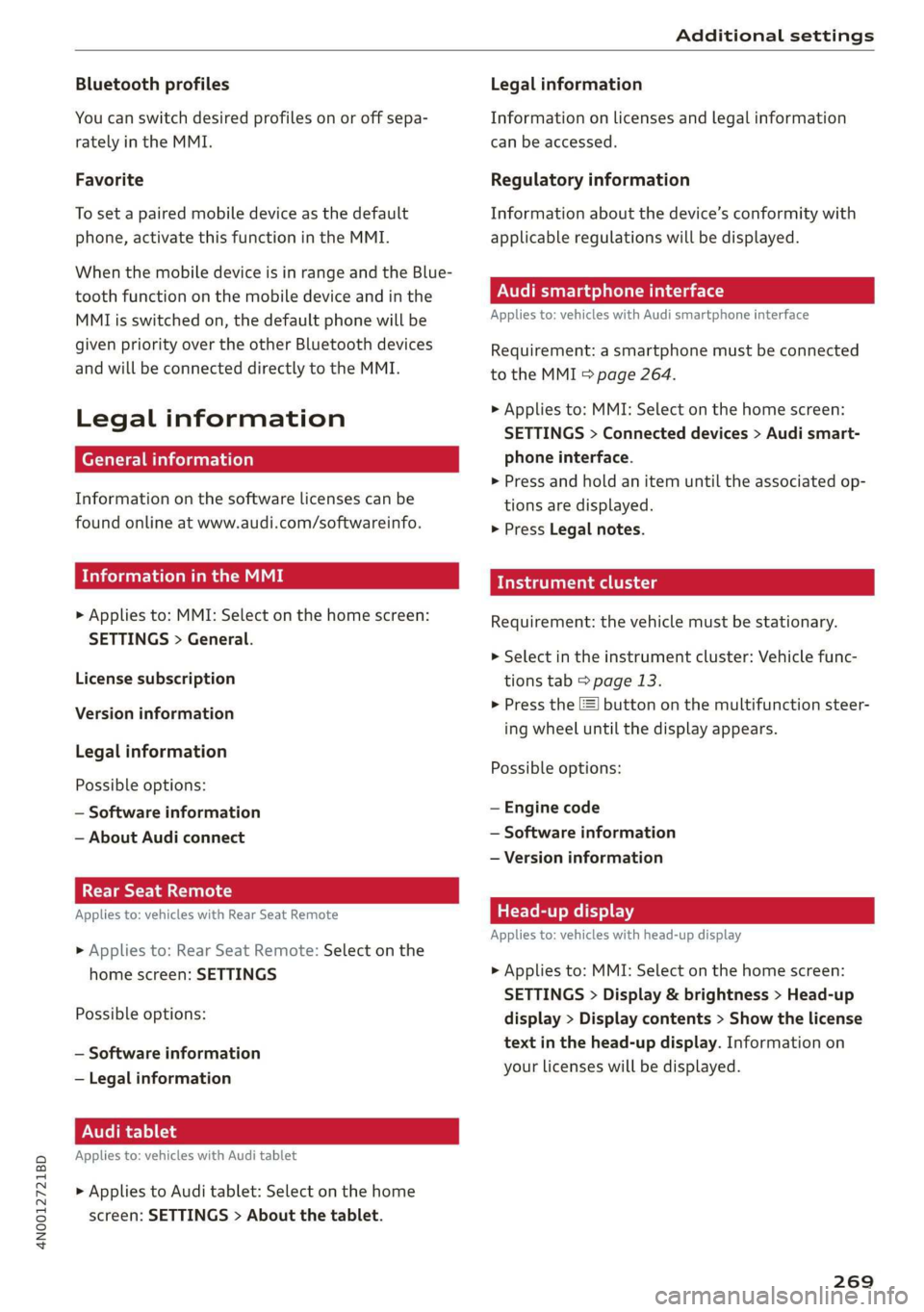
Legal information
General information
Information on the software licenses can be
found online at www.audi.com/softwareinfo.
SelgureC mm aM ae
> Applies to: MMI: Select on the home screen:
SETTINGS > General.
License subscription
Version information
Legal information
Possible options:
— Software information
— About Audi connect
Teta ed)
Applies to: vehicles with Rear Seat Remote
> Applies to: Rear Seat Remote: Select on the
home screen: SETTINGS
Possible options:
— Software information
— Legal information
Audi tablet
Applies to: vehicles with Audi tablet
> Applies to Audi tablet: Select on the home
screen: SETTINGS > About the tablet.
Legal information
Information on licenses and legal information
can be accessed.
Regulatory information
Information about the device’s conformity with
applicable regulations will be displayed.
PAU ae eM ars]
Applies to: vehicles with Audi smartphone interface
Requirement: a smartphone must be connected
to the MMI > page 264.
> Applies to: MMI: Select on the home screen:
SETTINGS > Connected devices > Audi smart-
phone interface.
> Press and hold an item until the associated op-
tions are displayed.
> Press Legal notes.
sida area
Requirement: the vehicle must be stationary.
> Select in the instrument cluster: Vehicle func-
tions tab > page 13.
> Press the E] button on the multifunction steer-
ing wheel until the display appears.
Possible options:
— Engine code
— Software information
— Version information
Head-up display
Applies to: vehicles with head-up display
> Applies to: MMI: Select on the home screen:
SETTINGS > Display & brightness > Head-up
display > Display contents > Show the license
text in the head-up display. Information on
your licenses will be displayed.
269
Page 330 of 360
Fuses and bulbs
This can cause damage to the electrical sys-
tem and increases the risk of fire.
(G) Note
If a new fuse burns out again shortly after you
have installed it, have the electrical system
checked as soon as possible by an authorized
Audi dealer or authorized Audi Service Facili-
- The following table does not list fuse loca-
tions that are not used.
— Some of the equipment listed in the follow-
ing tables applies only to certain model ver-
sions or certain optional equipment.
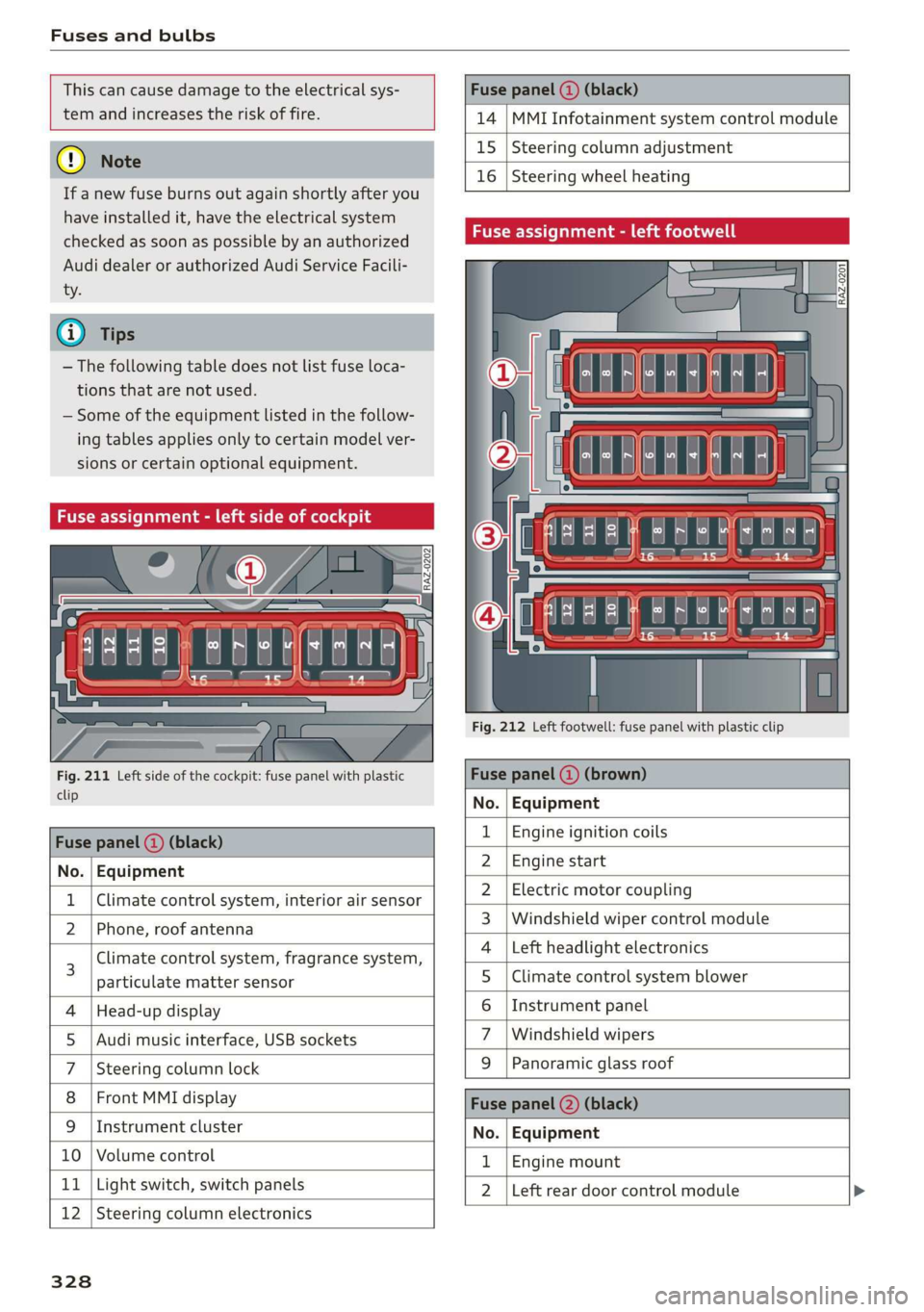
Fuse assignment - left side of cockpit
Fig. 211 Left side of the cockpit: fuse panel with plastic
clip
Fuse panel (2) (black)
No. | Equipment
Climate control system, interior air sensor
N Phone, roof antenna
Climate control system, fragrance system,
particulate matter sensor
Head-up display
Audi music interface, USB sockets
Steering column lock
Front MMI display
Instrument cluster
Ol/aOIN/uys
10 | Volume control
11 | Light switch, switch panels
12 | Steering column electronics
328
Fuse panel (@ (black)
14 MMI Infotainment system control module
15 Steering column adjustment
16
Steering wheel heating
Fuse assignment - left footwell
lo} | He
ia i, L
. | Equipment
Engine ignition coils
Engine start
Electric motor coupling
Windshield wiper control module
Left headlight electronics
Climate control system blower
Instrument panel
Windshield wipers
OND)
OMA)
WININI]
eR
Panoramic glass roof
Fuse panel (2) (black)
No. Equipment
Engine mount
Left rear door control module
Page 332 of 360
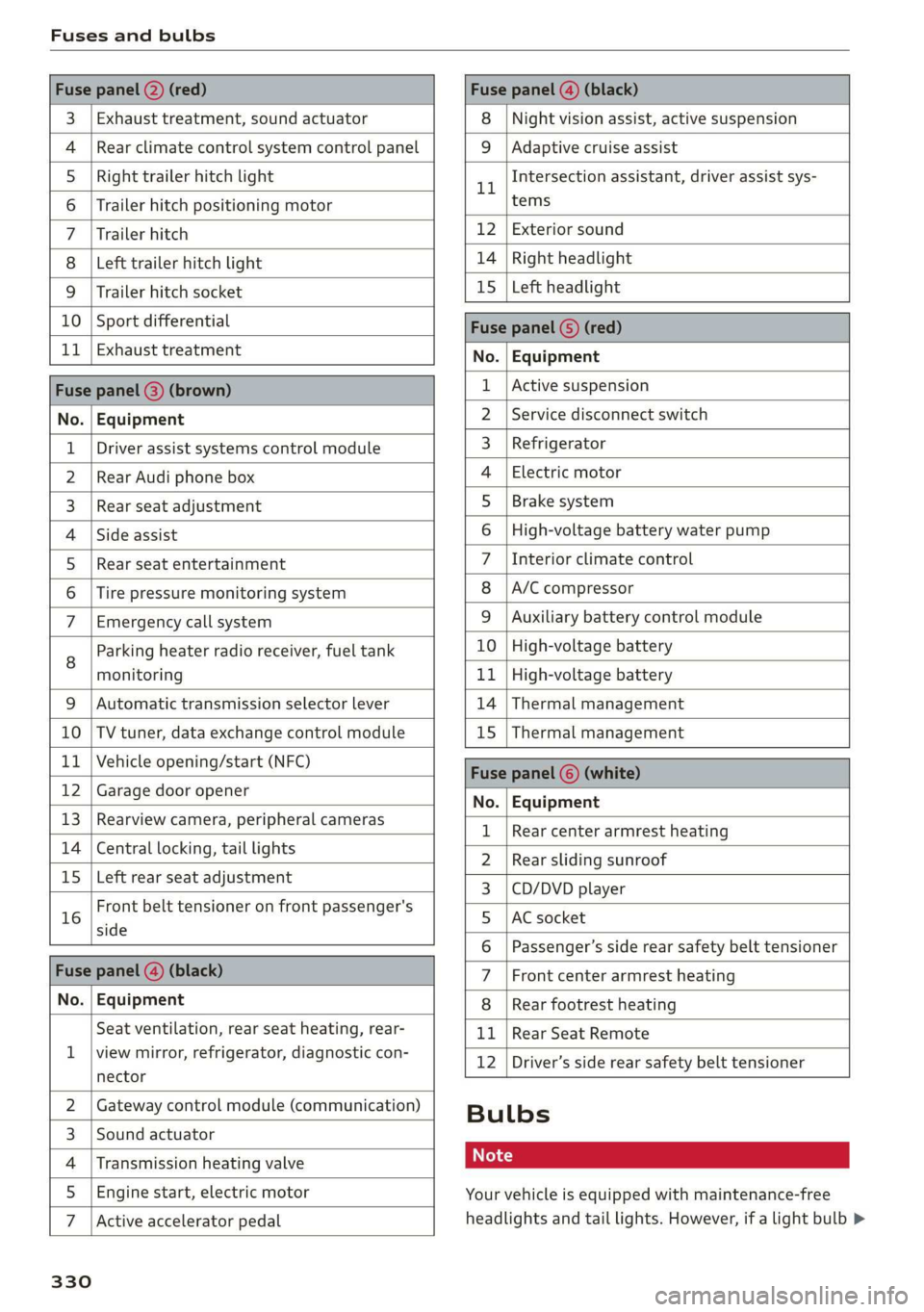
Fuses and bulbs
Fuse panel @) (red) Fuse panel (4) (black)
3 | Exhaust treatment, sound actuator 8 | Night vision assist, active suspension
4 |Rear climate control system control panel 9 | Adaptive cruise assist
5 |Right trailer hitch light ll Intersection assistant, driver assist sys-
6 | Trailer hitch positioning motor tems
7 |Trailer hitch 12 | Exterior sound
8 |Left trailer hitch light 14 | Right headlight
9 |Trailer hitch socket 15 [Left headlight
10 | Sport differential Fuse panel (5) (red)
11 | Exhaust treatment No. | Equipment
Fuse panel (8) (brown) 1 |Active suspension
No. | Equipment 2 |Service disconnect switch
1 | Driver assist systems control module 3_ | Refrigerator
2 |Rear Audi phone box 4 | Electric motor
3 | Rear seat adjustment 5 | Brake system
4 |Side assist 6 |High-voltage battery water pump
5 | Rear seat entertainment 7 |Interior climate control
6 |Tire pressure monitoring system 8 |A/C compressor
7 | Emergency call system 9 | Auxiliary battery control module
g | Parking heater radio receiver, fuel tank 10 |High-voltage battery
monitoring 11 |High-voltage battery
9 |Automatic transmission selector lever 14 | Thermal management
10 |TV tuner, data exchange control module 15 | Thermal management
11 | Vehicle opening/start (NFC) Fuse panel © (white)
12 | Garage door opener No. Equipment
13 | Rearview camera, peripheral cameras 1 | Reamecenter armrest heanng
14 | Central locking, tail lights 2 | Rear sliding sunroof
15 | Left rear seat adjustment 3 | CD/DVD player
16 trent belt tensioner on front passenger's 5 lac socket
6 | Passenger’s side rear safety belt tensioner
Fuse panel (4) (black) 7 |Front center armrest heating
No. | Equipment 8 |Rear footrest heating
Seat ventilation, rear seat heating, rear- 11 |Rear Seat Remote
1 |viewsmirror,.cefrigerator, diagnostic:con- 12 |Driver’s side rear safety belt tensioner
nector
2 |Gateway control module (communication) Bulbs
3 |Sound actuator
4 | Transmission heating valve Cs
5 | Engine start, electric motor Your vehicle is equipped with maintenance-free
7 |Active accelerator pedal headlights and tail lights. However, if a light bulb >
330
Page 336 of 360
Data privacy
Adjusting individual privacy settings
In the MMI, you can adjust individually which da-
ta should be transmitted from the vehicle. If you
switch on a data category, the data will be trans-
mitted.
@) Note
You are responsible for all precautions taken
for data protection, anti-virus protection, and
protection against loss of data on mobile de-
vices that are used to access the Internet
through the Wi-Fi hotspot.
@ Tips
— The following interfaces will not be affected
by changes to the privacy settings: Blue-
tooth, Bluetooth Low Energy (BLE), Wi-Fi,
Audi smartphone interface (ASI), Near Field
Communication (NFC), charging communi-
cation (high-voltage system), Electronic Toll
Collect (ETC), On-Board Diagnostic System
(OBD), if equipped.
— If the maximum privacy settings are switch-
ed on, your vehicle may not receive security
updates and certificates for establishing an
encrypted connection, depending on vehicle
equipment. In order to receive security up-
dates and certificates, switch the maximum
privacy settings off for at least ten minutes
every six months. Make sure that your vehi-
cle is connected to the Internet. A symbol in
the MMI status bar indicates if the required
data connection is available > page 22.
— If the transmission of data is limited, it will
have the following effects on the exchange
of data for Audi connect services and emer-
gency calls, if equipped:
— The emergency call function will remain
available without restrictions and will con-
tinue to transmit data.
— If an online roadside assistance call is ini-
tiated, no data will be transmitted, but a
call will be made.
— If the Geofencing Alert, Speed Alert,
and/or Valet Alert services have been acti-
vated by the key user, then they will re-
334
main available without restrictions and
continue to transmit data.
— Stored destinations (favorites, last desti-
nations) are only stored in the vehicle. If
you allow transmission of data again,
these destinations will be synchronized via
the myAudi account. To prevent synchroni-
zation of destinations, delete the destina-
tions before you allow data to be trans-
mitted again.
Applies to: vehicles with Audi connect Infotainment
AUDI AG collects, uses, stores and shares your
personal information, such as contact data, vehi-
cle data, usage data, driving data and precise ge-
olocation, in order to provide you with the prod-
ucts and services you have purchased or request-
ed, and for a number of other purposes, for ex-
ample, to track quality issues, to performance
and safety, to meet our internal compliance or le-
gal requirements and to market to customers
and potential customers. For a more complete
list of the data we collect, how we use it and with
whom we share it, please visit your Audi nation-
al/sales region website at www.audi.com.
The collection, use and sharing may vary depend-
ing on your model and model year, your subscrip-
tion status, or the service offering. For example,
collection, use and sharing may vary between
Audi connect services, if you have designated a
key user, or if you are driving a model equipped
with persistent data logging. Please review the
complete Privacy Statement to understand our
data handling practices with respect to a particu-
lar service.
You can find additional information about our da-
ta privacy practices in your MMI.
> Applies to: MMI: On the home screen, select:
SETTINGS > General > Legal notes > About
Audi connect.
Information about our privacy practices in con-
junction with the mobile Audi connect applica-
tion can be found in the Application’s Privacy
Statement.