warning AUDI A8 2021 User Guide
[x] Cancel search | Manufacturer: AUDI, Model Year: 2021, Model line: A8, Model: AUDI A8 2021Pages: 362, PDF Size: 99.29 MB
Page 17 of 362

4N0012721BF
Instrument cluster
Power meter
Applies to: vehicles with plug-in hybrid drive
RAZ-0575,
8
©
Fig. 6 Instrument cluster: power meter
Displaying the power meter
> Applies to: MMI: Select on the home screen:
SETTINGS > Display & brightness > Audi virtu-
al cockpit > Left dial > Power meter or Com-
bined.
The power meter @) > page 12 gives feedback
about the usage capacity of the drive system. The
power meter needle displays the current usage
capacity. A colored border indicates how much
the drive system can currently be utilized. The
colored borders may vary depending on the se-
lected driving program and the electric power
currently available.
Depending on the vehicle equipment, the power
meter displays the following driving statuses:
@ Drive system switched off
@ Vehicle recovering electrical energy
@® Drive system switched on
@) Vehicle is driving with the electric
motor (green)
© Vehicle is driving with the electric
motor, the combustion engine can
switch on automatically (green
dash)
© Vehicle is driving with the combus-
tion engine (orange)
@ Vehicle is driving with maximum
power from the electric motor and
combustion engine for a brief peri-
od of time
Odometer
The trip odometer and odometer are displayed in
the status bar G) > page 12.
The trip odometer shows the distance driven
since it was last reset. It can be used to measure
short distances. The odometer shows the total
distance that the vehicle has been driven.
Resetting the trip odometer
> Select on the instrument cluster: vehicle func-
tions tab > I button > Reset mi.
@) Tips
Distances are displayed in mi (miles) or km
(kilometers).
Outside temperature
display
The outside temperature is displayed in the sta-
tus bar @) > page 12.
If your vehicle is stationary or if you are driving at
very low speeds, the temperature displayed in
the instrument cluster may be slightly higher
than the actual temperature outside due to heat
radiating from the engine.
At temperatures below 41 °F (+5 °C), a snowflake
symbol appears in front of the temperature dis-
play > A.
Z\ WARNING
Do not assume the roads are free of ice based
on the outside temperature display. Be aware
that there may be ice on roads even when the
outside temperature is around 41 °F (+5 °C)
and that ice can increase the risk of accidents.
Engine oil temperature
indicator
Depending on the vehicle equipment, the engine
oil temperature %7 may be indicated by a bar in
the instrument cluster.
> Open the vehicle functions tab and switch to
the enhanced view > page 13.
15
Page 22 of 362
Touch displays
> Press the SETTINGS button.
> If the General button is not displayed, swipe
toward the left or right with one finger until it
appears.
> Press the General button.
> If the Date & time button is not displayed,
swipe upward or downward with one finger un-
tilit appears.
> Press the Date & time button.
G) Tips
If a menu or symbol is in parentheses in the
path, for example, (General) or ({23), then it is
an optional menu item that does not need to
be used in every system.
You can adjust or turn off the MMI touch display
feedback.
> Applies to MMI: Select on the home screen:
SETTINGS > Display & Brightness > MMI.
Possible settings:
— Brightness
— Touchscreen feedback
Multi Media Interface
De AUC eel
Audi recommends performing certain Infotain-
ment system functions, such as entering a desti-
nation, only when the vehicle is stationary. Al-
ways be prepared to stop operating the Infotain-
ment system in the interest of your safety and
the safety of other road users.
ZA WARNING
Only use the Infotainment system when road,
traffic, weather, and visibility conditions per-
mit and always in a way that allows you to
maintain complete control over your vehicle.
@ Tips
Certain functions are not available while driv-
ing.
20
Wiis mela mel mela
Switching the MMI on or off
> To switch the MMI off, press and hold the
On/Off knob > page 37, fig. 27 until the up-
per display and all Infotainment system func-
tions are switched off.
> To switch the MMI on, press the On/Off knob.
Restarting the MMI
>» Press and hold the On/Off knob for at least 10
seconds.
Switching displays on or off
> To switch the upper display off, press [oJ on the
lower display.
> To switch the upper display on, touch the upper
display or press (Jon the lower display.
> To switch both displays on or off, press and hold
Co] on the lower display.
Introduction
You can display and operate Infotainment system
and vehicle functions using both of the Multi Me-
dia Interface (MMI) touch displays.
Configuration wizard
After starting for the first time, the configuration
wizard helps you to set up the vehicle, for exam-
ple to set the desired system language and con-
nect a telephone.
> Follow the instructions in the display.
> Applies to: MMI: To access the configuration
wizard at a later time, select on the home
screen: HELP > Configuration wizard.
Tool tips
You can have tool tips displayed if necessary.
They introduce various MMI functions to you.
> Applies to: MMI: To open the tool tips, select on
the home screen: HELP > Tool tips > Basic in-
formation or Expert information.
> Follow the instructions in the display.
Page 28 of 362
Touch displays
Accepting suggested words or selecting
entries from the results list
> To accept a suggested word (2) or select an en-
try from the results list @), press on it.
> To display more content in the results list, drag
your finger upward or downward on the screen.
Setting the input language or keyboard
layout
> Applies to MMI: Select on the home screen:
SETTINGS > Language & keyboard > Keyboard.
> To define additional input languages, press the
© button.
> To change the keyboard layout for an input lan-
guage, press >. For example, you can select be-
tween QWERTZ and QWERTY.
Rear Seat Remote
Introduction
Applies to: vehicles with Rear Seat Remote
With Rear Seat Remote, you can control conven-
ience and Infotainment system functions in the
rear of the vehicle, such as the climate control
system or the media playback in the vehicle.
ZA\ WARNING
— As the driver, do not allow usage of the Rear
Seat Remote to distract you from driving, as
this could increase the risk of an accident.
For example, do not reach behind you while
driving to operate the Rear Seat Remote.
— The Rear Seat Remote can only be operated
when the vehicle is stationary or when the
remote is securely positioned in the desig-
nated holder in the vehicle. Like all loose ob-
jects, it could be thrown through the vehicle
and
cause serious injuries in a collision. If
the Rear Seat Remote is not in the designat-
ed holder, it must always be securely stowed
while driving.
— Do not use any wireless devices on the front
seats within range of the airbags while driv-
ing. Also read the warnings in the chapter
> page 84.
— The Rear Seat Remote can become hot while
charging. Pay attention to the housing and
display temperature, and be careful when
26
removing the Rear Seat Remote from the
holder.
— There are magnets located on the back of
the Rear Seat Remote and in the designated
holder. For people with pacemakers, the
electromagnetic radiation may impair pace-
maker function. Always maintain a mini-
mum distance of approximately 6 inches (15
cm) from the magnets.
@) Note
— Always follow the information found in 9®
in General information on page 222.
— Protect the Rear Seat Remote against pro-
longed exposure to direct sunlight.
— Extremely high or low temperatures that
can occur inside vehicles can damage the
Rear Seat Remote and/or impair the device
performance. Never leave your Rear Seat
Remote in the vehicle in extremely high or
low temperatures.
— Protect the Rear Seat Remote from coming
into contact with any fluids.
G) Tips
— Please note that the Rear Seat Remote can
be used only when the ignition is switched
on and within range of your vehicle's active
Wi-Fi hotspot.
— Please note that a Wi-Fi connection does
not automatically make it possible to use
the Internet. For additional information,
see the chapter > page 222.
— When playing online media sources, there
may be longer loading times or restrictions
on media playback, depending on the Inter-
net connection or the Wi-Fi usage (for ex-
ample, if there is intensive usage by multi-
ple devices on the hotspot).
— Signals from Bluetooth devices and Wi-Fi
hotspots within range of the vehicle may
impair the vehicle Wi-Fi services. If multiple
Bluetooth devices and Wi-Fi hotspots are
within range of the vehicle, it may cause re-
duced data transfer rates, connection inter-
ruptions, or limitations when streaming me-
dia.
Page 31 of 362
4N0012721BF
Touch displays
» Applies to MMI: Select on the home screen:
SETTINGS > Display & brightness > Operation
in rear.
Possible settings:
Block Rear Seat Remote with parental
control button
When the function is switched on and parental
control is activated > page 51, the Rear Seat
Remote is blocked.
Block rear A/C oper. with parental ctrl.
button
When the function is switched on and parental
control is activated, climate control operation us-
ing the Rear Seat Remote is blocked. You can con-
tinue to operate all other content with the Rear
Seat Remote.
Technical data
Applies to: vehicles with Rear Seat Remote
Rear Seat Remote
Display OLED, 5.7" screen, 1920 x 1680 pixels
Battery Lithium polymer (2700 mAh)
Dimensions (height x width x depth) 3.39 in x 6.38 in x 0.43 in (86 mm x 162 mmx
11mm)
Weight
0.58 lbs (261 g)
Screens in rear)
Introduction
Applies to: vehicles with screens in rear
Using screens in the rear, you can play multime-
dia content in the rear seats of your vehicle. The
screens are controlled either using the touch dis-
play or the applicable app on your mobile device,
depending on the context.
ZA WARNING
—As the driver, do not allow usage of the
screens in the rear to distract you from driv-
ing, as this could increase the risk of an acci-
dent. For example, do not reach behind you
while driving to operate the screens in the
rear.
— Children in rear-facing child safety seats in
the rear: remove the screens in the rear
from the backrests on the front seats to re-
duce the risk of injury. Read the instructions
in the chapter > page 88.
2) At the time this manual was printed, screens in the rear
were equipment in development. Your vehicle may not be
equipped with screens in the rear.
— The screens in the rear can only be operated
when the vehicle is stationary or when they
are securely positioned in the designated
holders in the vehicle. Like all loose objects,
they could be thrown through the vehicle
and cause serious injuries in a collision. If
the screens in the rear are not in the desig-
nated holders, they must always be securely
stowed while driving.
— Do not use any wireless devices on the front
seats within range of the airbags while driv-
ing. Also read the warnings in the chapter
> page 84.
CG) Note
— Read the information about Audi connect,
and be sure to note the connectivity costs
section >@ in General information on
page 222.
— Protect the screens in the rear from pro-
longed exposure to direct sunlight.
29
Page 32 of 362
Opening and closing
the vehicle from the outside for a brief time
>©.
ZA\ WARNING
Observe the safety precautions > page 29.
ZA\ WARNING
Applies to: vehicles with power closing function
—To reduce the risk of injury, make sure that
the area where the door is closing is clear
during the closing process.
— The closing process can be stopped at any
time by pulling on the outer or inner door
handle.
@) Note
The following applies when locking the vehi-
cle:
— If the vehicle key that was last used is de-
tected inside the passenger compartment,
then the vehicle cannot be locked from the
outside using the sensor. Take the vehicle
key with you and lock the vehicle again. Oth-
erwise, the vehicle will not be protected
against unauthorized access.
— If you try to lock the vehicle using the but-
ton on the vehicle key while the front pas-
senger's or rear door is open, and you acci-
dentally place the vehicle key inside the pas-
senger compartment and close the door,
the vehicle will lock at first. But if the key-
less system detects a vehicle key inside the
vehicle after it Locks, then the vehicle will
unlock again. The turn signals will flash sev-
eral times to indicate this. If you do not
open the vehicle to remove the vehicle key
within a brief period, then the vehicle will
lock automatically. This prevents the vehicle
from being left unlocked for long periods of
time. The vehicle key will then be locked in-
side the vehicle.
— If the luggage compartment lid closes and
the system detects that the last vehicle key
that was used is inside the luggage com-
partment, then the luggage compartment
lid will open again. The turn signals will
flash several times to indicate this. The
doors will lock. Always take the vehicle key
30
with you, or unauthorized persons may be
able to enter the vehicle.
G) Tips
— Do not leave valuables unattended in the ve-
hicle. A locked vehicle is not a safe!
—The LED in the driver's door rail blinks when
you lock the vehicle. If the LED turns on for
approximately 30 seconds after locking,
there is a malfunction in the central locking
system. Have the problem corrected by an
authorized Audi dealer or authorized Audi
Service Facility.
Setting the central locking system
You can adjust the central locking system to your
preferences. The settings depend on the vehicle
equipment.
> Applies to: MMI: Select on the home screen:
VEHICLE > Settings & Service > Central lock-
ing.
Door unlocking
—If you select All, all doors and the luggage
compartment lid will be unlocked when unlock-
ing the vehicle.
— If you select Driver's door, only the driver's
door will be unlocked. To unlock all doors and
the luggage compartment lid, press the (9 but-
ton on the vehicle key twice. In vehicles with a
convenience key*, only the driver's door will un-
lock when you pull the driver's door handle. If
you pull another door handle, the entire vehicle
will be unlocked.
The entire vehicle will always be locked when you
press the & button.
Long press to open windows
You can select if all windows and the panoramic
glass roof* should open using the vehicle key
=> page 40, Convenience opening and closing. If
you press and hold the f@ button on the vehicle
key, all of the windows and the panoramic glass
roof* will close.
Page 35 of 362
4N0012721BF
Head-up display
Head-up display
Description
Applies to: vehicles with head-up display
The head-up display projects certain warnings or
selected information from the assist systems on
the windshield. The display appears within the
driver's field of vision.
Switching on and off
The Y button is located in the function bar on
the lower display > page 21.
> To switch the head-up display on or off, press
and hold the Y button.
Settings in the Infotainment system
> Applies to MMI: Select on the home screen:
SETTINGS > Display & brightness > Head-up
display, or
> Press the Y button.
Possible settings:
— Display rotation
— Brightness
— Display height: you can adjust the height of the
display. Sit in the correct seating position
= page 70 and adjust the head-up display.
— Display contents: you can set which informa-
tion should be displayed. The display of certain
information and some of the red indicator
lights cannot be hidden.
@) Note
To reduce the risk of scratches on the glass
covering the head-up display, do not place any
objects in the projection opening.
@ Tips
— Sunglasses with polarization filters and un-
favorable lighting conditions can impair visi-
bility of the display.
— An optimal display depends on the seat po-
sition and the height adjustment of the
head-up display.
— A special windshield is needed for the head-
up display function.
— For information on cleaning, see > table In-
terior cleaning on page 312.
33
Page 36 of 362
Voice recognition system
Voice recognition system
General information
Applies to: vehicles with voice recognition system
You can operate many functions in the vehicle
easily using voice commands.
Using the voice recognition system optimally
> Speak clearly and distinctly at a normal volume.
Speak louder when driving faster.
> Emphasize the words in the commands evenly
and do not leave long pauses.
> Close the doors, the windows, and the sunroof*
to reduce background noise. Make sure that
passengers are not speaking when you are giv-
ing a voice command.
> Do not direct the vents toward the hands-free
microphone, which is in the roof headliner near
the front interior lights.
> Only the driver should speak to the system, be-
cause the handsfree microphone is aimed to-
ward this seating position.
ZA\ WARNING
— Direct your full attention to driving. As the
driver, you have complete responsibility for
safety in traffic. Only use the functions in
such a way that you always maintain com-
plete control over your vehicle in all traffic
situations.
— Do not use the voice recognition system in
emergencies because your voice may change
in stressful situations. The system may take
longer to dial the number or may not be
able to dial it at all. Dial the emergency
number manually.
G) Tips
There are no voice guidance* prompts when a
dialog is active.
34
Description
Operating the voice recognition system
Applies to: vehicles with voice recognition system
iS] (2) ie
>| |
STEN
Daa) re
Neer) a
Connect 5
Pre)
oy c a
ey
Cesc >
coy
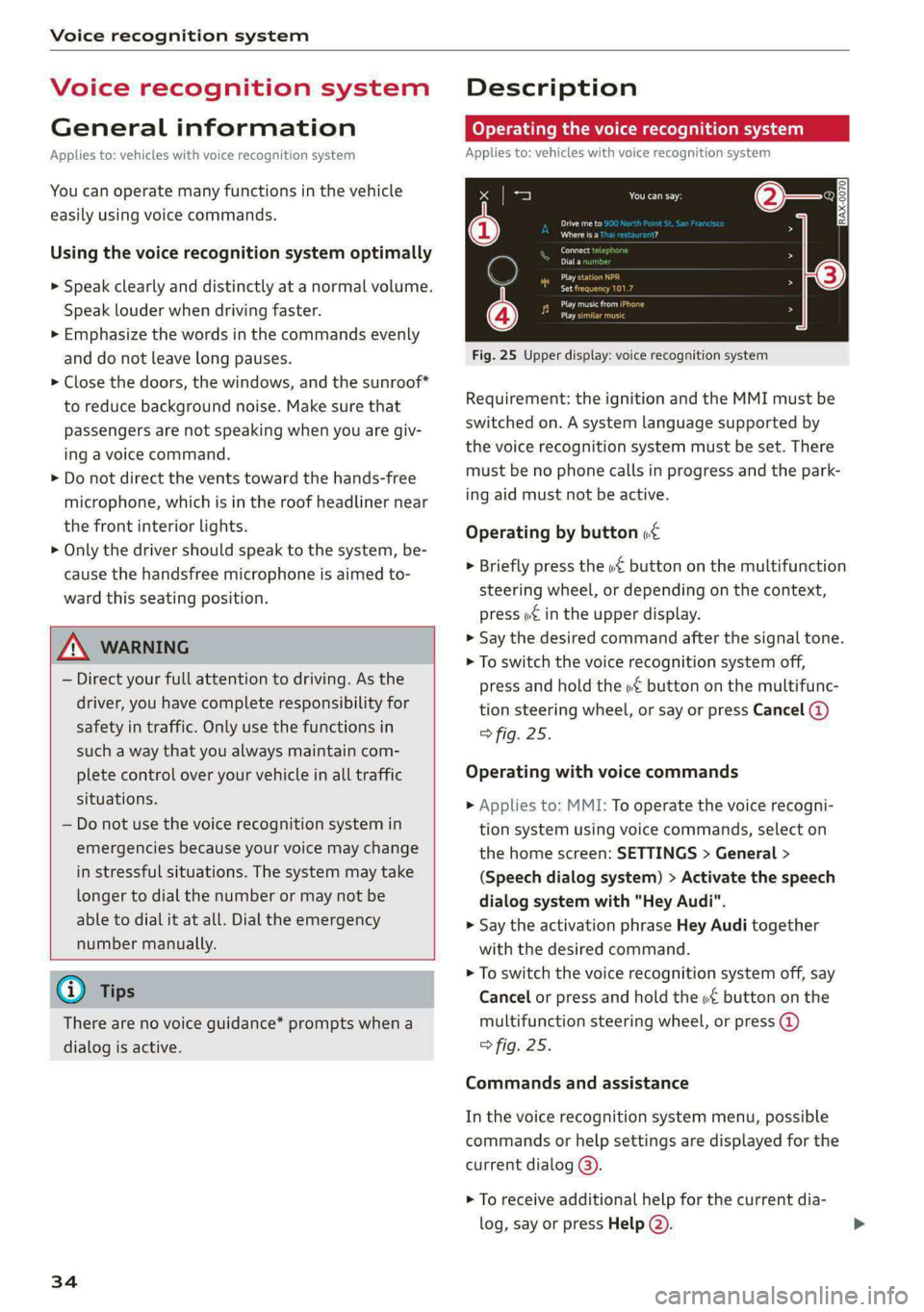
Fig. 25 Upper display: voice recognition system
Requirement: the ignition and the MMI must be
switched on. A system language supported by
the voice recognition system must be set. There
must be no phone calls in progress and the park-
ing aid must not be active.
Operating by button «¢
> Briefly press the «€ button on the multifunction
steering wheel, or depending on the context,
press we in the upper display.
> Say the desired command after the signal tone.
> To switch the voice recognition system off,
press and hold the «€ button on the multifunc-
tion steering wheel, or say or press Cancel (@)
> fig. 25.
Operating with voice commands
> Applies to: MMI: To operate the voice recogni-
tion system using voice commands, select on
the home screen: SETTINGS > General >
(Speech dialog system) > Activate the speech
dialog system with "Hey Audi".
> Say the activation phrase Hey Audi together
with the desired command.
> To switch the voice recognition system off, say
Cancel or press and hold the «£ button on the
multifunction steering wheel, or press @)
> fig. 25.
Commands and assistance
In the voice recognition system menu, possible
commands or help settings are displayed for the
current dialog @).
> To receive additional help for the current dia-
log, say or press Help (2).
Page 39 of 362
![AUDI A8 2021 User Guide 4N0012721BF
Global functions
Global functions
Additional function
buttons
Fig. 26 Right side of the multifunction steering wheel
{ 58-0431]
Fig. 27 MMI On/Off knob with joystick functi](/img/6/57605/w960_57605-38.png "AUDI A8 2021 User Guide 4N0012721BF
Global functions
Global functions
Additional function
buttons
Fig. 26 Right side of the multifunction steering wheel
{ 58-0431]
Fig. 27 MMI On/Off knob with joystick functi")
4N0012721BF
Global functions
Global functions
Additional function
buttons
Fig. 26 Right side of the multifunction steering wheel
{ 58-0431]
Fig. 27 MMI On/Off knob with joystick function
Adjusting the volume
You can adjust the volume of an audio source or a
system message (for example, from the voice
recognition system) when the sound is playing.
> To increase or decrease the volume, turn the
right
thumbwheel @) © fig. 26 upward or
downward, or turn the On/Off knob @) 9 fig. 27
to the right or left.
> To mute, push the right thumbwheel or the
On/Off knob.
Selecting the previous/next track or station
> Press the <1 / DPI button @ or briefly press
the On/Off knob to the left/right.
Fast forward/rewind
> Press and hold the ld<1/ DD] button @, or
press the On/Off knob to the left or right until
the desired playback position is reached.
Quick access steering wheel button
Depending on vehicle equipment, the button @)
may provide quick access to various functions.
You can program the >K button with various func-
tions.
> To bring up the function that is currently set,
press the 3K button.
> To perform the function that is currently set,
press and hold the >K button, or:
> Applies to MMI: Select on the home screen: VE-
HICLE > Settings & Service > Steering wheel
button assignment.
» Select and confirm the desired function.
Switching the voice recognition system on or
off
w& button @), see > page 34.
Using the telephone functions
F button @), see > page 215.
ZA WARNING
Adjust the volume of the audio system so that
signals from outside the vehicle, such as po-
lice and fire sirens, can be heard easily at all
times.
37
Page 40 of 362
Personalization
Personalization
Users
(eT e e eeu)
Applies to: vehicles with personalized user settings
Depending on vehicle equipment and your coun-
try, your vehicle may be able to manage various
users in the MMI. Each user will be assigned the
settings that they last used.
Before you begin driving, you can select a user in
the MMI and load personalized Infotainment and
vehicle settings.
Possible users in the MMI:
— myAudi user: as a myAudi user, you can use
Audi connect services that require a myAudi ac-
count. Certain settings are transferred online to
your myAudi account. If you log into your
myAudi account in another vehicle, you can
load your settings in the other vehicle.
— Local user: as a local user, you can only store
settings in the current vehicle. Your settings
cannot be transferred to other vehicles. Audi
connect services that can only be used with a
myAudi account will not be available.
— Guest: as a guest, you can store settings in the
vehicle without changing the settings for other
users. Audi recommends only using the guest
user temporarily, because settings can be over-
written by other users.
Depending on vehicle equipment, the following
options may be used to detect the active user so
that the user settings can be loaded automatical-
ly before you start driving.
— Vehicle key
Requirement: the driver's door has been opened.
The detected user must be shown in the MMI.
Confirm the user shown, select another user
= page 38, or add another user > page 38.
ZA\ WARNING
It may not be possible to load Infotainment
and vehicle settings, or they may only load
partially. The driver is always responsible for
the Infotainment and vehicle settings in order
to reduce the risk of an accident.
38
G) Tips
— Certain Infotainment and vehicle settings
(such as mirrors, last radio stations) may be
stored, depending on vehicle equipment.
You can find additional information in the
MMI. Select on the home screen: SETTINGS
> General > Legal notes > About Audi con-
nect.
— Applies to: myAudi users: The stored set-
tings can only be transferred to vehicles
that are capable of receiving the transmit-
ted information. There may be restrictions
that prevent this, particularly in other coun-
tries.
— Applies to: myAudi users: The settings can
only be transferred and loaded when there
is coverage from the applicable mobile
phone service provider.
— Applies to: myAudi users with PIN protec-
tion switched on: If the MMI displays a de-
tected user but you simply start driving or
wait without entering the 4-digit PIN, then
the guest user will be selected. Some set-
tings for the detected myAudi user will be
transferred to the guest user.
OTe le le (a4
Applies to: vehicles with user management
Opening user management
Applies to: MMI
> Press USER on the home screen.
Selecting a user
Applies to: MMI
> Press on the desired user.
> Enter the 4-digit myAudi PIN, if necessary.
Adding myAudi users
Applies to MMI and Audi connect
Requirement: you must have successfully regis-
tered at my.audi.com and have created a 4-digit
myAudi PIN.
> Press Add user.
> Press Log in now to log in with your myAudi
credentials.
> Follow the system instructions.
Page 43 of 362
4N0012721BF
Opening and closing
Opening and closing
Central locking
General information
Z\ WARNING
— If you leave the vehicle, switch the ignition
off and take the key with you. This applies
particularly when children remain in the ve-
hicle. Otherwise, children could start the ve-
hicle or operate electrical equipment (such
as power windows), which increases the risk
of an accident.
— Applies to vehicles with anti-theft alarm sys-
tem: When the vehicle is locked from the
outside, no one - especially children - should
remain in the vehicle, because the windows
can no longer open from the inside
=> page 44, Anti-theft alarm system.
Locked doors make it more difficult for
emergency workers to enter the vehicle,
which puts lives at risk.
All doors and the luggage compartment lid can
be centrally unlocked and locked at once. You can
select in the MMI if the entire vehicle or only the
driver's door should unlock when unlocking the
vehicle > page 42. The turn signals flash twice
when you unlock the vehicle and flash once when
you lock the vehicle. If they do not flash when
locking, check if all doors and lids are closed.
Depending on the vehicle equipment, you may
have different options for centrally unlocking and
locking your vehicle.
— Vehicle key > page 46
— Sensors in the door handles > page 46
— Lock cylinder in the driver's door > page 44
— Interior central locking switch > page 43
Vehicle key
The term “vehicle key” refers to the remote con-
trol key or convenience key*. The convenience
key* is a remote control key with special func-
tions > page 46 and > page 107.
Power closing*
When closing a door or the luggage compart-
ment lid, you only have to Let it fall lightly into
the latch. It then closes automatically > A.
Automatic locking
If you unlock the vehicle but then do not open
any of the doors, the luggage compartment, or
the hood within a short period time, the vehicle
locks again automatically. This feature prevents
the vehicle from being accidentally left unlocked
for a long period of time.
Automatic locking (Auto Lock)
The Auto Lock function locks all doors and the
luggage compartment lid once the speed has ex-
ceeded approximately 9 mph (15 km/h). The ve-
hicle will unlock again if the unlock function in
the central locking switch is pressed, the “P” gear
is engaged, or the ignition is switched off.
You can open the doors individually from the in-
side by pulling the door handle one time. To open
the rear doors individually, you must pull the
door handle twice.
In the event of a crash with airbag deployment,
the doors will also automatically unlock to allow
access to the vehicle.
Unintentionally locking yourself out
Only lock your vehicle when all of the doors and
the luggage compartment lid are closed and
there is no key in the vehicle. This reduces the
risk of locking yourself out accidentally.
The
following features help to reduce the risk of
locking your vehicle key in the vehicle:
— If the driver's door is open, the vehicle cannot
be locked by pressing the & button on the re-
mote control key or by touching the locking
sensor* on a door.
— If the vehicle key that was used most recently is
inside the luggage compartment, the luggage
compartment lid will automatically open again
after it closes > ©.
— If the vehicle key that was last used is detected
inside the vehicle, then the vehicle cannot be
locked from the outside > ©.
41