service AUDI E-TRON 2020 Owners Manual
[x] Cancel search | Manufacturer: AUDI, Model Year: 2020, Model line: E-TRON, Model: AUDI E-TRON 2020Pages: 316, PDF Size: 85.96 MB
Page 201 of 316
4KE012721BE
Navigation
Online search!)
Applies to: vehicles with navigation system and online search
You can use the results from a search engine pro-
vider to find a navigation destination.
Requirement: the MMI must be connected to the
Internet > page 187, Audi connect.
> Applies to: MMI: Select on the home screen:
NAVIGATION > © > G.
> Enter one or more search terms into the input
field.
> The search engine provider shows suggestions
© to narrow down the search.
> Press on suggestions until the desired destina-
tion appears in the results list. If necessary, use
one finger to swipe upward or downward until
the suggestions {© or destinations 9 appear.
> Press on the desired destination 9. The Details
menu will be displayed.
> Press Start.
Route guidance will be activated and the map will
be displayed. > page 203, fig. 142
@) Note
Read the information about Audi connect, and
be sure to note the connectivity costs section
=@ in General information on page 187.
G) Tips
— The MMI input suggestions depend on the
last navigated destinations.
— The navigation system always searches for
the fastest route. You can have alternative
routes displayed if necessary > page 206.
— If the destination cannot be found, it may
not be stored in the navigation database.
Check
the spelling of the term that was
searched or check the search area
=> page 198.
)) Audi provides access to services from third party provid-
ers. Permanent availability cannot be guaranteed, because
that depends on the third party provider.
Entering an address
Applies to: vehicles with navigation system
As an alternative to the intelligent search, you
can also enter an address in stages.
Opening a menu
> Applies to: MMI: Select on the home screen:
NAVIGATION > (a) > Enter address.
Enter a destination using an address
> Press on the respective input field and enter an
address.
> Press Apply. The Details menu will be dis-
played.
> Press Start.
Route guidance will be activated and the map will
be displayed > page 203, fig. 142.
Destination entry for a street intersection
> Select: Intersection > enter a street > Start.
Loading previous destinations
Applies to: vehicles with navigation system
Your last destinations and routes can be loaded
directly as a navigation destination.
As soon as you start route guidance, the destina-
tion is automatically saved in the last destina-
tions. Your previous destinations are marked with
the © symbol.
If you use myAudi navigation, your previous des-
tinations will be synchronized with your myAudi
account > page 197.
Accessing previous destinations
> Applies to: MMI: Select on the home screen:
NAVIGATION > (5) > Last destinations > a des-
tination > Start.
> Applies to: Multifunction steering wheel: Select
in the instrument cluster: Navigation tab >
button > Last destinations > a destination.
199
>
Page 210 of 316
Navigation
= page 187, Audi connect. Route guidance must
be active, you must be close to your destination,
and a notification must be displayed. Or: a point
is marked on the map.
> Press on the notification. Or: press on §j on the
map.
> To navigate to a parking: space, press on a col-
ored marking on the map.
> Select: F2 > Start.
Depending on availability, colored markings on
the map indicate the probability of open parking
spaces.
Green | High probability
Medium probability
Orange
Red Low probability
Read the information about Audi connect, and
be sure to note the connectivity costs section
=@ in General information on page 187.
Satellite map
Applies to: vehicles with navigation system and satellite map
Using map update online, you can update the
map material in your navigation system directly
from your vehicle.
Requirement: the MMI must be connected to the
Internet > page 187, Audi connect.
> Applies to: MMI: Select on the home screen:
NAVIGATION > ©} > Map settings > Satellite
map).
The map view is based on data packets received
from the Internet in the form of satellite images,
which are then combined with the roadways from
the > page 203, fig. 142 standard map view.
D Audi provides access to services from third party provid-
ers. Permanent availability cannot be guaranteed, because
that depends on the third party provider.
208
Read the information about Audi connect, and
be sure to note the connectivity costs section
=>@© in General information on page 187.
—The satellite map) is updated regularly
whenever the function is opened. The proc-
ess may take several seconds.
— When the satellite map display is switched
on ) with the 3D position map type, the dis-
play automatically switches to the 2D map
type when driving through tunnels.
— Depending on the Internet connection, the
standard map may also be displayed when
the satellite map is switched on ).
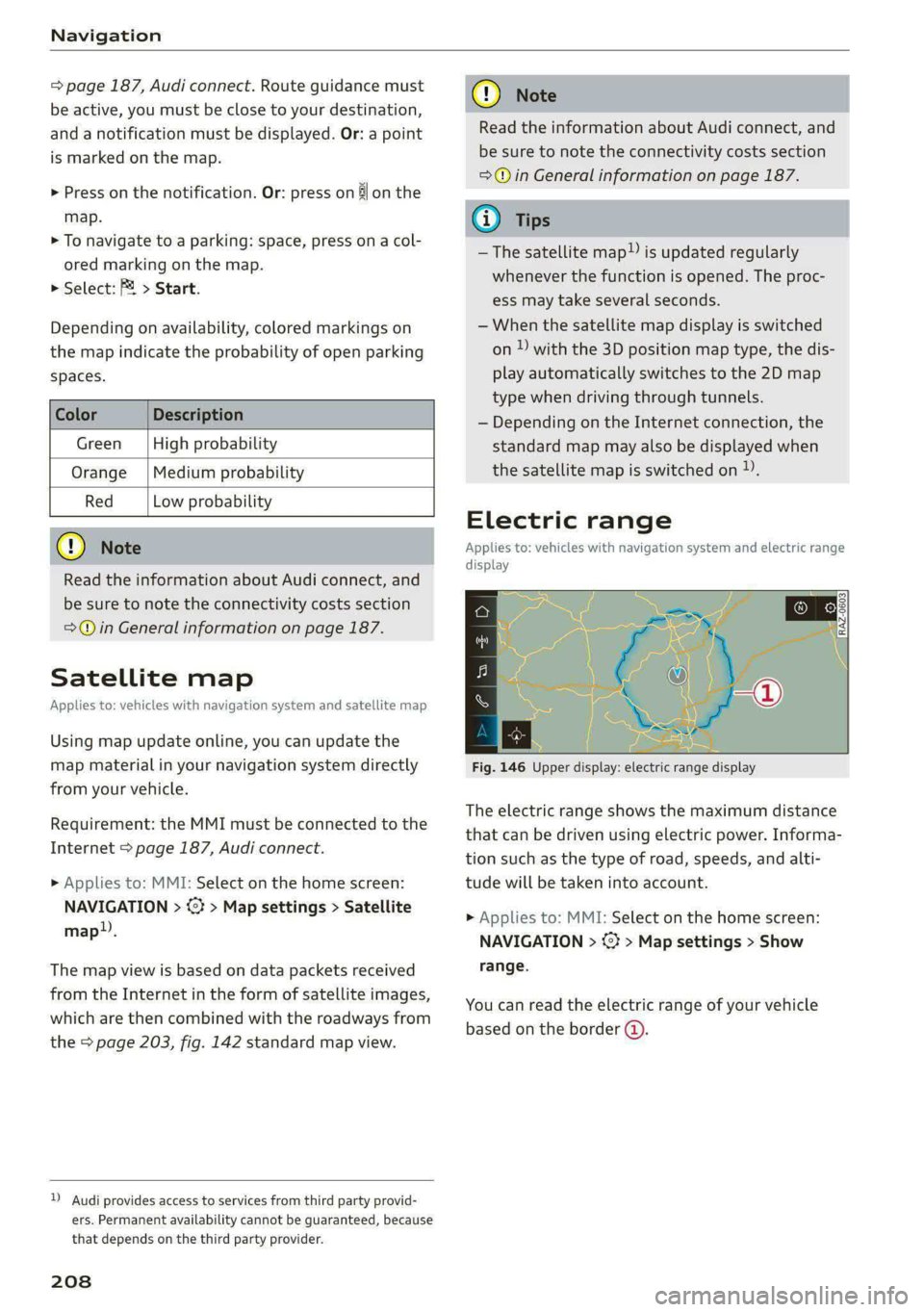
Electric range
Applies to: vehicles with navigation system and electric range
display
a
Fig. 146 Upper display: electric range display
The electric range shows the maximum distance
that can be driven using electric power. Informa-
tion such as the type of road, speeds, and alti-
tude will be taken into account.
» Applies to: MMI: Select on the home screen:
NAVIGATION > 3 > Map settings > Show
range.
You can read the electric range of your vehicle
based on the border (@).
Page 211 of 316
4KE012721BE
Navigation
Map update
Applies to: vehicles with navigation system
You can update the map data in the MMI with a
map update. The functions depend on the coun-
try and vehicle equipment:
— Map updates through online map update
=> page 209.
— Import map updates from the SD card or USB
connection to your MMI & page 209.
— Map update at an authorized Audi dealer or au-
thorized Audi Service Facility. This can result in
additional costs.
Online map update
Applies to: vehicles with MMI, navigation system, and Audi
connect Infotainment
Using map update online, you can update the
map material in your navigation system directly
from your vehicle.
Using your vehicle position, the MMI identifies
regions which you are frequently in. Based on
this, update data for these regions are available
for your MMI.
Start map update
Applies to: MMI
Requirement: the MMI must be connected to the
Internet > page 187, Audi connect.
> A notification for a map update will appear in
the upper display.
> If the option Automatic online map update
= page 210 is switched on, the MMI will start
the map update. Or:
> Press on the notification. Or: access the notifi-
cation in the notification center on > page 19
and press on the notification.
> If the Automatic online map update option
=> page 210 is switched off, press on Allow
once or Always allow.
The MMI will start the map update. The progress
of the download and installation will be shown in
the upper display.
When the update has ended, a notification will
be displayed.
() Note
Read the information about Audi connect, and
be sure to note the connectivity costs section
=@ in General information on page 187.
@) Tips
Because of the high volume of data, Audi rec-
ommends performing the map update using
the USB connection = page 209.
Map update using an SD card or USB
connection
Applies to: vehicles with MMI, navigation system, and Audi
connect Infotainment
With the map update, you can update the map
material in your navigation system.
Requirement: you must have created a myAudi
account at my.audi.com. Your vehicle must be
registered in your myAudi account.
Prepare map update
> Download the map update at my.audi.com and
store it on an SD card or ona USB flash drive.
For additional information, visit my.audi.com.
Start map update
> Insert the SD card in your vehicle’s SD card
reader > page 222, or
> Connect the USB flash drive to the Audi music
interface interface > page 225. A notification
for a map update will appear in the upper dis-
play.
> Press on the notification, or
> Open the notification in the notification center
on > page 19 and press on the notification. The
update package is shown.
> Press Next. The installation status is shown in
the upper display.
> When the update has ended, a notification will
be displayed.
209
Page 213 of 316
4KE012721BE
Navigation
Requirement: the MMI must be connected to the
Internet > page 187, Audi connect. Traffic infor-
mation must be switched on in the MMI
> page 211.
Traffic information will be displayed on the
standard map > page 203, fig. 142.
Online traffic information is also displayed on the
standard map > page 208.
©) Note
Read the information about Audi connect, and
be sure to note the connectivity costs section
=@ in General information on page 187.
@ Tips
— Having the online traffic information func-
tion switched on provides the most accurate
reports of traffic situations and traffic fore-
casting. Your vehicle transmits and process-
es its anonymous, encrypted position infor-
mation at regular intervals to the traffic da-
ta provider. You can switch off data transfer
at any time > page 289.
— The online traffic information network is
not available in all countries, and the cover-
age is not nationwide.
Options and settings
Applies to: vehicles with navigation system
Context-specific functions and settings may be
available depending on the vehicle equipment.
» Press More, or
> Open a list with navigation destinations (such
as recent destinations) and press and hold an
item until the Options menu is displayed.
Storing a favorite
See > page 206.
Edit address
You can edit an address for the next destination
entry and navigate to the destination. Select: Ed-
it address > enter a street > Use address > Start.
If the address is permanently stored (for exam-
ple, in the favorites), the stored entry will not be
changed.
Change address
See > page 206, Favorites.
Entering an address
See > page 207, Contacts as navigation destina-
tions.
Change name
See > page 206, Favorites.
Weather
See > page 189, Services.
Save as a shortcut
See > page 20, Shortcuts.
Applies to: vehicles with navigation system
You can adjust the navigation system settings in
the instrument cluster and in the MMI display
separately. The settings depend on the country
and vehicle equipment.
Accessing settings
> Applies to: MMI: Select on the home screen:
NAVIGATION > ©}.
Accessing settings using the multifunction
steering wheel
> Applies to: Multifunction steering wheel: Select
in the instrument cluster: Navigation tab >
button.
Please note that a setting applied to the multi-
function steering wheel is only valid for the in-
strument cluster map.
Map settings
Satellite map: see > page 208.
Show range: see > page 208.
Traffic: you can display current traffic informa-
tion on the map. See > page 204, Traffic infor-
mation display on the map or map preview
— Free flow of traffic
211
Page 220 of 316

Radio
> Press on the notification, or
> Open the notification in the notification center
on > page 19 and press on the notification.
Managing SiriusXM alerts
Requirement: a SiriusXM alert must be stored.
> Applies to: MMI: Select on the home screen:
RADIO > (3 > Manage SiriusXM alerts > Select-
ed SiriusXM music alerts/Selected SiriusKM
game alerts.
When the function is switched on M, a SiriusXM
alert will be received.
Deleting SiriusXM alerts
> Select: Selected SiriusXM music alerts/Select-
ed SiriusXM game alerts > Z > one or more
alerts or Select all > Delete > (Done).
Online radio
General information
Applies to: vehicles with Audi connect Infotainment and on-
line radio
You can listen to various radio stations or pod-
casts on the Internet using online radio.
Requirement: the MMI must be connected to the
Internet > page 187, Audi connect.
Opening online radio using the MMI
> Applies to: MMI: Select on the home screen:
RADIO > Source > Online.
The following functions are available:
Search
You only can search for online radio stations in
this search. You can search for station names and
categories.
Last played station
The station that was played last will start play-
ing.
Top stations
Select a station from the list of popular online ra-
dio stations.
218
Filter list
> Select: © > (a category) > a station name.
The following categories are available:
— Countries
— Genres
— Languages
C) Note
Read the information about Audi connect, and
be sure to note the connectivity costs section
=@ in General information on page 187.
G) Tips
— Depending on the Internet connection and
network traffic, the connection may be lost
when online radio is playing.
— Online radio reception may not be possible
if Internet service is throttled.
— The use of online radio depends on the serv-
ice availability of the third party provider.
— The range and screen display of online me-
dia services from third party providers in the
vehicle can vary.
— AUDI AG only provides access to online radio
and does not assume any responsibility for
the content of these services.
Applies to: vehicles with Audi connect Infotainment and on-
line radio
Opening podcasts using the MMI
> Applies to: MMI: Select on the home screen:
RADIO > Source > Online > Podcasts.
The following functions are available:
Listening to a podcast
> Select: a podcast > a podcast episode.
Search
> Press 2.
The following functions are available in the pod-
cast playback view:
Displaying podcast episodes
> Press List.
Page 226 of 316
Media
— The supported media functions (such as
shuffle, list view, categories, search, op-
tions) depend on the Bluetooth device being
used.
— Note the volume setting on your Bluetooth
device. AUDI AG recommends setting your
mobile device to the maximum volume
when using it as a Bluetooth audio player.
—Aselection of supported Bluetooth devices
can be found in the database for tested mo-
bile devices at www.audi.com/bluetooth.
Online media
Applies to: vehicles with Audi connect Infotainment and on-
line media
You can play and operate various online media
services, such as music streaming services, using
the MMI.
Requirement: a supported online media service
must be available in the country where the vehi-
cle is being operated.
Connect online media
> Connect the MMI to the Internet > page 187.
> Switch on the Wi-Fi hotspot in the MMI
=> page 192.
> Applies to: MMI: Select on the home screen:
MEDIA > Source > Connect online media.
> Switch the Wi-Fi function on in your mobile de-
vice and connect it to the MMI Wi-Fi hotspot
=> page 188.
> Install and start the myAudi app on your mo-
bile device.
> Log in to your myAudi account in the myAudi
app and select your vehicle.
Your mobile device must be connected to the
MMI and must be highlighted. When you press
the highlighted device, it will be disconnected.
Starting online media
> Applies to: MMI: Select on the home screen:
MEDIA > Source. All online media services sup-
ported in your country will be displayed.
>» Press on the desired online media service and
follow the system instructions.
224
ZA WARNING
—To reduce the risk of an accident, only use
Audi connect services and the Wi-Fi hotspot
only if the traffic situation permits it. Read
and follow the guidelines provided in
=> page 17, Traffic safety information.
— It is only safe to use tablets, laptops, mobile
devices and other similar devices when the
vehicle is stationary because, like all loose
objects, they could be thrown around the in-
side of the vehicle in a crash and cause seri-
ous injuries. Store these types of devices se-
curely while driving. Also read the warnings
in the chapter > page 65.
@) Note
— Read the information about Audi connect,
and be sure to note the connectivity costs
section >@ in General information on
page 187.
— There generally are additional costs when
using an online media service account, espe-
cially when it is used internationally.
(i) Tips
— Depending on the Internet connection and
network traffic, the connection may discon-
nected when online media sources are play-
ing.
— Online media usage depends on the service
availability of the third party provider.
— Audi AG simply makes the access to online
media services possible through the MMI
and does not take any responsibility for the
contents of the online media services.
— Depending on the mobile device being used,
there may be interruptions during media
playback and when using the myAudi app.
To avoid interruptions, do not lock the
screen on your mobile device and keep the
myAudi app in the foreground.
Page 228 of 316
— Pull the cable out of the Audi music inter-
face carefully so that the USB ports are not
damaged.
— Use a USB extension cable to connect devi-
ces that have an integrated USB connector
(such as a USB stick) to reduce the risk of
damage to your USB device and the Audi
music interface.
— Extremely high or low temperatures that
can occur inside vehicles can damage mobile
devices and/or impair their performance.
Never leave mobile devices in the vehicle in
extremely high or low temperatures.
@ Tips
— Always follow the information found in
=> page 75.
— When you switch the ignition off, the USB
ports are still supplied with power until the
energy management intervenes.
— Do not use an additional adapter or USB ex-
tension cable to connect mobile devices to
the Audi music interface that already have a
cable or that must be connected with a USB
adapter > page 225, fig. 152. Using an ad-
ditional adapter or US extension cable may
impair functionality.
— Functionality is not guaranteed for mobile
devices that do not conform to the USB 2.0
specification.
— USB hubs are not supported.
— Video playback through the Audi music in-
terface is not supported on Apple and MTP
devices (such as smartphones).
— iPod or iPhone malfunctions also affect the
operation of the MMI. Reset your mobile de-
vice in these situations.
— Audi recommends updating the iPod or
iPhone software to the latest version. Refer
to your mobile device owner's manual for
more information.
— The USB adapter on the Audi music inter-
face will support iPod touch or iPhone devi-
ces from the 5th generation or newer with
the lightning connector.
226
—Aselection of supported devices can be
found in the database for tested mobile de-
vices at www.audi.com/mp3.
Playing media
The following sources can be selected depending
on the vehicle equipment:
— Amazon Alexa > page 225.
-—SD card > page 222.
— USB > page 225.
— DVD drive > page 223.
— Connect external device: you can connect ex-
ternal devices via Bluetooth and use the Blue-
tooth audio player > page 223, or you can con-
nect
an external device directly to the Audi mu-
sic interface > page 225.
— Connect online media > page 224.
PN matte)
Playing media files using the MMI
> Applies to: MMI: Select on the home screen:
MEDIA > Source > a source. Depending on the
connected device or online media service*, the
symbol for a source may change. The device
name may be displayed (for example: my-
Phone).
> Select a track from the categories in the media
center > page 227.
Playing media files using the multifunction
steering wheel
Requirement: a media drive must contain media
files > page 226.
> Select the Radio/Media tab using the multi-
function steering wheel.
> Turn the left thumbwheel to display the play-
list.
> To switch to a different source, press the
button.
> To select a media file or a source, turn and
press the left thumbwheel.
> To switch between radio and media, select:
button > Switch to radio/Switch to media. >
Page 229 of 316
4KE012721BE
Media
@) Tips
— For safety reasons, the video image is only
displayed when the vehicle is stationary. On-
ly the sound from the video plays while driv-
ing.
— Applies to: Multifunction steering wheel:
Depending on the selected function, it may
be necessary to use the MMI.
Media center
3 g
S
Ig es
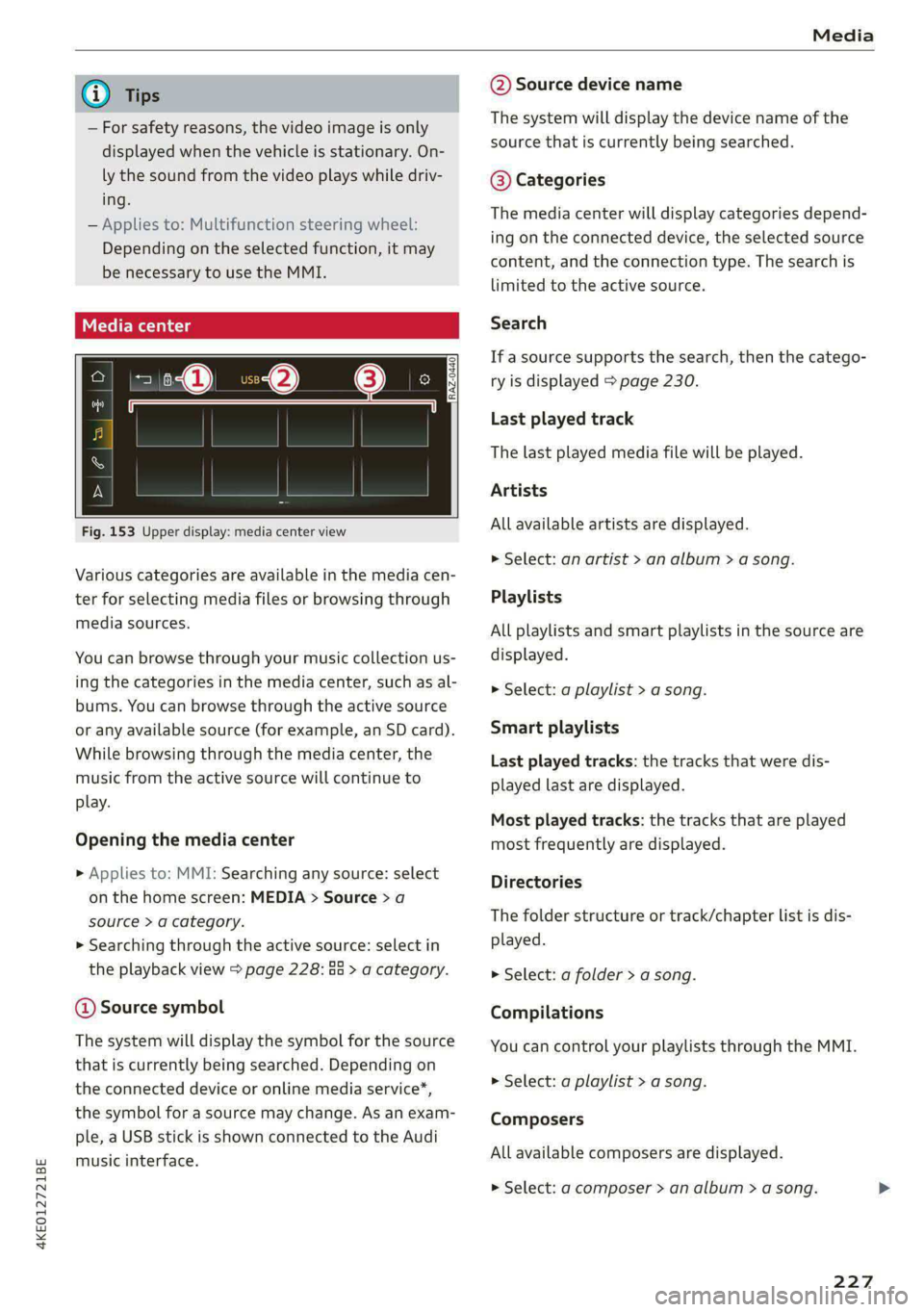
Fig. 153 Upper display: media center view
Various categories are available in the media cen-
ter for selecting media files or browsing through
media sources.
You can browse through your music collection us-
ing the categories in the media center, such as al-
bums. You can browse through the active source
or any available source (for example, an SD card).
While browsing through the media center, the
music from the active source will continue to
play.
Opening the media center
> Applies to: MMI: Searching any source: select
on the home screen: MEDIA > Source > a
source > a category.
> Searching through the active source: select in
the playback view > page 228: a8 > a category.
@ Source symbol
The system will display the symbol for the source
that is currently being searched. Depending on
the connected device or online media service”,
the symbol for a source may change. As an exam-
ple, a USB stick is shown connected to the Audi
music interface.
@ Source device name
The system will display the device name of the
source that is currently being searched.
@ Categories
The media center will display categories depend-
ing on the connected device, the selected source
content, and the connection type. The search is
limited to the active source.
Search
If a source supports the search, then the catego-
ry is displayed > page 230.
Last played track
The last played media file will be played.
Artists
All available artists are displayed.
>» Select: an artist > an album > a song.
Playlists
All playlists and smart playlists in the source are
displayed.
> Select: a playlist > a song.
Smart playlists
Last played tracks: the tracks that were dis-
played last are displayed.
Most played tracks: the tracks that are played
most frequently are displayed.
Directories
The folder structure or track/chapter list is dis-
played.
> Select: a folder > a song.
Compilations
You can control your playlists through the MMI.
> Select: a playlist > a song.
Composers
All available composers are displayed.
> Select: ad composer > an album > a song.
227
Page 230 of 316
Media
Radio
> Press on a radio station.
Audio books
You can control your audio books on the MMI.
>» Press on an audio book.
Podcasts
You can control your podcasts through the MMI.
> Select: a podcast > a podcast episode.
Genres
All available genres are displayed.
» Select: a genre > an artist > an album > a song.
Videos
All available video files are displayed.
> Press on a video.
Tracks
All available tracks are displayed.
> Press ona track.
Albums
All available albums are displayed.
> Select: an album > a track.
C) Note
Applies to: vehicles with Audi connect Infotainment
— Cloud services and category radio always re-
quire an Internet connection.
— Read the information about Audi connect,
and be sure to note the connectivity costs
section >@ in General information on
page 187.
Gi) Tips
— Only the categories supported by the medi-
um are available.
— For safety reasons, the video image is only
displayed when the vehicle is stationary. On-
ly the sound from the video plays while driv-
ing.
— When synchronizing a portable device with
Cloud services, playlists may display incor-
rectly in the MMI. Use the media center in
the device.
— Applies to: iPod/iPhone: Also read the infor-
mation on the Audi music interface and the
supported devices > page 225.
RAX-0098
Asse)
Hymn
Bere deer
Ait)
Orchestra
Pd
Orchestra
rs
@
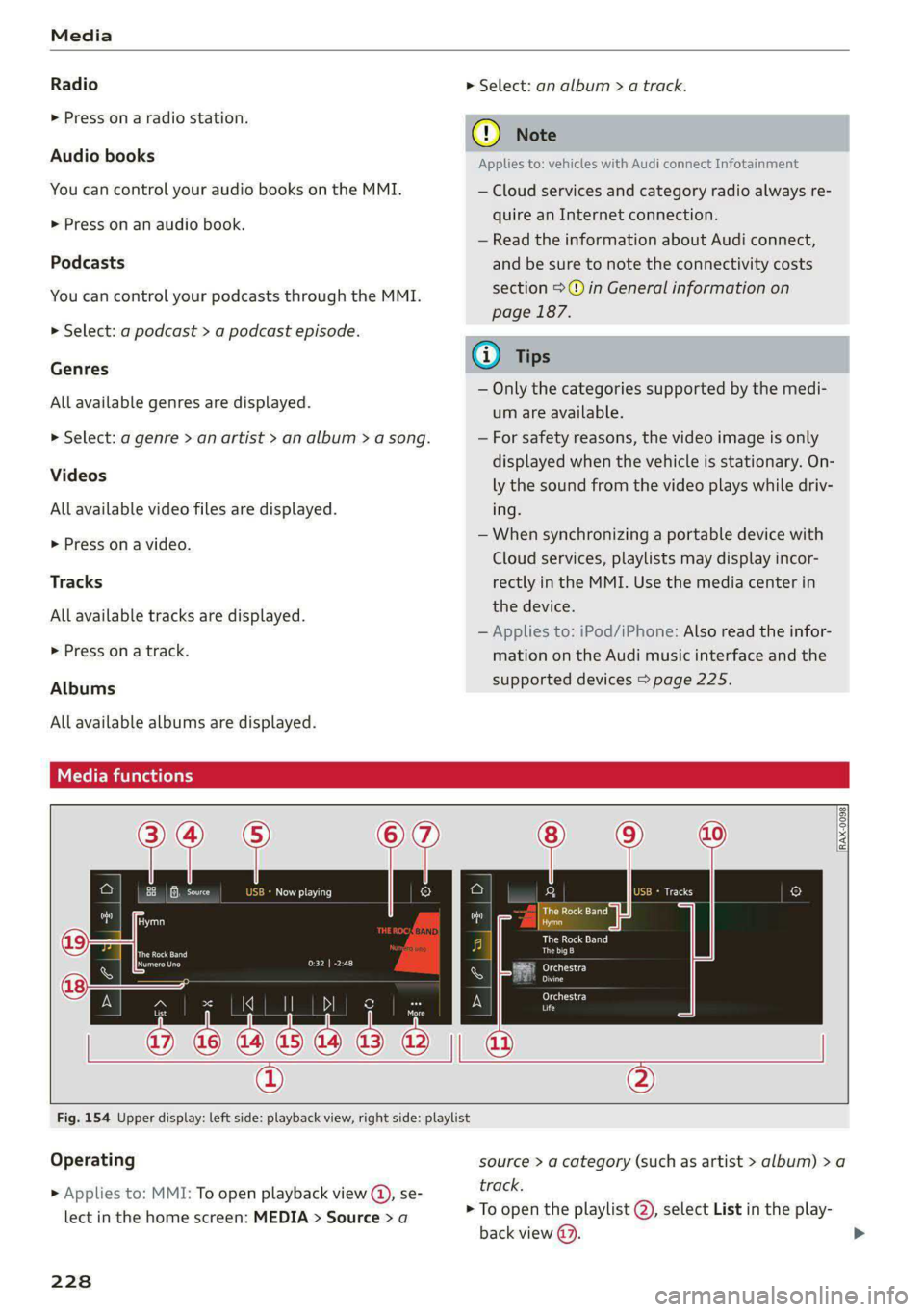
Fig. 154 Upper display: left side: playback view, right side: playlist
Operating
> Applies to: MMI: To open playback view @), se-
lect in the home screen: MEDIA > Source > a
228
source > a category (such as artist > album) >a
track.
> To open the playlist , select List in the play-
back view @.
Page 236 of 316
Audi smartphone interface
Audi smartphone
interface
Setup
Applies to: vehicles with Audi smartphone interface
You can connect your smartphone to the MMI
with a cable or wirelessly* using the Audi smart-
phone interface. Certain content on your smart-
phone is adapted in the MMI while driving and
can be operated through the MMI.
Requirement: the vehicle must be stationary and
the ignition must be switched on. iPhone genera-
tion 5 or higher with Lightning connector and iOS
7.1.2 operating system or higher, or smartphone
with Android Auto app and Android 5.0 Lollipop
operating system or higher.
> Applies to: MMI: Select on the home screen:
SETTINGS > Connected devices > Audi smart-
phone interface > New connection.
> Connect your smartphone to the Audi music in-
terface > page 225 using a USB adapter
=> page 225, fig. 152, or
> To connect your iPhone wireless*, switch on the
Bluetooth function and Wi-Fi on your iPhone.
Open the CarPlay settings in your iPhone. In the
MMI, press on your iPhone in the list of dis-
played devices.
> To update the list, press O.
> Follow the system instructions.
> Pay attention to any additional system prompts
on your smartphone, if applicable.
> Applies to: MMI: If you declined usage of Apple
CarPlay or Android Auto the first time you con-
nected your smartphone, select in the home
screen: SETTINGS > Connected devices > Audi
smartphone interface > a smartphone.
> Follow the system instructions.
Z\ WARNING
Driving requires your complete and undivided
attention. As the driver, you have complete re-
sponsibility for safety in traffic. Never operate
mobile devices while driving, because this in-
creases the risk of an accident.
234
@) Note
Read the information about Audi connect, and
be sure to note the connectivity costs section
=> page 187.
@) Tips
— The functions that can be used depend on
the following factors, among others:
— The brand of your smartphone
— The version of the operating system in
your smartphone
— The software version of the app used
— The USB adapter cable and correct connec-
tion
— Your cell phone service provider
— The customized settings on your smart-
phone
— One of the factors above or a combination
of any of them could cause your smart-
phone to be incompatible with the Audi
smartphone interface. Compatibility cannot
be guaranteed for all types of smartphones.
For more information and assistance, refer
to the user guide and the manufacturer of
your smartphone.
— Please note that you can only connect your
smartphone via the front Audi music inter-
face in order to use the Audi smartphone in-
terface.
— Wireless CarPlay* is not available in all
countries.
— Wireless CarPlay* is only possible in vehicles
without a navigation system if the following
requirement is met: the embedded SIM card
for the vehicle must be logged into the mo-
bile phone network > page 187. Make sure
the function > page 183, Turn on car phone
or data module is switched on.
— If the connected smartphone has voice con-
trol, you can operate your smartphone using
the external voice recognition system
=> page 25.
— The menu language shown in the MMI is
based on the settings in your smartphone.
— Some MMI functions are not available when
there is an active Audi smartphone interface
connection.